
Spire.XLS for JavaScript (23)
Children categories
Protect or Unprotect Excel Workbooks with JavaScript in React
2025-01-27 07:05:58 Written by AdministratorAs businesses increasingly rely on web-based platforms for data manipulation and sharing, the ability to programmatically protect or unprotect Excel files becomes crucial. These security settings not only ensure sensitive information is shielded from unauthorized access but also facilitate seamless collaboration among team members by allowing controlled access to specific data sets. By leveraging JavaScript in React, developers can implement these features natively, providing a robust solution to manage data confidentiality and integrity directly within their applications. In this article, we will explore how to use Spire.XLS for JavaScript to protect and unprotect Excel workbooks using JavaScript in React applications.
- Password-Protect an Excel Workbook using JavaScript
- Protect an Excel Worksheet with Specific Permissions
- Set Editable Ranges when Protect an Excel Worksheet
- Unprotect an Excel Worksheet with JavaScript
- Reset or Remove the Password of an Encrypted Excel Workbook
Install Spire.XLS for JavaScript
To get started with protecting and unprotecting Excel files in a React application, you can either download Spire.XLS for JavaScript from our website or install it via npm with the following command:
npm i spire.office
The downloaded product package has been integrated Spire.Doc for JavaScript,Spire.XLS for JavaScript,Spire.PDF for JavaScript,Spire.Presentation for JavaScript. To use the functionality of Spire.XLS for JavaScript, you need to copy the corresponding files (spire.xls.js, Spire.Xls.Wasm.zip, spire.common.js, Spire.Common.Wasm.zip, and _framework) to the project's "public" folder. At the same time, in order to ensure text rendering, the related font files can be added with custom paths. In the following example, the font addition path is: public\static\font.
For more details, refer to the documentation: How to Integrate Spire.XLS for JavaScript in a React Project
Password-Protect an Excel Workbook using JavaScript
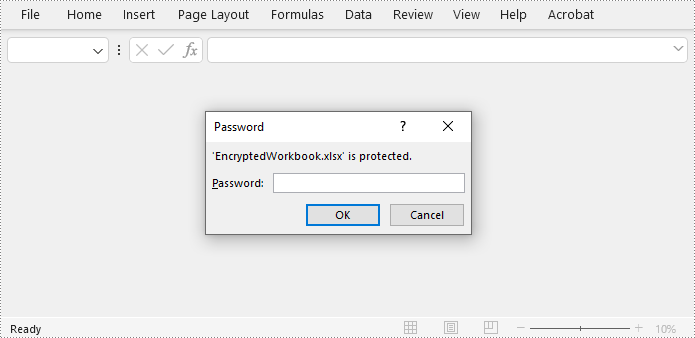
Spire.XLS for JavaScript offers the Workbook.Protect(filename: string) method to encrypt an Excel file with a password. This functionality allows developers to secure the entire Excel workbook. Below are the steps to implement this:
- Load the Spire.Xls.Base.js file to initialize the WebAssembly module.
- Load the Excel file to the virtual file system using the window.spire.FetchFileToVFS() method
- Create an instance of the Workbook class using the new wasmModule.Workbook() method.
- Load the Excel file to the Workbook instance using the Workbook.LoadFromFile() method.
- Protect the workbook with a password using the Workbook.Protect() method.
- Save the workbook to a file using Workbook.SaveToFile() method.
- Create a download link for the result file.
- JavaScript
import React, { useState, useEffect } from 'react';
function App() {
  const [wasmModule, setWasmModule] = useState(null);
  // Load Spire.XLS
  useEffect(() => {
    (async () => {
      try {
        const publicUrl = process.env.PUBLIC_URL || '';
        const spireModule = await import(/* webpackIgnore: true */ `${publicUrl}/spire.xls.js`);
        const rawModule = spireModule.default || spireModule;
        window.wasmModule = typeof rawModule === 'function'
          ? await rawModule({ locateFile: p => p.endsWith('.wasm') ? `${publicUrl}/${p}` : p })
          : rawModule;
        setWasmModule(window.wasmModule);
      } catch (error) {
        console.error('Failed to load spire.xls.js WASM module:', error);
      }
    })();
  }, []);

  //  Function to protect an Excel workbook with a password
  const EncryptExcel  = async () => {
    const wasmModule = window.wasmModule.spirexls;

    if (wasmModule) {
      // Load font into Virtual File System (VFS)
      await window.spire.FetchFileToVFS('Arial.ttf', '/Library/Fonts/', `${process.env.PUBLIC_URL}/static/font/`);


      // Load the Excel files into the virtual file system (VFS)
      let inputFileName = 'sample.xlsx';
      await window.spire.FetchFileToVFS(inputFileName, '', `${process.env.PUBLIC_URL}/static/data/`);


      // Create a new workbook
      let workbook = new wasmModule.Workbook();

      // Load an Excel document
      workbook.LoadFromFile({ fileName: inputFileName });

      // Encrypt the workbook with a password
      workbook.Protect('password')

      //Save result file
      const outputFileName = 'EncryptedWorkbook.xlsx';
      workbook.SaveToFile({ fileName: outputFileName, version: wasmModule.ExcelVersion.Version2016 });

      // Read the saved file and convert to Blob object
      const modifiedFileArray = window.dotnetRuntime.Module.FS.readFile(outputFileName);
      const modifiedFile = new Blob([modifiedFileArray], { type: 'application/vnd.openxmlformats-officedocument.spreadsheetml.sheet' });

      // Create a URL for the Blob and initiate download
      const url = URL.createObjectURL(modifiedFile);
      const a = document.createElement('a');
      a.href = url;
      a.download = outputFileName;
      document.body.appendChild(a);
      a.click();
      document.body.removeChild(a);
      URL.revokeObjectURL(url);

      // Clean up resources used by the workbook
      workbook.Dispose();
    }
  };

  return (
      <div style={{ textAlign: 'center', height: '300px' }}>
        <h1>Protect Excel Workbook Using JavaScript in React</h1>
        <button onClick={EncryptExcel} disabled={!wasmModule}>
          Encrypt and Download
        </button>
      </div>
  );
}

export default App;
Protect an Excel Worksheet with Specific Permissions
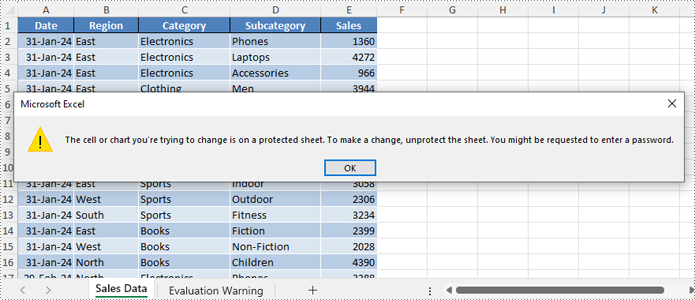
Spire.XLS for JavaScript enables developers to secure worksheets with specific permissions using the Worksheet.Protect() method, such as restricting edits while allowing formatting or filtering, or simply restricting all changes. The permissions are specified by the SheetProtectionType Enum class.
| Protection Type | Allow users to |
| Content | Modify or insert content. |
| DeletingColumns | Delete columns. |
| DeletingRows | Delete rows. |
| Filtering | Set filters. |
| FormattingCells | Format cells. |
| FormattingColumns | Format columns. |
| FormattingRows | Format rows. |
| InsertingColumns | Insert columns. |
| InsertingRows | Insert rows. |
| InsertingHyperlinks | Insert hyperlinks. |
| LockedCells | Select locked cells. |
| UnlockedCells | Select unlocked cells. |
| Objects | Modify drawing objects. |
| Scenarios | Modify saved scenarios. |
| Sorting | Sort data. |
| UsingPivotTables | Use the pivot table and pivot chart. |
| All | Do any operations listed above on the protected worksheet. |
| None | Do nothing on the protected worksheet. |
Follow these steps to protect a worksheet with specific permissions:
- Load the Spire.Xls.Base.js file to initialize the WebAssembly module.
- Load the Excel file into the virtual file system using the window.spire.FetchFileToVFS() method.
- Create a Workbook instance with the new wasmModule.Workbook() method.
- Load the Excel file into the Workbook using the Workbook.LoadFromFile() method.
- Retrieve the desired worksheet using the Workbook.Worksheets.get(index) method.
- Protect the worksheet and allow only filtering with the Worksheet.Protect(password, SheetProtectionType.None) method.
- Save the workbook using the Workbook.SaveToFile() method.
- Create a download link for the protected file.
- JavaScript
import React, { useState, useEffect } from 'react';
function App() {
  const [wasmModule, setWasmModule] = useState(null);
  // Load Spire.XLS
  useEffect(() => {
    (async () => {
      try {
        const publicUrl = process.env.PUBLIC_URL || '';
        const spireModule = await import(/* webpackIgnore: true */ `${publicUrl}/spire.xls.js`);
        const rawModule = spireModule.default || spireModule;
        window.wasmModule = typeof rawModule === 'function'
          ? await rawModule({ locateFile: p => p.endsWith('.wasm') ? `${publicUrl}/${p}` : p })
          : rawModule;
        setWasmModule(window.wasmModule);
      } catch (error) {
        console.error('Failed to load spire.xls.js WASM module:', error);
      }
    })();
  }, []);

  //  Function to protect an Excel worksheet with a password
  const EncryptExcelWorksheet = async () => {
    const wasmModule = window.wasmModule.spirexls;

    if (wasmModule) {
      // Load font into Virtual File System (VFS)
      await window.spire.FetchFileToVFS('Arial.ttf', '/Library/Fonts/', `${process.env.PUBLIC_URL}/static/font/`);


      // Load the Excel files into the virtual file system (VFS)
      let inputFileName = 'sample.xlsx';
      await window.spire.FetchFileToVFS(inputFileName, '', `${process.env.PUBLIC_URL}/static/data/`);


      // Create a new workbook
      let workbook = new wasmModule.Workbook();

      // Load an Excel document
      workbook.LoadFromFile({ fileName: inputFileName });

      // Get a worksheet
      const sheet = workbook.Worksheets.get(0);

      // Protect the worksheet with a specific permission
      sheet.Protect({ password: '123456', options: wasmModule.SheetProtectionType.None });

      //Save result file
      const outputFileName = 'ProtectedWorksheet.xlsx';
      workbook.SaveToFile({ fileName: outputFileName, version: wasmModule.ExcelVersion.Version2016 });

      // Read the saved file and convert to Blob object
      const modifiedFileArray = window.dotnetRuntime.Module.FS.readFile(outputFileName);
      const modifiedFile = new Blob([modifiedFileArray], { type: 'application/vnd.openxmlformats-officedocument.spreadsheetml.sheet' });

      // Create a URL for the Blob and initiate download
      const url = URL.createObjectURL(modifiedFile);
      const a = document.createElement('a');
      a.href = url;
      a.download = outputFileName;
      document.body.appendChild(a);
      a.click();
      document.body.removeChild(a);
      URL.revokeObjectURL(url);

      // Clean up resources used by the workbook
      workbook.Dispose();
    }
  };

  return (
    <div style={{ textAlign: 'center', height: '300px' }}>
      <h1>Protect Excel Worksheet Using JavaScript in React</h1>
      <button onClick={EncryptExcelWorksheet} disabled={!wasmModule}>
        Encrypt and Download
      </button>
    </div>
  );
}

export default App;
Set Editable Ranges when Protect an Excel Worksheet
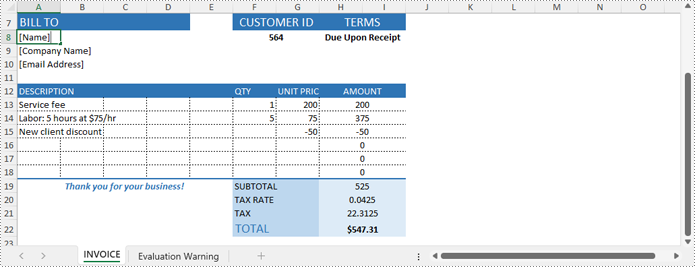
If certain cell ranges need to remain editable while protecting other areas, developers can use the Worksheet.AddAllowEditRange(name: string, range: CellRange) method to define editable ranges, and then protect the worksheet with specific permissions using the Worksheet.Protect({password: string, options: wasmModule.SheetProtectionType.All}) method.
The steps are as follows:
- Load the Spire.Xls.Base.js file to initialize the WebAssembly module.
- Load the Excel file into the virtual file system using the window.spire.FetchFileToVFS() method.
- Create a Workbook instance with the new wasmModule.Workbook() method.
- Load the Excel file into the Workbook using the Workbook.LoadFromFile() method.
- Obtain the desired worksheet using the Workbook.Worksheets.get(index) method.
- Get the cell ranges to allow editing using the Worksheet.Range.get() method.
- Add the cell ranges to editable ranges using the Worksheet.AddAllowEditRange() method.
- Protect the worksheet with the Worksheet.Protect({password: string, options: wasmModule.SheetProtectionType.All}) method.
- Save the workbook using the Workbook.SaveToFile() method.
- Create a download link for the protected file.
- JavaScript
import React, { useState, useEffect } from 'react';
function App() {
  const [wasmModule, setWasmModule] = useState(null);
  // Load Spire.XLS
  useEffect(() => {
    (async () => {
      try {
        const publicUrl = process.env.PUBLIC_URL || '';
        const spireModule = await import(/* webpackIgnore: true */ `${publicUrl}/spire.xls.js`);
        const rawModule = spireModule.default || spireModule;
        window.wasmModule = typeof rawModule === 'function'
          ? await rawModule({ locateFile: p => p.endsWith('.wasm') ? `${publicUrl}/${p}` : p })
          : rawModule;
        setWasmModule(window.wasmModule);
      } catch (error) {
        console.error('Failed to load spire.xls.js WASM module:', error);
      }
    })();
  }, []);

  //  Function to protect an Excel worksheet and add editable ranges
  const EncryptExcelWorksheetWithEditableRange = async () => {
    const wasmModule = window.wasmModule.spirexls;

    if (wasmModule) {
      // Load font into Virtual File System (VFS)
      await window.spire.FetchFileToVFS('Arial.ttf', '/Library/Fonts/', `${process.env.PUBLIC_URL}/static/font/`);


      // Load the Excel files into the virtual file system (VFS)
      let inputFileName = 'sample.xlsx';
      await window.spire.FetchFileToVFS(inputFileName, '', `${process.env.PUBLIC_URL}/static/data/`);


      // Create a new workbook
      let workbook = new wasmModule.Workbook();

      // Load an Excel document
      workbook.LoadFromFile({ fileName: inputFileName });

      // Get a worksheet
      const sheet = workbook.Worksheets.get(0);

      // Add editable ranges
      const range1 = sheet.Range.get('A8:A10');
      sheet.AddAllowEditRange({ title: "Editable Range 1", range: range1 });
      const range2 = sheet.Range.get('A13:G18');
      sheet.AddAllowEditRange({ title: "Editable Range 2", range: range2 });

      // Protect the worksheet
      sheet.Protect({ password: '123456', options: wasmModule.SheetProtectionType.All });

      //Save result file
      const outputFileName = 'EditableRanges.xlsx';
      workbook.SaveToFile({ fileName: outputFileName, version: wasmModule.ExcelVersion.Version2016 });

      // Read the saved file and convert to Blob object
      const modifiedFileArray = window.dotnetRuntime.Module.FS.readFile(outputFileName);
      const modifiedFile = new Blob([modifiedFileArray], { type: 'application/vnd.openxmlformats-officedocument.spreadsheetml.sheet' });

      // Create a URL for the Blob and initiate download
      const url = URL.createObjectURL(modifiedFile);
      const a = document.createElement('a');
      a.href = url;
      a.download = outputFileName;
      document.body.appendChild(a);
      a.click();
      document.body.removeChild(a);
      URL.revokeObjectURL(url);

      // Clean up resources used by the workbook
      workbook.Dispose();
    }
  };

  return (
    <div style={{ textAlign: 'center', height: '300px' }}>
      <h1>Protect Excel Worksheet with Editable Ranges Using JavaScript in React</h1>
      <button onClick={EncryptExcelWorksheetWithEditableRange} disabled={!wasmModule}>
        Encrypt and Download
      </button>
    </div>
  );
}

export default App;
Unprotect an Excel Worksheet with JavaScript
Developers can easily remove the password and unprotect an Excel worksheet by invoking the Worksheet.Unprotect(password: string) method, granting access and edit permissions to all users. The detailed steps are as follows:
- Load the Spire.Xls.Base.js file to initialize the WebAssembly module.
- Load the Excel file into the virtual file system using the window.spire.FetchFileToVFS() method.
- Create a Workbook instance with the new wasmModule.Workbook() method.
- Load the Excel file into the Workbook using the Workbook.LoadFromFile() method.
- Get the worksheet to unprotect using the Workbook.Worksheets.get() method.
- Remove the password protection using the Worksheet.Unprotect() method.
- Save the workbook using the Workbook.SaveToFile() method.
- Create a download link for the protected file.
- JavaScript
import React, { useState, useEffect } from 'react';
function App() {
  const [wasmModule, setWasmModule] = useState(null);
  // Load Spire.XLS
  useEffect(() => {
    (async () => {
      try {
        const publicUrl = process.env.PUBLIC_URL || '';
        const spireModule = await import(/* webpackIgnore: true */ `${publicUrl}/spire.xls.js`);
        const rawModule = spireModule.default || spireModule;
        window.wasmModule = typeof rawModule === 'function'
          ? await rawModule({ locateFile: p => p.endsWith('.wasm') ? `${publicUrl}/${p}` : p })
          : rawModule;
        setWasmModule(window.wasmModule);
      } catch (error) {
        console.error('Failed to load spire.xls.js WASM module:', error);
      }
    })();
  }, []);

  //  Function to unprotect an Excel worksheet
  const UnprotectExcelWorksheet = async () => {
    const wasmModule = window.wasmModule.spirexls;

    if (wasmModule) {
      // Load font into Virtual File System (VFS)
      await window.spire.FetchFileToVFS('Arial.ttf', '/Library/Fonts/', `${process.env.PUBLIC_URL}/static/font/`);


      // Load the Excel files into the virtual file system (VFS)
      let inputFileName = 'sample.xlsx';
      await window.spire.FetchFileToVFS(inputFileName, '', `${process.env.PUBLIC_URL}/static/data/`);


      // Create a new workbook
      let workbook = new wasmModule.Workbook();

      // Load an Excel document
      workbook.LoadFromFile({ fileName: inputFileName });

      // Get a worksheet
      const sheet = workbook.Worksheets.get(0);

      // Remove the password protection
      sheet.Unprotect('password');

      //Save result file
      const outputFileName = 'out.xlsx';
      workbook.SaveToFile({ fileName: outputFileName, version: wasmModule.ExcelVersion.Version2016 });

      // Read the saved file and convert to Blob object
      const modifiedFileArray = window.dotnetRuntime.Module.FS.readFile(outputFileName);
      const modifiedFile = new Blob([modifiedFileArray], { type: 'application/vnd.openxmlformats-officedocument.spreadsheetml.sheet' });

      // Create a URL for the Blob and initiate download
      const url = URL.createObjectURL(modifiedFile);
      const a = document.createElement('a');
      a.href = url;
      a.download = outputFileName;
      document.body.appendChild(a);
      a.click();
      document.body.removeChild(a);
      URL.revokeObjectURL(url);

      // Clean up resources used by the workbook
      workbook.Dispose();
    }
  };

  return (
    <div style={{ textAlign: 'center', height: '300px' }}>
      <h1>Unprotect Excel Worksheet Using JavaScript in React</h1>
      <button onClick={UnprotectExcelWorksheet} disabled={!wasmModule}>
        Unprotect and Download
      </button>
    </div>
  );
}

export default App;
Reset or Remove the Password of an Encrypted Excel Workbook
Spire.XLS for JavaScript provides the Workbook.OpenPassword property to specify the password for encrypted Excel workbooks, allowing developers to load and process them. After loading the encrypted workbook, developers can use the Workbook.Unprotect(password: string) method to remove the password or the Workbook.Protect(newPassword: string) method to set a new one. The steps are as follows:
- Load the Spire.Xls.Base.js file to initialize the WebAssembly module.
- Load the Excel file into the virtual file system using the window.spire.FetchFileToVFS() method.
- Create a Workbook instance with the new wasmModule.Workbook() method.
- Specify the password through the Workbook.OpenPassword property.
- Load the encrypted Excel file into the Workbook using the Workbook.LoadFromFile() method.
- Unprotect the workbook using the Workbook.Unprotect(password: string) method or set a new password using the Workbook.Protect(newPassword: string) method.
- Save the workbook using the Workbook.SaveToFile() method.
- Create a download link for the protected file.
- JavaScript
import React, { useState, useEffect } from 'react';
function App() {
  const [wasmModule, setWasmModule] = useState(null);
  // Load Spire.XLS
  useEffect(() => {
    (async () => {
      try {
        const publicUrl = process.env.PUBLIC_URL || '';
        const spireModule = await import(/* webpackIgnore: true */ `${publicUrl}/spire.xls.js`);
        const rawModule = spireModule.default || spireModule;
        window.wasmModule = typeof rawModule === 'function'
          ? await rawModule({ locateFile: p => p.endsWith('.wasm') ? `${publicUrl}/${p}` : p })
          : rawModule;
        setWasmModule(window.wasmModule);
      } catch (error) {
        console.error('Failed to load spire.xls.js WASM module:', error);
      }
    })();
  }, []);

  //  Function to unprotect an Excel workbook
  const RemoveResetExcelPassword = async () => {
    const wasmModule = window.wasmModule.spirexls;

    if (wasmModule) {
      // Load font into Virtual File System (VFS)
      await window.spire.FetchFileToVFS('Arial.ttf', '/Library/Fonts/', `${process.env.PUBLIC_URL}/static/font/`);


      // Load the Excel files into the virtual file system (VFS)
      let inputFileName = 'sample.xlsx';
      await window.spire.FetchFileToVFS(inputFileName, '', `${process.env.PUBLIC_URL}/static/data/`);


      // Create a new workbook
      let workbook = new wasmModule.Workbook();

      // Specify the password of the workbook
      workbook.OpenPassword = 'password';

      // Load an Excel document
      workbook.LoadFromFile({ fileName: inputFileName });

      // Get a worksheet
      const sheet = workbook.Worksheets.get(0);

      // Decrypt the workbook
      workbook.UnProtect('password')

      // Reset the password
      // workbook.Protect("NewPassword")

      //Save result file
      const outputFileName = 'DecryptedWorkbook.xlsx';
      workbook.SaveToFile({ fileName: outputFileName, version: wasmModule.ExcelVersion.Version2016 });

      // Read the saved file and convert to Blob object
      const modifiedFileArray = window.dotnetRuntime.Module.FS.readFile(outputFileName);
      const modifiedFile = new Blob([modifiedFileArray], { type: 'application/vnd.openxmlformats-officedocument.spreadsheetml.sheet' });

      // Create a URL for the Blob and initiate download
      const url = URL.createObjectURL(modifiedFile);
      const a = document.createElement('a');
      a.href = url;
      a.download = outputFileName;
      document.body.appendChild(a);
      a.click();
      document.body.removeChild(a);
      URL.revokeObjectURL(url);

      // Clean up resources used by the workbook
      workbook.Dispose();
    }
  };

  return (
    <div style={{ textAlign: 'center', height: '300px' }}>
      <h1>Remove the Password of Excel Workbook Using JavaScript in React</h1>
      <button onClick={RemoveResetExcelPassword} disabled={!wasmModule}>
        Decrypt and Download
      </button>
    </div>
  );
}

export default App;
Get a Free License
To fully experience the capabilities of Spire.XLS for JavaScript without any evaluation limitations, you can request a free 30-day trial license.
Delete Rows and Columns from Excel with JavaScript in React
2025-01-10 02:46:07 Written by AdministratorWhen working with Excel, you might occasionally find your worksheets cluttered with unnecessary rows and columns. These might be leftover data from previous versions, temporary calculations, or placeholders that no longer serve a purpose. Removing these unnecessary or unwanted rows and columns can keep your data organized and your sheets neat. In this article, you will learn how to delete rows and columns from an Excel Worksheet in React using Spire.XLS for JavaScript.
- Delete a Specific Row and Column from Excel
- Delete Multiple Rows and Columns from Excel
- Delete Blank Rows and Columns from Excel
Install Spire.XLS for JavaScript
To get started with deleting Excel rows and columns in a React application, you can either download Spire.XLS for JavaScript from our website or install it via npm with the following command:
npm i spire.office
The downloaded product package has been integrated Spire.Doc for JavaScript,Spire.XLS for JavaScript,Spire.PDF for JavaScript,Spire.Presentation for JavaScript. To use the functionality of Spire.XLS for JavaScript, you need to copy the corresponding files (spire.xls.js, Spire.Xls.Wasm.zip, spire.common.js, Spire.Common.Wasm.zip, and _framework) to the project's "public" folder. At the same time, in order to ensure text rendering, the related font files can be added with custom paths. In the following example, the font addition path is: public\static\font.
For more details, refer to the documentation: How to Integrate Spire.XLS for JavaScript in a React Project
Delete a Specific Row and Column from Excel
Spire.XLS for JavaScript provides the Worksheet.DeleteRow() and Worksheet.DeleteColumn() methods to delete a specific row and column by index. The following are the main steps.
- Create a Workbook object using the new wasmModule.Workbook() method.
- Load an Excel file using the Workbook.LoadFromFile() method.
- Get a specific worksheet using the Workbook.Worksheets.get() method.
- Delete a specified row by its index (1-based) using the Worksheet.DeleteRow() method.
- Delete a specified column by its index (1-based) using the Worksheet.DeleteColumn() method.
- Save the result file using the Workbook.SaveToFile() method.
- JavaScript
import React, { useState, useEffect } from 'react';
function App() {
  const [wasmModule, setWasmModule] = useState(null);
  // Load Spire.XLS
  useEffect(() => {
    (async () => {
      try {
        const publicUrl = process.env.PUBLIC_URL || '';
        const spireModule = await import(/* webpackIgnore: true */ `${publicUrl}/spire.xls.js`);
        const rawModule = spireModule.default || spireModule;
        window.wasmModule = typeof rawModule === 'function'
          ? await rawModule({ locateFile: p => p.endsWith('.wasm') ? `${publicUrl}/${p}` : p })
          : rawModule;
        setWasmModule(window.wasmModule);
      } catch (error) {
        console.error('Failed to load spire.xls.js WASM module:', error);
      }
    })();
  }, []);

  // Function to delete a specified row and column
  const DeleteRowColumn = async () => {
    const wasmModule = window.wasmModule.spirexls;

    if (wasmModule) {
      // Load font into Virtual File System (VFS)
      await window.spire.FetchFileToVFS('Arial.ttf', '/Library/Fonts/', `${process.env.PUBLIC_URL}/static/font/`);


      // Load the Excel files into the virtual file system (VFS)
      let inputFileName = 'sample.xlsx';
      await window.spire.FetchFileToVFS(inputFileName, '', `${process.env.PUBLIC_URL}/static/data/`);


      // Create a new workbook
      let workbook = new wasmModule.Workbook();


      // Load an Excel document
      workbook.LoadFromFile({ fileName: inputFileName });

      // Get the first worksheet
      let sheet = workbook.Worksheets.get(0);

      //Delete the 18th row
      sheet.DeleteRow({ index: 18 });

      //Delete the 5th
      sheet.DeleteColumn({ index: 5 });

      //Save result file
      const outputFileName = 'DeleteRowAndColumn.xlsx';
      workbook.SaveToFile({ fileName: outputFileName, version: wasmModule.ExcelVersion.Version2016 });

      // Read the saved file and convert to Blob object
      const modifiedFileArray = window.dotnetRuntime.Module.FS.readFile(outputFileName);
      const modifiedFile = new Blob([modifiedFileArray], { type: 'application/vnd.openxmlformats-officedocument.spreadsheetml.sheet' });

      // Create a URL for the Blob and initiate download
      const url = URL.createObjectURL(modifiedFile);
      const a = document.createElement('a');
      a.href = url;
      a.download = outputFileName;
      document.body.appendChild(a);
      a.click();
      document.body.removeChild(a);
      URL.revokeObjectURL(url);

      // Clean up resources used by the workbook
      workbook.Dispose();
    }
  };

  return (
    <div style={{ textAlign: 'center', height: '300px' }}>
      <h1>Delete a Specified Row and Column Using JavaScript in React
      <button onClick={DeleteRowColumn} disabled={!wasmModule}>
        Delete
      </button>
    </div>
  );
}

export default App;
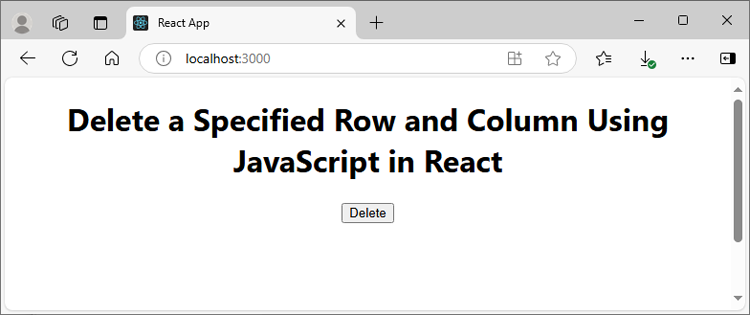
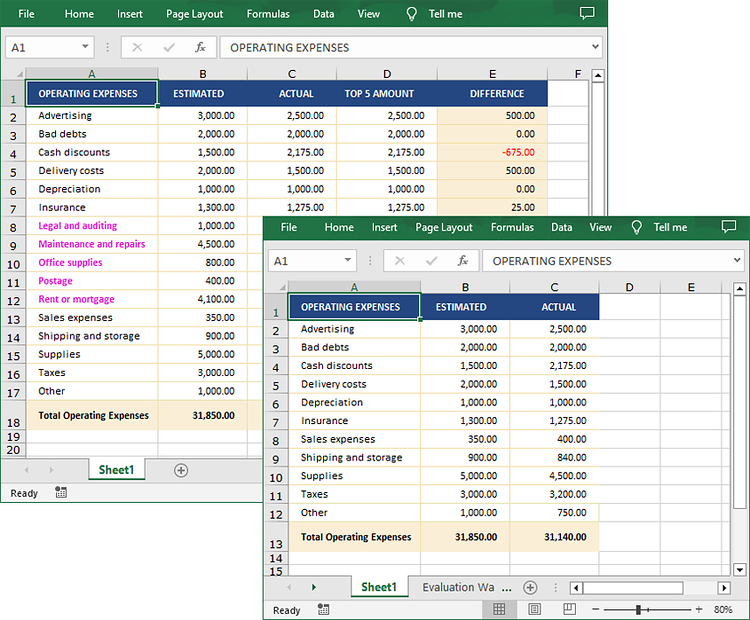
Run the code to launch the React app at localhost:3000. Once it's running, click the "Delete" button to delete the specific row and column:
Below is the input Excel file and the result file:

Delete Multiple Rows and Columns from Excel
Spire.XLS for JavaScript also allows you to delete multiple adjacent rows and columns from an Excel worksheet at once through the Worksheet.DeleteRow(index, count) and Worksheet.DeleteColumn(index, count) methods. The following are the main steps.
- Create a Workbook object using the new wasmModule.Workbook() method.
- Load an Excel file using the Workbook.LoadFromFile() method.
- Get a specific worksheet using the Workbook.Worksheets.get() method.
- Delete multiple rows from the worksheet using the Worksheet.DeleteRow(index, count) method.
- Delete multiple columns from the worksheet using the Worksheet.DeleteColumn(index, count) method.
- Save the result file using the Workbook.SaveToFile() method.
- JavaScript
import React, { useState, useEffect } from 'react';
function App() {
  const [wasmModule, setWasmModule] = useState(null);
  // Load Spire.XLS
  useEffect(() => {
    (async () => {
      try {
        const publicUrl = process.env.PUBLIC_URL || '';
        const spireModule = await import(/* webpackIgnore: true */ `${publicUrl}/spire.xls.js`);
        const rawModule = spireModule.default || spireModule;
        window.wasmModule = typeof rawModule === 'function'
          ? await rawModule({ locateFile: p => p.endsWith('.wasm') ? `${publicUrl}/${p}` : p })
          : rawModule;
        setWasmModule(window.wasmModule);
      } catch (error) {
        console.error('Failed to load spire.xls.js WASM module:', error);
      }
    })();
  }, []);

  // Function to delete multiple rows and columns
  const DeleteMultiRowsColumns = async () => {
    const wasmModule = window.wasmModule.spirexls;

    if (wasmModule) {
      // Load font into Virtual File System (VFS)
      await window.spire.FetchFileToVFS('Arial.ttf', '/Library/Fonts/', `${process.env.PUBLIC_URL}/static/font/`);


      // Load the Excel files into the virtual file system (VFS)
      let inputFileName = 'sample.xlsx';
      await window.spire.FetchFileToVFS(inputFileName, '', `${process.env.PUBLIC_URL}/static/data/`);


      // Create a new workbook
      let workbook = new wasmModule.Workbook();

      // Load an Excel document
      workbook.LoadFromFile({ fileName: inputFileName });

      // Get the first worksheet
      let sheet = workbook.Worksheets.get(0);

      //Delete 5 rows from the 8th row
      sheet.DeleteRow({ index: 8, count: 5 });

      //Delete 2 columns from the 4th column
      sheet.DeleteColumn({ index: 4, count: 2 });

      //Save result file
      const outputFileName = 'DeleteMultiRowsAndColumns.xlsx';
      workbook.SaveToFile({ fileName: outputFileName, version: wasmModule.ExcelVersion.Version2016 });

      // Read the saved file and convert to Blob object
      const modifiedFileArray = window.dotnetRuntime.Module.FS.readFile(outputFileName);
      const modifiedFile = new Blob([modifiedFileArray], { type: 'application/vnd.openxmlformats-officedocument.spreadsheetml.sheet' });

      // Create a URL for the Blob and initiate download
      const url = URL.createObjectURL(modifiedFile);
      const a = document.createElement('a');
      a.href = url;
      a.download = outputFileName;
      document.body.appendChild(a);
      a.click();
      document.body.removeChild(a);
      URL.revokeObjectURL(url);

      // Clean up resources used by the workbook
      workbook.Dispose();
    }
  };

  return (
    <div style={{ textAlign: 'center', height: '300px' }}>
      <h1>Delete Multiple Rows and Columns Using JavaScript in React
      <button onClick={DeleteMultiRowsColumns} disabled={!wasmModule}>
        Delete
      </button>
    </div>
  );
}

export default App;
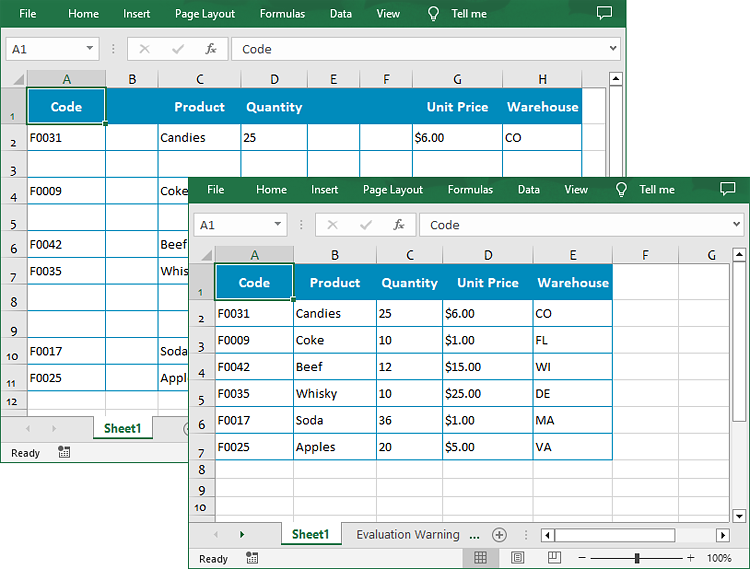
Delete Blank Rows and Columns from Excel
To remove the blank rows and column, you need to iterate over each row and column to detect whether they are blank or not. If yes, then remove them from the worksheet. The following are the main steps.
- Create a Workbook object using the new wasmModule.Workbook() method.
- Load an Excel file using the Workbook.LoadFromFile() method.
- Get a specific worksheet using the Workbook.Worksheets.get() method.
- Iterate through the used rows in the worksheet.
- Find the blank rows using the Worksheet.Rows.get().IsBlank property, and then delete them using the Worksheet.DeleteRow() method.
- Iterate through the used columns in the worksheet.
- Find the blank columns using the Worksheet.Columns.get().IsBlank property, and then delete them using the Worksheet.DeleteColumn() method.
- Save the result file using the Workbook.SaveToFile() method.
- JavaScript
import React, { useState, useEffect } from 'react';
function App() {
  const [wasmModule, setWasmModule] = useState(null);
  // Load Spire.XLS
  useEffect(() => {
    (async () => {
      try {
        const publicUrl = process.env.PUBLIC_URL || '';
        const spireModule = await import(/* webpackIgnore: true */ `${publicUrl}/spire.xls.js`);
        const rawModule = spireModule.default || spireModule;
        window.wasmModule = typeof rawModule === 'function'
          ? await rawModule({ locateFile: p => p.endsWith('.wasm') ? `${publicUrl}/${p}` : p })
          : rawModule;
        setWasmModule(window.wasmModule);
      } catch (error) {
        console.error('Failed to load spire.xls.js WASM module:', error);
      }
    })();
  }, []);

  // Function to delete blank rows and columns
  const DeleteBlankRowsColumns = async () => {
    const wasmModule = window.wasmModule.spirexls;

    if (wasmModule) {
      // Load font into Virtual File System (VFS)
      await window.spire.FetchFileToVFS('Arial.ttf', '/Library/Fonts/', `${process.env.PUBLIC_URL}/static/font/`);


      // Load the Excel files into the virtual file system (VFS)
      let inputFileName = 'sample.xlsx';
      await window.spire.FetchFileToVFS(inputFileName, '', `${process.env.PUBLIC_URL}/static/data/`);


      // Create a new workbook
      let workbook = new wasmModule.Workbook();


      // Load an Excel document
      workbook.LoadFromFile({ fileName: inputFileName });

      // Get the first worksheet
      let sheet = workbook.Worksheets.get(0);

      //Delete blank rows from the worksheet.
      for (let i = sheet.Rows.Count - 1; i >= 0; i--) {
        if (sheet.Rows.get(i).IsBlank) {
          sheet.DeleteRow(i + 1);
        }
      }

      //Delete blank columns from the worksheet.
      for (let j = sheet.Columns.Count - 1; j >= 0; j--) {
        if (sheet.Columns.get(j).IsBlank) {
          sheet.DeleteColumn(j + 1);
        }
      }

      //Save result file
      const outputFileName = 'DeleteBlankRowsAndColumns.xlsx';
      workbook.SaveToFile({ fileName: outputFileName, version: wasmModule.ExcelVersion.Version2016 });

      // Read the saved file and convert to Blob object
      const modifiedFileArray = window.dotnetRuntime.Module.FS.readFile(outputFileName);
      const modifiedFile = new Blob([modifiedFileArray], { type: 'application/vnd.openxmlformats-officedocument.spreadsheetml.sheet' });

      // Create a URL for the Blob and initiate download
      const url = URL.createObjectURL(modifiedFile);
      const a = document.createElement('a');
      a.href = url;
      a.download = outputFileName;
      document.body.appendChild(a);
      a.click();
      document.body.removeChild(a);
      URL.revokeObjectURL(url);

      // Clean up resources used by the workbook
      workbook.Dispose();
    }
  };

  return (
    <div style={{ textAlign: 'center', height: '300px' }}>
      <h1>Delete Blank Rows and Columns Using JavaScript in React
      <button onClick={DeleteBlankRowsColumns} disabled={!wasmModule}>
        Delete
      </button>
    </div>
  );
}

export default App;
Get a Free License
To fully experience the capabilities of Spire.XLS for JavaScript without any evaluation limitations, you can request a free 30-day trial license.
Convert Excel to HTML and Vice Versa with JavaScript in React
2025-01-03 01:05:42 Written by AdministratorConverting between Excel and HTML formats is a common task for developers working on data visualization, reporting, or web-based applications. Excel files are often used to store, organize, and analyze structured data, while HTML is widely used to display information on the web. Converting between these two formats allows seamless integration between back-end data processing and front-end data presentation. In this article, we will demonstrate how to convert Excel files to HTML format and HTML files to Excel format in React using Spire.XLS for JavaScript.
Install Spire.XLS for JavaScript
To get started with converting Excel to PDF in a React application, you can either download Spire.XLS for JavaScript from our website or install it via npm with the following command:
npm i spire.office
The downloaded product package has been integrated Spire.Doc for JavaScript,Spire.XLS for JavaScript,Spire.PDF for JavaScript,Spire.Presentation for JavaScript. To use the functionality of Spire.XLS for JavaScript, you need to copy the corresponding files (spire.xls.js, Spire.Xls.Wasm.zip, spire.common.js, Spire.Common.Wasm.zip, and _framework) to the project's "public" folder. At the same time, in order to ensure text rendering, the related font files can be added with custom paths. In the following example, the font addition path is: public\static\font.
For more details, refer to the documentation: How to Integrate Spire.XLS for JavaScript in a React Project
Convert Excel to HTML in React
Spire.XLS for JavaScript provides the Worksheet.SaveToHtml() function, which enables you to save a specific worksheet in an Excel file as an HTML file. The key steps for converting an Excel worksheet to HTML using Spire.XLS for JavaScript are as follows.
- Create a Workbook object using the new wasmModule.Workbook() function.
- Load the Excel file using the Workbook.LoadFromFile() function.
- Get a specific worksheet using the Workbook.Worksheets.get(index) function.
- Create an HTMLOptions object using the new wasmModule.HTMLOptions() function.
- Set the HTMLOptions.ImageEmbedded property as "true" to embed images in the converted HTML file.
- Save the worksheet as an HTML file using the Worksheet.SaveToHtml() function.
- JavaScript
import React, { useState, useEffect } from 'react';
function App() {
  const [wasmModule, setWasmModule] = useState(null);
  // Load Spire.XLS
  useEffect(() => {
    (async () => {
      try {
        const publicUrl = process.env.PUBLIC_URL || '';
        const spireModule = await import(/* webpackIgnore: true */ `${publicUrl}/spire.xls.js`);
        const rawModule = spireModule.default || spireModule;
        window.wasmModule = typeof rawModule === 'function'
          ? await rawModule({ locateFile: p => p.endsWith('.wasm') ? `${publicUrl}/${p}` : p })
          : rawModule;
        setWasmModule(window.wasmModule);
      } catch (error) {
        console.error('Failed to load spire.xls.js WASM module:', error);
      }
    })();
  }, []);

  // Function to convert an Excel worksheet to HTML
  const ExcelToHTML  = async () => {
    const wasmModule = window.wasmModule.spirexls;

    if (wasmModule) {
      // Load font into Virtual File System (VFS)
      await window.spire.FetchFileToVFS('Arial.ttf', '/Library/Fonts/', `${process.env.PUBLIC_URL}/static/font/`);

      // Load input file into Virtual File System (VFS)
      const inputFileName = 'sample.xlsx';
      await window.spire.FetchFileToVFS(inputFileName, '', `${process.env.PUBLIC_URL}/static/data/`);

      // Create a new workbook
      const workbook = new wasmModule.Workbook();

      // Load an existing Excel document
      workbook.LoadFromFile({fileName: inputFileName});

      // Get the first worksheet
      let sheet = workbook.Worksheets.get(0);

      // Create an HTMLOptions object
      let options = new wasmModule.HTMLOptions();
      // Embed images in the converted HTML file
      options.ImageEmbedded = true;

      // Specify the output HTML file path
      const outputFileName = 'ToHtml.html';
      // Save the worksheet to HTML with the images embedded
      sheet.SaveToHtml({fileName:outputFileName, saveOption:options});

      // Read the saved file and convert to Blob object
      const modifiedFileArray = window.dotnetRuntime.Module.FS.readFile(outputFileName);
      const modifiedFile = new Blob([modifiedFileArray], { type:  'text/html'  });

      // Create a URL for the Blob and initiate download
      const url = URL.createObjectURL(modifiedFile);
      const a = document.createElement('a');
      a.href = url;
      a.download = outputFileName;
      document.body.appendChild(a);
      a.click();
      document.body.removeChild(a);
      URL.revokeObjectURL(url);

      // Clean up resources used by the workbook
      workbook.Dispose();
    }
  };

  return (
    <div style={{ textAlign: 'center', height: '300px' }}>
      <h1>Convert an Excel Worksheet to HTML Using JavaScript in React</h1>
      <button onClick={ExcelToHTML} disabled={!wasmModule}>
        Convert
      </button>
    </div>
  );
}

export default App;
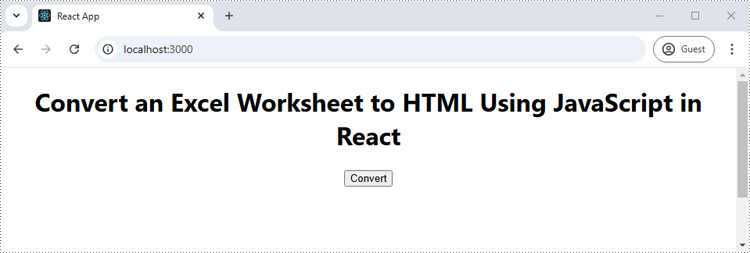
Run the code to launch the React app at localhost:3000. Once it's running, click on the "Convert" button to convert the specified Excel worksheet to HTML format:
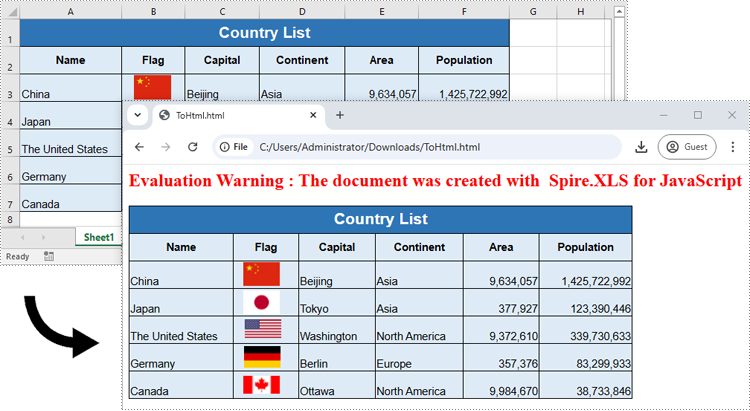
The below screenshot shows the input Excel worksheet and the converted HTML file:
Convert HTML to Excel in React
Spire.XLS for JavaScript offers the Workbook.LoadFromHtml() function for loading an HTML file. Once the HTML file is loaded, you can save it as an Excel file using the Workbook.SaveToFile() function. The key steps are as follows.
- Create a Workbook object using the new wasmModule.Workbook() function.
- Load the HTML file using the Workbook.LoadFromHtml() function.
- Save the HTML file to an Excel file using the Workbook.SaveToFile() function.
- JavaScript
import React, { useState, useEffect } from 'react';
function App() {
  const [wasmModule, setWasmModule] = useState(null);
  // Load Spire.XLS
  useEffect(() => {
    (async () => {
      try {
        const publicUrl = process.env.PUBLIC_URL || '';
        const spireModule = await import(/* webpackIgnore: true */ `${publicUrl}/spire.xls.js`);
        const rawModule = spireModule.default || spireModule;
        window.wasmModule = typeof rawModule === 'function'
          ? await rawModule({ locateFile: p => p.endsWith('.wasm') ? `${publicUrl}/${p}` : p })
          : rawModule;
        setWasmModule(window.wasmModule);
      } catch (error) {
        console.error('Failed to load spire.xls.js WASM module:', error);
      }
    })();
  }, []);

  // Function to convert an HTML to Excel
  const HTMLToExcel = async () => {
    const wasmModule = window.wasmModule.spirexls;

    if (wasmModule) {
      // Load font into Virtual File System (VFS)
      await window.spire.FetchFileToVFS('Arial.ttf', '/Library/Fonts/', `${process.env.PUBLIC_URL}/static/font/`);

      // Load input file into Virtual File System (VFS)
      const inputFileName = 'in.html';
      await window.spire.FetchFileToVFS(inputFileName, '', `${process.env.PUBLIC_URL}/static/data/`);

      // Create a new workbook
      const workbook = new wasmModule.Workbook();

      // Load an existing HTML file
      workbook.LoadFromHtml({ fileName: inputFileName });

      // Specify the output Excel file path
      const outputFileName = 'ToExcel.xlsx';
      // Save the HTML file to Excel format
      workbook.SaveToFile({ fileName: outputFileName, version: wasmModule.ExcelVersion.Version2013 });

      // Read the saved file and convert to Blob object
      const modifiedFileArray = window.dotnetRuntime.Module.FS.readFile(outputFileName);
      const modifiedFile = new Blob([modifiedFileArray], { type:'application/vnd.openxmlformats-officedocument.spreadsheetml.sheet' });

      // Create a URL for the Blob and initiate download
      const url = URL.createObjectURL(modifiedFile);
      const a = document.createElement('a');
      a.href = url;
      a.download = outputFileName;
      document.body.appendChild(a);
      a.click();
      document.body.removeChild(a);
      URL.revokeObjectURL(url);

      // Clean up resources used by the workbook
      workbook.Dispose();
    }
  };

  return (
    <div style={{ textAlign: 'center', height: '300px' }}>
      <h1>Convert an HTML File to Excel Using JavaScript in React</h1>
      <button onClick={HTMLToExcel} disabled={!wasmModule}>
        Convert
      </button>
    </div>
  );
}

export default App;

Get a Free License
To fully experience the capabilities of Spire.XLS for JavaScript without any evaluation limitations, you can request a free 30-day trial license.
Convert Excel to CSV or CSV to Excel with JavaScript in React
2024-12-31 01:51:41 Written by AdministratorConverting files between Excel and CSV formats is a highly common and essential task in data processing. Excel is ideal for data organization, analysis, and visualization, while CSV (Comma-Separated Values) files are lightweight and compatible with various applications, making them ideal for data exchange. Whether you're preparing data for analysis, sharing information between systems, or ensuring seamless compatibility with other software, the ability to efficiently switch between these two formats greatly enhances the convenience and flexibility of data processing tasks. In this article, we will demonstrate how to convert Excel to CSV and CSV to Excel in React using Spire.XLS for JavaScript.
Install Spire.XLS for JavaScript
To get started with converting between Excel and CSV files in a React application, you can either download Spire.XLS for JavaScript from our website or install it via npm with the following command:
npm i spire.office
The downloaded product package has been integrated Spire.Doc for JavaScript,Spire.XLS for JavaScript,Spire.PDF for JavaScript,Spire.Presentation for JavaScript. To use the functionality of Spire.XLS for JavaScript, you need to copy the corresponding files (spire.xls.js, Spire.Xls.Wasm.zip, spire.common.js, Spire.Common.Wasm.zip, and _framework) to the project's "public" folder. At the same time, in order to ensure text rendering, the related font files can be added with custom paths. In the following example, the font addition path is: public\static\font.
For more details, refer to the documentation: How to Integrate Spire.XLS for JavaScript in a React Project
Convert Excel to CSV with JavaScript in React
Spire.XLS for JavaScript provides the Worksheet.SaveToFile() function, which enables developers to save a specific worksheet in a workbook as a standalone CSV file. The key steps for converting an Excel worksheet to CSV using Spire.XLS for JavaScript are as follows.
- Create a Workbook object using the new wasmModule.Workbook() function.
- Load the Excel file using the Workbook.LoadFromFile() function.
- Get a specific worksheet using the Workbook.Worksheets.get(index) function.
- Save the worksheet in CSV format using the Worksheet.SaveToFile() function.
- JavaScript
import React, { useState, useEffect } from 'react';
function App() {
  const [wasmModule, setWasmModule] = useState(null);
  // Load Spire.XLS
  useEffect(() => {
    (async () => {
      try {
        const publicUrl = process.env.PUBLIC_URL || '';
        const spireModule = await import(/* webpackIgnore: true */ `${publicUrl}/spire.xls.js`);
        const rawModule = spireModule.default || spireModule;
        window.wasmModule = typeof rawModule === 'function'
          ? await rawModule({ locateFile: p => p.endsWith('.wasm') ? `${publicUrl}/${p}` : p })
          : rawModule;
        setWasmModule(window.wasmModule);
      } catch (error) {
        console.error('Failed to load spire.xls.js WASM module:', error);
      }
    })();
  }, []);

  // Function to convert an Excel worksheet to CSV
  const ExcelToCSV = async () => {
    const wasmModule = window.wasmModule.spirexls;

    if (wasmModule) {
      // Load font into Virtual File System (VFS)
      await window.spire.FetchFileToVFS('Arial.ttf', '/Library/Fonts/', `${process.env.PUBLIC_URL}/static/font/`);

      // Load input file into Virtual File System (VFS)
      const inputFileName = 'sample.xlsxx';
      await window.spire.FetchFileToVFS(inputFileName, '', `${process.env.PUBLIC_URL}/static/data/`);

      // Create a new workbook
      const workbook = new wasmModule.Workbook();

      // Load existing Excel document
      workbook.LoadFromFile({ fileName: inputFileName });

      // Get the first worksheet
      let sheet = workbook.Worksheets.get(0);

      // Specify the output CSV file path
      const outputFileName = 'ExcelToCSV.csv';
      //Save the worksheet to CSV
      sheet.SaveToFile({ fileName: outputFileName, separator: ",", encoding: wasmModule.Encoding.get_UTF8() });

      // Read the saved file and convert to Blob object
      const modifiedFileArray = window.dotnetRuntime.Module.FS.readFile(outputFileName);
      const modifiedFile = new Blob([modifiedFileArray], { type: 'text/csv' });

      // Create a URL for the Blob and initiate download
      const url = URL.createObjectURL(modifiedFile);
      const a = document.createElement('a');
      a.href = url;
      a.download = outputFileName;
      document.body.appendChild(a);
      a.click();
      document.body.removeChild(a);
      URL.revokeObjectURL(url);

      // Clean up resources used by the workbook
      workbook.Dispose();
    }
  };

  return (
    <div style={{ textAlign: 'center', height: '300px' }}>
      <h1>Convert an Excel Worksheet to CSV Using JavaScript in React</h1>
      <button onClick={ExcelToCSV} disabled={!wasmModule}>
        Convert
      </button>
    </div>
  );
}

export default App;
Run the code to launch the React app at localhost:3000. Once it's running, click on the "Convert" button to convert the specified Excel worksheet to CSV:
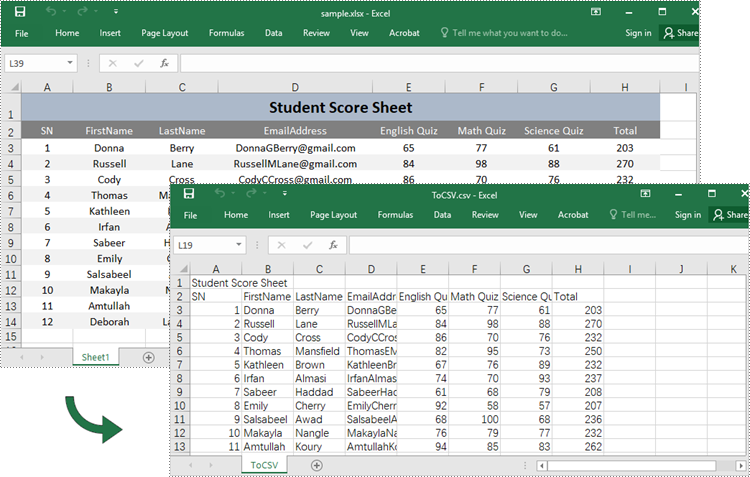
The below screenshot shows the input Excel worksheet and the converted CSV:
Convert CSV to Excel with JavaScript in React
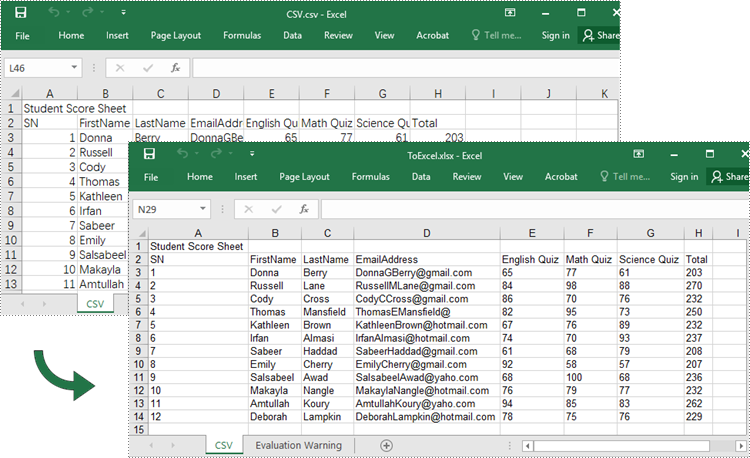
The Workbook.LoadFromFile() function in Spire.XLS for JavaScript can also be used for loading CSV files. Once a CSV file is loaded, it can be saved as an Excel file using the Workbook.SaveToFile() function. The key steps for converting a CSV file to Excel using Spire.XLS for JavaScript are as follows.
- Create a Workbook object using the new wasmModule.Workbook() function.
- Load the CSV file using the Workbook.LoadFromFile() function.
- Get a specific worksheet using the Workbook.Worksheets.get(index) function.
- Ignore possible errors while saving the numbers in a specific cell range of the worksheet as text using the CellRange.IgnoreErrorOptions property.
- Autofit columns using the CellRange.AutoFitColumns() function.
- Save the CSV file in Excel format using the Workbook.SaveToFile() function.
- JavaScript
import React, { useState, useEffect } from 'react';
function App() {
  const [wasmModule, setWasmModule] = useState(null);
  // Load Spire.XLS
  useEffect(() => {
    (async () => {
      try {
        const publicUrl = process.env.PUBLIC_URL || '';
        const spireModule = await import(/* webpackIgnore: true */ `${publicUrl}/spire.xls.js`);
        const rawModule = spireModule.default || spireModule;
        window.wasmModule = typeof rawModule === 'function'
          ? await rawModule({ locateFile: p => p.endsWith('.wasm') ? `${publicUrl}/${p}` : p })
          : rawModule;
        setWasmModule(window.wasmModule);
      } catch (error) {
        console.error('Failed to load spire.xls.js WASM module:', error);
      }
    })();
  }, []);

  // Function to convert a CSV file to Excel
  const CSVToExcel = async () => {
    const wasmModule = window.wasmModule.spirexls;

    if (wasmModule) {
      // Load font into Virtual File System (VFS)
      await window.spire.FetchFileToVFS('Arial.ttf', '/Library/Fonts/', `${process.env.PUBLIC_URL}/static/font/`);

      // Load input file into Virtual File System (VFS)
      const inputFileName = 'sample.csv';
      await window.spire.FetchFileToVFS(inputFileName, '', `${process.env.PUBLIC_URL}/static/data/`);

      // Create a new workbook
      const workbook = new wasmModule.Workbook();

      // Load existing document
     workbook.LoadFromFile({ fileName: inputFileName, separator: ",", row: 1, column: 1 });

      // Get the first worksheet
      let sheet = workbook.Worksheets.get(0);

      // Ignore possible errors when saving numbers as text during the conversion
      sheet.Range.get("A1:C4").IgnoreErrorOptions = wasmModule.IgnoreErrorType.NumberAsText;
      // Auto-fit columns in the used range of the worksheet
      sheet.AllocatedRange.AutoFitColumns();

      // Specify the output Excel file path
      const outputFileName = 'CSVToExcel.xlsx';
      // Save the modified workbook to the specified path
      workbook.SaveToFile({ fileName: outputFileName, version: wasmModule.ExcelVersion.Version2010 });

      // Read the saved file and convert to Blob object
      const modifiedFileArray = window.dotnetRuntime.Module.FS.readFile(outputFileName);
      const modifiedFile = new Blob([modifiedFileArray], { type: 'application/vnd.openxmlformats-officedocument.spreadsheetml.sheet' });

      // Create a URL for the Blob and initiate download
      const url = URL.createObjectURL(modifiedFile);
      const a = document.createElement('a');
      a.href = url;
      a.download = outputFileName;
      document.body.appendChild(a);
      a.click();
      document.body.removeChild(a);
      URL.revokeObjectURL(url);

      // Clean up resources used by the workbook
      workbook.Dispose();
    }
  };

  return (
    <div style={{ textAlign: 'center', height: '300px' }}>
      <h1>Convert a CSV File to Excel Using JavaScript in React</h1>
      <button onClick={CSVToExcel} disabled={!wasmModule}>
        Convert
      </button>
    </div>
  );
}

export default App;
Get a Free License
To fully experience the capabilities of Spire.XLS for JavaScript without any evaluation limitations, you can request a free 30-day trial license.
Converting Excel worksheets into image formats like PNG or JPEG can be useful for sharing spreadsheet data in presentations, reports, or other documents. Unlike Excel files, image formats ensure that the formatting and structure remain consistent, regardless of the viewer’s software or platform. In this article, we will demonstrate how to convert Excel to images in React using Spire.XLS for JavaScript.
- Convert an Excel Worksheet to an Image
- Convert an Excel Worksheet to an Image without White Margins
- Convert a Specific Cell Range to an Image
Install Spire.XLS for JavaScript
To get started with converting Excel to images in a React application, you can either download Spire.XLS for JavaScript from our website or install it via npm with the following command:
npm i spire.office
The downloaded product package has been integrated Spire.Doc for JavaScript,Spire.XLS for JavaScript,Spire.PDF for JavaScript,Spire.Presentation for JavaScript. To use the functionality of Spire.XLS for JavaScript, you need to copy the corresponding files (spire.xls.js, Spire.Xls.Wasm.zip, spire.common.js, Spire.Common.Wasm.zip, and _framework) to the project's "public" folder. At the same time, in order to ensure text rendering, the related font files can be added with custom paths. In the following example, the font addition path is: public\static\font.
For more details, refer to the documentation: How to Integrate Spire.XLS for JavaScript in a React Project.
Convert an Excel Worksheet to an Image with JavaScript in React
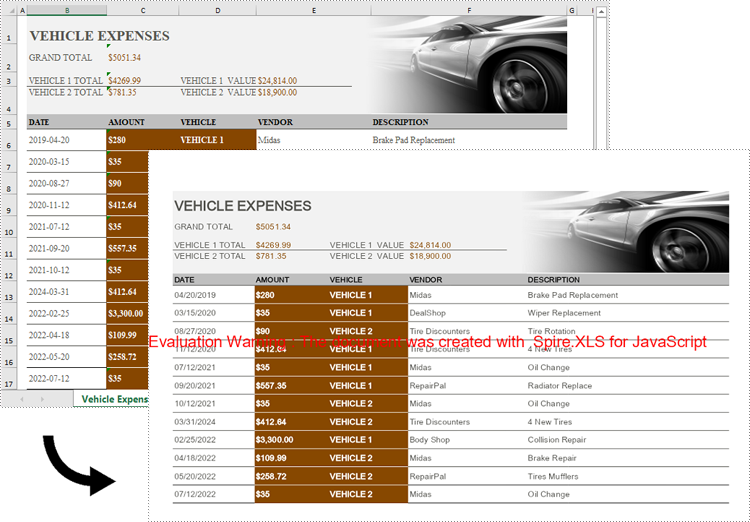
Spire.XLS for JavaScript allows you to convert a worksheet into an image using the Worksheet.ToImage() function. Once the conversion is complete, you can save the image in formats such as PNG, JPG, or BMP with the Image.Save() function. The key steps are as follows.
- Load the font file to ensure correct text rendering.
- Create a Workbook object using the new wasmModule.Workbook() function.
- Load the Excel file using the Workbook.LoadFromFile() function.
- Get a specific worksheet using the Workbook.Worksheets.get(index) function.
- Convert the worksheet to an image using the Worksheet.ToImage() function.
- Save the image to a PNG file using the Image.Save() function (you can also save the image in other image formats such as JPG and BMP).
Code example:
- JavaScript
import React, { useState, useEffect } from 'react';
function App() {
  const [wasmModule, setWasmModule] = useState(null);
  // Load Spire.XLS
  useEffect(() => {
    (async () => {
      try {
        const publicUrl = process.env.PUBLIC_URL || '';
        const spireModule = await import(/* webpackIgnore: true */ `${publicUrl}/spire.xls.js`);
        const rawModule = spireModule.default || spireModule;
        window.wasmModule = typeof rawModule === 'function'
          ? await rawModule({ locateFile: p => p.endsWith('.wasm') ? `${publicUrl}/${p}` : p })
          : rawModule;
        setWasmModule(window.wasmModule);
      } catch (error) {
        console.error('Failed to load spire.xls.js WASM module:', error);
      }
    })();
  }, []);

  // Function to convert an Excel Worksheet to an Image
  const ExcelToImage = async () => {
    const wasmModule = window.wasmModule.spirexls;

    if (wasmModule) {
      // Load font into Virtual File System (VFS)
      await window.spire.FetchFileToVFS('Arial.ttf', '/Library/Fonts/', `${process.env.PUBLIC_URL}/static/font/`);

      // Load input file into Virtual File System (VFS)
      const inputFileName = 'ToPDF.xlsx';
      await window.spire.FetchFileToVFS(inputFileName, '', `${process.env.PUBLIC_URL}/static/data/`);

      // Create a new workbook
      const workbook = new wasmModule.Workbook();

      // Load existing Excel document
      workbook.LoadFromFile({ fileName: inputFileName });

      // Get the first worksheet
      let sheet = workbook.Worksheets.get(0);

      // Convert the sheet to an image
      let image = sheet.ToImage(sheet.FirstRow, sheet.FirstColumn, sheet.LastRow, sheet.LastColumn);

      // Specify the output image file path
      const outputFileName = 'SheetToImage.png';
      //Save the image
      image.Save(outputFileName);

      // Read the saved file and convert to Blob object
      const modifiedFileArray = window.dotnetRuntime.Module.FS.readFile(outputFileName);
      const modifiedFile = new Blob([modifiedFileArray], { type: 'image/png' });

      // Create a URL for the Blob and initiate download
      const url = URL.createObjectURL(modifiedFile);
      const a = document.createElement('a');
      a.href = url;
      a.download = outputFileName;
      document.body.appendChild(a);
      a.click();
      document.body.removeChild(a);
      URL.revokeObjectURL(url);

      // Clean up resources used by the workbook
      workbook.Dispose();
    }
  };

  return (
    <div style={{ textAlign: 'center', height: '300px' }}>
      <h1>Convert an Excel Worksheet to Image Using JavaScript in React</h1>
      <button onClick={ExcelToImage} disabled={!wasmModule}>
        Convert
      </button>
Run the code to launch the React app at localhost:3000. Once it's running, click on the "Convert" button to convert the specified Excel worksheet to image:
The below screenshot shows the input Excel worksheet and the converted image:
Convert an Excel Worksheet to an Image without White Margins with JavaScript in React
When converting an Excel worksheet to an image, the default output may include unnecessary white margins that can affect the appearance and usability of the image. If you want to remove these white margins, you can set the left, right, top, and bottom margins of the worksheet to zero. The key steps are as follows.
- Load the font file to ensure correct text rendering.
- Create a Workbook object using the new wasmModule.Workbook() function.
- Load the Excel file using the Workbook.LoadFromFile() function.
- Get a specific worksheet using the Workbook.Worksheets.get(index) function.
- Remove all margins from the worksheet by setting its left, right, top, and bottom margin values to zero using the Worksheet.PageSetup.TopMargin, Worksheet.PageSetup.BottomMargin, Worksheet.PageSetup.LeftMargin, and Worksheet.PageSetup.RightMargin properties.
- Convert the worksheet to an image using the Worksheet.ToImage() function.
- Save the image to a PNG file using the Image.Save() function.
Code example:
- JavaScript
import React, { useState, useEffect } from 'react';
function App() {
  const [wasmModule, setWasmModule] = useState(null);
  // Load Spire.XLS
  useEffect(() => {
    (async () => {
      try {
        const publicUrl = process.env.PUBLIC_URL || '';
        const spireModule = await import(/* webpackIgnore: true */ `${publicUrl}/spire.xls.js`);
        const rawModule = spireModule.default || spireModule;
        window.wasmModule = typeof rawModule === 'function'
          ? await rawModule({ locateFile: p => p.endsWith('.wasm') ? `${publicUrl}/${p}` : p })
          : rawModule;
        setWasmModule(window.wasmModule);
      } catch (error) {
        console.error('Failed to load spire.xls.js WASM module:', error);
      }
    })();
  }, []);

  // Function to convert an Excel Worksheet to an Image
  const ExcelToImage = async () => {
    const wasmModule = window.wasmModule.spirexls;

    if (wasmModule) {
      // Load font into Virtual File System (VFS)
      await window.spire.FetchFileToVFS('Arial.ttf', '/Library/Fonts/', `${process.env.PUBLIC_URL}/static/font/`);

      // Load input file into Virtual File System (VFS)
      const inputFileName = 'ToPDF.xlsx';
      await window.spire.FetchFileToVFS(inputFileName, '', `${process.env.PUBLIC_URL}/static/data/`);

      // Create a new workbook
      const workbook = new wasmModule.Workbook();

      // Load existing Excel document
      workbook.LoadFromFile({ fileName: inputFileName });

      // Get the first worksheet
      let sheet = workbook.Worksheets.get(0);

      // Set all margins of the worksheet to zero
      sheet.PageSetup.LeftMargin = 0;
      sheet.PageSetup.BottomMargin = 0;
      sheet.PageSetup.TopMargin = 0;
      sheet.PageSetup.RightMargin = 0;

      // Convert the sheet to image
      let image = sheet.ToImage(sheet.FirstRow, sheet.FirstColumn, sheet.LastRow, sheet.LastColumn);

      // Specify the output image file path
      const outputFileName = 'SheetToImageWithoutMargins.png';
      //Save the image
      image.Save(outputFileName);

      // Read the saved file and convert to Blob object
      const modifiedFileArray = window.dotnetRuntime.Module.FS.readFile(outputFileName);
      const modifiedFile = new Blob([modifiedFileArray], { type: 'image/png' });

      // Create a URL for the Blob and initiate download
      const url = URL.createObjectURL(modifiedFile);
      const a = document.createElement('a');
      a.href = url;
      a.download = outputFileName;
      document.body.appendChild(a);
      a.click();
      document.body.removeChild(a);
      URL.revokeObjectURL(url);

      // Clean up resources used by the workbook
      workbook.Dispose();
    }
  };

  return (
    <div style={{ textAlign: 'center', height: '300px' }}>
      <h1>Convert an Excel Worksheet to Image Using JavaScript in React</h1>
      <button onClick={ExcelToImage} disabled={!wasmModule}>
        Convert
      </button>
    </div>
  );
}

export default App;

Convert a Specific Cell Range to an Image with JavaScript in React
Converting a specific cell range to an image lets you highlight essential data, making it easy to share or embed without including unnecessary information. Spire.XLS for JavaScript enables you to convert a specific cell range from a worksheet into an image by providing the starting and ending row and column indices as parameters to the Worksheet.ToImage() function. The key steps are as follows.
- Load the font file to ensure correct text rendering.
- Create a Workbook object using the new wasmModule.Workbook() function.
- Load the Excel file using the Workbook.LoadFromFile() function.
- Get a specific worksheet using the Workbook.Worksheets.get(index) function.
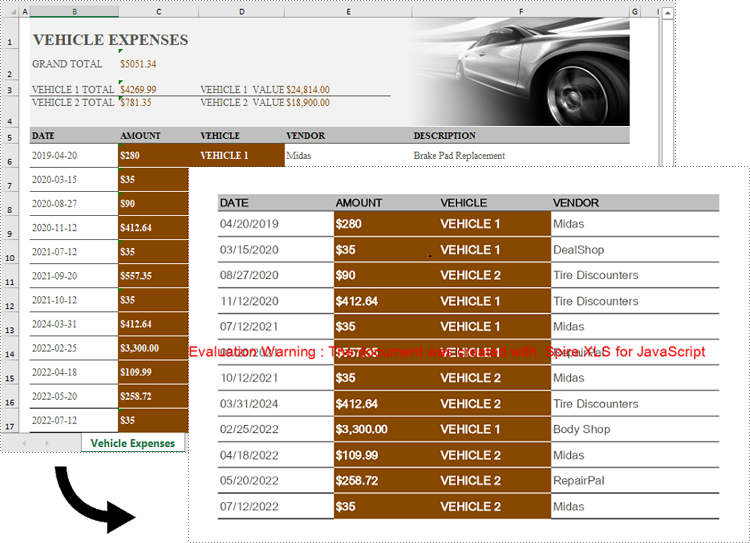
- Convert a specific cell range of the worksheet to an image using the Worksheet.ToImage() function and pass the index of the start row, start column, end row, and end column of the cell range to the method as parameters.
- Save the image to a PNG file using the Image.Save() function
Code example:
- JavaScript
import React, { useState, useEffect } from 'react';
function App() {
  const [wasmModule, setWasmModule] = useState(null);
  // Load Spire.XLS
  useEffect(() => {
    (async () => {
      try {
        const publicUrl = process.env.PUBLIC_URL || '';
        const spireModule = await import(/* webpackIgnore: true */ `${publicUrl}/spire.xls.js`);
        const rawModule = spireModule.default || spireModule;
        window.wasmModule = typeof rawModule === 'function'
          ? await rawModule({ locateFile: p => p.endsWith('.wasm') ? `${publicUrl}/${p}` : p })
          : rawModule;
        setWasmModule(window.wasmModule);
      } catch (error) {
        console.error('Failed to load spire.xls.js WASM module:', error);
      }
    })();
  }, []);

  // Function to convert an Excel Worksheet to an Image
  const ExcelToImage = async () => {
    const wasmModule = window.wasmModule.spirexls;

    if (wasmModule) {
      // Load font into Virtual File System (VFS)
      await window.spire.FetchFileToVFS('Arial.ttf', '/Library/Fonts/', `${process.env.PUBLIC_URL}/static/font/`);

      // Load input file into Virtual File System (VFS)
      const inputFileName = 'ToPDF.xlsx';
      await window.spire.FetchFileToVFS(inputFileName, '', `${process.env.PUBLIC_URL}/static/data/`);

      // Create a new workbook
      const workbook = new wasmModule.Workbook();

      // Load existing Excel document
      workbook.LoadFromFile({ fileName: inputFileName });

      // Get the first worksheet
      let sheet = workbook.Worksheets.get(0);

      // Convert a specific cell range of the worksheet to image
      let image = sheet.ToImage(5, 2, 17, 5);

      // Specify the output image file path
      const outputFileName = 'CellRangeToImage.png';
      //Save the image
      image.Save(outputFileName);

      // Read the saved file and convert to Blob object
      const modifiedFileArray = window.dotnetRuntime.Module.FS.readFile(outputFileName);
      const modifiedFile = new Blob([modifiedFileArray], { type: 'image/png' });

      // Create a URL for the Blob and initiate download
      const url = URL.createObjectURL(modifiedFile);
      const a = document.createElement('a');
      a.href = url;
      a.download = outputFileName;
      document.body.appendChild(a);
      a.click();
      document.body.removeChild(a);
      URL.revokeObjectURL(url);

      // Clean up resources used by the workbook
      workbook.Dispose();
    }
  };

  return (
    <div style={{ textAlign: 'center', height: '300px' }}>
      <h1>Convert a Cell Range to Image Using JavaScript in React</h1>
      <button onClick={ExcelToImage} disabled={!wasmModule}>
        Convert
      </button>
    </div>
  );
}

export default App;
Get a Free License
To fully experience the capabilities of Spire.XLS for JavaScript without any evaluation limitations, you can request a free 30-day trial license.

Spire.XLS for JavaScript is an independent Word API that allows developers to integrate Microsoft Word document creation capabilities into their JavaScript applications, without installing Microsoft Word on either development or target systems.
Spire.XLS for JavaScript is fully compatible with popular frameworks such as Vue, React, Angular, and JavaScript, enabling developers to create and distribute their own JavaScript applications seamlessly across the web.
This versatile JavaScript Excel API operates independently, with no reliance on Microsoft Office Excel. Spire.XLS for JavaScript supports both the legacy Excel 97-2003 format (.xls) and the most recent Excel versions, including Excel 2007, 2010, 2013, 2016, and 2019 (.xlsx, .xlsb, .xlsm), as well as Open Office (.ods) format.


Microsoft Excel is a powerful tool for managing and analyzing data, but its file format can be difficult to share, especially when recipients don’t have Excel. Converting an Excel file to PDF solves this problem by preserving the document’s layout, fonts, and formatting, ensuring it looks the same on any device. PDFs are universally accessible, making them ideal for sharing reports, invoices, or presentations. They also prevent unwanted editing, ensuring the content remains intact and easily viewable by anyone. In this article, we will demonstrate how to convert Excel to PDF in React using Spire.XLS for JavaScript.
- Convert an Entire Excel Workbook to PDF
- Convert a Specific Worksheet to PDF
- Fit Sheet on One Page while Converting a Worksheet to PDF
- Customize Page Margins while Converting a Worksheet to PDF
- Specify Page Size while Converting a Worksheet to PDF
- Convert a Cell Range to PDF
Install Spire.XLS for JavaScript
To get started with converting Excel to PDF in a React application, you can either download Spire.XLS for JavaScript from our website or install it via npm with the following command:
npm i spire.office
The downloaded product package has been integrated Spire.Doc for JavaScript,Spire.XLS for JavaScript,Spire.PDF for JavaScript,Spire.Presentation for JavaScript. To use the functionality of Spire.XLS for JavaScript, you need to copy the corresponding files (spire.xls.js, Spire.Xls.Wasm.zip, spire.common.js, Spire.Common.Wasm.zip, and _framework) to the project's "public" folder. At the same time, in order to ensure text rendering, the related font files can be added with custom paths. In the following example, the font addition path is: public\static\font.
For more details, refer to the documentation: How to Integrate Spire.XLS for JavaScript in a React Project
Convert an Entire Excel Workbook to PDF
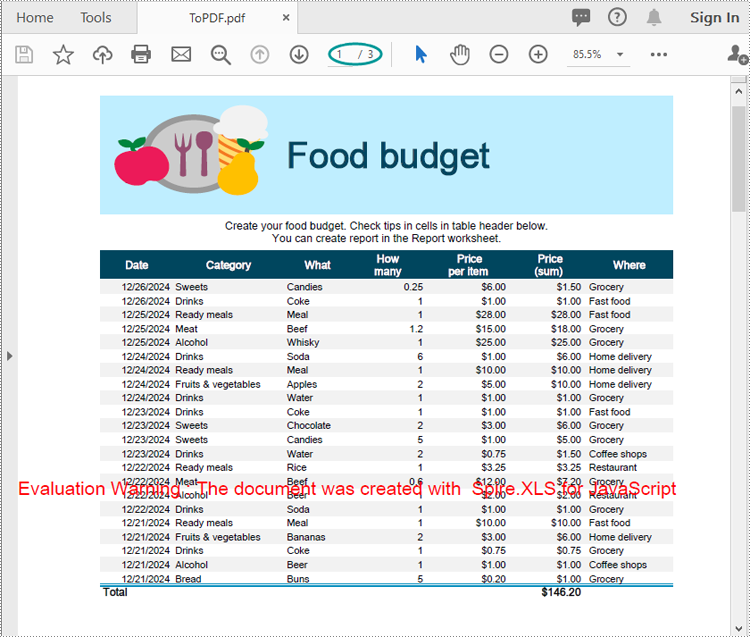
Converting an entire Excel workbook to PDF allows users to share all sheets in a single, universally accessible file. Using the Workbook.SaveToFile() function of Spire.XLS for JavaScript, you can easily save the entire workbook in PDF format. The key steps are as follows.
- Load the font file to ensure correct text rendering.
- Create a Workbook object using the new wasmModule.Workbook() function.
- Load the Excel file using the Workbook.LoadFromFile() function.
- Save the Excel file to PDF using the Workbook.SaveToFile() function.
Code example:
- JavaScript
import React, { useState, useEffect } from 'react';
function App() {
  const [wasmModule, setWasmModule] = useState(null);
  // Load Spire.XLS
  useEffect(() => {
    (async () => {
      try {
        const publicUrl = process.env.PUBLIC_URL || '';
        const spireModule = await import(/* webpackIgnore: true */ `${publicUrl}/spire.xls.js`);
        const rawModule = spireModule.default || spireModule;
        window.wasmModule = typeof rawModule === 'function'
          ? await rawModule({ locateFile: p => p.endsWith('.wasm') ? `${publicUrl}/${p}` : p })
          : rawModule;
        setWasmModule(window.wasmModule);
      } catch (error) {
        console.error('Failed to load spire.xls.js WASM module:', error);
      }
    })();
  }, []);

  // Function to convert Excel file to PDF
  const ExcelToPDF = async () => {
    const wasmModule = window.wasmModule.spirexls;

    if (wasmModule) {
      // Load font into Virtual File System (VFS)
      await window.spire.FetchFileToVFS('Arial.ttf', '/Library/Fonts/', `${process.env.PUBLIC_URL}/static/font/`);

      // Specify output PDF file path
      const outputFileName = 'out.pdf';

      // Load input file into Virtual File System (VFS)
      const inputFileName = 'ToPDF.xlsx';
      await window.spire.FetchFileToVFS(inputFileName, '', `${process.env.PUBLIC_URL}/static/data/`);

      // Create a new workbook
      const workbook = new wasmModule.Workbook();

      // Load existing Excel document
      workbook.LoadFromFile({ fileName: inputFileName });
      workbook.ConverterSetting.SheetFitToPage = true;

      // Save the workbook as PDF
      workbook.SaveToFile({ fileName: outputFileName, fileFormat: wasmModule.FileFormat.PDF });

      // Read the saved file and convert to Blob object
      const modifiedFileArray = window.dotnetRuntime.Module.FS.readFile(outputFileName);
      const modifiedFile = new Blob([modifiedFileArray], { type: 'application/pdf' });

      // Create a URL for the Blob and initiate download
      const url = URL.createObjectURL(modifiedFile);
      const a = document.createElement('a');
      a.href = url;
      a.download = outputFileName;
      document.body.appendChild(a);
      a.click();
      document.body.removeChild(a);
      URL.revokeObjectURL(url);

      // Clean up resources used by the workbook
      workbook.Dispose();
    }
  };

  return (
    <div style={{ textAlign: 'center', height: '300px' }}>
      <h1> Convert Excel file to PDF using JavaScript in React </h1>
      <button onClick={ExcelToPDF} disabled={!wasmModule}>
        Convert
      </button>
    </div>
  );
}

export default App;
Run the code to launch the React app at localhost:3000. Once it's running, click on the "Convert" button to download the PDF version of the Excel file:

Below is the converted PDF document:
Convert a Specific Worksheet to PDF
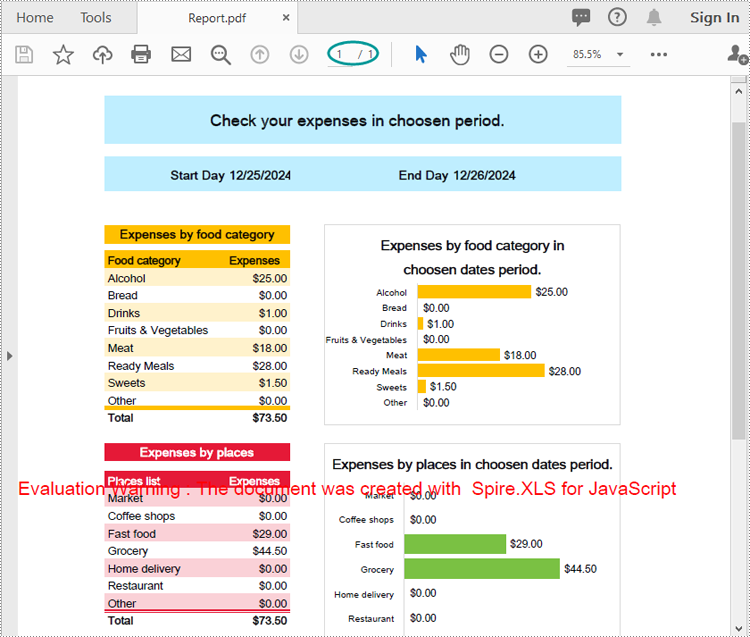
To convert a single worksheet to PDF, use the Worksheet.SaveToPdf() function in Spire.XLS for JavaScript. This feature lets you efficiently extract and convert only the necessary worksheet, making your reporting process more streamlined. The key steps are as follows.
- Load the font file to ensure correct text rendering.
- Create a Workbook object using the new wasmModule.Workbook() function.
- Load the Excel file using the Workbook.LoadFromFile() function.
- Get a specific worksheet using the Workbook.Worksheets.get(index) function.
- Save the worksheet to PDF using the Worksheet.SaveToPdf() function.
Code example:
- JavaScript
import React, { useState, useEffect } from 'react';
function App() {
  const [wasmModule, setWasmModule] = useState(null);
  // Load Spire.XLS
  useEffect(() => {
    (async () => {
      try {
        const publicUrl = process.env.PUBLIC_URL || '';
        const spireModule = await import(/* webpackIgnore: true */ `${publicUrl}/spire.xls.js`);
        const rawModule = spireModule.default || spireModule;
        window.wasmModule = typeof rawModule === 'function'
          ? await rawModule({ locateFile: p => p.endsWith('.wasm') ? `${publicUrl}/${p}` : p })
          : rawModule;
        setWasmModule(window.wasmModule);
      } catch (error) {
        console.error('Failed to load spire.xls.js WASM module:', error);
      }
    })();
  }, []);

  // Function to convert Excel file to PDF
  const ExcelToPDF  = async () => {
    const wasmModule = window.wasmModule.spirexls;

    if (wasmModule) {
      // Load font into Virtual File System (VFS)
      await window.spire.FetchFileToVFS('Arial.ttf', '/Library/Fonts/', `${process.env.PUBLIC_URL}/static/font/`);

      // Specify output PDF file path
      const outputFileName = 'out.pdf';

      // Load input file into Virtual File System (VFS)
      const inputFileName = 'ToPDF.xlsx';
      await window.spire.FetchFileToVFS(inputFileName, '', `${process.env.PUBLIC_URL}/static/data/`);

      // Create a new workbook
      const workbook = new wasmModule.Workbook();

      // Load existing Excel document
      workbook.LoadFromFile({ fileName: inputFileName });

      // Get the second worksheet
      let sheet = workbook.Worksheets.get(0);

      //Save the worksheet to PDF
      sheet.SaveToPdf({fileName: outputFileName});

      // Read the saved file and convert to Blob object
      const modifiedFileArray = window.dotnetRuntime.Module.FS.readFile(outputFileName);
      const modifiedFile = new Blob([modifiedFileArray], { type: 'application/pdf' });

      // Create a URL for the Blob and initiate download
      const url = URL.createObjectURL(modifiedFile);
      const a = document.createElement('a');
      a.href = url;
      a.download = outputFileName;
      document.body.appendChild(a);
      a.click();
      document.body.removeChild(a);
      URL.revokeObjectURL(url);

      // Clean up resources used by the workbook
      workbook.Dispose();
    }
  };

  return (
    <div style={{ textAlign: 'center', height: '300px' }}>
      <h1>Convert an Excel Worksheet to PDF Using JavaScript in React</h1>
      <button onClick={ExcelToPDF} disabled={!wasmModule}>
        Convert
      </button>
    </div>
  );
}

export default App;
Fit Sheet on One Page while Converting a Worksheet to PDF
Fitting a worksheet onto a single page in the output PDF enhances readability, especially for large datasets. Spire.XLS for JavaScript offers the Workbook.ConverterSetting.SheetFitToPage property, which determines whether the worksheet content should be scaled to fit on a single page when saved as a PDF. The key steps are as follows.
- Load the font file to ensure correct text rendering.
- Create a Workbook object using the new wasmModule.Workbook() function.
- Load the Excel file using the Workbook.LoadFromFile() function.
- Fit the worksheet on one page by setting the Workbook.ConverterSetting.SheetFitToPage property to true.
- Get a specific worksheet using the Workbook.Worksheets.get(index) function.
- Save the worksheet to PDF using the Worksheet.SaveToPdf() function.
Code example:
- JavaScript
import React, { useState, useEffect } from 'react';
function App() {
  const [wasmModule, setWasmModule] = useState(null);
  // Load Spire.XLS
  useEffect(() => {
    (async () => {
      try {
        const publicUrl = process.env.PUBLIC_URL || '';
        const spireModule = await import(/* webpackIgnore: true */ `${publicUrl}/spire.xls.js`);
        const rawModule = spireModule.default || spireModule;
        window.wasmModule = typeof rawModule === 'function'
          ? await rawModule({ locateFile: p => p.endsWith('.wasm') ? `${publicUrl}/${p}` : p })
          : rawModule;
        setWasmModule(window.wasmModule);
      } catch (error) {
        console.error('Failed to load spire.xls.js WASM module:', error);
      }
    })();
  }, []);

  // Function to convert Excel file to PDF
  const ExcelToPDF  = async () => {
    const wasmModule = window.wasmModule.spirexls;

    if (wasmModule) {
      // Load font into Virtual File System (VFS)
      await window.spire.FetchFileToVFS('Arial.ttf', '/Library/Fonts/', `${process.env.PUBLIC_URL}/static/font/`);

      // Load input file into Virtual File System (VFS)
      const inputFileName = 'ToPDF.xlsx';
      await window.spire.FetchFileToVFS(inputFileName, '', `${process.env.PUBLIC_URL}/static/data/`);

      // Create a new workbook
      const workbook = new wasmModule.Workbook();

      // Load existing Excel document
      workbook.LoadFromFile({ fileName: inputFileName });

      // Fit sheet on one page
      workbook.ConverterSetting.SheetFitToPage = true;

      // Get the first worksheet
      let sheet = workbook.Worksheets.get(0);

      // Specify the output PDF file path
      const outputFileName = 'FitSheetOnOnePage.pdf';

      //Save the worksheet to PDF
      sheet.SaveToPdf({fileName: outputFileName});

      // Read the saved file and convert to Blob object
      const modifiedFileArray = window.dotnetRuntime.Module.FS.readFile(outputFileName);
      const modifiedFile = new Blob([modifiedFileArray], { type: 'application/pdf' });

      // Create a URL for the Blob and initiate download
      const url = URL.createObjectURL(modifiedFile);
      const a = document.createElement('a');
      a.href = url;
      a.download = outputFileName;
      document.body.appendChild(a);
      a.click();
      document.body.removeChild(a);
      URL.revokeObjectURL(url);

      // Clean up resources used by the workbook
      workbook.Dispose();
    }
  };

  return (
    <div style={{ textAlign: 'center', height: '300px' }}>
      <h1>Convert an Excel Worksheet to PDF Using JavaScript in React</h1>
      <button onClick={ExcelToPDF} disabled={!wasmModule}>
        Convert
      </button>
    </div>
  );
}

export default App;
Customize Page Margins while Converting a Worksheet to PDF
Customizing page margins when converting an Excel worksheet to PDF ensures that your content is well-aligned and visually appealing. Using the Worksheet.PageSetup.TopMargin, Worksheet.PageSetup.BottomMargin, Worksheet.PageSetup.LeftMargin, and Worksheet.PageSetup.RightMargin properties, you can adjust or remove page margins as needed. The key steps are as follows.
- Load the font file to ensure correct text rendering.
- Create a Workbook object using the new wasmModule.Workbook() function.
- Load the Excel file using the Workbook.LoadFromFile() function.
- Get a specific worksheet using the Workbook.Worksheets.get(index) function.
- Adjust the page margins of the worksheet using the Worksheet.PageSetup.PageMargins property.
- Save the worksheet to PDF using the Worksheet.SaveToPdf() function.
Code example:
- JavaScript
import React, { useState, useEffect } from 'react';
function App() {
  const [wasmModule, setWasmModule] = useState(null);
  // Load Spire.XLS
  useEffect(() => {
    (async () => {
      try {
        const publicUrl = process.env.PUBLIC_URL || '';
        const spireModule = await import(/* webpackIgnore: true */ `${publicUrl}/spire.xls.js`);
        const rawModule = spireModule.default || spireModule;
        window.wasmModule = typeof rawModule === 'function'
          ? await rawModule({ locateFile: p => p.endsWith('.wasm') ? `${publicUrl}/${p}` : p })
          : rawModule;
        setWasmModule(window.wasmModule);
      } catch (error) {
        console.error('Failed to load spire.xls.js WASM module:', error);
      }
    })();
  }, []);

  // Function to convert Excel file to PDF
  const ExcelToPDF = async () => {
    const wasmModule = window.wasmModule.spirexls;

    if (wasmModule) {
      // Load font into Virtual File System (VFS)
      await window.spire.FetchFileToVFS('Arial.ttf', '/Library/Fonts/', `${process.env.PUBLIC_URL}/static/font/`);

      // Load input file into Virtual File System (VFS)
      const inputFileName = 'ToPDF.xlsx';
      await window.spire.FetchFileToVFS(inputFileName, '', `${process.env.PUBLIC_URL}/static/data/`);

      // Create a new workbook
      const workbook = new wasmModule.Workbook();

      // Load existing Excel document
      workbook.LoadFromFile({ fileName: inputFileName });

      // Get the first worksheet
      let sheet = workbook.Worksheets.get(0);

      // Adjust page margins of the worksheet
      sheet.PageSetup.TopMargin = 0.5;
      sheet.PageSetup.BottomMargin = 0.5;
      sheet.PageSetup.LeftMargin = 0.3;
      sheet.PageSetup.RightMargin = 0.3;

      // Specify the output PDF file path
      const outputFileName = 'ToPdfWithSpecificPageMargins.pdf';
      //Save the worksheet to PDF
      sheet.SaveToPdf({ fileName: outputFileName });

      // Read the saved file and convert to Blob object
      const modifiedFileArray = window.dotnetRuntime.Module.FS.readFile(outputFileName);
      const modifiedFile = new Blob([modifiedFileArray], { type: 'application/pdf' });

      // Create a URL for the Blob and initiate download
      const url = URL.createObjectURL(modifiedFile);
      const a = document.createElement('a');
      a.href = url;
      a.download = outputFileName;
      document.body.appendChild(a);
      a.click();
      document.body.removeChild(a);
      URL.revokeObjectURL(url);

      // Clean up resources used by the workbook
      workbook.Dispose();
    }
  };

  return (
    <div style={{ textAlign: 'center', height: '300px' }}>
      <h1>Convert an Excel Worksheet to PDF Using JavaScript in React</h1>
      <button onClick={ExcelToPDF} disabled={!wasmModule}>
        Convert
      </button>
    </div>
  );
}

export default App;
Specify Page Size while Converting a Worksheet to PDF
Choosing the correct page size when converting an Excel worksheet to PDF is essential for meeting specific printing or submission standards. Spire.XLS for JavaScript offers the Worksheet.PageSetup.PaperSize property, which allows you to select from various predefined page sizes or set a custom size. The key steps are as follows.
- Load the font file to ensure correct text rendering.
- Create a Workbook object using the new wasmModule.Workbook() function.
- Load the Excel file using the Workbook.LoadFromFile() function.
- Get a specific worksheet using the Workbook.Worksheets.get(index) function.
- Set the page size of the worksheet using the Worksheet.PageSetup.PaperSize property.
- Save the worksheet to PDF using the Worksheet.SaveToPdf() function.
Code example:
- JavaScript
import React, { useState, useEffect } from 'react';
function App() {
  const [wasmModule, setWasmModule] = useState(null);
  // Load Spire.XLS
  useEffect(() => {
    (async () => {
      try {
        const publicUrl = process.env.PUBLIC_URL || '';
        const spireModule = await import(/* webpackIgnore: true */ `${publicUrl}/spire.xls.js`);
        const rawModule = spireModule.default || spireModule;
        window.wasmModule = typeof rawModule === 'function'
          ? await rawModule({ locateFile: p => p.endsWith('.wasm') ? `${publicUrl}/${p}` : p })
          : rawModule;
        setWasmModule(window.wasmModule);
      } catch (error) {
        console.error('Failed to load spire.xls.js WASM module:', error);
      }
    })();
  }, []);

  // Function to convert Excel file to PDF
  const ExcelToPDF = async () => {
    const wasmModule = window.wasmModule.spirexls;

    if (wasmModule) {
      // Load font into Virtual File System (VFS)
      await window.spire.FetchFileToVFS('Arial.ttf', '/Library/Fonts/', `${process.env.PUBLIC_URL}/static/font/`);

      // Load input file into Virtual File System (VFS)
      const inputFileName = 'ToPDF.xlsx';
      await window.spire.FetchFileToVFS(inputFileName, '', `${process.env.PUBLIC_URL}/static/data/`);

      // Create a new workbook
      const workbook = new wasmModule.Workbook();

      // Load existing Excel document
      workbook.LoadFromFile({ fileName: inputFileName });

      // Get the first worksheet
      let sheet = workbook.Worksheets.get(0);

      // Set the page size of the worksheet
      sheet.PageSetup.PaperSize = wasmModule.PaperSizeType.PaperA3;

      // Specify the output PDF file path
      const outputFileName = 'ToPdfWithSpecificPageSize.pdf';
      //Save the worksheet to PDF
      sheet.SaveToPdf({ fileName: outputFileName });

      // Read the saved file and convert to Blob object
      const modifiedFileArray = window.dotnetRuntime.Module.FS.readFile(outputFileName);
      const modifiedFile = new Blob([modifiedFileArray], { type: 'application/pdf' });

      // Create a URL for the Blob and initiate download
      const url = URL.createObjectURL(modifiedFile);
      const a = document.createElement('a');
      a.href = url;
      a.download = outputFileName;
      document.body.appendChild(a);
      a.click();
      document.body.removeChild(a);
      URL.revokeObjectURL(url);

      // Clean up resources used by the workbook
      workbook.Dispose();
    }
  };

  return (
    <div style={{ textAlign: 'center', height: '300px' }}>
      <h1>Convert an Excel Worksheet to PDF Using JavaScript in React</h1>
      <button onClick={ExcelToPDF} disabled={!wasmModule}>
        Convert
      </button>
    </div>
  );
}

export default App;
Convert a Cell Range to PDF
Converting a specific cell range to PDF allows users to export only a selected portion of the worksheet, ideal for focused reporting or sharing key data points. Using the Worksheet.PageSetup.PrintArea property, you can specify a cell range for conversion. The key steps are as follows.
- Load the font file to ensure correct text rendering.
- Create a Workbook object using the new wasmModule.Workbook() function.
- Load the Excel file using the Workbook.LoadFromFile() function.
- Get a specific worksheet using the Workbook.Worksheets.get(index) function.
- Specify the cell range of the worksheet for conversion using the Worksheet.PageSetup.PrintArea property.
- Save the worksheet to PDF using the Worksheet.SaveToPdf() function.
Code example:
- JavaScript
import React, { useState, useEffect } from 'react';
function App() {
  const [wasmModule, setWasmModule] = useState(null);
  // Load Spire.XLS
  useEffect(() => {
    (async () => {
      try {
        const publicUrl = process.env.PUBLIC_URL || '';
        const spireModule = await import(/* webpackIgnore: true */ `${publicUrl}/spire.xls.js`);
        const rawModule = spireModule.default || spireModule;
        window.wasmModule = typeof rawModule === 'function'
          ? await rawModule({ locateFile: p => p.endsWith('.wasm') ? `${publicUrl}/${p}` : p })
          : rawModule;
        setWasmModule(window.wasmModule);
      } catch (error) {
        console.error('Failed to load spire.xls.js WASM module:', error);
      }
    })();
  }, []);

  // Function to convert Excel file to PDF
  const ExcelToPDF = async () => {
    const wasmModule = window.wasmModule.spirexls;

    if (wasmModule) {
      // Load font into Virtual File System (VFS)
      await window.spire.FetchFileToVFS('Arial.ttf', '/Library/Fonts/', `${process.env.PUBLIC_URL}/static/font/`);

      // Load input file into Virtual File System (VFS)
      const inputFileName = 'ToPDF.xlsx';
      await window.spire.FetchFileToVFS(inputFileName, '', `${process.env.PUBLIC_URL}/static/data/`);

      // Create a new workbook
      const workbook = new wasmModule.Workbook();

      // Load existing Excel document
      workbook.LoadFromFile({ fileName: inputFileName });

      // Get the first worksheet
      let sheet = workbook.Worksheets.get(0);

      // Set the page size of the worksheet
      sheet.PageSetup.PrintArea = "B5:E17";

      // Specify the output PDF file path
      const outputFileName = 'CellRangeToPDF.pdf';
      //Save the worksheet to PDF
      sheet.SaveToPdf({ fileName: outputFileName });

      // Read the saved file and convert to Blob object
      const modifiedFileArray = window.dotnetRuntime.Module.FS.readFile(outputFileName);
      const modifiedFile = new Blob([modifiedFileArray], { type: 'application/pdf' });

      // Create a URL for the Blob and initiate download
      const url = URL.createObjectURL(modifiedFile);
      const a = document.createElement('a');
      a.href = url;
      a.download = outputFileName;
      document.body.appendChild(a);
      a.click();
      document.body.removeChild(a);
      URL.revokeObjectURL(url);

      // Clean up resources used by the workbook
      workbook.Dispose();
    }
  };

  return (
    <div style={{ textAlign: 'center', height: '300px' }}>
      <h1>Convert an Excel Worksheet to PDF Using JavaScript in React</h1>
      <button onClick={ExcelToPDF} disabled={!wasmModule}>
        Convert
      </button>
    </div>
  );
}

export default App;

Get a Free License
To fully experience the capabilities of Spire.XLS for JavaScript without any evaluation limitations, you can request a free 30-day trial license.
How to Integrate Spire.XLS for JavaScript in a React Project
2024-12-18 00:55:08 Written by AdministratorIn today's data-driven landscape, efficiently handling Excel files is crucial for web applications. React, a widely-used JavaScript library for user interfaces, can significantly enhance its capabilities by integrating Spire.XLS for JavaScript. This integration allows developers to perform complex operations like reading, writing, and formatting Excel files directly within their React projects.
This article will walk you through the integration of Spire.XLS for JavaScript into your React projects, covering everything from the initial setup to a straightforward usage example.
- Benefits of Using Spire.XLS for JavaScript in React Projects
- Set Up Your Environment
- Integrate Spire.XLS for JavaScript in Your Project
- Create and Save Excel Files Using JavaScript
Benefits of Using Spire.XLS for JavaScript in React Projects
React, a popular JavaScript library for building user interfaces, has revolutionized web development by enabling developers to create interactive and dynamic user experiences. On the other hand, Spire.XLS for JavaScript is a powerful library that allows developers to manipulate Excel files directly in the browser.
By integrating Spire.XLS for JavaScript into your React project, you can add advanced Excel capabilities to your application. Here are some of the key advantages:
- Enhanced Functionality: Spire.XLS for JavaScript enables creating, modifying, and formatting Excel files directly in the browser, enhancing your React app's capabilities and user experience.
- Improved Data Management: Easily import, export, and manipulate Excel files with Spire.XLS, streamlining data management and reducing errors.
- Cross-Browser Compatibility: Designed to work seamlessly across major web browsers, Spire.XLS ensures consistent handling of Excel files in your React application.
- Seamless Integration: Compatible with various JavaScript frameworks, including React, Spire.XLS integrates easily into existing projects without disrupting your workflow.
Set Up Your Environment
Step 1. Install Node.js and npm
Download and install Node.js from the official website. Make sure to choose the version that matches your operating system.
After the installation is complete, you can verify that Node.js and npm are working correctly by running the following commands in your terminal:
node -v
npm -v

Step 2. Create a New React Project
Create a new React project named my-app using Create React App from terminal:
npx create-react-app my-app
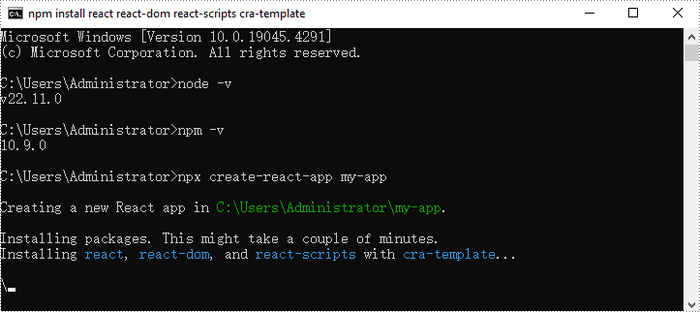
Once the project is created, you can navigate to the project directory and start the development server using the following commands:
cd my-app
npm start

If your React project is compiled successfully, the app will be served at http://localhost:3000, allowing you to view and test your application in a browser.
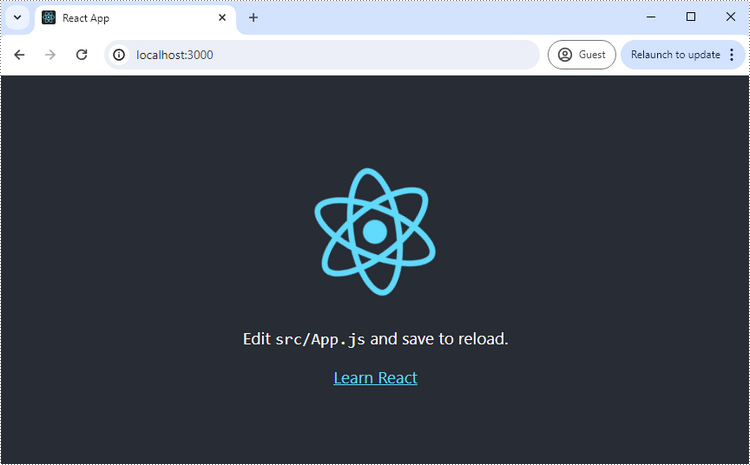
To visually browse and manage the files in your project, you can open the project using VS Code.

Integrate Spire.XLS for JavaScript in Your Project
Download Spire.XLS for JavaScript from our website and unzip it to a location on your disk. The downloaded product package has been integrated Spire.Doc for JavaScript,Spire.XLS for JavaScript,Spire.PDF for JavaScript,Spire.Presentation for JavaScript. To use the functionality of Spire.XLS for JavaScript, you need to copy the corresponding files (spire.xls.js, Spire.Xls.Wasm.zip, spire.common.js, Spire.Common.Wasm.zip, and _framework) to the project's “public” folder.

You can also install Spire.XLS for JavaScript using npm. In the terminal within VS Code, run the following command:
npm i spire.office
After downloading this command, find the corresponding file in the node_comodules/spire.office path of the project and copy it to “public” folder.
At the same time, in order to ensure text rendering, the related font files can be added with custom paths. In the following example, the font addition path is: public\font.
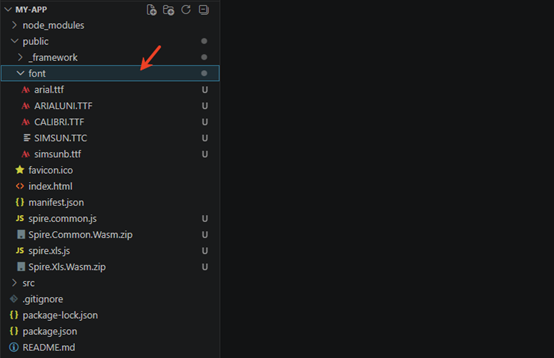
Create Excel files using JavaScript
Modify the code in the "App.js" file to generate an Excel file using the WebAssembly (WASM) module. Specifically, utilize the Spire.XLS for JavaScript library for Excel file manipulation.
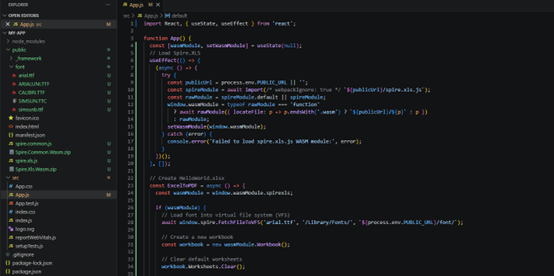
- JavaScript
import React, { useState, useEffect } from 'react';

function App() {
  const [wasmModule, setWasmModule] = useState(null);
  // Load Spire.XLS
  useEffect(() => {
    (async () => {
      try {
        const publicUrl = process.env.PUBLIC_URL || '';
        const spireModule = await import(/* webpackIgnore: true */ `${publicUrl}/spire.xls.js`);
        const rawModule = spireModule.default || spireModule;
        window.wasmModule = typeof rawModule === 'function'
          ? await rawModule({ locateFile: p => p.endsWith('.wasm') ? `${publicUrl}/${p}` : p })
          : rawModule;
        setWasmModule(window.wasmModule);
      } catch (error) {
        console.error('Failed to load spire.xls.js WASM module:', error);
      }
    })();
  }, []);

  // Create HelloWorld.xlsx
  const ExcelToPDF = async () => {
    const wasmModule = window.wasmModule.spirexls;

    if (wasmModule) {
      // Load font into virtual file system (VFS)
      await window.spire.FetchFileToVFS('arial.ttf', '/Library/Fonts/', `${process.env.PUBLIC_URL}/font/`);

      // Create a new workbook
      const workbook = new wasmModule.Workbook();

      // Clear default worksheets
      workbook.Worksheets.Clear();

      // Add a new worksheet named "MySheet"
      const sheet = workbook.Worksheets.Add("MySheet");

      // Set the text of cell "A1"
      sheet.Range.get("A1").Text = "Hello World";

      // Set column width to auto-fit
      sheet.Range.get("A1").AutoFitColumns();

      // Define output file name
      const outputFileName = 'HelloWorld.xlsx';

      // Save the workbook to the specified path
      workbook.SaveToFile({ fileName: outputFileName, version: wasmModule.ExcelVersion.Version2010 });

      // Read the saved file and convert to Blob object
      const modifiedFileArray = window.dotnetRuntime.Module.FS.readFile(outputFileName);
      const modifiedFile = new Blob([modifiedFileArray], { type: 'application/vnd.openxmlformats-officedocument.spreadsheetml.sheet' });

      // Create a URL for the Blob and start download
      const url = URL.createObjectURL(modifiedFile);
      const a = document.createElement('a');
      a.href = url;
      a.download = outputFileName;
      document.body.appendChild(a);
      a.click();
      document.body.removeChild(a);
      URL.revokeObjectURL(url);

      // Clean up resources used by the workbook
      workbook.Dispose();
    }
  };

  return (
    <div style={{ textAlign: 'center', height: '300px' }}>
      <h1>Create HelloWorld.xlsx</h1>
      <button onClick={ExcelToPDF} disabled={!wasmModule}>
        Generate
      </button>
    </div>
  );
}

export default App;
Using "npm start" to run the program, and click "Generate" to download the generated Excel file.
Apply for a Temporary License
If you'd like to remove the evaluation message from the generated documents, or to get rid of the function limitations, please request a 30-day trial license for yourself.
How to Integrate Spire.XLS for JavaScript in a Node.js Project
2024-12-02 08:50:00 Written by AdministratorExcel manipulation is a crucial aspect of many modern web applications, from data analysis to report generation. Node.js, with its non-blocking I/O model and rich ecosystem, is an excellent choice for backend development. When combined with Spire.XLS for JavaScript, you can unlock a world of possibilities for handling Excel files efficiently.
This guide will walk you through the process of integrating Spire.XLS for JavaScript into your Node.js projects, covering everything from initial setup to generating a simple Excel document.
- Benefits of Using Spire.XLS for JavaScript in Node.js Projects
- Set Up Your Environment
- Integrate Spire.XLS for JavaScript in Your Project
- Create and Save Excel Files Using JavaScript
Benefits of Using Spire.XLS for JavaScript in Node.js Projects
Node.js is a great option for developing scalable network applications. When paired with Spire.XLS for JavaScript, you get a robust solution for handling Excel files. Here are some key features and benefits of using Spire.XLS for JavaScript in Node.js projects:
- Comprehensive Excel Support: Spire.XLS for JavaScript supports a wide range of Excel features, including formulas, charts, pivot tables, and more.
- High Performance: The library is optimized for speed, ensuring that your application remains responsive even when handling large datasets.
- Cross-Platform Compatibility: With Node.js, you can run your application on any platform that supports JavaScript, including Windows, macOS, and Linux.
- Secure and Reliable: The library is designed to be secure, with features like data validation and encryption to protect your data.
By leveraging the strengths of both Node.js and Spire.XLS for JavaScript, you can build powerful applications that handle Excel files with ease.
Set Up Your Environment
Step 1
Download and install Node.js from the official website. Make sure to choose the version that matches your operating system.
After the installation is complete, you can verify that Node.js and npm are installed correctly, along with the version numbers, by entering the following commands in CMD:
node -v
npm -v
Step 2
Initialize a Node.js project:
npm init -y
Installation dependencies:
npm install adm-zip@^0.5.16
Configure packaging.json:
{
	"name": "nodejstest",
    "version": "1.0.0",
    "description": "Simple test project to generate HelloWorld.xlsx using spire.xls.js",
    "main": "index.js",
    "type": "module",
    "scripts": {
      "start": "node --experimental-modules --experimental-wasm-modules --experimental-vm-modules index.js"
    },
    "dependencies": {
      "adm-zip": "^0.5.16"
    }
  }
Customize folder in the root directory to put some font files, you can customize and add fonts based on the font used in your documents.
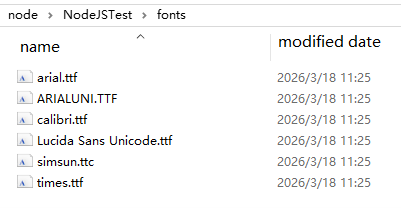
Integrate Spire.XLS for JavaScript in Your Project
Download Spire.XLS for JavaScript and unzip it to a location on your disk. The downloaded product package integrates Spire.Doc for JavaScript, Spire.XLS for JavaScript, Spire.PDF for JavaScript, and Spire.Presentation for JavaScript. To use the features of Spire.XLS for JavaScript, customize the folder in the root directory, this tutorial defined the 'wasm' folder, and copy the corresponding files (spire.xls.js, Spire.Xls.Wasm.zip, spire.common.js, Spire.Common.Wasm.zip, and the _framework folder) to the “wasm” folder.
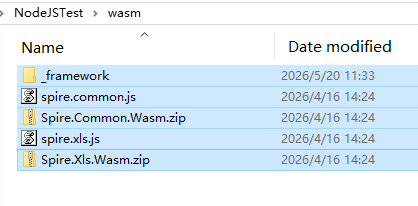
Add the 'index.js' file to the root directory of the project and set the following content to create a simple Excel file
- JavaScript
//NodeJSTest----create "HelloWorld.xlsx"
import fs from 'fs/promises';
import path from 'path';
import { fileURLToPath } from 'url';
import AdmZip from 'adm-zip';

const __filename = fileURLToPath(import.meta.url);
const __dirname = path.dirname(__filename);

async function extractWasmFiles() {
    const wasmDir = path.join(__dirname, 'wasm');
    const frameworkDir = path.join(wasmDir, '_framework');
    await fs.mkdir(frameworkDir, { recursive: true });

    for (const zipName of ['Spire.Common.Wasm.zip', 'Spire.Xls.Wasm.zip']) {
        const zipPath = path.join(wasmDir, zipName);
        try {
            await fs.access(zipPath);
            new AdmZip(zipPath).extractAllTo(wasmDir, true);
        } catch { }
    }
}

async function main() {
    try {
        await extractWasmFiles();
        const { spirexls } = await import('./wasm/spire.xls.js');
        const spire = globalThis.spire;
        if (!spire) throw new Error('WASM module not loaded correctly');

        const outputDir = path.join(__dirname, 'output');
        await fs.mkdir(outputDir, { recursive: true });

        const fontsPath = path.join(__dirname, 'fonts');
        try {
            await fs.access(fontsPath);
            spire.copyLocalPathToVFS(fontsPath, '/Library/Fonts/');
        } catch { }

        // Create a new workbook
        const workbook = new spirexls.Workbook();

        // Clear default worksheets
        workbook.Worksheets.Clear();

        // Add a new worksheet named "MySheet"
        const sheet = workbook.Worksheets.Add("MySheet");

        // Set text for the "A1" range
        sheet.Range.get("A1").Text = "Hello World";

        // Set the column width to auto fit
        sheet.Range.get("A1").AutoFitColumns();

        // Define the output file name
        const outputFileName = 'HelloWorld.xlsx';

        // Save the workbook to the specified path
        workbook.SaveToFile({ fileName: outputFileName, version: spirexls.ExcelVersion.Version2010 });

        const outputFile = path.join(outputDir, outputFileName);
        spire.copyFileFromFSToLocalStorage(outputFileName, outputFile);
        workbook.Dispose();

        console.log(`Document saved to ${outputFile}`);
    } catch (error) {
        console.error(error);
        process.exit(1);
    }
}

main();
Using “npm start” run the program, you will find the generated Word file in the designated file path.
Apply for a Temporary License
If you'd like to remove the evaluation message from the generated documents, or to get rid of the function limitations, please request a 30-day trial license for yourself.
