
Document Operation (21)
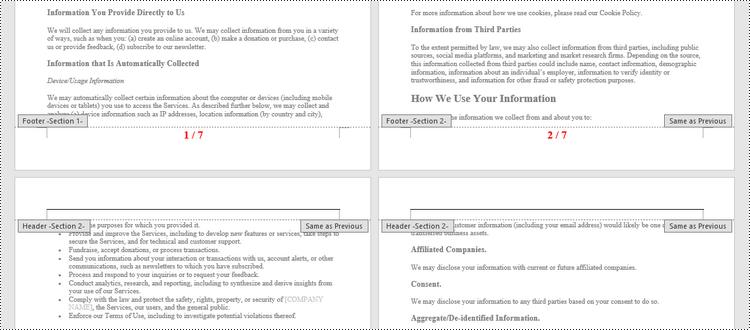
Adding page numbers to a Word document is a fundamental feature that enhances readability and navigation, especially in lengthy documents. It allows readers to find specific content more easily and helps authors organize their work. Word offers flexible options for adding page numbers, including choosing the location (header, footer, or body) and customizing the format and appearance to match your document's design needs.
In this article, you will learn how to add pager numbers to a Word document, as well as customizing their appearance using Spire.Doc for Python.
- Add Page Numbers to a Word Document
- Add Page Numbers to a Specific Section
- Add Discontinuous Page Numbers to Different Sections
Install Spire.Doc for Python
This scenario requires Spire.Doc for Python and plum-dispatch v1.7.4. They can be easily installed in your Windows through the following pip command.
pip install Spire.Doc
Add Page Numbers to a Word Document in Python
To dynamically add page numbers to a Word document using Spire.Doc, you can leverage various fields such as FieldPage, FieldNumPages, and FieldSection. These fields serve as placeholders for the current page number, total page count, and section number, enabling you to customize and automate the pagination process.
You can embed these placeholders in the header or footer of your document by calling the Paragraph.AppendField() method.
Here's a step-by-step guide on how to insert a FieldPage and FieldNumPages field in the footer, which will display the page number in the format "X / Y":
- Create a Document object.
- Load a Word document from a specified file path.
- Get the first section using Document.Sections[index] property
- Get the footer of the first section using Section.HeadersFooters.Footer property.
- Add a paragraph to the footer using HeaderFooter.AddParagraph() method.
- Insert a FieldPage field, and a FieldNumPages field to the paragraph using Paragraph.AppendField() method.
- Save the document to a different Word file.
- Python
from spire.doc import *
from spire.doc.common import *

# Create a Document object
document = Document()

# Load a Word file
document.LoadFromFile("C:\\Users\\Administrator\\Desktop\\Input.docx")

# Get the first section
section = document.Sections[0]

# Get the footer of the section
footer = section.HeadersFooters.Footer

# Add "page number / page count" to the footer
footerParagraph = footer.AddParagraph()
footerParagraph.AppendField("page number", FieldType.FieldPage)
footerParagraph.AppendText(" / ")
footerParagraph.AppendField("page count", FieldType.FieldNumPages)
footerParagraph.Format.HorizontalAlignment = HorizontalAlignment.Center

# Apply formatting to the page number
style = ParagraphStyle(document)
style.CharacterFormat.Bold = True
style.CharacterFormat.FontName = "Times New Roman"
style.CharacterFormat.FontSize = 18
style.CharacterFormat.TextColor = Color.get_Red()
document.Styles.Add(style)
footerParagraph.ApplyStyle(style)

# Save the document
document.SaveToFile("Output/AddPageNumbersToDocument.docx")

# Dispose resources
document.Dispose()
Add Page Numbers to a Specific Section in Python
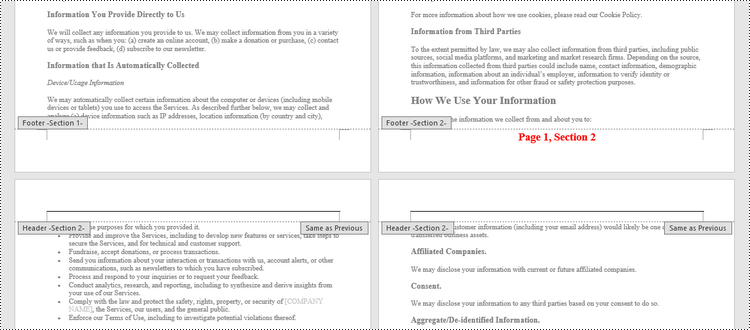
By default, when you add page numbers to the footer of a section, they are automatically linked to the preceding section, maintaining a continuous sequence of page numbers. This behavior is convenient for most documents but may not be ideal when you want to start numbering from a certain section without affecting the numbering in other parts of the document.
If you need to add page numbers to a specific section without them being linked to the previous section, you must unlink the subsequent sections and clear the contents of their footers. Here's how you can do it using Spire.Doc for Python.
- Create a Document object.
- Load a Word document from a specified file path.
- Get a specific section using Document.Sections[index] property
- Get the footer of the section using Section.HeadersFooters.Footer property.
- Restart page numbering from 1 by setting Section.PageSetup.RestartPageNumbering property to true and Section.PageSetup.PageStartingNumber property to 1.
- Insert a FieldPage field and a FieldSection field to the footer using Paragraph.AppendField() method.
- Disable "Link to previous" by setting HeadersFooters.Footer.LinkToPrevious propety to false.
- Delete the content of the footers in the subsequent sections
- Save the document to a different Word file.
- Python
from spire.doc import *
from spire.doc.common import *

# Create a Document object
document = Document()

# Load a Word file
document.LoadFromFile("C:\\Users\\Administrator\\Desktop\\Input.docx")

# Get a specific section
sectionIndex = 1
section = document.Sections[sectionIndex]

# Restart page numbering from 1
section.PageSetup.RestartPageNumbering = True
section.PageSetup.PageStartingNumber = 1

# Get the footer of the section
footer = section.HeadersFooters.Footer

# Add "Page X, Section Y" to the footer
footerParagraph = footer.AddParagraph()
footerParagraph.AppendText("Page ")
footerParagraph.AppendField("page number", FieldType.FieldPage)
footerParagraph.AppendText(", Section ")
footerParagraph.AppendField("section number", FieldType.FieldSection)
footerParagraph.Format.HorizontalAlignment = HorizontalAlignment.Center

# Apply formatting to the page number
style = ParagraphStyle(document);
style.CharacterFormat.Bold = True
style.CharacterFormat.FontName = "Times New Roman"
style.CharacterFormat.FontSize = 18
style.CharacterFormat.TextColor = Color.get_Red()
document.Styles.Add(style)
footerParagraph.ApplyStyle(style)

# Disable "Link to previous" in the subsequent section
document.Sections[sectionIndex + 1].HeadersFooters.Footer.LinkToPrevious = False

# Delete the content of the footers in the subsequent sections
for i in range(sectionIndex +1, document.Sections.Count, 1):
    document.Sections[i].HeadersFooters.Footer.ChildObjects.Clear()
    document.Sections[i].HeadersFooters.Footer.AddParagraph()

# Save the document
document.SaveToFile("Output/AddPageNumbersToSection.docx")

# Dispose resources
document.Dispose()
Add Discontinuous Page Numbers to Different Sections in Python
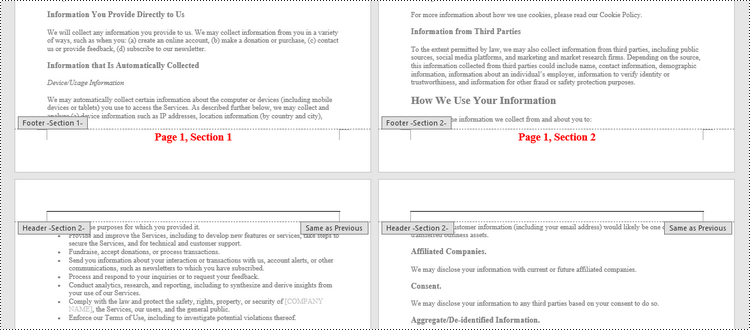
When working with documents that contain multiple sections, you might want to start page numbering anew for each section to clearly distinguish between them. To achieve this, you must go through each section individually, add page numbers, and then reset the page numbering for the next section.
The following are the steps to add discontinuous page numbers to different sections using Spire.Doc for Python.
- Create a Document object.
- Load a Word document from a specified file path.
- Iterate through the sections in the document.
- Get a specific section using Document.Sections[index] property
- Get the footer of the section using Section.HeadersFooters.Footer property.
- Restart page numbering from 1 by setting Section.PageSetup.RestartPageNumbering property to true and Section.PageSetup.PageStartingNumber property to 1.
- Insert a FieldPage field and a FieldSection field to the footer using Paragraph.AppendField() method.
- Save the document to a different Word file.
- Python
from spire.doc import *
from spire.doc.common import *

# Create a Document object
document = Document()

# Load a Word file
document.LoadFromFile("C:\\Users\\Administrator\\Desktop\\Input.docx")

# Iterate through the sections in the document
for i in range(document.Sections.Count):

    # Get a specific section
    section = document.Sections[i]

    # Restart page numbering from 1
    section.PageSetup.RestartPageNumbering = True
    section.PageSetup.PageStartingNumber = 1

    # Get the footer of the section
    footer = section.HeadersFooters.Footer

    # Add "Page X, Section Y" to the footer
    footerParagraph = footer.AddParagraph()
    footerParagraph.AppendText("Page ")
    footerParagraph.AppendField("page number", FieldType.FieldPage)
    footerParagraph.AppendText(", Section ")
    footerParagraph.AppendField("section number", FieldType.FieldSection)
    footerParagraph.Format.HorizontalAlignment = HorizontalAlignment.Center

    # Apply formatting to the page number
    style = ParagraphStyle(document)
    style.CharacterFormat.Bold = True
    style.CharacterFormat.FontName = "Times New Roman";
    style.CharacterFormat.FontSize = 18;
    style.CharacterFormat.TextColor = Color.get_Red()
    document.Styles.Add(style)
    footerParagraph.ApplyStyle(style)

# Save the document
document.SaveToFile("Output/AddDifferentPageNumbersToSections.docx")

# Dispose resources
document.Dispose()
Apply for a Temporary License
If you'd like to remove the evaluation message from the generated documents, or to get rid of the function limitations, please request a 30-day trial license for yourself.
Python: Enable Track Changes, Accept or Reject Tracked Changes in Word
2024-04-07 01:31:37 Written by KoohjiTrack changes in Microsoft Word is a powerful feature that facilitates document collaboration and review processes. When track changes is enabled, any modifications made to the document, such as text additions or deletions, formatting changes, and comments, are visually highlighted. This makes it easier for document editors or collaborators to identify and review the changes made by themselves or others. In this article, we will explain how to enable track changes, as well as accept or reject the tracked changes in Word documents in Python using Spire.Doc for Python.
- Enable Track Changes in Word in Python
- Accept Tracked Changes in Word in Python
- Reject Tracked Changes in Word in Python
Install Spire.Doc for Python
This scenario requires Spire.Doc for Python and plum-dispatch v1.7.4. They can be easily installed in your Windows through the following pip commands.
pip install Spire.Doc
If you are unsure how to install, please refer to this tutorial: How to Install Spire.Doc for Python on Windows
Enable Track Changes in Word in Python
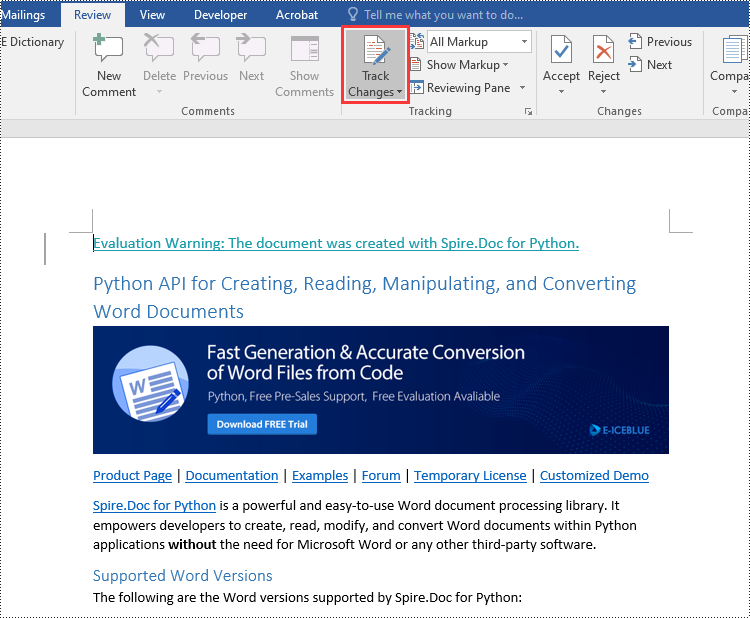
Spire.Doc for Python offers the Document.TrackChanges property to enable the track changes mode for a Word document. The detailed steps are as follows.
- Create an object of the Document class.
- Load a Word document using Document.LoadFromFile() method.
- Enable the track changes mode for the document by setting the Document.TrackChanges property to True.
- Save the result document using Document.SaveToFile() method.
- Python
from spire.doc import *
from spire.doc.common import *

# Create an object of the Document class
doc = Document()
# Load a Word document
doc.LoadFromFile("Sample.docx")

# Enable the track changes mode for the document
doc.TrackChanges = True

# Save the result document
doc.SaveToFile("EnableTrackChanges.docx", FileFormat.Docx2016)
doc.Close()
Accept Tracked Changes in Word in Python
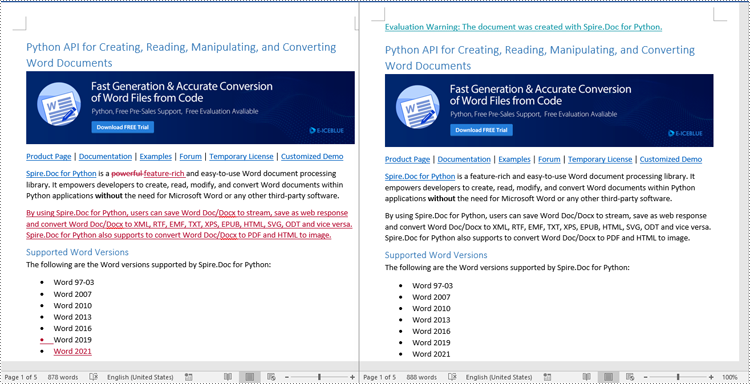
Accepting tracked changes allows you to incorporate the suggested modifications permanently into the document. By using the Document.AcceptChanges() method provided by Spire.Doc for Python, you can easily accept all tracked changes in a Word document. The detailed steps are as follows.
- Create an object of the Document class.
- Load a Word document using Document.LoadFromFile() method.
- Check if the document has tracked changes using Document.HasChanges property.
- Accept the tracked changes in the document using Document.AcceptChanges() method.
- Save the result document using Document.SaveToFile() method.
- Python
from spire.doc import *
from spire.doc.common import *

# Create an object of the Document class
doc = Document()
# Load a Word document
doc.LoadFromFile("Sample.docx")

# Check if the document has tracked changes
if(doc.HasChanges):
    # Accept the tracked changes in the document
    doc.AcceptChanges()

# Save the result document
doc.SaveToFile("AcceptChanges.docx", FileFormat.Docx2016)
doc.Close()
Reject Tracked Changes in Word in Python
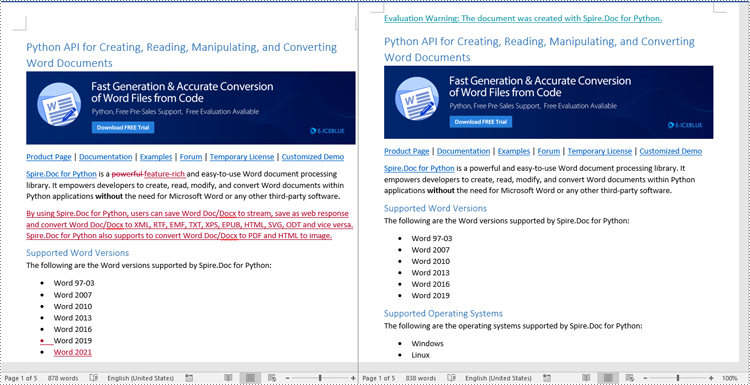
Sometimes, suggested modifications may not align with your vision or requirements for the document. In such cases, rejecting these changes becomes essential to ensure that the document accurately reflects your intended content and formatting choices.
Spire.Doc for Python offers the Document.RejectChanges() method to reject the tracked changes in a Word document. The detailed steps are as follows.
- Create an object of the Document class.
- Load a Word document using Document.LoadFromFile() method.
- Check if the document has tracked changes using Document.HasChanges property.
- Reject the tracked changes in the document using Document.RejectChanges() method.
- Save the result document using Document.SaveToFile() method.
- Python
from spire.doc import *
from spire.doc.common import *

# Create an object of the Document class
doc = Document()
# Load a Word document
doc.LoadFromFile("Sample.docx")

# Check if the document has tracked changes
if(doc.HasChanges):
    # Reject the tracked changes in the document
    doc.RejectChanges()

# Save the result document
doc.SaveToFile("RejectChanges.docx", FileFormat.Docx2016)
doc.Close()
Apply for a Temporary License
If you'd like to remove the evaluation message from the generated documents, or to get rid of the function limitations, please request a 30-day trial license for yourself.
Efficiently managing Word documents often requires the task of splitting them into smaller sections. However, manually performing this task can be time-consuming and labor-intensive. Fortunately, Spire.Doc for Python provides a convenient and efficient way to programmatically segment Word documents, helping users to extract specific parts of a document, split lengthy documents into smaller chunks, and streamline data extraction. This article demonstrates how to use Spire.Doc for Python to split a Word document into multiple documents in Python.
The splitting of a Word document is typically done by page breaks and section breaks due to the dynamic nature of document content. Therefore, this article focuses on the following two parts:
- Split a Word Document by Page Breaks with Python
- Split a Word Document by Section Breaks with Python
Install Spire.Doc for Python
This scenario requires Spire.Doc for Python and plum-dispatch v1.7.4. They can be easily installed in your Windows through the following pip command.
pip install Spire.Doc
If you are unsure how to install, please refer to: How to Install Spire.Doc for Python on Windows
Split a Word Document by Page Breaks with Python
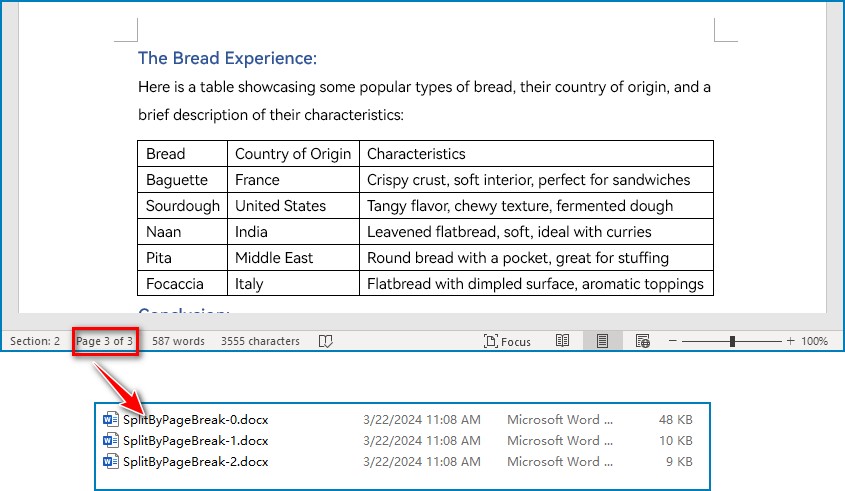
Page breaks allow for the forced pagination of a document, thereby achieving a fixed division of content. By using page breaks as divisions, we can split a Word document into smaller content-related documents. The detailed steps for splitting a Word document by page breaks are as follows:
- Create an instance of Document class and load a Word document using Document.LoadFromFile() method.
- Create a new document, add a section to it using Document.AddSection() method.
- Iterate through all body child objects in each section in the original document and check if the child object is a paragraph or a table.
- If the child object is a table, add it to the section in the new document using Section.Body.ChildObjects.Add() method.
- If the child object is a paragraph, add the paragraph object to the section in the new document. Then, iterate through all child objects of the paragraph and check if a child object is a page break.
- If the child object in the paragraph is a page break, get its index using Paragraph.ChildObjects.IndexOf() method and remove it from the paragraph by its index.
- Save the new document using Document.SaveToFile() method and repeat the above process.
- Python
from spire.doc import *
from spire.doc.common import *

inputFile = "Sample.docx"
outputFolder = "output/SplitDocument/"

# Create an instance of Document
original = Document()
# Load a Word document
original.LoadFromFile(inputFile)

# Create a new word document and add a section to it
newWord = Document()
section = newWord.AddSection()
original.CloneDefaultStyleTo(newWord)
original.CloneThemesTo(newWord)
original.CloneCompatibilityTo(newWord)

index = 0
# Iterate through all sections of original document
for m in range(original.Sections.Count):
    sec = original.Sections.get_Item(m)
    # Iterate through all body child objects of each section
    for k in range(sec.Body.ChildObjects.Count):
        obj = sec.Body.ChildObjects.get_Item(k)
        if isinstance(obj, Paragraph):
            para = obj if isinstance(obj, Paragraph) else None
            sec.CloneSectionPropertiesTo(section)
            # Add paragraph object in original section into section of new document
            section.Body.ChildObjects.Add(para.Clone())
            for j in range(para.ChildObjects.Count):
                parobj = para.ChildObjects.get_Item(j)
                if isinstance(parobj, Break) and ( parobj if isinstance(parobj, Break) else None).BreakType == BreakType.PageBreak:
                    # Get the index of page break in paragraph
                    i = para.ChildObjects.IndexOf(parobj)
                    # Remove the page break from its paragraph
                    section.Body.LastParagraph.ChildObjects.RemoveAt(i)
                    # Save the new document
                    resultF = outputFolder
                    resultF += "SplitByPageBreak-{0}.docx".format(index)
                    newWord.SaveToFile(resultF, FileFormat.Docx)
                    index += 1
                    # Create a new document and add a section
                    newWord = Document()
                    section = newWord.AddSection()
                    original.CloneDefaultStyleTo(newWord)
                    original.CloneThemesTo(newWord)
                    original.CloneCompatibilityTo(newWord)
                    sec.CloneSectionPropertiesTo(section)
                    # Add paragraph object in original section into section of new document
                    section.Body.ChildObjects.Add(para.Clone())
                    if section.Paragraphs[0].ChildObjects.Count == 0:
                        # Remove the first blank paragraph
                        section.Body.ChildObjects.RemoveAt(0)
                    else:
                        # Remove the child objects before the page break
                        while i >= 0:
                            section.Paragraphs[0].ChildObjects.RemoveAt(i)
                            i -= 1
        if isinstance(obj, Table):
            # Add table object in original section into section of new document
            section.Body.ChildObjects.Add(obj.Clone())

# Save the document
result = outputFolder+"SplitByPageBreak-{0}.docx".format(index)
newWord.SaveToFile(result, FileFormat.Docx2013)
newWord.Close()
Split a Word Document by Section Breaks with Python
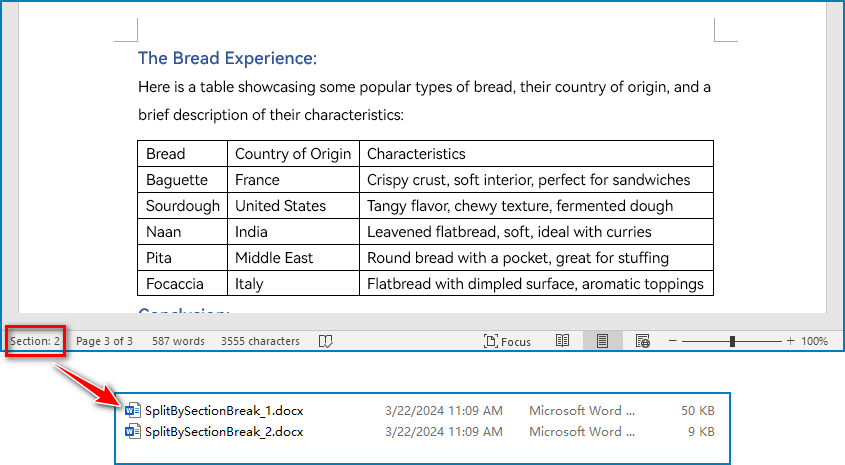
Sections divide a Word document into different logical parts and allow for independent formatting for each section. By splitting a Word document into sections, we can obtain multiple documents with relatively independent content and formatting. The detailed steps for splitting a Word document by section breaks are as follows:
- Create an instance of Document class and load a Word document using Document.LoadFromFile() method.
- Iterate through each section in the document.
- Get a section using Document.Sections.get_Item() method.
- Create a new Word document and copy the section in the original document to the new document using Document.Sections.Add() method.
- Save the new document using Document.SaveToFile() method.
- Python
from spire.doc import *
from spire.doc.common import *

# Create an instance of Document class
document = Document()
# Load a Word document
document.LoadFromFile("Sample.docx")

# Iterate through all sections
for i in range(document.Sections.Count):
    section = document.Sections.get_Item(i)
    result = "output/SplitDocument/" + "SplitBySectionBreak_{0}.docx".format(i+1)
    # Create a new Word document
    newWord = Document()
    # Add the section to the new document
    newWord.Sections.Add(section.Clone())
    #Save the new document
    newWord.SaveToFile(result)
    newWord.Close()
Apply for a Temporary License
If you'd like to remove the evaluation message from the generated documents, or to get rid of the function limitations, please request a 30-day trial license for yourself.
Comparing two Word documents for differences is a crucial task when reviewing changes, ensuring accuracy, and collaborating on content. This process allows you to identify additions, deletions, and modifications made between different document iterations. By comparing versions, you can efficiently track alterations, verify updates, and maintain document integrity. In this article, you will learn how to compare two versions of a Word document in Python using the Spire.Doc for Python library.
- Compare Two Versions of a Word Document in Python
- Compare Two Versions of a Word Document While Ignoring Formatting in Python
Install Spire.Doc for Python
This scenario requires Spire.Doc for Python and plum-dispatch v1.7.4. They can be easily installed in your Windows through the following pip command.
pip install Spire.Doc
If you are unsure how to install, please refer to: How to Install Spire.Doc for Python on Windows
Compare Two Versions of a Word Document in Python
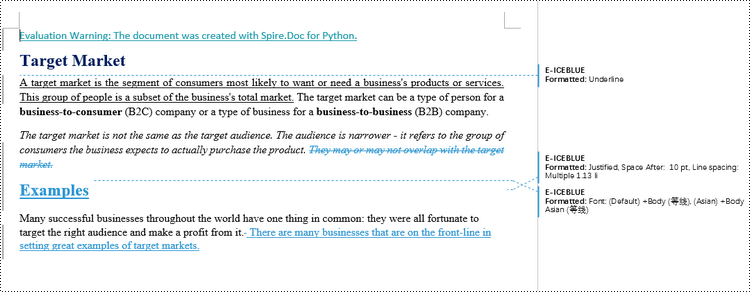
MS Word also offers a "Compare" feature that allows you to directly compare two versions of a document. This feature generates a new document that highlights the differences between the two versions.
To achieve similar results using Spire.Doc for Python, load the original and revised versions into two separate Document objects. Then, use the Compare() method to compare the revised version against the original. Finally, save the comparative document, which highlights the alterations, using the SaveToFile() method.
The steps to compare two version of a Word document using Python are as follows.
- Load the first document (original version) while initializing the Document object.
- Load the second document (revised version) while initializing the Document object.
- Call Compare() method of the first Document object to compare the revised version against the original version.
- Save the comparison results in a new Word document.
- Python
from spire.doc import *
from spire.doc.common import *

# Load the first document while initializing the Document object
firstDoc = Document("C:\\Users\\Administrator\\Desktop\\Original.docx")

# Load the second document while initializing the Document object
secondDoc = Document("C:\\Users\\Administrator\\Desktop\\Revised.docx")

# Compare two documents
firstDoc.Compare(secondDoc, "E-ICEBLUE")

# Save the comparison results in a new document
firstDoc.SaveToFile("Output/Differences.docx", FileFormat.Docx2016)

# Dispose resources
firstDoc.Dispose()
secondDoc.Dispose()
Compare Two Versions of a Word Document While Ignoring Formatting in Python
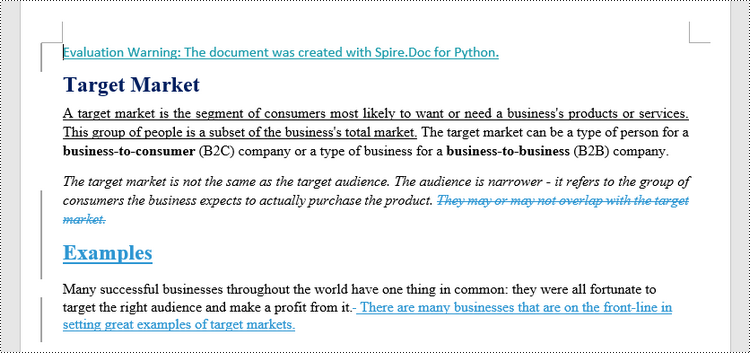
Comparing two versions of a Word document while ignoring formatting can be useful when you want to focus solely on the textual changes and disregard any formatting modifications.
To customize the comparison options in Spire.Doc for Python, use the CompareOptions class. If you want to exclude formatting from the comparison process, you can set the IgnoreFormatting property of the CompareOptions object to True. When you call the Compare() method, simply pass the CompareOptions object as an argument to achieve the desired comparison behavior.
The following are the steps to compare two versions of a Word document while ignoring formatting using Python.
- Load the first document (original version) while initializing the Document object.
- Load the second document (revised version) while initializing the Document object.
- Create a CompareOptions object and set its IgnoreFormatting property to True.
- Call Compare() method of the first Document object, passing the CompareOptions object as a parameter, to compare the revision against the original while ignoring formatting.
- Save the comparison results in a new Word document.
- Python
from spire.doc import *
from spire.doc.common import *

# Load the first document while initializing the Document object
firstDoc = Document("C:\\Users\\Administrator\\Desktop\\Original.docx")

# Load the second document while initializing the Document object
secondDoc = Document("C:\\Users\\Administrator\\Desktop\\Revised.docx")

# Set compare option to ignore formatting changes
compareOptions = CompareOptions()
compareOptions.IgnoreFormatting = True

# Compare the two Word documents with options
firstDoc.Compare(secondDoc, "E-ICEBLUE", compareOptions)

# Save the comparison results in a new document
firstDoc.SaveToFile("Output/DifferencesWithoutFormattingChanges.docx", FileFormat.Docx2016)

# Dispose resources
firstDoc.Dispose()
secondDoc.Dispose()
Apply for a Temporary License
If you'd like to remove the evaluation message from the generated documents, or to get rid of the function limitations, please request a 30-day trial license for yourself.
Efficient document organization and navigability are crucial for lengthy Word documents. One powerful way to streamline document readability and accessibility is by incorporating a table of contents (TOC) into a Word document, which allows readers to quickly locate specific sections and jump to relevant content. By harnessing the capabilities of Python, users can effortlessly generate a table of contents that dynamically updates as the document evolves. This article provides a step-by-step guide and code examples for inserting a table of contents into a Word document in Python programs using Spire.Doc for Python, empowering users to create professional-looking documents with ease.
- Insert the Default Table of Contents into a Word Document
- Insert a Custom Table of Contents into a Word Document
Install Spire.Doc for Python
This scenario requires Spire.Doc for Python and plum-dispatch v1.7.4. They can be easily installed in your Windows through the following pip command.
pip install Spire.Doc
If you are unsure how to install, please refer to: How to Install Spire.Doc for Python on Windows
Insert the Default Table of Contents into a Word Document
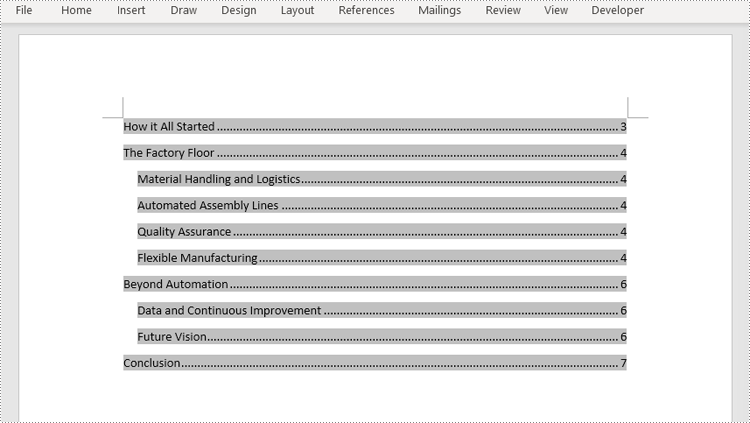
Spire.Doc for Python supports inserting a table of contents in a Word document based on the headings of different levels. If the document does not have heading levels set, developers can set the heading levels using the Paragraph.ApplyStyle(BuiltinStyle) method before inserting a table of contents.
By using the Paragraph.AppendTOC(lowerLevel: int, upperLevel: int) method, developers can insert a table of contents at any paragraph and specify the titles to be displayed. It is important to note that after inserting the table of contents, developers need to use the Document.UpdateTableOfContents() method to update the table of contents so that its contents are displayed correctly.
- Create an object of Document class and load a Word document using Document.LoadFromFile() method.
- Add a section using Document.AddSection() method, add a paragraph to the section using Section.AddParagraph() method, and insert the new section after the cover section using Document.Sections.Insert(index: int, entity: Section) method.
- Update the table of contents using Document.UpdateTableOfContents() method.
- Save the document using Document.SaveToFile() method.
- Python
from spire.doc import *
from spire.doc.common import *

# Create an object of Document class
doc = Document()

# Load a Word document
doc.LoadFromFile("Sample.docx")

# Create a section for the table of contents
section = doc.AddSection()

# Add a paragraph in the section
paragraph = section.AddParagraph()

# Append a table of contents in the paragraph
paragraph.AppendTOC(1, 2)

# Insert the section after the cover section
doc.Sections.Insert(1, section)

# Update the table of contents
doc.UpdateTableOfContents()

# Save the document
doc.SaveToFile("output/DefaultTOC.docx")
doc.Close()
Insert a Custom Table of Contents into a Word Document
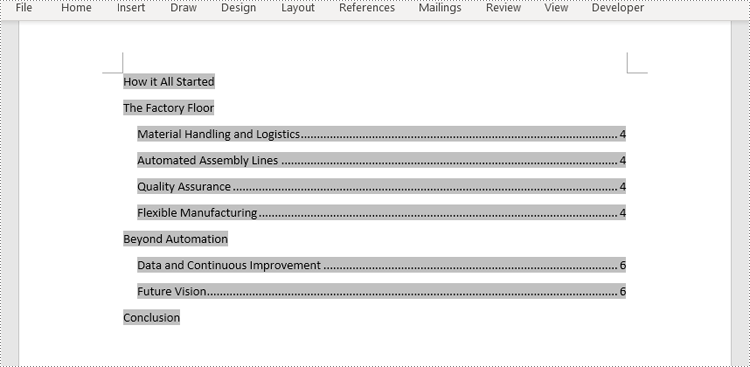
Developers can also create a table of contents by initializing a TableOfContent object, and customize it through switches. For example, the switch "{\\o \"1-2\" \\n 1-1}" indicates showing headings from level one to level three in the table of contents and omitting the page numbers of level one headings. The detailed steps for inserting a customized table of contents into a Word document are as follows:
- Create an object of Document class and load a Word document using Document.LoadFromFile() method.
- Add a section to the document using Document.AddSecction() method, add a paragraph to the section using Section.AddParagraph() method, and insert the section after the cover section using Document.Sections.Insert() method.
- Create an object of TableOfContents class and insert it into the added paragraph using Paragraph.Items.Add() method.
- Append field separator and field end mark to end the TOC filed using Paragraph.AppendFieldMark() method.
- Set the created table of contents as the table of contents of the document through Document.TOC property.
- Save the document using Document.SaveToFile() method.
- Python
from spire.doc import *
from spire.doc.common import *

# Create an object of Document class and load a Word document
doc = Document()
doc.LoadFromFile("Sample.docx")

# Add a section and a paragraph and insert the section after the cover section
section = doc.AddSection()
paragraph = section.AddParagraph()
doc.Sections.Insert(1, section)

# Customize a table of contents with switches
toc = TableOfContent(doc, "{\\o \"1-2\" \\n 1-1}")

# Insert the TOC to the paragraph
paragraph.Items.Add(toc)

# Insert field separator and filed end mark to end the TOC field
paragraph.AppendFieldMark(FieldMarkType.FieldSeparator)
paragraph.AppendFieldMark(FieldMarkType.FieldEnd)

# Set the TOC field as the table of contents of the document
doc.TOC = toc

# Update the TOC
doc.UpdateTableOfContents()

# Save the document
doc.SaveToFile("output/CustomizedTOC.docx")
doc.Close()
Apply for a Temporary License
If you'd like to remove the evaluation message from the generated documents, or to get rid of the function limitations, please request a 30-day trial license for yourself.
Dealing with a large number of Word documents can be very challenging. Whether it's editing or reviewing a large number of documents, there's a lot of time wasted on opening and closing documents. What's more, sharing and receiving a large number of separate Word documents can be annoying, as it may require a lot of repeated sending and receiving operations by both the sharer and the receiver. Therefore, in order to enhance efficiency and save time, it is advisable to merge related Word documents into a single file. From this article, you will know how to use Spire.Doc for Python to easily merge Word documents through Python programs.
- Merge Word Documents by Inserting Files with Python
- Merge Word Documents by Cloning Contents with Python
Install Spire.Doc for Python
This scenario requires Spire.Doc for Python and plum-dispatch v1.7.4. They can be easily installed in your Windows through the following pip command.
pip install Spire.Doc
If you are unsure how to install, please refer to this tutorial: How to Install Spire.Doc for Python on Windows
Merge Word Documents by Inserting Files with Python
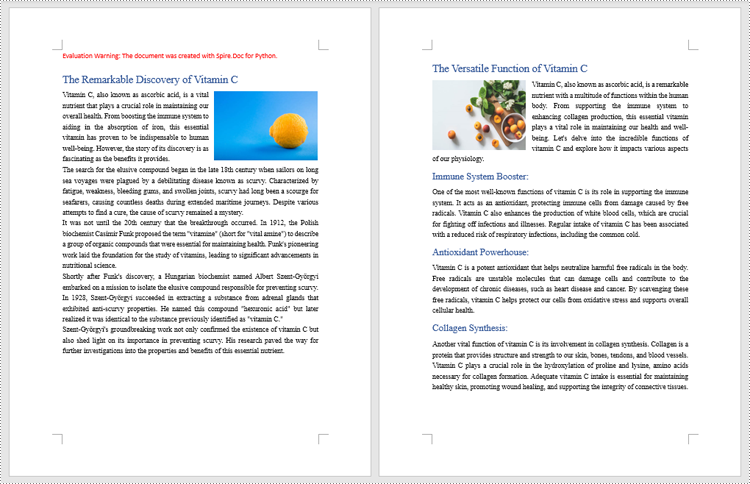
The method Document.insertTextFromFile() is used to insert other Word documents to the current one, and the inserted content will start from a new page. The detailed steps for merging Word documents by inserting are as follows:
- Create an object of Document class and load a Word document using Document.LoadFromFile() method.
- Insert the content from another document to it using Document.InsertTextFromFile() method.
- Save the document using Document.SaveToFile() method.
- Python
from spire.doc import *
from spire.doc.common import *

# Create an object of Document class and load a Word document
doc = Document()
doc.LoadFromFile("Sample1.docx")

# Insert the content from another Word document to this one
doc.InsertTextFromFile("Sample2.docx", FileFormat.Auto)

# Save the document
doc.SaveToFile("output/InsertDocuments.docx")
doc.Close()
Merge Word Documents by Cloning Contents with Python
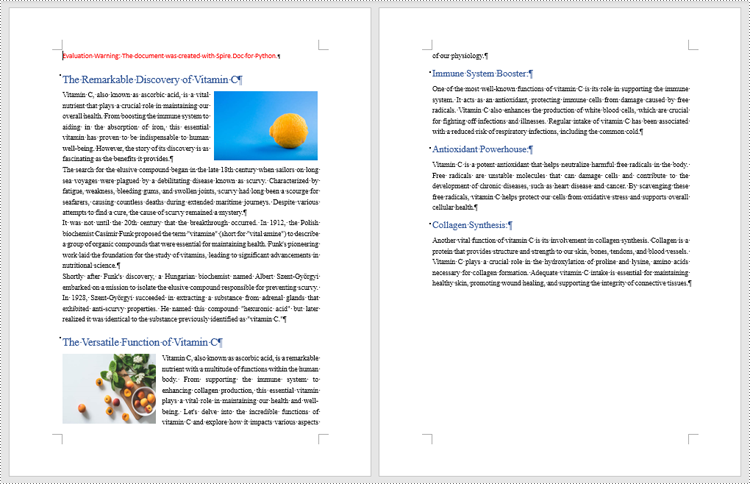
Merging Word documents can also be achieved by cloning contents from one Word document to another. This method maintains the formatting of the original document, and content cloned from another document continues at the end of the current document without starting a new Page. The detailed steps are as follows:
- Create two objects of Document class and load two Word documents using Document.LoadFromFile() method.
- Get the last section of the destination document using Document.Sections.get_Item() method.
- Loop through the sections in the document to be cloned and then loop through the child objects of the sections.
- Get a section child object using Section.Body.ChildObjects.get_Item() method.
- Add the child object to the last section of the destination document using Section.Body.ChildObjects.Add() method.
- Save the result document using Document.SaveToFile() method.
- Python
from spire.doc import *
from spire.doc.common import *

# Create two objects of Document class and load two Word documents
doc1 = Document()
doc1.LoadFromFile("Sample1.docx")
doc2 = Document()
doc2.LoadFromFile("Sample2.docx")

# Get the last section of the first document
lastSection = doc1.Sections.get_Item(doc1.Sections.Count - 1)

# Loop through the sections in the second document
for i in range(doc2.Sections.Count):
    section = doc2.Sections.get_Item(i)
    # Loop through the child objects in the sections
    for j in range(section.Body.ChildObjects.Count):
        obj = section.Body.ChildObjects.get_Item(j)
        # Add the child objects from the second document to the last section of the first document
        lastSection.Body.ChildObjects.Add(obj.Clone())

# Save the result document
doc1.SaveToFile("output/MergeByCloning.docx")
doc1.Close()
doc2.Close()
Apply for a Temporary License
If you'd like to remove the evaluation message from the generated documents, or to get rid of the function limitations, please request a 30-day trial license for yourself.
Creating, reading, and updating Word documents is a common need for many developers working with the Python programming language. Whether it's generating reports, manipulating existing documents, or automating document creation processes, having the ability to work with Word documents programmatically can greatly enhance productivity and efficiency. In this article, you will learn how to create, read, or update Word documents in Python using Spire.Doc for Python.
- Create a Word Document from Scratch in Python
- Read Text of a Word Document in Python
- Update a Word Document in Python
Install Spire.Doc for Python
This scenario requires Spire.Doc for Python and plum-dispatch v1.7.4. They can be easily installed in your Windows through the following pip command.
pip install Spire.Doc
If you are unsure how to install, please refer to this tutorial: How to Install Spire.Doc for Python on Windows
Create a Word Document from Scratch in Python
Spire.Doc for Python offers the Document class to represent a Word document model. A document must contain at least one section (represented by the Section class) and each section is a container for various elements such as paragraphs, tables, charts, and images. This example shows you how to create a simple Word document containing several paragraphs using Spire.Doc for Python.
- Create a Document object.
- Add a section using Document.AddSection() method.
- Set the page margins through Section.PageSetUp.Margins property.
- Add several paragraphs to the section using Section.AddParagraph() method.
- Add text to the paragraphs using Paragraph.AppendText() method.
- Create a ParagraphStyle object, and apply it to a specific paragraph using Paragraph.ApplyStyle() method.
- Save the document to a Word file using Document.SaveToFile() method.
- Python
from spire.doc import *
from spire.doc.common import *

# Create a Document object
doc = Document()

# Add a section
section = doc.AddSection()

# Set the page margins
section.PageSetup.Margins.All = 40

# Add a title
titleParagraph = section.AddParagraph()
titleParagraph.AppendText("Introduction of Spire.Doc for Python")

# Add two paragraphs
bodyParagraph_1 = section.AddParagraph()
bodyParagraph_1.AppendText("Spire.Doc for Python is a professional Python library designed for developers to " +
                           "create, read, write, convert, compare and print Word documents in any Python application " +
                           "with fast and high-quality performance.")

bodyParagraph_2 = section.AddParagraph()
bodyParagraph_2.AppendText("As an independent Word Python API, Spire.Doc for Python doesn't need Microsoft Word to " +
                           "be installed on neither the development nor target systems. However, it can incorporate Microsoft Word " +
                           "document creation capabilities into any developers' Python applications.")

# Apply heading1 to the title
titleParagraph.ApplyStyle(BuiltinStyle.Heading1)

# Create a style for the paragraphs
style2 = ParagraphStyle(doc)
style2.Name = "paraStyle"
style2.CharacterFormat.FontName = "Arial"
style2.CharacterFormat.FontSize = 13
doc.Styles.Add(style2)
bodyParagraph_1.ApplyStyle("paraStyle")
bodyParagraph_2.ApplyStyle("paraStyle")

# Set the horizontal alignment of the paragraphs
titleParagraph.Format.HorizontalAlignment = HorizontalAlignment.Center
bodyParagraph_1.Format.HorizontalAlignment = HorizontalAlignment.Left
bodyParagraph_2.Format.HorizontalAlignment = HorizontalAlignment.Left

# Set the after spacing
titleParagraph.Format.AfterSpacing = 10
bodyParagraph_1.Format.AfterSpacing = 10

# Save to file
doc.SaveToFile("output/WordDocument.docx", FileFormat.Docx2019)

Read Text of a Word Document in Python
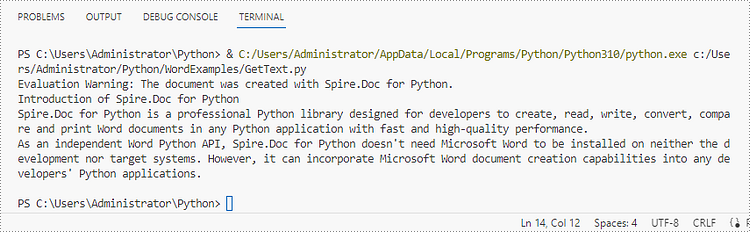
To get the text of an entire Word document, you could simply use Document.GetText() method. The following are the detailed steps.
- Create a Document object.
- Load a Word document using Document.LoadFromFile() method.
- Get text from the entire document using Document.GetText() method.
- Python
from spire.doc import *
from spire.doc.common import *

# Create a Document object
doc = Document()

# Load a Word file
doc.LoadFromFile("C:\\Users\\Administrator\\Desktop\\WordDocument.docx")

# Get text from the entire document
text = doc.GetText()

# Print text
print(text)
Update a Word Document in Python
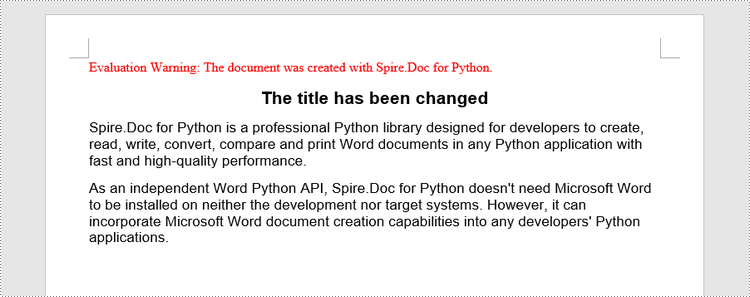
To access a specific paragraph, you can use the Section.Paragraphs[index] property. If you want to modify the text of the paragraph, you can reassign text to the paragraph through the Paragraph.Text property. The following are the detailed steps.
- Create a Document object.
- Load a Word document using Document.LoadFromFile() method.
- Get a specific section through Document.Sections[index] property.
- Get a specific paragraph through Section.Paragraphs[index] property.
- Change the text of the paragraph through Paragraph.Text property.
- Save the document to another Word file using Document.SaveToFile() method.
- Python
from spire.doc import *
from spire.doc.common import *

# Create a Document object
doc = Document()

# Load a Word file
doc.LoadFromFile("C:\\Users\\Administrator\\Desktop\\WordDocument.docx")

# Get a specific section
section = doc.Sections.get_Item(0)

# Get a specific paragraph
paragraph = section.Paragraphs.get_Item(1)

# Change the text of the paragraph
paragraph.Text = "The title has been changed"

# Save to file
doc.SaveToFile("output/Updated.docx", FileFormat.Docx2019)
Apply for a Temporary License
If you'd like to remove the evaluation message from the generated documents, or to get rid of the function limitations, please request a 30-day trial license for yourself.
