
Spire.OfficeJs (6)
Modern web applications increasingly require built-in document capabilities for viewing and editing Word, Excel, and PowerPoint files directly in the browser. Instead of redirecting users to external applications, developers often need to embed an Office editor in a web page as part of their existing interface.
Building a fully functional online document editor from scratch can be complex, involving document rendering, format compatibility, editing workflows, and responsive UI integration. With Spire.OfficeJS from e-iceblue, developers can quickly integrate a browser-based Office editor into HTML pages using JavaScript without requiring Microsoft Office installations on client devices.
This article demonstrates how to embed a document editor in HTML, including page layout design, editor initialization, and dynamic document loading with practical examples.
Table of Contents
- Why Embed an Office Editor into a Web Page?
- Prerequisites
- Basic Page Layout for Integration
- Embed the Office Editor into a Container
- Load and Switch Documents Dynamically
- Customize Editor Behavior
- Integrating the Editor into Existing Business Systems
- Framework Integration (React, Vue, Angular)
- Common Integration Issues
- Conclusion
- FAQ
Why Embed an Office Editor into a Web Page?
Embedding a document editor as part of your page layout enables seamless workflows and better user experience. Common use cases include:
- Document management systems (DMS) where users view and edit files without leaving the interface
- CRM or ERP platforms with integrated file editing capabilities
- Online collaboration tools requiring real-time document editing
- Internal business dashboards with document preview functionality
Instead of opening documents in a separate application or dedicated page, users can work with documents directly inside the current web interface.
Embedded vs Full-Page Editors
There are two common integration approaches:
| Approach | Description |
|---|---|
| Full-page editor | The entire page is dedicated to document editing |
| Embedded editor | The editor is integrated as part of a larger UI |
This tutorial focuses on the embedded approach, where the document editor works alongside sidebars, file lists, navigation menus, and other application components.
Prerequisites
Before integrating the editor, ensure you have:
Server Setup
-
Download and Extract Spire.OfficeJS
Download the Spire.OfficeJS package and extract it to a local directory.
-
Initialize font
cd Spire.OfficeJS.Windows_11.5.7
run_genallfonts.bat
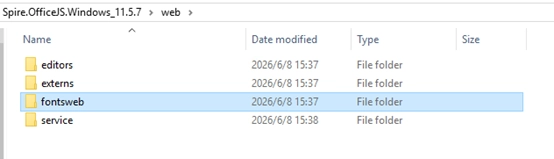
Before deployment, it is necessary to first execute "run_genallfonts. bat" to initialize the font. After execution, the "fontsweb" folder will appear in the web folder containing the basic font. If you need to add other fonts, please refer to: How to Add Custom Fonts in Spire.OfficeJS for Frontend Editors
-
Start Spire.OfficeJS Backend Service
run_servers.batThis starts the editor service on http://localhost:3000
-
Start Example Server (provides sample documents)
The example server runs on with sample documents available at http://localhost:3000/public/samples/
If you need a complete setup guide for installing and deploying Spire.OfficeJS in JavaScript applications, see: How to Deploy Spire.OfficeJS in JavaScript
Requirements
- Document files accessible from the browser
- Modern browser with WebAssembly support
Note: The code examples below use localhost addresses for local development and testing. In production environments, replace them with your actual server URLs or domain names.
Basic Page Layout for Integration
The first step is to design a layout where the editor occupies only part of the page. Here's a common structure with a sidebar and editor area:
<!DOCTYPE html>
<html>
<head>
  <title>Document Editor Integration</title>
  <style>
    .app-container {
      display: flex;
      height: 100vh;
    }

    .sidebar {
      width: 250px;
      border-right: 1px solid #ddd;
      padding: 10px;
      background: #f5f5f5;
    }

    .editor-container {
      flex: 1;
      position: relative;
    }
  </style>
</head>
<body>
  <div class="app-container">
    <div class="sidebar">
      <h3>Documents</h3>
      <ul>
        <li onclick="openDocument('http://localhost:3000/public/samples/sample.docx', 'docx')">Sample Document.docx</li>
        <li onclick="openDocument('http://localhost:3000/public/samples/sample.xlsx', 'xlsx')">Sample Spreadsheet.xlsx</li>
        <li onclick="openDocument('http://localhost:3000/public/samples/sample.pptx', 'pptx')">Sample Presentation.pptx</li>
      </ul>
    </div>

    <div class="editor-container" id="editor"></div>
  </div>
</body>
</html>
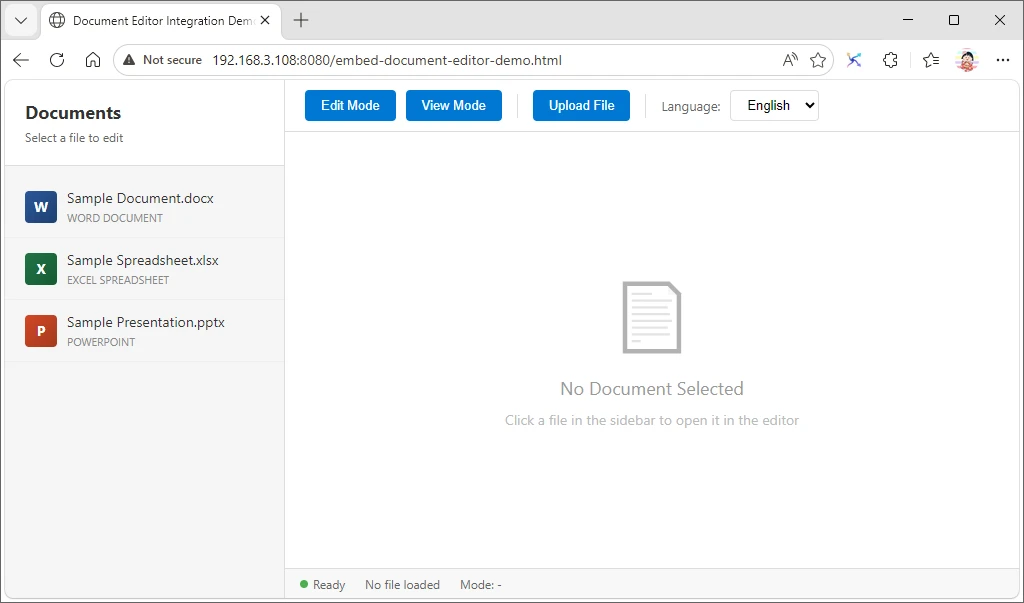
A simple embedded document management interface may look like this before a document is opened:
Layout Explanation
- The sidebar displays a file list with clickable document names
- The editor-container is a flex item that will host the document editor
- The editor fills the remaining space using
flex: 1
This structure reflects a real-world application layout rather than a simple demo page.
Embed the Office Editor into a Container
Load the Spire.OfficeJS script and initialize the editor inside your designated container:
<script src="http://localhost:3000/web/editors/spireapi/SpireCloudEditor.js"></script>

<script>
function initEditor() {
  const config = {
    user: {
      id: 'user1',
      name: 'Demo User'
    },
    fileAttrs: {
      sourceUrl: "http://localhost:3000/public/samples/sample.docx",
      fileInfo: {
        ext: "docx",
        name: "sample.docx"
      }
    },
    editorAttrs: {
      editorType: "document",
      editorMode: "edit",
      editorWidth: "100%",
      editorHeight: "100%",
      platform: "desktop",
      viewLanguage: "en",
      canEdit: true,
      canDownload: true,
      canForcesave: true,
      useWebAssemblyDoc: true,
      useWebAssemblyExcel: true,
      useWebAssemblyPpt: true,
      useWebAssemblyPdf: true,
      serverless: {
        useServerless: true,
        baseUrl: "http://localhost:3000",
        coAuthorUrl: "http://localhost:8000" //Collaborative editing service address
      },
      embedded: {
        saveUrl: "",
        toolbarDocked: 'top'
      },
      events: {
        onDocumentReady: function() {
          console.log('Document is ready');
        },
        onError: function(event) {
          console.error('Editor error:', event);
        },
        onSave: function(data) {
          console.log('Document saved', data);
          if (data && data.data && data.data.length >= 2) {
            downloadFile(data.data[1], data.data[0]);
          }
        }
      }
    }
  };

  new SpireCloudEditor.OpenApi("editor", config);
}

function downloadFile(file, fileName) {
  const a = document.createElement('a');
  const url = URL.createObjectURL(file);
  a.href = url;
  a.download = fileName;
  document.body.appendChild(a);
  a.click();
  document.body.removeChild(a);
  URL.revokeObjectURL(url);
}

initEditor();
</script>
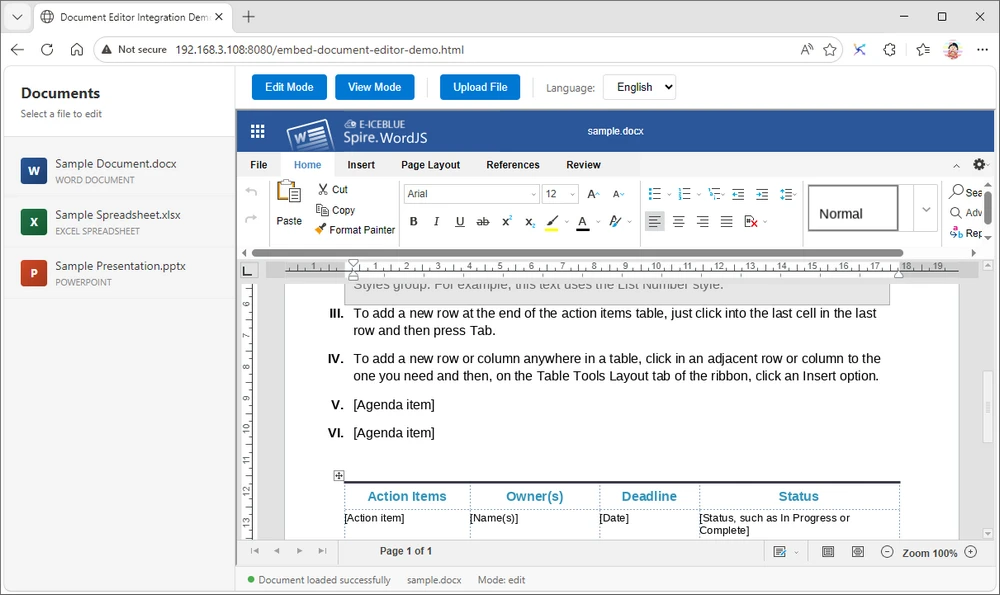
After initialization, the embedded Office editor loads directly inside the target container:
To help you get started quickly, you can download the complete runnable HTML example used in this article:
Download Embedded Editor Example
Note: Start the Spire.OfficeJS service before opening the sample editor. The downloadable demo dynamically detects the current host using window.location.hostname, so it should be opened via an HTTP server. For direct browser file preview, replace it with a fixed host address.
Configuration Breakdown
- user: Required user configuration with customization settings
- fileAttrs: Document source URL and file metadata
- editorAttrs: Editor behavior including mode, dimensions, and language
The editor renders inside the specified container element with ID "editor", allowing it to function as a UI component rather than taking over the entire page.
Load and Switch Documents Dynamically
In real applications, users need to open different files dynamically. You can achieve this by reinitializing the editor with new configurations:
let editorInstance = null;

function openDocument(sourceUrl, ext) {
  const fileName = sourceUrl.split('/').pop();

  if (editorInstance) {
    editorInstance.destroy();
  }

  const container = document.getElementById("editor");
  container.innerHTML = "";

  const config = {
    user: {
      id: 'user1',
      name: 'Demo User'
    },
    fileAttrs: {
      sourceUrl: sourceUrl,
      fileInfo: {
        ext: ext,
        name: fileName
      }
    },
    editorAttrs: {
      editorType: getEditorType(ext),
      editorMode: "edit",
      editorWidth: "100%",
      editorHeight: "100%",
      platform: "desktop",
      viewLanguage: "en",
      canEdit: true,
      canDownload: true,
      canForcesave: true,
      useWebAssemblyDoc: true,
      useWebAssemblyExcel: true,
      useWebAssemblyPpt: true,
      useWebAssemblyPdf: true,
      serverless: {
        useServerless: true,
        baseUrl: "http://localhost:3000",
        coAuthorUrl:"http://localhost:8000" //Collaborative Editing Service Address
      },
      embedded: {
        saveUrl: "",
        toolbarDocked: 'top'
      },
      events: {
        onSave: function(data) {
          if (data && data.data && data.data.length >= 2) {
            downloadFile(data.data[1], data.data[0]);
          }
        }
      }
    }
  };

  editorInstance = new SpireCloudEditor.OpenApi("editor", config);
}

function getEditorType(ext) {
  const extLower = ext.toLowerCase();
  switch (extLower) {
    case 'docx':
    case 'doc':
    case 'rtf':
    case 'txt':
    case 'odt':
      return 'document';
    case 'xlsx':
    case 'xls':
    case 'csv':
    case 'ods':
      return 'spreadsheet';
    case 'pptx':
    case 'ppt':
    case 'odp':
      return 'presentation';
    default:
      return 'document';
  }
}
How It Works
- Clicking a file in the sidebar triggers
openDocumentwith the file URL and extension - The previous editor instance is destroyed and container is cleared
- The editor reloads with the selected document
- No page refresh is required, maintaining application state
This pattern is essential for building interactive document management systems.
Best Practices for Document Switching
When switching between documents dynamically, proper cleanup prevents UI issues:
Error Handling and Loading States
Always use try-catch for error handling and consider adding loading indicators:
let editorInstance = null;

async function openDocument(sourceUrl, ext) {
  try {
    if (editorInstance) {
      editorInstance.destroy();
    }

    const container = document.getElementById("editor");
    container.innerHTML = "";

    const config = { /* ... configuration ... */ };
    editorInstance = new SpireCloudEditor.OpenApi("editor", config);
  } catch (error) {
    console.error('Failed to load document:', error);
  }
}
Key points:
- Always destroy old instances before creating new ones
- Clear the container element to prevent UI conflicts
- Use try-catch for robust error handling
Customize Editor Behavior
You can fine-tune the editor's behavior using configuration options in editorAttrs.
Read-Only Mode
Set the editor to view-only mode:
editorAttrs: {
  editorMode: "view",
  isReadOnly: true
}
Control User Permissions
Restrict specific actions:
editorAttrs: {
  canEdit: false,
  canDownload: false,
  canComment: true,
  canPrint: true
}
Change UI Language
Support internationalization by setting the interface language:
editorAttrs: {
  viewLanguage: "zh"
}
Supported languages include English ("en") and Chinese ("zh").
Configure Save Functionality
In serverless mode, saving is handled through the onSave event callback:
editorAttrs: {
  embedded: {
    saveUrl: "",  // Keep empty in serverless mode
    toolbarDocked: 'top'
  },
  events: {
    onSave: function(data) {
      console.log('Document saved', data);
      if (data && data.data && data.data.length >= 2) {
        // data.data[0] = filename, data.data[1] = file blob
        downloadFile(data.data[1], data.data[0]);
      }
    }
  }
}

function downloadFile(file, fileName) {
  const a = document.createElement('a');
  const url = URL.createObjectURL(file);
  a.href = url;
  a.download = fileName;
  document.body.appendChild(a);
  a.click();
  document.body.removeChild(a);
  URL.revokeObjectURL(url);
}
When users click save, the document is automatically downloaded to their local machine.
Dynamic Protocol Configuration
To support both HTTP and HTTPS environments, use dynamic protocol detection:
const currentHost = window.location.hostname;
const currentProtocol = window.location.protocol;

const baseUrl = `${currentProtocol}//${currentHost}:3000`;
const exampleBaseUrl = `${currentProtocol}//${currentHost}:3000`;
const coAuthorUrl = `${currentProtocol}//${currentHost}:8000`;
This prevents mixed content errors when the page is served over HTTPS.
Upload Local Files
Users can upload local documents for editing:
<input type="file" id="fileInput" accept=".docx,.xlsx,.pptx,.doc,.xls,.ppt"
       onchange="handleFileUpload(event)">
async function handleFileUpload(event) {
  const file = event.target.files[0];
  const fileName = file.name;
  const ext = fileName.split('.').pop().toLowerCase();

  const fileData = await new Promise((resolve) => {
    const reader = new FileReader();
    reader.onload = (e) => resolve(e.target.result);
    reader.readAsArrayBuffer(file);
  });

  const config = {
    user: {
      id: 'user1',
      name: 'Demo User'
    },
    fileAttrs: {
      sourceUrl: 'upload://' + fileName,
      fileInfo: { ext, name: fileName }
    },
    editorAttrs: {
      editorType: getEditorType(ext),
      serverless: {
        useServerless: true,
        baseUrl: baseUrl,
        coAuthorUrl: coAuthorUrl, //Collaborative Editing Service Address
        fileData: fileData  // Pass file data directly
      }
    }
  };

  editorInstance = new SpireCloudEditor.OpenApi("editor", config);
}
Integrating the Editor into Existing Business Systems
In most real-world scenarios, the online document editor is not the entire application. Instead, it functions as one module within a larger business system.
Typical integration patterns include:
- CRM systems with contract editing and proposal generation
- ERP systems with invoice review and report modification
- Document management systems (DMS) with embedded preview and editing workflows
- Customer portals with downloadable and editable forms
- Internal collaboration platforms combining document editing with chat, comments, and version control
Because the browser-based office editor is mounted into a standard DOM container, it can coexist seamlessly with:
- Sidebars and navigation menus
- File trees and folder structures
- Tab systems for multi-document editing
- Chat panels and comment threads
- Dashboards and analytics widgets
This modular architecture allows developers to build rich document-centric applications without sacrificing existing UI patterns or user workflows.
Framework Integration (React, Vue, Angular)
Although the example uses plain JavaScript, the same concept applies to modern frameworks. The key principle remains the same: initialize the editor after the component is mounted and render it into a DOM container.
React
useEffect(() => {
  new SpireCloudEditor.OpenApi("editor-container", config);
}, []);
Vue
mounted() {
  new SpireCloudEditor.OpenApi("editor-container", config);
}
Angular
ngAfterViewInit(): void {
  new SpireCloudEditor.OpenApi("editor-container", config);
}
For complete framework-specific setup and deployment instructions, see the dedicated integration guides:
- How to Integrate Spire.OfficeJS in React
- How to Integrate Spire.OfficeJS in Vue
- How to Integrate Spire.OfficeJS in Angular
Common Integration Issues
Here are common problems developers encounter and their solutions:
Editor Does Not Load
- Cause: Backend service is not running or script URL is incorrect
- Solution: Verify the service is running on port 3000 and use the correct script path:
http://localhost:3000/web/editors/spireapi/SpireCloudEditor.js
Script Loading Failed (CORS Error)
- Cause: Opening HTML file directly using
file://protocol - Solution: Start a local HTTP server (
python -m http.server 8080ornpx http-server -p 8080) and access viahttp://localhost:8080/your-file.html
File Fails to Load
- Cause: Document URL is inaccessible or blocked by CORS
- Solution: Ensure
sourceUrlis publicly accessible via HTTP. Replace placeholder URLs likehttps://example.com/with real accessible document URLs
404 Errors for /doc/*/c/info Endpoints
- Cause: Missing
serverlessconfiguration ineditorAttrs - Solution: Add
serverlessanduseWebAssembly*settings to your configuration
Multiple Editors Overlapping
- Cause: Old editor instance not properly destroyed before creating new one
- Solution: Always call
editorInstance.destroy()before creating a new instance
Blank Editor Container
- Cause: Browser cache issues or missing dependencies
- Solution: Clear browser cache, try incognito mode, or check browser console for errors
Service Connection Refused
- Cause: Required ports are blocked or service is not started
- Solution: Make sure port 3000 is open and the Spire.OfficeJS service is running
Editor Overflows Container
- Cause: Incorrect width/height settings
- Solution: Set
editorWidthandeditorHeightto"100%"and ensure the container has defined dimensions
Conclusion
In this article, we demonstrated how to embed a web-based Office document editor into an existing HTML page using Spire.OfficeJS. By treating the editor as a modular component, developers can integrate document editing capabilities directly into their web applications without redirecting users to separate pages.
The approach enables building rich document management interfaces where editors coexist with navigation, file lists, and other UI components. With proper configuration, the embedded editor provides the same powerful features as a full-page solution while maintaining a seamless user experience.
Spire.OfficeJS supports multiple document formats including Word (DOCX), Excel (XLSX), and PowerPoint (PPTX), making it a comprehensive solution for web-based document processing needs.
If you'd like to test Spire.OfficeJS in a real project environment, you can request a free temporary license here: Apply for a Temporary License
FAQ
How do I embed a document editor in a web page?
You can embed a document editor by initializing SpireCloudEditor.OpenApi inside a specific HTML container element with proper configuration for the document source and editor settings.
Does embedding require Microsoft Office installation?
No. Spire.OfficeJS uses WebAssembly for browser-side document processing while relying on the backend service to provide the editor interface and related resources. No Microsoft Office installation is required on client machines.
Can I integrate the editor into React or Vue applications?
Yes. The editor can be integrated into any JavaScript framework by mounting it into a DOM element during the component's lifecycle, such as useEffect in React or mounted in Vue.
What document formats are supported?
Spire.OfficeJS supports Word documents (DOCX, DOC), Excel spreadsheets (XLSX, XLS), and PowerPoint presentations (PPTX, PPT), as well as PDF viewing.
How do I handle document save operations?
In serverless mode, configure the onSave event callback in editorAttrs.events. When users save, the callback receives the file data which can be automatically downloaded or processed further.
How to Add Custom Fonts in Spire.OfficeJS for Frontend Editors
2026-03-31 02:04:01 Written by jie zouContent Preview:
- Part 1. Adding Custom Fonts in Script-Based Deployment (Product Package)
- Part 2. Integrating Custom Fonts in Frontend Frameworks like React
- Common Troubleshooting for Font Integration
Custom fonts play a key role in enhancing visual presentation and improving the user experience in modern web-based editors. Whether you’re building an enterprise document platform or integrating an editor into your web application, font customization directly affects readability, branding, and overall usability.
Spire.OfficeJS is a powerful browser-based office solution that allows developers to embed document editing capabilities—such as Word, Excel, and PowerPoint—directly into web applications, without requiring local Office installations. It supports both direct deployments using the product package scripts and integration with frontend frameworks like React, Vue, or Angular.
In practice, while the editor comes with a set of default fonts, most projects require adding custom fonts to meet branding or multilingual needs. Therefore, this guide is divided into two parts: one focuses on adding fonts using the product package scripts, and the other covers how to integrate fonts within frontend frameworks for a complete and flexible setup.
Part 1. Adding Custom Fonts in Script-Based Deployment (Product Package)
If you are using the product package editor directly, the process of adding fonts will be much easier. This part will be divided into two parts to show you how to add fonts on your Windows system or Linux system.
Download the Spire.OfficeJS Package
To begin with, you should make sure that you have downloaded the Spire.OfficeJS product package on your computer. If not, you can go to the official download link and save it to run smoothly.
Windows Systems
For Windows-based deployment servers, follow these steps:
Step 1. Add Font Files
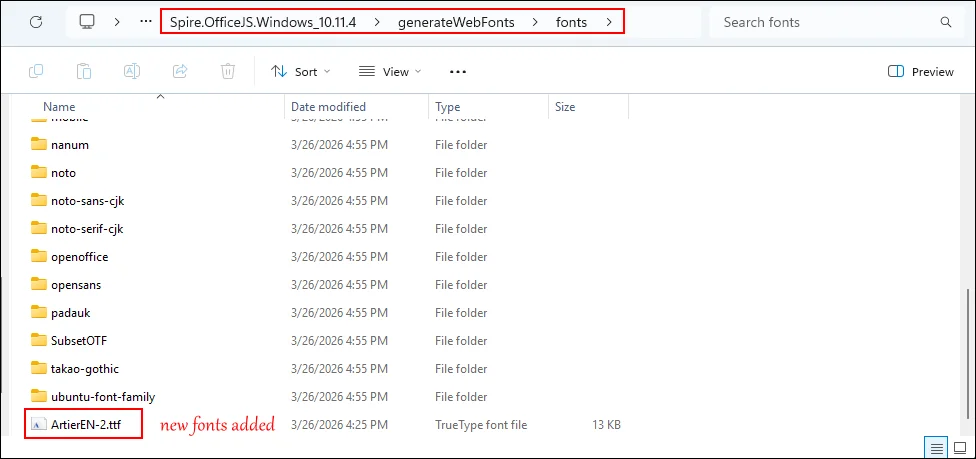
First, copy and save the font files into the "generateFonts\fonts" folder on your server.
Step 2. Run the Font Generation Script
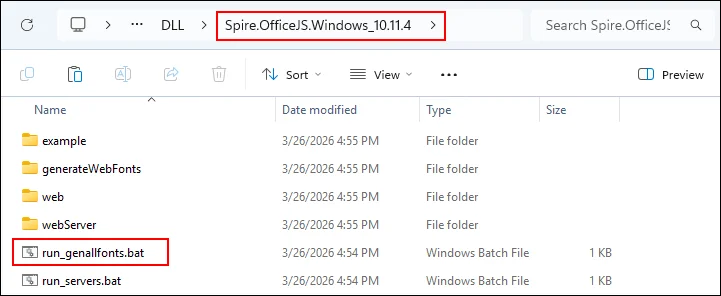
Go back to the OfficeJS product file folder and double-click the "run_genallfonts.bat" script. This will register the new fonts with the editor service. Wait for the script to run over.
Step 3. Refresh the Editor
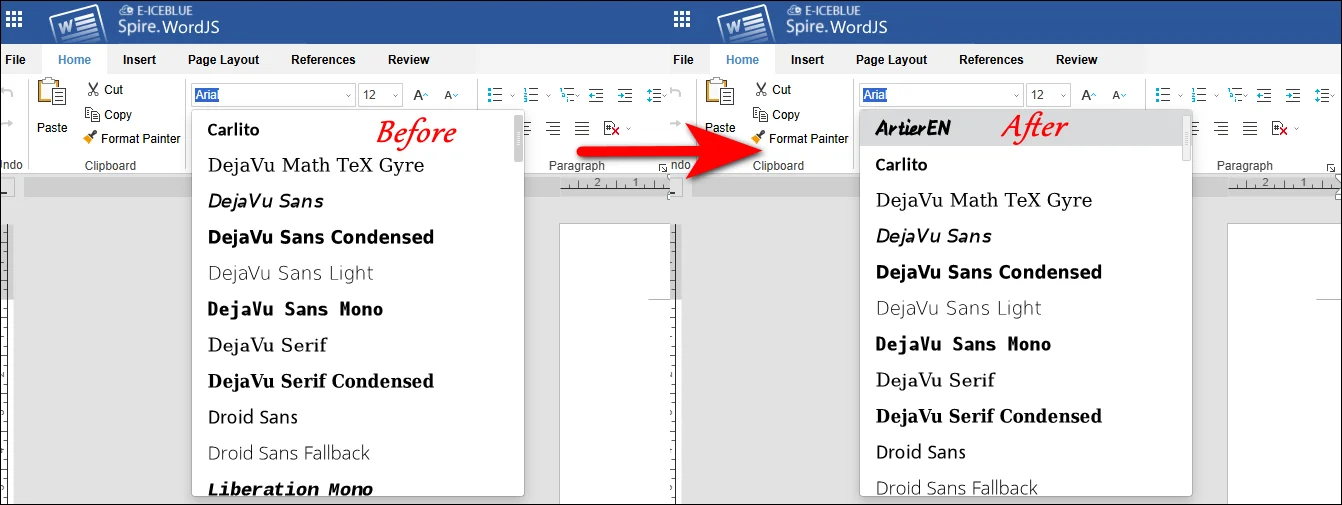
Wait for the script to run over and then open your editor in a browser and press "Ctrl + F5" to reload the page. Your new fonts should now be visible.
Linux (x86_64) Systems
Linux users need to ensure certain dependencies before running the font scripts:
Step 1. Install Required Libraries
Before running the font generation script, ensure that the required dependencies like libgdiplus and libicu are installed on your system.
Step 2. Add Font Files
Copy your custom font files (such as .ttf or .otf) into the following directory on your deployment server: generateFonts/fonts.
Step 3. Run the Font Generation Script
Execute the run_genallfonts.sh shell script to generate fonts in your Linux editor.
Step 4. Run or Refresh the Editor
After the script finishes, open or refresh the editor in your browser to see the newly added fonts.
Part 2. Integrating Custom Fonts in Frontend Frameworks like React
For developers using modern frontend frameworks like Vue, React, or Angular, you can integrate the newly generated fonts directly into your web application. The tutorial in this post takes React framework as an example.
Start building your React program with Spire.OfficeJS with this tutorial: [How to Integrate Spire.OfficeJS into a React Application.
Step-by-Step process to integrate fonts in React framework:
Step 1. Execute Font Generation Script
Use the Windows or Linux process described above to generate fonts.
Step 2. Copy Fonts Folder
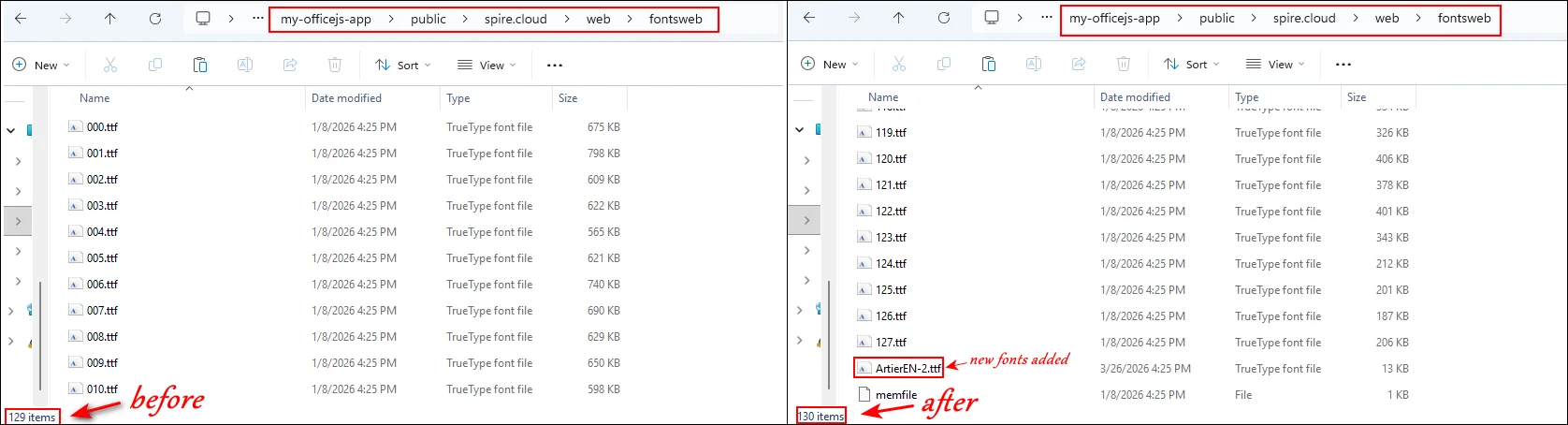
First, locate the web\fontsweb folder where the generated fonts are stored and delete the existing "fontsweb" folder in your frontend project. Then, copy the new "fontsweb" folder into your project directory.
Step 3. Update Script Files
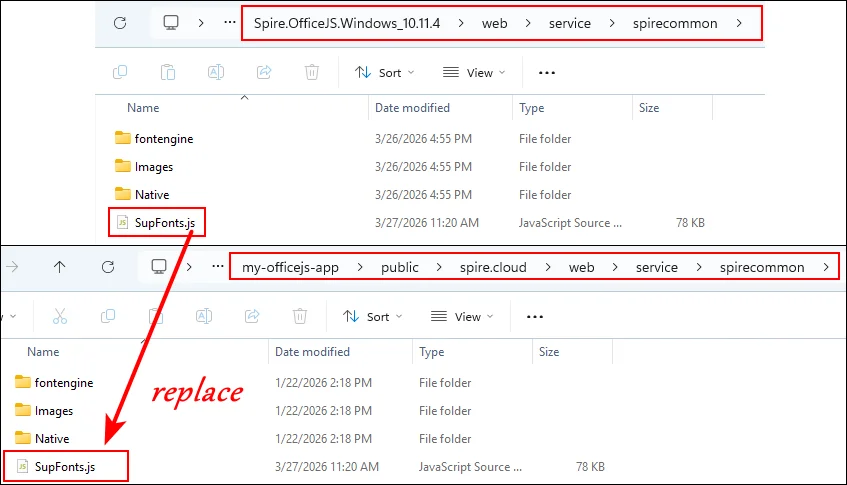
Run "genallfonts.bat" mentioned in Part 1. Copy the generated SupFonts.js from "web > service > spirecommon" folder into your project to ensure the editor recognizes the new fonts.
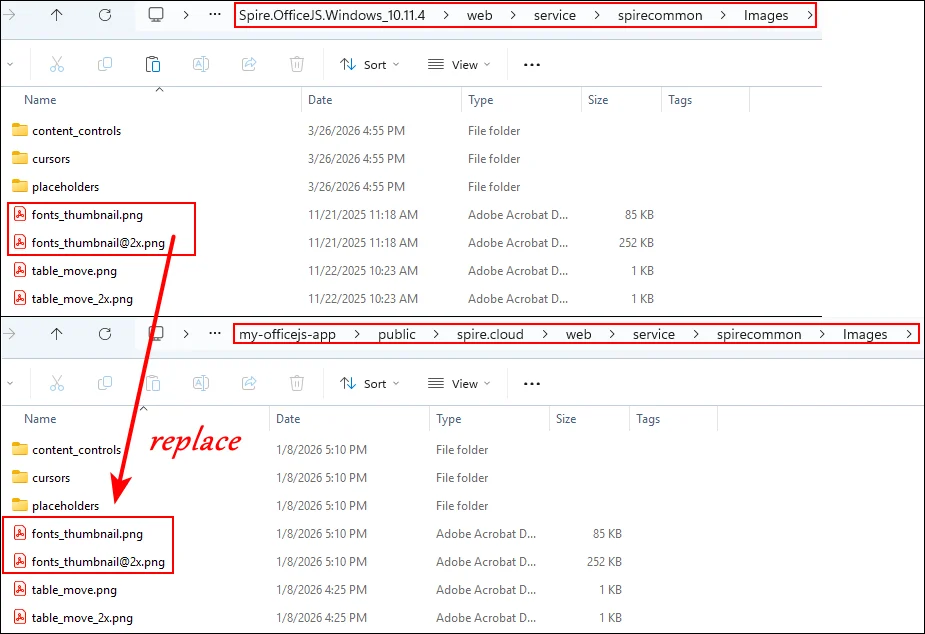
Step 4. Update Font Thumbnails Copy and paste fonts_thumbnail.png and fonts_thumbnail@2x.png into your project.

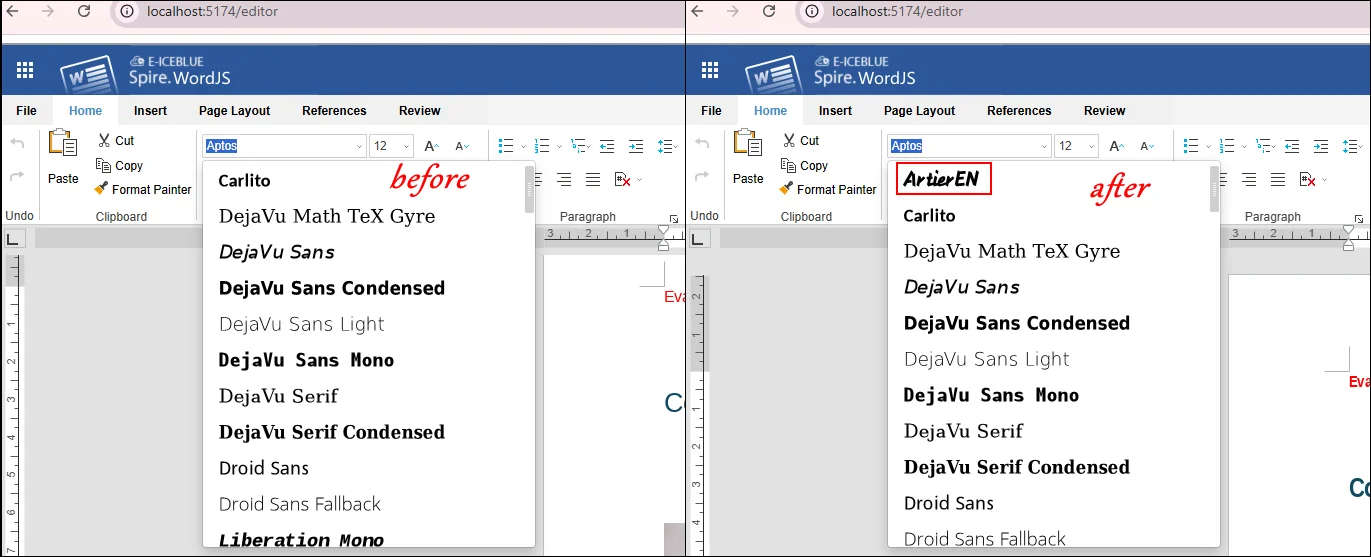
Step 5. Refresh Your Browser Open your web application and reload the page to confirm that the editor displays all new fonts.
Common Troubleshooting for Font Integration
After adding custom fonts to your editor, it’s important to follow best practices to ensure smooth management and consistent performance across both server and frontend environments. Proper organization and verification can save time and prevent unexpected issues when working with multiple fonts or deploying across different browsers.
Below are some common issues users may encounter and recommended solutions:
- Organize Font Files: Keep a clear folder structure for server scripts (generateFonts/fonts) and frontend projects (web/fontsweb) to avoid confusion or missing files.
- Version Control: Use versioning for font files to prevent accidental overwrites and maintain consistency across updates.
- Test Across Browsers: Fonts may display differently in Chrome, Firefox, Safari, and Edge. Always check their appearance in each browser.
- Document Dependencies: On Linux systems, ensure all required libraries (libgdiplus, libicu) are installed before running scripts to avoid failures.
- Check Font File Integrity: If issues persist, some font files may be corrupted or incompatible. In this case, add fonts in smaller batches to identify and remove problematic files.
Final Words
Adding custom fonts in Spire.OfficeJS is a simple yet powerful way to enhance the visual appeal and usability of your web-based editor. By following the steps above, users can create a consistent and professional editing experience whether they are using product package scripts on Windows or Linux, or frontend frameworks like React.
Proper organization, testing across browsers, and careful handling of font files will help prevent common issues and ensure smooth operation. Start adding your custom fonts today to give your editor a more flexible, branded, and user-friendly typography system.
Apply for License
To remove the evaluation message from generated documents or lift feature limitations, contact us to obtain a 30-day temporary license.
Spire.OfficeJS is a powerful front-end JavaScript library that enables users to edit, preview, and process Office documents directly in a web browser—without plugins and without installing local tools such as Microsoft Office or WPS.
This article explains how to use Spire.OfficeJS in a native JavaScript environment.
Spire.OfficeJS consists of four modules:
- Spire.WordJS: Provides preview and editing capabilities for Word documents, with full compatibility with Microsoft Word and WPS formats, such as .doc, .docx, .wps, and .wpt.
- Spire.ExcelJS: Enables preview and editing of Excel documents, including formats such as .xls, .xlsx, .et, and .ett.
- Spire.PresentationJS: Supports preview and editing of PowerPoint documents, including .ppt and .pptx.
- Spire.PDFJS: Provides preview functionality for PDF documents.
Table of Contents
Preparation
Spire.OfficeJS is powered by a web service. To use it in a native JavaScript environment, you must first start the web service. The service is launched using scripts included in the product package, with the default service port set to 3000.
Step 1. Download and Extract the Installation Package
Download the Spire.OfficeJS package for your operating system, and extract it to a local directory.
Step 2. Initialize Fonts
- Windows
- Linux (x86_64)
In the extracted product directory, run the run_servers.bat file.The terminal output will be similar to the following:

In the extracted product folder, run the command sh run_genallfonts.sh start to execute the run_genallfonts.sh file.
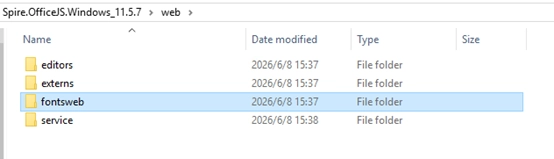
After execution, a new fontsweb folder containing the base fonts will be generated under the web directory.
Step 3. Start the Web Service
- Windows
- Linux (x86_64)
Run the run_servers.sh file in the extracted product directory using the command sh run_servers.sh start (to stop the service, use sh run_servers.sh stop to restart the service, use sh run_servers.sh restart). The terminal output is shown below:

Once started, the service will occupy two ports:
- Port 3000: Demo Document Management System
- Port 8000: Co-authoring Service Port
In the extracted product directory, run the run_servers.bat file. The terminal output will be similar to the following:
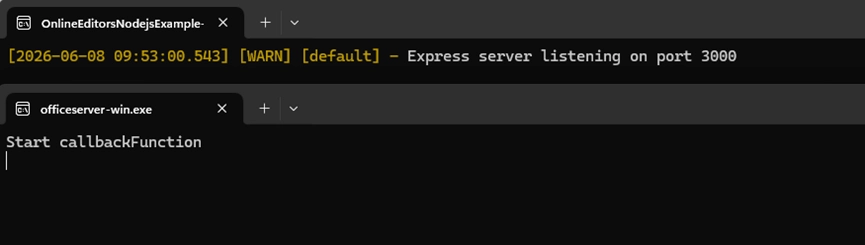
Step 4. Configure the Service Address
The default access address of the service is 127.0.0.1. If you need to access it via a domain name or actual IP address, modify the baseUrl value in the example\config\default.json file to the domain name or actual IP. To enable collaborative editing, you also need to update the coAuthorURL value accordingly. After making the configuration changes, restart the service for them to take effect.
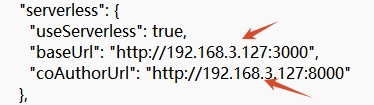
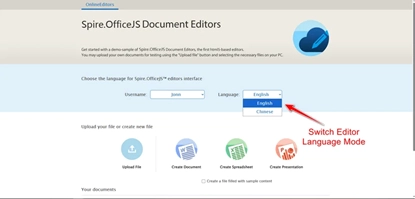
Now, the client can access the sample system using the configured IP address or domain name, for example: 192.168.3.127:3000
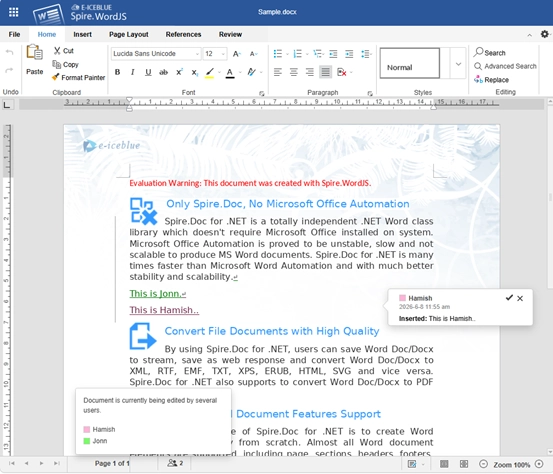
Below is an example of the effect after collaborative editing mode is enabled.
JavaScript Integration Examples:
- Browser Preview Integration (HTML):
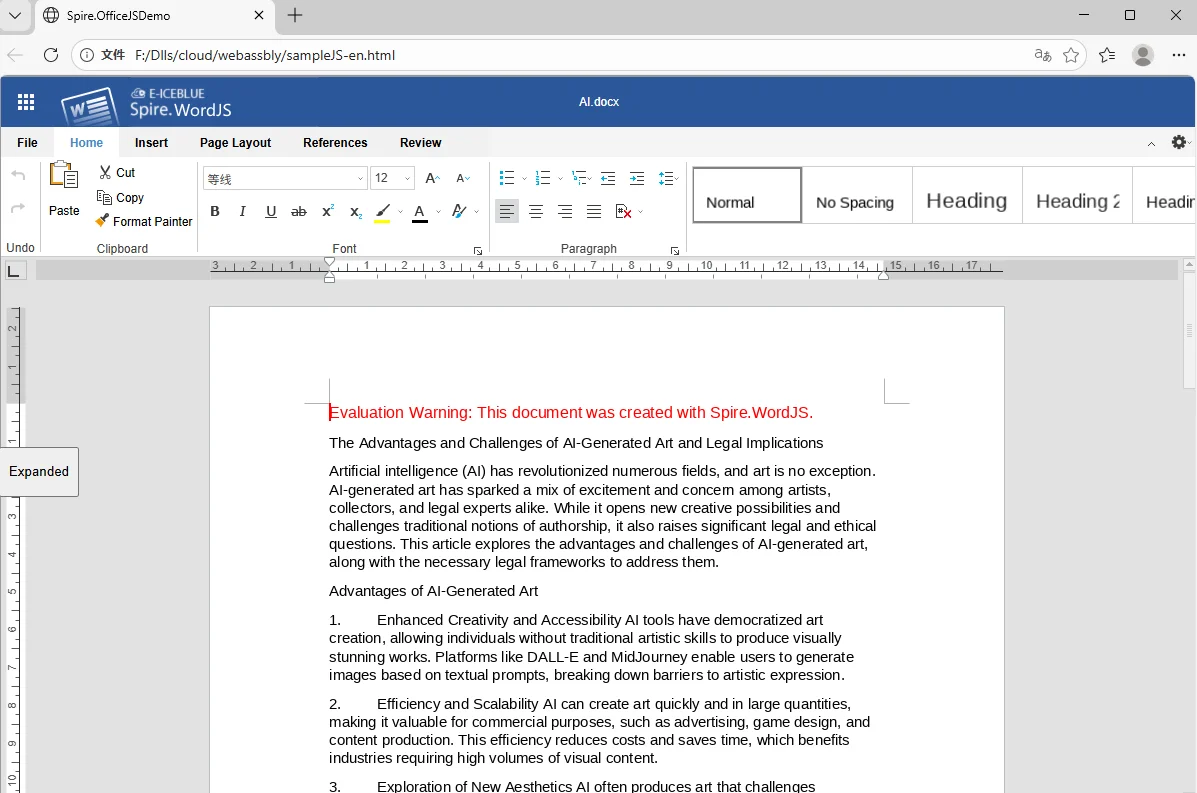
Script file:
To help you get started quickly, you can download the complete HTML example file using the link below and open it directly in your browser:
Demo Download
- Parameter Description:
| Parameter | Example Description | Value | ||
| fileAttrs | File Configuration Object | |||
| fileInfo | File Information Object | |||
| name | File Name Optional | Optional | ||
| ext | Document Name | docx,xlsx,pptx | ||
| primary | Document Unique Identifier | Optional | ||
| creator | Document Creator | Optional | ||
| createTime | Document Creation Time | Optional | ||
| sourceUrl | Document URL | Required. Must be accessible and have the appropriate access permissions. | ||
| createUrl | Template Document URL | Optional | ||
| user | User Configuration Object | |||
| id | User ID | Optional | ||
| name | User Name | Optional | ||
| editorAttrs | Editor Configuration Object | |||
| editorMode | Edit Mode Optional. Accepts 'edit' (edit) or 'view' (view). Default is 'edit'. | Optional. Accepts 'edit' (edit) or 'view' (view). Default is 'edit'. | ||
| editorWidth | Width | Optional. Default value is 100%. | ||
| editorHeight | Height | Optional. Default value is 100%. | ||
| editorType | Editor Type | Optional. If not specified, the editor type is determined automatically based on the file type. Must be set to document, spreadsheet, or presentation. | ||
| platform | Editor Platform Type | Required. Accepts 'desktop' (desktop view), 'mobile' (mobile view), or 'embedded' (embedded view). Must be set to one of: desktop, mobile, or embedded. | ||
| viewLanguage | UI Language | Optional. Accepts "en" or "zh". If not specified, the browser’s default language is used. | ||
| isReadOnly | Read-Only Mode | Default is false, allowing the document to be edited. When set to true, the document is read-only. | ||
| canChat | Chat Enabled | Default is true. When set to false, chat is disabled. | ||
| canComment | Comments Enabled | Default is true. When set to false, comments are disabled. | ||
| canReview | Track Changes Enabled | Default is true. When set to false, track changes is disabled. | ||
| canDownload | Download Allowed | Default is true, allowing downloads. When set to false, downloading is not allowed. | ||
| canEdit | Edit Allowed | Default is true, allowing editing. When set to false, editing is not allowed. | ||
| canForcesave | Force Save Enabled | Default is true. When set to false, force save is disabled. | ||
| embedded | Embedded View Configuration Object | Includes saveUrl, embedUrl, shareUrl, and toolbarDocked, used to control saving, sharing, and toolbar display in embedded mode. | ||
| saveUrl | Embedded Document Save URL | Default is empty. Can be set to a URL used to save edited content. | ||
| embedUrl | Embedded Document Access URL | Default is empty. Can be set to a URL used to open the document directly. | ||
| shareUrl | Embedded Document Share URL | Default is empty. Can be set to a URL used to share the document. | ||
| toolbarDocked | Toolbar Dock Position | Default is "top". Accepts "top" or "bottom". | ||
| events | Events | |||
| plugins | Editor Plugin Configuration Object | Default is empty. Used to extend editor functionality. | ||
| pluginsData | Plugin Data Array | Default is empty. Plugins can be added as needed. | ||
| useWebAssemblyDoc | Enable WebAssembly for Word Documents | Default is true, allowing Word documents to be processed in the browser. When set to false, WebAssembly support is disabled. | ||
| spireDocJsLicense | Word WebAssembly License File URL | Default is empty. Used to activate the WebAssembly functionality. | ||
| useWebAssemblyExcel | Enable WebAssembly for Excel Documents | Default is true, allowing Excel documents to be processed in the browser. When set to false, WebAssembly support is disabled. | ||
| spireXlsJsLicense | Excel WebAssembly License File URL | Default is empty. Used to activate the WebAssembly functionality. | ||
| useWebAssemblyPpt | Enable WebAssembly for PowerPoint Documents | Default is true, allowing PowerPoint documents to be processed in the browser. When set to false, WebAssembly support is disabled. | ||
| spirePresentationJsLicense | PowerPoint WebAssembly License File URL | Default is empty. Used to activate the WebAssembly functionality. | ||
| useWebAssemblyPdf | Enable WebAssembly for PDF Documents | Default is true, allowing PDF documents to be processed in the browser. When set to false, WebAssembly support is disabled. | ||
| spirePdfJsLicense | PDF WebAssembly License File | Default is empty. Used to activate the WebAssembly functionality. | ||
| spireOfficeJsLicense | OfficeJS License File | Default is empty. Used to activate all online document editing features. | ||
| serverless | Serverless Mode Configuration Object | Includes useServerless, baseUrl, and fileData, allowing the front end to upload, edit, and download documents directly. | ||
| useSeverless | Enable Serverless Mode | Default is true. When enabled, the front end can operate on documents directly. When set to false, a server-side service is required. | ||
| baseUrl | Service URL in Serverless Mode | Default is empty. Must be set to the deployed server IP address and port. | ||
| coAuthorUrl | Service Url under collaborative editing mode | Default is empty. Must be set to the deployed server IP address and port. | ||
| fileData | Document Data | Default is empty. Stores the uploaded file data on the front end and is used to initialize the editor. | ||
Note: Applying a license removes the default watermark and unlocks all features. If you need a license file, please feel free to contact us at any time.
Frequently Asked Questions
During the deployment and integration of Spire.OfficeJS, you may encounter certain issues. The table below lists some common problems along with their solutions for your reference. If you have any additional questions, please contact our technical support team.
| Issue | Cause | Solution |
|---|---|---|
| Unable to access the service in the browser | Service not started / Required ports not open | Verify that the service is running and ensure port 3000 is open. |
| Page loads but displays a blank screen | Browser cache contains outdated resources | Clear the browser cache or reopen the page in private/incognito mode |
| JavaScript file fails to load | Incorrect IP address or port | Check whether the SpireCloudEditor.js script URL is correct |
| File upload fails | baseUrl is not configured with the actual deployment address |
Update the configuration file and restart the service |
| Unable to execute the script on Linux | Insufficient script permissions | Run chmod +x run_servers.sh to grant execute permissions |
Summary
At this point, you have successfully completed the deployment and integration of Spire.OfficeJS. Your system can now view and edit documents online directly in the browser, without requiring client-side installations or additional development environments.
If you would like to explore more advanced usage scenarios or learn how to integrate Spire.OfficeJS into different types of applications, please refer to the related documentation or contact our team for further guidance.
With the rapid advancement of enterprise digital transformation, front-end document processing has emerged as a core requirement for modern web applications. As a robust enterprise-level framework, Angular is extensively adopted in complex scenarios—including OA systems, document platforms, and education management systems—thanks to its strong typing, component-based architecture, and efficient state management.
This article demonstrates how to integrate Spire.OfficeJS into an Angular application to implement core functions such as local file uploads, online document editing, format conversion, and file downloads.
Content Overview
- What is Spire.OfficeJS
- Prerequisites & Angular Project Setup
- Integrating Spire.OfficeJS Online Document Editor
- Launch & Function Validation
- Frequently Asked Questions
- Apply for a Temporary License
What is Spire.OfficeJS
Spire.OfficeJS is an enterprise-level online document editing solution comprising four core modules: Spire.WordJS, Spire.ExcelJS, Spire.PresentationJS, and Spire.PDFJS. It enables browser-based preview, editing, annotation, and format conversion for Word, Excel, PPT, and PDF files—all without requiring local Office software or any other plug‑ins. Additionally, it delivers essential enterprise capabilities including cloud‑native architecture, cross‑platform compatibility, and high‑level security.
Key Features:
- Modular Design: Each of the four core modules handles a distinct document type, enabling granular Word editing, Excel data calculation and charting, visual PowerPoint design, and rapid PDF preview—together covering the full spectrum of document processing.
- Pure Front-End Rendering: Powered by a custom WebAssembly engine, it eliminates back-end document processing, reducing server load and boosting response speeds.
- Multi-Format Compatibility: Supports mainstream file formats such as DOCX, XLSX, PPTX, PDF, WPS, and cross-format export (e.g., Word to PDF).
- Enterprise-Grade Security: Supports encrypted storage of static files to protect sensitive document data.
- Easy to Integrate: Seamlessly compatible with mainstream front-end frameworks (Angular, Vue, React) and enables rapid integration via minimal configuration.
Prerequisites & Angular Project Setup
Ensure your development environment meets the following requirements before integration:
1. Install Node.js and npm
- Download: Visit the official Node.js download page and install the appropriate version for your OS.
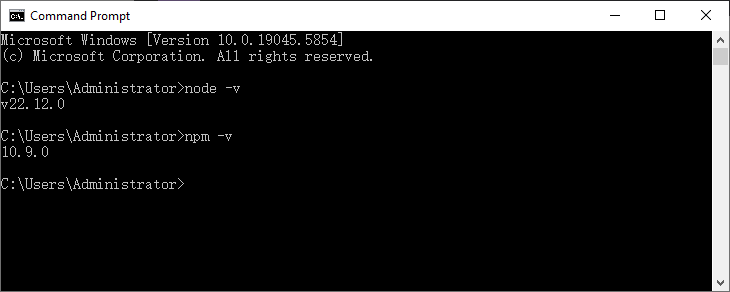
- Verify Installation: Run the following commands in CMD to confirm success (version numbers will appear if installed correctly):
node -v
npm -v
2. Install Angular CLI
Angular CLI streamlines project creation and management. Install it globally via npm:
npm install -g @angular/cli
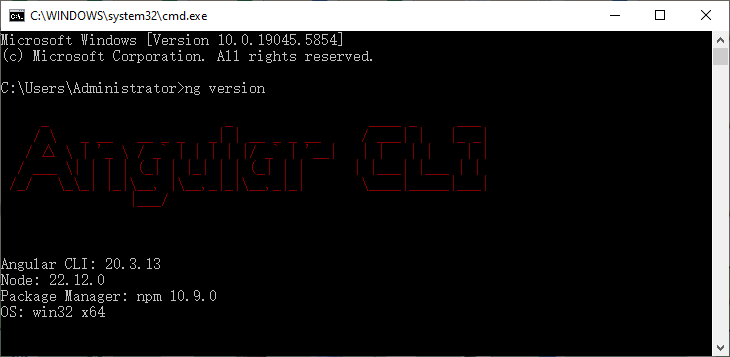
- After installation, run the following command to check the Angular CLI version and confirm successful installation:
ng version
3. Initialize an Angular Project
- Open the CMD and navigate to the target directory (example: F:\angular).
- Create a new Angular project with the following command (skip Git initialization for simplicity):
ng new spireOfficeJS --skip-git
- Configure the project wizard as follows (for compatibility):
- Would you like to create a "zoneless" app without zone.js? No
- Stylesheet format: CSS
- Would you like to enable SSR/SSG? No
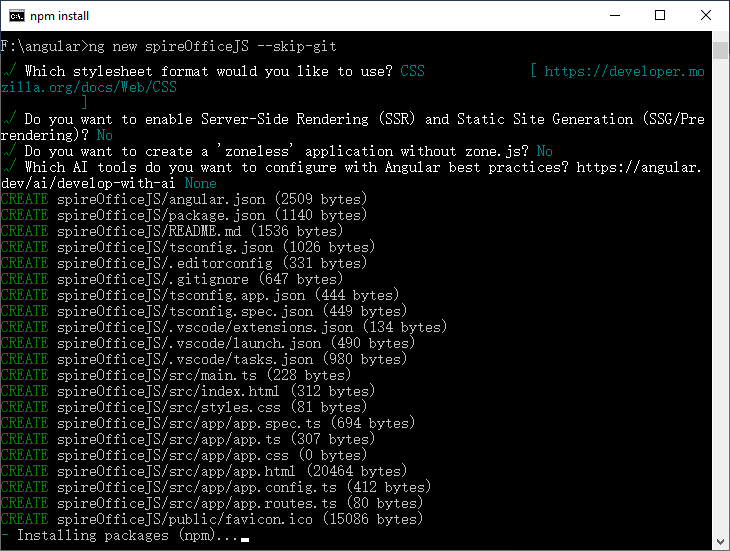
- Wait for dependencies to finish installing. After the project is successfully created, the directory structure will appear as shown:
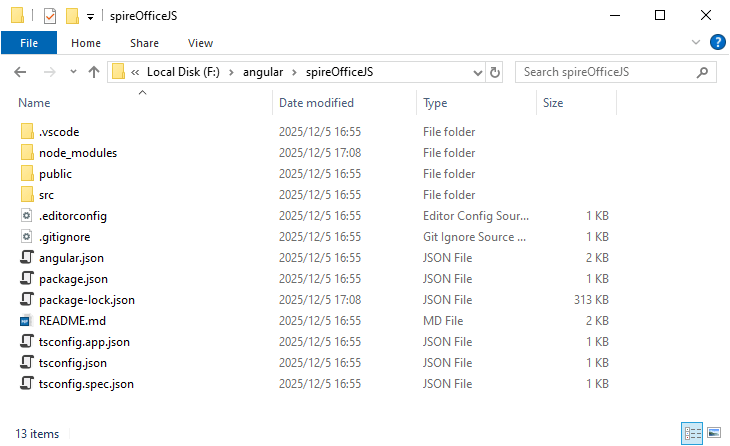
4. Validate Project Initialization
Open the project with VS Code, and run the following command in the terminal to start the development server:
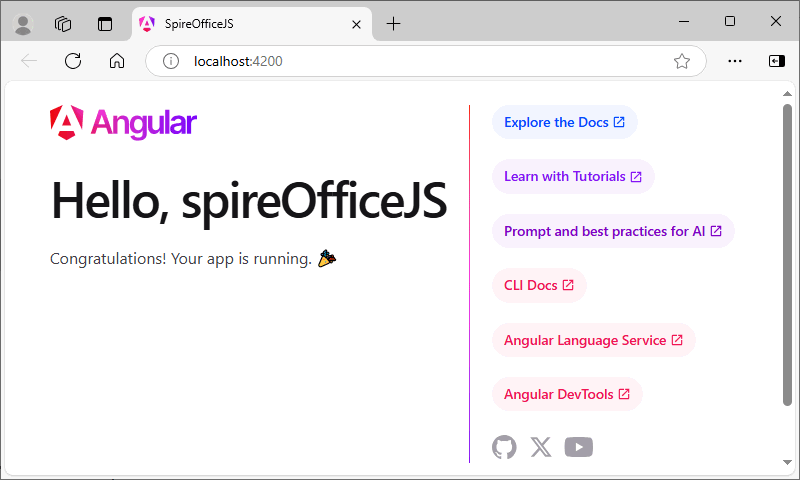
npm run start
Visit http://localhost:4200/ in your browser. If the Angular default welcome page (with "Hello, spireOfficeJS") appears, initialization is successful.
Integrating Spire.OfficeJS Online Document Editor
1. Deploy Spire.OfficeJS Static Resources
- Download the Spire.OfficeJS product package and extract it.
- Run the script to initialize fonts. On Windows, double-click the run_genallfonts.bat file in the extracted directory to run it; on Linux, execute the command sh run_genallfonts.sh start to run the script. After execution completes, a fontsweb subfolder will be generated under the web folder.
- Create a spire.cloud folder in the project's public directory (path: public/spire.cloud).
- Copy the entire web folder from the extracted Spire.OfficeJS product package to the public/spire.cloud/ directory.
- Confirm the core script SpireCloudEditor.js is located at: public/spire.cloud/web/editors/spireapi/SpireCloudEditor.js
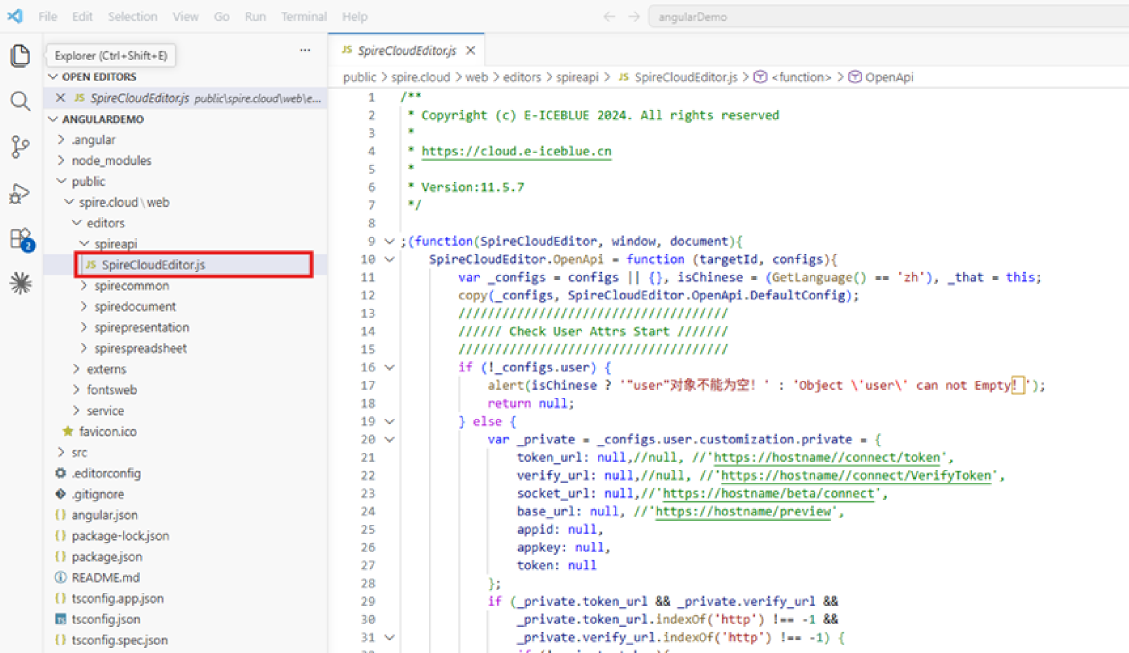
Note: This path must be completely consistent with the path in the subsequent configured office-js.ts, otherwise the editor cannot be loaded.
2. Configure State Management
We use NgRx Signals to synchronize file upload data (file object + binary data) for access by the editor component.
(1) Install dependencies
Run the following installation command in the VS Code terminal:
npm install @ngrx/effects @ngrx/signals @ngrx/store
(2) Create state management store
- Create a store folder in the src/app/ directory and create a new index.ts file.
- Add the following code to index.ts to define file state and operations:
import { signalStore, withState, withMethods, patchState } from '@ngrx/signals';

// Define file state interface
interface FileState {
  file: File | null;          // Uploaded file object
  fileUint8Data: Uint8Array | null; // File binary data
}

// Initial state
const initialState: FileState = {
  file: null,
  fileUint8Data: null,
};

// Create global Store
export const fileStore = signalStore(
  { providedIn: 'root' },
  withState(initialState),
  withMethods((store) => ({
    // Update file object
    setFileData(data: File | null): void {
      patchState(store, { file: data });
    },
    // Update file binary data
    setFileUint8Data(uint8Data: Uint8Array | null): void {
      patchState(store, { fileUint8Data: uint8Data });
    }
  }))
);
3. Develop Core Components (Upload + Editor)
(1) Create components
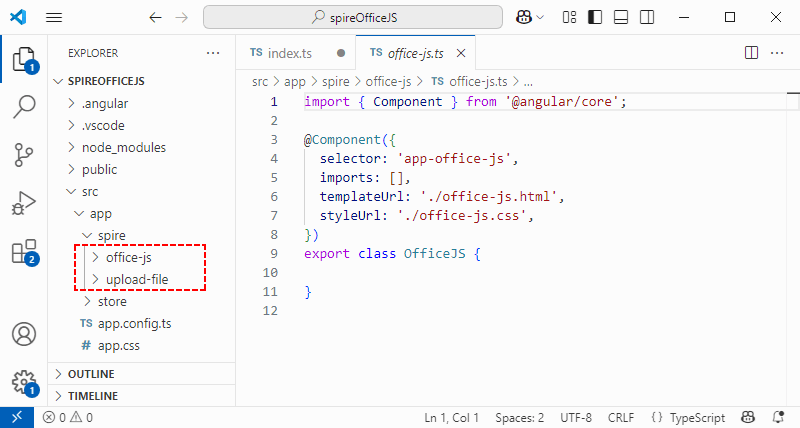
Run the following commands in your terminal to create a file upload component and an editor integration component:
ng g c spire/uploadFile
ng g c spire/officeJS
This generates two folders in src/app/spire/: upload-file/ and office-js/.
(2) Configure the upload component (upload-file)
This component handles file selection (drag-and-drop or click), converts files to binary format, stores data in the global state, and navigates to the editor page.
- Define the upload interface style (upload-file.css):
:host {
  display: block;
  min-height: 100vh;
}

.upload-main {
  min-height: 100vh;
  display: flex;
  justify-content: center;
  align-items: center;
  background-color: #f5f5f5;
}

.upload-container {
  width: 80%;
  max-width: 600px;
  padding: 40px;
  background-color: white;
  border-radius: 8px;
  box-shadow: 0 4px 12px rgba(0, 0, 0, 0.1);
  text-align: center;
}

.drop-area {
  border: 2px dashed #ccc;
  border-radius: 6px;
  padding: 40px;
  margin-bottom: 20px;
  transition: all 0.3s;
}

.drop-area.highlight {
  border-color: #4CAF50;
  background-color: #f0fff0;
}

button {
  background-color: #4CAF50;
  color: white;
  border: none;
  padding: 10px 20px;
  border-radius: 4px;
  cursor: pointer;
  font-size: 16px;
  margin-top: 10px;
}

button:hover {
  background-color: #45a049;
}

#fileInput {
  display: none; /* Hide the native file selection box */
}
- Set the upload interface structure (upload-file.html), supporting both drag-and-drop upload and click-to-select file:
<main class="upload-main">
  <div class="upload-container">
    <h2>Upload Your File</h2>
    <div class="drop-area" id="dropArea">
      <p>Drag and drop your file to the browser</p>
      <p>or</p>
      <button id="browseBtn" #browseBtn (click)="handleButtonClick($event)">Click to select your file</button>
      <input type="file" id="fileInput" #fileInput (change)="handleDrop($event)">
    </div>
  </div>
</main>
- Implement upload logic (upload-file.ts), handling file drag-and-drop, selection, binary conversion, and state storage:
import { ViewChild, ElementRef, Component, AfterViewInit, inject } from '@angular/core';
import { Router } from '@angular/router';
import { fileStore } from '../../store/index';

@Component({
  selector: 'app-upload-file',
  imports: [],
  templateUrl: './upload-file.html',
  styleUrl: './upload-file.css',
})
export class UploadFile implements AfterViewInit {
  constructor(private router: Router) { }
  // Inject state management store
  store = inject(fileStore);

  // Bind HTML elements
  @ViewChild('browseBtn') browseBtn!: ElementRef<HTMLButtonElement>;
  @ViewChild('fileInput') fileInput!: ElementRef<HTMLInputElement>;

  file: File | null = null; // Uploaded file object
  fileUint8Data: Uint8Array | null = null; // File binary data

  // Execute after component view initialization is complete
  ngAfterViewInit() {
    this.init();
  }

  // Initialize drag-and-drop event listening
  init() {
    // Prevent default browser behavior for drag-and-drop
    ['dragenter', 'dragover', 'dragleave', 'drop'].forEach(eventName => {
      document.addEventListener(eventName, this.preventDefaults, false);
    });

    // Listen for file drop events
    document.addEventListener('drop', (e) => {
      this.handleDrop.call(this, e);
    }, false);
  }

  // Prevent default events
  preventDefaults(e: Event) {
    e.preventDefault();
    e.stopPropagation();
  }

  // Trigger native file input when select file is clicked
  handleButtonClick(e: Event) {
    e.preventDefault();
    this.fileInput.nativeElement.click();
  }

  // Handle file selection (drag-and-drop or click)
  async handleDrop(e: any) {
    // Retrieve file object
    if (e.target && e.target.files) {
      this.file = e.target.files[0];
    } else if (e.dataTransfer && e.dataTransfer.files) {
      this.file = e.dataTransfer.files[0];
    }

    // Convert file to Uint8Array binary format
    this.fileUint8Data = await this.handleFile(this.file) as Uint8Array;

    // Update global state
    this.store.setFileData(this.file);
    this.store.setFileUint8Data(this.fileUint8Data);

    // Navigate to editor
    this.openDocument();
  }

  // Convert file to Uint8Array binary data
  handleFile(file: any) {
    return new Promise((resolve, reject) => {
      const reader = new FileReader();
      reader.onload = () => {
        const arrayBuffer = reader.result as ArrayBuffer;
        const uint8Array = new Uint8Array(arrayBuffer);
        resolve(uint8Array);
      };
      reader.onerror = (error) => reject(error);
      reader.readAsArrayBuffer(file); // Read file in ArrayBuffer format
    });
  }

  // Navigate to the editor page (route navigation)
  openDocument() {
    this.router.navigate(['spire']);
  }
}
(3) Configure the editor component (office-js)
The editor component loads the Spire.OfficeJS script, initializes the editor, and configures editing permissions.
- Define the editor container (office-js.html):
<div class="form">
    <div id="iframeEditor">
    </div>
</div>
- Implement core logic such as editor script loading, configuration initialization, file parsing, and event listening (office-js.ts):
import { Component, AfterViewInit, inject } from '@angular/core';
import { Router } from '@angular/router';
import { fileStore } from '../../store/index';

// Declare global SpireCloudEditor (from Spire.OfficeJS script)
declare const SpireCloudEditor: any;

@Component({
  selector: 'app-office-js',
  imports: [],
  templateUrl: './office-js.html',
  styleUrl: './office-js.css',
})
export class OfficeJS implements AfterViewInit {
  constructor(private router: Router) { };
  // Inject state management store
  store = inject(fileStore);

  // Get file data from store
  file = this.store.file() as File;
  fileUint8Data = this.store.fileUint8Data() as Uint8Array;
  originUrl = window.location.origin; // Current project domain name
  Editor: any; // Editor instance
  config: any; // Editor configuration
  Api: any;    // Editor API

  // Execute after component view initialization is complete
  ngAfterViewInit() {
    this.init();
  }

  // Initialize editor (redirect to upload if no file exists)
  init() {
    if (!this.file) {
      this.router.navigate(['']);
      return;
    }
    this.loadSrcipt(); // Load editor script
  }

  // Dynamically load SpireCloudEditor.js
  loadSrcipt() {
    const script = document.createElement('script');
    // Match static resource path
    script.setAttribute('src', '/spire.cloud/web/editors/spireapi/SpireCloudEditor.js');
    script.onload = () => this.initEditor(); // Initialize editor after script loading is complete
    document.head.appendChild(script);
  }

  // Initialize editor configuration and instance
  initEditor() {
    const iframeId = 'iframeEditor'; // Match container ID in the template file
    this.initConfig();
    this.Editor = new SpireCloudEditor.OpenApi(iframeId, this.config);
    this.Api = this.Editor.GetOpenApi(); // Get editor API
    this.OnWindowReSize(); // Adapt to window size
  }

  // Configure editor settings (file information + user permissions + editor behavior)
  initConfig() {
    this.config = {
      "fileAttrs": {
        "fileInfo": {
          "name": this.file.name, // File name
          "ext": this.getFileExtension(), // File suffix
          "primary": String(new Date().getTime()), // Unique ID (timestamp)
          "creator": "",
          "createTime": ""
        },
        "sourceUrl": `${this.originUrl}/files/__ffff_192.168.3.121/${this.file.name}`,
        "createUrl": `${this.originUrl}/open`,
        "mergeFolderUrl": "",
        "fileChoiceUrl": "",
        "templates": {}
      },
      "user": {
        "id": "uid-1",
        "name": "Jonn",
        "canSave": true, // Allow file saving
      },
      "editorAttrs": {
        "editorMode": this.file.name.endsWith('.pdf') ? 'view' : "edit", // PDF = preview only
        "editorWidth": "100%",
        "editorHeight": "100%",
        "editorType": "document",
        "platform": "desktop",
        "viewLanguage": "en", // English interface
        "isReadOnly": false,
        "canChat": true,
        "canComment": true,
        "canReview": true,
        "canDownload": true, // Allow file downloads
        "canEdit": this.file.name.endsWith('.pdf') ? false : true, // Disable editing for PDFs
        "canForcesave": true,
        "embedded": {
          "saveUrl": "",
          "embedUrl": "",
          "shareUrl": "",
          "toolbarDocked": "top" // Toolbar aligned to top
        },
        // Enable WebAssembly for faster performance(Supports Word/Excel/PPT/PDF)
        "useWebAssemblyDoc": true,
        "useWebAssemblyExcel": true,
        "useWebAssemblyPpt": true,
        "useWebAssemblyPdf": true,
        // License keys (add if available)
        "spireDocJsLicense": "",
        "spireXlsJsLicense": "",
        "spirePresentationJsLicense": "",
        "spirePdfJsLicense": "",
        "serverless": {
          "useServerless": true,
          "baseUrl": this.originUrl,
          "fileData": this.fileUint8Data, // Pass binary file data
        },
        "events": {
          "onSave": this.onFileSave // Save callback event
        },
        "plugins": {
          "pluginsData": []
        }
      }
    };
  }

  // Adjust editor size to fit window
  OnWindowReSize() {
    const wrapEl = document.getElementsByClassName("form") as any;
    if (wrapEl.length) {
      wrapEl[0].style.height = window.innerHeight + "px";
      window.scrollTo(0, -1);
    }
  }

  // Extract file extension
  getFileExtension() {
    const filename = this.file.name.split(/[\\/]/).pop() as String;
    return filename.substring(filename.lastIndexOf('.') + 1).toLowerCase() || '';
  }

  // Custom save logic (can be extended according to requirements)
  onFileSave(data: any) {
    console.log('Saved data:', data);
  }
}
4. Configure Routing
Enable navigation between the upload and editor pages.
- Modify routing rules (app.routes.ts), configure routes for the upload page and editor page:
import { Routes } from '@angular/router';
import { UploadFile } from './spire/upload-file/upload-file';
import { OfficeJS } from './spire/office-js/office-js';

export const routes: Routes = [
  { path: '', component: UploadFile }, // Default: upload page
  { path: 'spire', component: OfficeJS } // Editor page: /spire
];
- Ensure the routing configuration takes effect (app.config.ts):
import { ApplicationConfig, provideBrowserGlobalErrorListeners, provideZoneChangeDetection } from '@angular/core';
import { provideRouter } from '@angular/router';
import { routes } from './app.routes';

export const appConfig: ApplicationConfig = {
  providers: [
    provideBrowserGlobalErrorListeners(),
    provideZoneChangeDetection({ eventCoalescing: true }),
    provideRouter(routes), // Inject routing configuration
  ]
};
- Set route outlet (app.html) to ensure the page is rendered correctly:
<main class="app-main">
  <router-outlet /> <!-- Route outlet: render the component corresponding to the current route -->
</main>
Launch & Function Validation
1. Start the Project
Save all changes and restart the development server:
npm run start
2. Test Core Functions
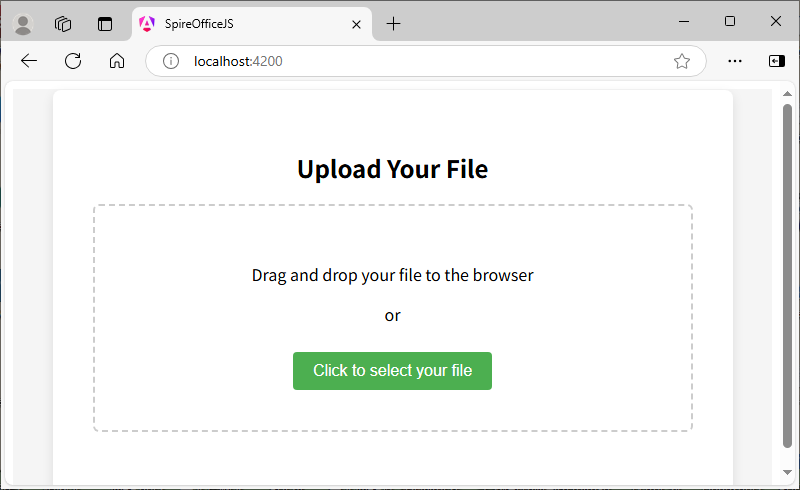
- Access the upload page: Visit http://localhost:4200/ in the browser, and the "Upload Your File" interface is displayed, supporting two upload methods:
- Drag and drop files to the specified area in the browser;
- Click to select file from the local (supporting formats such as Word, Excel, PPT, PDF).
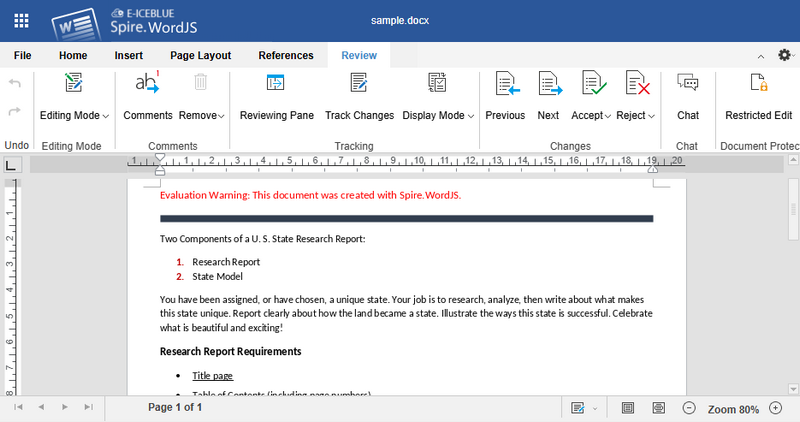
- Edit documents online: After uploading, you’ll be redirected to the editor page (http://localhost:4200/spire). The editor supports:
- Editing Word, Excel, and PowerPoint files (PDFs are preview-only).
- Adding annotations, comments, and track changes.
- A user-friendly English interface with an intuitive toolbar.
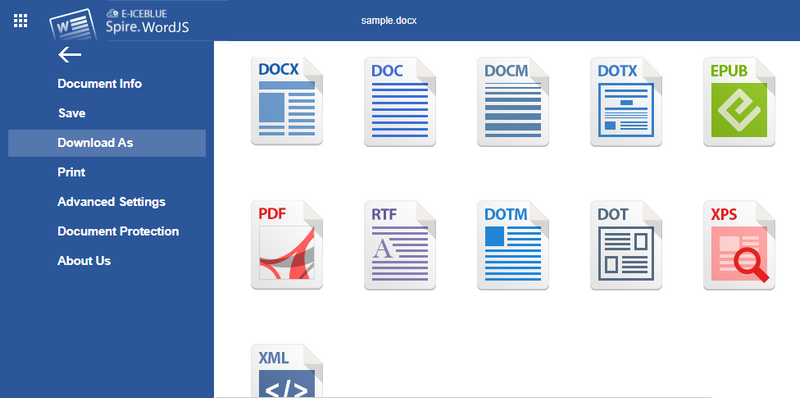
- Download / convert documents: After editing, click "File" → "Download as" on the top of the editor to export the document to various formats such as PDF, TXT, RTF, HTML, etc.
Frequently Asked Questions
Q1: The editor fails to load and the page is blank?
- Verify Path: Ensure the SpireCloudEditor.js path in office-js.ts matches the deployed static resource path.
- Browser compatibility: Upgrade to browsers that support WebAssembly such as Chrome 100+
Q2: When installing NgRx dependencies, a peer dependency conflict is prompted?
- Use the --legacy-peer-deps flag to force compatibility:
npm install @ngrx/signals @ngrx/store --legacy-peer-deps
- Or adjust your Angular version to match NgRx’s compatibility requirements.
Q3: When starting the project, the browser console reports an error, indicating that the zone.js module cannot be found?
- Reason: The "zoneless" mode was mistakenly selected during project initialization, but Spire.OfficeJS requires zone.js for async events.
- Solution:
- First install the zone.js dependency:
npm install zone.js --save - Then open src/main.ts and add the import at the top of the file:
import 'zone.js'; - Finally, restart the project and confirm that the error disappears.
- First install the zone.js dependency:
Download Complete Sample
Get the full Angular + Spire.OfficeJS integration project with pre-configured code and resources. Run it directly to test all features.
Apply for a Temporary License
To remove the evaluation message from generated documents or lift feature limitations, contact us to obtain a 30-day temporary license.
As modern front-end technologies evolve, more web applications are bringing Office document viewing and editing directly into the browser to improve performance, security, and user experience. React, one of the most popular front-end frameworks, is widely used to build document-centric applications.
In this article, you'll learn how to integrate Spire.OfficeJS into a React project to handle Word, Excel, PowerPoint, and PDF files efficiently on the client side.
Page Content:
- What Is Spire.OfficeJS
- Create a React Project and Integrate Spire.OfficeJS
- Implement File Upload and Editor Pages
- Run the project
- Demo Download
- FAQs
What Is Spire.OfficeJS
Spire.OfficeJS is a pure front-end document component suite developed by E-ICEBLUE, enabling the creation, viewing, and editing of Word, Excel, and PowerPoint documents, with built-in support for PDF viewing. Developers can complete the entire document workflow in the browser, from opening and editing to exporting, without installing Microsoft Office or relying on backend services.
Designed for performance and easy integration, Spire.OfficeJS fits a wide range of document-driven applications, from online platforms to education systems and admin dashboards.
Spire.OfficeJS product package includes the following components:
- Spire.WordJS
- Spire.ExcelJS
- Spire.PresentationJS
- Spire.PDFJS
Core Features:
- Multi-format support: Preview, edit, and export Word, Excel, and PowerPoint documents, with PDF preview support.
- Online editing: Edit Office documents directly in the browser, including text, tables, images, and styles.
- High-performance, pure front-end execution: Powered by WebAssembly, delivering lightweight loading and efficient performance with no backend involvement.
- Flexible integration: Easily integrates with React, Vue, Angular, and can also be used conveniently with vanilla JavaScript.
Create a React Project and Integrate Spire.OfficeJS
Step 1. Install Node.js
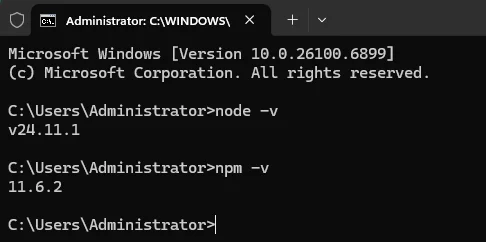
Download and install Node.js from the official website(https://nodejs.org/en/download/). After installation, open Command Prompt (cmd) and run the following command to verify the installed version:
node -v
npm -v
Step 2. Create a New React Project with Vite
Choose a project directory, open Command Prompt (cmd), and run the following command:
npm create vite@latest officejs-demo -- --template react
A new React project will be created and initialized.

Step 3. Install Dependencies Using npm
Open the "officejs-demo" project in VS Code, then run the following command to install "react-router-dom", which provides routing and navigation between pages:
npm install react-router-dom

Step 4. Integrate Spire.OfficeJS
Download the Spire.OfficeJS package. On Windows, double-click the run_genallfonts.bat file in the extracted package to run it. On Linux, use the command sh run_genallfonts.sh start to run the run_genallfonts.sh file in the extracted product package folder. After execution completes, a fontsweb folder will appear inside the web folder.
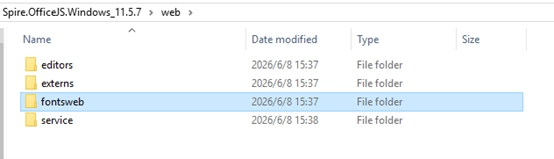
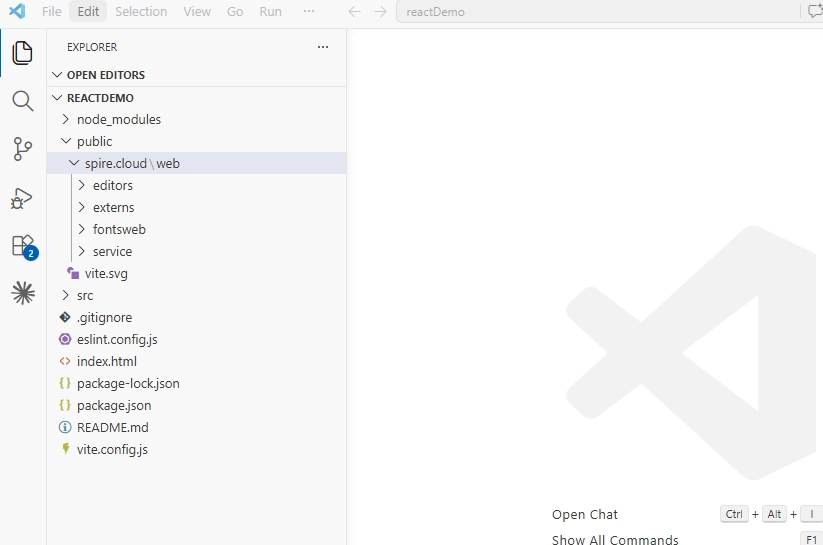
In your React project, create a new spire.officejs folder under the public directory, then copy the entire web folder (including fontsweb) into this directory. Ensure that the directory path matches the path referenced in Editor.jsx.
Implement File Upload and Editor Pages
1. App.jsx: Configure Routing and Global File State Management
Code:
import { createContext, useContext, useState } from 'react';
import { createBrowserRouter, RouterProvider } from 'react-router-dom';
import Home from './Home';
import Editor from './Editor';

//File state context
const FileContext = createContext();

export const useFileStore = () => useContext(FileContext);

function FileProvider({ children }) {
  const [file, setFile] = useState(null);
  const [fileUint8Data, setFileUint8Data] = useState(null);

  return (
    <FileContext.Provider value={{
      file,
      fileUint8Data,
      setFileData: setFile,
      setFileUint8Data
    }}>
      {children}
    </FileContext.Provider>
  );
}

const router = createBrowserRouter([
  { path: '/', element: <Home /> },
  { path: '/editor', element: <Editor /> },
]);

function App() {
  return (
    <FileProvider>
      <RouterProvider router={router} />
    </FileProvider>
  );
}

export default App;
2. Home.jsx: Set Up File Upload, File Handling, and Editor Navigation
Explanation:
- FileReader: To read local files from the user's device.
- Uint8Array: The binary data format required by OfficeJS WebAssembly for data input.
- useNavigate: A React Router hook for programmatic navigation between pages.
- Drag and Drop: Browser-based drag-and-drop support for file uploads.
Code:
import { useRef, useEffect } from "react"
import { useFileStore } from './App';
import { useNavigate } from 'react-router-dom';

function Home() {
    const { setFileData, setFileUint8Data } = useFileStore();
    const navigate = useNavigate();

    let dropArea = null;
    let fileInput = useRef();
    let file = null;
    let fileUint8Data = null;

    useEffect(() => {
        dropArea = document;

        //Prevent the default drag-and-drop behavior
        ['dragenter', 'dragover', 'dragleave', 'drop'].forEach(eventName => {
            dropArea.addEventListener(eventName, preventDefaults, false);
        });

        //Handle file drag-and-drop
        dropArea.addEventListener('drop', handleDrop, false);
    }, [])

    const preventDefaults = (e) => {
        e.preventDefault();
        e.stopPropagation();
    }

    const handleBtnClick = (e) => {
        e.preventDefault();
        fileInput.current.click();
    }

    const handleDrop = async (e) => {
        if (e.target && e.target.files)
            file = e.target.files[0]
        else if (e.dataTransfer && e.dataTransfer.files)
            file = e.dataTransfer.files[0];

        if (!file) return;

        fileUint8Data = await handleFile(file);
        setFileData(file);
        setFileUint8Data(fileUint8Data);
        openDocument();
    }

    const handleFile = (file) => {
        return new Promise((resolve, reject) => {
            const reader = new FileReader();
            reader.onload = () => {
                const arrayBuffer = reader.result;
                const uint8Array = new Uint8Array(arrayBuffer);
                resolve(uint8Array);
            };
            reader.onerror = (error) => reject(error);
            reader.readAsArrayBuffer(file);
        });
    }

    const openDocument = () => {
        navigate('/editor')
    }

    return (
        <div>
            <div>
                <h2>Upload Your File</h2>
                <div>
                    <p>Drag your file to the browser</p>
                     <p style={{ marginLeft: '20px' }}>or</p>
                    <button ref={fileInput} onClick={handleBtnClick}>Choose Your File</button>
                    <input
                        type="file"
                        id="fileInput"
                        ref={fileInput}
                        onChange={handleDrop}
                        style={{ display: 'none' }}
                    />
                </div>
            </div>
        </div>
    )
}

export default Home
3. Editor.jsx: Add and Integrate the OfficeJS Editor
Code:
import { useRef, useEffect } from "react"
import { useFileStore } from './App';
import { useNavigate } from 'react-router-dom';

function Editor() {
    const { file, fileUint8Data } = useFileStore();
    const navigate = useNavigate();

    const config = useRef({});
    let Editor = useRef(null);
    let Api = useRef(null);
    let originUrl = window.location.origin;

    useEffect(() => {
        if (!file) {
            navigate('/')
            return;
        }
        // Dynamically load Spire.OfficeJS
        loadScript();
    }, [])

    const loadScript = () => {
        var script = document.createElement('script');
        //Adjust according to your product package path
        script.setAttribute('src', '/spire.officejs/web/editors/spireapi/SpireCloudEditor.js');
        script.onload = () => initEditor()
        document.head.appendChild(script);
    }

    const initEditor = () => {
        let iframeId = 'iframeEditor';
        initConfig();
        Editor = new SpireCloudEditor.OpenApi(iframeId, config.value);
        window.Api = Api = Editor.GetOpenApi();
        OnWindowReSize();
    }

    const initConfig = () => {
        config.value = {
            "fileAttrs": {
                "fileInfo": {
                    "name": file.name,
                    "ext": getFileExtension(),
                    "primary": String(new Date().getTime()),
                    "creator": "User",
                    "createTime": new Date().toLocaleString()
                },
                "sourceUrl": originUrl + "/files/" + file.name,
                "createUrl": originUrl + "/open",
                "mergeFolderUrl": "",
                "fileChoiceUrl": "",
                "templates": {}
            },
            "user": {
                "id": "uid-1",
                "name": "User",
                "canSave": true,
            },
            "editorAttrs": {
                "editorMode": "edit",
                "editorWidth": "100%",
                "editorHeight": "100%",
                "editorType": "document",  // document/spreadsheet/presentation
                "platform": "desktop",
                "viewLanguage": "en",  // en/zh
                "isReadOnly": false,
                "canChat": true,
                "canComment": true,
                "canReview": true,
                "canDownload": true,
                "canEdit": true,
                "canForcesave": true,
                "embedded": {
                    "saveUrl": "",
                    "embedUrl": "",
                    "shareUrl": "",
                    "toolbarDocked": "top"
                },
                //Enable WebAssembly to improve performance
                "useWebAssemblyDoc": true,
                "useWebAssemblyExcel": true,
                "useWebAssemblyPpt": true,
                "spireDocJsLicense": "",
                "spireXlsJsLicense": "",
                "spirePresentationJsLicense": "",
                "spirePdfJsLicense": "",
                //Serverless mode: process files directly in memory without a backend
                "serverless": {
                    "useServerless": true,
                    "baseUrl": originUrl,
                    "fileData": fileUint8Data,  //The file's Uint8Array data
                },
                "events": {
                    "onSave": onFileSave
                },
                "plugins": {
                    "pluginsData": []
                }
            }
        };
    }

    const OnWindowReSize = () => {
        let wrapEl = document.getElementById("editor-container");
        if (wrapEl) {
            wrapEl.style.height = screen.availHeight + "px";
            window.scrollTo(0, -1);
            wrapEl.style.height = window.innerHeight + "px";
        }
    }

    const getFileExtension = () => {
        const filename = file.name.split(/[\\/]/).pop();
        return filename.substring(filename.lastIndexOf('.') + 1).toLowerCase() || '';
    }

    const onFileSave = (data) => {
        console.log('Saved data:', data)
        //Implement the save logic here
        //For example, send the file to a server or download it
    }

    return (
        <div id="editor-container">
            <div id="iframeEditor"></div>
        </div>
    )
}

export default Editor
4. main.jsx
Code:
import { StrictMode } from 'react'
import { createRoot } from 'react-dom/client'
import App from './App.jsx'

createRoot(document.getElementById('root')).render(
  //Note: React StrictMode causes the Spire  editor to render twice, so it's recommended to disable it
  <App />
)
5. vite.config.js - Customize the Development Server Port
Code:
import { defineConfig } from 'vite'
import react from '@vitejs/plugin-react'

export default defineConfig({
  server: {
    host: '0.0.0.0',
    port: 5174
  },
  plugins: [react()],
})
Run the Project
Run the command npm run dev to start the configured project, then open your browser and visit http://localhost:5174/.
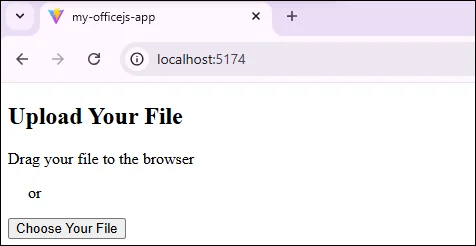
Upload a local document by dragging or clicking "Choose Your File" to open it for editing.
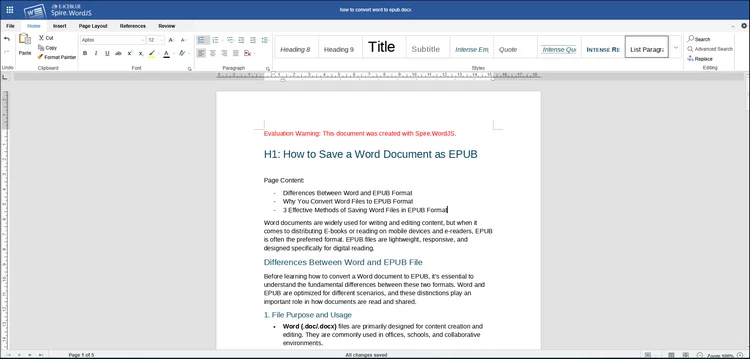
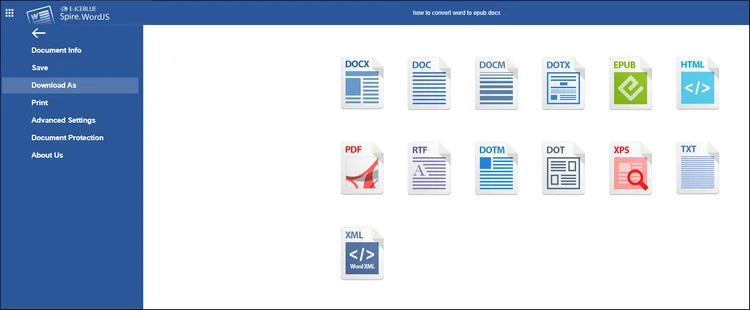
Go to "File > Download As" to download the document or convert it to other formats.
Demo Download
FAQs:
1. Project creation error due to incompatible npm or Node.js versions:
This usually occurs when Node.js is outdated. Update to the latest version of Node.js to resolve the issue.
2. Dependency installation failure:
- Clear the npm cache.
- Delete node_modules and package-lock.json, then reinstall dependencies.
- Ensure you are in the correct project directory and do not run installation commands outside the Vite project.
3. Spire.OfficeJS files cannot be loaded:
- Verify that the web folder has been copied to the correct directory.
- Make sure the development server can access resources under the public directory at runtime.
Apply for License
To remove the evaluation message from generated documents or lift feature limitations, contact us to obtain a 30-day temporary license.
Spire.OfficeJS is a WebAssembly-based Office document editor that enables users to open, view, and edit Word, Excel, and PowerPoint documents directly in the browser. In this tutorial, we will walk through how to integrate Spire.OfficeJS into a Vue 3 application (Vue 3 + Vite), and build a fully client-side web application that supports online Office document editing—without relying on server-side document conversion.
By the end of this guide, you will have a runnable Vue project that allows users to upload Office documents and edit them directly in the browser using Spire.OfficeJS.
On this page:
- What Is Spire.OfficeJS
- How Spire.OfficeJS Works
- Preparation
- Integrating Spire.OfficeJS
- FAQs
- Conclusion
- Sample Project Download
What Is Spire.OfficeJS
Spire.OfficeJS is a web-based online Office document editing component that consists of four modules: Spire.WordJS, Spire.ExcelJS, Spire.PresentationJS, and Spire.PDFJS. It provides viewing and real-time editing capabilities for documents such as Word files, Excel spreadsheets, and PowerPoint presentations.
Spire.OfficeJS runs directly in the browser and can be deployed in any web project without installing plugins or relying on client-side software.
Key Features
- Pure front-end rendering: Based on WebAssembly, allowing document editing without server-side conversion.
- Rich editing capabilities: Supports document editing, comments, annotations, review, and saving.
- Multi-format support: DOC, DOCX, XLS, XLSX, PPT, PPTX, PDF (view), and more.
- High integrability: Can be flexibly embedded into Vue, React, Angular, or pure HTML projects.
- High customizability: Supports toolbar configuration, user permissions, save callbacks, plugin extensions, and more.
Spire.OfficeJS is suitable for enterprise systems, document management systems (DMS), collaboration platforms, online learning systems, and form-based applications.
How Spire.OfficeJS Works
Spire.OfficeJS is built on WebAssembly-based Office rendering engines that execute directly in the browser. The simplified workflow is:
- A user uploads an Office document via the browser.
- The file is read as binary data (Uint8Array).
- The binary data is passed directly to the WebAssembly runtime.
- The document is parsed, rendered, and edited client-side.
- Save actions trigger callbacks for custom persistence logic.
Unlike traditional server-based Office editors, no server-side document conversion or rendering is required, significantly reducing infrastructure complexity and latency.
Preparation
Install Node.js
Download and install Node.js 22.12.0 or later from the official Node.js website. Node.js 22+ is recommended to ensure compatibility with Vite, modern ES module tooling, and WebAssembly-related workflows.
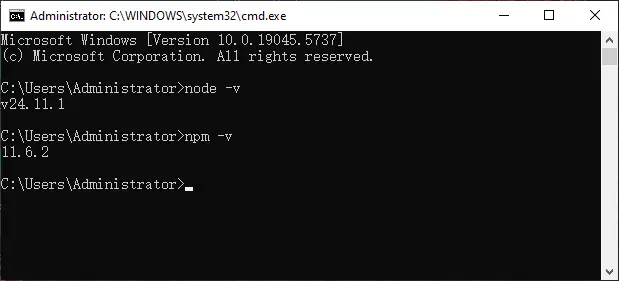
Verify the installation:
node -v
npm -v
Create a Vue 3 Project
Step 1: Create a project folder
Create a new folder to store the project files.
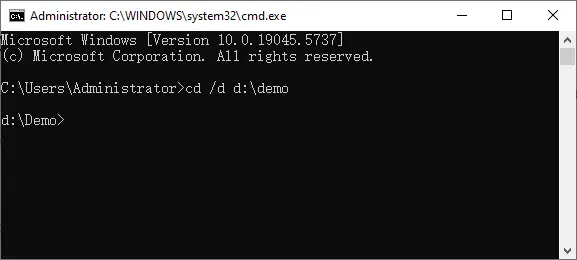
Step 2: Enter the folder via Command Line
cd /d d:\demo
Step 3: Initialize a Vue 3 project
npm init vue@latest
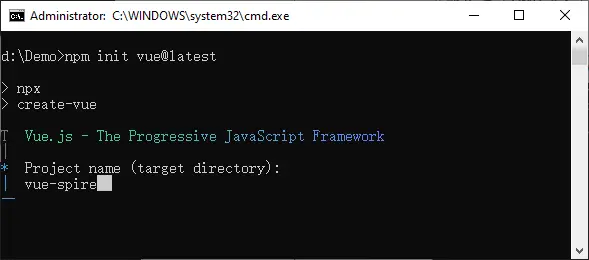
Rename the project to vue-spire and skip optional features to create a minimal Vue 3 project.
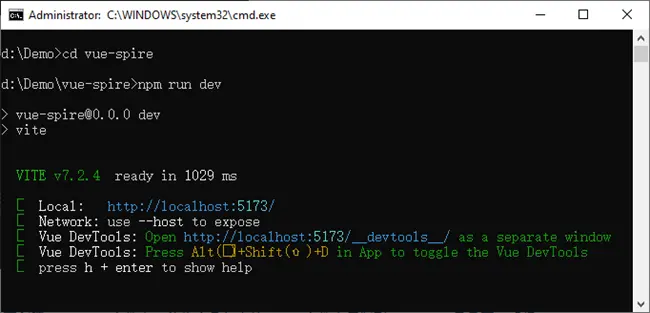
Step 4: Start the development server
cd vue-spire
npm run dev
Integrating Spire.OfficeJS
Step 1: Download the product package
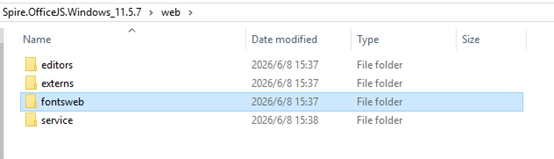
Download Spire.OfficeJSproduct package from our website. On Windows, after extracting the package, you will see a run_genallfonts.bat file. Double-click to run this script. On Linux, use the command sh run_genallfonts.sh start to run the run_genallfonts.sh file in the extracted product package folder. After the script completes, a fontsweb folder will appear inside the web folder.
Step 2: Copy static resources to the Public directory
In your Vue project:
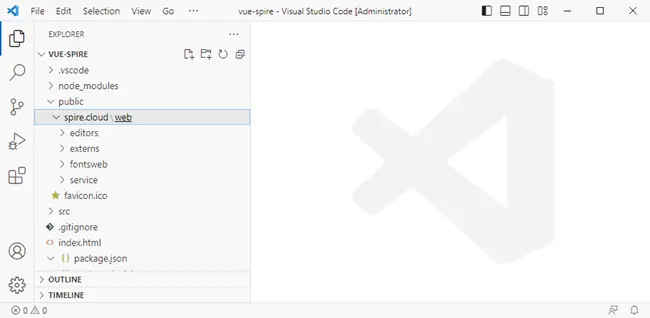
- Open the project in VS Code.
- Create a folder: public/spire.cloud .
- Copy the entire web folder into it. This allows the editor resources to be accessed via /spire.cloud/web/....
Step 3: Install required dependencies
Install Pinia and Vue Router manually to keep the project setup explicit and easy to follow.
npm install pinia
npm install vue-router@4

Step 4: Create the project structure
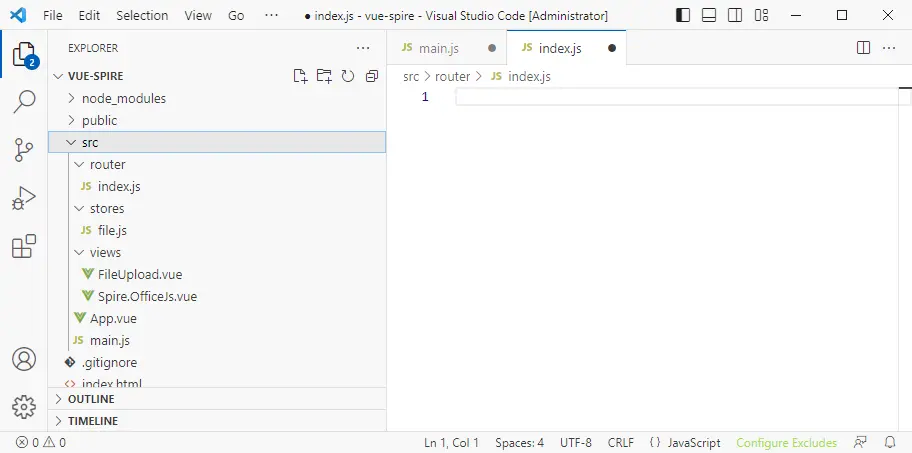
Create the following structure under src :
src/
├── router/
│   ├── index.js
├── stores/
│   ├── file.js
├── views/
│   ├── FileUpload.vue
│   └── Spire.OfficeJS.vue
Step 5: Setup application
- main.js — Application initialization
- App.vue — Root component
- Router index.js — Page navigation
- Pinia Store (file.js) — File state management
- FileUpload.vue — File upload page
- Spire.OfficeJs.vue — Online editor integration
This file initializes the Vue application and registers Pinia and Vue Router. Pinia is used to manage shared document data, while Vue Router controls page navigation between the file upload view and the document editor view.
import { createApp } from 'vue'
// Import Pinia
import { createPinia } from 'pinia'
import App from './App.vue'
import router from './router'

const app = createApp(App)

// Create Pinia instance
const pinia = createPinia()

// Register Pinia and Router to the Vue application
app.use(pinia)
app.use(router)
app.mount('#app')
App.vue serves as the root container of the application. It renders different pages dynamically using RouterView, allowing the file upload page and the document editor to be loaded as separate routes without reloading the application.
<script setup>
import { RouterView } from 'vue-router'
</script>

<template>
    <RouterView/>
</template>
The router defines the navigation flow of the application. The root route (/) is used for file upload, while /document loads the Spire.OfficeJS editor. This separation allows users to upload a document first and then open it in the editor with shared state preserved.
import { createRouter, createWebHistory } from 'vue-router'
import FileUpload from '../views/FileUpload.vue'
import SpireOfficeJs from '../views/Spire.OfficeJS.vue'

const router = createRouter({
    history: createWebHistory(),
    routes: [
        {
            path: '/',
            name: 'upload',
            component: FileUpload
        },
        {
            path: '/document',
            name: 'document',
            component: SpireOfficeJs
        },
        {
            path: '/:pathMatch(.*)*',
            redirect: '/'
        }
    ]
})
The Pinia store is responsible for sharing file metadata and binary data between different views. The uploaded file is converted into a Uint8Array and stored here so that it can be passed directly to Spire.OfficeJS in serverless mode.
import { ref } from 'vue'
// Import defineStore from Pinia to define a state management store
import { defineStore } from 'pinia'

// Define a file state management store
export const useFileStore = defineStore('file', () => {
  // Store the uploaded file object (File type)
  let file = ref(null)
  // Store the file binary data (Uint8Array format) for editor loading
  let fileUint8Data = ref(null);

  // Set the file object
  function setFileData(data) {
    file.value = data;
  }
  // Set the file binary data
  function setFileUint8Data(data) {
    fileUint8Data.value = data;
  }
  // Export state and methods for component usage
  return { file, fileUint8Data, setFileData, setFileUint8Data }
})
FileUpload.vue is responsible for handling user-selected Office documents before they are passed to the editor. It reads the uploaded file using the browser File API and converts it into a Uint8Array, which is required by Spire.OfficeJS in serverless mode.
<template>
    <main>
        <button @click="btnClick">Choose Your File</button>
        <label>
            <input id="input" type="file" @change="handleFileChange" style="display: none;" />
        </label>
    </main>
</template>

<script setup>
import { useRouter } from 'vue-router'
import { useFileStore } from '../stores/file'

// Router instance: redirect to /document after successful upload
const router = useRouter()
// Pinia Store: store the user-uploaded file and binary data
const fileStore = useFileStore()

// Handle file upload
async function handleFileChange(event) {
    // Get the file selected by the user through the input change event
    const selectedFile = event.target.files?.[0]
    if (!selectedFile) {
        return
    }

    // Save the original File object and binary data for the editor to read
    fileStore.setFileData(selectedFile)
    const buffer = await selectedFile.arrayBuffer()
    fileStore.setFileUint8Data(new Uint8Array(buffer))

    // Redirect to the document editing page after successful upload
    router.push('/document')
}
function btnClick() {
    var btn = document.querySelector('#input');
    btn.click()
}
</script>
Spire.OfficeJs.vue is the core integration component where the Spire.OfficeJS editor is initialized and rendered. It dynamically loads the Spire.OfficeJS runtime, configures editor behavior, and passes the document binary data to the WebAssembly engine using serverless mode.
<template>
    <div class="form">
        <div id="iframeEditor">
        </div>
    </div>
</template>

<script setup>
import { ref, onMounted, onUnmounted } from 'vue';
import { storeToRefs } from 'pinia';
import { useFileStore } from '../stores/file.js'
import { useRouter } from 'vue-router';

const fileStore = useFileStore()
// Data stored in Pinia
const { file, fileUint8Data } = storeToRefs(fileStore)
const router = useRouter()
const config = ref({});
const isOpened = ref(false);
const editorInstance = ref(null);
const apiInstance = ref(null);
const originUrl = window.location.origin

onMounted(() => {
    // Redirect back to upload page if no file exists
    if (!file.value) {
        router.replace('/');
        return;
    }
    // Load editor script dynamically
    loadScript();
    window.addEventListener('resize', OnWindowReSize);
})

onUnmounted(() => {
    window.removeEventListener('resize', OnWindowReSize);
})

// Initialize the configuration object required by the editor
function initConfig() {
    if (!file.value) {
        throw new Error('File not found, please upload again');
    }

    if (!fileUint8Data.value) {
        throw new Error('File data not found, please upload again');
    }

    config.value = {
        "fileAttrs": {
            "fileInfo": {
                "name": file.value.name,
                "ext": getFileExtension(),
                "primary": String(new Date().getTime()),
                "creator": "Jonn",
                "createTime": "2022-04-18 11:30:43"
            },
            "sourceUrl": originUrl + "/files/__ffff_192.168.2.134/" + file.value.name,
            "createUrl": originUrl + "/open",
            "mergeFolderUrl": "",
            "fileChoiceUrl": "",
            "templates": {}

        },
        "user": {
            "id": "uid-1",
            "name": "Jonn",
            "canSave": true,
        },
        "editorAttrs": {
            "editorMode": "edit",
            "editorWidth": "100%",
            "editorHeight": "100%",
            "editorType": "document",
            "platform": "desktop", // desktop / mobile / embedded
            "viewLanguage": "en", // en / zh
            "isReadOnly": false,
            "canChat": true,
            "canComment": true,
            "canReview": true,
            "canDownload": true,
            "canEdit": true,
            "canForcesave": true,
            "embedded": {
                "saveUrl": "",
                "embedUrl": "",
                "shareUrl": "",
                "toolbarDocked": "top"
            },
            "useWebAssemblyDoc": true,
            "useWebAssemblyExcel": true,
            "useWebAssemblyPpt": true,
            "spireDocJsLicense": "",
            "spireXlsJsLicense": "",
            "spirePresentationJsLicense": "",
            "spirePdfJsLicense": "",
            "serverless": {
                "useServerless": true,
                "baseUrl": originUrl,
                "fileData": fileUint8Data.value,
            },
            "events": {
                "onSave": onFileSave
            },
            "plugins": {
                "pluginsData": []
            }
        }
    };
}

// Create and render the SpireCloudEditor instance
function initEditor() {
    let iframeId = 'iframeEditor';

    initConfig();
    isOpened.value = true;
    editorInstance.value = new SpireCloudEditor.OpenApi(iframeId, config.value); // Create editor instance
    window.Api = apiInstance.value = editorInstance.value.GetOpenApi(); // Expose OpenApi for debugging/saving
    OnWindowReSize();
}

// Get the uploaded file extension for fileInfo.ext
function getFileExtension() {
    const filename = file.value.name.split(/[\\/]/).pop();
    // Get the substring after the last dot
    return filename.substring(filename.lastIndexOf('.') + 1).toLowerCase() || '';
}

// Adjust editor container size to fit the window
function OnWindowReSize() {
    let wrapEl = document.getElementsByClassName("form");
    if (wrapEl.length) {
        wrapEl[0].style.height = screen.availHeight + "px";
        window.scrollTo(0, -1);
        wrapEl[0].style.height = window.innerHeight + "px";
    }
}

// Dynamically load the SpireCloudEditor script to avoid duplicate injection
function loadScript() {
    if (window.SpireCloudEditor) {
        initEditor()
        return
    }
    const script = document.createElement('script');
    script.setAttribute('src', '/spire.cloud/web/editors/spireapi/SpireCloudEditor.js');
    script.onload = () => initEditor()
    document.head.appendChild(script);
}

// Save callback for the Spire editor, can be connected to custom save logic
function onFileSave(data) {
    console.log('save data', data)
}

</script>

<style>
.form,
iframe,
body {
    min-height: 100vh !important;
    min-width: 100vh !important;
}
</style>
Step 6: Run the project
Start the development server:
npm run dev
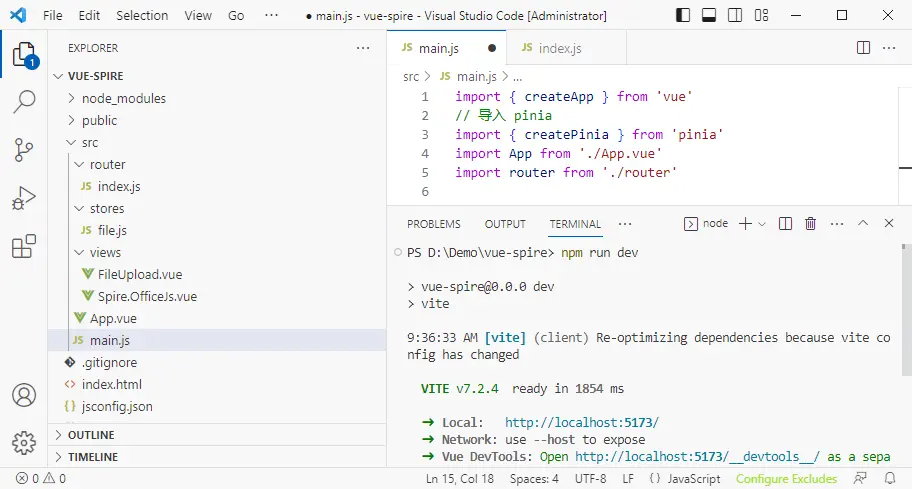
Open the browser and navigate to: http://localhost:5173/
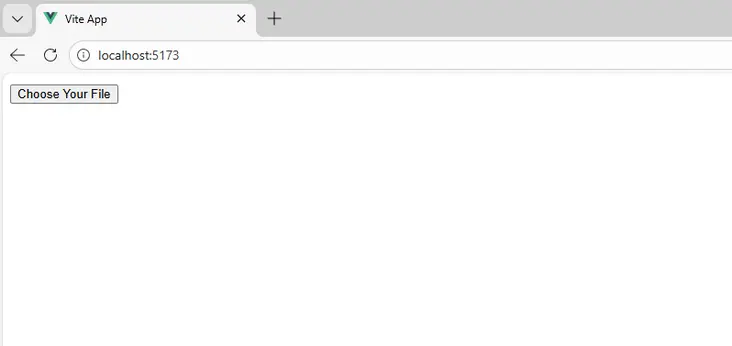
Upload a document and start editing it directly in the browser.

FAQs
Q1. Why does the editor load a blank page?
This usually occurs when static resource paths are incorrect or required WebAssembly files are missing. Ensure the web directory is correctly placed under public/spire.cloud and that SpireCloudEditor.js is accessible.
Q2. Why doesn’t the document open after uploading?
The editor requires the file to be passed as a Uint8Array. Verify that the file data is correctly read, stored in Pinia, and assigned to serverless.fileData.
Q3. Can Spire.OfficeJS run without a backend server?
Yes. When serverless.useServerless is enabled, all document loading, rendering, and editing are performed entirely in the browser using WebAssembly.
Q4. Which file formats are supported by Spire.OfficeJS?
Spire.OfficeJS supports Word (.doc, .docx), Excel (.xls, .xlsx), PowerPoint (.ppt, .pptx), and PDF (.pdf) files.
Q5. How can I save the edited document?
Use the onSave event to capture the edited document data and implement custom logic to upload, store, or download the file.
Conclusion
By following this tutorial, you have successfully integrated Spire.OfficeJS into a Vue 3 application and built a fully client-side Office document editor powered by WebAssembly. This approach eliminates server-side document conversion while providing a rich, responsive editing experience directly in the browser.
Demo Download
