Como Ajustar Margens em um PDF: 3 Maneiras Práticas
Índice
Um PDF com margens estreitas deixa pouco espaço para anotações manuscritas, comentários de revisão ou encadernação. Muito espaço em branco cria o problema oposto: o conteúdo ocupa menos da página do que precisa, tornando o documento menos confortável de ler.
Ajustar as margens da página do PDF pode ajudar a preparar um relatório para impressão, criar espaço para anotações ao lado de notas de aula ou limpar páginas digitalizadas com bordas grandes demais.
Você pode fazer isso com um editor de desktop, uma ferramenta online ou um pequeno programa em C#. Este guia aborda as três abordagens, incluindo como adicionar espaço ao redor de páginas existentes e cortar bordas indesejadas.
Navegação Rápida:
- Método 1. Ajustar Margens de PDF com Adobe Acrobat
- Método 2. Ajustar Margens de PDF Online com Sejda
- Método 3. Ajustar Margens de PDF Programaticamente em C#
Antes de Começar: Adicionar Espaço vs. Recortar
Diferentemente do Word, um PDF geralmente não reorganiza seus parágrafos quando você altera os limites da página. Seu texto e seus gráficos permanecem posicionados na página.
Os métodos abaixo funcionam alterando o espaço ao redor desse conteúdo existente:
| Operação | O que muda | O que acontece com o conteúdo |
|---|---|---|
| Aumentar margens | A página fica maior | Texto e imagens permanecem no tamanho original |
| Diminuir margens | A área visível da página fica menor | O conteúdo próximo às bordas pode ser recortado |
Além disso, diferencie espaço adicional de margens finais . Adicionar meia polegada ao redor de uma página que já tem bordas brancas aumenta as margens existentes em meia polegada; isso não as define como meia polegada.
Antes de fazer alterações, salve uma cópia do original. Se o documento contiver tamanhos de página ou layouts diferentes, verifique se um único ajuste funcionará em todo o documento.
Método 1. Ajustar Margens de PDF com Adobe Acrobat
O Adobe Acrobat fornece controles de recorte e de tamanho de página na caixa de diálogo Definir Caixas de Página. O fluxo de trabalho a seguir usa o Acrobat Pro.
Aumentar Margens
- Abra o PDF e selecione Editar PDF → Recortar Páginas.
- Desenhe um retângulo e clique duas vezes dentro dele para abrir Definir Caixas de Página.
- Selecione CropBox em Aplicar a e clique em Definir como Zero para limpar a seleção de recorte.
- Em Alterar Tamanho da Página, escolha Personalizado e insira dimensões de página maiores.
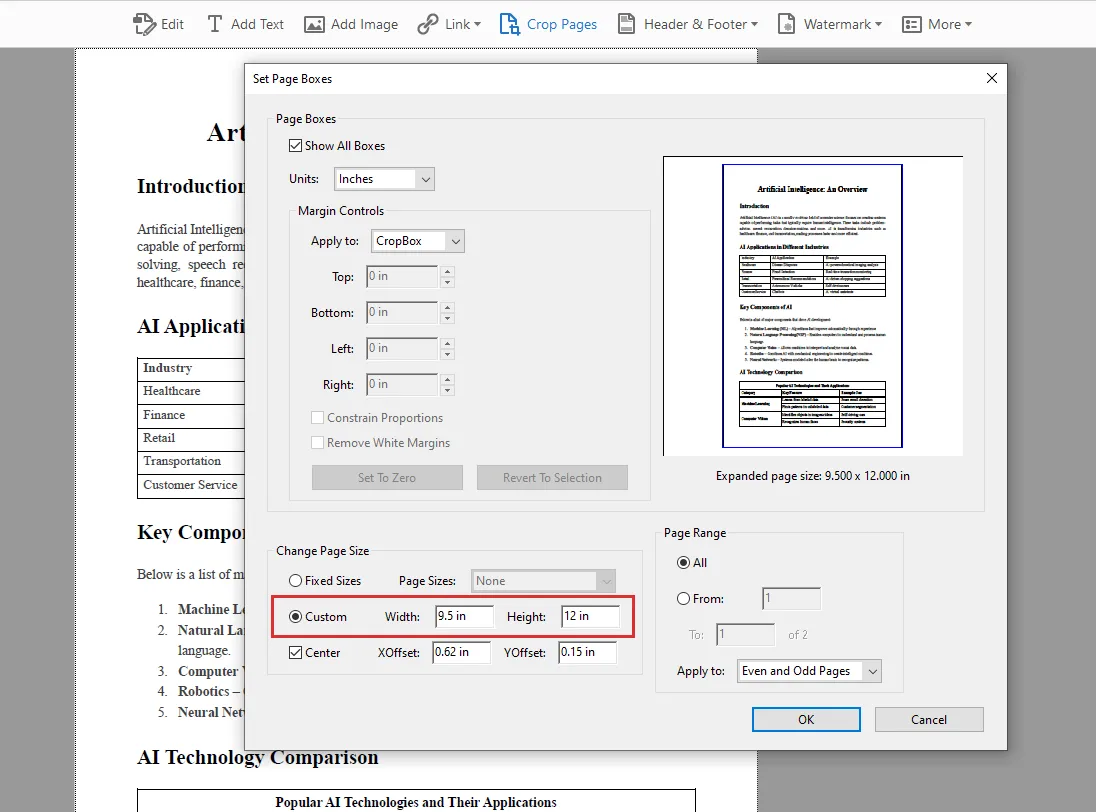
- Selecione Centralizar, escolha o intervalo de páginas e clique em OK.
- Salve uma nova cópia.
Por exemplo, ampliar uma página de 8,5 × 11 polegadas para 9,5 × 12 polegadas , com o conteúdo centralizado, adiciona meia polegada em cada lado. Isso preserva o tamanho do conteúdo e fornece espaço para anotações.
Diminuir Margens
- Selecione Editar PDF → Recortar Páginas e desenhe ao redor da área que deseja manter.
- Clique duas vezes na seleção.
- Selecione CropBox e ajuste os quatro valores em Controles de Margem.
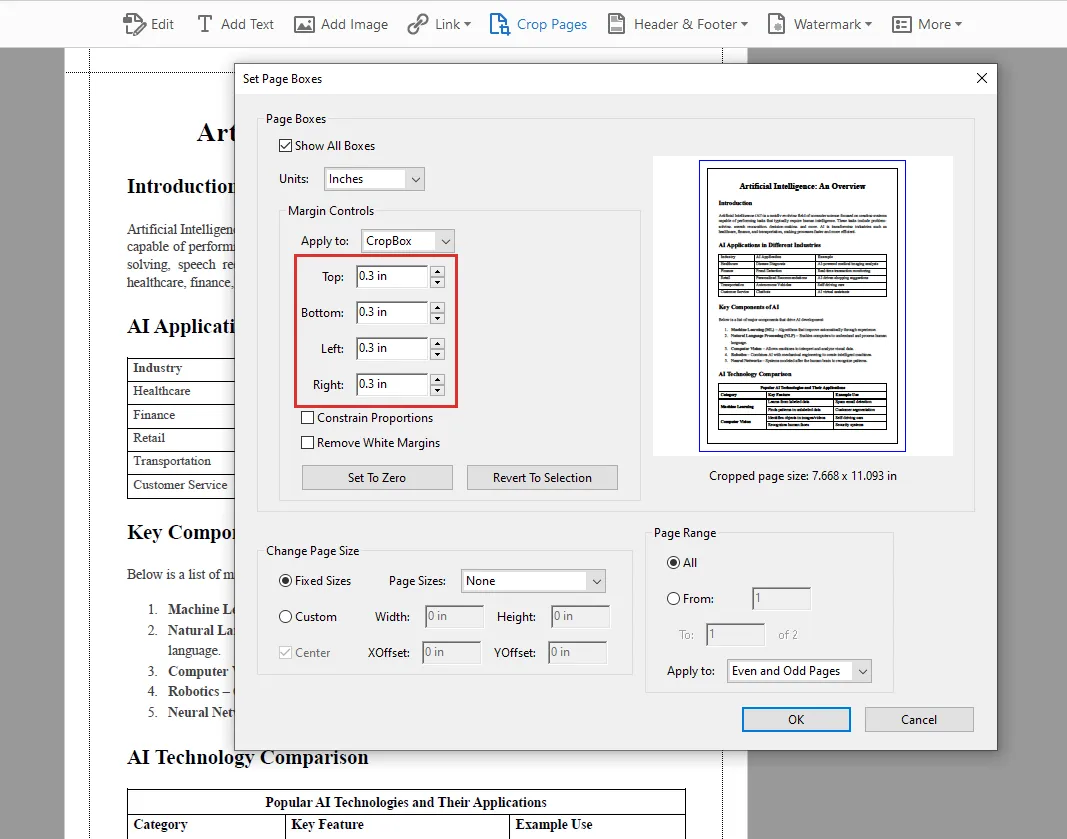
- Verifique a pré-visualização e o intervalo de páginas e clique em OK.
- Salve o resultado.
Remover Margens Brancas oferece uma alternativa automática. Os valores de recorte descrevem quanto cortar, e não a margem final ao redor do texto.
O recorte oculta a área excluída; ele não apaga permanentemente o conteúdo subjacente.
Método 2. Ajustar Margens de PDF Online com Sejda
O Sejda separa as duas operações em ferramentas diferentes: Redimensionar PDF adiciona espaço, enquanto Recortar PDF remove espaço.
Aumentar Margens com Redimensionar PDF
- Abra o Redimensionar PDF do Sejda e faça upload do seu arquivo.
- Escolha Adicionar margens e preenchimento .
- Insira o espaço adicional para os lados superior, inferior, esquerdo e direito.
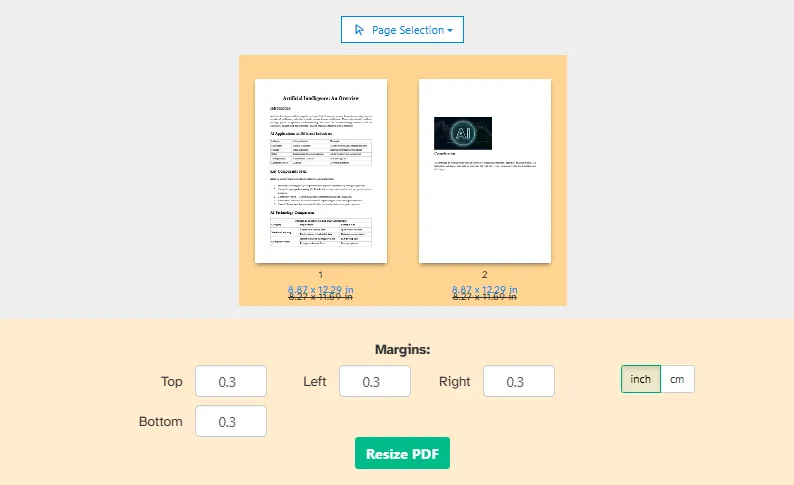
- Escolha polegadas ou centímetros e selecione as páginas a processar.
- Clique em Redimensionar PDF e baixe o resultado.
A pré-visualização mostra o espaço extra ao redor da página. Adicionar 1 cm em cada lado aumenta tanto a largura quanto a altura em 2 cm.
Diminuir Margens com Recortar PDF
- Abra o Recortar PDF do Sejda e faça upload do documento.
- Escolha o recorte automático ou Visualizar páginas e selecionar para controle manual.
- Ajuste a seleção ou insira valores exatos de recorte para cada borda.

- Aplique o recorte às páginas necessárias.
- Clique em Recortar PDF e baixe o arquivo.
O Sejda oferece suporte tanto a uma área de recorte compartilhada quanto a áreas diferentes para páginas individuais. Isso é útil para digitalizações com bordas inconsistentes. A ferramenta de recorte oculta o conteúdo além do limite, em vez de removê-lo completamente.
Método 3. Ajustar Margens de PDF Programaticamente em C#
Ferramentas manuais são convenientes para edições ocasionais. Um programa é mais útil quando você precisa repetir o mesmo ajuste em vários documentos ou integrá-lo a um aplicativo.
Os exemplos a seguir usam Spire.PDF for .NET. Eles criam um novo documento, desenham cada página original em uma nova página e alteram o espaço ao redor sem redimensionar intencionalmente o conteúdo da página.
Essa abordagem também torna o ajuste reproduzível: as mesmas medidas podem ser reutilizadas sem selecionar áreas ou inserir configurações manualmente a cada vez.
Instale o pacote por meio do NuGet:
dotnet add package Spire.PDF
Aumentar Margens de PDF em C#
Para adicionar espaço, crie uma página maior e desenhe a página original em um deslocamento correspondente às margens esquerda e superior adicionadas.
using Spire.Pdf;
using Spire.Pdf.Graphics;
using System;
using System.Drawing;
using System.IO;

string inputPath = @"E:\Documents\input\sample.pdf";
string outputPath = @"E:\Documents\output\increased-margins.pdf";

Directory.CreateDirectory(Path.GetDirectoryName(outputPath)!);

PdfDocument originalPdf = new PdfDocument(inputPath);
PdfDocument newPdf = new PdfDocument();

// Additional space, in points.
float left = 40;
float right = 40;
float top = 40;
float bottom = 40;

for (int i = 0; i < originalPdf.Pages.Count; i++)
{
    PdfPageBase originalPage = originalPdf.Pages[i];

    SizeF newSize = new SizeF(
        originalPage.Size.Width + left + right,
        originalPage.Size.Height + top + bottom
    );

    PdfPageBase newPage = newPdf.Pages.Add(
        newSize, new PdfMargins(0)
    );

    PdfTemplate template = originalPage.CreateTemplate();
    template.Draw(newPage, left, top);
}

newPdf.SaveToFile(outputPath, FileFormat.PDF);

originalPdf.Close();
newPdf.Close();

Console.WriteLine({BODY_CONTENT}quot;Saved: {outputPath}");
Este exemplo adiciona 40 pontos ao redor de cada página. As medidas de PDF usam pontos, em que 72 pontos equivalem a uma polegada , então 40 pontos equivalem a aproximadamente 0,56 polegadas .
A nova página tem margens de desenho zero porque o código posiciona o modelo explicitamente usando left e top. Isso mantém a lógica de posicionamento em um único lugar.
As dimensões da página são calculadas dentro do loop, permitindo que páginas de tamanhos diferentes recebam a mesma quantidade de espaço adicional.
Você também pode usar valores desiguais. Por exemplo, aumentar apenas left cria espaço extra ao longo dessa borda para encadernação ou anotações, sem adicionar espaço desnecessário aos outros lados.
Diminuir Margens de PDF em C#
Para cortar as bordas, crie uma página menor e desloque o conteúdo original para a esquerda e para cima.
using Spire.Pdf;
using Spire.Pdf.Graphics;
using System;
using System.Drawing;
using System.IO;

string inputPath = @"E:\Documents\input\sample.pdf";
string outputPath = @"E:\Documents\output\decreased-margins.pdf";

Directory.CreateDirectory(Path.GetDirectoryName(outputPath)!);

PdfDocument originalPdf = new PdfDocument(inputPath);
PdfDocument newPdf = new PdfDocument();

// Amount to trim from each edge, in points.
float left = 20;
float right = 20;
float top = 20;
float bottom = 20;

for (int i = 0; i < originalPdf.Pages.Count; i++)
{
    PdfPageBase originalPage = originalPdf.Pages[i];

    float width = originalPage.Size.Width - left - right;
    float height = originalPage.Size.Height - top - bottom;

    if (width <= 0 || height <= 0)
        throw new ArgumentException(
            {BODY_CONTENT}quot;Crop values are too large for page {i + 1}."
        );

    PdfPageBase newPage = newPdf.Pages.Add(
        new SizeF(width, height), new PdfMargins(0)
    );

    PdfTemplate template = originalPage.CreateTemplate();
    template.Draw(newPage, -left, -top);
}

newPdf.SaveToFile(outputPath, FileFormat.PDF);

originalPdf.Close();
newPdf.Close();

Console.WriteLine({BODY_CONTENT}quot;Saved: {outputPath}");
Aqui, a nova página é 40 pontos mais estreita e mais curta que a original. As coordenadas de desenho negativas movem o conteúdo para que 20 pontos fiquem fora de cada borda.
Este código corta quantidades fixas; ele não detecta espaço em branco. Revise a saída para garantir que números de página, cabeçalhos e outros conteúdos de borda permaneçam visíveis.
Para documentos com layouts inconsistentes, comece com valores conservadores. Uma configuração que funciona em uma página com muito texto pode cortar uma tabela de largura total ou um diagrama em outro lugar.
Esses exemplos reconstroem a aparência das páginas por meio de modelos. Se seus documentos contiverem formulários interativos, anotações, links ou marcadores, verifique esses recursos separadamente antes de adotar essa abordagem.
Qual Método Você Deve Escolher?
| Método | Mais adequado para | Principal consideração |
|---|---|---|
| Adobe Acrobat | Ajustes manuais com controles visuais | Requer acesso às ferramentas de edição relevantes |
| Sejda | Edições ocasionais sem instalar software | O processamento online envolve o upload do documento |
| C# com Spire.PDF | Processamento repetível e integração com aplicativos | Requer desenvolvimento e validação da saída |
Para um único arquivo, uma ferramenta visual facilita a inspeção do resultado antes de salvar. Para uma tarefa recorrente, a abordagem em C# oferece medidas consistentes e um fluxo de trabalho que você pode estender para processar uma pasta de PDFs.
Qualquer que seja o método escolhido, verifique várias páginas após aplicar o ajuste — especialmente quando os layouts ou tamanhos das páginas variarem.
Se o PDF precisar permanecer em A4 ou Letter para impressão, lembre-se de que adicionar espaço ampliando a página altera esse tamanho de papel. Considere se redimensionar o conteúdo dentro de uma página de tamanho fixo se adequaria melhor à saída pretendida.
Perguntas Frequentes
Posso ajustar as margens de PDF sem alterar o tamanho da página?
Sim, mas isso exige uma abordagem diferente, como redimensionar ou reposicionar o conteúdo dentro da página existente. Os exemplos neste guia ampliam ou recortam os limites da página.
Adicionar margens deixará o texto menor?
Não com os métodos de ampliação descritos aqui. Eles adicionam espaço ao redor do conteúdo original em vez de reduzi-lo.
Posso ajustar as margens de um PDF digitalizado?
Sim. Você pode adicionar espaço ao redor de uma página digitalizada ou recortar suas bordas sem OCR. No entanto, o texto incluído na imagem digitalizada pode ser cortado se o recorte se estender demais.
Posso aplicar as mesmas configurações de margem a todas as páginas de um PDF?
Sim. O Acrobat e o Sejda permitem aplicar alterações a todas as páginas, enquanto os exemplos em C# percorrem o documento inteiro. No entanto, se os tamanhos ou layouts das páginas variarem, visualize os resultados com cuidado — um recorte que funciona em uma página pode cortar o conteúdo de outra.
Veja Também
PDF 여백 조정 방법: 3가지 실용적인 방법
여백이 좁은 PDF는 손글씨 메모, 검토 의견 또는 제본을 위한 공간이 거의 없습니다. 반대로 흰 공간이 너무 많으면 콘텐츠가 필요한 만큼 페이지를 차지하지 못해 문서를 읽기가 덜 편안해집니다.
PDF 페이지 여백 조정은 보고서를 인쇄용으로 준비하거나, 강의 노트 옆에 주석 공간을 만들거나, 테두리가 지나치게 큰 스캔 페이지를 정리하는 데 도움이 될 수 있습니다.
이 작업은 데스크톱 편집기, 온라인 도구 또는 짧은 C# 프로그램으로 수행할 수 있습니다. 이 가이드에서는 기존 페이지 주변에 공간을 추가하고 원하지 않는 테두리를 잘라내는 방법을 포함해 세 가지 접근 방식을 모두 다룹니다.
빠른 탐색:
시작하기 전: 공간 추가 vs. 자르기
Word와 달리 PDF는 일반적으로 페이지 경계를 변경해도 단락이 다시 흐르지 않습니다. 텍스트와 그래픽은 페이지에 배치된 위치에 그대로 유지됩니다.
아래 방법들은 기존 콘텐츠 주변의 공간을 변경하는 방식으로 작동합니다:
| 작업 | 변경되는 사항 | 콘텐츠에 미치는 영향 |
|---|---|---|
| 여백 늘리기 | 페이지가 커집니다 | 텍스트와 이미지는 원래 크기로 유지됩니다 |
| 여백 줄이기 | 표시되는 페이지 영역이 작아집니다 | 가장자리 근처의 콘텐츠가 잘릴 수 있습니다 |
또한 추가 공간과 최종 여백 을 구분해야 합니다. 이미 흰색 테두리가 있는 페이지 주변에 0.5인치를 추가하면 기존 여백이 0.5인치만큼 늘어나는 것이지, 여백을 0.5인치로 설정하는 것은 아닙니다.
변경하기 전에 원본 사본을 저장하세요. 문서에 서로 다른 페이지 크기나 레이아웃이 포함되어 있다면 하나의 조정이 전체에 적용되는지 확인하세요.
방법 1. Adobe Acrobat으로 PDF 여백 조정
Adobe Acrobat은 페이지 상자 설정 대화 상자에서 페이지 자르기 및 페이지 크기 컨트롤을 제공합니다. 다음 워크플로는 Acrobat Pro를 사용합니다.
여백 늘리기
- PDF를 열고 PDF 편집 → 페이지 자르기를 선택합니다.
- 사각형을 그린 다음, 그 안을 두 번 클릭하여 페이지 상자 설정을 엽니다.
- 적용 대상에서 CropBox를 선택하고 0으로 설정을 클릭하여 자르기 선택을 지웁니다.
- 페이지 크기 변경에서 사용자 지정을 선택하고 더 큰 페이지 크기를 입력합니다.
- 가운데를 선택하고 페이지 범위를 선택한 다음 확인을 클릭합니다.
- 새 사본을 저장합니다.
예를 들어 콘텐츠를 가운데에 둔 채 8.5 × 11인치 페이지를 9.5 × 12인치 로 확대하면 각 측면에 0.5인치가 추가됩니다. 이렇게 하면 콘텐츠 크기를 유지하면서 주석 공간을 확보할 수 있습니다.
여백 줄이기
- PDF 편집 → 페이지 자르기를 선택하고 유지할 영역 주위에 그립니다.
- 선택 영역을 두 번 클릭합니다.
- CropBox를 선택하고 여백 컨트롤에서 네 가지 값을 조정합니다.
- 미리보기와 페이지 범위를 확인한 다음 확인을 클릭합니다.
- 결과를 저장합니다.
흰색 여백 제거는 자동 대안을 제공합니다. 자르기 값은 텍스트 주변의 최종 간격이 아니라 얼마나 잘라낼지를 나타냅니다.
자르기는 제외된 영역을 숨길 뿐, 기본 콘텐츠를 영구적으로 지우지는 않습니다.
방법 2. Sejda로 온라인에서 PDF 여백 조정
Sejda는 두 작업을 서로 다른 도구로 분리합니다. PDF 크기 조정은 공간을 추가하고, PDF 자르기는 공간을 잘라냅니다.
PDF 크기 조정으로 여백 늘리기
- Sejda PDF 크기 조정을 열고 파일을 업로드합니다.
- 여백 및 패딩 추가를 선택합니다.
- 위, 아래, 왼쪽, 오른쪽에 추가할 공간을 입력합니다.
- 인치 또는 센티미터를 선택하고 처리할 페이지를 선택합니다.
- PDF 크기 조정을 클릭하고 결과를 다운로드합니다.
미리보기에는 페이지 주변의 추가 공간이 표시됩니다. 모든 측면에 1cm를 추가하면 너비와 높이가 각각 2cm씩 늘어납니다.
PDF 자르기로 여백 줄이기
- Sejda PDF 자르기를 열고 문서를 업로드합니다.
- 자동 자르기를 선택하거나 수동으로 제어하려면 페이지 미리보기 및 선택을 선택합니다.
- 선택 영역을 조정하거나 각 가장자리에 대해 정확한 자르기 양을 입력합니다.
- 필요한 페이지에 자르기를 적용합니다.
- PDF 자르기를 클릭하고 파일을 다운로드합니다.
Sejda는 공통 자르기 영역과 개별 페이지별 다른 영역을 모두 지원합니다. 이는 테두리가 일정하지 않은 스캔 문서에 유용합니다. 이 도구의 자르기 기능은 경계 너머의 콘텐츠를 완전히 제거하지 않고 숨깁니다.
방법 3. C#에서 프로그래밍 방식으로 PDF 여백 조정
수동 도구는 가끔 하는 편집에 편리합니다. 동일한 조정을 여러 문서에 반복하거나 애플리케이션에 통합해야 할 때는 프로그램이 더 유용합니다.
다음 예제에서는 Spire.PDF for .NET을 사용합니다. 새 문서를 만들고 각 원본 페이지를 새 페이지에 그린 다음, 페이지 콘텐츠의 크기를 의도적으로 조정하지 않고 주변 공간을 변경합니다.
이 접근 방식은 조정을 재현 가능하게 만듭니다. 매번 영역을 선택하거나 설정을 수동으로 입력하지 않고도 동일한 측정값을 재사용할 수 있습니다.
NuGet을 통해 패키지를 설치합니다:
dotnet add package Spire.PDF
C#에서 PDF 여백 늘리기
공간을 추가하려면 더 큰 페이지를 만들고 추가된 왼쪽 및 위쪽 여백에 맞는 오프셋에 원본 페이지를 그립니다.
using Spire.Pdf;
using Spire.Pdf.Graphics;
using System;
using System.Drawing;
using System.IO;

string inputPath = @"E:\Documents\input\sample.pdf";
string outputPath = @"E:\Documents\output\increased-margins.pdf";

Directory.CreateDirectory(Path.GetDirectoryName(outputPath)!);

PdfDocument originalPdf = new PdfDocument(inputPath);
PdfDocument newPdf = new PdfDocument();

// Additional space, in points.
float left = 40;
float right = 40;
float top = 40;
float bottom = 40;

for (int i = 0; i < originalPdf.Pages.Count; i++)
{
    PdfPageBase originalPage = originalPdf.Pages[i];

    SizeF newSize = new SizeF(
        originalPage.Size.Width + left + right,
        originalPage.Size.Height + top + bottom
    );

    PdfPageBase newPage = newPdf.Pages.Add(
        newSize, new PdfMargins(0)
    );

    PdfTemplate template = originalPage.CreateTemplate();
    template.Draw(newPage, left, top);
}

newPdf.SaveToFile(outputPath, FileFormat.PDF);

originalPdf.Close();
newPdf.Close();

Console.WriteLine({BODY_CONTENT}quot;Saved: {outputPath}");
이 예제는 각 페이지 주변에 40포인트를 추가합니다. PDF 측정은 포인트를 사용하며, 72포인트가 1인치 이므로 40포인트는 약 0.56인치 입니다.
새 페이지는 코드가 left와 top을 사용해 템플릿을 명시적으로 배치하므로 그리기 여백이 0입니다. 이렇게 하면 배치 로직이 한곳에 유지됩니다.
페이지 크기는 루프 내에서 계산되므로 크기가 다른 페이지에도 동일한 양의 추가 공간을 적용할 수 있습니다.
서로 다른 값을 사용할 수도 있습니다. 예를 들어 left만 늘리면 제본이나 메모를 위해 해당 가장자리를 따라 추가 공간이 생기며, 다른 측면에는 불필요한 공간이 추가되지 않습니다.
C#에서 PDF 여백 줄이기
가장자리를 잘라내려면 더 작은 페이지를 만들고 원본 콘텐츠를 왼쪽 및 위쪽으로 이동합니다.
using Spire.Pdf;
using Spire.Pdf.Graphics;
using System;
using System.Drawing;
using System.IO;

string inputPath = @"E:\Documents\input\sample.pdf";
string outputPath = @"E:\Documents\output\decreased-margins.pdf";

Directory.CreateDirectory(Path.GetDirectoryName(outputPath)!);

PdfDocument originalPdf = new PdfDocument(inputPath);
PdfDocument newPdf = new PdfDocument();

// Amount to trim from each edge, in points.
float left = 20;
float right = 20;
float top = 20;
float bottom = 20;

for (int i = 0; i < originalPdf.Pages.Count; i++)
{
    PdfPageBase originalPage = originalPdf.Pages[i];

    float width = originalPage.Size.Width - left - right;
    float height = originalPage.Size.Height - top - bottom;

    if (width <= 0 || height <= 0)
        throw new ArgumentException(
            {BODY_CONTENT}quot;Crop values are too large for page {i + 1}."
        );

    PdfPageBase newPage = newPdf.Pages.Add(
        new SizeF(width, height), new PdfMargins(0)
    );

    PdfTemplate template = originalPage.CreateTemplate();
    template.Draw(newPage, -left, -top);
}

newPdf.SaveToFile(outputPath, FileFormat.PDF);

originalPdf.Close();
newPdf.Close();

Console.WriteLine({BODY_CONTENT}quot;Saved: {outputPath}");
여기서 새 페이지는 원본보다 40포인트 더 좁고 짧습니다. 음수 그리기 좌표는 콘텐츠를 이동시켜 각 가장자리에서 20포인트가 페이지 밖으로 나가도록 합니다.
이 코드는 고정된 양만큼 잘라내며, 흰색 공간을 감지하지 않습니다. 페이지 번호, 머리글 및 기타 가장자리 콘텐츠가 계속 표시되는지 출력을 검토하세요.
레이아웃이 일정하지 않은 문서의 경우 보수적인 값으로 시작하세요. 텍스트가 많은 페이지에서 잘 작동하는 설정이 다른 곳의 전체 너비 표나 다이어그램을 잘라낼 수 있습니다.
이 예제들은 템플릿을 통해 페이지 모양을 다시 구성합니다. 문서에 대화형 양식, 주석, 링크 또는 책갈피가 포함되어 있다면 이 접근 방식을 채택하기 전에 해당 기능을 별도로 확인하세요.
어떤 방법을 선택해야 할까요?
| 방법 | 적합한 용도 | 주요 고려 사항 |
|---|---|---|
| Adobe Acrobat | 시각적 컨트롤을 사용한 수동 조정 | 관련 편집 도구에 대한 액세스 필요 |
| Sejda | 소프트웨어를 설치하지 않고 가끔 편집 | 온라인 처리를 위해서는 문서 업로드 필요 |
| C# with Spire.PDF | 반복 가능한 처리 및 애플리케이션 통합 | 개발 및 출력 검증 필요 |
단일 파일의 경우 시각적 도구를 사용하면 저장 전에 결과를 쉽게 검사할 수 있습니다. 반복 작업의 경우 C# 접근 방식은 일관된 측정값과 PDF 폴더를 처리하도록 확장할 수 있는 워크플로를 제공합니다.
어떤 방법을 선택하든 조정을 적용한 후 여러 페이지를 확인하세요—특히 페이지 레이아웃이나 크기가 다양한 경우 더욱 그렇습니다.
인쇄를 위해 PDF가 A4 또는 Letter 크기로 유지되어야 한다면, 페이지를 확대하여 공간을 추가하면 해당 용지 크기가 변경된다는 점을 기억하세요. 고정 크기 페이지 내에서 콘텐츠 크기를 조정하는 것이 의도한 출력에 더 적합한지 고려하세요.
자주 묻는 질문
페이지 크기를 변경하지 않고 PDF 여백을 조정할 수 있나요?
예, 하지만 기존 페이지 내에서 콘텐츠 크기를 조정하거나 위치를 변경하는 등 다른 접근 방식이 필요합니다. 이 가이드의 예제는 페이지 경계를 확대하거나 자릅니다.
여백을 추가하면 텍스트가 작아지나요?
여기에 설명된 확대 방법을 사용하면 그렇지 않습니다. 이러한 방법은 콘텐츠를 축소하지 않고 원본 콘텐츠 주변에 공간을 추가합니다.
스캔한 PDF의 여백을 조정할 수 있나요?
예. OCR 없이 스캔한 페이지 주변에 공간을 추가하거나 테두리를 자를 수 있습니다. 그러나 자르기가 너무 많이 확장되면 스캔 이미지에 포함된 텍스트가 잘릴 수 있습니다.
PDF의 모든 페이지에 동일한 여백 설정을 적용할 수 있나요?
예. Acrobat과 Sejda에서는 모든 페이지에 변경 사항을 적용할 수 있으며, C# 예제는 전체 문서를 반복합니다. 그러나 페이지 크기나 레이아웃이 다양한 경우 결과를 주의 깊게 미리 보세요—한 페이지에서 잘 작동하는 자르기가 다른 페이지의 콘텐츠를 잘라낼 수 있습니다.
참고 항목
Come regolare i margini di un PDF: 3 metodi pratici
Indice
Un PDF con margini stretti lascia poco spazio per note scritte a mano, commenti di revisione o rilegatura. Troppo spazio bianco crea il problema opposto: il contenuto occupa meno spazio della pagina di quanto dovrebbe, rendendo il documento meno comodo da leggere.
Regolare i margini di pagina di un PDF può aiutare a preparare un report per la stampa, creare spazio per annotazioni accanto agli appunti delle lezioni o ripulire pagine scansionate con bordi sovradimensionati.
Puoi farlo con un editor desktop, uno strumento online o un breve programma C#. Questa guida illustra tutti e tre gli approcci, inclusa la modalità per aggiungere spazio attorno alle pagine esistenti e ritagliare i bordi indesiderati.
Navigazione rapida:
- Metodo 1. Regolare i margini PDF con Adobe Acrobat
- Metodo 2. Regolare i margini PDF online con Sejda
- Metodo 3. Regolare i margini PDF a livello di codice in C#
Prima di iniziare: aggiungere spazio o ritagliare
A differenza di Word, un PDF generalmente non ridispone i paragrafi quando si modificano i confini della pagina. Il testo e la grafica restano posizionati sulla pagina.
I metodi seguenti funzionano modificando lo spazio attorno a quel contenuto esistente:
| Operazione | Cosa cambia | Cosa succede al contenuto |
|---|---|---|
| Aumentare i margini | La pagina diventa più grande | Testo e immagini restano alle loro dimensioni originali |
| Ridurre i margini | L'area visibile della pagina diventa più piccola | Il contenuto vicino ai bordi potrebbe essere ritagliato |
Inoltre, distingui lo spazio aggiuntivo dai margini finali. Aggiungere mezzo pollice attorno a una pagina che ha già bordi bianchi aumenta i margini esistenti di mezzo pollice; non li imposta a mezzo pollice.
Prima di apportare modifiche, salva una copia dell'originale. Se il documento contiene dimensioni di pagina o layout diversi, verifica se una singola regolazione funziona per tutto il documento.
Metodo 1. Regolare i margini PDF con Adobe Acrobat
Adobe Acrobat fornisce controlli per il ritaglio e le dimensioni della pagina nella finestra di dialogo Imposta riquadri pagina. Il flusso di lavoro seguente utilizza Acrobat Pro.
Aumentare i margini
- Apri il PDF e seleziona Modifica PDF → Ritaglia pagine.
- Disegna un rettangolo, quindi fai doppio clic al suo interno per aprire Imposta riquadri pagina.
- Seleziona CropBox in Applica a e fai clic su Imposta a zero per cancellare la selezione di ritaglio.
- In Cambia dimensioni pagina, scegli Personalizzato e inserisci dimensioni di pagina maggiori.
- Seleziona Centra, scegli l'intervallo di pagine e fai clic su OK.
- Salva una nuova copia.
Ad esempio, ingrandire una pagina da 8,5 × 11 pollici a 9,5 × 12 pollici, con il contenuto centrato, aggiunge mezzo pollice su ciascun lato. Ciò preserva le dimensioni del contenuto fornendo al contempo spazio per le annotazioni.
Ridurre i margini
- Seleziona Modifica PDF → Ritaglia pagine e disegna attorno all'area da mantenere.
- Fai doppio clic sulla selezione.
- Seleziona CropBox e regola i quattro valori in Controlli margini.
- Controlla l'anteprima e l'intervallo di pagine, quindi fai clic su OK.
- Salva il risultato.
Rimuovi margini bianchi offre un'alternativa automatica. I valori di ritaglio descrivono quanto ritagliare, non lo spazio finale attorno al testo.
Il ritaglio nasconde l'area esclusa; non cancella definitivamente il contenuto sottostante.
Metodo 2. Regolare i margini PDF online con Sejda
Sejda separa le due operazioni in strumenti diversi: Ridimensiona PDF aggiunge spazio, mentre Ritaglia PDF lo riduce.
Aumentare i margini con Ridimensiona PDF
- Apri Sejda Ridimensiona PDF e carica il tuo file.
- Scegli Aggiungi margini e spaziatura interna.
- Inserisci lo spazio aggiuntivo per i lati superiore, inferiore, sinistro e destro.
- Scegli pollici o centimetri e seleziona le pagine da elaborare.
- Fai clic su Ridimensiona PDF e scarica il risultato.
L'anteprima mostra lo spazio extra attorno alla pagina. Aggiungere 1 cm su ogni lato aumenta sia la larghezza sia l'altezza di 2 cm.
Ridurre i margini con Ritaglia PDF
- Apri Sejda Ritaglia PDF e carica il documento.
- Scegli il ritaglio automatico o Anteprima pagine e seleziona per il controllo manuale.
- Regola la selezione o inserisci quantità di ritaglio esatte per ciascun bordo.
- Applica il ritaglio alle pagine richieste.
- Fai clic su Ritaglia PDF e scarica il file.
Sejda supporta sia un'area di ritaglio condivisa sia aree diverse per singole pagine. È utile per scansioni con bordi incoerenti. Il suo strumento di ritaglio nasconde il contenuto oltre il confine anziché rimuoverlo completamente.
Metodo 3. Regolare i margini PDF a livello di codice in C#
Gli strumenti manuali sono comodi per modifiche occasionali. Un programma è più utile quando devi ripetere la stessa regolazione su più documenti o integrarla in un'applicazione.
Gli esempi seguenti utilizzano Spire.PDF for .NET. Creano un nuovo documento, disegnano ogni pagina originale su una nuova pagina e modificano lo spazio circostante senza ridimensionare intenzionalmente il contenuto della pagina.
Questo approccio rende anche la regolazione riproducibile: le stesse misurazioni possono essere riutilizzate senza selezionare aree o inserire impostazioni manualmente ogni volta.
Installa il pacchetto tramite NuGet:
dotnet add package Spire.PDF
Aumentare i margini PDF in C#
Per aggiungere spazio, crea una pagina più grande e disegna la pagina originale con uno scostamento corrispondente ai margini sinistro e superiore aggiunti.
using Spire.Pdf;
using Spire.Pdf.Graphics;
using System;
using System.Drawing;
using System.IO;

string inputPath = @"E:\Documents\input\sample.pdf";
string outputPath = @"E:\Documents\output\increased-margins.pdf";

Directory.CreateDirectory(Path.GetDirectoryName(outputPath)!);

PdfDocument originalPdf = new PdfDocument(inputPath);
PdfDocument newPdf = new PdfDocument();

// Additional space, in points.
float left = 40;
float right = 40;
float top = 40;
float bottom = 40;

for (int i = 0; i < originalPdf.Pages.Count; i++)
{
    PdfPageBase originalPage = originalPdf.Pages[i];

    SizeF newSize = new SizeF(
        originalPage.Size.Width + left + right,
        originalPage.Size.Height + top + bottom
    );

    PdfPageBase newPage = newPdf.Pages.Add(
        newSize, new PdfMargins(0)
    );

    PdfTemplate template = originalPage.CreateTemplate();
    template.Draw(newPage, left, top);
}

newPdf.SaveToFile(outputPath, FileFormat.PDF);

originalPdf.Close();
newPdf.Close();

Console.WriteLine({BODY_CONTENT}quot;Saved: {outputPath}");
Questo esempio aggiunge 40 punti attorno a ciascuna pagina. Le misurazioni PDF usano i punti, dove 72 punti equivalgono a un pollice, quindi 40 punti corrispondono approssimativamente a 0,56 pollici.
La nuova pagina ha margini di disegno pari a zero perché il codice posiziona il modello esplicitamente usando left e top. Ciò mantiene la logica di posizionamento in un unico punto.
Le dimensioni della pagina vengono calcolate all'interno del ciclo, consentendo a pagine di dimensioni diverse di ricevere la stessa quantità di spazio aggiuntivo.
Puoi anche usare valori diversi. Ad esempio, aumentando solo left si crea spazio extra lungo quel bordo per la rilegatura o le note, senza aggiungere spazio non necessario agli altri lati.
Ridurre i margini PDF in C#
Per ritagliare i bordi, crea una pagina più piccola e sposta il contenuto originale verso sinistra e verso l'alto.
using Spire.Pdf;
using Spire.Pdf.Graphics;
using System;
using System.Drawing;
using System.IO;

string inputPath = @"E:\Documents\input\sample.pdf";
string outputPath = @"E:\Documents\output\decreased-margins.pdf";

Directory.CreateDirectory(Path.GetDirectoryName(outputPath)!);

PdfDocument originalPdf = new PdfDocument(inputPath);
PdfDocument newPdf = new PdfDocument();

// Amount to trim from each edge, in points.
float left = 20;
float right = 20;
float top = 20;
float bottom = 20;

for (int i = 0; i < originalPdf.Pages.Count; i++)
{
    PdfPageBase originalPage = originalPdf.Pages[i];

    float width = originalPage.Size.Width - left - right;
    float height = originalPage.Size.Height - top - bottom;

    if (width <= 0 || height <= 0)
        throw new ArgumentException(
            {BODY_CONTENT}quot;Crop values are too large for page {i + 1}."
        );

    PdfPageBase newPage = newPdf.Pages.Add(
        new SizeF(width, height), new PdfMargins(0)
    );

    PdfTemplate template = originalPage.CreateTemplate();
    template.Draw(newPage, -left, -top);
}

newPdf.SaveToFile(outputPath, FileFormat.PDF);

originalPdf.Close();
newPdf.Close();

Console.WriteLine({BODY_CONTENT}quot;Saved: {outputPath}");
Qui, la nuova pagina è più stretta e più corta di 40 punti rispetto all'originale. Le coordinate di disegno negative spostano il contenuto in modo che 20 punti cadano al di fuori di ciascun bordo.
Questo codice ritaglia quantità fisse; non rileva lo spazio bianco. Controlla l'output per assicurarti che numeri di pagina, intestazioni e altri contenuti ai bordi rimangano visibili.
Per i documenti con layout incoerenti, inizia con valori conservativi. Un'impostazione che funziona su una pagina ricca di testo potrebbe tagliare una tabella a larghezza intera o un diagramma altrove.
Questi esempi ricostruiscono l'aspetto delle pagine tramite modelli. Se i tuoi documenti contengono moduli interattivi, annotazioni, link o segnalibri, verifica tali funzionalità separatamente prima di adottare questo approccio.
Quale metodo scegliere?
| Metodo | Più adatto a | Considerazione principale |
|---|---|---|
| Adobe Acrobat | Regolazioni manuali con controlli visivi | Richiede l'accesso agli strumenti di modifica pertinenti |
| Sejda | Modifiche occasionali senza installare software | L'elaborazione online implica il caricamento del documento |
| C# con Spire.PDF | Elaborazione ripetibile e integrazione con applicazioni | Richiede sviluppo e validazione dell'output |
Per un singolo file, uno strumento visivo rende facile controllare il risultato prima di salvare. Per un'attività ricorrente, l'approccio C# offre misurazioni coerenti e un flusso di lavoro che puoi estendere per elaborare una cartella di PDF.
Qualunque metodo scegli, controlla diverse pagine dopo aver applicato la regolazione—soprattutto quando layout o dimensioni delle pagine variano.
Se il PDF deve rimanere A4 o Letter per la stampa, ricorda che aggiungere spazio ingrandendo la pagina cambia quel formato carta. Valuta se ridimensionare il contenuto all'interno di una pagina a dimensione fissa si adatterebbe meglio all'output previsto.
Domande frequenti
Posso regolare i margini PDF senza cambiare le dimensioni della pagina?
Sì, ma ciò richiede un approccio diverso, ad esempio ridimensionare o riposizionare il contenuto all'interno della pagina esistente. Gli esempi in questa guida ingrandiscono o ritagliano i confini della pagina.
Aggiungere margini renderà il testo più piccolo?
No, non con i metodi di ingrandimento descritti qui. Aggiungono spazio attorno al contenuto originale invece di ridurlo.
Posso regolare i margini di un PDF scansionato?
Sì. Puoi aggiungere spazio attorno a una pagina scansionata o ritagliarne i bordi senza OCR. Tuttavia, il testo incluso nell'immagine scansionata può essere tagliato se il ritaglio si estende troppo.
Posso applicare le stesse impostazioni di margine a ogni pagina di un PDF?
Sì. Acrobat e Sejda consentono di applicare modifiche a tutte le pagine, mentre gli esempi C# eseguono un ciclo sull'intero documento. Tuttavia, se le dimensioni o i layout delle pagine variano, visualizza attentamente l'anteprima dei risultati: un ritaglio che funziona su una pagina potrebbe tagliare il contenuto su un'altra.
Vedi anche
Comment ajuster les marges d’un PDF : 3 méthodes pratiques
Table des matières
Un PDF avec des marges étroites laisse peu de place aux notes manuscrites, aux commentaires de révision ou à la reliure. Un excès d’espace blanc crée le problème inverse : le contenu occupe moins de place sur la page que nécessaire, ce qui rend le document moins agréable à lire.
Ajuster les marges d’une page PDF peut aider à préparer un rapport pour l’impression, à créer un espace d’annotation à côté de notes de cours ou à nettoyer des pages numérisées avec des bordures surdimensionnées.
Vous pouvez le faire avec un éditeur de bureau, un outil en ligne ou un court programme C#. Ce guide couvre les trois approches, y compris comment ajouter de l’espace autour des pages existantes et rogner les bordures indésirables.
Navigation rapide :
- Méthode 1. Ajuster les marges PDF avec Adobe Acrobat
- Méthode 2. Ajuster les marges PDF en ligne avec Sejda
- Méthode 3. Ajuster les marges PDF par programmation en C#
Avant de commencer : ajouter de l’espace ou recadrer
Contrairement à Word, un PDF ne réorganise généralement pas ses paragraphes lorsque vous modifiez les limites de la page. Son texte et ses graphiques restent positionnés sur la page.
Les méthodes ci-dessous fonctionnent en modifiant l’espace autour de ce contenu existant :
| Opération | Ce qui change | Ce qui arrive au contenu |
|---|---|---|
| Augmenter les marges | La page devient plus grande | Le texte et les images conservent leur taille d’origine |
| Réduire les marges | La zone de page visible devient plus petite | Le contenu près des bords peut être rogné |
De plus, distinguez l’espace supplémentaire des marges finales. Ajouter un demi-pouce autour d’une page qui a déjà des bordures blanches augmente les marges existantes d’un demi-pouce ; cela ne les fixe pas à un demi-pouce.
Avant d’apporter des modifications, enregistrez une copie de l’original. Si le document contient des tailles de page ou des mises en page différentes, vérifiez si un seul ajustement fonctionnera pour l’ensemble.
Méthode 1. Ajuster les marges PDF avec Adobe Acrobat
Adobe Acrobat fournit des contrôles de recadrage et de taille de page dans la boîte de dialogue Définir les zones de page. Le workflow suivant utilise Acrobat Pro.
Augmenter les marges
- Ouvrez le PDF et sélectionnez Modifier le PDF → Recadrer les pages.
- Dessinez un rectangle, puis double-cliquez à l’intérieur pour ouvrir Définir les zones de page.
- Sélectionnez Zone de recadrage sous Appliquer à et cliquez sur Définir à zéro pour effacer la sélection de recadrage.
- Sous Modifier la taille de la page, choisissez Personnalisée et saisissez des dimensions de page plus grandes.
- Sélectionnez Centrer, choisissez la plage de pages et cliquez sur OK.
- Enregistrez une nouvelle copie.
Par exemple, agrandir une page de 8,5 × 11 pouces à 9,5 × 12 pouces, avec le contenu centré, ajoute un demi-pouce de chaque côté. Cela préserve la taille du contenu tout en offrant un espace d’annotation.
Réduire les marges
- Sélectionnez Modifier le PDF → Recadrer les pages et dessinez autour de la zone à conserver.
- Double-cliquez sur la sélection.
- Sélectionnez Zone de recadrage et ajustez les quatre valeurs sous Contrôles des marges.
- Vérifiez l’aperçu et la plage de pages, puis cliquez sur OK.
- Enregistrez le résultat.
Supprimer les marges blanches offre une alternative automatique. Les valeurs de recadrage indiquent la quantité à rogner, et non l’espace final autour du texte.
Le recadrage masque la zone exclue ; il n’efface pas définitivement le contenu sous-jacent.
Méthode 2. Ajuster les marges PDF en ligne avec Sejda
Sejda sépare les deux opérations dans des outils différents : Redimensionner le PDF ajoute de l’espace, tandis que Recadrer le PDF le réduit.
Augmenter les marges avec Redimensionner le PDF
- Ouvrez Sejda Redimensionner le PDF et téléversez votre fichier.
- Choisissez Ajouter des marges et du remplissage.
- Saisissez l’espace supplémentaire pour les côtés supérieur, inférieur, gauche et droit.
- Choisissez pouces ou centimètres et sélectionnez les pages à traiter.
- Cliquez sur Redimensionner le PDF et téléchargez le résultat.
L’aperçu montre l’espace supplémentaire autour de la page. Ajouter 1 cm de chaque côté augmente à la fois sa largeur et sa hauteur de 2 cm.
Réduire les marges avec Recadrer le PDF
- Ouvrez Sejda Recadrer le PDF et téléversez le document.
- Choisissez le recadrage automatique ou Aperçu des pages et sélection pour un contrôle manuel.
- Ajustez la sélection ou saisissez les valeurs de recadrage exactes pour chaque bord.
- Appliquez le recadrage aux pages requises.
- Cliquez sur Recadrer le PDF et téléchargez le fichier.
Sejda prend en charge à la fois une zone de recadrage commune et des zones différentes pour chaque page. C’est utile pour les numérisations avec des bordures incohérentes. Son outil de recadrage masque le contenu au-delà de la limite plutôt que de le supprimer complètement.
Méthode 3. Ajuster les marges PDF par programmation en C#
Les outils manuels sont pratiques pour des modifications occasionnelles. Un programme est plus utile lorsque vous devez répéter le même ajustement sur plusieurs documents ou l’intégrer dans une application.
Les exemples suivants utilisent Spire.PDF for .NET. Ils créent un nouveau document, dessinent chaque page d’origine sur une nouvelle page et modifient l’espace environnant sans redimensionner intentionnellement le contenu de la page.
Cette approche rend également l’ajustement reproductible : les mêmes mesures peuvent être réutilisées sans sélectionner de zones ni saisir de paramètres manuellement à chaque fois.
Installez le package via NuGet :
dotnet add package Spire.PDF
Augmenter les marges PDF en C#
Pour ajouter de l’espace, créez une page plus grande et dessinez la page d’origine à un décalage correspondant aux marges gauche et supérieure ajoutées.
using Spire.Pdf;
using Spire.Pdf.Graphics;
using System;
using System.Drawing;
using System.IO;

string inputPath = @"E:\Documents\input\sample.pdf";
string outputPath = @"E:\Documents\output\increased-margins.pdf";

Directory.CreateDirectory(Path.GetDirectoryName(outputPath)!);

PdfDocument originalPdf = new PdfDocument(inputPath);
PdfDocument newPdf = new PdfDocument();

// Additional space, in points.
float left = 40;
float right = 40;
float top = 40;
float bottom = 40;

for (int i = 0; i < originalPdf.Pages.Count; i++)
{
    PdfPageBase originalPage = originalPdf.Pages[i];

    SizeF newSize = new SizeF(
        originalPage.Size.Width + left + right,
        originalPage.Size.Height + top + bottom
    );

    PdfPageBase newPage = newPdf.Pages.Add(
        newSize, new PdfMargins(0)
    );

    PdfTemplate template = originalPage.CreateTemplate();
    template.Draw(newPage, left, top);
}

newPdf.SaveToFile(outputPath, FileFormat.PDF);

originalPdf.Close();
newPdf.Close();

Console.WriteLine({BODY_CONTENT}quot;Saved: {outputPath}");
Cet exemple ajoute 40 points autour de chaque page. Les mesures PDF utilisent des points, où 72 points équivalent à un pouce, donc 40 points représentent environ 0,56 pouce.
La nouvelle page a des marges de dessin nulles, car le code positionne explicitement le modèle à l’aide de left et top. Cela regroupe la logique de placement au même endroit.
Les dimensions de page sont calculées dans la boucle, ce qui permet aux pages de tailles différentes de recevoir la même quantité d’espace supplémentaire.
Vous pouvez également utiliser des valeurs inégales. Par exemple, augmenter uniquement left crée de l’espace supplémentaire le long de ce bord pour la reliure ou les notes, sans ajouter d’espace inutile sur les autres côtés.
Réduire les marges PDF en C#
Pour rogner les bords, créez une page plus petite et déplacez le contenu d’origine vers la gauche et le haut.
using Spire.Pdf;
using Spire.Pdf.Graphics;
using System;
using System.Drawing;
using System.IO;

string inputPath = @"E:\Documents\input\sample.pdf";
string outputPath = @"E:\Documents\output\decreased-margins.pdf";

Directory.CreateDirectory(Path.GetDirectoryName(outputPath)!);

PdfDocument originalPdf = new PdfDocument(inputPath);
PdfDocument newPdf = new PdfDocument();

// Amount to trim from each edge, in points.
float left = 20;
float right = 20;
float top = 20;
float bottom = 20;

for (int i = 0; i < originalPdf.Pages.Count; i++)
{
    PdfPageBase originalPage = originalPdf.Pages[i];

    float width = originalPage.Size.Width - left - right;
    float height = originalPage.Size.Height - top - bottom;

    if (width <= 0 || height <= 0)
        throw new ArgumentException(
            {BODY_CONTENT}quot;Crop values are too large for page {i + 1}."
        );

    PdfPageBase newPage = newPdf.Pages.Add(
        new SizeF(width, height), new PdfMargins(0)
    );

    PdfTemplate template = originalPage.CreateTemplate();
    template.Draw(newPage, -left, -top);
}

newPdf.SaveToFile(outputPath, FileFormat.PDF);

originalPdf.Close();
newPdf.Close();

Console.WriteLine({BODY_CONTENT}quot;Saved: {outputPath}");
Ici, la nouvelle page est plus étroite et plus courte de 40 points que l’originale. Les coordonnées de dessin négatives déplacent le contenu de sorte que 20 points se retrouvent en dehors de chaque bord.
Ce code rogne des quantités fixes ; il ne détecte pas les espaces blancs. Vérifiez le résultat pour vous assurer que les numéros de page, les en-têtes et les autres contenus en bordure restent visibles.
Pour les documents avec des mises en page incohérentes, commencez par des valeurs prudentes. Un paramètre qui fonctionne sur une page riche en texte pourrait couper un tableau pleine largeur ou un diagramme ailleurs.
Ces exemples reconstruisent l’apparence des pages via des modèles. Si vos documents contiennent des formulaires interactifs, des annotations, des liens ou des signets, vérifiez ces fonctionnalités séparément avant d’adopter cette approche.
Quelle méthode choisir ?
| Méthode | Idéale pour | Principale considération |
|---|---|---|
| Adobe Acrobat | Ajustements manuels avec contrôles visuels | Nécessite l’accès aux outils d’édition concernés |
| Sejda | Modifications occasionnelles sans installer de logiciel | Le traitement en ligne implique de téléverser le document |
| C# avec Spire.PDF | Traitement reproductible et intégration dans une application | Nécessite du développement et une validation du résultat |
Pour un seul fichier, un outil visuel permet d’inspecter facilement le résultat avant d’enregistrer. Pour une tâche récurrente, l’approche C# vous offre des mesures cohérentes et un workflow que vous pouvez étendre pour traiter un dossier de PDF.
Quelle que soit la méthode choisie, vérifiez plusieurs pages après avoir appliqué l’ajustement—en particulier lorsque les mises en page ou les tailles de page varient.
Si le PDF doit rester au format A4 ou Letter pour l’impression, rappelez-vous qu’ajouter de l’espace en agrandissant la page modifie ce format de papier. Demandez-vous si la mise à l’échelle du contenu dans une page de taille fixe conviendrait mieux au résultat escompté.
Questions fréquentes
Puis-je ajuster les marges d’un PDF sans modifier la taille de la page ?
Oui, mais cela nécessite une approche différente, comme la mise à l’échelle ou le repositionnement du contenu dans la page existante. Les exemples de ce guide agrandissent ou recadrent les limites de la page.
L’ajout de marges rend-il le texte plus petit ?
Non, pas avec les méthodes d’agrandissement décrites ici. Elles ajoutent de l’espace autour du contenu d’origine plutôt que de le réduire.
Puis-je ajuster les marges d’un PDF numérisé ?
Oui. Vous pouvez ajouter de l’espace autour d’une page numérisée ou rogner ses bordures sans OCR. Toutefois, le texte inclus dans l’image numérisée peut être coupé si le recadrage va trop loin.
Puis-je appliquer les mêmes paramètres de marge à toutes les pages d’un PDF ?
Oui. Acrobat et Sejda vous permettent d’appliquer des modifications à toutes les pages, tandis que les exemples C# parcourent l’ensemble du document. Toutefois, si les tailles de page ou les mises en page varient, prévisualisez soigneusement les résultats : un recadrage qui fonctionne sur une page peut couper le contenu d’une autre.
Voir aussi
- Comment vérifier la taille d’une page PDF : 4 méthodes gratuites et faciles
- Comment modifier la taille d’une page PDF : en ligne, avec Adobe et par code
- Comment extraire des pages d’un PDF gratuitement — sans Adobe
- 4 meilleures façons de faire pivoter un PDF gratuitement : en ligne, hors ligne et avec Python
Cómo ajustar los márgenes de un PDF: 3 formas prácticas
Índice
Un PDF con márgenes estrechos deja poco espacio para notas manuscritas, comentarios de revisión o encuadernación. Demasiado espacio en blanco crea el problema contrario: el contenido ocupa menos de la página de lo que necesita, lo que hace que el documento sea menos cómodo de leer.
Ajustar los márgenes de página de un PDF puede ayudarle a preparar un informe para imprimir, crear espacio para anotaciones junto a apuntes de clase o limpiar páginas escaneadas con bordes demasiado grandes.
Puede hacerlo con un editor de escritorio, una herramienta en línea o un breve programa en C#. Esta guía cubre los tres enfoques, incluido cómo añadir espacio alrededor de páginas existentes y recortar bordes no deseados.
Navegación rápida:
- Método 1. Ajustar los márgenes de PDF con Adobe Acrobat
- Método 2. Ajustar los márgenes de PDF en línea con Sejda
- Método 3. Ajustar los márgenes de PDF mediante programación en C#
Antes de empezar: añadir espacio frente a recortar
A diferencia de Word, un PDF generalmente no redistribuye sus párrafos cuando se cambian los límites de la página. Su texto y sus gráficos permanecen posicionados en la página.
Los métodos siguientes funcionan cambiando el espacio alrededor de ese contenido existente:
| Operación | Qué cambia | Qué ocurre con el contenido |
|---|---|---|
| Aumentar márgenes | La página se hace más grande | El texto y las imágenes conservan su tamaño original |
| Reducir márgenes | El área visible de la página se hace más pequeña | El contenido cerca de los bordes puede recortarse |
Además, conviene distinguir el espacio adicional de los márgenes finales. Añadir media pulgada alrededor de una página que ya tiene bordes blancos aumenta los márgenes existentes en media pulgada; no los establece en media pulgada.
Antes de hacer cambios, guarde una copia del original. Si el documento contiene distintos tamaños de página o diseños, compruebe si un único ajuste funcionará en todo él.
Método 1. Ajustar los márgenes de PDF con Adobe Acrobat
Adobe Acrobat ofrece controles de recorte y de tamaño de página en el cuadro de diálogo Establecer cuadros de página. El siguiente flujo de trabajo utiliza Acrobat Pro.
Aumentar márgenes
- Abra el PDF y seleccione Editar PDF → Recortar páginas.
- Dibuje un rectángulo y, a continuación, haga doble clic dentro de él para abrir Establecer cuadros de página.
- Seleccione CropBox en Aplicar a y haga clic en Establecer en cero para borrar la selección de recorte.
- En Cambiar tamaño de página, elija Personalizado e introduzca dimensiones de página mayores.
- Seleccione Centrar, elija el intervalo de páginas y haga clic en Aceptar.
- Guarde una nueva copia.
Por ejemplo, ampliar una página de 8,5 × 11 pulgadas a 9,5 × 12 pulgadas, con el contenido centrado, añade media pulgada a cada lado. Esto conserva el tamaño del contenido y, al mismo tiempo, proporciona espacio para anotaciones.
Reducir márgenes
- Seleccione Editar PDF → Recortar páginas y dibuje alrededor del área que desea conservar.
- Haga doble clic en la selección.
- Seleccione CropBox y ajuste los cuatro valores en Controles de margen.
- Compruebe la vista previa y el intervalo de páginas y, a continuación, haga clic en Aceptar.
- Guarde el resultado.
Eliminar márgenes blancos ofrece una alternativa automática. Los valores de recorte describen cuánto hay que recortar, no el espacio final alrededor del texto.
El recorte oculta el área excluida; no borra de forma permanente el contenido subyacente.
Método 2. Ajustar los márgenes de PDF en línea con Sejda
Sejda separa las dos operaciones en herramientas distintas: Redimensionar PDF añade espacio, mientras que Recortar PDF lo reduce.
Aumentar márgenes con Redimensionar PDF
- Abra Redimensionar PDF de Sejda y cargue su archivo.
- Elija Agregar márgenes y relleno.
- Introduzca el espacio adicional para los lados superior, inferior, izquierdo y derecho.
- Elija pulgadas o centímetros y seleccione las páginas que desea procesar.
- Haga clic en Redimensionar PDF y descargue el resultado.
La vista previa muestra el espacio adicional alrededor de la página. Añadir 1 cm a cada lado aumenta tanto su anchura como su altura en 2 cm.
Reducir márgenes con Recortar PDF
- Abra Recortar PDF de Sejda y cargue el documento.
- Elija el recorte automático o Previsualizar páginas y seleccionar para control manual.
- Ajuste la selección o introduzca las cantidades exactas de recorte para cada borde.
- Aplique el recorte a las páginas necesarias.
- Haga clic en Recortar PDF y descargue el archivo.
Sejda admite tanto un área de recorte compartida como áreas distintas para páginas individuales. Esto resulta útil para escaneos con bordes irregulares. Su herramienta de recorte oculta el contenido que queda más allá del límite en lugar de eliminarlo por completo.
Método 3. Ajustar los márgenes de PDF mediante programación en C#
Las herramientas manuales son cómodas para ediciones ocasionales. Un programa resulta más útil cuando necesita repetir el mismo ajuste en varios documentos o integrarlo en una aplicación.
Los siguientes ejemplos utilizan Spire.PDF para .NET. Crean un documento nuevo, dibujan cada página original en una página nueva y cambian el espacio circundante sin escalar intencionadamente el contenido de la página.
Este enfoque también hace que el ajuste sea reproducible: las mismas medidas pueden reutilizarse sin seleccionar áreas ni introducir la configuración manualmente cada vez.
Instale el paquete mediante NuGet:
dotnet add package Spire.PDF
Aumentar márgenes de PDF en C#
Para añadir espacio, cree una página más grande y dibuje la página original con un desplazamiento que coincida con los márgenes izquierdo y superior añadidos.
using Spire.Pdf;
using Spire.Pdf.Graphics;
using System;
using System.Drawing;
using System.IO;

string inputPath = @"E:\Documents\input\sample.pdf";
string outputPath = @"E:\Documents\output\increased-margins.pdf";

Directory.CreateDirectory(Path.GetDirectoryName(outputPath)!);

PdfDocument originalPdf = new PdfDocument(inputPath);
PdfDocument newPdf = new PdfDocument();

// Additional space, in points.
float left = 40;
float right = 40;
float top = 40;
float bottom = 40;

for (int i = 0; i < originalPdf.Pages.Count; i++)
{
    PdfPageBase originalPage = originalPdf.Pages[i];

    SizeF newSize = new SizeF(
        originalPage.Size.Width + left + right,
        originalPage.Size.Height + top + bottom
    );

    PdfPageBase newPage = newPdf.Pages.Add(
        newSize, new PdfMargins(0)
    );

    PdfTemplate template = originalPage.CreateTemplate();
    template.Draw(newPage, left, top);
}

newPdf.SaveToFile(outputPath, FileFormat.PDF);

originalPdf.Close();
newPdf.Close();

Console.WriteLine({BODY_CONTENT}quot;Saved: {outputPath}");
Este ejemplo añade 40 puntos alrededor de cada página. Las medidas de PDF utilizan puntos, donde 72 puntos equivalen a una pulgada, por lo que 40 puntos son aproximadamente 0,56 pulgadas.
La nueva página tiene márgenes de dibujo cero porque el código coloca la plantilla explícitamente usando left y top. Esto mantiene la lógica de colocación en un solo lugar.
Las dimensiones de página se calculan dentro del bucle, lo que permite que páginas de distintos tamaños reciban la misma cantidad de espacio adicional.
También puede usar valores desiguales. Por ejemplo, aumentar solo left crea espacio adicional a lo largo de ese borde para encuadernación o notas, sin añadir espacio innecesario a los demás lados.
Reducir márgenes de PDF en C#
Para recortar los bordes, cree una página más pequeña y desplace el contenido original hacia la izquierda y hacia arriba.
using Spire.Pdf;
using Spire.Pdf.Graphics;
using System;
using System.Drawing;
using System.IO;

string inputPath = @"E:\Documents\input\sample.pdf";
string outputPath = @"E:\Documents\output\decreased-margins.pdf";

Directory.CreateDirectory(Path.GetDirectoryName(outputPath)!);

PdfDocument originalPdf = new PdfDocument(inputPath);
PdfDocument newPdf = new PdfDocument();

// Amount to trim from each edge, in points.
float left = 20;
float right = 20;
float top = 20;
float bottom = 20;

for (int i = 0; i < originalPdf.Pages.Count; i++)
{
    PdfPageBase originalPage = originalPdf.Pages[i];

    float width = originalPage.Size.Width - left - right;
    float height = originalPage.Size.Height - top - bottom;

    if (width <= 0 || height <= 0)
        throw new ArgumentException(
            {BODY_CONTENT}quot;Crop values are too large for page {i + 1}."
        );

    PdfPageBase newPage = newPdf.Pages.Add(
        new SizeF(width, height), new PdfMargins(0)
    );

    PdfTemplate template = originalPage.CreateTemplate();
    template.Draw(newPage, -left, -top);
}

newPdf.SaveToFile(outputPath, FileFormat.PDF);

originalPdf.Close();
newPdf.Close();

Console.WriteLine({BODY_CONTENT}quot;Saved: {outputPath}");
Aquí, la nueva página es 40 puntos más estrecha y más corta que la original. Las coordenadas de dibujo negativas desplazan el contenido para que 20 puntos queden fuera de cada borde.
Este código recorta cantidades fijas; no detecta el espacio en blanco. Revise la salida para asegurarse de que los números de página, los encabezados y otro contenido de los bordes sigan siendo visibles.
Para documentos con diseños irregulares, empiece con valores conservadores. Una configuración que funciona en una página con mucho texto podría recortar una tabla de ancho completo o un diagrama en otra parte.
Estos ejemplos reconstruyen la apariencia de las páginas mediante plantillas. Si sus documentos contienen formularios interactivos, anotaciones, enlaces o marcadores, verifique esas funciones por separado antes de adoptar este enfoque.
¿Qué método debería elegir?
| Método | Más adecuado para | Consideración principal |
|---|---|---|
| Adobe Acrobat | Ajustes manuales con controles visuales | Requiere acceso a las herramientas de edición correspondientes |
| Sejda | Ediciones ocasionales sin instalar software | El procesamiento en línea implica subir el documento |
| C# con Spire.PDF | Procesamiento repetible e integración en aplicaciones | Requiere desarrollo y validación de la salida |
Para un único archivo, una herramienta visual facilita la inspección del resultado antes de guardarlo. Para una tarea recurrente, el enfoque en C# le ofrece medidas coherentes y un flujo de trabajo que puede ampliar para procesar una carpeta de PDF.
Sea cual sea el método que elija, revise varias páginas después de aplicar el ajuste, especialmente cuando los diseños o tamaños de página varíen.
Si el PDF debe seguir siendo A4 o Carta para imprimir, recuerde que añadir espacio ampliando la página cambia ese tamaño de papel. Considere si escalar el contenido dentro de una página de tamaño fijo se ajustaría mejor al resultado previsto.
Preguntas frecuentes
¿Puedo ajustar los márgenes de un PDF sin cambiar el tamaño de la página?
Sí, pero eso requiere un enfoque diferente, como escalar o cambiar de posición el contenido dentro de la página existente. Los ejemplos de esta guía amplían o recortan los límites de la página.
¿Añadir márgenes hará que el texto sea más pequeño?
No con los métodos de ampliación descritos aquí. Añaden espacio alrededor del contenido original en lugar de reducirlo.
¿Puedo ajustar los márgenes de un PDF escaneado?
Sí. Puede añadir espacio alrededor de una página escaneada o recortar sus bordes sin OCR. Sin embargo, el texto incluido en la imagen escaneada puede quedar cortado si el recorte se extiende demasiado.
¿Puedo aplicar la misma configuración de márgenes a todas las páginas de un PDF?
Sí. Acrobat y Sejda permiten aplicar cambios a todas las páginas, mientras que los ejemplos en C# recorren todo el documento. Sin embargo, si los tamaños o diseños de página varían, previsualice los resultados con cuidado: un recorte que funciona en una página puede cortar el contenido de otra.
Vea también
So passen Sie die Ränder einer PDF an: 3 praktische Methoden
Inhaltsverzeichnis
Ein PDF mit schmalen Rändern lässt wenig Platz für handschriftliche Notizen, Überprüfungskommentare oder das Binden. Zu viel Weißraum führt zum gegenteiligen Problem: Der Inhalt nimmt weniger Platz auf der Seite ein als nötig, wodurch das Dokument weniger angenehm zu lesen ist.
Das Anpassen der PDF-Seitenränder kann dabei helfen, einen Bericht für den Druck vorzubereiten, Platz für Anmerkungen neben Vorlesungsnotizen zu schaffen oder gescannte Seiten mit übermäßigen Rändern zu bereinigen.
Sie können dies mit einem Desktop-Editor, einem Online-Tool oder einem kurzen C#-Programm tun. Diese Anleitung behandelt alle drei Ansätze, einschließlich des Hinzufügens von Platz um vorhandene Seiten und des Entfernens unerwünschter Ränder.
Schnellnavigation:
- Methode 1. PDF-Ränder mit Adobe Acrobat anpassen
- Methode 2. PDF-Ränder online mit Sejda anpassen
- Methode 3. PDF-Ränder programmgesteuert in C# anpassen
Bevor Sie beginnen: Platz hinzufügen vs. Zuschneiden
Anders als bei Word werden bei einem PDF die Absätze in der Regel nicht neu umbrochen, wenn Sie die Seitengrenzen ändern. Text und Grafiken bleiben auf der Seite positioniert.
Die folgenden Methoden funktionieren, indem sie den Raum um diesen vorhandenen Inhalt herum ändern:
| Vorgang | Was sich ändert | Was mit dem Inhalt passiert |
|---|---|---|
| Ränder vergrößern | Die Seite wird größer | Text und Bilder behalten ihre ursprüngliche Größe |
| Ränder verkleinern | Der sichtbare Seitenbereich wird kleiner | Inhalt in der Nähe der Ränder kann abgeschnitten werden |
Unterscheiden Sie außerdem zusätzlichen Platz von endgültigen Rändern. Das Hinzufügen eines halben Zolls um eine Seite, die bereits weiße Ränder hat, vergrößert die vorhandenen Ränder um einen halben Zoll; es setzt sie nicht auf einen halben Zoll.
Bevor Sie Änderungen vornehmen, speichern Sie eine Kopie des Originals. Wenn das Dokument unterschiedliche Seitengrößen oder Layouts enthält, prüfen Sie, ob eine einzige Anpassung durchgehend funktioniert.
Methode 1. PDF-Ränder mit Adobe Acrobat anpassen
Adobe Acrobat bietet Steuerelemente zum Zuschneiden von Seiten und zur Seitengröße im Dialog Seitenrahmen festlegen. Der folgende Workflow verwendet Acrobat Pro.
Ränder vergrößern
- Öffnen Sie das PDF und wählen Sie PDF bearbeiten → Seiten zuschneiden.
- Zeichnen Sie ein Rechteck und doppelklicken Sie dann hinein, um Seitenrahmen festlegen zu öffnen.
- Wählen Sie CropBox unter Anwenden auf und klicken Sie auf Auf null setzen, um die Zuschnittauswahl zu löschen.
- Wählen Sie unter Seitengröße ändern die Option Benutzerdefiniert und geben Sie größere Seitenabmessungen ein.
- Wählen Sie Zentrieren, den Seitenbereich und klicken Sie auf OK.
- Speichern Sie eine neue Kopie.
Wenn Sie beispielsweise eine Seite von 8,5 × 11 Zoll auf 9,5 × 12 Zoll vergrößern und den Inhalt zentrieren, wird an jedem Rand ein halber Zoll hinzugefügt. Dadurch bleibt die Inhaltsgröße erhalten, während Platz für Anmerkungen geschaffen wird.
Ränder verkleinern
- Wählen Sie PDF bearbeiten → Seiten zuschneiden und zeichnen Sie um den Bereich, der erhalten bleiben soll.
- Doppelklicken Sie auf die Auswahl.
- Wählen Sie CropBox und passen Sie die vier Werte unter Randsteuerung an.
- Prüfen Sie die Vorschau und den Seitenbereich und klicken Sie dann auf OK.
- Speichern Sie das Ergebnis.
Weiße Ränder entfernen bietet eine automatische Alternative. Zuschnittwerte beschreiben, wie viel abgeschnitten werden soll, nicht den endgültigen Abstand um den Text.
Durch das Zuschneiden wird der ausgeschlossene Bereich ausgeblendet; der zugrunde liegende Inhalt wird nicht dauerhaft gelöscht.
Methode 2. PDF-Ränder online mit Sejda anpassen
Sejda trennt die beiden Vorgänge in verschiedene Tools: PDF-Größe ändern fügt Platz hinzu, während PDF zuschneiden ihn entfernt.
Ränder mit „PDF-Größe ändern“ vergrößern
- Öffnen Sie Sejda PDF-Größe ändern und laden Sie Ihre Datei hoch.
- Wählen Sie Ränder und Abstand hinzufügen.
- Geben Sie den zusätzlichen Platz für oben, unten, links und rechts ein.
- Wählen Sie Zoll oder Zentimeter und die zu verarbeitenden Seiten aus.
- Klicken Sie auf PDF-Größe ändern und laden Sie das Ergebnis herunter.
Die Vorschau zeigt den zusätzlichen Platz um die Seite. Das Hinzufügen von 1 cm an jedem Rand erhöht sowohl Breite als auch Höhe jeweils um 2 cm.
Ränder mit „PDF zuschneiden“ verkleinern
- Öffnen Sie Sejda PDF zuschneiden und laden Sie das Dokument hoch.
- Wählen Sie automatisches Zuschneiden oder Seitenvorschau & Auswahl für manuelle Steuerung.
- Passen Sie die Auswahl an oder geben Sie genaue Zuschnittwerte für jeden Rand ein.
- Wenden Sie den Zuschnitt auf die erforderlichen Seiten an.
- Klicken Sie auf PDF zuschneiden und laden Sie die Datei herunter.
Sejda unterstützt sowohl einen gemeinsamen Zuschnittbereich als auch unterschiedliche Bereiche für einzelne Seiten. Dies ist nützlich für Scans mit uneinheitlichen Rändern. Das Zuschnitt-Tool blendet Inhalte außerhalb der Grenze aus, anstatt sie vollständig zu entfernen.
Methode 3. PDF-Ränder programmgesteuert in C# anpassen
Manuelle Tools sind praktisch für gelegentliche Bearbeitungen. Ein Programm ist nützlicher, wenn Sie dieselbe Anpassung über mehrere Dokumente hinweg wiederholen oder sie in eine Anwendung integrieren müssen.
Die folgenden Beispiele verwenden Spire.PDF for .NET. Sie erstellen ein neues Dokument, zeichnen jede Originalseite auf eine neue Seite und ändern den umgebenden Raum, ohne den Seiteninhalt absichtlich zu skalieren.
Dieser Ansatz macht die Anpassung außerdem reproduzierbar: Dieselben Maße können wiederverwendet werden, ohne jedes Mal Bereiche auszuwählen oder Einstellungen manuell einzugeben.
Installieren Sie das Paket über NuGet:
dotnet add package Spire.PDF
PDF-Ränder in C# vergrößern
Um Platz hinzuzufügen, erstellen Sie eine größere Seite und zeichnen die Originalseite mit einem Versatz, der den hinzugefügten linken und oberen Rändern entspricht.
using Spire.Pdf;
using Spire.Pdf.Graphics;
using System;
using System.Drawing;
using System.IO;

string inputPath = @"E:\Documents\input\sample.pdf";
string outputPath = @"E:\Documents\output\increased-margins.pdf";

Directory.CreateDirectory(Path.GetDirectoryName(outputPath)!);

PdfDocument originalPdf = new PdfDocument(inputPath);
PdfDocument newPdf = new PdfDocument();

// Additional space, in points.
float left = 40;
float right = 40;
float top = 40;
float bottom = 40;

for (int i = 0; i < originalPdf.Pages.Count; i++)
{
    PdfPageBase originalPage = originalPdf.Pages[i];

    SizeF newSize = new SizeF(
        originalPage.Size.Width + left + right,
        originalPage.Size.Height + top + bottom
    );

    PdfPageBase newPage = newPdf.Pages.Add(
        newSize, new PdfMargins(0)
    );

    PdfTemplate template = originalPage.CreateTemplate();
    template.Draw(newPage, left, top);
}

newPdf.SaveToFile(outputPath, FileFormat.PDF);

originalPdf.Close();
newPdf.Close();

Console.WriteLine({BODY_CONTENT}quot;Saved: {outputPath}");
Dieses Beispiel fügt 40 Punkte um jede Seite hinzu. PDF-Messungen verwenden Punkte, wobei 72 Punkte einem Zoll entsprechen, sodass 40 Punkte ungefähr 0,56 Zoll sind.
Die neue Seite hat keine Zeichnungsränder, da der Code die Vorlage explizit mit left und top positioniert. Dadurch bleibt die Platzierungslogik an einer Stelle.
Die Seitenabmessungen werden innerhalb der Schleife berechnet, sodass Seiten mit unterschiedlichen Größen denselben zusätzlichen Platz erhalten können.
Sie können auch ungleiche Werte verwenden. Wenn Sie beispielsweise nur left erhöhen, wird entlang dieser Kante zusätzlicher Platz zum Binden oder für Notizen geschaffen, ohne unnötigen Platz an den anderen Rändern hinzuzufügen.
PDF-Ränder in C# verkleinern
Um die Ränder zu beschneiden, erstellen Sie eine kleinere Seite und verschieben den Originalinhalt nach links und oben.
using Spire.Pdf;
using Spire.Pdf.Graphics;
using System;
using System.Drawing;
using System.IO;

string inputPath = @"E:\Documents\input\sample.pdf";
string outputPath = @"E:\Documents\output\decreased-margins.pdf";

Directory.CreateDirectory(Path.GetDirectoryName(outputPath)!);

PdfDocument originalPdf = new PdfDocument(inputPath);
PdfDocument newPdf = new PdfDocument();

// Amount to trim from each edge, in points.
float left = 20;
float right = 20;
float top = 20;
float bottom = 20;

for (int i = 0; i < originalPdf.Pages.Count; i++)
{
    PdfPageBase originalPage = originalPdf.Pages[i];

    float width = originalPage.Size.Width - left - right;
    float height = originalPage.Size.Height - top - bottom;

    if (width <= 0 || height <= 0)
        throw new ArgumentException(
            {BODY_CONTENT}quot;Crop values are too large for page {i + 1}."
        );

    PdfPageBase newPage = newPdf.Pages.Add(
        new SizeF(width, height), new PdfMargins(0)
    );

    PdfTemplate template = originalPage.CreateTemplate();
    template.Draw(newPage, -left, -top);
}

newPdf.SaveToFile(outputPath, FileFormat.PDF);

originalPdf.Close();
newPdf.Close();

Console.WriteLine({BODY_CONTENT}quot;Saved: {outputPath}");
Hier ist die neue Seite 40 Punkte schmaler und kürzer als das Original. Die negativen Zeichnungskoordinaten verschieben den Inhalt so, dass 20 Punkte außerhalb jedes Randes liegen.
Dieser Code schneidet feste Beträge ab; er erkennt keinen Weißraum. Überprüfen Sie die Ausgabe, um sicherzustellen, dass Seitenzahlen, Kopfzeilen und andere Inhalte an den Rändern sichtbar bleiben.
Beginnen Sie bei Dokumenten mit uneinheitlichen Layouts mit konservativen Werten. Eine Einstellung, die auf einer textlastigen Seite funktioniert, könnte andernorts eine vollbreite Tabelle oder ein Diagramm abschneiden.
Diese Beispiele bauen das Erscheinungsbild der Seiten über Vorlagen neu auf. Wenn Ihre Dokumente interaktive Formulare, Anmerkungen, Links oder Lesezeichen enthalten, überprüfen Sie diese Funktionen separat, bevor Sie diesen Ansatz übernehmen.
Welche Methode sollten Sie wählen?
| Methode | Am besten geeignet für | Hauptüberlegung |
|---|---|---|
| Adobe Acrobat | Manuelle Anpassungen mit visuellen Steuerelementen | Erfordert Zugriff auf die relevanten Bearbeitungswerkzeuge |
| Sejda | Gelegentliche Bearbeitungen ohne Softwareinstallation | Die Online-Verarbeitung umfasst das Hochladen des Dokuments |
| C# mit Spire.PDF | Wiederholbare Verarbeitung und Anwendungsintegration | Erfordert Entwicklung und Validierung der Ausgabe |
Bei einer einzelnen Datei erleichtert ein visuelles Tool die Prüfung des Ergebnisses vor dem Speichern. Bei einer wiederkehrenden Aufgabe bietet der C#-Ansatz konsistente Maße und einen Workflow, den Sie erweitern können, um einen Ordner mit PDFs zu verarbeiten.
Unabhängig davon, welche Methode Sie wählen, prüfen Sie nach dem Anwenden der Anpassung mehrere Seiten – insbesondere wenn Seitenlayouts oder -größen variieren.
Wenn das PDF für den Druck im Format A4 oder Letter bleiben muss, beachten Sie, dass das Hinzufügen von Platz durch Vergrößern der Seite dieses Papierformat ändert. Überlegen Sie, ob das Skalieren des Inhalts innerhalb einer festen Seitengröße besser zur beabsichtigten Ausgabe passt.
Häufig gestellte Fragen
Kann ich PDF-Ränder anpassen, ohne die Seitengröße zu ändern?
Ja, aber das erfordert einen anderen Ansatz, etwa das Skalieren oder Neupositionieren des Inhalts innerhalb der vorhandenen Seite. Die Beispiele in dieser Anleitung vergrößern oder beschneiden die Seitengrenzen.
Wird der Text kleiner, wenn ich Ränder hinzufüge?
Nicht bei den hier beschriebenen Vergrößerungsmethoden. Sie fügen Platz um den Originalinhalt hinzu, anstatt ihn zu verkleinern.
Kann ich die Ränder eines gescannten PDFs anpassen?
Ja. Sie können um eine gescannte Seite Platz hinzufügen oder ihre Ränder ohne OCR zuschneiden. Text im gescannten Bild kann jedoch abgeschnitten werden, wenn der Zuschnitt zu weit reicht.
Kann ich dieselben Randeinstellungen auf jede Seite eines PDFs anwenden?
Ja. Mit Acrobat und Sejda können Sie Änderungen auf alle Seiten anwenden, während die C#-Beispiele das gesamte Dokument durchlaufen. Wenn jedoch Seitengrößen oder Layouts variieren, prüfen Sie die Ergebnisse sorgfältig – ein Zuschnitt, der auf einer Seite funktioniert, kann auf einer anderen Inhalte abschneiden.
Siehe auch
Как настроить поля в PDF: 3 практических способа
Содержание
PDF с узкими полями оставляет мало места для рукописных заметок, комментариев к проверке или переплёта. Слишком много пустого пространства создаёт противоположную проблему: содержимое занимает меньше страницы, чем нужно, из-за чего документ становится менее удобным для чтения.
Настройка полей страниц PDF может помочь подготовить отчёт к печати, создать место для аннотаций рядом с конспектом лекции или очистить отсканированные страницы с чрезмерными границами.
Это можно сделать с помощью настольного редактора, онлайн-инструмента или короткой программы на C#. В этом руководстве рассмотрены все три подхода, включая добавление пространства вокруг существующих страниц и обрезку нежелательных границ.
Быстрая навигация:
- Метод 1. Настройка полей PDF в Adobe Acrobat
- Метод 2. Настройка полей PDF онлайн с помощью Sejda
- Метод 3. Программная настройка полей PDF на C#
Перед началом: добавление пространства или обрезка
В отличие от Word, PDF обычно не перестраивает абзацы при изменении границ страницы. Его текст и графика остаются расположенными на странице.
Приведённые ниже методы работают путём изменения пространства вокруг этого существующего содержимого:
| Операция | Что меняется | Что происходит с содержимым |
|---|---|---|
| Увеличить поля | Страница становится больше | Текст и изображения остаются исходного размера |
| Уменьшить поля | Видимая область страницы становится меньше | Содержимое у краёв может быть обрезано |
Также различайте дополнительное пространство и итоговые поля . Добавление половины дюйма вокруг страницы, у которой уже есть белые поля, увеличивает существующие поля на половину дюйма; это не устанавливает их равными половине дюйма.
Перед внесением изменений сохраните копию оригинала. Если документ содержит страницы разных размеров или макетов, проверьте, будет ли одна настройка работать для всего документа.
Метод 1. Настройка полей PDF в Adobe Acrobat
Adobe Acrobat предоставляет элементы управления обрезкой страниц и размером страницы в диалоговом окне Set Page Boxes. В следующем сценарии используется Acrobat Pro.
Увеличение полей
- Откройте PDF и выберите Edit PDF → Crop Pages.
- Нарисуйте прямоугольник, затем дважды щёлкните внутри него, чтобы открыть окно Set Page Boxes.
- Выберите CropBox в разделе Apply to и нажмите Set To Zero, чтобы очистить выделение обрезки.
- В разделе Change Page Size выберите Custom и введите увеличенные размеры страницы.
- Выберите Center, укажите диапазон страниц и нажмите OK.
- Сохраните новую копию.
Например, увеличение страницы размером 8,5 × 11 дюймов до 9,5 × 12 дюймов с центрированием содержимого добавляет по половине дюйма с каждой стороны. Это сохраняет размер содержимого и создаёт место для аннотаций.
Уменьшение полей
- Выберите Edit PDF → Crop Pages и обведите область, которую нужно сохранить.
- Дважды щёлкните по выделению.
- Выберите CropBox и настройте четыре значения в разделе Margin Controls.
- Проверьте предварительный просмотр и диапазон страниц, затем нажмите OK.
- Сохраните результат.
Функция Remove White Margins предлагает автоматическую альтернативу. Значения обрезки описывают, сколько нужно обрезать, а не итоговый отступ вокруг текста.
Обрезка скрывает исключённую область; она не удаляет нижележащее содержимое безвозвратно.
Метод 2. Настройка полей PDF онлайн с помощью Sejda
Sejda разделяет эти две операции на разные инструменты: Resize PDF добавляет пространство, а Crop PDF убирает его.
Увеличение полей с помощью Resize PDF
- Откройте Sejda Resize PDF и загрузите файл.
- Выберите Add margins and padding .
- Введите дополнительное пространство для верхней, нижней, левой и правой сторон.
- Выберите дюймы или сантиметры и укажите страницы для обработки.
- Нажмите Resize PDF и скачайте результат.
Предпросмотр показывает дополнительное пространство вокруг страницы. Добавление 1 см с каждой стороны увеличивает её ширину и высоту на 2 см.
Уменьшение полей с помощью Crop PDF
- Откройте Sejda Crop PDF и загрузите документ.
- Выберите автоматическую обрезку или Preview pages & select для ручного управления.
- Настройте выделение или введите точные значения обрезки для каждого края.
- Примените обрезку к нужным страницам.
- Нажмите Crop PDF и скачайте файл.
Sejda поддерживает как общую область обрезки, так и разные области для отдельных страниц. Это полезно для сканов с неравномерными границами. Её инструмент обрезки скрывает содержимое за границей, а не полностью удаляет его.
Метод 3. Программная настройка полей PDF на C#
Ручные инструменты удобны для разовых изменений. Программа полезнее, когда нужно повторять одну и ту же настройку для разных документов или интегрировать её в приложение.
В следующих примерах используется Spire.PDF for .NET. Они создают новый документ, отрисовывают каждую исходную страницу на новой странице и изменяют окружающее пространство без намеренного масштабирования содержимого страницы.
Этот подход также делает настройку воспроизводимой: одни и те же размеры можно использовать повторно, не выбирая области и не вводя параметры вручную каждый раз.
Установите пакет через NuGet:
dotnet add package Spire.PDF
Увеличение полей PDF на C#
Чтобы добавить пространство, создайте страницу большего размера и отрисуйте исходную страницу со смещением, соответствующим добавленным левому и верхнему полям.
using Spire.Pdf;
using Spire.Pdf.Graphics;
using System;
using System.Drawing;
using System.IO;

string inputPath = @"E:\Documents\input\sample.pdf";
string outputPath = @"E:\Documents\output\increased-margins.pdf";

Directory.CreateDirectory(Path.GetDirectoryName(outputPath)!);

PdfDocument originalPdf = new PdfDocument(inputPath);
PdfDocument newPdf = new PdfDocument();

// Additional space, in points.
float left = 40;
float right = 40;
float top = 40;
float bottom = 40;

for (int i = 0; i < originalPdf.Pages.Count; i++)
{
    PdfPageBase originalPage = originalPdf.Pages[i];

    SizeF newSize = new SizeF(
        originalPage.Size.Width + left + right,
        originalPage.Size.Height + top + bottom
    );

    PdfPageBase newPage = newPdf.Pages.Add(
        newSize, new PdfMargins(0)
    );

    PdfTemplate template = originalPage.CreateTemplate();
    template.Draw(newPage, left, top);
}

newPdf.SaveToFile(outputPath, FileFormat.PDF);

originalPdf.Close();
newPdf.Close();

Console.WriteLine({BODY_CONTENT}quot;Saved: {outputPath}");
В этом примере вокруг каждой страницы добавляется 40 пунктов. В PDF измерения используют пункты, где 72 пункта равны одному дюйму , поэтому 40 пунктов — это примерно 0,56 дюйма .
У новой страницы нулевые поля для отрисовки, потому что код явно позиционирует шаблон с помощью left и top. Это сосредотачивает логику размещения в одном месте.
Размеры страниц вычисляются внутри цикла, что позволяет страницам разного размера получать одинаковое дополнительное пространство.
Можно также использовать неравные значения. Например, увеличение только left создаёт дополнительное место вдоль этого края для переплёта или заметок, не добавляя лишнего пространства с других сторон.
Уменьшение полей PDF на C#
Чтобы обрезать края, создайте страницу меньшего размера и сдвиньте исходное содержимое влево и вверх.
using Spire.Pdf;
using Spire.Pdf.Graphics;
using System;
using System.Drawing;
using System.IO;

string inputPath = @"E:\Documents\input\sample.pdf";
string outputPath = @"E:\Documents\output\decreased-margins.pdf";

Directory.CreateDirectory(Path.GetDirectoryName(outputPath)!);

PdfDocument originalPdf = new PdfDocument(inputPath);
PdfDocument newPdf = new PdfDocument();

// Amount to trim from each edge, in points.
float left = 20;
float right = 20;
float top = 20;
float bottom = 20;

for (int i = 0; i < originalPdf.Pages.Count; i++)
{
    PdfPageBase originalPage = originalPdf.Pages[i];

    float width = originalPage.Size.Width - left - right;
    float height = originalPage.Size.Height - top - bottom;

    if (width <= 0 || height <= 0)
        throw new ArgumentException(
            {BODY_CONTENT}quot;Crop values are too large for page {i + 1}."
        );

    PdfPageBase newPage = newPdf.Pages.Add(
        new SizeF(width, height), new PdfMargins(0)
    );

    PdfTemplate template = originalPage.CreateTemplate();
    template.Draw(newPage, -left, -top);
}

newPdf.SaveToFile(outputPath, FileFormat.PDF);

originalPdf.Close();
newPdf.Close();

Console.WriteLine({BODY_CONTENT}quot;Saved: {outputPath}");
Здесь новая страница на 40 пунктов уже и короче исходной. Отрицательные координаты отрисовки сдвигают содержимое так, что 20 пунктов выходят за каждый край.
Этот код обрезает фиксированные значения; он не обнаруживает белое пространство. Проверьте результат, чтобы номера страниц, верхние колонтитулы и другое содержимое у краёв оставались видимыми.
Для документов с неоднородной вёрсткой начните с осторожных значений. Настройка, которая подходит для страницы с большим объёмом текста, может обрезать таблицу во всю ширину или диаграмму в другом месте.
Эти примеры перестраивают внешний вид страниц с помощью шаблонов. Если в документах есть интерактивные формы, аннотации, ссылки или закладки, проверьте эти функции отдельно, прежде чем применять этот подход.
Какой метод выбрать?
| Метод | Лучше всего подходит для | Основное соображение |
|---|---|---|
| Adobe Acrobat | Ручная настройка с визуальными элементами управления | Требуется доступ к соответствующим инструментам редактирования |
| Sejda | Разовые изменения без установки программного обеспечения | Онлайн-обработка включает загрузку документа |
| C# со Spire.PDF | Повторяемая обработка и интеграция в приложение | Требуется разработка и проверка результата |
Для одного файла визуальный инструмент позволяет легко проверить результат перед сохранением. Для повторяющейся задачи подход на C# обеспечивает согласованные измерения и рабочий процесс, который можно расширить для обработки папки с PDF-файлами.
Какой бы метод вы ни выбрали, после применения настройки проверьте несколько страниц, особенно если макеты или размеры страниц различаются.
Если PDF должен оставаться формата A4 или Letter для печати, помните, что добавление пространства за счёт увеличения страницы меняет этот размер бумаги. Подумайте, не лучше ли для предполагаемого результата масштабировать содержимое в пределах страницы фиксированного размера.
Часто задаваемые вопросы
Можно ли настроить поля PDF, не меняя размер страницы?
Да, но для этого нужен другой подход, например масштабирование или перемещение содержимого в пределах существующей страницы. Примеры в этом руководстве увеличивают или обрезают границы страницы.
Уменьшится ли текст при добавлении полей?
Нет, при использовании описанных здесь методов увеличения. Они добавляют пространство вокруг исходного содержимого, а не уменьшают его.
Можно ли настроить поля отсканированного PDF?
Да. Можно добавить пространство вокруг отсканированной страницы или обрезать её границы без OCR. Однако текст, входящий в отсканированное изображение, может быть обрезан, если обрезка заходит слишком далеко.
Можно ли применить одинаковые настройки полей ко всем страницам PDF?
Да. Acrobat и Sejda позволяют применить изменения ко всем страницам, а примеры на C# проходят по всему документу. Однако если размеры или макеты страниц различаются, внимательно проверяйте результат: обрезка, подходящая для одной страницы, может обрезать содержимое на другой.
См. также
How to Adjust Margins in a PDF: 3 Practical Ways
Table of Contents
A PDF with narrow margins leaves little room for handwritten notes, review comments, or binding. Too much white space creates the opposite problem: the content occupies less of the page than it needs to, making the document less comfortable to read.
Adjusting PDF page margins can help prepare a report for printing, create annotation space beside lecture notes, or clean up scanned pages with oversized borders.
You can do this with a desktop editor, an online tool, or a short C# program. This guide covers all three approaches, including how to add space around existing pages and trim unwanted borders.
Quick Navigation:
- Method 1. Adjust PDF Margins with Adobe Acrobat
- Method 2. Adjust PDF Margins Online with Sejda
- Method 3. Adjust PDF Margins Programmatically in C#
Before You Start: Adding Space vs. Cropping
Unlike Word, a PDF generally does not reflow its paragraphs when you change the page boundaries. Its text and graphics remain positioned on the page.
The methods below work by changing the space around that existing content:
| Operation | What changes | What happens to the content |
|---|---|---|
| Increase margins | The page becomes larger | Text and images remain at their original size |
| Decrease margins | The visible page area becomes smaller | Content near the edges may be cropped |
Also, distinguish additional space from final margins . Adding half an inch around a page that already has white borders increases the existing margins by half an inch; it does not set them to half an inch.
Before making changes, save a copy of the original. If the document contains different page sizes or layouts, check whether one adjustment will work throughout.
Method 1. Adjust PDF Margins with Adobe Acrobat
Adobe Acrobat provides page cropping and page size controls in the Set Page Boxes dialog. The following workflow uses Acrobat Pro.
Increase Margins
- Open the PDF and select Edit PDF → Crop Pages.
- Draw a rectangle, then double-click inside it to open Set Page Boxes.
- Select CropBox under Apply to and click Set To Zero to clear the crop selection.
- Under Change Page Size, choose Custom and enter larger page dimensions.
- Select Center, choose the page range, and click OK.
- Save a new copy.
For example, enlarging an 8.5 × 11-inch page to 9.5 × 12 inches , with the content centered, adds half an inch on each side. This preserves the content size while providing annotation space.
Decrease Margins
- Select Edit PDF → Crop Pages and draw around the area to retain.
- Double-click the selection.
- Select CropBox and adjust the four values under Margin Controls.
- Check the preview and page range, then click OK.
- Save the result.
Remove White Margins offers an automatic alternative. Crop values describe how much to trim, rather than the final gap around the text.
Cropping hides the excluded area; it does not permanently erase the underlying content.
Method 2. Adjust PDF Margins Online with Sejda
Sejda separates the two operations into different tools: Resize PDF adds space, while Crop PDF trims it.
Increase Margins with Resize PDF
- Open Sejda Resize PDF and upload your file.
- Choose Add margins and padding .
- Enter the additional space for the top, bottom, left, and right sides.
- Choose inches or centimeters and select the pages to process.
- Click Resize PDF and download the result.
The preview shows the extra space around the page. Adding 1 cm on every side increases both its width and height by 2 cm.
Decrease Margins with Crop PDF
- Open Sejda Crop PDF and upload the document.
- Choose automatic cropping or Preview pages & select for manual control.
- Adjust the selection or enter exact crop amounts for each edge.
- Apply the crop to the required pages.
- Click Crop PDF and download the file.
Sejda supports both a shared crop area and different areas for individual pages. This is useful for scans with inconsistent borders. Its crop tool hides content beyond the boundary rather than completely removing it.
Method 3. Adjust PDF Margins Programmatically in C#
Manual tools are convenient for occasional edits. A program is more useful when you need to repeat the same adjustment across documents or integrate it into an application.
The following examples use Spire.PDF for .NET. They create a new document, draw each original page onto a new page, and change the surrounding space without intentionally scaling the page content.
This approach also makes the adjustment reproducible: the same measurements can be reused without selecting areas or entering settings manually each time.
Install the package through NuGet:
dotnet add package Spire.PDF
Increase PDF Margins in C#
To add space, create a larger page and draw the original page at an offset matching the added left and top margins.
using Spire.Pdf;
using Spire.Pdf.Graphics;
using System;
using System.Drawing;
using System.IO;

string inputPath = @"E:\Documents\input\sample.pdf";
string outputPath = @"E:\Documents\output\increased-margins.pdf";

Directory.CreateDirectory(Path.GetDirectoryName(outputPath)!);

PdfDocument originalPdf = new PdfDocument(inputPath);
PdfDocument newPdf = new PdfDocument();

// Additional space, in points.
float left = 40;
float right = 40;
float top = 40;
float bottom = 40;

for (int i = 0; i < originalPdf.Pages.Count; i++)
{
    PdfPageBase originalPage = originalPdf.Pages[i];

    SizeF newSize = new SizeF(
        originalPage.Size.Width + left + right,
        originalPage.Size.Height + top + bottom
    );

    PdfPageBase newPage = newPdf.Pages.Add(
        newSize, new PdfMargins(0)
    );

    PdfTemplate template = originalPage.CreateTemplate();
    template.Draw(newPage, left, top);
}

newPdf.SaveToFile(outputPath, FileFormat.PDF);

originalPdf.Close();
newPdf.Close();

Console.WriteLine({BODY_CONTENT}quot;Saved: {outputPath}");
This example adds 40 points around each page. PDF measurements use points, where 72 points equal one inch , so 40 points is approximately 0.56 inches .
The new page has zero drawing margins because the code positions the template explicitly using left and top. This keeps the placement logic in one place.
Page dimensions are calculated inside the loop, allowing differently sized pages to receive the same amount of additional space.
You can also use unequal values. For example, increasing only left creates extra room along that edge for binding or notes, without adding unnecessary space to the other sides.
Decrease PDF Margins in C#
To trim the edges, create a smaller page and shift the original content left and upward.
using Spire.Pdf;
using Spire.Pdf.Graphics;
using System;
using System.Drawing;
using System.IO;

string inputPath = @"E:\Documents\input\sample.pdf";
string outputPath = @"E:\Documents\output\decreased-margins.pdf";

Directory.CreateDirectory(Path.GetDirectoryName(outputPath)!);

PdfDocument originalPdf = new PdfDocument(inputPath);
PdfDocument newPdf = new PdfDocument();

// Amount to trim from each edge, in points.
float left = 20;
float right = 20;
float top = 20;
float bottom = 20;

for (int i = 0; i < originalPdf.Pages.Count; i++)
{
    PdfPageBase originalPage = originalPdf.Pages[i];

    float width = originalPage.Size.Width - left - right;
    float height = originalPage.Size.Height - top - bottom;

    if (width <= 0 || height <= 0)
        throw new ArgumentException(
            {BODY_CONTENT}quot;Crop values are too large for page {i + 1}."
        );

    PdfPageBase newPage = newPdf.Pages.Add(
        new SizeF(width, height), new PdfMargins(0)
    );

    PdfTemplate template = originalPage.CreateTemplate();
    template.Draw(newPage, -left, -top);
}

newPdf.SaveToFile(outputPath, FileFormat.PDF);

originalPdf.Close();
newPdf.Close();

Console.WriteLine({BODY_CONTENT}quot;Saved: {outputPath}");
Here, the new page is 40 points narrower and shorter than the original. The negative drawing coordinates move the content so that 20 points fall outside each edge.
This code trims fixed amounts; it does not detect white space. Review the output to ensure that page numbers, headers, and other edge content remain visible.
For documents with inconsistent layouts, start with conservative values. A setting that works on a text-heavy page might cut into a full-width table or a diagram elsewhere.
These examples rebuild page appearances through templates. If your documents contain interactive forms, annotations, links, or bookmarks, verify those features separately before adopting this approach.
Which Method Should You Choose?
| Method | Best suited to | Main consideration |
|---|---|---|
| Adobe Acrobat | Manual adjustments with visual controls | Requires access to the relevant editing tools |
| Sejda | Occasional edits without installing software | Online processing involves uploading the document |
| C# with Spire.PDF | Repeatable processing and application integration | Requires development and output validation |
For a single file, a visual tool makes it easy to inspect the result before saving. For a recurring task, the C# approach gives you consistent measurements and a workflow you can extend to process a folder of PDFs.
Whichever method you choose, check several pages after applying the adjustment—especially when page layouts or sizes vary.
If the PDF must remain A4 or Letter for printing, remember that adding space by enlarging the page changes that paper size. Consider whether scaling the content within a fixed-size page would better suit the intended output.
Frequently Asked Questions
Can I adjust PDF margins without changing the page size?
Yes, but that requires a different approach, such as scaling or repositioning the content within the existing page. The examples in this guide enlarge or crop page boundaries.
Will adding margins make the text smaller?
Not with the enlargement methods described here. They add space around the original content rather than shrinking it.
Can I adjust the margins of a scanned PDF?
Yes. You can add space around a scanned page or crop its borders without OCR. However, text included in the scanned image can be cut off if the crop extends too far.
Can I apply the same margin settings to every page in a PDF?
Yes. Acrobat and Sejda let you apply changes to all pages, while the C# examples loop through the entire document. However, if page sizes or layouts vary, preview the results carefully—a crop that works on one page may cut off content on another.
See Also
Como Importar Tabelas PDF para o Excel: Um Guia Prático
Índice

As tabelas em PDF frequentemente contêm dados que você precisa classificar, filtrar ou analisar no Excel. Copiar e colar pode deixar esses dados em uma única coluna ou desorganizar a estrutura de linhas. O recurso integrado De PDF do Excel oferece uma forma mais direta de importar tabelas detectadas para células da planilha.
Este guia explica como importar tabelas PDF com o Power Query, combinar tabelas em várias páginas, preservar zeros à esquerda e verificar espaços em texto quebrado. Também inclui um fluxo de trabalho em Python para extrair tabelas de uma pasta de arquivos PDF para pastas de trabalho do Excel.
As etapas do Power Query abaixo usam o Excel para Windows com o conector De PDF disponível. Comece com um PDF baseado em texto; páginas digitalizadas exigem um fluxo de OCR antes que os dados da tabela possam ser extraídos.
- Importar Tabelas PDF para o Excel com o Power Query
- Combinar Tabelas em Várias Páginas
- Preservar Zeros à Esquerda em Colunas de ID
- Verificar Texto Quebrado e Carregar a Tabela Final
- Automatizar a Extração de Tabelas PDF para o Excel com Python
- Perguntas Frequentes
- Conclusão
1. Importar Tabelas PDF para o Excel com o Power Query
O recurso De PDF do Excel permite identificar tabelas em um PDF e importar seus dados para células da planilha. Abra a tabela no Editor do Power Query para revisar seu conteúdo antes de carregá-la.
- Abra o Excel e selecione Dados → Obter Dados → De Arquivo → De PDF.
- Selecione seu arquivo PDF e clique em Importar.
- Na janela Navegador, selecione uma entrada Tabela detectada para visualizar seu conteúdo. Verifique se ela contém as linhas e colunas necessárias.
- Clique em Transformar Dados para abrir o Editor do Power Query.
- Revise a tabela e selecione Página Inicial → Fechar e Carregar para carregá-la em uma planilha do Excel.
Se a pré-visualização já estiver correta e nenhum ajuste for necessário, você pode clicar em Carregar diretamente no Navegador.
Para tabelas que exigem combinação ou limpeza, faça os ajustes descritos nas seções a seguir antes de carregar o resultado final.
2. Combinar Tabelas em Várias Páginas
O Power Query pode reconhecer uma tabela que abrange várias páginas do PDF como uma única tabela ou como tabelas separadas. Verifique as entradas no Navegador antes de decidir se deve anexá-las.
Quando o Power Query Detecta Uma Única Tabela
Cabeçalhos consistentes repetidos em cada página podem ajudar o Power Query a reconhecer a tabela inteira. No Navegador, ela pode aparecer como uma única entrada, como Table001 (Page 1–3) .
Selecione essa entrada e verifique a pré-visualização. Se ela contiver todos os registros necessários, clique em Carregar , ou escolha Transformar Dados para fazer ajustes primeiro. Nenhuma operação de anexação é necessária.
Quando o Power Query Detecta Tabelas Separadas
Se apenas a primeira página contiver cabeçalhos, o Power Query pode detectar as páginas de continuação como tabelas separadas com nomes de coluna genéricos, como Column1, Column2 e Column3.
Para combiná-las:
- No Navegador, habilite Selecionar vários itens.
- Selecione as tabelas pertencentes à mesma tabela de várias páginas e verifique suas pré-visualizações.
- Clique em Transformar Dados. Cada tabela selecionada aparece como uma consulta separada no Editor do Power Query.
- Use os cabeçalhos da primeira tabela como referência e renomeie as colunas correspondentes nas tabelas de continuação. Por exemplo, renomeie
Column1paraEmployee IDeColumn2paraFull Name.
- Verifique se os nomes das colunas correspondentes coincidem exatamente, incluindo quaisquer espaços, antes de anexar.
Cabeçalhos de uma única palavra, como Department, geralmente não precisam ser redigitados. Preste mais atenção a cabeçalhos com várias palavras, especialmente os que quebram em várias linhas no PDF.
Por exemplo, Employee e ID podem aparecer em linhas separadas na célula de origem. O Navegador pode exibir o cabeçalho como Employee ID , mesmo que seu nome real contenha uma quebra de linha em vez de um espaço. Renomear a coluna de outra tabela para Employee ID com um espaço normal criaria então uma incompatibilidade.
Para um cabeçalho quebrado, clique com o botão direito na coluna na primeira consulta e selecione Renomear . Selecione todo o nome existente e digite manualmente um nome de linha única, como Employee ID. Use esse nome exato para as colunas correspondentes nas outras consultas. Evite copiar o cabeçalho quebrado original, que pode reter a quebra de linha oculta.
Depois que os nomes das colunas estiverem consistentes:
- Selecione uma consulta e escolha Página Inicial → Anexar Consultas ▼ → Anexar Consultas como Novo.
- Escolha Duas tabelas ou Três ou mais tabelas , dependendo do número de consultas.
- Selecione as tabelas a anexar. Para três ou mais tabelas, adicione-as à lista Tabelas a anexar e organize-as na ordem das páginas do PDF.
- Clique em OK para criar a consulta combinada.
O Power Query anexa dados correspondendo nomes de colunas, em vez de posições de colunas. Se o resultado contiver duas colunas aparentemente idênticas ou valores nulos inesperados, volte às consultas de origem e verifique seus nomes em busca de quebras de linha ocultas ou espaços extras.
Por fim, revise a tabela combinada em busca de registros ausentes, linhas de cabeçalho repetidas e texto indesejado de rodapé antes de carregá-la no Excel.
3. Preservar Zeros à Esquerda em Colunas de ID
IDs de funcionários, códigos de produtos e identificadores semelhantes podem conter zeros à esquerda. Se o Power Query atribuir um tipo de dados numérico a esses valores, um ID como 00123 pode aparecer como 123.
Para preservar o ID original:
- No Editor do Power Query, selecione a coluna Employee ID.
- Abra o menu Tipo de Dados e altere Número Inteiro para Texto.
- Se for solicitado substituir a conversão de tipo existente, escolha Substituir atual.
- Verifique se os valores exibem seus zeros à esquerda — por exemplo,
00123em vez de123.
Trate identificadores como texto mesmo quando contiverem apenas dígitos. Sua finalidade é identificar registros, em vez de servir como valores para cálculos.
Faça esse ajuste antes de carregar os dados no Excel. Se alterar o tipo não restaurar os zeros, compare os valores com o PDF original; zeros ausentes não podem ser inferidos de forma confiável, a menos que os identificadores sigam uma regra conhecida de comprimento fixo.
4. Verificar Texto Quebrado e Carregar a Tabela Final
Texto que quebra em várias linhas em uma célula do PDF pode ser unido sem espaço durante a importação. Por exemplo, um nome exibido como Robert em uma linha e Williams na seguinte pode se tornar RobertWilliams.
Verifique colunas que contêm nomes, endereços e descrições em relação ao PDF original. Corrija individualmente os erros de espaçamento confirmados. Para um valor incorreto específico, selecione a coluna e use Transformar → Substituir Valores para substituí-lo pelo texto correto.
Evite aplicar uma regra geral que insira espaços onde o texto foi quebrado. Uma única palavra também pode quebrar entre linhas: Coordinato seguido de r deve se tornar Coordinator , sem espaço.
Antes de carregar a tabela final, verifique se:
- A contagem de registros corresponde à tabela de origem.
- Os registros nos limites das páginas estão completos.
- As colunas de ID mantêm seus zeros à esquerda.
- O texto quebrado tem o espaçamento correto.
- As colunas numéricas e de data usam tipos de dados apropriados.
Em seguida, selecione Página Inicial → Fechar e Carregar ▼ → Fechar e Carregar em , escolha Tabela e selecione a planilha de destino.
Se você anexou várias consultas de nível de página, carregue apenas a consulta combinada final como uma tabela de planilha. Defina as consultas intermediárias como Apenas Criar Conexão para que permaneçam disponíveis para a consulta combinada sem criar tabelas de planilha separadas.
5. Automatizar a Extração de Tabelas PDF para o Excel com Python
O Power Query oferece uma forma interativa de importar e preparar dados de tabelas PDF. Quando você precisa processar vários arquivos PDF repetidamente, pode automatizar a extração com Python.
O exemplo a seguir usa o Spire.PDF for Python para detectar tabelas e ler o conteúdo de suas células, e o openpyxl , uma biblioteca de Excel de código aberto, para gravar os dados extraídos em arquivos XLSX. Cada PDF produz uma pasta de trabalho, com cada tabela detectada salva em uma planilha separada.
Instalar as Bibliotecas
Instale ambos os pacotes:
pip install Spire.PDF openpyxl
Código de Extração em Lote
Atualize INPUT_FOLDER e OUTPUT_FOLDER para corresponder aos seus diretórios. O script lê arquivos PDF diretamente da pasta de entrada, examina cada página e salva as pastas de trabalho resultantes na pasta de saída.
from pathlib import Path

from spire.pdf import PdfDocument, PdfTableExtractor
from openpyxl import Workbook
from openpyxl.styles import Alignment


INPUT_FOLDER = Path(r"E:\Documents\input")
OUTPUT_FOLDER = Path(r"E:\Documents\output")


def extract_pdf_tables_to_excel(pdf_path, output_path):
    doc = PdfDocument()

    try:
        doc.LoadFromFile(str(pdf_path))
        extractor = PdfTableExtractor(doc)

        workbook = Workbook()
        workbook.remove(workbook.active)
        table_count = 0

        # Extract tables from every page.
        for page_index in range(doc.Pages.Count):
            tables = extractor.ExtractTable(page_index)

            if tables is None:
                continue

            for table_index in range(len(tables)):
                table = tables[table_index]
                row_count = table.GetRowCount()
                column_count = table.GetColumnCount()

                if row_count == 0 or column_count == 0:
                    continue

                sheet = workbook.create_sheet(
                    title=f"Page{page_index + 1}_Table{table_index + 1}"
                )

                for row_index in range(row_count):
                    for column_index in range(column_count):
                        text = table.GetText(row_index, column_index)

                        cell = sheet.cell(
                            row=row_index + 1,
                            column=column_index + 1
                        )

                        # Preserve extracted values as literal text.
                        cell.value = text if text is not None else ""
                        cell.data_type = "s"
                        cell.number_format = "@"
                        cell.alignment = Alignment(
                            vertical="top",
                            wrap_text=True
                        )

                for column_cells in sheet.columns:
                    column_letter = column_cells[0].column_letter
                    sheet.column_dimensions[column_letter].width = 22

                table_count += 1

        if table_count == 0:
            print(f"Skipped: {pdf_path.name} — no tables detected.")
            return

        workbook.save(str(output_path))
        print(
            f"Saved: {output_path.name} "
            f"({table_count} tables)"
        )

    finally:
        doc.Close()


def main():
    if not INPUT_FOLDER.is_dir():
        raise FileNotFoundError(
            f"Input folder not found: {INPUT_FOLDER}"
        )

    OUTPUT_FOLDER.mkdir(parents=True, exist_ok=True)

    pdf_files = sorted(
        (
            path for path in INPUT_FOLDER.iterdir()
            if path.is_file() and path.suffix.lower() == ".pdf"
        ),
        key=lambda path: path.name.lower()
    )

    if not pdf_files:
        print("No PDF files found in the input folder.")
        return

    for pdf_path in pdf_files:
        output_path = OUTPUT_FOLDER / f"{pdf_path.stem}.xlsx"

        try:
            extract_pdf_tables_to_excel(pdf_path, output_path)
        except Exception as error:
            print(f"Failed: {pdf_path.name} — {error}")


if __name__ == "__main__":
    main()
O script chama ExtractTable() para cada página do PDF e então lê cada tabela detectada com GetRowCount(), GetColumnCount() e GetText(). As células extraídas são gravadas em suas linhas e colunas correspondentes em uma nova planilha.
Arquivos sem tabelas detectadas são ignorados. Se um PDF falhar ao ser processado, o script relata o erro e continua com os arquivos restantes.
Você também pode gostar: Extrair Tabelas de PDF Usando Python
Saída e Considerações
Um PDF chamado report.pdf produz uma pasta de trabalho chamada report.xlsx. Os nomes das planilhas identificam a página e a tabela de origem, como Page1_Table1, Page1_Table2 e Page2_Table1.
Todos os valores extraídos são gravados como texto. Isso preserva os zeros à esquerda presentes no conteúdo extraído, como 00123, e impede que texto começando com = seja interpretado como uma fórmula do Excel. Valores monetários e datas também permanecem como texto e podem precisar de conversão antes de cálculos ou análises baseadas em datas.
Este exemplo exporta dados de tabela em vez de reproduzir a aparência original do PDF. Ele não recria fontes, bordas ou formatação de células mescladas da origem, e não corrige erros de extração, como espaços ausentes. Se uma tabela de várias páginas for detectada como tabelas separadas, essas partes são salvas em planilhas separadas em vez de serem combinadas automaticamente.
Revise a pasta de trabalho gerada em relação ao PDF de origem antes de usar seus dados. Executar o script novamente substitui os arquivos XLSX existentes com os mesmos nomes na pasta de saída.
6. Perguntas Frequentes
Por que não consigo encontrar a opção De PDF no Excel?
Os conectores disponíveis dependem da sua versão e plataforma do Excel. Verifique Dados → Obter Dados → De Arquivo para De PDF . Se ela estiver ausente, verifique se sua instalação é compatível com o conector de PDF. As etapas de importação do Power Query neste guia pressupõem que a opção esteja disponível.
Posso importar uma tabela de PDF digitalizado usando estes métodos?
Um PDF digitalizado armazena o conteúdo de suas páginas como imagens. Os fluxos de trabalho mostrados aqui não incluem OCR, portanto são destinados a PDFs baseados em texto. Para documentos digitalizados, use uma ferramenta de OCR que consiga reconhecer a estrutura da tabela e exportar dados estruturados; depois, verifique os valores extraídos em relação à origem.
A tabela importada no Excel ficará exatamente igual ao PDF?
Esses métodos se concentram em extrair dados de células para uso no Excel. Eles não garantem que fontes, cores, bordas, larguras de coluna ou células mescladas do PDF sejam reproduzidas. Aplique formatação do Excel após a importação se precisar de uma aparência específica.
Posso atualizar a tabela do Power Query quando o PDF mudar?
Sim. Se o PDF de origem for atualizado no mesmo caminho de arquivo, use Dados → Atualizar Tudo para executar a consulta novamente. Revise o resultado depois, especialmente se o número de páginas, tabelas detectadas ou estrutura de colunas tiver mudado. Essas alterações podem exigir ajustes na consulta.
7. Conclusão
Importar tabelas PDF para o Excel envolve mais do que detectar linhas e colunas. O Power Query oferece um ponto de partida prático, mas os próximos passos dependem do resultado: uma tabela de várias páginas pode estar pronta para ser carregada como uma única tabela, ou suas seções podem precisar de nomes de colunas correspondentes antes de poderem ser anexadas. Zeros à esquerda e espaços em texto quebrado também merecem atenção, porque uma tabela aparentemente limpa ainda pode conter valores alterados.
Para tarefas recorrentes, o fluxo de trabalho em Python estende esse processo a uma pasta de PDFs, salvando cada arquivo como uma pasta de trabalho com planilhas separadas para as tabelas detectadas. Escolha o fluxo de trabalho que se adequa à sua carga de trabalho e compare a saída com o PDF de origem — particularmente identificadores, texto com várias linhas e registros nos limites das páginas. Essas verificações ajudam a garantir que os dados importados estejam prontos para filtragem, cálculos e análises adicionais.
Veja Também
PDF 표를 Excel로 가져오는 방법: 실전 가이드
PDF 표에는 Excel에서 정렬, 필터링 또는 분석해야 하는 데이터가 포함되는 경우가 많습니다. 복사하여 붙여넣으면 해당 데이터가 단일 열에 남거나 행 구조가 깨질 수 있습니다. Excel의 기본 제공 PDF에서 기능은 감지된 표를 워크시트 셀로 가져오는 더 직접적인 방법을 제공합니다.
이 가이드에서는 Power Query로 PDF 표를 가져오고, 여러 페이지에 걸친 표를 결합하고, 선행 0을 유지하고, 줄 바꿈된 텍스트의 공백을 확인하는 방법을 설명합니다. 또한 PDF 파일 폴더에서 Excel 통합 문서로 표를 추출하는 Python 워크플로도 포함합니다.
아래의 Power Query 단계는 PDF에서 커넥터를 사용할 수 있는 Windows용 Excel을 사용합니다. 텍스트 기반 PDF로 시작하세요. 스캔한 페이지는 표 데이터를 추출하기 전에 OCR 워크플로가 필요합니다.
- Power Query를 사용하여 PDF 표를 Excel로 가져오기
- 여러 페이지에 걸친 표 결합
- ID 열의 선행 0 유지
- 줄 바꿈된 텍스트 확인 및 최종 표 로드
- Python으로 PDF 표를 Excel로 추출 자동화
- 자주 묻는 질문
- 결론
1. Power Query를 사용하여 PDF 표를 Excel로 가져오기
Excel의 PDF에서 기능을 사용하면 PDF에서 표를 식별하고 해당 데이터를 워크시트 셀로 가져올 수 있습니다. 로드하기 전에 Power Query 편집기에서 표를 열어 내용을 검토하세요.
- Excel을 열고 데이터 → 데이터 가져오기 → 파일에서 → PDF에서를 선택합니다.
- PDF 파일을 선택하고 가져오기를 클릭합니다.
- 탐색기 창에서 감지된 표 항목을 선택하여 내용을 미리 봅니다. 필요한 행과 열이 포함되어 있는지 확인하세요.
- 데이터 변환을 클릭하여 Power Query 편집기를 엽니다.
- 표를 검토한 다음 홈 → 닫기 및 로드를 선택하여 Excel 워크시트에 로드합니다.
미리 보기가 이미 올바르고 조정이 필요하지 않다면 탐색기에서 바로 로드를 클릭할 수 있습니다.
결합하거나 정리해야 하는 표의 경우 최종 결과를 로드하기 전에 다음 섹션에 설명된 조정을 수행하세요.
2. 여러 페이지에 걸친 표 결합
Power Query는 여러 PDF 페이지에 걸친 표를 하나의 표로 인식하거나 별도의 표로 인식할 수 있습니다. 추가할지 결정하기 전에 탐색기의 항목을 확인하세요.
Power Query가 하나의 표를 감지하는 경우
각 페이지에 반복되는 일관된 머리글은 Power Query가 전체 표를 인식하는 데 도움이 될 수 있습니다. 탐색기에서는 Table001 (페이지 1–3)과 같은 단일 항목으로 표시될 수 있습니다.
해당 항목을 선택하고 미리 보기를 확인합니다. 필요한 모든 레코드가 포함되어 있으면 로드를 클릭하거나 데이터 변환을 선택하여 먼저 조정합니다. 추가 작업은 필요하지 않습니다.
Power Query가 별도의 표를 감지하는 경우
첫 페이지에만 머리글이 있는 경우 Power Query는 연속 페이지를 Column1, Column2, Column3과 같은 일반 열 이름을 가진 별도의 표로 감지할 수 있습니다.
이들을 결합하려면:
- 탐색기에서 여러 항목 선택을 활성화합니다.
- 동일한 페이지에 걸친 표에 속하는 표들을 선택하고 미리 보기를 확인합니다.
- 데이터 변환을 클릭합니다. 선택한 각 표는 Power Query 편집기에 별도의 쿼리로 표시됩니다.
- 첫 번째 표의 머리글을 참조로 사용하고 연속 표에서 해당 열의 이름을 바꿉니다. 예를 들어
Column1의 이름을Employee ID로,Column2의 이름을Full Name으로 바꿉니다. - 추가하기 전에 해당 열 이름이 공백을 포함하여 정확히 일치하는지 확인합니다.
Department와 같은 단일 단어 머리글은 일반적으로 다시 입력할 필요가 없습니다. 여러 단어로 된 머리글, 특히 PDF에서 여러 줄로 줄 바꿈되는 머리글에 더 주의하세요.
예를 들어 Employee와 ID가 원본 셀에서 별도 줄에 나타날 수 있습니다. 탐색기에서는 실제 이름에 공백이 아닌 줄 바꿈이 포함되어 있더라도 머리글을 Employee ID로 표시할 수 있습니다. 그러면 다른 표의 열 이름을 일반 공백이 있는 Employee ID로 바꾸면 불일치가 발생합니다.
줄 바꿈된 머리글의 경우 첫 번째 쿼리에서 열을 마우스 오른쪽 단추로 클릭하고 이름 바꾸기를 선택합니다. 기존 이름 전체를 선택하고 Employee ID와 같이 한 줄 이름을 직접 입력합니다. 다른 쿼리의 해당 열에도 정확히 같은 이름을 사용하세요. 원래 줄 바꿈된 머리글을 복사하지 마세요. 숨겨진 줄 바꿈이 유지될 수 있습니다.
열 이름이 일관되면:
- 쿼리 하나를 선택하고 홈 → 쿼리 추가 ▼ → 새 쿼리로 추가를 선택합니다.
- 쿼리 수에 따라 두 개의 표 또는 세 개 이상의 표를 선택합니다.
- 추가할 표를 선택합니다. 표가 세 개 이상인 경우 추가할 표 목록에 추가하고 PDF 페이지 순서대로 정렬합니다.
- 확인을 클릭하여 결합된 쿼리를 만듭니다.
Power Query는 열 위치가 아니라 열 이름을 일치시켜 데이터를 추가합니다. 결과에 겉보기에 동일한 열 두 개나 예기치 않은 null 값이 포함되어 있으면 원본 쿼리로 돌아가 이름에 숨겨진 줄 바꿈이나 추가 공백이 있는지 확인하세요.
마지막으로 Excel로 로드하기 전에 결합된 표에서 누락된 레코드, 반복된 머리글 행, 원치 않는 페이지 바닥글 텍스트가 있는지 검토하세요.
3. ID 열의 선행 0 유지
직원 ID, 제품 코드 및 유사한 식별자에는 선행 0이 포함될 수 있습니다. Power Query가 이러한 값에 숫자 데이터 형식을 할당하면 00123과 같은 ID가 123으로 표시될 수 있습니다.
원래 ID를 유지하려면:
- Power Query 편집기에서 Employee ID 열을 선택합니다.
- 데이터 형식 메뉴를 열고 정수를 텍스트로 변경합니다.
- 기존 형식 변환을 바꾸라는 메시지가 표시되면 현재 항목 바꾸기를 선택합니다.
- 값에 선행 0이 표시되는지 확인합니다. 예를 들어
123대신00123입니다.
식별자는 숫자만 포함하더라도 텍스트로 처리하세요. 식별자의 목적은 계산용 값이 아니라 레코드를 식별하는 것입니다.
Excel에 데이터를 로드하기 전에 이 조정을 수행하세요. 형식을 변경해도 0이 복원되지 않으면 값을 원본 PDF와 비교하세요. 식별자가 알려진 고정 길이 규칙을 따르지 않는 한 누락된 0을 안정적으로 유추할 수 없습니다.
4. 줄 바꿈된 텍스트 확인 및 최종 표 로드
PDF 셀에서 여러 줄로 줄 바꿈된 텍스트는 가져오는 동안 공백 없이 결합될 수 있습니다. 예를 들어 한 줄에 Robert, 다음 줄에 Williams로 표시된 이름이 RobertWilliams가 될 수 있습니다.
이름, 주소, 설명이 포함된 열을 원본 PDF와 비교하세요. 확인된 간격 오류는 개별적으로 수정하세요. 특정 잘못된 값의 경우 열을 선택하고 변환 → 값 바꾸기를 사용하여 올바른 텍스트로 바꿉니다.
텍스트가 줄 바꿈된 모든 곳에 공백을 삽입하는 일반 규칙을 적용하지 마세요. 단일 단어도 줄에 걸쳐 줄 바꿈될 수 있습니다. Coordinato 다음에 r이 오는 경우 공백 없이 Coordinator가 되어야 합니다.
최종 표를 로드하기 전에 다음을 확인하세요:
- 레코드 수가 원본 표와 일치합니다.
- 페이지 경계의 레코드가 완전합니다.
- ID 열이 선행 0을 유지합니다.
- 줄 바꿈된 텍스트의 간격이 올바릅니다.
- 숫자 및 날짜 열이 적절한 데이터 형식을 사용합니다.
그런 다음 홈 → 닫기 및 로드 ▼ → 닫기 및 로드 대상을 선택하고 표를 선택한 후 대상 워크시트를 선택합니다.
여러 페이지 수준 쿼리를 추가한 경우 최종 결합된 쿼리만 워크시트 표로 로드하세요. 중간 쿼리를 연결만 만들기로 설정하면 별도의 워크시트 표를 만들지 않고도 결합된 쿼리에서 계속 사용할 수 있습니다.
5. Python으로 PDF 표를 Excel로 추출 자동화
Power Query는 PDF 표 데이터를 가져오고 준비하는 대화형 방법을 제공합니다. 여러 PDF 파일을 반복적으로 처리해야 할 때 Python으로 추출을 자동화할 수 있습니다.
다음 예제에서는 Spire.PDF for Python을 사용하여 표를 감지하고 셀 내용을 읽으며, 오픈 소스 Excel 라이브러리인 openpyxl을 사용하여 추출된 데이터를 XLSX 파일에 씁니다. 각 PDF는 하나의 통합 문서를 생성하고, 감지된 각 표는 별도의 워크시트에 저장됩니다.
라이브러리 설치
두 패키지를 모두 설치합니다:
pip install Spire.PDF openpyxl
일괄 추출 코드
INPUT_FOLDER 및 OUTPUT_FOLDER를 사용자의 디렉터리에 맞게 업데이트하세요. 스크립트는 입력 폴더에서 직접 PDF 파일을 읽고 모든 페이지를 검사한 후 결과 통합 문서를 출력 폴더에 저장합니다.
from pathlib import Path

from spire.pdf import PdfDocument, PdfTableExtractor
from openpyxl import Workbook
from openpyxl.styles import Alignment


INPUT_FOLDER = Path(r"E:\Documents\input")
OUTPUT_FOLDER = Path(r"E:\Documents\output")


def extract_pdf_tables_to_excel(pdf_path, output_path):
    doc = PdfDocument()

    try:
        doc.LoadFromFile(str(pdf_path))
        extractor = PdfTableExtractor(doc)

        workbook = Workbook()
        workbook.remove(workbook.active)
        table_count = 0

        # Extract tables from every page.
        for page_index in range(doc.Pages.Count):
            tables = extractor.ExtractTable(page_index)

            if tables is None:
                continue

            for table_index in range(len(tables)):
                table = tables[table_index]
                row_count = table.GetRowCount()
                column_count = table.GetColumnCount()

                if row_count == 0 or column_count == 0:
                    continue

                sheet = workbook.create_sheet(
                    title=f"Page{page_index + 1}_Table{table_index + 1}"
                )

                for row_index in range(row_count):
                    for column_index in range(column_count):
                        text = table.GetText(row_index, column_index)

                        cell = sheet.cell(
                            row=row_index + 1,
                            column=column_index + 1
                        )

                        # Preserve extracted values as literal text.
                        cell.value = text if text is not None else ""
                        cell.data_type = "s"
                        cell.number_format = "@"
                        cell.alignment = Alignment(
                            vertical="top",
                            wrap_text=True
                        )

                for column_cells in sheet.columns:
                    column_letter = column_cells[0].column_letter
                    sheet.column_dimensions[column_letter].width = 22

                table_count += 1

        if table_count == 0:
            print(f"Skipped: {pdf_path.name} — no tables detected.")
            return

        workbook.save(str(output_path))
        print(
            f"Saved: {output_path.name} "
            f"({table_count} tables)"
        )

    finally:
        doc.Close()


def main():
    if not INPUT_FOLDER.is_dir():
        raise FileNotFoundError(
            f"Input folder not found: {INPUT_FOLDER}"
        )

    OUTPUT_FOLDER.mkdir(parents=True, exist_ok=True)

    pdf_files = sorted(
        (
            path for path in INPUT_FOLDER.iterdir()
            if path.is_file() and path.suffix.lower() == ".pdf"
        ),
        key=lambda path: path.name.lower()
    )

    if not pdf_files:
        print("No PDF files found in the input folder.")
        return

    for pdf_path in pdf_files:
        output_path = OUTPUT_FOLDER / f"{pdf_path.stem}.xlsx"

        try:
            extract_pdf_tables_to_excel(pdf_path, output_path)
        except Exception as error:
            print(f"Failed: {pdf_path.name} — {error}")


if __name__ == "__main__":
    main()
스크립트는 각 PDF 페이지에 대해 ExtractTable()을 호출한 다음 GetRowCount(), GetColumnCount(), GetText()로 감지된 각 표를 읽습니다. 추출된 셀은 새 워크시트의 해당 행과 열에 기록됩니다.
감지된 표가 없는 파일은 건너뜁니다. PDF 하나를 처리하지 못하면 스크립트가 오류를 보고하고 나머지 파일을 계속 처리합니다.
관련 글: Python을 사용하여 PDF에서 표 추출
출력 및 고려 사항
report.pdf라는 PDF는 report.xlsx라는 통합 문서를 생성합니다. 워크시트 이름은 원본 페이지와 표를 식별하며, 예를 들어 Page1_Table1, Page1_Table2, Page2_Table1과 같습니다.
추출된 모든 값은 텍스트로 기록됩니다. 이렇게 하면 00123과 같이 추출된 내용에 있는 선행 0이 유지되고 =로 시작하는 텍스트가 Excel 수식으로 해석되는 것을 방지할 수 있습니다. 금액과 날짜도 텍스트로 남으므로 계산이나 날짜 기반 분석 전에 변환이 필요할 수 있습니다.
이 예제는 PDF의 원래 모양을 재현하는 것이 아니라 표 데이터를 내보냅니다. 원본 글꼴, 테두리 또는 병합된 셀 서식을 다시 만들지 않으며 누락된 공백과 같은 추출 오류를 수정하지도 않습니다. 페이지에 걸친 표가 별도의 표로 감지되면 해당 부분은 자동으로 결합되지 않고 별도의 워크시트에 저장됩니다.
데이터를 사용하기 전에 생성된 통합 문서를 원본 PDF와 비교하여 검토하세요. 스크립트를 다시 실행하면 출력 폴더에서 이름이 같은 기존 XLSX 파일을 덮어씁니다.
6. 자주 묻는 질문
Excel에서 PDF에서 옵션을 찾을 수 없는 이유는 무엇인가요?
사용 가능한 커넥터는 Excel 버전과 플랫폼에 따라 다릅니다. 데이터 → 데이터 가져오기 → 파일에서에서 PDF에서를 확인하세요. 없으면 설치에서 PDF 커넥터를 지원하는지 확인하세요. 이 가이드의 Power Query 가져오기 단계는 해당 옵션을 사용할 수 있다고 가정합니다.
이러한 방법으로 스캔한 PDF 표를 가져올 수 있나요?
스캔한 PDF는 페이지 내용을 이미지로 저장합니다. 여기에 표시된 워크플로에는 OCR이 포함되지 않으므로 텍스트 기반 PDF용입니다. 스캔한 문서의 경우 표 구조를 인식하고 구조화된 데이터를 내보낼 수 있는 OCR 도구를 사용한 다음 추출된 값을 원본과 비교하세요.
가져온 Excel 표가 PDF와 똑같이 보이나요?
이러한 방법은 Excel에서 사용할 셀 데이터를 추출하는 데 중점을 둡니다. PDF의 글꼴, 색, 테두리, 열 너비 또는 병합된 셀이 재현된다고 보장하지 않습니다. 특정 모양이 필요하면 가져온 후 Excel 서식을 적용하세요.
PDF가 변경되면 Power Query 표를 새로 고칠 수 있나요?
예. 원본 PDF가 같은 파일 경로에서 업데이트되면 데이터 → 모두 새로 고침을 사용하여 쿼리를 다시 실행합니다. 이후 결과를 검토하세요. 특히 페이지 수, 감지된 표 수 또는 열 구조가 변경된 경우 더욱 그렇습니다. 이러한 변경에는 쿼리 조정이 필요할 수 있습니다.
7. 결론
PDF 표를 Excel로 가져오기는 행과 열을 감지하는 것 이상을 포함합니다. Power Query는 실용적인 시작점을 제공하지만 다음 단계는 결과에 따라 달라집니다. 페이지에 걸친 표는 하나의 표로 로드할 준비가 되어 있을 수도 있고, 해당 섹션을 추가하기 전에 열 이름을 일치시켜야 할 수도 있습니다. 선행 0과 줄 바꿈된 텍스트의 공백도 주의해야 합니다. 겉보기에 깔끔한 표에도 변경된 값이 포함될 수 있기 때문입니다.
반복 작업의 경우 Python 워크플로가 이 프로세스를 PDF 폴더로 확장하여 각 파일을 감지된 표에 대한 별도 워크시트가 있는 통합 문서로 저장합니다. 작업량에 맞는 워크플로를 선택한 다음 출력을 원본 PDF와 비교하세요. 특히 식별자, 여러 줄 텍스트, 페이지 경계의 레코드를 확인하세요. 이러한 확인을 통해 가져온 데이터가 필터링, 계산 및 추가 분석에 사용할 준비가 되었는지 확인할 수 있습니다.