As modern front-end technologies evolve, more web applications are bringing Office document viewing and editing directly into the browser to improve performance, security, and user experience. React, one of the most popular front-end frameworks, is widely used to build document-centric applications.
In this article, you'll learn how to integrate Spire.OfficeJS into a React project to handle Word, Excel, PowerPoint, and PDF files efficiently on the client side.
Page Content:
- What Is Spire.OfficeJS
- Create a React Project and Integrate Spire.OfficeJS
- Implement File Upload and Editor Pages
- Run the project
- Demo Download
- FAQs
What Is Spire.OfficeJS
Spire.OfficeJS is a pure front-end document component suite developed by E-ICEBLUE, enabling the creation, viewing, and editing of Word, Excel, and PowerPoint documents, with built-in support for PDF viewing. Developers can complete the entire document workflow in the browser, from opening and editing to exporting, without installing Microsoft Office or relying on backend services.
Designed for performance and easy integration, Spire.OfficeJS fits a wide range of document-driven applications, from online platforms to education systems and admin dashboards.
Spire.OfficeJS product package includes the following components:
- Spire.WordJS
- Spire.ExcelJS
- Spire.PresentationJS
- Spire.PDFJS
Core Features:
- Multi-format support: Preview, edit, and export Word, Excel, and PowerPoint documents, with PDF preview support.
- Online editing: Edit Office documents directly in the browser, including text, tables, images, and styles.
- High-performance, pure front-end execution: Powered by WebAssembly, delivering lightweight loading and efficient performance with no backend involvement.
- Flexible integration: Easily integrates with React, Vue, Angular, and can also be used conveniently with vanilla JavaScript.
Create a React Project and Integrate Spire.OfficeJS
Step 1. Install Node.js
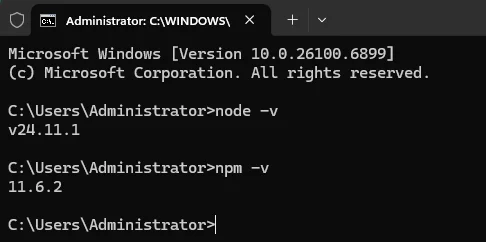
Download and install Node.js from the official website(https://nodejs.org/en/download/). After installation, open Command Prompt (cmd) and run the following command to verify the installed version:
node -v
npm -v
Step 2. Create a New React Project with Vite
Choose a project directory, open Command Prompt (cmd), and run the following command:
npm create vite@latest officejs-demo -- --template react
A new React project will be created and initialized.

Step 3. Install Dependencies Using npm
Open the "officejs-demo" project in VS Code, then run the following command to install "react-router-dom", which provides routing and navigation between pages:
npm install react-router-dom

Step 4. Integrate Spire.OfficeJS
Download the Spire.OfficeJS package. On Windows, double-click the run_genallfonts.bat file in the extracted package to run it. On Linux, use the command sh run_genallfonts.sh start to run the run_genallfonts.sh file in the extracted product package folder. After execution completes, a fontsweb folder will appear inside the web folder.
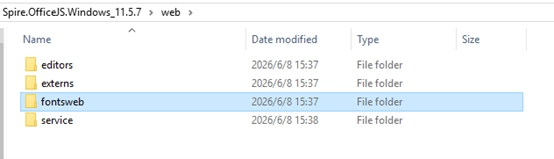
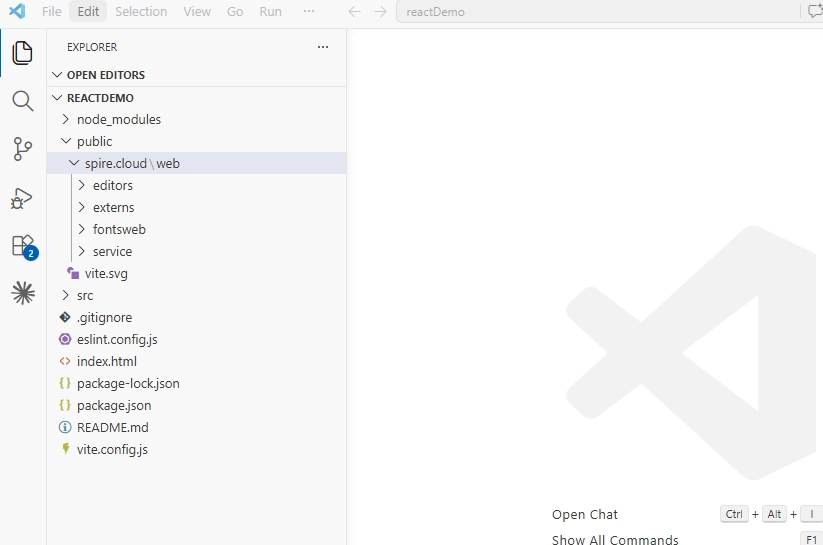
In your React project, create a new spire.officejs folder under the public directory, then copy the entire web folder (including fontsweb) into this directory. Ensure that the directory path matches the path referenced in Editor.jsx.
Implement File Upload and Editor Pages
1. App.jsx: Configure Routing and Global File State Management
Code:
import { createContext, useContext, useState } from 'react';
import { createBrowserRouter, RouterProvider } from 'react-router-dom';
import Home from './Home';
import Editor from './Editor';

//File state context
const FileContext = createContext();

export const useFileStore = () => useContext(FileContext);

function FileProvider({ children }) {
  const [file, setFile] = useState(null);
  const [fileUint8Data, setFileUint8Data] = useState(null);

  return (
    <FileContext.Provider value={{
      file,
      fileUint8Data,
      setFileData: setFile,
      setFileUint8Data
    }}>
      {children}
    </FileContext.Provider>
  );
}

const router = createBrowserRouter([
  { path: '/', element: <Home /> },
  { path: '/editor', element: <Editor /> },
]);

function App() {
  return (
    <FileProvider>
      <RouterProvider router={router} />
    </FileProvider>
  );
}

export default App;
2. Home.jsx: Set Up File Upload, File Handling, and Editor Navigation
Explanation:
- FileReader: To read local files from the user's device.
- Uint8Array: The binary data format required by OfficeJS WebAssembly for data input.
- useNavigate: A React Router hook for programmatic navigation between pages.
- Drag and Drop: Browser-based drag-and-drop support for file uploads.
Code:
import { useRef, useEffect } from "react"
import { useFileStore } from './App';
import { useNavigate } from 'react-router-dom';

function Home() {
    const { setFileData, setFileUint8Data } = useFileStore();
    const navigate = useNavigate();

    let dropArea = null;
    let fileInput = useRef();
    let file = null;
    let fileUint8Data = null;

    useEffect(() => {
        dropArea = document;

        //Prevent the default drag-and-drop behavior
        ['dragenter', 'dragover', 'dragleave', 'drop'].forEach(eventName => {
            dropArea.addEventListener(eventName, preventDefaults, false);
        });

        //Handle file drag-and-drop
        dropArea.addEventListener('drop', handleDrop, false);
    }, [])

    const preventDefaults = (e) => {
        e.preventDefault();
        e.stopPropagation();
    }

    const handleBtnClick = (e) => {
        e.preventDefault();
        fileInput.current.click();
    }

    const handleDrop = async (e) => {
        if (e.target && e.target.files)
            file = e.target.files[0]
        else if (e.dataTransfer && e.dataTransfer.files)
            file = e.dataTransfer.files[0];

        if (!file) return;

        fileUint8Data = await handleFile(file);
        setFileData(file);
        setFileUint8Data(fileUint8Data);
        openDocument();
    }

    const handleFile = (file) => {
        return new Promise((resolve, reject) => {
            const reader = new FileReader();
            reader.onload = () => {
                const arrayBuffer = reader.result;
                const uint8Array = new Uint8Array(arrayBuffer);
                resolve(uint8Array);
            };
            reader.onerror = (error) => reject(error);
            reader.readAsArrayBuffer(file);
        });
    }

    const openDocument = () => {
        navigate('/editor')
    }

    return (
        <div>
            <div>
                <h2>Upload Your File</h2>
                <div>
                    <p>Drag your file to the browser</p>
                     <p style={{ marginLeft: '20px' }}>or</p>
                    <button ref={fileInput} onClick={handleBtnClick}>Choose Your File</button>
                    <input
                        type="file"
                        id="fileInput"
                        ref={fileInput}
                        onChange={handleDrop}
                        style={{ display: 'none' }}
                    />
                </div>
            </div>
        </div>
    )
}

export default Home
3. Editor.jsx: Add and Integrate the OfficeJS Editor
Code:
import { useRef, useEffect } from "react"
import { useFileStore } from './App';
import { useNavigate } from 'react-router-dom';

function Editor() {
    const { file, fileUint8Data } = useFileStore();
    const navigate = useNavigate();

    const config = useRef({});
    let Editor = useRef(null);
    let Api = useRef(null);
    let originUrl = window.location.origin;

    useEffect(() => {
        if (!file) {
            navigate('/')
            return;
        }
        // Dynamically load Spire.OfficeJS
        loadScript();
    }, [])

    const loadScript = () => {
        var script = document.createElement('script');
        //Adjust according to your product package path
        script.setAttribute('src', '/spire.officejs/web/editors/spireapi/SpireCloudEditor.js');
        script.onload = () => initEditor()
        document.head.appendChild(script);
    }

    const initEditor = () => {
        let iframeId = 'iframeEditor';
        initConfig();
        Editor = new SpireCloudEditor.OpenApi(iframeId, config.value);
        window.Api = Api = Editor.GetOpenApi();
        OnWindowReSize();
    }

    const initConfig = () => {
        config.value = {
            "fileAttrs": {
                "fileInfo": {
                    "name": file.name,
                    "ext": getFileExtension(),
                    "primary": String(new Date().getTime()),
                    "creator": "User",
                    "createTime": new Date().toLocaleString()
                },
                "sourceUrl": originUrl + "/files/" + file.name,
                "createUrl": originUrl + "/open",
                "mergeFolderUrl": "",
                "fileChoiceUrl": "",
                "templates": {}
            },
            "user": {
                "id": "uid-1",
                "name": "User",
                "canSave": true,
            },
            "editorAttrs": {
                "editorMode": "edit",
                "editorWidth": "100%",
                "editorHeight": "100%",
                "editorType": "document",  // document/spreadsheet/presentation
                "platform": "desktop",
                "viewLanguage": "en",  // en/zh
                "isReadOnly": false,
                "canChat": true,
                "canComment": true,
                "canReview": true,
                "canDownload": true,
                "canEdit": true,
                "canForcesave": true,
                "embedded": {
                    "saveUrl": "",
                    "embedUrl": "",
                    "shareUrl": "",
                    "toolbarDocked": "top"
                },
                //Enable WebAssembly to improve performance
                "useWebAssemblyDoc": true,
                "useWebAssemblyExcel": true,
                "useWebAssemblyPpt": true,
                "spireDocJsLicense": "",
                "spireXlsJsLicense": "",
                "spirePresentationJsLicense": "",
                "spirePdfJsLicense": "",
                //Serverless mode: process files directly in memory without a backend
                "serverless": {
                    "useServerless": true,
                    "baseUrl": originUrl,
                    "fileData": fileUint8Data,  //The file's Uint8Array data
                },
                "events": {
                    "onSave": onFileSave
                },
                "plugins": {
                    "pluginsData": []
                }
            }
        };
    }

    const OnWindowReSize = () => {
        let wrapEl = document.getElementById("editor-container");
        if (wrapEl) {
            wrapEl.style.height = screen.availHeight + "px";
            window.scrollTo(0, -1);
            wrapEl.style.height = window.innerHeight + "px";
        }
    }

    const getFileExtension = () => {
        const filename = file.name.split(/[\\/]/).pop();
        return filename.substring(filename.lastIndexOf('.') + 1).toLowerCase() || '';
    }

    const onFileSave = (data) => {
        console.log('Saved data:', data)
        //Implement the save logic here
        //For example, send the file to a server or download it
    }

    return (
        <div id="editor-container">
            <div id="iframeEditor"></div>
        </div>
    )
}

export default Editor
4. main.jsx
Code:
import { StrictMode } from 'react'
import { createRoot } from 'react-dom/client'
import App from './App.jsx'

createRoot(document.getElementById('root')).render(
  //Note: React StrictMode causes the Spire  editor to render twice, so it's recommended to disable it
  <App />
)
5. vite.config.js - Customize the Development Server Port
Code:
import { defineConfig } from 'vite'
import react from '@vitejs/plugin-react'

export default defineConfig({
  server: {
    host: '0.0.0.0',
    port: 5174
  },
  plugins: [react()],
})
Run the Project
Run the command npm run dev to start the configured project, then open your browser and visit http://localhost:5174/.
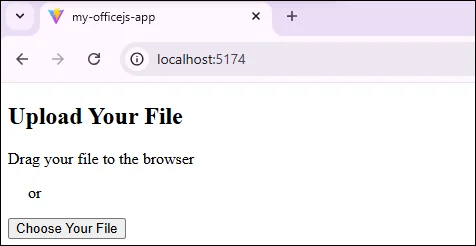
Upload a local document by dragging or clicking "Choose Your File" to open it for editing.
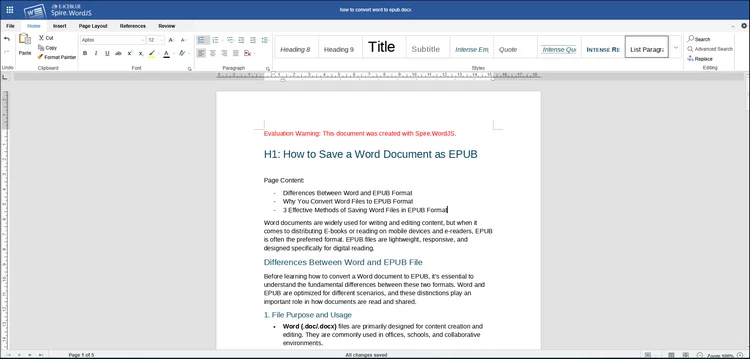
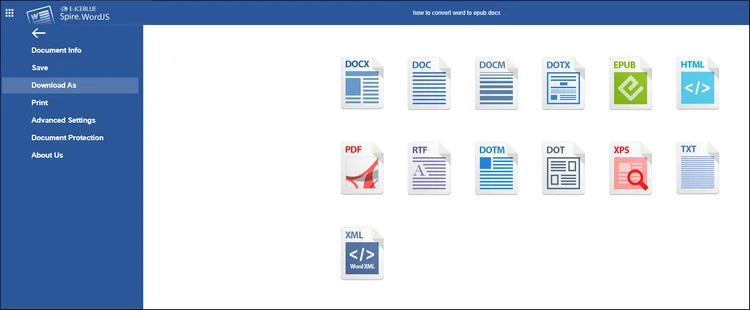
Go to "File > Download As" to download the document or convert it to other formats.
Demo Download
FAQs:
1. Project creation error due to incompatible npm or Node.js versions:
This usually occurs when Node.js is outdated. Update to the latest version of Node.js to resolve the issue.
2. Dependency installation failure:
- Clear the npm cache.
- Delete node_modules and package-lock.json, then reinstall dependencies.
- Ensure you are in the correct project directory and do not run installation commands outside the Vite project.
3. Spire.OfficeJS files cannot be loaded:
- Verify that the web folder has been copied to the correct directory.
- Make sure the development server can access resources under the public directory at runtime.
Apply for License
To remove the evaluation message from generated documents or lift feature limitations, contact us to obtain a 30-day temporary license.