
Shapes (7)
Colors created without screens or dots are referred to in the industry as spot or solid colors. Spot colors are the preferred method of producing stationery inexpensively, and also the method used where color accuracy is deemed essential, for instance a company logo.
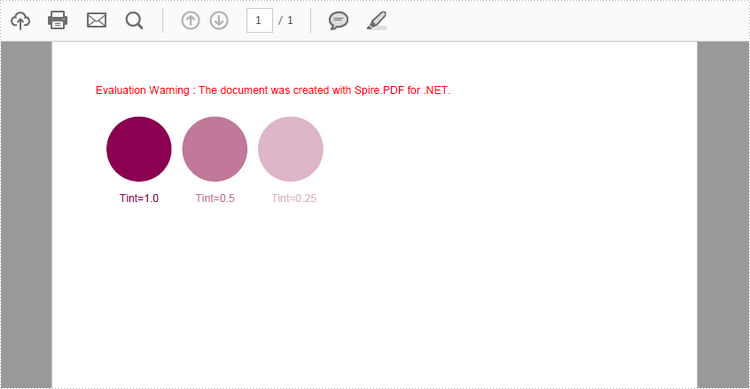
This article presents how to define a spot color based on RGB color spaces, create variations of a spot color with different tint value, and how to apply the spot color to text and graphic objects using Spire.PDF.
Step 1: Create a PdfDcoument object and add a page to it.
PdfDocument pdf = new PdfDocument();
PdfPageBase page = pdf.Pages.Add();
Step 2: Define the spot color "MySpotColor" from the built-in color.
PdfSeparationColorSpace cs = new PdfSeparationColorSpace("MySpotColor", Color.Purple);
Step 3: Set the spot color with a tint value of 1.
PdfSeparationColor color = new PdfSeparationColor(cs, 1f);
Step 4: Apply the spot color while drawing content on the page.
PdfSolidBrush brush = new PdfSolidBrush(color);
page.Canvas.DrawPie(brush, 10, 30, 60, 60, 360, 360);
page.Canvas.DrawString("1.0 tint!", new PdfFont(PdfFontFamily.Helvetica, 10f), brush, new PointF(20,100));
Step 5: Set the spot color with a tint value of 0.5 and apply it to some other content.
color = new PdfSeparationColor(cs, 0.5f);
brush = new PdfSolidBrush(color);
page.Canvas.DrawPie(brush, 80, 30, 60, 60, 360, 360);
page.Canvas.DrawString("Tint=0.5", new PdfFont(PdfFontFamily.Helvetica, 10f), brush, new PointF(92,100));
Step 6: Save the file.
pdf.SaveToFile("SpotColor.pdf");
Output:
Full Code:
using Spire.Pdf;
using Spire.Pdf.ColorSpace;
using Spire.Pdf.Graphics;
using System.Drawing;


namespace SpotColor
{
    class Program
    {
        static void Main(string[] args)
        {
            PdfDocument pdf = new PdfDocument();
            PdfPageBase page = pdf.Pages.Add();

            PdfSeparationColorSpace cs = new PdfSeparationColorSpace("MySpotColor", Color.Purple);
            PdfSeparationColor color = new PdfSeparationColor(cs, 1f);
            PdfSolidBrush brush = new PdfSolidBrush(color);
            page.Canvas.DrawPie(brush, 10, 30, 60, 60, 360, 360);
            page.Canvas.DrawString("Tint=1.0", new PdfFont(PdfFontFamily.Helvetica, 10f), brush, new PointF(22, 100));

            color = new PdfSeparationColor(cs, 0.5f);
            brush = new PdfSolidBrush(color);
            page.Canvas.DrawPie(brush, 80, 30, 60, 60, 360, 360);
            page.Canvas.DrawString("Tint=0.5", new PdfFont(PdfFontFamily.Helvetica, 10f), brush, new PointF(92, 100));

            color = new PdfSeparationColor(cs, 0.25f);
            brush = new PdfSolidBrush(color);
            page.Canvas.DrawPie(brush, 150, 30, 60, 60, 360, 360);
            page.Canvas.DrawString("Tint=0.25", new PdfFont(PdfFontFamily.Helvetica, 10f), brush, new PointF(162, 100));
            pdf.SaveToFile("SpotColor.pdf");
        }
    }
}
Imports Spire.Pdf
Imports Spire.Pdf.ColorSpace
Imports Spire.Pdf.Graphics
Imports System.Drawing


Namespace SpotColor
	Class Program
		Private Shared Sub Main(args As String())
			Dim pdf As New PdfDocument()
			Dim page As PdfPageBase = pdf.Pages.Add()

			Dim cs As New PdfSeparationColorSpace("MySpotColor", Color.Purple)
			Dim color__1 As New PdfSeparationColor(cs, 1F)
			Dim brush As New PdfSolidBrush(color__1)
			page.Canvas.DrawPie(brush, 10, 30, 60, 60, 360, _
				360)
			page.Canvas.DrawString("Tint=1.0", New PdfFont(PdfFontFamily.Helvetica, 10F), brush, New PointF(22, 100))

			color__1 = New PdfSeparationColor(cs, 0.5F)
			brush = New PdfSolidBrush(color__1)
			page.Canvas.DrawPie(brush, 80, 30, 60, 60, 360, _
				360)
			page.Canvas.DrawString("Tint=0.5", New PdfFont(PdfFontFamily.Helvetica, 10F), brush, New PointF(92, 100))

			color__1 = New PdfSeparationColor(cs, 0.25F)
			brush = New PdfSolidBrush(color__1)
			page.Canvas.DrawPie(brush, 150, 30, 60, 60, 360, _
				360)
			page.Canvas.DrawString("Tint=0.25", New PdfFont(PdfFontFamily.Helvetica, 10F), brush, New PointF(162, 100))
			pdf.SaveToFile("SpotColor.pdf")
		End Sub
	End Class
End Namespace
This section is designed to provide developers a solution to set graphic overlay in PDF file with C#, VB.NET via a .NET PDF library Spire.PDF for .NET.
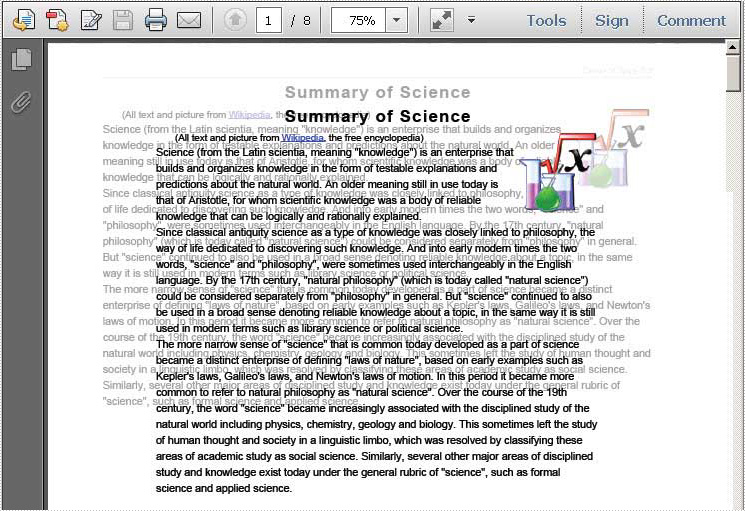
Spire.PDF for .NET enables you to set graphic overlay for PDF pages in an easy way. In order to see content in both PDF files, we can set the transparency for the overlay. Now, let us see the code detail step by step.
First, we need to load two PDF documents from system which are used for creating overlay PDF document. Then, we can create the page template as one page of the first PDF file. In my project, I set the first page in the first PDF document as the template. Finally draw this template page into every page of the second PDF file by this method: PdfPageBase.Canvas.DrawTemplate(PdfTemplate template, PointF location) and set the transparency for the page: PdfPageBase.Canvas.SetTransparency(float alphaPen, float alphaBrush, PdfBlendMode blendMode).
Here you can know more about Spire.PDF for .NET. Spire.PDF for .NET is a PDF component that is applied to manipulate PDF files in .NET applications. You can download Spire.PDF for .NET. After installing it on system, you can start your project by C# or VB.NET in either Console Application or Windows Forms Application. Since we will use Spire.PDF, you need add Spire.Pdf.dll in the Bin folder, the default path is: "..\Spire.Pdf\Bin\NET4.0\Spire.Pdf.dll". Below is the whole code of the task:
using System.Drawing;
using Spire.Pdf;
using Spire.Pdf.Graphics;

namespace pdf_graphic_overlay
{
    class Program
    {
        static void Main(string[] args)
        {
            //load two documents
            PdfDocument doc1 = new PdfDocument();
            doc1.LoadFromFile(@"..\ Sample1.pdf");
            PdfDocument doc2 = new PdfDocument();
            doc2.LoadFromFile(@"..\Sample3.pdf");
            //Create page template
            PdfTemplate template = doc1.Pages[0].CreateTemplate();
            //set PDF overlay effect and set transparency mode
            foreach (PdfPageBase page in doc2.Pages)
            {
                //set transparency
                page.Canvas.SetTransparency(0.25f, 0.25f, PdfBlendMode.Overlay);
                //add the first page of doc1 to every page of doc2
                page.Canvas.DrawTemplate(template, PointF.Empty);
            }
            //Save pdf file.
            doc2.SaveToFile("Overlay.pdf");
            doc1.Close();
            doc2.Close();
            //Launching the Pdf file.
            System.Diagnostics.Process.Start("Overlay.pdf");
        }
    }
}
Imports System.Drawing
Imports Spire.Pdf
Imports Spire.Pdf.Graphics

Namespace pdf_graphic_overlay
     Class Program
	    Private Shared Sub Main(args As String())
		'load two documents
		Dim doc1 As New PdfDocument()
		doc1.LoadFromFile("..\Sample1.pdf")
		Dim doc2 As New PdfDocument()
		doc2.LoadFromFile("..\Sample3.pdf")
		'Create page template
		Dim template As PdfTemplate = doc1.Pages(0).CreateTemplate()
		'set PDF overlay effect and set transparency mode
		For Each page As PdfPageBase In doc2.Pages
			'set transparency
			page.Canvas.SetTransparency(0.25F, 0.25F, PdfBlendMode.Overlay)
			'add the first page of doc1 to every page of doc2
			page.Canvas.DrawTemplate(template, PointF.Empty)
		Next
		'Save pdf file.
		doc2.SaveToFile("Overlay.pdf")
		doc1.Close()
		doc2.Close()
		'Launching the Pdf file.
		System.Diagnostics.Process.Start("Overlay.pdf")
	    End Sub
     End Class
End Namespace
After executing above code, we can get the output file as below:
I have introduced one solution to set graphic overlay for PDF document, I wish it can give you some insights. If you have problem, feedback and suggestions, please do not hesitate to put them on E-iceblue Forum, we will give prompt reply.
Spire.PDF for .NET is a PDF application which is designed to perform processing tasks on managing PDF files. It is completely written in C# but also support VB.NET.
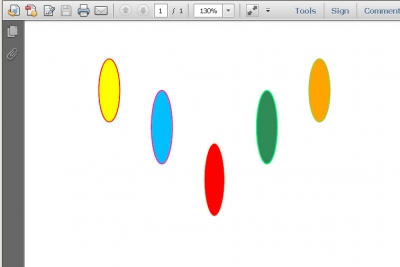
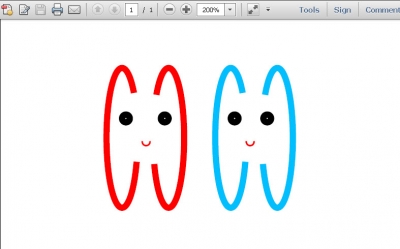
Spire.PDF can help us draw different shapes in PDF document. We can use Spire.PDF to draw rectangles in PDF, draw circles in PDF, draw arcs in PDF and draw ellipses in PDF. Besides these shapes, we can also use Spire.PDF to draw some other special shapes such as Spiral and five-pointed stars.
Draw Five-Pointed Star in PDF
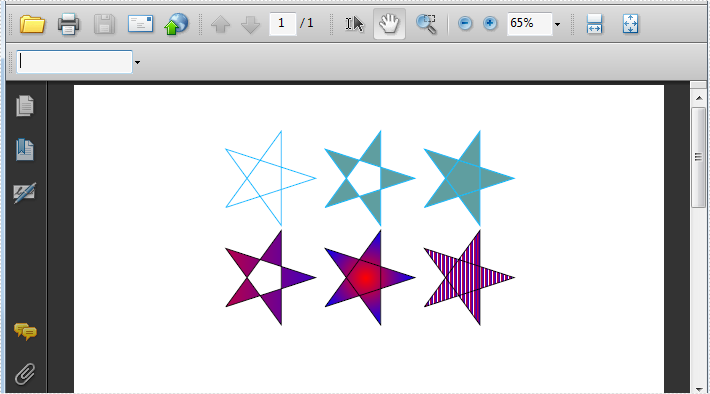
By using Spire.PDF, we can draw different stars in PDF document. The sample below is showing how to draw 6 types of different five-pointed star.
using Spire.Pdf;
using Spire.Pdf.Graphics;
using System;
using System.Drawing;


namespace FivePointedStar
{
    class Program
    {
        private static void DrawStar(PdfPageBase page)
        {
            PdfDocument doc = new PdfDocument();
            PdfPageBase page = doc.Pages.Add();
            PointF[] points = new PointF[5];
            for (int i = 0; i < points.Length; i++)
            {
                float x = (float)Math.Cos(i * 2 * Math.PI / 5);
                float y = (float)Math.Sin(i * 2 * Math.PI / 5);
                points[i] = new PointF(x, y);
            }
            PdfPath path = new PdfPath();
            path.AddLine(points[2], points[0]);
            path.AddLine(points[0], points[3]);
            path.AddLine(points[3], points[1]);
            path.AddLine(points[1], points[4]);
            path.AddLine(points[4], points[2]);

            //save graphics state
            PdfDocument doc = new PdfDocument();
            PdfPageBase page = doc.Pages.Add();
            PdfGraphicsState state = page.Canvas.Save();
            PdfPen pen = new PdfPen(Color.DeepSkyBlue, 0.02f);
            PdfBrush brush1 = new PdfSolidBrush(Color.CadetBlue);

            page.Canvas.ScaleTransform(50f, 50f);
            page.Canvas.TranslateTransform(5f, 1.2f);
            page.Canvas.DrawPath(pen, path);

            page.Canvas.TranslateTransform(2f, 0f);
            path.FillMode = PdfFillMode.Alternate;
            page.Canvas.DrawPath(pen, brush1, path);

            page.Canvas.TranslateTransform(2f, 0f);
            path.FillMode = PdfFillMode.Winding;
            page.Canvas.DrawPath(pen, brush1, path);

            PdfLinearGradientBrush brush2
                = new PdfLinearGradientBrush(new PointF(-2, 0), new PointF(2, 0), Color.Red, Color.Blue);
            page.Canvas.TranslateTransform(-4f, 2f);
            path.FillMode = PdfFillMode.Alternate;
            page.Canvas.DrawPath(pen, brush2, path);

            PdfRadialGradientBrush brush3
                = new PdfRadialGradientBrush(new PointF(0f, 0f), 0f, new PointF(0f, 0f), 1f, Color.Red, Color.Blue);
            page.Canvas.TranslateTransform(2f, 0f);
            path.FillMode = PdfFillMode.Winding;
            page.Canvas.DrawPath(pen, brush3, path);

            PdfTilingBrush brush4 = new PdfTilingBrush(new RectangleF(0, 0, 4f, 4f));
            brush4.Graphics.DrawRectangle(brush2, 0, 0, 4f, 4f);

            page.Canvas.TranslateTransform(2f, 0f);
            path.FillMode = PdfFillMode.Winding;
            page.Canvas.DrawPath(pen, brush4, path);

            //restor graphics
            page.Canvas.Restore(state);
        }
    }
}
Imports Spire.Pdf
Imports Spire.Pdf.Graphics
Imports System.Drawing


Namespace FivePointedStar
	Class Program
		Private Shared Sub DrawStar(page As PdfPageBase)
			Dim doc As New PdfDocument()
			Dim page As PdfPageBase = doc.Pages.Add()
			Dim points As PointF() = New PointF(4) {}
			For i As Integer = 0 To points.Length - 1
				Dim x As Single = CSng(Math.Cos(i * 2 * Math.PI / 5))
				Dim y As Single = CSng(Math.Sin(i * 2 * Math.PI / 5))
				points(i) = New PointF(x, y)
			Next
			Dim path As New PdfPath()
			path.AddLine(points(2), points(0))
			path.AddLine(points(0), points(3))
			path.AddLine(points(3), points(1))
			path.AddLine(points(1), points(4))
			path.AddLine(points(4), points(2))

			'save graphics state
			Dim doc As New PdfDocument()
			Dim page As PdfPageBase = doc.Pages.Add()
			Dim state As PdfGraphicsState = page.Canvas.Save()
			Dim pen As New PdfPen(Color.DeepSkyBlue, 0.02F)
			Dim brush1 As PdfBrush = New PdfSolidBrush(Color.CadetBlue)

			page.Canvas.ScaleTransform(50F, 50F)
			page.Canvas.TranslateTransform(5F, 1.2F)
			page.Canvas.DrawPath(pen, path)

			page.Canvas.TranslateTransform(2F, 0F)
			path.FillMode = PdfFillMode.Alternate
			page.Canvas.DrawPath(pen, brush1, path)

			page.Canvas.TranslateTransform(2F, 0F)
			path.FillMode = PdfFillMode.Winding
			page.Canvas.DrawPath(pen, brush1, path)

			Dim brush2 As New PdfLinearGradientBrush(New PointF(-2, 0), New PointF(2, 0), Color.Red, Color.Blue)
			page.Canvas.TranslateTransform(-4F, 2F)
			path.FillMode = PdfFillMode.Alternate
			page.Canvas.DrawPath(pen, brush2, path)

			Dim brush3 As New PdfRadialGradientBrush(New PointF(0F, 0F), 0F, New PointF(0F, 0F), 1F, Color.Red, Color.Blue)
			page.Canvas.TranslateTransform(2F, 0F)
			path.FillMode = PdfFillMode.Winding
			page.Canvas.DrawPath(pen, brush3, path)

			Dim brush4 As New PdfTilingBrush(New RectangleF(0, 0, 4F, 4F))
			brush4.Graphics.DrawRectangle(brush2, 0, 0, 4F, 4F)

			page.Canvas.TranslateTransform(2F, 0F)
			path.FillMode = PdfFillMode.Winding
			page.Canvas.DrawPath(pen, brush4, path)

			'restor graphics
			page.Canvas.Restore(state)
		End Sub
	End Class
End Namespace
Effective Screenshot:
Draw Spiral in PDF
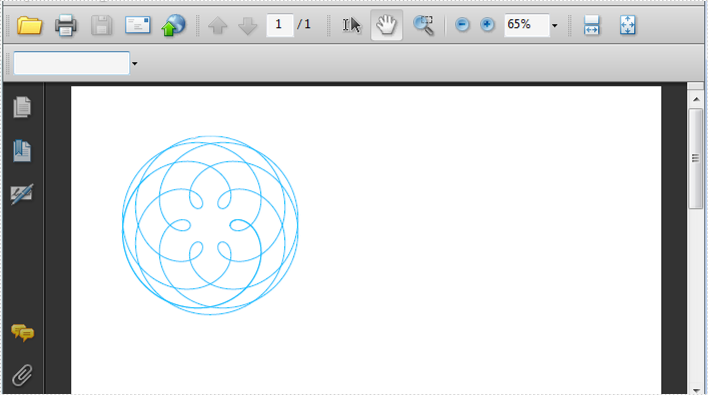
A spiral is a curve which emanates from a central point, getting progressively farther away as it revolves around the point. Spire.PDF can also help us easily draw Spiral in PDF and we can design at will.
using Spire.Pdf;
using Spire.Pdf.Graphics;
using System;

namespace DrawSpiral
{
    class Program
    {
        static void Main(string[] args)
        {
            PdfDocument doc = new PdfDocument();
            PdfPageBase page = doc.Pages.Add();
            //save graphics state
            PdfGraphicsState state = page.Canvas.Save();

            //Draw shap - spiro
            PdfPen pen = PdfPens.DeepSkyBlue;

            int nPoints = 1000;
            double r1 = 30;
            double r2 = 25;
            double p = 35;
            double x1 = r1 + r2 - p;
            double y1 = 0;
            double x2 = 0;
            double y2 = 0;

            page.Canvas.TranslateTransform(100, 100);

            for (int i = 0; i < nPoints; i++)
            {
                double t = i * Math.PI / 90;
                x2 = (r1 + r2) * Math.Cos(t) - p * Math.Cos((r1 + r2) * t / r2);
                y2 = (r1 + r2) * Math.Sin(t) - p * Math.Sin((r1 + r2) * t / r2);
                page.Canvas.DrawLine(pen, (float)x1, (float)y1, (float)x2, (float)y2);
                x1 = x2;
                y1 = y2;
            }

            //restor graphics
            page.Canvas.Restore(state);
        }
    }
}
Imports Spire.Pdf
Imports Spire.Pdf.Graphics
Imports Spire.Pdf.Texts
Imports System.Drawing

Namespace AddLineNumber
    Class Program
		Shared Sub Main(ByVal args() As String)
			Dim doc As New PdfDocument()
			Dim page As PdfPageBase = doc.Pages.Add()
			'save graphics state
			Dim state As PdfGraphicsState = page.Canvas.Save()

			'Draw shap - spiro
			Dim pen As PdfPen = PdfPens.DeepSkyBlue

			Dim nPoints As Integer = 1000
			Dim r1 As Double = 30
			Dim r2 As Double = 25
			Dim p As Double = 35
			Dim x1 As Double = r1 + r2 - p
			Dim y1 As Double = 0
			Dim x2 As Double = 0
			Dim y2 As Double = 0

			page.Canvas.TranslateTransform(100, 100)

			For i As Integer = 0 To nPoints - 1
				Dim t As Double = i * Math.PI / 90
				x2 = (r1 + r2) * Math.Cos(t) - p * Math.Cos((r1 + r2) * t / r2)
				y2 = (r1 + r2) * Math.Sin(t) - p * Math.Sin((r1 + r2) * t / r2)
				page.Canvas.DrawLine(pen, CSng(x1), CSng(y1), CSng(x2), CSng(y2))
				x1 = x2
				y1 = y2
			Next

			'restor graphics
			page.Canvas.Restore(state)

		End Sub
	End Class
End Namespace
Effective Screenshot:
Circles can be defined as the curves traced out by points that move so that its distance from a given point is constant. They are also look as special ellipses in which the two foci are coincident and the eccentricity is “0”. Whatever they are, they are indispensable in PDF document. This section will introduce a solution to draw circles and set their size and position in PDF file via a .NET PDF component Spire.PDF for .NET in C#, VB.NET.
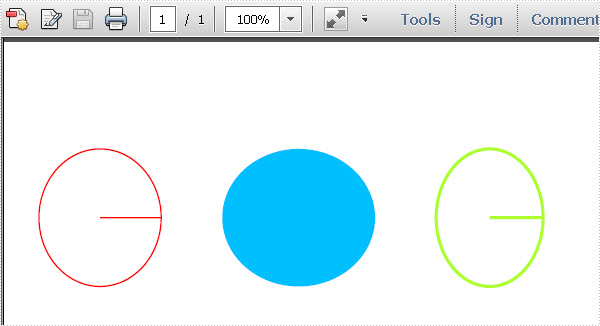
When we draw circles in PDF, we only need to call one method in Spire.PDF: Spire.Pdf.PdfPageBase.Canvas.DrawPie(PdfPen pen, float x, float y, float width, float height, float startAngle, float sweepAngle); Here there are seven parameters in this method. The first one is the class Spire.Pdf.Graphics.PdfPen which can define the color and the outline of the circle. If we change this parameter to be another class Spire.Pdf.Graphics.PdfBrush, we can easily fill the circle with a certain color. The second and third parameters determine the exact distance between the PDF margin and the circle. "float x" decides the distance of left margin with circle, while "float y" means the distance between the top margin with the circle. By setting the fourth and fifth parameters, we can decide the circle width and height. The last two parameters are the start angle and sweep angle when drawing circles. Now please view the circles in PDF as below picture:
Here we can quickly download Spire.PDF for .NET . After adding Spire.Pdf dll in the download Bin folder, we can draw circles in PDF file via Spire.PDF by below code.
using System.Drawing;
using Spire.Pdf;
using Spire.Pdf.Graphics;

namespace pdf_circles
{
    class Program
    {
        static void Main(string[] args)
        {
            //Create a pdf document.
            PdfDocument doc = new PdfDocument();
            // Create one page
            PdfPageBase page = doc.Pages.Add();
            //save graphics state
            PdfGraphicsState state = page.Canvas.Save();
            PdfPen pen = new PdfPen(Color.Red, 1f);
            PdfPen pen1 = new PdfPen(Color.GreenYellow, 2f);
            PdfBrush brush = new PdfSolidBrush(Color.DeepSkyBlue);
            page.Canvas.DrawPie(pen, 30, 30, 80, 90, 360, 360);
            page.Canvas.DrawPie(brush, 150, 30, 100, 90, 360, 360);
            page.Canvas.DrawPie(pen1,290, 30, 70, 90, 360, 360);
            //restor graphics
            page.Canvas.Restore(state);
            doc.SaveToFile("Circles.pdf");
            System.Diagnostics.Process.Start("Circles.pdf");
        }
    }
}
Imports System.Drawing
Imports Spire.Pdf
Imports Spire.Pdf.Graphics

Namespace pdf_circles
	Class Program
		Private Shared Sub Main(args As String())
			'Create a pdf document.
			Dim doc As New PdfDocument()
			' Create one page
			Dim page As PdfPageBase = doc.Pages.Add()
			'save graphics state
			Dim state As PdfGraphicsState = page.Canvas.Save()
			Dim pen As New PdfPen(Color.Red, 1F)
			Dim pen1 As New PdfPen(Color.GreenYellow, 2F)
			Dim brush As PdfBrush = New PdfSolidBrush(Color.DeepSkyBlue)
			page.Canvas.DrawPie(pen, 30, 30, 80, 90, 360, _
				360)
			page.Canvas.DrawPie(brush, 150, 30, 100, 90, 360, _
				360)
			page.Canvas.DrawPie(pen1, 290, 30, 70, 90, 360, _
				360)
			'restor graphics
			page.Canvas.Restore(state)
			doc.SaveToFile("Circles.pdf")
			System.Diagnostics.Process.Start("Circles.pdf")
		End Sub
	End Class
End Namespace
Spire.PDF for .NET is a PDF component that enables users to draw different kinds of shapes in PDF document in C#, VB.NET.
In Euclidean plane geometry, a rectangle is any quadrilateral with four right angles. The term "oblong" is occasionally used to refer to a non-square rectangle. A rectangle with vertices ABCD would be denoted as ABCD. It’s simple for people to draw rectangles in paper. While how about drawing rectangles in PDF document? This section will show you the exact answer. This section will introduce a solution to draw rectangles and set the size and position of rectangles in PDF via a .NET PDF component Spire.PDF for .NET with C#, VB.NET.
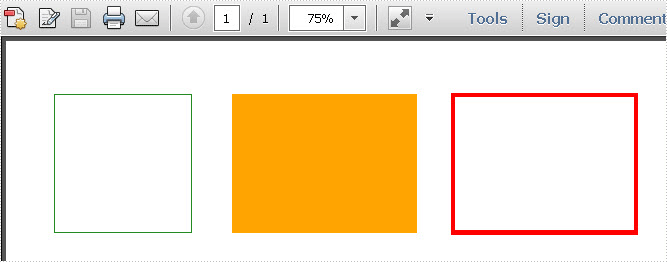
In Spire.PDF, there are two classes: Spire.Pdf.Graphics.PdfPen and Spire.Pdf.Granphics.PdfBrush. By using the first class, we can set the color and decide the outline of the PDF rectangle. While the second class can quickly help us fill the rectangles with a color we want. Now let us see this method: Spire.Pdf.PdfPageBase.Canvas.DrawRectangle(PdfPen pen, RectangleF rectangle); There are two parameters passed. One is the PdfPen which I referred above. The other represents the location and size of a rectangle. By calling this method, we can draw rectangles and set their size and position very quickly. Now let us view the rectangles as below picture:
Here we can download Spire.PDF for .NET and install it on system. After adding Spire.Pdf dll, we can draw rectangle in our PDF document as below code:
using System.Drawing;
using Spire.Pdf;
using Spire.Pdf.Graphics;

namespace PDF_rectangles
{
    class Program
    {
        static void Main(string[] args)
        {
            //create a PDF
            PdfDocument pdfDoc = new PdfDocument();
            PdfPageBase page = pdfDoc.Pages.Add();
            //save graphics state
            PdfGraphicsState state = page.Canvas.Save();
            //draw rectangles
            PdfPen pen = new PdfPen(Color.ForestGreen, 0.1f);
            PdfPen pen1 = new PdfPen(Color.Red, 3f);
            PdfBrush brush = new PdfSolidBrush(Color.Orange);
            page.Canvas.DrawRectangle(pen, new Rectangle(new Point(2, 7), new Size(120, 120)));
            page.Canvas.DrawRectangle(pen1, new Rectangle(new Point(350, 7), new Size(160, 120)));
            page.Canvas.DrawRectangle(brush, new RectangleF(new Point(158, 7), new SizeF(160, 120)));
            //restor graphics
            page.Canvas.Restore(state);
            pdfDoc.SaveToFile("Rectangles.pdf");
            System.Diagnostics.Process.Start("Rectangles.pdf");
        }
    }
}
Imports System.Drawing
Imports Spire.Pdf
Imports Spire.Pdf.Graphics

Namespace PDF_rectangles
	Class Program
		Private Shared Sub Main(args As String())
			'create a PDF
			Dim pdfDoc As New PdfDocument()
			Dim page As PdfPageBase = pdfDoc.Pages.Add()
			'save graphics state
			Dim state As PdfGraphicsState = page.Canvas.Save()
			'draw rectangles
			Dim pen As New PdfPen(Color.ForestGreen, 0.1F)
			Dim pen1 As New PdfPen(Color.Red, 3F)
			Dim brush As PdfBrush = New PdfSolidBrush(Color.Orange)
			page.Canvas.DrawRectangle(pen, New Rectangle(New Point(2, 7), New Size(120, 120)))
			page.Canvas.DrawRectangle(pen1, New Rectangle(New Point(350, 7), New Size(160, 120)))
			page.Canvas.DrawRectangle(brush, New RectangleF(New Point(158, 7), New SizeF(160, 120)))
			'restor graphics
			page.Canvas.Restore(state)
			pdfDoc.SaveToFile("Rectangles.pdf")
			System.Diagnostics.Process.Start("Rectangles.pdf")
		End Sub
	End Class
End Namespace
Spire.PDF for .NET is a .NET PDF component that can draw different kinds of shapes in PDF document such as Circles, Arcs. Ellipse and Five-pointed Star.
