
Document Operation (22)
Users can change the Excel view mode according to reading habit. By default, there are several view modes we can choose, including Normal View, Page Layout View, Page Break Preview, Full Screen View and Custom Views. Besides, Microsoft Excel also enables us to zoom in/out the document to a specified level. In this article, I'll make a brief introduction about how to set Excel view mode using Spire.XLS in C# and VB.NET.
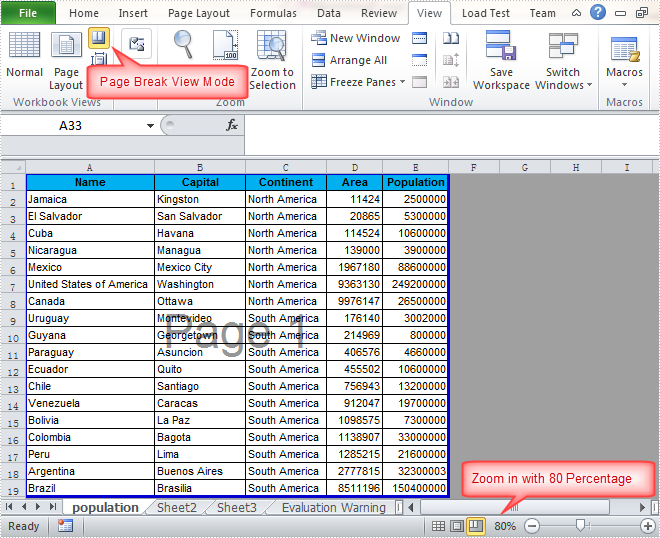
In this sample, the Excel view mode will be set as Page Break Preview with zoom in 80 percent. Download the Spire.XLS for .NET, add the Spire.Xls.dll as a reference into assemblies, then we can use the following code snippet to achieve this end goal.
Detailed Steps
Step 1: Create a new instance of Workbook and load the sample file.
Workbook workbook = new Workbook();
workbook.LoadFromFile("Sample.xlsx", ExcelVersion.Version2010);
Step 2: Get the first the worksheet from the Excel workbook.
Worksheet sheet = workbook.Worksheets[0];
Step 3: Set view mode as Page Break Preview and Zoom in the sheet with 80 percent.
sheet.ViewMode = ViewMode.Preview;
sheet.ZoomScalePageBreakView = 80;
Step 4: Save the changes to workbook in a new file.
workbook.SaveToFile("Result.xlsx", ExcelVersion.Version2010);
Output:
Full Code:
using Spire.Xls;
namespace SetExcelViewMode
{
    class Program
    {

        static void Main(string[] args)
        {
            Workbook workbook = new Workbook();
            workbook.LoadFromFile("Sample.xlsx", ExcelVersion.Version2010);
            Worksheet sheet = workbook.Worksheets[0];
            ////Page Layout
            //sheet.ViewMode = ViewMode.Layout;
            //sheet.ZoomScalePageLayoutView = 80;
            ////Normal View(Default)
            //sheet.ViewMode = ViewMode.Normal;
            //sheet.ZoomScaleNormal = 80;
            //Preview
            sheet.ViewMode = ViewMode.Preview;
            sheet.ZoomScalePageBreakView = 80;

            workbook.SaveToFile("Result.xlsx", ExcelVersion.Version2010);

        }

    }
}
Imports Spire.Xls
Namespace SetExcelViewMode
	Class Program

		Private Shared Sub Main(args As String())
			Dim workbook As New Workbook()
			workbook.LoadFromFile("Sample.xlsx", ExcelVersion.Version2010)
			Dim sheet As Worksheet = workbook.Worksheets(0)
			'''/Page Layout
			'sheet.ViewMode = ViewMode.Layout;
			'sheet.ZoomScalePageLayoutView = 80;
			'''/Normal View(Default)
			'sheet.ViewMode = ViewMode.Normal;
			'sheet.ZoomScaleNormal = 80;
			'Preview
			sheet.ViewMode = ViewMode.Preview
			sheet.ZoomScalePageBreakView = 80

			workbook.SaveToFile("Result.xlsx", ExcelVersion.Version2010)

		End Sub

	End Class
End Namespace
When we print Word and PDF documents which have regular page size, we can clearly know the pagination information for Word and PDF by delimiters. Excel document is different since Excel pagination is based on its content when we print Excel document or convert to Pdf. So get Excel pagination information is important to developer. Below would introduce a solution to get pagination information in Excel document.
The solution call book.GetSplitPageInfo() method to obtain information of excel document and return this information to the List<Dictionary<int, PageColRow>> object via Spire.XLS. By the object we can get this information about: sheet count, page count and the start and end column and row of every page in excel document. Below is effect screenshots:
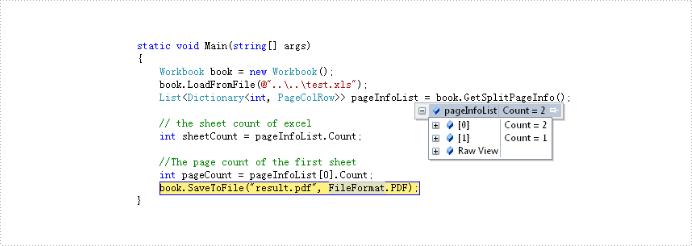
The main steps of the solution are:
Step 1: Create and load an excel document.
Workbook book = new Workbook();
book.LoadFromFile(@"test.xlsx");
Step 2: Call GetSplitPageInfo() method to Excel information.
List> pageInfoList = book.GetSplitPageInfo();
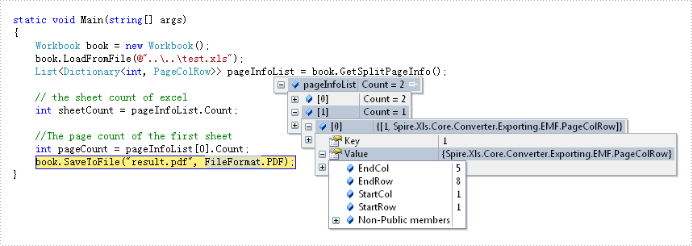
The full code:
using Spire.Xls;

namespace GetPageInformation
{
    class Program
    {
        static void Main(string[] args)
        {
            // create and load Excel document
            Workbook book = new Workbook();
            book.LoadFromFile(@"test.xlsx");
            // get the Excel document information and save in pageInfoList object
            var pageInfoList = book.GetSplitPageInfo();

            // the sheet count of excel
            int sheetCount = pageInfoList.Count;

            //The page count of the first sheet
            int pageCount = pageInfoList[0].Count;
            book.SaveToFile("result.pdf", FileFormat.PDF);
        }
    }
}
Imports Spire.Xls
Module Module1

    Sub Main()
        'create and load Excel document
        Dim book As New Workbook()
        book.LoadFromFile("test.xlsx")
        ' get the Excel document information and save in pageInfoList object
        Dim pageInfoList As List(Of Dictionary(Of Integer, PageColRow)) = book.GetSplitPageInfo()

        ' the sheet count of excel
        Dim sheetCount As Integer = pageInfoList.Count

        'The page count of the first sheet
        Dim pageCount As Integer = pageInfoList(0).Count
        book.SaveToFile("result.pdf", FileFormat.PDF)
    End Sub

End Module
C#: Dynamically Create, Load, and Save Excel Files via Stream
2024-12-30 07:36:00 Written by daisy zhangUsing stream operations in C#, developers can dynamically create, load, and save Excel files, enabling flexible and efficient data handling. This approach eliminates the need for physical file storage, improving application performance and responsiveness. Ideal for real-time data manipulation or environments with storage limitations, it streamlines data exchange and system integration. This article demonstrates how to create, load, modify, and save Excel files using streams in C# with Spire.XLS for .NET, offering agile and scalable data management solutions.
- Dynamically Create an Excel File and Save It to Stream
- Load and Read Excel Files from Stream with C#
- Modify an Excel File in Stream with C#
Install Spire.XLS for .NET
To begin with, you need to add the DLL files included in the Spire.XLS for .NET package as references in your .NET project. The DLL files can be either downloaded from this link or installed via NuGet.
PM> Install-Package Spire.XLS
Dynamically Create an Excel File and Save It to Stream
Using Spire.XLS for .NET, developers can dynamically create Excel files in memory by initializing a Workbook object, populating it with data and formatting, and then saving the workbook to a stream using the Workbook.SaveToStream() method. This approach eliminates the need for physical file storage, enhancing both application performance and responsiveness.
Below are the steps for creating an Excel file and saving it to a stream with C#:
- Create an instance of the Workbook class to generate a new Excel workbook, which includes three default worksheets.
- Retrieve a specific worksheet using the Workbook.Worksheets[] property.
- Define the data to write to the worksheet, such as using a DataTable to organize the data.
- Insert the data into the worksheet using the Worksheet.InsertDataTable() method or the Worksheet.Range[].Value property for individual cell values.
- Format the worksheet cells, applying styles like colors, fonts, and borders, or adjusting column widths as needed.
- Save the workbook to a memory stream using the Workbook.SaveToStream() method. The stream can then be used for further processing, such as saving it to a file or transmitting it over a network.
- C#
using Spire.Xls;
using System.Data;
using System.Drawing;

namespace CreateExcelStream
{
    class Program
    {
        static void Main(string[] args)
        {
            // Create a new workbook instance
            Workbook workbook = new Workbook();

            // Access the first worksheet in the workbook
            Worksheet sheet = workbook.Worksheets[0];

            // Create and populate a DataTable with sample data
            DataTable dataTable = new DataTable("Data");
            dataTable.Columns.Add("ID", typeof(int));
            dataTable.Columns.Add("Name", typeof(string));
            dataTable.Columns.Add("Age", typeof(int));
            dataTable.Columns.Add("Country", typeof(string));
            dataTable.Columns.Add("Salary ($)", typeof(decimal));
            dataTable.Rows.Add(101, "John Smith", 28, "USA", 54000m);
            dataTable.Rows.Add(102, "Maria Garcia", 34, "Spain", 65500m);
            dataTable.Rows.Add(103, "Liam Johnson", 22, "Canada", 48000m);
            dataTable.Rows.Add(104, "Emma Brown", 30, "Australia", 72300m);
            dataTable.Rows.Add(105, "Wei Zhang", 40, "China", 58700m);
            dataTable.Rows.Add(106, "Sofia Lopez", 26, "Mexico", 45200m);

            // Insert data from the DataTable into the worksheet
            sheet.InsertDataTable(dataTable, true, 1, 1);

            // Format the worksheet
            // Style the header row
            sheet.Rows[0].Style.Color = Color.LightGreen;
            sheet.Rows[0].Style.Font.FontName = "Arial";
            sheet.Rows[0].Style.Font.Size = 12f;
            sheet.Rows[0].BorderAround(); // Apply borders around the header row
            sheet.Rows[0].Borders.Color = Color.Blue;

            // Style the data rows
            for (int i = 1; i < sheet.AllocatedRange.Rows.Count(); i++)
            {
                sheet.Rows[i].Style.Color = Color.LightGray;
                sheet.Rows[i].Style.Font.FontName = "Arial";
                sheet.Rows[i].Style.Font.Size = 11f;
            }

            // Adjust the column widths to fit the content
            for (int j = 1; j <= sheet.AllocatedRange.Columns.Count(); j++)
            {
                sheet.AutoFitColumn(j);
            }

            // Save the workbook to a memory stream
            MemoryStream stream = new MemoryStream();
            workbook.SaveToStream(stream, FileFormat.Version2016);

            // Write the stream content to a file
            File.WriteAllBytes("output/CreateExcelByStream.xlsx", stream.ToArray());

            // Release resources
            workbook.Dispose();
        }
    }
}

Load and Read Excel Files from Stream with C#
Spire.XLS for .NET simplifies loading Excel files directly from a stream using the Workbook.LoadFromStream() method. Once the file is loaded, developers can easily access and read cell data, optimizing memory usage and enabling fast, flexible data processing without requiring file I/O operations.
The steps for loading and reading Excel files from streams with C# are as follows:
- Create a Workbook instance.
- Create a MemoryStream or FileStream object.
- Use the Workbook.LoadFromStream() method to load the Excel file from the stream into the workbook.
- Retrieve the first worksheet using the Workbook.Worksheets[] property.
- Loop through the rows and columns of the worksheet to extract the cell through the Worksheet.AllocatedRange[].Value property.
- Print the extracted data, or use the data for further operations.
- C#
using Spire.Xls;

namespace LoadExcelStream
{
    class Program
    {
        static void Main(string[] args)
        {
            // Create an instance of the Workbook class
            Workbook workbook = new Workbook();

            // Create a memory stream
            MemoryStream stream = new MemoryStream();
            File.OpenRead("Sample.xlsx").CopyTo(stream);

            // Load the Excel file from the stream
            workbook.LoadFromStream(stream);

            // Access the first worksheet in the workbook
            Worksheet sheet = workbook.Worksheets[0];

            // Initialize a list to store the data retrieved from the worksheet
            List<List<string>> data = new List<List<string>>();
            for (int i = 0; i < sheet.AllocatedRange.Rows.Count(); i++)
            {
                // Create a list to hold each row of data
                List<string> lines = new List<string>();
                for (int j = 0; j < sheet.AllocatedRange.Columns.Count(); j++)
                {
                    // Retrieve the cell text and add it to the row
                    lines.Add(sheet.AllocatedRange[i + 1, j + 1].Text);
                }
                // Add the row to the data list
                data.Add(lines);
            }

            // Print the retrieved data or use it for further operations
            foreach (List<string> lines in data)
            {
                Console.WriteLine(string.Join(" | ", lines));
            }
        }
    }
}

Modify an Excel File in Stream with C#
With Spire.XLS for .NET, developers can modify an Excel file in memory by first loading it into a Workbook object with the LoadFromStream() method. After making updates (such as changing cell values or formatting), the file can be saved back to a stream using the Workbook.SaveToStream() method. This approach allows seamless real-time changes without relying on physical storage.
Follow the steps below to modify Excel files in streams with C#:
- Create a Workbook instance to represent the Excel file.
- Create a MemoryStream or FileStream instance.
- Use the Workbook.LoadFromStream() to load the Excel file from the stream.
- Access the first worksheet through the Workbook.Worksheets[] property.
- Modify the header row and the data rows' styles (font, size, background color, etc.) through the properties in CellRange.Style.
- Autofit the columns to adjust their width based on the content using the Worksheet.AutoFitColumn() method.
- Save the changes to the stream using the Workbook.SaveToStream() method.
- C#
using Spire.Xls;
using System.Drawing;

namespace ModifyExcelStream
{
    class Program
    {
        static void Main(string[] args)
        {
            // Create a new instance of the Workbook class
            Workbook workbook = new Workbook();

            // Create a memory stream
            MemoryStream stream = new MemoryStream();
            File.OpenRead("Sample.xlsx").CopyTo(stream);

            // Load the Excel file from the stream
            workbook.LoadFromStream(stream);

            // Access the first worksheet in the workbook
            Worksheet sheet = workbook.Worksheets[0];

            // Modify the style of the header row
            CellRange headerRow = sheet.AllocatedRange.Rows[0];
            headerRow.Style.Font.FontName = "Times New Roman";
            headerRow.Style.Font.Size = 12f;
            headerRow.Style.Color = Color.LightBlue;

            // Modify the style of the data rows
            for (int i = 1; i < sheet.AllocatedRange.Rows.Count(); i++)
            {
                CellRange dataRow = sheet.AllocatedRange.Rows[i];
                dataRow.Style.Font.FontName = "Arial";
                dataRow.Style.Font.Size = 10f;
                dataRow.Style.Color = Color.LightGray;
                // Alternate row coloring (even rows)
                if (i % 2 == 0)
                {
                    dataRow.Style.Color = Color.LightSlateGray;
                }
            }

            // Autofit columns to adjust their width based on content
            for (int k = 1; k <= sheet.AllocatedRange.Columns.Count(); k++)
            {
                sheet.AutoFitColumn(k);
            }

            // Change the border color
            sheet.AllocatedRange.Style.Borders.Color = Color.White;

            // Save the modified workbook back to the stream
            workbook.SaveToStream(stream);

            // Write the stream content to a new file
            File.WriteAllBytes("output/ModifyExcelByStream.xlsx", stream.ToArray());

            // Release resources
            workbook.Dispose();
        }
    }
}

Apply for a Temporary License
If you'd like to remove the evaluation message from the generated documents, or to get rid of the function limitations, please request a 30-day trial license for yourself.
Document properties, also known as metadata, are a set of data that describe a document. In Excel, you can add built-in document properties such as author, title, and keywords to quickly locate and identify documents in a folder. Or you can also add custom properties to provide more information about the Excel document. In this article, you will learn how to programmatically add built-in and custom document properties to an Excel document using Spire.XLS for .NET.
- Add Built-in Document Properties in Excel in C# and VB.NET
- Add Custom Document Properties in Excel in C# and VB.NET
Install Spire.XLS for .NET
To begin with, you need to add the DLL files included in the Spire.XLS for .NET package as references in your .NET project. The DLL files can be either downloaded from this link or installed via NuGet.
PM> Install-Package Spire.XLS
Add Built-in Document Properties in Excel in C# and VB.NET
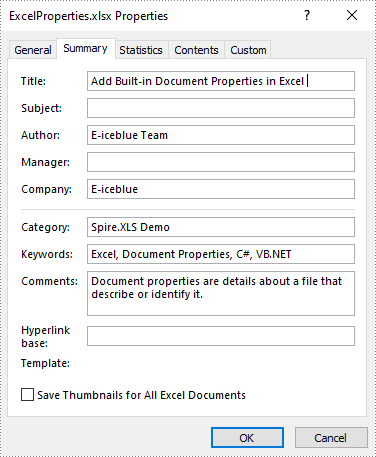
Built-in document properties are basic information about a document such as title, subject, author, category, etc. The names of these properties are predefined that cannot be edited, but Spire.XLS for .NET allows you to set specific values for these properties. The following are the detailed steps.
- Create a Workbook object.
- Load a sample Excel document using Workbook.LoadFromFile() method.
- Get the built-in document properties of the document using Workbook.DocumentProperties property.
- Set specific document properties such as title, author, keywords and comments using the properties of BuiltInDocumentProperties class.
- Save the result document using Workbook.SaveToFile() method.
- C#
- VB.NET
using Spire.Xls;

namespace ExcelProperties
{
    class Program
    {
        static void Main(string[] args)
        {
            //Create a Workbook object
            Workbook workbook = new Workbook();

            //Load a sample Excel document
            workbook.LoadFromFile("sample.xlsx");

            //Set built-in document properties for the Excel workbook
            workbook.DocumentProperties.Author = "E-iceblue Team";
            workbook.DocumentProperties.Title = "Add Built-in Document Properties in Excel ";
            workbook.DocumentProperties.Keywords = "Excel, Document Properties, C#, VB.NET";
            workbook.DocumentProperties.Category = "Spire.XLS Demo";
            workbook.DocumentProperties.Company = "E-iceblue";
            workbook.DocumentProperties.Comments = "Document properties are details about a file that describe or identify it.";

            //Save the result document
            workbook.SaveToFile("ExcelProperties.xlsx", FileFormat.Version2013);
        }
    }
}
Add Custom Document Properties in Excel in C# and VB.NET
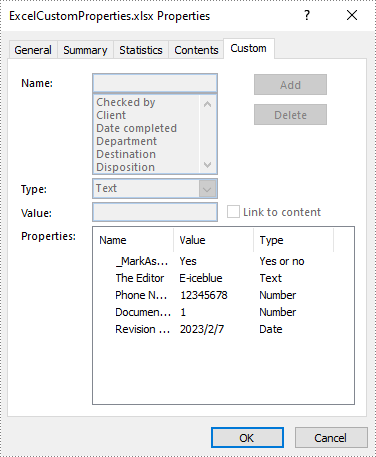
Custom document properties are additional properties that you can define for an Excel document. Spire.XLS for .NET allows you to add custom properties with specified names and values using ICustomDocumentProperties.Add() method. The following are the detailed steps.
- Create a Workbook object.
- Load a sample Excel document using Workbook.LoadFromFile() method.
- Get the custom document properties of the document using Workbook.CustomDocumentProperties property.
- Add custom document properties with different data types to the document using ICustomDocumentProperties.Add() method.
- Save the result document using Workbook.SaveToFile() method.
- C#
- VB.NET
using Spire.Xls;
using System;

namespace CustomExcelProperties
{
    class Program
    {
        static void Main(string[] args)
        {
            //Create a Workbook object
            Workbook workbook = new Workbook();

            //Load a sample Excel document
            workbook.LoadFromFile("sample.xlsx");

            //Add custom document properties to the document
            workbook.CustomDocumentProperties.Add("_MarkAsFinal", true);
            workbook.CustomDocumentProperties.Add("The Editor", "E-iceblue");
            workbook.CustomDocumentProperties.Add("Phone Number", 12345678);
            workbook.CustomDocumentProperties.Add("Document ID", 1);
            workbook.CustomDocumentProperties.Add("Revision Date", DateTime.Now);

            //Save the result document
            workbook.SaveToFile("ExcelCustomProperties.xlsx", FileFormat.Version2013);
        }
    }
}
Apply for a Temporary License
If you'd like to remove the evaluation message from the generated documents, or to get rid of the function limitations, please request a 30-day trial license for yourself.
Sometimes, we may get annoyed when we have to open many Excel files simultaneously. Merging Excel files of the same type or category can help us avoid the trouble and save us much time. This article will demonstrate how to merge Excel files into One in C# and VB.NET using Spire.XLS for .NET library.
- Merge Multiple Excel Workbooks into One in C# and VB.NET
- Merge Multiple Excel Worksheets into One in C# and VB.NET
Install Spire.XLS for .NET
To begin with, you need to add the DLL files included in the Spire.XLS for .NET package as references in your .NET project. The DLL files can be either downloaded from this link or installed via NuGet.
PM> Install-Package Spire.XLS
Merge Multiple Excel Workbooks into One in C# and VB.NET
The following are the steps to merge multiple Excel workbooks into one:
- Create a string array from the Excel file paths.
- Initialize a Workbook object to create a new Excel workbook, and clear the default worksheets in the workbook using Workbook.Worksheets.Clear() method.
- Initialize another temporary Workbook object.
- Loop through the string array, load the current workbook into the temporary Workbook object using Workbook.LoadFromFile() method.
- loop through the worksheets in the current workbook, then copy each worksheet from the current workbook to the new workbook using Workbook.Worksheets.AddCopy() method.
- Save the new workbook to file using Workbook.SaveToFile() method.
- C#
- VB.NET
using Spire.Xls;

namespace MergeExcelFiles
{
    class Program
    {
        static void Main(string[] args)
        {
            //Create a string array from Excel file paths
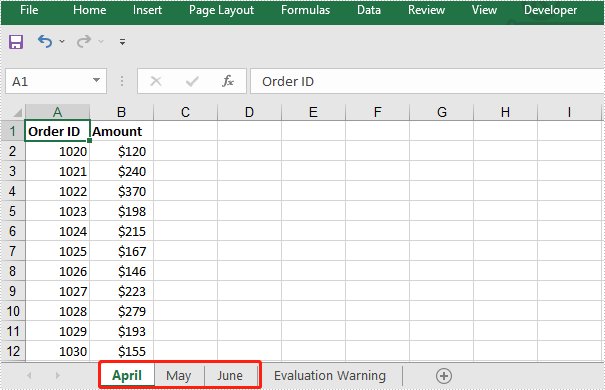
            string[] inputFiles = new string[] { "April.xlsx", "May.xlsx", "June.xlsx" };

            //Initialize a new Workbook object
            Workbook newWorkbook = new Workbook();
            //Clear the default worksheets
            newWorkbook.Worksheets.Clear();

            //Initialize another temporary Workbook object
            Workbook tempWorkbook = new Workbook();

            //Loop through the string array
            foreach (string file in inputFiles)
            {
                //Load the current workbook
                tempWorkbook.LoadFromFile(file);
                //Loop through the worksheets in the current workbook
                foreach (Worksheet sheet in tempWorkbook.Worksheets)
                {
                    //Copy each worksheet from the current workbook to the new workbook
                    newWorkbook.Worksheets.AddCopy(sheet, WorksheetCopyType.CopyAll);
                }
            }

            //Save the new workbook to file
            newWorkbook.SaveToFile("MergeWorkbooks.xlsx", ExcelVersion.Version2013);
        }
    }
}
The input Excel workbooks:

The merged Excel workbook:
Merge Multiple Excel Worksheets into One in C# and VB.NET
We can merge multiple worksheets in the same or different workbooks into one. The following steps show how to merge two Excel worksheets in the same workbook into a single worksheet:
- Initialize a Workbook object and load an Excel file using Workbook.LoadFromFile() method.
- Get the two worksheets that need to be merged using Workbook.Worksheets[sheetIndex] property. Note the sheet index is zero-based.
- Get the used range of the second worksheet using Worksheet.AllocatedRange property.
- Specify the destination range in the first worksheet using Worksheet.Range[rowIndex, columnIndex] property. Note the row and column indexes are 1-based.
- Copy the used range of the second worksheet to the destination range in the first worksheet using CellRange.Copy(destRange) method.
- Remove the second worksheet using XlsWorksheet.Remove() method.
- Save the result file using Workbook.SaveToFile() method.
- C#
- VB.NET
using Spire.Xls;

namespace MergeExcelWorksheets
{
    class Program
    {
        static void Main(string[] args)
        {
            //Create a Workbook object
            Workbook workbook = new Workbook();
            //Load an Excel file
            workbook.LoadFromFile("Sample.xlsx");

            //Get the first worksheet
            Worksheet sheet1 = workbook.Worksheets[0];
            //Get the second worksheet
            Worksheet sheet2 = workbook.Worksheets[1];

            //Get the used range in the second worksheet
            CellRange sourceRange = sheet2.AllocatedRange;
            //Specify the destination range in the first worksheet
            CellRange destRange = sheet1.Range[sheet1.LastRow + 1, 1];

            //Copy the used range of the second worksheet to the destination range in the first worksheet
            sourceRange.Copy(destRange);

            //Remove the second worksheet
            sheet2.Remove();

            //Save the result file
            workbook.SaveToFile("MergeWorksheets.xlsx", ExcelVersion.Version2013);
        }
    }
}
The input Excel worksheets:

The merged Excel worksheets:

Apply for a Temporary License
If you'd like to remove the evaluation message from the generated documents, or to get rid of the function limitations, please request a 30-day trial license for yourself.
Excel spreadsheet is a widely used file format that enables users to organize, analyze, and present data in a tabular format. The ability to interact with Excel files programmatically is highly valuable, as it allows automation and integration of Excel functionality into software applications. This capability is particularly useful when working with large datasets, performing complex calculations, or when data needs to be dynamically generated or updated. In this article, you will learn how to create, read, or update Excel documents in C# and VB.NET using Spire.XLS for .NET.
- Create an Excel File in C#, VB.NET
- Read Data of a Worksheet in C#, VB.NET
- Update an Excel File in C#, VB.NET
Install Spire.XLS for .NET
To begin with, you need to add the DLL files included in the Spire.XLS for .NET package as references in your .NET project. The DLL files can be either downloaded from this link or installed via NuGet.
PM> Install-Package Spire.XLS
Create an Excel File in C#, VB.NET
Spire.XLS for .NET offers a variety of classes and interfaces that you can use to create and edit Excel documents. Here is a list of important classes, properties and methods involved in this article.
| Member | Description |
| Workbook class | Represents an Excel workbook model. |
| Workbook.Worksheets.Add() method | Adds a worksheet to workbook. |
| Workbook.SaveToFile() method | Saves the workbook to an Excel document. |
| Worksheet class | Represents a worksheet in a workbook. |
| Worksheet.Range property | Gets a specific cell or cell range from worksheet. |
| Worksheet.Range.Value property | Gets or sets the value of a cell. |
| Worksheet.Rows property | Gets a collection of rows in worksheet. |
| Worksheet.InsertDataTable() method | Imports data from DataTable to worksheet. |
| CellRange class | Represents a cell or cell range in worksheet. |
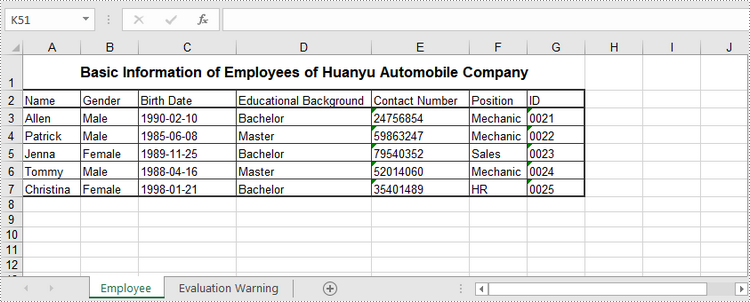
The following are the steps to create an Excel document from scratch using Spire.XLS for .NET.
- Create a Workbook object.
- Add a worksheet using Workbook.Worksheets.Add() method.
- Write data to a specific cell through Worksheet.Range.Value property.
- Import data from a DataTable to the worksheet using Worksheet.InsertDataTable() method.
- Save the workbook to an Excel document using Workbook.SaveToFile() method.
- C#
- VB.NET
using Spire.Xls;
using System.Data;

namespace CreateExcelSpreadsheet
{
    class Program
    {
        static void Main(string[] args)
        {
            //Create a Workbook object
            Workbook wb = new Workbook();

            //Remove default worksheets
            wb.Worksheets.Clear();

            //Add a worksheet and name it "Employee"
            Worksheet sheet = wb.Worksheets.Add("Employee");

            //Merge the cells between A1 and G1
            sheet.Range["A1:G1"].Merge();

            //Write data to A1 and apply formatting to it
            sheet.Range["A1"].Value = "Basic Information of Employees of Huanyu Automobile Company";
            sheet.Range["A1"].HorizontalAlignment = HorizontalAlignType.Center;
            sheet.Range["A1"].VerticalAlignment = VerticalAlignType.Center;
            sheet.Range["A1"].Style.Font.IsBold = true;
            sheet.Range["A1"].Style.Font.Size = 13F;

            //Set row height of the first row
            sheet.Rows[0].RowHeight = 30F;

            //Create a DataTable
            DataTable dt = new DataTable();
            dt.Columns.Add("Name");
            dt.Columns.Add("Gender");
            dt.Columns.Add("Birth Date");
            dt.Columns.Add("Educational Background");
            dt.Columns.Add("Contact Number");
            dt.Columns.Add("Position");
            dt.Columns.Add("ID");
            dt.Rows.Add("Allen", "Male", "1990-02-10", "Bachelor", "24756854", "Mechanic", "0021");
            dt.Rows.Add("Patrick", "Male", "1985-06-08", "Master", "59863247", "Mechanic", "0022");
            dt.Rows.Add("Jenna", "Female", "1989-11-25", "Bachelor", "79540352", "Sales", "0023");
            dt.Rows.Add("Tommy", "Male", "1988-04-16", "Master", "52014060", "Mechanic", "0024");
            dt.Rows.Add("Christina", "Female", "1998-01-21", "Bachelor", "35401489", "HR", "0025");

            //Import data from DataTable to worksheet
            sheet.InsertDataTable(dt, true, 2, 1, true);

            //Set row height of a range
            sheet.Range["A2:G7"].RowHeight = 15F;

            //Set column width
            sheet.Range["A2:G7"].Columns[2].ColumnWidth = 15F;
            sheet.Range["A2:G7"].Columns[3].ColumnWidth = 21F;
            sheet.Range["A2:G7"].Columns[4].ColumnWidth = 15F;

            //Set border style of a range
            sheet.Range["A2:G7"].BorderAround(LineStyleType.Medium);
            sheet.Range["A2:G7"].BorderInside(LineStyleType.Thin);
            sheet.Range["A2:G2"].BorderAround(LineStyleType.Medium);
            sheet.Range["A2:G7"].Borders.KnownColor = ExcelColors.Black;

            //Save to a .xlsx file
            wb.SaveToFile("NewSpreadsheet.xlsx", FileFormat.Version2016);
        }
    }
}
Read Data of a Worksheet in C#, VB.NET
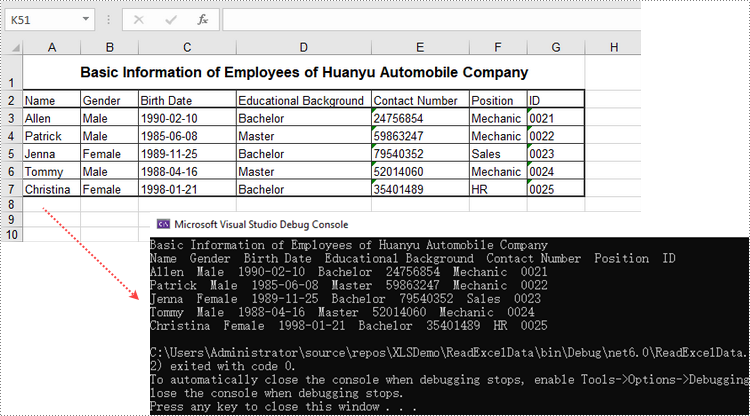
The Worksheet.Range.Value property returns number value or text value of a cell as a string. To get data of a whole worksheet or a cell range, loop through the cells within it. The following are the steps to get data of a worksheet using Spire.XLS for .NET.
- Create a Workbook object.
- Load an Excel document using Workbook.LoadFromFile() method.
- Get a specific worksheet through Workbook.Worksheets[index] property.
- Get the cell range containing data though Worksheet.AllocatedRange property.
- Iterate through the rows and columns to get cells within the range, and return the value of each cell through CellRange.Value property.
- C#
- VB.NET
using Spire.Xls;

namespace ReadExcelData
{
    class Program
    {
        static void Main(string[] args)
        {
            //Create a Workbook object
            Workbook wb = new Workbook();

            //Load an existing Excel file
            wb.LoadFromFile(@"C:\Users\Administrator\Desktop\NewSpreadsheet.xlsx");

            //Get the first worksheet
            Worksheet sheet = wb.Worksheets[0];

            //Get the cell range containing data
            CellRange locatedRange = sheet.AllocatedRange;

            //Iterate through the rows
            for (int i = 0;i < locatedRange.Rows.Length;i++)
            {
                //Iterate through the columns
                for (int j = 0; j < locatedRange.Rows[i].ColumnCount; j++)
                {
                    //Get data of a specific cell
                    Console.Write(locatedRange[i + 1, j + 1].Value + "  ");

                }
                Console.WriteLine();
            }
        }
    }
}
Update an Excel Document in C#, VB.NET
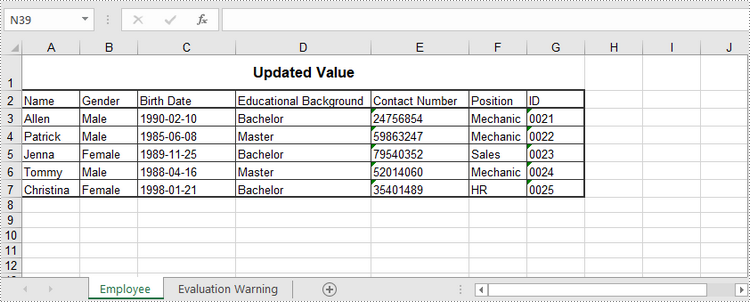
To change the value of a certain cell, just re-assign a value to it through Worksheet.Range.Value property. The following are the detailed steps.
- Create a Workbook object.
- Load an Excel document using Workbook.LoadFromFile() method.
- Get a specific worksheet through Workbook.Worksheets[index] property.
- Change the value of a particular cell though Worksheet.Range.Value property.
- Save the workbook to an Excel file using Workbook.SaveToFile() method.
- C#
- VB.NET
using Spire.Xls;

namespace UpdateCellValue
{
    class Program
    {
        static void Main(string[] args)
        {
            //Create a Workbook object
            Workbook wb = new Workbook();

            //Load an existing Excel file
            wb.LoadFromFile(@"C:\Users\Administrator\Desktop\NewSpreadsheet.xlsx");

            //Get the first worksheet
            Worksheet sheet = wb.Worksheets[0];

            //Change the value of a specific cell
            sheet.Range["A1"].Value = "Updated Value";

            //Save to file
            wb.SaveToFile("Updated.xlsx", ExcelVersion.Version2016);
        }
    }
}
Apply for a Temporary License
If you'd like to remove the evaluation message from the generated documents, or to get rid of the function limitations, please request a 30-day trial license for yourself.
By running VBA within the Office applications, developers/programmers can build customized solutions and programs to enhance the capabilities of those applications. The VBA function of Excel is very powerful. Below I will show you how to use VBA by Spire.XLS.
VBA is the acronym for VB.NET for Applications. It is an implementation of Microsoft's event-driven programming language VB.NET 6 and its associated integrated development environment (IDE), which are built into most Microsoft Office applications. VBA is closely related to VB.NET and uses the VB.NET Runtime Library, but can normally only run code within a host application rather than as a standalone program. It can be used to control one application from another via OLE Automation.
Spire.XLS for .NET is a professional Excel .NET component that can be linked into any type of .NET 2.0, 3.5 or 4.0 projects, either ASP.NET web sites or Windows Forms application. Spire.XLS for .NET offers a combination of APIs and GUI controls for speeding up Excel programming in .NET platform-create new Excel documents from scratch, edit existing Excel documents and convert Excel files. At the same time, Spire.XLS supports VBA and it can load/Save Excel VBA.
Here comes to the steps:
- Write a template with VBA program with which you can execute your work in Excel.
- Create another workbook to load the VBA template.
In this demo, it generates a new worksheet named "test" with the VBA template we provide.
Please check the codes as below:
using Spire.Xls;

namespace NumberFormat
{
    class Program
    {
        static void Main(string[] args)
        {
            //Create a workbook
            Workbook workbook = new Workbook();

            //Initailize worksheet
            workbook.LoadFromFile("VBASample.xls");
            Worksheet sheet = workbook.Worksheets[0];

            //VBA function
            sheet.Range["A1"].Text = "test";

            //Save the file
            workbook.SaveToFile("Sample.xls",ExcelVersion.Version97to2003);

            //Launch the file
            System.Diagnostics.Process.Start("Sample.xls");
        }
    }
}
Imports Spire.Xls

Module Module1

    Sub Main()
        'Create a workbook
        Dim workbook As New Workbook()

        'Initailize worksheet
        workbook.LoadFromFile("VBASample.xls")
        Dim sheet As Worksheet = workbook.Worksheets(0)

        'VBA function
        sheet.Range("A1").Text = "test"

        'Save doc file.
        workbook.SaveToFile("Sample.xls",ExcelVersion.Version97to2003)

        'Launching the MS Word file.
        System.Diagnostics.Process.Start("Sample.xls")
    End Sub
End Module
Automation of an Excel file allows us to doing various operations in C#/VB.NET. Any loss in these operations may result in unexpected negative consequences for developers and the clients of the developers. That means we must find a solution that enables us to Save Excel with no loss in quality of our operations. This section will demonstrate how to fast save Excel file with perfect performance as directly operations in Excel files.
Spire.Xls for .NET is a professional component that enables developers directly manages Excel operation regardless whether Microsoft Excel is installed on or not. With Spire.Xls for .NET, we can save Excel to what we want it to be. Any kind of trial and evaluation on Spire.Xls for .NET is always welcomed; so now please feel free to download Spire.Xls for .NET and then follow our guide to save perfect Excel or try other function of Spire.Xls for .NET.
Spire.Xls for .NET allows us to create a new Excel file, write data in to it, edit the input data and then save Excel file.
using Spire.Xls;
namespace Excel_save
{
   class Program
    {
        static void Main(string[] args)
        {
           //Create a new workbook
            Workbook workbook = new Workbook();
           //Initialize worksheet
            Worksheet sheet = workbook.Worksheets[0];
           //Append text
            sheet.Range["A1"].Text = "Demo: Save Excel in .NET";
           //Save it as Excel file
            workbook.SaveToFile("Sample.xls",ExcelVersion.Version97to2003);
           //Launch the file
           System.Diagnostics.Process.Start(workbook.FileName);
        }
    }
}
Imports Spire.Xls
Namespace Excel_save
	Class Program
		Private Shared Sub Main(args As String())
			'Create a new workbook
			Dim workbook As New Workbook()
			'Initialize worksheet
			Dim sheet As Worksheet = workbook.Worksheets(0)
			'Append text
			sheet.Range("A1").Text = "Demo: Save Excel in .NET"
			'Save it as Excel file
			workbook.SaveToFile("Sample.xls",ExcelVersion.Version97to2003)
			'Launch the file
			System.Diagnostics.Process.Start(workbook.FileName)
		End Sub
	End Class
End Namespace
