
Conversion (32)
This section aims at providing a detail solution for developers on how to convert specific worksheet cells to image via this .NET Excel component Spire.XLS for .NET in C#, VB.NET. This Excel library helps us quickly convert certain excel cells to different image formats such as jpeg, png, bmp, tiff, gif, ico, emf, exif etc.
When we convert worksheet to image, Spire.XLS for .NET provides us a method: Spire.Xls.Worksheet.ToImage(int firstRow, int firstColumn, int lastRow, int lastColumn); As we see, there are four parameters passed in this method. These four parameters determine the certain range of cells. After deciding the cell range, we can successfully convert cells to image. Now, let us see the whole task step by step.
Step 1: Create a template Excel Workbook in MS Excel
I create a new Excel file in MS Excel and add some data which have different formats in the first sheet, here is a screenshot of created file.

Step 2: Download and Install Spire.XLS for .NET
Spire.XLS for .NET is an Excel Api which enables users to quickly generate, read, edit and manipulate Excel files on .NET Platform. Here you can download Spire.XLS for .NET and install it on your development computer. After installing it, Spire.XLS for .NET will run in evaluation mode which is the same when you install other Spire components. This evaluation mode has no time limit.
Step 3: Create a project and Add References
We can create a new project of Console Application either in C# or VB.NET. I create in C#, but we can choose VB.NET too.
In this project, we need to add references in our project. Apart from adding System.Drawing, we will use Spire.XLS for .NET, so we also have to add Spire.Xls.dll, Spire.Common.dll and Spire.License.dll in our download Bin folder of Spire.Xls. Here we can see the default path: "..\Spire.XLS\Bin\NET4.0\Spire.XLS.dll"
Step 4: Convert Specific Worksheet Cells to Image
In this step, first we can initialize a new object of the class Spire.Xls.Workbook, then, load the template Excel file. Since I want to convert cells in the first sheet to image, I need get the first worksheet data in Excel file. You also can get other worksheet data. Finally specify cell range and save the cells in the range as image file. Spire.XLS for .NET supports 12 image formats: Bmp, Emf, Equals, Exif, Gif, Icon, Jpeg, MemoryBmp, Png, ReferenceEquals, Tiff and Wmf.
using System.Drawing.Imaging;
using Spire.Xls;

namespace ConsoleApplication1
{
    class Program
    {
        static void Main(string[] args)
        {
            //Initialize a new Workbook object
            Workbook workbook = new Workbook();
            //Open Template Excel file
            workbook.LoadFromFile(@"..\excel to image.xlsx");
            //Get the first wirksheet in Excel file
            Worksheet sheet = workbook.Worksheets[0];
            //Specify Cell Ranges and Save to certain Image formats
            sheet.ToImage(1, 1, 6, 3).Save("image1.png", ImageFormat.Png);
            sheet.ToImage(7, 1, 12, 3).Save("image2.jpeg", ImageFormat.Jpeg);
            sheet.ToImage(13, 1, 18, 3).Save("image3.bmp", ImageFormat.Bmp);
        }
    }
}
Imports System.Drawing.Imaging
Imports Spire.Xls

Module Module1

    Sub Main()
        'Initialize a new Workbook object
        Dim workbook As New Workbook()
        'Open Template Excel file
        workbook.LoadFromFile("..\excel to image.xlsx")
        'Get the first wirksheet in Excel file
        Dim sheet As Worksheet = workbook.Worksheets(0)
        'Specify Cell Ranges and Save to certain Image formats
        sheet.ToImage(1, 1, 6, 3).Save("image1.png", ImageFormat.Png)
        sheet.ToImage(7, 1, 12, 3).Save("image2.jpeg", ImageFormat.Jpeg)
        sheet.ToImage(13, 1, 18, 3).Save("image3.bmp", ImageFormat.Bmp)
    End Sub

End Module
Result Task
After executing above code, cells in the first worksheet named "Sheet1" has been converted to three images. They are named "image1.png", "image2.jpeg" and "image3.bmp". You can see them as below:

In this section, I have introduced how we can convert specific cells to image by using Spire.XLS for .NET. I sincerely hope it can help you and give you some insight.
Spire.XLS for .NET offers fast speed, high efficiency and reliability to satisfy development application requirements. As you see above, the results do show that Spire.XLS for .NET benefit customers from years of research.
We appreciate any kind of queries, comments and suggestions at E-iceblue Forum. We promise a quick reply within minutes or hours as we can.
In daily work, you may come across some situations where you need to convert Excel to images, such as attaching a cell range to a PowerPoint presentation or safely sending your spreadsheet data via email. This article will show you how to programmatically convert Excel to images from the following two aspects using Spire.XLS for .NET.
Install Spire.XLS for .NET
To begin with, you need to add the DLL files included in the Spire.XLS for .NET package as references in your .NET project. The DLL files can be either downloaded from this link or installed via NuGet.
PM> Install-Package Spire.XLS
Convert a Whole Excel Worksheet to an Image
The following are steps to convert a whole Excel worksheet to an image.
- Create a Workbook instance.
- Load an Excel sample document using Workbook.LoadFromFile() method.
- Get a specific worksheet of the document using Workbook.Worksheets[] property.
- Save the worksheet as an image using Worksheet.SaveToImage() method.
- C#
- VB.NET
using Spire.Xls;
namespace Xls2Image

{
    class Program
    {
        static void Main(string[] args)
        {
            //Create a Workbook instance
            Workbook workbook = new Workbook();

            //Load an Excel sample document
            workbook.LoadFromFile(@"sample.xlsx");

            //Get the first worksheet
            Worksheet sheet = workbook.Worksheets[0];

            //Save the worksheet as an image
            sheet.SaveToImage("XlsToImage.jpg");
        }
    }
}
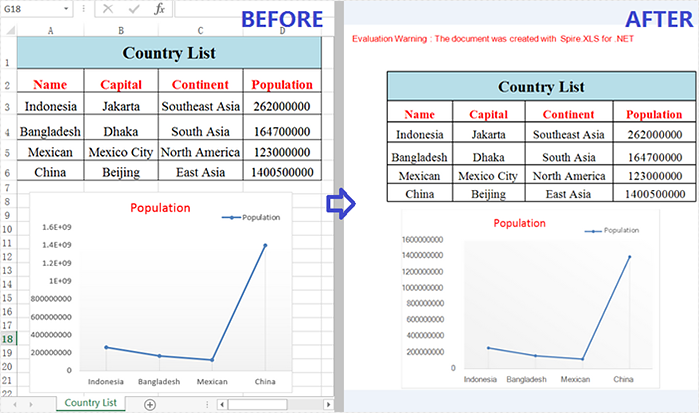
Convert a Specific Cell Range to an Image
In addition to converting a whole worksheet to an image, Spire.XLS for .NET also supports converting a specific cell range of a worksheet to an image. Detailed steps are listed below.
- Create a Workbook instance.
- Load an Excel sample document using Workbook.LoadFromFile() method.
- Get a specific worksheet of the document using Workbook.Worksheets[] property.
- Specify a cell range and save it as the Image object using Worksheet.ToImage() method, and then save the object as a certain image format using Image.Save() method.
- C#
- VB.NET
using Spire.Xls;
using System.Drawing.Imaging;

namespace SpecificCellsToImage
{

    class Program
    {
        static void Main(string[] args)
        {
            //Create a Workbook instance
            Workbook workbook = new Workbook();

            //Load an Excel sample document
            workbook.LoadFromFile(@"sample.xlsx");

            //Get the first worksheet
            Worksheet sheet = workbook.Worksheets[0];

            //Specify a cell range and save it to a certain image format
            sheet.ToImage(1, 1, 6, 4).Save("CellRangeToImage.png", ImageFormat.Png);
        }
        }
    }
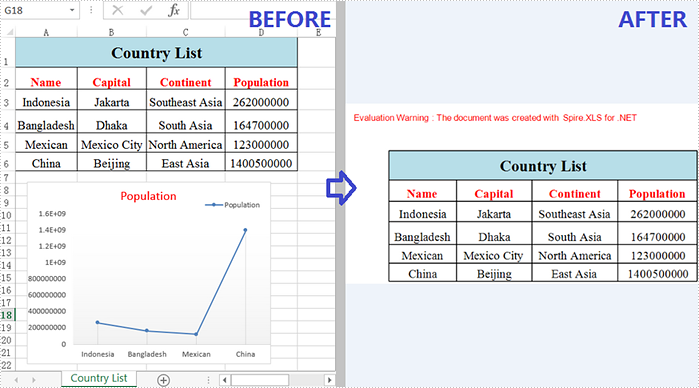
Apply for a Temporary License
If you'd like to remove the evaluation message from the generated documents, or to get rid of the function limitations, please request a 30-day trial license for yourself.
Open XML is an XML-based file format developed by Microsoft that allows users to store and exchange various types of files such as word processing documents, spreadsheets, presentations, charts, and diagrams. It is widely recognized and supported by various applications, making it a reliable choice for long-term data preservation.
In some cases, it may be necessary to convert Excel files to Open XML format to ensure that these files can be opened and read by other software. On the other hand, there may be situations where users need to convert Open XML files to Excel format to take advantage of the data analysis tools available in Excel, such as pivot tables and charts. In this article, we will introduce how to convert Excel to Open XML or Open XML to Excel in C# and VB.NET using Spire.XLS for .NET.
Install Spire.XLS for .NET
To begin with, you need to add the DLL files included in the Spire.XLS for .NET package as references in your .NET project. The DLL files can be either downloaded from this link or installed via NuGet.
PM> Install-Package Spire.XLS
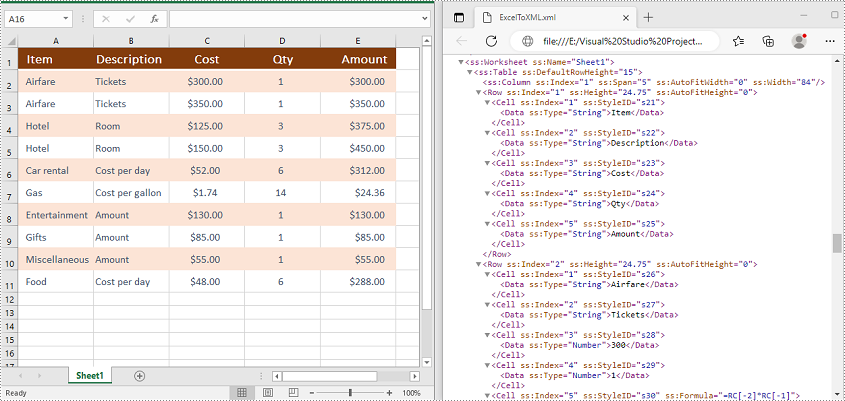
Convert Excel to Open XML in C# and VB.NET
To convert an Excel file to Open XML, you need to load the Excel file using the Workbook.LoadFromFile(string fileName) method, then call the Workbook.SaveAsXml(string fileName) method to save it in Open XML format.
The following steps demonstrate how to convert an Excel file to Open XML:
- Initialize an instance of the Workbook class.
- Load an Excel file using the Workbook.LoadFromFile(string fileName) method.
- Call the Workbook.SaveAsXml(string fileName) method to save the Excel file in Open XML format.
- C#
- VB.NET
using Spire.Xls;

namespace ConvertExcelToOpenXML
{
    internal class Program
    {
        static void Main(string[] args)
        {
            //Initialize an instance of the Workbook class
            Workbook workbook = new Workbook();
            //Load an Excel file
            workbook.LoadFromFile("Sample.xlsx");

            //Save the Excel file in Open XML file format
            workbook.SaveAsXml("ExcelToXML.xml");
        }
    }
}
Convert Open XML to Excel in C# and VB.NET
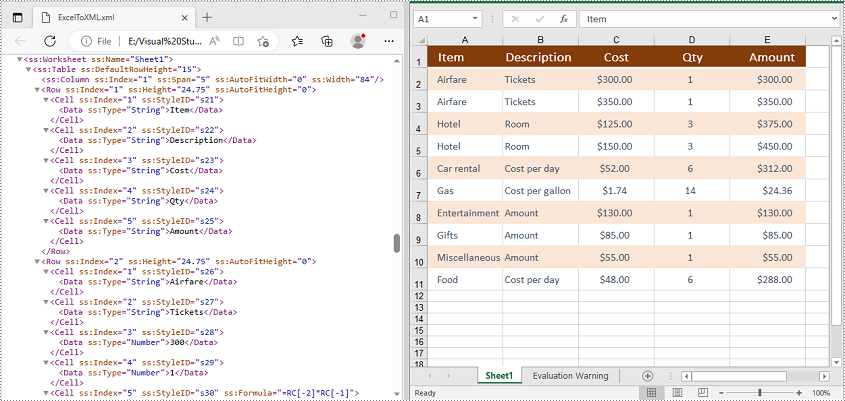
To convert an Open XML file to Excel, you need to load the Open XML file using the Workbook.LoadFromXml(string fileName) method, then call the Workbook.SaveToFile(string fileName, ExcelVersion version) method to save it in Excel format.
The following are the steps to convert an Open XML file to Excel:
- Initialize an instance of the Workbook class.
- Load an Open XML file using the Workbook.LoadFromXml(string fileName) method.
- Call the Workbook.SaveToFile(string fileName, ExcelVersion version) method to save the Open XML file in Excel format.
- C#
- VB.NET
using Spire.Xls;

namespace ConvertOpenXMLToExcel
{
    internal class Program
    {
        static void Main(string[] args)
        {
            //Initialize an instance of the Workbook class
            Workbook workbook = new Workbook();
            //Load an Open XML file
            workbook.LoadFromXml("ExcelToXML.xml");

            //Save the Open XML file in Excel XLSX file format
            workbook.SaveToFile("XMLToExcel.xlsx", ExcelVersion.Version2016);
        }
    }
}
Apply for a Temporary License
If you'd like to remove the evaluation message from the generated documents, or to get rid of the function limitations, please request a 30-day trial license for yourself.
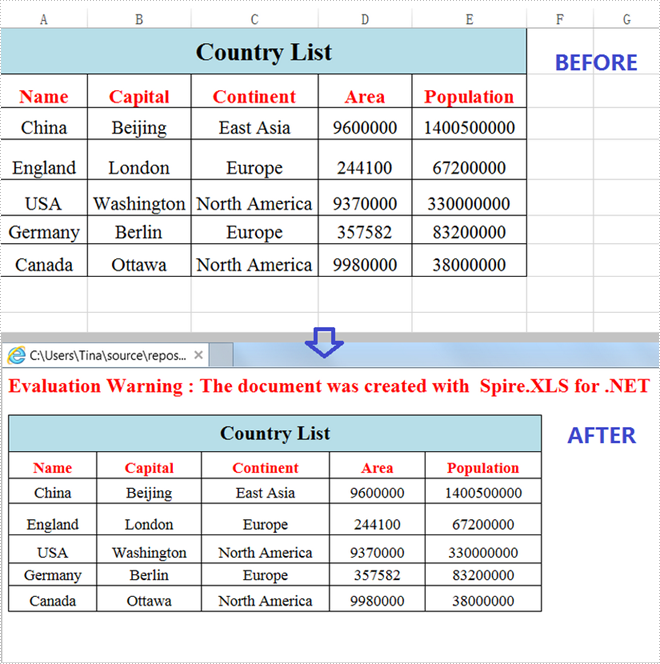
When you create an Excel table and want to publish it online as a web page, the simplest way is to convert it to an HTML file. This article will demonstrate how to convert Excel to HTML programmatically from the following two aspects using Spire.XLS for .NET.
Install Spire.XLS for .NET
To begin with, you need to add the DLL files included in the Spire.XLS for .NET package as references in your .NET project. The DLL files can be either downloaded from this link or installed via NuGet.
PM> Install-Package Spire.XLS
Convert Excel to HTML
Spire.XLS for .NET supports converting a specific Excel worksheet to HTML using Worksheet.SaveToHtml() method. Detailed steps are listed below.
- Create a Workbook instance.
- Load an Excel sample document using Workbook.LoadFromFile() method.
- Get a specific worksheet using Workbook.Worksheets[] property
- Save the worksheet as an HTML file using Worksheet.SaveToHtml() method.
- C#
- VB.NET
using Spire.Xls;

namespace XLSToHTML

{
    class Program
    {
        static void Main(string[] args)
        {
            //Create a Workbook instance
            Workbook workbook = new Workbook();

            //Load an Excel sample document
            workbook.LoadFromFile(@"sample.xlsx");

            //Get the first worksheet of the document
            Worksheet sheet = workbook.Worksheets[0];

            //Save the worksheet to HTML
            sheet.SaveToHtml("ExcelToHTML.html");
        }
    }
}
Convert Excel to HTML with Images Embedded
The following are steps to convert an Excel worksheet to HTML with images embedded.
- Create a Workbook instance.
- Load an Excel sample document using Workbook.LoadFromFile() method.
- Get a specific worksheet using Workbook.Worksheets[] property.
- Create an HTMLOptions instance.
- Set the ImageEmbedded as true to embed images to HTML.
- Save the worksheet as an HTML file using Worksheet.SaveToHtml() method.
- C#
- VB.NET
using Spire.Xls;
using Spire.Xls.Core.Spreadsheet;

namespace XLSToHTML

{
    class Program
    {
        static void Main(string[] args)
        {
            //Create a Workbook instance
            Workbook workbook = new Workbook();

            //Load an Excel sample document
            workbook.LoadFromFile(@"sample.xlsx");

            //Get the first worksheet of the document
            Worksheet sheet = workbook.Worksheets[0];

            //Create an HTMLOptions instance
            HTMLOptions options = new HTMLOptions();

            //Embed images to HTML
            options.ImageEmbedded = true;

            //Save the worksheet to HTML
            sheet.SaveToHtml("XLS2HTML.html", options);
        }
    }
}

Apply for a Temporary License
If you'd like to remove the evaluation message from the generated documents, or to get rid of the function limitations, please request a 30-day trial license for yourself.
