
Conversion (32)
Excel, developed by Microsoft, is a widely used spreadsheet application that offers a range of features for data analysis, visualization, and management. ODS (OpenDocument Spreadsheet), on the other hand, is an open standard format for spreadsheets, which means it can be read and edited by various software applications, including LibreOffice and Apache OpenOffice.
Converting between these two formats can be necessary for compatibility, sharing, or specific feature requirements. In this article, you will learn how to convert Excel to ODS or OSD to Excel in C# using Spire.XLS for .NET.
Install Spire.XLS for .NET
To begin with, you need to add the DLL files included in the Spire.XLS for .NET package as references in your .NET project. The DLL files can be either downloaded from this link or installed via NuGet.
PM> Install-Package Spire.XLS
Convert Excel to ODS (OpenDocument Spreadsheet) in C#
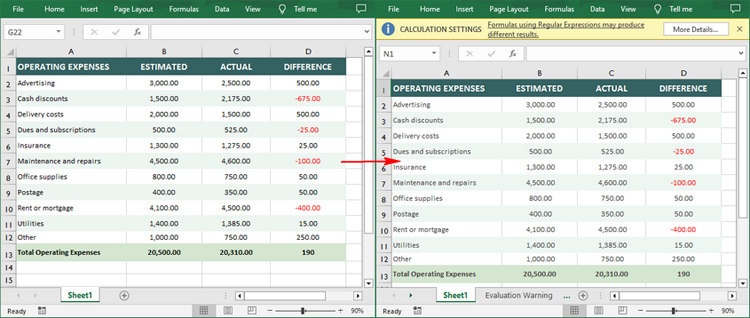
You can load an Excel (.xls or .xlsx) file and then save it as an ODS file through the Workbook.SaveToFile(string fileName, FileFormat.ODS) method. The following are the detailed steps:
- Create a Workbook instance.
- Load an Excel file using Workbook.LoadFromFile() method.
- Save the Excel file to ODS format using Workbook.SaveToFile(string fileName, FileFormat.ODS) method.
- C#
using Spire.Xls;

namespace ConvertExcelToODS
{
    class Program
    {
        static void Main(string[] args)
        {
            // Create Workbook instance
            Workbook workbook = new Workbook();

            // Load an Excel file
            workbook.LoadFromFile("Sample.xlsx");

            // Save the Excel to ODS file
            workbook.SaveToFile("ToODS.ods", FileFormat.ODS);
        }
    }
}
Convert ODS to Excel (XLS/XLSX) in C#
Spire.XLS for .NET also supports converting an ODS file back to Excel XLS or XLS format. The following are the detailed steps:
- Create a Workbook instance.
- Load an ODS file using Workbook.LoadFromFile() method.
- Save the ODS file in XLS or XLSX format using Workbook.SaveToFile(string fileName, FileFormat fileFormat) method.
- C#
using Spire.Xls;

namespace ODSToExcel
{
    class Program
    {
        static void Main(string[] args)
        {
            // Create Workbook instance
            Workbook workbook = new Workbook();

            // Load an ODS file
            workbook.LoadFromFile("ToODS.ods");

            // Save the ODS file in XLSX format
            workbook.SaveToFile("ToExcel.xlsx", FileFormat.Version2016);

            // Save the ODS file in XLS format
            workbook.SaveToFile("ToExcel.xls", FileFormat.Version97to2003);
        }
    }
}

Apply for a Temporary License
If you'd like to remove the evaluation message from the generated documents, or to get rid of the function limitations, please request a 30-day trial license for yourself.
C#/VB.NET: Convert Excel Data to Word Tables with Formatting
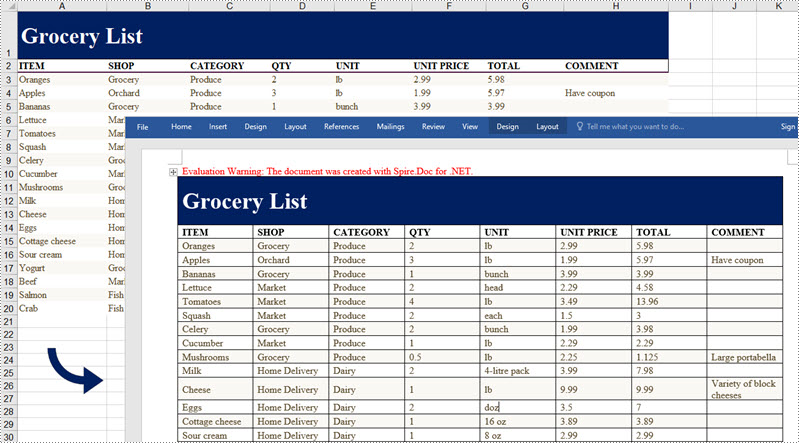
2022-09-16 05:55:00 Written by AdministratorIf you're creating a written report on a company's monthly expenditures, you might need to include a spreadsheet to show the financial figures and make them easier to read. This article demonstrates how to convert Excel data into a Word table maintaining the formatting in C# and VB.NET using Spire.Office for .NET.
Install Spire.Office for .NET
To begin with, you need to add the DLL files included in the Spire.Office for .NET package as references in your .NET project. The DLL files can be either downloaded from this link or installed via NuGet.
PM> Install-Package Spire.Office
Export Excel Data to a Word Table with Formatting
Below are the steps to convert Excel data to a Word table and keep the formatting using Spire.Office for .NET.
- Create a Workbook object and load a sample Excel file using Workbook.LoadFromFile() method.
- Get a specific worksheet through Workbook.Worksheets[index] property.
- Create a Document object, and add a section to it.
- Add a table using Section.AddTable() method.
- Detect the merged cells in the worksheet and merge the corresponding cells of the Word tale using the custom method MergeCells().
- Get value of a specific Excel cell through CellRange.Value property and add it to a cell of the Word table using TableCell.AddParagraph().AppendText() method.
- Copy the font style and cell style from Excel to the Word table using the custom method CopyStyle().
- Save the document to a Word file using Document.SaveToFile() method.
- C#
- VB.NET
using Spire.Doc;
using Spire.Doc.Documents;
using Spire.Doc.Fields;
using Spire.Xls;

namespace ConvertExcelToWord
{
    internal class Program
    {
        static void Main(string[] args)
        {

            //Load an Excel file
            Workbook workbook = new Workbook();
            workbook.LoadFromFile(@"C:\Users\Administrator\Desktop\sample.xlsx");

            //Get the first worksheet
            Worksheet sheet = workbook.Worksheets[0];

            //Create a Word document
            Document doc = new Document();
            Section section = doc.AddSection();
            section.PageSetup.Orientation = PageOrientation.Landscape;

            //Add a table
            Table table = section.AddTable(true);
            table.ResetCells(sheet.LastRow, sheet.LastColumn);

            //Merge cells
            MergeCells(sheet, table);

            for (int r = 1; r <= sheet.LastRow; r++)
            {
                //Set row Height
                table.Rows[r - 1].Height = (float)sheet.Rows[r - 1].RowHeight;

                for (int c = 1; c <= sheet.LastColumn; c++)
                {
                    CellRange xCell = sheet.Range[r, c];
                    TableCell wCell = table.Rows[r - 1].Cells[c - 1];

                    //Export data from Excel to Word table
                    TextRange textRange = wCell.AddParagraph().AppendText(xCell.NumberText);

                    //Copy font and cell style from Excel to Word
                    CopyStyle(textRange, xCell, wCell);
                }
            }

            //Save the document to a Word file
            doc.SaveToFile("ExportToWord.docx", Spire.Doc.FileFormat.Docx);
        }
        //Merge cells if any
        private static void MergeCells(Worksheet sheet, Table table)
        {
            if (sheet.HasMergedCells)
            {
                //Get merged cell ranges from Excel
                CellRange[] ranges = sheet.MergedCells;

                //Merge corresponding cells in Word table
                for (int i = 0; i < ranges.Length; i++)
                {
                    int startRow = ranges[i].Row;
                    int startColumn = ranges[i].Column;
                    int rowCount = ranges[i].RowCount;
                    int columnCount = ranges[i].ColumnCount;
                    if (rowCount > 1 && columnCount > 1)
                    {
                        for (int j = startRow; j <= startRow + rowCount; j++)
                        {
                            table.ApplyHorizontalMerge(j - 1, startColumn - 1, startColumn - 1 + columnCount - 1);
                        }
                        table.ApplyVerticalMerge(startColumn - 1, startRow - 1, startRow - 1 + rowCount - 1);
                    }
                    if (rowCount > 1 && columnCount == 1)
                    {
                        table.ApplyVerticalMerge(startColumn - 1, startRow - 1, startRow - 1 + rowCount - 1);
                    }
                    if (columnCount > 1 && rowCount == 1)
                    {
                        table.ApplyHorizontalMerge(startRow - 1, startColumn - 1, startColumn - 1 + columnCount - 1);
                    }
                }
            }
        }

        //Copy cell style of Excel to Word table
        private static void CopyStyle(TextRange wTextRange, CellRange xCell, TableCell wCell)
        {
            //Copy font style
            wTextRange.CharacterFormat.TextColor = xCell.Style.Font.Color;
            wTextRange.CharacterFormat.FontSize = (float)xCell.Style.Font.Size;
            wTextRange.CharacterFormat.FontName = xCell.Style.Font.FontName;
            wTextRange.CharacterFormat.Bold = xCell.Style.Font.IsBold;
            wTextRange.CharacterFormat.Italic = xCell.Style.Font.IsItalic;
            //Copy backcolor
            wCell.CellFormat.Shading.BackgroundPatternColor = xCell.Style.Color;
            //Copy horizontal alignment
            switch (xCell.HorizontalAlignment)
            {
                case HorizontalAlignType.Left:
                    wTextRange.OwnerParagraph.Format.HorizontalAlignment = HorizontalAlignment.Left;
                    break;
                case HorizontalAlignType.Center:
                    wTextRange.OwnerParagraph.Format.HorizontalAlignment = HorizontalAlignment.Center;
                    break;
                case HorizontalAlignType.Right:
                    wTextRange.OwnerParagraph.Format.HorizontalAlignment = HorizontalAlignment.Right;
                    break;
            }
            //Copy vertical alignment
            switch (xCell.VerticalAlignment)
            {
                case VerticalAlignType.Bottom:
                    wCell.CellFormat.VerticalAlignment = VerticalAlignment.Bottom;
                    break;
                case VerticalAlignType.Center:
                    wCell.CellFormat.VerticalAlignment = VerticalAlignment.Middle;
                    break;
                case VerticalAlignType.Top:
                    wCell.CellFormat.VerticalAlignment = VerticalAlignment.Top;
                    break;
            }
        }
    }
}
Apply for a Temporary License
If you'd like to remove the evaluation message from the generated documents, or to get rid of the function limitations, please request a 30-day trial license for yourself.
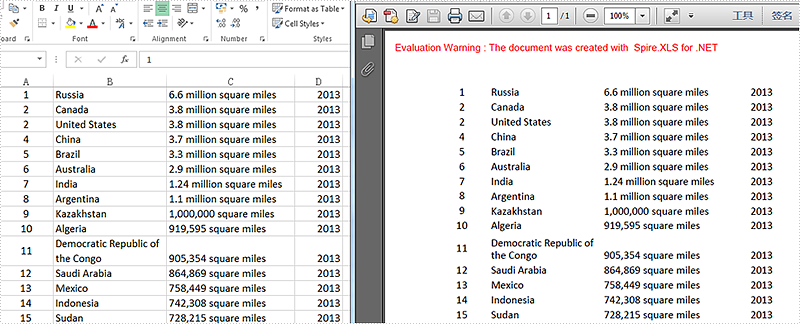
We have discussed before about converting workbook to PDF. However, in this section, we will show you a neat solution to convert the specific worksheet to PDF with C# and VB.NET in workbook. Apply Spire.Xls for .NET in your application and you can turn worksheet into PDF easily without changing the layout of worksheet.
In the following sections, we will demonstrate how to convert worksheet to PDF.
Step 1: Initialize a new instance of Workbook class and load the sample Excel file.
Workbook workbook = new Workbook();
workbook.LoadFromFile("Sample.xlsx");
Step 2: Get its first worksheet.
Worksheet sheet = workbook.Worksheets[0];
Step 3: Convert the selected worksheet to PDF and save to file.
sheet.SaveToPdf("toPDF.pdf");
Step 4: Launch the file.
System.Diagnostics.Process.Start("toPDF.pdf");
Effective screenshot:
Full codes:
using Spire.Xls;

namespace Excel_Worksheet_to_PDF
{
    class Program
    {
        static void Main(string[] args)
        {
            Workbook workbook = new Workbook();
            workbook.LoadFromFile("Sample.xlsx");

            Worksheet sheet = workbook.Worksheets[0];

            sheet.SaveToPdf("toPDF.pdf");
            System.Diagnostics.Process.Start("toPDF.pdf");
        }
    }
}
Imports Spire.Xls

Namespace Excel_Worksheet_to_PDF
	Class Program
		Private Shared Sub Main(args As String())
			Dim workbook As New Workbook()
			workbook.LoadFromFile("Sample.xlsx")

			Dim sheet As Worksheet = workbook.Worksheets(0)

			sheet.SaveToPdf("toPDF.pdf")
			System.Diagnostics.Process.Start("toPDF.pdf")
		End Sub
	End Class
End Namespace
Show formula and its result separately when converting excel to datatable in C#
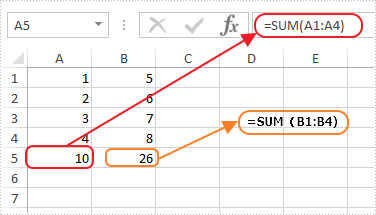
2015-07-10 05:37:43 Written by KoohjiThis article shows how to display formula and its result separately when converting excel to database via Spire.XLS. This demo uses an Excel file with formula in it and show the conversion result in a Windows Forms Application project.
Screenshot of the test excel file:
Here are the detailed steps:
Steps 1: Create a Windows Forms Application in Visual Studio.
Steps 2: Drag a DataGridView and two Buttons from Toolbox to the Form and change names of the buttons as Formula and Result to distinguish.
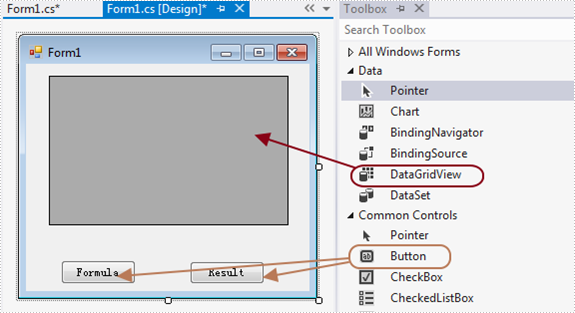
Steps 3: Double click Button formula and add the following code.
3.1 Load test file and get the first sheet.
Workbook workbook = new Workbook();
workbook.LoadFromFile(@"1.xlsx");
Worksheet sheet = workbook.Worksheets[0];
3.2 Invoke method ExportDataTable of the sheet and output data range. Parameters of ExportDataTable are range to export, indicates if export column name and indicates whether compute formula value, then it will return exported datatable.
Description of ExportDataTable:
public DataTable ExportDataTable(CellRange range, bool exportColumnNames, bool computedFormulaValue);
Code:
DataTable dt = sheet.ExportDataTable(sheet.AllocatedRange, false, false);
3.3 Show in DataGridView
this.dataGridView1.DataSource = dt;
Steps 4: Do ditto to Button Result. Only alter parameter computedFormulaValue as true.
Workbook workbook = new Workbook();
workbook.LoadFromFile(@"1.xlsx");
Worksheet sheet = workbook.Worksheets[0];
DataTable dt = sheet.ExportDataTable(sheet.AllocatedRange, false, true);
this.dataGridView1.DataSource = dt;
Steps 5: Start the project and check the result.
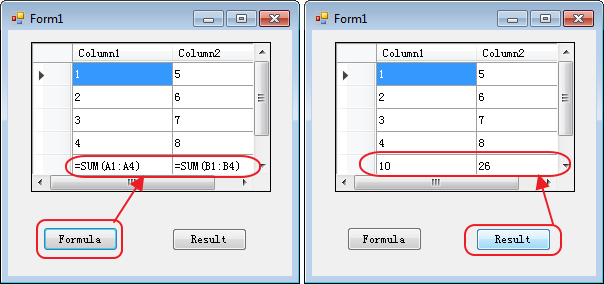
Button code here:
//Formula
private void button1_Click(object sender, EventArgs e)
{
Workbook workbook = new Workbook();
workbook.LoadFromFile(@"1.xlsx");
Worksheet sheet = workbook.Worksheets[0];
DataTable dt = sheet.ExportDataTable(sheet.AllocatedRange, false, false);
this.dataGridView1.DataSource = dt;

}
//Result
private void button2_Click(object sender, EventArgs e)
{
Workbook workbook = new Workbook();
workbook.LoadFromFile(@"1.xlsx");
Worksheet sheet = workbook.Worksheets[0];
DataTable dt = sheet.ExportDataTable(sheet.AllocatedRange, false, true);
this.dataGridView1.DataSource = dt;
}
Spire.XLS has powerful functions to export Excel worksheets into different image file formats. In the previous articles, we have already shown you how to convert Excel worksheets into BMP, PNG, GIF, JPG, JPEG, TIFF. Now Spire.XLS newly starts to support exporting Excel worksheet into EMF image. With the help of Spire.XLS, you only need three lines of codes to finish the conversion function.
Make sure Spire.XLS (Version 7.6.43 or above) has been installed correctly and then add Spire.xls.dll as reference in the downloaded Bin folder though the below path: "..\Spire.Xls\Bin\NET4.0\ Spire. Xls.dll". Here comes to the details of how to convert excel worksheet to EMF image.
Step 1: Create an excel document and load the document from file.
Workbook workbook = new Workbook();
workbook.LoadFromFile("XLS2.xlsx");
Step 2: Get the first worksheet in excel workbook.
Worksheet sheet = workbook.Worksheets[0];
Step 3: Save excel worksheet into EMF image.
sheet.ToEMFStream(stream, 1, 1, 19, 6, EmfType.EmfPlusDual);
Effective screenshot:
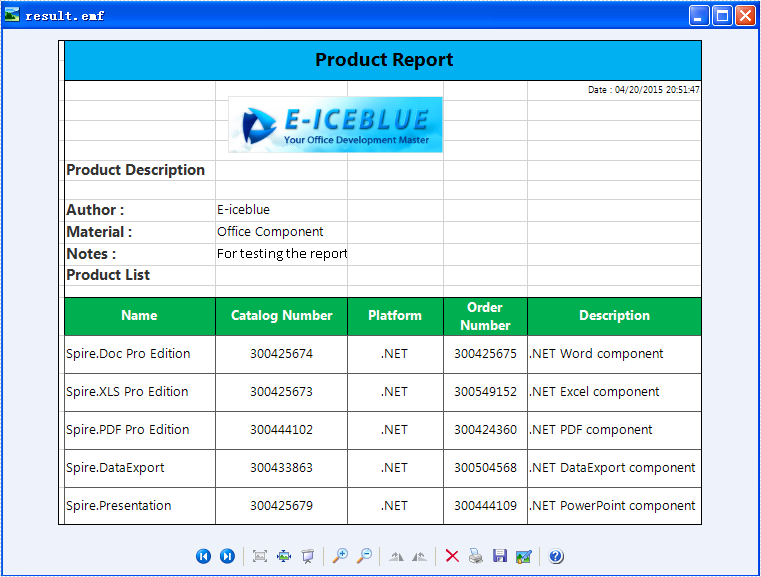
Full codes:
using Spire.Xls;
using System.Drawing.Imaging;
using System.IO;

namespace XLStoEMF
{
    class Program
    {
        static void Main(string[] args)
        {
            Workbook workbook = new Workbook();
            workbook.LoadFromFile("XLS2.xlsx");

            Worksheet sheet = workbook.Worksheets[0];

            MemoryStream stream = new MemoryStream();
            sheet.ToEMFStream(stream, 1, 1, 19, 6, EmfType.EmfPlusDual);

            File.WriteAllBytes("result.emf", stream.ToArray());
        }
    }
}
How to Convert Selected Range of Cells to PDF in C#, VB.NET
2015-04-10 01:56:50 Written by AdministratorUsing Spire.XLS, programmers are able to save the whole worksheet as PDF by calling the method SaveToPdf(). However, you may only want to save or export a part of worksheet as PDF. Since Spire.XLS doesn't provide a method to directly convert a range of cells to PDF, we can copy the selected ranges to a new worksheet and then save it as PDF file. This method seems complex, but it is still efficient with Spire.XLS.
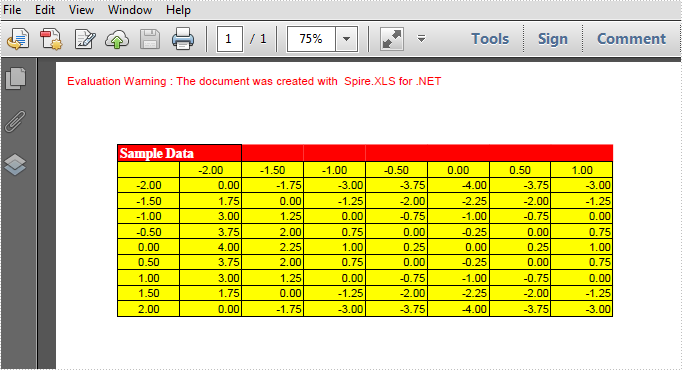
Look at the test file below, we only want the cells from A1 to H11 converted as PDF. We will firstly create a new blank worksheet, copy the selected range to the new sheet using CellRange.Copy() method, then convert the new sheet as PDF.
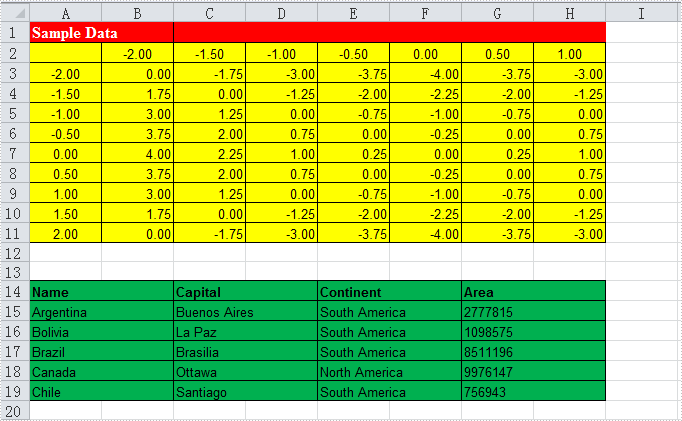
Code Snippet:
Step 1: Create a new workbook and load the test file.
Workbook workbook = new Workbook();
workbook.LoadFromFile("test.xlsx", ExcelVersion.Version2010);
Step 2: Add a new worksheet to workbook.
workbook.Worksheets.Add("newsheet");
Step 3: Copy the selected range from where it stores to the new worksheet.
workbook.Worksheets[0].Range["A1:H11"].Copy(workbook.Worksheets[1].Range["A1:H11"]);
Step 4: Convert the new worksheet to PDF.
workbook.Worksheets[1].SaveToPdf("result.pdf");
Result:
Full Code:
using Spire.Xls;
namespace Convert
{
    class Program
    {
        static void Main(string[] args)
        {
            Workbook workbook = new Workbook();
            workbook.LoadFromFile("test.xlsx", ExcelVersion.Version2010);
            // add a new sheet to workbook
            workbook.Worksheets.Add("newsheet");
            //Copy your area to new sheet.
            workbook.Worksheets[0].Range["A1:H11"].Copy(workbook.Worksheets[1].Range["A1:H11"]);
            //convert new sheet to pdf
            workbook.Worksheets[1].SaveToPdf("result.pdf");

        }
    }
}
Imports Spire.Xls
Namespace Convert
	Class Program
		Private Shared Sub Main(args As String())
			Dim workbook As New Workbook()
			workbook.LoadFromFile("test.xlsx", ExcelVersion.Version2010)
			' add a new sheet to workbook
			workbook.Worksheets.Add("newsheet")
			'Copy your area to new sheet.
			workbook.Worksheets(0).Range("A1:H11").Copy(workbook.Worksheets(1).Range("A1:H11"))
			'convert new sheet to pdf
			workbook.Worksheets(1).SaveToPdf("result.pdf")

		End Sub

	End Class
End Namespace
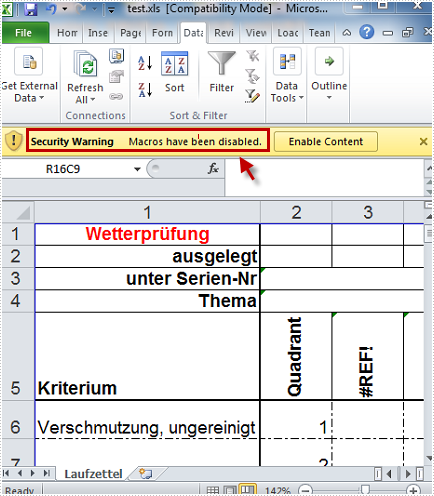
A file with the XLSM extension is an Excel Macro-Enabled Workbook file. For security reasons, XLS file or XLSX file does not enable macros by default. Thus, if you want to execute macros in Excel file, you need to convert XLS or XLSX to XLSM at the first place. In this article, I’ll introduce you how to convert XLS to XLSM with the macro maintained using Spire.XLS.
Here is the method:
Step 1: Create a new instance of Spire.Xls.Workbook class.
Workbook workbook = new Workbook();
Step 2: Load the test file and imports its data to workbook.
workbook.LoadFromFile("test.xls", ExcelVersion.Version97to2003);
Step 3: Save the workbook as a new XLSM file.
workbook.SaveToFile("result.xlsm", FileFormat.Version2007);
Full Code:
using Spire.Xls;
namespace Convert
{
    class Program
    {
        static void Main(string[] args)
        {
            Workbook workbook = new Workbook();
            workbook.LoadFromFile("test.xls", ExcelVersion.Version97to2003);
            workbook.SaveToFile("result.xlsm", FileFormat.Version2007);
        }
    }
}
Imports Spire.Xls
Namespace Convert
	Class Program
		Private Shared Sub Main(args As String())
			Dim workbook As New Workbook()
			workbook.LoadFromFile("test.xls", ExcelVersion.Version97to2003)
			workbook.SaveToFile("result.xlsm", FileFormat.Version2007)
		End Sub

	End Class
End Namespace
Test File:
As is shown in the picture, Excel automatically disables macro in XLS file.
Result:
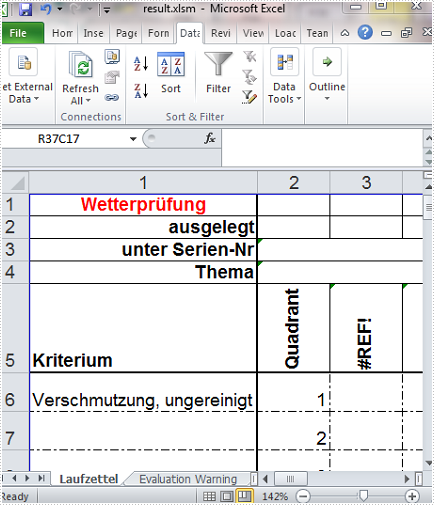
No security warning in the converted XLSM file.
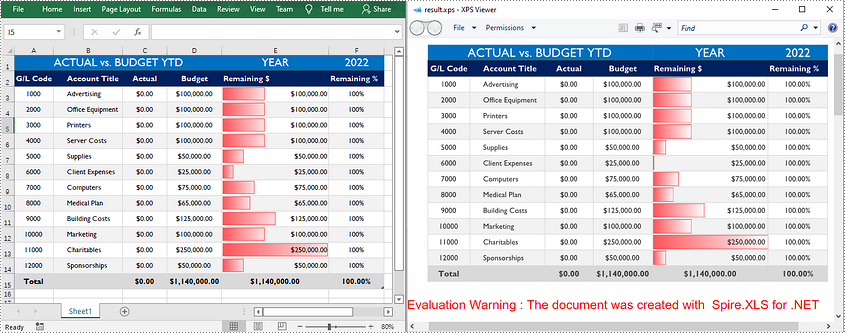
XPS (XML Paper Specification) is a specification for a page description language and a fixed-document format developed by Microsoft. It defines the layout of a document and the visual appearance of each page. Sometimes you may need to convert an Excel document to XPS for distribution, archiving or printing purposes, and this article will demonstrate how to accomplish this task programmatically using Spire.XLS for .NET.
Install Spire.XLS for .NET
To begin with, you need to add the DLL files included in the Spire.XLS for .NET package as references in your .NET project. The DLL files can be either downloaded from this link or installed via NuGet.
PM> Install-Package Spire.XLS
Convert Excel to XPS
Spire.XLS for .NET allows you to convert Excel (.xls/ .xlsx) to XPS with only three lines of code. The detailed steps are as follows.
- Create a Workbook object.
- Load a sample Excel document using Workbook.LoadFromFile() method.
- Convert the Excel document to XPS using Workbook.SaveToFile(String, FileFormat) method.
- C#
- VB.NET
using Spire.Xls;

namespace ExceltoXPS
{
    class Program
    {
        static void Main(string[] args)
        {

            //Create a Workbook object.
            Workbook workbook = new Workbook();

            //Load a sample Excel document
            workbook.LoadFromFile(@"E:\Files\\sample0.xlsx", ExcelVersion.Version2010);

            //Convert the document to XPS
            workbook.SaveToFile("result.xps", FileFormat.XPS);
        }
    }
}
Apply for a Temporary License
If you'd like to remove the evaluation message from the generated documents, or to get rid of the function limitations, please request a 30-day trial license for yourself.
If you created a pretty Excel table and now want to publish it online as a web page, the simplest way is to export it to an old good HTML file. However a problem may occur if you just simply transform image in Excel to HTML code with a relative link (URL). This way, your web page may no longer display properly on client machines since the image can't be reached through that URL on client-side. In this article, we’re going to resolve this issue by embedding image in HTML code when converting Excel to HTML.
Here is an Excel table with some images embedded in.
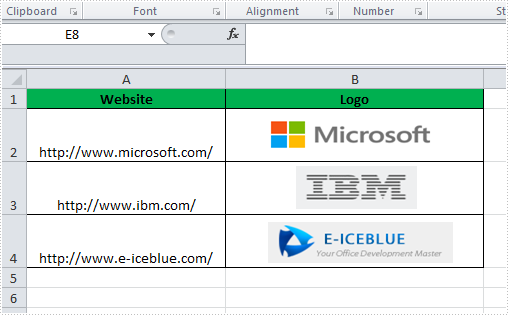
We're able to convert this Excel file to HTML by following below code snippet:
Step 1: Create a new instance of workbook.
Workbook book = new Workbook();
book.LoadFromFile("Book1.xlsx");
Step 2: Embed images into HTML code using Data URI scheme.
HTMLOptions options = new HTMLOptions();
options.ImageEmbedded = true;
Step 3: Save the worksheet to HTML.
book.Worksheets[0].SaveToHtml("sample.html", options);
System.Diagnostics.Process.Start("sample.html");
Output:
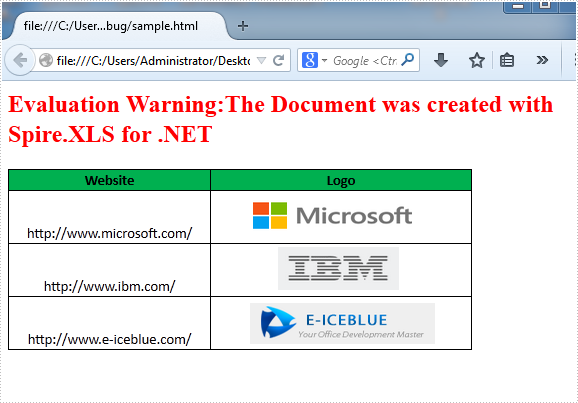
HTML Code:
Since the HTML code is too long to be displayed here, we have to present it by a screenshot.
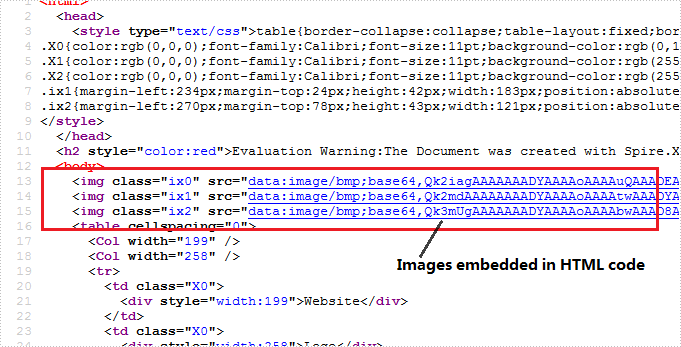
Full C# Code:
using Spire.Xls;
using Spire.Xls.Core.Spreadsheet;
namespace CreateWorkbook
{
    class Program
    {
        static void Main(string[] args)
        {
            // create Workbook instance and load file
            Workbook book = new Workbook();
            book.LoadFromFile("Book1.xlsx");

            // embed image into html when converting
            HTMLOptions options = new HTMLOptions();
            options.ImageEmbedded = true;

            // save the sheet to html
            book.Worksheets[0].SaveToHtml("sample.html", options);
            System.Diagnostics.Process.Start("sample.html");

        }
    }
}
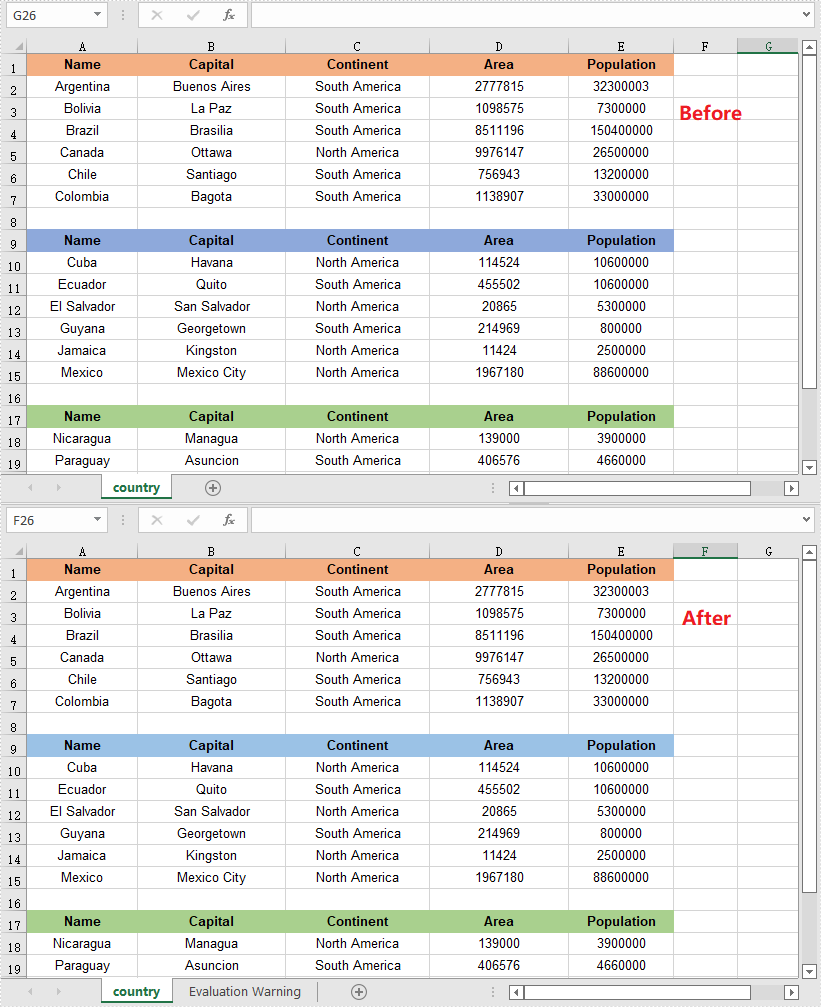
XLS and XLSX are two different file formats for Microsoft Excel spreadsheets. XLS is the default file format for Microsoft Excel 2003 and earlier versions, while XLSX is the default file format for Microsoft Excel 2007 and later versions. In some cases, developers may need to convert between Excel XLS and XLSX file formats. In this article, we will explain how to convert XLS to XLSX or XLSX to XLS in C# and VB.NET using Spire.XLS for .NET.
Install Spire.XLS for .NET
To begin with, you need to add the DLL files included in the Spire.XLS for .NET package as references in your .NET project. The DLL files can be either downloaded from this link or installed via NuGet.
PM> Install-Package Spire.XLS
Convert XLS to XLSX in C# and VB.NET
The following are the steps to convert an XLS file to XLSX format using Spire.XLS for .NET:
- Create a Workbook instance.
- Load the XLS file using Workbook.LoadFromFile() method.
- Save the XLS file to XLSX format using Workbook.SaveToFile(string, ExcelVersion) method.
- C#
- VB.NET
using Spire.Xls;

namespace ConvertXlsToXlsx
{
    class Program
    {
        static void Main(string[] args)
        {
            //Create a Workbook instance
            Workbook workbook = new Workbook();
            //Load an XLS file
            workbook.LoadFromFile("Input.xls");

            //Convert the file to XLSX format
            workbook.SaveToFile("ToXlsx.xlsx", ExcelVersion.Version2016);
        }
    }
}
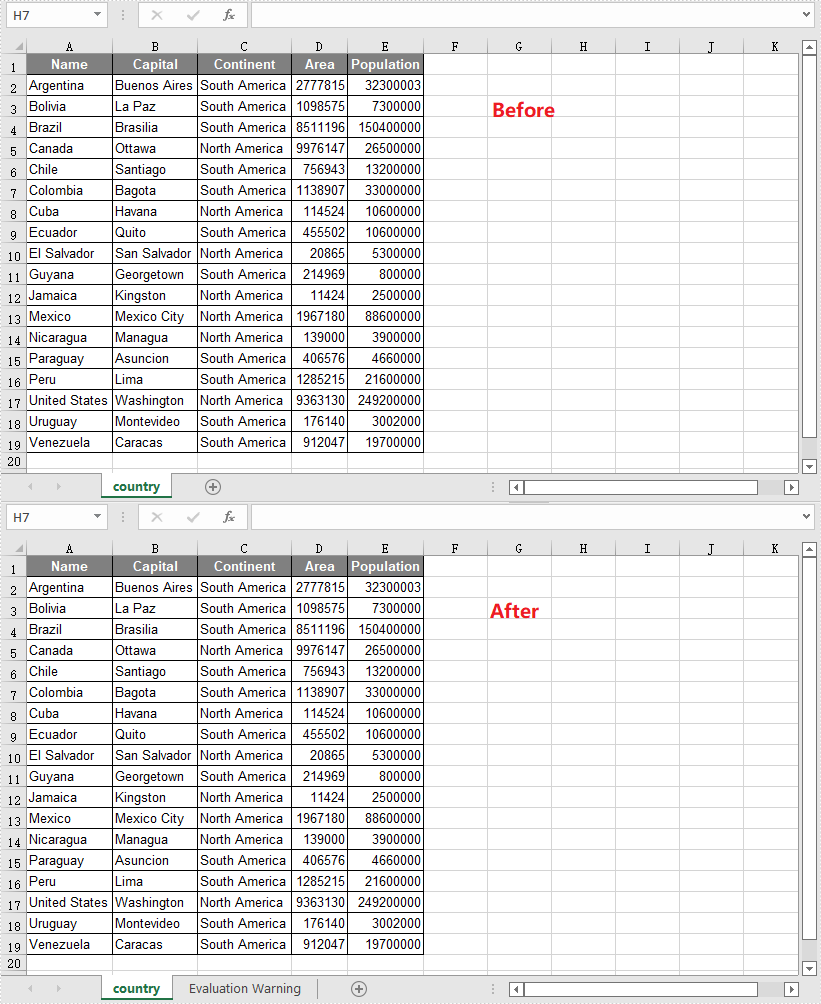
Convert XLSX to XLS in C# and VB.NET
The following are the steps to convert an XLSX file to XLS format using Spire.XLS for .NET:
- Create a Workbook instance.
- Load the XLSX file using Workbook.LoadFromFile() method.
- Save the XLSX file to XLS format using Workbook.SaveToFile(string, ExcelVersion) method.
- C#
- VB.NET
using Spire.Xls;

namespace ConvertXlsxToXls
{
    class Program
    {
        static void Main(string[] args)
        {
            //Create a Workbook instance
            Workbook workbook = new Workbook();
            //Load an XLSX file
            workbook.LoadFromFile("Input.xlsx");

            //Convert the file to XLS format
            workbook.SaveToFile("ToXls.xls", ExcelVersion.Version97to2003);
        }
    }
}
Apply for a Temporary License
If you'd like to remove the evaluation message from the generated documents, or to get rid of the function limitations, please request a 30-day trial license for yourself.
