Converting images to OFD (Open Fixed-layout Document) format in C++ is a common requirement in enterprise document management systems, especially in China where OFD is widely adopted for official document archiving and distribution. Developers often need to digitize scanned documents, create electronic archives, or generate standardized document formats from image files.
Implementing image to OFD conversion from scratch can be complex, particularly when handling different image formats, page sizing, and OFD specification compliance.
With Spire.PDF for C++ from e-iceblue, developers can easily create OFD documents from images such as PNG, JPG, BMP, TIFF, and EMF using a straightforward API that handles the underlying complexity. This article demonstrates how to perform image to OFD conversion in C++, including practical examples for single and batch processing workflows.
Quick Navigation
- Understanding Image to OFD Conversion
- Prerequisites
- Convert an Image to OFD in C++
- Convert Multiple Images to a Multi-Page OFD in C++
- Fit Images into a Fixed Page Size
- Batch Convert Images to OFD
- Common Pitfalls
- FAQ
1. Understanding Image to OFD Conversion
OFD is an XML-based document format designed for preserving fixed-layout documents, similar to PDF but optimized for Chinese character sets and government document standards. Converting images to OFD involves creating a document structure that embeds the image content while maintaining OFD compliance.
Common use cases for image to OFD conversion include:
- Digitizing scanned invoices and receipts for archiving
- Creating standardized document repositories
- Generating electronic document workflows
- Converting legacy image-based documents to modern formats
The conversion process typically involves creating a PDF document, drawing the image onto pages, and then exporting to OFD format using the appropriate file format specification.
2. Prerequisites
Before converting images to OFD in C++, you need to install Spire.PDF for C++ and configure it in your development environment.
Install via NuGet (Recommended)
The easiest way to add Spire.PDF to a C++ project is through NuGet, which automatically downloads the package and configures the required dependencies.
- Open your project in Visual Studio.
- In Solution Explorer, right-click References.
- Select Manage NuGet Packages.
- Search for Spire.PDF.Cpp.
- Click Install.
After installation, you can include the library in your project:
#include "Spire.Pdf.o.h"
Manual Installation
Alternatively, you can download Spire.PDF for C++ and integrate it manually by configuring the include and lib directories.
For detailed instructions, refer to How to Integrate Spire.PDF for C++ in a C++ Application.
3. Convert an Image to OFD in C++
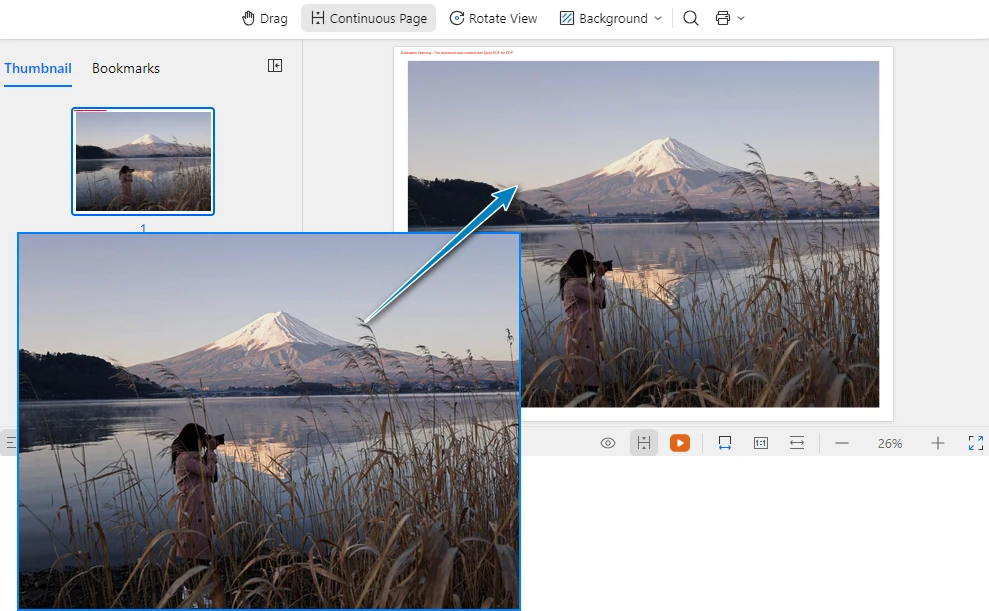
The following example demonstrates how to convert a single image file to OFD format. This implementation creates a PDF document, loads an image, draws it on a page with proper sizing, and saves the result as an OFD file.
#include "Spire.Pdf.o.h"

using namespace Spire::Pdf;

int main()
{
    // Create a new PDF document
    PdfDocument* ofd = new PdfDocument();

    // Load the image file
    auto image = PdfImage::FromFile(L"Sample.jpg");

    // Calculate page dimensions based on image size
    float pageWidth = image->GetWidth();
    float pageHeight = image->GetHeight();

    // Add a page with custom dimensions matching the image
    auto page = ofd->GetPages()->Add(new SizeF(pageWidth, pageHeight));

    // Draw the image on the page
    page->GetCanvas()->DrawImage(image, 0, 0, pageWidth, pageHeight);

    // Save the document as OFD format
    ofd->SaveToFile(L"ImageToOfd.ofd", FileFormat::OFD);

    // Clean up resources
    delete ofd;

    return 0;
}
The following screenshot shows the generated OFD document created from the source image.
Key Classes and Methods
- PdfDocument – Represents the document container used to create pages and export the final OFD file.
- PdfImage::FromFile() – Loads an image from the specified file path and creates an image object that can be rendered onto a page.
- PdfDocument::GetPages()->Add() – Adds a new page to the document. In this example, the page size is dynamically set based on the image dimensions.
- PdfCanvas::DrawImage() – Draws the image onto the page canvas at the specified position and size.
- SaveToFile() – Saves the document to disk and exports it to OFD format using FileFormat::OFD.
This approach ensures that the image is properly scaled and positioned within the OFD document, maintaining the original image quality and proportions.
Remove Page Margins (Optional)
By default, document pages may include margins, which can introduce unwanted white space around the image. If you want the image to fully occupy the page without any padding, you can set the page margins to zero.
ofd->GetPageSettings()->SetMargins(0.0);
You can also specify custom margins if needed:
ofd->GetPageSettings()->SetMargins(10.0);
Adjusting page margins is useful when generating document layouts that require full-page image rendering.
4. Convert Multiple Images to a Multi-Page OFD in C++
When working with document archives, you often need to combine multiple images into a single OFD file. The following example shows how to create a multi-page OFD document where each page contains a different image.
#include "Spire.Pdf.o.h"
#include <vector>

using namespace Spire::Pdf;

int main()
{
    // Create a new PDF document
    PdfDocument* ofd = new PdfDocument();

    // Define the list of image files to convert
    std::vector<std::wstring> imageFiles = {
        L"Sample1.png",
        L"Sample2.bmp",
        L"Sample3.jpg"
    };

    // Process each image file
    for (size_t i = 0; i < imageFiles.size(); i++)
    {
        // Load the current image
        auto image = PdfImage::FromFile(imageFiles[i].c_str());

        // Get image dimensions
        float pageWidth = image->GetWidth();
        float pageHeight = image->GetHeight();

        // Add a new page for each image
        auto page = ofd->GetPages()->Add(new SizeF(pageWidth, pageHeight));

        // Draw the image on the page
        page->GetCanvas()->DrawImage(image, 0, 0, pageWidth, pageHeight);
    }

    // Save as OFD document
    ofd->SaveToFile(L"multi_page_document.ofd", FileFormat::OFD);

    // Clean up document resource
    delete ofd;

    return 0;
}
The following screenshot shows the generated multi-page OFD document, where each image is placed on a separate page.
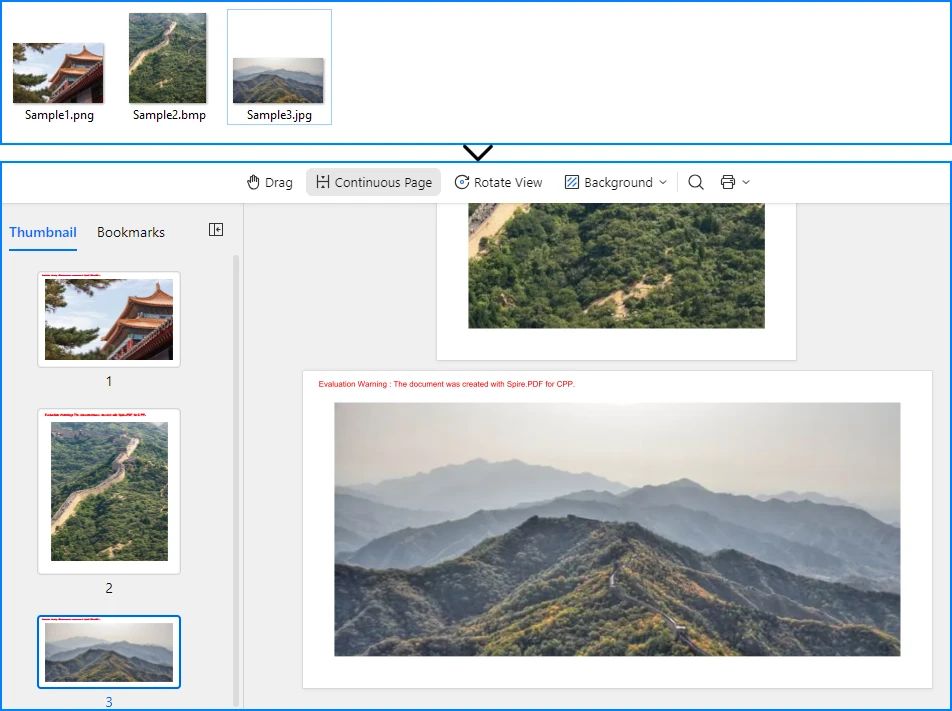
This implementation iterates through a collection of image files, creating a new page for each image and drawing the content with proper sizing. The resulting OFD document preserves the order and layout of all source images in a single file.
If you need to further modify images in a document, such as inserting, replacing, or removing images in existing files, refer to the tutorial on How to Insert, Replace, or Remove Images in a OFD/PDF Using C++
5. Fit Images into a Fixed Page Size
In many real-world document workflows, pages are required to follow a standardized page size instead of matching the original image dimensions. For example, scanned forms, contracts, or reports may need to fit into a fixed layout such as A4 or Letter.
To achieve this, you can create pages with a predefined size and then scale each image proportionally so that it fits within the page boundaries without distortion.
The following example demonstrates how to scale an image to fit within a fixed page size while preserving its aspect ratio.
#define NOMINMAX
#include "Spire.Pdf.o.h"
#include <algorithm>

using namespace Spire::Pdf;

int main()
{
    // Create a new PDF document
    PdfDocument* ofd = new PdfDocument();

    // Add a page with a fixed size (for example, A4)
    PdfPageBase* page = ofd->GetPages()->Add(PdfPageSize::A4);

    // Load the image
    auto image = PdfImage::FromFile(L"Sample.jpg");

    // Get page dimensions
    float pageWidth = page->GetCanvas()->GetClientSize().GetWidth();
    float pageHeight = page->GetCanvas()->GetClientSize().GetHeight();

    // Get image dimensions
    float imgWidth = image->GetWidth();
    float imgHeight = image->GetHeight();

    // Calculate proportional scaling
    float scale = std::min(pageWidth / imgWidth, pageHeight / imgHeight);

    float scaledWidth = imgWidth * scale;
    float scaledHeight = imgHeight * scale;

    // Draw the scaled image on the page
    page->GetCanvas()->DrawImage(image, 0, 0, scaledWidth, scaledHeight);

    // Save as OFD
    ofd->SaveToFile(L"FixedPageSize.ofd", FileFormat::OFD);

    delete ofd;

    return 0;
}
The following screenshot shows how the image is scaled to fit within a fixed page size (A4) while preserving its aspect ratio.
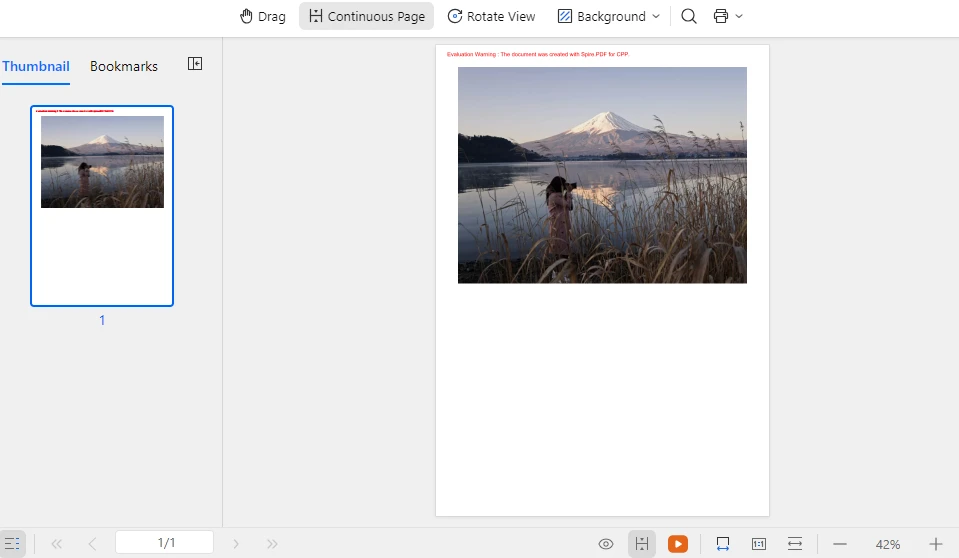
This approach ensures that images of different sizes can be consistently placed within a standardized document layout while maintaining their original proportions and preventing image distortion. The same technique can also be applied when generating multi-page OFD documents from multiple images.
In addition to scaling images to fit a fixed layout, developers may also need to manipulate document pages when generating or modifying documents. Typical operations include creating new pages, deleting pages, resizing page dimensions, or rearranging page order. For more details, refer to: How to Create and Delete Pages in an OFD/PDF document Using C++
6. Batch Convert Images to OFD
For automated document processing workflows, you may need to convert multiple images to separate OFD files. The following example demonstrates batch processing with progress tracking and error handling.
#include "Spire.Pdf.o.h"
#include <vector>
#include <iostream>

using namespace Spire::Pdf;

void ConvertImageToOFD(const std::wstring& inputPath, const std::wstring& outputPath)
{
    // Create a new PDF document
    PdfDocument* ofd = new PdfDocument();

    try
    {
        // Load the image file
        auto image = PdfImage::FromFile(inputPath.c_str());

        // Calculate page dimensions
        float pageWidth = image->GetWidth();
        float pageHeight = image->GetHeight();

        // Add page with image dimensions
        auto page = ofd->GetPages()->Add(new SizeF(pageWidth, pageHeight));

        // Draw image on page
        page->GetCanvas()->DrawImage(image, 0, 0, pageWidth, pageHeight);

        // Save as OFD
        ofd->SaveToFile(outputPath.c_str(), FileFormat::OFD);

        std::wcout << L"Converted: " << inputPath << L" -> " << outputPath << std::endl;

    }
    catch (const std::exception& ex)
    {
        std::wcout << L"Error converting " << inputPath << L": " << ex.what() << std::endl;
    }

    // Clean up document
    delete ofd;
}

int main()
{
    // Define batch conversion tasks
    std::vector<std::pair<std::wstring, std::wstring>> conversionTasks = {
        {L"invoice_0.png", L"invoice_0.ofd"},
        {L"invoice_1.png", L"invoice_1.ofd"},
        {L"invoice_2.png", L"invoice_2.ofd"},
        {L"invoice_3.png", L"invoice_3.ofd"},
        {L"invoice_4.png", L"invoice_4.ofd"}
    };

    // Process all conversion tasks
    for (const auto& task : conversionTasks)
    {
        ConvertImageToOFD(task.first, task.second);
    }

    std::wcout << L"Batch conversion completed." << std::endl;

    return 0;
}
This batch processing approach provides:
- Modular conversion function for reusability
- Error handling for individual file failures
- Progress output for monitoring
- Clean resource management
The implementation processes each image independently, ensuring that a single failure does not interrupt the entire batch operation.
7. Common Pitfalls
Image File Path Issues
Ensure that image file paths are correct and accessible. Use absolute paths or verify the working directory when loading images:
// Use absolute paths for reliability
auto image = PdfImage::FromFile(L"C:\\Documents\\scanned_invoice.png");
Memory Management
Properly clean up PdfDocument and PdfImage objects to prevent memory leaks. Always delete dynamically allocated objects after use:
delete ofd;
Unsupported Image Formats
Spire.PDF supports common image formats including PNG, JPEG, BMP, EMF, and TIFF. Ensure your input files are in supported formats. For unsupported formats, convert them to a supported format first using image processing libraries.
Page Size Considerations
When creating pages based on image dimensions, be aware that extremely large images may result in OFD documents that are difficult to view or print. Consider implementing size limits or scaling for large images:
#define NOMINMAX
#include <algorithm>

// Apply maximum page size constraint
const float MAX_WIDTH = 1000.0f;
const float MAX_HEIGHT = 1400.0f;

float pageWidth  = std::min(static_cast<float>(image->GetWidth()),  MAX_WIDTH);
float pageHeight = std::min(static_cast<float>(image->GetHeight()), MAX_HEIGHT);
File Encoding
When working with file paths containing Chinese characters or special symbols, ensure proper wide string handling (std::wstring) to avoid encoding issues in file operations.
C++ Language Standard
If you encounter compilation issues in some environments, try setting the project to use the C++14 language standard.
For example, in Visual Studio:
- Open Project Properties
- Navigate to C/C++ → Language
- Set C++ Language Standard to ISO C++14 Standard (/std:c++14)
Conclusion
In this article, we demonstrated how to convert images to OFD format in C++ using Spire.PDF. By leveraging the Spire API, developers can implement reliable image to OFD conversion with minimal code, handling single images, multi-page documents, and batch processing workflows. This technique is especially useful for digitizing scanned documents, creating electronic archives, and building automated document processing pipelines.
Spire.PDF for C++ provides comprehensive document processing capabilities beyond OFD conversion, including PDF creation, manipulation, and various export formats. The library simplifies complex document operations while maintaining compliance with industry standards.
If you want to evaluate the full capabilities of Spire.PDF for C++, you can apply for a 30-day free license.
8. FAQ
Do I need any third-party software to convert images to OFD?
No. Spire.PDF performs image to OFD conversion independently and does not require Adobe Acrobat or any other external PDF software.
What image formats are supported for OFD conversion?
Spire.PDF supports common image formats including PNG, JPEG, BMP, EMF, and TIFF. The library handles image loading and rendering automatically during the conversion process.
Is Spire.PDF suitable for high-volume batch processing?
Yes. Spire.PDF is optimized for server environments and can handle batch processing of multiple images efficiently. The library provides proper resource management for continuous operations.
Can I add text or watermarks to images before converting to OFD?
Yes. Spire.PDF allows you to draw additional elements on the page canvas before saving to OFD. For example, you can add text watermarks or image watermarks to the document.
For detailed tutorials, see:
- How to Add Text Watermarks to PDF/OFD Documents in C++
- How to Add Image Watermarks to PDF/OFD Documents in C++
Does the OFD output preserve image quality?
Yes. The OFD conversion maintains the original image quality and resolution. The page dimensions are calculated based on the image size, ensuring no loss of quality during the conversion process.
