In daily office work, data often needs to be exchanged between Excel spreadsheets and OpenDocument spreadsheets (ODS). ODS is an open-standard spreadsheet format widely used in open-source office software such as LibreOffice and OpenOffice. Spire.XLS for JavaScript runs entirely in the browser via WebAssembly, using a virtual file system (VFS) to manage input and output files — no backend server is required. It provides simple, easy-to-use APIs that make format conversion more convenient.
With Spire.XLS for JavaScript, you can save an Excel workbook as ODS format to work seamlessly with open-source office software, or import an ODS file to create a fully formatted Excel workbook. This makes data migration between different applications more convenient and efficient.
This article covers two core features:
For installation and project setup, refer to Integrating Spire.XLS for JavaScript in a React Project. The examples below assume Spire.XLS is installed and the WebAssembly module is initialized.
Convert Excel Workbook to ODS File
Exporting Excel data as ODS format makes it easy to open and edit directly in open-source office software such as LibreOffice and OpenOffice. With Spire.XLS for JavaScript, you can save an entire workbook as an ODS file, preserving table structure, styles, and data while enabling cross-platform data sharing. The steps are as follows:
- Create a
Workbookobject and load an existing Excel file. - Call the workbook's
SaveToFile()method, specifying the output filename and theFileFormat.ODSfile format. - Dispose of the workbook resources, read the result file from VFS, and trigger the download.
Below is a complete code example demonstrating how to convert Excel to ODS in React:
function App() {
  const convertToODS = async () => {
    // Get the Spire.XLS WASM module
    const xlsModule = window.wasmModule?.spirexls;

    // Check if the module is ready
    if (!xlsModule) {
      alert('Spire.Xls is not ready yet');
      return;
    }

    // Load the font file to ensure proper text rendering
    await window.spire.FetchFileToVFS('ARIAL.TTF', '/Library/Fonts/', `${process.env.PUBLIC_URL}font/`);

    // Load the sample Excel file into VFS
    await window.spire.FetchFileToVFS('Sample.xlsx', '', `${process.env.PUBLIC_URL}data/`);

    // Create a workbook object and load the Excel file
    const workbook = new xlsModule.Workbook();
    workbook.LoadFromFile({ fileName: 'Sample.xlsx' });

    // Save the workbook as an ODS file
    const outputFileName = 'ExcelToODS.ods';
    workbook.SaveToFile({ fileName: outputFileName, fileFormat: xlsModule.FileFormat.ODS });
    workbook.Dispose();

    // Read the file from VFS and trigger download
    const fileArray = window.dotnetRuntime.Module.FS.readFile(outputFileName);
    const blob = new Blob([fileArray], { type: 'application/vnd.oasis.opendocument.spreadsheet' });
    const url = URL.createObjectURL(blob);
    const a = document.createElement('a');
    a.href = url;
    a.download = outputFileName;
    a.click();
    URL.revokeObjectURL(url);
  };

  return (
    <div style={{ textAlign: 'center', height: '300px' }}>
      <h1>Convert Excel to ODS</h1>
      <button onClick={convertToODS}>
        Generate
      </button>
    </div>
  );
}

export default App;
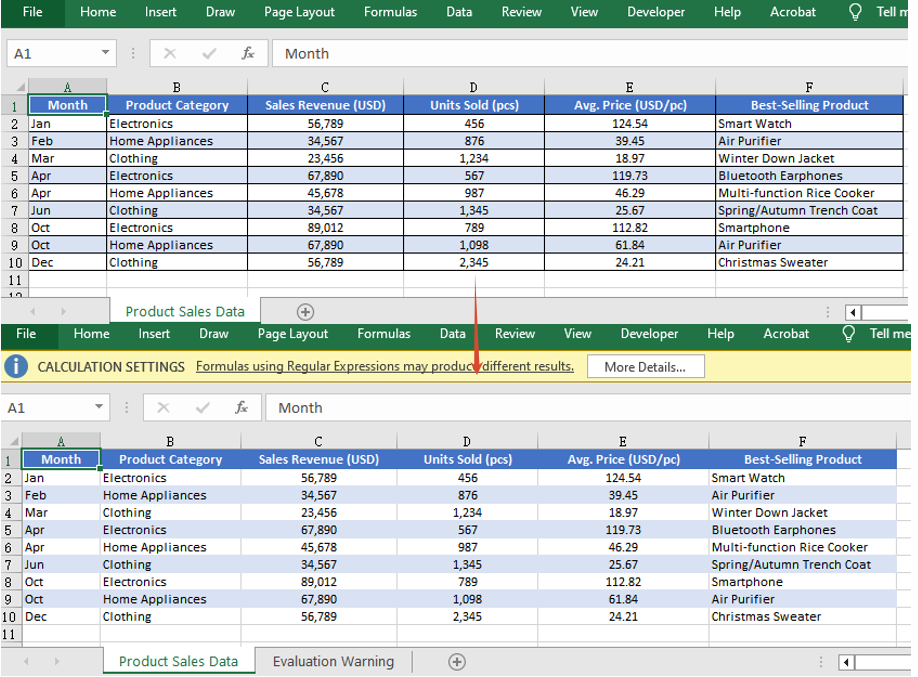
Excel converted to ODS with Spire.XLS for JavaScript
Convert ODS File to Excel Workbook
Importing an ODS file into an Excel spreadsheet allows you to take full advantage of Excel's powerful formatting, calculation, and charting capabilities. Spire.XLS for JavaScript supports loading an ODS file directly via the LoadFromFile() method, which automatically detects its file format, and then you can save the workbook as an Excel file. The steps are as follows:
- Load the font file and ODS sample file into the VFS.
- Create a
Workbookobject and load the ODS file via theLoadFromFile()method. - Save the workbook as an Excel file and trigger the download.
Below is a complete code example demonstrating how to convert ODS to Excel in React:
function App() {
  const convertToExcel = async () => {
    // Get the Spire.XLS WASM module
    const xlsModule = window.wasmModule?.spirexls;

    // Check if the module is ready
    if (!xlsModule) {
      alert('Spire.Xls is not ready yet');
      return;
    }

    // Load the font file to ensure proper text rendering
    await window.spire.FetchFileToVFS('ARIAL.TTF', '/Library/Fonts/', `${process.env.PUBLIC_URL}font/`);

    // Load the ODS sample file into VFS
    await window.spire.FetchFileToVFS('Sample.ods', '', `${process.env.PUBLIC_URL}data/`);

    // Create a workbook object and load the ODS file
    const workbook = new xlsModule.Workbook();
    workbook.LoadFromFile({ fileName: 'Sample.ods' });

    // Save the workbook and release resources
    const outputFileName = 'ODSToExcel.xlsx';
    workbook.SaveToFile({ fileName: outputFileName, version: xlsModule.ExcelVersion.Version2010 });
    workbook.Dispose();

    // Read the file from VFS and trigger download
    const fileArray = window.dotnetRuntime.Module.FS.readFile(outputFileName);
    const blob = new Blob([fileArray], { type: 'application/vnd.openxmlformats-officedocument.spreadsheetml.sheet' });
    const url = URL.createObjectURL(blob);
    const a = document.createElement('a');
    a.href = url;
    a.download = outputFileName;
    a.click();
    URL.revokeObjectURL(url);
  };

  return (
    <div style={{ textAlign: 'center', height: '300px' }}>
      <h1>Convert ODS to Excel</h1>
      <button onClick={convertToExcel}>
        Generate
      </button>
    </div>
  );
}

export default App;
ODS converted to Excel with Spire.XLS for JavaScript

FAQ
Why can't the generated ODS file be opened properly?
Cause: When saving the workbook with the SaveToFile() method, if the correct output file format is not specified via the fileFormat parameter, the generated file format may not match the extension, causing it to fail to open.
Solution: Specify the specific file format enum value xlsModule.FileFormat.ODS when saving as ODS:
const outputFileName = 'ExcelToODS.ods';
workbook.SaveToFile({ fileName: outputFileName, fileFormat: xlsModule.FileFormat.ODS });
How to handle the downloaded ODS file being opened as another type or unrecognized?
Cause: The MIME type is not set correctly when creating the Blob, so the browser cannot recognize the downloaded file as an ODS document, which may cause it to open as another type or display garbled text.
Solution: Specify the correct MIME type when downloading and make sure the download filename ends with .ods:
const blob = new Blob([fileArray], { type: 'application/vnd.oasis.opendocument.spreadsheet' });
const a = document.createElement('a');
a.href = URL.createObjectURL(blob);
a.download = 'ExcelToODS.ods';
a.click();
Get a Free License
Spire.XLS for JavaScript offers a 30-day full-featured free trial license with no functional limitations. Apply here to evaluate before purchasing.
