When browsing an Excel worksheet that contains a large amount of data, pinning the header or key columns can significantly improve the efficiency of data viewing. The freeze panes feature keeps the specified rows or columns visible while scrolling. Querying the frozen pane range confirms which areas of the current worksheet are frozen. Unfreezing panes restores the normal browsing mode when the fixed display is no longer needed. Spire.XLS for JavaScript completes these operations directly in the browser based on WebAssembly, and manages input and output files through the virtual file system (VFS), without requiring backend service support.
This article introduces three core feature points:
For installation and project configuration, refer to Integrate Spire.XLS for JavaScript in a React Project. The following examples assume that Spire.XLS is installed and the WebAssembly module has been initialized.
Freeze Panes
When a worksheet contains a large amount of data, freezing panes can pin the header or a specific area so that you can always see the key rows or columns while scrolling through the data. Spire.XLS for JavaScript freezes the panes above and to the left of the specified position through the FreezePanes method. For example, FreezePanes(2, 1) freezes the first row, keeping it visible when scrolling vertically.
function App() {
  const sheetToSVG = async () => {
    // Get the Spire.XLS WASM module
    const xlsModule = window.wasmModule?.spirexls;

    // Check whether the module is ready
    if (!xlsModule) {
      alert('Spire.Xls is not ready yet');
      return;
    }

    // Load the font and the Excel file into the VFS
    await window.spire.FetchFileToVFS('ARIAL.TTF', '/Library/Fonts/', `${process.env.PUBLIC_URL}/font/`);
    const inputFileName = 'FreezePanes.xlsx';
    await window.spire.FetchFileToVFS(inputFileName, '', `${process.env.PUBLIC_URL}/static/data/`);

    // Load the workbook
    const workbook = new xlsModule.Workbook();
    workbook.LoadFromFile({ fileName: inputFileName });

    // Get the first worksheet
    const sheet = workbook.Worksheets.get(0);

    // Freeze the first row
    sheet.FreezePanes(2, 1);

    // Set the width of the second column
    sheet.SetColumnWidth(2, 10);

    const outputFileName = "FreezePanes_output.xlsx";
    workbook.SaveToFile({ fileName: outputFileName });

    // Dispose of the workbook object to release resources
    workbook.Dispose();

    // Read the converted file from the VFS and trigger the download
    const fileArray = window.dotnetRuntime.Module.FS.readFile(outputFileName);
    const blob = new Blob([fileArray], { type: "application/vnd.openxmlformats-officedocument.spreadsheetml.sheet" });
    const url = URL.createObjectURL(blob);
    const a = document.createElement('a');
    a.href = url;
    a.download = outputFileName;
    a.click();
    URL.revokeObjectURL(url);
  };

  return (
    <div style={{ textAlign: 'center', height: '300px' }}>
      <h1>Freeze Panes</h1>
      <button onClick={sheetToSVG}>
        Start
      </button>
    </div>
  );
}

export default App;
Original document 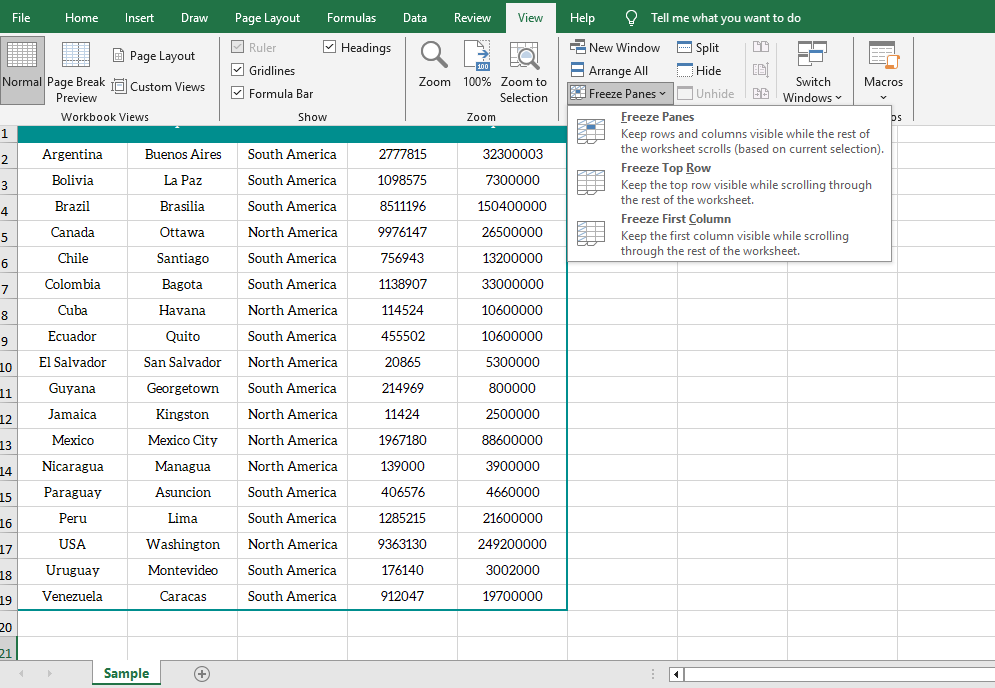 After freezing the first row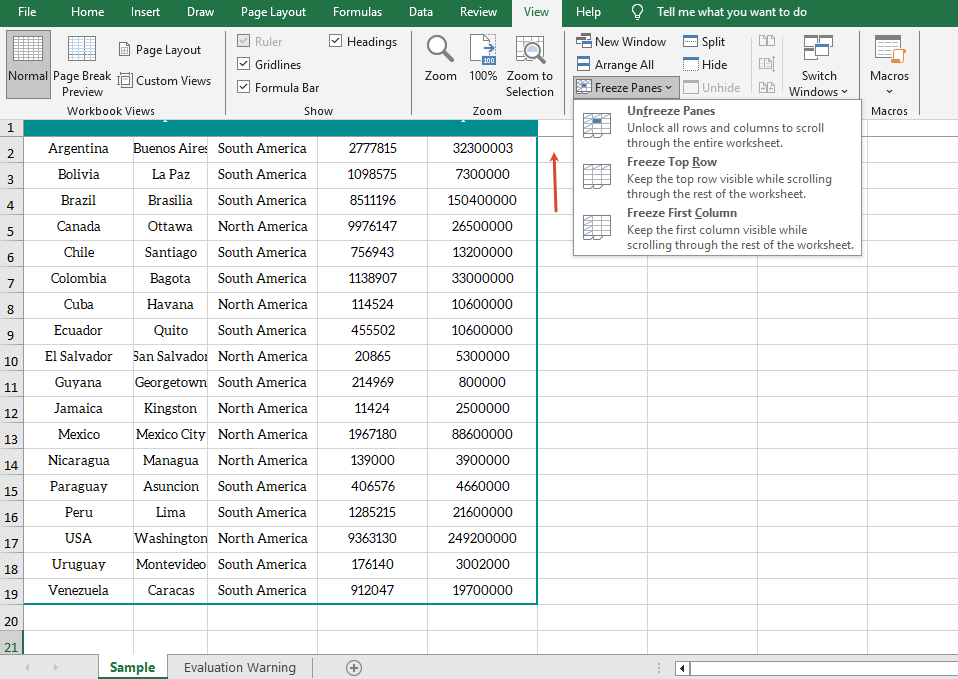
Get the Freeze Pane Range
When working with frozen panes, sometimes you need to confirm the position of the frozen panes in the current worksheet. Spire.XLS for JavaScript obtains the row index and column index of the frozen panes through the GetFreezePanes method, and a return value of 0 indicates that the corresponding direction is not frozen.
function App() {
  const sheetToSVG = async () => {
    // Get the Spire.XLS WASM module
    const xlsModule = window.wasmModule?.spirexls;

    // Check whether the module is ready
    if (!xlsModule) {
      alert('Spire.Xls is not ready yet');
      return;
    }

    // Load the font and the Excel file into the VFS
    await window.spire.FetchFileToVFS('ARIAL.TTF', '/Library/Fonts/', `${process.env.PUBLIC_URL}/font/`);
    const inputFileName = 'GetFreezePaneRange.xlsx';
    await window.spire.FetchFileToVFS(inputFileName, '', `${process.env.PUBLIC_URL}/static/data/`);

    // Load the workbook
    const workbook = new xlsModule.Workbook();
    workbook.LoadFromFile({ fileName: inputFileName });

    // Get the first worksheet
    const sheet = workbook.Worksheets.get(0);

    // Get the row index and column index of the frozen panes
    const indexs = sheet.GetFreezePanes();
    const rowIndex = indexs[0];
    const colIndex = indexs[1];

    // Write the query result to a text file
    const outputFileName = "GetFreezePaneRange_output.txt";
    window.dotnetRuntime.Module.FS.writeFile(outputFileName, `Row index: ${rowIndex}, column index: ${colIndex}`);

    // Dispose of the workbook object to release resources
    workbook.Dispose();

    // Read the converted file from the VFS and trigger the download
    const fileArray = window.dotnetRuntime.Module.FS.readFile(outputFileName);
    const blob = new Blob([fileArray], { type: "text/plain" });
    const url = URL.createObjectURL(blob);
    const a = document.createElement('a');
    a.href = url;
    a.download = outputFileName;
    a.click();
    URL.revokeObjectURL(url);
  };

  return (
    <div style={{ textAlign: 'center', height: '300px' }}>
      <h1>Get Freeze Pane Range</h1>
      <button onClick={sheetToSVG}>
        Start
      </button>
    </div>
  );
}

export default App;
Original document with frozen panes 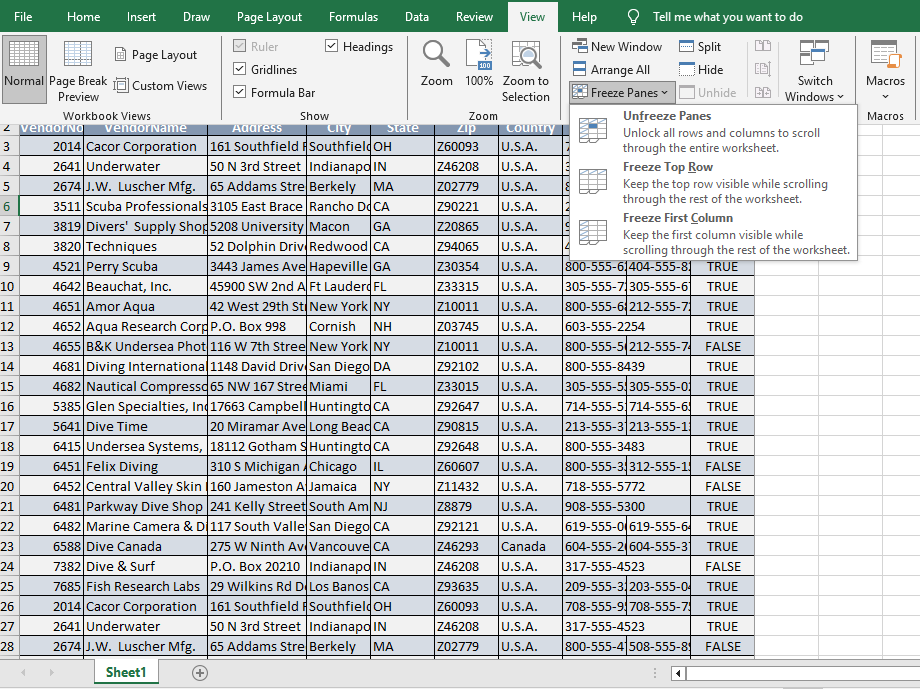 Query result
Unfreeze Panes
When the fixed display is no longer needed, you can cancel the frozen panes that have been set in the worksheet through the RemovePanes method and restore normal scrolling.
function App() {
  const sheetToSVG = async () => {
    // Get the Spire.XLS WASM module
    const xlsModule = window.wasmModule?.spirexls;

    // Check whether the module is ready
    if (!xlsModule) {
      alert('Spire.Xls is not ready yet');
      return;
    }

    // Load the font and the Excel file into the VFS
    await window.spire.FetchFileToVFS('ARIAL.TTF', '/Library/Fonts/', `${process.env.PUBLIC_URL}/font/`);
    const inputFileName = 'Template_Xls_2.xlsx';
    await window.spire.FetchFileToVFS(inputFileName, '', `${process.env.PUBLIC_URL}/static/data/`);

    // Load the workbook
    const workbook = new xlsModule.Workbook();
    workbook.LoadFromFile({ fileName: inputFileName });

    // Get the first worksheet
    const sheet = workbook.Worksheets.get(0);

    // Unfreeze the panes
    sheet.RemovePanes();

    const outputFileName = "UnfreezeExcelPanes_output.xlsx";
    workbook.SaveToFile({ fileName: outputFileName });

    // Dispose of the workbook object to release resources
    workbook.Dispose();

    // Read the converted file from the VFS and trigger the download
    const fileArray = window.dotnetRuntime.Module.FS.readFile(outputFileName);
    const blob = new Blob([fileArray], { type: "application/vnd.openxmlformats-officedocument.spreadsheetml.sheet" });
    const url = URL.createObjectURL(blob);
    const a = document.createElement('a');
    a.href = url;
    a.download = outputFileName;
    a.click();
    URL.revokeObjectURL(url);
  };

  return (
    <div style={{ textAlign: 'center', height: '300px' }}>
      <h1>Unfreeze Panes</h1>
      <button onClick={sheetToSVG}>
        Start
      </button>
    </div>
  );
}

export default App;
Before unfreezing 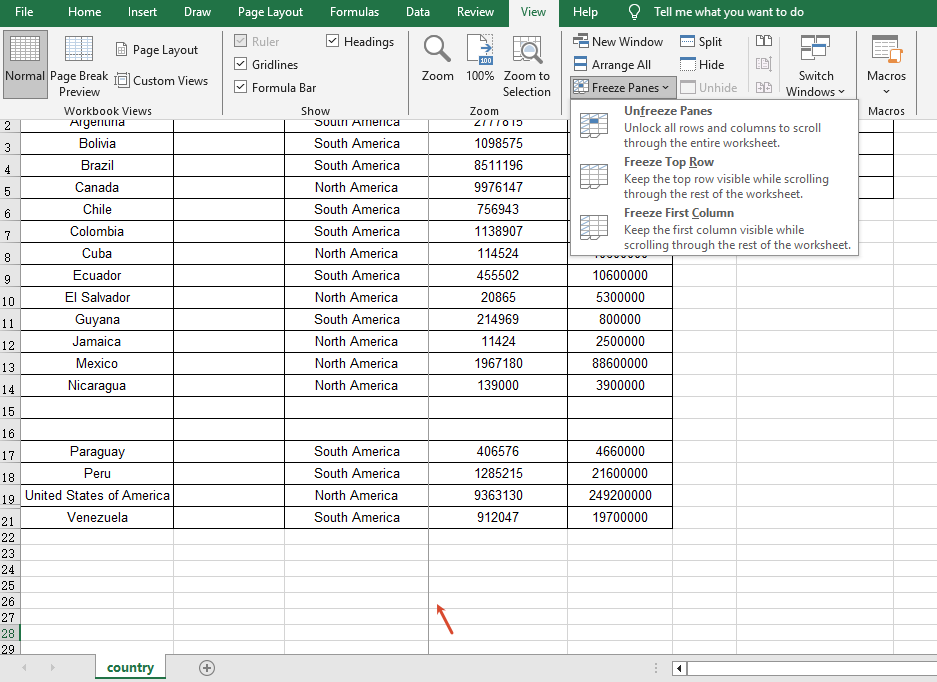 After unfreezing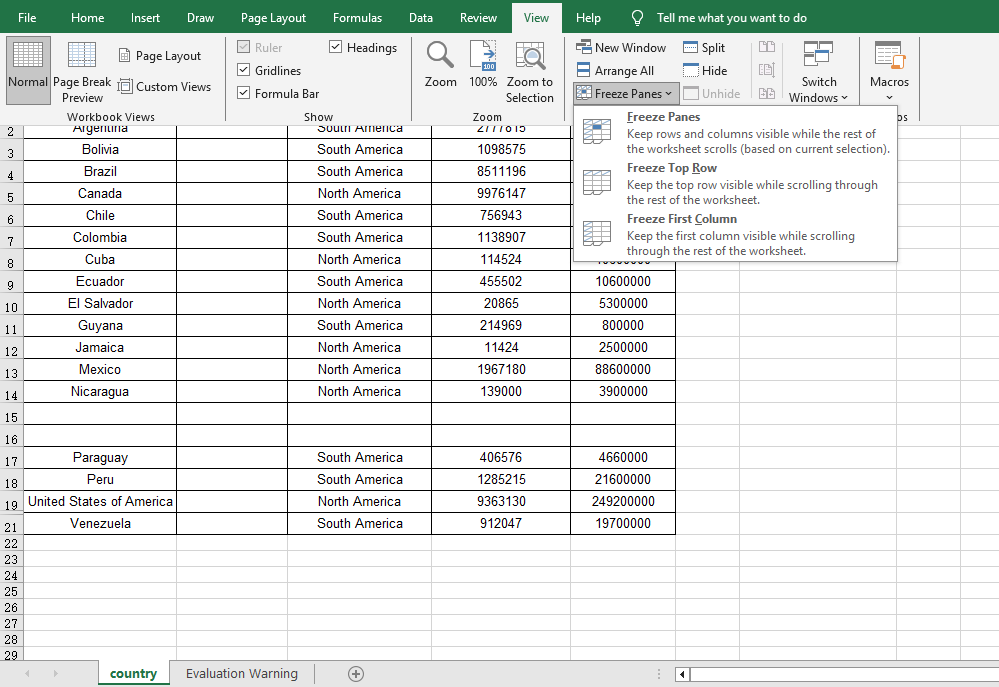
FAQ
The first row still scrolls after freezing panes
Reason: The parameters of the FreezePanes method are set incorrectly, so the frozen area is not the expected row or column.
Solution: The FreezePanes method uses the specified position as the boundary and freezes the panes above and to the left of that position. For example, use FreezePanes(2, 1) to freeze the first row, FreezePanes(3, 1) to freeze the first two rows, and FreezePanes(2, 2) to freeze both the first row and the first column.
Querying the freeze pane range returns 0
Reason: The worksheet has not set any frozen panes, so the queried row and column indexes are 0.
Solution: Call the FreezePanes method to set frozen panes first, and then call GetFreezePanes to query the frozen range.
The freeze effect still shows after unfreezing panes
Reason: The workbook was not saved correctly after unfreezing, or the file opened is the one before the modification.
Solution: After calling the RemovePanes method, be sure to save the workbook with SaveToFile and open the output file to confirm the unfreeze effect.
Get a Free License
If you want to remove the evaluation message in the result documents or get rid of the feature limitations, please contact sales to obtain a 30-day temporary license.
