Page breaks are an important tool for controlling the print layout of Excel. They determine where data is divided across printed pages. Setting page breaks properly prevents data from being broken apart pointlessly when printing, resulting in clean, readable paper or PDF reports. Spire.XLS for JavaScript uses WebAssembly to add, preview, and remove page breaks directly in the browser, managing input and output files through a virtual file system (VFS) — no backend server required.
This article covers three core features:
For installation and project configuration, refer to Integrating Spire.XLS for JavaScript in a React Project. The examples below assume Spire.XLS is installed and the WebAssembly module is initialized.
Add Page Breaks
When printing reports, we often want to split data by a fixed number of rows and columns, for example printing a fixed number of data rows per page. Spire.XLS for JavaScript adds horizontal page breaks using the HPageBreaks.Add method and vertical page breaks using the VPageBreaks.Add method, enabling precise page break control.
function App() {
  const sheetToSVG = async () => {
    // Get the Spire.XLS WASM module
    const xlsModule = window.wasmModule?.spirexls;

    // Check if the module is ready
    if (!xlsModule) {
      alert('Spire.Xls is not ready yet');
      return;
    }

    // Load fonts and the Excel file into VFS
    await window.spire.FetchFileToVFS('ARIAL.TTF', '/Library/Fonts/', `${process.env.PUBLIC_URL}/font/`);
    const inputFileName = 'Template_Xls_4.xlsx';
    await window.spire.FetchFileToVFS(inputFileName, '', `${process.env.PUBLIC_URL}/static/data/`);

    // Load the workbook
    const workbook = new xlsModule.Workbook();
    workbook.LoadFromFile({ fileName: inputFileName });

    // Get the first worksheet
    const sheet = workbook.Worksheets.get(0);

    // Add a horizontal page break at row E4
    sheet.HPageBreaks.Add(sheet.Range.get("E4"));
    // Add a vertical page break at column C4
    sheet.VPageBreaks.Add(sheet.Range.get("C4"));

    const outputFileName = "AddPageBreakInXlsFile.xlsx";
    workbook.SaveToFile({ fileName: outputFileName });

    // Release the workbook object to free resources
    workbook.Dispose();

    // Read the converted file from VFS and trigger download
    const fileArray = window.dotnetRuntime.Module.FS.readFile(outputFileName);
    const blob = new Blob([fileArray], { type: "application/vnd.openxmlformats-officedocument.spreadsheetml.sheet" });
    const url = URL.createObjectURL(blob);
    const a = document.createElement('a');
    a.href = url;
    a.download = outputFileName;
    a.click();
    URL.revokeObjectURL(url);
  };

  return (
    <div style={{ textAlign: 'center', height: '300px' }}>
      <h1>Add Page Break</h1>
      <button onClick={sheetToSVG}>
        Start
      </button>
    </div>
  );
}

export default App;
Original document 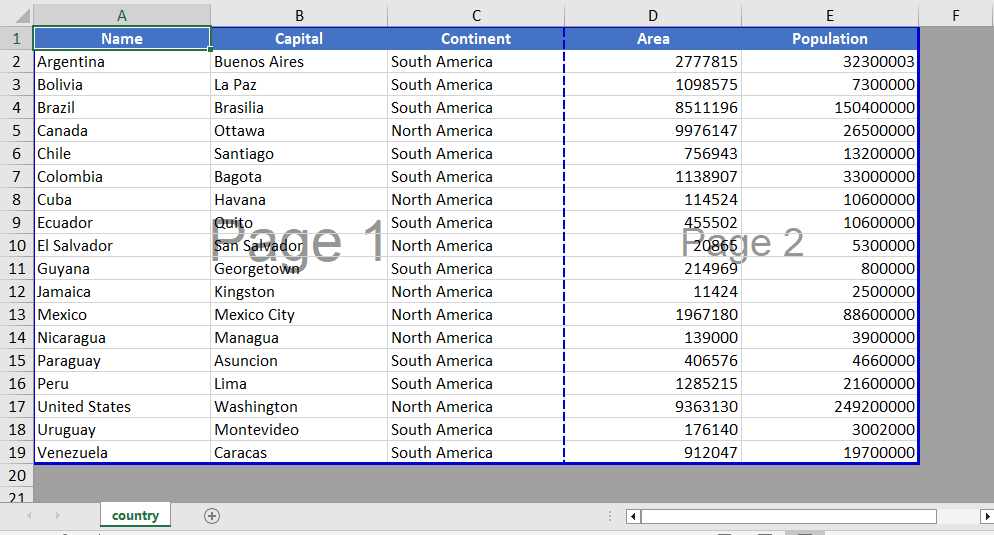 Add page break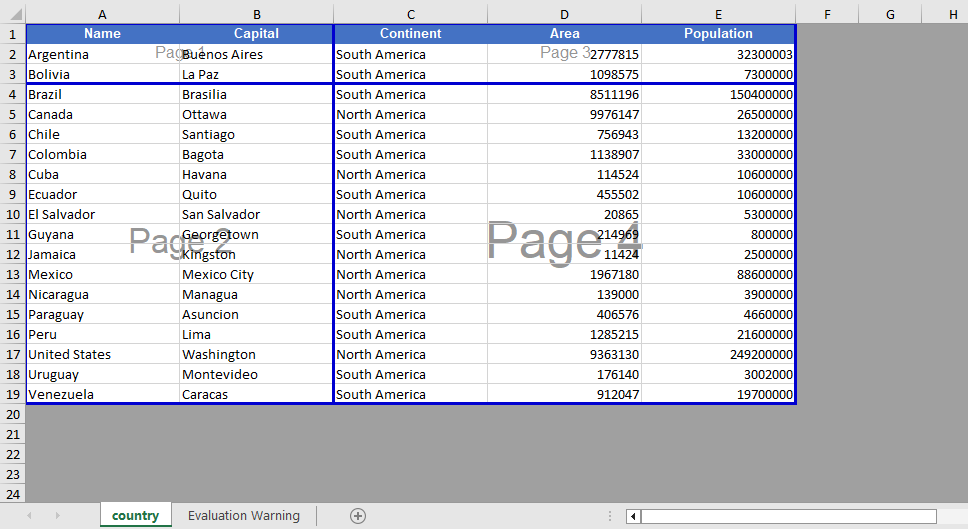
Page Break View Zoom Scale Setting
When viewing page break positions in the view mode, Spire.XLS for JavaScript supports setting the zoom scale of the page break preview view through the ZoomScalePageBreakView property.
function App() {
  const sheetToSVG = async () => {
    // Get the Spire.XLS WASM module
    const xlsModule = window.wasmModule?.spirexls;

    // Check if the module is ready
    if (!xlsModule) {
      alert('Spire.Xls is not ready yet');
      return;
    }

    // Load fonts and the Excel file into VFS
    await window.spire.FetchFileToVFS('ARIAL.TTF', '/Library/Fonts/', `${process.env.PUBLIC_URL}/font/`);
    const inputFileName = 'Template_Xls_4.xlsx';
    await window.spire.FetchFileToVFS(inputFileName, '', `${process.env.PUBLIC_URL}/static/data/`);

    // Load the workbook
    const workbook = new xlsModule.Workbook();
    workbook.LoadFromFile({ fileName: inputFileName });

    // Get the first worksheet
    const sheet = workbook.Worksheets.get(0);

    // Set the zoom scale of the page break preview view
    sheet.ZoomScalePageBreakView = 80;

    const outputFileName = "PageBreakPreview.xlsx";
    workbook.SaveToFile({ fileName: outputFileName });

    // Release the workbook object to free resources
    workbook.Dispose();

    // Read the converted file from VFS and trigger download
    const fileArray = window.dotnetRuntime.Module.FS.readFile(outputFileName);
    const blob = new Blob([fileArray], { type: "application/vnd.openxmlformats-officedocument.spreadsheetml.sheet" });
    const url = URL.createObjectURL(blob);
    const a = document.createElement('a');
    a.href = url;
    a.download = outputFileName;
    a.click();
    URL.revokeObjectURL(url);
  };

  return (
    <div style={{ textAlign: 'center', height: '300px' }}>
      <h1>Page Break Preview</h1>
      <button onClick={sheetToSVG}>
        Start
      </button>
    </div>
  );
}

export default App;
Before setting the zoom scale 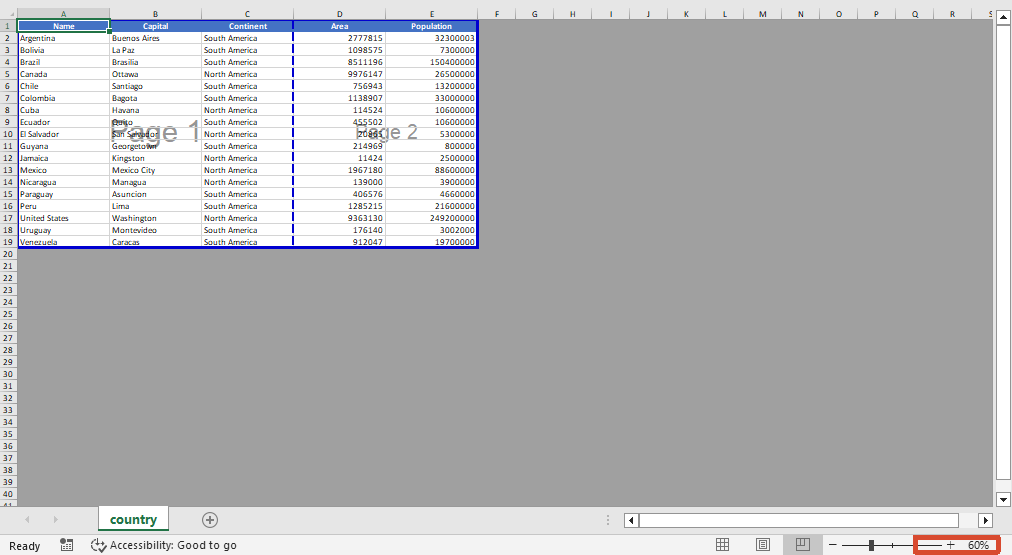 After setting the zoom scale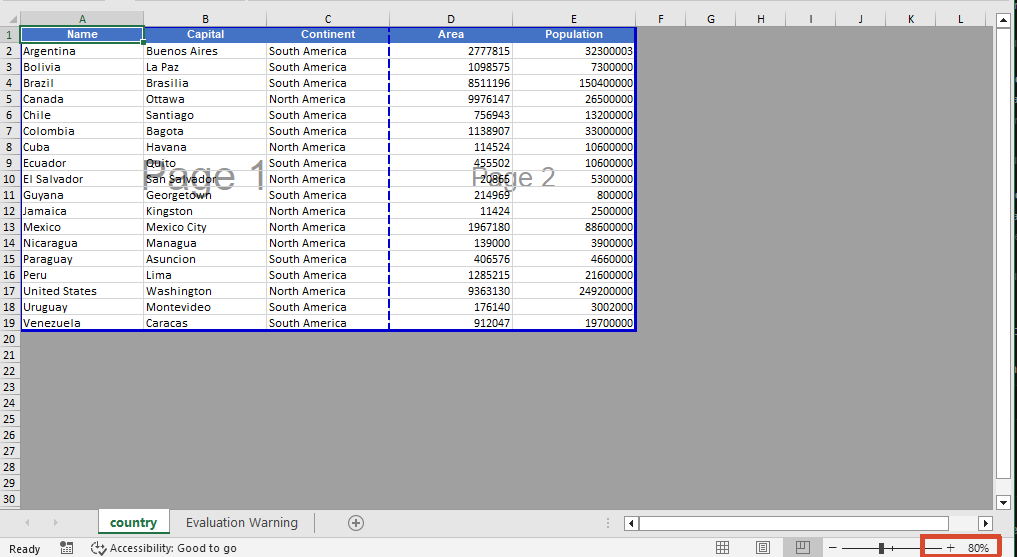
Remove Page Breaks
When page breaks are no longer needed, you can clear all page breaks in a specific direction using the Clear method, or delete the page break at a specific position by index using the RemoveAt method. After removal, you can also switch the worksheet to the page break preview view via the ViewMode property to visually confirm the page break effect.
function App() {
  const sheetToSVG = async () => {
    // Get the Spire.XLS WASM module
    const xlsModule = window.wasmModule?.spirexls;

    // Check if the module is ready
    if (!xlsModule) {
      alert('Spire.Xls is not ready yet');
      return;
    }

    // Load fonts and the Excel file into VFS
    await window.spire.FetchFileToVFS('ARIAL.TTF', '/Library/Fonts/', `${process.env.PUBLIC_URL}/font/`);
    const inputFileName = 'PageBreak.xlsx';
    await window.spire.FetchFileToVFS(inputFileName, '', `${process.env.PUBLIC_URL}/static/data/`);

    // Load the workbook
    const workbook = new xlsModule.Workbook();
    workbook.LoadFromFile({ fileName: inputFileName });

    // Get the first worksheet
    const sheet = workbook.Worksheets.get(0);

    // Clear all vertical page breaks
    sheet.VPageBreaks.Clear();

    // Remove the first horizontal page break
    sheet.HPageBreaks.RemoveAt(0);

    // Set the view mode to page break preview to check the page break effect
    sheet.ViewMode = xlsModule.ViewMode.Preview;

    const outputFileName = "RemovePageBreak_output.xlsx";
    workbook.SaveToFile({ fileName: outputFileName });

    // Release the workbook object to free resources
    workbook.Dispose();

    // Read the converted file from VFS and trigger download
    const fileArray = window.dotnetRuntime.Module.FS.readFile(outputFileName);
    const blob = new Blob([fileArray], { type: "application/vnd.openxmlformats-officedocument.spreadsheetml.sheet" });
    const url = URL.createObjectURL(blob);
    const a = document.createElement('a');
    a.href = url;
    a.download = outputFileName;
    a.click();
    URL.revokeObjectURL(url);
  };

  return (
    <div style={{ textAlign: 'center', height: '300px' }}>
      <h1>Remove Page Break</h1>
      <button onClick={sheetToSVG}>
        Start
      </button>
    </div>
  );
}

export default App;
Before removing the page break 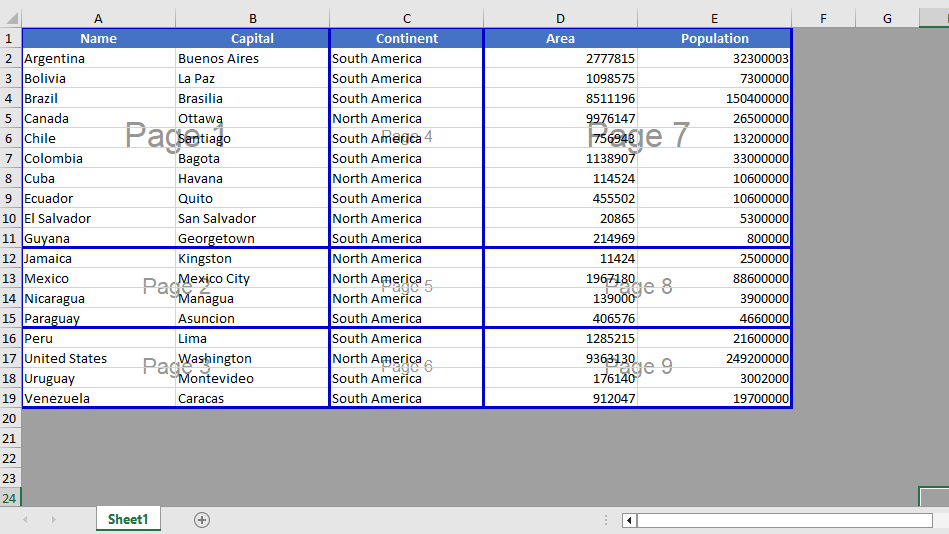 After removing the page break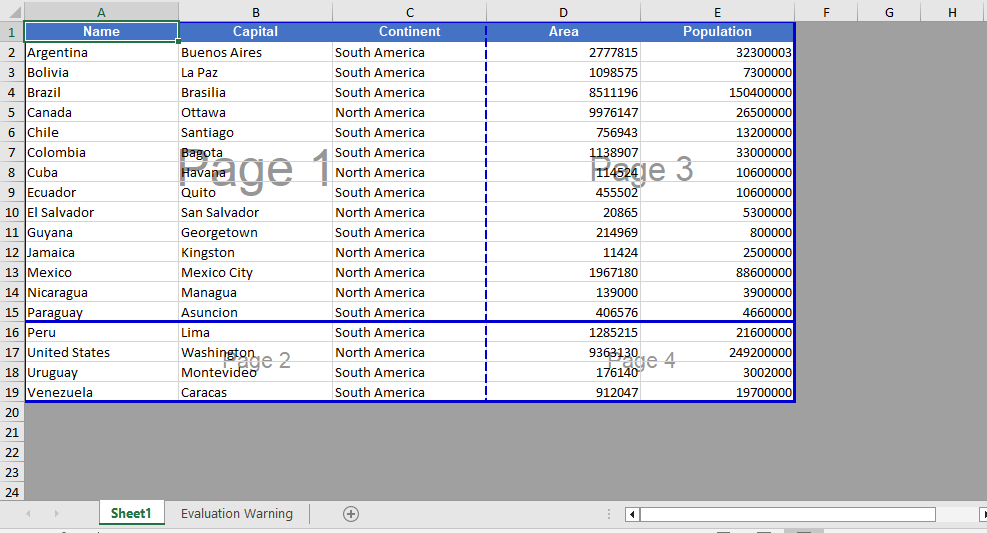
FAQ
Page breaks do not take effect when printing after being added
Cause: The page break was added to a blank area, or the worksheet has a fixed print zoom scale set, causing the actual page break positions during printing to differ from what was expected.
Solution: Confirm that the page break is added on the row or column of a cell containing data, and check the worksheet's print zoom settings. If necessary, adjust the zoom scale through properties such as ZoomScalePageBreakView so the page breaks take effect as expected.
Page break lines still display after removal
Cause: The worksheet is still in page break preview view mode, or there are automatic page breaks that are generated automatically based on the amount of data.
Solution: Automatic page breaks cannot be removed directly by programming; automatic page breaks are determined by the number of data rows, columns, and the page size. They can be eliminated by adjusting row heights, column widths, or the print zoom scale.
Get a Free License
If you want to remove the evaluation messages in the resulting documents, or get rid of functional limitations, please contact sales to obtain a temporary license valid for 30 days.
