Exporting list data to Excel with C# is a common requirement in modern .NET applications. Whether you are building a desktop application, a web system, or a background service, developers often need to convert in-memory collections—especially List<T>—into well-structured Excel files that users can download, analyze, or share.
This tutorial demonstrates how to export a list of objects to Excel in C# without using Excel Interop, using Spire.XLS for .NET. The solution is fully compatible with .NET Core and modern .NET versions, works with typical business data models, and does not require Microsoft Excel to be installed.
Table of Contents
- Why Export a List to Excel in C# Without Interop?
- Export a List of Objects to Excel in C#
- Formatting the Exported Excel Worksheet
- .NET Core and Server-Side Compatibility
- Conclusion
- Frequently Asked Questions
Why Export a List to Excel in C# Without Interop?
Exporting list data to Excel is a practical way to present structured information in a familiar and widely accepted format. In real-world applications, this requirement commonly appears in scenarios such as:
- Generating operational or financial reports
- Allowing users to download query results from web applications
- Sharing structured data with non-technical stakeholders
- Performing offline analysis or audits using Excel
Traditionally, many developers rely on Excel Interop to generate Excel files. While Interop can work in certain desktop environments, it also introduces several limitations:
- Microsoft Excel must be installed on the machine
- It is not recommended for server-side or ASP.NET Core applications
- It adds unnecessary dependencies for simple export tasks
As a result, exporting Excel files without Interop has become the preferred approach for modern .NET applications. Libraries such as Spire.XLS for .NET provide a clean, reliable, and server-friendly way to export a List<T> directly to Excel—without requiring Microsoft Office.
Export a List of Objects to Excel in C#
In most real-world applications, data is stored as a list of business objects rather than simple values. This section focuses on exporting a List<T> that represents a realistic reporting scenario, using a reusable and Interop-free approach.
Prerequisites
Before exporting a list to Excel, make sure Spire.XLS for .NET is installed in your project.
You can install it via NuGet:
Install-Package Spire.XLS
Once installed, you can start exporting List<T> data to Excel without any additional configuration.
Core Export Workflow
The overall process of exporting a list of objects to Excel can be summarized as follows:
- Prepare business-ready data in a
List<T> - Create an Excel workbook and worksheet
- Generate column headers dynamically from object properties
- Write list data into worksheet rows
- Save the Excel file
The following example demonstrates the complete implementation.
Complete Example: Export List to Excel
using Spire.Xls;
using System;
using System.Collections.Generic;
using System.Reflection;

public class OrderReport
{
    public int OrderId { get; set; }
    public string CustomerName { get; set; }
    public DateTime OrderDate { get; set; }
    public decimal TotalAmount { get; set; }
    public string Status { get; set; }
}

class Program
{
    static void Main()
    {
        // Prepare sample business data
        List<OrderReport> orders = new List<OrderReport>
        {
            new OrderReport { OrderId = 1001, CustomerName = "Alice", OrderDate = DateTime.Today.AddDays(-2), TotalAmount = 1200.50m, Status = "Completed" },
            new OrderReport { OrderId = 1002, CustomerName = "Bob", OrderDate = DateTime.Today.AddDays(-1), TotalAmount = 850.00m, Status = "Pending" },
            new OrderReport { OrderId = 1003, CustomerName = "Charlie", OrderDate = DateTime.Today, TotalAmount = 430.75m, Status = "Cancelled" }
        };

        // Create workbook and worksheet
        Workbook workbook = new Workbook();
        Worksheet sheet = workbook.Worksheets[0];

        // Read object properties dynamically
        PropertyInfo[] properties = typeof(OrderReport).GetProperties();

        // Write column headers
        for (int i = 0; i < properties.Length; i++)
        {
            sheet.Range[1, i + 1].Text = properties[i].Name;
        }

        // Write data rows
        for (int row = 0; row < orders.Count; row++)
        {
            for (int col = 0; col < properties.Length; col++)
            {
                object value = properties[col].GetValue(orders[row]);
                sheet.Range[row + 2, col + 1].Value2 = value;
            }
        }

        // Save Excel file
        workbook.SaveToFile("OrderReport.xlsx", ExcelVersion.Version2016);
    }
}
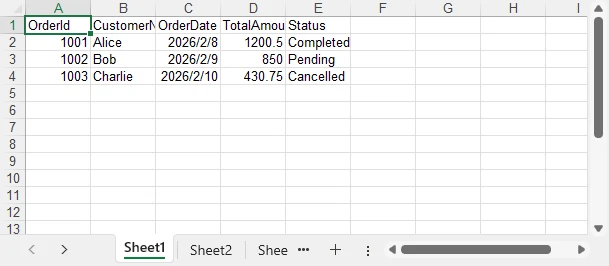
Below is a preview of the generated Excel file:
Technical Notes and Implementation Details
- An Excel file is created by instantiating
Workbook, with the first worksheet accessed viaworkbook.Worksheets[0] - Column headers are generated dynamically using reflection (
Type.GetProperties) to avoid hardcoded mappings - Header cells are written using
Range.Text, ensuring clear string output in the first row - Object values are written row by row using
Range.Value2to preserve native Excel data types - The final Excel document is generated with
Workbook.SaveToFile, without requiring Microsoft Excel or Interop
This pattern is ideal for building reusable export utilities and report-generation modules.
In scenarios where data is retrieved as a DataTable instead of a List, Spire.XLS also provides an efficient export approach. Refer to How to Export a DataTable to Excel in C# for detailed instructions.
Formatting the Exported Excel Worksheet
Beyond basic data export, Spire.XLS for .NET allows you to apply formatting to improve readability and usability of the generated Excel file.
Common formatting tasks include:
- Styling header rows
- Formatting dates and numeric values
- Adjusting column widths automatically
- Highlighting key fields
Example: Apply Basic Formatting
using System.Drawing;

// Format header row
CellStyle headerStyle = workbook.Styles.Add("HeaderStyle");
headerStyle.Font.FontName = "Arial";
headerStyle.Font.Size = 12f;
headerStyle.Font.IsBold = true;
headerStyle.Color = Color.LightGray;  // Set cell background color
headerStyle.HorizontalAlignment = HorizontalAlignType.Center;

sheet.Range[1, 1, 1, sheet.LastColumn].Style = headerStyle;

// Format date and amount columns
sheet.Range[2, 3, orders.Count + 1, 3].NumberFormat = "yyyy-mm-dd";
sheet.Range[2, 4, orders.Count + 1, 4].NumberFormat = "#,##0.00";

// Auto-fit row height and column width
sheet.AllocatedRange.AutoFitRows();
sheet.AllocatedRange.AutoFitColumns();
Below is a preview of the formatted Excel sheet:
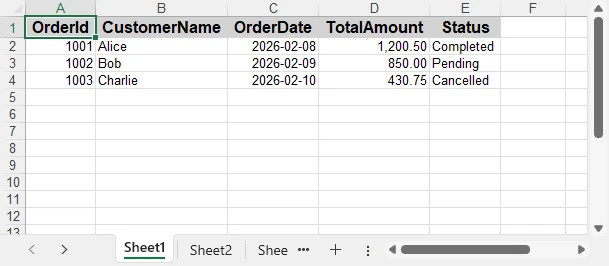
Applying formatting makes the exported Excel file more professional and suitable for direct business use.
For more advanced worksheet formatting—such as styles, merged cells, conditional formatting, and formulas—see How to Create and Format Excel Worksheets in C#.
.NET Core and Server-Side Compatibility
Spire.XLS for .NET is fully compatible with .NET Core and modern .NET versions, making it suitable for:
- ASP.NET Core web applications
- Web APIs
- Cloud and containerized environments
- Background services and scheduled jobs
Because it does not rely on Excel Interop, the export logic is safe to use in server-side and production environments.
If you are working in an ASP.NET Core or Web API project, this guide shows how to generate and format Excel files and return them to the client: Export Excel Files in ASP.NET Core Using C#.
Conclusion
Exporting a list to Excel in C# does not have to rely on Excel Interop. With Spire.XLS for .NET, you can efficiently convert a List<T> into a well-structured and formatted Excel file that works seamlessly across .NET Framework and .NET Core environments.
By adopting an Interop-free approach, you reduce deployment complexity, improve application stability, and gain greater flexibility when exporting business data.
Whether you need to export complex reports or simple lists, Spire.XLS provides a reliable and scalable solution for modern C# applications. For evaluation purposes or to remove trial limitations, a 30-day temporary license is available.
Frequently Asked Questions
Q1. Can this approach export large lists efficiently?
Yes. Spire.XLS for .NET is designed for server-side usage and can handle large List datasets efficiently. For very large exports, batching or streaming strategies can further improve performance.
Q2. Does this solution require Microsoft Excel to be installed?
No. Spire.XLS for .NET works independently of Microsoft Excel and does not rely on Excel Interop, making it suitable for server and cloud environments.
Q3. Can I customize column headers or formats?
Yes. Column headers can be customized manually, and cell formats such as dates, numbers, and styles can be applied programmatically. For advanced formatting scenarios, refer to the C# Excel formatting guide.
Q4. Is this compatible with ASP.NET Core and Web APIs?
Yes. The export logic works seamlessly in ASP.NET Core applications, Web APIs, background services, and other server-side .NET environments.
