
Exporting tabular data from UI controls to Excel is a common requirement in C# applications. In both WinForms and ASP.NET projects, users often need to take the data currently displayed in a DataGrid, DataGridView, or GridView and export it to an Excel file for reporting, sharing, or further processing.
In real-world scenarios, exported Excel files are rarely used as raw data only. Readable layouts, header styles, column widths, and number formats are usually expected as part of the export result.
This article demonstrates how to export DataGridView and GridView/DataGrid data to Excel in C# using Spire.XLS for .NET, without relying on Microsoft Office Interop. The solution focuses on exporting displayed data accurately, keeping the implementation clean, and applying Excel formatting in a consistent and reusable way.
Table of Contents
- Advantages of Programmatic Excel Export in C#
- Core Concept: Export Displayed Data via a DataTable
- Step 1: Extract Displayed Data into a DataTable
- Step 2: Export DataTable to Excel in C#
- Step 3: Apply Formatting to the Exported Excel File
- Performance and Practical Considerations
- Summary
- FAQ
Advantages of Programmatic Excel Export in C#
While Microsoft Office Interop can generate Excel files, using a programmatic approach in C# provides clear benefits for exporting data from DataGrid, DataGridView, or GridView:
- Does not require Microsoft Excel to be installed on the machine
- Suitable for server-side or cloud environments
- Maintains high performance even with large datasets
- Simplifies automation and background export scenarios
By exporting data directly via code, developers can create reliable, maintainable, and scalable Excel exports that work consistently across different application types.
Core Concept: Export Displayed Data via a DataTable
Although DataGrid, DataGridView, and GridView are UI controls, they serve the same fundamental purpose: displaying structured data in rows and columns. Attempting to export these controls directly often leads to UI-dependent logic and maintenance challenges.
A more reliable and reusable workflow is:
Displayed UI data → DataTable → Excel file
In this design:
- The DataTable represents exactly what the user sees
- The Excel export logic remains independent of the UI layer
- The same approach works for WinForms and ASP.NET applications
- Formatting and layout can be applied at the Excel level
The DataTable acts as a clean intermediate structure rather than the final export target, and using Spire.XLS for .NET, DataTable can be easily exported to a well-formatted Excel file.
Step 1: Extract Displayed Data into a DataTable
The first step is to extract the currently displayed data from the UI control into a DataTable. This step focuses on capturing visible rows and columns, not on reconstructing the original data source.
Export Displayed Data from DataGridView (WinForms)
In WinForms applications, users typically expect the DataGridView content to be exported as it appears on screen. The following method converts the displayed DataGridView data into a DataTable:
DataTable ConvertDataGridViewToDataTable(DataGridView dgv)
{
    DataTable dt = new DataTable();

    foreach (DataGridViewColumn column in dgv.Columns)
    {
        dt.Columns.Add(column.HeaderText, column.ValueType ?? typeof(string));
    }

    foreach (DataGridViewRow row in dgv.Rows)
    {
        if (row.IsNewRow) continue;

        DataRow dr = dt.NewRow();
        for (int i = 0; i < dgv.Columns.Count; i++)
        {
            dr[i] = row.Cells[i].Value ?? DBNull.Value;
        }
        dt.Rows.Add(dr);
    }

    return dt;
}
This approach preserves column headers, column order, and displayed values when exporting DataGridView data to Excel in C#.
Export Displayed Data from GridView (ASP.NET)
In ASP.NET applications, GridView controls render tabular data for users to view and interact with. To export the displayed GridView data, the rendered rows can be converted into a DataTable as shown below:
DataTable ConvertGridViewToDataTable(GridView gv)
{
    DataTable dt = new DataTable();

    foreach (TableCell cell in gv.HeaderRow.Cells)
    {
        dt.Columns.Add(cell.Text);
    }

    foreach (GridViewRow row in gv.Rows)
    {
        DataRow dr = dt.NewRow();
        for (int i = 0; i < row.Cells.Count; i++)
        {
            dr[i] = row.Cells[i].Text;
        }
        dt.Rows.Add(dr);
    }

    return dt;
}
This method provides a consistent data structure that can be reused for exporting GridView data to Excel in C#, without introducing UI-specific export logic.
If you need to export data directly from a database to an Excel file, you can refer to this guide: Export Database to Excel in C#.
Step 2: Export DataTable to Excel in C#
Once the displayed data has been extracted into a DataTable, exporting it to Excel becomes a UI-independent operation.
In this example, Spire.XLS for .NET is used to generate Excel files programmatically, without requiring Microsoft Excel to be installed.
Install Spire.XLS for .NET
Spire.XLS for .NET can be installed via NuGet:
Install-Package Spire.XLS
You can also download Spire.XLS for .NET and add it to your project manually.
Basic Excel Export Example
using Spire.Xls;

Workbook workbook = new Workbook();
Worksheet worksheet = workbook.Worksheets[0];

// Import DataTable into Excel, including column headers
worksheet.InsertDataTable(exportTable, true, 1, 1);

// Save the Excel file
workbook.SaveToFile("ExportedData.xlsx", ExcelVersion.Version2016);
Below is a preview of the exported Excel file:
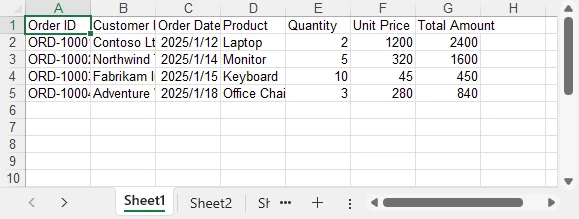
This export logic can be reused for DataGrid, DataGridView, and GridView scenarios without modification.
Step 3: Apply Formatting to the Exported Excel File
Formatting is a common requirement for Excel exports, regardless of how the data was sourced. Applying styles, adjusting column widths, and setting number formats significantly improves the usability of the exported file.
The following example demonstrates common formatting operations that can be applied to any exported Excel worksheet:
CellStyle headerStyle = workbook.Styles.Add("HeaderStyle");
headerStyle.Font.IsBold = true;
headerStyle.Font.Size = 13;
headerStyle.HorizontalAlignment = HorizontalAlignType.Center;
headerStyle.VerticalAlignment = VerticalAlignType.Center;
headerStyle.Color = Color.LightGray;

// Apply header style
CellRange headerRange = worksheet.Range[1, 1, 1, worksheet.AllocatedRange.Rows[0].CellsCount];
headerRange.Style = headerStyle;

// Auto-fit columns
worksheet.AllocatedRange.AutoFitColumns();

// Format date and currency columns
worksheet.Range[$"C2:C{worksheet.AllocatedRange.RowCount}"].NumberFormat = "yyyy-mm-dd";
worksheet.Range[$"F2:G{worksheet.AllocatedRange.RowCount}"].NumberFormat = "$#,##0.00";
Below is a preview of the Excel file after applying formatting:
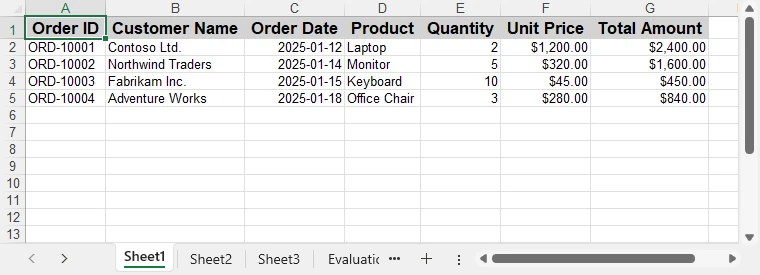
These formatting steps can be combined or extended based on reporting requirements, without changing the data extraction logic.
Spire.XLS for .NET also supports more Excel formatting features, such as conditional formatting, charts, and more. You can check How to Create Excel Files in C# for more formating options.
Performance and Practical Considerations
When exporting large DataGrid or GridView datasets:
- Run export operations asynchronously in desktop applications
- Avoid blocking the UI thread during Excel generation
- Export only necessary or visible columns
- Generate Excel files server-side in ASP.NET applications
Because the export process operates on a DataTable rather than UI elements, it remains maintainable and scalable as data volume increases.
Summary
Exporting DataGrid, DataGridView, or GridView data to Excel in C# does not require Microsoft Office Interop. By extracting the displayed data into a DataTable and generating Excel files programmatically, developers can implement reliable and reusable Excel export functionality.
With consistent formatting support and a clear separation between UI and export logic, this approach works well for real-world reporting scenarios in both desktop and web applications. For evaluating the library or testing export functionality, you can apply for a temporary license.
FAQ
Q1: How can I export DataGridView data to Excel in C#?
A1: You can extract the displayed data from a DataGridView into a DataTable and then use Spire.XLS for .NET to generate an Excel file programmatically, without relying on Microsoft Excel.
Q2: Can I apply formatting when exporting GridView to Excel in C#?
A2: Yes, Spire.XLS allows you to apply styles, adjust column widths, and set number formats to any exported Excel worksheet, ensuring readable and professional-looking reports.
Q3: Do I need Microsoft Excel installed to export DataGrid or GridView data in C#?
A3: No. By using a programmatic library like Spire.XLS, Excel files can be generated directly from DataTable objects without requiring Excel on the machine, making it suitable for server-side and cloud applications.
