VBA macros provide a convenient way to automate data processing, formatting, and business logic within Excel, especially for repetitive or rule-based tasks. However, managing macros manually inside Excel becomes inefficient when you need to generate, update, or maintain files at scale.
For .NET developers, a more scalable approach is to programmatically add macros to Excel using C#. By working with Excel VBA in C#, you can write Excel macros, read existing macro code, and modify VBA logic across multiple files without opening Excel and manually editing the VBA code.
In this article, you'll learn how to add, read, and edit Excel VBA macros in C# for automated workflows. Using Spire.XLS for .NET, you can directly manipulate VBA projects embedded in Excel files without requiring Microsoft Excel installation.
Quick Navigation
- How C# Works with Excel Macros
- Environment Setup
- How to Add a Macro to Excel in C#
- Read, Edit, and Remove Macros from Excel in C#
- Common Pitfalls When Working with Excel Macros
- Conclusion
- Frequently Asked Questions
Understanding Excel Macros and How C# Works with Them
An Excel macro is essentially VBA (Visual Basic for Applications) code stored inside a workbook. In macro-enabled files (such as .xlsm), this code is organized within a VBA project, which contains modules and procedures.
In practice, most programmatic macro operations focus on standard modules, which are simple containers for VBA procedures (Sub or Function). When working with C#, you typically do not interact with Excel UI elements like buttons or events. Instead, you directly create modules and inject VBA code.
From a technical perspective, macros are not just executable scripts—they are part of the file structure. This means they can be accessed and modified programmatically, provided that your tool supports VBA project manipulation.
In C#, there are two main approaches to working with Excel macros:
- Using Microsoft Excel Interop to automate Excel
- Using standalone libraries such as Spire.XLS for .NET to manipulate the file directly
The first approach depends on Excel being installed and is typically used to execute macros. The second approach allows you to create, read, edit, and delete VBA code directly inside Excel files, making it more suitable for backend services and automated workflows.
In the following sections, we'll focus on the second approach and demonstrate how to manage Excel macros entirely in C#.
Environment Setup: Install Spire.XLS for .NET
Before working with Excel macros in C#, you need to install Spire.XLS for .NET, which allows you to manage Excel files and manipulate VBA projects without requiring Microsoft Excel.
Install via NuGet
You can install Spire.XLS for .NET using NuGet Package Manager:
Install-Package Spire.XLS
Or via the .NET CLI:
dotnet add package Spire.XLS
You can also download the Spire.XLS for .NET package and add it to your project manually.
Project Requirements
- .NET Framework, .NET Core, .NET Standard, or .NET 5+
- No Microsoft Excel installation required
- Supports Windows, Linux, and macOS environments
The library is runtime-agnostic and can be used in any .NET-supported environment, including web, desktop, and cross-platform applications.
Namespace to Import
After installation, include the following namespaces in your project:
using Spire.Xls;
Once the setup is complete, you can start creating, reading, and modifying Excel VBA macros programmatically.
How to Add a Macro to Excel in C# (Complete Example)
Before writing macro code, it's important to understand how Spire.XLS exposes the VBA structure in Excel:
- Workbook.VbaProject represents the VBA project embedded in the workbook
- IVbaProject.Modules provides access to all VBA modules
- IVbaModule represents an individual module that stores macro code
In addition to modules, the VBA project also supports project-level configuration, such as name, description, password protection, and conditional compilation settings.
The following example shows how to create a VBA project, configure its properties, add a module, and write a macro into an Excel file programmatically.
using Spire.Xls;

Workbook workbook = new Workbook();

// Create VBA project
IVbaProject vbaProject = workbook.VbaProject;

// Configure project-level properties (optional but important in real scenarios)
vbaProject.Name = "ReportGenerator";
vbaProject.Description = "VBA project for generating quarterly reports";
vbaProject.Password = "securepassword";
vbaProject.LockProjectView = false;
vbaProject.HelpFileName = "ReportGeneratorHelp.chm";
vbaProject.ConditionalCompilation = "DEBUG_MODE=1"; // External compile-time flag

// Add a VBA module
IVbaModule vbaModule = vbaProject.Modules.Add("ReportModule", VbaModuleType.Module);

// Write VBA macro code
vbaModule.SourceCode = @"
Sub GenerateQuarterlyReport()
    Dim ws As Worksheet
    Dim i As Integer
    Dim quarter As String

    Set ws = ActiveSheet
    ws.Cells.Clear

    ' Prompt user input
    quarter = InputBox(""Enter quarter (e.g., Q1 2026):"", ""Report Generation"")

    With ws
        .Range(""A1:E1"").Value = Array(""Date"", ""Product"", ""Region"", ""Sales"", ""Status"")

        For i = 1 To 50
            .Cells(i + 1, 1).Value = DateSerial(2026, 1 + Int((i - 1) / 17), 1 + ((i - 1) Mod 17))
            .Cells(i + 1, 2).Value = ""Product "" & (1 + Int((i - 1) / 10))
            .Cells(i + 1, 3).Value = Choose((i Mod 5) + 1, ""North"", ""South"", ""East"", ""West"", ""Central"")
            .Cells(i + 1, 4).Value = Round(Rnd() * 10000, 2)
            .Cells(i + 1, 5).Value = IIf(.Cells(i + 1, 4).Value > 5000, ""Target Met"", ""Below Target"")
        Next i

        .Columns(""A:E"").AutoFit

        ' Conditional compilation example
        #If DEBUG_MODE = 1 Then
            MsgBox ""DEBUG: Report generated (50 rows)"", vbInformation, ""Debug Info""
        #End If
    End With

    MsgBox ""Quarterly report for "" & quarter & "" generated successfully!"", vbInformation, ""Report Status""
End Sub";

// Save as macro-enabled Excel file
workbook.SaveToFile("QuarterlyReportGenerator.xlsm", FileFormat.Version2016);
workbook.Dispose();
Below is a preview of the generated Macro in Excel:
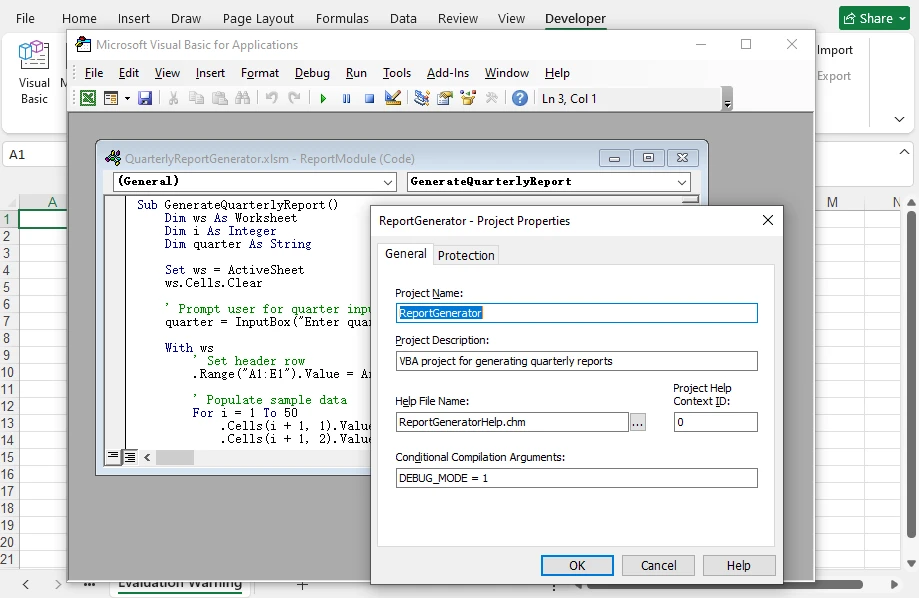
In this workflow, Spire.XLS allows you to construct the full VBA structure—not only modules and macro code, but also project-level metadata and compilation behavior—directly in code. This is conceptually similar to configuring a VBA project in the editor, but fully automated and independent of Excel.
Key API Breakdown
-
workbook.VbaProject
Initializes or retrieves the VBA project within the workbook.
-
vbaProject.Modules.Add(name, type)
Adds a new module to the project as a container for macro code.
-
vbaModule.SourceCode
Defines the full VBA script inside the module.
-
vbaProject.Description
Adds a description to the VBA project.
-
vbaProject.CodePage
Defines the character encoding used in the VBA project.
-
vbaProject.Password / LockProjectView
Controls access and visibility of the VBA project.
-
vbaProject.ConditionalCompilation
Enables compile-time flags (e.g., debug logic) inside VBA using #If.
Workbooks containing macros must be saved in macro-enabled formats such as .xls, .xlsm, .xltm, or .xlsb, as other formats (e.g., .xlsx) do not support VBA. Refer to the FileFormat enumeration to correctly set the output format when saving.
Reading, Editing, and Removing Excel Macros in C#
Once a VBA project exists, you can use Spire.XLS to inspect and modify its contents programmatically, including both module code and project-level metadata.
In real-world scenarios, this allows you to analyze existing macros, update business logic, enforce security settings, or remove legacy VBA code without opening Excel. Whether you're maintaining automated reporting systems or processing third-party Excel files, having full control over VBA projects in code is essential.
Read Macro Code and Project-Level Metadata
To read macros from an Excel file, load the workbook and iterate through all modules in the VBA project.
using Spire.Xls;

Workbook workbook = new Workbook();
workbook.LoadFromFile("QuarterlyReportGenerator.xlsm");

IVbaProject vbaProject = workbook.VbaProject;

string macroInfo = "VBA Project Name: " + vbaProject.Name + Environment.NewLine;
macroInfo += "Code Page: " + vbaProject.CodePage + Environment.NewLine;
macroInfo += "Is Protected: " + vbaProject.IsProtected + Environment.NewLine;

foreach (IVbaModule module in vbaProject.Modules)
{
    macroInfo += Environment.NewLine + "Module: " + module.Name + Environment.NewLine;
    macroInfo += "Source Code:" + Environment.NewLine;
    macroInfo += module.SourceCode + Environment.NewLine;
}

Console.WriteLine(macroInfo);

System.IO.File.WriteAllText("MacroAnalysis.txt", macroInfo);
workbook.Dispose();
Below is a preview of the console output:
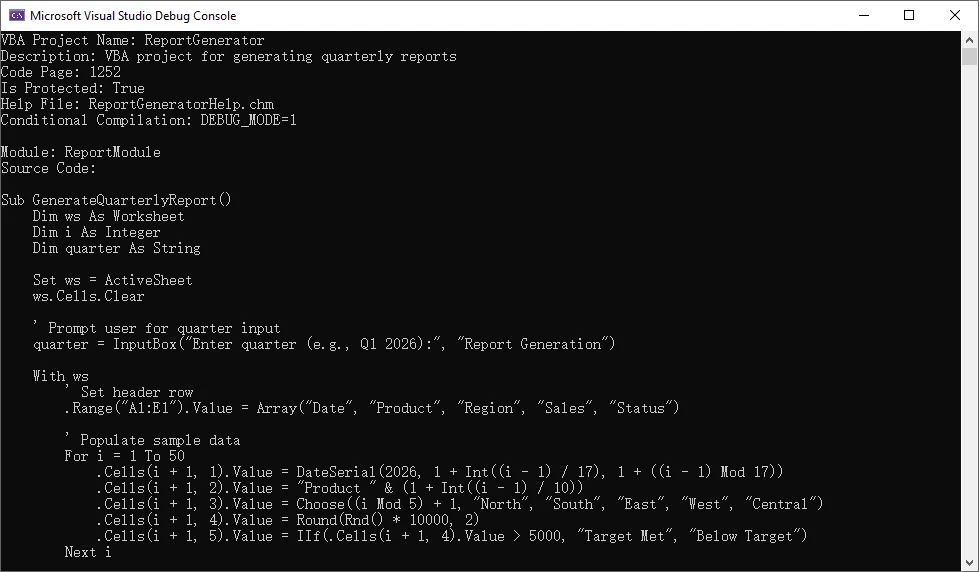
Here, each module exposes its VBA code through the SourceCode property, while the VBA project itself provides metadata such as name, encoding, and protection status.
The property vbaProject.IsProtected in this example indicates whether the VBA project is protected (locked for viewing or editing).
Edit Macro Code and Project-Level Metadata
To edit a macro, access a specific module and update its SourceCode. You can also modify project-level properties if needed. If the VBA project is protected, the correct password must be provided through vbaProject.Password before making such changes.
using Spire.Xls;

Workbook workbook = new Workbook();
workbook.LoadFromFile("QuarterlyReportGenerator.xlsm");

IVbaProject vbaProject = workbook.VbaProject;

// Update macro logic
IVbaModule module = vbaProject.Modules["ReportModule"];  // Or use index if name is unknown
module.SourceCode = module.SourceCode.Replace(
    "\"North\", \"South\", \"East\", \"West\", \"Central\"",
    "\"North America\", \"Europe\", \"Asia Pacific\", \"Latin America\", \"Middle East\"");

// Update project metadata
// For protected VBA projects, passwords are required to modify the project-level metadata
vbaProject.Password = "securepassword";
vbaProject.Description = "Updated report logic with global regions";
vbaProject.Name = "UpdatedReportGenerator";

workbook.SaveToFile("UpdatedReportGenerator.xlsm", FileFormat.Version2016);
workbook.Dispose();
Below is a preview of the updated macro code:

Spire.XLS treats macro code as editable text within a module, so updates are typically done by modifying the existing source and saving the workbook.
If you need to convert legacy .xls files to .xlsm format while preserving macros, see How to Convert XLS to XLSM and Maintain Macros Using C#.
Remove Macros
To remove macros, delete modules from the VBA project. This effectively removes all macro logic from the workbook.
using Spire.Xls;
using Spire.Xls.Core.Spreadsheet;

Workbook workbook = new Workbook();
workbook.LoadFromFile("LegacyReport.xlsm");

IVbaProject vbaProject = workbook.VbaProject;

// Remove specific module by its name
vbaProject.Modules.Remove("ReportModule");

// Or remove a module by its index
vbaProject.Modules.RemoveAt(0);

// Remove all modules
vbaProject.Modules.Clear();

workbook.SaveToFile("CleanReport.xlsm", FileFormat.Version2016);
workbook.Dispose();
After removing all modules, the workbook no longer contains executable VBA code, making it equivalent to a macro-free Excel file.
Alternatively, converting a macro-enabled Excel file to .xlsx will remove all macros, since the .xlsx format does not support VBA code.
Common Pitfalls When Working with Excel Macros
File Format Requirements
Macros require macro-enabled formats such as .xlsm, .xls, or .xlsb. The .xlsx format does not support VBA code. Always save files with the appropriate extension.
Encoding Issues
VBA code uses specific encoding (typically CodePage 1252 for Western languages). When working with international characters, ensure the CodePage is set correctly before writing macro code.
Common CodePage values include:
- 1252 – English / Western European (default in many environments)
- 936 – Simplified Chinese (GBK)
- 950 – Traditional Chinese (Big5)
- 932 – Japanese (Shift-JIS)
- 65001 – UTF-8 (⚠️ limited support in VBA, may cause compatibility issues)
Macro Security Settings
Excel macro security settings may prevent macros from running. When distributing macro-enabled files, consider adding instructions for enabling macros or digitally signing the VBA project.
Excel Version Compatibility
VBA code written for newer Excel versions may not work correctly in older versions. Test macros across target Excel versions to ensure compatibility.
Conclusion
C# provides robust capabilities for managing Excel macros programmatically. By using Spire.XLS for .NET, developers can add, read, edit, and remove VBA code directly inside Excel files without requiring Excel installation.
This approach focuses on managing macro code rather than executing it, making it ideal for automated workflows, backend services, and large-scale document processing.
To test these features without limitations, you can apply for a free temporary license of Spire.XLS for .NET.
Frequently Asked Questions (FAQ)
Can C# add VBA macros without Microsoft Excel?
Yes. Libraries such as Spire.XLS for .NET allow you to manipulate VBA projects directly without requiring Excel installation.
What format is required for Excel macros?
Macros require macro-enabled formats such as .xlsm, .xls, .xlsb, or .xltm (for templates). The .xlsx format does not support VBA code.
Can I edit existing macros in Excel using C#?
Yes. You can access VBA modules and modify their source code programmatically to update business logic or fix issues across multiple files.
Is this approach suitable for server environments?
Yes. Since it does not rely on Microsoft Excel, this approach is ideal for backend services, automated systems, and cloud-based applications.
Can I read macro code from password-protected Excel files?
It depends on the type of protection applied to the Excel file.
- Workbook protection (file password): You must provide the password (e.g., via Workbook.OpenPassword) when loading the file before accessing its contents.
- VBA project protection: Reading macro code is generally allowed, but modifying project-level properties (such as name or description) requires the VBA project password.
Additionally, if the Excel file is digitally signed, any modification to the document (including macros or metadata) will invalidate the signature.
