
Inserting mathematical equations into Word documents programmatically is essential for developers building scientific document generators, academic reporting systems, educational platforms, or engineering automation tools. Whether you're generating research papers, technical documentation, or mathematics worksheets, automating equation insertion greatly improves efficiency and consistency.
However, manually formatting equations in Microsoft Word is time-consuming, and building a mathematical rendering engine from scratch can be extremely complex. Developers often need a reliable way to add equations in Word while supporting standard mathematical formats such as LaTeX and MathML.
With Spire.Doc for Python, developers can insert mathematical equations into Word documents directly from LaTeX and MathML code using a straightforward API. This article demonstrates how to create Word equations in Python, including how to insert formulas, convert equations between LaTeX, MathML, and Office MathML (OMML), and export Word equations into different mathematical formats.
Quick Navigation
- Understanding Mathematical Equations in Word Documents
- Install Spire.Doc for Python
- Insert Equations into Word from LaTeX in Python
- Add MathML Equations to Word Documents in Python
- Convert Word Equations to LaTeX or MathML
- Render Equation as Image
- Complete Example: Multi-Format Equation Processing
- Common Pitfalls
- FAQ
1. Understanding Mathematical Equations in Word Documents
Microsoft Word uses Office Math Markup Language (OMML) as its internal format for mathematical equations. OMML is an XML-based structure that controls equation layout, symbols, fractions, matrices, and other mathematical elements in Word documents. However, directly creating or editing OMML is cumbersome for most developers.
In real-world applications, mathematical content is more commonly written in LaTeX or MathML:
- LaTeX is widely used in academia and scientific publishing because of its concise syntax and powerful mathematical typesetting capabilities.
- MathML is an XML-based standard designed for mathematical content on the web and in educational systems.
To generate editable Word equations programmatically, developers often need to convert between these formats and Word's native equation objects.
Why Choose Spire.Doc for Python?
Spire.Doc for Python provides native support for Word equation processing through the OfficeMath class. Instead of manually generating OMML or relying on image-based workarounds, developers can directly create editable Word equations from LaTeX or MathML code.
Key capabilities include:
| Capability | Supported |
|---|---|
| Insert equations from LaTeX | ✓ |
| Insert equations from MathML | ✓ |
| Export Word equations to LaTeX | ✓ |
| Export Word equations to MathML | ✓ |
| Access native OMML content | ✓ |
| Render equations as images | ✓ |
These capabilities are particularly useful for academic report generation, educational platforms, MathML-to-Word conversion workflows, LaTeX publishing pipelines, and other automated document generation scenarios involving mathematical content.
2. Install Spire.Doc for Python
Install Spire.Doc for Python via pip:
pip install spire.doc
Import the required classes in your Python script:
from spire.doc import *
Alternatively, you can manually install the library from the Spire.Doc for Python download page.
3. Insert Equations into Word from LaTeX in Python
LaTeX is the most widely used format for writing mathematical equations in academic and scientific documents. With Spire.Doc for Python, you can convert LaTeX expressions into native Word equation objects and insert these equations directly into DOCX files.
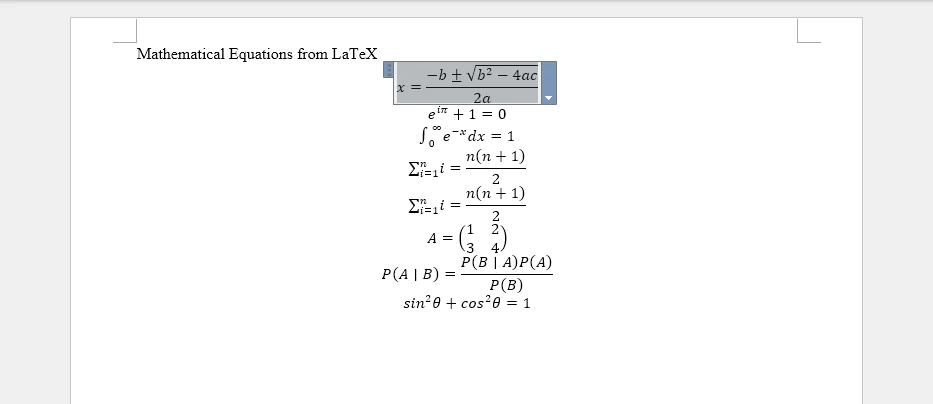
The following example demonstrates how to insert multiple LaTeX equations into a Word document using the OfficeMath class.
from spire.doc import *

def insert_latex_equations():
    # Create a new Word document
    doc = Document()
    section = doc.AddSection()

    # Add a title paragraph
    title_para = section.AddParagraph()
    title_para.AppendText("Mathematical Equations from LaTeX")
    title_para.Format.HorizontalAlignment = HorizontalAlignment.Left

    # Define LaTeX equations to insert
    latex_equations = [
    r"x = \frac{-b \pm \sqrt{b^2 - 4ac}}{2a}",  # Quadratic formula
    r"e^{i\pi} + 1 = 0",  # Euler's identity
    r"\int_0^\infty e^{-x} \, dx = 1",  # Definite integral
    # Summation formula
    r"\sum_{i=1}^{n} i = \frac{n(n+1)}{2}",
    r"\sum_{i=1}^{n} i = \frac{n(n+1)}{2}",  # Summation formula
    r"A = \begin{pmatrix} 1 & 2 \\ 3 & 4 \end{pmatrix}",  # Matrix
    r"P(A \mid B) = \frac{P(B \mid A)P(A)}{P(B)}",  # Probability formula
    r"\sin^2\theta + \cos^2\theta = 1",  # Trigonometric identity
    ]

    # Insert each LaTeX equation as a separate paragraph
    for latex_code in latex_equations:
        # Create an OfficeMath object from LaTeX code
        office_math = OfficeMath(doc)
        office_math.FromLatexMathCode(latex_code)

        # Add the equation to a new paragraph
        para = section.AddParagraph()
        para.Items.Add(office_math)

    # Save the document
    doc.SaveToFile("latex_equations.docx", FileFormat.Docx2019)
    doc.Close()
    print("LaTeX equations inserted successfully!")

if __name__ == "__main__":
    insert_latex_equations()
The following screenshot shows the generated Word document with equations converted from LaTeX code.
Key API Methods
- Document – Represents the Word document container used to create sections and paragraphs
- OfficeMath – Represents a mathematical equation object in Word documents
- FromLatexMathCode() – Converts LaTeX mathematical code into an Office Math object that Word can render natively
- Items.Add() – Adds the OfficeMath object to a paragraph's content collection
- SaveToFile() – Saves the document to disk in DOCX format using FileFormat.Docx2019
This approach supports complex LaTeX constructs such as fractions, integrals, matrices, Greek letters, and other mathematical operators while preserving native Word equation formatting.
Adding Inline Equations
In addition to standalone equations, you can insert inline equations within text paragraphs. This is useful for embedding mathematical expressions within sentences or explanations.
from spire.doc import *

def insert_inline_equation():
    # Create a new Word document
    doc = Document()
    section = doc.AddSection()

    # Add introductory text
    para = section.AddParagraph()
    para.AppendText("The quadratic formula is ")

    # Insert inline equation
    office_math = OfficeMath(doc)
    office_math.FromLatexMathCode(r"x = \frac{-b \pm \sqrt{b^2 - 4ac}}{2a}")
    para.Items.Add(office_math)

    para.AppendText(", where a ≠ 0.")

    # Save the document
    doc.SaveToFile("inline_equation.docx", FileFormat.Docx2019)
    doc.Close()

if __name__ == "__main__":
    insert_inline_equation()
The inserted equation appears inline within the text:
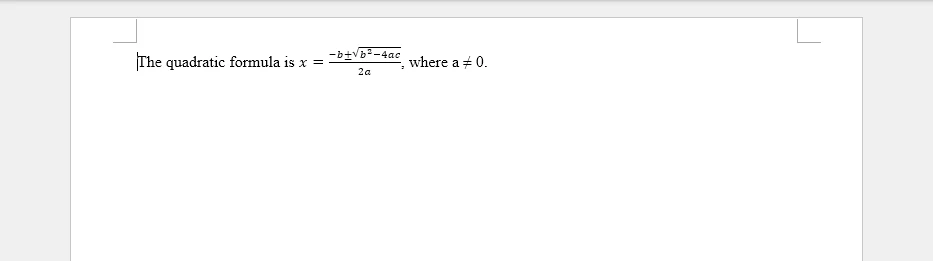
This approach makes it easy to embed mathematical expressions directly within regular text content, which is useful for educational materials, research papers, and technical documentation.
If you need to combine equations with formatted text, headings, tables, and other structured document elements, you can also refer to our tutorial on creating structured Word documents in Python.
4. Add MathML Equations to Word Documents in Python
MathML (Mathematical Markup Language) is an XML-based standard for representing mathematical expressions on the web and in digital documents. It's commonly used in online education platforms, scientific databases, and content management systems. The following example shows how to convert MathML to Word equations using Spire.Doc for Python.
from spire.doc import *

def insert_mathml_equations():
    # Create a new Word document
    doc = Document()
    section = doc.AddSection()

    # Add a title paragraph
    title_para = section.AddParagraph()
    title_para.AppendText("Mathematical Equations from MathML")

    # Define MathML equations to insert
    mathml_equations = [
    # Euler's identity
    r'<math xmlns="http://www.w3.org/1998/Math/MathML">'
    r'<msup><mi>e</mi><mrow><mi>i</mi><mi>π</mi></mrow></msup>'
    r'<mo>+</mo><mn>1</mn><mo>=</mo><mn>0</mn>'
    r'</math>',
    # Pythagorean theorem
    r'<math xmlns="http://www.w3.org/1998/Math/MathML">'
    r'<msup><mi>a</mi><mn>2</mn></msup>'
    r'<mo>+</mo>'
    r'<msup><mi>b</mi><mn>2</mn></msup>'
    r'<mo>=</mo>'
    r'<msup><mi>c</mi><mn>2</mn></msup>'
    r'</math>',
    # Fraction expression
    r'<math xmlns="http://www.w3.org/1998/Math/MathML">'
    r'<mfrac>'
    r'<mrow><mi>x</mi><mo>+</mo><mi>y</mi></mrow>'
    r'<mrow><mi>z</mi><mo>−</mo><mn>1</mn></mrow>'
    r'</mfrac>'
    r'</math>',
    # Integral equation
    r'<math xmlns="http://www.w3.org/1998/Math/MathML">'
    r'<msubsup><mo>∫</mo><mn>0</mn><mn>1</mn></msubsup>'
    r'<msup><mi>x</mi><mn>2</mn></msup>'
    r'<mi>d</mi><mi>x</mi>'
    r'<mo>=</mo>'
    r'<mfrac><mn>1</mn><mn>3</mn></mfrac>'
    r'</math>'
    ]

    # Insert each MathML equation as a separate paragraph
    for mathml_code in mathml_equations:
        # Create an OfficeMath object from MathML code
        office_math = OfficeMath(doc)
        office_math.FromMathMLCode(mathml_code)

        # Add the equation to a new paragraph
        para = section.AddParagraph()
        para.Items.Add(office_math)

    # Save the document
    doc.SaveToFile("mathml_equations.docx", FileFormat.Docx2019)
    doc.Close()
    print("MathML equations inserted successfully!")

if __name__ == "__main__":
    insert_mathml_equations()
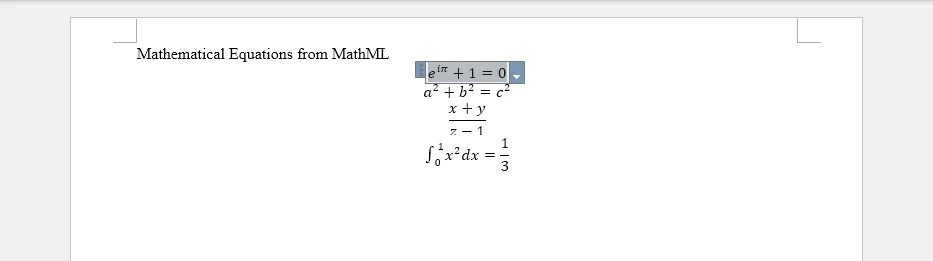
The following screenshot shows the generated Word document with equations converted from MathML code.
Key API Method
- FromMathMLCode() – Parses MathML markup and converts it into a native Word equation object.
MathML support is especially useful when working with XML-based educational content, web-based equation systems, and STEM learning platforms that store mathematical expressions in MathML format.
Combining LaTeX and MathML in One Document
You can mix both LaTeX and MathML equations within the same document, allowing flexibility in content sources:
from spire.doc import *

def insert_mixed_equations():
    # Create a new Word document
    doc = Document()
    section = doc.AddSection()

    # Insert LaTeX equation
    latex_para = section.AddParagraph()
    latex_math = OfficeMath(doc)
    latex_math.FromLatexMathCode(r"E = mc^2")
    latex_para.Items.Add(latex_math)

    # Insert MathML equation
    mathml_para = section.AddParagraph()
    mathml_math = OfficeMath(doc)
    mathml_math.FromMathMLCode(
        r'<math xmlns="http://www.w3.org/1998/Math/MathML">'
        r'<mi>F</mi><mo>=</mo><mi>m</mi><mi>a</mi>'
        r'</math>'
    )
    mathml_para.Items.Add(mathml_math)

    # Save the document
    doc.SaveToFile("mixed_equations.docx", FileFormat.Docx2019)
    doc.Close()

if __name__ == "__main__":
    insert_mixed_equations()
This approach is useful when mathematical content comes from different sources, such as LaTeX-based publishing systems and MathML-based web applications.
If your mathematical content originates from web pages or HTML-based systems, you can also refer to our tutorial on converting HTML content to Word documents in Python.
5. Convert Word Equations to LaTeX, MathML, and OMML
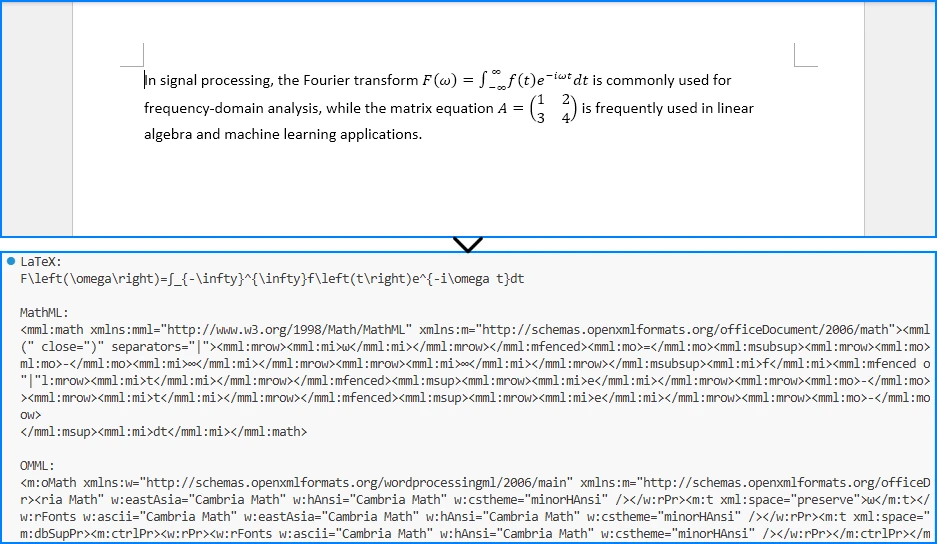
Besides inserting equations into Word documents, Spire.Doc for Python also supports exporting Word equations to multiple mathematical markup formats. This is useful for interoperability between Word, LaTeX publishing systems, web-based MathML platforms, and custom XML workflows.
The following example demonstrates how to extract equations from a Word document and export them as LaTeX, MathML, and Office MathML (OMML).
from spire.doc import *

def export_equation_formats():
    # Load a Word document containing equations
    doc = Document()
    doc.LoadFromFile("equations.docx")

    # Access the first paragraph
    section = doc.Sections[0]
    para = section.Paragraphs[0]

    # Find OfficeMath objects
    for item in para.ChildObjects:
        if isinstance(item, OfficeMath):

            # Export to LaTeX
            latex_code = item.ToLaTexMathCode()
            print("LaTeX:")
            print(latex_code)
            print()

            # Export to MathML
            mathml_code = item.ToMathMLCode()
            print("MathML:")
            print(mathml_code)
            print()

            # Export to Office MathML (OMML)
            omml_code = item.ToOfficeMathMLCode()
            print("OMML:")
            print(omml_code)

            # Save outputs to files
            with open("equation.tex", "w", encoding="utf-8") as f:
                f.write(latex_code)

            with open("equation.xml", "w", encoding="utf-8") as f:
                f.write(mathml_code)

            with open("equation.omml", "w", encoding="utf-8") as f:
                f.write(omml_code)

            break

    doc.Close()

if __name__ == "__main__":
    export_equation_formats()
The following screenshot shows the exported equation formats printed in the Python console.
Supported Export Formats
| Format | Primary Use Case | Characteristics |
|---|---|---|
| LaTeX | Academic publishing and scientific papers | Compact syntax widely used in academia |
| MathML | Web-based mathematical content | XML-based format designed for browsers and educational systems |
| OMML | Microsoft Word integration | Native Office equation format with full Word compatibility |
These export capabilities make it easier to:
- Convert Word equations into LaTeX publishing workflows
- Publish equations on websites using MathML
- Integrate Word documents with XML-based systems
- Inspect and debug Word equation structures using OMML
6. Render Office Math Equations to Images
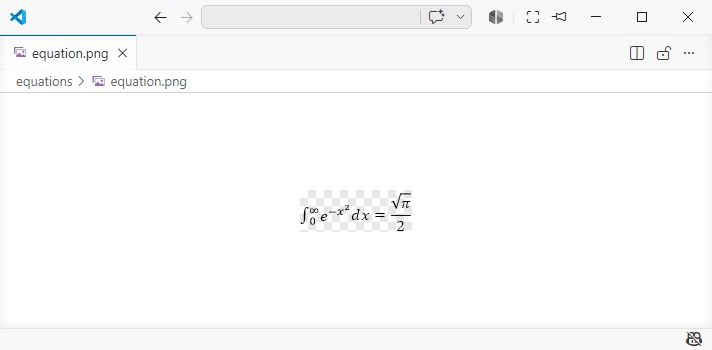
In some scenarios, you may need to export equations as image files for use in presentations, web pages, or other non-editable contexts. Spire.Doc for Python allows you to render Office Math equations into image streams that can be saved as image files.
from spire.doc import *

def render_equation_as_image():
    # Create a new Word document with an equation
    doc = Document()
    section = doc.AddSection()
    para = section.AddParagraph()

    # Insert an equation
    office_math = OfficeMath(doc)
    office_math.FromLatexMathCode(
        r"\int_0^\infty e^{-x^2} dx = \frac{\sqrt{\pi}}{2}"
    )
    para.Items.Add(office_math)

    # Render the equation as an image stream
    image_stream = office_math.SaveImageToStream(ImageType.Bitmap)

    # Save the image to file
    with open("equations/equation.png", "wb") as f:
        f.write(image_stream.ToArray())

    # Release unmanaged resources
    image_stream.Dispose()
    doc.Close()

    print("Equation rendered as image successfully!")

if __name__ == "__main__":
    render_equation_as_image()
The following screenshot shows the equation rendered as an image file.
This feature is particularly useful for:
- Embedding equations in presentations
- Displaying formulas on web pages
- Generating static previews for document systems
If you want to render complete Word documents as images rather than exporting individual equations, check out our tutorial on converting Word documents to images in Python.
7. Complete Example: Multi-Format Equation Processing
The following comprehensive example demonstrates a complete workflow that combines multiple equation operations: inserting equations from different sources, exporting to various formats, and rendering as images.
from spire.doc import *

def complete_equation_workflow():
    """
    Demonstrates a complete workflow for equation processing:
    - Create equations from LaTeX and MathML
    - Export equations to LaTeX and MathML
    - Render equations as images
    """

    # Create a new Word document
    doc = Document()
    section = doc.AddSection()

    # Add document title
    title_para = section.AddParagraph()
    title_text = title_para.AppendText("Complete Equation Processing Workflow")
    title_text.CharacterFormat.FontSize = 16
    title_text.CharacterFormat.Bold = True
    title_para.Format.HorizontalAlignment = HorizontalAlignment.Center

    # Insert equations from LaTeX
    latex_section_title = section.AddParagraph()
    latex_title_text = latex_section_title.AppendText("\nEquations from LaTeX:")
    latex_title_text.CharacterFormat.Bold = True

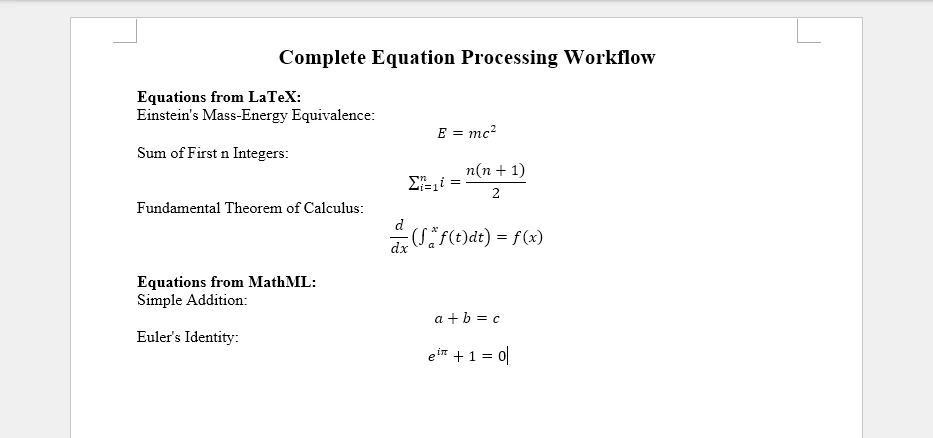
    latex_examples = [
        (r"E = mc^2", "Einstein's Mass-Energy Equivalence"),
        (r"\sum_{i=1}^{n} i = \frac{n(n+1)}{2}", "Sum of First n Integers"),
        (r"\frac{d}{dx}\left(\int_a^x f(t)dt\right) = f(x)", "Fundamental Theorem of Calculus")
    ]

    first_equation = None

    for latex_code, description in latex_examples:
        # Add description
        desc_para = section.AddParagraph()
        desc_para.AppendText(f"{description}:")

        # Insert equation
        office_math = OfficeMath(doc)
        office_math.FromLatexMathCode(latex_code)

        eq_para = section.AddParagraph()
        eq_para.Items.Add(office_math)

        if first_equation is None:
            first_equation = office_math

    # Insert equations from MathML
    mathml_section_title = section.AddParagraph()
    mathml_title_text = mathml_section_title.AppendText("\nEquations from MathML:")
    mathml_title_text.CharacterFormat.Bold = True

    mathml_examples = [
        (
            r'<math xmlns="http://www.w3.org/1998/Math/MathML"><mi>a</mi><mo>+</mo><mi>b</mi><mo>=</mo><mi>c</mi></math>',
            "Simple Addition"
        ),
        (
            r'<math xmlns="http://www.w3.org/1998/Math/MathML"><msup><mi>e</mi><mrow><mi>i</mi><mi>π</mi></mrow></msup><mo>+</mo><mn>1</mn><mo>=</mo><mn>0</mn></math>',
            "Euler's Identity"
        )
    ]

    for mathml_code, description in mathml_examples:
        # Add description
        desc_para = section.AddParagraph()
        desc_para.AppendText(f"{description}:")

        # Insert equation
        office_math = OfficeMath(doc)
        office_math.FromMathMLCode(mathml_code)

        eq_para = section.AddParagraph()
        eq_para.Items.Add(office_math)

    # Save the Word document
    output_docx = "complete_equations.docx"
    doc.SaveToFile(output_docx, FileFormat.Docx2019)
    print(f"Word document saved: {output_docx}")

    # Export the first equation to LaTeX
    latex_export = first_equation.ToLaTexMathCode()

    with open("exported_equation.tex", "w", encoding="utf-8") as f:
        f.write(latex_export)

    print(f"Exported to LaTeX: {latex_export}")

    # Export the first equation to MathML
    mathml_export = first_equation.ToMathMLCode()

    with open("exported_equation.xml", "w", encoding="utf-8") as f:
        f.write(mathml_export)

    print("Exported to MathML")

    # Render the first equation as an image
    image_stream = first_equation.SaveImageToStream(ImageType.Bitmap)

    with open("equation_render.png", "wb") as f:
        f.write(image_stream.ToArray())

    # Release unmanaged resources
    image_stream.Dispose()

    print("Equation rendered as image successfully!")

    # Clean up
    doc.Close()

    print("\nWorkflow completed successfully!")

if __name__ == "__main__":
    complete_equation_workflow()
The generated Word document will look like this:
This complete example demonstrates:
- Multi-source equation insertion – Combining LaTeX and MathML inputs
- Descriptive labeling – Adding context to each equation
- Format conversion – Exporting to LaTeX and MathML
- Image rendering – Creating visual representations
- Resource management – Proper cleanup of document objects
The resulting Word document contains well-formatted equations with descriptions, while the exported files provide alternative formats for different use cases.
8. Common Pitfalls
Raw String Literals for LaTeX
When writing LaTeX code in Python strings, always use raw strings (prefix with r) to prevent escape sequence interpretation:
# Correct: Use raw string
latex_code = r"\int_0^\infty e^{-x} dx"

# Incorrect: Backslashes will be interpreted as escape sequences
latex_code = "\int_0^\infty e^{-x} dx"
Unsupported LaTeX Commands
Not all LaTeX commands are supported by Word's equation engine. Some advanced LaTeX constructs may not render correctly. Stick to standard mathematical notation whenever possible:
# Supported: Standard mathematical notation
office_math.FromLatexMathCode(r"\alpha + \beta = \gamma")

# Some advanced LaTeX constructs may not be supported
# office_math.FromLatexMathCode(r"\begin{align} ... \end{align}")
MathML Namespace Requirements
MathML code must include the proper namespace declaration to parse correctly:
# Correct: Include namespace
mathml = r'<math xmlns="http://www.w3.org/1998/Math/MathML"><mi>x</mi></math>'

# Incorrect: Missing namespace may fail
mathml = r'<math><mi>x</mi></math>'
Memory Management
Always close documents after processing to release resources, especially in batch operations:
doc = Document()

try:
    # Process equations
    doc.SaveToFile("output.docx", FileFormat.Docx2019)

finally:
    doc.Close()  # Ensure cleanup even if errors occur
Character Encoding
When saving exported LaTeX or MathML to files, ensure proper UTF-8 encoding for special characters:
with open("equation.tex", "w", encoding="utf-8") as f:
    f.write(latex_code)
Image Stream Disposal
Always dispose of image streams after use to properly release resources:
image_stream = office_math.SaveImageToStream(ImageType.Bitmap)

try:
    with open("equation.png", "wb") as f:
        f.write(image_stream.ToArray())

finally:
    image_stream.Dispose()
Conclusion
In this article, we demonstrated how to insert mathematical equations into Word documents in Python using Spire.Doc for Python. By leveraging the Spire API, developers can create Word equations from LaTeX and MathML code, convert between LaTeX, MathML, and Word’s native OMML format, and render equations as images. This capability is essential for automating scientific document generation, educational content creation, and mathematical publishing workflows.
Spire.Doc for Python provides comprehensive equation processing capabilities beyond basic insertion, including conversion between LaTeX and MathML into Word’s native OMML format, as well as exporting Word equations back to LaTeX, MathML, and OMML. The library simplifies complex mathematical typesetting while maintaining compatibility with Microsoft Word’s native equation engine.
If you want to evaluate the full capabilities of Spire.Doc for Python, you can apply for a 30-day free license.
9. FAQ
How do I insert equations into Word using Python?
Use the OfficeMath class from Spire.Doc for Python. Create an OfficeMath object, call FromLatexMathCode() or FromMathMLCode() with your equation code, then add it to a paragraph using para.Items.Add(office_math). Finally, save the document using doc.SaveToFile().
Can I add LaTeX equations to Word documents in Python?
Yes. Spire.Doc for Python supports inserting equations from LaTeX code using the FromLatexMathCode() method. Standard mathematical notation such as fractions, integrals, superscripts, subscripts, and Greek letters can be converted into Word-compatible equations.
Does Spire.Doc support MathML equations?
Yes. You can create Word equations from MathML using the FromMathMLCode() method. Make sure the MathML content includes the correct namespace declaration:
<math xmlns="http://www.w3.org/1998/Math/MathML">
Can I export Word equations back to LaTeX or MathML?
Yes. Spire.Doc for Python provides methods such as ToLaTexMathCode() and ToMathMLCode() to export Office Math equations into LaTeX or MathML formats. This is useful for content migration, storage, or integration with other mathematical systems.
How can I render equations as images?
Use the SaveImageToStream() method on an OfficeMath object to render the equation as an image stream. You can then save the stream as an image file and use it in presentations, web pages, or preview systems.
