Durch die Konvertierung von PDFs in HTML innerhalb einer React-Anwendung können Benutzer statische Dokumente in dynamische, barrierefreie Webinhalte umwandeln. Dieser Ansatz verbessert die Reaktionsfähigkeit auf allen Geräten, vereinfacht Inhaltsaktualisierungen und ermöglicht die direkte Integration in Webseiten – wodurch externe PDF-Viewer überflüssig werden. Das ursprüngliche Layout bleibt erhalten, während webnative Funktionen wie zustandsgesteuerte UI-Updates genutzt werden. Durch die Kombination der PDF-Struktur mit der Flexibilität moderner Weboberflächen entstehen Inhalte, die sowohl anpassbar als auch benutzerfreundlich sind, ohne die Designintegrität zu beeinträchtigen.
In diesem Artikel untersuchen wir, wie Sie Spire.PDF für JavaScript verwenden , um PDF-Dateien mit JavaScript in einer React -Anwendung in HTML zu konvertieren.
- Schritte zum Konvertieren von PDF in HTML mit JavaScript
- Konvertieren Sie ein PDF-Dokument in eine einzelne HTML-Datei
- Konvertieren Sie PDF in HTML, ohne Bilder einzubetten
- Konvertieren Sie PDF in separierte HTML-Dateien
- Optimieren Sie die Dateigröße der konvertierten HTML-Datei
Installieren und konfigurieren Sie Spire.PDF für JavaScript in Ihrer React-App
Um mit der Konvertierung von PDFs in HTML in Ihrer React-Anwendung zu beginnen, führen Sie die folgenden Schritte aus:
1. Installieren Sie über npm:
Führen Sie den folgenden Befehl im Stammverzeichnis Ihres Projekts aus:
npm install spire.pdf
(Alternativ können Sie Spire.PDF für JavaScript von unserer Website herunterladen.)
2. Fügen Sie die erforderlichen Dateien hinzu:
Kopieren Sie die Dateien Spire.Pdf.Base.js und Spire.Pdf.Base.wasm in den öffentlichen Ordner Ihres Projekts. Dadurch wird sichergestellt, dass das WebAssembly-Modul korrekt initialisiert wird.
3. Schriftdateien einbinden:
Platzieren Sie die erforderlichen Schriftdateien im dafür vorgesehenen Ordner (z. B. /public/fonts), um eine genaue und konsistente Textwiedergabe zu gewährleisten.
Weitere Einzelheiten finden Sie in unserer Dokumentation: So integrieren Sie Spire.PDF für JavaScript in ein React-Projekt
Schritte zum Konvertieren von PDF in HTML mit JavaScript
Spire.PDF für JavaScript enthält ein WebAssembly-Modul zur Verarbeitung von PDF-Dokumenten. Durch das Abrufen von PDFs in das virtuelle Dateisystem (VFS) können Entwickler diese in ein PdfDocument-Objekt laden und in verschiedene Formate wie HTML konvertieren. Die wichtigsten Schritte sind wie folgt:
- Laden Sie die Datei Spire.Pdf.Base.js, um das WebAssembly-Modul zu initialisieren.
- Holen Sie die PDF-Datei mit der Methode wasmModule.FetchFileToVFS() in das VFS .
- Holen Sie die im PDF-Dokument verwendeten Schriftdateien mit der Methode wasmModule.FetchFileToVFS() in den Ordner „/Library/Fonts/“ im VFS .
- Erstellen Sie eine Instanz der PdfDocument -Klasse mit der Methode wasmModule.PdfDocument.Create() .
- (Optional) Konfigurieren Sie die Konvertierungsoptionen mit der Methode PdfDocument.ConvertOptions.SetPdfToHtmlOptions() .
- Konvertieren Sie das PDF-Dokument in das HTML-Format und speichern Sie es mit der Methode PdfDocument.SaveToFile() im VFS .
- Lesen und laden Sie die HTML-Datei herunter oder verwenden Sie sie nach Bedarf.
Beim Konfigurieren von Konvertierungsoptionen mit der Methode PdfDocument.ConvertOptions.SetPdfToHtmlOptions() können die folgenden Parameter festgelegt werden:
| Parameter | Beschreibung |
| useEmbeddedSvg: bool | Bettet SVGs in die resultierende HTML-Datei ein. |
| useEmbeddedImg: bool | Bettet Bilder als SVGs in die resultierende HTML-Datei ein (erfordert, dass useEmbeddedSvg „true“ ist). |
| maxPageOneFile: int | Gibt die maximale Anzahl von PDF-Seiten an, die in einer HTML-Datei enthalten sein können (wirksam, wenn useEmbeddedSvg auf „true“ gesetzt ist). |
| useHighQualityEmbeddedSvg: bool | Bettet hochwertige SVGs in die HTML-Datei ein. Dies wirkt sich sowohl auf die Bildqualität als auch auf die Dateigröße aus (wirksam, wenn useEmbeddedSvg auf „true“ gesetzt ist). |
Konvertieren Sie ein PDF-Dokument in eine einzelne HTML-Datei
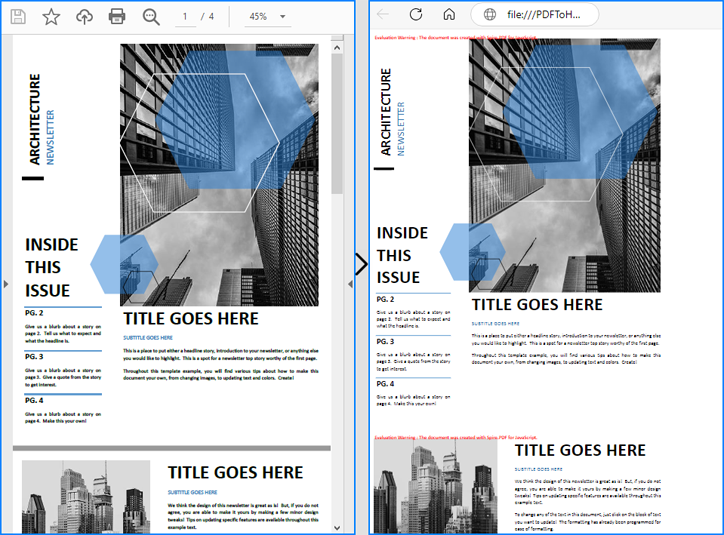
Durch das Einbetten von SVGs und Bildern und das Festlegen der maximalen Seitenanzahl pro Datei auf die Gesamtseitenzahl der PDF-Datei oder auf 0 können Entwickler ein komplettes PDF-Dokument in eine einzige HTML-Datei konvertieren. Alternativ können Entwickler die PDF-Datei auch ohne Konfiguration von Optionen konvertieren. Dadurch werden alle Elemente mit hochwertigen SVGs in die HTML-Datei eingebettet.
Unten sehen Sie ein Codebeispiel, das zeigt, wie Sie mit Spire.PDF für JavaScript ein PDF-Dokument in eine einzelne HTML-Datei konvertieren:
- JavaScript
import React, { useState, useEffect } from 'react';
import JSZip from 'jszip';

function App() {

  // State to store the loaded WASM module
  const [wasmModule, setWasmModule] = useState(null);

  // useEffect hook to load the WASM module when the component mounts
  useEffect(() => {
    const loadWasm = async () => {
      try {
        // Access the Module and spirepdf from the global window object
        const { Module, spirepdf } = window;

        // Set the wasmModule state when the runtime is initialized
        Module.onRuntimeInitialized = () => {
          setWasmModule(spirepdf);
        };
      } catch (err) {
        // Log any errors that occur during module loading
        console.error('Failed to load the WASM module:', err);
      }
    };

    // Create a script element to load the WASM JavaScript file
    const script = document.createElement('script');
    script.src = `${process.env.PUBLIC_URL}/Spire.Pdf.Base.js`;
    script.onload = loadWasm;

    // Append the script to the document body
    document.body.appendChild(script);

    // Cleanup function to remove the script when the component unmounts
    return () => {
      document.body.removeChild(script);
    };
  }, []);

  // Function to convert PDF to HTML
  const ConvertPDFToHTML = async () => {
    if (wasmModule) {
      // Specify the input and output file names
      const inputFileName = 'Sample.pdf';
      const outputFileName = 'PDFToHTML.html';

      // Fetch the input file and add it to the VFS
      await wasmModule.FetchFileToVFS(inputFileName, '', `${process.env.PUBLIC_URL}/`);

      // Fetch the font file used in the PDF to the VFS
      await wasmModule.FetchFileToVFS('Calibri.ttf', '/Library/Fonts/', `${process.env.PUBLIC_URL}/`);
      await wasmModule.FetchFileToVFS('CalibriBold.ttf', '/Library/Fonts/', `${process.env.PUBLIC_URL}/`);

      // Create an instance of the PdfDocument class
      const pdf = wasmModule.PdfDocument.Create();

      // Load the PDF document from the VFS
      pdf.LoadFromFile(inputFileName);

      // Convert the PDF document to an HTML file
      pdf.SaveToFile({ fileName: outputFileName, fileFormat: wasmModule.FileFormat.HTML});

      // Set the conversion options (optional)
      pdf.ConvertOptions.SetPdfToHtmlOptions({ useEmbeddedSvg: true, useEmbeddedImg: true, maxPageOneFile: pdf.Pages.Count, useHighQualityEmbeddedSvg: true})

      // Read the HTML file from the VFS
      const htmlArray = wasmModule.FS.readFile(outputFileName)

      // Create a Blob from the HTML file and download it
      const blob = new Blob([htmlArray], { type: 'text/html' });
      const url = URL.createObjectURL(blob);
      const link = document.createElement('a');
      link.href = url;
      link.download = outputFileName;
      link.click();
    }
  };

  return (
      <div style={{ textAlign: 'center', height: '300px' }}>
        <h1>Convert PDF to HTML Using JavaScript in React</h1>
        <button onClick={ConvertPDFToHTML} disabled={!wasmModule}>
          Convert and Download
        </button>
      </div>
  );
}

export default App;
Konvertieren Sie PDF in HTML, ohne Bilder einzubetten
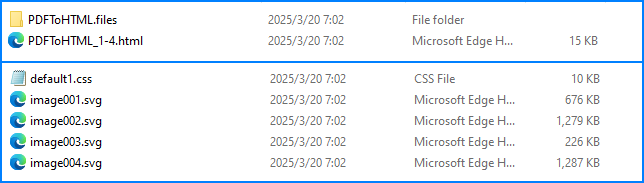
Um den HTML-Text von Bildern zu trennen und so die individuelle Bearbeitung zu vereinfachen, können Entwickler PDFs in HTML konvertieren, ohne Bilder und SVGs einzubetten. Dazu müssen die Parameter useEmbeddedSvg und useEmbeddedImg auf false gesetzt werden.
Unten sehen Sie ein Codebeispiel, das diese Konvertierung und ihr Ergebnis demonstriert:
- JavaScript
import React, { useState, useEffect } from 'react';
import JSZip from 'jszip';

function App() {

  // State to store the loaded WASM module
  const [wasmModule, setWasmModule] = useState(null);

  // useEffect hook to load the WASM module when the component mounts
  useEffect(() => {
    const loadWasm = async () => {
      try {
        // Access the Module and spirepdf from the global window object
        const { Module, spirepdf } = window;

        // Set the wasmModule state when the runtime is initialized
        Module.onRuntimeInitialized = () => {
          setWasmModule(spirepdf);
        };
      } catch (err) {
        // Log any errors that occur during module loading
        console.error('Failed to load the WASM module:', err);
      }
    };

    // Create a script element to load the WASM JavaScript file
    const script = document.createElement('script');
    script.src = `${process.env.PUBLIC_URL}/Spire.Pdf.Base.js`;
    script.onload = loadWasm;

    // Append the script to the document body
    document.body.appendChild(script);

    // Cleanup function to remove the script when the component unmounts
    return () => {
      document.body.removeChild(script);
    };
  }, []);

  // Function to convert PDF to HTML
  const ConvertPDFToHTML = async () => {
    if (wasmModule) {
      // Specify the input and output file names
      const inputFileName = 'Sample.pdf';
      const outputFileName = '/output/PDFToHTML.html';

      // Fetch the input file and add it to the VFS
      await wasmModule.FetchFileToVFS(inputFileName, '', `${process.env.PUBLIC_URL}/`);

      // Fetch the font file used in the PDF to the VFS
      await wasmModule.FetchFileToVFS('Calibri.ttf', '/Library/Fonts/', `${process.env.PUBLIC_URL}/`);
      await wasmModule.FetchFileToVFS('CalibriBold.ttf', '/Library/Fonts/', `${process.env.PUBLIC_URL}/`);

      // Create an instance of the PdfDocument class
      const pdf = wasmModule.PdfDocument.Create();

      // Load the PDF document from the VFS
      pdf.LoadFromFile(inputFileName);

      // Set the conversion options to disable SVG and image embedding
      pdf.ConvertOptions.SetPdfToHtmlOptions({ useEmbeddedSvg: false, useEmbeddedImg: false})

      // Convert the PDF document to an HTML file
      pdf.SaveToFile({ fileName: outputFileName, fileFormat: wasmModule.FileFormat.HTML});

      // Create a new JSZip object
      const zip = new JSZip();

      // Recursive function to add a directory and its contents to the ZIP
      const addFilesToZip = (folderPath, zipFolder) => {
        const items = wasmModule.FS.readdir(folderPath);
        items.filter(item => item !== "." && item !== "..").forEach((item) => {
          const itemPath = `${folderPath}/${item}`;

          try {
            // Attempt to read file data
            const fileData = wasmModule.FS.readFile(itemPath);
            zipFolder.file(item, fileData);
          } catch (error) {
            if (error.code === 'EISDIR') {
              // If it's a directory, create a new folder in the ZIP and recurse into it
              const zipSubFolder = zipFolder.folder(item);
              addFilesToZip(itemPath, zipSubFolder);
            } else {
              // Handle other errors
              console.error(`Error processing ${itemPath}:`, error);
            }
          }
        });
      };
      // Add all files in the output folder to the ZIP
      addFilesToZip('/output', zip);

      // Generate and download the ZIP file
      zip.generateAsync({ type: 'blob' }).then((content) => {
        const url = URL.createObjectURL(content);
        const a = document.createElement('a');
        a.href = url;
        a.download = `PDFToHTML.zip`;
        document.body.appendChild(a);
        a.click();
        document.body.removeChild(a);
        URL.revokeObjectURL(url);
      });
    }
  };

  return (
      <div style={{ textAlign: 'center', height: '300px' }}>
        <h1>Convert PDF to HTML Without Embedding Images Using JavaScript in React</h1>
        <button onClick={ConvertPDFToHTML} disabled={!wasmModule}>
          Convert and Download
        </button>
      </div>
  );
}

export default App;
Konvertieren Sie PDF in separierte HTML-Dateien
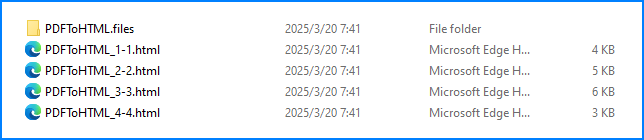
Anstatt alle PDF-Seiten in eine einzige HTML-Datei zu konvertieren, können Entwickler den Parameter maxPageOneFile so setzen, dass mehrere HTML-Dateien mit jeweils einer begrenzten Seitenanzahl generiert werden. Dazu müssen useEmbeddedSvg und useEmbeddedImg auf true gesetzt sein.
Das folgende Codebeispiel demonstriert diese Konvertierung und ihre Auswirkungen:
- JavaScript
import React, { useState, useEffect } from 'react';
import JSZip from 'jszip';

function App() {

  // State to store the loaded WASM module
  const [wasmModule, setWasmModule] = useState(null);

  // useEffect hook to load the WASM module when the component mounts
  useEffect(() => {
    const loadWasm = async () => {
      try {
        // Access the Module and spirepdf from the global window object
        const { Module, spirepdf } = window;

        // Set the wasmModule state when the runtime is initialized
        Module.onRuntimeInitialized = () => {
          setWasmModule(spirepdf);
        };
      } catch (err) {
        // Log any errors that occur during module loading
        console.error('Failed to load the WASM module:', err);
      }
    };

    // Create a script element to load the WASM JavaScript file
    const script = document.createElement('script');
    script.src = `${process.env.PUBLIC_URL}/Spire.Pdf.Base.js`;
    script.onload = loadWasm;

    // Append the script to the document body
    document.body.appendChild(script);

    // Cleanup function to remove the script when the component unmounts
    return () => {
      document.body.removeChild(script);
    };
  }, []);

  // Function to convert PDF to HTML
  const ConvertPDFToHTML = async () => {
    if (wasmModule) {
      // Specify the input and output file names
      const inputFileName = 'Sample.pdf';
      const outputFileName = '/output/PDFToHTML.html';

      // Fetch the input file and add it to the VFS
      await wasmModule.FetchFileToVFS(inputFileName, '', `${process.env.PUBLIC_URL}/`);

      // Fetch the font file used in the PDF to the VFS
      await wasmModule.FetchFileToVFS('Calibri.ttf', '/Library/Fonts/', `${process.env.PUBLIC_URL}/`);
      await wasmModule.FetchFileToVFS('CalibriBold.ttf', '/Library/Fonts/', `${process.env.PUBLIC_URL}/`);

      // Create an instance of the PdfDocument class
      const pdf = wasmModule.PdfDocument.Create();

      // Load the PDF document from the VFS
      pdf.LoadFromFile(inputFileName);

      // Set the conversion options to disable SVG and image embedding
      pdf.ConvertOptions.SetPdfToHtmlOptions({ useEmbeddedSvg: false, useEmbeddedImg: false, maxPageOneFile: 1 })

      // Convert the PDF document to an HTML file
      pdf.SaveToFile({ fileName: outputFileName, fileFormat: wasmModule.FileFormat.HTML});

      // Create a new JSZip object
      const zip = new JSZip();

      // Recursive function to add a directory and its contents to the ZIP
      const addFilesToZip = (folderPath, zipFolder) => {
        const items = wasmModule.FS.readdir(folderPath);
        items.filter(item => item !== "." && item !== "..").forEach((item) => {
          const itemPath = `${folderPath}/${item}`;

          try {
            // Attempt to read file data
            const fileData = wasmModule.FS.readFile(itemPath);
            zipFolder.file(item, fileData);
          } catch (error) {
            if (error.code === 'EISDIR') {
              // If it's a directory, create a new folder in the ZIP and recurse into it
              const zipSubFolder = zipFolder.folder(item);
              addFilesToZip(itemPath, zipSubFolder);
            } else {
              // Handle other errors
              console.error(`Error processing ${itemPath}:`, error);
            }
          }
        });
      };
      // Add all files in the output folder to the ZIP
      addFilesToZip('/output', zip);

      // Generate and download the ZIP file
      zip.generateAsync({ type: 'blob' }).then((content) => {
        const url = URL.createObjectURL(content);
        const a = document.createElement('a');
        a.href = url;
        a.download = `PDFToHTML.zip`;
        document.body.appendChild(a);
        a.click();
        document.body.removeChild(a);
        URL.revokeObjectURL(url);
      });
    }
  };

  return (
      <div style={{ textAlign: 'center', height: '300px' }}>
        <h1>Convert PDF to HTML Without Embedding Images Using JavaScript in React
          Convert and Download
Optimieren Sie die Dateigröße der konvertierten HTML-Datei
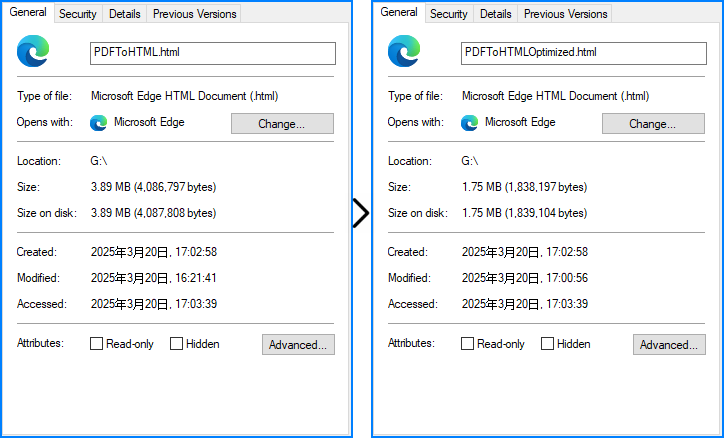
Beim Einbetten von SVGs in die konvertierte HTML-Datei können Entwickler die Dateigröße optimieren, indem sie die Qualität eingebetteter SVGs mit dem Parameter useHighQualityEmbeddedSvg verringern . Beachten Sie, dass dieser Parameter nur eingebettete SVGs betrifft.
Das folgende Codebeispiel demonstriert diese Optimierung und ihre Auswirkungen:
- JavaScript
import React, { useState, useEffect } from 'react';

function App() {

  // State to store the loaded WASM module
  const [wasmModule, setWasmModule] = useState(null);

  // useEffect hook to load the WASM module when the component mounts
  useEffect(() => {
    const loadWasm = async () => {
      try {
        // Access the Module and spirepdf from the global window object
        const { Module, spirepdf } = window;

        // Set the wasmModule state when the runtime is initialized
        Module.onRuntimeInitialized = () => {
          setWasmModule(spirepdf);
        };
      } catch (err) {
        // Log any errors that occur during module loading
        console.error('Failed to load the WASM module:', err);
      }
    };

    // Create a script element to load the WASM JavaScript file
    const script = document.createElement('script');
    script.src = `${process.env.PUBLIC_URL}/Spire.Pdf.Base.js`;
    script.onload = loadWasm;

    // Append the script to the document body
    document.body.appendChild(script);

    // Cleanup function to remove the script when the component unmounts
    return () => {
      document.body.removeChild(script);
    };
  }, []);

  // Function to convert PDF to HTML
  const ConvertPDFToHTML = async () => {
    if (wasmModule) {
      // Specify the input and output file names
      const inputFileName = 'Sample.pdf';
      const outputFileName = 'PDFToHTML.html';

      // Fetch the input file and add it to the VFS
      await wasmModule.FetchFileToVFS(inputFileName, '', `${process.env.PUBLIC_URL}/`);

      // Fetch the font file used in the PDF to the VFS
      await wasmModule.FetchFileToVFS('Calibri.ttf', '/Library/Fonts/', `${process.env.PUBLIC_URL}/`);
      await wasmModule.FetchFileToVFS('CalibriBold.ttf', '/Library/Fonts/', `${process.env.PUBLIC_URL}/`);

      // Create an instance of the PdfDocument class
      const pdf = wasmModule.PdfDocument.Create();

      // Load the PDF document from the VFS
      pdf.LoadFromFile(inputFileName);

      // Set the conversion options to convert with lower quality embedded SVG
      pdf.ConvertOptions.SetPdfToHtmlOptions({ useEmbeddedSvg: true, useEmbeddedImg: true, maxPageOneFile: 0, useHighQualityEmbeddedSvg: false })

      // Convert the PDF document to an HTML file
      pdf.SaveToFile({ fileName: outputFileName, fileFormat: wasmModule.FileFormat.HTML});

      // Read the HTML file from the VFS
      const htmlArray = wasmModule.FS.readFile(outputFileName)

      // Create a Blob from the HTML file and download it
      const blob = new Blob([htmlArray], { type: 'text/html' });
      const url = URL.createObjectURL(blob);
      const link = document.createElement('a');
      link.href = url;
      link.download = outputFileName;
      link.click();
    }
  };

  return (
      <div style={{ textAlign: 'center', height: '300px' }}>
        <h1>Convert PDF to HTML Optimize File Size Using JavaScript in React</h1>
        <button onClick={ConvertPDFToHTML} disabled={!wasmModule}>
          Convert and Download
        </button>
      </div>
  );
}

export default App;
Fordern Sie eine kostenlose Lizenz an
Spire.PDF für JavaScript bietet eine kostenlose Testlizenz für Unternehmen und Privatnutzer. Sie können eine temporäre Lizenz beantragen , um PDF-Dokumente ohne Nutzungsbeschränkungen oder Wasserzeichen in HTML zu konvertieren.
Wenn während der Konvertierung Probleme auftreten, steht Ihnen im Spire.PDF-Forum technischer Support zur Verfügung .
Abschluss
Die Konvertierung von PDFs in HTML in Ihrer React-App mit Spire.PDF für JavaScript verwandelt statische Dokumente in dynamische, barrierefreie Webinhalte. Mit einer einfachen npm-Installation, der korrekten Einrichtung von JavaScript-, WASM- und Schriftdateien sowie verschiedenen Konvertierungsoptionen – einschließlich Einzeldateiausgabe, getrennten Seiten und nicht eingebetteten Bildern – erhalten Sie die Layouttreue und nutzen gleichzeitig moderne Webfunktionen wie zustandsgesteuerte UI-Updates.
Informationen zu erweiterten Anpassungen finden Sie in der Dokumentation .