In data-driven workflows, converting PDF documents with tables to Excel improves accessibility and usability. While PDFs preserve document integrity, their static nature makes data extraction challenging, often leading to error-prone manual work. By leveraging JavaScript in React, developers can automate the conversion process, seamlessly transferring structured data like financial reports into Excel worksheets for real-time analysis and collaboration. This article explores how to use Spire.PDF for JavaScript to efficiently convert PDFs to Excel files with JavaScript in React applications.
- Steps to Convert PDF to Excel Using JavaScript
- Simple PDF to Excel Conversion in JavaScript
- Convert PDF to Excel with XlsxLineLayoutOptions
- Convert PDF to Excel with XlsxTextLayoutOptions
Install Spire.PDF for JavaScript
To get started with converting PDF to Excel with JavaScript in a React application, you can either download Spire.PDF for JavaScript from our website or install it via npm with the following command:
npm i spire.office
The downloaded product package integrates Spire.Doc for JavaScript, Spire.XLS for JavaScript, Spire.PDF for JavaScript, and Spire.Presentation for JavaScript. To use Spire.PDF for JavaScript functionality, you need to copy the corresponding files (spire.pdf.js, Spire.Pdf.Wasm.zip, spire.common.js, Spire.Common.Wasm.zip, and the _framework folder) to the public folder of your project. Additionally, to ensure proper text rendering, font files can be added to a custom path of your choice. In the following example, the font addition path is: public\static\font.
For more details, refer to the documentation: How to Integrate Spire.PDF for JavaScript in a React Project
Steps to Convert PDF to Excel Using JavaScript
With the Spire.PDF for JavaScript WebAssembly module, PDF documents can be loaded from the Virtual File System (VFS) using the PdfDocument.LoadFromFile() method and converted into Excel workbooks using the PdfDocument.SaveToFile() method.
In addition to direct conversion, developers can customize the process by configuring conversion options through the XlsxLineLayoutOptions and XlsxTextLayoutOptions classes, along with the PdfDocument.ConvertOptions.SetPdfToXlsxOptions() method.
The following steps demonstrate how to convert a PDF document to an Excel file using Spire.PDF for JavaScript:
- Load the Spire.Pdf.Base.js file to initialize the WebAssembly module.
- Fetch the PDF file into the Virtual File System (VFS) using the window.spire.FetchFileToVFS() method.Create an instance of the PdfDocument class using the wasmModule.PdfDocument() method.
- Fetch the font files used in the PDF document to the “/Library/Fonts/” folder in the VFS using the wasmModule.FetchFileToVFS() method.
- Create an instance of the PdfDocument class using the wasmModule.PdfDocument() method.
- Load the PDF document from the VFS into the PdfDocument instance using the PdfDocument.LoadFromFile() method.
- (Optional) Customize the conversion options:
- Create an instance of the XlsxLineLayoutOptions or XlsxTextLayoutOptions class and specify the desired conversion settings.
- Apply the conversion options using the PdfDocument.ConvertOptions.SetPdfToXlsxOptions() method.
- Convert the PDF document to an Excel file using the PdfDocument.SaveToFile({ filename: string, wasmModule.FileFormat.XLSX }) method.
- Retrieve the converted file from the VFS for download or further use.
Simple PDF to Excel Conversion in JavaScript
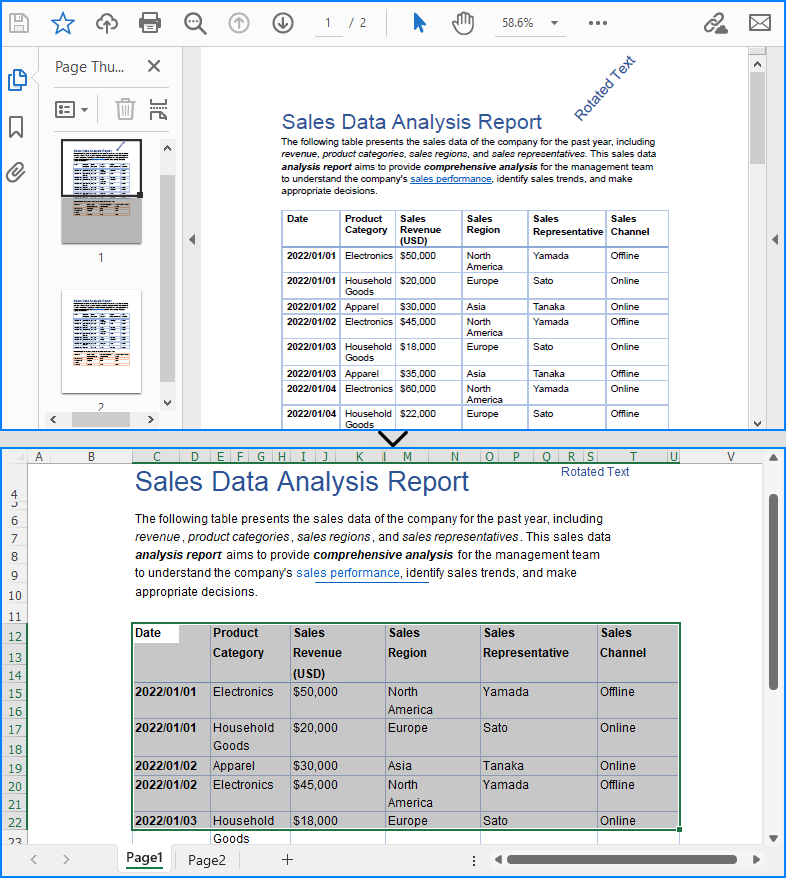
Developers can directly load a PDF document from the VFS and convert it to an Excel file using the default conversion settings. These settings map one PDF page to one Excel worksheet, preserve rotated and overlapped text, allow cell splitting, and enable text wrapping.
Below is a code example demonstrating this process:
- JavaScript
import React, { useState, useEffect } from 'react';

function App() {
   // Store WASM module instance
   const [wasmModule, setWasmModule] = useState(null);

   // Load WASM module when component mounts
   useEffect(() => {
    const loadSpire = async () => {
      try {
        // Get public directory path
        const publicUrl = process.env.PUBLIC_URL || '';
        // Path to WASM JS glue code
        const moduleUrl = `${publicUrl}/spire.pdf.js`;

        // Dynamically import WASM module
        const spireModule = await import(
          /* webpackIgnore: true */
          moduleUrl
        );

        // Extract module exports
        let Module = spireModule.default || spireModule;

        // Handle WASM initialization
        if (typeof Module === 'function') {
          Module = await Module({
            // Callback when WASM runtime initialization is complete
            onRuntimeInitialized: () => {
              console.log('Spire WASM runtime initialized');
              // Set module state after initialization
              setWasmModule(Module);
            },
            // Handle WASM file paths
            locateFile: (path) => {
              if (path.endsWith('.wasm')) {
                return `${publicUrl}/${path}`;
              }
              return path;
            }
          });
        } else {
          // If not a function, set module directly
          setWasmModule(Module);
        }

        // Mount module to window object for global access
        window.Module = Module;
        window.wasmModule = Module;

        return Module;

      } catch (error) {
        console.error('Failed to load spire.pdf.js:', error);
        throw error;
      }
    };

    // Execute load function
    loadSpire();
  }, []);

  const ConvertPDFToExcel= async () => {
    // Get WASM module
    const wasmModule = window.wasmModule.spirepdf;

    if (wasmModule) {
      // Load font file to virtual file system (VFS)
      await window.spire.FetchFileToVFS("arial.ttf","/Library/Fonts/",`${process.env.PUBLIC_URL}static/font/`);

      // PDF file name to convert
      let inputFileName = "ChartSample.pdf";

      // Load PDF file to virtual file system (VFS)
      await window.spire.FetchFileToVFS(inputFileName, "", `${process.env.PUBLIC_URL}static/data/`);

      // Create PDF document object
      let doc = new wasmModule.PdfDocument();

      // Load PDF file
      doc.LoadFromFile(inputFileName);

      // Define the output file name
      const outputFileName = "ToXLSX_result.xlsx";

      // Save the document to the specified path
      doc.SaveToFile({fileName: outputFileName,fileFormat: wasmModule.FileFormat.XLSX});
      doc.Close();

      // Read the saved file and convert to a Blob object
      const modifiedFileArray = window.dotnetRuntime.Module.FS.readFile(outputFileName);
      const modifiedFile = new Blob([modifiedFileArray], { type: "application/vnd.openxmlformats-officedocument.spreadsheetml.sheet" });

      // Create a URL for the Blob
      const url = URL.createObjectURL(modifiedFile);

      // Create an anchor element to trigger the download
      const a = document.createElement('a');
      a.href = url;
      a.download = outputFileName ;
      document.body.appendChild(a);
      a.click();
      document.body.removeChild(a);
      URL.revokeObjectURL(url);
    }
  };

   return (
    <div style={{ textAlign: 'center', height: '300px' }}>
      <h1>Convert PDF to Excel in React</h1>
      <button onClick={ConvertPDFToExcel}>
        Convert
      </button>
    </div>
  );
}

export default App;
Convert PDF to Excel with XlsxLineLayoutOptions
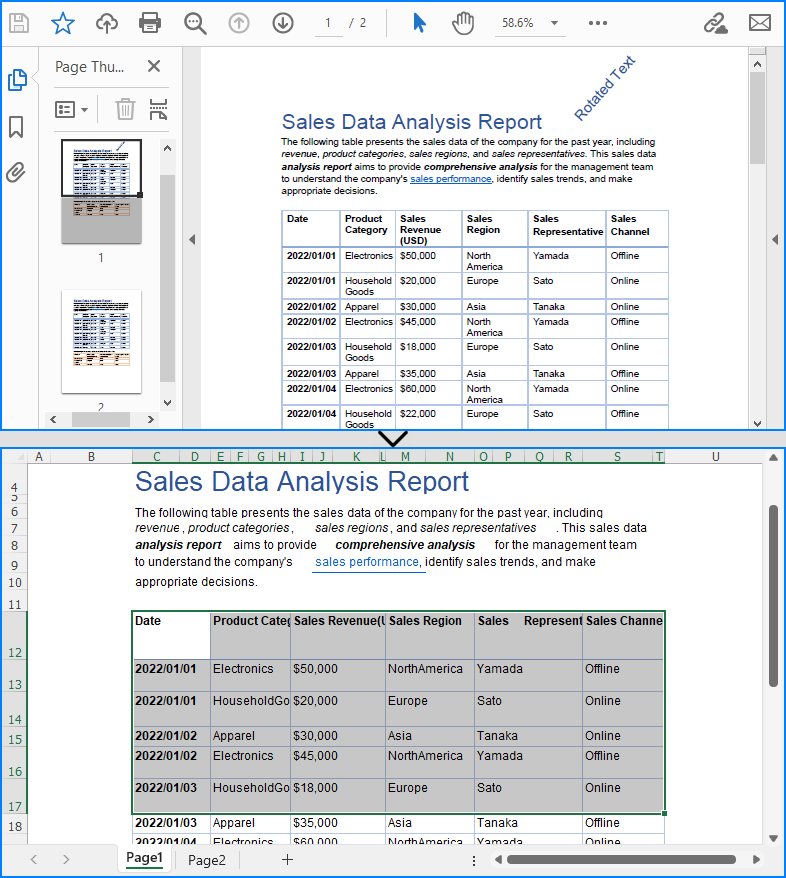
Spire.PDF for JavaScript provides the XlsxLineLayoutOptions class for configuring line-based conversion settings when converting PDFs to Excel. By adjusting these options, developers can achieve different conversion results, such as merging all PDF pages into a single worksheet.
The table below outlines the available parameters in XlsxLineLayoutOptions:
| Parameter (bool) | Function |
| convertToMultipleSheet | Specifies whether to convert each page into a separate worksheet. |
| rotatedText | Specifies whether to retain rotated text. |
| splitCell | Specifies whether to split cells. |
| wrapText | Specifies whether to wrap text within cells. |
| overlapText | Specifies whether to retain overlapped text. |
Special attention should be given to the splitCell parameter, as it significantly impacts the way tables are converted. Setting it to false preserves table cell structures, making the output table cells more faithful to the original PDF. Conversely, setting it to true allows plain text to be split smoothly in cells, which may be useful for text-based layouts rather than structured tables.
Below is a code example demonstrating PDF-to-Excel conversion using XlsxLineLayoutOptions:
- JavaScript
import React, { useState, useEffect } from 'react';

function App() {
   const [wasmModule, setWasmModule] = useState(null);
   useEffect(() => {
    (async () => {
      try {
        const publicUrl = process.env.PUBLIC_URL || '';
        const spireModule = await import(/* webpackIgnore: true */ `${publicUrl}/spire.pdf.js`);
        const rawModule = spireModule.default || spireModule;
        window.wasmModule = typeof rawModule === 'function'
          ? await rawModule({ locateFile: p => p.endsWith('.wasm') ? `${publicUrl}/${p}` : p })
          : rawModule;
        setWasmModule(window.wasmModule);
      } catch (error) {
        console.error('Failed to load spire.pdf.js:', error);
      }
    })();
  }, []);

  const ConvertPDFToExcelXlsxLineLayoutOptions = async () => {
    // Get WASM module
    const wasmModule = window.wasmModule.spirepdf;

    if (wasmModule) {
      // Load font file to virtual file system (VFS)
      await window.spire.FetchFileToVFS("arial.ttf","/Library/Fonts/",`${process.env.PUBLIC_URL}static/font/`);

      // PDF file name to convert
      let inputFileName = "PdfToExcel.pdf";

      // Load PDF file to virtual file system (VFS)
      await window.spire.FetchFileToVFS(inputFileName, "", `${process.env.PUBLIC_URL}static/data/`);

      // Create PDF document object
      let doc = new wasmModule.PdfDocument();

      // Load PDF file
      doc.LoadFromFile(inputFileName);

      doc.ConvertOptions.SetPdfToXlsxOptions(
          new wasmModule.XlsxLineLayoutOptions({convertToMultipleSheet: false, rotatedText: true, splitCell: true}));

      // Define the output file name
      const outputFileName = "PdfToExcelOptions_out.xlsx";

      // Save the document to the specified path
      doc.SaveToFile({fileName: outputFileName,fileFormat: wasmModule.FileFormat.XLSX});
      doc.Close();

      // Read the generated JPG file
      const modifiedFileArray =window.dotnetRuntime.Module.FS.readFile(outputFileName);
      // Create a Blob object from the JPG file
      const modifiedFile = new Blob([modifiedFileArray], { type: "application/vnd.openxmlformats-officedocument.spreadsheetml.sheet" });
      // Create a URL for the Blob
      const url = URL.createObjectURL(modifiedFile);

      // Create an anchor element to trigger the download
      const a = document.createElement('a');
      a.href = url;
      a.download = outputFileName;
      document.body.appendChild(a);
      a.click();
      document.body.removeChild(a);
      URL.revokeObjectURL(url);

    }
  };

   return (
    <div style={{ textAlign: 'center', height: '300px' }}>
      <h1>Convert PDF to Excel with XlsxLineLayoutOptions Using JavaScript in React</h1>
        <button onClick={ConvertPDFToExcelXlsxLineLayoutOptions}>
          Convert and Download
        </button>
    </div>
  );
}

export default App;
Convert PDF to Excel Using XlsxTextLayoutOptions
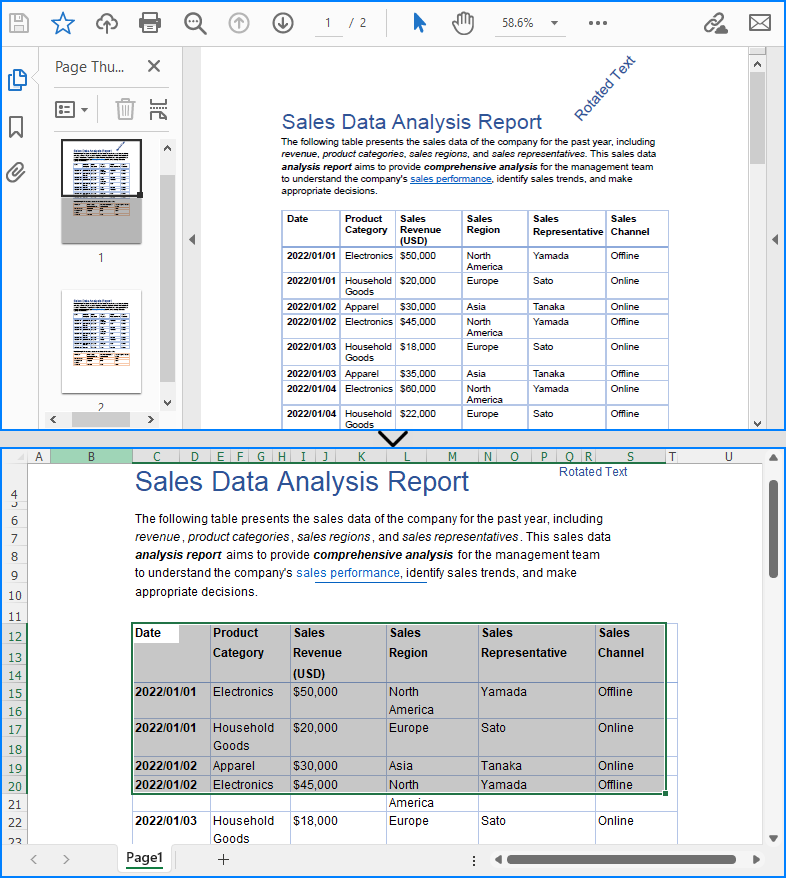
Developers can also customize conversion settings using the XlsxTextLayoutOptions class, which focuses on text-based layout formatting. The table below lists its parameters:
| Parameter (bool) | Function |
| convertToMultipleSheet | Specifies whether to convert each page into a separate worksheet. |
| rotatedText | Specifies whether to retain rotated text. |
| overlapText | Specifies whether to retain overlapped text. |
Below is a code example demonstrating PDF-to-Excel conversion using XlsxTextLayoutOptions:
- JavaScript
import React, { useState, useEffect } from 'react';

function App() {
   const [wasmModule, setWasmModule] = useState(null);
   useEffect(() => {
    (async () => {
      try {
        const publicUrl = process.env.PUBLIC_URL || '';
        const spireModule = await import(/* webpackIgnore: true */ `${publicUrl}/spire.xls.js`);
        const rawModule = spireModule.default || spireModule;
        window.wasmModule = typeof rawModule === 'function'
          ? await rawModule({ locateFile: p => p.endsWith('.wasm') ? `${publicUrl}/${p}` : p })
          : rawModule;
        setWasmModule(window.wasmModule);
      } catch (error) {
        console.error('Failed to load spire.pdf.js:', error);
      }
    })();
  }, []);

  const ConvertPDFToExcelXlsxTextLayoutOptions = async () => {
    // Get WASM module
    const wasmModule = window.wasmModule.spirepdf;

    if (wasmModule) {
      // Load font file to virtual file system (VFS)
      await window.spire.FetchFileToVFS("arial.ttf","/Library/Fonts/",`${process.env.PUBLIC_URL}static/font/`);

      // PDF file name to convert
      let inputFileName = "PdfToExcel.pdf";

      // Load PDF file to virtual file system (VFS)
      await window.spire.FetchFileToVFS(inputFileName, "", `${process.env.PUBLIC_URL}static/data/`);

      // Create PDF document object
      let doc = new wasmModule.PdfDocument();

      // Load PDF file
      doc.LoadFromFile(inputFileName);

      // Create an instance of the XlsxTextLayoutOptions class and specify the conversion options
      const options =new wasmModule.XlsxTextLayoutOptions({ convertToMultipleSheet: false, rotatedText: true, overlapText: true});

      // Set the XlsxTextLayoutOptions instance as the conversion options
      doc.ConvertOptions.SetPdfToXlsxOptions(options);

      // Define the output file name
      const outputFileName = "PDFToExcelXlsxTextLayoutOptions.xlsx";

      // Save the document to the specified path
      doc.SaveToFile({fileName: outputFileName,fileFormat: wasmModule.FileFormat.XLSX});
      doc.Close();

      // Read the generated JPG file
      const modifiedFileArray =window.dotnetRuntime.Module.FS.readFile(outputFileName);
      // Create a Blob object from the JPG file
      const modifiedFile = new Blob([modifiedFileArray], { type: "application/vnd.openxmlformats-officedocument.spreadsheetml.sheet" });
      // Create a URL for the Blob
      const url = URL.createObjectURL(modifiedFile);

      // Create an anchor element to trigger the download
      const a = document.createElement('a');
      a.href = url;
      a.download = outputFileName;
      document.body.appendChild(a);
      a.click();
      document.body.removeChild(a);
      URL.revokeObjectURL(url);

    }
  };

   return (
      <div style={{ textAlign: 'center', height: '300px' }}>
        <h1>Convert PDF to Excel with XlsxTextLayoutOptions Using JavaScript in React</h1>
        <button onClick={ConvertPDFToExcelXlsxTextLayoutOptions}>
          Convert and Download
        </button>
      </div>
  );
}

export default App;
Get a Free License
To fully experience the capabilities of Spire.PDF for JavaScript without any evaluation limitations, you can request a free 30-day trial license.
