- Find the Best Method to Copy Slides in PowerPoint
- Duplicate a Slide in the Same Presentation
- Copy Slides from One Presentation to Another
- Import Slides from Another Presentation
- Copy Slides in PowerPoint Online
- Automate Slide Copying with VBA
- Copy Slides Across Multiple Presentations with Python
- Troubleshooting: Why the Copied Slides Look Different
- FAQs
- Wrap Up
Copying slides in PowerPoint is one of the fastest ways to reuse layouts, maintain branding consistency, and build new presentations from existing work. This guide explains 6 practical ways to copy slides—from quick manual methods for everyday users to automated solutions for bulk processing—along with essential tips for preserving your exact formatting.
Find the Best Method to Copy Slides in PowerPoint
You can copy slides within the same presentation or transfer them between entirely different files. Depending on your exact goal, pick the method below that works best for you.
| What You Need to Do | Best Method | Advantages | Limitations |
|---|---|---|---|
| Duplicate a slide in the same presentation | Duplicate Slide | Quick; maintains formatting | Only works in the active file |
| Copy slides from one presentation to another | Copy & paste | Flexible formatting choices | Design can shift depending on paste options |
| Import slides from a closed file | Reuse Slides | No need to open the source file | Interface may vary by PowerPoint version |
| Copy slides online | PowerPoint for the Web | Works on any device; no install | Limited clipboard access; lags with big files |
| Repeat slide-copy in PowerPoint | VBA Macro | Automated process; no external tool | Requires desktop PowerPoint; macros can be blocked |
| Bulk-copy across multiple files | Python Automation | Runs without PowerPoint; backend friendly | Requires Python setup and a 3rd party library |
1. Duplicate a Slide in the Same Presentation
When you need to copy a slide within the same PowerPoint presentation, duplicating is the most efficient method. This method completely bypasses the clipboard, minimizes the risk of formatting shifts, and ensures that fonts, themes, and layouts remain identical.
How to Duplicate a Slide in PowerPoint
- In the left-hand slide thumbnail pane, click the slide you want to copy.
- Right-click the selected thumbnail and choose Duplicate Slide.
- Alternative Shortcut: Press Ctrl + D (Windows) or Cmd + D (Mac) after selecting the slide.
Result:
PowerPoint creates an exact copy of the selected slide and places it immediately after the original. You can then drag and drop the new slide to your desired position.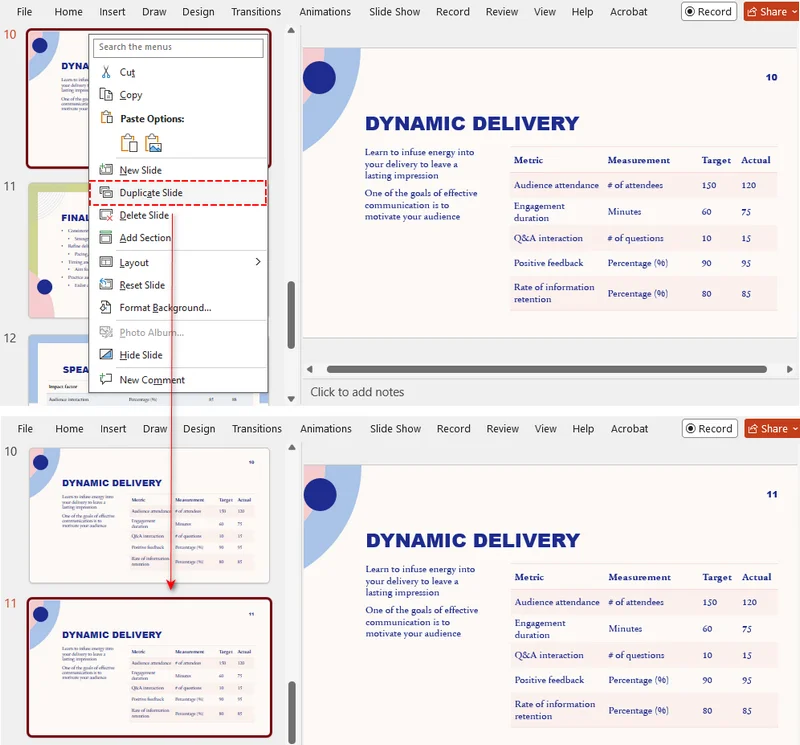
Duplicating Multiple Slides Simultaneously
To duplicate multiple slides, select the slides first:
- Adjacent slides: Click the first slide thumbnail, hold Shift, and click the last slide thumbnail.
- Non-adjacent slides: Hold Ctrl (or Cmd on Mac), then select each slide thumbnail you want to copy.
Once selected, right-click any of the selected slide thumbnails and select Duplicate Slide.
2. Copy Slides from One Presentation to Another
When transferring slides between two separate files, PowerPoint defaults to matching the destination theme. To keep your original design, you must explicitly use the paste options.
Copy Slides Between Presentations While Preserving Formatting
- In the source file's left pane, right-click the specific slide thumbnail and choose Copy (or press Ctrl + C / Cmd + C).
- Switch to the destination presentation, right-click in the thumbnail pane where you want the slide to go, and select the Keep Source Formatting icon under Paste Options.
- Alternative Shortcut: Press Ctrl + V (or Cmd + V), click the small Paste Options clipboard icon that appears next to the pasted slide thumbnail, and select Keep Source Formatting.
Result:
The slide is inserted into the new presentation while locking in its original fonts, backgrounds, and layouts.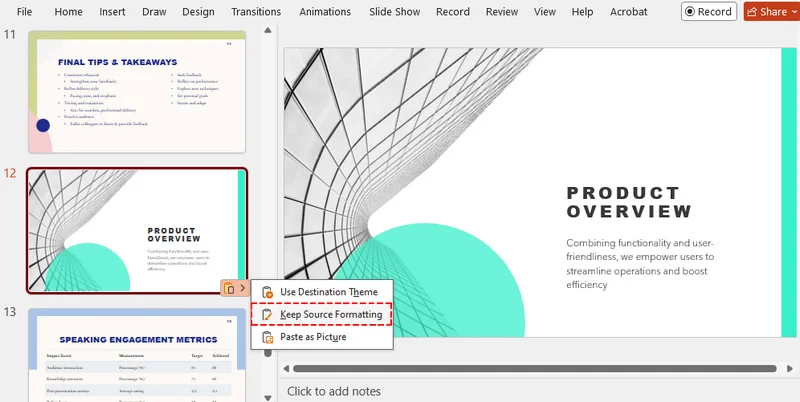
⚠️ Note:
If the source and destination presentations use different slide sizes, such as 16:9 and 4:3, the copied slide may experience layout distortion. Always check and adjust the alignment after pasting.
3. Import Slides from Another Presentation (Reuse Slides)
If you want to pull slides from an external PowerPoint file without cluttering your screen with multiple windows, use the native Reuse Slides feature.
Import Individual Slides
-
Open your target presentation.
-
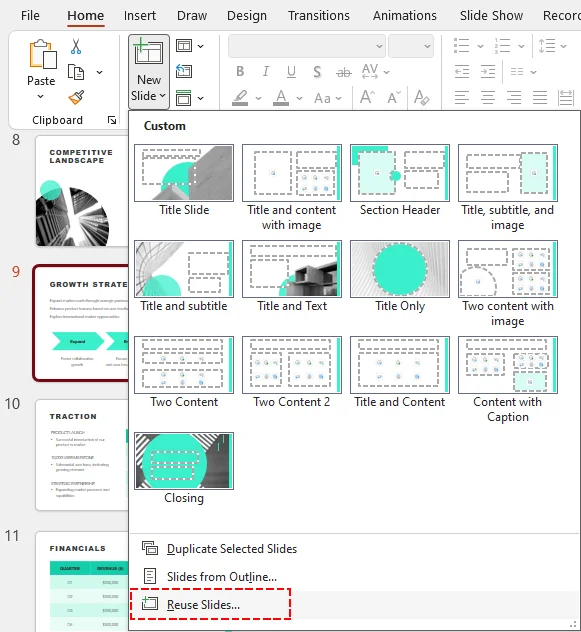
On the Home tab, click the arrow next to New Slide and select Reuse Slides.
-
In the right-hand panel, click Browse to open your source file.
-
Check the Keep source formatting box at the bottom.
-
Click on any slide thumbnail in the panel to insert it.
Result:
The selected slide is copied into your active presentation instantly without altering its theme or style properties.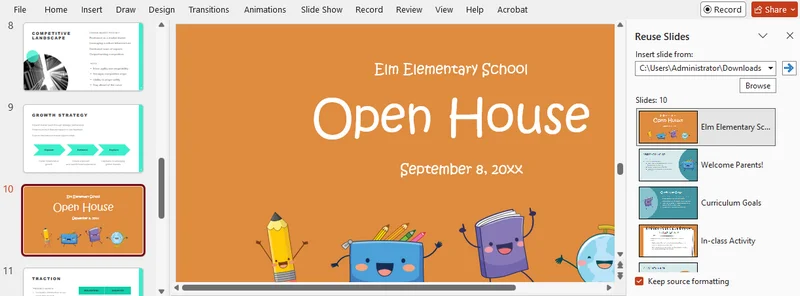
Insert Entire Presentation
To import all slides from the source file at once, right-click any slide thumbnail inside the Reuse Slides sidebar panel and select Insert All Slides.
⚠️ Note:
The copied slides are not linked to the original file. If the original file changes later, the reused slides in your current deck will not update automatically.
4. Copy Slides Online (PowerPoint for the Web)
If you are working in a web browser, PowerPoint for the Web allows you to copy slides quickly without requiring the desktop app, though it relies heavily on your browser's clipboard permissions.
Step-by-Step Instructions
- Open both source and destination presentations in your browser.
- In the source file's left pane, right-click the specific slide thumbnail and select Copy (or press Ctrl + C / Cmd + C).
- Switch to the destination browser tab, click inside the left thumbnail pane where you want the slide to go, and press Ctrl + V (or Cmd + V).
- Click the floating Paste Options badge next to the pasted slide and toggle on Keep Source Formatting.
⚠️ Caveat:
PowerPoint for the Web does not support right-click pasting for layout formatting in some browsers. Always use Ctrl + V / Cmd + V if the right-click menu is restricted, and avoid transferring large, asset-heavy slides online as it may cause browser lag.
Need to split a large presentation into smaller parts? See How to Split PPT.
5. Automate Slide Copying with a VBA Macro
For desktop users who frequently need to copy slides from a specific template or external presentation, a VBA macro offers a one-click automation solution to bypass repetitive manual copying.
How to Use the VBA Script
-
Open your target presentation and press Alt + F11 to open the VBA Editor.
-
Click Insert > Module, then paste the following code (be sure to replace the sourcePath string with your actual source file location):
Sub CopySlideWithSourceFormatting() Dim sourcePres As Presentation Dim targetPres As Presentation Dim sourcePath As String ' Target path of the source presentation sourcePath = "C:\YourFolder\SourcePresentation.pptx" Set targetPres = ActivePresentation On Error GoTo ErrorHandler ' Open the source file as read-only and copy the first slide Set sourcePres = Presentations.Open(FileName:=sourcePath, ReadOnly:=msoTrue, WithWindow:=msoFalse) sourcePres.Slides(1).Copy ' Paste into target presentation with source formatting targetPres.Slides.Paste targetPres.Slides(targetPres.Slides.Count).Design = sourcePres.Slides(1).Design CleanExit: If Not sourcePres Is Nothing Then sourcePres.Close Exit Sub ErrorHandler: MsgBox "Could not copy the slide. Please verify the source file path.", vbExclamation Resume CleanExit End Sub -
Close the VBA window, return to PowerPoint, and press Alt + F8 to run the macro.
Tips and Considerations:
- Always back up your presentation before running VBA scripts, as macro actions cannot be undone via Ctrl + Z.
- Save your project as a .pptm file (macro-enabled presentation) if you need to keep and reuse the macro later.
- Corporate IT policies often block macros for security. In such a case, consider using the following Python script instead.
6. Copy Slides Across Multiple Presentations with Python
When you need to programmatically copy slides between PowerPoint presentations or perform slide operations in environments where PowerPoint is not installed, Python provides a flexible alternative.
In this example, we will use the Free Spire.Presentation for Python library, which can work with .pptx and .ppt files directly and copy slides while preserving their original design.
Note: The free edition is designed for small-scale tasks and allows processing up to 10 slides per file. If your project involves larger decks, you can smoothly switch to the full edition and apply for a free trial license for an unrestricted test.
Step-by-Step Instructions
-
Install the required package via terminal:
pip install Spire.Presentation.Free -
Add the Python Script:
The following script copies a slide from a source file to multiple target files while preserving its layout and design properties using the AppendBySlide() method.
from spire.presentation import *
import os

# Source presentation containing the slide to copy
source_ppt = Presentation()
source_ppt.LoadFromFile("source.pptx")

# Select the first slide
source_slide = source_ppt.Slides[0]

# Copy the slide to multiple presentations
target_files = [
    "report1.pptx",
    "report2.pptx",
    "report3.pptx"
]

for target_file in target_files:
    target_ppt = Presentation()
    target_ppt.LoadFromFile(target_file)

    # Append the slide while preserving design with AppendBySlide
    target_ppt.Slides.AppendBySlide(source_slide)

    output_file = f"updated_{os.path.basename(target_file)}"
    target_ppt.SaveToFile(output_file, FileFormat.Pptx2013)

    target_ppt.Dispose()

source_ppt.Dispose()
print("Slide copied to multiple presentations successfully!")
Tips:
- Save the result as a new PowerPoint file instead of overwriting the original presentation when running the Python script.
- Test the script on a small number of files first, then review the output presentations before processing the entire folder.
Want to merge slides from multiple presentations into a single file? See Python: Merge PowerPoint Presentations.
Troubleshooting: Why the Copied Slides Look Different
If your copied slides look distorted or broken, check for these four common issues:
- Theme Override (Colors Changed): PowerPoint automatically applies the destination theme by default. The Fix: Paste again and explicitly select the Keep Source Formatting icon.
- Missing Fonts (Typography Shifted): If the destination computer lacks the custom typography used in the source slide, PowerPoint will substitute it. The Fix: Use standard web-safe fonts, or embed the fonts via File > Options > Save > Embed fonts.
- Broken Media (Videos/Audio Won't Play): The source presentation likely linked the media files instead of embedding them. The Fix: Re-insert the media directly into the new deck, or send the asset files along with the presentation.
- Mismatched Slide Sizes (Layout Stretched): Copying between 16:9 and 4:3 formats causes layout distortion. The Fix: Ensure both presentations use identical slide sizes under the Design > Slide Size menu before copying.
Frequently Asked Questions
Q1: Can I copy slides from multiple PowerPoint files at once?
A1: Not in a single built-in operation. PowerPoint typically lets you copy slides from one file at a time. If you need to process many presentations simultaneously, consider using Python automation.
Q2: Is there a direct shortcut to copy slides in PowerPoint and keep formatting?
A2: There is no single shortcut, but you can use this sequential combo:
- Windows: Press Ctrl + C, then Ctrl + V, then tap the Ctrl key and press K.
- Mac: Press Cmd + C, then Cmd + V, then click the floating paste options badge to select Keep Source Formatting.
Q3: Why is the Keep Source Formatting option grayed out when copying a slide?
A3: This usually happens when your cursor is active inside a text box or shape. Click the empty space between the slide thumbnails on the left and paste again.
Wrap Up
Choosing how to copy slides in PowerPoint comes down to one practical rule: match your method to your workload.
- For everyday edits: Use Duplicate Slide within the same deck, or rely on Copy & Paste and Reuse Slides when transferring slides between a few files.
- For browser users: Use PowerPoint for the Web, but switch to keyboard shortcuts if your browser blocks the right-click clipboard menu.
- For bulk work: If you are dealing with more than 10 files or generating automatic reports, skip the manual interface entirely and let Python or VBA handle it in the background.
No matter which method you choose, always double-check the final file before sharing to ensure no formatting or layout shifts.