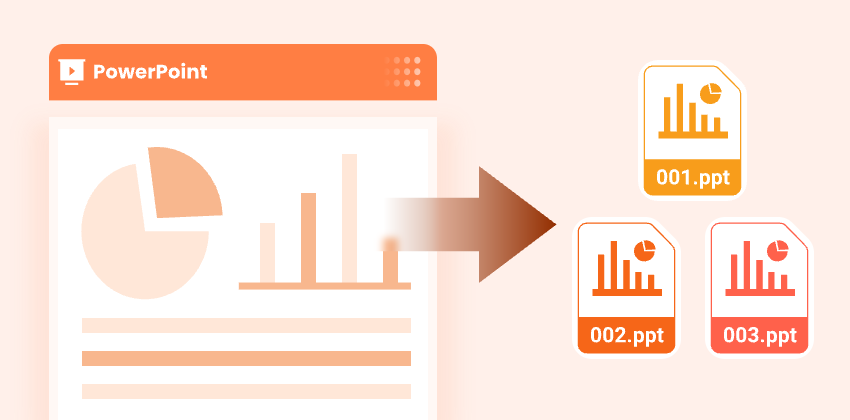
Large PowerPoint presentations can be hard to manage, especially when they contain many slides or cover multiple topics. Splitting PPT into smaller, more manageable files makes it easier to edit, share, and collaborate.
This guide covers 3 effective ways to split PowerPoint presentation while preserving formatting, including manual methods in PowerPoint, free online tools, and Python automation. Whether you’re a business professional, educator, or developer, you’ll find a practical solution that fits your needs.
Contents Overview
- Why Split PPT
- Method 1. Split PPT Manually in PowerPoint
- Method 2. Split PPT Online Using Free Tools
- Method 3. Split PPT Automatically with Python
- Best Practices for Splitting PPT
- Conclusion
- FAQs: Splitting PowerPoint Presentation
Want to merge the split presentations back into one file? See our Merge PowerPoint Presentations guide.
Why Split PPT
Splitting PowerPoint presentations offers multiple benefits:
- Share Relevant Slides - Send only the necessary slides without overwhelming recipients with the entire presentation.
- Reuse Slides - Easily incorporate slides into new presentations without duplicating content.
- Reduce File Size - Split large PPT files into smaller, more manageable files suitable for email or cloud storage.
- Improve Team Collaboration - Allow different team members to work on separate sections simultaneously without conflicts.
- Organize Multi-Topic Presentations - Separate slides by topic, project, or department for better organization and clarity.
Method 1. Split PPT Manually in PowerPoint
PowerPoint provides built-in methods to manually split a presentation into separate PPT files without using additional software. Here is a step-by-step guide for both methods.
Option 1: Using the Copy and Paste Method
Copying and pasting slides is the simplest way to split a PowerPoint presentation. This method works best for occasional splits or smaller presentations but may be time-consuming for large files.
Steps to Split PowerPoint Presentation Using Copy & Paste:
-
Open the PowerPoint presentation you want to split.
-
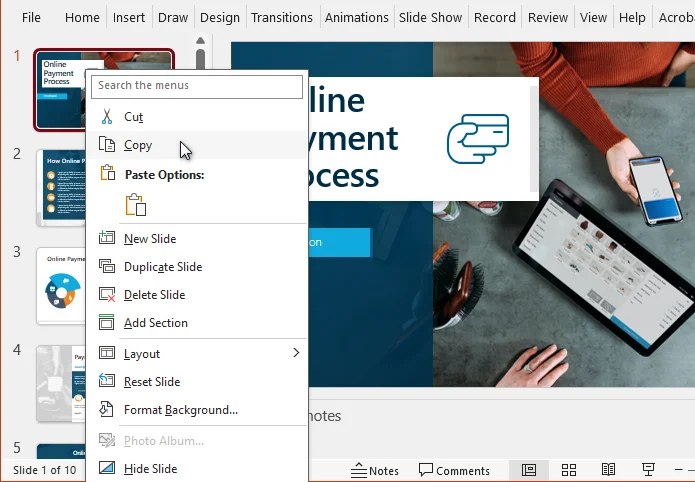
In the slide thumbnail pane, hold Ctrl (or Cmd on Mac) and select the slides to extract.
-
Right-click any of the selected slides and choose Copy.
-
Click File → New → Blank Presentation to create a new presentation.
-
Right-click the slide thumbnail pane in the new presentation, then choose one of the Paste Options:
- Use Destination Theme - Apply the new presentation's theme.
- Keep Source Formatting - Retain the original formatting.
-
Save the new presentation to your desired location.
Option 2: Using the Reuse Slides Feature
If you want to split a PowerPoint presentation more efficiently, the Reuse Slides feature in PowerPoint is a better choice. It allows importing slides to a new presentation while keeping formatting intact, all without opening the original file. Compared with copy-and-paste, it saves more time, especially when working with large presentations.
Steps to Split PPT using Reuse Slides:
-
Open a new PowerPoint presentation.
-
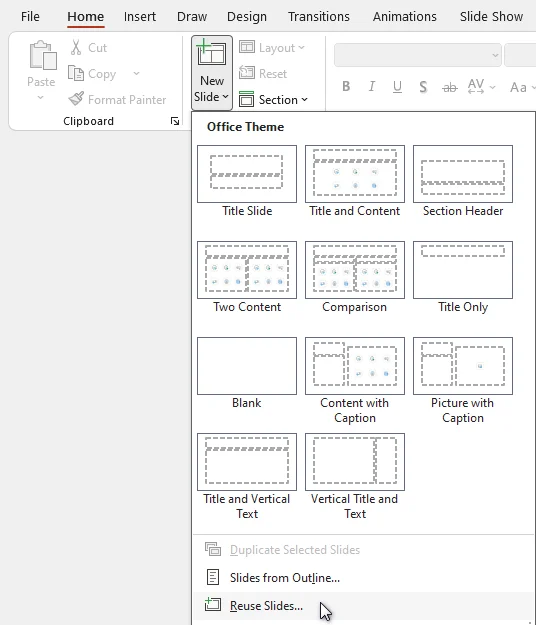
Navigate to Home > New Slide > Reuse Slides.
-
Click Browse and select the original presentation.
-
Choose the slides to import and check Keep source formatting if needed.
-
Save the new presentation with your split slides.
Also Read: Extract Images from PowerPoint - 4 Easy Ways
Method 2. Split PPT Online Using Free Tools
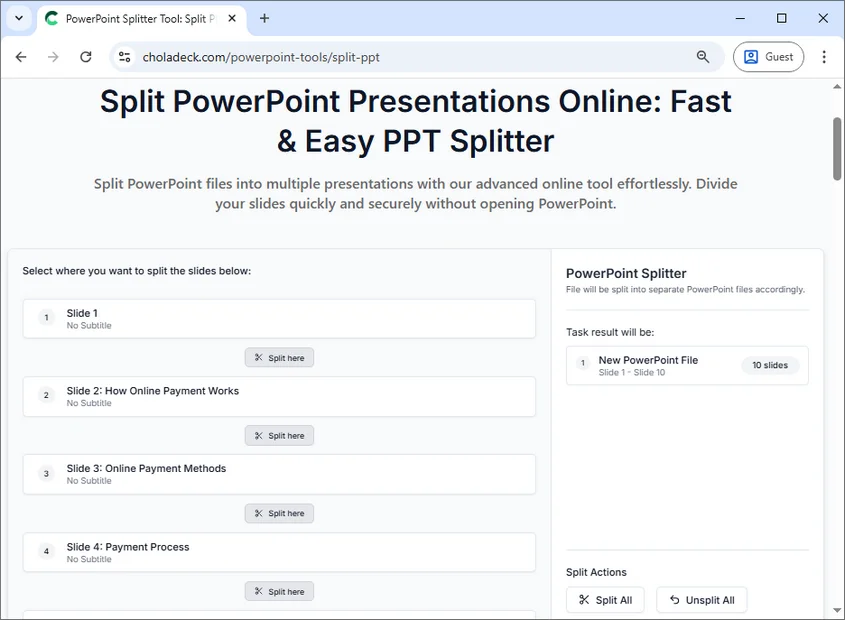
For users without Microsoft PowerPoint installed, free online PPT splitters are an easy alternative. Tools like Choladeck PPT Splitter allow you to split presentations without software installation.
Steps to Split PPT Online:
- Visit the Choladeck online PPT Splitter website.
- Upload your presentation by dragging it into the upload area or browsing your device.
- Choose how to split the presentation:
- If splitting into individual slides, click Split All.
- If splitting into custom groups, click the Split here icon below the desired slides.
- Click Split files to process the presentation.
- Download the split files.
Note: Online tools require file upload. Some tools may also limit file size. Avoid using them for sensitive or very large presentations.
Method 3. Split PPT Automatically with Python
For developers or teams dealing with multiple presentations, Python automation provides a fast, repeatable, and reliable way to split PowerPoint presentations. Libraries such as Spire.Presentation for Python allow you to extract and split slides programmatically, even when Microsoft PowerPoint is not installed.
Steps to Split PPT Automatically Using Python:
-
Install the Spire.Presentation library from PyPI:
pip install spire.presentation -
Create a Python script to split your PPT into multiple files.
from spire.presentation import * import os # Specify the input PowerPoint file input_file = "original_presentation.pptx" # Specify the output folder for split slides output_folder = "output/Presentations" # Create the output folder if it doesn't exist if not os.path.exists(output_folder): os.makedirs(output_folder) # Load the original PowerPoint presentation presentation = Presentation() presentation.LoadFromFile(input_file) # Loop through all slides in the presentation for i in range(presentation.Slides.Count): # Get the current slide slide = presentation.Slides[i] # Create a new PowerPoint presentation new_ppt = Presentation() # Remove the default slide in the new presentation new_ppt.Slides.RemoveAt(0) # Append the current slide to the new presentation new_ppt.Slides.AppendBySlide(slide) # Construct the output file path output_file = os.path.join(output_folder, f"slide-{i + 1}.pptx") # Save the new presentation new_ppt.SaveToFile(output_file, FileFormat.Pptx2013) # Dispose the new presentation to release memory new_ppt.Dispose() # Dispose the original presentation to release memory presentation.Dispose() -
Run the script to generate new presentations automatically.
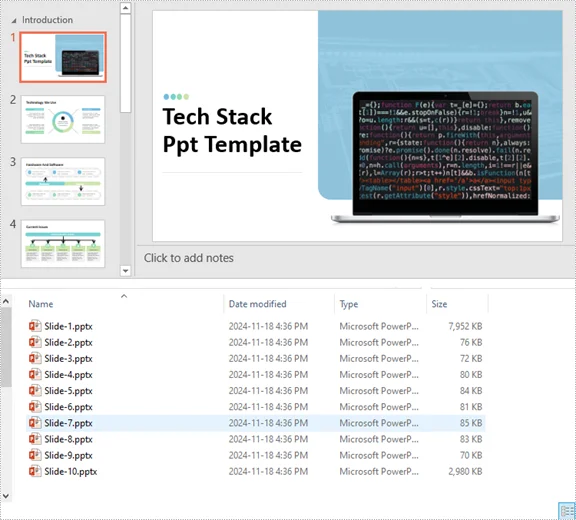
Benefits:
- Ideal for batch processing large PowerPoint presentations.
- Reduces manual effort and minimizes errors.
- Preserves original formatting, transitions, and animations.
Tip: This Python script can be customized to split slides by ranges, sections, topics, or other criteria.
Related Article: Python: Split PowerPoint Presentations
Best Practices for Splitting PPT
Regardless of which method you choose, following a few best practices can help ensure your split PowerPoint presentations remain well-organized and easy to use.
- Backup Original Files - Always keep a copy of the full presentation.
- Use Clear File Names - Include topic, date, or version to avoid confusion.
- Preserve Themes - Decide whether to maintain the source formatting or apply a new theme.
- Check Slide Dependencies - Verify animations, transitions, and hyperlinks still function after splitting.
- Organize by Section or Topic - Group slides logically to improve readability and workflow.
Conclusion
Learning how to split PPT efficiently helps you manage presentations more effectively, share content selectively, and reduce file size.
If you only need to split a presentation occasionally, manual methods in PowerPoint are usually sufficient. For quick tasks without PowerPoint installed, free online split tools offer a convenient alternative. When you need to batch process files or split presentations frequently, Python automation provides the most efficient and scalable solution.
Choosing the right method based on your workflow, file size, and frequency of use ensures that your PowerPoint presentations remain organized, readable, and ready for collaboration or presentation.
Looking for more high-quality PowerPoint tutorials? Check out our free PPT resources.
FAQs: Splitting PowerPoint Presentation
Q1: What is the easiest way to split PPT?
A1: The easiest way for a few slides is the Copy Method in PowerPoint. For larger presentations, use Reuse Slides or Python automation.
Q2: Can I split PowerPoint Presentation without losing animations or transitions?
A2: Yes. Use the Reuse Slides feature in PowerPoint or Python libraries like Spire.Presentation, which preserve all formatting and animations.
Q3: Are there free online PPT split tools?
A3: Yes. Tools like Choladeck PPT Splitter allow you to split presentations without PowerPoint.
Q4: How to split large PowerPoint presentation efficiently?
A4: For large files, Python automation or the Reuse Slides method is recommended. They save time, maintain formatting, and reduce errors.
Q5: Can I split PPT by topic or section?
A5: Yes. Both Python scripts and online splitters often allow splitting by custom slide ranges or sections.