Una tabella fornisce un accesso rapido ed efficiente ai dati visualizzati in righe e colonne in modo visivamente accattivante. Quando vengono presentati in una tabella, i dati hanno un impatto maggiore rispetto a quando vengono usati solo come parole e consentono ai lettori di confrontare e comprendere facilmente le relazioni tra di loro. In questo articolo imparerai come creare una tabella in PDF in C# e VB.NET utilizzando Spire.PDF for .NET.
Spire.PDF for .NET offre la classe PdfTable e PdfGrid per lavorare con le tabelle in un documento PDF. La classe PdfTable viene utilizzata per creare rapidamente tabelle semplici e regolari senza troppa formattazione, mentre la classe PdfGrid viene utilizzata per creare tabelle più complesse.
La tabella seguente elenca le differenze tra queste due classi.
| PdfTable | PdfGrid | |
| Formattazione | ||
| Riga | Può essere impostato tramite eventi. Nessun supporto API. | Può essere impostato tramite API. |
| Colonna | Può essere impostato tramite API (StringFormat). | Può essere impostato tramite API (StringFormat). |
| Cellula | Può essere impostato tramite eventi. Nessun supporto API. | Può essere impostato tramite API. |
| Altri | ||
| Intervallo di colonne | Non supporto. | Può essere impostato tramite API. |
| Intervallo di fila | Può essere impostato tramite eventi. Nessun supporto API. | Può essere impostato tramite API. |
| Tavolo annidato | Può essere impostato tramite eventi. Nessun supporto API. | Può essere impostato tramite API. |
| Eventi | BeginCellLayout, EndCellLayout, BeginRowLayout, EndRowLayout, BeginPageLayout, EndPageLayout. | InizioLayoutPagina, FineLayoutPagina. |
Le sezioni seguenti mostrano come creare una tabella in PDF utilizzando rispettivamente la classe PdfTable e la classe PdfGrid.
Installa Spire.PDF for .NET
Per cominciare, è necessario aggiungere i file DLL inclusi nel pacchetto Spire.PDF for.NET come riferimenti nel progetto .NET. I file DLL possono essere scaricati da questo link o installato tramite NuGet.
PM> Install-Package Spire.PDF
Creare una tabella utilizzando la classe PdfTable
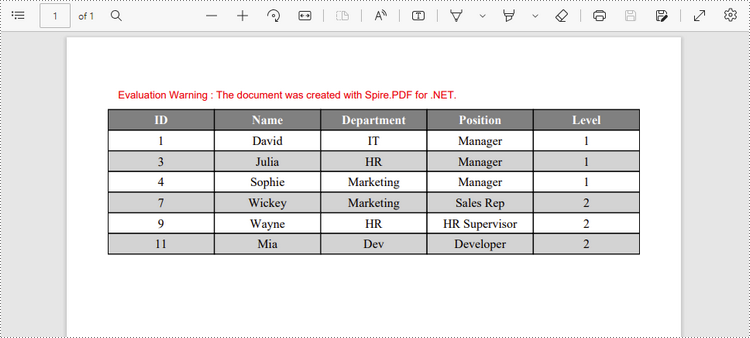
Di seguito sono riportati i passaggi per creare una tabella utilizzando la classe PdfTable.
- Creare un oggetto PdfDocument.
- Aggiungi una pagina usando il metodo PdfDocument.Pages.Add().
- Crea un oggetto Pdftable.
- Impostare lo stile della tabella tramite la proprietà PdfTable.Style.
- Inserire i dati nella tabella tramite la proprietà PdfTable.DataSource.
- Imposta l'altezza e il colore della riga tramite l'evento BeginRowLayout.
- Disegna la tabella sulla pagina PDF usando il metodo PdfTable.Draw().
- Salvare il documento in un file PDF utilizzando il metodo PdfDocument.SaveToFile().
- C#
- VB.NET
using System;
    using System.Data;
    using System.Drawing;
    using Spire.Pdf;
    using Spire.Pdf.Graphics;
    using Spire.Pdf.Tables;

    namespace CreateTable
    {
        class Program
        {
            static void Main(string[] args)
            {
                //Create a PdfDocument object
                PdfDocument doc = new PdfDocument();

                //Add a page
                PdfPageBase page = doc.Pages.Add(PdfPageSize.A4, new PdfMargins(40));

                //Create a PdfTable object
                PdfTable table = new PdfTable();

                //Set font for header and the rest cells
                table.Style.DefaultStyle.Font = new PdfTrueTypeFont(new Font("Times New Roman", 12f, FontStyle.Regular), true);
                table.Style.HeaderStyle.Font = new PdfTrueTypeFont(new Font("Times New Roman", 12f, FontStyle.Bold), true);

                //Crate a DataTable
                DataTable dataTable = new DataTable();
                dataTable.Columns.Add("ID");
                dataTable.Columns.Add("Name");
                dataTable.Columns.Add("Department");
                dataTable.Columns.Add("Position");
                dataTable.Columns.Add("Level");
                dataTable.Rows.Add(new string[] { "1", "David", "IT", "Manager", "1" });
                dataTable.Rows.Add(new string[] { "3", "Julia", "HR", "Manager", "1" });
                dataTable.Rows.Add(new string[] { "4", "Sophie", "Marketing", "Manager", "1" });
                dataTable.Rows.Add(new string[] { "7", "Wickey", "Marketing", "Sales Rep", "2" });
                dataTable.Rows.Add(new string[] { "9", "Wayne", "HR", "HR Supervisor", "2" });
                dataTable.Rows.Add(new string[] { "11", "Mia", "Dev", "Developer", "2" });

                //Set the datatable as the data source of table
                table.DataSource = dataTable;

                //Show header(the header is hidden by default)
                table.Style.ShowHeader = true;

                //Set font color and backgroud color of header row
                table.Style.HeaderStyle.BackgroundBrush = PdfBrushes.Gray;
                table.Style.HeaderStyle.TextBrush = PdfBrushes.White;

                //Set text alignment in header row
                table.Style.HeaderStyle.StringFormat = new PdfStringFormat(PdfTextAlignment.Center, PdfVerticalAlignment.Middle);

                //Set text alignment in other cells
                for (int i = 0; i < table.Columns.Count; i++)
                {
                    table.Columns[i].StringFormat = new PdfStringFormat(PdfTextAlignment.Center, PdfVerticalAlignment.Middle);
                }

                //Register with BeginRowLayout event
                table.BeginRowLayout += Table_BeginRowLayout;

                //Draw table on the page
                table.Draw(page, new PointF(0, 30));

                //Save the document to a PDF file
                doc.SaveToFile("PdfTable.pdf");
            }

            //Event handler
            private static void Table_BeginRowLayout(object sender, BeginRowLayoutEventArgs args)
            {
                //Set row height
                args.MinimalHeight = 20f;

                //Alternate row color
                if (args.RowIndex < 0)
                {
                    return;
                }
                if (args.RowIndex % 2 == 1)
                {
                    args.CellStyle.BackgroundBrush = PdfBrushes.LightGray;
                }
                else
                {
                    args.CellStyle.BackgroundBrush = PdfBrushes.White;
                }
            }
        }
    }
Creare una tabella utilizzando la classe PdfGrid
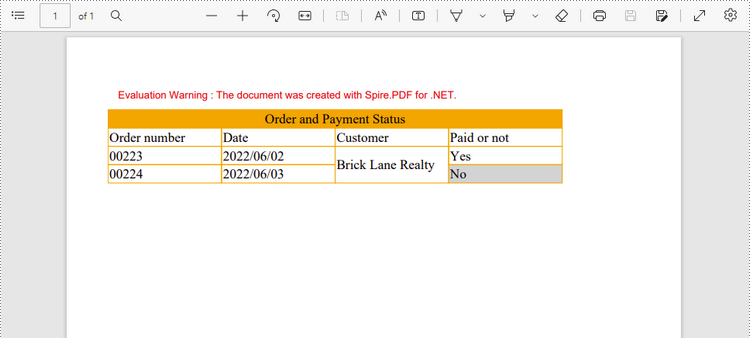
Di seguito sono riportati i passaggi per creare una tabella utilizzando la classe PdfGrid.
- Creare un oggetto PdfDocument.
- Aggiungi una pagina usando il metodo PdfDocument.Pages.Add().
- Crea un oggetto PdfGrid.
- Impostare lo stile della tabella tramite la proprietà PdfGrid.Style.
- Aggiungi righe alla tabella utilizzando il metodo PdfGrid.Rows.Add().
- Inserisci i dati in celle specifiche tramite la proprietà PdfGridRow.Cells[index].Value.
- Estendi le celle su colonne o righe tramite la proprietà PdfGridRow.RowSpan o PdfGridRow.ColumnSpan.
- Impostare la formattazione di una cella specifica tramite le proprietà PdfGridRow.Cells[index].StringFormat e PdfGridRow.Cells[index].Style.
- Disegna la tabella sulla pagina PDF usando il metodo PdfGrid.Draw().
- Salvare il documento in un file PDF utilizzando il metodo PdfDocument.SaveToFile().
- C#
- VB.NET
using Spire.Pdf;
    using Spire.Pdf.Graphics;
    using Spire.Pdf.Grid;
    using System.Drawing;

    namespace CreateGrid
    {
        class Program
        {
            static void Main(string[] args)
            {
                //Create a PdfDocument object
                PdfDocument doc = new PdfDocument();

                //Add a page
                PdfPageBase page = doc.Pages.Add(PdfPageSize.A4,new PdfMargins(40));

                //Create a PdfGrid
                PdfGrid grid = new PdfGrid();

                //Set cell padding
                grid.Style.CellPadding = new PdfPaddings(1, 1, 1, 1);

                //Set font
                grid.Style.Font = new PdfTrueTypeFont(new Font("Times New Roman", 13f, FontStyle.Regular), true);

                //Add rows
                PdfGridRow row1 = grid.Rows.Add();
                PdfGridRow row2 = grid.Rows.Add();
                PdfGridRow row3 = grid.Rows.Add();
                PdfGridRow row4 = grid.Rows.Add();
                grid.Columns.Add(4);

                //Set column width
                foreach (PdfGridColumn col in grid.Columns)
                {
                    col.Width = 110f;
                }

                //Write data into specific cells
                row1.Cells[0].Value = "Order and Payment Status";
                row2.Cells[0].Value = "Order number";
                row2.Cells[1].Value = "Date";
                row2.Cells[2].Value = "Customer";
                row2.Cells[3].Value = "Paid or not";
                row3.Cells[0].Value = "00223";
                row3.Cells[1].Value = "2022/06/02";
                row3.Cells[2].Value = "Brick Lane Realty";
                row3.Cells[3].Value = "Yes";
                row4.Cells[0].Value = "00224";
                row4.Cells[1].Value = "2022/06/03";
                row4.Cells[3].Value = "No";

                //Span cell across columns
                row1.Cells[0].ColumnSpan = 4;

                //Span cell across rows
                row3.Cells[2].RowSpan = 2;

                //Set text alignment of specific cells
                row1.Cells[0].StringFormat = new PdfStringFormat(PdfTextAlignment.Center);
                row3.Cells[2].StringFormat = new PdfStringFormat(PdfTextAlignment.Left, PdfVerticalAlignment.Middle);

                //Set background color of specific cells
                row1.Cells[0].Style.BackgroundBrush = PdfBrushes.Orange;
                row4.Cells[3].Style.BackgroundBrush = PdfBrushes.LightGray;

                //Format cell border
                PdfBorders borders = new PdfBorders();
                borders.All = new PdfPen(Color.Orange, 0.8f);
                foreach (PdfGridRow pgr in grid.Rows)
                {
                    foreach (PdfGridCell pgc in pgr.Cells)
                    {
                        pgc.Style.Borders = borders;
                    }
                }

                //Draw table on the page
                grid.Draw(page, new PointF(0, 30));

                //Save the document to a PDF file
                doc.SaveToFile("PdfGrid.pdf");
            }
        }
    }
Richiedi una licenza temporanea
Se desideri rimuovere il messaggio di valutazione dai documenti generati o eliminare le limitazioni delle funzioni, per favore richiedere una licenza di prova di 30 giorni per te.