
Java (485)
Extracting tables from Word documents is essential for many applications, as they often contain critical data for analysis, reporting, or system integration. By automating this process with Java, developers can create robust applications that seamlessly access this structured data, enabling efficient conversion into alternative formats suitable for databases, spreadsheets, or web-based visualizations. This article will demonstrate how to use Spire.Doc for Java to efficiently extract tables from Word documents in Java programs.
Install Spire.Doc for Java
First of all, you're required to add the Spire.Doc.jar file as a dependency in your Java program. The JAR file can be downloaded from this link. If you use Maven, you can easily import the JAR file in your application by adding the following code to your project's pom.xml file.
<repositories>
    <repository>
        <id>com.e-iceblue</id>
        <name>e-iceblue</name>
        <url>https://repo.e-iceblue.com/nexus/content/groups/public/</url>
    </repository>
</repositories>
<dependencies>
    <dependency>
        <groupId>e-iceblue</groupId>
        <artifactId>spire.doc</artifactId>
        <version>14.7.0</version>
    </dependency>
</dependencies>
Extract Tables from Word Documents with Java
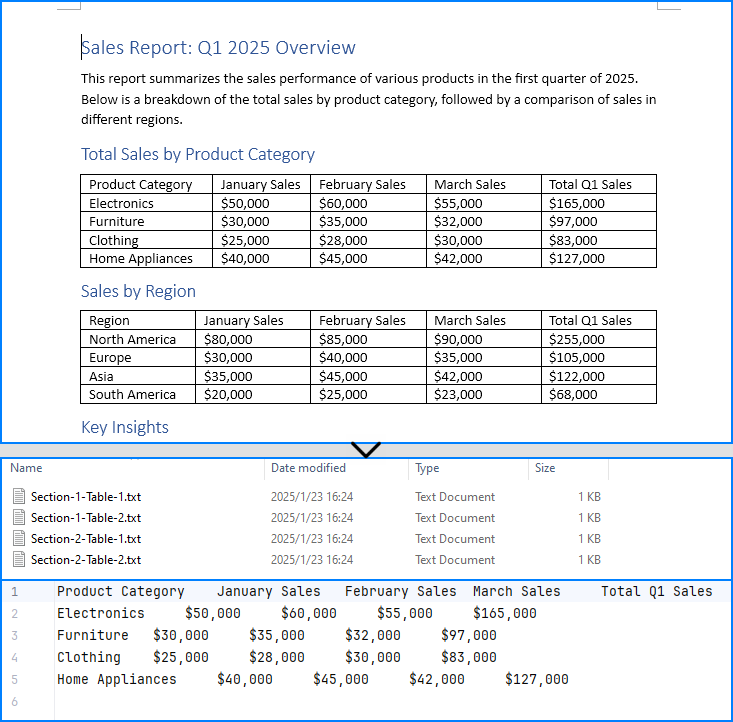
With Spire.Doc for Java, developers can extract tables from Word documents using the Section.getTables() method. Table data can be accessed by iterating through rows and cells. The process for extracting tables is detailed below:
- Create a Document object.
- Load a Word document using the Document.loadFromFile() method.
- Access the sections in the document using the Document.getSections() method and iterate through them.
- Access the tables in each section using the Section.getTables() method and iterate through them.
- Access the rows in each table using the Table.getRows() method and iterate through them.
- Access the cells in each row using the TableRow.getCells() method and iterate through them.
- Retrieve text from each cell by iterating through its paragraphs using the TableCell.getParagraphs() and Paragraph.getText() methods.
- Add the extracted table data to a StringBuilder object.
- Write the StringBuilder object to a text file or use it as needed.
- Java
import com.spire.doc.*;
import com.spire.doc.documents.Paragraph;

import java.io.FileWriter;
import java.io.IOException;

public class ExtractWordTable {
    public static void main(String[] args) {
        // Create a Document object
        Document doc = new Document();

        try {
            // Load a Word document
            doc.loadFromFile("Sample.docx");

            // Iterate the sections in the document
            for (int i = 0; i < doc.getSections().getCount(); i++) {
                // Get a section
                Section section = doc.getSections().get(i);
                // Iterate the tables in the section
                for (int j = 0; j < section.getTables().getCount(); j++) {
                    // Get a table
                    Table table = section.getTables().get(j);
                    // Collect all table content
                    StringBuilder tableText = new StringBuilder();
                    for (int k = 0; k < table.getRows().getCount(); k++) {
                        // Get a row
                        TableRow row = table.getRows().get(k);
                        // Iterate the cells in the row
                        StringBuilder rowText = new StringBuilder();
                        for (int l = 0; l < row.getCells().getCount(); l++) {
                            // Get a cell
                            TableCell cell = row.getCells().get(l);
                            // Iterate the paragraphs to get the text in the cell
                            String cellText = "";
                            for (int m = 0; m < cell.getParagraphs().getCount(); m++) {
                                Paragraph paragraph = cell.getParagraphs().get(m);
                                cellText += paragraph.getText() + " ";
                            }
                            if (l < row.getCells().getCount() - 1) {
                                rowText.append(cellText).append("\t");
                            } else {
                                rowText.append(cellText).append("\n");
                            }
                        }
                        tableText.append(rowText);
                    }

                    // Write the table text to a file using try-with-resources
                    try (FileWriter writer = new FileWriter("output/Tables/Section-" + (i + 1) + "-Table-" + (j + 1) + ".txt")) {
                        writer.write(tableText.toString());
                    }
                }
            }
        } catch (IOException e) {
            e.printStackTrace();
        }
    }
}
Extract Tables from Word Documents to Excel Worksheets
Developers can use Spire.Doc for Java with Spire.XLS for Java to extract table data from Word documents and write it to Excel worksheets. To get started, download Spire.XLS for Java or add the following Maven configuration:
<repositories>
    <repository>
        <id>com.e-iceblue</id>
        <name>e-iceblue</name>
        <url>https://repo.e-iceblue.com/nexus/content/groups/public/</url>
    </repository>
</repositories>
<dependencies>
    <dependency>
        <groupId>e-iceblue</groupId>
        <artifactId>spire.xls</artifactId>
        <version>16.6.5</version>
    </dependency>
</dependencies>
The detailed steps for extracting tables from Word documents to Excel workbooks are as follows:
- Create a Document object.
- Create a Workbook object and remove the default worksheets using the Workbook.getWorksheets().clear() method.
- Load a Word document using the Document.loadFromFile() method.
- Access the sections in the document using the Document.getSections() method and iterate through them.
- Access the tables in each section using the Section.getTables() method and iterate through them.
- Create a worksheet for each table using the Workbook.getWorksheets().add() method.
- Access the rows in each table using the Table.getRows() method and iterate through them.
- Access the cells in each row using the TableRow.getCells() method and iterate through them.
- Retrieve text from each cell by iterating through its paragraphs using the TableCell.getParagraphs() and Paragraph.getText() methods.
- Write the extracted cell text to the corresponding cell in the worksheet using the Worksheet.getRange().get(row, column).setValue() method.
- Format the worksheet as needed.
- Save the workbook to an Excel file using the Workbook.saveToFile() method.
- Java
import com.spire.doc.*;
import com.spire.doc.documents.Paragraph;
import com.spire.xls.FileFormat;
import com.spire.xls.Workbook;
import com.spire.xls.Worksheet;

public class ExtractWordTableToExcel {
    public static void main(String[] args) {
        // Create a Document object
        Document doc = new Document();

        // Create a Workbook object
        Workbook workbook = new Workbook();
        // Remove the default worksheets
        workbook.getWorksheets().clear();

        try {
            // Load a Word document
            doc.loadFromFile("Sample.docx");

            // Iterate the sections in the document
            for (int i = 0; i < doc.getSections().getCount(); i++) {
                // Get a section
                Section section = doc.getSections().get(i);
                // Iterate the tables in the section
                for (int j = 0; j < section.getTables().getCount(); j++) {
                    // Get a table
                    Table table = section.getTables().get(j);
                    // Create a worksheet for each table
                    Worksheet sheet = workbook.getWorksheets().add("Section-" + (i + 1) + "-Table-" + (j + 1));
                    for (int k = 0; k < table.getRows().getCount(); k++) {
                        // Get a row
                        TableRow row = table.getRows().get(k);
                        for (int l = 0; l < row.getCells().getCount(); l++) {
                            // Get a cell
                            TableCell cell = row.getCells().get(l);
                            // Iterate the paragraphs to get the text in the cell
                            String cellText = "";
                            for (int m = 0; m < cell.getParagraphs().getCount(); m++) {
                                Paragraph paragraph = cell.getParagraphs().get(m);
                                if (m > 0 && m < cell.getParagraphs().getCount() - 1) {
                                    cellText += paragraph.getText() + "\n";
                                }
                                else {
                                    cellText += paragraph.getText();
                                }
                                // Write the cell text to the corresponding cell in the worksheet
                                sheet.getRange().get(k + 1, l + 1).setValue(cellText);
                            }
                            // Auto-fit columns
                            sheet.autoFitColumn(l + 1);
                        }
                    }
                }
            }
        } catch (Exception e) {
            throw new RuntimeException(e);
        }
        workbook.saveToFile("output/WordTableToExcel.xlsx", FileFormat.Version2016);
    }
}

Apply for a Temporary License
If you'd like to remove the evaluation message from the generated documents, or to get rid of the function limitations, please request a 30-day trial license for yourself.
In today's digital age, Excel documents have become essential tools for businesses, individuals, and organizations to manage data, analyze information, and share reports. However, manually editing Excel documents is not only time-consuming but also prone to errors. Fortunately, with the Spire.XLS library in Java, you can easily automate these tasks, improving efficiency and reducing mistakes.
This article will provide a comprehensive guide on how to use Spire.XLS for Java to edit Excel documents in Java, helping you master this powerful skill.
- Read and Write Excel Files in Java
- Apply Formatting to Excel Cells in Java
- Find and Replace Text in Excel in Java
- Add Formulas and Charts to Excel in Java
Install Spire.XLS for Java
First of all, you're required to add the Spire.Xls.jar file as a dependency in your Java program. The JAR file can be downloaded from this link. If you use Maven, you can easily import the JAR file in your application by adding the following code to your project's pom.xml file.
<repositories>
    <repository>
        <id>com.e-iceblue</id>
        <name>e-iceblue</name>
        <url>https://repo.e-iceblue.com/nexus/content/groups/public/</url>
    </repository>
</repositories>
<dependencies>
    <dependency>
        <groupId>e-iceblue</groupId>
        <artifactId>spire.xls</artifactId>
        <version>16.6.5</version>
    </dependency>
</dependencies>
Read and Write Excel Files in Java
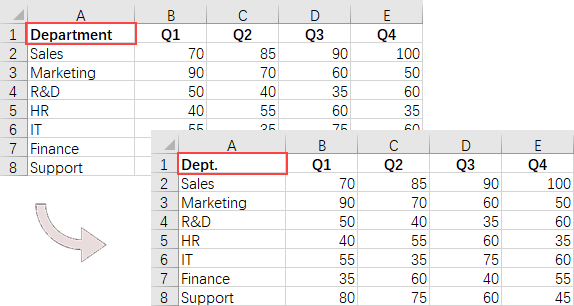
One of the most common tasks when working with Excel files in Java is reading and writing data. Spire.XLS for Java simplifies this process with the CellRange.getValue() and CellRange.setValue() methods, allowing developers to easily retrieve and assign values to individual cells.
To read and write an Excel file using Java, follow these steps:
- Create a Workbook object.
- Load an Excel file from the specified file path.
- Access a specific worksheet using the Workbook.getWorksheets().get() method.
- Retrieve a specific cell using the Worksheet.getCellRange() method.
- Get the cell value with CellRange.getValue() and update it using CellRange.setValue().
- Save the workbook to a new Excel file.
- Java
import com.spire.xls.CellRange;
import com.spire.xls.ExcelVersion;
import com.spire.xls.Workbook;
import com.spire.xls.Worksheet;

public class ReadAndWriteExcel {

    public static void main(String[] args) {

        // Create a Workbook object
        Workbook workbook = new Workbook();

        // Load an Excel file
        workbook.loadFromFile("C:\\Users\\Administrator\\Desktop\\Input.xlsx");

        // Get a specific worksheet
        Worksheet worksheet = workbook.getWorksheets().get(0);

        // Get a specific cell
        CellRange cell = worksheet.getCellRange("A1");

        // Read the cell value
        String text = cell.getValue();

        // Determine if the cell value is "Department"
        if (text.equals("Department"))
        {
            // Update the cell value
            cell.setValue ("Dept.");
        }

        // Save the workbook to a different
        workbook.saveToFile("ModifyExcel.xlsx", ExcelVersion.Version2016);

        // Dispose resources
        workbook.dispose();
    }
}
Apply Formatting to Excel Cells in Java
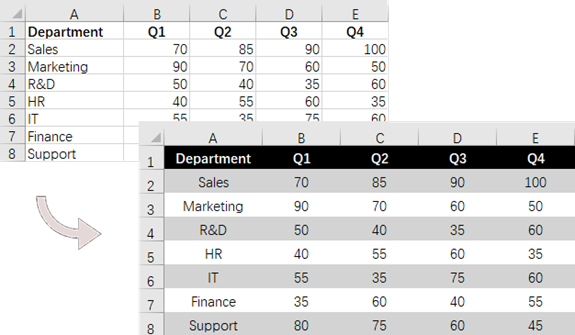
Formatting Excel documents is essential for creating professional-looking reports. Spire.XLS for Java provides a range of APIs within the CellRange class to manage font styles, colors, cell backgrounds, and alignments, as well as to adjust row heights and column widths.
To apply styles and formats to Excel cells, follow these steps:
- Create a Workbook object.
- Load an Excel file from the specified file path.
- Access a specific worksheet using the Workbook.getWorksheets().get() method.
- Retrieve the allocated range of cells using the Worksheet.getAllocatedRange() method.
- Select a specific row using CellRange.getRows()[rowIndex], and customize the cell background color, text color, text alignment, and row height using methods from the CellRange object.
- Choose a specific column with CellRange.getColumns()[columnIndex], and set the column width using the setColumnWidth() method from the CellRange object.
- Save the workbook to a new Excel file.
- Java
import com.spire.xls.*;

import java.awt.*;

public class ApplyFormatting {

    public static void main(String[] args) {

        // Create a Workbook object
        Workbook workbook = new Workbook();

        // Load an Excel file
        workbook.loadFromFile("C:\\Users\\Administrator\\Desktop\\Input.xlsx");

        // Get a specific worksheet
        Worksheet worksheet = workbook.getWorksheets().get(0);

        // Get all located range from the worksheet
        CellRange allocatedRange = worksheet.getAllocatedRange();

        // Iterate through the rows
        for (int rowNum = 0; rowNum < allocatedRange.getRowCount(); rowNum++) {
            if (rowNum == 0) {

                // Apply cell color to the header row
                allocatedRange.getRows()[rowNum].getStyle().setColor(Color.black);

                // Change the font color of the header row
                allocatedRange.getRows()[rowNum].getStyle().getFont().setColor(Color.white);
            }

            // Apply alternate colors to other rows
            else if (rowNum % 2 == 1) {
                allocatedRange.getRows()[rowNum].getStyle().setColor(Color.lightGray);
            } else if (rowNum % 2 == 0) {
                allocatedRange.getRows()[rowNum].getStyle().setColor(Color.white);
            }

            // Align text to center
            allocatedRange.getRows()[rowNum].setHorizontalAlignment(HorizontalAlignType.Center);
            allocatedRange.getRows()[rowNum].setVerticalAlignment(VerticalAlignType.Center);

            // Set the row height
            allocatedRange.getRows()[rowNum].setRowHeight(20);
        }

        // Iterate through the columns
        for (int columnNum = 0; columnNum < allocatedRange.getColumnCount(); columnNum++) {

            // Set the column width
            if (columnNum > 0) {
                allocatedRange.getColumns()[columnNum].setColumnWidth(10);
            }
        }

        // Save the workbook to a different
        workbook.saveToFile("FormatExcel.xlsx", ExcelVersion.Version2016);

        // Dispose resources
        workbook.dispose();
    }
}
Find and Replace Text in Excel in Java
The find and replace feature streamlines data management and enhances productivity by simplifying updates and corrections. With Spire.XLS for Java, you can quickly locate a cell containing a specific string using the Worksheet.findString() method and replace its value with the CellRange.setValue() method.
To find and replace text in Excel using Java, follow these steps:
- Create a Workbook object.
- Load an Excel file from the specified file path.
- Access a specific worksheet using the Workbook.getWorksheets().get() method.
- Locate the cell containing the specified string with Worksheet.findString().
- Update the cell's value using the CellRange.setValue() method.
- Save the workbook to a different Excel file.
- Java
import com.spire.xls.CellRange;
import com.spire.xls.ExcelVersion;
import com.spire.xls.Workbook;
import com.spire.xls.Worksheet;

public class FindAndReplace {

    public static void main(String[] args) {

        // Create a Workbook object
        Workbook workbook = new Workbook();

        // Load an Excel file
        workbook.loadFromFile("C:\\Users\\Administrator\\Desktop\\Input4.xlsx");

        // Get a specific worksheet
        Worksheet worksheet = workbook.getWorksheets().get(0);

        // Define an array of department names for replacement
        String[] departments = new String[] { "Sales", "Marketing", "R&D", "HR", "IT", "Finance", "Support" };

        // Define an array of placeholders that will be replaced in the Excel sheet
        String[] placeholders = new String[] { "#dept_one", "#dept_two", "#dept_three", "#dept_four", "#dept_five", "#dept_six", "#dept_seven" };

        // Iterate through the placeholder strings
        for (int i = 0; i < placeholders.length; i++)
        {
            // Find the cell containing the current placeholder string
            CellRange cell = worksheet.findString(placeholders[i], false, false);

            // Replace the text in the found cell with the corresponding department name
            cell.setValue(departments[i]);
        }

        // Save the workbook to a different
        workbook.saveToFile("ReplaceText.xlsx", ExcelVersion.Version2016);

        // Dispose resources
        workbook.dispose();
    }
}

Add Formulas and Charts to Excel in Java
Besides basic file operations, Spire.XLS for Java offers a range of advanced techniques for working with Excel files. These methods allow you to automate complex tasks, perform calculations, and create dynamic reports.
To add formulas and create a chart in Excel using Java, follow these steps:
- Create a Workbook object.
- Load an Excel file from the specified file path.
- Access a specific worksheet using the Workbook.getWorksheets().get() method.
- Select a specific cell with the Worksheet.getRange().get() method.
- Insert a formula into the cell using the CellRange.setFormula() method.
- Add a column chart to the worksheet with the Worksheet.getCharts().add() method.
- Configure the chart's data range, position, title, and other attributes using methods from the Chart object.
- Save the workbook to a different Excel file.
- Java
import com.spire.xls.*;

public class AddFormulaAndChart {

    public static void main(String[] args) {

        // Create a Workbook object
        Workbook workbook = new Workbook();

        // Load an Excel file
        workbook.loadFromFile("C:\\Users\\Administrator\\Desktop\\Input.xlsx");

        // Get a specific worksheet
        Worksheet worksheet = workbook.getWorksheets().get(0);

        // Get all located range
        CellRange allocatedRange = worksheet.getAllocatedRange();

        // Iterate through the rows
        for (int rowNum = 0; rowNum < allocatedRange.getRowCount(); rowNum++) {
            if (rowNum == 0) {
                // Write text in cell G1
                worksheet.getRange().get(rowNum + 1, 6).setText("Total");

                // Apply style to the cell
                worksheet.getRange().get(rowNum + 1, 6).getStyle().getFont().isBold(true);
                worksheet.getRange().get(rowNum + 1, 6).getStyle().setHorizontalAlignment(HorizontalAlignType.Right);
            } else {
                // Add formulas to the cells from G2 to G8
                worksheet.getRange().get(rowNum + 1, 6).setFormula("=SUM(B" + (rowNum + 1) + ":E" + (rowNum + 1) + ")");
            }

        }

        // Add a clustered column chart
        Chart chart = worksheet.getCharts().add(ExcelChartType.ColumnClustered);

        // Set data range for the chart
        chart.setDataRange(worksheet.getCellRange("A1:E8"));
        chart.setSeriesDataFromRange(false);

        // Set position of the chart
        chart.setLeftColumn(1);
        chart.setTopRow(10);
        chart.setRightColumn(8);
        chart.setBottomRow(23);

        // Set and format chart title
        chart.setChartTitle("Sales by Department per Quarter");
        chart.getChartTitleArea().setSize(13);
        chart.getChartTitleArea().isBold(true);

        // Save the workbook to a different
        workbook.saveToFile("AddFormulaAndChart.xlsx", ExcelVersion.Version2016);

        // Dispose resources
        workbook.dispose();
    }
}

Apply for a Temporary License
If you'd like to remove the evaluation message from the generated documents, or to get rid of the function limitations, please request a 30-day trial license for yourself.
In Excel, copying rows, columns, and cells is a fundamental operation that allows users to replicate data efficiently across different parts of a worksheet or between multiple worksheets. Understanding how to programmatically copy rows, columns, and cells in Excel can significantly streamline your data manipulation tasks, especially when working with large datasets or automating repetitive tasks. In this article, you will learn how to copy rows, columns and cells in Excel with formatting in Java using Spire.XLS for Java.
- Copy Rows in Excel with Formatting in Java
- Copy Columns in Excel with Formatting in Java
- Copy Cells in Excel with Formatting in Java
Install Spire.XLS for Java
First of all, you're required to add the Spire.Xls.jar file as a dependency in your Java program. The JAR file can be downloaded from this link. If you use Maven, you can easily import the JAR file in your application by adding the following code to your project's pom.xml file.
<repositories>
    <repository>
        <id>com.e-iceblue</id>
        <name>e-iceblue</name>
        <url>https://repo.e-iceblue.com/nexus/content/groups/public/</url>
    </repository>
</repositories>
<dependencies>
    <dependency>
        <groupId>e-iceblue</groupId>
        <artifactId>spire.xls</artifactId>
        <version>16.6.5</version>
    </dependency>
</dependencies>
Copy Rows in Excel with Formatting in Java
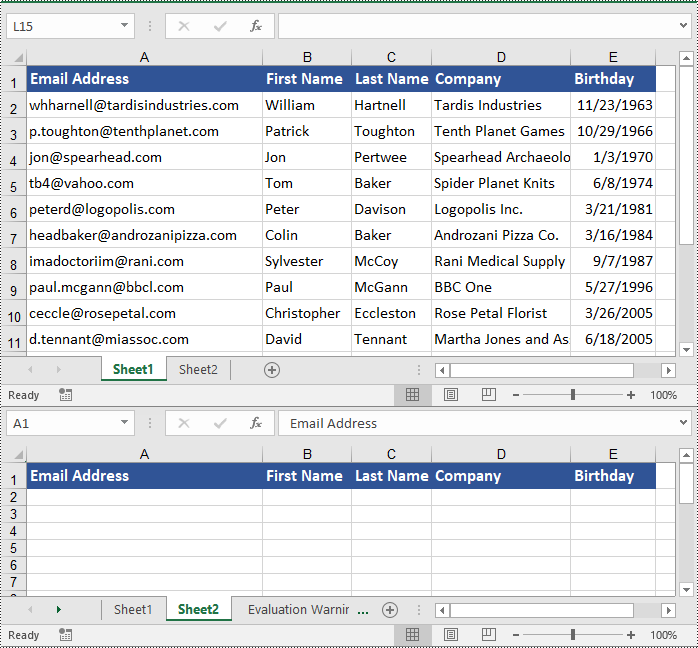
The Worksheet.copyRow(CellRange sourceRow, Worksheet destSheet, int destRowIndex, EnumSet<CopyRangeOptions> copyOptions) method in Spire.XLS for Java is used to duplicate rows either within the same worksheet or across different worksheets. The CopyRangeOptions parameter in this method gives developers the ability to control what aspects of the row are copied, such as all flags, conditional formatting, data validations, or just the formula values.
The following steps demonstrate how to copy rows with formatting between different worksheets using Spire.XLS for Java.
- Create an object of the Workbook class.
- Load an Excel file using the Workbook.loadFromFile() method.
- Get the source worksheet and the destination worksheet using the Workbook.getWorksheets().get(index) method.
- Get the desired row that you want to copy using the Worksheet.getRows()[index] method.
- Copy the row and its formatting from the source worksheet to the destination worksheet using the Worksheet.copyRow(CellRange sourceRow, Worksheet destSheet, int destRowIndex, EnumSet<CopyRangeOptions> copyOptions) method.
- Copy the column widths of cells in the source row to the corresponding cells in the destination row.
- Save the workbook to a file using the Workbook.saveToFile() method.
- Java
import com.spire.xls.*;

import java.util.EnumSet;

public class CopyRows {
    public static void main(String[] args) {
        // Create a Workbook object
        Workbook workbook = new Workbook();
        // Load an Excel file
        workbook.loadFromFile("ContactList.xlsx");

        // Get the source worksheet
        Worksheet sheet1 = workbook.getWorksheets().get(0);

        // Get the destination worksheet
        Worksheet sheet2 = workbook.getWorksheets().get(1);

        // Get the desired row that you want to copy
        CellRange row = sheet1.getRows()[0];

        // Copy the row from the source worksheet to the first row of the destination worksheet
        sheet1.copyRow(row, sheet2, 1, EnumSet.of(CopyRangeOptions.All));

        int columns = sheet1.getColumns().length;

        // Copy the column widths of the cells in the source row to the corresponding cells in the destination row
        for (int i = 0; i < columns; i++)
        {
            double columnWidth = row.getColumns()[i].getColumnWidth();
            sheet2.getRows()[0].getColumns()[i].setColumnWidth(columnWidth);
        }

        // Save the workbook to a file
        workbook.saveToFile("CopyRow.xlsx", ExcelVersion.Version2016);
        workbook.dispose();
    }
}
Copy Columns in Excel with Formatting in Java
To copy columns in Excel while preserving their formatting, use the Worksheet.copyColumn(CellRange sourceColumn, Worksheet destSheet, int destColIndex, EnumSet<CopyRangeOptions> copyOptions) method. The detailed steps are outlined below.
- Create an object of the Workbook class.
- Load an Excel file using the Workbook.loadFromFile() method.
- Get the source worksheet and the destination worksheet using the Workbook.getWorksheets().get(index) method.
- Get the desired column that you want to copy using the Worksheet.getColumns()[index] method.
- Copy the column and its formatting from the source worksheet to the destination worksheet using the Worksheet.copyColumn(CellRange sourceColumn, Worksheet destSheet, int destColIndex, EnumSet<CopyRangeOptions> copyOptions) method.
- Copy the row heights of cells in the source column to the corresponding cells in the destination column.
- Save the workbook to a file using the Workbook.saveToFile() method.
- Java
import com.spire.xls.*;

import java.util.EnumSet;

public class CopyColumns {
    public static void main(String[] args) {
        // Create a Workbook object
        Workbook workbook = new Workbook();
        // Load an Excel file
        workbook.loadFromFile("ContactList.xlsx");

        // Get the source worksheet
        Worksheet sheet1 = workbook.getWorksheets().get(0);

        // Get the destination worksheet
        Worksheet sheet2 = workbook.getWorksheets().get(1);

        // Get the desired column that you want to copy
        CellRange column = sheet1.getColumns()[0];

        // Copy the column from the source worksheet to the first column of the destination worksheet
        sheet1.copyColumn(column, sheet2, 1, EnumSet.of(CopyRangeOptions.All));

        int rows = column.getRows().length;

        // Copy the row heights of cells in the source column to the corresponding cells in the destination column
        for (int i = 0; i < rows; i++)
        {
            double rowHeight = column.getRows()[i].getRowHeight();
            sheet2.getColumns()[0].getRows()[i].setRowHeight(rowHeight);
        }

        // Save the workbook to a file
        workbook.saveToFile("CopyColumn.xlsx", ExcelVersion.Version2016);
        workbook.dispose();
    }
}

Copy Cells in Excel with Formatting in Java
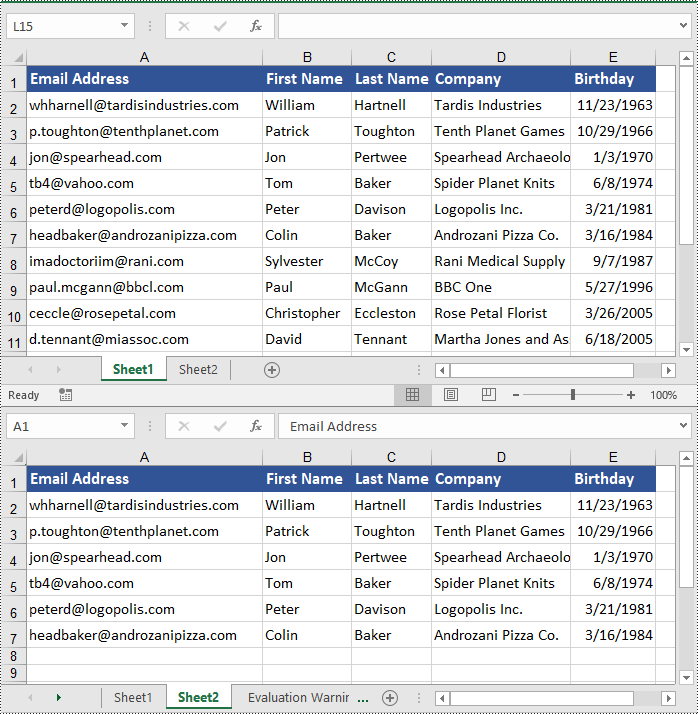
Spire.XLS for Java also allows developers to copy cell ranges with formatting using the CellRange.copy(CellRange destRange, EnumSet<CopyRangeOptions> copyOptions) method. The detailed steps are provided below.
- Create an object of the Workbook class.
- Load an Excel file using the Workbook.loadFromFile() method.
- Get the source worksheet and the destination worksheet using the Workbook.getWorksheets().get(index) method.
- Get the source cell range and the destination cell range using the Worksheet.getCellRange() method.
- Copy the source cell range and its formatting from the source worksheet to the destination cell range in the destination worksheet using the CellRange.copy(CellRange destRange, EnumSet<CopyRangeOptions> copyOptions) method.
- Copy the row heights and column widths of the source cell range to the destination cell range.
- Save the workbook to a file using the Workbook.saveToFile() method.
- Java
import com.spire.xls.*;

import java.util.EnumSet;

public class CopyCells {
    public static void main(String[] args) {
        // Create a Workbook object
        Workbook workbook = new Workbook();
        // Load an Excel file
        workbook.loadFromFile("ContactList.xlsx");

        // Get the source worksheet
        Worksheet sheet1 = workbook.getWorksheets().get(0);

        // Get the destination worksheet
        Worksheet sheet2 = workbook.getWorksheets().get(1);

        // Get the source cell range
        CellRange range1 = sheet1.getCellRange("A1:E7");
        // Get the destination cell range
        CellRange range2 = sheet2.getCellRange("A1:E7");

        // Copy the source cell range from the source worksheet to the destination cell range in the destination worksheet
        range1.copy(range2, EnumSet.of(CopyRangeOptions.All));

        // Copy the row heights and column widths of the source cell range to the destination cell range
        for (int i = 0; i < range1.getRows().length; i++)
        {
            CellRange row = range1.getRows()[i];
        for (int j = 0; j < row.getColumns().length; j++)
            {
              CellRange column = row.getColumns()[j];
              range2.getRows()[i].getColumns()[j].setColumnWidth(column.getColumnWidth());
              range2.getRows()[i].setRowHeight(row.getRowHeight());
            }
        }

        // Save the workbook to a file
        workbook.saveToFile("CopyCells.xlsx", ExcelVersion.Version2016);
        workbook.dispose();
    }
}
Apply for a Temporary License
If you'd like to remove the evaluation message from the generated documents, or to get rid of the function limitations, please request a 30-day trial license for yourself.
