
Java (485)
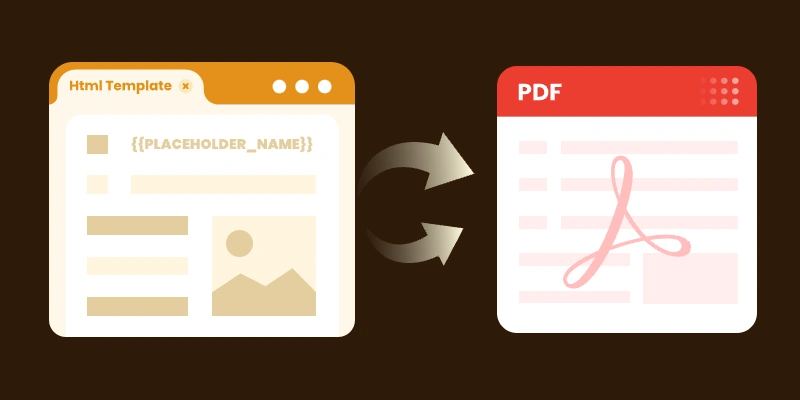
In many Java applications, you’ll need to generate PDF documents dynamically — for example, invoices, reports, or certificates. Creating PDFs from scratch can be time-consuming and error-prone, especially with complex layouts or changing content. Using templates with placeholders that are replaced at runtime is a more maintainable and flexible approach, ensuring consistent styling while separating layout from data.
In this article, we’ll explore how to generate PDFs from templates in Java using Spire.PDF for Java, including practical examples for both HTML and PDF templates. We’ll also highlight best practices, common challenges, and tips for creating professional, data-driven PDFs efficiently.
Table of Contents
- Why Use Templates for PDF Generation
- Choosing the Right Template Format (HTML, PDF, or Word)
- Setting Up the Environment
- Generating PDFs from Templates in Java
- Best Practices for Template-Based PDF Generation
- Final Thoughts
- FAQs
Why Use Templates for PDF Generation
- Maintainability : Designers or non-developers can edit templates (HTML, PDF, or Word) without touching code.
- Separation of concerns : Your business logic is decoupled from document layout.
- Consistency : Templates enforce consistent styling, branding, and layout across all generated documents.
- Flexibility : You can switch or update templates without major code changes.
Choosing the Right Template Format (HTML, PDF, or Word)
Each template format has strengths and trade-offs. Understanding them helps you pick the best one for your use case.
| Template Format | Pros | Cons / Considerations | Ideal Use Cases |
|---|---|---|---|
| HTML | Full control over layout via CSS, tables, responsive design; easy to iterate | Needs an HTML-to-PDF conversion engine (e.g. Qt WebEngine, headless Chrome) | Invoices, reports, documents with variable-length content, tables, images |
| You can take an existing branded PDF and replace placeholders | Only supports simple inline text replacements (no reflow for multiline content) | Templates with fixed layout and limited dynamic fields (e.g. contracts, certificates) | |
| Word (DOCX) | Familiar to non-developers; supports rich editing | Requires library (like Spire.Doc) to replace placeholders and convert to PDF | Organizations with existing Word-based templates or documents maintained by non-technical staff |
In practice, for documents with rich layout and dynamic content, HTML templates are often the best choice. For documents where layout must be rigid and placeholders are few, PDF templates can suffice. And if your stakeholders prefer Word-based templates, converting from Word to PDF may be the most comfortable workflow.
Setting Up the Environment
Before you begin coding, set up your project for Spire.PDF (and possibly Spire.Doc) usage:
- Download / add dependency
- (If using HTML templates) Install HTML-to-PDF engine / plugin
Spire.PDF needs an external engine or plugin (e.g. Qt WebEngine or a headless Chrome /Chromium) to render HTML + CSS to PDF.
- Download the appropriate plugin for your platform (Windows x86, Windows x64, Linux, macOS).
- Unzip to a local folder and locate the plugins directory, e.g.: C:\plugins-windows-x64\plugins
- Configure the plugin path in code:
- Prepare your templates
To get started, download Spire.PDF for Java from our website and add the JAR files to your project's build path. If you’re using Maven, include the following dependency in your pom.xml.
<repositories>
    <repository>
        <id>com.e-iceblue</id>
        <name>e-iceblue</name>
        <url>https://repo.e-iceblue.com/nexus/content/groups/public/</url>
    </repository>
</repositories>
<dependencies>
    <dependency>
        <groupId>e-iceblue</groupId>
        <artifactId>spire.pdf</artifactId>
        <version>12.9.0</version>
    </dependency>
</dependencies>
HtmlConverter.setPluginPath("C:\\plugins-windows-x64\\plugins");
- For HTML: define placeholders (e.g. {{PLACEHOLDER}}) in your template HTML / CSS.
- For PDF: build or procure a base PDF that includes placeholder text (e.g. {PROJECT_NAME}) in the spots you want replaced.
Generating PDFs from Templates in Java
From an HTML Template
Here’s how you can use Spire.PDF to convert an HTML template into a PDF document, replacing placeholders with actual data.
Sample Code (HTML → PDF)
import com.spire.pdf.graphics.PdfMargins;
import com.spire.pdf.htmlconverter.LoadHtmlType;
import com.spire.pdf.htmlconverter.qt.HtmlConverter;
import com.spire.pdf.htmlconverter.qt.Size;

import java.nio.file.Files;
import java.nio.file.Paths;
import java.util.HashMap;
import java.util.Map;

public class GeneratePdfFromHtmlTemplate {

    public static void main(String[] args) throws Exception {

        // Path to the HTML template file
        String htmlFilePath = "template/invoice_template.html";

        // Read HTML content from file
        String htmlTemplate = new String(Files.readAllBytes(Paths.get(htmlFilePath)));

        // Sample data for invoice
        Map invoiceData = new HashMap<>();
        invoiceData.put("INVOICE_NUMBER", "12345");
        invoiceData.put("INVOICE_DATE", "2025-08-25");
        invoiceData.put("BILLER_NAME", "John Doe");
        invoiceData.put("BILLER_ADDRESS", "123 Main St, Anytown, USA");
        invoiceData.put("BILLER_EMAIL", "johndoe@example.com");
        invoiceData.put("ITEM_DESCRIPTION", "Consulting Services");
        invoiceData.put("ITEM_QUANTITY", "10");
        invoiceData.put("ITEM_UNIT_PRICE", "$100");
        invoiceData.put("ITEM_TOTAL", "$1000");
        invoiceData.put("SUBTOTAL", "$1000");
        invoiceData.put("TAX_RATE", "5");
        invoiceData.put("TAX", "$50");
        invoiceData.put("TOTAL", "$1050");

        // Replace placeholders with actual values
        String populatedHtml = populateTemplate(htmlTemplate, invoiceData);

        // Output PDF file
        String outputFile = "output/Invoice.pdf";

        // Set the QT plugin path for HTML conversion
        HtmlConverter.setPluginPath("C:\\plugins-windows-x64\\plugins");

        // Convert HTML string to PDF
        HtmlConverter.convert(
                populatedHtml,
                outputFile,
                true,                       // Enable JavaScript
                100000,                     // Timeout (ms)
                new Size(595, 842),         // A4 size
                new PdfMargins(20),         // Margins
                LoadHtmlType.Source_Code    // Load HTML from string
        );

        System.out.println("PDF generated successfully: " + outputFile);
    }

    /**
     * Replace placeholders in HTML template with actual values.
     */
    private static String populateTemplate(String template, Map data) {
        String result = template;
        for (Map.Entry entry : data.entrySet()) {
            result = result.replace("{{" + entry.getKey() + "}}", entry.getValue());
        }
        return result;
    }
}
How it work:
- Design an HTML file using CSS, tables, images, etc., with placeholders (e.g. {{NAME}}).
- Store data values in a Map<String, String>.
- Replace placeholders with actual values at runtime.
- Use HtmlConverter.convert to generate a styled PDF.
This approach works well when your content may grow or shrink (tables, paragraphs), because HTML rendering handles flow and wrapping.
Output:

From a PDF Template
If you already have a branded PDF template with placeholder text, you can open it and replace inline text within.
Sample Code (PDF placeholder replacement)
import com.spire.pdf.PdfDocument;
import com.spire.pdf.PdfPageBase;
import com.spire.pdf.texts.PdfTextReplaceOptions;
import com.spire.pdf.texts.PdfTextReplacer;
import com.spire.pdf.texts.ReplaceActionType;

import java.util.EnumSet;
import java.util.HashMap;
import java.util.Map;

public class GeneratePdfFromPdfTemplate {

    public static void main(String[] args) {

        // Create a PdfDocument object
        PdfDocument doc = new PdfDocument();

        // Load a PDF file
        doc.loadFromFile("C:\\Users\\Administrator\\Desktop\\Template.pdf");

        // Create a PdfTextReplaceOptions object and specify the options
        PdfTextReplaceOptions textReplaceOptions = new PdfTextReplaceOptions();
        textReplaceOptions.setReplaceType(EnumSet.of(ReplaceActionType.WholeWord));

        // Get a specific page
        PdfPageBase page = doc.getPages().get(0);

        // Create a PdfTextReplacer object based on the page
        PdfTextReplacer textReplacer = new PdfTextReplacer(page);
        textReplacer.setOptions(textReplaceOptions);

        // Dictionary for old and new strings
        Map<String, String> replacements = new HashMap<>();
        replacements.put("{PROJECT_NAME}", "New Website Development");
        replacements.put("{PROJECT_NO}", "2023-001");
        replacements.put("{PROJECT MANAGER}", "Alice Johnson");
        replacements.put("{PERIOD}", "Q3 2023");
        replacements.put("{PERIOD}", "Q3 2023");
        replacements.put("{START_DATE}", "Jul 1, 2023");
        replacements.put("{END_DATE}", "Sep 30, 2023");

        // Loop through the dictionary to replace text
        for (Map.Entry<String, String> pair : replacements.entrySet()) {
            textReplacer.replaceText(pair.getKey(), pair.getValue());
        }

        // Save the document to a different PDF file
        doc.saveToFile("output/FromPdfTemplate.pdf");
        doc.dispose();
    }
}
How it works:
- Load an existing PDF template .
- Use PdfTextReplacer to find and replace placeholder text.
- Save the updated file as a new PDF.
This method works only for inline, simple text replacement . It does not reflow or adjust layout if the replacement text is longer or shorter.
Output:

Best Practices for Template-Based PDF Generation
Here are some tips and guidelines to ensure reliability, maintainability, and quality of your generated PDFs:
- Use HTML templates for rich content : If your document includes tables, variable-length sections, images, or requires responsive layouts, HTML templates offer more flexibility.
- Use PDF templates for stable, fixed layouts : When your document layout is tightly controlled and only a few placeholders change, PDF templates can save you the effort of converting HTML.
- Support Word templates if your team relies on them : If your design team uses Word, use Spire.Doc for Java to replace placeholders in DOCX and export to PDF.
- Unique placeholder markers : Use distinct delimiters (e.g. {FIELD_NAME}, or {FIELD_DATE}) to avoid accidental partial replacements.
- Keep templates external and versioned : Don’t embed template strings in code. Store them in resource files or external directories.
- Test with real data sets : Use realistic data to validate layout — e.g. long names, large tables, multilingual text.
Final Thoughts
Generating PDFs from templates is a powerful, maintainable approach — especially in Java applications. Depending on your needs:
- Use HTML templates when you require dynamic layout, variable-length content, and rich styling.
- Use PDF templates when your layout is fixed and you only need to swap a few fields.
- Leverage Word templates (via Spire.Doc) if your team already operates in that environment.
By combining a clean template system with Spire.PDF (and optionally Spire.Doc), you can produce high-quality, data-driven PDFs in a maintainable, scalable way.
FAQs
Q1. Can I use Word templates (DOCX) in Java for PDF generation?
Yes. Use Spire.Doc for Java to load a Word document, replace placeholders, and export to PDF. This workflow is convenient if your organization already maintains templates in Word.
Q2. Can I insert images or charts into templates?
Yes. Whether you generate PDFs from HTML templates or modify PDF templates, you can embed images, charts, shapes, etc. Just ensure your placeholders or template structure allow space for them.
Q3. Why do I need Qt WebEngine or Chrome for HTML-to-PDF conversion?
The HTML-to-PDF conversion must render CSS, fonts, and layout precisely. Spire.PDF delegates the heavy lifting to an external engine (e.g. Qt WebEngine or Chrome). Without a plugin, styles may not render correctly.
Q4. Does Spire.PDF support multiple languages / international text in templates?
Yes. Spire.PDF supports Unicode and can render multilingual content (English, Chinese, Arabic, etc.) without losing formatting.
Get a Free License
To fully experience the capabilities of Spire.PDF for Java without any evaluation limitations, you can request a free 30-day trial license.
Modify or Edit PDF Files in Java: Practical Code Examples Included
2025-10-15 09:35:00 Written by jie zou
Working with PDF files is a common requirement in many Java applications—whether you’re generating invoices, modifying contracts, or adding annotations to reports. While the PDF format is reliable for sharing documents, editing it programmatically can be tricky without the right library.
In this tutorial, you’ll learn how to add, replace, remove, and secure content in a PDF file using Spire.PDF for Java , a comprehensive and developer-friendly PDF API. We’ll walk through examples of adding pages, text, images, tables, annotations, replacing content, deleting elements, and securing files with watermarks and passwords.
Table of Contents:
- Why Use Spire.PDF to Edit PDF in Java
- Setting Up Your Java Environment
- Adding Content to a PDF File
- Replacing Content in a PDF File
- Removing Content from a PDF File
- Securing Your PDF File
- Conclusion
- FAQs About Editing PDF in Java
Why Use Spire.PDF to Edit PDF in Java
Spire.PDF offers a comprehensive set of features that make it an excellent choice for developers looking to work with PDF files in Java. Here are some reasons why you should consider using Spire.PDF:
- Ease of Use : The API is straightforward and intuitive, allowing you to perform complex operations with minimal code.
- Rich Features : Spire.PDF supports a wide range of functionalities, including text and image manipulation, page management, and security features.
- High Performance : The library is optimized for performance, ensuring that even large PDF files can be processed quickly.
- No Dependencies : Spire.PDF is a standalone library, meaning you won’t have to include any additional dependencies in your project.
By leveraging Spire.PDF, you can easily handle PDF files without getting bogged down in the complexities of the format itself.
Setting Up Your Java Environment
Installation
To begin using Spire.PDF, you'll first need to add it to your project. You can download the library from its official website or include it via Maven:
For Maven users:
<repositories>
    <repository>
        <id>com.e-iceblue</id>
        <name>e-iceblue</name>
        <url>https://repo.e-iceblue.com/nexus/content/groups/public/</url>
    </repository>
</repositories>
<dependencies>
    <dependency>
        <groupId>e-iceblue</groupId>
        <artifactId>spire.pdf</artifactId>
        <version>11.9.6</version>
    </dependency>
</dependencies>
For manual setup:
Download Spire.PDF for Java from the official website and add the JAR file to your project’s classpath.
Initiate Document Loading
Once you have the library set up, you can start loading PDF documents. Here’s how to do it:
PdfDocument doc = new PdfDocument();
doc.loadFromFile("C:\\Users\\Administrator\\Desktop\\sample.pdf");
This snippet initializes a new PdfDocument object and loads a PDF file from the specified path. By calling loadFromFile , you prepare the document for further editing.
Adding Content to a PDF File in Java
Add a New Page
Adding a new page to an existing PDF document is quite simple. Here’s how you can do it:
// Add a new page
PdfPageBase new_page = doc.getPages().add(PdfPageSize.A4, new PdfMargins(54));
// Draw text or do other operations on the page
new_page.getCanvas().drawString("This is a Newly-Added Page.", new PdfTrueTypeFont(new Font("Times New Roman",Font.PLAIN,18)), PdfBrushes.getBlue(), 0, 0);
In this code, we create a new page with A4 size and specified margins using the add method. We then draw a string on the new page using a specified font and color. The drawString method places the text at the top-left corner of the page, allowing you to add content quickly.
Add Text to a PDF File
To insert text into a specific area of an existing page, use the following code:
// Get a specific page
PdfPageBase page = doc.getPages().get(0);
// Define a rectangle for placing the text
Rectangle2D.Float rect = new Rectangle2D.Float(54, 300, (float) page.getActualSize().getWidth() - 108, 100);
// Create a brush and a font
PdfSolidBrush brush = new PdfSolidBrush(new PdfRGBColor(Color.BLUE));
PdfTrueTypeFont font = new PdfTrueTypeFont(new Font("Times New Roman",Font.PLAIN,18));
// Draw text on the page at the specified area
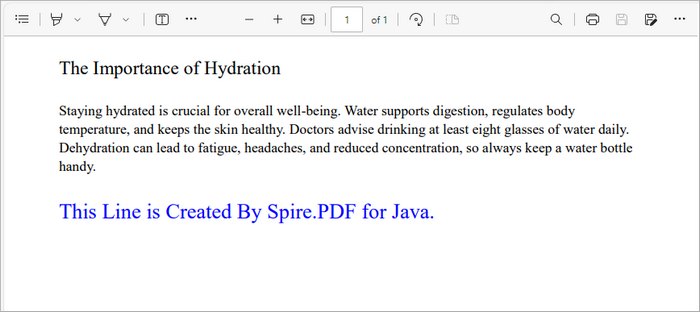
page.getCanvas().drawString("This Line is Created By Spire.PDF for Java.",font, brush, rect);
This snippet retrieves the first page of the document and defines a rectangle where the text will be placed. The Rectangle2D.Float class allows you to specify the exact dimensions for positioning the text. We then draw the specified text with a blue brush and custom font using the drawString method, which ensures that the text is rendered in the defined area.
Add an Image to a PDF File
Inserting images into a PDF is straightforward as well:
// Get a specific page
PdfPageBase page = doc.getPages().get(0);
// Load an image
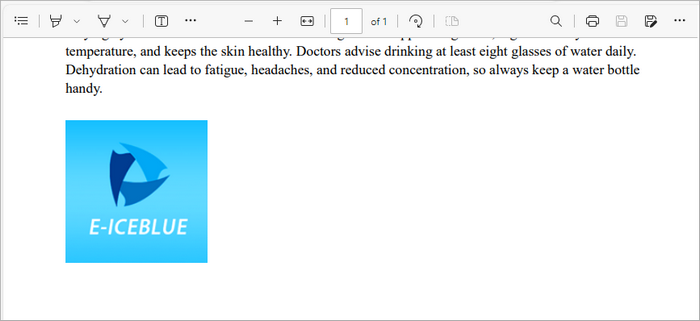
PdfImage image = PdfImage.fromFile("C:\\Users\\Administrator\\Desktop\\logo.png");
// Specify coordinates for adding image
float x = 54;
float y = 300;
// Draw image on the page at the specified coordinates
page.getCanvas().drawImage(image, x, y);
Here, we load an image from a specified file path and draw it on the first page at the defined coordinates (x, y). The drawImage method allows you to position the image precisely, making it easy to incorporate visuals into your document.
Add a Table to a PDF File
Adding tables is also supported in Spire.PDF:
// Get a specific page
PdfPageBase page = doc.getPages().get(0);
// Create a table
PdfTable table = new PdfTable();
// Define table data
String[][] data = {
        new String[]{"Name", "Age", "Country"},
        new String[]{"Alice", "25", "USA"},
        new String[]{"Bob", "30", "UK"},
        new String[]{"Charlie", "28", "Canada"}
};
// Assign data to the table
table.setDataSource(data);
// Set table style
PdfTableStyle style = new PdfTableStyle();
style.getDefaultStyle().setFont(new PdfTrueTypeFont(new Font("Arial", Font.PLAIN, 12)));
table.setStyle(style);
// Draw the table on the page
table.draw(page, new Point2D.Float(50, 80));
In this example, we create a table and define its data source using a 2D array. After assigning the data, we set a style for the table using PdfTableStyle , which allows you to customize the font and appearance of the table. Finally, we use the draw method to render the table on the first page at the specified coordinates.
Add an Annotation or Comment
Annotations can enhance the interactivity of PDFs:
// Get a specific page
PdfPageBase page = doc.getPages().get(0);
// Create a free text annotation
PdfPopupAnnotation popupAnnotation = new PdfPopupAnnotation();
popupAnnotation.setLocation(new Point2D.Double(90, 260));
// Set the content of the annotation
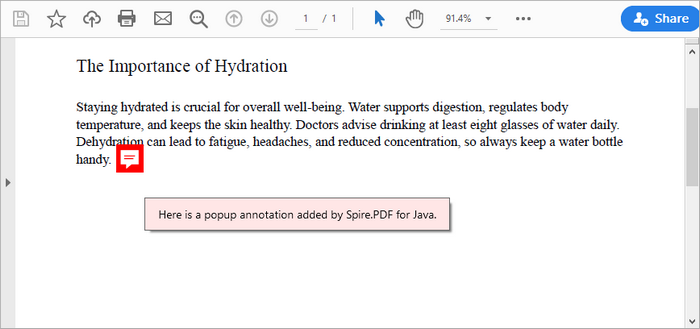
popupAnnotation.setText("Here is a popup annotation added by Spire.PDF for Java.");
// Set the icon and color of the annotation
popupAnnotation.setIcon(PdfPopupIcon.Comment);
popupAnnotation.setColor(new PdfRGBColor(Color.RED));
// Add the annotation to the collection of the annotations
page.getAnnotations().add(popupAnnotation);
This snippet creates a popup annotation at a specified location on the page. By calling setLocation , you definewhere the annotation appears. The setText method allows you to specify the content displayed in the annotation, while you can set the icon and color to customize its appearance. Finally, the annotation is added to the page's collection of annotations.
You may also like: Add Page Numbers to a PDF Document in Java
Replacing Content in a PDF File in Java
Replace Text in a PDF File
To replace existing text within a PDF, you can use the following code:
// Create a PdfTextReplaceOptions object
PdfTextReplaceOptions textReplaceOptions = new PdfTextReplaceOptions();
// Specify the options for text replacement
textReplaceOptions.setReplaceType(EnumSet.of(ReplaceActionType.IgnoreCase));
// Iterate through the pages
for (int i = 0; i < doc.getPages().getCount(); i++) {

// Get a specific page
PdfPageBase page = doc.getPages().get(i);
// Create a PdfTextReplacer object based on the page
PdfTextReplacer textReplacer = new PdfTextReplacer(page);
// Set the replace options
textReplacer.setOptions(textReplaceOptions);
// Replace all occurrences of target text with new text
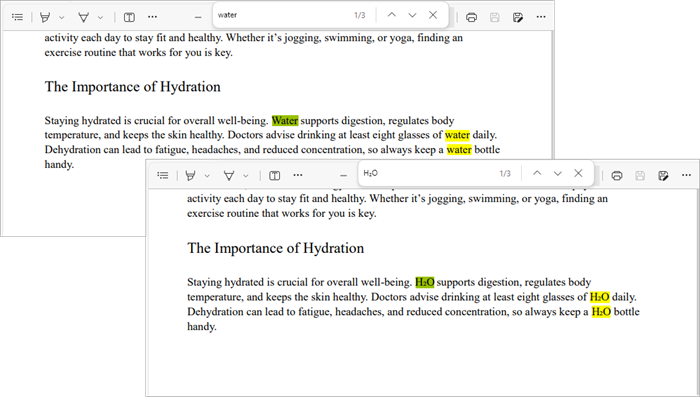
textReplacer.replaceAllText("Water", "H₂O");
}
In this example, we create a PdfTextReplaceOptions object to specify replacement options, such as ignoring case sensitivity. We then iterate through all pages of the document, creating a PdfTextReplacer for each page. The replaceAllText method is called on the text replacer to replace all occurrences of "Water" with "H₂O".
Replace an Image in a PDF File
Replacing an image follows a similar pattern:
// Get a specific page
PdfPageBase page = doc.getPages().get(0);
// Load an image
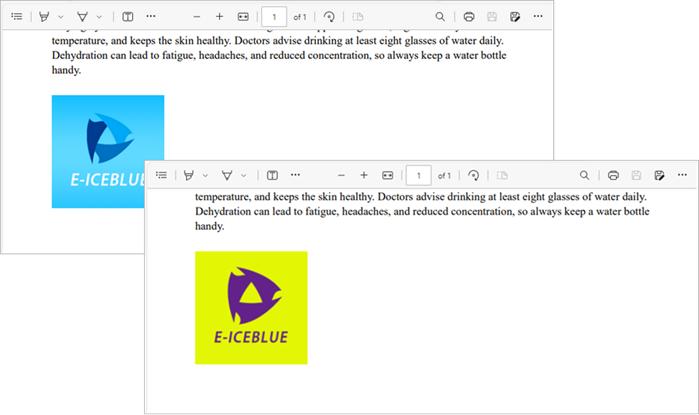
PdfImage image = PdfImage.fromFile("C:\\Users\\Administrator\\Desktop\\logo.png");
// Get the image information from the page
PdfImageHelper imageHelper = new PdfImageHelper();
PdfImageInfo[] imageInfo = imageHelper.getImagesInfo(page);
// Replace Image
imageHelper.replaceImage(imageInfo[0], image);
This code retrieves the image information from the specified page using the PdfImageHelper class. After loading a new image from a file, we call replaceImage to replace the first image found on the page with the new one.
You may also like: Replace Fonts in PDF Documents in Java
Removing Content from a PDF File in Java
Remove a Page from a PDF File
To remove an entire page from a PDF, use the following code:
// Remove a specific page
doc.getPages().removeAt(0);
This straightforward command removes the first page from the document. By calling removeAt , you specify the index of the page to be removed, simplifying page management in your PDF.
Delete an Image from a PDF File
To remove an image from a page:
// Get a specific page
PdfPageBase page = pdf.getPages().get(0);
// Get the image information from the page
PdfImageHelper imageHelper = new PdfImageHelper();
PdfImageInfo[] imageInfos = imageHelper.getImagesInfo(page);
// Delete the specified image on the page
imageHelper.deleteImage(imageInfos[0]);
This code retrieves all images from the first page and deletes the first image using the deleteImage method from PdfImageHelper .
Delete an Annotation
Removing an annotation is simple as well:
// Get a specific page
PdfPageBase page = pdf.getPages().get(0);
// Remove the specified annotation
page.getAnnotationsWidget().removeAt(0);
This snippet removes the first annotation from the specified page. The removeAt method is used to specify which annotation to remove, ensuring that the document can be kept clean and free of unnecessary comments.
Delete an Attachment
To delete an attachment from a PDF:
// Get the attachments collection
PdfAttachmentCollection attachments = doc.getAttachments();
// Remove a specific attachment
attachments.removeAt(0);
This code retrieves the collection of attachments from the document and removes the first one using the removeAt method.
Securing Your PDF File in Java
Apply a Watermark to a PDF File
Watermarks can be added for branding or copyright purposes:
// Create a font and a brush
PdfTrueTypeFont font = new PdfTrueTypeFont(new Font("Arial Black", Font.PLAIN, 50), true);
PdfBrush brush = PdfBrushes.getBlue();
// Specify the watermark text
String watermarkText = "DO NOT COPY";
// Specify the opacity level
float opacity = 0.6f;
// Iterate through the pages
for (int i = 0; i < doc.getPages().getCount(); i++) {
    PdfPageBase page = doc.getPages().get(i);
    // Set the transparency level for the watermark
    page.getCanvas().setTransparency(opacity);
    // Measure the size of the watermark text
    Dimension2D textSize = font.measureString(watermarkText);
    // Get the width and height of the page
    double pageWidth = page.getActualSize().getWidth();
    double pageHeight = page.getActualSize().getHeight();
    // Calculate the position to center the watermark on the page
    double x = (pageWidth - textSize.getWidth()) / 2;
    double y = (pageHeight - textSize.getHeight()) / 2;
    // Draw the watermark text on the page at the calculated position
    page.getCanvas().drawString(watermarkText, font, brush, x, y);
}
This code configures the appearance of a text watermark and places it at the center of each page in a PDF file using the drawString method, effectively discouraging unauthorized copying.
Password Protect a PDF File
To secure your PDF with a password:
// Specify the user and owner passwords
String userPassword = "open_psd";
String ownerPassword = "permission_psd";
// Create a PdfSecurityPolicy object with the two passwords
PdfSecurityPolicy securityPolicy = new PdfPasswordSecurityPolicy(userPassword, ownerPassword);
// Set encryption algorithm
securityPolicy.setEncryptionAlgorithm(PdfEncryptionAlgorithm.AES_256);
// Set document permissions (If you do not set, the default is Forbid All)
securityPolicy.setDocumentPrivilege(PdfDocumentPrivilege.getAllowAll());
// Restrict editing
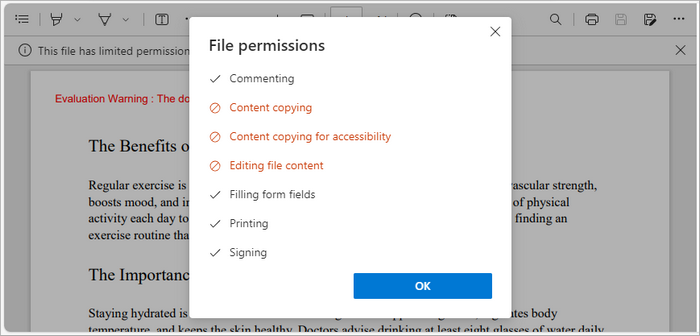
securityPolicy.getDocumentPrivilege().setAllowModifyContents(false);
securityPolicy.getDocumentPrivilege().setAllowCopyContentAccessibility(false);
securityPolicy.getDocumentPrivilege().setAllowContentCopying(false);
// Encrypt the PDF file
doc.encrypt(securityPolicy);
This code applies password protection and encryption to a PDF document by defining a user password (for opening) and an owner password (for permissions like editing and printing). The PdfSecurityPolicy object manages security settings, including the AES-256 encryption algorithm and permission levels. Finally, doc.encrypt(securityPolicy) encrypts the document, ensuring only authorized users can access or modify it.
You may also like: How to Add Digital Signatures to PDF in Java
Conclusion
Editing PDF files in Java is often seen as challenging, but with Spire.PDF for Java, it becomes a straightforward and efficient process. This library provides developers with the flexibility to create, modify, replace, and secure PDF content using clean, easy-to-understand APIs. From adding pages and images to encrypting sensitive documents, Spire.PDF simplifies every step of the workflow while maintaining professional output quality.
Beyond basic editing, Spire.PDF’s capabilities extend to automation and enterprise-level solutions. Whether you’re integrating PDF manipulation into a document management system, or generating customized reports, the library offers a stable and scalable foundation for long-term projects. With its comprehensive feature set and strong performance, Spire.PDF for Java is a reliable choice for developers seeking precision, efficiency, and control over PDF documents.
FAQs About Editing PDF in Java
Q1. What is the best library for editing PDFs in Java?
Spire.PDF for Java is a popular choice among developers worldwide, which provides comprehensive range of features for effective PDF manipulation.
Q2. Can I edit existing text in a PDF using Java?
With Spire.PDF for Java, you can replace or modify existing text using classes like PdfTextReplacer along with customizable options for case sensitivity and matching behavior.
Q3. How to insert or replace images in a PDF in Java?
With Spire.PDF for Java, you can use drawImage() to insert images and PdfImageHelper.replaceImage() to replace existing ones on a specific page.
Q4. Can I annotate a PDF file in Java?
Yes, annotations such as highlights, comments, and stamps can be added using the appropriate annotation classes provided by Spire.PDF for Java.
Q5. Can I extract text and images from an existing PDF file?
Yes, you can. Spire.PDF for Java provides methods to extract text, images, and other elements from PDFs easily. For detailed instructions and code examples, refer to: How to Read PDFs in Java: Extract Text, Images, and More
Get a Free License
To fully experience the capabilities of Spire.PDF for Java without any evaluation limitations, you can request a free 30-day trial license.
How to Convert PDF to CSV in Java (Easily Extract PDF Tables)
2025-08-28 05:43:27 Written by jie zou
When working with reports, invoices, or datasets stored in PDF format, developers often need a way to reuse the tabular data in spreadsheets, databases, or analytical tools. A common solution is to convert PDF to CSV using Java, since CSV is lightweight, structured, and compatible with almost every platform.
Unlike text or image export, a PDF-to-CSV conversion is mainly about extracting tables from PDF and saving them as CSV. With the help of Spire.PDF for Java, you can detect table structures in PDFs and export them programmatically with just a few lines of code.
In this article, you’ll learn step by step how to perform a PDF to CSV conversion in Java—from setting up the environment, to extracting tables, and even handling more complex scenarios like multi-page documents or multiple tables per page.
Overview of This Tutorial
Environment Setup for PDF to CSV Conversion in Java
Before extracting tables and converting PDF to CSV using Java, you need to set up the development environment. This involves choosing a suitable library and adding it to your project.
Why Choose Spire.PDF for Java
Since PDF files do not provide a built-in export to CSV, extracting tables programmatically is the practical approach. Spire.PDF for Java offers APIs to detect table structures in PDF documents and save them directly as CSV files, making the conversion process simple and efficient.
Install Spire.PDF for Java
Add Spire.PDF for Java to your project using Maven:
<repositories>
    <repository>
        <id>com.e-iceblue</id>
        <name>e-iceblue</name>
        <url>https://repo.e-iceblue.com/nexus/content/groups/public/</url>
    </repository>
</repositories>
<dependencies>
    <dependency>
        <groupId>e-iceblue</groupId>
        <artifactId>spire.pdf</artifactId>
        <version>12.9.0</version>
    </dependency>
</dependencies>
If you are not using Maven, you can download the Spire.PDF for Java package and add the JAR files to your project’s classpath.
Extract Tables from PDF and Save as CSV
The most practical way to perform PDF to CSV conversion is by extracting tables. With Spire.PDF for Java, this can be done with just a few steps:
- Load the PDF document.
- Use PdfTableExtractor to find tables on each page.
- Collect cell values row by row.
- Write the output into a CSV file.
Here is a Java example that shows the process from start to finish:
Java Code Example for PDF to CSV Conversion
import com.spire.pdf.*;
import com.spire.pdf.utilities.*;

import java.io.*;

public class PdfToCsvExample {
    public static void main(String[] args) throws Exception {
        // Load the PDF document
        PdfDocument pdf = new PdfDocument();
        pdf.loadFromFile("Sample.pdf");

        // Create a StringBuilder to store extracted text
        StringBuilder sb = new StringBuilder();

        // Iterate through each page
        for (int i = 0; i < pdf.getPages().getCount(); i++) {
            PdfTableExtractor extractor = new PdfTableExtractor(pdf);
            PdfTable[] tableLists = extractor.extractTable(i);

            if (tableLists != null) {
                for (PdfTable table : tableLists) {
                    for (int row = 0; row < table.getRowCount(); row++) {
                        for (int col = 0; col < table.getColumnCount(); col++) {
                            // Escape the cell text safely
                            String cellText = escapeCsvField(table.getText(row, col));
                            sb.append(cellText);

                            if (col < table.getColumnCount() - 1) {
                                sb.append(",");
                            }
                        }
                        sb.append("\n");
                    }
                }
            }
        }

        // Write the output to a CSV file
        FileWriter writer = new FileWriter("output/PDFTable.csv");
        writer.write(sb.toString());
        writer.close();

        pdf.close();
        System.out.println("PDF tables successfully exported to CSV.");
    }

    // Utility method to escape CSV fields
    private static String escapeCsvField(String text) {
        if (text == null) return "";

        // Remove line breaks
        text = text.replaceAll("[\\n\\r]", "");

        // Escape if contains special characters
        if (text.contains(",") || text.contains(";") || text.contains("\"") || text.contains("\n")) {
            text = text.replace("\"", "\"\"");  // Escape double quotes
            text = "\"" + text + "\"";          // Wrap with quotes
        }

        return text;
    }
}
Code Walkthrough
- PdfDocument loads the PDF file into memory.
- PdfTableExtractor checks each page for tables.
- PdfTable provides access to rows and columns.
- escapeCsvField() removes line breaks and safely quotes/escapes text if needed.
- StringBuilder accumulates cell text, separated by commas.
- The result is written into Output.csv, which you can open in Excel or any editor.
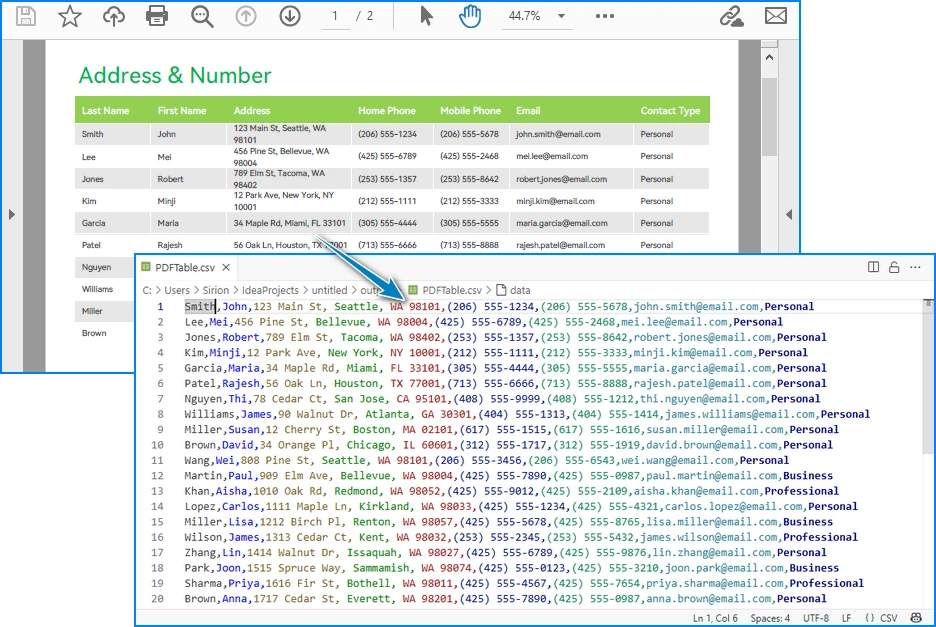
CSV file generated from a PDF table after running the Java code.
Handling Complex PDF-to-CSV Conversion Cases
In practice, PDFs often contain multiple tables, span multiple pages, or have irregular structures. Let’s see how to extend the solution to handle these scenarios.
1. Multiple Tables per Page
The PdfTable[] returned by extractTable(i) contains all tables detected on a page. You can process each one separately. For example, to save each table as a different CSV file:
for (int i = 0; i < pdf.getPages().getCount(); i++) {
    PdfTableExtractor extractor = new PdfTableExtractor(pdf);
    PdfTable[] tableLists = extractor.extractTable(i);

    if (tableLists != null) {
        for (int t = 0; t < tableLists.length; t++) {
            PdfTable table = tableLists[t];
            StringBuilder tableContent = new StringBuilder();

            for (int row = 0; row < table.getRowCount(); row++) {
                for (int col = 0; col < table.getColumnCount(); col++) {
                    tableContent.append(escapeCsvField(table.getText(row, col)));
                    if (col < table.getColumnCount() - 1) {
                        tableContent.append(",");
                    }
                }
                tableContent.append("\n");
            }

            FileWriter writer = new FileWriter("Table_Page" + i + "_Index" + t + ".csv");
            writer.write(tableContent.toString());
            writer.close();
        }
    }
}
Example of multiple tables in one PDF page exported into separate CSV files.
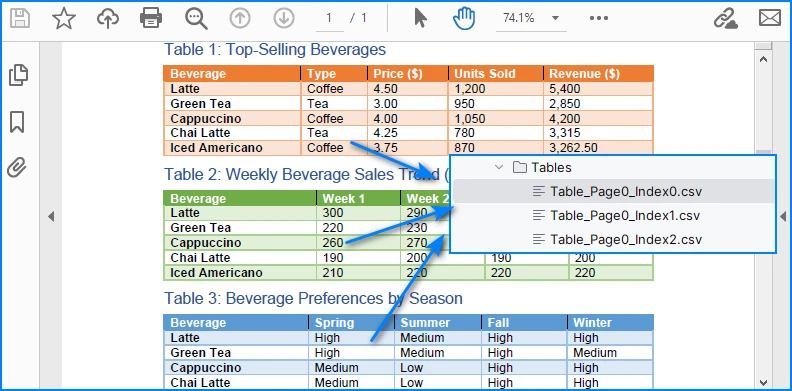
This way, every table is saved as an independent CSV file for better organization.
2. Multi-page or Large Tables
If a table spans across multiple pages, iterating page by page ensures that all data is collected. The key is to append data instead of overwriting:
StringBuilder sb = new StringBuilder();

for (int i = 0; i < pdf.getPages().getCount(); i++) {
    PdfTableExtractor extractor = new PdfTableExtractor(pdf);
    PdfTable[] tables = extractor.extractTable(i);

    if (tables != null) {
        for (PdfTable table : tables) {
            for (int row = 0; row < table.getRowCount(); row++) {
                for (int col = 0; col < table.getColumnCount(); col++) {
                    sb.append(escapeCsvField(table.getText(row, col)));
                    if (col < table.getColumnCount() - 1) sb.append(",");
                }
                sb.append("\n");
            }
        }
    }
}

FileWriter writer = new FileWriter("MergedTables.csv");
writer.write(sb.toString());
writer.close();
Example of a large table across multiple PDF pages merged into one CSV file.
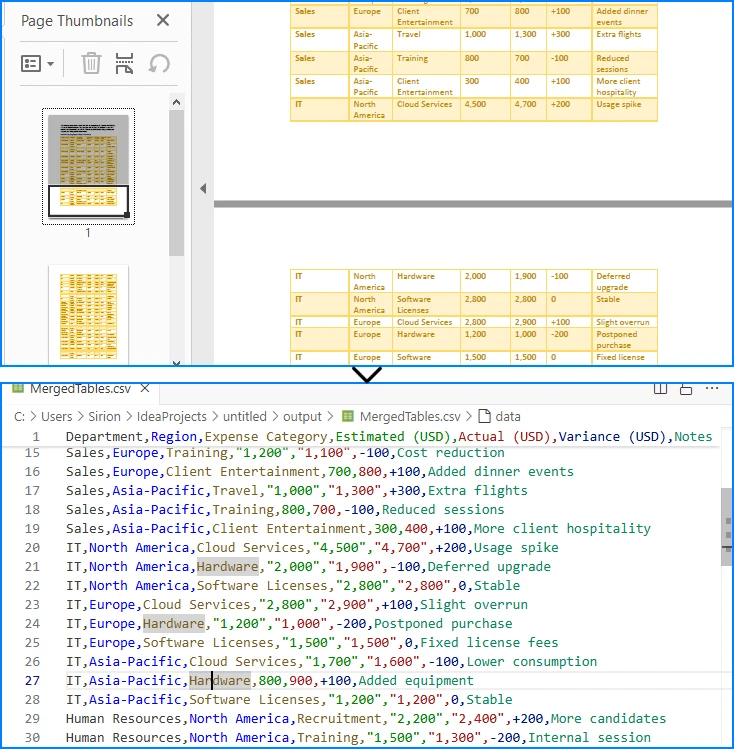
Here, all tables across pages are merged into one CSV file, useful when dealing with continuous reports.
3. Limitations with Formatting
CSV only stores plain text values. Elements like merged cells, fonts, or images are discarded. If preserving styling is critical, exporting to Excel (.xlsx) is a better alternative, which the same library also supports. See How to Export PDF Table to Excel in Java for more details.
4. CSV Special Characters Handling
When writing tables to CSV, certain characters like commas, semicolons, double quotes, or line breaks can break the file structure if not handled properly.
In the Java examples above, the escapeCsvField method removes line breaks and safely quotes or escapes text when needed.
For more advanced scenarios, you can also use Spire.XLS for Java to write data into worksheets and then save as CSV, which automatically handles special characters and ensures correct CSV formatting without manual processing.
Alternatively, for open-source options, libraries like OpenCSV or Apache Commons CSV also automatically handle special characters and CSV formatting, reducing potential issues and simplifying code.
Conclusion
Converting PDF to CSV in Java essentially means extracting tables and saving them in a structured format. CSV is widely supported, lightweight, and ideal for storing and analyzing tabular data. By setting up Spire.PDF for Java and following the code example, you can automate this process, saving time and reducing manual effort.
If you want to explore more advanced features of Spire.PDF for Java, please apply for a free trial license. You can also use Free Spire.PDF for Java for small projects.
FAQ
Q: Can I turn a PDF into a CSV file? A: Yes. While images and styled text cannot be exported, you can extract tables and save them as CSV files using Java.
Q: How to extract data from a PDF file in Java? A: Use a PDF library like Spire.PDF for Java to parse the document, detect tables, and export them to CSV or Excel.
Q: What is the best PDF to CSV converter? A: For Java developers, programmatic solutions such as Spire.PDF for Java offer more flexibility and automation than manual converters.
Q: How to convert PDF to Excel using Java code? A: The process is similar to CSV export. Instead of writing data as comma-separated text, you can export tables into Excel format for richer features.
