
Spire.XLS for Java (133)
Children categories
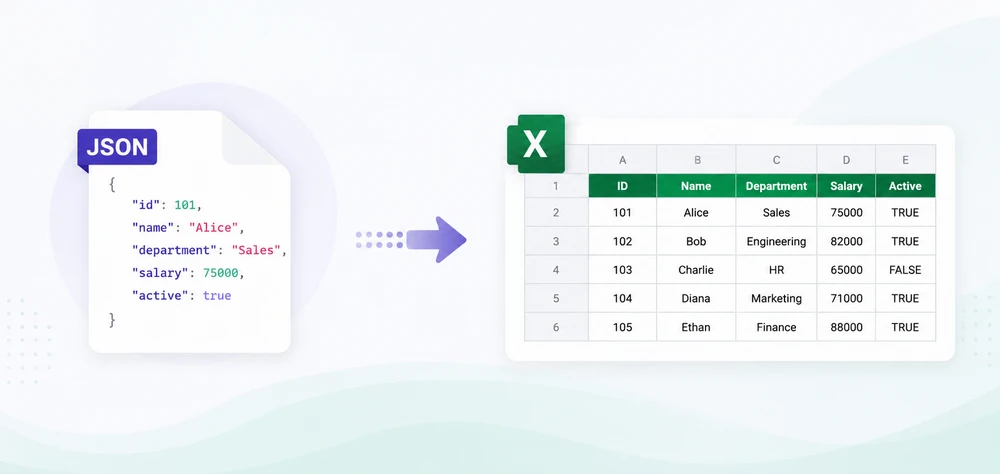
JSON is widely used for data exchange in REST APIs, web services, and enterprise applications. However, business users often prefer Excel for reporting, filtering, and data analysis. As a result, developers frequently need to convert JSON to Excel in Java when exporting API responses, generating reports, or sharing structured data with non-technical users.
While Java provides several JSON libraries, transforming data into a well-structured Excel file requires handling column headers, cell types, row iteration, and output formats — all of which become tedious without the right tool. Spire.XLS for Java simplifies this with a clean API that creates Excel workbooks without relying on Microsoft Office.
In this article, you'll learn how to convert JSON to Excel in Java using Spire.XLS for Java and Jackson. We'll cover JSON array conversion, nested JSON handling, JSON file processing, XLSX and XLS export, auto-fitting, formatting, and best practices for working with large datasets.
Quick Navigation
- Why Convert JSON to Excel in Java
- Install Spire.XLS for Java
- Prepare JSON Data
- Convert JSON to Excel in Java — Step by Step
- Complete Java Code to Convert JSON to Excel
- Export JSON to XLSX in Java
- Convert Nested JSON to Excel in Java
- Convert a JSON File to Excel
- Auto-Fit Rows and Columns in Excel
- Apply Formatting to the Exported Excel File
- Common Challenges When Converting JSON to Excel
- Why Use Spire.XLS for Java
- Conclusion
- FAQ
1. Why Convert JSON to Excel in Java
JSON is widely used for data exchange in REST APIs, web services, and enterprise applications because it is lightweight and easy for machines to process. However, business users often need Excel files for reporting, filtering, visualization, and further analysis.
Converting JSON to Excel in Java helps bridge the gap between backend systems and business workflows. Common use cases include:
Export API Data
Many REST APIs return JSON responses. Converting these responses into Excel allows users to review, filter, and analyze data without manually processing raw JSON.
Generate Reports
Java applications can transform JSON data from APIs, databases, or other sources into structured Excel reports with headers, formatting, and organized tables.
Share Structured Data
Excel files are easier to distribute and analyze using tools such as charts, formulas, and pivot tables. Exporting JSON data to Excel gives non-technical users direct access to these features.
2. Install Spire.XLS for Java
Before converting JSON to Excel in Java, set up the following dependencies in your project.
Maven Dependency
Spire.XLS for Java is available through the e-iceblue Maven repository. Add the repository and dependency to your pom.xml:
<repositories>
    <repository>
        <id>com.e-iceblue</id>
        <name>e-iceblue</name>
        <url>https://repo.e-iceblue.com/nexus/content/groups/public/</url>
    </repository>
</repositories>

<dependency>
    <groupId>e-iceblue</groupId>
    <artifactId>spire.xls</artifactId>
    <version>16.6.5</version>
</dependency>
You can also download Spire.XLS for Java and add the JAR to your project manually.
Add a JSON Library
Java does not include built-in JSON support. This guide uses Jackson, the most widely adopted JSON processing library in the Java ecosystem:
<dependency>
    <groupId>com.fasterxml.jackson.core</groupId>
    <artifactId>jackson-databind</artifactId>
    <version>2.17.2</version>
</dependency>
Import Required Classes
Include the following imports in your Java source file:
import com.spire.xls.*;
import com.spire.xls.core.spreadsheet.collections.AutoFitType;
import com.fasterxml.jackson.databind.JsonNode;
import com.fasterxml.jackson.databind.ObjectMapper;
import com.fasterxml.jackson.databind.node.ArrayNode;
import com.fasterxml.jackson.databind.node.ObjectNode;
import java.io.File;
import java.io.IOException;
import java.util.Iterator;
import java.util.Map;
3. Prepare JSON Data
To illustrate the conversion process, we will use a simple JSON array where each object represents a row and each property represents a column. This is the most common JSON structure encountered in REST API responses and data export workflows.
Example: Simple JSON Array
[
  {
    "ID": 1,
    "Name": "Alice",
    "Department": "Sales",
    "Salary": 75000,
    "HireDate": "2022-03-15"
  },
  {
    "ID": 2,
    "Name": "Bob",
    "Department": "Marketing",
    "Salary": 68000,
    "HireDate": "2021-07-01"
  },
  {
    "ID": 3,
    "Name": "Carol",
    "Department": "Engineering",
    "Salary": 92000,
    "HireDate": "2023-01-10"
  }
]
The mapping between JSON and Excel is straightforward:
- Each JSON object becomes a row in the spreadsheet
- Each property key becomes a column header
- Each property value becomes a cell value in the corresponding row and column
Understanding this mapping is essential for following the code examples in the next sections.
4. Convert JSON to Excel in Java — Step by Step
The conversion process involves five steps: creating a workbook, accessing a worksheet, parsing JSON data, writing column headers, and populating cell values. This section walks through each step individually before presenting the complete code.
Step 1: Create a Workbook
The Workbook class represents an Excel file. Instantiate it to create a new, empty workbook:
Workbook workbook = new Workbook();
Step 2: Create a Worksheet
A workbook contains one or more worksheets. Access the first worksheet (created by default) and optionally rename it:
Worksheet sheet = workbook.getWorksheets().get(0);
sheet.setName("EmployeeData");
Step 3: Read JSON Data
Use Jackson's ObjectMapper to parse the JSON string into a JsonNode tree. If the root element is a JSON array, cast it to ArrayNode for iteration:
ObjectMapper mapper = new ObjectMapper();
JsonNode rootNode = mapper.readTree(jsonString);

if (!rootNode.isArray()) {
    throw new IllegalArgumentException("Expected a JSON array at the root level");
}
ArrayNode jsonArray = (ArrayNode) rootNode;
Step 4: Write JSON Keys as Column Headers
Extract the field names from the first JSON object and write them to the first row of the worksheet. Spire.XLS uses 1-based row and column indices:
JsonNode firstObject = jsonArray.get(0);
int col = 1;
for (Iterator<Map.Entry<String, JsonNode>> it = firstObject.fields(); it.hasNext(); ) {
    Map.Entry<String, JsonNode> entry = it.next();
    sheet.get(1, col).setValue(entry.getKey());
    col++;
}
Step 5: Write JSON Values to Excel Cells
Iterate through each JSON object in the array and write its values to the corresponding row. Start from row 2 since row 1 contains the headers:
for (int i = 0; i < jsonArray.size(); i++) {
    JsonNode record = jsonArray.get(i);
    int dataRow = i + 2;
    int dataCol = 1;
    for (Iterator<Map.Entry<String, JsonNode>> it = record.fields(); it.hasNext(); ) {
        Map.Entry<String, JsonNode> entry = it.next();
        JsonNode value = entry.getValue();
        if (value.isNumber()) {
            sheet.get(dataRow, dataCol).setNumberValue(value.doubleValue());
        } else if (value.isBoolean()) {
            sheet.get(dataRow, dataCol).setBooleanValue(value.booleanValue());
        } else {
            sheet.get(dataRow, dataCol).setValue(value.asText());
        }
        dataCol++;
    }
}
This approach preserves data types — numbers and booleans are written as typed cell values rather than strings, which ensures that numeric sorting, filtering, and formula calculations work correctly in the generated Excel file.
5. Complete Java Code to Convert JSON to Excel
Here is the full, runnable program that reads a JSON string and converts it to an Excel file. This example demonstrates the complete Java code to convert JSON to Excel from start to finish:
import com.spire.xls.*;
import com.fasterxml.jackson.databind.JsonNode;
import com.fasterxml.jackson.databind.ObjectMapper;
import com.fasterxml.jackson.databind.node.ArrayNode;
import java.io.File;
import java.util.Iterator;
import java.util.Map;

public class JsonToExcelConverter {

    public static void main(String[] args) {

        // Sample JSON data — an array of employee records
        String jsonString = "["
            + "{\"ID\":1,\"Name\":\"Alice\",\"Department\":\"Sales\",\"Salary\":75000,\"HireDate\":\"2022-03-15\"},"
            + "{\"ID\":2,\"Name\":\"Bob\",\"Department\":\"Marketing\",\"Salary\":68000,\"HireDate\":\"2021-07-01\"},"
            + "{\"ID\":3,\"Name\":\"Carol\",\"Department\":\"Engineering\",\"Salary\":92000,\"HireDate\":\"2023-01-10\"}"
            + "]";

        try {
            // Parse the JSON string into a JsonNode tree
            ObjectMapper mapper = new ObjectMapper();
            JsonNode rootNode = mapper.readTree(jsonString);

            if (!rootNode.isArray()) {
                throw new IllegalArgumentException("Expected a JSON array at the root level");
            }
            ArrayNode jsonArray = (ArrayNode) rootNode;

            // Create a new workbook and access the first worksheet
            Workbook workbook = new Workbook();
            Worksheet sheet = workbook.getWorksheets().get(0);
            sheet.setName("EmployeeData");

            // Write column headers from the first JSON object's keys
            JsonNode firstObject = jsonArray.get(0);
            int col = 1;
            for (Iterator<Map.Entry<String, JsonNode>> it = firstObject.fields(); it.hasNext(); ) {
                Map.Entry<String, JsonNode> entry = it.next();
                sheet.get(1, col).setValue(entry.getKey());
                col++;
            }

            // Write data rows from JSON values
            for (int i = 0; i < jsonArray.size(); i++) {
                JsonNode record = jsonArray.get(i);
                int dataRow = i + 2;
                int dataCol = 1;

                for (Iterator<Map.Entry<String, JsonNode>> it = record.fields(); it.hasNext(); ) {
                    Map.Entry<String, JsonNode> entry = it.next();
                    JsonNode value = entry.getValue();

                    // Preserve data types: numbers and booleans as typed cells
                    if (value.isNumber()) {
                        sheet.get(dataRow, dataCol).setNumberValue(value.doubleValue());
                    } else if (value.isBoolean()) {
                        sheet.get(dataRow, dataCol).setBooleanValue(value.booleanValue());
                    } else {
                        sheet.get(dataRow, dataCol).setValue(value.asText());
                    }
                    dataCol++;
                }
            }

            // Auto-fit columns for readability
            sheet.getAllocatedRange().autoFitColumns();

            // Save the workbook as an XLSX file
            workbook.saveToFile("EmployeeData.xlsx", ExcelVersion.Version2016);
            System.out.println("JSON converted to Excel successfully.");

            // Release resources
            workbook.dispose();

        } catch (Exception e) {
            System.err.println("Error during JSON to Excel conversion: " + e.getMessage());
            e.printStackTrace();
        }
    }
}
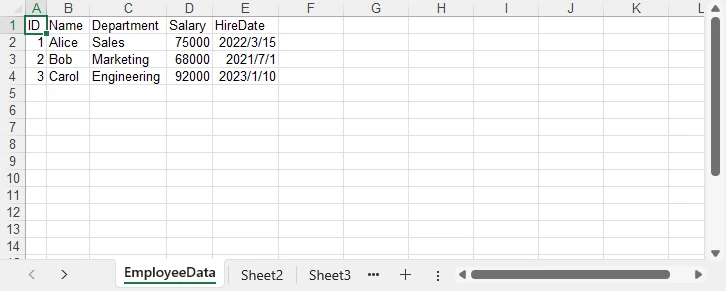
After running the program, the JSON data is converted into an Excel worksheet. The generated EmployeeData.xlsx file contains the employee records with preserved data types and automatically adjusted column widths:
Key Spire.XLS Classes and Methods
- Workbook — Represents an Excel file. Handles creation, worksheet management, and file saving.
- Worksheet — Represents a single sheet within a workbook. Provides access to cells, rows, and columns.
get(int row, int column)— Returns aCellRangeobject for the specified cell. Row and column indices are 1-based.setValue(String)— Sets a cell's value as a string. Used for text and headers.setNumberValue(double)— Sets a cell's value as a number, preserving numeric type for calculations.setBooleanValue(boolean)— Sets a cell's value as a boolean (TRUE/FALSE).saveToFile(String, ExcelVersion)— Saves the workbook to a file in the specified Excel format.dispose()— Releases unmanaged resources held by the workbook.
If you also need to convert Excel files back to JSON format, see our guide on how to convert Excel to JSON in Java using Spire.XLS for Java.
6. Export JSON to XLSX in Java
Spire.XLS for Java supports both the modern XLSX format (Excel 2007 and later) and the legacy XLS format (Excel 97–2003). You can control the output format by passing the appropriate ExcelVersion enum to saveToFile().
Save as XLSX
// Export to modern Excel format (.xlsx)
workbook.saveToFile("EmployeeData.xlsx", ExcelVersion.Version2016);
Save as XLS
// Export to legacy Excel format (.xls)
workbook.saveToFile("EmployeeData.xls", ExcelVersion.Version97to2003);
| Format | Description | Use Case |
|---|---|---|
| XLSX | Modern Excel format (Excel 2007+) | Default choice; smaller file, full features |
| XLS | Legacy Excel format (Excel 97–2003) | Compatibility with older systems |
The same workbook object can be saved to either format — no code changes are needed beyond the file extension and version parameter. This is particularly useful when your application needs to support both modern and legacy environments.
You can also learn how to convert between XLS and XLSX formats in Java for scenarios where format migration or legacy upgrade is required.
7. Convert Nested JSON to Excel in Java
Real-world JSON data often contains nested objects and arrays. To write nested JSON to Excel, you need to flatten the hierarchical structure into a tabular format where each nested field becomes its own column.
Consider the following JSON containing employee records with nested contact information:
[
  {
    "ID": 1,
    "Name": "Alice",
    "Department": "Sales",
    "Contact": {
      "Email": "alice@company.com",
      "Phone": "555-0101"
    }
  },
  {
    "ID": 2,
    "Name": "Bob",
    "Department": "Marketing",
    "Contact": {
      "Email": "bob@company.com",
      "Phone": "555-0102"
    }
  }
]
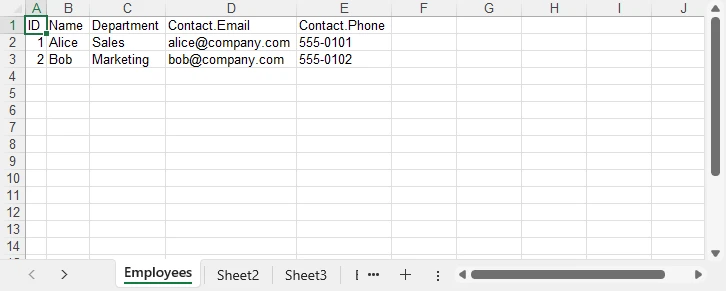
The goal is to flatten the Contact object so that Email and Phone become individual columns:
| ID | Name | Department | Contact.Email | Contact.Phone |
|---|---|---|---|---|
| 1 | Alice | Sales | alice@company.com | 555-0101 |
| 2 | Bob | Marketing | bob@company.com | 555-0102 |
The following code uses a recursive flattening approach to handle arbitrary nesting depth:
import com.spire.xls.*;
import com.fasterxml.jackson.databind.JsonNode;
import com.fasterxml.jackson.databind.ObjectMapper;
import com.fasterxml.jackson.databind.node.ArrayNode;
import java.util.Iterator;
import java.util.LinkedHashMap;
import java.util.Map;

public class NestedJsonToExcel {

    public static void main(String[] args) {

        String jsonString = "["
            + "{\"ID\":1,\"Name\":\"Alice\",\"Department\":\"Sales\","
            + "\"Contact\":{\"Email\":\"alice@company.com\",\"Phone\":\"555-0101\"}},"
            + "{\"ID\":2,\"Name\":\"Bob\",\"Department\":\"Marketing\","
            + "\"Contact\":{\"Email\":\"bob@company.com\",\"Phone\":\"555-0102\"}}"
            + "]";

        try {
            ObjectMapper mapper = new ObjectMapper();
            ArrayNode jsonArray = (ArrayNode) mapper.readTree(jsonString);

            Workbook workbook = new Workbook();
            Worksheet sheet = workbook.getWorksheets().get(0);
            sheet.setName("Employees");

            // Flatten the first object to extract all column headers (including nested keys)
            LinkedHashMap<String, String> firstFlat = flattenJson(jsonArray.get(0), "");
            int col = 1;
            for (String key : firstFlat.keySet()) {
                sheet.get(1, col).setValue(key);
                col++;
            }

            // Write data rows
            for (int i = 0; i < jsonArray.size(); i++) {
                LinkedHashMap<String, String> flat = flattenJson(jsonArray.get(i), "");
                int dataRow = i + 2;
                int dataCol = 1;
                for (String key : firstFlat.keySet()) {
                    String value = flat.getOrDefault(key, "");
                    sheet.get(dataRow, dataCol).setValue(value);
                    dataCol++;
                }
            }

            sheet.getAllocatedRange().autoFitColumns();
            workbook.saveToFile("NestedEmployees.xlsx", ExcelVersion.Version2016);
            System.out.println("Nested JSON converted to Excel successfully.");
            workbook.dispose();

        } catch (Exception e) {
            System.err.println("Error: " + e.getMessage());
        }
    }

    /**
     * Recursively flattens a JSON object into key-value pairs.
     * Nested keys are joined with a dot (e.g., "Contact.Email").
     */
    private static LinkedHashMap<String, String> flattenJson(JsonNode node, String prefix) {
        LinkedHashMap<String, String> flat = new LinkedHashMap<>();
        if (node.isObject()) {
            for (Iterator<Map.Entry<String, JsonNode>> it = node.fields(); it.hasNext(); ) {
                Map.Entry<String, JsonNode> entry = it.next();
                String newPrefix = prefix.isEmpty() ? entry.getKey() : prefix + "." + entry.getKey();
                flat.putAll(flattenJson(entry.getValue(), newPrefix));
            }
        } else {
            flat.put(prefix, node.asText());
        }
        return flat;
    }
}
The flattenJson method recursively traverses each JSON object. When it encounters a nested object, it prepends the parent key with a dot separator (e.g., Contact.Email). When it reaches a leaf value, it stores the full dotted key and its value in the map. This ensures that all fields — at any nesting depth — are represented as columns in the resulting Excel sheet.
8. Convert a JSON File to Excel
In production applications, JSON data typically comes from a file on disk rather than an inline string. The conversion steps remain the same — only the JSON source changes. Jackson's ObjectMapper can read directly from a File object:
import com.spire.xls.*;
import com.fasterxml.jackson.databind.JsonNode;
import com.fasterxml.jackson.databind.ObjectMapper;
import com.fasterxml.jackson.databind.node.ArrayNode;
import java.io.File;
import java.util.Iterator;
import java.util.Map;

public class JsonFileToExcel {

    public static void main(String[] args) {

        try {
            // Step 1: Read and parse the JSON file
            ObjectMapper mapper = new ObjectMapper();
            JsonNode rootNode = mapper.readTree(new File("employees.json"));

            if (!rootNode.isArray()) {
                throw new IllegalArgumentException("Expected a JSON array at the root level");
            }
            ArrayNode jsonArray = (ArrayNode) rootNode;

            // Step 2: Create a workbook
            Workbook workbook = new Workbook();
            Worksheet sheet = workbook.getWorksheets().get(0);
            sheet.setName("Employees");

            // Step 3: Write headers from the first object
            JsonNode firstObject = jsonArray.get(0);
            int col = 1;
            for (Iterator<Map.Entry<String, JsonNode>> it = firstObject.fields(); it.hasNext(); ) {
                Map.Entry<String, JsonNode> entry = it.next();
                sheet.get(1, col).setValue(entry.getKey());
                col++;
            }

            // Step 4: Write data rows
            for (int i = 0; i < jsonArray.size(); i++) {
                JsonNode record = jsonArray.get(i);
                int dataRow = i + 2;
                int dataCol = 1;
                for (Iterator<Map.Entry<String, JsonNode>> it = record.fields(); it.hasNext(); ) {
                    Map.Entry<String, JsonNode> entry = it.next();
                    JsonNode value = entry.getValue();
                    if (value.isNumber()) {
                        sheet.get(dataRow, dataCol).setNumberValue(value.doubleValue());
                    } else if (value.isBoolean()) {
                        sheet.get(dataRow, dataCol).setBooleanValue(value.booleanValue());
                    } else {
                        sheet.get(dataRow, dataCol).setValue(value.asText());
                    }
                    dataCol++;
                }
            }

            // Step 5: Export to Excel
            sheet.getAllocatedRange().autoFitColumns();
            workbook.saveToFile("EmployeesFromJson.xlsx", ExcelVersion.Version2016);
            System.out.println("JSON file converted to Excel successfully.");
            workbook.dispose();

        } catch (Exception e) {
            System.err.println("Error reading JSON file: " + e.getMessage());
            e.printStackTrace();
        }
    }
}
This approach handles large JSON files efficiently because Jackson processes the file as a streaming tree model. For very large JSON files (hundreds of megabytes), consider using Jackson's JsonParser in streaming mode to read records incrementally rather than loading the entire tree into memory at once.
9. Auto-Fit Rows and Columns in Excel
When JSON data is written to Excel cells, the default column width may not be wide enough to display all content. Text values such as email addresses, URLs, or long descriptions get truncated visually. Spire.XLS provides auto-fit methods that adjust column widths and row heights to match their content:
// Auto-fit all columns and rows in the used range
sheet.getAllocatedRange().autoFitColumns();
sheet.getAllocatedRange().autoFitRows();
Add these lines after writing all data but before saving the workbook. The getAllocatedRange() method returns the range of cells that contain data, so only populated cells are affected.
For more granular control, you can auto-fit individual columns:
// Auto-fit a specific column (e.g., column 3)
sheet.getAllocatedRange().getColumns()[2].autoFitColumns();
Auto-fitting produces a more professional, readable spreadsheet — especially when the JSON data contains variable-length text fields. The screenshot below shows the difference between a raw export and one with auto-fit applied.
10. Apply Formatting to the Exported Excel File
Raw data exports often need formatting to meet business reporting standards. Spire.XLS for Java provides a rich set of cell formatting APIs that let you style the header row, format numbers, and apply date formats — all programmatically.
Format the Header Row
Apply bold text and a background color to the first row to distinguish headers from data:
import com.spire.xls.core.spreadsheet.styles.CellStyle;
import java.awt.Color;

// Apply formatting to the header row
CellRange headerRange = sheet.getAllocatedRange().getRows()[0];
headerRange.getStyle().setFont(new ExcelFont(true));
headerRange.getStyle().setColor(Color.decode("#4472C4"));
headerRange.getStyle().getFont().setColor(Color.WHITE);
headerRange.setStyle(headerRange.getStyle());
Format Numbers
Apply currency or percentage formatting to numeric columns:
// Format the Salary column (column 4) as currency
CellRange salaryColumn = sheet.getAllocatedRange().getColumns()[3];
salaryColumn.setNumberFormat("$#,##0.00");
Format Dates
If your JSON contains date strings, you can format the corresponding column to display them in a consistent format:
// Format the HireDate column (column 5) as a date
CellRange dateColumn = sheet.getAllocatedRange().getColumns()[4];
dateColumn.setNumberFormat("yyyy-mm-dd");
The formatting techniques above can be combined to create professional Excel reports. For a complete Java example covering advanced Excel formatting features, refer to How to Create and Format Excel Files in Java Using Spire.XLS.
11. Common Challenges When Converting JSON to Excel
Real-world JSON data is rarely as clean as tutorial examples. Here are the most common challenges developers face when converting JSON to Excel, along with practical solutions.
Missing Fields Across Objects
Different JSON objects in the same array may have inconsistent fields. One record might include a Phone field while another omits it entirely. If your code assumes all objects share the same keys, missing fields cause index misalignment in the Excel output.
Solution: Collect all unique keys across all objects first, then write each object's values using the unified key list:
// Collect all unique keys from all JSON objects
LinkedHashSet<String> allKeys = new LinkedHashSet<>();
for (JsonNode record : jsonArray) {
    record.fieldNames().forEachRemaining(allKeys::add);
}

// Write headers from the complete key set
int col = 1;
for (String key : allKeys) {
    sheet.get(1, col).setValue(key);
    col++;
}

// Write values, using empty string for missing fields
for (int i = 0; i < jsonArray.size(); i++) {
    JsonNode record = jsonArray.get(i);
    int dataRow = i + 2;
    int dataCol = 1;
    for (String key : allKeys) {
        JsonNode value = record.get(key);
        String cellValue = (value != null && !value.isNull()) ? value.asText() : "";
        sheet.get(dataRow, dataCol).setValue(cellValue);
        dataCol++;
    }
}
Nested Objects
JSON objects can contain arbitrarily deep nesting. Writing nested objects directly to cells produces unreadable output like [object Object] or serialized JSON strings.
Solution: Use the recursive flattening approach demonstrated in Section 7. The flattenJson method traverses the entire object tree and produces flat key-value pairs where nested keys are joined with dot notation.
Large JSON Files
Parsing very large JSON files (hundreds of megabytes or more) into a single in-memory tree can cause OutOfMemoryError in Java. Additionally, writing tens of thousands of rows one cell at a time can be slow.
Solution: Use Jackson's streaming API (JsonParser) to read JSON records one at a time, and write each record to Excel immediately before moving to the next. This keeps memory usage constant regardless of file size:
import com.fasterxml.jackson.core.JsonFactory;
import com.fasterxml.jackson.core.JsonParser;
import com.fasterxml.jackson.core.JsonToken;

JsonFactory factory = new JsonFactory();
try (JsonParser parser = factory.createParser(new File("large_data.json"))) {
    int dataRow = 2;
    while (parser.nextToken() != JsonToken.END_ARRAY) {
        // Parse one object at a time
        JsonNode record = mapper.readTree(parser);
        // Write to Excel...
        dataRow++;
    }
}
Data Type Conversion
JSON supports strings, numbers, booleans, null values, arrays, and objects. Excel cells support text, numbers, booleans, dates, and errors. Mismatched types — for example, storing a numeric value as a string — prevent Excel sorting and formulas from working correctly.
Solution: Check each JSON value's type before writing it to a cell. Use setNumberValue() for numbers, setBooleanValue() for booleans, and setValue() for text. Handle null values by writing an empty string or a placeholder. For date strings, parse them into Date objects and use setDateTimeValue() to write them as Excel date cells:
if (value == null || value.isNull()) {
    sheet.get(dataRow, dataCol).setValue("");
} else if (value.isNumber()) {
    sheet.get(dataRow, dataCol).setNumberValue(value.doubleValue());
} else if (value.isBoolean()) {
    sheet.get(dataRow, dataCol).setBooleanValue(value.booleanValue());
} else {
    sheet.get(dataRow, dataCol).setValue(value.asText());
}
12. Why Use Spire.XLS for Java for JSON-to-Excel Conversion
Several characteristics make Spire.XLS for Java well-suited for JSON-to-Excel conversion in enterprise Java applications.
No Microsoft Excel Required
Spire.XLS for Java is a standalone library that does not depend on Microsoft Office or any other external software. It runs on any system with a Java Runtime Environment, including Linux servers, Docker containers, and cloud platforms where Office is not available.
Supports XLS and XLSX
The library handles both the legacy XLS format (Excel 97–2003) and the modern XLSX format (Excel 2007+). You can export to either format by changing a single parameter, making it easy to support diverse downstream environments.
Rich Formatting Features
Beyond basic cell value writing, Spire.XLS provides comprehensive formatting capabilities — cell styles, number formats, fonts, colors, borders, conditional formatting, charts, and pivot tables. This allows you to generate professional-grade Excel files directly from JSON data without any post-processing in Excel.
Easy API
The API follows an intuitive object model: Workbook contains Worksheets, each Worksheet contains CellRanges, and each CellRange supports value setting, styling, and formatting. Developers familiar with the Excel object model can become productive quickly.
Suitable for Enterprise Applications
Spire.XLS for Java is designed for server-side and enterprise use cases. It handles large files efficiently, supports multi-threaded access patterns, and integrates cleanly with Spring Boot, Jakarta EE, and other Java frameworks commonly used in enterprise environments.
You can apply for a 30-day free license to evaluate all features in your projects.
13. Conclusion
In this article, we explored how to convert JSON to Excel in Java using Spire.XLS for Java and Jackson. By parsing JSON data, writing values into Excel worksheets, and exporting the workbook as XLSX or XLS files, developers can efficiently transform structured JSON data into readable spreadsheets.
Spire.XLS for Java provides a simple and flexible way to generate Excel files from JSON data without requiring Microsoft Office or external dependencies. It also supports advanced features such as formatting, auto-fitting, and handling complex data structures for professional Excel reports.
14. FAQ
How do I convert JSON to Excel in Java?
Parse the JSON data using Jackson's ObjectMapper, create a Workbook and Worksheet using Spire.XLS for Java, write the JSON keys as column headers in the first row, then iterate through the JSON array to populate each data row. Save the workbook using saveToFile() with the desired ExcelVersion. The complete code example is shown in Section 5.
Can I convert JSON to XLSX in Java without Microsoft Excel installed?
Yes. Spire.XLS for Java is a standalone library that does not require Microsoft Office or any other software. It can create, read, and write XLSX files entirely in Java, making it suitable for server-side applications running on Linux, Docker, or cloud platforms.
How do I handle nested JSON objects when converting to Excel?
Use a recursive flattening function that traverses the JSON object tree and produces flat key-value pairs. Nested keys are joined with a dot separator (e.g., Contact.Email). The flattened keys become column headers in the Excel sheet. See Section 7 for the complete implementation.
What is the difference between setValue() and setNumberValue() in Spire.XLS?
setValue(String) writes a string value to a cell, while setNumberValue(double) writes a numeric value that Excel treats as a number. Using setNumberValue() for numeric JSON fields ensures that sorting, filtering, and formula calculations work correctly. Similarly, setBooleanValue(boolean) writes typed boolean values.
How do I convert a large JSON file to Excel without running out of memory?
For large JSON files, use Jackson's streaming API (JsonParser) to read and process one JSON record at a time instead of loading the entire file into memory. Write each record to the Excel worksheet immediately after parsing it. This keeps memory usage constant regardless of the file size.
Is Spire.XLS for Java free?
Spire.XLS for Java is a commercial library. A free version, Free Spire.XLS for Java, is available with limitations on worksheet count and features. You can also apply for a 30-day free license to evaluate the full feature set before purchasing.
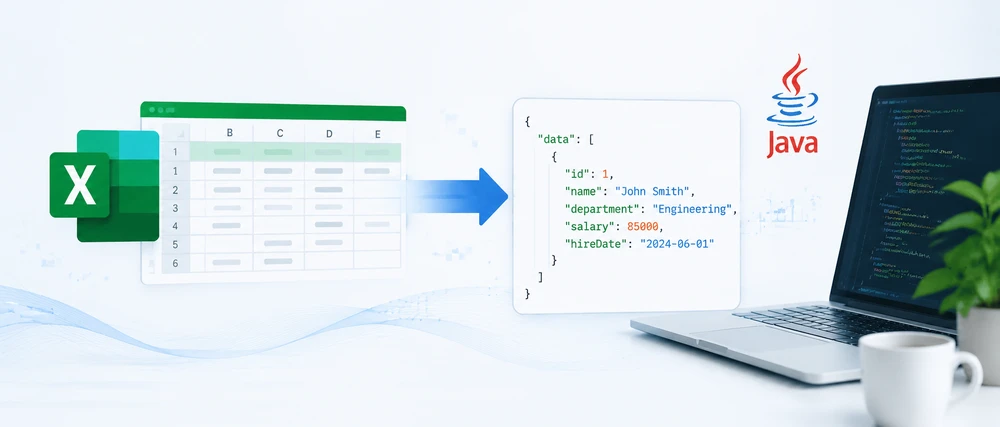
Converting Excel to JSON in Java is a common requirement in backend development, especially when building APIs, ETL pipelines, or data integration workflows. In this guide, you will learn how to convert Excel to JSON in Java using Spire.XLS, a powerful library that supports both XLS and XLSX formats with minimal code.
Excel files are widely used for data storage and reporting, while JSON has become the standard format for data exchange in modern applications. However, converting Excel to JSON in Java is not trivial if done manually — developers need to handle file parsing, data type conversion, empty cells, and multi-sheet structures, which can quickly become complex and error-prone.
Using Spire.XLS for Java together with Jackson, developers can easily transform Excel spreadsheets into structured JSON data with clean and maintainable code. This article provides a complete step-by-step tutorial on Java Excel to JSON conversion, including single-sheet conversion, multi-sheet processing, and nested JSON structures.
Quick Navigation
- Why Convert Excel to JSON in Java
- Prerequisites
- Convert Excel to JSON in Java — Step by Step
- Convert XLS and XLSX Files to JSON
- Handling Multi-Sheet Workbooks and Nested JSON
- Handling Empty Cells and Data Types
- Common Pitfalls
- Conclusion
- FAQ
1. Why Convert Excel to JSON in Java
Excel and JSON are widely used in modern software systems but serve very different roles. Excel is designed for structured data entry, analysis, and reporting with support for formulas, formatting, and multi-sheet workbooks. JSON (JavaScript Object Notation), in contrast, is a lightweight data format used for machine-to-machine communication, REST APIs, configuration files, and NoSQL databases.
Because of this difference, Java developers often need to convert Excel to JSON when integrating spreadsheet-based data into backend systems.
Common use cases include:
- REST API integration — Converting Excel data uploaded by users into JSON for API responses
- ETL workflows — Extracting spreadsheet data and transforming it into JSON for databases or data lakes
- Configuration migration — Moving legacy Excel-based configs into JSON-based microservice systems
- Automated reporting — Turning Excel templates into structured JSON for downstream processing
In Java applications, converting Excel to JSON is more than just reading rows and mapping columns. Real-world files often include inconsistent data types, empty cells, date formatting issues, and multi-sheet structures, which make manual parsing complex and error-prone.
Spire.XLS for Java simplifies this process by providing a unified API for both XLS and XLSX formats. It allows developers to directly access cell values, data types, and formatting information, enabling clean and reliable Excel to JSON conversion logic without dealing with low-level file parsing.
2. Prerequisites
Before converting Excel to JSON in Java, set up the following dependencies in your project.
Install Spire.XLS for Java via Maven (Recommended)
Spire.XLS for Java is available through the e-iceblue Maven repository. Add the repository and dependency to your pom.xml:
<repositories>
    <repository>
        <id>com.e-iceblue</id>
        <name>e-iceblue</name>
        <url>https://repo.e-iceblue.com/nexus/content/groups/public/</url>
    </repository>
</repositories>

<dependency>
    <groupId>e-iceblue</groupId>
    <artifactId>spire.xls</artifactId>
    <version>16.6.5</version>
</dependency>
You can also download Spire.XLS for Java and add it to your project manually.
Add a JSON Library
Java does not include built-in JSON support. This guide uses Jackson, the most widely adopted JSON processing library in the Java ecosystem:
<dependency>
    <groupId>com.fasterxml.jackson.core</groupId>
    <artifactId>jackson-databind</artifactId>
    <version>2.17.2</version>
</dependency>
Import Required Classes
Include the following imports in your Java source file:
import com.spire.xls.*;
import com.fasterxml.jackson.databind.ObjectMapper;
import com.fasterxml.jackson.databind.node.ObjectNode;
import com.fasterxml.jackson.databind.node.ArrayNode;
import java.io.File;
import java.io.IOException;
If you prefer manual installation, download the Spire.XLS for Java JAR from the e-iceblue website and add it to your project's classpath.
3. Convert Excel to JSON in Java — Step by Step
The conversion process involves four steps: loading the workbook, reading the header row, iterating through data rows, and assembling the JSON output. This section walks through each step and then presents the complete code.
Step 1: Load the Excel File
Use the Workbook class to open an Excel file. Then retrieve the target worksheet by index:
Workbook workbook = new Workbook();
workbook.loadFromFile("EmployeeData.xlsx");
Worksheet worksheet = workbook.getWorksheets().get(0);
Step 2: Read the Header Row
The first row of the spreadsheet typically contains column headers. These headers become the JSON keys for each record. Read them into a String array:
int columnCount = worksheet.getLastColumn();
String[] headers = new String[columnCount];
for (int col = 1; col <= columnCount; col++) {
    headers[col - 1] = worksheet.get(1, col).getValue();
}
Step 3: Iterate Data Rows and Build JSON Objects
Starting from row 2, loop through each row and create an ObjectNode for every record. Each cell value is mapped to the corresponding header key:
ObjectMapper mapper = new ObjectMapper();
ArrayNode arrayNode = mapper.createArrayNode();
for (int row = 2; row <= worksheet.getLastRow(); row++) {
    ObjectNode record = mapper.createObjectNode();
    for (int col = 1; col <= columnCount; col++) {
        record.put(headers[col - 1], worksheet.get(row, col).getValue());
    }
    arrayNode.add(record);
}
Step 4: Export JSON Output
Use Jackson's ObjectMapper to write the ArrayNode to a file with pretty-print formatting:
try {
    mapper.writerWithDefaultPrettyPrinter().writeValue(new File("EmployeeData.json"), arrayNode);
    System.out.println("JSON exported successfully.");
} catch (IOException e) {
    System.err.println("Failed to write JSON file: " + e.getMessage());
}
workbook.dispose();
Complete Code Example
Here is the full program that reads an Excel file and converts it to JSON:
import com.spire.xls.*;
import com.fasterxml.jackson.databind.ObjectMapper;
import com.fasterxml.jackson.databind.node.ObjectNode;
import com.fasterxml.jackson.databind.node.ArrayNode;
import java.io.File;
import java.io.IOException;

public class ExcelToJsonConverter {

    public static void main(String[] args) {

        // Load the Excel workbook
        Workbook workbook = new Workbook();
        workbook.loadFromFile("EmployeeData.xlsx");

        // Access the first worksheet
        Worksheet worksheet = workbook.getWorksheets().get(0);

        // Read column headers from the first row
        int columnCount = worksheet.getLastColumn();
        String[] headers = new String[columnCount];
        for (int col = 1; col <= columnCount; col++) {
            headers[col - 1] = worksheet.get(1, col).getValue();
        }

        // Create Jackson ObjectMapper and ArrayNode
        ObjectMapper mapper = new ObjectMapper();
        ArrayNode arrayNode = mapper.createArrayNode();

        // Convert each data row to a JSON object
        for (int row = 2; row <= worksheet.getLastRow(); row++) {
            ObjectNode record = mapper.createObjectNode();
            for (int col = 1; col <= columnCount; col++) {
                record.put(headers[col - 1], worksheet.get(row, col).getValue());
            }
            arrayNode.add(record);
        }

        // Write JSON output to file with pretty-print formatting
        try {
            mapper.writerWithDefaultPrettyPrinter().writeValue(new File("EmployeeData.json"), arrayNode);
            System.out.println("Excel data converted to JSON successfully.");
        } catch (IOException e) {
            System.err.println("Error writing JSON file: " + e.getMessage());
        }

        // Release workbook resources
        workbook.dispose();
    }
}
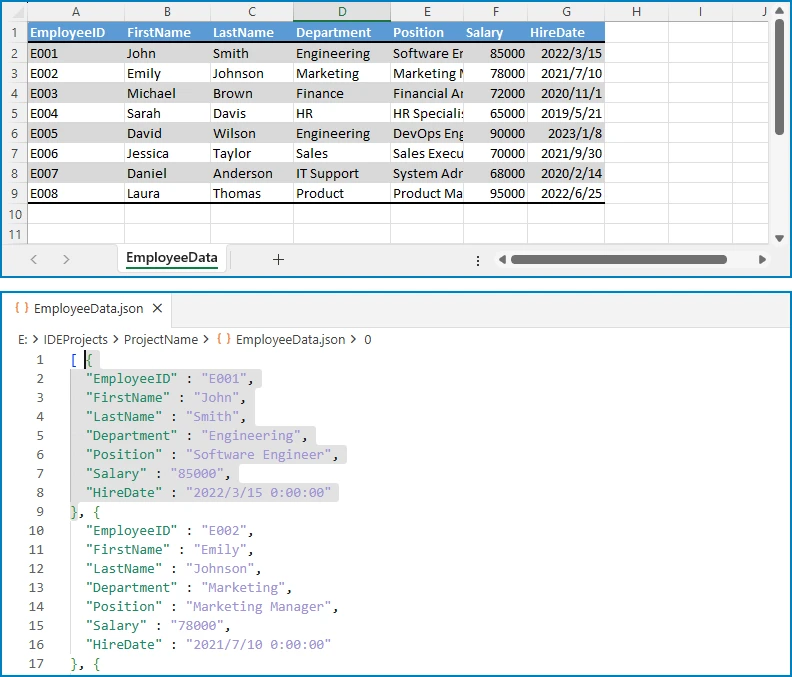
Expected JSON output (for an Excel file with Name, Department, Email, and Salary columns):
[ {
  "EmployeeID" : "E001",
  "FirstName" : "John",
  "LastName" : "Smith",
  "Department" : "Engineering",
  "Position" : "Software Engineer",
  "Salary" : "85000",
  "HireDate" : "2022/3/15 0:00:00"
} ]
The following diagram shows a visual comparison between the original Excel data and the converted JSON output for better understanding.
Key Spire.XLS Classes and Methods
- Workbook — Represents an Excel file. Handles loading, saving, and managing worksheets.
- Worksheet — Represents a single sheet within a workbook. Provides access to rows, columns, and cells.
get(int row, int column)— Returns aCellRangeobject for the specified cell. Row and column indices are 1-based.getValue()— Returns the cell's display value. UnlikegetText(), it correctly retrieves the value regardless of the cell's data type (text, number, date, etc.).getLastRow()/getLastColumn()— Return the last row and column numbers that contain data.
You can also learn how to convert Excel to CSV in Java for scenarios where a lightweight, tabular format is preferred for data exchange and storage.
4. Convert XLS and XLSX Files to JSON
Spire.XLS for Java supports both the legacy XLS format (Excel 97–2003) and the modern XLSX format (Excel 2007 and later). The library detects the file format automatically when you call loadFromFile(), so the same Java code converts XLS to JSON and XLSX to JSON without any modifications.
// Convert XLSX to JSON (modern format)
Workbook xlsxWorkbook = new Workbook();
xlsxWorkbook.loadFromFile("SalesReport.xlsx");

// Convert XLS to JSON (legacy format)
Workbook xlsWorkbook = new Workbook();
xlsWorkbook.loadFromFile("SalesReport.xls");

// Both workbooks are processed identically
Worksheet sheet = xlsxWorkbook.getWorksheets().get(0);
int rowCount = sheet.getLastRow();
int colCount = sheet.getLastColumn();
// ... same conversion logic as the basic example
No additional configuration, format flags, or separate code paths are needed. Whether you receive .xls files from legacy systems or .xlsx files from modern applications, Spire.XLS handles the parsing transparently. This is particularly useful in enterprise environments where Excel files may come from different sources and span multiple format generations.
You can also learn how to convert between XLS and XLSX formats in Java for scenarios where file format migration or legacy upgrade is required.
5. Handling Multi-Sheet Workbooks and Nested JSON
Real-world Excel workbooks often contain multiple worksheets. Converting each sheet to a separate JSON array produces a structured output that preserves the workbook's organization. In some cases, developers also need to build nested JSON objects that reflect hierarchical relationships within the data.
Convert Multiple Sheets to JSON
The following example reads all worksheets in a workbook and creates a JSON object where each key is the sheet name and each value is an array of records from that sheet:
import com.spire.xls.*;
import com.fasterxml.jackson.databind.ObjectMapper;
import com.fasterxml.jackson.databind.node.ObjectNode;
import com.fasterxml.jackson.databind.node.ArrayNode;
import java.io.File;
import java.io.IOException;

public class MultiSheetExcelToJson {

    public static void main(String[] args) {

        Workbook workbook = new Workbook();
        workbook.loadFromFile("SalesReport.xlsx");

        ObjectMapper mapper = new ObjectMapper();
        ObjectNode fullReport = mapper.createObjectNode();

        // Iterate through every worksheet in the workbook
        for (int s = 0; s < workbook.getWorksheets().getCount(); s++) {
            Worksheet worksheet = workbook.getWorksheets().get(s);
            String sheetName = worksheet.getName();

            // Read headers from the first row
            int columnCount = worksheet.getLastColumn();
            String[] headers = new String[columnCount];
            for (int col = 1; col <= columnCount; col++) {
                headers[col - 1] = worksheet.get(1, col).getValue();
            }

            // Convert data rows to JSON objects
            ArrayNode sheetData = mapper.createArrayNode();
            for (int row = 2; row <= worksheet.getLastRow(); row++) {
                ObjectNode record = mapper.createObjectNode();
                for (int col = 1; col <= columnCount; col++) {
                    record.put(headers[col - 1], worksheet.get(row, col).getValue());
                }
                sheetData.add(record);
            }

            // Add this sheet's data to the final output
            fullReport.set(sheetName, sheetData);
        }

        // Write the combined JSON to file with pretty-print formatting
        try {
            mapper.writerWithDefaultPrettyPrinter().writeValue(new File("SalesReport.json"), fullReport);
            System.out.println("Multi-sheet workbook converted to JSON.");
        } catch (IOException e) {
            System.err.println("Error writing JSON: " + e.getMessage());
        }

        workbook.dispose();
    }
}
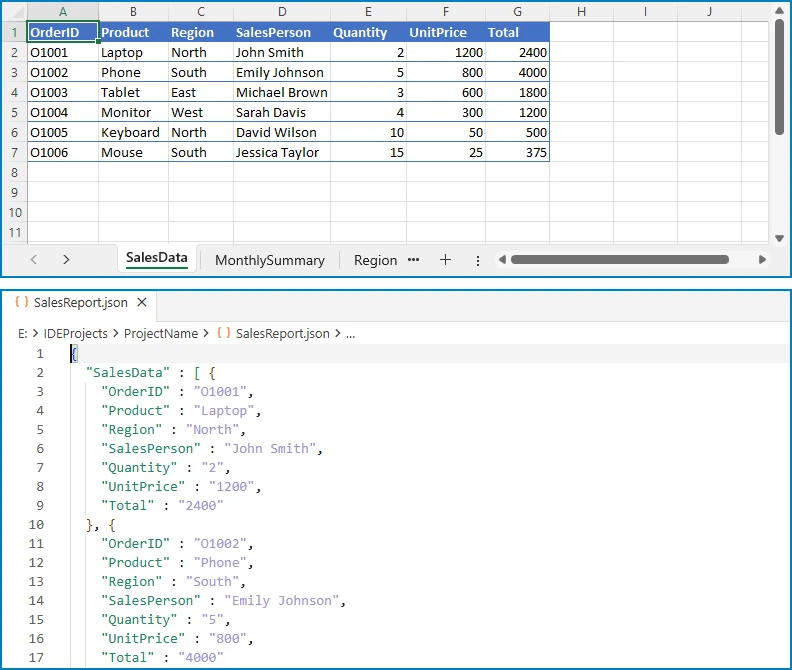
Output (for a workbook with "East Region" and "West Region" sheets):
{
  "East Region": [
    {"Employee": "Alice", "Product": "Laptop", "Amount": "1200"},
    {"Employee": "Bob", "Product": "Monitor", "Amount": "450"}
  ],
  "West Region": [
    {"Employee": "Carol", "Product": "Keyboard", "Amount": "150"},
    {"Employee": "Dave", "Product": "Mouse", "Amount": "75"}
  ]
}
The diagram below illustrates how multiple Excel sheets are mapped into a single JSON object structure.
Build Nested JSON from Excel Data
Some scenarios require nested JSON structures rather than flat arrays. For example, a project management spreadsheet might list projects and their tasks in adjacent columns. The following code groups tasks under their parent projects:
import com.spire.xls.*;
import com.fasterxml.jackson.databind.ObjectMapper;
import com.fasterxml.jackson.databind.node.ObjectNode;
import com.fasterxml.jackson.databind.node.ArrayNode;
import java.util.LinkedHashMap;
import java.util.Map;
import java.io.File;
import java.io.IOException;

public class NestedExcelToJson {

    public static void main(String[] args) {

        Workbook workbook = new Workbook();
        workbook.loadFromFile("ProjectTasks.xlsx");
        Worksheet worksheet = workbook.getWorksheets().get(0);

        ObjectMapper mapper = new ObjectMapper();

        // Use a LinkedHashMap to preserve project insertion order
        Map<String, ObjectNode> projectMap = new LinkedHashMap<>();

        for (int row = 2; row <= worksheet.getLastRow(); row++) {
            String projectName = worksheet.get(row, 1).getValue();
            String taskName = worksheet.get(row, 2).getValue();
            String assignee = worksheet.get(row, 3).getValue();
            String status = worksheet.get(row, 4).getValue();

            // Create project entry on first encounter
            if (!projectMap.containsKey(projectName)) {
                ObjectNode project = mapper.createObjectNode();
                project.put("name", projectName);
                project.set("tasks", mapper.createArrayNode());
                projectMap.put(projectName, project);
            }

            // Build task object and add to the project's task array
            ObjectNode task = mapper.createObjectNode();
            task.put("task", taskName);
            task.put("assignee", assignee);
            task.put("status", status);
            ((ArrayNode) projectMap.get(projectName).get("tasks")).add(task);
        }

        // Assemble final JSON array
        ArrayNode projectsJson = mapper.createArrayNode();
        for (ObjectNode project : projectMap.values()) {
            projectsJson.add(project);
        }

        try {
            mapper.writerWithDefaultPrettyPrinter()
                    .writeValue(new File("ProjectTasks.json"), projectsJson);

            System.out.println("Nested JSON file generated successfully.");
        } catch (IOException e) {
            System.err.println("Error writing JSON file: " + e.getMessage());
        }

        workbook.dispose();
    }
}
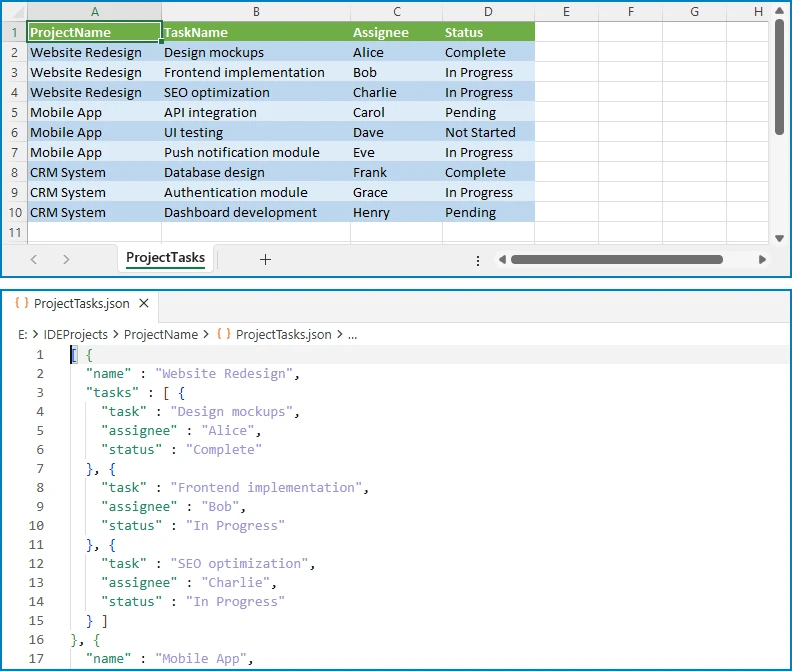
Output (for a project-task spreadsheet):
[
  {
    "name": "Website Redesign",
    "tasks": [
      {"task": "Design mockups", "assignee": "Alice", "status": "Complete"},
      {"task": "Frontend implementation", "assignee": "Bob", "status": "In Progress"}
    ]
  },
  {
    "name": "Mobile App",
    "tasks": [
      {"task": "API integration", "assignee": "Carol", "status": "Pending"},
      {"task": "UI testing", "assignee": "Dave", "status": "Not Started"}
    ]
  }
]
The following diagram shows how flat Excel rows are transformed into a nested JSON structure grouped by project.
This pattern is useful when Excel data needs to be restructured into a hierarchical format that matches an API schema or a database document model.
You can also explore how to parse Excel files in Java for scenarios where you need to extract and process raw spreadsheet data before transformation.
6. Handling Empty Cells and Data Types
Production Excel files rarely contain clean, complete data. Empty cells, mixed data types, and formatting inconsistencies are common. A robust Java program to convert Excel to JSON must account for these variations.
Detect and Handle Empty Cells
Use CellRange.getType() to check whether a cell is empty before reading its value. Provide a default value to prevent null entries in the JSON output:
CellRange cell = worksheet.get(row, col);
String value;

if (cell.getType() == CellValueType.Empty) {
    value = "";  // or a default value like "N/A"
} else {
    value = cell.getValue();
}
record.put(headers[col - 1], value);
Note: In Jackson,
ObjectNode.put(String, String)is used for string values. For other types, useput(String, double),put(String, boolean), etc.
Preserve Data Types in JSON Output
The getValue() method returns the cell's display value as a string. For numeric data, use getNumberValue() to preserve the original type in the JSON output:
CellRange cell = worksheet.get(row, col);

if (cell.getType() == CellValueType.Number) {
    record.put(headers[col - 1], cell.getNumberValue().doubleValue());
} else if (cell.getType() == CellValueType.Boolean) {
    record.put(headers[col - 1], cell.getBooleanValue());
} else {
    record.put(headers[col - 1], cell.getValue());
}
Handle Date-Formatted Cells
Excel stores dates as serial numbers internally. To output dates as ISO 8601 strings in JSON, detect date formatting and convert accordingly:
CellRange cell = worksheet.get(row, col);

if (cell.getType() == CellValueType.DateTime) {
    java.util.Date date = cell.getDateTimeValue();
    java.text.SimpleDateFormat iso = new java.text.SimpleDateFormat("yyyy-MM-dd");
    record.put(headers[col - 1], iso.format(date));
} else {
    record.put(headers[col - 1], cell.getValue());
}
This approach ensures that dates appear in a standard format (e.g., "2026-07-02") rather than Excel's internal numeric representation.
7. Common Pitfalls
Skipping the Header Row
One of the most frequent mistakes is starting the data loop from row 1 instead of row 2. When the first row contains column headers, including it in the data loop produces a JSON object where the keys are duplicated as values.
Solution: Always read headers from row 1 first, then start the data loop from row 2.
Hardcoding Column Indices
Hardcoding column positions (e.g., worksheet.get(row, 1) for "Name") makes the code fragile. If the Excel template changes and columns are reordered, the JSON keys no longer match the intended data.
Solution: Read headers dynamically from the first row and use the header array to assign JSON keys. This way, column reordering does not break the conversion.
Number Precision Loss
Excel stores numbers as double-precision floating-point values. Using getValue() returns the display content of the cell, but the result is always a string. If the JSON output should contain raw numeric values (rather than strings), additional type conversion is needed.
Solution: Check the cell type with getType() and use getNumberValue() for numeric cells to get the actual numeric value instead of a string representation.
Ignoring Date Formatting
Excel represents dates as serial numbers (e.g., 45109 for June 15, 2023). While getValue() returns the display content of a date cell, the exact format depends on the cell's number format and may not be consistent across different workbooks.
Solution: Use getDateTimeValue() for cells with date formatting and convert the result to a standard ISO 8601 string (yyyy-MM-dd or yyyy-MM-dd'T'HH:mm:ss) for consistent JSON output.
Memory Leaks from Undisposed Workbooks
Spire.XLS workbook objects hold unmanaged resources. Failing to call dispose() after processing can lead to memory leaks, especially when converting multiple files in a batch.
Solution: Always call workbook.dispose() after the conversion is complete. Use a try-finally block to guarantee cleanup even if an exception occurs:
Workbook workbook = new Workbook();
try {
    workbook.loadFromFile("EmployeeData.xlsx");
    // ... conversion logic ...
} finally {
    workbook.dispose();
}
8. Conclusion
In this article, we demonstrated how to convert Excel to JSON in Java using Spire.XLS for Java. Starting from a basic single-sheet conversion, we covered step-by-step workbook loading, header-based key mapping, and JSON output generation. We then extended the approach to handle XLS and XLSX formats, multi-sheet workbooks, nested JSON structures, empty cells, and data type preservation.
Spire.XLS for Java simplifies the entire process with a clean API that requires no Microsoft Office installation. Beyond Excel-to-JSON conversion, the library provides comprehensive spreadsheet capabilities including PDF export, chart creation, formula calculation, and data validation. You can apply for a 30-day free license to evaluate all features in your projects.
9. FAQ
How do I convert Excel to JSON in Java?
Load the Excel file using Spire.XLS for Java, read the header row to determine JSON keys, iterate through the data rows starting from row 2, and map each cell value to its corresponding key in a Jackson ObjectNode. Collect all objects into an ArrayNode and use ObjectMapper to write the result to a file or return it as a string. The complete code example is shown in Section 3.
Which Java library is best for Excel to JSON conversion?
Spire.XLS for Java provides a comprehensive API for reading Excel data with support for both XLS and XLSX formats. It handles cell types, formulas, and formatting natively, making it straightforward to extract structured data for JSON conversion without requiring Microsoft Office or any other external dependency.
Can Spire.XLS handle both XLS and XLSX formats?
Yes. Spire.XLS for Java automatically detects whether a file is in the legacy XLS format (Excel 97–2003) or the modern XLSX format (Excel 2007 and later). The same code works for both formats without any additional configuration. See Section 4 for details.
What is the difference between getValue() and getCellValue() in Spire.XLS?
getValue() returns the cell's display value — it works for all data types (text, number, date, boolean, etc.) and returns what the user sees in the cell. getCellValue() returns the raw underlying value as an Object. Use getValue() when the JSON output should match what users see in Excel, and use getNumberValue() or getBooleanValue() when you need typed values for numeric or boolean data.
How do I handle empty cells when converting Excel to JSON?
Check the cell type using CellRange.getType() before reading a value. If the type is CellValueType.Empty, assign a default value such as an empty string or "N/A". This prevents null entries and ensures consistent JSON structure across all records. See Section 6 for code examples.
Is Spire.XLS for Java free?
Spire.XLS for Java is a commercial library. A free version, Free Spire.XLS for Java, is available with limitations on worksheet count and features. You can also apply for a 30-day free license to evaluate the full feature set before purchasing.
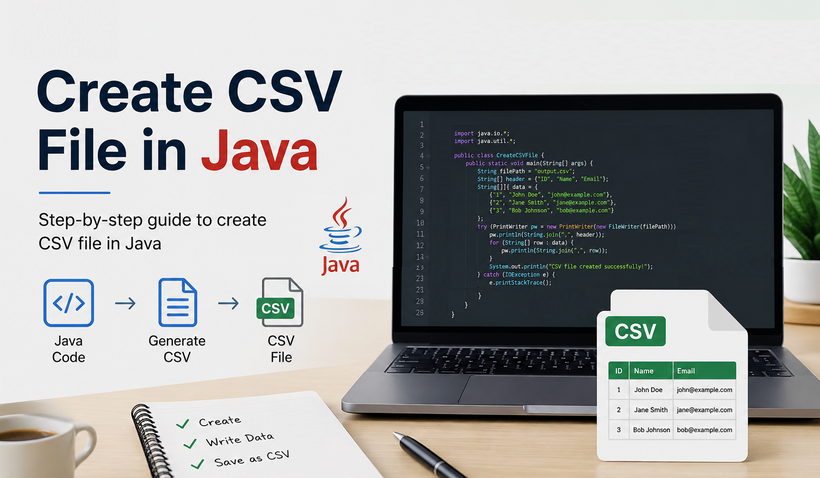
CSV remains a ubiquitous, lightweight data format in Java development, powering report exports, data migration, and cross-platform data interchange. But despite its apparent simplicity, building production-grade CSV files requires handling special characters, encodings, and strict formatting rules – all of which add unnecessary development and testing overhead.
Spire.XLS for Java streamlines this workflow with a clean, robust API that automatically handles all low-level formatting and encoding details. This guide shows you how to use Java to create CSV files – covering basic CSV generation, structured batch exports, Excel-to-CSV conversion, special character support, and advanced delimiter configuration.
- Why Choose Spire.XLS for Java to Create CSV Files
- Creating CSV Files from Scratch with Java
- Create Structured CSV from Arrays in Java
- Create CSV from Excel in Java
- Advanced CSV Generation Techniques
- Frequently Asked Questions
Why Choose Spire.XLS for Java to Create CSV Files
Compared to native Java IO, Apache POI, or any other CSV Java library, Spire.XLS for Java offers distinct advantages:
- Simplified API: Create and write CSV files in just a few lines of code, with no manual stream operations or low-level formatting work.
- Automatic Format Handling: Automatically escapes special characters (commas, double quotes, line breaks) that break standard CSV syntax.
- Full Encoding Support: Natively supports UTF-8, UTF-16, GB2312, and other encodings to avoid Chinese and special text garbling.
- Dual Format Compatibility: Supports both Excel (XLS/XLSX) and CSV formats, enabling bidirectional conversion between spreadsheets and delimited text.
- No Dependencies Bloat: Lightweight library with no third-party dependency conflicts, suitable for Java web, desktop, and microservice projects.
Prerequisites: Install Spire.XLS for Java
To start using Java to write CSV files, you first need to integrate the library into your project. We provide Maven and manual JAR installation methods.
1. Maven Dependency Configuration (Recommended)
Add the following repository and dependency to your project’s pom.xml file:
<repositories>
    <repository>
        <id>com.e-iceblue</id>
        <name>e-iceblue</name>
        <url>https://repo.e-iceblue.com/nexus/content/groups/public/</url>
    </repository>
</repositories>
<dependency>
    <groupId>e-iceblue</groupId>
    <artifactId>spire.xls</artifactId>
    <version>16.4.1</version>
</dependency>
2. Manual JAR Installation
For non-Maven projects, download the Spire.XLS for Java JAR file from the official website and add it to your project’s build path.
Create CSV Files from Scratch with Java
This example demonstrates how to create a blank CSV file from scratch, write custom row and column data, and save the file with standard comma delimiters and UTF-8 encoding. This is the most common basic scenario to generate CSV in Java.
import com.spire.xls.*;
import java.nio.charset.Charset;

public class CreateBasicCSV {
    public static void main(String[] args) {
        // Create Workbook instance
        Workbook workbook = new Workbook();

        // Get the first worksheet (index 0)
        Worksheet sheet = workbook.getWorksheets().get(0);

        // Write header row
        sheet.getCellRange("A1").setValue("ID");
        sheet.getCellRange("B1").setValue("Product Name");
        sheet.getCellRange("C1").setValue("Price");
        sheet.getCellRange("D1").setValue("Quantity");
        sheet.getCellRange("E1").setValue("Category");

        // Write data rows
        sheet.getCellRange("A2").setNumberValue(1001);
        sheet.getCellRange("B2").setValue("Wireless Mouse");
        sheet.getCellRange("C2").setNumberValue(29.99);
        sheet.getCellRange("D2").setNumberValue(150);
        sheet.getCellRange("E2").setValue("Electronics");

        sheet.getCellRange("A3").setNumberValue(1002);
        sheet.getCellRange("B3").setValue("Mechanical Keyboard");
        sheet.getCellRange("C3").setNumberValue(89.99);
        sheet.getCellRange("D3").setNumberValue(75);
        sheet.getCellRange("E3").setValue("Electronics");

        sheet.getCellRange("A4").setNumberValue(1003);
        sheet.getCellRange("B4").setValue("Desk Chair");
        sheet.getCellRange("C4").setNumberValue(199.99);
        sheet.getCellRange("D4").setNumberValue(30);
        sheet.getCellRange("E4").setValue("Furniture");

        // Save worksheet as CSV file (comma delimiter + UTF-8 encoding)
        sheet.saveToFile("products.csv", ",", Charset.forName("UTF-8"));

        // Release resources
        workbook.dispose();
    }
}
Key API Methods Explained
- setValue(): Writes text or string values into a cell.
- setNumberValue(): Writes numeric values (integers and decimals) into a cell.
- saveToFile(filename, separator, charset): Exports the worksheet to CSV with specified delimiter and encoding.
Open the generated CSV in Excel:
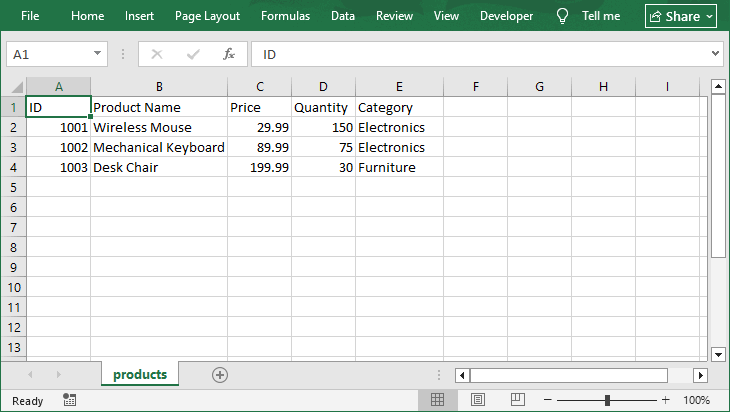
Bonus Tip: Beyond generating CSV files from scratch, Spire.XLS also allows you to read a CSV file in Java, enabling full bidirectional data processing within a single library.
Create Structured CSV from Arrays in Java
For practical development, you usually need to batch write business data (e.g., user lists, order records) to CSV files. This example shows how to create a standardized CSV file with fixed headers and batch structured data from 1D & 2D arrays.
import com.spire.xls.*;
import java.nio.charset.Charset;

public class CreateStructuredCSV {
    public static void main(String[] args) {
        Workbook workbook = new Workbook();
        Worksheet sheet = workbook.getWorksheets().get(0);

        // Define CSV header row
        String[] headers = {"Order ID", "Customer Name", "Order Amount", "Order Date", "Order Status"};
        for (int i = 0; i < headers.length; i++) {
            sheet.getCellRange(1, i + 1).setValue(headers[i]);
        }

        // Batch write order data
        String[][] orderData = {
                {"ORD001", "Tom Brown", "299.99", "2026-06-01", "Completed"},
                {"ORD002", "Lucy Green", "599.50", "2026-06-05", "Pending"},
                {"ORD003", "Mike Wilson", "129.00", "2026-06-08", "Shipped"}
        };

        // Traverse and write batch data
        int rowNum = 2;
        for (String[] rowData : orderData) {
            for (int col = 0; col < rowData.length; col++) {
                sheet.getCellRange(rowNum, col + 1).setValue(rowData[col]);
            }
            rowNum++;
        }

        // Save structured CSV file
        sheet.saveToFile("Record.csv", ",", Charset.forName("UTF-8"));
        workbook.dispose();
    }
}
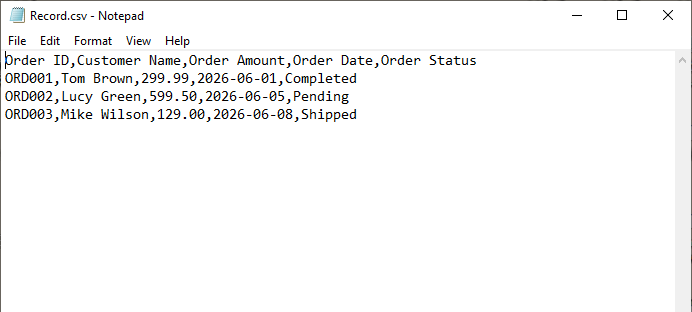
Unlike the previous example where we populated each cell individually, this approach loops through arrays or collections. And the same pattern can be easily adapted to List<List<String>> or other dynamic data sources.
Output:
Create CSV from Excel in Java
When you need to convert Excel to CSV in Java, Spire.XLS makes this process incredibly simple with only a few lines of code.
import com.spire.xls.*;
import java.nio.charset.Charset;

public class ExcelToCSV {
    public static void main(String[] args) {
        // Load Excel file
        Workbook workbook = new Workbook();
        workbook.loadFromFile("sample.xlsx");

        // Get the first worksheet
        Worksheet sheet = workbook.getWorksheets().get(0);

        // Save worksheet as CSV
        sheet.saveToFile("converted.csv", ",", Charset.forName("UTF-8"));

        workbook.dispose();
    }
}
The core logic is straightforward: load the Excel file → target the specific worksheet → call the conversion API to save as CSV.
Excel to CSV Result:
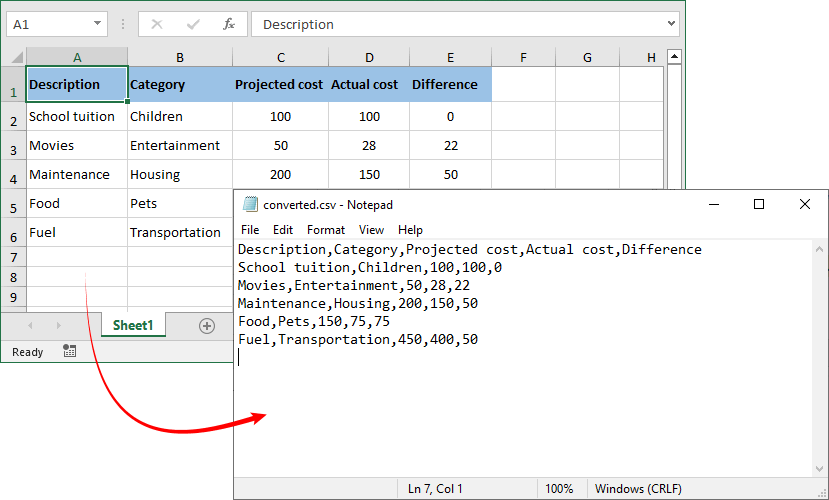
The reverse operation – turning a CSV file into an Excel workbook – is equally valuable when you need to apply styles, formulas, or multiple worksheets to raw exported data.
Advanced CSV Generation Techniques
1. Handle Special Characters
When your data contains commas or double quotes, proper escaping is critical. Spire.XLS automatically wraps affected fields in double quotes per RFC 4180 standards, ensuring compatibility with Excel, WPS, and all standard text editors.
Example:
sheet.getCellRange("A1").setValue("Ergonomic, silent design | \"2026 New Model\"");
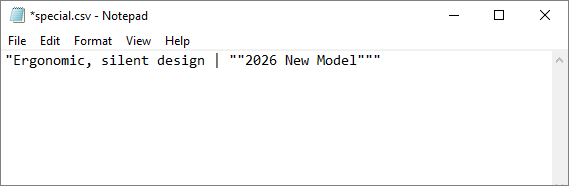
2. Custom Delimiters and Encoding
Spire.XLS for Java supports custom delimiters beyond the standard comma, accommodating regional and format-specific requirements.
// Using semicolon as delimiter and UTF-16 as encoding
sheet.saveToFile("european_data.csv", ";", Charset.forName("UTF-16"));

// Using tab as delimiter for TSV files
sheet.saveToFile("tab_separated.txt", "\t", Charset.forName("UTF-8"));
Frequently Asked Questions
Q1. Does Spire.XLS for Java require Microsoft Excel?
No. The library works completely independently without any Office dependencies.
Q2. Can I append data to the end of an existing CSV file?
Spire.XLS loads full CSV content into a worksheet for editing. To append data, load the existing file, locate the last used row, write new records starting from the next row index, then save the file back.
Q3. Can multiple worksheets be exported to a single CSV file?
No. CSV is a plain-text, single-sheet format by definition. Each saveToFile() call exports exactly one worksheet to one CSV file. To export multiple sheets, call the save method separately for each worksheet to output individual CSV files.
Q4. What about licensing?
Spire.XLS for Java offers both commercial and free versions. While the free version carries certain usage limitations, it fully supports fundamental CSV operations and lightweight spreadsheet processing tasks.
Conclusion
Generating CSV files is a routine yet critical task in Java development. The quality and reliability of your CSV output directly impact downstream processes such as reporting, system migration, and data analysis. To ensure error‑free CSV generation, you need a library that handles formatting, encoding, and special characters automatically.
Spire.XLS for Java provides exactly that. By following the step‑by‑step code examples in this article, you can quickly integrate robust CSV generation into your Java projects, improving development efficiency while eliminating common formatting flaws and encoding errors.
For more advanced features (e.g., converting CSV to PDF), explore the Spire.XLS for Java Documentation.
Parse Excel Files in Java Easily – Read .XLS and .XLSX Files
2026-02-04 08:53:02 Written by Allen Yang
Excel files are widely used to store and exchange structured data, such as reports, user-submitted forms, and exported records from other systems. In many Java applications, developers need to open these Excel files and extract the data for further processing.
In Java, parsing an Excel file usually means loading an .xls or .xlsx file, reading worksheets, and converting cell values into Java-friendly formats such as strings, numbers, or dates. This article shows how to parse Excel files in Java step by step using Spire.XLS for Java, with practical examples ranging from basic text reading to data type–aware parsing.
Table of Contents
- Prepare the Environment
- Load and Parse an Excel File in Java
- Read Excel Data as Text (Basic Parsing)
- Parse Excel Cells into Different Data Types
- Common Parsing Scenarios in Real Applications
- Conclusion
- Frequently Asked Questions
Prepare the Environment
Before parsing Excel files, you need to add Spire.XLS for Java to your project. The library supports both .xls and .xlsx formats and does not require Microsoft Excel to be installed.
Add the Dependency
If you are using Maven, add the following dependency to your pom.xml:
<repositories>
    <repository>
        <id>com.e-iceblue</id>
        <name>e-iceblue</name>
        <url>https://repo.e-iceblue.com/nexus/content/groups/public/</url>
    </repository>
</repositories>
<dependencies>
    <dependency>
        <groupId>e-iceblue</groupId>
        <artifactId>spire.xls</artifactId>
        <version>16.8.4</version>
    </dependency>
</dependencies>
Once the dependency is added, you are ready to load and parse Excel files in Java.
If you are not using Maven, you can also download Spire.XLS for Java and add it to your project manually.
Load and Parse an Excel File in Java
The first step when parsing an Excel file is to load it into a Workbook object and access the worksheet you want to read.
import com.spire.xls.*;

public class ParseExcel {
    public static void main(String[] args) {
        Workbook workbook = new Workbook();
        workbook.loadFromFile("data.xlsx");

        Worksheet sheet = workbook.getWorksheets().get(0);
        System.out.println("Worksheet loaded: " + sheet.getName());
    }
}
Preview of the reading result:
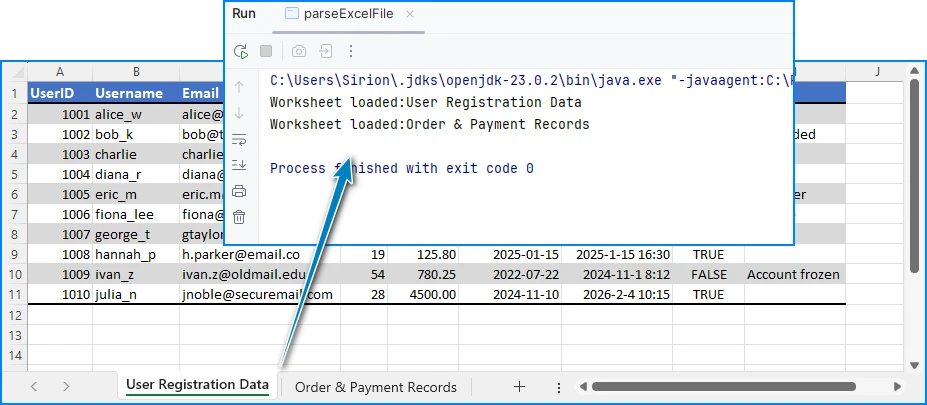
This code works for both .xls and .xlsx files. After loading the worksheet, you can start reading rows and cells.
Read Excel Data as Text (Basic Parsing)
In many cases, developers only need to read Excel data as text, without worrying about specific data types. This approach is simple and suitable for logging, displaying data, or quick imports.
Read All Cells as Strings
for (int i = 1; i <= sheet.getLastRow(); i++) {
    for (int j = 1; j <= sheet.getLastColumn(); j++) {
        String cellText = sheet.getCellRange(i, j).getValue();
        System.out.print(cellText + "\t");
    }
    System.out.println();
}
Preview of the text reading result:
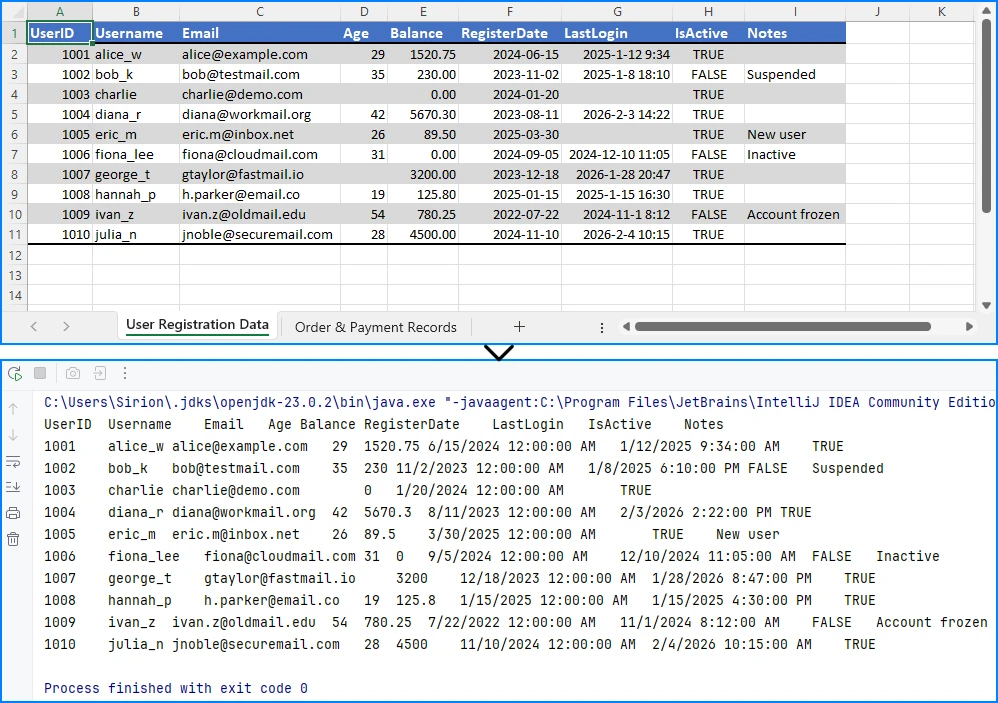
Using getValue() returns the formatted value shown in Excel. This is often the easiest way to read data when precision or data type conversion is not critical.
If your requirement goes beyond reading and involves modifying or editing Excel files, you can refer to a separate guide that demonstrates how to edit Excel documents in Java using Spire.XLS.
Parse Excel Cells into Different Data Types
For data processing, validation, or calculations, reading everything as text is usually not enough. In these cases, you need to parse Excel cell values into proper Java data types.
Parse Numeric Values (int / double / float)
In Excel, many cells are stored internally as numeric values, even if they are displayed as dates, currencies, or percentages. Spire.XLS for Java allows you to read these cells directly using getNumberValue().
CellRange usedRange = sheet.getAllocatedRange();
System.out.println("Raw number values:");
for (int i = usedRange.getRow(); i <= usedRange.getLastRow(); i++) {
    for (int j = usedRange.getColumn(); j <= usedRange.getLastColumn(); j++) {
        CellRange cell = sheet.getRange().get(i, j);
        if (!(Double.isNaN(cell.getNumberValue())))
            {
                System.out.print(cell.getNumberValue() + "\t");
            }
        }
    System.out.println();
}
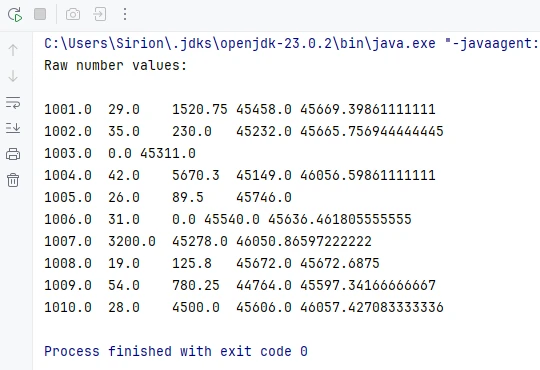
Below is a preview of the numeric reading result:
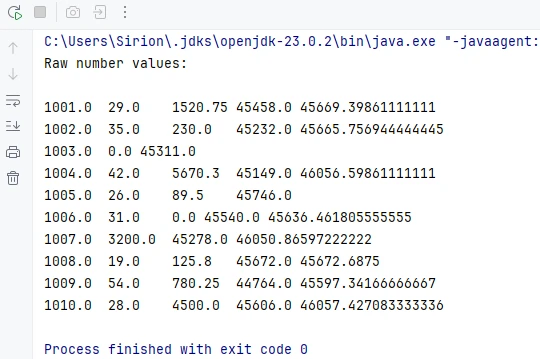
This method returns the underlying numeric value stored in the cell, regardless of the display format applied in Excel.
Convert Numeric Values Based on Application Logic
Once you have the numeric value, you can convert it to the appropriate Java type according to your application requirements.
double numberValue = cell.getNumberValue();

// Convert to int
int intValue = (int) numberValue;

// Convert to float
float floatValue = (float) numberValue;

// Keep as double
double doubleValue = numberValue;
For example, IDs, counters, or quantities are often converted to int, while prices, balances, or measurements are better handled as double or float.
Note: Excel dates are also stored as numeric values. If a cell represents a date or time, it is recommended to read it using date-related APIs instead of treating it as a plain number. This is covered in the next section.
Parse Date and Time Values
In Excel, date and time values are internally stored as numbers, while the display format determines how they appear in the worksheet. Spire.XLS for Java provides the getDateTimeValue() method to read these values directly as Date objects, allowing you to handle date and time data more conveniently in Java.
For example, if a column is designed to store date values, you can read all cells in that range as Date objects:
CellRange usedRange = sheet.getAllocatedRange();
System.out.println("Date values:");

for (int i = 0; i < usedRange.getRowCount(); i++) {
    // Read values from column F (for example, a date column)
    CellRange cell = usedRange.get(String.format("G%d", i + 1));
    java.util.Date date = cell.getDateTimeValue();
    System.out.println(date);
}
Preview of the date reading result from the seventh column:
This approach is widely used in real-world applications such as reports, data imports, or spreadsheets with predefined columns.
Because Excel dates are stored as numeric values, getDateTimeValue() converts the numeric value into a Date object and is typically applied to columns that represent date or time information.
Parse Mixed Cell Values in a Practical Way
In real-world Excel files, a single column may contain different kinds of values, such as text, numbers, dates, booleans, or empty cells. When parsing such data in Java, a practical approach is to read cell values using different APIs and select the most appropriate representation based on your business logic.
CellRange cell = sheet.getRange().get(2, 1); // B2

// Formatted text (what is displayed in Excel)
String text = cell.getText();

// Raw string value
String value = cell.getValue();

// Generic underlying value (number, boolean, date, etc.)
Object rawValue = cell.getValue2();

// Formula, if the cell contains one
String formula = cell.getFormula();

// Evaluated result of the formula
String evaluated = cell.getEnvalutedValue();

// Numeric value
double numberValue = cell.getNumberValue();

// Date value (commonly used for columns representing dates or times)
java.util.Date dateValue = cell.getDateTimeValue();

// Boolean value
boolean booleanValue = cell.getBooleanValue();
In practice, many applications use getText() as a safe fallback for display, logging, or export scenarios. For data processing, methods like getNumberValue(), getDateTimeValue(), or getBooleanValue() are typically applied based on the known meaning of each column.
This flexible approach works well for user-generated or loosely structured Excel files and helps avoid incorrect assumptions while keeping the parsing logic simple and robust.
If your primary goal is reading Excel files in Java—for example, extracting cell values for display or reporting—you may also want to refer to a separate guide that focuses specifically on Excel data reading scenarios in Java.
Common Parsing Scenarios in Real Applications
Parse Excel Rows into Java Objects
A common use case is mapping each row in an Excel sheet to a Java object, such as a DTO or entity class.
For example, one row can represent a product or a record, and each column maps to a field in the object. After parsing, you can store the objects in a list for further processing or database insertion.
Read Excel Data into Collections
Another typical scenario is reading Excel data into a List<List
CSV (Comma-Separated Values) remains a universal format for data exchange due to its simplicity, readability, and wide compatibility across platforms. If you're looking for a robust and efficient method to read CSV in Java, the Spire.XLS for Java library offers a powerful and straightforward solution.
This guide will walk you through how to use Java to load and read CSV files, as well as convert them into structured DataTables for seamless data manipulation and analysis in your applications.
- Why Choose Spire.XLS for Java to Parse CSV Files?
- Step-by-Step: Read a CSV File in Java
- Advanced: Read CSV into DataTable in Java
- Frequently Asked Questions
- Conclusion
Why Choose Spire.XLS for Java to Parse CSV Files?
Compared with other CSV parser in Java, Spire.XLS offers several advantages for CSV processing:
- Simplified API for reading CSV files
- Support for custom delimiters (not just commas)
- Built-in range detection to avoid empty rows/columns
- Natively converts CSV data to DataTable
- Seamlessly switch between CSV, XLS, and XLSX formats
Step-by-Step: Read a CSV File in Java
Spire.XLS for Java provides the Workbook class to load CSV files and the Worksheet class to access data. Below are the steps to read CSV files line by line with automatic delimiter detection:
1. Setup and Dependencies
First, ensure you have Spire.XLS for Java included in your project. You can add it via Maven by including the following dependency:
<repositories>
    <repository>
        <id>com.e-iceblue</id>
        <name>e-iceblue</name>
        <url>https://repo.e-iceblue.com/nexus/content/groups/public/</url>
    </repository>
</repositories>
<dependencies>
    <dependency>
        <groupId>e-iceblue</groupId>
        <artifactId>spire.xls</artifactId>
        <version>16.8.4</version>
    </dependency>
</dependencies>
2. Load the CSV File
Spire.XLS for Java loads CSV files into a Workbook object, where each CSV row becomes a worksheet row.
import com.spire.xls.*;

public class ReadCSV {
    public static void main(String[] args) {
        // Create Workbook instance
        Workbook workbook = new Workbook();

        // Load CSV file (specify delimiter)
        workbook.loadFromFile("sample.csv", ",", 1, 1);
    }
}
Parameters:
The loadFromFile() method accepts four parameters:
- "sample.csv": The input CSV file path.
- ", ": Custom delimiter (e.g."," ";" or "\t").
- 1: Start row index.
- 1: Start column index.
3. Access Worksheet & Read CSV Data
Spire.XLS treats CSV files as single-worksheet workbooks, so we access the first worksheet and then iterate through rows/columns:
// Get the first worksheet
Worksheet sheet = workbook.getWorksheets().get(0);

// Get the used range (avoids iterating over empty rows/columns)
CellRange dataRange = sheet.getAllocatedRange();

//Iterate through the rows
for (int i = 0; i < dataRange.getRowCount(); i++) {

    //Iterate through the columns
    for (int j = 0; j < dataRange.getColumnCount(); j++) {
        // Get cell text
        CellRange cell = dataRange.get(i+1,j+1);
        System.out.print(cell.getText() + "\t"); // Use tab to separate columns
    }
    System.out.println(); // New line per row
Output: Read data from a CSV file and print out with tab separation for readability.

Advanced: Read CSV into DataTable in Java
For structured data manipulation, converting CSV to a DataTable is invaluable. A DataTable organizes data into rows and columns, making it easy to query, filter, or integrate with databases.
Java code to read a CSV file and export to a DataTable:
import com.spire.xls.*;
import com.spire.xls.data.table.DataTable;

public class CSVtoDataTable {
    public static void main(String[] args) {

        // Create a workbook and load a csv file
        Workbook workbook = new Workbook();
        workbook.loadFromFile("sample.csv", ",", 1, 1);

        // Get the first worksheet
        Worksheet sheet = workbook.getWorksheets().get(0);

        // Export to DataTable
        DataTable dataTable = sheet.exportDataTable();

        // Get row and column count
        System.out.println("Total columns: " + dataTable.getColumns().size());
        System.out.println("Total rows: " + dataTable.getRows().size());
        System.out.println();

        // Print column names
        for (int i = 0; i < dataTable.getColumns().size(); i++) {
            System.out.print(dataTable.getColumns().get(i).getColumnName() + "  | ");
        }
        System.out.println();
        System.out.println("----------------------------------------------------------");
        // Print rows
        for (int i = 0; i < dataTable.getRows().size(); i++) {
            for (int j = 0; j < dataTable.getColumns().size(); j++) {
                System.out.print(dataTable.getRows().get(i).getString(j) + "\t");
            }
            System.out.println();
        }
    }
}
Key Explanations:
- exportDataTable(): convert CSV data into a DataTable directly, no manual row/column mapping required.
- DataTable Benefits: Easily access basic information such as column count, row count, column names, and row data etc.
Output:
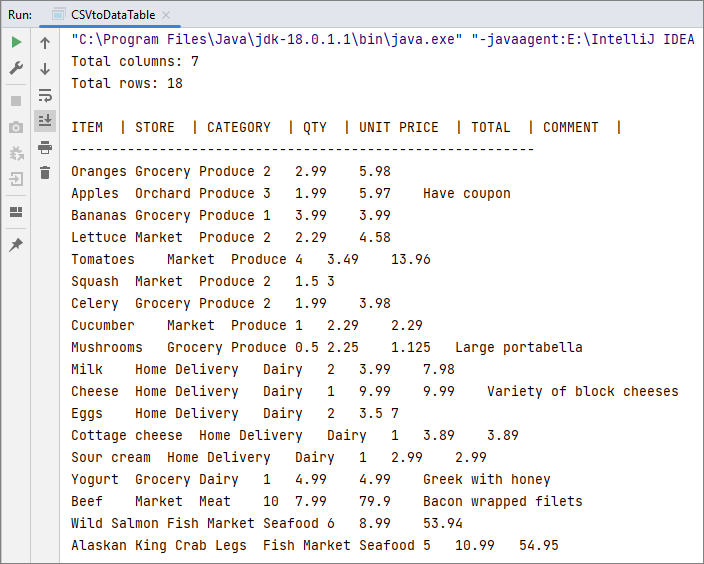
You may also read: Convert CSV to Excel in Java
Frequently Asked Questions
Q1: How do I handle CSV files with different delimiters (semicolon, tab, etc.)?
A: Specify the delimiter in the loadFromFile() method:
// For semicolon-delimited files
workbook.loadFromFile("sample.csv", ";", 0, 0);

// For tab-delimited files
workbook.loadFromFile("sample.csv", "\t", 0, 0);

// For pipe-delimited files
workbook.loadFromFile("sample.csv", "|", 0, 0);
Q2: How do I skip header rows in a CSV file?
A: You can skip header rows by iterating from the second row. For example, if your CSV has 2 header rows (rows 1 and 2) and data starts at row 3:
// Start reading from the third row
for (int i = 2; i < dataRange.getRowCount(); i++) {
    for (int j = 0; j < dataRange.getColumnCount(); j++) {
        // Convert 0-based loop index to Spire.XLS's 1-based cell index
        CellRange cell = dataRange.get(i + 1, j + 1);
        System.out.print(cell.getText() + "\t");
Q3. Can I export a specific range of a CSV to a DataTable?
A: Yes. Spire.XLS lets you define a precise cell range and export it to a DataTable with the exportDataTable(CellRange range, boolean exportColumnNames) method.
Conclusion
Spire.XLS for Java simplifies CSV file reading in Java, offering a robust alternative to manual parsing or basic libraries. Whether you need to read a simple CSV, or convert it to a structured DataTable, this guide provides the corresponding examples to help you implement CSV parsing efficiently.
For more advanced features (e.g., exporting to PDF), check the Spire.XLS for Java Documentation.
Converting CSV files to Excel is a common task for Java developers working on data reporting, analytics pipelines, or file transformation tools. While manual CSV parsing is possible, it often leads to bloated code and limited formatting. Using a dedicated Excel library like Spire.XLS for Java simplifies the process and allows full control over layout, styles, templates, and data consolidation.
In this tutorial, we’ll walk through various use cases to convert CSV to Excel using Java — including basic import/export, formatting, injecting CSV into templates, and merging multiple CSVs into a single Excel file.
Quick Navigation
- Set Up Spire.XLS in Your Java Project
- Convert a CSV File to Excel Using Java
- Format Excel Output Using Java
- Merge Multiple CSV Files into One Excel File
- Tips & Troubleshooting
- Frequently Asked Questions
Set Up Spire.XLS in Your Java Project
Before converting CSV to Excel, you’ll need to add Spire.XLS for Java to your project. It supports both .xls and .xlsx formats and provides a clean API for working with Excel files without relying on Microsoft Office.
Install via Maven
<repositories>
    <repository>
        <id>com.e-iceblue</id>
        <name>e-iceblue</name>
        <url>https://repo.e-iceblue.com/nexus/content/groups/public/</url>
    </repository>
</repositories>
<dependencies>
    <dependency>
        <groupId>e-iceblue</groupId>
        <artifactId>spire.xls</artifactId>
        <version>16.8.4</version>
    </dependency>
</dependencies>
Add JAR Manually
Download Spire.XLS for Java and add the JAR to your classpath manually. For smaller projects, you can also use the Free Spire.XLS for Java.
Convert a CSV File to Excel Using Java
The simplest use case is to convert a single .csv file into .xlsx or .xls format in Java. Spire.XLS makes this process easy using just two methods: loadFromFile() to read the CSV, and saveToFile() to export it as Excel.
import com.spire.xls.*;

public class CsvToXlsx {
    public static void main(String[] args) {
        Workbook workbook = new Workbook();
        workbook.loadFromFile("data.csv", ",");
        workbook.saveToFile("output.xlsx", ExcelVersion.Version2013);
    }
}
To generate .xls format instead, use ExcelVersion.Version97to2003.
Below is the output Excel file generated after converting the CSV:
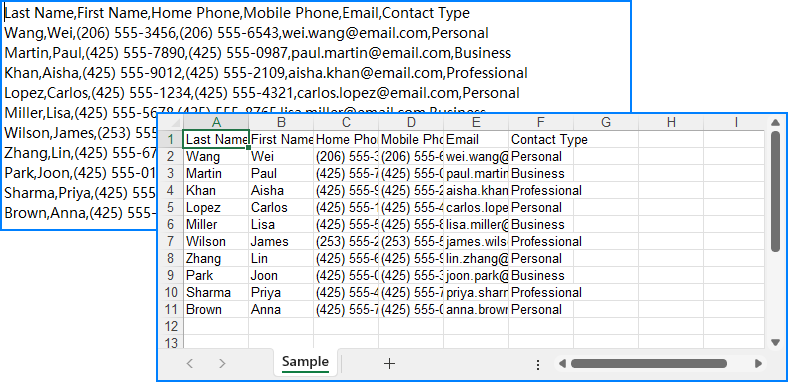
You can also specify a custom delimiter or choose the row/column to begin inserting data — useful if your sheet has titles or a fixed layout.
workbook.loadFromFile("data_semicolon.csv", ";", 3, 2);
Format Excel Output Using Java
When you're exporting CSV for reporting or customer-facing documents, it's often necessary to apply styles for better readability and presentation. Spire.XLS allows you to set cell fonts, colors, and number formats using the CellStyle class, automatically adjust column widths to fit content, and more.
Example: Apply Styling and Auto-Fit Columns
import com.spire.xls.*;

public class CsvToXlsx {
    public static void main(String[] args) {
        Workbook workbook = new Workbook();
        workbook.loadFromFile("data.csv", ",");

        Worksheet sheet = workbook.getWorksheets().get(0);

        // Format header row
        CellStyle headerStyle = workbook.getStyles().addStyle("Header");
        headerStyle.getFont().isBold(true);
        headerStyle.setKnownColor(ExcelColors.LightYellow);
        for (int col = 1; col <= sheet.getLastColumn(); col++) {
            sheet.getCellRange(1, col).setStyle(headerStyle);
        }

        // Format numeric column
        CellStyle numStyle = workbook.getStyles().addStyle("Numbers");
        numStyle.setNumberFormat("#,##0.00");
        sheet.getCellRange("B2:B100").setStyle(numStyle);

        // Auto-fit all columns
        for (int i = 1; i <= sheet.getLastRow(); i++) {
            sheet.autoFitColumn(i);
        }

        workbook.saveToFile("formatted_output.xlsx", ExcelVersion.Version2013);
    }
}
Here’s what the styled Excel output looks like with formatted headers and numeric columns:
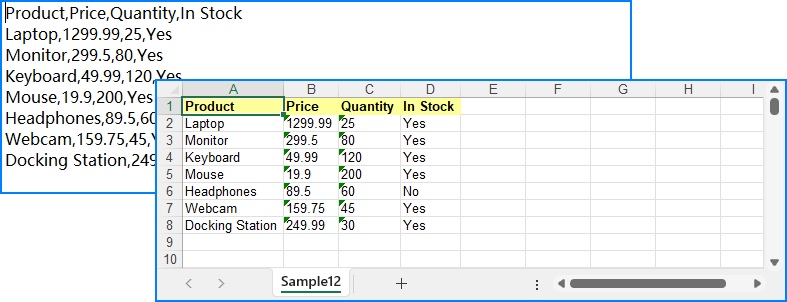
Need to use a pre-designed Excel template? You can load an existing .xlsx file and insert your data using methods like insertArray(). Just note that formatting won’t automatically apply — use CellStyle to style your data programmatically.
Merge Multiple CSV Files into One Excel File
When handling batch processing or multi-source datasets, it’s common to combine multiple CSV files into a single Excel workbook. Spire.XLS lets you:
- Merge each CSV into a separate worksheet, or
- Append all CSV content into a single worksheet
Option 1: Separate Worksheets per CSV
import com.spire.xls.*;
import java.io.File;

public class CsvToXlsx {
    public static void main(String[] args) {
        // Get the CSV file names
        File[] csvFiles = new File("CSVs/").listFiles((dir, name) -> name.endsWith(".csv"));
        // Create a workbook and clear all worksheets
        Workbook workbook = new Workbook();
        workbook.getWorksheets().clear();

        for (File csv : csvFiles) {
            // Load the CSV file
            Workbook temp = new Workbook();
            temp.loadFromFile(csv.getAbsolutePath(), ",");
            // Append the CSV file to the workbook as a worksheet
            workbook.getWorksheets().addCopy(temp.getWorksheets().get(0));
        }

        // Save the workbook
        workbook.saveToFile("merged.xlsx", ExcelVersion.Version2016);
    }
}
Each CSV file is placed into its own worksheet in the final Excel file:

Option 2: All Data in a Single Worksheet
import com.spire.xls.*;
import java.io.File;

public class CsvToXlsx {
    public static void main(String[] args) {
        // Get the CSV file names
        File[] csvFiles = new File("CSVs/").listFiles((dir, name) -> name.endsWith(".csv"));
        // Create a workbook
        Workbook workbook = new Workbook();
        // Clear default sheets and add a new one
        workbook.getWorksheets().clear();
        Worksheet sheet = workbook.getWorksheets().add("Sample");

        int startRow = 1;
        boolean isFirstFile = true;

        for (File csv : csvFiles) {
            // Load the CSV data
            Workbook temp = new Workbook();
            temp.loadFromFile(csv.getAbsolutePath(), ",");
            Worksheet tempSheet = temp.getWorksheets().get(0);

            // Check if it's the first file
            int startReadRow = isFirstFile ? 1 : 2;
            isFirstFile = false;

            // Copy the CSV data to the sheet
            for (int r = startReadRow; r <= tempSheet.getLastRow(); r++) {
                for (int c = 1; c <= tempSheet.getLastColumn(); c++) {
                    sheet.getCellRange(startRow, c).setValue(tempSheet.getCellRange(r, c).getText());
                }
                startRow++;
            }
        }

        // Save the merged workbook
        workbook.saveToFile("merged_single_sheet.xlsx", ExcelVersion.Version2016);
    }
}
Below is the final Excel sheet with all CSV data merged into a single worksheet:
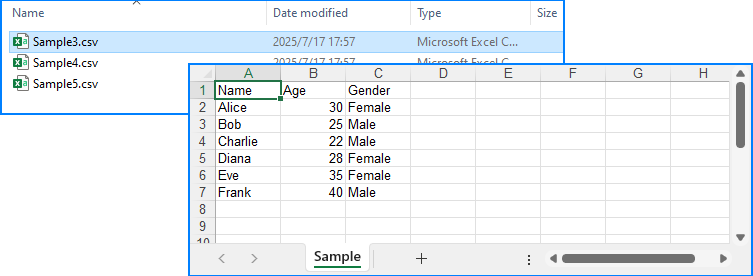
Related Article: How to Merge Excel Files Using Java
Tips & Troubleshooting
Problems with your output? Try these fixes:
-
Text garbled in Excel → Make sure your CSV is UTF-8 encoded.
-
Wrong column alignment? → Check if delimiters are mismatched.
-
Large CSV files? → Split files or use multiple sheets for better memory handling.
-
Appending files with different structures? → Normalize column headers beforehand.
Conclusion
Whether you're handling a simple CSV file or building a more advanced reporting workflow, Spire.XLS for Java offers a powerful and flexible solution for converting CSV to Excel through Java code. It allows you to convert CSV files to XLSX or XLS with just a few lines of code, apply professional formatting to ensure readability, inject data into pre-designed templates for consistent branding, and even merge multiple CSVs into a single, well-organized workbook. By automating these processes, you can minimize manual effort and generate clean, professional Excel files more efficiently.
You can apply for a free temporary license to experience the full capabilities without limitations.
Frequently Asked Questions
How do I convert CSV to XLSX in Java?
Use Workbook.loadFromFile("file.csv", ",") and then saveToFile("output.xlsx", ExcelVersion.Version2016).
Can I format the Excel output?
Yes. Use CellStyle to control fonts, colors, alignment, and number formats.
Is it possible to use Excel templates for CSV data?
Absolutely. Load a .xlsx template and inject CSV using setText() or insertDataTable().
How can I merge several CSV files into one Excel file?
Use either multiple worksheets or merge everything into one sheet row by row.
Inserting subscript in Excel is a common requirement, especially when dealing with chemical formulas like CO₂, statistical footnotes, or scientific data. Using subscripts helps make data clearer and more polished, enhancing the professionalism of your documents. However, Excel’s built-in subscript feature is cumbersome and doesn’t support batch application, which can significantly slow down your workflow.
Fortunately, with the help of Java code, you can efficiently insert subscripts in Excel, freeing yourself from tedious manual work and making your tasks faster and more professional.
- Preparation
- Insert New Text with Subscript
- Apply Subscript to Existing Text
- Insert Subscript for Multiple Matches in Single Cell
- Conclusion
Preparation
Inserting a subscript in Excel using Java involves adding Java libraries. In today’s blog, we will use Spire.XLS for Java as an example to accomplish this task. Spire.XLS is a powerful Java component that works independently without relying on Microsoft Office. In addition to reading, editing, and converting Excel files, it allows users to perform advanced tasks as well.
To install it on your device, there are two options:
- If you are using Maven, add the following code to your pom.xml file:
<repositories>
    <repository>
        <id>com.e-iceblue</id>
        <name>e-iceblue</name>
        <url>https://repo.e-iceblue.com/nexus/content/groups/public/</url>
    </repository>
</repositories>
<dependencies>
    <dependency>
        <groupId>e-iceblue</groupId>
        <artifactId>spire.xls</artifactId>
        <version>16.8.4</version>
    </dependency>
</dependencies>
- If you prefer manual installation, download the Spire.XLS package and add the .jar file to your Java IDE.
Inserting Subscript in Excel: How to Insert New Text with Subscript
First, let’s see how to insert new text into an Excel cell with subscript formatting already applied. By setting the subscript when creating a new document, you can generate the final file directly without needing to reopen and adjust it later.
Steps—Inserting subscript in Excel when adding new text with Java:
- Create a Workbook and get a worksheet.
- Get a cell range using Worksheet.getCellRange() method.
- Specify text through CellRange.getRichText().setText() method.
- Create a font through Workbook.createFont() method.
- Set ExcelFont.isSubscript() to true.
- Apply the font to a text range in the cell using RichText.setFont(startIndex, endIndex, font) method.
The following code shows how to insert the text "R100-0.06" into cell B2 and set the subscript:
import com.spire.xls.*;

import java.awt.*;

public class InsertSubscriptNewText {

    public static void main(String[] args) {

        // Create a Workbook instance
        Workbook workbook = new Workbook();

        // Get the first worksheet
        Worksheet sheet = workbook.getWorksheets().get(0);

        // Insert text to B2
        sheet.getCellRange("B2").setText("This is an example of Subscript:");

        // Insert text to B3 and apply subscript effect
        CellRange range = sheet.getCellRange("B3");
        range.getRichText().setText("R100-0.06");
        ExcelFont font = workbook.createFont();
        font.isSubscript(true);
        font.setColor(Color.red);
        range.getRichText().setFont(4, 8, font);

        // Auto fit column width
        sheet.getAllocatedRange().autoFitColumns();

        // Save the document
        workbook.saveToFile("/SubscriptNewText.xlsx", ExcelVersion.Version2016);
    }
}
Result Preview:

Tip: By setting ExcelFont.isSuperscript() to true, you can apply superscript to text in Excel files.
Inserting Subscript in Excel: Apply Subscript to Existing Text
Although inserting subscripts while creating a new Excel file can simplify later work, in most cases, you’ll need to deal with existing files that already contain content. This section shows you how to quickly apply subscript formatting to existing text in Excel using Java.
Steps—Inserting subscript to Excel file with existing text:
- Create a Workbook instance and read an Excel file.
- Get a worksheet and get the cell range.
- Loop through cells in the cell range and find the text to apply subscript.
- Set the text in the cell’s rich text using RichText.setText() to preserve the existing content.
- Create a font by calling Workbook.createFont() method and configure it as Subscript by setting ExcelFont.isSubscript() to true.
- Apply the subscript using RichText.setFont(index, index, subFont) method.
The following code demonstrates how to set subscripts for chemical formulas in the cells within the A1:A3 range:
import com.spire.xls.*;

public class SubscriptExistingContent {

    public static void main(String[] args) {
        // Create a Workbook and load an Excel file
        Workbook workbook = new Workbook();
        // Load an Excel file
        workbook.loadFromFile(("/test.xlsx"));

        // Get a worksheet
        Worksheet sheet = workbook.getWorksheets().get(0);

        // Loop through A1:A3
        for (int i = 1; i <= 3; i++) {
            CellRange cell = sheet.getCellRange("A" + i);
            String text = cell.getText();

            // Find "2" in cells
            int index = text.indexOf("2");
            if (index != -1) {
                // Set RichText to keep original text
cell.getRichText().setText(text);

                // Create font and set as subscript
                ExcelFont subFont = workbook.createFont();
                subFont.isSubscript(true);

                // Apply subscript to "2"
                cell.getRichText().setFont(index, index, subFont);
            }
        }

        // Auto fit columns
        sheet.getAllocatedRange().autoFitColumns();

        // Save the Excel file
        workbook.saveToFile("/SubscriptExistingContent.xlsx", ExcelVersion.Version2016);
    }
}
Result Preview:
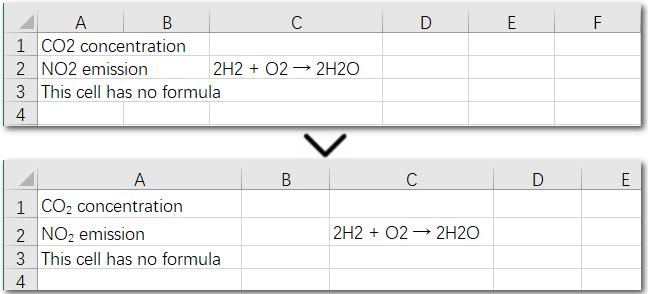
The above code helps us find and set the first matching character as a subscript in an existing cell. But what if the same character appears multiple times in the same cell? How can we apply subscripts to all of them at once? Let’s explore this in the next section.
Inserting Subscript in Excel: Handle Multiple Matches in a Single Cell
Using a search-and-apply method to set subscript formatting works well when there is only one instance in the cell that needs to be subscripted, such as in H₂. However, if the cell contains a chemical equation, the situation becomes more complex: there might be multiple places where subscripts are needed, along with normal numbers representing coefficients (e.g., 2H₂ + O₂ → 2H₂O). In this case, the solution is to set subscripts precisely by specifying the exact positions of the target characters in the text. Let’s take a look at the detailed steps.
Steps—Inserting multiple subscripts in Excel cells:
- Create a Workbook object and read an Excel file.
- Get a worksheet and a cell range.
- Read text in the cell range and set it to rich text using CellRange.getRichText().setText() method.
- Create a font by calling Workbook.createFont() method and configure it as subscript by setting ExcelFont.isSubscript() to true.
- Apply subscript to specific characters with CellRange.getRichText().setFont(index, index, subFont) method.
The following code demonstrates how to set subscripts for the necessary parts of the chemical equation “2H₂ + O₂ → 2H₂O” in cell C2:
import com.spire.xls.*;

public class SubscriptSpecificCell {

    public static void main(String[] args) {
        // Create a Workbook instance and load an Excel file
        Workbook workbook = new Workbook();
        workbook.loadFromFile(("/test.xlsx"));

        // Get the first worksheet
        Worksheet sheet = workbook.getWorksheets().get(0);

        // Get a cell range
        CellRange cell = sheet.getCellRange("C2");

        // Read text from C2
        String text = cell.getText();


        // Set text to RichText
        cell.getRichText().setText(text);

        // Create font object and set it as subscript
        ExcelFont subFont = workbook.createFont();
        subFont.isSubscript(true);

        // Set subscript for specific cell
        cell.getRichText().setFont(2, 2, subFont);
        cell.getRichText().setFont(7, 7, subFont);
        cell.getRichText().setFont(13, 13, subFont);

        // Auto fit columns
        sheet.getAllocatedRange().autoFitColumns();

        // Save the Excel file
        workbook.saveToFile("/SubscriptSpecificCell.xlsx", ExcelVersion.Version2016);
    }
}
Result Preview:
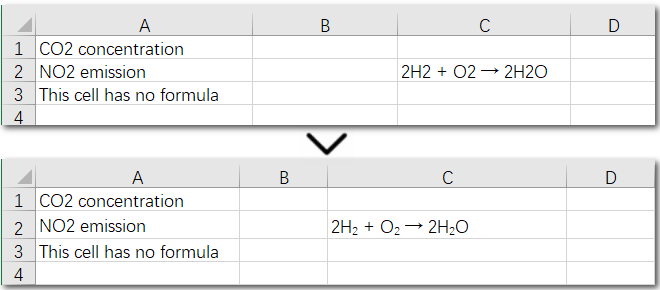
Conclusion
This guide provides a detailed explanation of how to set subscripts in Excel, whether you need to apply them to a single cell or a range of cells, and whether you’re formatting one instance or multiple occurrences. By the end of this page, inserting subscript in Excel will be a breeze for you. Give Spire.XLS a try and start creating professional Excel workbooks today!
How to Read Excel Files in Java (XLS/XLSX) – Complete Guide
2025-06-13 08:30:27 Written by Administrator
Reading Excel files using Java is a common requirement in enterprise applications, especially when dealing with reports, financial data, user records, or third-party integrations. Whether you're building a data import feature, performing spreadsheet analysis, or integrating Excel parsing into a web application, learning how to read Excel files in Java efficiently is essential.
In this tutorial, you’ll discover how to read .xls and .xlsx Excel files using Java. We’ll use practical Java code examples which also cover how to handle large files, read Excel files from InputStream, and extract specific content line by line.
Table of Contents
- 1. Set Up Your Java Project
- 2. How to Read XLSX and XLS Files in Java
- 3. Best Practices for Large Excel Files
- 4. Full Example: Java Program to Read Excel File
- 5. Summary
- 6. FAQ
1. Set Up Your Java Project
To read Excel files using Java, you need a library that supports spreadsheet file formats. Spire.XLS for Java offers support for both .xls (legacy) and .xlsx (modern XML-based) files and provides a high-level API that makes Excel file reading straightforward.
Add Spire.XLS to Your Project
If you're using Maven, add the following to your pom.xml:
<repositories>
    <repository>
        <id>com.e-iceblue</id>
        <name>e-iceblue</name>
        <url>https://repo.e-iceblue.com/nexus/content/groups/public/</url>
    </repository>
</repositories>
<dependencies>
    <dependency>
        <groupId>e-iceblue</groupId>
        <artifactId>spire.xls</artifactId>
        <version>16.8.4</version>
    </dependency>
</dependencies>
If you're not using Maven, you can manually download the JAR from the official Spire.XLS website and add it to your classpath.
For smaller Excel processing tasks, you can also choose Free Spire.XLS for Java.
2. How to Read XLSX and XLS Files in Java
Java programs can easily read Excel files by loading the workbook and iterating through worksheets, rows, and cells. The .xlsx format is commonly used in modern Excel, while .xls is its older binary counterpart. Fortunately, Spire.XLS supports both formats seamlessly with the same code.
Load and Read Excel File (XLSX or XLS)
Here’s a basic example that loads an Excel file and prints its content:
import com.spire.xls.*;

public class ReadExcel {
    public static void main(String[] args) {
        // Create a workbook object and load the Excel file
        Workbook workbook = new Workbook();
        workbook.loadFromFile("data.xlsx"); // or "data.xls"

        // Get the first worksheet
        Worksheet sheet = workbook.getWorksheets().get(0);
        // Loop through each used row and column
        for (int i = 1; i <= sheet.getLastRow(); i++) {
            for (int j = 1; j <= sheet.getLastColumn(); j++) {
                // Get cell text of a cell range
                String cellText = sheet.getCellRange(i, j).getValue();
                System.out.print(cellText + "\t");
            }
            System.out.println();
        }
    }
}
You can replace the file path with an .xls file and the code remains unchanged. This makes it simple to read Excel files using Java regardless of format.
The Excel file being read and the output result shown in the console.
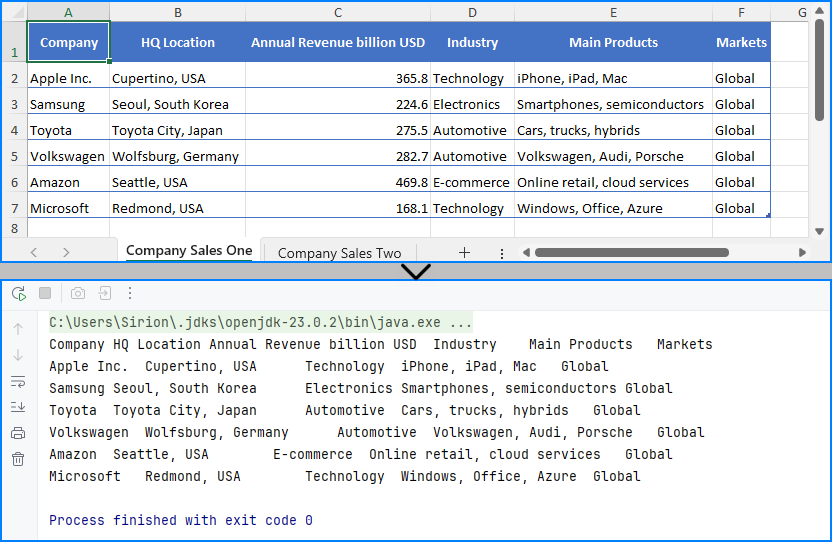
Read Excel File Line by Line with Row Objects
In scenarios like user input validation or applying business rules, processing each row as a data record is often more intuitive. In such cases, you can read the Excel file line by line using row objects via the getRows() method.
for (int i = 0; i < sheet.getRows().length; i++) {
    // Get a row
    CellRange row = sheet.getRows()[i];
    if (row != null && !row.isBlank()) {
        for (int j = 0; j < row.getColumns().length; j++) {
            String text = row.getColumns()[j].getText();
            System.out.print((text != null ? text : "") + "\t");
        }
        System.out.println();
    }
}
This technique works particularly well when reading Excel files in Java for batch operations or when you only need to process rows individually.
Read Excel File from InputStream
In web applications or cloud services, Excel files are often received as streams. Here’s how to read Excel files from an InputStream in Java:
import com.spire.xls.*;
import java.io.FileInputStream;
import java.io.FileNotFoundException;
import java.io.InputStream;

public class ReadExcel {
    public static void main(String[] args) throws FileNotFoundException {
        // Create a InputStream
        InputStream stream = new FileInputStream("data.xlsx");
        // Load the Excel file from the stream
        Workbook workbook = new Workbook();
        workbook.loadFromStream(stream);
        System.out.println("Load Excel file successfully.");
    }
}
This is useful when handling file uploads, email attachments, or reading Excel files stored in remote storage.
Read Excel Cell Values in Different Formats
Once you load an Excel file and get access to individual cells, Spire.XLS allows you to read the contents in various formats—formatted text, raw values, formulas, and more.
Here's a breakdown of what each method does:
CellRange cell = sheet.getRange().get(2, 1); // B2

// Formatted text (what user sees in Excel)
String text = cell.getText();

// Raw string value
String value = cell.getValue();

// Generic object (number, boolean, date, etc.)
Object rawValue = cell.getValue2();

// Formula (if exists)
String formula = cell.getFormula();

// Evaluated result of the formula
String result = cell.getEnvalutedValue();

// If it's a number cell
double number = cell.getNumberValue();

// If it's a date cell
java.util.Date date = cell.getDateTimeValue();

// If it's a boolean cell
boolean bool = cell.getBooleanValue();
Tip: Use getValue2() for flexible handling, as it returns the actual underlying object. Use getText() when you want to match Excel's visible content.
You May Also Like: How to Write Data into Excel Files in Java
3. Best Practices for Reading Large Excel Files in Java
When your Excel file contains tens of thousands of rows or multiple sheets, performance can become a concern. To ensure your Java application reads large Excel files efficiently:
- Load only required sheets
- Access only relevant columns or rows
- Avoid storing entire worksheets in memory
- Use row-by-row reading patterns
Here’s an efficient pattern for reading only non-empty rows:
for (int i = 1; i <= sheet.getRows().length; i++) {
    Row row = sheet.getRows()[i];
    if (row != null && !row.isBlank()) {
        // Process only rows with data
    }
}
Even though Spire.XLS handles memory efficiently, following these practices helps scale your Java Excel reading logic smoothly.
See also: Delete Blank Rows and Columns in Excel Using Java
4. Full Example: Java Program to Read Excel File
Here’s a full working Java example that reads an Excel file (users.xlsx) with extended columns such as name, email, age, department, and status. The code extracts only the original three columns (name, email, and age) and filters the output for users aged 30 or older.
import com.spire.xls.*;

public class ExcelReader {
    public static void main(String[] args) {
        Workbook workbook = new Workbook();
        workbook.loadFromFile("users.xlsx");

        Worksheet sheet = workbook.getWorksheets().get(0);
        System.out.println("Name\tEmail\tAge");

        for (int i = 2; i <= sheet.getLastRow(); i++) {
            String name = sheet.getCellRange(i, 1).getValue();
            String email = sheet.getCellRange(i, 2).getValue();
            String ageText = sheet.getCellRange(i, 3).getValue();

            int age = 0;
            try {
                age = Integer.parseInt(ageText);
            } catch (NumberFormatException e) {
                continue;  // Skip rows with invalid age data
            }

            if (age >= 30) {
                System.out.println(name + "\t" + email + "\t" + age);
            }
        }
    }
}
Result of Java program reading the Excel file and printing its contents. 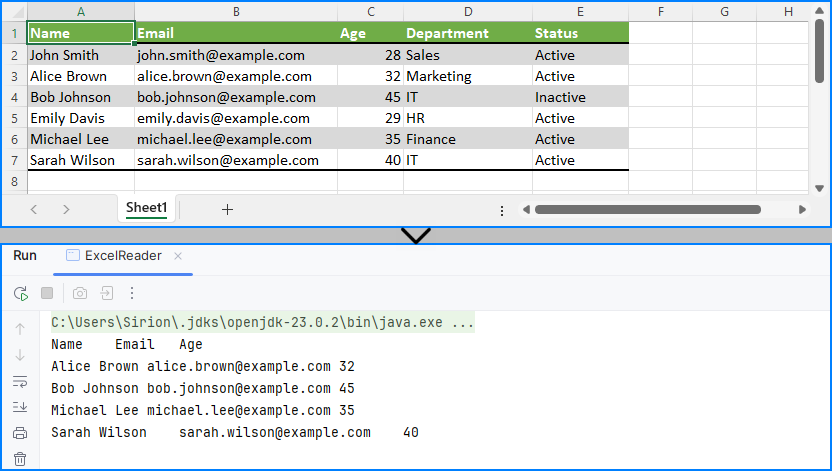
This code demonstrates how to read specific cells from an Excel file in Java and output meaningful tabular data, including applying filters on data such as age.
5. Summary
To summarize, this article showed you how to read Excel files in Java using Spire.XLS, including both .xls and .xlsx formats. You learned how to:
- Set up your Java project with Excel-reading capabilities
- Read Excel files using Java in row-by-row or stream-based fashion
- Handle legacy and modern Excel formats with the same API
- Apply best practices when working with large Excel files
Whether you're reading from an uploaded spreadsheet, a static report, or a stream-based file, the examples provided here will help you build robust Excel processing features in your Java applications.
If you want to unlock all limitations and experience the full power of Excel processing, you can apply for a free temporary license.
6. FAQ
Q1: How to read an Excel file dynamically in Java?
To read an Excel file dynamically in Java—especially when the number of rows or columns is unknown—you can use getLastRow() and getLastColumn() methods to determine the data range at runtime. This ensures that your program can adapt to various spreadsheet sizes without hardcoded limits.
Q2: How to extract data from Excel file in Java?
To extract data from Excel files in Java, load the workbook and iterate through the cells using nested loops. You can retrieve values with getCellRange(row, column).getValue(). Libraries like Spire.XLS simplify this process and support both .xls and .xlsx formats.
Q3: How to read a CSV Excel file in Java?
If your Excel data is saved as a CSV file, you can read it using Java’s BufferedReader or file streams. Alternatively, Spire.XLS supports CSV parsing directly—you can load a CSV file by specifying the separator, such as Workbook.loadFromFile("data.csv", ","). This lets you handle CSV files along with Excel formats using the same API.
Q4: How to read Excel file in Java using InputStream?
Reading Excel files from InputStream in Java is useful in server-side applications, such as handling file uploads. With Spire.XLS, simply call workbook.loadFromStream(inputStream) and process it as you would with any file-based Excel workbook.
A Slicer in Excel is an interactive filtering tool that simplifies data analysis in pivot tables and tables. Unlike traditional dropdown menus, slicers present intuitive, clickable buttons, each representing a distinct value in the dataset (e.g., regions, product categories, or dates). With slicers, users can filter datasets to focus on specific subsets with just a single click, making analysis faster and more visually intuitive. In this guide, we will explore how to create new slicers, update existing slicers, and remove slicers in Excel using Java and the Spire.XLS for Java library.
- Add Slicers to Tables in Excel
- Add Slicers to Pivot Tables in Excel
- Update Slicers in Excel
- Remove Slicers from Excel
Install Spire.XLS for Java
First of all, you're required to add the Spire.Xls.jar file as a dependency in your Java program. The JAR file can be downloaded from this link. If you use Maven, you can easily import the JAR file in your application by adding the following code to your project's pom.xml file.
<repositories>
    <repository>
        <id>com.e-iceblue</id>
        <name>e-iceblue</name>
        <url>https://repo.e-iceblue.com/nexus/content/groups/public/</url>
    </repository>
</repositories>
<dependencies>
    <dependency>
        <groupId>e-iceblue</groupId>
        <artifactId>spire.xls</artifactId>
        <version>16.8.4</version>
    </dependency>
</dependencies>
Add Slicers to Tables in Excel
Spire.XLS for Java provides the Worksheet.getSlicers().add(IListObject table, String destCellName, int index) method to add a slicer to a table in an Excel worksheet. The detailed steps are as follows.
- Create an object of the Workbook class.
- Get the first worksheet using the Workbook.getWorksheets.get(0) method.
- Add data to the worksheet using the Worksheet.getRange().get().setValue() and Worksheet.getRange().get().setNumberValue() methods.
- Add a table to the worksheet using the Worksheet.getIListObjects().create() method.
- Add a slicer to the table using the Worksheeet.getSlicers().add(IListObject table, String destCellName, int index) method.
- Save the resulting file using the Workbook.saveToFile() method.
- Java
import com.spire.xls.*;
import com.spire.xls.core.IListObject;
import com.spire.xls.core.spreadsheet.slicer.*;

public class AddSlicerToTable {
    public static void main(String[] args) {
        // Create an object of the Workbook class
        Workbook workbook = new Workbook();

        // Get the first worksheet
        Worksheet worksheet = workbook.getWorksheets().get(0);

        // Add data to the worksheet
        worksheet.getRange().get("A1").setValue("Fruit");
        worksheet.getRange().get("A2").setValue("Grape");
        worksheet.getRange().get("A3").setValue("Blueberry");
        worksheet.getRange().get("A4").setValue("Kiwi");
        worksheet.getRange().get("A5").setValue("Cherry");
        worksheet.getRange().get("A6").setValue("Grape");
        worksheet.getRange().get("A7").setValue("Blueberry");
        worksheet.getRange().get("A8").setValue("Kiwi");
        worksheet.getRange().get("A9").setValue("Cherry");

        worksheet.getRange().get("B1").setValue("Year");
        worksheet.getRange().get("B2").setNumberValue(2020);
        worksheet.getRange().get("B3").setNumberValue(2020);
        worksheet.getRange().get("B4").setNumberValue(2020);
        worksheet.getRange().get("B5").setNumberValue(2020);
        worksheet.getRange().get("B6").setNumberValue(2021);
        worksheet.getRange().get("B7").setNumberValue(2021);
        worksheet.getRange().get("B8").setNumberValue(2021);
        worksheet.getRange().get("B9").setNumberValue(2021);

        worksheet.getRange().get("C1").setValue("Sales");
        worksheet.getRange().get("C2").setNumberValue(50);
        worksheet.getRange().get("C3").setNumberValue(60);
        worksheet.getRange().get("C4").setNumberValue(70);
        worksheet.getRange().get("C5").setNumberValue(80);
        worksheet.getRange().get("C6").setNumberValue(90);
        worksheet.getRange().get("C7").setNumberValue(100);
        worksheet.getRange().get("C8").setNumberValue(110);
        worksheet.getRange().get("C9").setNumberValue(120);

        // Create a table from the specific data range
        IListObject table = worksheet.getListObjects().create("Fruit Sales", worksheet.getRange().get("A1:C9"));

        // Add a slicer to cell "A11" to filter the data based on the first column of the table
        XlsSlicerCollection slicers = worksheet.getSlicers();
        int index = slicers.add(table, "A11", 0);

        // Set name and style for the slicer
        XlsSlicer slicer = slicers.get(index);
        slicer.setName("Fruit");
        slicer.setStyleType(SlicerStyleType.SlicerStyleLight1);

        // Save the resulting file
        workbook.saveToFile("AddSlicerToTable.xlsx", ExcelVersion.Version2013);
        workbook.dispose();
    }
}
Add Slicers to Pivot Tables in Excel
Spire.XLS for Java also supports adding slicers to pivot tables using the Worksheet.getSlicers().add(IPivotTable pivot, String destCellName, int baseFieldIndex) method. The detailed steps are as follows.
- Create an object of the Workbook class.
- Get the first worksheet using the Workbook.getWorksheets.get(0) method.
- Add data to the worksheet using the Worksheet.getRange().get().setValue() and Worksheet.getRange().get().setNumberValue() methods.
- Create a pivot cache from the data using the Workbook.getPivotCaches().add() method.
- Create a pivot table from the pivot cache using the Worksheet.getPivotTables().add() method.
- Drag the pivot fields to the row, column, and data areas. Then calculate the data in the pivot table.
- Add a slicer to the pivot table using the Worksheet.getSlicers().add(IPivotTable pivot, String destCellName, int baseFieldIndex) method.
- Set the properties, such as the name, width, height, style, and cross filter type for the slicer.
- Calculate the data in the pivot table.
- Save the resulting file using the Workbook.saveToFile() method.
- Java
import com.spire.xls.*;
import com.spire.xls.core.IPivotField;
import com.spire.xls.core.IPivotTable;
import com.spire.xls.core.spreadsheet.slicer.*;

public class AddSlicerToPivotTable {
    public static void main(String[] args) {
        // Create an object of the Workbook class
        Workbook workbook = new Workbook();

        // Get the first worksheet
        Worksheet worksheet = workbook.getWorksheets().get(0);

        // Add data to the worksheet
        worksheet.getRange().get("A1").setValue("Fruit");
        worksheet.getRange().get("A2").setValue("Grape");
        worksheet.getRange().get("A3").setValue("Blueberry");
        worksheet.getRange().get("A4").setValue("Kiwi");
        worksheet.getRange().get("A5").setValue("Cherry");
        worksheet.getRange().get("A6").setValue("Grape");
        worksheet.getRange().get("A7").setValue("Blueberry");
        worksheet.getRange().get("A8").setValue("Kiwi");
        worksheet.getRange().get("A9").setValue("Cherry");

        worksheet.getRange().get("B1").setValue("Year");
        worksheet.getRange().get("B2").setNumberValue(2020);
        worksheet.getRange().get("B3").setNumberValue(2020);
        worksheet.getRange().get("B4").setNumberValue(2020);
        worksheet.getRange().get("B5").setNumberValue(2020);
        worksheet.getRange().get("B6").setNumberValue(2021);
        worksheet.getRange().get("B7").setNumberValue(2021);
        worksheet.getRange().get("B8").setNumberValue(2021);
        worksheet.getRange().get("B9").setNumberValue(2021);

        worksheet.getRange().get("C1").setValue("Sales");
        worksheet.getRange().get("C2").setNumberValue(50);
        worksheet.getRange().get("C3").setNumberValue(60);
        worksheet.getRange().get("C4").setNumberValue(70);
        worksheet.getRange().get("C5").setNumberValue(80);
        worksheet.getRange().get("C6").setNumberValue(90);
        worksheet.getRange().get("C7").setNumberValue(100);
        worksheet.getRange().get("C8").setNumberValue(110);
        worksheet.getRange().get("C9").setNumberValue(120);

        // Create a pivot cache from the specific data range
        CellRange dataRange = worksheet.getRange().get("A1:C9");
        PivotCache cache = workbook.getPivotCaches().add(dataRange);

        // Create a pivot table from the pivot cache
        PivotTable pt = worksheet.getPivotTables().add("Fruit Sales", worksheet.getRange().get("A12"), cache);

        // Drag the fields to the row and column areas
        IPivotField pf = pt.getPivotFields().get("Fruit");
        pf.setAxis(AxisTypes.Row);
        IPivotField pf2 = pt.getPivotFields().get("Year");
        pf2.setAxis(AxisTypes.Column);

        // Drag the field to the data area
        pt.getDataFields().add(pt.getPivotFields().get("Sales"), "Sum of Sales", SubtotalTypes.Sum);

        // Set style for the pivot table
        pt.setBuiltInStyle(PivotBuiltInStyles.PivotStyleMedium10);

        // Calculate the pivot table data
        pt.calculateData();

        // Add a Slicer to the pivot table
        XlsSlicerCollection slicers = worksheet.getSlicers();
        int index_1 = slicers.add(pt, "F12", 0);

        // Set the name, width, height, and style for the slicer
        XlsSlicer slicer = slicers.get(index_1);
        slicer.setName("Fruit");
        slicer.setWidth(100);
        slicer.setHeight(120);
        slicer.setStyleType(SlicerStyleType.SlicerStyleLight2);

        // Set the cross filter type for the slicer
        XlsSlicerCache slicerCache = (XlsSlicerCache)slicer.getSlicerCache();
        slicerCache.setCrossFilterType(SlicerCacheCrossFilterType.ShowItemsWithNoData);

        // Calculate the pivot table data again
        pt.calculateData();

        // Save the resulting file
        workbook.saveToFile("AddSlicerToPivotTable.xlsx", ExcelVersion.Version2013);
        workbook.dispose();
    }
}

Update Slicers in Excel
The XlsSlicer class in Spire.XLS for Java provides methods for modifying slicer attributes such as name, caption, style, and cross filter type. The detailed steps are as follows.
- Create an object of the Workbook class.
- Load an Excel file using the Workbook.loadFromFile() method.
- Get a specific worksheet by its index using the Workbook.getWorksheets().get() method.
- Get a specific slicer from the worksheet by its index using the Worksheet.getSlicers().get(index) property.
- Update the properties of the slicer, such as its style, name, caption, and cross filter type using the appropriate methods of the XlsSlicer class.
- Save the resulting file using the Workbook.saveToFile() method.
- Java
import com.spire.xls.ExcelVersion;
import com.spire.xls.Workbook;
import com.spire.xls.Worksheet;
import com.spire.xls.core.spreadsheet.slicer.*;

public class UpdateSlicer {
    public static void main(String[] args) {
        // Create an object of the Workbook class
        Workbook workbook = new Workbook();

        // Load an Excel file
        workbook.loadFromFile("AddSlicerToTable.xlsx");

        // Get the first worksheet
        Worksheet worksheet = workbook.getWorksheets().get(0);

        // Get the first slicer in the worksheet
        XlsSlicer slicer = worksheet.getSlicers().get(0);

        // Change the style, name, and caption for the slicer
        slicer.setStyleType(SlicerStyleType.SlicerStyleDark4);
        slicer.setName("Slicer");
        slicer.setCaption("Slicer");

        // Change the cross filter type for the slicer
        XlsSlicerCache slicerCache = slicer.getSlicerCache();
        slicerCache.setCrossFilterType(SlicerCacheCrossFilterType.ShowItemsWithDataAtTop);

        // Deselect an item in the slicer
        XlsSlicerCacheItemCollection slicerCacheItems = slicerCache.getSlicerCacheItems();
        XlsSlicerCacheItem xlsSlicerCacheItem = slicerCacheItems.get(0);
        xlsSlicerCacheItem.isSelected(false);

        // Save the resulting file
        workbook.saveToFile("UpdateSlicer.xlsx", ExcelVersion.Version2013);
        workbook.dispose();
    }
}
Remove Slicers from Excel
Developers can remove a specific slicer from an Excel worksheet using the Worksheet.getSlicers().removeAt() method, or remove all slicers at once using the Worksheet.getSlicers().clear() method. The detailed steps are as follows.
- Create an object of the Workbook class.
- Load an Excel file using the Workbook.loadFromFile() method.
- Get a specific worksheet by its index using the Workbook.getWorksheets().get() method.
- Remove a specific slicer from the worksheet by its index using the Worksheet.getSlicers().removeAt() method. Or remove all slicers from the worksheet using the Worksheet.getSlicers().clear() method.
- Save the resulting file using the Workbook.saveToFile() method.
- Java
import com.spire.xls.ExcelVersion;
import com.spire.xls.Workbook;
import com.spire.xls.Worksheet;

public class RemoveSlicer {
    public static void main(String[] args) {
        // Create an object of the Workbook class
        Workbook workbook = new Workbook();

        // Load an Excel file
        workbook.loadFromFile("AddSlicerToTable.xlsx");

        // Get the first worksheet
        Worksheet worksheet = workbook.getWorksheets().get(0);

        // Remove the first slicer by index
        worksheet.getSlicers().removeAt(0);

        // Alternatively, remove all slicers
        // worksheet.getSlicers().clear();

        // Save the resulting file
        workbook.saveToFile("RemoveSlicer.xlsx", ExcelVersion.Version2013);
        workbook.dispose();
    }
}
Get a Free License
To fully experience the capabilities of Spire.XLS for Java without any evaluation limitations, you can request a free 30-day trial license.
In today's digital age, Excel documents have become essential tools for businesses, individuals, and organizations to manage data, analyze information, and share reports. However, manually editing Excel documents is not only time-consuming but also prone to errors. Fortunately, with the Spire.XLS library in Java, you can easily automate these tasks, improving efficiency and reducing mistakes.
This article will provide a comprehensive guide on how to use Spire.XLS for Java to edit Excel documents in Java, helping you master this powerful skill.
- Read and Write Excel Files in Java
- Apply Formatting to Excel Cells in Java
- Find and Replace Text in Excel in Java
- Add Formulas and Charts to Excel in Java
Install Spire.XLS for Java
First of all, you're required to add the Spire.Xls.jar file as a dependency in your Java program. The JAR file can be downloaded from this link. If you use Maven, you can easily import the JAR file in your application by adding the following code to your project's pom.xml file.
<repositories>
    <repository>
        <id>com.e-iceblue</id>
        <name>e-iceblue</name>
        <url>https://repo.e-iceblue.com/nexus/content/groups/public/</url>
    </repository>
</repositories>
<dependencies>
    <dependency>
        <groupId>e-iceblue</groupId>
        <artifactId>spire.xls</artifactId>
        <version>16.8.4</version>
    </dependency>
</dependencies>
Read and Write Excel Files in Java
One of the most common tasks when working with Excel files in Java is reading and writing data. Spire.XLS for Java simplifies this process with the CellRange.getValue() and CellRange.setValue() methods, allowing developers to easily retrieve and assign values to individual cells.
To read and write an Excel file using Java, follow these steps:
- Create a Workbook object.
- Load an Excel file from the specified file path.
- Access a specific worksheet using the Workbook.getWorksheets().get() method.
- Retrieve a specific cell using the Worksheet.getCellRange() method.
- Get the cell value with CellRange.getValue() and update it using CellRange.setValue().
- Save the workbook to a new Excel file.
- Java
import com.spire.xls.CellRange;
import com.spire.xls.ExcelVersion;
import com.spire.xls.Workbook;
import com.spire.xls.Worksheet;

public class ReadAndWriteExcel {

    public static void main(String[] args) {

        // Create a Workbook object
        Workbook workbook = new Workbook();

        // Load an Excel file
        workbook.loadFromFile("C:\\Users\\Administrator\\Desktop\\Input.xlsx");

        // Get a specific worksheet
        Worksheet worksheet = workbook.getWorksheets().get(0);

        // Get a specific cell
        CellRange cell = worksheet.getCellRange("A1");

        // Read the cell value
        String text = cell.getValue();

        // Determine if the cell value is "Department"
        if (text.equals("Department"))
        {
            // Update the cell value
            cell.setValue ("Dept.");
        }

        // Save the workbook to a different
        workbook.saveToFile("ModifyExcel.xlsx", ExcelVersion.Version2016);

        // Dispose resources
        workbook.dispose();
    }
}
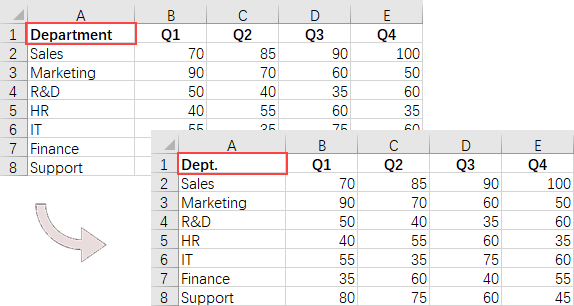
Apply Formatting to Excel Cells in Java
Formatting Excel documents is essential for creating professional-looking reports. Spire.XLS for Java provides a range of APIs within the CellRange class to manage font styles, colors, cell backgrounds, and alignments, as well as to adjust row heights and column widths.
To apply styles and formats to Excel cells, follow these steps:
- Create a Workbook object.
- Load an Excel file from the specified file path.
- Access a specific worksheet using the Workbook.getWorksheets().get() method.
- Retrieve the allocated range of cells using the Worksheet.getAllocatedRange() method.
- Select a specific row using CellRange.getRows()[rowIndex], and customize the cell background color, text color, text alignment, and row height using methods from the CellRange object.
- Choose a specific column with CellRange.getColumns()[columnIndex], and set the column width using the setColumnWidth() method from the CellRange object.
- Save the workbook to a new Excel file.
- Java
import com.spire.xls.*;

import java.awt.*;

public class ApplyFormatting {

    public static void main(String[] args) {

        // Create a Workbook object
        Workbook workbook = new Workbook();

        // Load an Excel file
        workbook.loadFromFile("C:\\Users\\Administrator\\Desktop\\Input.xlsx");

        // Get a specific worksheet
        Worksheet worksheet = workbook.getWorksheets().get(0);

        // Get all located range from the worksheet
        CellRange allocatedRange = worksheet.getAllocatedRange();

        // Iterate through the rows
        for (int rowNum = 0; rowNum < allocatedRange.getRowCount(); rowNum++) {
            if (rowNum == 0) {

                // Apply cell color to the header row
                allocatedRange.getRows()[rowNum].getStyle().setColor(Color.black);

                // Change the font color of the header row
                allocatedRange.getRows()[rowNum].getStyle().getFont().setColor(Color.white);
            }

            // Apply alternate colors to other rows
            else if (rowNum % 2 == 1) {
                allocatedRange.getRows()[rowNum].getStyle().setColor(Color.lightGray);
            } else if (rowNum % 2 == 0) {
                allocatedRange.getRows()[rowNum].getStyle().setColor(Color.white);
            }

            // Align text to center
            allocatedRange.getRows()[rowNum].setHorizontalAlignment(HorizontalAlignType.Center);
            allocatedRange.getRows()[rowNum].setVerticalAlignment(VerticalAlignType.Center);

            // Set the row height
            allocatedRange.getRows()[rowNum].setRowHeight(20);
        }

        // Iterate through the columns
        for (int columnNum = 0; columnNum < allocatedRange.getColumnCount(); columnNum++) {

            // Set the column width
            if (columnNum > 0) {
                allocatedRange.getColumns()[columnNum].setColumnWidth(10);
            }
        }

        // Save the workbook to a different
        workbook.saveToFile("FormatExcel.xlsx", ExcelVersion.Version2016);

        // Dispose resources
        workbook.dispose();
    }
}
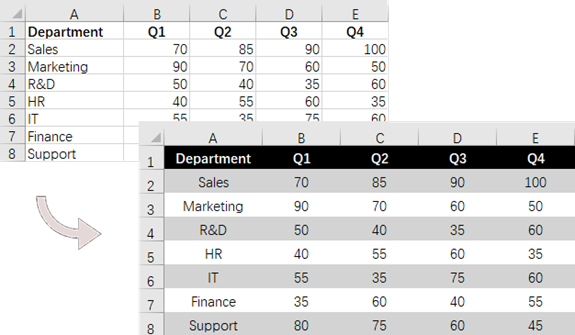
Find and Replace Text in Excel in Java
The find and replace feature streamlines data management and enhances productivity by simplifying updates and corrections. With Spire.XLS for Java, you can quickly locate a cell containing a specific string using the Worksheet.findString() method and replace its value with the CellRange.setValue() method.
To find and replace text in Excel using Java, follow these steps:
- Create a Workbook object.
- Load an Excel file from the specified file path.
- Access a specific worksheet using the Workbook.getWorksheets().get() method.
- Locate the cell containing the specified string with Worksheet.findString().
- Update the cell's value using the CellRange.setValue() method.
- Save the workbook to a different Excel file.
- Java
import com.spire.xls.CellRange;
import com.spire.xls.ExcelVersion;
import com.spire.xls.Workbook;
import com.spire.xls.Worksheet;

public class FindAndReplace {

    public static void main(String[] args) {

        // Create a Workbook object
        Workbook workbook = new Workbook();

        // Load an Excel file
        workbook.loadFromFile("C:\\Users\\Administrator\\Desktop\\Input4.xlsx");

        // Get a specific worksheet
        Worksheet worksheet = workbook.getWorksheets().get(0);

        // Define an array of department names for replacement
        String[] departments = new String[] { "Sales", "Marketing", "R&D", "HR", "IT", "Finance", "Support" };

        // Define an array of placeholders that will be replaced in the Excel sheet
        String[] placeholders = new String[] { "#dept_one", "#dept_two", "#dept_three", "#dept_four", "#dept_five", "#dept_six", "#dept_seven" };

        // Iterate through the placeholder strings
        for (int i = 0; i < placeholders.length; i++)
        {
            // Find the cell containing the current placeholder string
            CellRange cell = worksheet.findString(placeholders[i], false, false);

            // Replace the text in the found cell with the corresponding department name
            cell.setValue(departments[i]);
        }

        // Save the workbook to a different
        workbook.saveToFile("ReplaceText.xlsx", ExcelVersion.Version2016);

        // Dispose resources
        workbook.dispose();
    }
}

Add Formulas and Charts to Excel in Java
Besides basic file operations, Spire.XLS for Java offers a range of advanced techniques for working with Excel files. These methods allow you to automate complex tasks, perform calculations, and create dynamic reports.
To add formulas and create a chart in Excel using Java, follow these steps:
- Create a Workbook object.
- Load an Excel file from the specified file path.
- Access a specific worksheet using the Workbook.getWorksheets().get() method.
- Select a specific cell with the Worksheet.getRange().get() method.
- Insert a formula into the cell using the CellRange.setFormula() method.
- Add a column chart to the worksheet with the Worksheet.getCharts().add() method.
- Configure the chart's data range, position, title, and other attributes using methods from the Chart object.
- Save the workbook to a different Excel file.
- Java
import com.spire.xls.*;

public class AddFormulaAndChart {

    public static void main(String[] args) {

        // Create a Workbook object
        Workbook workbook = new Workbook();

        // Load an Excel file
        workbook.loadFromFile("C:\\Users\\Administrator\\Desktop\\Input.xlsx");

        // Get a specific worksheet
        Worksheet worksheet = workbook.getWorksheets().get(0);

        // Get all located range
        CellRange allocatedRange = worksheet.getAllocatedRange();

        // Iterate through the rows
        for (int rowNum = 0; rowNum < allocatedRange.getRowCount(); rowNum++) {
            if (rowNum == 0) {
                // Write text in cell G1
                worksheet.getRange().get(rowNum + 1, 6).setText("Total");

                // Apply style to the cell
                worksheet.getRange().get(rowNum + 1, 6).getStyle().getFont().isBold(true);
                worksheet.getRange().get(rowNum + 1, 6).getStyle().setHorizontalAlignment(HorizontalAlignType.Right);
            } else {
                // Add formulas to the cells from G2 to G8
                worksheet.getRange().get(rowNum + 1, 6).setFormula("=SUM(B" + (rowNum + 1) + ":E" + (rowNum + 1) + ")");
            }

        }

        // Add a clustered column chart
        Chart chart = worksheet.getCharts().add(ExcelChartType.ColumnClustered);

        // Set data range for the chart
        chart.setDataRange(worksheet.getCellRange("A1:E8"));
        chart.setSeriesDataFromRange(false);

        // Set position of the chart
        chart.setLeftColumn(1);
        chart.setTopRow(10);
        chart.setRightColumn(8);
        chart.setBottomRow(23);

        // Set and format chart title
        chart.setChartTitle("Sales by Department per Quarter");
        chart.getChartTitleArea().setSize(13);
        chart.getChartTitleArea().isBold(true);

        // Save the workbook to a different
        workbook.saveToFile("AddFormulaAndChart.xlsx", ExcelVersion.Version2016);

        // Dispose resources
        workbook.dispose();
    }
}

Apply for a Temporary License
If you'd like to remove the evaluation message from the generated documents, or to get rid of the function limitations, please request a 30-day trial license for yourself.
