
Java (485)
Column charts, also known as bar charts, provide a visual comparison of data points across different categories. Whether you're summarizing sales figures, tracking project milestones, or visualizing survey results, column charts in Word provide a powerful way to translate complex data into an accessible, engaging format within your written materials.
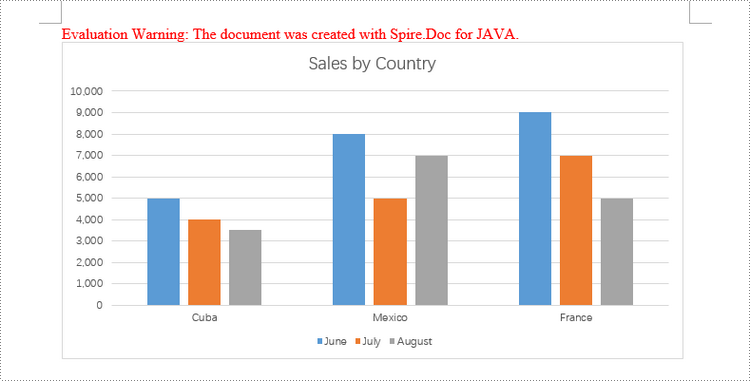
In this article, you will learn how to create a clustered column chart and a stacked column chart in a Word document using Spire.Doc for Java.
Install Spire.Doc for Java
First of all, you're required to add the Spire.Doc.jar file as a dependency in your Java program. The JAR file can be downloaded from this link. If you use Maven, you can easily import the JAR file in your application by adding the following code to your project's pom.xml file.
<repositories>
    <repository>
        <id>com.e-iceblue</id>
        <name>e-iceblue</name>
        <url>https://repo.e-iceblue.com/nexus/content/groups/public/</url>
    </repository>
</repositories>
<dependencies>
    <dependency>
        <groupId>e-iceblue</groupId>
        <artifactId>spire.doc</artifactId>
        <version>14.8.4</version>
    </dependency>
</dependencies>
Create a Clustered Column Chart in Word in Java
To insert a chart into a Microsoft Word document, you can use the Paragraph.appendChart(ChartType chartType, float width, float height) method. The ChartType enumeration provides various pre-defined chart types available in MS Word. To create a clustered column chart, you would specify the chart type as Column.
The steps to add a clustered column chart to a Word document using Java are as follows:
- Create a Document object.
- Add a section and a paragraph to the document.
- Add a clustered column chart to the paragraph using Paragraph.appendChart() method.
- Add series to the chart using Chart.getSeries().add() method.
- Set the chart title using Chart.getTilte().setText() method.
- Set other attributes of the chart using the methods available in the Chart object.
- Save the document to a different Word file.
- Java
import com.spire.doc.Document;
import com.spire.doc.FileFormat;
import com.spire.doc.Section;
import com.spire.doc.documents.Paragraph;
import com.spire.doc.fields.ShapeObject;
import com.spire.doc.fields.shapes.charts.*;

public class CreateClusteredColumnChart {

    public static void main(String[] args) {

        // Create a Document object
        Document document = new Document();

        // Add a section
        Section section = document.addSection();

        // Add a paragraph
        Paragraph paragraph = section.addParagraph();

        // Add a column chart
        ShapeObject shape = paragraph.appendChart(ChartType.Column, 490, 250);

        // Get the chart
        Chart chart = shape.getChart();

        // Clear the default data
        chart.getSeries().clear();

        // Add a series including series name, category names, and series values to chart
        chart.getSeries().add("June",
                new String[] { "Cuba", "Mexico", "France"},
                new double[] { 5000, 8000, 9000 });

        // Add two more series
        chart.getSeries().add("July",
                new String[] { "Cuba", "Mexico", "France"},
                new double[] { 4000, 5000, 7000 });
        chart.getSeries().add("August",
                new String[] { "Cuba", "Mexico", "France"},
                new double[] { 3500, 7000, 5000 });

        // Set the chart title
        chart.getTitle().setText("Sales by Country");

        // Set the number format of the Y-axis
        chart.getAxisY().getNumberFormat().setFormatCode("#,##0");

        // Set the legend position
        chart.getLegend().setPosition(LegendPosition.Bottom);

        // Save to file
        document.saveToFile("ClusteredColumnChart.docx", FileFormat.Docx_2019);

        // Dispose resources
        document.dispose();
    }
}
Create a Stacked Column Chart in Word in Java
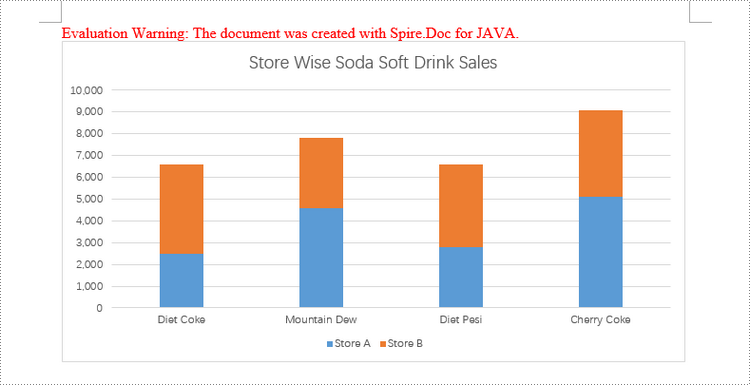
Creating a stacked column chart in a Word document follows a similar process to the clustered column chart. The only difference is specifying the chart type as Column_Stacked instead of Column.
The detailed steps to add a stacked column chart are:
- Create a Document object.
- Add a section and a paragraph to the document.
- Add a stacked column chart to the paragraph using Paragraph.appendChart() method.
- Add series to the chart using Chart.getSeries().add() method.
- Set the chart title using Chart.getTilte().setText() method.
- Set other attributes of the chart using the methods available in the Chart object.
- Save the document to a different Word file.
- Java
import com.spire.doc.Document;
import com.spire.doc.FileFormat;
import com.spire.doc.Section;
import com.spire.doc.documents.Paragraph;
import com.spire.doc.fields.ShapeObject;
import com.spire.doc.fields.shapes.charts.Chart;
import com.spire.doc.fields.shapes.charts.ChartType;
import com.spire.doc.fields.shapes.charts.LegendPosition;

public class CreateStackedColumnChart {

    public static void main(String[] args) {

        //Create a Document object
        Document document = new Document();

        //Add a section
        Section section = document.addSection();

        //Add a paragraph
        Paragraph paragraph = section.addParagraph();

        //Add a stacked column chart
        ShapeObject shape = paragraph.appendChart(ChartType.Column_Stacked, 490, 250);

        //Get the chart
        Chart chart = shape.getChart();

        //Clear the default data
        chart.getSeries().clear();

        //Add a series including series name, category names, and series values to chart
        chart.getSeries().add("Store A",
                new String[] { "Diet Coke", "Mountain Dew", "Diet Pesi", "Cherry Coke" },
                new double[] { 2500, 4600, 2800, 5100 });

        //Add another series
        chart.getSeries().add("Store B",
                new String[] { "Diet Coke", "Mountain Dew", "Diet Pesi", "Cherry Coke" },
                new double[] { 4100, 3200, 3800, 4000 });

        //Set the chart title
        chart.getTitle().setText("Store Wise Soda Soft Drink Sales");

        //Set the number format of the Y-axis
        chart.getAxisY().getNumberFormat().setFormatCode("#,##0");

        //Set the legend position
        chart.getLegend().setPosition(LegendPosition.Bottom);

        //Save to file
        document.saveToFile("StackedColumnChart.docx", FileFormat.Docx_2019);

        // Dispose resources
        document.dispose();
    }
}
Apply for a Temporary License
If you'd like to remove the evaluation message from the generated documents, or to get rid of the function limitations, please request a 30-day trial license for yourself.
Editing a Word document is a common task that many people encounter in their daily lives, whether it's for work, school, or personal projects. From correcting spelling and grammar errors to rearranging content and formatting the document, the ability to edit a Word document efficiently is a valuable skill.
In this article, you will learn how to programmatically edit or modify a Word document using Spire.Doc for Java.
- Modify Text in a Word Document
- Change Formatting of Text in a Word Document
- Add New Elements to a Word Document
- Remove Paragraphs from a Word Document
Install Spire.Doc for Java
First of all, you're required to add the Spire.Doc.jar file as a dependency in your Java program. The JAR file can be downloaded from this link. If you use Maven, you can easily import the JAR file in your application by adding the following code to your project's pom.xml file.
<repositories>
    <repository>
        <id>com.e-iceblue</id>
        <name>e-iceblue</name>
        <url>https://repo.e-iceblue.com/nexus/content/groups/public/</url>
    </repository>
</repositories>
<dependencies>
    <dependency>
        <groupId>e-iceblue</groupId>
        <artifactId>spire.doc</artifactId>
        <version>14.8.4</version>
    </dependency>
</dependencies>
Modify Text in a Word Document in Java
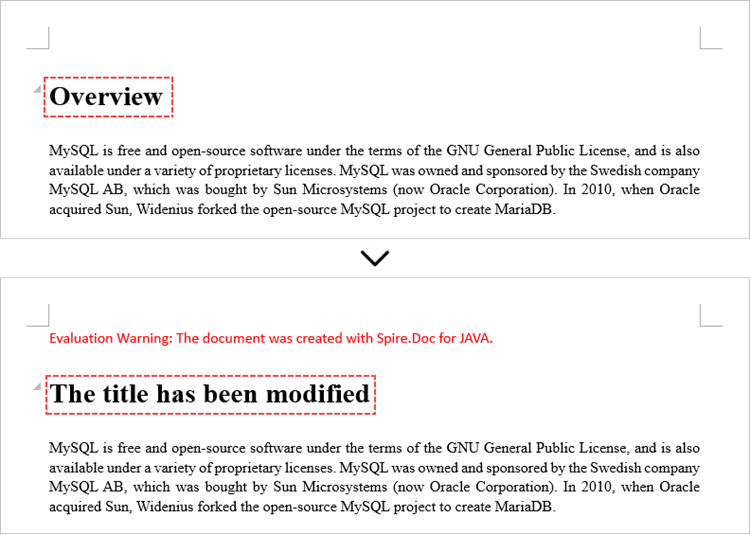
To retrieve the paragraph from a particular section, you can use the Section.getParagraphs().get() method. Once you have the target paragraph, you can then update its text content by calling the Paragraph.setText() method and passing in the new text you want to assign.
The following are the steps modify text in a Word document using Java:
- Create a Document object.
- Load a Word file from the given file path.
- Get a specific section using Document.getSections().get() method.
- Get a specific paragraph using Section.getParagraphs().get() method.
- Reset the text of the paragraph using Paragraph.setText() method.
- Save the updated document to a different Word file.
- Java
import com.spire.doc.Document;
import com.spire.doc.FileFormat;
import com.spire.doc.Section;
import com.spire.doc.documents.Paragraph;

public class ModifyText {

    public static void main(String[] args) {

        // Create a new document object
        Document document = new Document();

        // Load an existing Word file
        document.loadFromFile("C:\\Users\\Administrator\\Desktop\\input.docx");

        // Get a specific section
        Section section = document.getSections().get(0);

        // Get a specific paragraph
        Paragraph paragraph = section.getParagraphs().get(0);

        // Modify the text of the paragraph
        paragraph.setText("The title has been modified");

        // Save the document to a different Word file
        document.saveToFile("ModifyText.docx", FileFormat.Docx);

        // Dispose resource
        document.dispose();
    }
}
Change Formatting of Text in a Word Document in Java
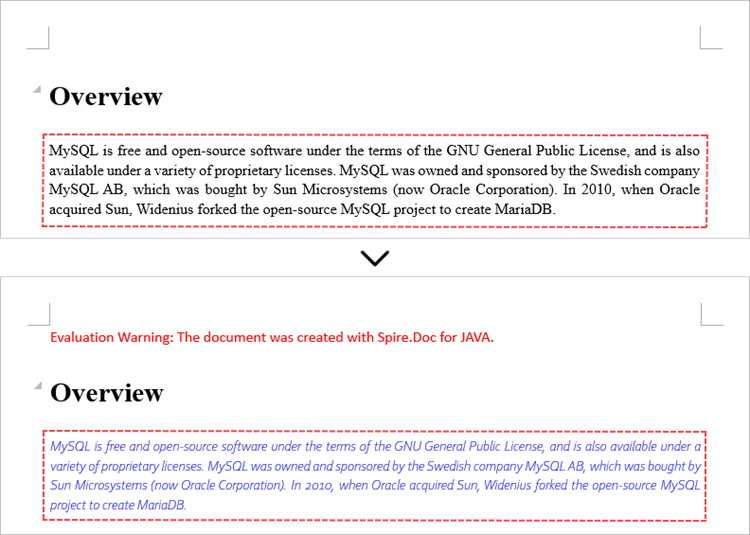
To modify the formatting of specific text within a paragraph, you first need to access the target paragraph object. Once you have the paragraph, you can then iterate through its child elements to locate the individual text ranges.
For each text range found, you can update the formatting by using the methods under the CharacterFormat object. This allows you to set properties like font name, size, color, and other text-level formatting options for the selected text.
The steps to change text formatting in a Word document are as follows:
- Create a Document object.
- Load a Word file from the given file path.
- Get a specific section using Document.getSections().get() method.
- Get a specific paragraph using Section.getParagraphs().get() method.
- Iterate through the child objects in the paragraph.
- Determine if a child object is a text range.
- Get a specific text range.
- Reset the text formatting using the methods under the CharacterFormat object.
- Save the updated document to a different Word file.
- Java
import com.spire.doc.Document;
import com.spire.doc.FileFormat;
import com.spire.doc.Section;
import com.spire.doc.documents.Paragraph;
import com.spire.doc.fields.TextRange;

import java.awt.*;

public class ChangeTextFormatting {

    public static void main(String[] args) {

        // Create a new document object
        Document document = new Document();

        // Load an existing Word file
        document.loadFromFile("C:\\Users\\Administrator\\Desktop\\input.docx");

        // Get a specific section
        Section section = document.getSections().get(0);

        // Get a specific paragraph
        Paragraph paragraph = section.getParagraphs().get(1);

        // Iterate through the child objects in the paragraph
        for (int i = 0; i < paragraph.getChildObjects().getCount(); i++)
        {
            // Determine if a child object is text range
            if (paragraph.getChildObjects().get(i) instanceof TextRange)
            {
                // Get a specific text range
                TextRange textRange = (TextRange)paragraph.getChildObjects().get(i);

                // Reset font name for it
                textRange.getCharacterFormat().setFontName("Corbel Light");

                // Reset font size for it
                textRange.getCharacterFormat().setFontSize(11);

                // Reset text color for it
                textRange.getCharacterFormat().setTextColor(Color.blue);

                // Apply italic to the text range
                textRange.getCharacterFormat().setItalic(true);
            }
        }

        // Save the document to a different Word file
        document.saveToFile("ChangeFont.docx", FileFormat.Docx);

        // Dispose resource
        document.dispose();
    }
}
Add New Elements to a Word Document in Java
When working with Word documents, the paragraph serves as the foundational unit for incorporating diverse elements like text, images, lists, and charts. To introduce a new paragraph within a specific section, you can leverage the Section.addParagraph() method.
Once the paragraph has been added, you can then proceed to add various other elements to it by utilizing the methods available within the Paragraph object.
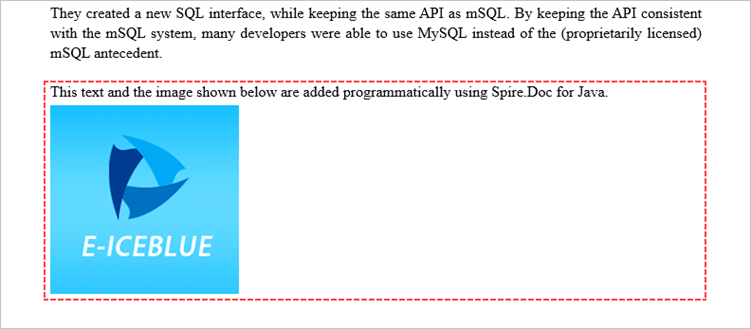
The following are the steps to add new elements (text and images) to a Word document using Java:
- Create a Document object.
- Load a Word file from the given file path.
- Get a specific section using Document.getSections() method.
- Add a paragraph to the section using Section.addParagraph() method.
- Add text to the paragraph using Paragraph.appendText() method.
- Add an image to the paragraph using Paragraph.appendPicture() method.
- Save the updated document to a different Word file.
- Java
import com.spire.doc.Document;
import com.spire.doc.FileFormat;
import com.spire.doc.Section;
import com.spire.doc.documents.Paragraph;
import com.spire.doc.documents.ParagraphStyle;

public class AddNewElements {

    public static void main(String[] args) {

        // Create a new document object
        Document document = new Document();

        // Load an existing Word file
        document.loadFromFile("C:\\Users\\Administrator\\Desktop\\input.docx");

        // Get the last section
        Section lastSection = document.getLastSection();

        // Add a paragraph to the section
        Paragraph paragraph = lastSection.addParagraph();

        // Add text to the paragraph
        paragraph.appendText("This text and the image shown below are added programmatically using Spire.Doc for Java.");

        // Add an image to the paragraph
        paragraph.appendPicture("C:\\Users\\Administrator\\Desktop\\logo.png");

        // Create a paragraph style
        ParagraphStyle style = new ParagraphStyle(document);
        style.setName("FontStyle");
        style.getCharacterFormat().setFontName("Times New Roman");
        style.getCharacterFormat().setFontSize(12);
        document.getStyles().add(style);

        // Apply the style to the paragraph
        paragraph.applyStyle(style.getName());

        // Save the document to a different Word file
        document.saveToFile("AddNewElements.docx", FileFormat.Docx);

        // Dispose resource
        document.dispose();
    }
}
Remove Paragraphs from a Word Document in Java
To remove a specific paragraph from the collection of paragraphs within a document, you can call the ParagraphCollection.removeAt() method. This method takes the index of the paragraph you wish to remove as an argument, allowing you to selectively delete the desired paragraph from the document.
The steps to remove paragraphs from a Word document using Java are as follows:
- Create a Document object.
- Load a Word file from the given file path.
- Get a specific section using Document.getSections().get() method.
- Remove a specific paragraph from the section using ParagraphCollection.removeAt() method.
- Save the updated document to a different Word file.
- Java
import com.spire.doc.Document;
import com.spire.doc.FileFormat;
import com.spire.doc.Section;

public class RemoveParagraph {

    public static void main(String[] args) {

        // Create a new document object
        Document document = new Document();

        // Load an existing Word file
        document.loadFromFile("C:\\Users\\Administrator\\Desktop\\input.docx");

        // Get a specific section
        Section section = document.getSections().get(0);

        // Remove a specific paragraph
        section.getParagraphs().removeAt(0);

        // Save the document to a different Word file
        document.saveToFile("RemoveParagraph.docx", FileFormat.Docx);

        // Dispose resource
        document.dispose();
    }
}
Apply for a Temporary License
If you'd like to remove the evaluation message from the generated documents, or to get rid of the function limitations, please request a 30-day trial license for yourself.
Page borders can be a useful design element in Microsoft Word documents. They can help to frame the content and provide a polished, professional. Page borders draw the reader's eye to the main content area and create a sense of structure and cohesion. Conversely, you may want to remove page borders if they are not needed or if they distract from the content.
In this article, you will learn how to add, adjust, and remove page borders in a Word document using Java and Spire.Doc for Java.
- Add Page Borders to a Word Document
- Adjust Page Borders in a Word Document
- Remove Page Borders from a Word Document
Install Spire.Doc for Java
First of all, you're required to add the Spire.Doc.jar file as a dependency in your Java program. The JAR file can be downloaded from this link. If you use Maven, you can easily import the JAR file in your application by adding the following code to your project's pom.xml file.
<repositories>
    <repository>
        <id>com.e-iceblue</id>
        <name>e-iceblue</name>
        <url>https://repo.e-iceblue.com/nexus/content/groups/public/</url>
    </repository>
</repositories>
<dependencies>
    <dependency>
        <groupId>e-iceblue</groupId>
        <artifactId>spire.doc</artifactId>
        <version>14.8.4</version>
    </dependency>
</dependencies>
Add Page Borders to a Word Document in Java
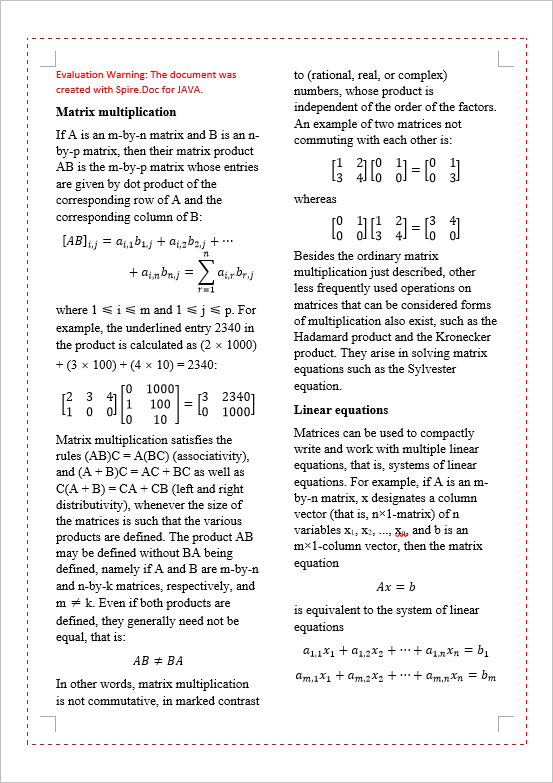
Spire.Doc for Java includes the Borders class, which enables developers to manage the page borders in a Word document. This class provides a collection of methods that allow you to control various aspects of the page border, such as the border type, color, and line width.
To add borders to all pages in a Word document using Java, the general steps are as follows:
- Create a Document object.
- Load a Word file from the given file path.
- Iterate through the sections in the document.
- Get a specific section.
- Get the PageSetup object of the section.
- Apply borders to all page by passing PageBordersApplyType.All_Pages as the parameter of PageSetup.setPageBordersApplyType() method.
- Get the Borders object using PageSetup.getBorders() method.
- Set the border type, color, line width and other attributes using the methods under the Borders object.
- Save the updated document to a different Word file.
- Java
import com.spire.doc.*;
import com.spire.doc.documents.BorderStyle;

import java.awt.*;

public class AddPageBorder {

    public static void main(String[] args) {

        // Create a Document object
        Document doc = new Document();

        // Load a Word file
        doc.loadFromFile("C:\\Users\\Administrator\\Desktop\\Input.docx");

        // Iterate through the sections in the document
        for (int i = 0; i < doc.getSections().getCount(); i++)
        {
            // Get a specific section
            Section section = doc.getSections().get(i);

            // Get page setup object
            PageSetup pageSetup = section.getPageSetup();

            // Apply page border to all pages
            pageSetup.setPageBordersApplyType(PageBordersApplyType.All_Pages);

            // Set the border type
            pageSetup.getBorders().setBorderType(BorderStyle.Dash_Large_Gap);

            // Set the border width
            pageSetup.getBorders().setLineWidth(2);

            // Set the border color
            pageSetup.getBorders().setColor(Color.RED);

            // Set the spacing between borders and text within them
            pageSetup.getBorders().getTop().setSpace(30);
            pageSetup.getBorders().getBottom().setSpace(30);
            pageSetup.getBorders().getLeft().setSpace(30);
            pageSetup.getBorders().getRight().setSpace(30);
        }

        // Save the updated document to a different file
        doc.saveToFile("AddPageBorder.docx", FileFormat.Docx);

        // Dispose resources
        doc.dispose();
    }
}
Adjust Page Borders in a Word Document in Java
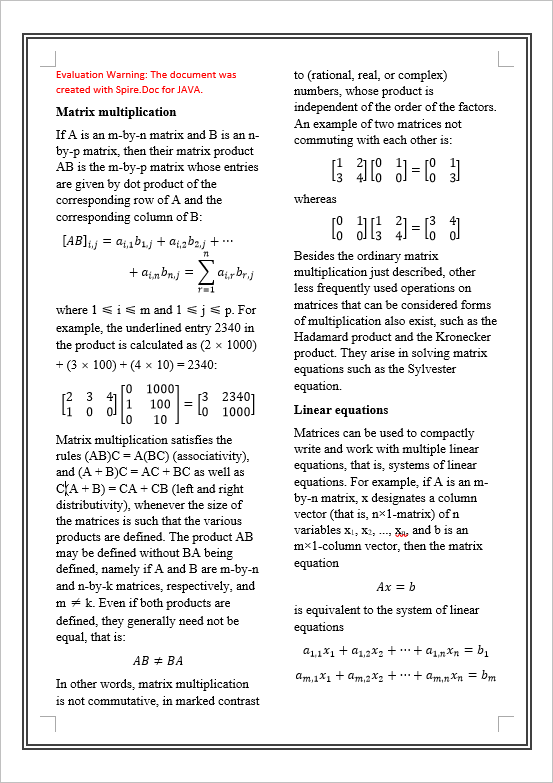
The page borders of an existing Word document can be obtained using the PageSetup.getBorders() method. You can change the appearance of the page borders using the setBorderType(), setColor(), and setLineWidth() methods.
The steps to adjust page borders in a Word document using Java are as follows.
- Create a Document object.
- Load a Word file from the given file path.
- Iterate through the sections in the document.
- Get a specific section.
- Get the PageSetup object of the section.
- Get the Borders object using PageSetup.getBorders() method.
- Set the border type, color, line width and other attributes using the methods under the Borders object.
- Save the updated document to a different Word file.
- Java
import com.spire.doc.Document;
import com.spire.doc.FileFormat;
import com.spire.doc.PageSetup;
import com.spire.doc.Section;
import com.spire.doc.documents.BorderStyle;

import java.awt.*;

public class AdjustPageBorders {

    public static void main(String[] args) {

        // Create a Document object
        Document doc = new Document();

        // Load a Word file
        doc.loadFromFile("C:\\Users\\Administrator\\Desktop\\Borders.docx");

        // Iterate through the sections in the document
        for (int i = 0; i < doc.getSections().getCount(); i++)
        {
            // Get a specific section
            Section section = doc.getSections().get(i);

            // Get page setup of the section
            PageSetup pageSetup = section.getPageSetup();

            // Change the border type
            section.getPageSetup().getBorders().setBorderType(BorderStyle.Double);

            // Change the border color
            section.getPageSetup().getBorders().setColor(Color.DARK_GRAY);

            // Change the border width
            section.getPageSetup().getBorders().setLineWidth(3);
        }

        // Save the updated document to a different file
        doc.saveToFile("AdjustBorder.docx", FileFormat.Docx);

        // Dispose resources
        doc.dispose();
    }
}
Remove Page Borders from a Word Document in Java
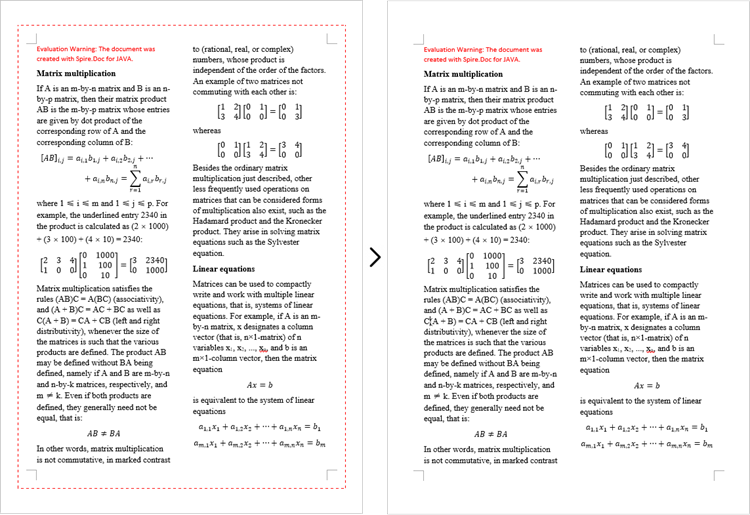
To move page borders from a Word document, pass the BorderStyle.None as the parameter of the Borders.setBorderType() method. By setting the border type as none, you are instructing the document to remove any existing page borders, resulting in a clean, border-free document layout.
The steps to remove page borders from a Word document using Java are as follows:
- Create a Document object.
- Load a Word file from the given file path.
- Iterate through the sections in the document.
- Get a specific section.
- Get the PageSetup object of the section.
- Get the Borders object using PageSetup.getBorders() method.
- Set the border type as BorderStyle.None using Borders.setBorderType() method.
- Save the updated document to a different Word file.
- Java
import com.spire.doc.Document;
import com.spire.doc.FileFormat;
import com.spire.doc.PageSetup;
import com.spire.doc.Section;
import com.spire.doc.documents.BorderStyle;

public class RemovePageBorders {

    public static void main(String[] args) {

        // Create a Document object
        Document doc = new Document();

        // Load a Word file
        doc.loadFromFile("C:\\Users\\Administrator\\Desktop\\Borders.docx");

        // Iterate through the sections in the document
        for (int i = 0; i < doc.getSections().getCount(); i++)
        {
            // Get a specific section
            Section section = doc.getSections().get(i);

            // Get page setup object
            PageSetup pageSetup = section.getPageSetup();

            // Set the border type to none
            pageSetup.getBorders().setBorderType(BorderStyle.None);
        }

        // Save the updated document to a different file
        doc.saveToFile("RemovePageBorders.docx", FileFormat.Docx);

        // Dispose resources
        doc.dispose();
    }
}
Apply for a Temporary License
If you'd like to remove the evaluation message from the generated documents, or to get rid of the function limitations, please request a 30-day trial license for yourself.
