
Java (485)
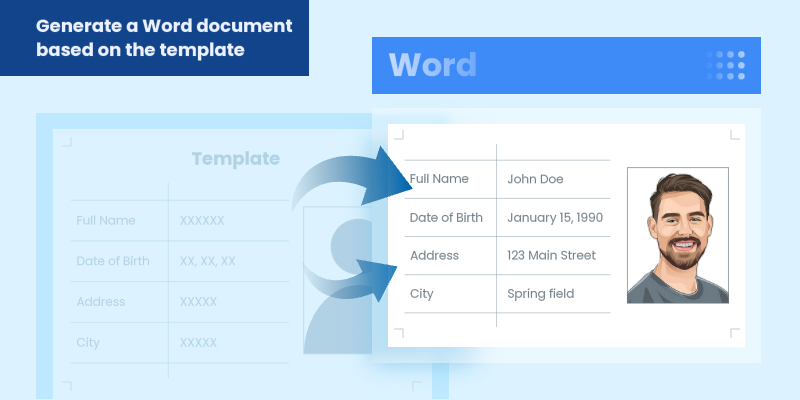
In modern software development, generating dynamic Word documents from templates is a common requirement for applications that produce reports, contracts, invoices, or other business documents. Java developers seeking efficient solutions for document automation can leverage Spire.Doc for Java, a robust library for processing Word files without requiring Microsoft Office.
This guide explores how to use Spire.Doc for Java to create Word documents from templates. We will cover two key approaches: replacing text placeholders and modifying bookmark content.
- Java Libray for Creating Word Documents
- Generate a Word Document by Replacing Text Placeholders
- Generate a Word Document by Modifying Bookmark Content
- Conclusion
- FAQs
Java Library for Generating Word Documents
Spire.Doc for Java is a powerful library that enables developers to create, manipulate, and convert Word documents. It provides an intuitive API that allows for various operations, including the modification of text, images, and bookmarks in existing documents.
To get started, download the library from our official website and import it into your Java project. If you're using Maven, include the following dependency in your pom.xml file:
<repositories>
    <repository>
        <id>com.e-iceblue</id>
        <name>e-iceblue</name>
        <url>https://repo.e-iceblue.com/nexus/content/groups/public/</url>
    </repository>
</repositories>
<dependencies>
    <dependency>
        <groupId>e-iceblue</groupId>
        <artifactId>spire.doc</artifactId>
        <version>14.8.4</version>
    </dependency>
</dependencies>
Generate a Word Document by Replacing Text Placeholders
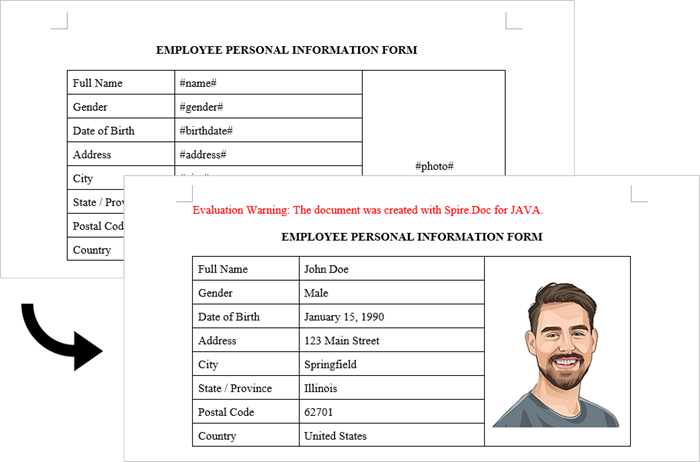
This method uses a template document containing marked placeholders (e.g., #name#, #date#) that are dynamically replaced with real data. Spire.Doc's Document.replace() method handles text substitutions efficiently, while additional APIs enable advanced replacements like inserting images at specified locations.
Steps to generate Word documents from templates by replacing text placeholders:
- Initialize Document: A new Document object is created to work with the Word file.
- Load the template: The template document with placeholders is loaded.
- Create replacement mappings: A HashMap is created to store placeholder-replacement pairs.
- Perform text replacement: The replace() method finds and replaces all instances of each placeholder.
- Handle image insertion: The custom replaceTextWithImage() method replaces a text placeholder with an image.
- Save the result: The modified document is saved to a specified path.
- Java
import com.spire.doc.Document;
import com.spire.doc.FileFormat;
import com.spire.doc.documents.TextSelection;
import com.spire.doc.fields.DocPicture;
import com.spire.doc.fields.TextRange;

import java.util.HashMap;
import java.util.Map;

public class ReplaceTextPlaceholders {

    public static void main(String[] args) {

        // Initialize a new Document object
        Document document = new Document();

        // Load the template Word file
        document.loadFromFile("C:\\Users\\Administrator\\Desktop\\template.docx");

        // Map to hold text placeholders and their replacements
        Map<String, String> replaceDict = new HashMap<>();
        replaceDict.put("#name#", "John Doe");
        replaceDict.put("#gender#", "Male");
        replaceDict.put("#birthdate#", "January 15, 1990");
        replaceDict.put("#address#", "123 Main Street");
        replaceDict.put("#city#", "Springfield");
        replaceDict.put("#state#", "Illinois");
        replaceDict.put("#postal#", "62701");
        replaceDict.put("#country#", "United States");

        // Replace placeholders in the document with corresponding values
        for (Map.Entry<String, String> entry : replaceDict.entrySet()) {
            document.replace(entry.getKey(), entry.getValue(), true, true);
        }

        // Path to the image file
        String imagePath = "C:\\Users\\Administrator\\Desktop\\portrait.png";

        // Replace the placeholder “#photo#” with an image
        replaceTextWithImage(document, "#photo#", imagePath);

        // Save the modified document
        document.saveToFile("output/ReplacePlaceholders.docx", FileFormat.Docx);

        // Release resources
        document.dispose();
    }

    // Method to replace a placeholder in the document with an image
    static void replaceTextWithImage(Document document, String stringToReplace, String imagePath) {

        // Load the image from the specified path
        DocPicture pic = new DocPicture(document);
        pic.loadImage(imagePath);

        // Find the placeholder in the document
        TextSelection selection = document.findString(stringToReplace, false, true);

        // Get the range of the found text
        TextRange range = selection.getAsOneRange();
        int index = range.getOwnerParagraph().getChildObjects().indexOf(range);

        // Insert the image and remove the placeholder text
        range.getOwnerParagraph().getChildObjects().insert(index, pic);
        range.getOwnerParagraph().getChildObjects().remove(range);
    }
}
Output:
Generate a Word Document by Modifying Bookmark Content
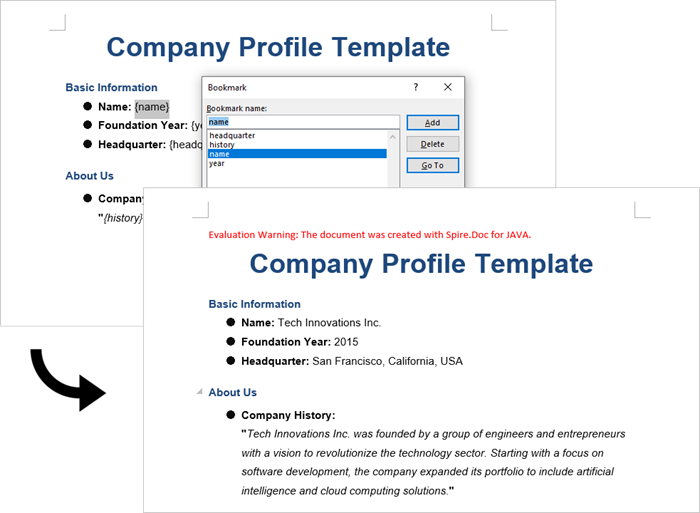
This approach uses Word bookmarks to identify locations in the document where content should be inserted or modified. The BookmarksNavigator class in Spire.Doc streamlines the process by enabling direct access to bookmarks, allowing targeted content replacement while automatically preserving the document's original structure and formatting.
Steps to generate Word documents from templates by modifying bookmark content:
- Initialize Document: A new Document object is initialized.
- Load the template: The template document with predefined bookmarks is loaded.
- Set up replacements: A HashMap is created to map bookmark names to their replacement values.
- Navigate to bookmarks: A BookmarksNavigator is instantiated to navigate through bookmarks in the document.
- Replace content: The replaceBookmarkContent() method updates the bookmark's content.
- Save the result: The modified document is saved to a specified path.
- Java
import com.spire.doc.*;
import com.spire.doc.documents.*;
import java.util.HashMap;
import java.util.Map;

public class ModifyBookmarkContent {

    public static void main(String[] args) {

        // Initialize a new Document object
        Document document = new Document();

        // Load the template Word file
        document.loadFromFile("C:\\Users\\Administrator\\Desktop\\template.docx");

        // Define bookmark names and their replacement values
        Map<String, String> replaceDict = new HashMap<>();
        replaceDict.put("name", "Tech Innovations Inc.");
        replaceDict.put("year", "2015");
        replaceDict.put("headquarter", "San Francisco, California, USA");
        replaceDict.put("history", "Tech Innovations Inc. was founded by a group of engineers and " +
                "entrepreneurs with a vision to revolutionize the technology sector. Starting " +
                "with a focus on software development, the company expanded its portfolio to " +
                "include artificial intelligence and cloud computing solutions.");

        // Create a BookmarksNavigator to manage bookmarks in the document
        BookmarksNavigator bookmarkNavigator = new BookmarksNavigator(document);

        // Iterate through the bookmarks
        for (Map.Entry<String, String> entry : replaceDict.entrySet()) {

            // Navigate to a specific bookmark
            bookmarkNavigator.moveToBookmark(entry.getKey());

            // Replace content
            bookmarkNavigator.replaceBookmarkContent(entry.getValue(), true);
        }

        // Save the modified document
        document.saveToFile("output/ReplaceBookmarkContent.docx", FileFormat.Docx);

        // Release resources
        document.dispose();
    }
}
Output:
Conclusion
Both methods provide effective ways to generate documents from templates, but they suit different scenarios:
Text Replacement Method is best when:
- You need simple text substitutions
- You need to insert images at specific locations
- You want to replace text anywhere in the document (not just specific locations)
Bookmark Method is preferable when:
- You're working with complex documents where precise location matters
- You need to replace larger sections of content or paragraphs
- You want to preserve bookmarks for future updates
Spire.Doc also offers Mail Merge capabilities, enabling high-volume document generation from templates. This feature excels at producing personalized documents like mass letters or reports by merging template fields with external data sources like databases.
FAQs
Q1: Can I convert the generated Word document to PDF?
A: Yes, Spire.Doc for Java supports converting documents to PDF and other formats. Simply use saveToFile() with FileFormat.PDF.
Q2: How can I handle complex formatting in generated documents?
A: Prepare your template with all required formatting in Word, then use placeholders or bookmarks in locations where dynamic content should appear. The formatting around these markers will be preserved.
Q3: What's the difference between mail merge and text replacement?
A: Mail merge is specifically designed for merging database-like data with documents and supports features like repeating sections for records. Text replacement is simpler but doesn't handle tabular data as elegantly.
Get a Free License
To fully experience the capabilities of Spire.Doc for Java without any evaluation limitations, you can request a free 30-day trial license.
A Slicer in Excel is an interactive filtering tool that simplifies data analysis in pivot tables and tables. Unlike traditional dropdown menus, slicers present intuitive, clickable buttons, each representing a distinct value in the dataset (e.g., regions, product categories, or dates). With slicers, users can filter datasets to focus on specific subsets with just a single click, making analysis faster and more visually intuitive. In this guide, we will explore how to create new slicers, update existing slicers, and remove slicers in Excel using Java and the Spire.XLS for Java library.
- Add Slicers to Tables in Excel
- Add Slicers to Pivot Tables in Excel
- Update Slicers in Excel
- Remove Slicers from Excel
Install Spire.XLS for Java
First of all, you're required to add the Spire.Xls.jar file as a dependency in your Java program. The JAR file can be downloaded from this link. If you use Maven, you can easily import the JAR file in your application by adding the following code to your project's pom.xml file.
<repositories>
    <repository>
        <id>com.e-iceblue</id>
        <name>e-iceblue</name>
        <url>https://repo.e-iceblue.com/nexus/content/groups/public/</url>
    </repository>
</repositories>
<dependencies>
    <dependency>
        <groupId>e-iceblue</groupId>
        <artifactId>spire.xls</artifactId>
        <version>16.8.4</version>
    </dependency>
</dependencies>
Add Slicers to Tables in Excel
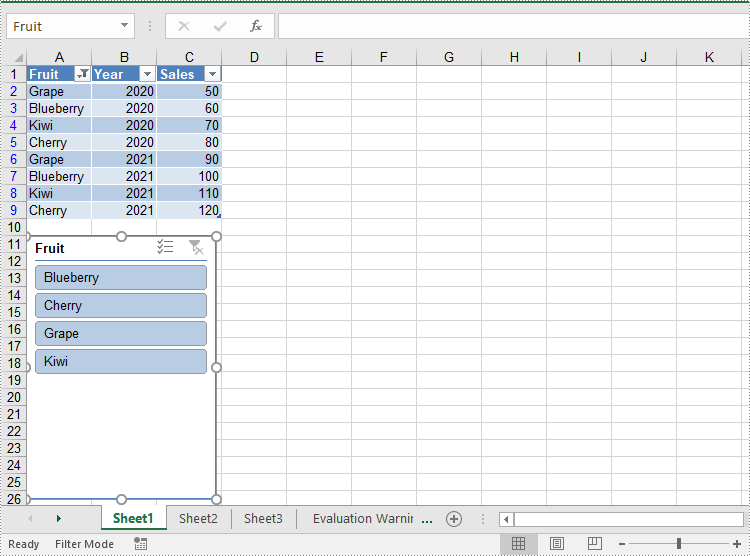
Spire.XLS for Java provides the Worksheet.getSlicers().add(IListObject table, String destCellName, int index) method to add a slicer to a table in an Excel worksheet. The detailed steps are as follows.
- Create an object of the Workbook class.
- Get the first worksheet using the Workbook.getWorksheets.get(0) method.
- Add data to the worksheet using the Worksheet.getRange().get().setValue() and Worksheet.getRange().get().setNumberValue() methods.
- Add a table to the worksheet using the Worksheet.getIListObjects().create() method.
- Add a slicer to the table using the Worksheeet.getSlicers().add(IListObject table, String destCellName, int index) method.
- Save the resulting file using the Workbook.saveToFile() method.
- Java
import com.spire.xls.*;
import com.spire.xls.core.IListObject;
import com.spire.xls.core.spreadsheet.slicer.*;

public class AddSlicerToTable {
    public static void main(String[] args) {
        // Create an object of the Workbook class
        Workbook workbook = new Workbook();

        // Get the first worksheet
        Worksheet worksheet = workbook.getWorksheets().get(0);

        // Add data to the worksheet
        worksheet.getRange().get("A1").setValue("Fruit");
        worksheet.getRange().get("A2").setValue("Grape");
        worksheet.getRange().get("A3").setValue("Blueberry");
        worksheet.getRange().get("A4").setValue("Kiwi");
        worksheet.getRange().get("A5").setValue("Cherry");
        worksheet.getRange().get("A6").setValue("Grape");
        worksheet.getRange().get("A7").setValue("Blueberry");
        worksheet.getRange().get("A8").setValue("Kiwi");
        worksheet.getRange().get("A9").setValue("Cherry");

        worksheet.getRange().get("B1").setValue("Year");
        worksheet.getRange().get("B2").setNumberValue(2020);
        worksheet.getRange().get("B3").setNumberValue(2020);
        worksheet.getRange().get("B4").setNumberValue(2020);
        worksheet.getRange().get("B5").setNumberValue(2020);
        worksheet.getRange().get("B6").setNumberValue(2021);
        worksheet.getRange().get("B7").setNumberValue(2021);
        worksheet.getRange().get("B8").setNumberValue(2021);
        worksheet.getRange().get("B9").setNumberValue(2021);

        worksheet.getRange().get("C1").setValue("Sales");
        worksheet.getRange().get("C2").setNumberValue(50);
        worksheet.getRange().get("C3").setNumberValue(60);
        worksheet.getRange().get("C4").setNumberValue(70);
        worksheet.getRange().get("C5").setNumberValue(80);
        worksheet.getRange().get("C6").setNumberValue(90);
        worksheet.getRange().get("C7").setNumberValue(100);
        worksheet.getRange().get("C8").setNumberValue(110);
        worksheet.getRange().get("C9").setNumberValue(120);

        // Create a table from the specific data range
        IListObject table = worksheet.getListObjects().create("Fruit Sales", worksheet.getRange().get("A1:C9"));

        // Add a slicer to cell "A11" to filter the data based on the first column of the table
        XlsSlicerCollection slicers = worksheet.getSlicers();
        int index = slicers.add(table, "A11", 0);

        // Set name and style for the slicer
        XlsSlicer slicer = slicers.get(index);
        slicer.setName("Fruit");
        slicer.setStyleType(SlicerStyleType.SlicerStyleLight1);

        // Save the resulting file
        workbook.saveToFile("AddSlicerToTable.xlsx", ExcelVersion.Version2013);
        workbook.dispose();
    }
}
Add Slicers to Pivot Tables in Excel
Spire.XLS for Java also supports adding slicers to pivot tables using the Worksheet.getSlicers().add(IPivotTable pivot, String destCellName, int baseFieldIndex) method. The detailed steps are as follows.
- Create an object of the Workbook class.
- Get the first worksheet using the Workbook.getWorksheets.get(0) method.
- Add data to the worksheet using the Worksheet.getRange().get().setValue() and Worksheet.getRange().get().setNumberValue() methods.
- Create a pivot cache from the data using the Workbook.getPivotCaches().add() method.
- Create a pivot table from the pivot cache using the Worksheet.getPivotTables().add() method.
- Drag the pivot fields to the row, column, and data areas. Then calculate the data in the pivot table.
- Add a slicer to the pivot table using the Worksheet.getSlicers().add(IPivotTable pivot, String destCellName, int baseFieldIndex) method.
- Set the properties, such as the name, width, height, style, and cross filter type for the slicer.
- Calculate the data in the pivot table.
- Save the resulting file using the Workbook.saveToFile() method.
- Java
import com.spire.xls.*;
import com.spire.xls.core.IPivotField;
import com.spire.xls.core.IPivotTable;
import com.spire.xls.core.spreadsheet.slicer.*;

public class AddSlicerToPivotTable {
    public static void main(String[] args) {
        // Create an object of the Workbook class
        Workbook workbook = new Workbook();

        // Get the first worksheet
        Worksheet worksheet = workbook.getWorksheets().get(0);

        // Add data to the worksheet
        worksheet.getRange().get("A1").setValue("Fruit");
        worksheet.getRange().get("A2").setValue("Grape");
        worksheet.getRange().get("A3").setValue("Blueberry");
        worksheet.getRange().get("A4").setValue("Kiwi");
        worksheet.getRange().get("A5").setValue("Cherry");
        worksheet.getRange().get("A6").setValue("Grape");
        worksheet.getRange().get("A7").setValue("Blueberry");
        worksheet.getRange().get("A8").setValue("Kiwi");
        worksheet.getRange().get("A9").setValue("Cherry");

        worksheet.getRange().get("B1").setValue("Year");
        worksheet.getRange().get("B2").setNumberValue(2020);
        worksheet.getRange().get("B3").setNumberValue(2020);
        worksheet.getRange().get("B4").setNumberValue(2020);
        worksheet.getRange().get("B5").setNumberValue(2020);
        worksheet.getRange().get("B6").setNumberValue(2021);
        worksheet.getRange().get("B7").setNumberValue(2021);
        worksheet.getRange().get("B8").setNumberValue(2021);
        worksheet.getRange().get("B9").setNumberValue(2021);

        worksheet.getRange().get("C1").setValue("Sales");
        worksheet.getRange().get("C2").setNumberValue(50);
        worksheet.getRange().get("C3").setNumberValue(60);
        worksheet.getRange().get("C4").setNumberValue(70);
        worksheet.getRange().get("C5").setNumberValue(80);
        worksheet.getRange().get("C6").setNumberValue(90);
        worksheet.getRange().get("C7").setNumberValue(100);
        worksheet.getRange().get("C8").setNumberValue(110);
        worksheet.getRange().get("C9").setNumberValue(120);

        // Create a pivot cache from the specific data range
        CellRange dataRange = worksheet.getRange().get("A1:C9");
        PivotCache cache = workbook.getPivotCaches().add(dataRange);

        // Create a pivot table from the pivot cache
        PivotTable pt = worksheet.getPivotTables().add("Fruit Sales", worksheet.getRange().get("A12"), cache);

        // Drag the fields to the row and column areas
        IPivotField pf = pt.getPivotFields().get("Fruit");
        pf.setAxis(AxisTypes.Row);
        IPivotField pf2 = pt.getPivotFields().get("Year");
        pf2.setAxis(AxisTypes.Column);

        // Drag the field to the data area
        pt.getDataFields().add(pt.getPivotFields().get("Sales"), "Sum of Sales", SubtotalTypes.Sum);

        // Set style for the pivot table
        pt.setBuiltInStyle(PivotBuiltInStyles.PivotStyleMedium10);

        // Calculate the pivot table data
        pt.calculateData();

        // Add a Slicer to the pivot table
        XlsSlicerCollection slicers = worksheet.getSlicers();
        int index_1 = slicers.add(pt, "F12", 0);

        // Set the name, width, height, and style for the slicer
        XlsSlicer slicer = slicers.get(index_1);
        slicer.setName("Fruit");
        slicer.setWidth(100);
        slicer.setHeight(120);
        slicer.setStyleType(SlicerStyleType.SlicerStyleLight2);

        // Set the cross filter type for the slicer
        XlsSlicerCache slicerCache = (XlsSlicerCache)slicer.getSlicerCache();
        slicerCache.setCrossFilterType(SlicerCacheCrossFilterType.ShowItemsWithNoData);

        // Calculate the pivot table data again
        pt.calculateData();

        // Save the resulting file
        workbook.saveToFile("AddSlicerToPivotTable.xlsx", ExcelVersion.Version2013);
        workbook.dispose();
    }
}

Update Slicers in Excel
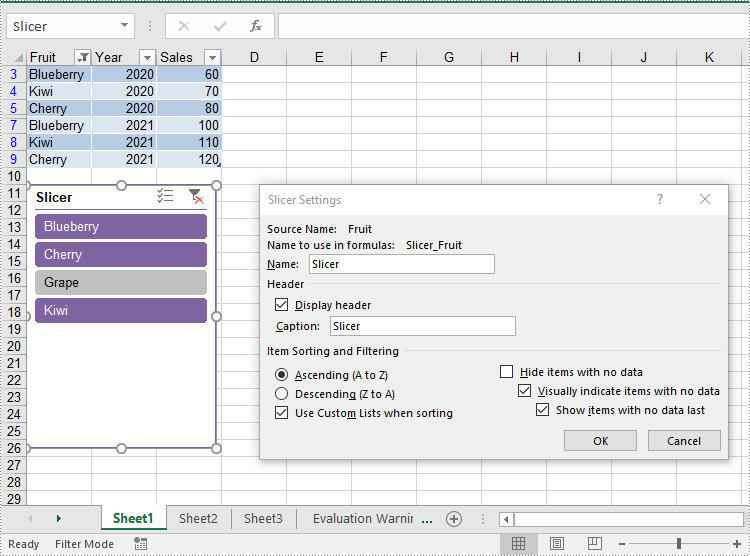
The XlsSlicer class in Spire.XLS for Java provides methods for modifying slicer attributes such as name, caption, style, and cross filter type. The detailed steps are as follows.
- Create an object of the Workbook class.
- Load an Excel file using the Workbook.loadFromFile() method.
- Get a specific worksheet by its index using the Workbook.getWorksheets().get() method.
- Get a specific slicer from the worksheet by its index using the Worksheet.getSlicers().get(index) property.
- Update the properties of the slicer, such as its style, name, caption, and cross filter type using the appropriate methods of the XlsSlicer class.
- Save the resulting file using the Workbook.saveToFile() method.
- Java
import com.spire.xls.ExcelVersion;
import com.spire.xls.Workbook;
import com.spire.xls.Worksheet;
import com.spire.xls.core.spreadsheet.slicer.*;

public class UpdateSlicer {
    public static void main(String[] args) {
        // Create an object of the Workbook class
        Workbook workbook = new Workbook();

        // Load an Excel file
        workbook.loadFromFile("AddSlicerToTable.xlsx");

        // Get the first worksheet
        Worksheet worksheet = workbook.getWorksheets().get(0);

        // Get the first slicer in the worksheet
        XlsSlicer slicer = worksheet.getSlicers().get(0);

        // Change the style, name, and caption for the slicer
        slicer.setStyleType(SlicerStyleType.SlicerStyleDark4);
        slicer.setName("Slicer");
        slicer.setCaption("Slicer");

        // Change the cross filter type for the slicer
        XlsSlicerCache slicerCache = slicer.getSlicerCache();
        slicerCache.setCrossFilterType(SlicerCacheCrossFilterType.ShowItemsWithDataAtTop);

        // Deselect an item in the slicer
        XlsSlicerCacheItemCollection slicerCacheItems = slicerCache.getSlicerCacheItems();
        XlsSlicerCacheItem xlsSlicerCacheItem = slicerCacheItems.get(0);
        xlsSlicerCacheItem.isSelected(false);

        // Save the resulting file
        workbook.saveToFile("UpdateSlicer.xlsx", ExcelVersion.Version2013);
        workbook.dispose();
    }
}
Remove Slicers from Excel
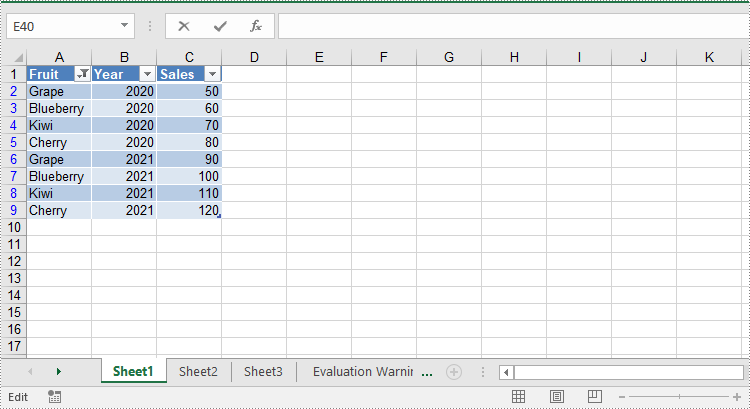
Developers can remove a specific slicer from an Excel worksheet using the Worksheet.getSlicers().removeAt() method, or remove all slicers at once using the Worksheet.getSlicers().clear() method. The detailed steps are as follows.
- Create an object of the Workbook class.
- Load an Excel file using the Workbook.loadFromFile() method.
- Get a specific worksheet by its index using the Workbook.getWorksheets().get() method.
- Remove a specific slicer from the worksheet by its index using the Worksheet.getSlicers().removeAt() method. Or remove all slicers from the worksheet using the Worksheet.getSlicers().clear() method.
- Save the resulting file using the Workbook.saveToFile() method.
- Java
import com.spire.xls.ExcelVersion;
import com.spire.xls.Workbook;
import com.spire.xls.Worksheet;

public class RemoveSlicer {
    public static void main(String[] args) {
        // Create an object of the Workbook class
        Workbook workbook = new Workbook();

        // Load an Excel file
        workbook.loadFromFile("AddSlicerToTable.xlsx");

        // Get the first worksheet
        Worksheet worksheet = workbook.getWorksheets().get(0);

        // Remove the first slicer by index
        worksheet.getSlicers().removeAt(0);

        // Alternatively, remove all slicers
        // worksheet.getSlicers().clear();

        // Save the resulting file
        workbook.saveToFile("RemoveSlicer.xlsx", ExcelVersion.Version2013);
        workbook.dispose();
    }
}
Get a Free License
To fully experience the capabilities of Spire.XLS for Java without any evaluation limitations, you can request a free 30-day trial license.

Converting HTML to Word in Java is essential for developers building reporting tools, content management systems, and enterprise applications. While HTML powers web content, Word documents offer professional formatting, offline accessibility, and easy editing, making them ideal for reports, invoices, contracts, and formal submissions.
This comprehensive guide demonstrates how to use Java and Spire.Doc for Java to convert HTML to Word. It covers everything from converting HTML files and strings, batch processing multiple files, and preserving formatting and images.
Table of Contents
- Why Convert HTML to Word in Java
- Set Up Spire.Doc for Java
- Convert HTML File to Word in Java
- Convert HTML String to Word in Java
- Batch Conversion of Multiple HTML Files to Word in Java
- Best Practices for HTML to Word Conversion
- Conclusion
- FAQs
Why Convert HTML to Word in Java?
Converting HTML to Word offers several advantages:
- Flexible editing – Add comments, track changes, and review content easily.
- Consistent formatting – Preserve layouts, fonts, and styles across documents.
- Professional appearance – DOCX files look polished and ready to share.
- Offline access – Word files can be opened without an internet connection.
- Integration – Word is widely supported across tools and industries.
Common use cases: exporting HTML reports from web apps, archiving dynamic content in editable formats, and generating formal reports, invoices, or contracts.
Set Up Spire.Doc for Java
Spire.Doc for Java is a robust library that enables developers to create Word documents, edit existing Word documents, and read and convert Word documents in Java without requiring Microsoft Word to be installed.
Before you can convert HTML content into Word documents, it’s essential to properly install and configure Spire.Doc for Java in your development environment.
1. Java Version Requirement
Ensure that your development environment is running Java 6 (JDK 1.6) or a higher version.
2. Installation
Option 1: Using Maven
For projects managed with Maven, you can add the repository and dependency to your pom.xml:
<repositories>
    <repository>
        <id>com.e-iceblue</id>
        <name>e-iceblue</name>
        <url>https://repo.e-iceblue.com/nexus/content/groups/public/</url>
    </repository>
</repositories>
<dependencies>
    <dependency>
        <groupId>e-iceblue</groupId>
        <artifactId>spire.doc</artifactId>
        <version>14.8.4</version>
    </dependency>
</dependencies>
For a step-by-step guide on Maven installation and configuration, refer to our article**:** How to Install Spire Series Products for Java from Maven Repository.
Option 2. Manual JAR Installation
For projects without Maven, you can manually add the library:
- Download Spire.Doc.jar from the official website.
- Add it to your project classpath.
Convert HTML File to Word in Java
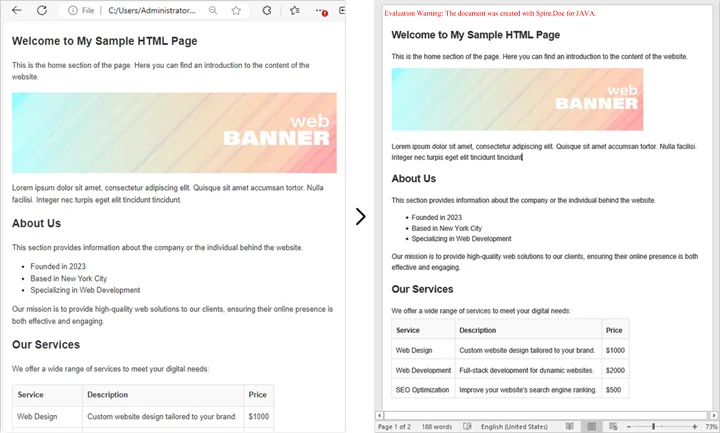
If you already have an existing HTML file, converting it into a Word document is straightforward and efficient. This method is ideal for situations where HTML reports, templates, or web content need to be transformed into professionally formatted, editable Word files.
By using Spire.Doc for Java, you can preserve the original layout, text formatting, tables, lists, images, and hyperlinks, ensuring that the converted document remains faithful to the source. The process is simple, requiring only a few lines of code while giving you full control over page settings and document structure.
Conversion Steps:
- Create a new Document object.
- Load the HTML file with loadFromFile().
- Adjust settings like page margins.
- Save the output as a Word document with saveToFile().
Example:
import com.spire.doc.Document;
import com.spire.doc.FileFormat;
import com.spire.doc.Section;
import com.spire.doc.documents.XHTMLValidationType;

public class ConvertHtmlFileToWord {
    public static void main(String[] args) {
        // Create a Document object
        Document document = new Document();

        // Load an HTML file
        document.loadFromFile("C:\\Users\\Administrator\\Desktop\\sample.html",
                FileFormat.Html,
                XHTMLValidationType.None);

        // Adjust margins
        Section section = document.getSections().get(0);
        section.getPageSetup().getMargins().setAll(2);

        // Save as Word file
        document.saveToFile("output/FromHtmlFile.docx", FileFormat.Docx);

        // Release resources
        document.dispose();

        System.out.println("HTML file successfully converted to Word!");
    }
}
You may also be interested in: Java: Convert Word to HTML
Convert HTML String to Word in Java
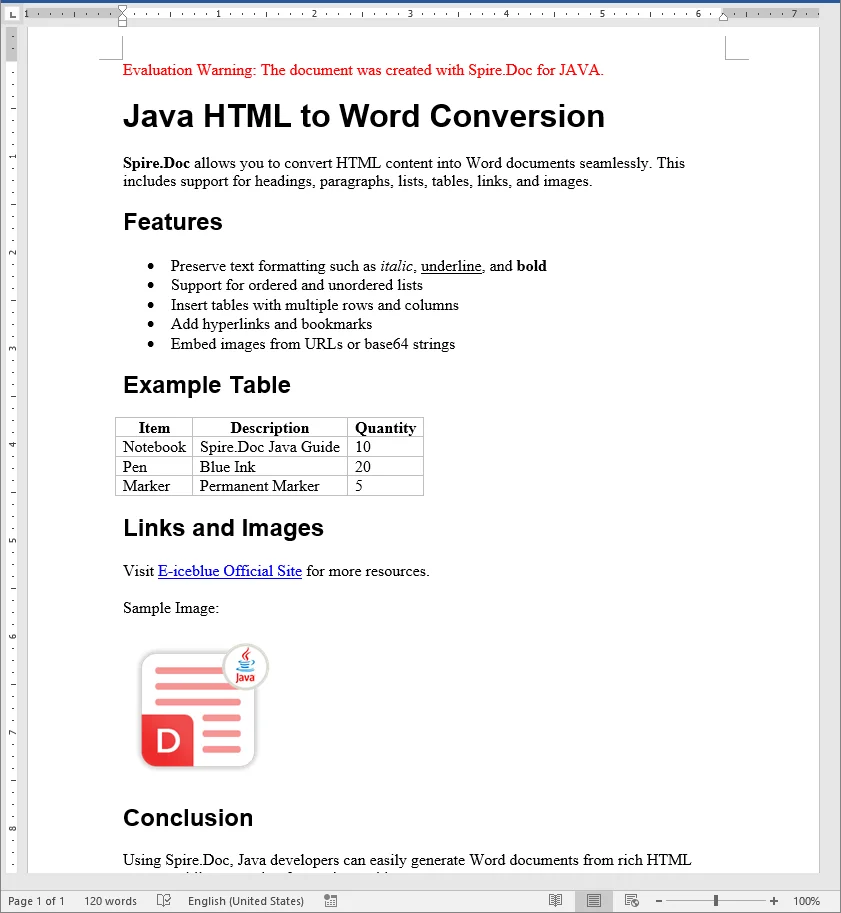
In many real-world applications, HTML content is generated dynamically - whether it comes from user input, database records, or template engines. Converting these HTML strings directly into Word documents allows developers to create professional, editable reports, invoices, or documents on the fly without relying on pre-existing HTML files.
Using Spire.Doc for Java, you can render rich HTML content, including headings, lists, tables, images, hyperlinks, and more, directly into a Word document while preserving formatting and layout.
Conversion Steps:
- Create a new Document object.
- Add a section and adjust settings like page margins.
- Add a paragraph.
- Add the HTML string to the paragraph using appendHTML().
- Save the output as a Word document with saveToFile().
Example:
import com.spire.doc.Document;
import com.spire.doc.FileFormat;
import com.spire.doc.Section;
import com.spire.doc.documents.Paragraph;

public class ConvertHtmlStringToWord {
    public static void main(String[] args) {
        // Sample HTML string
        String htmlString = "<h1>Java HTML to Word Conversion</h1>" +
                "<p><b>Spire.Doc</b> allows you to convert HTML content into Word documents seamlessly. " +
                "This includes support for headings, paragraphs, lists, tables, links, and images.</p>" +
                "<h2>Features</h2>" +
                "<ul>" +
                "<li>Preserve text formatting such as <i>italic</i>, <u>underline</u>, and <b>bold</b></li>" +
                "<li>Support for ordered and unordered lists</li>" +
                "<li>Insert tables with multiple rows and columns</li>" +
                "<li>Add hyperlinks and bookmarks</li>" +
                "<li>Embed images from URLs or base64 strings</li>" +
                "</ul>" +
                "<h2>Example Table</h2>" +
                "<table border='1' style='border-collapse:collapse;'>" +
                "<tr><th>Item</th><th>Description</th><th>Quantity</th></tr>" +
                "<tr><td>Notebook</td><td>Spire.Doc Java Guide</td><td>10</td></tr>" +
                "<tr><td>Pen</td><td>Blue Ink</td><td>20</td></tr>" +
                "<tr><td>Marker</td><td>Permanent Marker</td><td>5</td></tr>" +
                "</table>" +
                "<h2>Links and Images</h2>" +
                "<p>Visit <a href='https://www.e-iceblue.com/'>E-iceblue Official Site</a> for more resources.</p>" +
                "<p>Sample Image:</p>" +
                "<img src='https://www.e-iceblue.com/images/intro_pic/Product_Logo/doc-j.png' alt='Product Logo' width='150' height='150'/>" +
                "<h2>Conclusion</h2>" +
                "<p>Using Spire.Doc, Java developers can easily generate Word documents from rich HTML content while preserving formatting and layout.</p>";

        // Create a Document
        Document document = new Document();

        // Add section and paragraph
        Section section = document.addSection();
        section.getPageSetup().getMargins().setAll(72);

        Paragraph paragraph = section.addParagraph();

        // Render HTML string
        paragraph.appendHTML(htmlString);

        // Save as Word
        document.saveToFile("output/FromHtmlString.docx", FileFormat.Docx);

        document.dispose();

        System.out.println("HTML string successfully converted to Word!");
    }
}
Batch Conversion of Multiple HTML Files to Word in Java
Sometimes you may need to convert hundreds of HTML files into Word documents. Here’s how to batch process them in Java.
import com.spire.doc.Document;
import com.spire.doc.FileFormat;
import com.spire.doc.documents.XHTMLValidationType;
import java.io.File;

public class BatchConvertHtmlToWord {
    public static void main(String[] args) {
        File folder = new File("C:\\Users\\Administrator\\Desktop\\HtmlFiles");

        for (File file : folder.listFiles()) {
            if (file.getName().endsWith(".html") || file.getName().endsWith(".htm")) {
                Document document = new Document();
                document.loadFromFile(file.getAbsolutePath(), FileFormat.Html, XHTMLValidationType.None);

                String outputPath = "output/" + file.getName().replace(".html", ".docx");
                document.saveToFile(outputPath, FileFormat.Docx);
                document.dispose();

                System.out.println(file.getName() + " converted to Word!");
            }
        }
    }
}
This approach is great for reporting systems where multiple HTML reports are generated daily.
Best Practices for HTML to Word Conversion
- Use Inline CSS for Reliable Styling
Inline CSS ensures that fonts, colors, and spacing are preserved during conversion. External stylesheets may not always render correctly, especially if they are not accessible at runtime. - Validate HTML Structure
Well-formed HTML with proper nesting and closed tags helps render tables, lists, and headings accurately. - Optimize Images
Use absolute URLs or embed images as base64. Resize large images to fit Word layouts and reduce file size. - Manage Resources in Batch Conversion
When processing multiple files, convert them one by one and call dispose() after each document to prevent memory issues. - Preserve Page Layouts
Set page margins, orientation, and paper size to ensure the Word document looks professional, especially for reports and formal documents.
Conclusion
Converting HTML to Word in Java is an essential feature for many enterprise applications. Using Spire.Doc for Java, you can:
- Convert HTML files into Word documents.
- Render HTML strings directly into DOCX.
- Handle batch processing for multiple files.
- Preserve images, tables, and styles with ease.
By following the examples and best practices above, you can integrate HTML to Word conversion seamlessly into your Java applications.
FAQs (Frequently Asked Questions)
Q1. Can Java convert multiple HTML files into one Word document?
A1: Yes. Instead of saving each file separately, you can load multiple HTML contents into the same Document and then save it once.
Q2. How to preserve CSS styles during HTML to Word conversion?
A2: Inline CSS will be preserved; external stylesheets can also be applied if they’re accessible at run time.
Q3. Can I generate a Word document directly from a web page?
A3: Yes. You can fetch the HTML using an HTTP client in Java, then pass it into the conversion method.
Q4. What Word formats are supported for saving the converted document?
A4: You can save as DOCX, DOC, or other Word-compatible formats supported by Spire.Doc. DOCX is recommended for modern applications due to its compatibility and smaller file size.
