
Java (486)
Drawing shapes such as rectangles, ellipses, and lines in a PDF document can enhance the visual effect of the document and help to highlight key points. While creating a report, presentation or thesis, if there are some concepts or data relationships that are difficult to express clearly in words, adding appropriate shapes can assist in the expression of information. In this article, you will learn how to draw shapes in a PDF document in Java using Spire.PDF for Java.
- Draw Lines in PDF in Java
- Draw Arcs and Pies in PDF in Java
- Draw Rectangles in PDF in Java
- Draw Ellipses in PDF in Java
Install Spire.PDF for Java
First of all, you're required to add the Spire.Pdf.jar file as a dependency in your Java program. The JAR file can be downloaded from this link. If you use Maven, you can easily import the JAR file in your application by adding the following code to your project's pom.xml file.
<repositories>
    <repository>
        <id>com.e-iceblue</id>
        <name>e-iceblue</name>
        <url>https://repo.e-iceblue.com/nexus/content/groups/public/</url>
    </repository>
</repositories>
<dependencies>
    <dependency>
        <groupId>e-iceblue</groupId>
        <artifactId>spire.pdf</artifactId>
        <version>12.10.3</version>
    </dependency>
</dependencies>
Draw Lines in PDF in Java
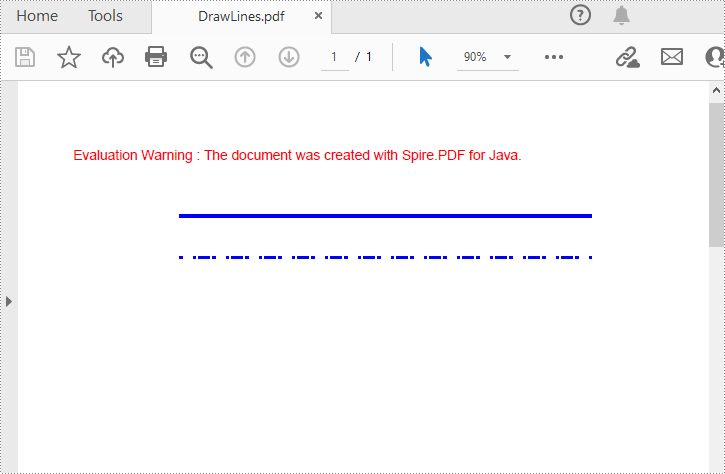
Spire.PDF for Java provides the PdfPageBase.getCanvas().drawLine(PdfPen pen, float x1, float y1, float x2, float y2) method to draw lines at specified locations on a PDF page. And by specifying different PDF pen styles, you can draw solid or dashed lines as needed. The following are the detailed steps.
- Create a PdfDocument object.
- Add a PDF page using PdfDocument.getPages().add() method.
- Save the current drawing state using PdfPageBase.getCanvas().save() method.
- Define the starting x, y coordinates and length of the line.
- Create a PdfPen object with specified color and thickness.
- Draw a solid line on the page using the pen through PdfPageBase.getCanvas().drawLine() method.
- Set the pen style to dashed, and then set the dashed line pattern.
- Draw a dashed line on the page using the pen with a dashed line style through PdfPageBase.getCanvas().drawLine() method.
- Restore the previous drawing state using PdfPageBase.getCanvas().restore() method.
- Save the result document using PdfDocument.saveToFile() method.
- Java
import com.spire.pdf.*;
import com.spire.pdf.graphics.*;

import java.awt.*;

public class drawLine {
    public static void main(String[] args) {
        // Create a PdfDocument object
        PdfDocument pdf = new PdfDocument();

        // Add a Page
        PdfPageBase page = pdf.getPages().add();

        // Save the current graphics state
        PdfGraphicsState state = page.getCanvas().save();

        // Specify the starting X and y coordinates of the line
        float x = 100;
        float y = 70;

        // Specify the length of the line
        float width = 300;

        // Create a PDF pen with blue color and thickness of 2
        PdfPen pen = new PdfPen(new PdfRGBColor(Color.BLUE), 2f);

        // Draw a solid line on the page using the pen
        page.getCanvas().drawLine(pen, x, y, x + width, y);

        // Set the pen style to dashed
        pen.setDashStyle(PdfDashStyle.Dash);

        // Set the dashed line pattern
        pen.setDashPattern(new float[]{1, 4, 1});

        // Draw a dashed line on the page using the pen
        page.getCanvas().drawLine(pen, x, y+30, x + width, y+30);

        // Restore the previous saved graphics state
        page.getCanvas().restore(state);

        // Save the PDF document
        pdf.saveToFile("DrawLines.pdf");

        // Close the document and release resources
        pdf.close();
        pdf.dispose();
    }
}
Draw Arcs and Pies in PDF in Java
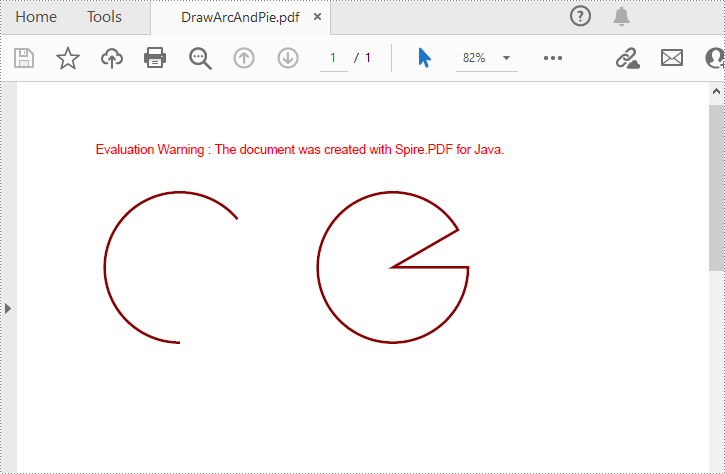
To draw arcs or pies at the specified locations on a PDF page, you can use the PdfPageBase.getCanvas().drawArc() and the PdfPageBase.getCanvas().drawPie() methods. The following are the detailed steps.
- Create a PdfDocument object.
- Add a PDF page using PdfDocument.getPages().add() method.
- Save the current drawing state using PdfPageBase.getCanvas().save() method.
- Create a PdfPen object with specified color and thickness.
- Draw an arc on the page using the pen through PdfPageBase.getCanvas().drawArc()method.
- Draw a pie chart on the page using the pen through PdfPageBase.getCanvas().drawArc() method.
- Restore the previous drawing state using PdfPageBase.getCanvas().restore() method.
- Save the result document using PdfDocument.saveToFile() method.
- Java
import com.spire.pdf.*;
import com.spire.pdf.graphics.*;

import java.awt.*;
import java.awt.geom.Rectangle2D;

public class drawArcAndPie {
    public static void main(String[] args) {
        // Create a PdfDocument object
        PdfDocument pdf = new PdfDocument();

        // Add a Page
        PdfPageBase page = pdf.getPages().add();

        // Save the current graphics state
        PdfGraphicsState state = page.getCanvas().save();

        // Create a PDF pen with specified color and thickness of 2
        PdfPen pen = new PdfPen(new PdfRGBColor(new Color(139,0,0)), 2f);

        // Specify the start and sweep angles of the arc
        float startAngle = 90;
        float sweepAngle = 230;
        // Draw an arc on the page using the pen
        Rectangle2D.Float rect= new Rectangle2D.Float(30, 60, 120, 120);
        page.getCanvas().drawArc(pen, rect, startAngle, sweepAngle);

        // Specify the start and sweep angles of the pie chart
        float startAngle1 = 0;
        float sweepAngle1 = 330;
        // Draw a pie chart on the page using the pen
        Rectangle2D.Float rect2= new Rectangle2D.Float(200, 60, 120, 120);
        page.getCanvas().drawPie(pen, rect2, startAngle1, sweepAngle1);

        // Restore the previous saved graphics state
        page.getCanvas().restore(state);

        // Save the PDF document
        pdf.saveToFile("DrawArcAndPie.pdf");

        // Close the document and release resources
        pdf.close();
        pdf.dispose();
    }
}
Draw Rectangles in PDF in Java
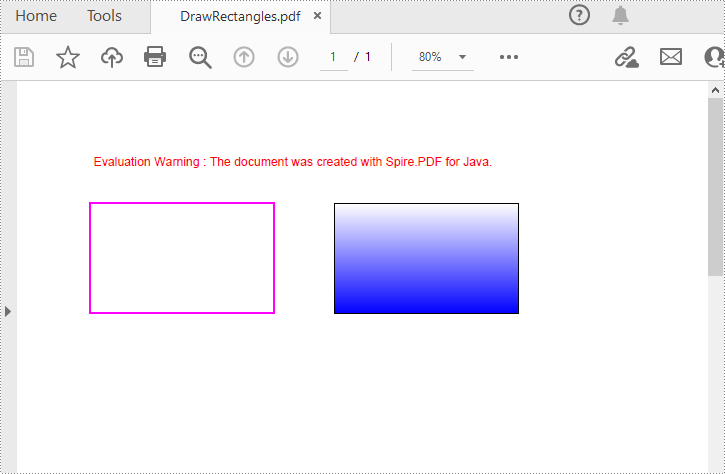
Spire.PDF for Java provides the PdfPageBase.getCanvas().drawRectangle() method to draw rectangular shapes on PDF pages. You can pass different parameters to the method to define the position, size and fill color of the rectangle. The following are the detailed steps.
- Create a PdfDocument object.
- Add a PDF page using PdfDocument.getPages().add() method.
- Save the current drawing state using PdfPageBase.getCanvas().save() method.
- Create a PdfPen object with specified color and thickness.
- Draw a rectangle on the page using the pen through PdfPageBase.getCanvas().drawRectangle() method.
- Create a PdfLinearGradientBrush object for linear gradient filling.
- Draw a filled rectangle using the linear gradient brush through PdfPageBase.getCanvas().drawRectangle() method.
- Restore the previous drawing state using PdfPageBase.getCanvas().restore() method.
- Save the result document using PdfDocument.saveToFile() method.
- Java
import com.spire.pdf.*;
import com.spire.pdf.graphics.*;

import java.awt.*;
import java.awt.geom.Rectangle2D;

public class drawRectangles {
    public static void main(String[] args) {
        // Create a PdfDocument object
        PdfDocument pdf = new PdfDocument();

        // Add a Page
        PdfPageBase page = pdf.getPages().add();

        // Save the current graphics state
        PdfGraphicsState state = page.getCanvas().save();

        // Create a PDF pen with specified color and thickness of 1.5
        PdfPen pen = new PdfPen(new PdfRGBColor(Color.magenta), 1.5f);

        // Draw a rectangle on the page using the pen
        page.getCanvas().drawRectangle(pen, new Rectangle(20, 60, 150, 90));

        // Create a linear gradient brush
        Rectangle2D.Float rect = new Rectangle2D.Float(220, 60, 150, 90);
        PdfLinearGradientBrush linearGradientBrush = new PdfLinearGradientBrush(rect,new PdfRGBColor(Color.white),new PdfRGBColor(Color.blue),PdfLinearGradientMode.Vertical);

        // Create a new PDF pen with specified color and thickness of 0.5
        PdfPen pen1 = new PdfPen(new PdfRGBColor(Color.black), 0.5f);

        // Draw a filled rectangle using the new pen and linear gradient brush
        page.getCanvas().drawRectangle(pen1, linearGradientBrush, rect);

        // Restore the previous graphics state
        page.getCanvas().restore(state);

        // Save the PDF document
        pdf.saveToFile("DrawRectangles.pdf");

        // Close the document and release resources
        pdf.close();
        pdf.dispose();
    }
}
Draw Ellipses in PDF in Java
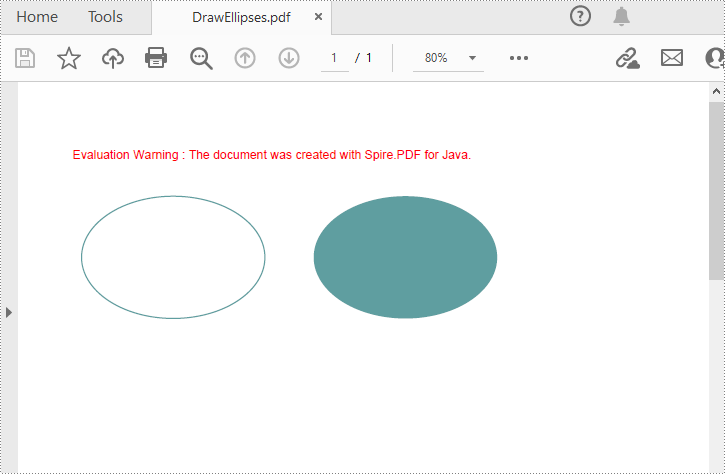
The PdfPageBase.getCanvas().drawEllipse() method allows for drawing ellipses on a PDF page. You can use either a PDF pen or a fill brush to draw ellipses in different styles. The following are the detailed steps.
- Create a PdfDocument object.
- Add a PDF page using PdfDocument.getPages().add() method.
- Save the current drawing state using PdfPageBase.getCanvas().save() method.
- Create a PdfPen object with specified color and thickness.
- Draw an ellipse on the page using the pen through PdfPageBase.getCanvas().drawEllipse() method.
- Create a PdfSolidBrush object.
- Draw a filled ellipse using the brush through PdfPageBase.getCanvas().drawEllipse() method.
- Restore the previous drawing state using PdfPageBase.getCanvas().restore() method.
- Save the result document using PdfDocument.saveToFile() method.
- Java
import com.spire.pdf.*;
import com.spire.pdf.graphics.*;

import java.awt.*;

public class drawEllipses {
    public static void main(String[] args) {
        // Create a PdfDocument object
        PdfDocument pdf = new PdfDocument();

        // Add a Page
        PdfPageBase page = pdf.getPages().add();

        // Save the current graphics state
        PdfGraphicsState state = page.getCanvas().save();

        // Create a PDF pen with specified color and thickness
        PdfPen pen = new PdfPen(new PdfRGBColor(new Color(95, 158, 160)), 1f);
        // Draw an ellipse on the page using the pen
        page.getCanvas().drawEllipse(pen, 30, 60, 150, 100);

        // Create a brush with specified color for filling
        PdfBrush brush = new PdfSolidBrush(new PdfRGBColor(new Color(95, 158, 160)));
        // Draw a filled ellipse using the brush
        page.getCanvas().drawEllipse(brush, 220, 60, 150, 100);

        // Restore the previous graphics state
        page.getCanvas().restore(state);

        // Save the PDF document
        pdf.saveToFile("DrawEllipses.pdf");

        // Close the document and release resources
        pdf.close();
        pdf.dispose();
    }
}
Apply for a Temporary License
If you'd like to remove the evaluation message from the generated documents, or to get rid of the function limitations, please request a 30-day trial license for yourself.
Knowing the number of pages in a PDF helps you understand the length of the document, which is especially useful in scenarios where a large number of PDF documents need to be processed, such as office work, academic research, or legal document management. By getting the PDF page count, you can estimate the time required to process the document, thus rationalizing tasks and increasing efficiency. In this article, you will learn how to get the number of pages in a PDF file in Java using Spire.PDF for Java.
Install Spire.PDF for Java
First of all, you're required to add the Spire.Pdf.jar file as a dependency in your Java program. The JAR file can be downloaded from this link. If you use Maven, you can easily import the JAR file in your application by adding the following code to your project's pom.xml file.
<repositories>
    <repository>
        <id>com.e-iceblue</id>
        <name>e-iceblue</name>
        <url>https://repo.e-iceblue.com/nexus/content/groups/public/</url>
    </repository>
</repositories>
<dependencies>
    <dependency>
        <groupId>e-iceblue</groupId>
        <artifactId>spire.pdf</artifactId>
        <version>12.10.3</version>
    </dependency>
</dependencies>
Count the Number of Pages in a PDF File in Java
The PdfDocument.getPages().getCount() method provided by Spire.PDF for Java allows to quickly count the number of pages in a PDF file without opening it. The following are the detailed steps.
- Create a PdfDocument object.
- Load a sample PDF file using PdfDocument.loadFromFile() method.
- Count the number of pages in the PDF file using PdfDocument.getPages().getCount() method.
- Print out the result.
- Java
import com.spire.pdf.PdfDocument;

public class CountPdfPages {

    public static void main(String[] args) {

        //Create a PdfDocument instance
        PdfDocument pdf = new PdfDocument();

        //Load a PDF file
       pdf.loadFromFile("contract.pdf");

        //Count the number of pages in the PDF file
        int pageCount = pdf.getPages().getCount();

        //Output the result
        System.out.print("The number of pages in the PDF is: " + pageCount);
    }
}

Apply for a Temporary License
If you'd like to remove the evaluation message from the generated documents, or to get rid of the function limitations, please request a 30-day trial license for yourself.
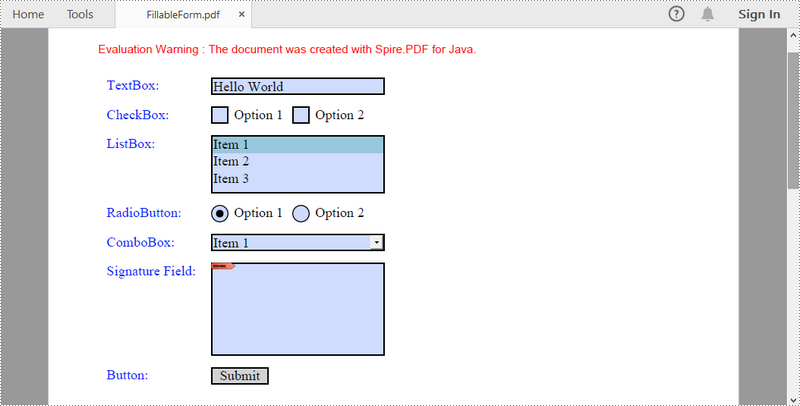
A fillable PDF form is useful for collecting data from users. Being able to create interactive and fillable PDF forms is important since PDF has become one of the most popular file formats in business. This article demonstrates how to create, fill, or remove fillable form fields in PDF using Spire.PDF for Java.
- Create Fillable Form Fields in a PDF Document
- Fill Form Fields in an Existing PDF Document
- Delete a Particular Field or All Fields in an Existing PDF Document
Spire.PDF for Java offers a series of useful classes under the com.spire.pdf.fields namespace, allowing programmers to create and edit various types of form fields including text box, check box, combo box, list box, and radio button. The table below lists some of the core classes involved in this tutorial.
| Class | Description |
| PdfForm | Represents interactive form of the PDF document. |
| PdfField | Represents field of the PDF document's interactive form. |
| PdfTextBoxField | Represents text box field in the PDF form. |
| PdfCheckBoxField | Represents check box field in the PDF form. |
| PdfComboBoxField | Represents combo box field in the PDF Form. |
| PdfListBoxField | Represents list box field of the PDF form. |
| PdfListFieldItem | Represents an item of a list field. |
| PdfRadioButtonListField | Represents radio button field in the PDF form. |
| PdfRadioButtonListItem | Represents an item of a radio button list. |
| PdfButtonField | Represents button field in the PDF form. |
| PdfSignatureField | Represents signature field in the PDF form. |
Install Spire.PDF for Java
First, you're required to add the Spire.Pdf.jar file as a dependency in your Java program. The JAR file can be downloaded from this link. If you use Maven, you can easily import the JAR file in your application by adding the following code to your project's pom.xml file.
<repositories>
    <repository>
        <id>com.e-iceblue</id>
        <name>e-iceblue</name>
        <url>https://repo.e-iceblue.com/nexus/content/groups/public/</url>
    </repository>
</repositories>
<dependencies>
    <dependency>
        <groupId>e-iceblue</groupId>
        <artifactId>spire.pdf</artifactId>
        <version>12.10.3</version>
    </dependency>
</dependencies>
Create Fillable Form Fields in a PDF Document in Java
To create a field, initialize an instance of the corresponding class. Specify its size and position in the document using setBounds() method, and then add it to PDF using PdfForm.getFields().add() method. The following are the steps to create various types of form fields in a PDF document using Spire.PDF for Java.
- Create a PdfDocument object.
- Add a page using PdfDocuemnt.getPages().add() method.
- Create a PdfTextBoxField object, set the properties of the field including Bounds, Font and Text, and then add it to the document using PdFormfFieldCollection.add() method.
- Repeat the step 3 to add check box, combo box, list box, radio button, signature field and button to the document.
- Save the document to a PDF file using PdfDocument.saveToFile() method.
- Java
import com.spire.pdf.FileFormat;
import com.spire.pdf.PdfDocument;
import com.spire.pdf.PdfPageBase;
import com.spire.pdf.actions.PdfSubmitAction;
import com.spire.pdf.fields.*;
import com.spire.pdf.graphics.*;
import com.spire.pdf.packages.sprcfn;

import java.awt.*;
import java.awt.geom.Point2D;
import java.awt.geom.Rectangle2D;

public class CreateFillableFormFields {

    public static void main(String[] args) throws Exception {

        //Create a PdfDocument object
        PdfDocument doc = new PdfDocument();

        //Add a page
        PdfPageBase page = doc.getPages().add();

        //Initialize x and y coordinates
        float baseX = 100;
        float baseY = 30;

        //Create two brush objects
        PdfSolidBrush brush1 = new PdfSolidBrush(new PdfRGBColor(Color.blue));
        PdfSolidBrush brush2 = new PdfSolidBrush(new PdfRGBColor(Color.black));

        //Create a font
        PdfFont font = new PdfFont(PdfFontFamily.Times_Roman, 12f, PdfFontStyle.Regular);

        //Add a textbox
        page.getCanvas().drawString("TextBox:", font, brush1, new Point2D.Float(10, baseY));
        Rectangle2D.Float tbxBounds = new Rectangle2D.Float(baseX, baseY, 150, 15);
        PdfTextBoxField textBox = new PdfTextBoxField(page, "textbox");
        textBox.setBounds(tbxBounds);
        textBox.setText("Hello World");
        textBox.setFont(font);
        doc.getForm().getFields().add(textBox);
        baseY += 25;

        //add two checkboxes
        page.getCanvas().drawString("CheckBox:", font, brush1, new Point2D.Float(10, baseY));
        Rectangle2D.Float checkboxBound1 = new Rectangle2D.Float(baseX, baseY, 15, 15);
        PdfCheckBoxField checkBoxField1 = new PdfCheckBoxField(page, "checkbox1");
        checkBoxField1.setBounds(checkboxBound1);
        checkBoxField1.setChecked(false);
        page.getCanvas().drawString("Option 1", font, brush2, new Point2D.Float(baseX + 20, baseY));

        Rectangle2D.Float checkboxBound2 = new Rectangle2D.Float(baseX + 70, baseY, 15, 15);
        PdfCheckBoxField checkBoxField2 = new PdfCheckBoxField(page, "checkbox2");
        checkBoxField2.setBounds(checkboxBound2);
        checkBoxField2.setChecked(false);
        page.getCanvas().drawString("Option 2", font, brush2, new Point2D.Float(baseX + 90, baseY));
        doc.getForm().getFields().add(checkBoxField1);
        doc.getForm().getFields().add(checkBoxField2);
        baseY += 25;

        //Add a listbox
        page.getCanvas().drawString("ListBox:", font, brush1, new Point2D.Float(10, baseY));
        Rectangle2D.Float listboxBound = new Rectangle2D.Float(baseX, baseY, 150, 50);
        PdfListBoxField listBoxField = new PdfListBoxField(page, "listbox");
        listBoxField.getItems().add(new PdfListFieldItem("Item 1", "item1"));
        listBoxField.getItems().add(new PdfListFieldItem("Item 2", "item2"));
        listBoxField.getItems().add(new PdfListFieldItem("Item 3", "item3")); ;
        listBoxField.setBounds(listboxBound);
        listBoxField.setFont(font);
        listBoxField.setSelectedIndex(0);
        doc.getForm().getFields().add(listBoxField);
        baseY += 60;

        //Add two radio buttons
        page.getCanvas().drawString("RadioButton:", font, brush1, new Point2D.Float(10, baseY));
        PdfRadioButtonListField radioButtonListField = new PdfRadioButtonListField(page, "radio");
        PdfRadioButtonListItem radioItem1 = new PdfRadioButtonListItem("option1");
        Rectangle2D.Float radioBound1 = new Rectangle2D.Float(baseX, baseY, 15, 15);
        radioItem1.setBounds(radioBound1);
        page.getCanvas().drawString("Option 1", font, brush2, new Point2D.Float(baseX + 20, baseY));

        PdfRadioButtonListItem radioItem2 = new PdfRadioButtonListItem("option2");
        Rectangle2D.Float radioBound2 = new Rectangle2D.Float(baseX + 70, baseY, 15, 15);
        radioItem2.setBounds(radioBound2);
        page.getCanvas().drawString("Option 2", font, brush2, new Point2D.Float(baseX + 90, baseY));
        radioButtonListField.getItems().add(radioItem1);
        radioButtonListField.getItems().add(radioItem2);
        radioButtonListField.setSelectedIndex(0);
        doc.getForm().getFields().add(radioButtonListField);
        baseY += 25;

        //Add a combobox
        page.getCanvas().drawString("ComboBox:", font, brush1, new Point2D.Float(10, baseY));
        Rectangle2D.Float cmbBounds = new Rectangle2D.Float(baseX, baseY, 150, 15);
        PdfComboBoxField comboBoxField = new PdfComboBoxField(page, "combobox");
        comboBoxField.setBounds(cmbBounds);
        comboBoxField.getItems().add(new PdfListFieldItem("Item 1", "item1"));
        comboBoxField.getItems().add(new PdfListFieldItem("Item 2", "itme2"));
        comboBoxField.getItems().add(new PdfListFieldItem("Item 3", "item3"));
        comboBoxField.getItems().add(new PdfListFieldItem("Item 4", "item4"));
        comboBoxField.setSelectedIndex(0);
        comboBoxField.setFont(font);
        doc.getForm().getFields().add(comboBoxField);
        baseY += 25;

        //Add a signature field
        page.getCanvas().drawString("Signature Field:", font, brush1, new Point2D.Float(10, baseY));
        PdfSignatureField sgnField = new PdfSignatureField(page, "sgnField");
        Rectangle2D.Float sgnBounds = new Rectangle2D.Float(baseX, baseY, 150, 80);
        sgnField.setBounds(sgnBounds);
        doc.getForm().getFields().add(sgnField);
        baseY += 90;

        //Add a button
        page.getCanvas().drawString("Button:", font, brush1, new Point2D.Float(10, baseY));
        Rectangle2D.Float btnBounds = new Rectangle2D.Float(baseX, baseY, 50, 15);
        PdfButtonField buttonField = new PdfButtonField(page, "button");
        buttonField.setBounds(btnBounds);
        buttonField.setText("Submit");
        buttonField.setFont(font);
        PdfSubmitAction submitAction = new PdfSubmitAction("https://www.e-iceblue.com/getformvalues.php");
        buttonField.getActions().setMouseDown(submitAction);
        doc.getForm().getFields().add(buttonField);

        //Save to file
        doc.saveToFile("FillableForm.pdf", FileFormat.PDF);
    }
}
Fill Form Fields in an Existing PDF Document in Java
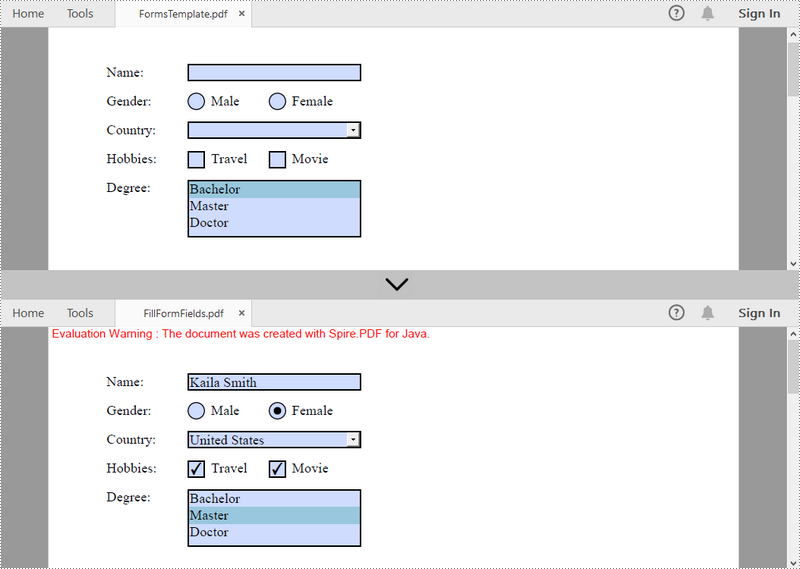
In order to fill out a form, we must first get all the form fields from the PDF document, determine the type of a certain field, and then input a value or select a value from a predefined list. The following are the steps to fill form fields in an existing PDF document using Spire.PDF for Java.
- Create a PdfDocument object.
- Load a sample PDF document using PdfDocument.loadFromFile() method.
- Get the form from the document through PdfDocument.getForm() method.
- Get the form field widget collection through PdfFormWidget.getFieldsWidget() method.
- Loop through the field widget collection to get a specific PdfField.
- Determine if the PdfField is a certain field type such as text box. If yes, set the text of the text box using PdfTextBoxFieldWidget.setText() method.
- Repeat the sixth step to fill radio button, check box, combo box, and list box with values.
- Save the document to a PDF file using PdfDocument.saveToFile() method.
- Java
import com.spire.pdf.FileFormat;
import com.spire.pdf.PdfDocument;
import com.spire.pdf.fields.PdfField;
import com.spire.pdf.widget.*;

public class FillFormFields {

    public static void main(String[] args) {

        //Create a PdfDocument object
        PdfDocument doc = new PdfDocument();

        //Load a template containing forms
        doc.loadFromFile("C:\\Users\\Administrator\\Desktop\\FormsTemplate.pdf");

        //Get the form from the document
        PdfFormWidget form = (PdfFormWidget)doc.getForm();

        //Get the form widget collection
        PdfFormFieldWidgetCollection formWidgetCollection = form.getFieldsWidget();

        //Loop through the widgets
        for (int i = 0; i < formWidgetCollection.getCount(); i++)
        {
            //Get a specific field
            PdfField field = formWidgetCollection.get(i);

            //Determine if the field is a text box
            if (field instanceof PdfTextBoxFieldWidget)
            {
                if (field.getName().equals("name"))
                {
                    //Set the text of text box
                    PdfTextBoxFieldWidget textBoxField = (PdfTextBoxFieldWidget)field;
                    textBoxField.setText("Kaila Smith");
                }
            }

            //Determine if the field is a radio button
            if (field instanceof PdfRadioButtonListFieldWidget)
            {
                if (field.getName().equals("gender"))
                {
                    //Set the selected index of radio button
                    PdfRadioButtonListFieldWidget radioButtonListField = (PdfRadioButtonListFieldWidget)field;
                    radioButtonListField.setSelectedIndex(1);
                }
            }

            //Determine if the field is a combo box
            if (field instanceof PdfComboBoxWidgetFieldWidget)
            {
                if (field.getName().equals("country"))
                {
                    //Set the selected index of combo box
                    PdfComboBoxWidgetFieldWidget comboBoxField = (PdfComboBoxWidgetFieldWidget)field;
                    comboBoxField.setSelectedIndex(0);
                }
            }

            //Determine if the field is a check box
            if (field instanceof PdfCheckBoxWidgetFieldWidget)
            {
                //Set the "Checked" status of check box
                PdfCheckBoxWidgetFieldWidget checkBoxField = (PdfCheckBoxWidgetFieldWidget)field;
                switch (checkBoxField.getName())
                {
                    case "travel":
                    case "movie":
                        checkBoxField.setChecked(true);
                        break;
                }
            }

            //Determine if the field is a list box
            if (field instanceof PdfListBoxWidgetFieldWidget)
            {
                if (field.getName().equals("degree"))
                {
                    //Set the selected index of list box
                    PdfListBoxWidgetFieldWidget listBox = (PdfListBoxWidgetFieldWidget)field;
                    listBox.setSelectedIndex(1);
                }
            }
        }

        //Save to file
        doc.saveToFile("FillFormFields.pdf", FileFormat.PDF);
    }
}
Delete a Particular Field or All Fields in an Existing PDF Document in Java
A form field in a PDF document can be accessed by its index or name and removed by PdfFieldCollection.remove() method. The following are the steps to remove a particular field or all fields from an existing PDF document using Sprie.PDF for Java.
- Create a PdfDocument object.
- Load a sample PDF document using PdfDocument.loadFromFile() method.
- Get the form from the document using PdfDocument.getForm() method.
- Get the form field widget collection using PdfFormWidget.getFieldsWidget() method.
- Loop through the widget collection to get a specific PdfField. Remove the field one by one using PdfFieldCollection.remove() method.
- To remove a certain form field, get it from the document using PdfFormFieldWidgetCollection.get() method and then call the PdfFieldCollection.remove() method.
- Save the document to a PDF file using PdfDocument.saveToFile() method.
- Java
import com.spire.pdf.PdfDocument;
import com.spire.pdf.fields.PdfField;
import com.spire.pdf.widget.PdfFormFieldWidgetCollection;
import com.spire.pdf.widget.PdfFormWidget;

public class DeleteFormFields {

    public static void main(String[] args) {

        //Create a PdfDocument object
        PdfDocument doc = new PdfDocument();

        //Load a PDF file
        doc.loadFromFile("C:\\Users\\Administrator\\Desktop\\FormsTemplate.pdf");

        //Get the form from the document
        PdfFormWidget form= (PdfFormWidget)doc.getForm();

        //Get form widgets from the form
         PdfFormFieldWidgetCollection widgets = form.getFieldsWidget();

        //Loop through the widgets
        for (int i = widgets.getCount() - 1; i >= 0; i--)
        {
            //Get a specific field
            PdfField field = (PdfField)widgets.getList().get(i) ;

            //Remove the field
            widgets.remove(field);
        }

        //Get a specific field by its name
        //PdfField field = widgets.get("name");
        //Remove the field
        //widgets.remove(field);

        //Save to file
        doc.saveToFile("DeleteAllFields.pdf");
    }
}
Apply for a Temporary License
If you'd like to remove the evaluation message from the generated documents, or to get rid of the function limitations, please request a 30-day trial license for yourself.
