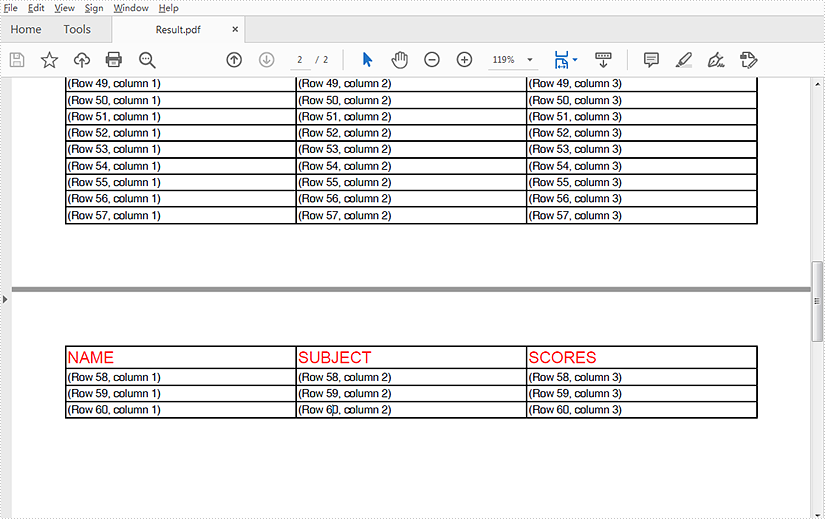
Quick PDF Parsing in Java: Text, Tables, Images & Metadata
PDF parsing in Java is commonly required when applications need to extract usable information from PDF files, rather than simply render them for display. Typical use cases include document indexing, automated report processing, invoice analysis, and data ingestion pipelines.
Unlike structured formats such as JSON or XML, PDFs are designed for visual fidelity. Text, tables, images, and other elements are stored as positioned drawing instructions instead of logical data structures. As a result, effective PDF parsing in Java depends on understanding how content is represented internally and how Java-based libraries expose that content through their APIs.
This article focuses on practical PDF parsing operations in real Java applications using Spire.PDF for Java, with each section covering a specific extraction task—text, tables, images, or metadata—rather than presenting PDF parsing as a single linear workflow.
Table of Contents
- Understanding PDF Parsing from an Implementation Perspective
- A Practical PDF Parsing Workflow in Java
- Loading and Validating PDF Documents in Java
- Parsing Text from PDF Pages Using Java
- Parsing Tables from PDF Pages Using Java
- Parsing Images from PDF Pages Using Java
- Parsing PDF Metadata Using Java
- Implementation Considerations for PDF Parsing in Java
- Frequently Asked Questions
Understanding PDF Parsing from an Implementation Perspective
From an implementation perspective, PDF parsing in Java is not a single operation, but a set of extraction tasks applied to the same document, depending on the type of data the application needs to obtain.
In real systems, PDF parsing is typically used to retrieve:
- Plain text content for indexing, search, or analysis
- Structured data such as tables for further processing or storage
- Embedded resources such as images for archiving or downstream processing
- Document metadata for classification, auditing, or version tracking
The complexity of PDF parsing comes from the way PDF files store content. Unlike structured document formats, PDFs do not preserve logical elements such as paragraphs, rows, or tables. Instead, most content is represented as:
- Page-level content streams
- Text fragments positioned using coordinates
- Graphical elements (images, lines, spacing, borders) that visually imply structure
As a result, Java-based PDF parsing focuses on reconstructing meaning from layout information, rather than reading predefined data structures. This is why practical Java implementations rely on a dedicated PDF parsing library that exposes low-level page content while also providing higher-level utilities—such as text extraction and table detection—to reduce the amount of custom logic required.
A Practical PDF Parsing Workflow in Java
In production environments, PDF parsing is best designed as a set of independent parsing operations that can be applied selectively, rather than as a strict step-by-step pipeline. This design improves fault isolation and allows applications to apply only the parsing logic they actually need.
At this stage, we will use Spire.PDF for Java, a Java PDF library that provides APIs for text extraction, table detection, image exporting, metadata access, and more. It is suitable for backend services, batch processing jobs, and document automation systems.
Installing Spire.PDF for Java
You can download the library from the Spire.PDF for Java download page and manually include it in your project dependencies. If you are using Maven, you can also install it by adding the following dependency to your project:
<repositories>
    <repository>
        <id>com.e-iceblue</id>
        <name>e-iceblue</name>
        <url>https://repo.e-iceblue.com/nexus/content/groups/public/</url>
    </repository>
</repositories>
<dependencies>
    <dependency>
        <groupId>e-iceblue</groupId>
        <artifactId>spire.doc</artifactId>
        <version>14.9.5</version>
    </dependency>
</dependencies>
After installation, you can load and analyze PDF documents using Java code without relying on external tools.
Loading and Validating PDF Documents in Java
Before performing any parsing operation, the PDF document should be loaded and validated. This step is best treated as a standalone operation that confirms the document can be safely processed by downstream parsing logic.
import com.spire.pdf.PdfDocument;

public class loadPDF {
    public static void main(String[] args) {

        // Create a PdfDocument instance
        PdfDocument pdf = new PdfDocument();
        // Load the PDF document
        pdf.loadFromFile("sample.pdf");

        // Get the total number of pages
        int pageCount = pdf.getPages().getCount();
        System.out.println("Total pages: " + pageCount);
    }
}
Console Output Preview
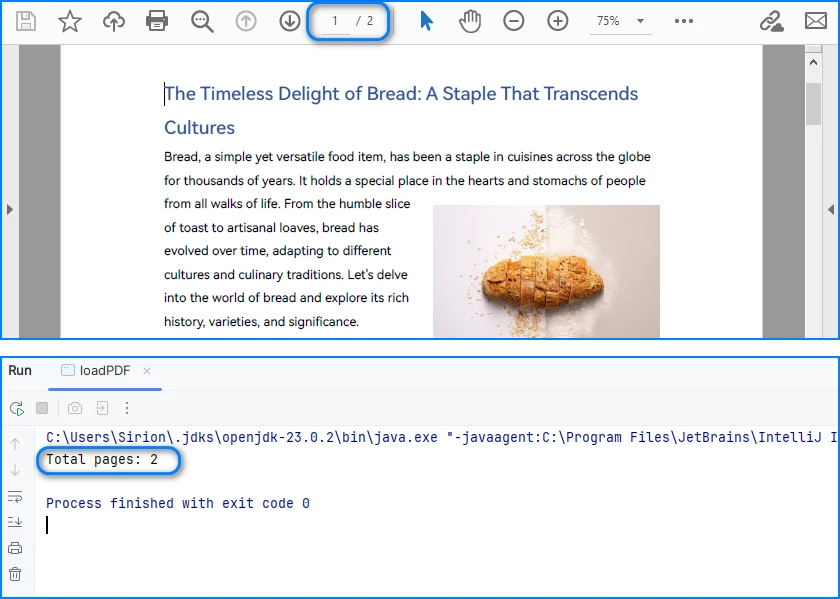
From an implementation perspective, successful loading and page access already verify several critical conditions:
- The file conforms to a supported PDF format
- The document structure can be parsed without fatal errors
- The page tree is present and accessible
In production systems, this validation step is often used as a gatekeeper. Documents that fail to load or expose a valid page collection can be rejected early.
Real world applications often need developers to parse PDFs in other formats, like bytes or streams. You can refer to How to Load PDF Documents from Bytes Using Java for details.
Separating document validation from extraction logic helps prevent cascading failures, especially in batch or automated parsing workflows.
Parsing Text from PDF Pages Using Java
Text parsing is one of the most common PDF processing tasks in Java and typically involves extracting and reconstructing readable text from PDF pages. When working with Spire.PDF for Java, text extraction should be implemented using the PdfTextExtractor class together with configurable extraction options, rather than relying on a single high-level API call.
Treating text parsing as an independent operation allows developers to extract and process textual content flexibly whenever it is required, such as indexing, analysis, or content migration.
How Text Parsing and Extraction Work in Java
In a typical Java implementation, text parsing is performed through a small set of clearly defined operations, each of which is reflected directly in the code:
- Load the PDF document into a PdfDocument instance
- Configure text parsing behavior using PdfTextExtractOptions
- Create a PdfTextExtractor for each page
- Parse and collect page-level text results
This page-based design maps cleanly to the underlying PDF structure and provides better control when processing multi-page documents.
Java Example: Extracting Text from PDF
The following example demonstrates how to extract text from a PDF file using PdfTextExtractor and PdfTextExtractOptions in Spire.PDF for Java.
import com.spire.pdf.PdfDocument;
import com.spire.pdf.texts.PdfTextExtractOptions;
import com.spire.pdf.texts.PdfTextExtractor;

public class extractPdfText {
    public static void main(String[] args) {

        // Create and load the PDF document
        PdfDocument pdf = new PdfDocument();
        pdf.loadFromFile("sample.pdf");

        // Use StringBuilder to efficiently accumulate extracted text
        StringBuilder extractedText = new StringBuilder();

        // Configure text extraction options
        PdfTextExtractOptions options = new PdfTextExtractOptions();

        // Enable simple extraction mode for more readable text output
        options.setSimpleExtraction(true);

        // Iterate through each page in the PDF
        for (int i = 0; i < pdf.getPages().getCount(); i++) {

            // Create a PdfTextExtractor for the current page
            PdfTextExtractor extractor =
                    new PdfTextExtractor(pdf.getPages().get(i));

            // Extract text content from the current page using the options
            String pageText = extractor.extract(options);

            // Append the extracted page text to the result buffer
            extractedText.append(pageText).append("\n");
        }

        // At this point, extractedText contains the full textual content
        // and can be stored, indexed, or further processed
        System.out.println(extractedText.toString());
    }
}
Console Output Preview
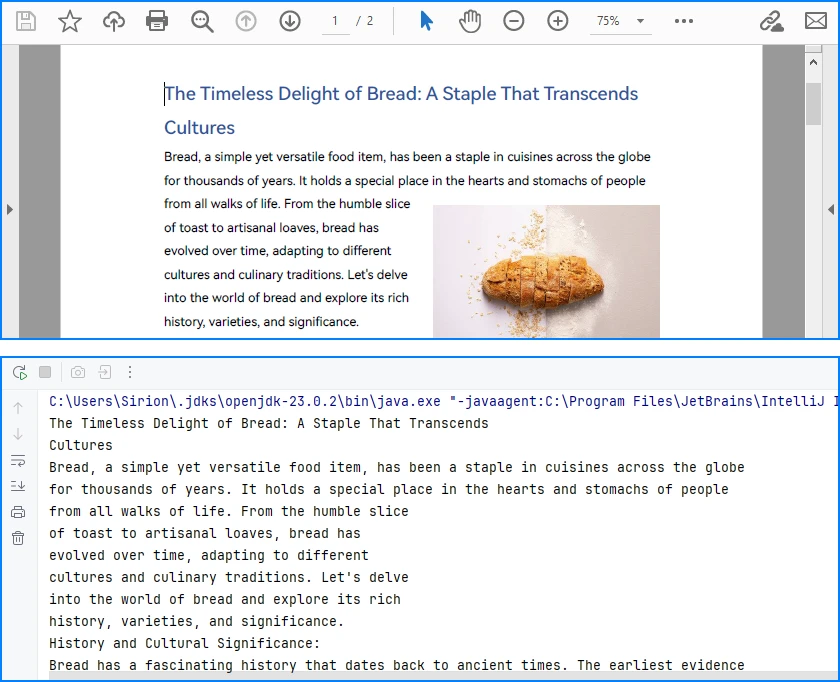
Explanation of Key Points in PDF Text Parsing
-
PdfTextExtractor: Operates at the page level and provides finer control over how text is reconstructed.
-
PdfTextExtractOptions: Allows you to control extraction behavior. Enabling
setSimpleExtraction(true)helps produce cleaner, more readable text by simplifying layout reconstruction. -
Page-by-page processing: Improves scalability and makes it easier to handle large PDF files or isolate problematic pages.
Technical Considerations
- Text is reconstructed from positioned glyphs rather than stored as paragraphs
- Extraction behavior can be tuned using PdfTextExtractOptions
- Page-level extraction improves fault tolerance and flexibility
- Extracted text often requires additional normalization for downstream systems
This method works well for reports, contracts, and other text-centric documents with relatively consistent layouts and is the recommended approach for parsing text from PDF pages in Java using Spire.PDF for Java. You can check out How to Extract Text from PDF Pages Using Java for more text extraction examples.
Parsing Tables from PDF Pages Using Java
Table parsing is an advanced PDF parsing operation that focuses on identifying tabular structures within PDF pages and reconstructing them into structured rows and columns. Compared to plain text parsing, table parsing preserves semantic relationships between data cells and is commonly used in scenarios such as invoices, financial statements, and operational reports.
When performing PDF parsing in Java, table parsing allows applications to transform visually aligned content into structured data that can be programmatically processed, stored, or exported.
How Table Parsing Works in Java Practice
When parsing tables, the implementation shifts from plain text extraction to structure inference based on visual alignment and layout consistency.
- Load the PDF document into a PdfDocument instance
- Create a PdfTableExtractor bound to the document
- Parse table structures from a specific page
- Reconstruct rows and columns from the parsed table model
- Validate and normalize parsed cell data for downstream use
Unlike plain text parsing, table parsing infers structure from visual alignment and layout consistency, allowing row-and-column access to data that is otherwise represented as positioned text.
Java Example: Parsing Tables from a PDF Page
The following example demonstrates how to parse tables from a PDF page using PdfTableExtractor in Spire.PDF for Java. The extracted tables are converted into structured row-and-column data that can be further processed or exported.
import com.spire.pdf.PdfDocument;
import com.spire.pdf.utilities.PdfTable;
import com.spire.pdf.utilities.PdfTableExtractor;

public class extractPdfTable {
    public static void main(String[] args) {

        // Load the PDF document
        PdfDocument pdf = new PdfDocument();
        pdf.loadFromFile("sample1.pdf");

        // Create a table extractor bound to the document
        PdfTableExtractor extractor = new PdfTableExtractor(pdf);

        // Parse tables from the first page (page index starts at 0)
        PdfTable[] tables = extractor.extractTable(0);

        if (tables != null) {
            for (PdfTable table : tables) {

                // Retrieve parsed table structure
                int rowCount = table.getRowCount();
                int columnCount = table.getColumnCount();

                System.out.println("Rows: " + rowCount +
                        ", Columns: " + columnCount);

                // Reconstruct table cell data row by row
                StringBuilder tableData = new StringBuilder();
                for (int i = 0; i < rowCount; i++) {
                    for (int j = 0; j < columnCount; j++) {

                        // Retrieve text from each parsed table cell
                        tableData.append(table.getText(i, j));

                        if (j < columnCount - 1) {
                            tableData.append("\t");
                        }
                    }
                    if (i < rowCount - 1) {
                        tableData.append("\n");
                    }
                }

                // Parsed table data is now available for export or storage
                System.out.println(tableData.toString());
            }
        }
    }
}
Console Output Preview
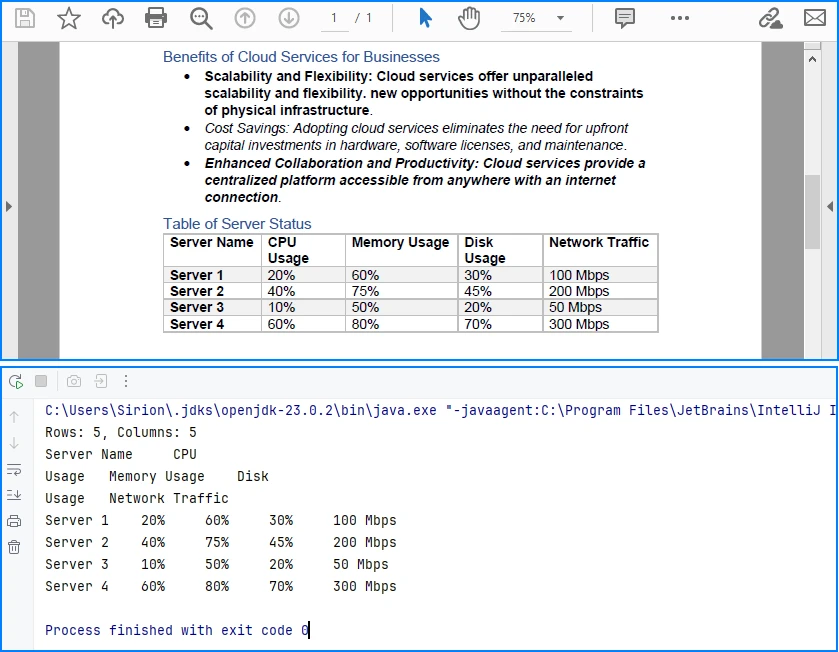
Explanation of Key Implementation Details
-
PdfTableExtractor: Analyzes page-level content and detects tabular regions based on visual alignment and layout features.
-
Structure reconstruction: Rows and columns are inferred from the relative positioning of text elements, allowing cell-level access through row and column indices.
-
Page-scoped parsing: Tables are parsed on a per-page basis, which improves accuracy and makes it easier to handle layout variations across pages.
Practical Considerations When Parsing PDF Tables
- Table boundaries are inferred from visual layout, not from an explicit schema
- Header rows may require additional detection or handling logic
- Parsed cell content often needs normalization before storage or export
- Complex or inconsistent layouts may affect parsing accuracy
Despite these limitations, table parsing remains one of the most valuable PDF parsing capabilities in Java, especially for automating data extraction from structured business documents.
After parsing table structures from PDF pages, the extracted data is often exported to structured formats such as CSV for further use, as shown in Convert PDF Tables to CSV in Java.
Parsing Images from PDF Pages Using Java
Image parsing is a specialized PDF parsing capability that focuses on extracting embedded image resources from PDF pages. Unlike text or table parsing, which operates on content streams or layout inference, image parsing works by analyzing page-level resources and identifying image objects embedded within each page.
In Java-based PDF processing systems, parsing images is commonly used for archiving visual content, auditing document composition, or passing image data to downstream processing pipelines.
How Image Parsing Works in Java
At the implementation level, image parsing operates on page-level resources rather than text content streams.
- Load the PDF document into a PdfDocument instance
- Initialize a PdfImageHelper utility
- Iterate through pages and retrieve image resource information
- Parse each embedded image and export it as a standard image format
Because images are stored as independent page resources, this parsing operation does not depend on text flow, layout reconstruction, or table detection logic.
Java Example: Parsing Images from PDF Pages
The following example demonstrates how to parse images embedded in PDF pages using PdfImageHelper and PdfImageInfo in Spire.PDF for Java. Each detected image is extracted and saved as a PNG file.
import com.spire.pdf.PdfDocument;
import com.spire.pdf.utilities.PdfImageHelper;
import com.spire.pdf.utilities.PdfImageInfo;

import javax.imageio.ImageIO;
import java.awt.image.BufferedImage;
import java.io.File;
import java.io.IOException;

public class ExtractPdfImages {
    public static void main(String[] args) throws IOException {

        // Load the PDF document
        PdfDocument pdf = new PdfDocument();
        pdf.loadFromFile("sample.pdf");

        // Create a PdfImageHelper instance
        PdfImageHelper imageHelper = new PdfImageHelper();

        // Iterate through each page in the document
        for (int i = 0; i < pdf.getPages().getCount(); i++) {

            // Retrieve information of all images in the current page
            PdfImageInfo[] imageInfos = imageHelper.getImagesInfo(pdf.getPages().get(i));

            if (imageInfos != null) {
                for (int j = 0; j < imageInfos.length; j++) {

                    // Retrieve image data as BufferedImage
                    BufferedImage image = imageInfos[j].getImage();

                    // Save the parsed image to a file
                    File output = new File(
                            "output/images/page_" + i + "_image_" + j + ".png"
                    );
                    ImageIO.write(image, "PNG", output);
                }
            }
        }
    }
}
Extracted Images Preview
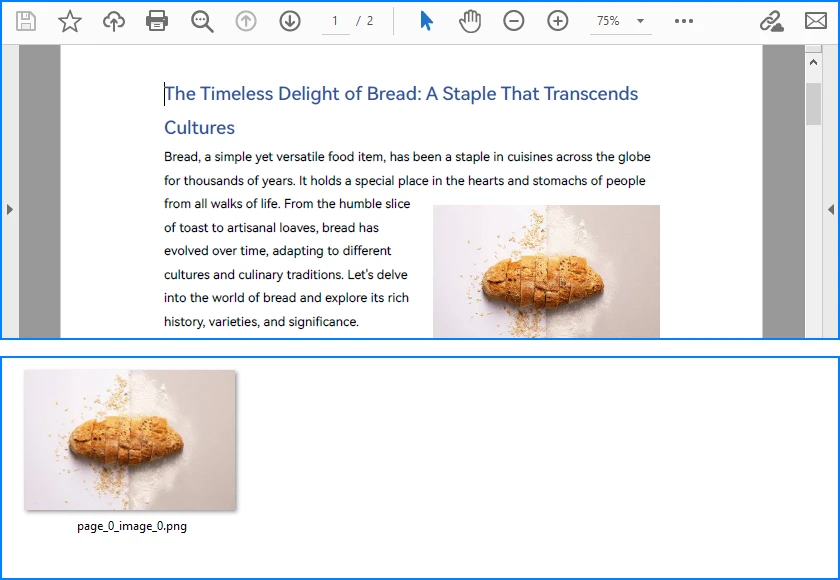
Explanation of Key Details in PDF Image Parsing
-
PdfImageHelper & PdfImageInfo: These classes analyze page-level resources and provide access to embedded images as BufferedImage objects.
-
Page-scoped parsing: Images are parsed on a per-page basis, ensuring accurate extraction even for multi-page PDFs with repeated or reused images.
-
Independent of layout: Parsing does not rely on text flow or table alignment, making it suitable for any visual resources embedded in the document.
Practical Considerations When Parsing PDF Images
- Parsed images may include decorative or background elements
- Image resolution, color space, and format may vary by document
- Large PDFs can contain many images, so memory and storage should be managed
- Image parsing complements text, table, and metadata parsing, completing the PDF parsing workflow in Java
Besides extracting and saving individual images, PDF pages can also be converted directly to images; see Convert PDF Pages to Images in Java for more details.
Parsing PDF Metadata Using Java
Metadata parsing is a foundational PDF parsing capability that focuses on reading document-level information stored separately from visual content. Unlike text or table parsing, metadata parsing does not depend on page layout and can be applied reliably to almost any PDF file.
In Java-based PDF processing systems, parsing metadata is often used as an initial analysis step to support document classification, routing, and indexing decisions.
How Metadata Parsing works with Java
Unlike page-level parsing tasks, metadata parsing is implemented as a document-level operation that accesses information stored outside the rendering content.
- Load the PDF document into a PdfDocument instance
- Access the document information dictionary
- Parse available metadata fields
- Use parsed metadata to support classification, routing, or indexing logic
Since metadata is stored independently of page layout and rendering instructions, this parsing operation is lightweight, fast, and highly consistent across PDF files.
Java Example: Parsing PDF Document Metadata
The following example demonstrates how to parse common metadata fields from a PDF document using Spire.PDF for Java. These fields can be used for indexing, classification, or workflow routing.
import com.spire.pdf.PdfDocument;

public class ParsePdfMetadata {
    public static void main(String[] args) {

        // Load the PDF document
        PdfDocument pdf = new PdfDocument();
        pdf.loadFromFile("sample.pdf");

        // Parse document-level metadata
        String title = pdf.getDocumentInformation().getTitle();
        String author = pdf.getDocumentInformation().getAuthor();
        String subject = pdf.getDocumentInformation().getSubject();
        String keywords = pdf.getDocumentInformation().getKeywords();
        String creator = pdf.getDocumentInformation().getCreator();
        String producer = pdf.getDocumentInformation().getProducer();

        String creationDate = pdf.getDocumentInformation()
                .getCreationDate().toString();
        String modificationDate = pdf.getDocumentInformation()
                .getModificationDate().toString();

        // Parsed metadata can be stored, indexed, or used for routing logic
        System.out.println(
                "Title: " + title +
                "\nAuthor: " + author +
                "\nSubject: " + subject +
                "\nKeywords: " + keywords +
                "\nCreator: " + creator +
                "\nProducer: " + producer +
                "\nCreation Date: " + creationDate +
                "\nModification Date: " + modificationDate
        );
    }
}
Console Output Preview

Explanation of Key Details in PDF Metadata Parsing
-
Document information dictionary: Metadata is parsed from a dedicated structure within the PDF file and is independent of page-level rendering content.
-
Field availability: Not all PDF files contain complete metadata. Parsed values may be empty or null and should be validated before use.
-
Low parsing overhead: Metadata parsing is fast and does not require page iteration, making it suitable as a preliminary parsing step.
For accessing custom PDF properties, see the PdfDocumentInformation API reference.
Common Use Cases for Metadata Parsing
- Document classification and tagging
- Search indexing and filtering
- Workflow routing and access control
- Version tracking and audit logging
Because metadata is parsed independently from visual layout and content streams, it is generally more stable and predictable than text or table parsing in complex PDF documents.
Implementation Considerations for PDF Parsing in Java
While individual parsing operations can be implemented independently, real-world Java applications often combine multiple PDF parsing capabilities within the same processing pipeline.
Combining Multiple Parsing Operations
Common implementation patterns include:
- Parsing text for indexing while parsing tables for structured storage
- Using parsed metadata to route documents to different processing workflows
- Executing parsing operations asynchronously or in scheduled batch jobs
Treating text, table, image, and metadata parsing as independent but composable operations makes PDF processing systems easier to extend, test, and maintain.
Practical Limitations and Constraints
Even with a capable Java PDF parser, certain limitations remain unavoidable:
- Scanned PDF files require OCR before any parsing can occur
- Highly complex or inconsistent layouts can reduce parsing accuracy
- Custom fonts or encodings may affect text reconstruction
Understanding these constraints helps align parsing strategies with realistic technical expectations and reduces error handling complexity in production systems.
Conclusion
PDF parsing in Java is most effective when treated as a collection of independent, purpose-driven extraction operations rather than a single linear workflow. By focusing on text extraction, table parsing, and metadata access as separate concerns, Java applications can reliably transform PDF documents into usable data.
With the help of a dedicated Java PDF parser such as Spire.PDF for Java, developers can build maintainable, production-ready PDF processing solutions that scale with real-world requirements.
To unlock the full potential of PDF parsing in Java using Spire.PDF for Java, you can request a free trial license.
Frequently Asked Questions for PDF Parsing in Java
Q1: How can I parse text from PDF pages in Java?
A1: You can use Spire.PDF for Java with the PdfTextExtractor class and PdfTextExtractOptions to extract page-level text efficiently. This approach allows flexible text parsing for indexing, analysis, or migration.
Q2: How do I extract tables from PDF files in Java?
A2: Use PdfTableExtractor to detect tabular regions and reconstruct rows and columns. Extracted tables can be further processed, exported, or stored as structured data.
Q3: Can I parse images from PDF pages in Java?
A3: Yes. With PdfImageHelper and PdfImageInfo, you can extract embedded images from each page and save them as files. You can also convert entire PDF pages directly to images if needed.
Q4: How do I read PDF metadata in Java?
A4: Access the PdfDocumentInformation object from your PDF document to retrieve standard fields like title, author, creation date, and keywords. This is fast and independent of page content.
Q5: Are there limitations to PDF parsing in Java?
A5: Complex layouts, scanned PDFs, and custom fonts can reduce parsing accuracy. Scanned documents require OCR before text or table extraction.
Generate PDFs from Templates in Java (HTML-to-PDF Explained)
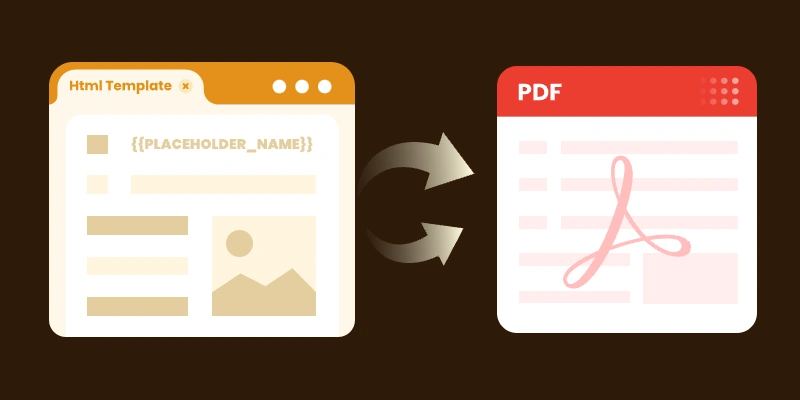
In many Java applications, you’ll need to generate PDF documents dynamically — for example, invoices, reports, or certificates. Creating PDFs from scratch can be time-consuming and error-prone, especially with complex layouts or changing content. Using templates with placeholders that are replaced at runtime is a more maintainable and flexible approach, ensuring consistent styling while separating layout from data.
In this article, we’ll explore how to generate PDFs from templates in Java using Spire.PDF for Java, including practical examples for both HTML and PDF templates. We’ll also highlight best practices, common challenges, and tips for creating professional, data-driven PDFs efficiently.
Table of Contents
- Why Use Templates for PDF Generation
- Choosing the Right Template Format (HTML, PDF, or Word)
- Setting Up the Environment
- Generating PDFs from Templates in Java
- Best Practices for Template-Based PDF Generation
- Final Thoughts
- FAQs
Why Use Templates for PDF Generation
- Maintainability : Designers or non-developers can edit templates (HTML, PDF, or Word) without touching code.
- Separation of concerns : Your business logic is decoupled from document layout.
- Consistency : Templates enforce consistent styling, branding, and layout across all generated documents.
- Flexibility : You can switch or update templates without major code changes.
Choosing the Right Template Format (HTML, PDF, or Word)
Each template format has strengths and trade-offs. Understanding them helps you pick the best one for your use case.
| Template Format | Pros | Cons / Considerations | Ideal Use Cases |
|---|---|---|---|
| HTML | Full control over layout via CSS, tables, responsive design; easy to iterate | Needs an HTML-to-PDF conversion engine (e.g. Qt WebEngine, headless Chrome) | Invoices, reports, documents with variable-length content, tables, images |
| You can take an existing branded PDF and replace placeholders | Only supports simple inline text replacements (no reflow for multiline content) | Templates with fixed layout and limited dynamic fields (e.g. contracts, certificates) | |
| Word (DOCX) | Familiar to non-developers; supports rich editing | Requires library (like Spire.Doc) to replace placeholders and convert to PDF | Organizations with existing Word-based templates or documents maintained by non-technical staff |
In practice, for documents with rich layout and dynamic content, HTML templates are often the best choice. For documents where layout must be rigid and placeholders are few, PDF templates can suffice. And if your stakeholders prefer Word-based templates, converting from Word to PDF may be the most comfortable workflow.
Setting Up the Environment
Before you begin coding, set up your project for Spire.PDF (and possibly Spire.Doc) usage:
- Download / add dependency
- (If using HTML templates) Install HTML-to-PDF engine / plugin
Spire.PDF needs an external engine or plugin (e.g. Qt WebEngine or a headless Chrome /Chromium) to render HTML + CSS to PDF.
- Download the appropriate plugin for your platform (Windows x86, Windows x64, Linux, macOS).
- Unzip to a local folder and locate the plugins directory, e.g.: C:\plugins-windows-x64\plugins
- Configure the plugin path in code:
- Prepare your templates
To get started, download Spire.PDF for Java from our website and add the JAR files to your project's build path. If you’re using Maven, include the following dependency in your pom.xml.
<repositories>
    <repository>
        <id>com.e-iceblue</id>
        <name>e-iceblue</name>
        <url>https://repo.e-iceblue.com/nexus/content/groups/public/</url>
    </repository>
</repositories>
<dependencies>
    <dependency>
        <groupId>e-iceblue</groupId>
        <artifactId>spire.pdf</artifactId>
        <version>12.10.0</version>
    </dependency>
</dependencies>
HtmlConverter.setPluginPath("C:\\plugins-windows-x64\\plugins");
- For HTML: define placeholders (e.g. {{PLACEHOLDER}}) in your template HTML / CSS.
- For PDF: build or procure a base PDF that includes placeholder text (e.g. {PROJECT_NAME}) in the spots you want replaced.
Generating PDFs from Templates in Java
From an HTML Template
Here’s how you can use Spire.PDF to convert an HTML template into a PDF document, replacing placeholders with actual data.
Sample Code (HTML → PDF)
import com.spire.pdf.graphics.PdfMargins;
import com.spire.pdf.htmlconverter.LoadHtmlType;
import com.spire.pdf.htmlconverter.qt.HtmlConverter;
import com.spire.pdf.htmlconverter.qt.Size;

import java.nio.file.Files;
import java.nio.file.Paths;
import java.util.HashMap;
import java.util.Map;

public class GeneratePdfFromHtmlTemplate {

    public static void main(String[] args) throws Exception {

        // Path to the HTML template file
        String htmlFilePath = "template/invoice_template.html";

        // Read HTML content from file
        String htmlTemplate = new String(Files.readAllBytes(Paths.get(htmlFilePath)));

        // Sample data for invoice
        Map invoiceData = new HashMap<>();
        invoiceData.put("INVOICE_NUMBER", "12345");
        invoiceData.put("INVOICE_DATE", "2025-08-25");
        invoiceData.put("BILLER_NAME", "John Doe");
        invoiceData.put("BILLER_ADDRESS", "123 Main St, Anytown, USA");
        invoiceData.put("BILLER_EMAIL", "johndoe@example.com");
        invoiceData.put("ITEM_DESCRIPTION", "Consulting Services");
        invoiceData.put("ITEM_QUANTITY", "10");
        invoiceData.put("ITEM_UNIT_PRICE", "$100");
        invoiceData.put("ITEM_TOTAL", "$1000");
        invoiceData.put("SUBTOTAL", "$1000");
        invoiceData.put("TAX_RATE", "5");
        invoiceData.put("TAX", "$50");
        invoiceData.put("TOTAL", "$1050");

        // Replace placeholders with actual values
        String populatedHtml = populateTemplate(htmlTemplate, invoiceData);

        // Output PDF file
        String outputFile = "output/Invoice.pdf";

        // Set the QT plugin path for HTML conversion
        HtmlConverter.setPluginPath("C:\\plugins-windows-x64\\plugins");

        // Convert HTML string to PDF
        HtmlConverter.convert(
                populatedHtml,
                outputFile,
                true,                       // Enable JavaScript
                100000,                     // Timeout (ms)
                new Size(595, 842),         // A4 size
                new PdfMargins(20),         // Margins
                LoadHtmlType.Source_Code    // Load HTML from string
        );

        System.out.println("PDF generated successfully: " + outputFile);
    }

    /**
     * Replace placeholders in HTML template with actual values.
     */
    private static String populateTemplate(String template, Map data) {
        String result = template;
        for (Map.Entry entry : data.entrySet()) {
            result = result.replace("{{" + entry.getKey() + "}}", entry.getValue());
        }
        return result;
    }
}
How it work:
- Design an HTML file using CSS, tables, images, etc., with placeholders (e.g. {{NAME}}).
- Store data values in a Map<String, String>.
- Replace placeholders with actual values at runtime.
- Use HtmlConverter.convert to generate a styled PDF.
This approach works well when your content may grow or shrink (tables, paragraphs), because HTML rendering handles flow and wrapping.
Output:

From a PDF Template
If you already have a branded PDF template with placeholder text, you can open it and replace inline text within.
Sample Code (PDF placeholder replacement)
import com.spire.pdf.PdfDocument;
import com.spire.pdf.PdfPageBase;
import com.spire.pdf.texts.PdfTextReplaceOptions;
import com.spire.pdf.texts.PdfTextReplacer;
import com.spire.pdf.texts.ReplaceActionType;

import java.util.EnumSet;
import java.util.HashMap;
import java.util.Map;

public class GeneratePdfFromPdfTemplate {

    public static void main(String[] args) {

        // Create a PdfDocument object
        PdfDocument doc = new PdfDocument();

        // Load a PDF file
        doc.loadFromFile("C:\\Users\\Administrator\\Desktop\\Template.pdf");

        // Create a PdfTextReplaceOptions object and specify the options
        PdfTextReplaceOptions textReplaceOptions = new PdfTextReplaceOptions();
        textReplaceOptions.setReplaceType(EnumSet.of(ReplaceActionType.WholeWord));

        // Get a specific page
        PdfPageBase page = doc.getPages().get(0);

        // Create a PdfTextReplacer object based on the page
        PdfTextReplacer textReplacer = new PdfTextReplacer(page);
        textReplacer.setOptions(textReplaceOptions);

        // Dictionary for old and new strings
        Map<String, String> replacements = new HashMap<>();
        replacements.put("{PROJECT_NAME}", "New Website Development");
        replacements.put("{PROJECT_NO}", "2023-001");
        replacements.put("{PROJECT MANAGER}", "Alice Johnson");
        replacements.put("{PERIOD}", "Q3 2023");
        replacements.put("{PERIOD}", "Q3 2023");
        replacements.put("{START_DATE}", "Jul 1, 2023");
        replacements.put("{END_DATE}", "Sep 30, 2023");

        // Loop through the dictionary to replace text
        for (Map.Entry<String, String> pair : replacements.entrySet()) {
            textReplacer.replaceText(pair.getKey(), pair.getValue());
        }

        // Save the document to a different PDF file
        doc.saveToFile("output/FromPdfTemplate.pdf");
        doc.dispose();
    }
}
How it works:
- Load an existing PDF template .
- Use PdfTextReplacer to find and replace placeholder text.
- Save the updated file as a new PDF.
This method works only for inline, simple text replacement . It does not reflow or adjust layout if the replacement text is longer or shorter.
Output:

Best Practices for Template-Based PDF Generation
Here are some tips and guidelines to ensure reliability, maintainability, and quality of your generated PDFs:
- Use HTML templates for rich content : If your document includes tables, variable-length sections, images, or requires responsive layouts, HTML templates offer more flexibility.
- Use PDF templates for stable, fixed layouts : When your document layout is tightly controlled and only a few placeholders change, PDF templates can save you the effort of converting HTML.
- Support Word templates if your team relies on them : If your design team uses Word, use Spire.Doc for Java to replace placeholders in DOCX and export to PDF.
- Unique placeholder markers : Use distinct delimiters (e.g. {FIELD_NAME}, or {FIELD_DATE}) to avoid accidental partial replacements.
- Keep templates external and versioned : Don’t embed template strings in code. Store them in resource files or external directories.
- Test with real data sets : Use realistic data to validate layout — e.g. long names, large tables, multilingual text.
Final Thoughts
Generating PDFs from templates is a powerful, maintainable approach — especially in Java applications. Depending on your needs:
- Use HTML templates when you require dynamic layout, variable-length content, and rich styling.
- Use PDF templates when your layout is fixed and you only need to swap a few fields.
- Leverage Word templates (via Spire.Doc) if your team already operates in that environment.
By combining a clean template system with Spire.PDF (and optionally Spire.Doc), you can produce high-quality, data-driven PDFs in a maintainable, scalable way.
FAQs
Q1. Can I use Word templates (DOCX) in Java for PDF generation?
Yes. Use Spire.Doc for Java to load a Word document, replace placeholders, and export to PDF. This workflow is convenient if your organization already maintains templates in Word.
Q2. Can I insert images or charts into templates?
Yes. Whether you generate PDFs from HTML templates or modify PDF templates, you can embed images, charts, shapes, etc. Just ensure your placeholders or template structure allow space for them.
Q3. Why do I need Qt WebEngine or Chrome for HTML-to-PDF conversion?
The HTML-to-PDF conversion must render CSS, fonts, and layout precisely. Spire.PDF delegates the heavy lifting to an external engine (e.g. Qt WebEngine or Chrome). Without a plugin, styles may not render correctly.
Q4. Does Spire.PDF support multiple languages / international text in templates?
Yes. Spire.PDF supports Unicode and can render multilingual content (English, Chinese, Arabic, etc.) without losing formatting.
Get a Free License
To fully experience the capabilities of Spire.PDF for Java without any evaluation limitations, you can request a free 30-day trial license.
Modify or Edit PDF Files in Java: Practical Code Examples Included

Working with PDF files is a common requirement in many Java applications—whether you’re generating invoices, modifying contracts, or adding annotations to reports. While the PDF format is reliable for sharing documents, editing it programmatically can be tricky without the right library.
In this tutorial, you’ll learn how to add, replace, remove, and secure content in a PDF file using Spire.PDF for Java , a comprehensive and developer-friendly PDF API. We’ll walk through examples of adding pages, text, images, tables, annotations, replacing content, deleting elements, and securing files with watermarks and passwords.
Table of Contents:
- Why Use Spire.PDF to Edit PDF in Java
- Setting Up Your Java Environment
- Adding Content to a PDF File
- Replacing Content in a PDF File
- Removing Content from a PDF File
- Securing Your PDF File
- Conclusion
- FAQs About Editing PDF in Java
Why Use Spire.PDF to Edit PDF in Java
Spire.PDF offers a comprehensive set of features that make it an excellent choice for developers looking to work with PDF files in Java. Here are some reasons why you should consider using Spire.PDF:
- Ease of Use : The API is straightforward and intuitive, allowing you to perform complex operations with minimal code.
- Rich Features : Spire.PDF supports a wide range of functionalities, including text and image manipulation, page management, and security features.
- High Performance : The library is optimized for performance, ensuring that even large PDF files can be processed quickly.
- No Dependencies : Spire.PDF is a standalone library, meaning you won’t have to include any additional dependencies in your project.
By leveraging Spire.PDF, you can easily handle PDF files without getting bogged down in the complexities of the format itself.
Setting Up Your Java Environment
Installation
To begin using Spire.PDF, you'll first need to add it to your project. You can download the library from its official website or include it via Maven:
For Maven users:
<repositories>
    <repository>
        <id>com.e-iceblue</id>
        <name>e-iceblue</name>
        <url>https://repo.e-iceblue.com/nexus/content/groups/public/</url>
    </repository>
</repositories>
<dependencies>
    <dependency>
        <groupId>e-iceblue</groupId>
        <artifactId>spire.pdf</artifactId>
        <version>11.9.6</version>
    </dependency>
</dependencies>
For manual setup:
Download Spire.PDF for Java from the official website and add the JAR file to your project’s classpath.
Initiate Document Loading
Once you have the library set up, you can start loading PDF documents. Here’s how to do it:
PdfDocument doc = new PdfDocument();
doc.loadFromFile("C:\\Users\\Administrator\\Desktop\\sample.pdf");
This snippet initializes a new PdfDocument object and loads a PDF file from the specified path. By calling loadFromFile , you prepare the document for further editing.
Adding Content to a PDF File in Java
Add a New Page
Adding a new page to an existing PDF document is quite simple. Here’s how you can do it:
// Add a new page
PdfPageBase new_page = doc.getPages().add(PdfPageSize.A4, new PdfMargins(54));
// Draw text or do other operations on the page
new_page.getCanvas().drawString("This is a Newly-Added Page.", new PdfTrueTypeFont(new Font("Times New Roman",Font.PLAIN,18)), PdfBrushes.getBlue(), 0, 0);
In this code, we create a new page with A4 size and specified margins using the add method. We then draw a string on the new page using a specified font and color. The drawString method places the text at the top-left corner of the page, allowing you to add content quickly.
Add Text to a PDF File
To insert text into a specific area of an existing page, use the following code:
// Get a specific page
PdfPageBase page = doc.getPages().get(0);
// Define a rectangle for placing the text
Rectangle2D.Float rect = new Rectangle2D.Float(54, 300, (float) page.getActualSize().getWidth() - 108, 100);
// Create a brush and a font
PdfSolidBrush brush = new PdfSolidBrush(new PdfRGBColor(Color.BLUE));
PdfTrueTypeFont font = new PdfTrueTypeFont(new Font("Times New Roman",Font.PLAIN,18));
// Draw text on the page at the specified area
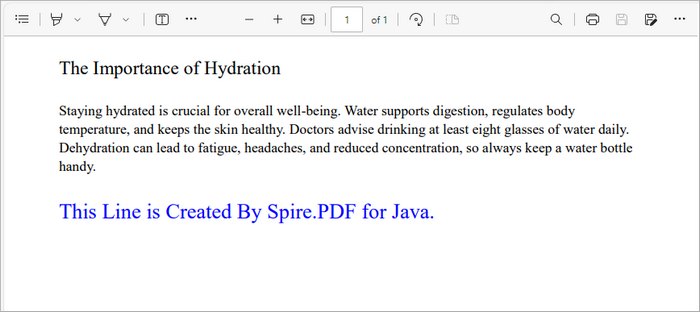
page.getCanvas().drawString("This Line is Created By Spire.PDF for Java.",font, brush, rect);
This snippet retrieves the first page of the document and defines a rectangle where the text will be placed. The Rectangle2D.Float class allows you to specify the exact dimensions for positioning the text. We then draw the specified text with a blue brush and custom font using the drawString method, which ensures that the text is rendered in the defined area.
Add an Image to a PDF File
Inserting images into a PDF is straightforward as well:
// Get a specific page
PdfPageBase page = doc.getPages().get(0);
// Load an image
PdfImage image = PdfImage.fromFile("C:\\Users\\Administrator\\Desktop\\logo.png");
// Specify coordinates for adding image
float x = 54;
float y = 300;
// Draw image on the page at the specified coordinates
page.getCanvas().drawImage(image, x, y);
Here, we load an image from a specified file path and draw it on the first page at the defined coordinates (x, y). The drawImage method allows you to position the image precisely, making it easy to incorporate visuals into your document.
Add a Table to a PDF File
Adding tables is also supported in Spire.PDF:
// Get a specific page
PdfPageBase page = doc.getPages().get(0);
// Create a table
PdfTable table = new PdfTable();
// Define table data
String[][] data = {
        new String[]{"Name", "Age", "Country"},
        new String[]{"Alice", "25", "USA"},
        new String[]{"Bob", "30", "UK"},
        new String[]{"Charlie", "28", "Canada"}
};
// Assign data to the table
table.setDataSource(data);
// Set table style
PdfTableStyle style = new PdfTableStyle();
style.getDefaultStyle().setFont(new PdfTrueTypeFont(new Font("Arial", Font.PLAIN, 12)));
table.setStyle(style);
// Draw the table on the page
table.draw(page, new Point2D.Float(50, 80));
In this example, we create a table and define its data source using a 2D array. After assigning the data, we set a style for the table using PdfTableStyle , which allows you to customize the font and appearance of the table. Finally, we use the draw method to render the table on the first page at the specified coordinates.
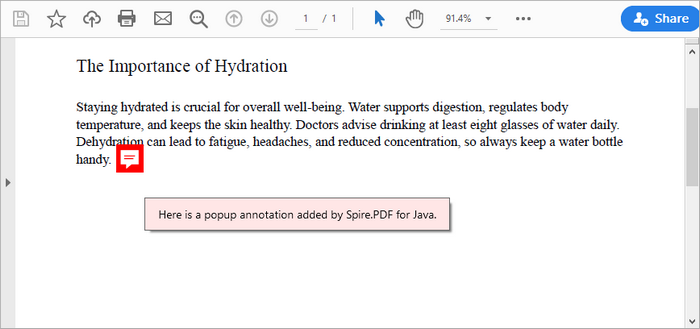
Add an Annotation or Comment
Annotations can enhance the interactivity of PDFs:
// Get a specific page
PdfPageBase page = doc.getPages().get(0);
// Create a free text annotation
PdfPopupAnnotation popupAnnotation = new PdfPopupAnnotation();
popupAnnotation.setLocation(new Point2D.Double(90, 260));
// Set the content of the annotation
popupAnnotation.setText("Here is a popup annotation added by Spire.PDF for Java.");
// Set the icon and color of the annotation
popupAnnotation.setIcon(PdfPopupIcon.Comment);
popupAnnotation.setColor(new PdfRGBColor(Color.RED));
// Add the annotation to the collection of the annotations
page.getAnnotations().add(popupAnnotation);
This snippet creates a popup annotation at a specified location on the page. By calling setLocation , you definewhere the annotation appears. The setText method allows you to specify the content displayed in the annotation, while you can set the icon and color to customize its appearance. Finally, the annotation is added to the page's collection of annotations.
You may also like: Add Page Numbers to a PDF Document in Java
Replacing Content in a PDF File in Java
Replace Text in a PDF File
To replace existing text within a PDF, you can use the following code:
// Create a PdfTextReplaceOptions object
PdfTextReplaceOptions textReplaceOptions = new PdfTextReplaceOptions();
// Specify the options for text replacement
textReplaceOptions.setReplaceType(EnumSet.of(ReplaceActionType.IgnoreCase));
// Iterate through the pages
for (int i = 0; i < doc.getPages().getCount(); i++) {

// Get a specific page
PdfPageBase page = doc.getPages().get(i);
// Create a PdfTextReplacer object based on the page
PdfTextReplacer textReplacer = new PdfTextReplacer(page);
// Set the replace options
textReplacer.setOptions(textReplaceOptions);
// Replace all occurrences of target text with new text
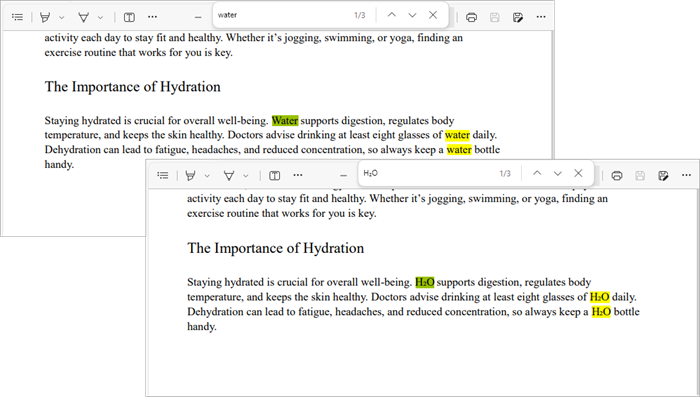
textReplacer.replaceAllText("Water", "H₂O");
}
In this example, we create a PdfTextReplaceOptions object to specify replacement options, such as ignoring case sensitivity. We then iterate through all pages of the document, creating a PdfTextReplacer for each page. The replaceAllText method is called on the text replacer to replace all occurrences of "Water" with "H₂O".
Replace an Image in a PDF File
Replacing an image follows a similar pattern:
// Get a specific page
PdfPageBase page = doc.getPages().get(0);
// Load an image
PdfImage image = PdfImage.fromFile("C:\\Users\\Administrator\\Desktop\\logo.png");
// Get the image information from the page
PdfImageHelper imageHelper = new PdfImageHelper();
PdfImageInfo[] imageInfo = imageHelper.getImagesInfo(page);
// Replace Image
imageHelper.replaceImage(imageInfo[0], image);
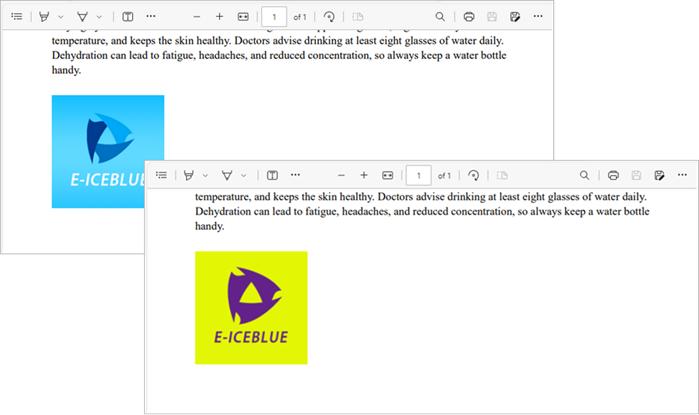
This code retrieves the image information from the specified page using the PdfImageHelper class. After loading a new image from a file, we call replaceImage to replace the first image found on the page with the new one.
You may also like: Replace Fonts in PDF Documents in Java
Removing Content from a PDF File in Java
Remove a Page from a PDF File
To remove an entire page from a PDF, use the following code:
// Remove a specific page
doc.getPages().removeAt(0);
This straightforward command removes the first page from the document. By calling removeAt , you specify the index of the page to be removed, simplifying page management in your PDF.
Delete an Image from a PDF File
To remove an image from a page:
// Get a specific page
PdfPageBase page = pdf.getPages().get(0);
// Get the image information from the page
PdfImageHelper imageHelper = new PdfImageHelper();
PdfImageInfo[] imageInfos = imageHelper.getImagesInfo(page);
// Delete the specified image on the page
imageHelper.deleteImage(imageInfos[0]);
This code retrieves all images from the first page and deletes the first image using the deleteImage method from PdfImageHelper .
Delete an Annotation
Removing an annotation is simple as well:
// Get a specific page
PdfPageBase page = pdf.getPages().get(0);
// Remove the specified annotation
page.getAnnotationsWidget().removeAt(0);
This snippet removes the first annotation from the specified page. The removeAt method is used to specify which annotation to remove, ensuring that the document can be kept clean and free of unnecessary comments.
Delete an Attachment
To delete an attachment from a PDF:
// Get the attachments collection
PdfAttachmentCollection attachments = doc.getAttachments();
// Remove a specific attachment
attachments.removeAt(0);
This code retrieves the collection of attachments from the document and removes the first one using the removeAt method.
Securing Your PDF File in Java
Apply a Watermark to a PDF File
Watermarks can be added for branding or copyright purposes:
// Create a font and a brush
PdfTrueTypeFont font = new PdfTrueTypeFont(new Font("Arial Black", Font.PLAIN, 50), true);
PdfBrush brush = PdfBrushes.getBlue();
// Specify the watermark text
String watermarkText = "DO NOT COPY";
// Specify the opacity level
float opacity = 0.6f;
// Iterate through the pages
for (int i = 0; i < doc.getPages().getCount(); i++) {
    PdfPageBase page = doc.getPages().get(i);
    // Set the transparency level for the watermark
    page.getCanvas().setTransparency(opacity);
    // Measure the size of the watermark text
    Dimension2D textSize = font.measureString(watermarkText);
    // Get the width and height of the page
    double pageWidth = page.getActualSize().getWidth();
    double pageHeight = page.getActualSize().getHeight();
    // Calculate the position to center the watermark on the page
    double x = (pageWidth - textSize.getWidth()) / 2;
    double y = (pageHeight - textSize.getHeight()) / 2;
    // Draw the watermark text on the page at the calculated position
    page.getCanvas().drawString(watermarkText, font, brush, x, y);
}
This code configures the appearance of a text watermark and places it at the center of each page in a PDF file using the drawString method, effectively discouraging unauthorized copying.
Password Protect a PDF File
To secure your PDF with a password:
// Specify the user and owner passwords
String userPassword = "open_psd";
String ownerPassword = "permission_psd";
// Create a PdfSecurityPolicy object with the two passwords
PdfSecurityPolicy securityPolicy = new PdfPasswordSecurityPolicy(userPassword, ownerPassword);
// Set encryption algorithm
securityPolicy.setEncryptionAlgorithm(PdfEncryptionAlgorithm.AES_256);
// Set document permissions (If you do not set, the default is Forbid All)
securityPolicy.setDocumentPrivilege(PdfDocumentPrivilege.getAllowAll());
// Restrict editing
securityPolicy.getDocumentPrivilege().setAllowModifyContents(false);
securityPolicy.getDocumentPrivilege().setAllowCopyContentAccessibility(false);
securityPolicy.getDocumentPrivilege().setAllowContentCopying(false);
// Encrypt the PDF file
doc.encrypt(securityPolicy);
This code applies password protection and encryption to a PDF document by defining a user password (for opening) and an owner password (for permissions like editing and printing). The PdfSecurityPolicy object manages security settings, including the AES-256 encryption algorithm and permission levels. Finally, doc.encrypt(securityPolicy) encrypts the document, ensuring only authorized users can access or modify it.
You may also like: How to Add Digital Signatures to PDF in Java
Conclusion
Editing PDF files in Java is often seen as challenging, but with Spire.PDF for Java, it becomes a straightforward and efficient process. This library provides developers with the flexibility to create, modify, replace, and secure PDF content using clean, easy-to-understand APIs. From adding pages and images to encrypting sensitive documents, Spire.PDF simplifies every step of the workflow while maintaining professional output quality.
Beyond basic editing, Spire.PDF’s capabilities extend to automation and enterprise-level solutions. Whether you’re integrating PDF manipulation into a document management system, or generating customized reports, the library offers a stable and scalable foundation for long-term projects. With its comprehensive feature set and strong performance, Spire.PDF for Java is a reliable choice for developers seeking precision, efficiency, and control over PDF documents.
FAQs About Editing PDF in Java
Q1. What is the best library for editing PDFs in Java?
Spire.PDF for Java is a popular choice among developers worldwide, which provides comprehensive range of features for effective PDF manipulation.
Q2. Can I edit existing text in a PDF using Java?
With Spire.PDF for Java, you can replace or modify existing text using classes like PdfTextReplacer along with customizable options for case sensitivity and matching behavior.
Q3. How to insert or replace images in a PDF in Java?
With Spire.PDF for Java, you can use drawImage() to insert images and PdfImageHelper.replaceImage() to replace existing ones on a specific page.
Q4. Can I annotate a PDF file in Java?
Yes, annotations such as highlights, comments, and stamps can be added using the appropriate annotation classes provided by Spire.PDF for Java.
Q5. Can I extract text and images from an existing PDF file?
Yes, you can. Spire.PDF for Java provides methods to extract text, images, and other elements from PDFs easily. For detailed instructions and code examples, refer to: How to Read PDFs in Java: Extract Text, Images, and More
Get a Free License
To fully experience the capabilities of Spire.PDF for Java without any evaluation limitations, you can request a free 30-day trial license.
How to Read PDFs in Java: Extract Text, Images, and More

In today's data-driven landscape, reading PDF files effectively is essential for Java developers. Whether you're handling scanned invoices, structured reports, or image-rich documents, the ability to read PDFs in Java can enhance workflows and reveal critical insights.
This guide will walk you through practical implementations using Spire.PDF for Java to master PDF reading in Java. You will learn to extract searchable text, retrieve embedded images, read tabular data, and perform OCR on scanned PDF documents.
Table of Contents:
- Java Library for Reading PDF Content
- Extract Text from Searchable PDFs
- Retrieve Images from PDFs
- Read Table Data from PDF Files
- Convert Scanned PDFs to Text via OCR
- Conclusion
- FAQs
Java Library for Reading PDF Content
When it comes to reading PDF in Java, choosing the right library is half the battle. Spire.PDF stands out as a robust, feature-rich solution for developers. It supports text extraction, image retrieval, table parsing, and even OCR integration. Its intuitive API and comprehensive documentation make it ideal for both beginners and experts.
To start extracting PDF content, download Spire.PDF for Java from our website and add it as a dependency in your project. If you’re using Maven, include the following in your pom.xml:
<repositories>
    <repository>
        <id>com.e-iceblue</id>
        <name>e-iceblue</name>
        <url>https://repo.e-iceblue.com/nexus/content/groups/public/</url>
    </repository>
</repositories>
<dependencies>
    <dependency>
        <groupId>e-iceblue</groupId>
        <artifactId>spire.pdf</artifactId>
        <version>11.5.2</version>
    </dependency>
</dependencies>
Below, we’ll explore how to leverage Spire.PDF for various PDF reading tasks.
Extract Text from Searchable PDFs in Java
Searchable PDFs store text in a machine-readable format, allowing for efficient content extraction. The PdfTextExtractor class in Spire.PDF provides a straightforward way to access page content, while PdfTextExtractOptions allows for flexible extraction settings, including options for handling special text layouts and specifying areas for extraction.
Step-by-Step Guide
- Initialize a new instance of PdfDocument to work with your PDF file.
- Use the loadFromFile method to load the desired PDF document.
- Loop through each page of the PDF using a for loop.
- For each page, create an instance of PdfTextExtractor to facilitate text extraction.
- Create a PdfTextExtractOptions object to specify how text should be extracted, including any special strategies.
- Call the extract method on the PdfTextExtractor instance to retrieve the text from the page.
- Write the extracted text to a text file.
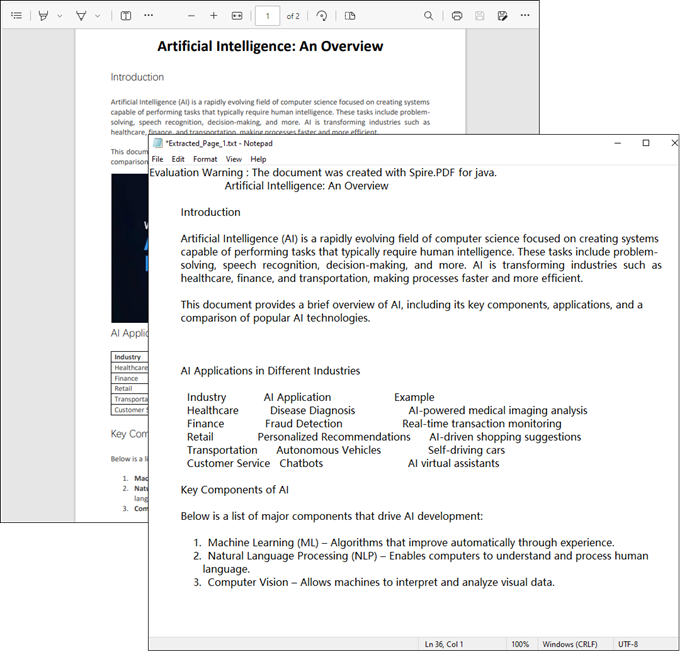
The example below shows how to retrieve text from every page of a PDF and output it to individual text files.
import com.spire.pdf.PdfDocument;
import com.spire.pdf.PdfPageBase;
import com.spire.pdf.texts.PdfTextExtractOptions;
import com.spire.pdf.texts.PdfTextExtractor;
import com.spire.pdf.texts.PdfTextStrategy;

import java.io.IOException;
import java.nio.file.Files;
import java.nio.file.Path;
import java.nio.file.Paths;

public class ExtractTextFromSearchablePdf {

    public static void main(String[] args) throws IOException {

        // Create a PdfDocument object
        PdfDocument doc = new PdfDocument();

        // Load a PDF file
        doc.loadFromFile("C:\\Users\\Administrator\\Desktop\\Input.pdf");

        // Iterate through all pages
        for (int i = 0; i < doc.getPages().getCount(); i++) {
            // Get the current page
            PdfPageBase page = doc.getPages().get(i);

            // Create a PdfTextExtractor object
            PdfTextExtractor textExtractor = new PdfTextExtractor(page);

            // Create a PdfTextExtractOptions object
            PdfTextExtractOptions extractOptions = new PdfTextExtractOptions();

            // Specify extract option
            extractOptions.setStrategy(PdfTextStrategy.None);

            // Extract text from the page
            String text = textExtractor.extract(extractOptions);

            // Define the output file path
            Path outputPath = Paths.get("output/Extracted_Page_" + (i + 1) + ".txt");

            // Write to a txt file
            Files.write(outputPath, text.getBytes());
        }

        // Close the document
        doc.close();
    }
}
Result:
Retrieve Images from PDFs in Java
The PdfImageHelper class in Spire.PDF enables efficient extraction of embedded images from PDF documents. It identifies images using PdfImageInfo objects, allowing for easy saving as standard image files.
Step-by-Step Guide
- Initialize a new instance of PdfDocument to work with your PDF file.
- Use the loadFromFile method to load the desired PDF.
- Instantiate PdfImageHelper to assist with image extraction.
- Loop through each page of the PDF.
- For each page, retrieve all image information using the getImagesInfo method.
- Loop through the retrieved image information, extract each image, and save it as a PNG file.
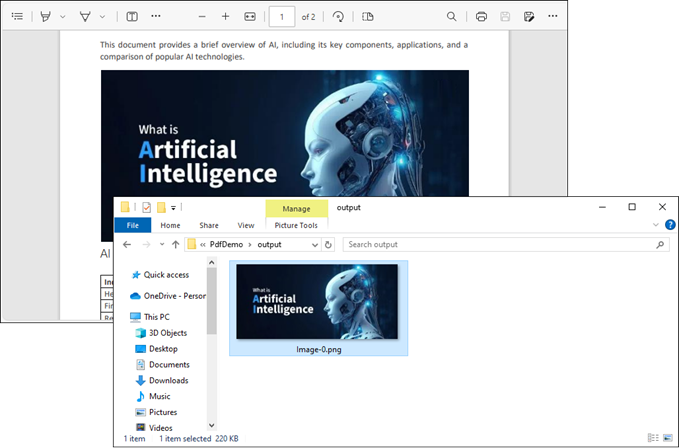
The following example extracts all embedded images from a PDF document and saves them as individual PNG files.
import com.spire.pdf.PdfDocument;
import com.spire.pdf.PdfPageBase;
import com.spire.pdf.utilities.PdfImageHelper;
import com.spire.pdf.utilities.PdfImageInfo;

import javax.imageio.ImageIO;
import java.awt.image.BufferedImage;
import java.io.File;
import java.io.IOException;

public class ExtractAllImages {

    public static void main(String[] args) throws IOException {

        // Create a PdfDocument object
        PdfDocument doc = new PdfDocument();

        // Load a PDF document
        doc.loadFromFile("C:\\Users\\Administrator\\Desktop\\Input.pdf");

        // Create a PdfImageHelper object
        PdfImageHelper imageHelper = new PdfImageHelper();

        // Declare an int variable
        int m = 0;

        // Iterate through the pages
        for (int i = 0; i < doc.getPages().getCount(); i++) {

            // Get a specific page
            PdfPageBase page = doc.getPages().get(i);

            // Get all image information from the page
            PdfImageInfo[] imageInfos = imageHelper.getImagesInfo(page);

            // Iterate through the image information
            for (int j = 0; j < imageInfos.length; j++)
            {
                // Get a specific image information
                PdfImageInfo imageInfo = imageInfos[j];

                // Get the image
                BufferedImage image = imageInfo.getImage();
                File file = new File(String.format("output/Image-%d.png",m));
                m++;

                // Save the image file in PNG format
                ImageIO.write(image, "PNG", file);
            }
        }

        // Clear up resources
        doc.dispose();
    }
}
Result:
Read Table Data from PDF Files in Java
For PDF tables that need conversion to structured data, PdfTableExtractor intelligently recognizes cell boundaries and relationships. The resulting PdfTable objects maintain the original table organization, allowing for cell-level data export.
Step-by-Step Guide
- Initialize an instance of PdfDocument to handle your PDF file.
- Use the loadFromFile method to open the desired PDF.
- Instantiate PdfTableExtractor to facilitate table extraction.
- Iterate through each page of the PDF to extract tables.
- For each page, retrieve tables into a PdfTable array using the extractTable method.
- For each table, iterate through its rows and columns to extract data.
- Write the extracted data to individual text files.
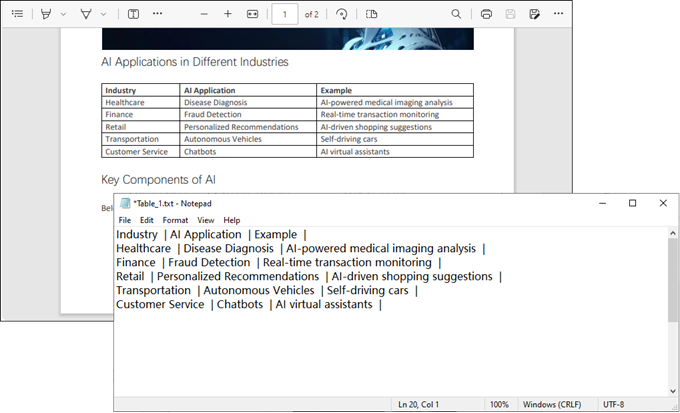
This Java code extracts table data from a PDF document and saves each table as a separate text file.
import com.spire.pdf.PdfDocument;
import com.spire.pdf.utilities.PdfTable;
import com.spire.pdf.utilities.PdfTableExtractor;

import java.io.FileWriter;

public class ExtractTableData {
    public static void main(String[] args) throws Exception {

        // Create a PdfDocument object
        PdfDocument doc = new PdfDocument();

        // Load a PDF document
        doc.loadFromFile("C:\\Users\\Administrator\\Desktop\\Input.pdf");

        // Create a PdfTableExtractor instance
        PdfTableExtractor extractor = new PdfTableExtractor(doc);

        // Initialize a table counter
        int tableCounter = 1;

        // Loop through the pages in the PDF
        for (int pageIndex = 0; pageIndex < doc.getPages().getCount(); pageIndex++) {

            // Extract tables from the current page into a PdfTable array
            PdfTable[] tableLists = extractor.extractTable(pageIndex);

            // If any tables are found
            if (tableLists != null && tableLists.length > 0) {

                // Loop through the tables in the array
                for (PdfTable table : tableLists) {

                    // Create a StringBuilder for the current table
                    StringBuilder builder = new StringBuilder();

                    // Loop through the rows in the current table
                    for (int i = 0; i < table.getRowCount(); i++) {

                        // Loop through the columns in the current table
                        for (int j = 0; j < table.getColumnCount(); j++) {

                            // Extract data from the current table cell and append to the StringBuilder
                            String text = table.getText(i, j);
                            builder.append(text).append(" | ");
                        }
                        builder.append("\r\n");
                    }

                    // Write data into a separate .txt document for each table
                    FileWriter fw = new FileWriter("output/Table_" + tableCounter + ".txt");
                    fw.write(builder.toString());
                    fw.flush();
                    fw.close();

                    // Increment the table counter
                    tableCounter++;
                }
            }
        }

        // Clear up resources
        doc.dispose();
    }
}
Result:
Convert Scanned PDFs to Text via OCR
Scanned PDFs require special handling through OCR engine such as Spire.OCR for Java. The solution first converts pages to images using Spire.PDF's rendering engine, then applies Spire.OCR's recognition capabilities via the OcrScanner class. This two-step approach effectively transforms physical document scans into editable text while supporting multiple languages.
Step 1. Install Spire.OCR and Configure the Environment
- Download Spire.OCR for Java and add the Jar file as a dependency in your project.
- Download the model that fits in with your operating system from one of the following links, and unzip the package somewhere on your disk.
- Configure the model in your code.
OcrScanner scanner = new OcrScanner();
configureOptions.setModelPath("D:\\win-x64");// model path
For detailed steps, refer to: Extract Text from Images Using the New Model of Spire.OCR for Java
Step 2. Convert a Scanned PDF to Text
This code example converts each page of a scanned PDF into an image, applies OCR to extract text, and saves the results in a text file.
import com.spire.ocr.OcrException;
import com.spire.ocr.OcrScanner;
import com.spire.ocr.ConfigureOptions;
import com.spire.pdf.PdfDocument;
import com.spire.pdf.graphics.PdfImageType;

import javax.imageio.ImageIO;
import java.awt.image.BufferedImage;
import java.io.File;
import java.io.IOException;
import java.nio.file.Files;
import java.nio.file.Path;
import java.nio.file.Paths;

public class ExtractTextFromScannedPdf {

    public static void main(String[] args) throws IOException, OcrException {

        // Create an instance of the OcrScanner class
        OcrScanner scanner = new OcrScanner();

        // Configure the scanner
        ConfigureOptions configureOptions = new ConfigureOptions();
        configureOptions.setModelPath("D:\\win-x64"); // Set model path
        configureOptions.setLanguage("English"); // Set language

        // Apply the configuration options
        scanner.ConfigureDependencies(configureOptions);

        // Load a PDF document
        PdfDocument doc = new PdfDocument();
        doc.loadFromFile("C:\\Users\\Administrator\\Desktop\\Input.pdf");

        // Prepare temporary directory
        String tempDirPath = "temp";
        new File(tempDirPath).mkdirs(); // Create temp directory

        StringBuilder allText = new StringBuilder();

        // Iterate through all pages
        for (int i = 0; i < doc.getPages().getCount(); i++) {

            // Convert page to image
            BufferedImage bufferedImage = doc.saveAsImage(i, PdfImageType.Bitmap);
            String imagePath = tempDirPath + File.separator + String.format("page_%d.png", i);
            ImageIO.write(bufferedImage, "PNG", new File(imagePath));

            // Perform OCR
            scanner.scan(imagePath);
            String pageText = scanner.getText().toString();
            allText.append(String.format("\n--- PAGE %d ---\n%s\n", i + 1, pageText));

            // Clean up temp image
            new File(imagePath).delete();
        }

        // Save all extracted text to a file
        Path outputTxtPath = Paths.get("output", "extracted_text.txt");
        Files.write(outputTxtPath, allText.toString().getBytes());

        // Close the document
        doc.close();
        System.out.println("Text extracted to " + outputTxtPath);
    }
}
Conclusion
Mastering how to read PDF in Java opens up a world of possibilities for data extraction and document automation. Whether you’re dealing with searchable text, images, tables, or scanned documents, the right tools and techniques can simplify the process.
By leveraging libraries like Spire.PDF and integrating OCR for scanned files, you can build robust solutions tailored to your needs. Start experimenting with the code snippets provided and unlock the full potential of PDF processing in Java!
FAQs
Q1: Can I extract text from scanned PDFs using Java?
Yes, by combining Spire.PDF with Spire.OCR. Convert PDF pages to images and perform OCR to extract text.
Q2: What’s the best library for reading PDFs in Java?
Spire.PDF is highly recommended for its versatility and ease of use. It supports extraction of text, images, tables, and OCR integration.
Q3: Does Spire.PDF support extraction of PDF elements like metadata, attachments, and hyperlinks?
Yes, Spire.PDF provides comprehensive support for extracting:
- Metadata (title, author, keywords)
- Attachments (embedded files)
- Hyperlinks (URLs and document links)
The library offers dedicated classes like PdfDocumentInformation for metadata and methods to retrieve embedded files ( PdfAttachmentCollection ) and hyperlinks ( PdfUriAnnotation ).
Q4: How to parse tables from PDFs into CSV/Excel programmatically?
Using Spire.PDF for Java, you can extract table data from PDFs, then seamlessly export it to Excel (XLSX) or CSV format with Spire.XLS for Java. For a step-by-step guide, refer to our tutorial: Export Table Data from PDF to Excel in Java.
Get a Free License
To fully experience the capabilities of Spire.PDF for Java without any evaluation limitations, you can request a free 30-day trial license.
Java: Compare PDF Documents
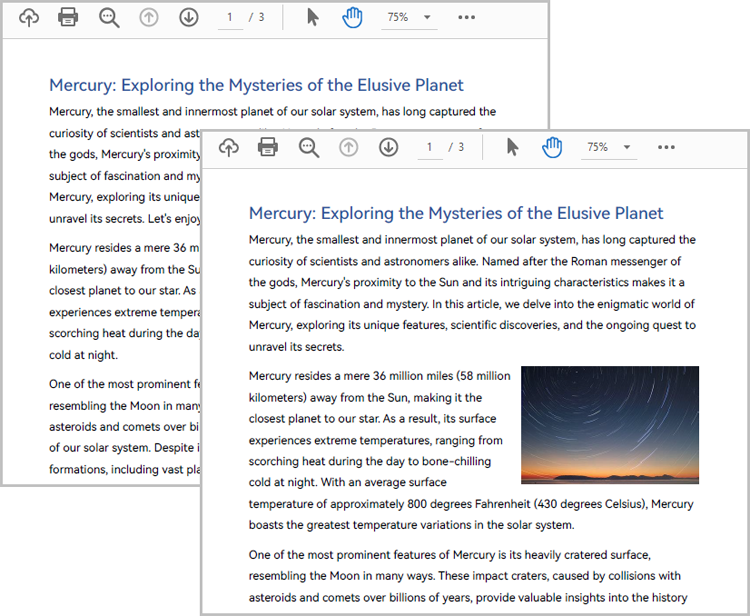
Comparison of PDF documents is essential for effective document management. By comparing PDF documents, users can easily identify differences in document content to have a more comprehensive understanding of them, which will greatly facilitate the user to modify and integrate the document content. This article will introduce how to use Spire.PDF for Java to compare PDF documents and find the differences.
Examples of the two PDF documents that will be used for comparison:
Install Spire.PDF for Java
First of all, you need to add the Spire.Pdf.jar file as a dependency in your Java program. The JAR file can be downloaded from this link. If you use Maven, you can easily import the JAR file by adding the following code to your project's pom.xml file.
<repositories>
    <repository>
        <id>com.e-iceblue</id>
        <name>e-iceblue</name>
        <url>https://repo.e-iceblue.com/nexus/content/groups/public/</url>
    </repository>
</repositories>
<dependencies>
    <dependency>
        <groupId>e-iceblue</groupId>
        <artifactId>spire.pdf</artifactId>
        <version>12.10.0</version>
    </dependency>
</dependencies>
Compare Two PDF Documents
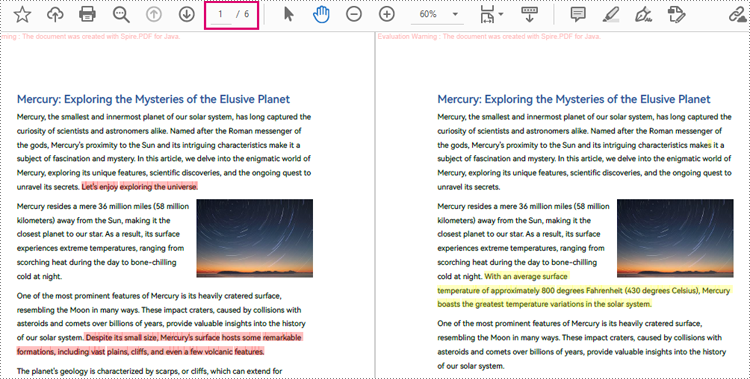
Spire.PDF for Java provides the PdfComparer class for users to create an object with two PDF documents for comparing. After creating the PdfComparer object, users can use PdfComparer.compare(String fileName) method to compare the two documents and save the result as a new PDF file.
The resulting PDF document displays the two original documents on the left and the right, with the deleted items in red and the added items in yellow.
The detailed steps for comparing two PDF documents are as follows:
- Create two objects of PdfDocument class and load two PDF documents using PdfDocument.loadFromFile() method.
- Create an object of PdfComparer class with the two documents.
- Compare the two documents and save the result as a new PDF document using PdfComparer.compare() method.
- Java
import com.spire.pdf.PdfDocument;
import com.spire.pdf.comparison.PdfComparer;

public class ComparePDFPageRange {
    public static void main(String[] args) {
        //Create an object of PdfDocument class and load a PDF document
        PdfDocument pdf1 = new PdfDocument();
        pdf1.loadFromFile("Sample1.pdf");

        //Create another object of PdfDocument class and load another PDF document
        PdfDocument pdf2 = new PdfDocument();
        pdf2.loadFromFile("Sample2.pdf");

        //Create an object of PdfComparer class
        PdfComparer comparer = new PdfComparer(pdf1,pdf2);

        //Compare the two PDF documents and save the compare results to a new document
        comparer.compare("ComparisonResult.pdf");
    }
}
Compare a Specified Page Range of Two PDF Documents
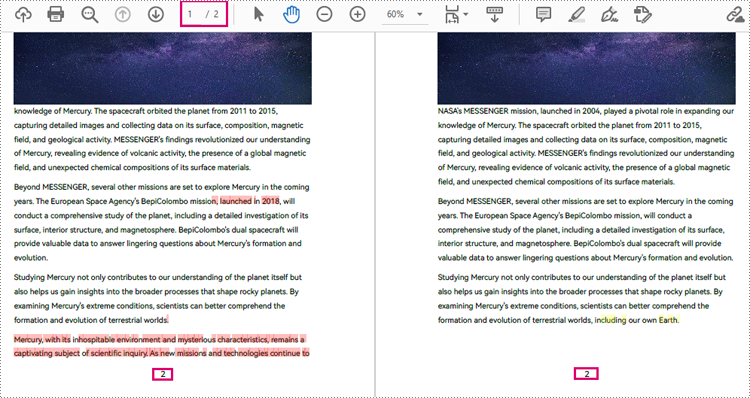
Before comparing, users can use the PdfComparer.getOptions().setPageRanges() method to limit the page range to be compared. The detailed steps are as follows:
- Create two objects of PdfDocument class and load two PDF documents using PdfDocument.loadFromFile() method.
- Create an object of PdfComparer class with the two documents.
- Set the page range to be compared using PdfComparer.getOptions().setPageRanges() method.
- Compare the two documents and save the result as a new PDF document using PdfComparer.compare() method.
- Java
import com.spire.pdf.PdfDocument;
import com.spire.pdf.comparison.PdfComparer;

public class ComparePDFPageRange {
    public static void main(String[] args) {
        //Create an object of PdfDocument class and load a PDF document
        PdfDocument pdf1 = new PdfDocument();
        pdf1.loadFromFile("G:/Documents/Sample6.pdf");

        //Create another object of PdfDocument class and load another PDF document
        PdfDocument pdf2 = new PdfDocument();
        pdf2.loadFromFile("G:/Documents/Sample7.pdf");

        //Create an object of PdfComparer class
        PdfComparer comparer = new PdfComparer(pdf1,pdf2);

        //Set the page range to be compared
        comparer.getOptions().setPageRanges(1, 1, 1, 1);

        //Compare the two PDF documents and save the compare results to a new document
        comparer.compare("ComparisonResult.pdf");
    }
}
Apply for a Temporary License
If you'd like to remove the evaluation message from the generated documents, or to get rid of the function limitations, please request a 30-day trial license for yourself.
Java: Create a Tagged PDF Document
A tagged PDF is a PDF document that contains tags that are pretty similar to HTML code. Tags provide a logical structure that governs how the content of the PDF is presented through assistive technology. Each tag identifies the associated content element, for example heading level 1 <H1>, paragraph <P>, image <Figure>, or table <Table>. In this article, you will learn how to create a tagged PDF document in Java using Spire.PDF for Java.
Install Spire.PDF for Java
First of all, you're required to add the Spire.Pdf.jar file as a dependency in your Java program. The JAR file can be downloaded from this link. If you use Maven, you can easily import the JAR file in your application by adding the following code to your project's pom.xml file.
<repositories>
    <repository>
        <id>com.e-iceblue</id>
        <name>e-iceblue</name>
        <url>https://repo.e-iceblue.com/nexus/content/groups/public/</url>
    </repository>
</repositories>
<dependencies>
    <dependency>
        <groupId>e-iceblue</groupId>
        <artifactId>spire.pdf</artifactId>
        <version>12.10.0</version>
    </dependency>
</dependencies>
Create a Tagged PDF in Java
To add structure elements in a tagged PDF document, we must first create an object of PdfTaggedContent class. Then, add an element to the root using PdfTaggedContent.getStructureTreeRoot().appendChildElement() method. The following are the detailed steps to add a "heading" element to a tagged PDF using Spire.PDF for Java.
- Create a PdfDocument object and add a page to it using PdfDocument.getPages().add() method.
- Create an object of PdfTaggedContent class.
- Make the document compliance to PDF/UA identification using PdfTaggedContent.setPdfUA1Identification() method.
- Add a "document" element to the root of the document using PdfTaggedContent.getStructureTreeRoot().appendChildElement() method.
- Add a "heading" element under the "document" element using PdfStructureElement.appendChildElement() method.
- Add a start tag using PdfStructureElement.beginMarkedContent() method, which indicates the beginning of the heading element.
- Draw heading text on the page using PdfPageBase.getCanvas().drawString() method.
- Add an end tag using PdfStructureElement.beginMarkedContent() method, which implies the heading element ends here.
- Save the document to a PDF file using PdfDocument.saveToFile() method.
The following code snippet provides an example on how to create various elements including document, heading, paragraph, figure and table in a tagged PDF document in Java.
- Java
import com.spire.pdf.*;
import com.spire.pdf.graphics.*;
import com.spire.pdf.interchange.taggedpdf.PdfStandardStructTypes;
import com.spire.pdf.interchange.taggedpdf.PdfStructureElement;
import com.spire.pdf.interchange.taggedpdf.PdfTaggedContent;
import com.spire.pdf.tables.PdfTable;

import java.awt.*;
import java.awt.geom.Point2D;
import java.awt.geom.Rectangle2D;

public class CreateTaggedPdf {

    public static void main(String[] args) throws Exception {

        //Create a PdfDocument object
        PdfDocument doc = new PdfDocument();

        //Add a page
        PdfPageBase page = doc.getPages().add(PdfPageSize.A4, new PdfMargins(20));

        //Set tab order
        page.setTabOrder(TabOrder.Structure);

        //Create an object of PdfTaggedContent class
        PdfTaggedContent taggedContent = new PdfTaggedContent(doc);

        //Set language and title for the document
        taggedContent.setLanguage("en-US");
        taggedContent.setTitle("Create Tagged PDF in Java");

        //Set PDF/UA1 identification
        taggedContent.setPdfUA1Identification();

        //Create font and brush
        PdfTrueTypeFont font = new PdfTrueTypeFont(new Font("Times New Roman",Font.PLAIN,14), true);
        PdfSolidBrush brush = new PdfSolidBrush(new PdfRGBColor(Color.BLACK));

        //Add a "document" element
        PdfStructureElement document = taggedContent.getStructureTreeRoot().appendChildElement(PdfStandardStructTypes.Document);

        //Add a "heading" element
        PdfStructureElement heading1 = document.appendChildElement(PdfStandardStructTypes.HeadingLevel1);
        heading1.beginMarkedContent(page);
        String headingText = "What Is a Tagged PDF?";
        page.getCanvas().drawString(headingText, font, brush, new Point2D.Float(0, 0));
        heading1.endMarkedContent(page);

        //Add a "paragraph" element
        PdfStructureElement paragraph = document.appendChildElement(PdfStandardStructTypes.Paragraph);
        paragraph.beginMarkedContent(page);
        String paragraphText = "Tagged PDF doesn’t seem like a life-changing term. But for some, it is. For people who are " +
                "blind or have low vision and use assistive technology (such as screen readers and connected Braille displays) to " +
                "access information, an untagged PDF means they are missing out on information contained in the document because assistive " +
                "technology cannot “read” untagged PDFs.  Digital accessibility has opened up so many avenues to information that were once " +
                "closed to people with visual disabilities, but PDFs often get left out of the equation.";
        Rectangle2D.Float rect = new Rectangle2D.Float(0, 30, (float) page.getCanvas().getClientSize().getWidth(), (float) page.getCanvas().getClientSize().getHeight());
        page.getCanvas().drawString(paragraphText, font, brush, rect);
        paragraph.endMarkedContent(page);

        //Add a "figure" element
        PdfStructureElement figure = document.appendChildElement(PdfStandardStructTypes.Figure);
        figure.beginMarkedContent(page);
        PdfImage image = PdfImage.fromFile("C:\\Users\\Administrator\\Desktop\\pdfua.png");
        page.getCanvas().drawImage(image, new Point2D.Float(0, 150));
        figure.endMarkedContent(page);

        //Add a "table" element
        PdfStructureElement table = document.appendChildElement(PdfStandardStructTypes.Table);
        table.beginMarkedContent(page);
        PdfTable pdfTable = new PdfTable();
        pdfTable.getStyle().getDefaultStyle().setFont(font);
        String[] data = {"Name;Age;Sex",
                "John;22;Male",
                "Katty;25;Female"
        };
        String[][] dataSource = new String[data.length][];
        for (int i = 0; i < data.length; i++) {
            dataSource[i] = data[i].split("[;]", -1);
        }
        pdfTable.setDataSource(dataSource);
        pdfTable.getStyle().setShowHeader(true);
        pdfTable.draw(page.getCanvas(), new Point2D.Float(0, 280), 300f);
        table.endMarkedContent(page);

        //Save the document to file
        doc.saveToFile("output/CreatePDFUA.pdf");
    }
}
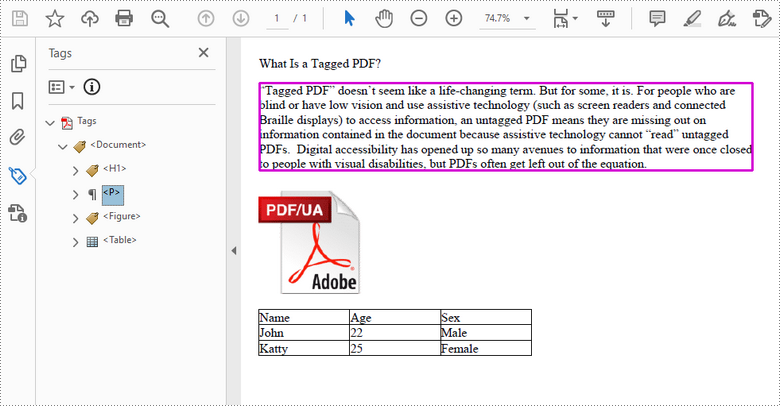
Apply for a Temporary License
If you'd like to remove the evaluation message from the generated documents, or to get rid of the function limitations, please request a 30-day trial license for yourself.
Java: Create a Multi-Column PDF
Multi-column PDFs are commonly used in magazines, newspapers, research articles, etc. With Spire.PDF for Java, you can create multi-column PDFs from code easily. This article will show you how to create a two-column PDF from scratch in Java applications.
Install Spire.PDF for Java
First of all, you need to add the Spire.Pdf.jar file as a dependency in your Java program. The JAR file can be downloaded from this link. If you use Maven, you can easily import the JAR file by adding the following code to your project's pom.xml file.
<repositories>
    <repository>
        <id>com.e-iceblue</id>
        <name>e-iceblue</name>
        <url>https://repo.e-iceblue.com/nexus/content/groups/public/</url>
    </repository>
</repositories>
<dependencies>
    <dependency>
        <groupId>e-iceblue</groupId>
        <artifactId>spire.pdf</artifactId>
        <version>12.10.0</version>
    </dependency>
</dependencies>
Create a Two-Column PDF from Scratch
The detailed steps are as follows:
- Create a PdfDocument object.
- Add a new page in the PDF using PdfDocument.getPages().add() method.
- Add a line and set its format in the PDF using PdfPageBase.getCanvas().drawLine() method.
- Add text in the PDF at two separate rectangle areas using PdfPageBase.getCanvas().drawString() method.
- Save the document to PDF using PdfDocument.saveToFile() method.
- Java
import com.spire.pdf.FileFormat;
import com.spire.pdf.PdfDocument;
import com.spire.pdf.PdfPageBase;
import com.spire.pdf.graphics.*;

import java.awt.*;
import java.awt.geom.Rectangle2D;

public class TwoColumnPDF {
    public static void main(String[] args) throws Exception {

        //Creates a pdf document
        PdfDocument doc = new PdfDocument();

        //Add a new page
        PdfPageBase page = doc.getPages().add();

        //Set location and width
        float x = 0;
        float y = 15;
        float width = 600;

        //Create pen
        PdfPen pen = new PdfPen(new PdfRGBColor(Color.black), 1f);

        //Draw line on the PDF page
        page.getCanvas().drawLine(pen, x, y, x + width, y);

       //Define paragraph text
        String s1 = "Spire.PDF for Java is a PDF API that enables Java applications to read, write and "
                + "save PDF documents without using Adobe Acrobat. Using this Java PDF component, developers and "
                + "programmers can implement rich capabilities to create PDF files from scratch or process existing"
                + "PDF documents entirely on Java applications (J2SE and J2EE).";
        String s2 = "Many rich features can be supported by Spire.PDF for Java, such as security settings,"
                + "extract text/image from the PDF, merge/split PDF, draw text/image/shape/barcode to the PDF, create"
                + "and fill in form fields, add and delete PDF layers, overlay PDF, insert text/image watermark to the "
                + "PDF, add/update/delete PDF bookmarks, add tables to the PDF, compress PDF document etc. Besides, "
                + "Spire.PDF for Java can be applied easily to convert PDF to XPS, XPS to PDF, PDF to SVG, PDF to Word,"
                + "PDF to HTML and PDF to PDF/A in high quality.";

        //Get width and height of page
        double pageWidth = page.getClientSize().getWidth();
        double pageHeight = page.getClientSize().getHeight();

        //Create solid brush objects
        PdfSolidBrush brush = new PdfSolidBrush(new PdfRGBColor(Color.BLACK));

        //Create true type font objects
        PdfTrueTypeFont font= new PdfTrueTypeFont(new Font("Times New Roman",Font.PLAIN,14));

        //Set the text alignment via PdfStringFormat class
        PdfStringFormat format = new PdfStringFormat(PdfTextAlignment.Left);

        //Draw text
        page.getCanvas().drawString(s1, font, brush, new Rectangle2D.Double(0, 20, pageWidth / 2 - 8f, pageHeight), format);
        page.getCanvas().drawString(s2, font, brush, new Rectangle2D.Double(pageWidth / 2 + 8f, 20, pageWidth / 2 - 8f, pageHeight), format);

        //Save the document
        String output = "output/createTwoColumnPDF.pdf";
        doc.saveToFile(output, FileFormat.PDF);
    }
}
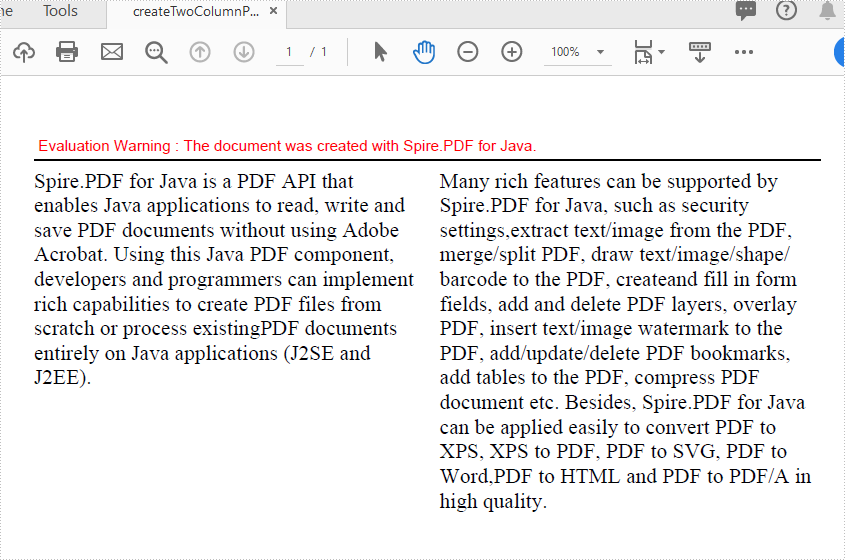
Apply for a Temporary License
If you'd like to remove the evaluation message from the generated documents, or to get rid of the function limitations, please request a 30-day trial license for yourself.
Detect if a PDF File is a Portfolio in Java
This article demonstrates how to detect if a PDF file is a portfolio in Java using Spire.PDF for Java.
The following is the screenshot of the input PDF:
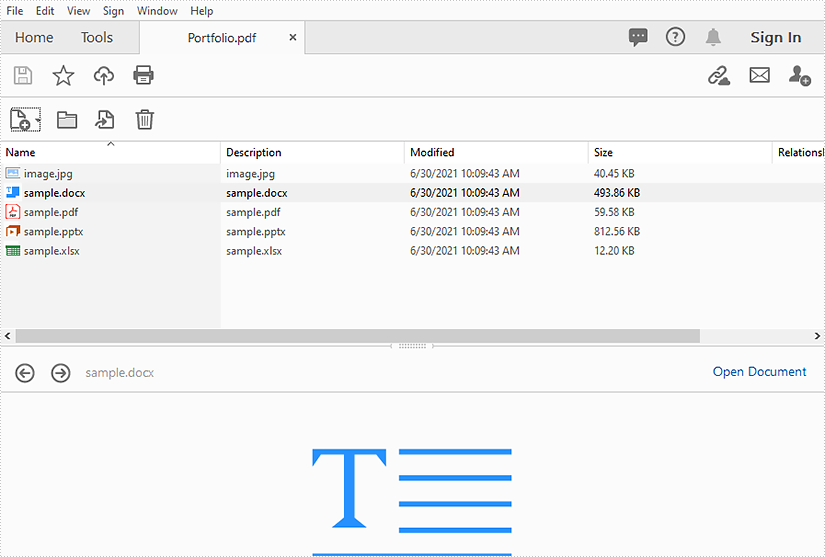
import com.spire.pdf.PdfDocument;

public class DetectPortfolio {
    public static void main(String []args){
        //Create a PdfDocument instance
        PdfDocument doc = new PdfDocument();
        //Load the PDF file
        doc.loadFromFile("Portfolio.pdf");

        //Detect if the PDF is a portfolio
        boolean value = doc.isPortfolio();
        if (value)
        {
            System.out.println("The document is a portfolio.");
        }
        else
        {
            System.out.println("The document is not a portfolio.");
        }
    }
}
Output:
Extract Files from PDF Portfolio in Java
This article demonstrates how to extract files from a PDF portfolio in Java using Spire.PDF for Java.
The input PDF:
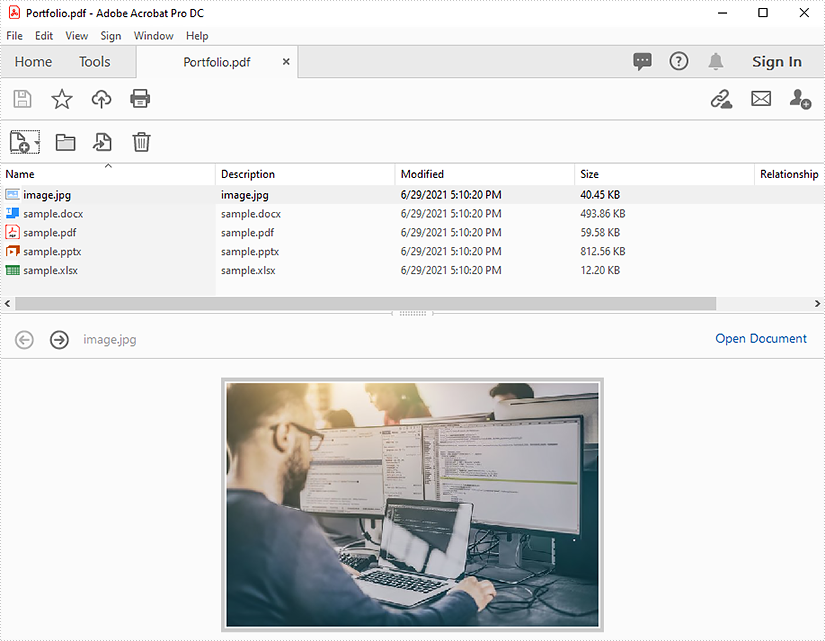
import com.spire.pdf.PdfDocument;
import com.spire.pdf.attachments.PdfAttachment;

import java.io.*;

public class ReadPortfolio {
    public static void main(String []args) throws IOException {
        //Create a PdfDocument instance
        PdfDocument pdf = new PdfDocument();
        //Load the PDF file
        pdf.loadFromFile("Portfolio.pdf");

        //Loop through the attachments in the file
       for(Object obj : pdf.getAttachments()) {
            PdfAttachment attachment = (PdfAttachment) obj;
            //Extract files
            String fileName = attachment.getFileName();
            OutputStream fos = new FileOutputStream("extract/" + fileName);
            fos.write(attachment.getData());
        }

        pdf.dispose();
    }
}
Output:
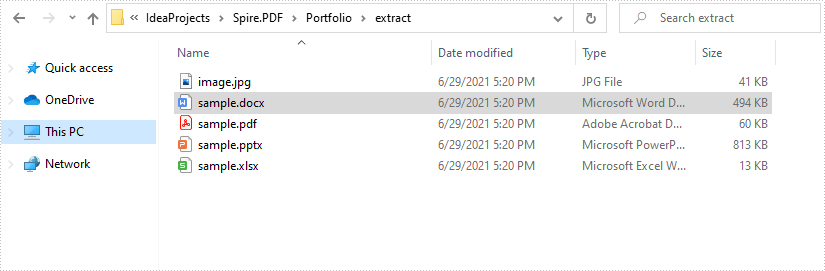
Repeat Table Header Rows across Pages in PDF in Java
This article demonstrates how to repeat table header rows across pages in PDF using Spire.PDF for Java.
import com.spire.pdf.*;
import com.spire.pdf.graphics.*;
import com.spire.pdf.grid.PdfGrid;
import com.spire.pdf.grid.PdfGridRow;

import java.awt.*;

public class RepeatTableHeaderRow {
    public static void main(String[] args) {
        //Create a new PDF document
        PdfDocument pdf = new PdfDocument();

        //Add a page
        PdfPageBase page = pdf.getPages().add();

        //Instantiate a PdfGrid class object
        PdfGrid grid = new PdfGrid();

        //Set cell padding
        grid.getStyle().setCellPadding(new PdfPaddings(1,1,1,1));

        //Add columns
        grid.getColumns().add(3);

        //Add header rows and table data
        PdfGridRow[] pdfGridRows = grid.getHeaders().add(1);
        for (int i = 0; i < pdfGridRows.length; i++)
        {
            pdfGridRows[i].getStyle().setFont(new PdfTrueTypeFont(new Font("Arial", Font.PLAIN,12), true));//Designate a font
            pdfGridRows[i].getCells().get(0).setValue("NAME");
            pdfGridRows[i].getCells().get(1).setValue("SUBJECT");
            pdfGridRows[i].getCells().get(2).setValue("SCORES");
            pdfGridRows[i].getStyle().setTextBrush(PdfBrushes.getRed());
        }

        //Repeat header rows (when across pages)
        grid.setRepeatHeader(true);

        //Add values to the table
        for (int i = 0; i < 60; i++)
        {
            PdfGridRow row = grid.getRows().add();
            for (int j = 0; j < grid.getColumns().getCount();j++)
            {
                row.getCells().get(j).setValue("(Row " + (i+1) + ", column " + (j+1) + ")");
            }
        }

        // Draw a table in PDF
        grid.draw(page,0,40);

        //Save the document
        pdf.saveToFile("Result.pdf");
        pdf.dispose();
    }
}
Output