Program Guide (83)
Children categories
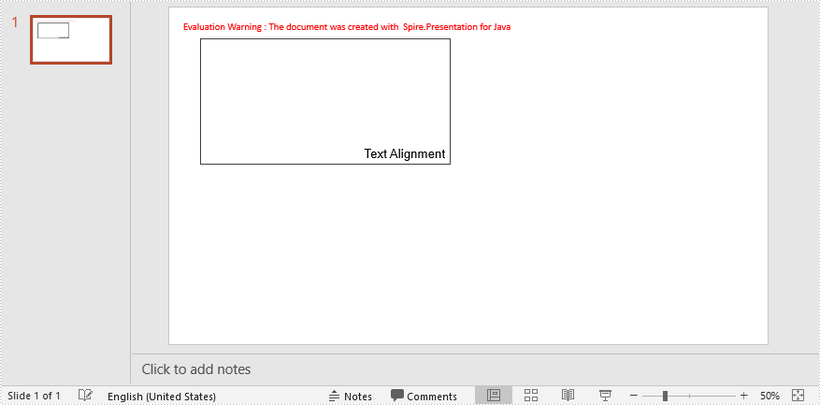
This article demonstrates how to set text horizontal and vertical alignment within a shape using Spire.Presentation for Java.
import com.spire.presentation.*;
import com.spire.presentation.drawing.FillFormatType;

import java.awt.*;
import java.awt.geom.Rectangle2D;

public class SetTextAlignment {
    public static void main(String[] args) throws Exception {

        //Create a Presentation object
        Presentation presentation = new Presentation();
        presentation.getSlideSize().setType(SlideSizeType.SCREEN_16_X_9);

        //Add a shape
        IAutoShape textShape = presentation.getSlides().get(0).getShapes().appendShape(ShapeType.RECTANGLE, new Rectangle2D.Float(50, 50, 400, 200));
        textShape.getShapeStyle().getLineColor().setColor(Color.DARK_GRAY);
        textShape.getFill().setFillType(FillFormatType.NONE);

        //Remove the default paragraphs
        textShape.getTextFrame().getParagraphs().clear();

        //Add a paragraph and append some text to it
        textShape.getTextFrame().getParagraphs().append(new ParagraphEx());
        textShape.getTextFrame().getParagraphs().get(0).getTextRanges().append(new PortionEx("Text Alignment"));
        textShape.getTextFrame().getParagraphs().get(0).getTextRanges().get(0).setFontHeight(20f);
        textShape.getTextFrame().getParagraphs().get(0).getTextRanges().get(0).setLatinFont(new TextFont("Arial"));
        textShape.getTextFrame().getParagraphs().get(0).getTextRanges().get(0).getFill().setFillType(FillFormatType.SOLID);
        textShape.getTextFrame().getParagraphs().get(0).getTextRanges().get(0).getFill().getSolidColor().setColor(Color.BLACK);

        //Set text horizontal alignment to right
        textShape.getTextFrame().getParagraphs().get(0).setAlignment(TextAlignmentType.RIGHT);

        //Set text vertical alignment to bottom
        textShape.getTextFrame().setAnchoringType(TextAnchorType.BOTTOM);

        //Save to file
        presentation.saveToFile("output/TextAlignment.pptx",FileFormat.PPTX_2013);
    }
}
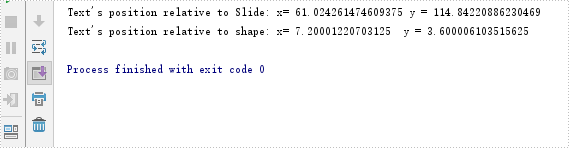
This article demonstrates how to get the position of text in PowerPoint in Java using Spire.Presentation for Java.
import com.spire.presentation.IAutoShape;
import com.spire.presentation.ISlide;
import com.spire.presentation.Presentation;

import java.awt.geom.Point2D;

public class GetPositionOfText {
    public static void main(String []args) throws Exception {
        //Create a Presentation instance
        Presentation ppt = new Presentation();
        //Load a PowerPoint document
        ppt.loadFromFile("Sample.pptx");

        //Get the first slide
        ISlide slide = ppt.getSlides().get(0);
        //Get the first shape
        IAutoShape shape = (IAutoShape)slide.getShapes().get(0);
        //Get location of text in the shape
        Point2D location =shape.getTextFrame().getTextLocation();

        //Print out the x and y coordinates of the location relative to slide
        String  point1="Text's position relative to Slide: x= "+location.getX()+" y = "+location.getY();
        System.out.println(point1);

        //Print out the x and y coordinates of the location relative to shape
        String point2 = "Text's position relative to shape: x= " + (location.getX() - shape.getLeft()) + "  y = " + (location.getY() - shape.getTop());
        System.out.println(point2);
    }
}
Output:
Evenly Distribute Rows and Columns in PowerPoint Table in Java
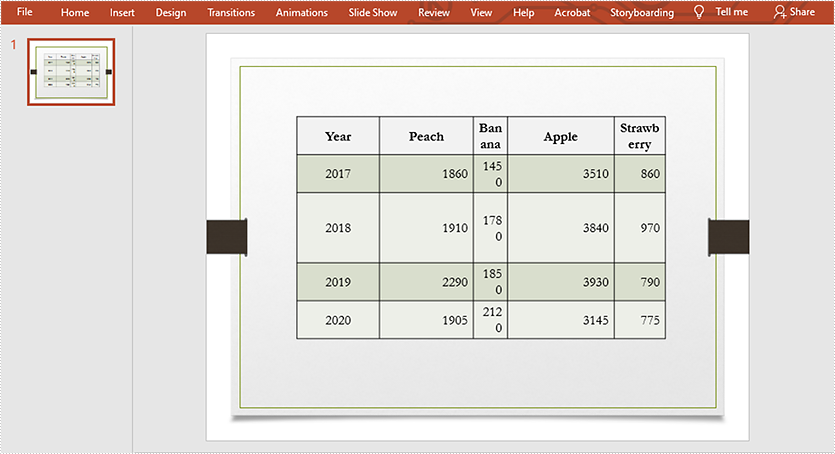
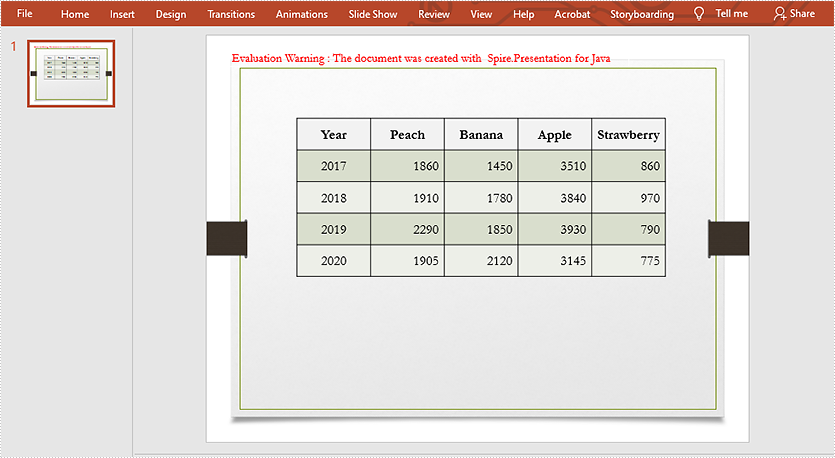
2021-06-22 03:35:14 Written by KoohjiThis article demonstrates how to evenly distribute the rows and columns of a PowerPoint table using Spire.Presentation for Java.
The input document:
import com.spire.presentation.FileFormat;
import com.spire.presentation.ISlide;
import com.spire.presentation.ITable;
import com.spire.presentation.Presentation;

public class DistributeRowsAndColumns {
    public static void main(String []args) throws Exception {
        //Create a Presentation instance
        Presentation ppt = new Presentation();
        //Load the PowerPoint document
        ppt.loadFromFile("Input.pptx");

        //Get the first slide
        ISlide slide = ppt.getSlides().get(0);
        //Get the table in the slide
        ITable table = (ITable) slide.getShapes().get(0);
        //Distribute table rows
        table.distributeRows(0,4);
        //Distribute table columns
        table.distributeColumns(0,4);

        //Save the result document
        ppt.saveToFile("DistributeRowsAndColumns.pptx", FileFormat.PPTX_2013);
    }
The output document:
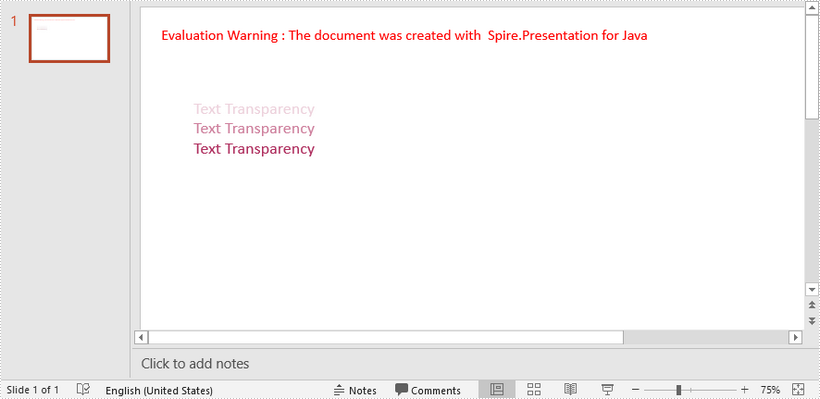
This article demonstrates how to apply transparency to text in PowerPoint using Spire.Presentation for Java.
import com.spire.presentation.*;
import com.spire.presentation.drawing.FillFormatType;

import java.awt.*;
import java.awt.geom.Rectangle2D;

public class ApplyTransparency {

    public static void main(String[] args) throws Exception {

        //Create a PowerPoint document
        Presentation presentation = new Presentation();
        presentation.getSlideSize().setType(SlideSizeType.SCREEN_16_X_9);

        //Add a shape
        IAutoShape textbox = presentation .getSlides().get(0).getShapes().appendShape(ShapeType.RECTANGLE,new Rectangle2D.Float(50, 70, 300, 120));
        textbox.getShapeStyle().getLineColor().setColor(new Color(1,1,1,0));
        textbox.getFill().setFillType(FillFormatType.NONE);

        //Remove default paragraphs
        textbox.getTextFrame().getParagraphs().clear();

        //Add three paragraphs and apply colors with different alpha values to the text
        int alpha = 55;
        for (int i = 0; i < 3; i++)
        {
            textbox.getTextFrame().getParagraphs().append(new ParagraphEx());
            textbox.getTextFrame().getParagraphs().get(i).getTextRanges().append(new PortionEx("Text Transparency"));
            textbox.getTextFrame().getParagraphs().get(i).getTextRanges().get(0).getFill().setFillType(FillFormatType.NONE);
            textbox.getTextFrame().getParagraphs().get(i).getTextRanges().get(0).getFill().setFillType(FillFormatType.SOLID);
            textbox.getTextFrame().getParagraphs().get(i).getTextRanges().get(0).getFill().getSolidColor().setColor(new Color(176, 48, 96, alpha));
            alpha += 100;
        }

        //Save to file
        presentation.saveToFile("TextTransparency.pptx", FileFormat.PPTX_2013);
    }
}
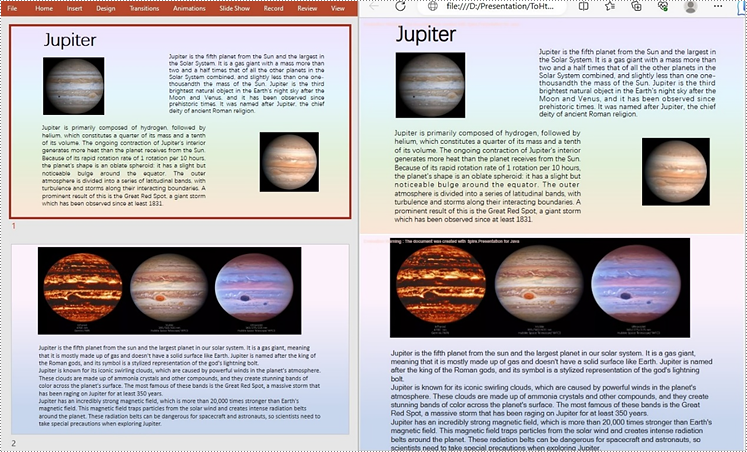
PowerPoint to HTML conversion opens up opportunities for wider accessibility and enhanced interactivity. By transforming your presentations into HTML format, you can effortlessly distribute them across various platforms and devices. Whether you aim to share slides online or integrate them seamlessly within a web page, converting PowerPoint to HTML provides a flexible and versatile solution. In this article, we will explore how to convert PowerPoint files to HTML in Java using Spire.Presentation for Java.
- Convert a PowerPoint Presentation to HTML in Java
- Convert a Specific PowerPoint Slide to HTML in Java
Install Spire.Presentation for Java
First, you're required to add the Spire.Presentation.jar file as a dependency in your Java program. The JAR file can be downloaded from this link. If you use Maven, you can easily import the JAR file in your application by adding the following code to your project's pom.xml file.
<repositories>
    <repository>
        <id>com.e-iceblue</id>
        <name>e-iceblue</name>
        <url>https://repo.e-iceblue.com/nexus/content/groups/public/</url>
    </repository>
</repositories>
<dependencies>
    <dependency>
        <groupId>e-iceblue</groupId>
        <artifactId>spire.presentation</artifactId>
        <version>11.5.1</version>
    </dependency>
</dependencies>
Convert a PowerPoint Presentation to HTML in Java
With Spire.Presentation for Java, you can convert PowerPoint files to HTML format in just three steps. The detailed steps are as follows:
- Initialize an instance of the Presentation class.
- Load a sample PowerPoint document using Presentation.loadFromFile() method.
- Save the PowerPoint presentation as HTML using Presentation.saveToFile() method.
- Java
import com.spire.presentation.FileFormat;
import com.spire.presentation.Presentation;

public class ToHtml {
    public static void main(String[] args) throws Exception {

        //Create a Presentation object
        Presentation presentation = new Presentation();

        //Load the sample document       presentation.loadFromFile("C:\\Users\\Administrator\\Desktop\\sample.pptx");

        //Save the document to HTML format       presentation.saveToFile("C:\\Users\\Administrator\\Desktop\\ToHtml.html", FileFormat.HTML);
        presentation.dispose();
   }
}
Convert a Specific PowerPoint Slide to HTML in Java
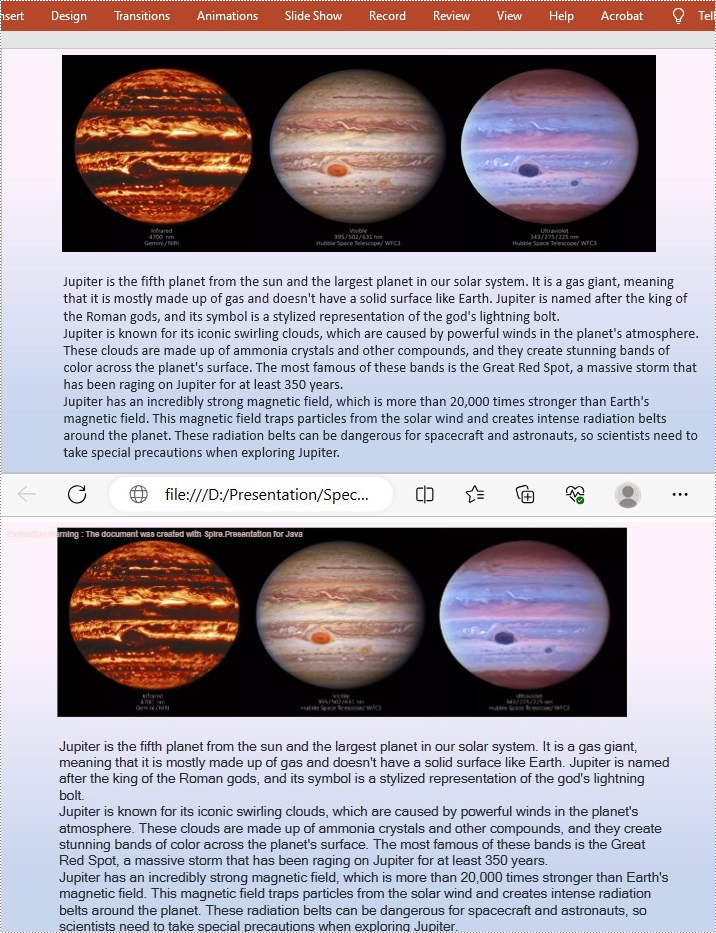
Sometimes, it may be necessary to convert a single slide rather than the entire presentation to HTML. In such cases, Spire.Presentation for Java provides the ISlide.saveToFile() method for converting a PowerPoint slide to HTML format. The following are the detailed steps:
- Initialize an instance of the Presentation class.
- Load a sample PowerPoint document using Presentation.loadFromFile() method.
- Get the specific slide using Presentation.getSlides().get() method.
- Save the PowerPoint slide to HTML using ISlide.saveToFile() method.
- Java
import com.spire.presentation.FileFormat;
import com.spire.presentation.Presentation;
import com.spire.presentation.ISlide;

public class ConvertSpecificSlideToHtml { public static void main(String[] args) throws Exception {
    // Create a Presentation object
    Presentation presentation = new Presentation();

    // Load the sample document  presentation.loadFromFile("C:\\Users\\Administrator\\Desktop\\sample.pptx");

    // Get the specific slide by index (e.g., index 0 for the second slide)
    ISlide slide = presentation.getSlides().get(1);

    // Save the specific slide to HTML format  slide.saveToFile("C:\\Users\\Administrator\\Desktop\\SpecificSlideToHtml.html", FileFormat.HTML);
    slide.dispose();
   }
}
Apply for a Temporary License
If you'd like to remove the evaluation message from the generated documents, or to get rid of the function limitations, please request a 30-day trial license for yourself.
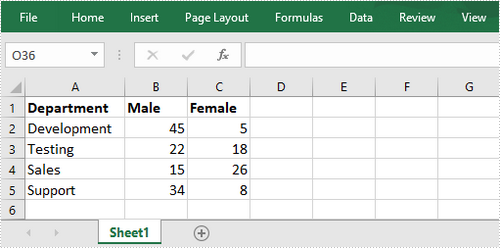
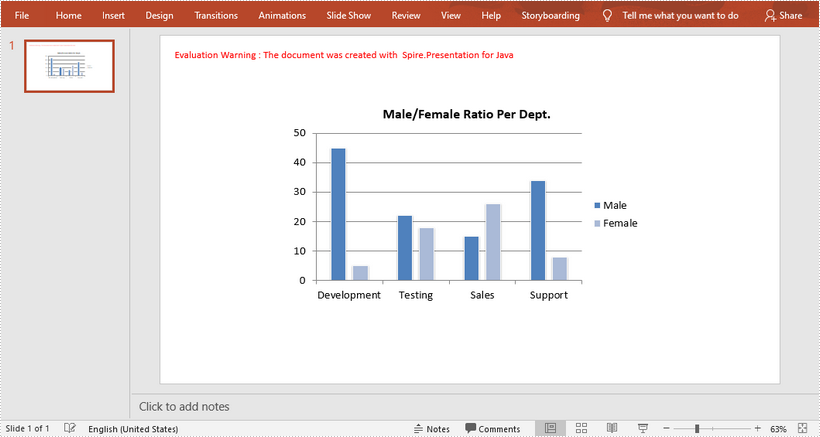
This article shows you how to create a chart in PowerPoint using the data from an existing Excel document. This solution relies on Spire.Office.jar. Please download the latest version from here and add it as a dependency in your project.
Below is a screenshot of the Excel document.
import com.spire.presentation.FileFormat;
import com.spire.presentation.Presentation;
import com.spire.presentation.SlideSizeType;
import com.spire.presentation.charts.ChartStyle;
import com.spire.presentation.charts.ChartType;
import com.spire.presentation.charts.IChart;
import com.spire.xls.Workbook;
import com.spire.xls.Worksheet;

import java.awt.geom.Rectangle2D;

public class CreateChartFromExcelData {

    public static void main(String[] args) throws Exception {

        //Create a Presentation object
        Presentation presentation = new Presentation();
        presentation.getSlideSize().setType(SlideSizeType.SCREEN_16_X_9);

        //Add a clustered column chart to slide
        Rectangle2D rect = new Rectangle2D.Float(200, 100, 550, 320);
        IChart chart = presentation.getSlides().get(0).getShapes().appendChart(ChartType.COLUMN_CLUSTERED,rect);

        //Clear the default dummy data
        chart.getChartData().clear(0,0,5,5 );

        //Load an existing Excel file to Workbook object
        Workbook wb = new Workbook();
        wb.loadFromFile("C:\\Users\\Administrator\\Desktop\\data.xlsx");

        //Get the first worksheet
        Worksheet sheet = wb.getWorksheets().get(0);

        //Import data from the sheet to chart table
        for (int r = 0; r < sheet.getAllocatedRange().getRowCount(); r++)
        {
            for (int c = 0; c < sheet.getAllocatedRange().getColumnCount(); c++)
            {
                chart.getChartData().get(r,c).setValue(sheet.getCellRange(r+1, c+1).getValue2());
            }
        }

        //Add chart title
        chart.getChartTitle().getTextProperties().setText("Male/Female Ratio Per Dept.");
        chart.getChartTitle().getTextProperties().isCentered(true);
        chart.getChartTitle().setHeight(25f);
        chart.hasTitle(true);

        //Set the series label
        chart.getSeries().setSeriesLabel(chart.getChartData().get("B1","C1"));

        //Set the category labels
        chart.getCategories().setCategoryLabels(chart.getChartData().get("A2","A5"));

        //Set the series values
        chart.getSeries().get(0).setValues(chart.getChartData().get("B2","B5"));
        chart.getSeries().get(1).setValues(chart.getChartData().get("C2", "C5"));

        //Apply built-in chart style
        chart.setChartStyle(ChartStyle.STYLE_11);

        //Set overlap
        chart.setOverLap(-50);

        //Set gap width
        chart.setGapWidth(200);

        //Save to file
        presentation.saveToFile("output/Chart.pptx", FileFormat.PPTX_2013);
    }
}
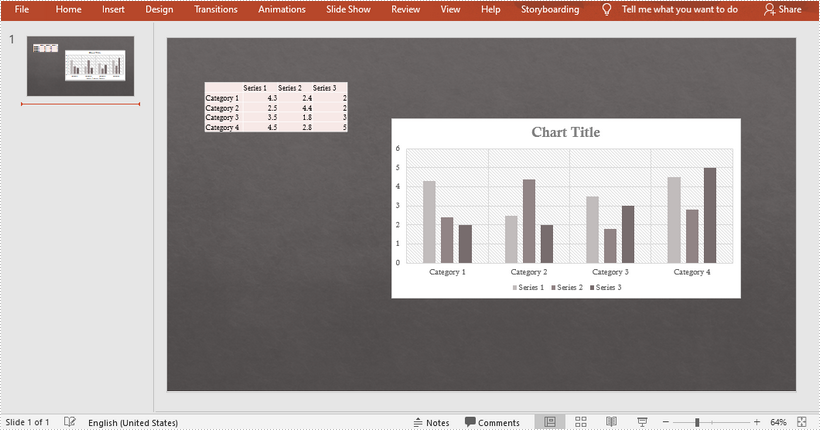
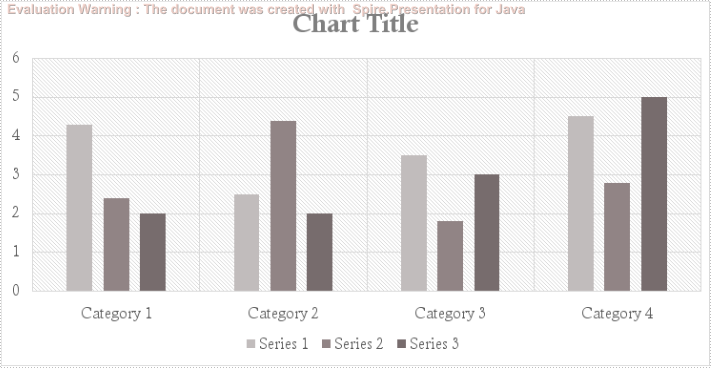
This article shows you how to export shapes in a specific slide as images using Spire.Presentation for Java. Below is a screenshot of the sample PowerPoint document.
import com.spire.presentation.ISlide;
import com.spire.presentation.Presentation;

import javax.imageio.ImageIO;
import java.awt.*;
import java.awt.image.BufferedImage;
import java.io.File;

public class SaveShapeAsImage {

    public static void main(String[] args) throws Exception {

        //Create a Presentation object
        Presentation presentation = new Presentation();

        //Load the sample PowerPoint file
        presentation.loadFromFile("C:\\Users\\Administrator\\Desktop\\chart and table.pptx");

        //Get the first slide
        ISlide slide = presentation.getSlides().get(0);

        //Declare a BufferedImage variable
        BufferedImage image;

        //Loop through the shapes in the slide
        for (int i = 0; i < slide.getShapes().getCount(); i++) {

            //Save the specific shape as image data
            image = slide.getShapes().saveAsImage(i);

            //Write data to png file
            File file = new File(String.format("ToImage-%d.png", i));
            ImageIO.write(image, "PNG", file);
        }
    }
}
Output
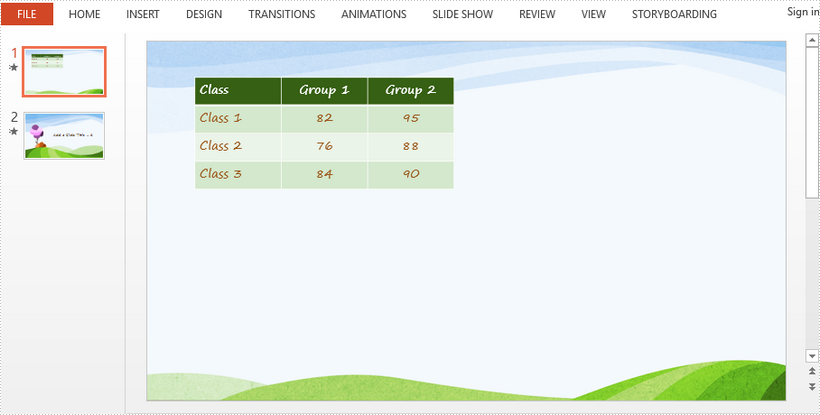
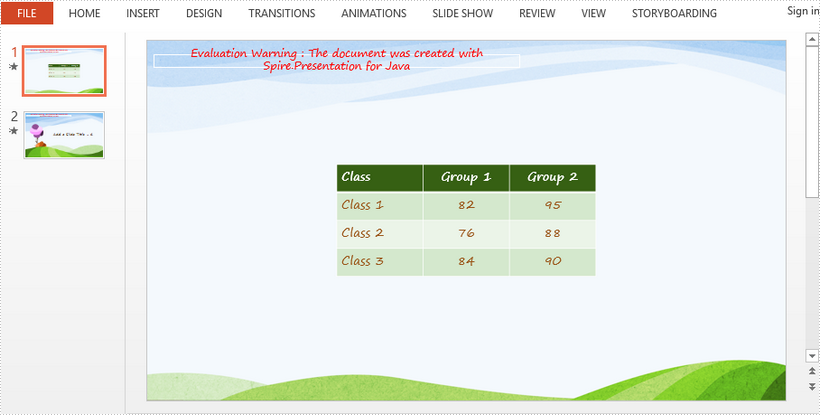
This article demonstrates how to horizontally and vertically align a table in a slide using Spire.Presentation for Java.
Below is a screenshot of the sample document.
import com.spire.presentation.FileFormat;
import com.spire.presentation.ITable;
import com.spire.presentation.Presentation;
import com.spire.presentation.ShapeAlignmentEnum;

public class AlignTable {

    public static void main(String[] args) throws Exception {

        //Create a Presentation object
        Presentation presentation = new Presentation();

        //Load the sample PowerPoint document contain
        presentation.loadFromFile("C:\\Users\\Administrator\\Desktop\\sample.pptx");

        //Declare a ITable variable
        ITable table = null;

        //Loop through the shapes in the first slide
        for (Object shape: presentation.getSlides().get(0).getShapes()
             ) {

            //Check if shape is an instance of ITable
            if (shape instanceof ITable)
            {
                //Convert shape to table
                table =(ITable)shape;
            }
        }

        //Horizontally align table to center
        table.setShapeAlignment(ShapeAlignmentEnum.ShapeAlignment.AlignCenter);

        //Vertically align table to middle
        table.setShapeAlignment(ShapeAlignmentEnum.ShapeAlignment.AlignMiddle);

        //Save to file
        presentation.saveToFile("AlignTable.pptx", FileFormat.PPTX_2013);
    }
}
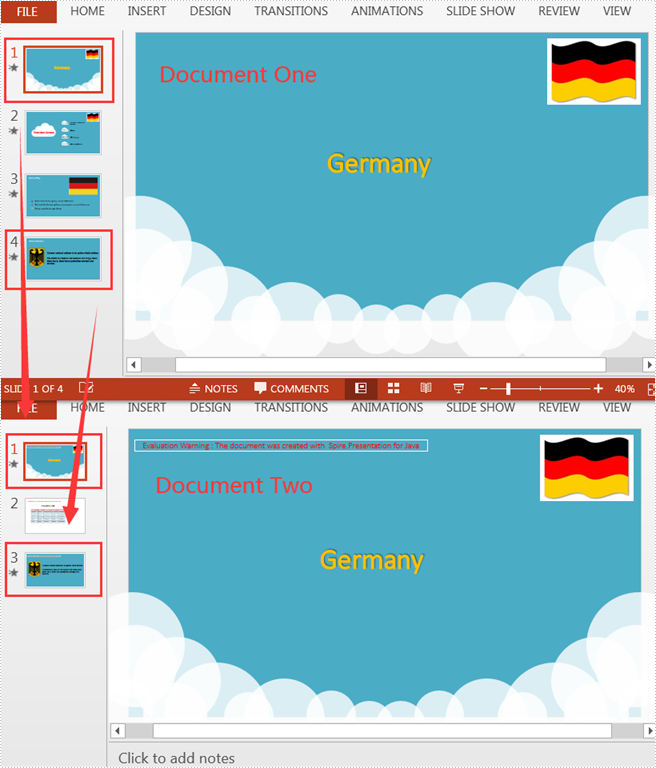
Suppose there are two PowerPoint documents, and you want to copy a certain slide from one document to a specified location of the other. Manual copying and pasting is an option, but the quicker and more efficient way is to use Java codes for automatic operation. This article will show you how to programmatically copy slides between two different PowerPoint documents using Spire.Presentation for Java.
Install Spire.Presentation for Java
First of all, you're required to add the Spire.Presentation.jar file as a dependency in your Java program. The JAR file can be downloaded from this link. If you use Maven, you can easily import the JAR file in your application by adding the following code to your project's pom.xml file.
<repositories>
    <repository>
        <id>com.e-iceblue</id>
        <name>e-iceblue</name>
        <url>https://repo.e-iceblue.com/nexus/content/groups/public/</url>
    </repository>
</repositories>
<dependencies>
    <dependency>
        <groupId>e-iceblue</groupId>
        <artifactId>spire.presentation</artifactId>
        <version>11.5.1</version>
    </dependency>
</dependencies>
Copy Slides Between Two PowerPoint Documents
The following are detailed steps to copy a slide from one PowerPoint document to a specified position or the end of the other document.
- Create a Presentation object and load one sample document using Presentation.loadFromFile() method.
- Create another Presentation object and load the other sample document using Presentation.loadFromFile() method.
- Get a specific slide of document one using Presentation.getSlides().get() method and insert its copy into the specified position of document two using Presentation.getSlides().insert() method.
- Get another specific slide of document one using Presentation.getSlides().get() method and add its copy to the end of document two using Presentation.getSlides().append() method.
- Save the document two to another file using Presentation.saveToFile() method.
- Java
import com.spire.presentation.FileFormat;
import com.spire.presentation.Presentation;

public class CopySlidesBetweenPPT {
    public static void main(String[] args) throws Exception {
        //Create a Presentation object to load one sample document
        Presentation pptOne= new Presentation();
        pptOne.loadFromFile("C:\\Users\\Test1\\Desktop\\sample1.pptx");

        //Create another Presentation object to load the other sample document
        Presentation pptTwo = new Presentation();
        pptTwo.loadFromFile("C:\\Users\\Test1\\Desktop\\sample2.pptx");

        //Insert the specific slide from document one into the specified position of document two
        pptTwo.getSlides().insert(0,pptOne.getSlides().get(0));

        //Append the specific slide of document one to the end of document two
        pptTwo.getSlides().append(pptOne.getSlides().get(3));

        //Save the document two to another file
        pptTwo.saveToFile("output/CopySlidesBetweenPPT.pptx", FileFormat.PPTX_2013);
    }
}
Apply for a Temporary License
If you'd like to remove the evaluation message from the generated documents, or to get rid of the function limitations, please request a 30-day trial license for yourself.
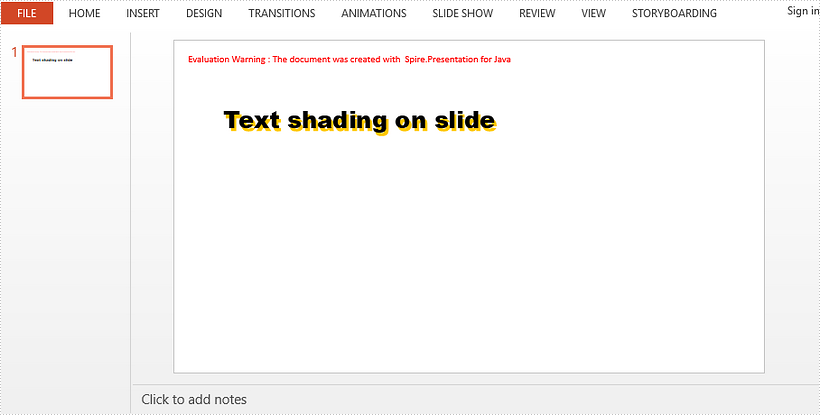
This article demonstrates how to apply a shadow effect to the text in a PowerPoint slide using Spire.Presentation for Java.
import com.spire.presentation.*;
import com.spire.presentation.drawing.FillFormatType;
import com.spire.presentation.drawing.OuterShadowEffect;

import java.awt.*;
import java.awt.geom.Rectangle2D;

public class SetShadowEffect {

    public static void main(String[] args) throws Exception {

        //Create a Presentation object
        Presentation presentation = new Presentation();
        presentation.getSlideSize().setType(SlideSizeType.SCREEN_16_X_9);

        //Get the first slide
        ISlide slide = presentation.getSlides().get(0);

        //Add a rectangle to slide
        IAutoShape shape = slide.getShapes().appendShape(ShapeType.RECTANGLE,new Rectangle2D.Float(50,80,500,100));
        shape.getFill().setFillType(FillFormatType.NONE);
        shape.getLine().setFillType(FillFormatType.NONE);

        //Set text of the shape
        shape.appendTextFrame("Text shading on slide");

        //Set font style
        shape.getTextFrame().getTextRange().setFontHeight(38f);
        shape.getTextFrame().getTextRange().setLatinFont(new TextFont("Arial Black"));
        shape.getTextFrame().getTextRange().getFill().setFillType(FillFormatType.SOLID);
        shape.getTextFrame().getTextRange().getFill().getSolidColor().setColor(Color.BLACK);

        //Create a OuterShadowEffect object
        OuterShadowEffect outerShadow= new OuterShadowEffect();

        //Set the shadow effect
        outerShadow.setBlurRadius(0);
        outerShadow.setDirection(50);
        outerShadow.setDistance(10);
        outerShadow.getColorFormat().setColor(Color.orange);

        //Apply shadow effect to text
        shape.getTextFrame().getTextRange().getEffectDag().setOuterShadowEffect(outerShadow);

        //Save to file
        presentation.saveToFile("output/AddShadow.pptx", FileFormat.PPTX_2013);
    }
}