Program Guide (83)
Children categories
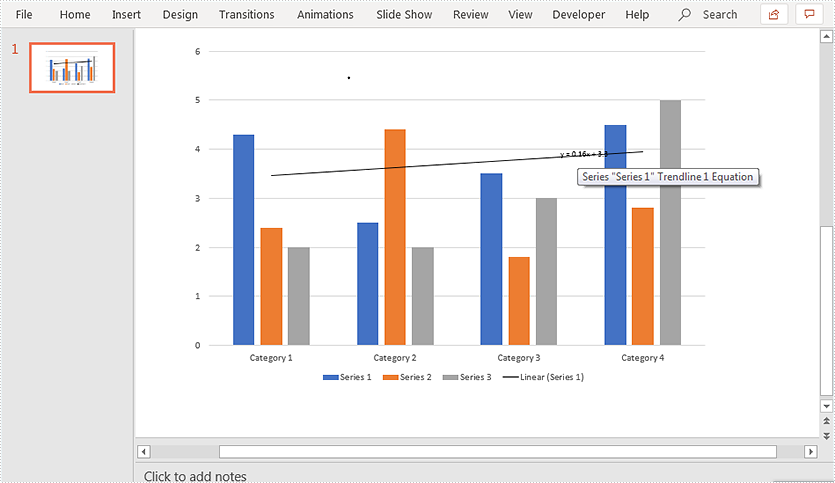
A trendline is a line superimposed on a chart revealing the overall direction of the data. Spire.Presentation for Java supports adding six different types of trendlines to chart, i.e. linear, logarithmic, polynomial, power, exponential and moving average.
The below example demonstrates how to use Spire.Presentation for Java to add a linear trendline to a chart.
import com.spire.presentation.FileFormat;
import com.spire.presentation.ISlide;
import com.spire.presentation.Presentation;
import com.spire.presentation.charts.IChart;
import com.spire.presentation.charts.ITrendlines;
import com.spire.presentation.charts.TrendlineSimpleType;

public class AddTrendlineToChart {
    public static void main(String[] args) throws Exception {
        //create a Presentation instance
        Presentation ppt = new Presentation();
        //load the PowerPoint document
        ppt.loadFromFile("Chart.pptx");

        //get the first slide
        ISlide slide = ppt.getSlides().get(0);
        //get the chart on the slide
        IChart chart = (IChart)slide.getShapes().get(0);

        //add a linear trendline to the first series of the chart
        ITrendlines trendLine = chart.getSeries().get(0).addTrendLine(TrendlineSimpleType.LINEAR);
        //display equation
        trendLine.setdisplayEquation(true);

        //save the resultant document
        ppt.saveToFile("AddTrendline.pptx", FileFormat.PPTX_2013);
    }
}
Output:
Java protect presentation slides by setting the property with mark as final
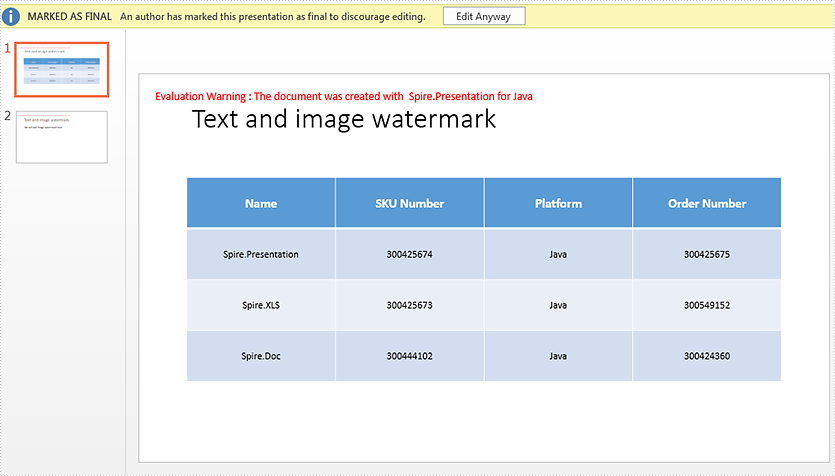
2019-11-19 08:25:39 Written by KoohjiMark as Final means that the presentation slide is final edition and the author doesn’t want any changes on the document. With Spire.Presentation for Java, we can protect the presentation slides by setting the password. This article demonstrates how to mark a presentation as final by setting the document property MarkAsFinal as true.
import com.spire.presentation.FileFormat;
import com.spire.presentation.Presentation;

public class MarkAsFinal {
    public static void main(String[] args) throws Exception {

        //Create a PPT document and load file
        Presentation presentation = new Presentation();
        presentation.loadFromFile("Sample.pptx");

        //Set the document property MarkAsFinal as true
        presentation.getDocumentProperty().set("_MarkAsFinal", true);

        //Save the document to file
        presentation.saveToFile("output/MarkasFinal.pptx", FileFormat.PPTX_2010);
    }
}
Effective screenshot after mark as final for presentation:
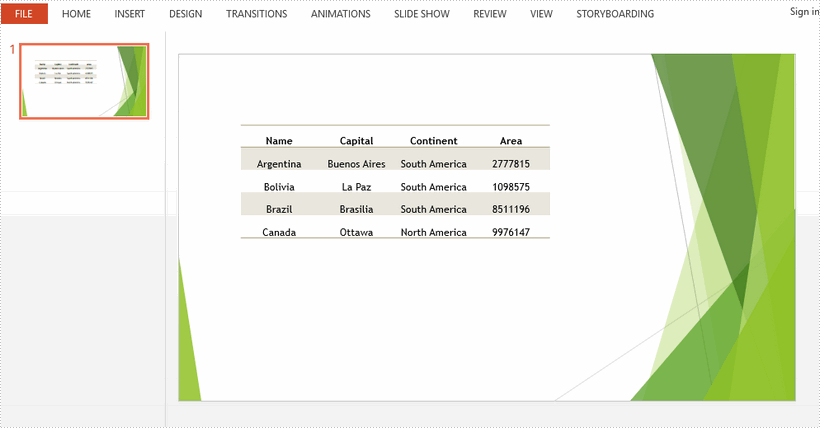
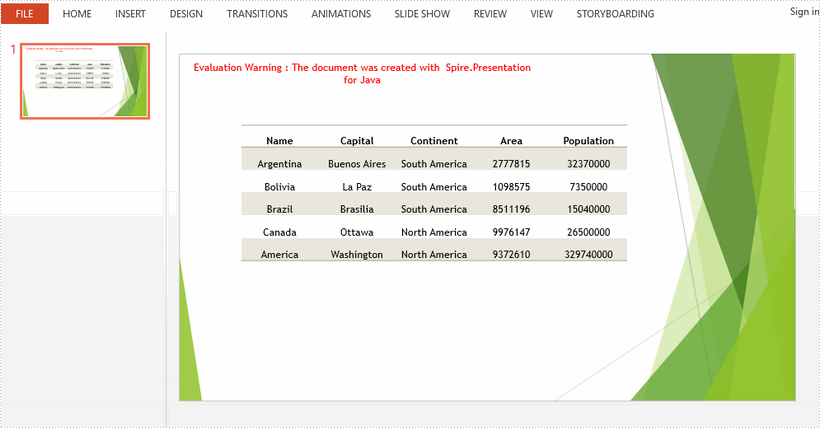
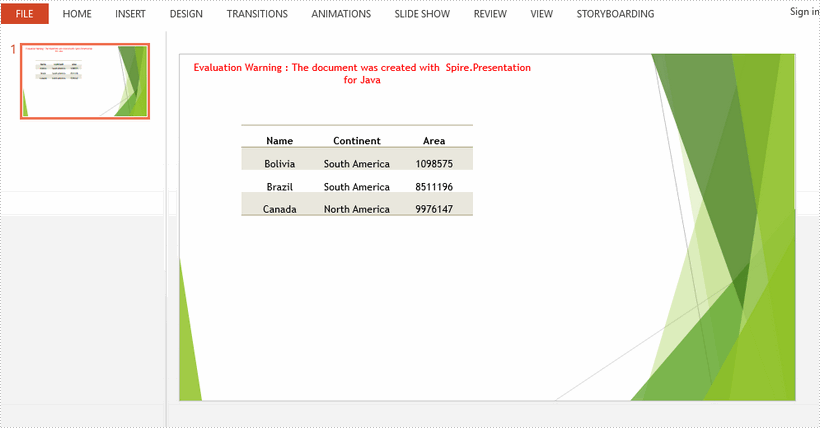
This article demonstrates how to add or delete rows and columns in a PowerPoint table using Spire.Presentation for Java.
Here is a screenshot of the sample PowerPoint file:
Add a row and a column
import com.spire.presentation.*;

public class AddRowAndColumn {

    public static void main(String[] args) throws Exception {

        //load the sample PowerPoint file
        Presentation presentation = new Presentation();
        presentation.loadFromFile("C:\\Users\\Administrator\\Desktop\\input.pptx");

        //get the table in the document
        ITable table = null;
        for (Object shape : presentation.getSlides().get(0).getShapes()) {
            if (shape instanceof ITable) {
                table = (ITable) shape;

                //add the last row to the end of the table as a new row
                int rowCount = table.getTableRows().getCount();
                TableRow row = table.getTableRows().get(rowCount - 1);
                table.getTableRows().append(row);

                //get the new row and set the text for each cell
                rowCount = table.getTableRows().getCount();
                row = table.getTableRows().get(rowCount - 1);
                row.get(0).getTextFrame().setText("America");
                row.get(1).getTextFrame().setText("Washington");
                row.get(2).getTextFrame().setText("North America");
                row.get(3).getTextFrame().setText("9372610");

                //add the last column to the end of the table as a new column
                int colCount = table.getColumnsList().getCount();
                TableColumn column =table.getColumnsList().get(colCount-1);
                table.getColumnsList().add(column);

                //get the new column and set the text for each cell
                colCount = table.getColumnsList().getCount();
                column = table.getColumnsList().get(colCount-1);
                column.get(0).getTextFrame().setText("Population");
                column.get(1).getTextFrame().setText("32370000");
                column.get(2).getTextFrame().setText("7350000");
                column.get(3).getTextFrame().setText("15040000");
                column.get(4).getTextFrame().setText("26500000");
                column.get(5).getTextFrame().setText("329740000");
            }
        }

        //save the document
        presentation.saveToFile("output/AddRowAndColumn.pptx", FileFormat.PPTX_2013);
    }
}
Delete a row and a column
import com.spire.presentation.FileFormat;
import com.spire.presentation.ITable;
import com.spire.presentation.Presentation;

public class DeleteRowAndColumn {

    public static void main(String[] args) throws Exception {

        //load the sample PowerPoint file
        Presentation presentation = new Presentation();
        presentation.loadFromFile("C:\\Users\\Administrator\\Desktop\\input.pptx");

        //get the table in the document
        ITable table = null;
        for (Object shape : presentation.getSlides().get(0).getShapes()) {
            if (shape instanceof ITable) {
                table = (ITable) shape;

                //delete the second column
                table.getColumnsList().removeAt(1, false);

                //delete the second row
                table.getTableRows().removeAt(1, false);
            }
        }

        //save the document
        presentation.saveToFile("output/DeleteRowAndColumn.pptx", FileFormat.PPTX_2013);
    }
}
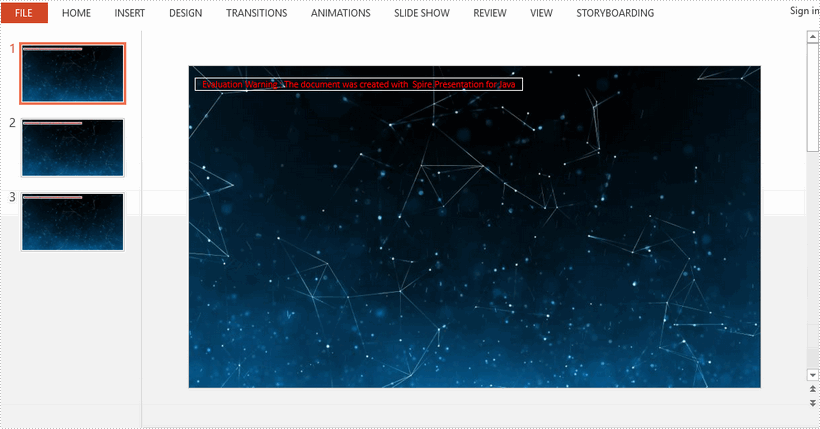
This article demonstrates how to apply background image to all slides in a PowerPoint presentation using Spire.Presentation for Java.
import com.spire.presentation.FileFormat;
import com.spire.presentation.Presentation;
import com.spire.presentation.SlideBackground;
import com.spire.presentation.drawing.*;

import javax.imageio.ImageIO;
import java.awt.image.BufferedImage;
import java.io.FileInputStream;

public class AppplyBgToAllSlides {

    public static void main(String[] args) throws Exception {

        //load a PowerPoint file
        Presentation presentation = new Presentation();
        presentation.loadFromFile("C:\\Users\\Administrator\\Desktop\\input.pptx");

        //get the image data
        BufferedImage bufferedImage = ImageIO.read(new FileInputStream("C:\\Users\\Administrator\\Desktop\\bg.jpg"));
        IImageData imageData = presentation.getImages().append(bufferedImage);

        //loop through the slides
        for (int i = 0; i < presentation.getSlides().getCount() ; i++) {

            //apply the image to the specific slide as background
            SlideBackground background = presentation.getSlides().get(i).getSlideBackground();
            background.setType(BackgroundType.CUSTOM);
            background.getFill().setFillType(FillFormatType.PICTURE);
            background.getFill().getPictureFill().setFillType(PictureFillType.STRETCH);
            background.getFill().getPictureFill().getPicture().setEmbedImage(imageData);
        }

        //save the file
        presentation.saveToFile("output/BackgroundImage.pptx", FileFormat.PPTX_2013);
        presentation.dispose();
    }
}
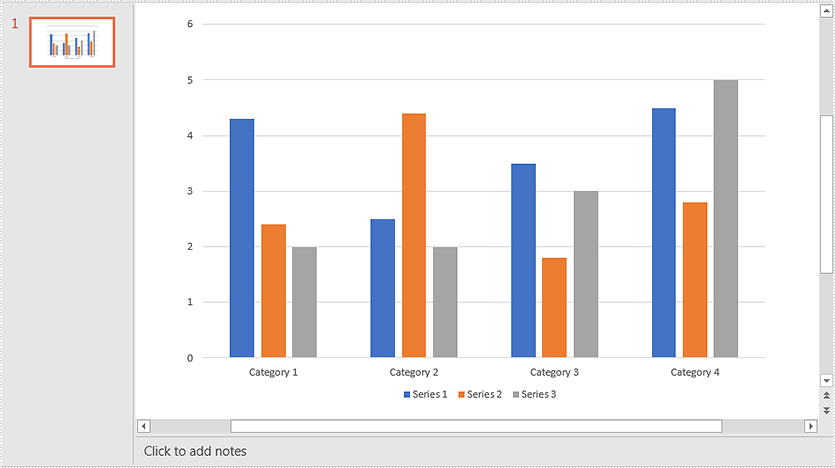
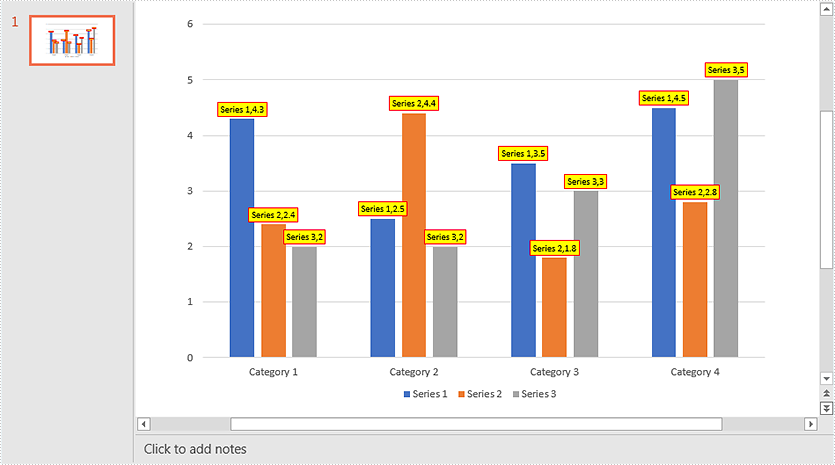
This article demonstrates how to add data labels to a chart and set the appearance (border style and fill style) for the data labels in PowerPoint using Spire.Presentation for Java. Note some chart types like Surface3D, Surface3DNoColor, Contour and ContourNoColor do not support data labels.
Below screenshot shows the original chart before adding data labels:
import com.spire.presentation.FileFormat;
import com.spire.presentation.ISlide;
import com.spire.presentation.Presentation;
import com.spire.presentation.charts.IChart;
import com.spire.presentation.charts.entity.ChartDataLabel;
import com.spire.presentation.charts.entity.ChartSeriesDataFormat;
import com.spire.presentation.drawing.FillFormatType;

import java.awt.*;

public class AddDataLabelsToChart {
    public static void main(String[] args) throws Exception {
        //Load the PowerPoint document
        Presentation ppt = new Presentation();
        ppt.loadFromFile("Chart.pptx");

        //Get the first slide
        ISlide slide = ppt.getSlides().get(0);
        //Get the chart in the slide
        IChart chart = (IChart)slide.getShapes().get(0);

        //Loop through the series in the chart
        for (ChartSeriesDataFormat series:(Iterable<ChartSeriesDataFormat>)chart.getSeries()) {
             ) {
            //Add data labels for the data points in each series
            for(int i = 0; i < 4; i++){
                ChartDataLabel dataLabel = series.getDataLabels().add();
                //Show label value
                dataLabel.setLabelValueVisible(true);
                //Show series name
                dataLabel.setSeriesNameVisible(true);
                //Set border line style
                dataLabel.getLine().setFillType(FillFormatType.SOLID);
                dataLabel.getLine().getSolidFillColor().setColor(Color.RED);
                //Set fill style
                dataLabel.getFill().setFillType(FillFormatType.SOLID);
                dataLabel.getFill().getSolidColor().setColor(Color.YELLOW);
            }
        }

        //Save the resultant document
        ppt.saveToFile("DataLabels.pptx", FileFormat.PPTX_2013);
    }
}
Output:
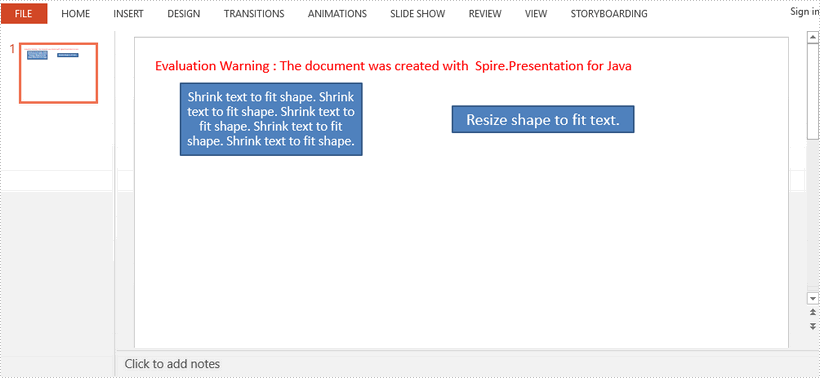
This article demonstrates how to automatically shrink text to fit a shape or how to automatically resize a shape to fit text by using Spire.Presentation for Java.
import com.spire.presentation.*;

import java.awt.geom.Rectangle2D;

public class AutoFitTextOrShape {

    public static void main(String[] args) throws Exception {

        //create Presentation instance
        Presentation presentation = new Presentation();

        //get the first slide
        ISlide slide = presentation.getSlides().get(0);

        //add a shape to slide
        IAutoShape textShape1 = slide.getShapes().appendShape(ShapeType.RECTANGLE, new Rectangle2D.Float(50,50,200,80));

        //add text to shape
        textShape1.getTextFrame().setText("Shrink text to fit shape. Shrink text to fit shape. Shrink text to fit shape. Shrink text to fit shape. Shrink text to fit shape.");

        //set the auto-fit type to normal, which means the text automatically shrinks to fit the shape when text overflows the shape
        textShape1.getTextFrame().setAutofitType(TextAutofitType.NORMAL);

        //add another shape to slide
        IAutoShape textShape2 = slide.getShapes().appendShape(ShapeType.RECTANGLE, new Rectangle2D.Float(350, 50, 200, 80));
        textShape2.getTextFrame().setText("Resize shape to fit text.");

        //set the auto-fit type to shape, which means the shape size automatically decreases or increases to fit text
        textShape2.getTextFrame().setAutofitType(TextAutofitType.SHAPE);

        //save to file
        presentation.saveToFile("output/AutoFit.pptx", FileFormat.PPTX_2013);
    }
}
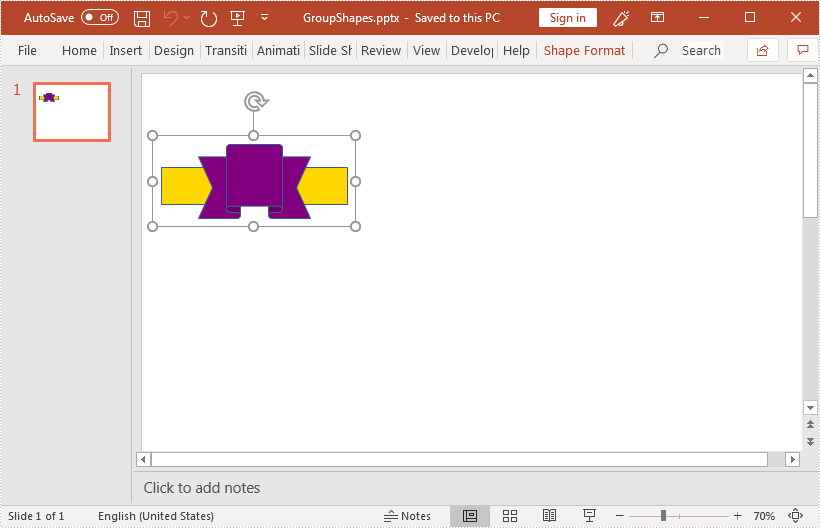
This article demonstrates how to group shapes in a PowerPoint document using Spire.Presentation for Java.
import com.spire.presentation.*;
import com.spire.presentation.drawing.FillFormatType;

import java.awt.geom.Rectangle2D;
import java.util.ArrayList;

public class GroupShapes {
    public static void main(String[] args) throws Exception {
        //create a PowerPoint document
        Presentation ppt = new Presentation();
        //get the first slide
        ISlide slide = ppt.getSlides().get(0);

        //add a rectangle shape to the slide
        IShape rectangle = slide.getShapes().appendShape(ShapeType.RECTANGLE, new Rectangle2D.Double(20,100,200,40));
        rectangle.getFill().setFillType(FillFormatType.SOLID);
        rectangle.getFill().getSolidColor().setKnownColor(KnownColors.GOLD);
        rectangle.getLine().setWidth(0.1f);

        //add a ribbon shape to the slide
        IShape ribbon = slide.getShapes().appendShape(ShapeType.RIBBON_2, new Rectangle2D.Double(60, 75, 120, 80));
        ribbon.getFill().setFillType(FillFormatType.SOLID);
        ribbon.getFill().getSolidColor().setKnownColor(KnownColors.PURPLE);
        ribbon.getLine().setWidth(0.1f);

        //add the shapes to a list
        ArrayList list = new ArrayList();
        list.add((Shape)rectangle);
        list.add((Shape)ribbon);

        //group the shapes
        ppt.getSlides().get(0).groupShapes(list);

        //save the resultant document
        ppt.saveToFile("GroupShapes.pptx", FileFormat.PPTX_2013);
    }
}
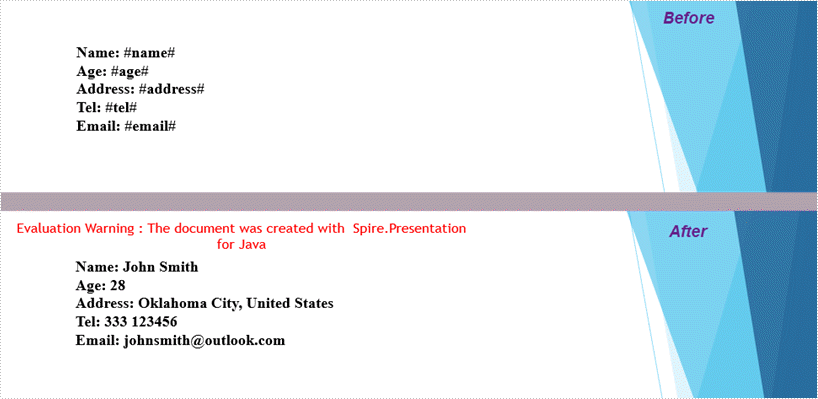
This article demonstrates how to replace text in an exising PowerPoint document with new text using Spire.Presentation for Java.
import com.spire.presentation.*;

import java.util.HashMap;
import java.util.Map;

public class ReplaceText {

    public static void main(String[] args) throws Exception {

        //create a Presentation object
        Presentation presentation = new Presentation();

        //load the template file
        presentation.loadFromFile("C:\\Users\\Administrator\\Desktop\\input.pptx");

        //get the first slide
        ISlide slide= presentation.getSlides().get(0);

        //create a Map object
        Map map = new HashMap();

        //add several pairs of keys and values to the map
        map.put("#name#","John Smith");
        map.put("#age#","28");
        map.put("#address#","Oklahoma City, United States");
        map.put("#tel#","333 123456");
        map.put("#email#","johnsmith@outlook.com");

        //replace text in the slide
        replaceText(slide,map);

        //save to another file
        presentation.saveToFile("output/ReplaceText.pptx", FileFormat.PPTX_2013);
    }

    /**
     * Replace text within a slide
     * @param slide Specifies the slide where the replacement happens
     * @param map Where keys are existing strings in the document and values are the new strings to replace the old ones
     */
     public static void replaceText(ISlide slide, Map<String,String> map) {

        for (Object shape : slide.getShapes()
        ) {
            if (shape instanceof IAutoShape) {

                for (Object paragraph : ((IAutoShape) shape).getTextFrame().getParagraphs()
                ) {
                    ParagraphEx paragraphEx = (ParagraphEx)paragraph;
                    for (String key : map.keySet()
                    ) {
                        if (paragraphEx.getText().contains(key)) {

                            paragraphEx.setText(paragraphEx.getText().replace(key, map.get(key)));
                         }
                    }
                }
            }
        }
    }
}
Set and Get Alternative Text (Alt Text) of PowerPoint Shapes in Java
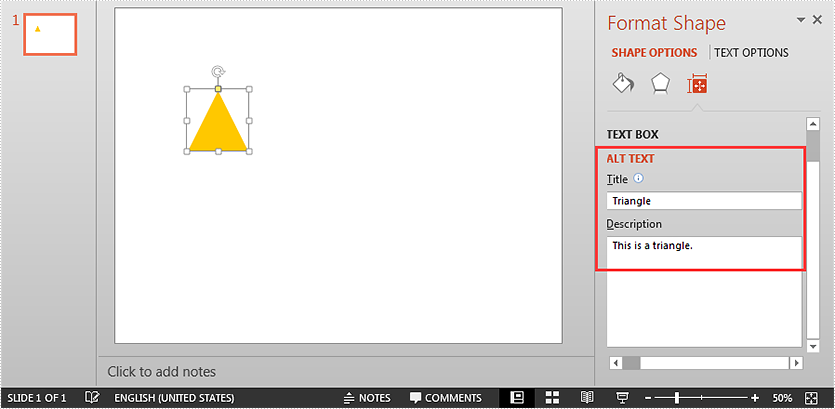
2019-09-03 08:58:44 Written by AdministratorAlternative text (Alt Text) can help people with vision or cognitive impairments understand shapes, pictures or other graphical content. This article demonstrates how to set and get the alternative text of a shape in a PowerPoint document using Spire.Presentation for Java.
Set alternative text
import com.spire.presentation.*;
import com.spire.presentation.drawing.FillFormatType;

import java.awt.*;
import java.awt.geom.Rectangle2D;

public class SetAltText {
    public static void main(String[] args) throws Exception {
        //instantiate a Presentation object
        Presentation ppt = new Presentation();

        //add a shape to the first slide
        IAutoShape shape = ppt.getSlides().get(0).getShapes().appendShape(ShapeType.TRIANGLE, new Rectangle2D.Double(115, 130, 100, 100));
        shape.getFill().setFillType(FillFormatType.SOLID);
        shape.getFill().getSolidColor().setColor(Color.orange);
        shape.getShapeStyle().getLineColor().setColor(Color.white);

        //set alt text (title and description) for the shape
        shape.setAlternativeTitle("Triangle");
        shape.setAlternativeText("This is a triangle.");

        //save the resultant document
        ppt.saveToFile("Output.pptx", FileFormat.PPTX_2013);
    }
}
Get alternative text
import com.spire.presentation.*;

public class GetAltText {
    public static void main(String[] args) throws Exception {
        //load PowerPoint document
        Presentation ppt = new Presentation();
        ppt.loadFromFile("Output.pptx");

        //get the first shape in the first slide
        IShape shape = ppt.getSlides().get(0).getShapes().get(0);

        //get the alt text (title and description) of the shape
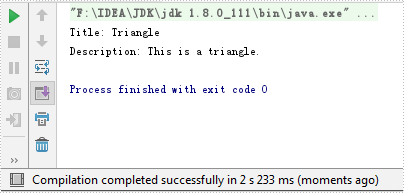
        String altTitle = shape.getAlternativeTitle();
        String altDescription = shape.getAlternativeText();

        System.out.println("Title: " + altTitle);
        System.out.println("Description: " + altDescription);
    }
}
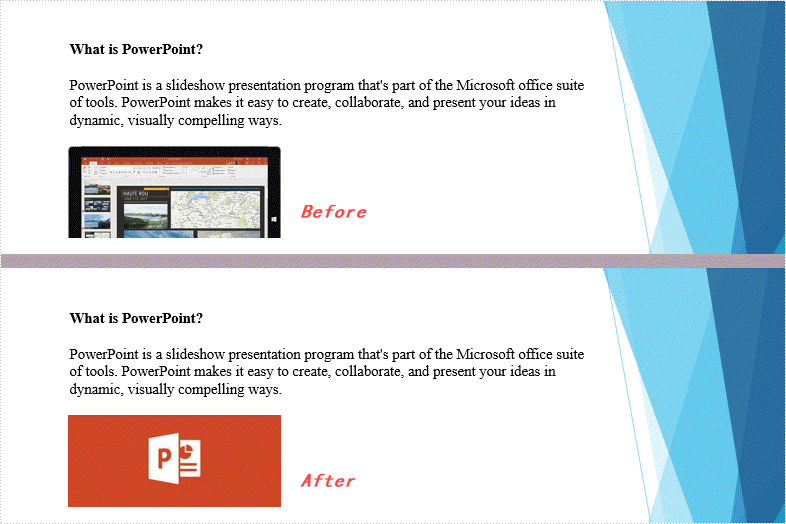
This article demonstrates how to replace an existing image in a PowerPoint document with a new image by using Spire.Presentation for Java.
import com.spire.presentation.*;
import com.spire.presentation.drawing.IImageData;

import javax.imageio.ImageIO;
import java.awt.image.BufferedImage;
import java.io.FileInputStream;

public class ReplaceImage {

    public static void main(String[] args) throws Exception {

        //create a Presentation object
        Presentation presentation= new Presentation();

        //load the sample PowerPoint file
        presentation.loadFromFile("C:\\Users\\Administrator\\Desktop\\input.pptx");

        //add an image to the image collection
        String imagePath = "C:\\Users\\Administrator\\Desktop\\Microsoft-PowerPoint-logo.jpg";
        BufferedImage bufferedImage = ImageIO.read(new FileInputStream(imagePath));
        IImageData image = presentation.getImages().append(bufferedImage);

        //get the shape collection from the first slide
        ShapeCollection shapes = presentation.getSlides().get(0).getShapes();

        //loop through the shape collection
        for (int i = 0; i < shapes.getCount(); i++) {

            //determine if a shape is a picture
            if (shapes.get(i) instanceof SlidePicture) {

                //fill the shape with a new image
               ((SlidePicture) shapes.get(i)).getPictureFill().getPicture().setEmbedImage(image);
            }
        }

        //save to file
        presentation.saveToFile("output/ReplaceImage.pptx", FileFormat.PPTX_2013);
    }
}