
Program Guide (83)
Children categories
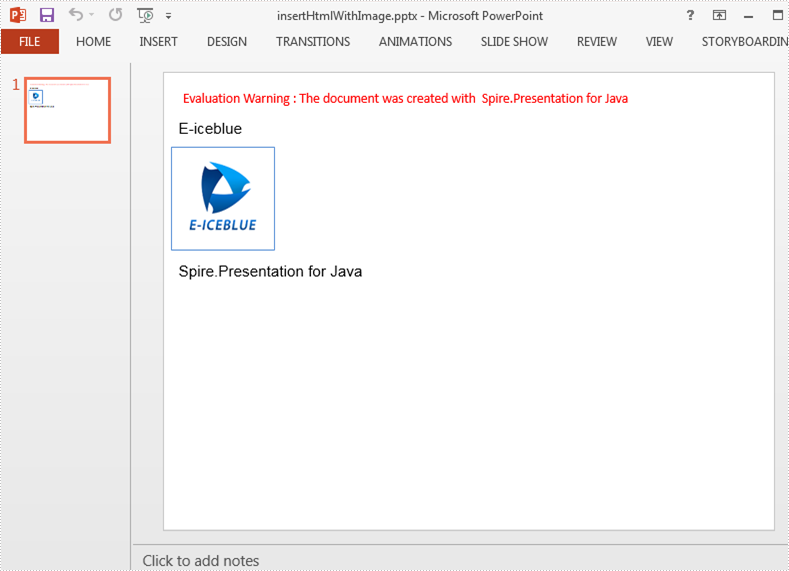
We have already demonstrated how to insert HTML formatted text to a Presentation slide by using Spire.Presentation for Java. This article will introduce the way to insert HTML with images to PowerPoint and each html tag will be added to the slide as a separate shape.
import com.spire.presentation.*;
import com.spire.presentation.collections.*;

public class AddHTMLWithImage {
    public static void main(String[] args) throws Exception {
        //Create an instance of presentation document
        Presentation ppt = new Presentation();
        //Get the shapes on the first slide.
        ShapeList shapes = ppt.getSlides().get(0).getShapes();
        //Add contents to shapes from HTML codes, which includes text and image.
        shapes.addFromHtml("<html><div><p>E-iceblue</p>" +
                "<p><img src='https://cdn.e-iceblue.com/C:\\Users\\Test1\\Desktop\\logo.png'/></p>" +
                "<p>Spire.Presentation for Java</p></html>");

        //Save the document
        String result = "output/insertHtmlWithImage.pptx";
        ppt.saveToFile(result, FileFormat.PPTX_2013);
    }
}
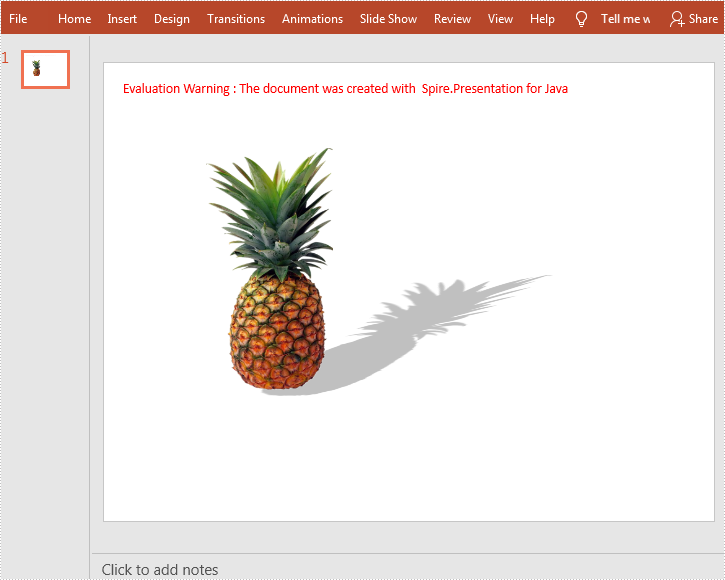
This article demonstrates how to add shadow effects to shapes in PowerPoint by using Spire.Presentation for Java. In addition to the PresetShadowEffect shown in this article, you can also add InnerShadowEffect, OuterShadowEffect and SoftEdgeEffect, etc.
import com.spire.presentation.*;
import com.spire.presentation.drawing.*;
import java.awt.*;
import java.awt.geom.Rectangle2D;

public class setShadowEffect {
    public static void main(String[] args) throws Exception {

        //Create a Presentation instance
        Presentation ppt = new Presentation();

        //Get the first slide
        ISlide slide = ppt.getSlides().get(0);

        //Add a shape to the slide.
        Rectangle2D rect = new Rectangle2D.Float(120, 100, 150, 300);
        IAutoShape shape = slide.getShapes().appendShape(ShapeType.RECTANGLE, rect);

        //Fill the shape with a picture
        shape.getFill().setFillType(FillFormatType.PICTURE);
        shape.getFill().getPictureFill().getPicture().setUrl("https://cdn.e-iceblue.com/C:\\Users\\Administrator\\Desktop\\img.png");
        shape.getLine().setFillType(FillFormatType.NONE);
        shape.getFill().getPictureFill().setFillType(PictureFillType.STRETCH);

        //Set shadow effect
        PresetShadow presetShadow = new PresetShadow();
        presetShadow.setPreset(PresetShadowValue.BACK_RIGHT_PERSPECTIVE);
        presetShadow.getColorFormat().setColor(Color.lightGray);

        //Apply the shadow effect to shape
        shape.getEffectDag().setPresetShadowEffect(presetShadow);

        //Save the document
        ppt.saveToFile("output/ShapeShadow.pptx", FileFormat.PPTX_2013);
    }
}
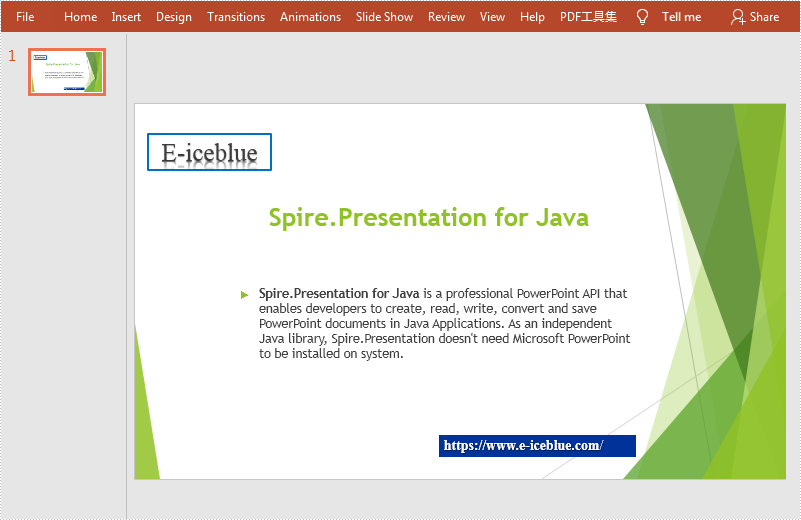
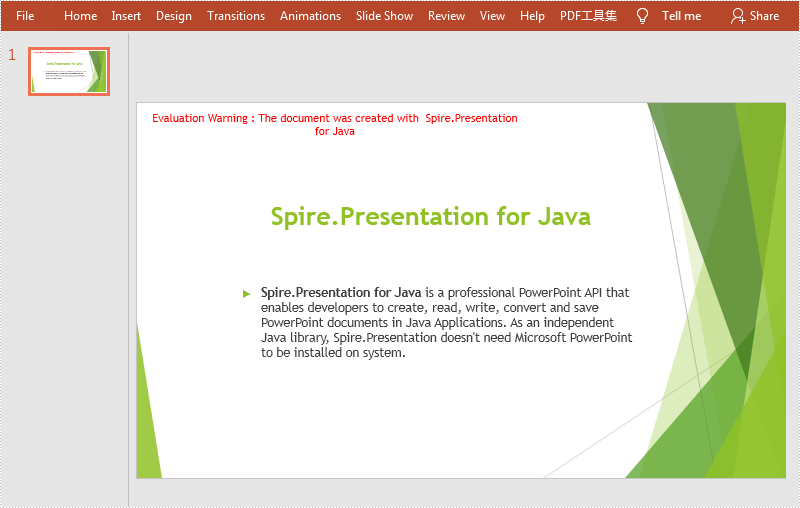
This article demonstrates how to remove text box in a PowerPoint document by using Spire.Presentation for Java.
Below is a screenshot of the original PowerPoint document:
import com.spire.presentation.*;

public class removeTextBox {
    public static void main(String[] args) throws Exception {
        //Load the sample document
        Presentation ppt = new Presentation();
        ppt.loadFromFile("sample.pptx");

        //Get the first slide
        ISlide slide = ppt.getSlides().get(0);

        //Traverse all the shapes in the slide and remove the textboxes
        for (int i = slide.getShapes().getCount() - 1; i >= 0; i--) {
            IAutoShape shape = (IAutoShape) slide.getShapes().get(i);
            if (shape.isTextBox()) {
                slide.getShapes().removeAt(i);
            }
        }

        //Save the document
        ppt.saveToFile("output/removeTextBox.pptx", FileFormat.PPTX_2013);
    }
}
Output
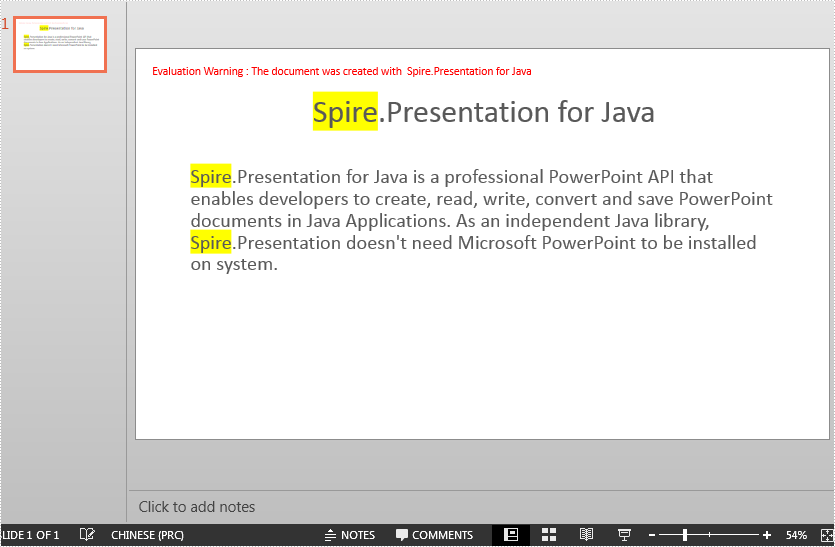
When you want to emphasize a particular point in a PowerPoint presentation, you can highlight it with a bright color to help the audience catch it at first glance. In this article, we will explain how to highlight text in a PowerPoint presentation in Java using Spire.Presentation for Java.
Install Spire.Presentation for Java
First of all, you're required to add the Spire.Presentation.jar file as a dependency in your Java program. The JAR file can be downloaded from this link. If you use Maven, you can easily import the JAR file in your application by adding the following code to your project's pom.xml file.
<repositories>
    <repository>
        <id>com.e-iceblue</id>
        <name>e-iceblue</name>
        <url>https://repo.e-iceblue.com/nexus/content/groups/public/</url>
    </repository>
</repositories>
<dependencies>
    <dependency>
        <groupId>e-iceblue</groupId>
        <artifactId>spire.presentation</artifactId>
        <version>11.5.1</version>
    </dependency>
</dependencies>
Highlight Text in PowerPoint in Java
The following are the steps to highlight specific text in a PowerPoint document:
- Initialize an instance of Presentation class.
- Load a PowerPoint presentation using Presentation.loadFromFile() method.
- Loop through the slides in the presentation and the shapes on each slide.
- Check if the current shape is of IAutoShape type.
- If the result is true, typecast it to IAutoShape.
- Initialize an instance of TextHighLightingOptions class, and set the text highlighting options such as whole words only and case sensitive using TextHighLightingOptions.setWholeWordsOnly() and TextHighLightingOptions.setCaseSensitive() methods.
- Highlight a specific text in the shape using IAutoShape.getTextFrame().highLightText() method.
- Save the result file using Presentation.saveToFile() method.
- Java
import com.spire.presentation.*;

import java.awt.*;

public class HighlightTextInPPT {
    public static void main(String []args) throws Exception {
        //Create an instance of Presentation class
        Presentation presentation = new Presentation();
        //Load a PowerPoint file
        presentation.loadFromFile("Input.pptx");

        //Loop through all slides
        for (int i = 0; i < presentation.getSlides().getCount(); i++)
        {
            //Get the current slide
            ISlide slide = presentation.getSlides().get(i);
            //Loop through the shapes on the slide
            for (int j = 0; j < slide.getShapes().getCount(); j++)
            {
                //Check if the current shape is of IAutoShape type
                if (slide.getShapes().get(j) instanceof IAutoShape)
                {
                    //Typecast the shape to IAutoShape
                    IAutoShape shape = (IAutoShape)slide.getShapes().get(j);

                    //Create an instance of TextHighLightingOptions class
                    TextHighLightingOptions options = new TextHighLightingOptions();
                    //Set text highlighting options
                    options.setCaseSensitive(true);
                    options.setWholeWordsOnly(true);

                    //Highlight specific text within the shape with color
                    shape.getTextFrame().highLightText("Spire", Color.YELLOW, options);
                }
            }
        }

        //Save the result file
        presentation.saveToFile("HighlightText.pptx", FileFormat.PPTX_2013);

    }
}
Apply for a Temporary License
If you'd like to remove the evaluation message from the generated documents, or to get rid of the function limitations, please request a 30-day trial license for yourself.
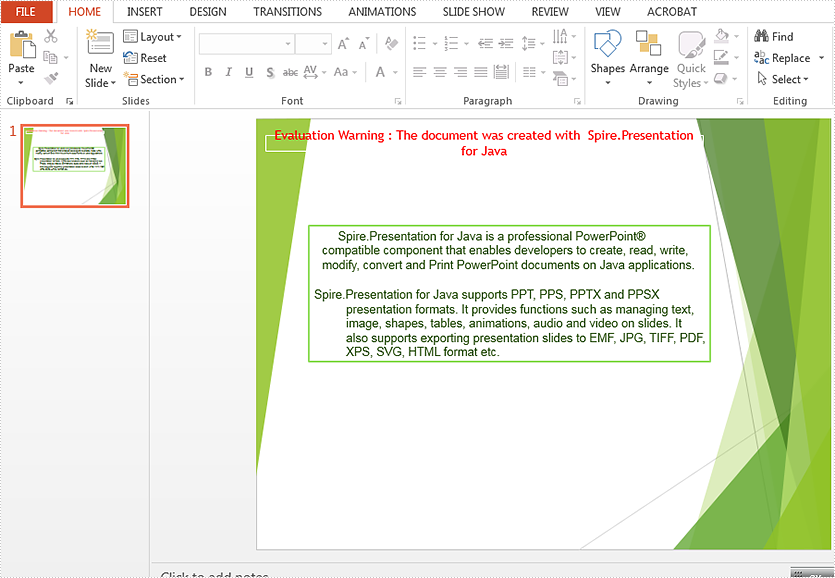
Java set the intents and spacing for paragraph on the presentation slide
2020-08-12 06:51:57 Written by KoohjiThere are two kinds of special indents styles for the paragraph on the presentation slides, first line and hanging. This article will demonstrate how to set the indents and spacing for the paragraph on presentation slide in Java applications.
import com.spire.presentation.*;

public class IndentStyle {
    public static void main(String[] args)  throws Exception{
        //Load the sample document
        Presentation presentation = new Presentation();
        presentation.loadFromFile("Indent.pptx");

        //get the shapes
        IAutoShape shape = (IAutoShape) presentation.getSlides().get(0).getShapes().get(0);

        //set the indent, margin and space for the first paragraph
        shape.getTextFrame().getParagraphs().get(0).setIndent(20);
        shape.getTextFrame().getParagraphs().get(0).setLeftMargin(10);
        shape.getTextFrame().getParagraphs().get(0).setSpaceAfter(10);

        //set the indent, margin and space for the third paragraph
        shape.getTextFrame().getParagraphs().get(2).setIndent(-100);
        shape.getTextFrame().getParagraphs().get(2).setLeftMargin(40);
        shape.getTextFrame().getParagraphs().get(2).setSpaceBefore(0);
        shape.getTextFrame().getParagraphs().get(2).setSpaceAfter(0);

        //save the document to file
        String output = "output/result.pptx";
        presentation.saveToFile(output, FileFormat.PPTX_2010);
    }
}
Effective screenshot after setting the indent style of paragraphs on presentation slide:
Java remove text or image watermark from presentation slides
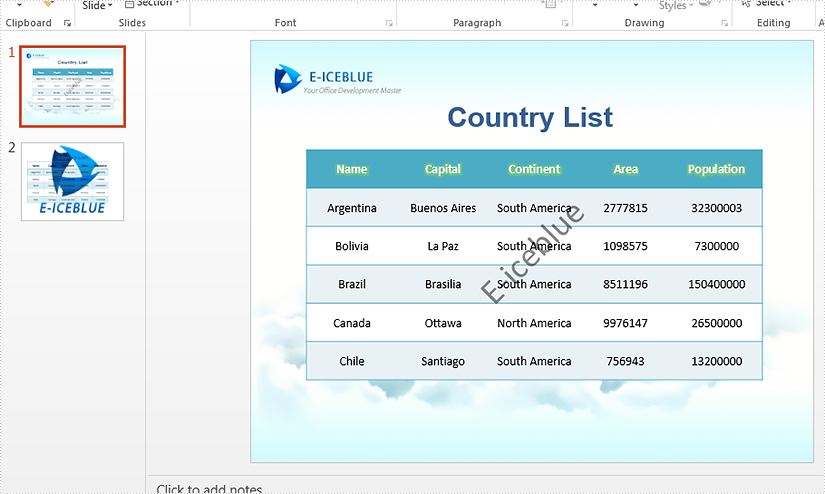
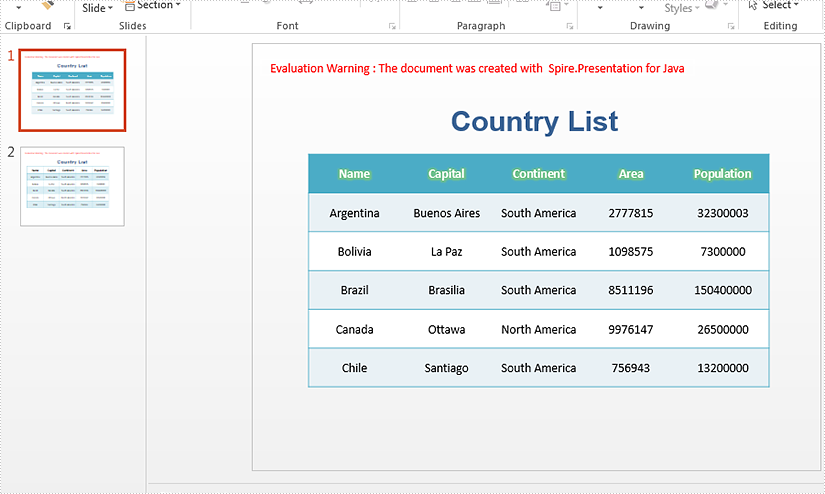
2020-06-01 06:23:35 Written by AdministratorThis article will demonstrate how to use Spire.Presentaion for Java to remove text watermark and image watermark from the presentation slides.
Firstly, view the sample PowerPoint document with text and image watermark:
import com.spire.presentation.*;
import com.spire.presentation.drawing.*;

public class removeTextOrImageWatermark {

    public static void main(String[] args) throws Exception {
        //Load the sample document
        Presentation presentation = new Presentation();
        presentation.loadFromFile("Sample.pptx");

        //Remove text watermark by removing the shape which contains the string "E-iceblue".
        for (int i = 0; i < presentation.getSlides().getCount(); i++)
        {
            for (int j = 0; j < presentation.getSlides().get(i).getShapes().getCount(); j++)
            {
                if (presentation.getSlides().get(i).getShapes().get(j) instanceof IAutoShape)
                {
                    IAutoShape shape = (IAutoShape)presentation.getSlides().get(i).getShapes().get(j);
                    if (shape.getTextFrame().getText().contains("E-iceblue"))
                    {
                        presentation.getSlides().get(i).getShapes().remove(shape);
                    }
                }
            }
        }

        //Remove image watermark
        for (int i = 0; i < presentation.getSlides().getCount(); i++)
        {
            presentation.getSlides().get(i).getSlideBackground().getFill().setFillType(FillFormatType.NONE);
        }

        //Save to file.
        presentation.saveToFile("removeTextOrImageWatermark.pptx", FileFormat.PPTX_2013);
    }
}
Effective screenshot after removing text or image watermark:
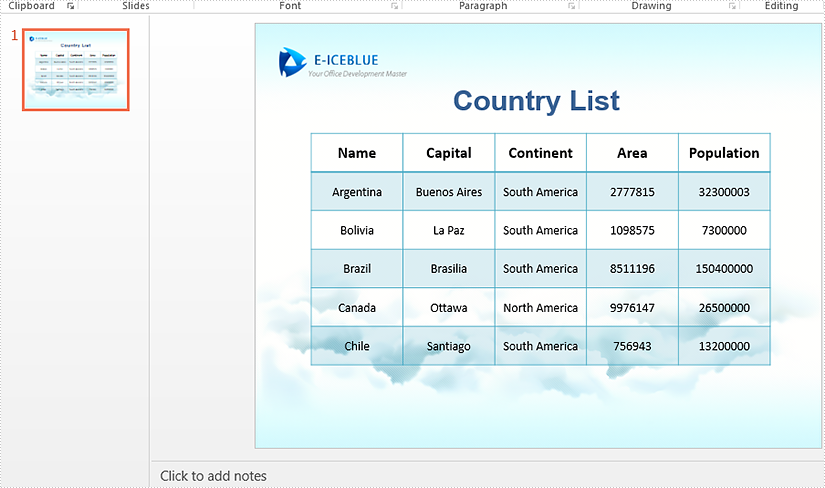
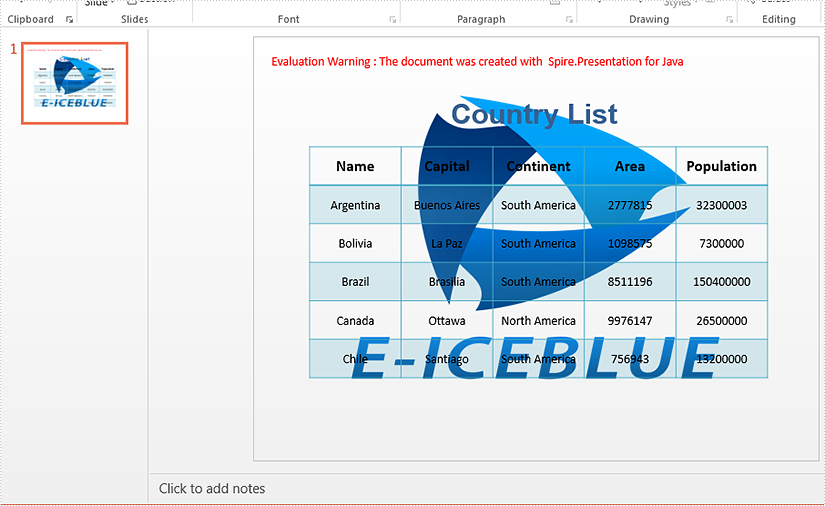
We have introduced how to use Spire.Presentaion for Java to add text watermark to PowerPoint document. This article will demonstrate how to add image watermark to presentation slides in java applications.
Firstly view the sample PowerPoint document:
import com.spire.presentation.*;
import com.spire.presentation.drawing.*;
import javax.imageio.ImageIO;
import java.io.File;


public class addImageWatermark {

    public static void main(String[] args) throws Exception {
        //Create a PowerPoint document.
        Presentation presentation = new Presentation();

        //Load the file from disk.
        presentation.loadFromFile("Sample.pptx");

        //Get the image you want to add as image watermark.
        File file =new File("logo.png");
        IImageData image = presentation.getImages().append(ImageIO.read(file));

        //Set the properties of SlideBackground, and then fill the image as watermark.
        presentation.getSlides().get(0).getSlideBackground().setType(BackgroundType.CUSTOM);
        presentation.getSlides().get(0).getSlideBackground().getFill().setFillType(FillFormatType.PICTURE);
        presentation.getSlides().get(0).getSlideBackground().getFill().getPictureFill().setFillType(PictureFillType.STRETCH);
        presentation.getSlides().get(0).getSlideBackground().getFill().getPictureFill().getPicture().setEmbedImage(image);

        String result = "addImageWatermark.pptx";
        //Save to file.
        presentation.saveToFile(result, FileFormat.PPTX_2013);
    }
}
Effective screenshot after adding image watermark to PowerPoint document:
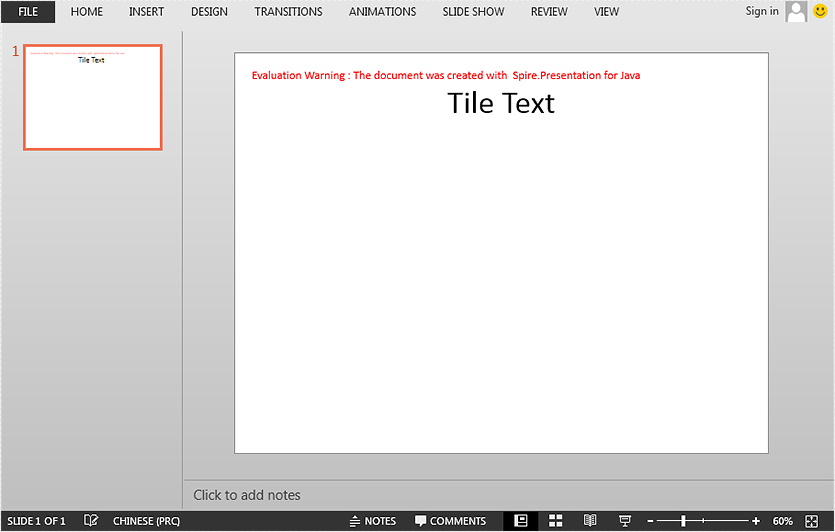
This article demonstrates how to set and get slide title in a PowerPoint document using Spire.Presentation for Java.
Set slide title
import com.spire.presentation.FileFormat;
import com.spire.presentation.ISlide;
import com.spire.presentation.Presentation;

public class SetSlideTitle {
    public static void main(String[] args) throws Exception {
        //Create a Presentation instance
        Presentation ppt = new Presentation();
        //Get the first slide
        ISlide slide = ppt.getSlides().get(0);

        //Set title for the slide
        slide.setTitle("Tile Text");

        //Save the result document
        ppt.saveToFile("SetTitle.pptx", FileFormat.PPTX_2013);
    }
}
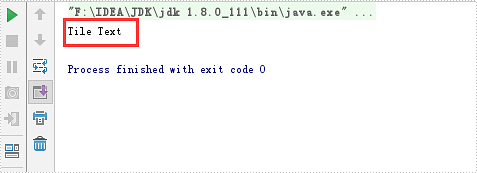
Get slide title
import com.spire.presentation.ISlide;
import com.spire.presentation.Presentation;

public class GetSlideTitle {
    public static void main(String[] args) throws Exception {
        //Create a Presentation instance
        Presentation ppt = new Presentation();
        //Load a PowerPoint document
        ppt.loadFromFile("SetTitle.pptx");

        //Get the first slide
        ISlide slide = ppt.getSlides().get(0);

        //Print out the title of the slide
        String tile = slide.getTitle();
        System.out.println(tile);
    }
}
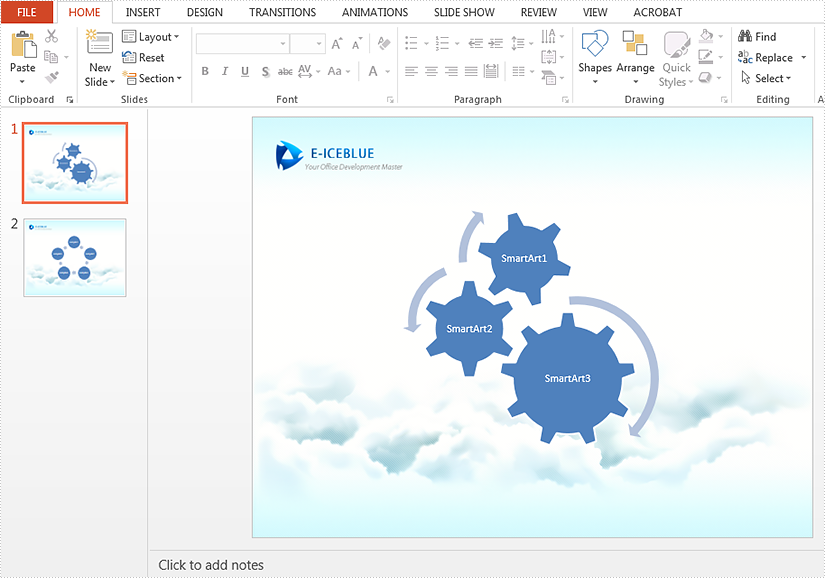
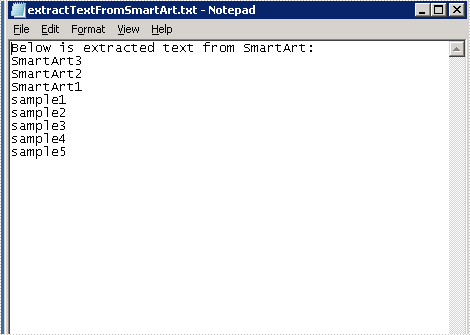
This article will introduce how to extract text from SmartArt in PowerPoint in Java applications.
Firstly view the sample document:
import com.spire.presentation.Presentation;
import com.spire.presentation.diagrams.ISmartArt;
import java.io.*;

public class extractTextFromSmartArt {
    public static void main(String[] args) throws Exception {
        Presentation presentation = new Presentation();
        presentation.loadFromFile("Sample.pptx");

        //Create a new TXT File
        String result = "output/extractTextFromSmartArt.txt";
        File file=new File(result);
        if(file.exists()){
            file.delete();
        }
        file.createNewFile();
        FileWriter fw =new FileWriter(file,true);
        BufferedWriter bw =new BufferedWriter(fw);

        bw.write("Below is extracted text from SmartArt:" + "\r\n");

        //Traverse through all the slides of the PPT file and find the SmartArt shapes.
        for (int i = 0; i < presentation.getSlides().getCount(); i++)
        {
            for (int j = 0; j < presentation.getSlides().get(i).getShapes().getCount(); j++)
            {
                if (presentation.getSlides().get(i).getShapes().get(j) instanceof ISmartArt)
                {
                    ISmartArt smartArt = (ISmartArt)presentation.getSlides().get(i).getShapes().get(j);

                    //Extract text from SmartArt and append to the StringBuilder object.
                    for (int k = 0; k < smartArt.getNodes().getCount(); k++)
                    {
                        bw.write(smartArt.getNodes().get(k).getTextFrame().getText() + "\r\n");
                    }
                }
            }
        }
        bw.flush();
        bw.close();
        fw.close();

    }
}
Effective screenshot of the extracting Text from SmartArt:
Java: Set, Retrieve, or Delete Document Properties in PowerPoint
2023-08-10 07:54:00 Written by KoohjiDocument properties of PowerPoint presentations hold immense value in managing and organizing presentations. The information in properties, including title, author, keywords, etc., provides a concise summary, aids in categorization and searchability, and contributes to maintaining a comprehensive presentation history. However, some useless document properties need to be deleted to prevent them from affecting document management. This article is going to show how to add, retrieve, or delete document properties in PowerPoint presentations using Spire.Presentation for Java.
- Add Document Properties to a PowerPoint Presentation
- Retrieve Document Properties from a PowerPoint Presentation
- Delete Document Properties of a PowerPoint Presentation
Install Spire.Presentation for Java
First of all, you're required to add the Spire.Presentation.jar file as a dependency in your Java program. The JAR file can be downloaded from this link. If you use Maven, you can easily import the JAR file in your application by adding the following code to your project's pom.xml file.
<repositories>
    <repository>
        <id>com.e-iceblue</id>
        <name>e-iceblue</name>
        <url>https://repo.e-iceblue.com/nexus/content/groups/public/</url>
    </repository>
</repositories>
<dependencies>
    <dependency>
        <groupId>e-iceblue</groupId>
        <artifactId>spire.presentation</artifactId>
        <version>11.5.1</version>
    </dependency>
</dependencies>
Add Document Properties to a PowerPoint Presentation
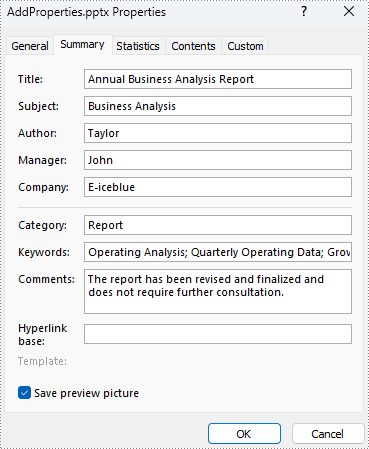
Spire.Presentation for Java provides a set of methods under IDocumentProperty class to enable users to set and retrieve document properties of a presentation after getting the properties using the Presentation.getDocumentProperty() method. The detailed steps for adding document properties to a PowerPoint presentation are as follows:
- Create an object of Presentation class.
- Load a presentation file using Presentation.loadFromFile() method.
- Get the document properties of the presentation using Presentation.getDocumentProperty() method.
- Set the document properties using methods under IDocumentProperty class.
- Save the presentation using Presentation.saveToFile() method.
- Java
import com.spire.presentation.FileFormat;
import com.spire.presentation.IDocumentProperty;
import com.spire.presentation.Presentation;

public class addPresentationProperties {
    public static void main(String[] args) throws Exception {
        //Create an object of Presentation class
        Presentation presentation = new Presentation();

        //Load a PowerPoint presentation
        presentation.loadFromFile("Sample.pptx");

        //Get the properties of the presentation and add items
        IDocumentProperty property = presentation.getDocumentProperty();
        property.setTitle("Annual Business Analysis Report");
        property.setSubject("Business Analysis");
        property.setAuthor("Taylor");
        property.setManager("John");
        property.setCompany("E-iceblue");
        property.setCategory("Report");
        property.setKeywords("Operating Analysis; Quarterly Operating Data; Growth");
        property.setComments("The report has been revised and finalized and does not require further consultation.");

        //Save the presentation file
        presentation.saveToFile("AddProperties.pptx", FileFormat.AUTO);
        presentation.dispose();
    }
}
Retrieve Document Properties from a PowerPoint Presentation
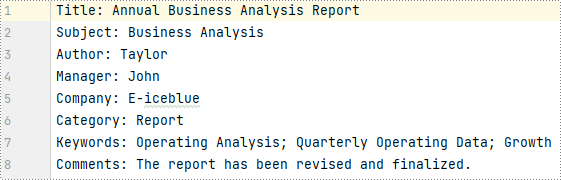
The detailed steps for retrieving document properties from a PowerPoint presentation are as follows:
- Create an object of Presentation class.
- Load a presentation file using Presentation.loadFromFile() method.
- Get the properties of the presentation using Presentation.getDocumentProperty() method.
- Retrieve property information using methods under IDocumentProperty class and write it to a text file.
- Java
import com.spire.presentation.IDocumentProperty;
import com.spire.presentation.Presentation;

import java.io.FileWriter;

public class retrievePresentationProperties {
    public static void main(String[] args) throws Exception {
        //Create an object of Presentation class
        Presentation presentation = new Presentation();

        //Load a presentation file
        presentation.loadFromFile("AddProperties.pptx");

        //Get the properties of the presentation
        IDocumentProperty property = presentation.getDocumentProperty();

        //Get the properties and write them to a text file
        String properties = "Title: " + property.getTitle() + "\r\n"
                + "Subject: " + property.getSubject() + "\r\n"
                + "Author: " + property.getAuthor() + "\r\n"
                + "Manager: " + property.getManager() + "\r\n"
                + "Company: " + property.getCompany() + "\r\n"
                + "Category: " + property.getCategory() + "\r\n"
                + "Keywords: " + property.getKeywords() + "\r\n"
                + "Comments: " + property.getComments();
        FileWriter presentationProperties = new FileWriter("PresentationProperties.txt");
        presentationProperties.write(properties);
        presentationProperties.close();
    }
}
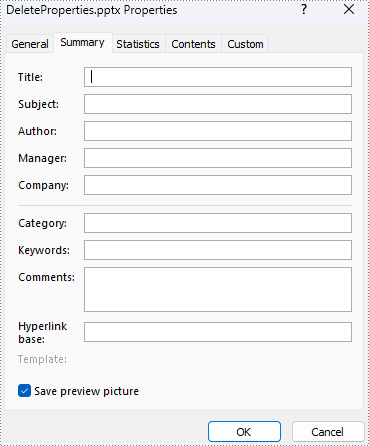
Delete Document Properties of a PowerPoint Presentation
Removing document properties from a presentation is similar to adding properties. Just set the property data to null and the document properties can be removed. The details are as follows:
- Create an object of Presentation class.
- Load a presentation file using Presentation.loadFromFile() method.
- Get the document properties of the presentation using Presentation.getDocumentProperty() method.
- Set the document properties to null using methods under IDocumentProperty class.
- Save the presentation using Presentation.saveToFile() method.
- Java
import com.spire.presentation.FileFormat;
import com.spire.presentation.IDocumentProperty;
import com.spire.presentation.Presentation;

public class deletePresentationProperties {
    public static void main(String[] args) throws Exception {
        //Create an object of Presentation class
        Presentation presentation = new Presentation();

        //Load a PowerPoint presentation
        presentation.loadFromFile("AddProperties.pptx");

        //Get the properties of the presentation and set the properties to null
        IDocumentProperty property = presentation.getDocumentProperty();
        property.setTitle("");
        property.setSubject("");
        property.setAuthor("");
        property.setManager("");
        property.setCompany("");
        property.setCategory("");
        property.setKeywords("");
        property.setComments("");

        //Save the presentation file
        presentation.saveToFile("DeleteProperties.pptx", FileFormat.AUTO);
        presentation.dispose();
    }
}
Apply for a Temporary License
If you'd like to remove the evaluation message from the generated documents, or to get rid of the function limitations, please request a 30-day trial license for yourself.
