
Spire.XLS for Java (133)
Children categories
Hyperlinks can direct readers from one file to a web address, an email address or another file. A hyperlink can be added to text or an image. In this article, we will introduce how to add hyperlinks to Excel in Java using Spire.XLS for Java library.
Install Spire.XLS for Java
First of all, you're required to add the Spire.Xls.jar file as a dependency in your Java program. The JAR file can be downloaded from this link. If you use Maven, you can easily import the JAR file in your application by adding the following code to your project's pom.xml file.
<repositories>
    <repository>
        <id>com.e-iceblue</id>
        <name>e-iceblue</name>
        <url>https://repo.e-iceblue.com/nexus/content/groups/public/</url>
    </repository>
</repositories>
<dependencies>
    <dependency>
        <groupId>e-iceblue</groupId>
        <artifactId>spire.xls</artifactId>
        <version>16.8.4</version>
    </dependency>
</dependencies>
Add Text Hyperlinks to Excel in Java
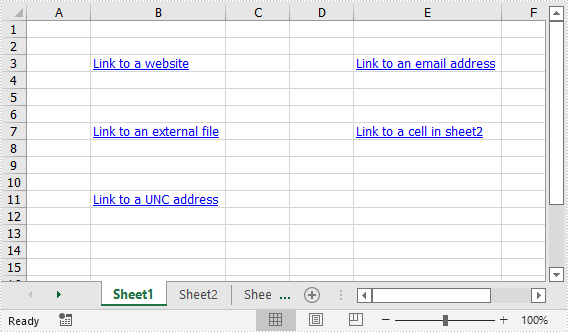
The following are the steps to add a text hyperlink to Excel in Java:
- Create an instance of Workbook class.
- Get the desired worksheet using Workbook.getWorksheets().get() method.
- Access the specific cell that you want to add hyperlink to using Worksheet.getRange().get() method.
- Add a hyperlink to the cell using Worksheet.getHyperLinks().add() method.
- Set the type, display text and address for the hyperlink using XlsHyperLink.setType(), XlsHyperLink.setTextToDisplay() and XlsHyperLink.setAddress() methods.
- Autofit column width using XlsWorksheet.autoFitColumn() method.
- Save the result file using Workbook.saveToFile() method.
- Java
import com.spire.xls.*;

public class AddTextHyperlinks {
    public static void main(String []args){
        //Create a Workbook instance
        Workbook workbook = new Workbook();

        //Get the first worksheet
        Worksheet sheet = workbook.getWorksheets().get(0);

        //Add a text hyperlink that leads to a website
        CellRange cell1 = sheet.getRange().get("B3");
        HyperLink urlLink = sheet.getHyperLinks().add(cell1);
        urlLink.setType(HyperLinkType.Url);
        urlLink.setTextToDisplay("Link to a website");
        urlLink.setAddress("https://www.google.com/");

        //Add a text hyperlink that leads to an email address
        CellRange cell2 = sheet.getRange().get("E3");
        HyperLink mailLink = sheet.getHyperLinks().add(cell2);
        mailLink.setType(HyperLinkType.Url);
        mailLink.setTextToDisplay("Link to an email address");
        mailLink.setAddress("mailto:abc@outlook.com");

        //Add a text hyperlink that leads to an external file
        CellRange cell3 = sheet.getRange().get("B7");
        HyperLink fileLink = sheet.getHyperLinks().add(cell3);
        fileLink.setType(HyperLinkType.File);
        fileLink.setTextToDisplay("Link to an external file");
        fileLink.setAddress("C:\\Users\\Administrator\\Desktop\\Report.xlsx");

        //Add a text hyperlink that leads to a cell in another sheet
        CellRange cell4 = sheet.getRange().get("E7");
        HyperLink linkToSheet = sheet.getHyperLinks().add(cell4);
        linkToSheet.setType(HyperLinkType.Workbook);
        linkToSheet.setTextToDisplay("Link to a cell in sheet2");
        linkToSheet.setAddress("Sheet2!B5");

        //Add a text hyperlink that leads to a UNC address
        CellRange cell5 = sheet.getRange().get("B11");
        HyperLink uncLink = sheet.getHyperLinks().add(cell5);
        uncLink.setType(HyperLinkType.Unc);
        uncLink.setTextToDisplay("Link to a UNC address");
        uncLink.setAddress("\\\\192.168.0.121");

        //Autofit column width
        sheet.autoFitColumn(2);
        sheet.autoFitColumn(5);

        //Save to file
        workbook.saveToFile("AddTextHyperlinks.xlsx", ExcelVersion.Version2013);
    }
}
Add Image Hyperlinks to Excel in Java
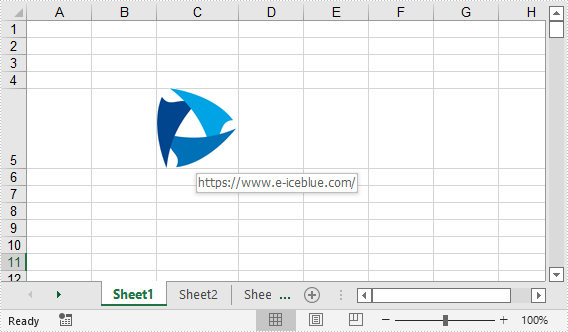
The following are the steps to add an image hyperlink to Excel in Java
- Create an instance of Workbook class.
- Get the desired worksheet using Workbook.getWorksheets().get() method.
- Insert an image into the worksheet using Worksheet.getPictures().add() method and set column width and row height.
- Add a hyperlink to the image using XlsBitmapShape.setHyperLink() method.
- Save the result file using Workbook.saveToFile() method.
- Java
import com.spire.xls.ExcelPicture;
import com.spire.xls.ExcelVersion;
import com.spire.xls.Workbook;
import com.spire.xls.Worksheet;

public class AddImageHyperlinks {
    public static void main(String []args){
        //Create a Workbook instance
        Workbook workbook = new Workbook();
        //Get the first worksheet
        Worksheet sheet = workbook.getWorksheets().get(0);

        //Insert an image into the worksheet
        ExcelPicture picture = sheet.getPictures().add(5, 3, "Logo.png");
        sheet.setRowHeight(5,60);
        sheet.setColumnWidth(3,11);

        //Add a hyperlink to the image
        picture.setHyperLink("https://www.e-iceblue.com", true);

        //Save the result file
        workbook.saveToFile("AddImageHyperlink.xlsx", ExcelVersion.Version2013);
    }
}
Apply for a Temporary License
If you'd like to remove the evaluation message from the generated documents, or to get rid of the function limitations, please request a 30-day trial license for yourself.
When it comes to managing images in Excel, the ability to replace or extract them efficiently is important. If there are outdated or incorrect images in Excel, replacing them ensures that your data remains accurate and up-to-date. While extracting images from Excel files can be useful when you need to reuse them in other documents or presentations. In this article, you will learn how to replace or extract images in Excel in Java using Spire.XLS for Java.
Install Spire.XLS for Java
First of all, you're required to add the Spire.Xls.jar file as a dependency in your Java program. The JAR file can be downloaded from this link. If you use Maven, you can easily import the JAR file in your application by adding the following code to your project's pom.xml file.
<repositories>
    <repository>
        <id>com.e-iceblue</id>
        <name>e-iceblue</name>
        <url>https://repo.e-iceblue.com/nexus/content/groups/public/</url>
    </repository>
</repositories>
<dependencies>
    <dependency>
        <groupId>e-iceblue</groupId>
        <artifactId>spire.xls</artifactId>
        <version>16.8.4</version>
    </dependency>
</dependencies>
Replace Images in Excel in Java
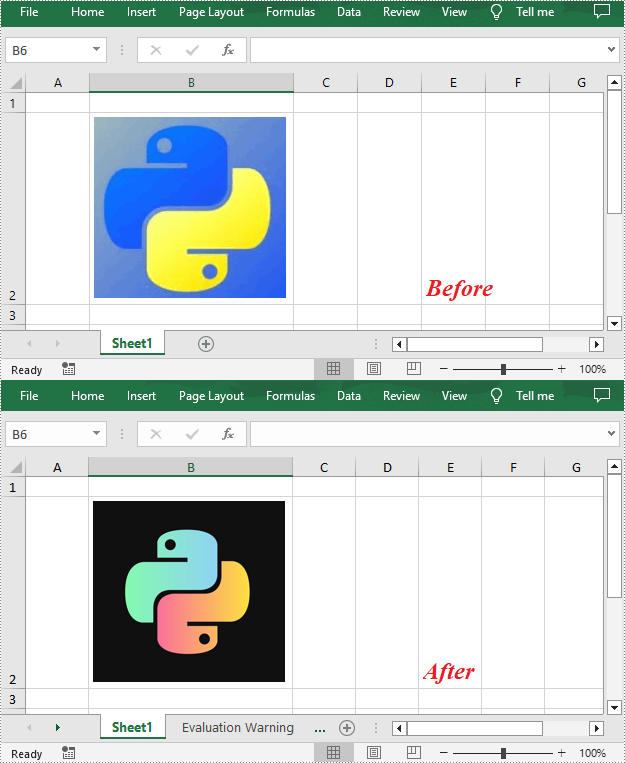
To replace a picture in Excel, you can load a new picture and then pass it as a parameter to the ExcelPicture.setPicture() method. The following are the detailed steps to replace an Excel image with another one.
- Create a Workbook instance.
- Load an Excel file using Workbook.loadFromFile() method.
- Get the first worksheet using Workbook.getWorksheets().get() method.
- Get the first picture in the worksheet using Worksheet.getPictures().get() method.
- Load an image, and then pass it as a parameter to the ExcelPicture.setPicture() method to replace the original picture with the new one.
- Save the result file using Workbook.saveToFile() method.
- Java
import com.spire.xls.*;
import javax.imageio.ImageIO;
import java.awt.image.BufferedImage;
import java.io.*;

public class replaceImages {
    public static void main(String[] args)  throws IOException {
        // Create a Workbook instance
        Workbook workbook = new Workbook();

        // Load an Excel file
        workbook.loadFromFile("ExcelImg.xlsx");

        //Get the first worksheet
        Worksheet sheet = workbook.getWorksheets().get(0);

        //Get the first image in the worksheet
        ExcelPicture pic = sheet.getPictures().get(0);

        // Load an image
        BufferedImage bufferedImage = ImageIO.read(new File("logo.png"));

        // Replace the first image with the loaded one
        pic.setPicture(bufferedImage);

        // Save the result file
        workbook.saveToFile("ReplaceImage.xlsx", ExcelVersion.Version2016);
    }
}
Extract Images from Excel in Java
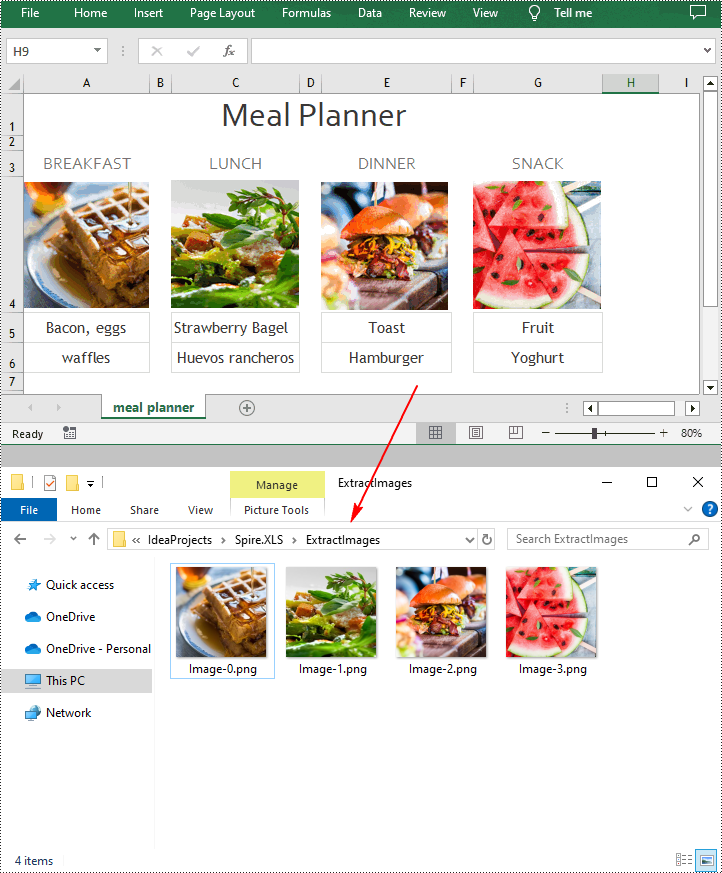
With Spire.XLS for Java, you can also extract all images in an Excel worksheet at once. The following are the detailed steps.
- Create a Workbook instance.
- Load an Excel file using Workbook.loadFromFile() method.
- Get the first worksheet using Workbook.getWorksheets().get() method.
- Get all the images in the worksheet using Worksheet.getPictures() method.
- Loop through to get each image, and then save them to a specified file path.
- Java
import com.spire.xls.*;
import com.spire.xls.collections.PicturesCollection;

import javax.imageio.ImageIO;
import java.awt.image.BufferedImage;
import java.io.*;

public class extractImages {
    public static void main(String[] args)  throws IOException {
        // Create a Workbook instance
        Workbook workbook = new Workbook();

        // Load an Excel file
        workbook.loadFromFile("Test.xlsx");

        // Get the first worksheet
        Worksheet sheet = workbook.getWorksheets().get(0);

        // Get all the pictures in the worksheet
        PicturesCollection pic = sheet.getPictures();

        // Iterate through each image
        for (int i = pic.getCount() - 1; i >= 0; i--)
        {
            // Get a specified image
            ExcelPicture excelPic = pic.get(i);
            BufferedImage loImage = excelPic.getPicture();

            // Save the image to a specified file path
            File file = new File(String.format("ExtractImages\\Image-%d.png", i));
            ImageIO.write(loImage, "PNG", file);
        }
    }
}
Apply for a Temporary License
If you'd like to remove the evaluation message from the generated documents, or to get rid of the function limitations, please request a 30-day trial license for yourself.
In Excel worksheets, a table is a specially designated area within a worksheet that comes with headers, optional total rows, and built-in features such as filtering, sorting, data inserting and deleting, and calculated columns, which greatly facilitate data handling and analysis. For developers looking to automate or integrate Excel data operations within their Java applications, the ability to create, modify, or remove tables within these worksheets becomes an essential skill. This article explores how to create, modify, and remove tables in Excel worksheets with Java using Spire.XLS for Java to manage data in Excel files effectively.
- Create Tables in Excel Worksheets with Java
- Modify Tables in Excel Worksheets with Java
- Remove Tables from Excel Worksheets with Java
Install Spire.XLS for Java
First of all, you're required to add the Spire.Xls.jar file as a dependency in your Java program. The JAR file can be downloaded from this link. If you use Maven, you can easily import the JAR file in your application by adding the following code to your project's pom.xml file.
<repositories>
    <repository>
        <id>com.e-iceblue</id>
        <name>e-iceblue</name>
        <url>https://repo.e-iceblue.com/nexus/content/groups/public/</url>
    </repository>
</repositories>
<dependencies>
    <dependency>
        <groupId>e-iceblue</groupId>
        <artifactId>spire.xls</artifactId>
        <version>16.8.4</version>
    </dependency>
</dependencies>
Create Tables in Excel Worksheets with Java
To create a table in an Excel worksheet using Java, you can use the Worksheet.getListObjects().create(String tableName, IXLSRange cellRange) method. Follow these steps to create and customize a table:
- Create an instance of the Workbook class.
- Use the Workbook.loadFromFile() method to load an existing Excel file.
- Retrieve the desired worksheet using the Workbook.getWorksheets().get() method.
- Obtain the table’s cell range using the Worksheet.getRange().get() method.
- Use the Worksheet.getListObjects().create(String tableName, IXLSRange cellRange) method to create the table with a name and range.
- Format the table as needed.
- Save the changes using the Workbook.saveToFile() method.
- Java
import com.spire.xls.CellRange;
import com.spire.xls.TableBuiltInStyles;
import com.spire.xls.Workbook;
import com.spire.xls.Worksheet;
import com.spire.xls.core.IListObject;

public class CreateTableExcel {
    public static void main(String[] args) {
        // Create an instance of Workbook
        Workbook workbook = new Workbook();
        // Load an Excel file
        workbook.loadFromFile("Sample.xlsx");

        // Get the first worksheet
        Worksheet sheet = workbook.getWorksheets().get(0);

        // Get the cell range of the table
        CellRange range = sheet.getCellRange("A1:I11");

        // Create a table
        IListObject table1 = sheet.getListObjects().create("Table1", range);

        // Apply a built-in style to the table
        table1.setBuiltInTableStyle(TableBuiltInStyles.TableStyleLight16);

        // Save the workbook
        workbook.saveToFile("output/CreateTableExcel.xlsx");
        workbook.dispose();
    }
}
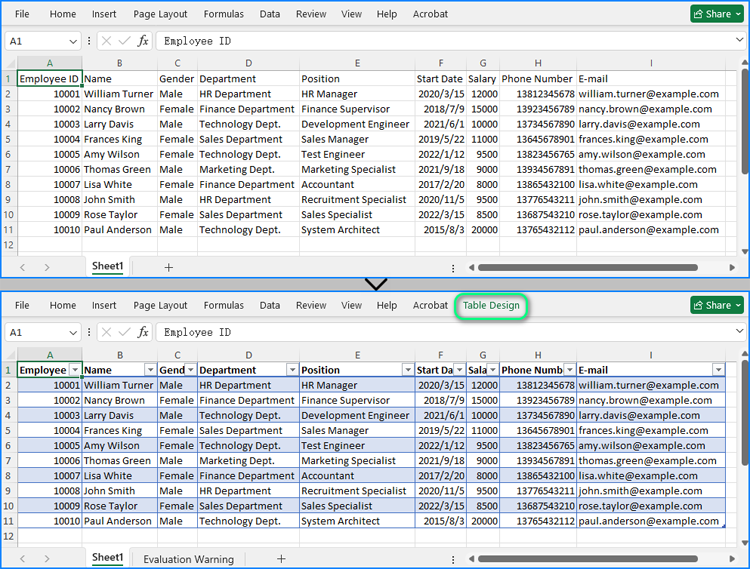
Modify Tables in Excel Worksheets with Java
Spire.XLS for Java provides methods in the IListObject class to modify worksheet table properties, such as the table name, cell range, style, and header visibility. Follow these steps to modify tables in Excel worksheets:
- Create an instance of the Workbook class.
- Use the Workbook.loadFromFile() method to open an existing Excel file.
- Retrieve the worksheet containing the table using the Workbook.getWorksheets().get() method.
- Access the table using the Worksheet.getListObjects().get() method.
- Use the methods in the IListObject class to update the table's properties, such as its name, style, or headers.
- Save the updated workbook using the Workbook.saveToFile() method.
- Java
import com.spire.xls.TableBuiltInStyles;
import com.spire.xls.Workbook;
import com.spire.xls.Worksheet;
import com.spire.xls.core.IListObject;

public class ModifyTableExcel {
    public static void main(String[] args) {
        // Create an instance of Workbook
        Workbook workbook = new Workbook();

        // Load an Excel file
        workbook.loadFromFile("output/CreateTableExcel.xlsx");

        // Get the first worksheet
        Worksheet sheet = workbook.getWorksheets().get(0);

        // Get the table
        IListObject table = sheet.getListObjects().get(0);

        // Modify the table
        table.setName("NewTable"); // Change the name
        table.setLocation(sheet.getRange().get("A1:D11")); // Change the location
        table.setBuiltInTableStyle(TableBuiltInStyles.TableStyleDark5); // Change the style
        table.setDisplayHeaderRow(false); // Hide the header row

        // Save the workbook
        workbook.saveToFile("output/ModifyTableExcel.xlsx");
        workbook.dispose();
    }
}

Remove Tables from Excel Worksheets with Java
You can remove tables from Excel worksheets using the Worksheet.getListObjects().removeAt(int index) method. This action converts the table area back to a normal cell range and removes any associated formatting. Follow these steps to remove tables:
- Create an instance of the Workbook class.
- Open an existing Excel file using the Workbook.loadFromFile() method.
- Retrieve the worksheet containing the table using the Workbook.getWorksheets().get() method.
- Use the Worksheet.getListObjects().removeAt() method to delete the table by its index.
- Save the changes using the Workbook.saveToFile() method.
- Java
import com.spire.xls.Workbook;
import com.spire.xls.Worksheet;

public class RemoveTableExcel {
    public static void main(String[] args) {
        // Create an instance of Workbook
        Workbook workbook = new Workbook();

        // Load an Excel file
        workbook.loadFromFile("output/CreateTableExcel.xlsx");

        // Get the first worksheet
        Worksheet sheet = workbook.getWorksheets().get(0);

        // Remove the table
        sheet.getListObjects().removeAt(0);

        // Save the workbook
        workbook.saveToFile("output/RemoveTableExcel.xlsx");
        workbook.dispose();
    }
}

Apply for a Temporary License
If you'd like to remove the evaluation message from the generated documents, or to get rid of the function limitations, please request a 30-day trial license for yourself.
The Excel spreadsheet is a popular file format that allows users to arrange, analyze, and display data in tables. The ability to programmatically interact with Excel files is valuable for automating and integrating its features into software. This is especially beneficial when dealing with extensive datasets, complex calculations, or dynamically generating/updating data. In this article, you will learn how to create, read, or update Excel document in Java using Spire.XLS for Java.
Install Spire.XLS for Java
First, you're required to add the Spire.Xls.jar file as a dependency in your Java program. The JAR file can be downloaded from this link. If you use Maven, you can easily import the JAR file in your application by adding the following code to your project's pom.xml file.
<repositories>
    <repository>
        <id>com.e-iceblue</id>
        <name>e-iceblue</name>
        <url>https://repo.e-iceblue.com/nexus/content/groups/public/</url>
    </repository>
</repositories>
<dependencies>
    <dependency>
        <groupId>e-iceblue</groupId>
        <artifactId>spire.xls</artifactId>
        <version>16.8.4</version>
    </dependency>
</dependencies>
Create an Excel Document in Java
Spire.XLS for Java offers a variety of classes and interfaces that you can use to create and edit Excel documents. Here is a list of important classes, properties and methods involved in this article.
| Member | Description |
| Workbook class | Represents an Excel workbook model. |
| Workbook.getWorksheets().add() method | Adds a worksheet to workbook. |
| Workbook.saveToFile() method | Saves the workbook to an Excel document. |
| Worksheet class | Represents a worksheet in a workbook. |
| Worksheet.getRange() method | Gets a specific cell or cell range from worksheet. |
| Worksheet.insertArray() method | Imports data from an array to worksheet. |
| CellRange class | Represents a cell or cell range in worksheet. |
| CellRange.setValue() method | Sets the value of a cell. |
| CellRange.getValue() method | Gets the value of a cell. |
The following are the steps to create an Excel document from scratch using Spire.XLS for Java.
- Create a Workbook object.
- Add a worksheet using Workbook.getWorksheets().add() method.
- Get a specific cell using Worksheet.getRange().get() method.
- Write data to the cell using CellRange.setValue() method.
- Import data from an array to the worksheet using Worksheet.insertArray() method.
- Save the workbook to an Excel document using Workbook.saveToFile() method.
- Java
import com.spire.xls.*;

public class CreateSpreadsheet {

    public static void main(String[] args) {

        //Create a Workbook object
        Workbook wb = new Workbook();

        //Remove default worksheets
        wb.getWorksheets().clear();

        //Add a worksheet and name it "Employee"
        Worksheet sheet = wb.getWorksheets().add("Employee");

        //Merge the cells between A1 and G1
        sheet.getRange().get("A1:G1").merge();

        //Write data to A1 and apply formatting to it
        sheet.getRange().get("A1").setValue("Basic Information of Employees of Huanyu Automobile Company");
        sheet.getRange().get("A1").setHorizontalAlignment(HorizontalAlignType.Center);
        sheet.getRange().get("A1").setVerticalAlignment(VerticalAlignType.Center);
        sheet.getRange().get("A1").getStyle().getFont().isBold(true);
        sheet.getRange().get("A1").getStyle().getFont().setSize(13);

        //Set row height of the first row
        sheet.setRowHeight(1,30);

        //Create a two-dimensional array
        String[][] twoDimensionalArray = new String[][]{
                {"Name", "Gender", "Birth Date", "Educational Background", "Contact Number", "Position", "ID"},
                {"Allen", "Male", "1990-02-10", "Bachelor", "24756854", "Mechanic", "0021"},
                {"Patrick", "Male", "1985-06-08", "Master", "59863247", "Mechanic", "0022"},
                {"Jenna", "Female", "1989-11-25", "Bachelor", "79540352", "Sales", "0023"},
                {"Tommy", "Male", "1988-04-16", "Master", "52014060", "Mechanic", "0024"},
                {"Christina", "Female", "1998-01-21", "Bachelor", "35401489", "HR", "0025"}
        };

        //Import data from DataTable to worksheet
        sheet.insertArray(twoDimensionalArray,2,1);

        //Set row height of a range
        sheet.getRange().get("A2:G7").setRowHeight(15);

        //Set column width
        sheet.setColumnWidth(2,15);
        sheet.setColumnWidth(3,21);
        sheet.setColumnWidth(4,15);

        //Set border style of a range
        sheet.getRange().get("A2:G7").borderAround(LineStyleType.Medium);
        sheet.getRange().get("A2:G7").borderInside(LineStyleType.Thin);
        sheet.getRange().get("A2:G2").borderAround(LineStyleType.Medium);
        sheet.getRange().get("A2:G7").getBorders().setKnownColor(ExcelColors.Black);

        //Save to a .xlsx file
        wb.saveToFile("output/NewSpreadsheet.xlsx", FileFormat.Version2016);
    }
}
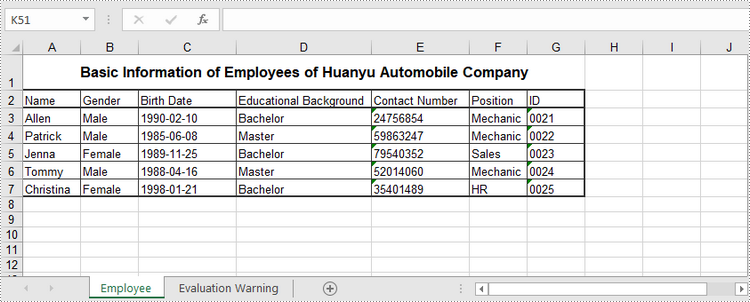
Read Data of a Worksheet in Java
The CellRange.getValue() method returns number value or text value of a cell as a string. To get data of a whole worksheet or a cell range, loop through the cells within it. The following are the steps to get data of a worksheet using Spire.XLS for Java.
- Create a Workbook object.
- Load an Excel document using Workbook.loadFromFile() method.
- Get a specific worksheet using Workbook.getWorksheets().get(index) method.
- Get the cell range containing data using Worksheet.getAllocatedRange() method.
- Iterate through the rows and columns to get cells within the range, and return the value of each cell using CellRange.getValue() method.
- Java
import com.spire.xls.CellRange;
import com.spire.xls.Workbook;
import com.spire.xls.Worksheet;

public class ReadData {

    public static void main(String[] args) {

        //Create a Workbook object
        Workbook wb = new Workbook();

        //Load an existing Excel file
        wb.loadFromFile("C:/Users/Administrator/Desktop/NewSpreadsheet.xlsx");

        //Get the first worksheet
        Worksheet sheet = wb.getWorksheets().get(0);

        //Get the cell range containing data
        CellRange locatedRange = sheet.getAllocatedRange();

        //Iterate through the rows
        for (int i = 0; i < locatedRange.getRows().length; i++) {

            //Iterate through the columns
            for (int j = 0; j < locatedRange.getColumnCount(); j++) {

                //Get data of a specific cell
                System.out.print(locatedRange.get(i + 1, j + 1).getValue() + "  ");
            }
            System.out.println();
        }
    }
}
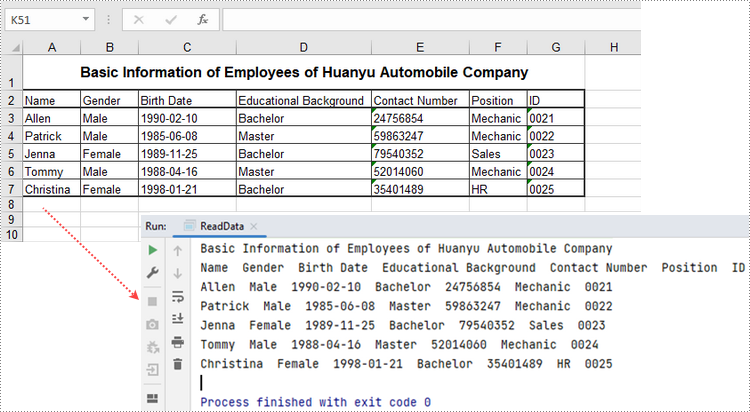
This part covers the basics of reading Excel files using Java. For more advanced techniques, see How to Read Excel Files in Java.
Update an Excel Document in Java
To change the value of a certain cell, just re-assign a value to it using Worksheet.getRange().setValue() method. The following are the detailed steps.
- Create a Workbook object.
- Load an Excel document using Workbook.LoadFromFile() method.
- Get a specific worksheet through Workbook.Worksheets[index] property.
- Change the value of a particular cell though Worksheet.Range.Value property.
- Save the workbook to an Excel file using Workbook.SaveToFile() method.
- Java
import com.spire.xls.ExcelVersion;
import com.spire.xls.Workbook;
import com.spire.xls.Worksheet;

public class UpdateExcel {

    public static void main(String[] args) {

        //Create a Workbook object
        Workbook wb = new Workbook();

        //Load an existing Excel file
        wb.loadFromFile("C:/Users/Administrator/Desktop/NewSpreadsheet.xlsx");

        //Get the first worksheet
        Worksheet sheet = wb.getWorksheets().get(0);

        //Change the value of a specific cell
        sheet.getRange().get("A1").setValue("Updated Value");

        //Save to file
        wb.saveToFile("output/Updated.xlsx", ExcelVersion.Version2016);
    }
}
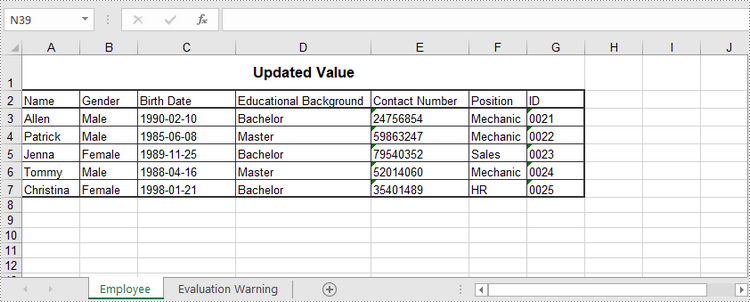
Apply for a Temporary License
If you'd like to remove the evaluation message from the generated documents, or to get rid of the function limitations, please request a 30-day trial license for yourself.
Worksheets are essential components of spreadsheets, primarily used for storing and managing data. In daily work, we often need to perform certain operations on worksheets in Excel. For instance, we may need to add new worksheets to an existing Excel file to append related contents to the file or divide existing data into different types or labels, which is conducive to organizing and managing the spreadsheet well. Likewise, we can also delete unnecessary or invalid worksheets to save storage space and make the file clearer. Adding or removing worksheets programmatically can avoid the inconvenience of manual operations and allow for efficient handling of large workbooks in a short time. This article introduces how to add or remove worksheets in Excel using Spire.XLS for Java.
Install Spire.XLS for Java
First of all, you're required to add the Spire.Xls.jar file as a dependency in your Java program. The JAR file can be downloaded from this link. If you use Maven, you can easily import the JAR file in your application by adding the following code to your project's pom.xml file.
<repositories>
    <repository>
        <id>com.e-iceblue</id>
        <name>e-iceblue</name>
        <url>https://repo.e-iceblue.com/nexus/content/groups/public/</url>
    </repository>
</repositories>
<dependencies>
    <dependency>
        <groupId>e-iceblue</groupId>
        <artifactId>spire.xls</artifactId>
        <version>16.8.4</version>
    </dependency>
</dependencies>
Add a Worksheet to an Existing Workbook in Java
Spire.XLS for Java provides Workbook.getWorksheets().add() method to add new worksheets to an existing workbook. The following are the detailed steps for this operation.
- Specify input and output paths.
- Create a Workbook object.
- Load a sample Excel file using Workbook.loadFromFile() method.
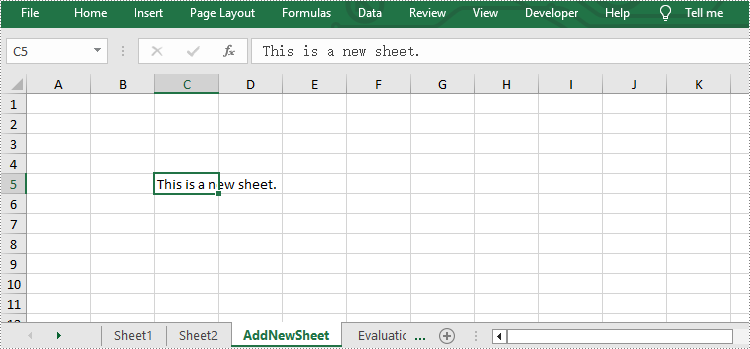
- Add a new worksheet named "AddNewSheet" to the Excel file using Workbook.getWorksheets().add() method.
- Call Worksheet.getCellRange().setText() method to write text to the specific cell of the new sheet.
- Save the result file using Workbook.saveToFile() method.
- Java
import com.spire.xls.*;

public class AddWorksheet {
    public static void main(String[] args) throws Exception {

        //Specify input and output paths
        String inputFile = "sample.xlsx";
        String outputFile = "output/AddWorksheet.xlsx";

        //Create a workbook and load a file
        Workbook workbook = new Workbook();

        //Load a sample Excel file
        workbook.loadFromFile(inputFile);

        //Add a new worksheet named “AddNewSheet”
        Worksheet sheet = workbook.getWorksheets().add("AddNewSheet");

        //Write text to the cell C5 of the new worksheet
        sheet.getCellRange("C5").setText("This is a new sheet.");

        //Save the Excel file
        workbook.saveToFile(outputFile, ExcelVersion.Version2010);
        workbook.dispose();
    }
}
Remove a Worksheet from the Workbook in Java
Removing unnecessary worksheets from an Excel file can reduce the file size. Spire.XLS for Java provides Worksheet.remove() method to remove worksheets from an existing workbook. The following are the detailed steps.
- Specify input and output paths.
- Create a Workbook object.
- Load a sample Excel file using Workbook.loadFromFile() method.
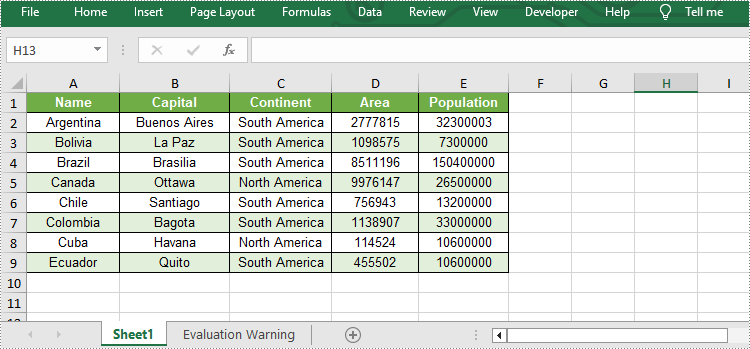
- Get the second worksheet of this file using Workbook.getWorksheets().get() method.
- Remove it from the file using Worksheet.remove() method.
- Save the result file using Workbook.saveToFile() method.
- Java
import com.spire.xls.*;

public class RemoveWorksheet {
    public static void main(String[] args) throws Exception {

        //Specify input and output paths
        String inputFile = "sample.xlsx";
        String outputFile = "output/RemoveWorksheet.xlsx";

        //Create a workbook
        Workbook workbook = new Workbook();

        //Load a sample Excel file
        workbook.loadFromFile(inputFile);

        //Get the second worksheet and remove it
        Worksheet sheet1 = workbook.getWorksheets().get(1);
        sheet1.remove();

        //Save the Excel file
        workbook.saveToFile(outputFile, ExcelVersion.Version2010);
        workbook.dispose();
    }
}
Apply for a Temporary License
If you'd like to remove the evaluation message from the generated documents, or to get rid of the function limitations, please request a 30-day trial license for yourself.
Sometimes, you may find that a well-formatted and organized sheet looks messy on a printed page. This is because Excel worksheets are designed for comfortable viewing and editing on screen, not to fit on a sheet of paper. To get perfect hard copies of your Excel documents, you'll need to configure the print settings. In this article, you will learn how to set Excel print options and how to send Excel documents to a specified printer in Java using Spire.XLS for Java.
- Set Excel Print Options via Page Setup in Java
- Specify Printer Settings when Printing Excel Documents in Java
Install Spire.XLS for Java
First of all, you're required to add the Spire.Xls.jar file as a dependency in your Java program. The JAR file can be downloaded from this link. If you use Maven, you can easily import the JAR file in your application by adding the following code to your project's pom.xml file.
<repositories>
    <repository>
        <id>com.e-iceblue</id>
        <name>e-iceblue</name>
        <url>https://repo.e-iceblue.com/nexus/content/groups/public/</url>
    </repository>
</repositories>
<dependencies>
    <dependency>
        <groupId>e-iceblue</groupId>
        <artifactId>spire.xls</artifactId>
        <version>16.8.4</version>
    </dependency>
</dependencies>
Set Excel Print Options via Page Setup in Java
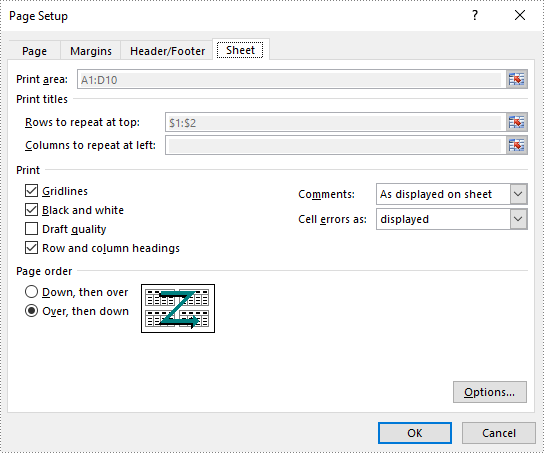
Excel Page Setup provides options to control how a worksheet will be printed, such as whether to print comments, whether to print gridlines and whether to fit worksheet on one page.
Spire.XLS offers the PageSetup object to deal with all these things. The following are the steps to set Excel print options through PageSetup using Spire.XLS for Java.
- Create a Workbook object.
- Load an Excel file using Workbook.loadFromFile() method.
- Get a specific worksheet using Workbook.getWorksheets().get() method.
- Get PageSetup object using Worksheet.getPageSetup() method.
- Set page margins, print area, pint title row, print quality, etc. using the methods under PageSetup object.
- Print the workbook by using PrinterJob class.
- Java
import com.spire.xls.*;

import java.awt.print.PageFormat;
import java.awt.print.Paper;
import java.awt.print.PrinterException;
import java.awt.print.PrinterJob;

public class SetPrintOptions {

    public static void main(String[] args) {

        //Create a workbook
        Workbook workbook = new Workbook();

        //Load an Excel document
        workbook.loadFromFile("C:\\Users\\Administrator\\Desktop\\sample.xlsx");

        //Get the first worksheet
        Worksheet worksheet = workbook.getWorksheets().get(0);

        //Get the PageSetup object of the first worksheet
        PageSetup pageSetup = worksheet.getPageSetup();

        //Set page margins
        pageSetup.setTopMargin(0.3);
        pageSetup.setBottomMargin(0.3);
        pageSetup.setLeftMargin(0.3);
        pageSetup.setRightMargin(0.3);

        //Specify print area
        pageSetup.setPrintArea("A1:D10");

        //Specify title row
        pageSetup.setPrintTitleRows("$1:$2");

        //Allow to print with row/column headings
        pageSetup.isPrintHeadings(true);

        //Allow to print with gridlines
        pageSetup.isPrintGridlines(true);

        //Allow to print comments as displayed on worksheet
        pageSetup.setPrintComments(PrintCommentType.InPlace);

        //Set printing quality (dpi)
        pageSetup.setPrintQuality(300);

        //Allow to print worksheet in black & white mode
        pageSetup.setBlackAndWhite(true);

        //Set the printing order
        pageSetup.setOrder(OrderType.OverThenDown);

        //Fit worksheet on one page
        pageSetup.isFitToPage(true);

        //Create a PrinterJob object
        PrinterJob printerJob = PrinterJob.getPrinterJob();
        PageFormat pageFormat = printerJob.defaultPage();
        Paper paper = pageFormat.getPaper();

        //Set the imageable area of this paper
        paper.setImageableArea(0, 0, pageFormat.getWidth(), pageFormat.getHeight());

        //Set the number of copies
        printerJob.setCopies(1);
        pageFormat.setPaper(paper);

        //Call painter to render the workbook in the specified format
        printerJob.setPrintable(workbook, pageFormat);

        //Execute print
        try {
            printerJob.print();
        } catch (PrinterException e) {
            e.printStackTrace();
        }
    }
}
Specify Printer Settings when Printing Excel Documents in Java
In addition to print options, it is important to know how to specify a network connected printer and how to specify other printer settings. The following steps demonstrate how to printer Excel documents with the specified printer settings by using Spire.XLS for Java and PrinterJob class.
- Create a Workbook object.
- Load an Excel file using Workbook.loadFromFile() method.
- Create a PrinterJob object using PrinterJob.getPrinterJob() method.
- Specify printer name using PrinterJob.setPrintService() method.
- Sets the number of copies to be printed using PrinterJob .setCopies() method.
- Calls painter to render the workbook using PrinterJob .setPrintable() method.
- Print the workbook using PrinterJob.print() method.
- Java
import com.spire.xls.Workbook;

import javax.print.PrintService;
import java.awt.print.PageFormat;
import java.awt.print.Paper;
import java.awt.print.PrinterException;
import java.awt.print.PrinterJob;

public class SpecifyPrinterSettings {

    public static void main(String[] args) throws PrinterException {

        //Create a Workbook object
        Workbook workbook = new Workbook();

        //Load an Excel document
        workbook.loadFromFile("C:\\Users\\Administrator\\Desktop\\Sample.xlsx");

        //Create a PrinterJob object
        PrinterJob printerJob = PrinterJob.getPrinterJob();

        //Specify printer name
        PrintService myPrintService = findPrintService("\\\\192.168.1.104\\HP LaserJet P1007");
        printerJob.setPrintService(myPrintService);

        //Create a PageFormat object and set it to the default size and orientation
        PageFormat pageFormat  = printerJob.defaultPage();

        //Return a copy of the Paper object associated with this PageFormat.
        Paper paper = pageFormat .getPaper();

        //Set the imageable area of this Paper
        paper.setImageableArea(0,0,pageFormat .getWidth(),pageFormat .getHeight());

        //Set the Paper object for this PageFormat
        pageFormat .setPaper(paper);

        //Set the number of copies
        printerJob .setCopies(1);

        //Call painter to render the workbook in the specified format
        printerJob .setPrintable(workbook,pageFormat);

        //Execute print
        try {
            printerJob.print();
        } catch (PrinterException e) {
            e.printStackTrace();
        }
    }

    //Get print service by printer name
    private static PrintService findPrintService(String printerName) {

        PrintService[] printServices = PrinterJob.lookupPrintServices();
        for (PrintService printService : printServices) {
            if (printService.getName().equals(printerName)) {
                return printService;
            }
        }
        return null;
    }
}
Apply for a Temporary License
If you'd like to remove the evaluation message from the generated documents, or to get rid of the function limitations, please request a 30-day trial license for yourself.

Spire.XLS for Java is a professional Java Excel API that enables developers to create, manage, manipulate, convert and print Excel worksheets without using Microsoft Office or Microsoft Excel.
Spire.XLS for Java offers a wide range of features of operating Excel worksheets on Java applications, such as creating, reading, editing, converting and printing Excel worksheets, finding/replacing data, creating charts, inserting/extracting/deleting textboxes, creating auto filters, reading/writing hyperlinks, creating/modifying/removing tables, merging/unmerging cells and files, grouping/ungrouping rows and columns, freezing/unfreezing panes, adding digital signatures, encrypting/decrypting Excel workbooks etc.


