
Spire.XLS for Java (133)
Children categories
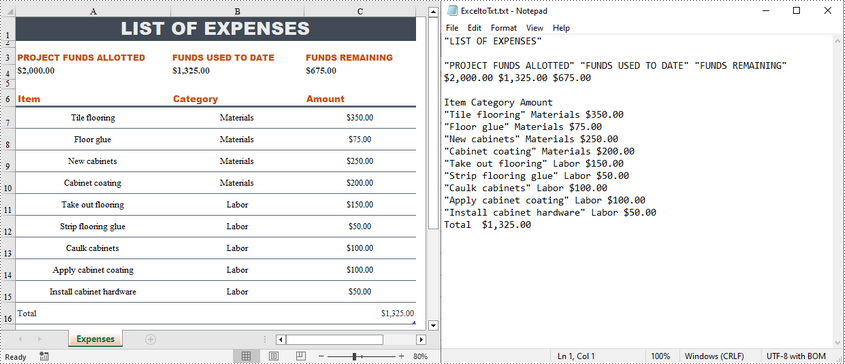
Converting Excel files to text files has several benefits. For example, it reduces file size, making data easier to store and share. In addition, text files are usually simple in structure, and converting Excel to text can make the document more straightforward for certain tasks. This article will demonstrate how to programmatically convert Excel to TXT format using Spire.XLS for Java.
Install Spire.XLS for Java
First of all, you're required to add the Spire.Xls.jar file as a dependency in your Java program. The JAR file can be downloaded from this link. If you use Maven, you can easily import the JAR file in your application by adding the following code to your project's pom.xml file.
<repositories>
    <repository>
        <id>com.e-iceblue</id>
        <name>e-iceblue</name>
        <url>https://repo.e-iceblue.com/nexus/content/groups/public/</url>
    </repository>
</repositories>
<dependencies>
    <dependency>
        <groupId>e-iceblue</groupId>
        <artifactId>spire.xls</artifactId>
        <version>16.10.1</version>
    </dependency>
</dependencies>
Create Excel to TXT in Java
Spire.XLS for Java offers the Worksheet.saveToFile(String fileName, String separator, java.nio.charset.Charset encoding) method to convert a specified worksheet to a txt file. The following are the detailed steps.
- Create a Workbook instance.
- Load a sample Excel file using Workbook.loadFromFile() method.
- Get a specified worksheet by its index using Workbook.getWorksheets().get() method.
- Convert the Excel worksheet to a TXT file using Worksheet.saveToFile() method.
- Java
import com.spire.xls.*;

import java.nio.charset.Charset;

public class toText {
    public static void main(String[] args) {
        //Create a Workbook object
        Workbook workbook = new Workbook();

        //Load a sample Excel file
        workbook.loadFromFile("sample.xlsx");

        //Get the first worksheet
        Worksheet worksheet = workbook.getWorksheets().get(0);

        //Save the worksheet as a txt file
        Charset charset = Charset.forName("utf8");
        worksheet.saveToFile("ExceltoTxt.txt", " ", charset);

    }
}
Apply for a Temporary License
If you'd like to remove the evaluation message from the generated documents, or to get rid of the function limitations, please request a 30-day trial license for yourself.
Named ranges in Excel are valuable tools that empower you to assign meaningful names to specific cells or ranges within your spreadsheets. Instead of relying on traditional cell references like A1:B10, named ranges allow you to reference data by their logical names, making your formulas more intelligible and easier to understand and maintain. This article will demonstrate how to create, edit or delete named ranges in Excel in Java using Spire.XLS for Java.
- Create a Named Range in Excel in Java
- Edit an Existing Named Range in Excel in Java
- Delete a Named Range from Excel in Java
Install Spire.XLS for Java
First of all, you're required to add the Spire.Xls.jar file as a dependency in your Java program. The JAR file can be downloaded from this link. If you use Maven, you can easily import the JAR file in your application by adding the following code to your project's pom.xml file.
<repositories>
    <repository>
        <id>com.e-iceblue</id>
        <name>e-iceblue</name>
        <url>https://repo.e-iceblue.com/nexus/content/groups/public/</url>
    </repository>
</repositories>
<dependencies>
    <dependency>
        <groupId>e-iceblue</groupId>
        <artifactId>spire.xls</artifactId>
        <version>16.10.1</version>
    </dependency>
</dependencies>
Create a Named Range in Excel in Java
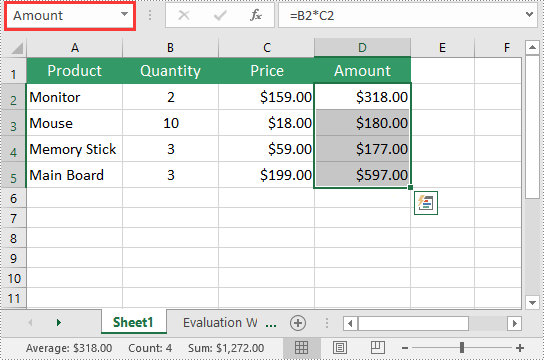
You can use the Workbook.getNameRanges().add(String name) method provided by Spire.XLS for Java to add a named range to an Excel workbook. Once the named range is added, you can define the cell or range of cells it refers to using the INamedRange.setRefersToRange(IXLSRange range) method. The detailed steps are as follows:
- Initialize an instance of the Workbook class.
- Load an Excel workbook using the Workbook.loadFromFile() method.
- Add a named range to the workbook using the Workbook.getNameRanges().add(String name) method.
- Get a specific worksheet in the workbook using the Workbook.getWorksheets().get(int index) method.
- Set the cell range that the named range refers to using the INamedRange.setRefersToRange(IXLSRange range) method.
- Save the result file using the Workbook.saveToFile() method.
- Java
import com.spire.xls.ExcelVersion;
import com.spire.xls.Workbook;
import com.spire.xls.Worksheet;
import com.spire.xls.core.INamedRange;

public class CreateNamedRange {
    public static void main(String[] args) {
        //Initialize an instance of the Workbook class
        Workbook workbook = new Workbook();
        //Load an Excel workbook
        workbook.loadFromFile("Sample.xlsx");

        //Add a named range to the workbook
        INamedRange namedRange = workbook.getNameRanges().add("Amount");

        //Get a specific worksheet in the workbook
        Worksheet sheet = workbook.getWorksheets().get(0);

        //Set the cell range that the named range references
        namedRange.setRefersToRange(sheet.getCellRange("D2:D5"));

        //Save the result file to a specific location
        String result = "CreateNamedRange.xlsx";
        workbook.saveToFile(result, ExcelVersion.Version2013);
        workbook.dispose();
    }
}
Edit an Existing Named Range in Excel in Java
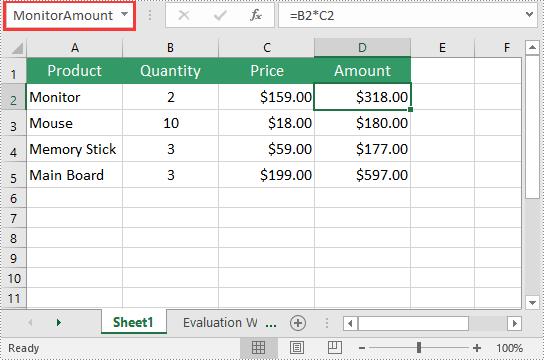
After you've created a named range, you may want to modify its name or adjust the cells it refers to. The following are the detailed steps:
- Initialize an instance of the Workbook class.
- Load an Excel workbook using the Workbook.loadFromFile() method.
- Get a specific named range in the workbook using the Workbook.getNameRanges().get(int index) method.
- Modify the name of the named range using the INamedRange.setName(String name) method.
- Modify the cells that the named range refers to using the INamedRange.setRefersToRange(IXLSRange range) method.
- Save the result file using the Workbook.saveToFile() method.
- Java
import com.spire.xls.ExcelVersion;
import com.spire.xls.Workbook;
import com.spire.xls.core.INamedRange;

public class ModifyNamedRange {
    public static void main(String[] args) {
        //Initialize an instance of the Workbook class
        Workbook workbook = new Workbook();
        //Load an Excel workbook
        workbook.loadFromFile("CreateNamedRange.xlsx");

        //Get a specific named range in the workbook
        INamedRange namedRange = workbook.getNameRanges().get(0);

        //Change the name of the named range
        namedRange.setName("MonitorAmount");

        //Set the cell range that the named range references
        namedRange.setRefersToRange(workbook.getWorksheets().get(0).getCellRange("D2"));

        //Save the result file to a specific location
        String result = "ModifyNamedRange.xlsx";
        workbook.saveToFile(result, ExcelVersion.Version2013);
        workbook.dispose();
    }
}
Delete a Named Range from Excel in Java
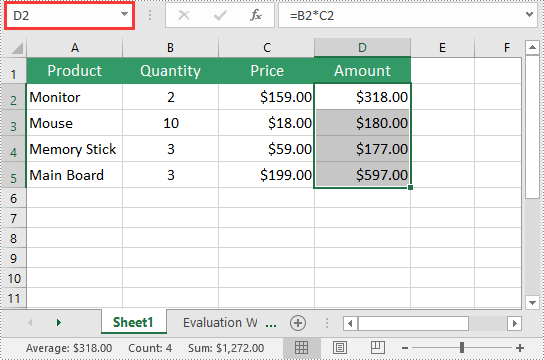
If you have made significant changes to the structure or layout of your spreadsheet, it might be necessary to delete a named range that is no longer relevant or accurate. The detailed steps are as follows:
- Initialize an instance of the Workbook class.
- Load an Excel workbook using the Workbook.loadFromFile() method.
- Remove a specific named range by its index or name using the Workbook.getNameRanges().removeAt(int index) or Workbook.getNameRanges().remove(string name) method.
- Save the result file using the Workbook.saveToFile() method.
- Java
import com.spire.xls.ExcelVersion;
import com.spire.xls.Workbook;

public class DeleteNamedRange {
    public static void main(String[] args) {
        //Initialize an instance of the Workbook class
        Workbook workbook = new Workbook();
        //Load an Excel workbook
        workbook.loadFromFile("CreateNamedRange.xlsx");

        //Remove a specific named range by its index
        workbook.getNameRanges().removeAt(0);

        //Remove a specific named range by its name
        //workbook.getNameRanges().remove("Amount");

        //Save the result file to a specific location
        String result = "RemoveNamedRange.xlsx";
        workbook.saveToFile(result, ExcelVersion.Version2013);
        workbook.dispose();
    }
}
Apply for a Temporary License
If you'd like to remove the evaluation message from the generated documents, or to get rid of the function limitations, please request a 30-day trial license for yourself.
Document properties in Excel are important pieces of metadata that provide additional information about a workbook. If you are managing multiple Excel workbooks and want to keep track of information like author, title, and other relevant metadata, you can read their document properties to quickly gather this information. Besides, in certain situations, you may need to delete document properties from Excel. For instance, if sensitive data is inadvertently stored in document properties, you may need to delete these document properties before sharing the workbook to ensure data security and confidentiality. This article will show you how to read or delete document properties from Excel in Java using Spire.XLS for Java library.
- Read Standard and Custom Document Properties from Excel in Java
- Delete Standard and Custom Document Properties from Excel in Java
Install Spire.XLS for Java
First of all, you're required to add the Spire.Xls.jar file as a dependency in your Java program. The JAR file can be downloaded from this link. If you use Maven, you can easily import the JAR file in your application by adding the following code to your project's pom.xml file.
<repositories>
    <repository>
        <id>com.e-iceblue</id>
        <name>e-iceblue</name>
        <url>https://repo.e-iceblue.com/nexus/content/groups/public/</url>
    </repository>
</repositories>
<dependencies>
    <dependency>
        <groupId>e-iceblue</groupId>
        <artifactId>spire.xls</artifactId>
        <version>16.10.1</version>
    </dependency>
</dependencies>
Read Standard and Custom Document Properties from Excel in Java
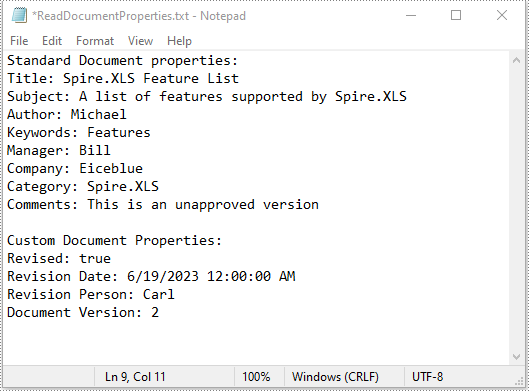
Standard document properties are pre-built properties included in every Excel file. These properties can include information such as the author, title, subject, keywords, and other details about the file. Custom document properties in Excel are user-defined, meaning that users can create them according to their specific needs. The value of custom document properties can be assigned as text, date time, numeric values, or simply a yes or no.
The following steps demonstrate how to read standard document properties and custom document properties of an Excel file using Spire.XLS for Java:
- Initialize an instance of the Workbook class.
- Load an Excel file using the Workbook.loadFromFile() method.
- Initialize an instance of the StringBuilder class for storing the standard and custom document properties.
- Get the collection of all standard document properties of the file using the Workbook.getDocumentProperties() method.
- Get specific standard document properties using the corresponding methods under the BuiltInDocumentProperties class.
- Append the standard document properties to the StringBuilder instance.
- Get the collection of all custom document properties of the file using the Workbook.getCustomDocumentProperties() method.
- Iterate through the collection.
- Get the name and value of each custom document property using the IDocumentProperty.getName() and IDocumentProperty.getValue() methods and append them to the StringBuilder instance.
- Write the content of the StringBuilder instance into a text file.
- Java
import com.spire.xls.Workbook;
import com.spire.xls.collections.BuiltInDocumentProperties;
import com.spire.xls.core.ICustomDocumentProperties;

import java.io.BufferedWriter;
import java.io.FileWriter;
import java.io.IOException;

public class ReadStandardDocumentProperties {
    public static void main(String[] args) throws IOException {
        //Initialize an instance of the Workbook class.
        Workbook workbook = new Workbook();
        //Load an Excel file
        workbook.loadFromFile("Sample.xlsx");

        //Initialize an instance of the StringBuilder instance
        StringBuilder sb = new StringBuilder();

        //Get the collection of all standard document properties
        BuiltInDocumentProperties standardProperties = workbook.getDocumentProperties();

        //Get specific standard document properties
        String title = standardProperties.getTitle();
        String subject = standardProperties.getSubject();
        String author = standardProperties.getAuthor();
        String keywords = standardProperties.getKeywords();
        String manager = standardProperties.getManager();
        String company = standardProperties.getCompany();
        String category = standardProperties.getCategory();
        String comments = standardProperties.getComments();

        //Append the standard document properties to the StringBuilder instance
        sb.append("Standard Document properties:"
                +"\r\nTitle: " + title
                + "\r\nSubject: " + subject
                + "\r\nAuthor: " + author
                + "\r\nKeywords: "+ keywords
                + "\r\nManager: " + manager.toString()
                + "\r\nCompany: " + company.toString()
                + "\r\nCategory: " + category.toString()
                + "\r\nComments: " + comments.toString()
        );

        sb.append("\r\n\nCustom Document Properties:");

        //Get the collection of all custom document properties
        ICustomDocumentProperties customProperties = workbook.getCustomDocumentProperties();
        //Iterate through the collection
        for(int i =0; i < customProperties.getCount(); i++)
        {
            //Append the name and value of each custom document property to the StringBuilder instance
            sb.append("\r\n" + customProperties.get(i).getName() + ": " + customProperties.get(i).getValue());
        }

        //Write the content of the StringBuilder instance into a text file
        String output = "ReadDocumentProperties.txt";
        FileWriter fw = new FileWriter(output, true);
        BufferedWriter bw = new BufferedWriter(fw);
        bw.append(sb);
        bw.close();
        fw.close();
        workbook.dispose();
    }
}
Delete Standard and Custom Document Properties from Excel in Java
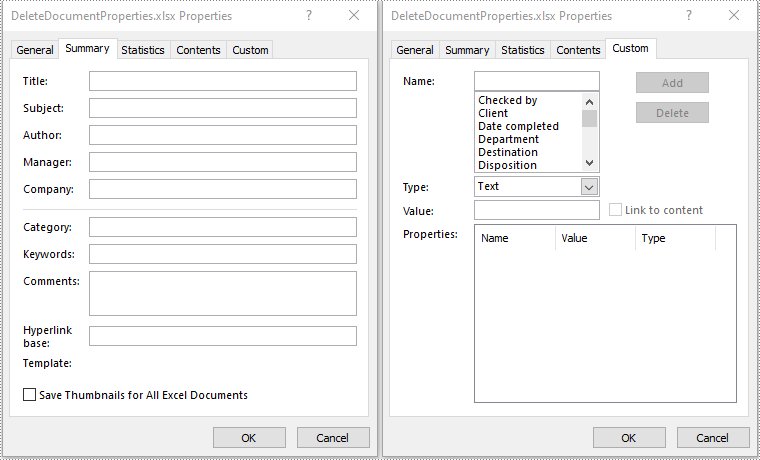
You can easily delete standard document properties from an Excel file by setting their values as empty. For custom document properties, you can use the ICustomDocumentProperties.remove() method to delete them.
The following steps demonstrate how to delete standard and custom document properties from an Excel file using Spire.XLS for Java:
- Initialize an instance of the Workbook class.
- Load an Excel file using the Workbook.loadFromFile() method.
- Get the collection of all standard document properties of the file using the Workbook.getDocumentProperties() method.
- Set the values of specific standard document properties as empty using the corresponding methods under the BuiltInDocumentProperties class.
- Get the collection of all custom document properties of the file using the Workbook.getCustomDocumentProperties() method.
- Iterate through the collection.
- Delete each custom document property from the collection using the ICustomDocumentProperties.remove() method.
- Save the result file using the Workbook.saveToFile() method.
- Java
import com.spire.xls.ExcelVersion;
import com.spire.xls.Workbook;
import com.spire.xls.collections.BuiltInDocumentProperties;
import com.spire.xls.core.ICustomDocumentProperties;

public class DeleteDocumentProperties {
    public static void main(String[] args) {
        //Initialize an instance of the Workbook class.
        Workbook workbook = new Workbook();
        //Load an Excel file
        workbook.loadFromFile("Sample.xlsx");

        //Get the collection of all standard document properties
        BuiltInDocumentProperties standardProperties = workbook.getDocumentProperties();

        //Set the value of each standard document property as empty
        standardProperties.setTitle("");
        standardProperties.setSubject("");
        standardProperties.setAuthor("");
        standardProperties.setManager("");
        standardProperties.setCompany("");
        standardProperties.setCategory("");
        standardProperties.setKeywords("");
        standardProperties.setComments("");

        //Get the collection of all custom document properties
        ICustomDocumentProperties customProperties = workbook.getCustomDocumentProperties();
        //Iterate through the collection
        for(int i = customProperties.getCount() - 1; i >= 0; i--)
        {
            //Delete each custom document property from the collection by its name
            customProperties.remove(customProperties.get(i).getName());
        }

        //Save the result file
        workbook.saveToFile("DeleteDocumentProperties.xlsx", ExcelVersion.Version2016);
        workbook.dispose();
    }
}
Apply for a Temporary License
If you'd like to remove the evaluation message from the generated documents, or to get rid of the function limitations, please request a 30-day trial license for yourself.
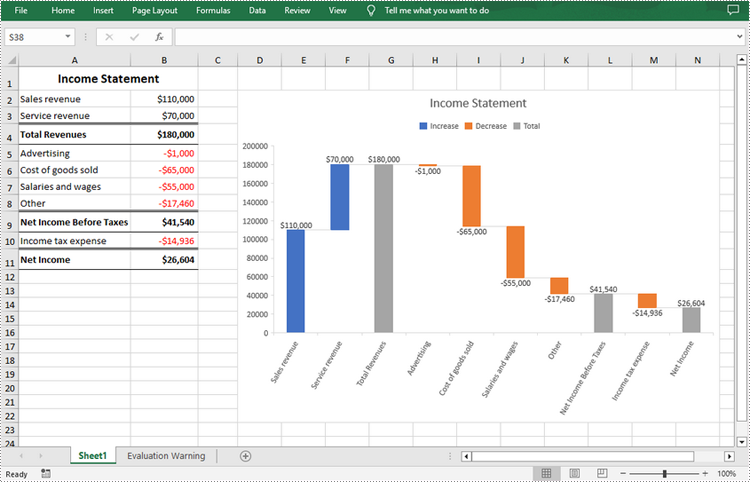
A waterfall chart, also called a bridge chart or a cascade chart, is one of the most visually descriptive charts in Excel. It shows the cumulative effect of positive and negative contributions over a period of time, which is useful in many scenarios where quantitative analysis is required, such as visualizing profit and loss statements, showing budget changes in a project, or monitoring shop inventories. In this article, you will learn how to create a waterfall chart in Excel in Java using Spire.XLS for Java.
Install Spire.XLS for Java
First of all, you're required to add the Spire.Xls.jar file as a dependency in your Java program. The JAR file can be downloaded from this link. If you use Maven, you can easily import the JAR file in your application by adding the following code to your project's pom.xml file.
<repositories>
    <repository>
        <id>com.e-iceblue</id>
        <name>e-iceblue</name>
        <url>https://repo.e-iceblue.com/nexus/content/groups/public/</url>
    </repository>
</repositories>
<dependencies>
    <dependency>
        <groupId>e-iceblue</groupId>
        <artifactId>spire.xls</artifactId>
        <version>16.10.1</version>
    </dependency>
</dependencies>
Create a Waterfall Chart in Excel in Java
Waterfall charts are ideal for analyzing financial statements. To create a waterfall chart, you could first add a chart to a specified worksheet using Worksheet.getCharts().add() method, and then set the chart type to Waterfall using Chart.setChartType(ExcelChartType.WaterFall) method. The following are the detailed steps.
- Create a Workbook instance.
- Load a sample Excel document using Workbook.loadFromFile() method.
- Get a specified worksheet by its index using Workbook.getWorksheets().get() method.
- Add a chart to the worksheet Worksheet.getCharts().add() method, and then set the chart type to waterfall using Chart.setChartType(ExcelChartType.WaterFall) method.
- Set data range for the chart using Chart.setDataRange() method.
- Set position and title of the chart.
- Get a specified data series of the chart, and then set specific data points in the chart as totals or subtotals using ChartSerie.getDataPoints().get().setAsTotal() method.
- Show the connector lines between data points using ChartSerie.getFormat().showConnectorLines(true) method.
- Show data labels for data points, and set the legend position of the chart.
- Save the result document using Workbook.saveToFile() method.
- Java
import com.spire.xls.*;

public class WaterfallChart {
    public static void main(String []args){
        //Create a Workbook object
        Workbook workbook=new Workbook();

        //Load a sample Excel document
        workbook.loadFromFile("data.xlsx");

        //Get the first worksheet
        Worksheet sheet=workbook.getWorksheets().get(0);

        //Add a waterfall chart to the worksheet
        Chart chart=sheet.getCharts().add();
        chart.setChartType(ExcelChartType.WaterFall);

        //Set data range for the chart
        chart.setDataRange(sheet.getRange().get("A2:B11"));

        //Set position of the chart
        chart.setLeftColumn(4);
        chart.setTopRow(2);
        chart.setRightColumn(15);
        chart.setBottomRow(23);

        //Set chart title
        chart.setChartTitle("Income Statement");

        //Set specific data points in the chart as totals or subtotals
        chart.getSeries().get(0).getDataPoints().get(2).setAsTotal(true);
        chart.getSeries().get(0).getDataPoints().get(7).setAsTotal(true);
        chart.getSeries().get(0).getDataPoints().get(9).setAsTotal(true);

        //Show the connector lines between data points
        chart.getSeries().get(0).getFormat().showConnectorLines(true);

        //Show data labels for data points
        chart.getSeries().get(0).getDataPoints().getDefaultDataPoint().getDataLabels().hasValue(true);
        chart.getSeries().get(0).getDataPoints().getDefaultDataPoint().getDataLabels().setSize(8);

        //Set the legend position of the chart
        chart.getLegend().setPosition(LegendPositionType.Top);

        //Save the result document
        workbook.saveToFile("WaterfallChart.xlsx",FileFormat.Version2016);
    }
}
Apply for a Temporary License
If you'd like to remove the evaluation message from the generated documents, or to get rid of the function limitations, please request a 30-day trial license for yourself.
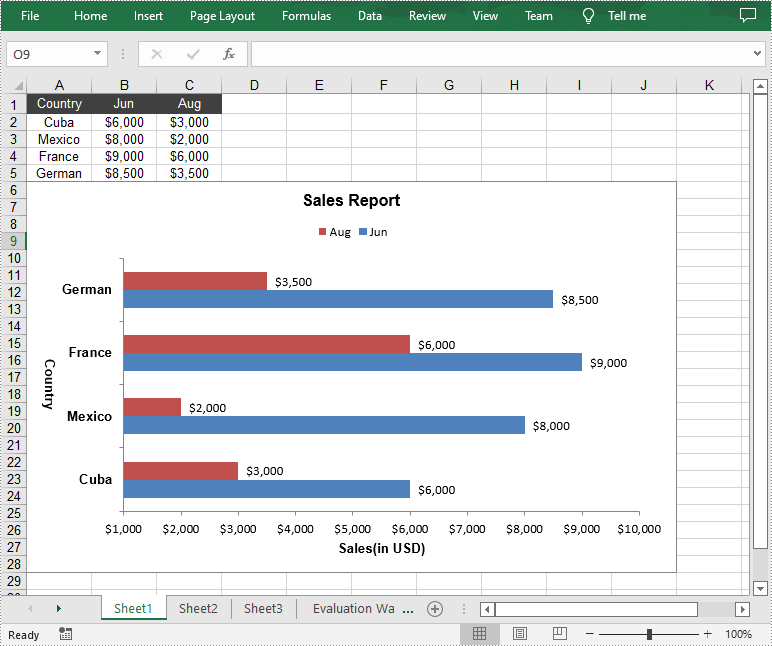
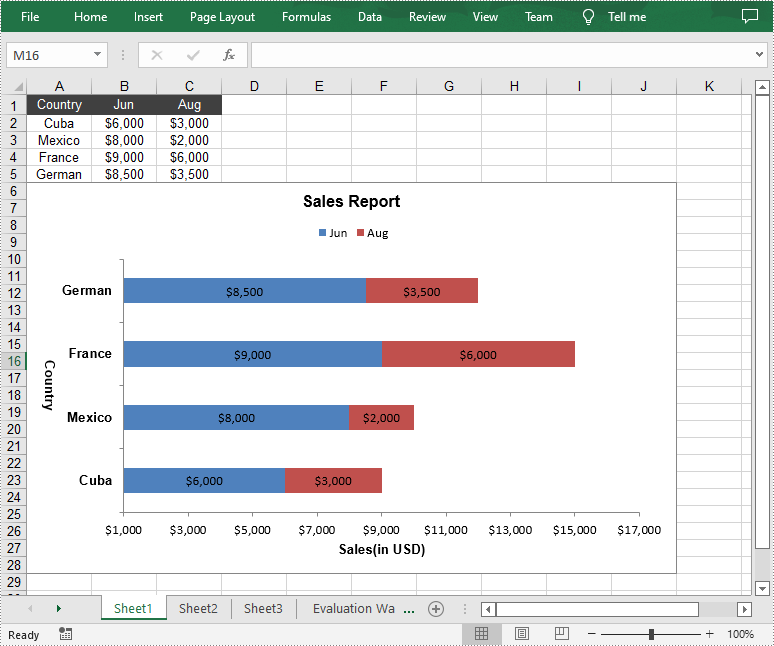
A bar chart is a type of graph that represents or summarizes data in the form of horizontal rectangular bars of equal width but different lengths. In MS Excel, the bar chart is a great tool to compare data among different groups, which helps users to analyze data and draw conclusions quickly. In this article, you will learn how to programmatically create a clustered bar chart or a stacked bar chart in an Excel worksheet using Spire.XLS for Java.
Install Spire.XLS for Java
First of all, you're required to add the Spire.Xls.jar file as a dependency in your Java program. The JAR file can be downloaded from this link. If you use Maven, you can easily import the JAR file in your application by adding the following code to your project's pom.xml file.
<repositories>
    <repository>
        <id>com.e-iceblue</id>
        <name>e-iceblue</name>
        <url>https://repo.e-iceblue.com/nexus/content/groups/public/</url>
    </repository>
</repositories>
<dependencies>
    <dependency>
        <groupId>e-iceblue</groupId>
        <artifactId>spire.xls</artifactId>
        <version>16.10.1</version>
    </dependency>
</dependencies>
Create a Clustered Bar Chart in Excel
In clustered bar chart, data values of different series are displayed in separate bars side-by-side, which allows a direct comparison of multiple data series per category. The following are the detailed steps to create a clustered bar chart in an Excel worksheet.
- Create an instance of Workbook class.
- Get a specified worksheet by its index using Workbook.getWorksheets().get() method.
- Add some data to specified cells and set the cell styles.
- Add a 2D clustered bar chart to the specified worksheet using Worksheet.getCharts().add(ExcelChartType.BarClustered) method.
- Set data range for the chart using Chart.setDataRange(CellRange dataRange) method.
- Set the position and title of the chart.
- Get the primary category axis of the chart using Chart.getPrimaryCategoryAxis() method, and then set the display text and title of the category axis using the methods under ChartCategoryAxis class.
- Get the primary value axis of the chart using Chart.getPrimaryValueAxis() method, and then set the title, minimum value and major gridlines of the value axis using the methods under ChartValueAxis class.
- Loop through the data series of the chart, and then show data labels for the data points of each data series by setting the value of ChartSerie.getDataPoints().getDefaultDataPoint().getDataLabels().hasValue() method to true.
- Set the position of chart legend using Chart.getLegend().setPosition() method.
- Save the result file using Workbook.saveToFile() method.
- Java
import com.spire.xls.*;
import com.spire.xls.charts.ChartSerie;
import com.spire.xls.charts.ChartSeries;

import java.awt.*;

public class CreateBarChart {

    public static void main(String[] args) {

        //Create an instance of Workbook class
        Workbook workbook = new Workbook();

        //Get the first worksheet
        Worksheet sheet = workbook.getWorksheets().get(0);

        //Insert data to specified cells
        sheet.getCellRange("A1").setValue("Country");
        sheet.getCellRange("A2").setValue("Cuba");
        sheet.getCellRange("A3").setValue("Mexico");
        sheet.getCellRange("A4").setValue("France");
        sheet.getCellRange("A5").setValue("German");

        sheet.getCellRange("B1").setValue("Jun");
        sheet.getCellRange("B2").setNumberValue(6000);
        sheet.getCellRange("B3").setNumberValue(8000);
        sheet.getCellRange("B4").setNumberValue(9000);
        sheet.getCellRange("B5").setNumberValue(8500);

        sheet.getCellRange("C1").setValue("Aug");
        sheet.getCellRange("C2").setNumberValue(3000);
        sheet.getCellRange("C3").setNumberValue(2000);
        sheet.getCellRange("C4").setNumberValue(6000);
        sheet.getCellRange("C5").setNumberValue(3500);

        //Set cell styles
        sheet.getCellRange("A1:C1").setRowHeight(15);
        sheet.getCellRange("A1:C1").getCellStyle().setColor(Color.darkGray);
        sheet.getCellRange("A1:C1").getCellStyle().getExcelFont().setColor(Color.white);
        sheet.getCellRange("A1:C5").getCellStyle().setVerticalAlignment(VerticalAlignType.Center);
        sheet.getCellRange("A1:C5").getCellStyle().setHorizontalAlignment(HorizontalAlignType.Center);

        //Set number format
        sheet.getCellRange("B2:C5").getCellStyle().setNumberFormat("\"$\"#,##0");

        //Add a clustered bar chart to the worksheet
        Chart chart = sheet.getCharts().add(ExcelChartType.BarClustered);

        //Set data range for the chart
        chart.setDataRange(sheet.getCellRange("A1:C5"));
        chart.setSeriesDataFromRange(false);

        //Set position of the chart
        chart.setLeftColumn(1);
        chart.setTopRow(6);
        chart.setRightColumn(11);
        chart.setBottomRow(29);

        //Set and format chart title
        chart.setChartTitle("Sales Report");
        chart.getChartTitleArea().isBold(true);
        chart.getChartTitleArea().setSize(12);

        //Set and format category axis title
        chart.getPrimaryCategoryAxis().setTitle("Country");
        chart.getPrimaryCategoryAxis().getFont().isBold(true);
        chart.getPrimaryCategoryAxis().getTitleArea().isBold(true);
        chart.getPrimaryCategoryAxis().getTitleArea().setTextRotationAngle(90);

        //Set and format value axis title
        chart.getPrimaryValueAxis().setTitle("Sales(in USD)");
        chart.getPrimaryValueAxis().hasMajorGridLines(false);
        chart.getPrimaryValueAxis().setMinValue(1000);
        chart.getPrimaryValueAxis().getTitleArea().isBold(true);

        //Show data labels for data points
        ChartSeries series = chart.getSeries();
        for (int i = 0;i < series.size();i++)
        {
            ChartSerie cs = series.get(i);
            cs.getFormat().getOptions().isVaryColor(true);
            cs.getDataPoints().getDefaultDataPoint().getDataLabels().hasValue(true);
        }

        //Set position of chart legend
        chart.getLegend().setPosition(LegendPositionType.Top);

        //Save the result file
        workbook.saveToFile("CreateBarChart.xlsx", ExcelVersion.Version2016);
    }
}
Create a Stacked Bar Chart in Excel
In stacked bar chart, data values of different series are stacked one over the other in a single bar. Compared with the clustered bar chart, the stacked bar chart provides a clearer view of part-to-whole comparison in each category. The following are the detailed steps to create a stacked bar chart in an Excel worksheet.
- Create an instance of Workbook class.
- Get a specified worksheet by its index using Workbook.getWorksheets().get() method.
- Add some data to specified cells and set the cell styles.
- Add a 2D stacked bar chart to the specified worksheet using Worksheet.getCharts().add(ExcelChartType.BarStacked) method.
- Set data range for the chart using Chart.setDataRange(CellRange dataRange) method.
- Set position, title, category axis title and value axis title for the chart.
- Loop through the data series of the chart, and then show data labels for the data points of each data series by setting the value of ChartSerie.getDataPoints().getDefaultDataPoint().getDataLabels().hasValue() method to true.
- Set the position of chart legend using Chart.getLegend().setPosition() method.
- Save the result file using Workbook.saveToFile() method.
- Java
import com.spire.xls.*;
import com.spire.xls.charts.ChartSerie;
import com.spire.xls.charts.ChartSeries;

import java.awt.*;

public class CreateBarChart {

    public static void main(String[] args) {

        //Create a Workbook object
        Workbook workbook = new Workbook();

        //Get the first worksheet
        Worksheet sheet = workbook.getWorksheets().get(0);

        //Insert data to specified cells
        sheet.getCellRange("A1").setValue("Country");
        sheet.getCellRange("A2").setValue("Cuba");
        sheet.getCellRange("A3").setValue("Mexico");
        sheet.getCellRange("A4").setValue("France");
        sheet.getCellRange("A5").setValue("German");

        sheet.getCellRange("B1").setValue("Jun");
        sheet.getCellRange("B2").setNumberValue(6000);
        sheet.getCellRange("B3").setNumberValue(8000);
        sheet.getCellRange("B4").setNumberValue(9000);
        sheet.getCellRange("B5").setNumberValue(8500);

        sheet.getCellRange("C1").setValue("Aug");
        sheet.getCellRange("C2").setNumberValue(3000);
        sheet.getCellRange("C3").setNumberValue(2000);
        sheet.getCellRange("C4").setNumberValue(6000);
        sheet.getCellRange("C5").setNumberValue(3500);

        //Set cell styles
        sheet.getCellRange("A1:C1").setRowHeight(15);
        sheet.getCellRange("A1:C1").getCellStyle().setColor(Color.darkGray);
        sheet.getCellRange("A1:C1").getCellStyle().getExcelFont().setColor(Color.white);
        sheet.getCellRange("A1:C5").getCellStyle().setVerticalAlignment(VerticalAlignType.Center);
        sheet.getCellRange("A1:C5").getCellStyle().setHorizontalAlignment(HorizontalAlignType.Center);

        //Set number format
        sheet.getCellRange("B2:C5").getCellStyle().setNumberFormat("\"$\"#,##0");

        //Add a stacked bar chart to the worksheet
        Chart chart = sheet.getCharts().add(ExcelChartType.BarStacked);

        //Set data range for the chart
        chart.setDataRange(sheet.getCellRange("A1:C5"));
        chart.setSeriesDataFromRange(false);

        //Set position of the chart
        chart.setLeftColumn(1);
        chart.setTopRow(6);
        chart.setRightColumn(11);
        chart.setBottomRow(29);

        //Set and format chart title
        chart.setChartTitle("Sales Report");
        chart.getChartTitleArea().isBold(true);
        chart.getChartTitleArea().setSize(12);

        //Set and format category axis title
        chart.getPrimaryCategoryAxis().setTitle("Country");
        chart.getPrimaryCategoryAxis().getFont().isBold(true);
        chart.getPrimaryCategoryAxis().getTitleArea().isBold(true);
        chart.getPrimaryCategoryAxis().getTitleArea().setTextRotationAngle(90);

        //Set and format value axis title
        chart.getPrimaryValueAxis().setTitle("Sales(in USD)");
        chart.getPrimaryValueAxis().hasMajorGridLines(false);
        chart.getPrimaryValueAxis().setMinValue(1000);
        chart.getPrimaryValueAxis().getTitleArea().isBold(true);

        //Show data labels for data points
        ChartSeries series = chart.getSeries();
        for (int i = 0;i < series.size();i++)
        {
            ChartSerie cs = series.get(i);
            cs.getFormat().getOptions().isVaryColor(true);
            cs.getDataPoints().getDefaultDataPoint().getDataLabels().hasValue(true);
        }

        //Set position of chart legend
        chart.getLegend().setPosition(LegendPositionType.Top);

        //Save the result file
        workbook.saveToFile("StackedBarChart.xlsx", ExcelVersion.Version2016);
    }
}
Apply for a Temporary License
If you'd like to remove the evaluation message from the generated documents, or to get rid of the function limitations, please request a 30-day trial license for yourself.
The drop-down list in Excel enables users to select a desired item from a pre-defined list of items as input data. It restricts the input of unwanted or ambiguous data and reduces the occurrence of spelling errors, which is a great option for speeding up data entry tasks. In this article, you will learn how to programmatically create a drop-down list in Excel using Spire.XLS for Java.
- Create a Drop-Down List Based on Values in a Cell Range
- Create a Drop-Down List Based on Values in a String Array
Install Spire.XLS for Java
First of all, you're required to add the Spire.Xls.jar file as a dependency in your Java program. The JAR file can be downloaded from this link. If you use Maven, you can easily import the JAR file in your application by adding the following code to your project's pom.xml file.
<repositories>
    <repository>
        <id>com.e-iceblue</id>
        <name>e-iceblue</name>
        <url>https://repo.e-iceblue.com/nexus/content/groups/public/</url>
    </repository>
</repositories>
<dependencies>
    <dependency>
        <groupId>e-iceblue</groupId>
        <artifactId>spire.xls</artifactId>
        <version>16.10.1</version>
    </dependency>
</dependencies>
Create a Drop-Down List Based on Values in a Cell Range
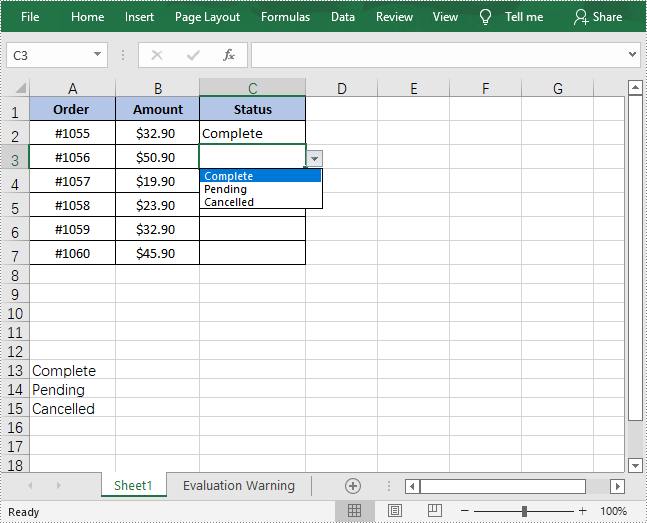
With Spire.XLS for Java, you can add values to a range of cells and then refer to that range of cells as the data validation source to create a drop-down list. This method might be slightly time-consuming, but it allows you to easily update the items in the drop-down list by directly modifying the values in the cells of the result document. The detailed steps are as follows.
- Create a Workbook object.
- Load a sample Excel document using Workbook.loadFromFile() method.
- Get a specified worksheet using Workbook.getWorksheets().get() method.
- Get a specified cell or cell range using Worksheet.getCellRange() method.
- Add values to specified cells using CellRange.setValue() method.
- Get data validation of the specified cell range using CellRange.getDataValidation() method.
- Create a drop-down list by referring to a specified data range as the data validation source using Validation.setDataRange() method.
- Save the result document using Workbook.saveToFile() method.
- Java
import com.spire.xls.*;

public class DropdownList {
    public static void main(String[] args) {

        //Create a Workbook object
        Workbook workbook = new Workbook();

        //Load a sample Excel document
        workbook.loadFromFile("input.xlsx");

        //Get the first worksheet
        Worksheet sheet = workbook.getWorksheets().get(0);

        //Add values to specified cells
        sheet.getCellRange("A13").setValue("Complete");
        sheet.getCellRange("A14").setValue("Pending");
        sheet.getCellRange("A15").setValue("Cancelled");

        //Create a drop-down list by referring to a specified data range as the data validation source
        sheet.getCellRange("C2:C7").getDataValidation().setDataRange(sheet.getCellRange("A13:A15"));

        //Save the result document
        workbook.saveToFile("ExcelDropdownList.xlsx", ExcelVersion.Version2013);
    }
}
Create a Drop-Down List Based on Values in a String Array
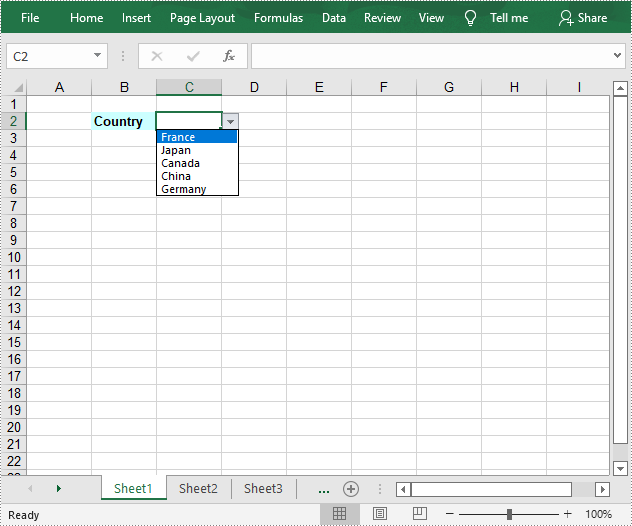
In Excel, you can create a drop-down list by manually entering a list of values in the “Source” box of the Data Validation menu. By doing this, you don't need to add data in Excel cells, which keeps your Excel document neat and organized. The following steps shows how to use Spire.XLS for Java to achieve the same functionality.
- Create a Workbook object.
- Get a specified worksheet using Workbook.getWorksheets().get() method.
- Add text to a cell and set its font style.
- Get a specified cell or cell range using Worksheet.getCellRange() method.
- Get data validation of the specified cell range using CellRange.getDataValidation() method.
- Set the values of the drop-down list using Validation.setValues() method.
- Create a drop-down list in the specified cell by setting the values of Validation.isSuppressDropDownArrow() method to false.
- Save the result document using Workbook.saveToFile() method.
- Java
import com.spire.xls.*;

public class DropdownList2 {
    public static void main(String[] args) {

        //Create a Workbook object
        Workbook workbook = new Workbook();

        //Get the first worksheet
        Worksheet sheet = workbook.getWorksheets().get(0);

        //Add text to cell B2 and set its font style
        sheet.getCellRange("B2").setValue("Country");
        sheet.getCellRange("B2").getStyle().getFont().isBold(true);
        sheet.getCellRange("B2").getStyle().setKnownColor(ExcelColors.LightTurquoise);

        //Set the values of the drop-down list
        sheet.getCellRange("C2").getDataValidation().setValues(new String[]{"France", "Japan", "Canada", "China", "Germany"});

        //Create a drop-down list in the specified cell
        sheet.getCellRange("C2").getDataValidation().isSuppressDropDownArrow(false);

        //Save the result document
        workbook.saveToFile("ExcelDropdownList2.xlsx", ExcelVersion.Version2013);
    }
}
Apply for a Temporary License
If you'd like to remove the evaluation message from the generated documents, or to get rid of the function limitations, please request a 30-day trial license for yourself.
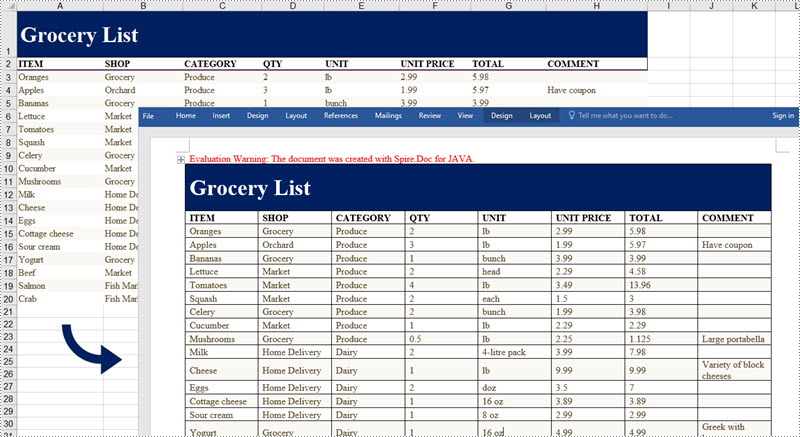
When creating reports in Word, we often encounter the situation where we need to copy and paste data from Excel to Word, so that readers can browse data directly in Word without opening Excel documents. In this article, you will learn how to convert Excel data into Word tables and preserve the formatting using Spire.Office for Java.
Install Spire.Office for Java
First, you're required to add the Spire.Office.jar file as a dependency in your Java program. The JAR file can be downloaded from this link. If you use Maven, you can easily import the JAR file in your application by adding the following code to your project's pom.xml file.
<repositories>
    <repository>
        <id>com.e-iceblue</id>
        <name>e-iceblue</name>
        <url>https://repo.e-iceblue.com/nexus/content/groups/public/</url>
    </repository>
</repositories>
<dependencies>
    <dependency>
        <groupId>e-iceblue</groupId>
        <artifactId>spire.office</artifactId>
        <version>11.10.0</version>
    </dependency>
</dependencies>
Export Excel Data to a Word Table with Formatting
The following are the steps to convert Excel data to a Word table maintaining formatting using Spire.Office for Java.
- Create a Workbook object and load a sample Excel file using Workbook.loadFromFile() method.
- Get a specific worksheet using Workbook.getWorksheets().get() method.
- Create a Document object, and add a section to it.
- Add a table using Section.addTable() method.
- Detect the merged cells in the worksheet and merge the corresponding cells of the Word tale using the custom method mergeCells().
- Get value of a specific Excel cell using CellRange.getValue() method and add it to a cell of the Word table using TableCell.addParagraph().appendText() method.
- Copy the font style and cell style from Excel to the Word table using the custom method copyStyle().
- Save the document to a Word file using Document.saveToFile() method.
- Java
import com.spire.doc.*;
import com.spire.doc.FileFormat;
import com.spire.doc.documents.HorizontalAlignment;
import com.spire.doc.documents.PageOrientation;
import com.spire.doc.documents.VerticalAlignment;
import com.spire.doc.fields.TextRange;
import com.spire.xls.*;

public class ExportExcelToWord {

    public static void main(String[] args) {

        //Load an Excel file
        Workbook workbook = new Workbook();
        workbook.loadFromFile("C:/Users/Administrator/Desktop/sample.xlsx");

        //Get the first worksheet
        Worksheet sheet = workbook.getWorksheets().get(0);

        //Create a Word document
        Document doc = new Document();
        Section section = doc.addSection();
        section.getPageSetup().setOrientation(PageOrientation.Landscape);

        //Add a table
        Table table = section.addTable(true);
        table.resetCells(sheet.getLastRow(), sheet.getLastColumn());

        //Merge cells
        mergeCells(sheet, table);

        for (int r = 1; r <= sheet.getLastRow(); r++) {

            //Set row Height
            table.getRows().get(r - 1).setHeight((float) sheet.getRowHeight(r));

            for (int c = 1; c <= sheet.getLastColumn(); c++) {
                CellRange xCell = sheet.getCellRange(r, c);
                TableCell wCell = table.get(r - 1, c - 1);

                //Get value of a specific Excel cell and add it to a cell of Word table
                TextRange textRange = wCell.addParagraph().appendText(xCell.getValue());

                //Copy font and cell style from Excel to Word
                copyStyle(textRange, xCell, wCell);
            }
        }

        //Save the document to a Word file
        doc.saveToFile("ExportToWord.docx", FileFormat.Docx);
    }

    //Merge cells if any
    private static void mergeCells(Worksheet sheet, Table table) {
        if (sheet.hasMergedCells()) {

            //Get merged cell ranges from Excel
            CellRange[] ranges = sheet.getMergedCells();
            for (int i = 0; i < ranges.length; i++) {
                int startRow = ranges[i].getRow();
                int startColumn = ranges[i].getColumn();
                int rowCount = ranges[i].getRowCount();
                int columnCount = ranges[i].getColumnCount();

                //Merge corresponding cells in Word table
                if (rowCount > 1 && columnCount > 1) {
                    for (int j = startRow; j <= startRow + rowCount ; j++) {
                        table.applyHorizontalMerge(j - 1, startColumn - 1, startColumn - 1 + columnCount - 1);
                    }
                    table.applyVerticalMerge(startColumn - 1, startRow - 1, startRow - 1 + rowCount -1);
                }
                if (rowCount > 1 && columnCount == 1 ) {
                     table.applyVerticalMerge(startColumn - 1, startRow - 1, startRow - 1 + rowCount -1);
                }
                if (columnCount > 1 && rowCount == 1 ) {
                    table.applyHorizontalMerge(startRow - 1, startColumn - 1,  startColumn - 1 + columnCount-1);
                }
            }
        }
    }

    //Copy cell style of Excel to Word table
    private static void copyStyle(TextRange wTextRange, CellRange xCell, TableCell wCell) {

        //Copy font style
        wTextRange.getCharacterFormat().setTextColor(xCell.getStyle().getFont().getColor());
        wTextRange.getCharacterFormat().setFontSize((float) xCell.getStyle().getFont().getSize());
        wTextRange.getCharacterFormat().setFontName(xCell.getStyle().getFont().getFontName());
        wTextRange.getCharacterFormat().setBold(xCell.getStyle().getFont().isBold());
        wTextRange.getCharacterFormat().setItalic(xCell.getStyle().getFont().isItalic());

        //Copy backcolor
        wCell.getCellFormat().setBackColor(xCell.getStyle().getColor());

        //Copy horizontal alignment
        switch (xCell.getHorizontalAlignment()) {
            case Left:
                wTextRange.getOwnerParagraph().getFormat().setHorizontalAlignment(HorizontalAlignment.Left);
                break;
            case Center:
                wTextRange.getOwnerParagraph().getFormat().setHorizontalAlignment(HorizontalAlignment.Center);
                break;
            case Right:
                wTextRange.getOwnerParagraph().getFormat().setHorizontalAlignment(HorizontalAlignment.Right);
                break;
        }

        //Copy vertical alignment
        switch (xCell.getVerticalAlignment()) {
            case Bottom:
                wCell.getCellFormat().setVerticalAlignment(VerticalAlignment.Bottom);
                break;
            case Center:
                wCell.getCellFormat().setVerticalAlignment(VerticalAlignment.Middle);
                break;
            case Top:
                wCell.getCellFormat().setVerticalAlignment(VerticalAlignment.Top);
                break;
        }
    }
}
Apply for a Temporary License
If you'd like to remove the evaluation message from the generated documents, or to get rid of the function limitations, please request a 30-day trial license for yourself.
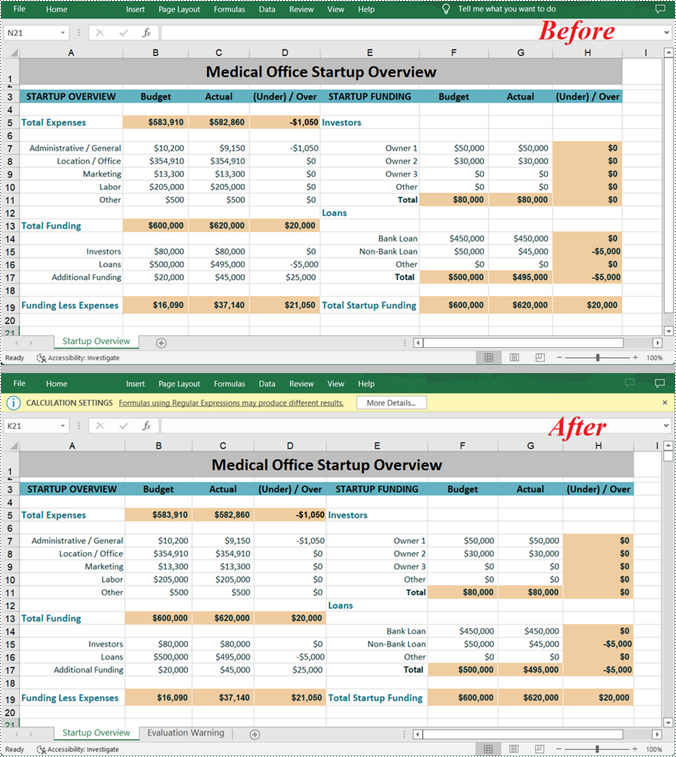
ODS (OpenDocument Spreadsheet) is an XML-based file format created by the Calc program. Similar to MS Excel files, ODS files store data in cells organized into rows and columns, and can contain text, mathematical functions, formatting, and more. Sometimes, you may need to convert an Excel file to an ODS file to ensure that the file can be viewed by more applications in different operating systems. This article will demonstrate how to accomplish this task programmatically using Spire.XLS for Java.
Install Spire.XLS for Java
First of all, you're required to add the Spire.Xls.jar file as a dependency in your Java program. The JAR file can be downloaded from this link. If you use Maven, you can easily import the JAR file in your application by adding the following code to your project's pom.xml file.
<repositories>
    <repository>
        <id>com.e-iceblue</id>
        <name>e-iceblue</name>
        <url>https://repo.e-iceblue.com/nexus/content/groups/public/</url>
    </repository>
</repositories>
<dependencies>
    <dependency>
        <groupId>e-iceblue</groupId>
        <artifactId>spire.xls</artifactId>
        <version>16.10.1</version>
    </dependency>
</dependencies>
Convert Excel to ODS
The detailed steps are as follows:
- Create a Workbook instance.
- Load a sample Excel file using Workbook.loadFromFile() method.
- Convert the Excel file to ODS using Workbook.saveToFile() method.
- Java
import com.spire.xls.*;

public class toODS {
    public static void main(String[] args) {
        //Create a Workbook instance
        Workbook workbook = new Workbook();

        //Load a sample Excel document
        workbook.loadFromFile("C:\\Files\\sample.xlsx");

        //Convert to ODS file
        workbook.saveToFile("ExcelToODS.ods", FileFormat.ODS);
    }
}
Apply for a Temporary License
If you'd like to remove the evaluation message from the generated documents, or to get rid of the function limitations, please request a 30-day trial license for yourself.
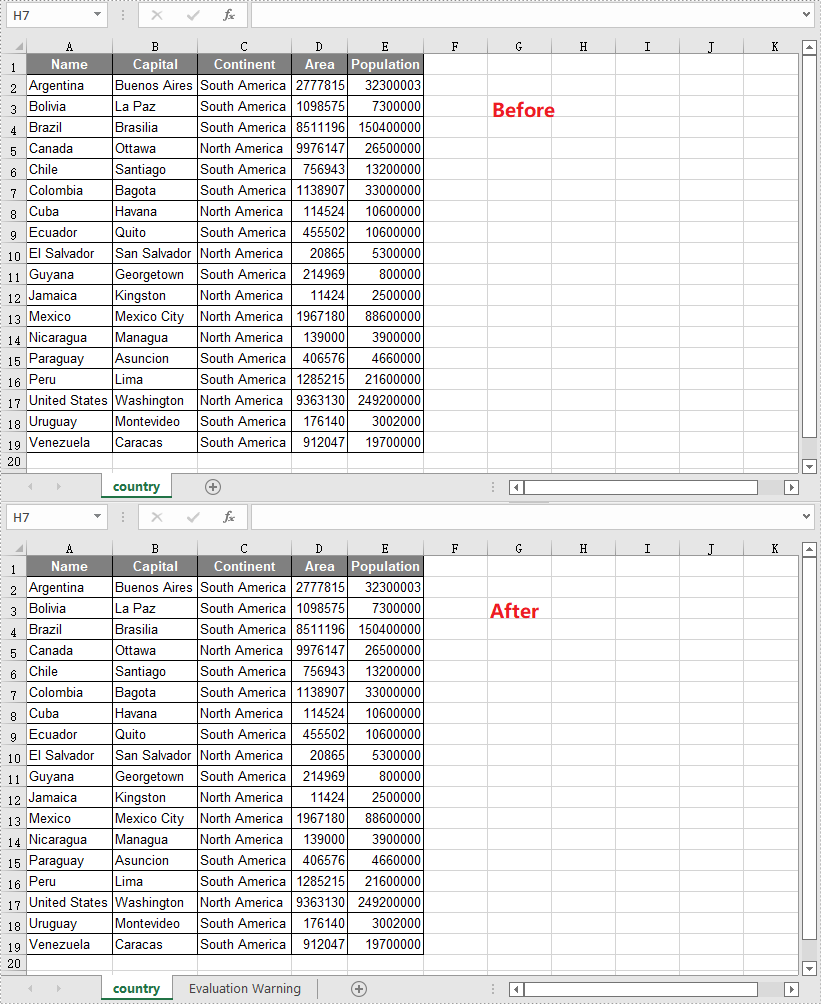
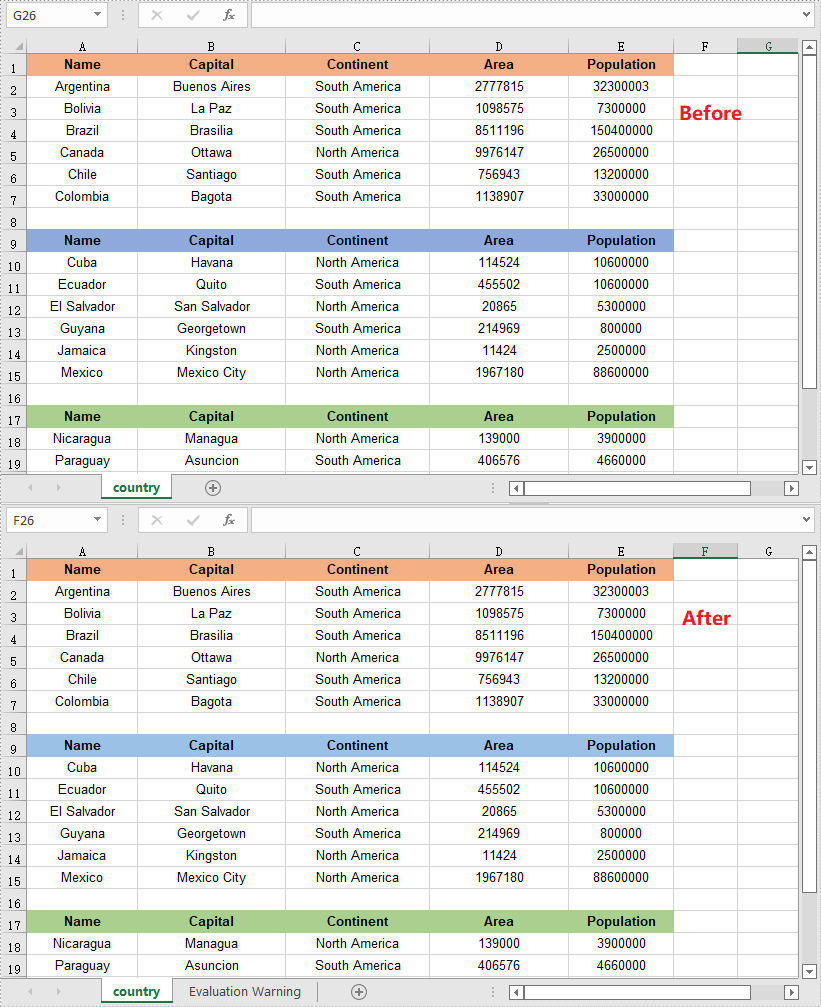
When you open an XLS file in a newer version of Microsoft Excel, such as Excel 2016 or 2019, you'll see "Compatibility Mode" in the title bar after the file name. If you want to change from Compatibility Mode to Normal Mode, you can save the XLS file as a newer Excel file format like XLSX. In this article, you will learn how to convert XLS to XLSX or XLSX to XLS in Java using Spire.XLS for Java.
Install Spire.XLS for Java
First of all, you're required to add the Spire.Xls.jar file as a dependency in your Java program. The JAR file can be downloaded from this link. If you use Maven, you can easily import the JAR file in your application by adding the following code to your project's pom.xml file.
<repositories>
    <repository>
        <id>com.e-iceblue</id>
        <name>e-iceblue</name>
        <url>https://repo.e-iceblue.com/nexus/content/groups/public/</url>
    </repository>
</repositories>
<dependencies>
    <dependency>
        <groupId>e-iceblue</groupId>
        <artifactId>spire.xls</artifactId>
        <version>16.10.1</version>
    </dependency>
</dependencies>
Convert XLS to XLSX in Java
The following are the steps to convert an XLS file to XLSX format using Spire.XLS for Java:
- Create a Workbook instance.
- Load the XLS file using Workbook.loadFromFile() method.
- Save the XLS file to XLSX format using Workbook.saveToFile(String, ExcelVersion) method.
- Java
import com.spire.xls.ExcelVersion;
import com.spire.xls.Workbook;

public class ConvertXlsToXlsx {
    public static void main(String[] args){
        //Initialize an instance of Workbook class
        Workbook workbook = new Workbook();
        //Load the XLS file
        workbook.loadFromFile("Input.xls");

        //Save the XLS file to XLSX format
        workbook.saveToFile("ToXlsx.xlsx", ExcelVersion.Version2016);
    }
}
Convert XLSX to XLS in Java
The following are the steps to convert an XLSX file to XLS format using Spire.XLS for Java:
- Create a Workbook instance.
- Load the XLSX file using Workbook.loadFromFile() method.
- Save the XLSX file to XLS format using Workbook.saveToFile(String, ExcelVersion) method.
- Java
import com.spire.xls.ExcelVersion;
import com.spire.xls.Workbook;

public class ConvertXlsxToXls {
    public static void main(String[] args){
        //Initialize an instance of Workbook class
        Workbook workbook = new Workbook();
        //Load the XLSX file
        workbook.loadFromFile("Input.xlsx");

        //Save the XLSX file to XLS format
        workbook.saveToFile("ToXls.xls", ExcelVersion.Version97to2003);
    }
}
Apply for a Temporary License
If you'd like to remove the evaluation message from the generated documents, or to get rid of the function limitations, please request a 30-day trial license for yourself.
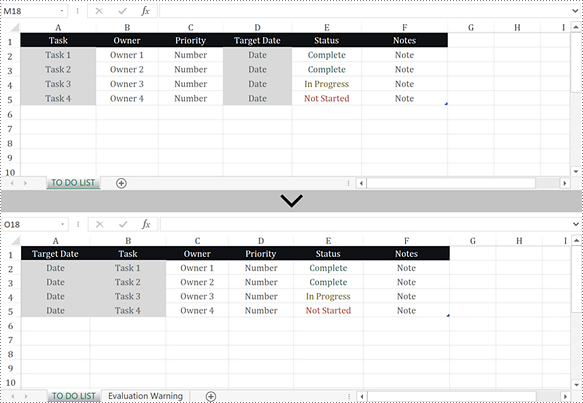
When you are dealing with the data in a worksheet, you may need to rearrange the columns so as to make it easier to find and read the specific data. It is easy to move columns in MS Excel by using Shift and Drag. This article introduces how to programmatically reorder columns in Excel using Spire.XLS for Java.
Install Spire.XLS for Java
First of all, you're required to add the Spire.Xls.jar file as a dependency in your Java program. The JAR file can be downloaded from this link. If you use Maven, you can easily import the JAR file in your application by adding the following code to your project's pom.xml file.
<repositories>
    <repository>
        <id>com.e-iceblue</id>
        <name>e-iceblue</name>
        <url>https://repo.e-iceblue.com/nexus/content/groups/public/</url>
    </repository>
</repositories>
<dependencies>
    <dependency>
        <groupId>e-iceblue</groupId>
        <artifactId>spire.xls</artifactId>
        <version>16.10.1</version>
    </dependency>
</dependencies>
Rearrange Columns in Excel in Java
The following are the steps to reorder columns in Excel using Spire.XLS for Java.
- Create a Workbook object, and load a sample Excel file using Workbook.loadFromFile() method.
- Get the target worksheet where you’d like to adjust the order using Workbook.getWorksheets().get() method.
- Specify the new column order in an int array.
- Create a temporary sheet and copy the data from the target sheet into it.
- Copy the columns from the temporary sheet to the target sheet and store them in the new order.
- Remove the temporary sheet.
- Save the workbook to another Excel file using Workbook.saveToFile() method.
- Java
import com.spire.xls.FileFormat;
import com.spire.xls.Workbook;
import com.spire.xls.Worksheet;

public class RearrangeColumns {

    public static void main(String[] args) {

        //Create a Workbook object
        Workbook workbook = new Workbook();

        //Load an Excel file
        workbook.loadFromFile( "C:\\Users\\Jack\\Desktop\\sample.xlsx");

        //Get the first worksheet
        Worksheet worksheet = workbook.getWorksheets().get(0);

        //Set the new column order (the column index starts from 0)
        int[] newColumnOrder = new int[]{3, 0, 1, 2, 4, 5};

        //Add a temporary worksheet
        Worksheet newSheet = workbook.getWorksheets().add("temp");

        //Copy data from the first worksheet to the temporary sheet
        newSheet.copyFrom(worksheet);

        //Loop through the newColumnOrder array
        for (int i = 0; i < newColumnOrder.length; i++) {

            //Copy the column from the temporary sheet to the first sheet
            newSheet.getColumns()[newColumnOrder[i]].copy(worksheet.getColumns()[i],true,true);

            //Set the width of a certain column the first sheet to that of the temporary sheet
            worksheet.getColumns()[i].setColumnWidth(newSheet.getColumns()[newColumnOrder[i]].getColumnWidth());
        }

        //Remove temporary sheet
        workbook.getWorksheets().remove(newSheet);

        //Save the workbook to another Excel file
        workbook.saveToFile("output/MoveColumn.xlsx", FileFormat.Version2016);
    }
}
Apply for a Temporary License
If you'd like to remove the evaluation message from the generated documents, or to get rid of the function limitations, please request a 30-day trial license for yourself.
