
Spire.XLS for Java (133)
Children categories
This article demonstrates how to remove a specific image or all images from an Excel worksheet using Spire.XLS for Java.
Delete specific image
import com.spire.xls.ExcelVersion;
import com.spire.xls.Workbook;
import com.spire.xls.Worksheet;

public class DeleteSpecificImage {

    public static void main(String[] args) {

        //Create a Workbook object
        Workbook workbook = new Workbook();

        //Load an Excel file
        workbook.loadFromFile("Input.xlsx");

        //Get the first worksheet
        Worksheet sheet = workbook.getWorksheets().get(0);

        //Delete a specific image by its index
        sheet.getPictures().get(1).remove();

        //Save the document
        workbook.saveToFile("DeleteSpecificImage.xlsx", ExcelVersion.Version2013);
    }
Delete all images
import com.spire.xls.ExcelVersion;
import com.spire.xls.Workbook;
import com.spire.xls.Worksheet;

public class DeleteAllImages {

    public static void main(String[] args) {

        //Create a Workbook object
        Workbook workbook = new Workbook();

        //Load an Excel file
        workbook.loadFromFile("Input.xlsx");

        //Get the first worksheet
        Worksheet sheet = workbook.getWorksheets().get(0);

        //Loop through the images inside the worksheet
        for (int i = sheet.getPictures().getCount() - 1; i >= 0; i--) {

            //Delete an image by its index
            sheet.getPictures().get(i).remove();
        }

        //Save the document
        workbook.saveToFile("DeleteAllImages.xlsx", ExcelVersion.Version2013);
    }
}
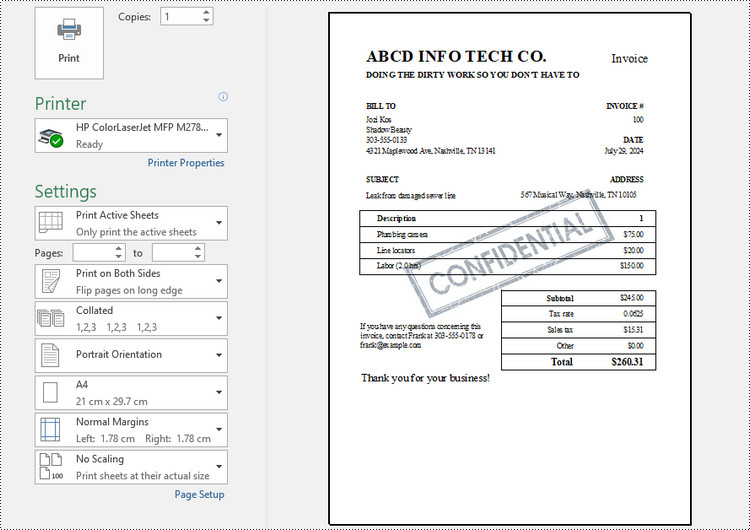
Branding your documents or indicating confidentiality can be easily achieved by adding a watermark to your Excel spreadsheet. Although Excel does not have a built-in feature for watermark insertion, there are alternative methods to achieve the desired effect.
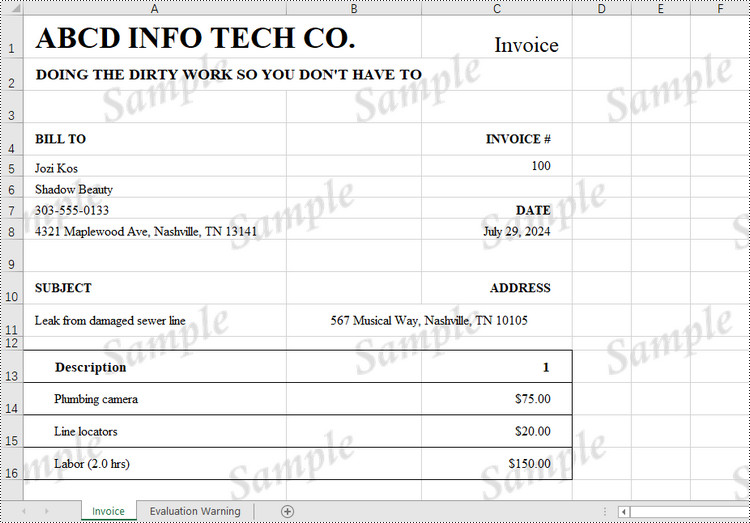
One approach is to insert an image into the header or footer of your Excel worksheet, which can create a watermark-like appearance. Alternatively, setting an image as the background of your spreadsheet can also mimic the watermark effect.
This article demonstrates how to add header or background image watermarks to Excel in Java using Spire.XLS for Java.
Install Spire.XLS for Java
First of all, you're required to add the Spire.Xls.jar file as a dependency in your Java program. The JAR file can be downloaded from this link. If you use Maven, you can easily import the JAR file in your application by adding the following code to your project's pom.xml file.
<repositories>
    <repository>
        <id>com.e-iceblue</id>
        <name>e-iceblue</name>
        <url>https://repo.e-iceblue.com/nexus/content/groups/public/</url>
    </repository>
</repositories>
<dependencies>
    <dependency>
        <groupId>e-iceblue</groupId>
        <artifactId>spire.xls</artifactId>
        <version>16.6.5</version>
    </dependency>
</dependencies>
Header Image Watermark vs. Background Image Watermark
Header Image Watermark
Pros:
- Ensures the watermark remains intact on the final printed document.
Cons:
- Invisible under "Normal" view mode in Excel, becoming visible only in "Page Layout" or "Page Break Preview" views.
- Requires precise adjustment of white margins, especially on the top and left sides of the image, for central placement.
Background Image Watermark
Pros:
- Provides a uniform watermark across the entire worksheet area.
Cons:
- Does not persist on the printed sheet, hence will not appear in the final printed output.
Add a Header Image Watermark to Excel in Java
Spire.XLS for Java offers the PageSetup class, providing control over various settings that impact the appearance and layout of a printed worksheet. This class includes the setCenterHeader() and setCenterHeaderImage() methods, which allow for the addition of an image to the worksheet header's center section.
Below are the steps to add a watermark to Excel using a header image in Java.
- Create a Workbook object.
- Load an Excel document from a give file path.
- Load an image using ImageIO.read() method.
- Get a specific worksheet from the workbook.
- Add an image field to the header center by passing "&G" as the parameter of PageSetup.setCenterHeader() method.
- Apply the image to the header center using PageSetup.setCenterHeaderImage() method.
- Save the workbook to a different Excel file.
- Java
import com.spire.xls.ExcelVersion;
import com.spire.xls.Workbook;
import com.spire.xls.Worksheet;

import javax.imageio.ImageIO;
import java.awt.image.BufferedImage;
import java.io.File;
import java.io.IOException;

public class AddWatermarkToExcelUsingHeaderImage {

    public static void main(String[] args) throws IOException {

        // Create a Workbook object
        Workbook workbook = new Workbook();

        // Load an Excel document
        workbook.loadFromFile("C:\\Users\\Administrator\\Desktop\\Input3.xlsx");

        // Load an image file
        BufferedImage image = ImageIO.read( new File("C:\\Users\\Administrator\\Desktop\\confidential_3.jpg"));

        // Loop through all worksheets in the file
        for (int i = 0; i < workbook.getWorksheets().getCount(); i++)
        {
            // Get a specific worksheet
            Worksheet worksheet = workbook.getWorksheets().get(i);

            // Add an image field to the header center
            worksheet.getPageSetup().setCenterHeader("&G");

            // Add the image to the header center
            worksheet.getPageSetup().setCenterHeaderImage(image);
        }

        // Save the result file
        workbook.saveToFile("AddWatermark.xlsx", ExcelVersion.Version2016);

        // Dispose resources
        workbook.dispose();
    }
}
Add a Background Image Watermark to Excel in Java
The PageSetup class includes a method called setBackgroundImage(), enabling you to designate an image as the background for a worksheet.
Here are the steps to add a watermark to Excel using a background image in Java.
- Create a Workbook object.
- Load an Excel document from a give file path.
- Load an image using ImageIO.read() method.
- Get a specific worksheet from the workbook.
- Apply the image to the worksheet as the background using PageSetup.setBackgroundImage() method.
- Save the workbook to a different Excel file.
- Java
import com.spire.xls.ExcelVersion;
import com.spire.xls.Workbook;
import com.spire.xls.Worksheet;

import javax.imageio.ImageIO;
import java.awt.image.BufferedImage;
import java.io.File;
import java.io.IOException;

public class AddWatermarkToExcelUsingBackgroundImage {

    public static void main(String[] args) throws IOException {

        // Create a Workbook object
        Workbook workbook = new Workbook();

        // Load an Excel document
        workbook.loadFromFile("C:\\Users\\Administrator\\Desktop\\Input.xlsx");

        // Load an image file
        BufferedImage image = ImageIO.read( new File("C:\\Users\\Administrator\\Desktop\\sample.png"));

        // Loop through all worksheets in the file
        for (int i = 0; i < workbook.getWorksheets().getCount(); i++)
        {
            // Get a specific worksheet
            Worksheet worksheet = workbook.getWorksheets().get(i);

            // Set the image as the background of the worksheet
            worksheet.getPageSetup().setBackgoundImage(image);
        }

        // Save the result file
        workbook.saveToFile("AddWatermark.xlsx", ExcelVersion.Version2016);

        // Dispose resources
        workbook.dispose();
    }
}
Apply for a Temporary License
If you'd like to remove the evaluation message from the generated documents, or to get rid of the function limitations, please request a 30-day trial license for yourself.
TIFF (Tagged Image File Format) is a standard image format created in the mid-1980s for saving high-quality color images on different computer platforms. Since the TIFF format is widely used in faxing, scanning, and other document exchange processing, conversion from Excel to TIFF may be frequently required in your daily work. This article will demonstrate how to programmatically convert Excel to TIFF using Spire.XLS for Java.
Install Spire.XLS for Java
First of all, you're required to add the Spire.Xls.jar file as a dependency in your Java program. The JAR file can be downloaded from this link. If you use Maven, you can easily import the JAR file in your application by adding the following code to your project's pom.xml file.
<repositories>
    <repository>
        <id>com.e-iceblue</id>
        <name>e-iceblue</name>
        <url>https://repo.e-iceblue.com/nexus/content/groups/public/</url>
    </repository>
</repositories>
<dependencies>
    <dependency>
        <groupId>e-iceblue</groupId>
        <artifactId>spire.xls</artifactId>
        <version>16.6.5</version>
    </dependency>
</dependencies>
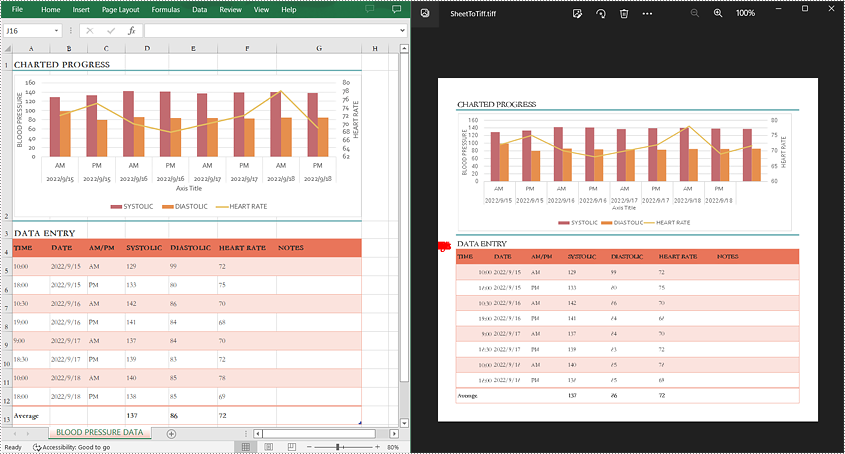
Convert a Whole Excel Worksheet to TIFF
The detailed steps are as follows:
- Create a Workbook instance.
- Load a sample Excel file using Workbook.loadFromFile() method.
- Get a specified worksheet using Workbook.getWorksheets().get() method.
- Convert the specified worksheet to TIFF using Worksheet.saveToTiff(java.lang.String fileName) method.
- Java
import com.spire.xls.Workbook;
import com.spire.xls.Worksheet;

public class ConvertExcelToTIFF {
    public static void main(String[] args) {

        //Create a Workbook instance
        Workbook workbook = new Workbook();

        //Load a sample Excel file
        workbook.loadFromFile("input.xlsx");

        //Get the first worksheet
        Worksheet sheet = workbook.getWorksheets().get(0);

        //Save the first worksheet to TIFF
        sheet.saveToTiff("SheetToTiff.tiff");

    }
}
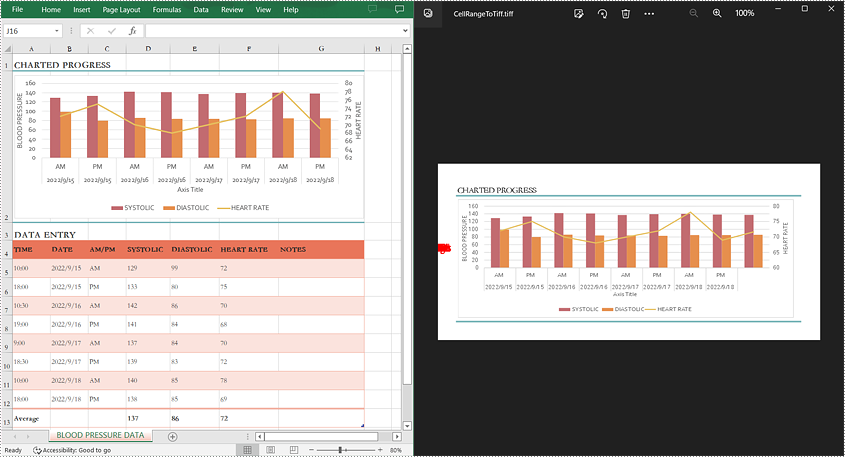
Convert a Specific Cell Range to TIFF
The detailed steps are as follows:
- Create a Workbook instance.
- Load a sample Excel file using Workbook.loadFromFile() method.
- Get a specified worksheet using Workbook.getWorksheets().get() method.
- Convert a specific cell range in the worksheet to TIFF using Worksheet.saveToTiff(java.lang.String fileName, int firstRow, int firstColumn, int lastRow, int lastColumn) method.
- Java
import com.spire.xls.Workbook;
import com.spire.xls.Worksheet;

public class CellRangeToTIFF {
    public static void main(String[] args) {

        //Create a Workbook instance
        Workbook workbook = new Workbook();

        //Load a sample Excel file
        workbook.loadFromFile("input.xlsx");

        //Get the first worksheet
        Worksheet sheet = workbook.getWorksheets().get(0);

        //Save a specific cell range in the first worksheet to TIFF
        sheet.saveToTiff("CellRangeToTiff.tiff",1,1,2,7);
    }
}
Apply for a Temporary License
If you'd like to remove the evaluation message from the generated documents, or to get rid of the function limitations, please request a 30-day trial license for yourself.
Page breaks in Excel are dividers that separate a large worksheet into individual pages for printing. In this article, you will learn how to add or delete page breaks in Excel in Java using Spire.XLS for Java library.
- Add Page Breaks to Excel in Java
- Delete a Specific Page Break from Excel in Java
- Delete All Page Breaks from Excel in Java
Install Spire.XLS for Java
First of all, you're required to add the Spire.Xls.jar file as a dependency in your Java program. The JAR file can be downloaded from this link. If you use Maven, you can easily import the JAR file in your application by adding the following code to your project's pom.xml file.
<repositories>
    <repository>
        <id>com.e-iceblue</id>
        <name>e-iceblue</name>
        <url>https://repo.e-iceblue.com/nexus/content/groups/public/</url>
    </repository>
</repositories>
<dependencies>
    <dependency>
        <groupId>e-iceblue</groupId>
        <artifactId>spire.xls</artifactId>
        <version>16.6.5</version>
    </dependency>
</dependencies>
Add Page Breaks to Excel in Java
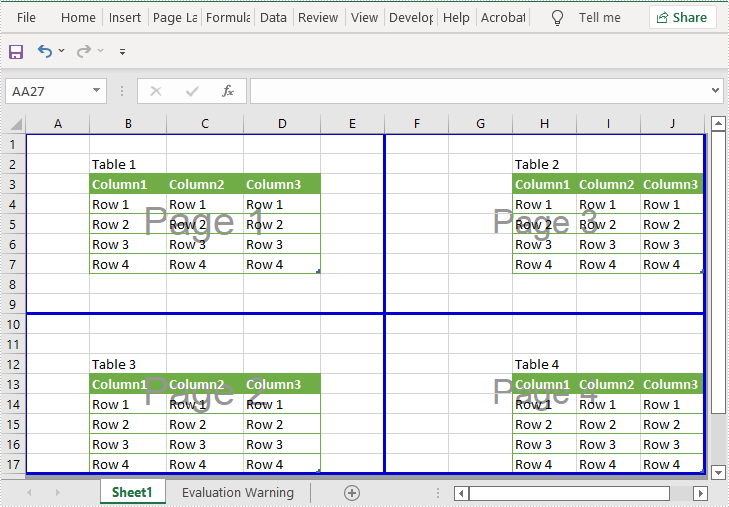
Using Spire.XLS for Java, you can add horizontal and vertical page breaks to an Excel worksheet. Below are the steps to do so:
- Create an instance of Workbook class.
- Load an Excel file using Workbook.loadFromFile() method.
- Get the desired worksheet by its index using Workbook.getWorksheets().get() method.
- Specify the cells where you want to add page breaks to using Worksheet.getRange().get() method.
- Add horizontal and vertical page breaks to the cells using Worksheet.getHPageBreaks().add() and Worksheet.getVPageBreaks().add() methods.
- Set the sheet view mode to ViewMode.Preview using Worksheet.setViewMode() method.
- Save the result file using Workbook.saveToFile() method.
- Java
import com.spire.xls.*;

public class AddPageBreaks {
    public static void main(String []args) {
        //Create a Workbook instance
        Workbook workbook = new Workbook();
        //Load an Excel file
        workbook.loadFromFile("Sample.xlsx");

        //Get the first worksheet
        Worksheet sheet = workbook.getWorksheets().get(0);

        //Specify the cells where you want to add page breaks to
        CellRange cell1 = sheet.getRange().get("A10");
        CellRange cell2 = sheet.getRange().get("F1");

        //Add a horizontal page break
        sheet.getHPageBreaks().add(cell1);

        //Add a vertical page break
        sheet.getVPageBreaks().add(cell2);

        //Set view mode to Preview in order to view the page breaks
        sheet.setViewMode(ViewMode.Preview);

        //Save the result file
        workbook.saveToFile("AddPageBreaks.xlsx", ExcelVersion.Version2013);
    }
}
Delete a Specific Page Break from Excel in Java
The following are the steps to delete a specific page break from an Excel worksheet:
- Create an instance of Workbook class.
- Load an Excel file using Workbook.loadFromFile() method.
- Get the desired worksheet by its index using Workbook.getWorksheets().get() method.
- Delete a specific horizontal or vertical page break from the worksheet by its index using Worksheet.getHPageBreaks().removeAt() or Worksheet.getVPageBreaks().removeAt() method.
- Save the result file using Workbook.saveToFile() method.
- Java
import com.spire.xls.ExcelVersion;
import com.spire.xls.Workbook;
import com.spire.xls.Worksheet;

public class DeleteASpecificPageBreak {
    public static void main(String []args) {
        //Create a Workbook instance
        Workbook workbook = new Workbook();
        //Load an Excel file
        workbook.loadFromFile("AddPageBreaks.xlsx");

        //Get the first worksheet
        Worksheet sheet = workbook.getWorksheets().get(0);

        //Delete the first horizontal page break
        sheet.getHPageBreaks().removeAt(0);
        //Delete the first vertical page break
        sheet.getVPageBreaks().removeAt(0);

        //Save the result file
        workbook.saveToFile("DeleteASpecificPageBreaks.xlsx", ExcelVersion.Version2013);
    }
}
Delete All Page Breaks from Excel in Java
The following are the steps to delete all the page breaks from an Excel worksheet:
- Create an instance of Workbook class.
- Load an Excel file using Workbook.loadFromFile() method.
- Get the desired worksheet by its index using Workbook.getWorksheets().get() method.
- Delete all the horizontal and vertical page breaks from the worksheet using Worksheet.getHPageBreaks().clear() and Worksheet.getVPageBreaks().clear() methods.
- Save the result file using Workbook.saveToFile() method.
- Java
import com.spire.xls.ExcelVersion;
import com.spire.xls.Workbook;
import com.spire.xls.Worksheet;

public class DeleteAllPageBreaks {
    public static void main(String []args) {
        //Create a Workbook instance
        Workbook workbook = new Workbook();
        //Load an Excel file
        workbook.loadFromFile("AddPageBreaks.xlsx");

        //Get the first worksheet
        Worksheet sheet = workbook.getWorksheets().get(0);

        //Delete all horizontal page breaks
        sheet.getHPageBreaks().clear();
        //Delete all vertical page breaks
        sheet.getVPageBreaks().clear();

        //Save the result file
        workbook.saveToFile("DeleteAllPageBreaks.xlsx", ExcelVersion.Version2013);
    }
}
Apply for a Temporary License
If you'd like to remove the evaluation message from the generated documents, or to get rid of the function limitations, please request a 30-day trial license for yourself.
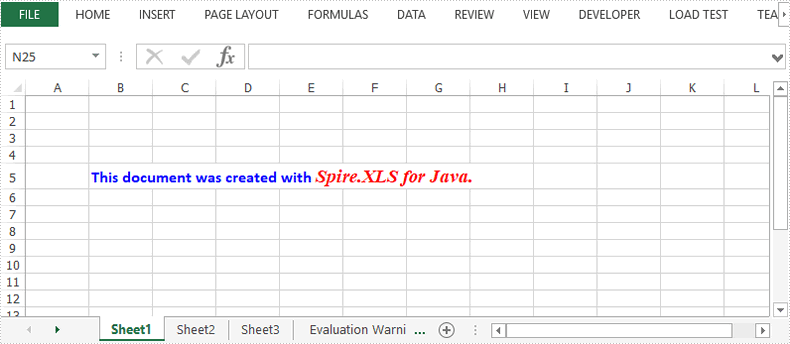
This article demonstrates how to apply multiple font styles in a single Excel cell using Spire.XLS for Java.
import com.spire.xls.*;

import java.awt.*;

public class ApplyMultiFontsInCell {

    public static void main(String[] args) {

        //Create a Workbook instance
        Workbook wb = new Workbook();

        //Get the first worksheet
        Worksheet sheet = wb.getWorksheets().get(0);

        //Create one Excel font
        ExcelFont font1 = wb.createFont();
        font1.setFontName("Calibri");
        font1.setColor(Color.blue);
        font1.setSize(12f);
        font1.isBold(true);

        //Create another Excel font
        ExcelFont font2 = wb.createFont();
        font2.setFontName("Times New Roman");
        font2.setColor(Color.red);
        font2.setSize(14f);
        font2.isBold(true);
        font2.isItalic(true);

        //Insert text to cell B5
        RichText richText = sheet.getCellRange("B5").getRichText();
        richText.setText("This document was created with Spire.XLS for Java.");

        //Apply two fonts to the text in the cell B5
        richText.setFont(0, 30, font1);
        richText.setFont(31, 50, font2);

        //Save the document
        wb.saveToFile("MultiFonts.xlsx", ExcelVersion.Version2016);
    }
}
Worksheet names often convey the purpose or content of the sheet. Extracting these names can help in documenting the structure of a workbook. New users or collaborators can quickly understand what data is stored in each worksheet just by looking at the extracted names. This article will demonstrate how to get worksheet names in Excel in Java using Spire.XLS for Java.
Install Spire.XLS for Java
First of all, you're required to add the Spire.Xls.jar file as a dependency in your Java program. The JAR file can be downloaded from this link. If you use Maven, you can easily import the JAR file in your application by adding the following code to your project's pom.xml file.
<repositories>
    <repository>
        <id>com.e-iceblue</id>
        <name>e-iceblue</name>
        <url>https://repo.e-iceblue.com/nexus/content/groups/public/</url>
    </repository>
</repositories>
<dependencies>
    <dependency>
        <groupId>e-iceblue</groupId>
        <artifactId>spire.xls</artifactId>
        <version>16.6.5</version>
    </dependency>
</dependencies>
Get All Worksheet Names in Excel in Java
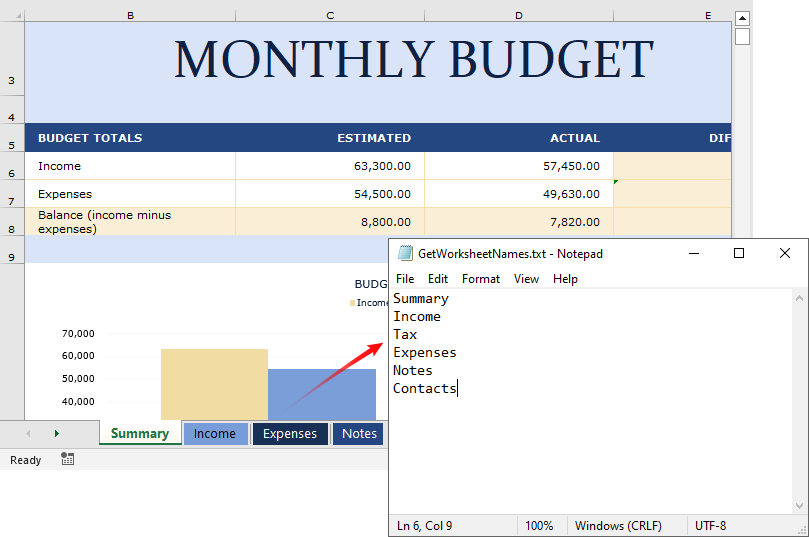
Spire.XLS for Java provides the Worksheet.getName() method to retrieve the name of a Worksheet. To get the names of all worksheets in Excel (including hidden ones), you can iterate through each worksheet and get their names with this method. The following are the detailed steps:
- Create a Workbook instance.
- Load an Excel file using Workbook.loadFromFile() method.
- Create a StringBuilder instance to store the retrieved worksheet names.
- Iterate through each worksheet.
- Get the name of each worksheet using Worksheet.getName() method and then append it to the StringBuilder instance.
- Write the contents of the StringBuilder to a txt file.
- Java
import java.io.*;
import com.spire.xls.*;

public class getWorksheetNames {
    public static void main(String[] args) throws IOException {
        // Create a Workbook object
        Workbook workbook = new Workbook();

        // Load an Excel document
        workbook.loadFromFile("BudgetSum.xlsx");

        // Create a StringBuilder to store the worksheet names
        StringBuilder stringBuilder = new StringBuilder();

        // Iterate through each worksheet in the workbook
        for (Object worksheet : workbook.getWorksheets()) {

            // Get the current worksheet
            Worksheet sheet = (Worksheet) worksheet;

            // Get the worksheet name and append it to the StringBuilder
            stringBuilder.append(sheet.getName() + "\r\n");
        }

        // Write the contents of the StringBuilder to a text file
        FileWriter fw = new FileWriter("GetWorksheetNames.txt", true);
        BufferedWriter bw = new BufferedWriter(fw);
        bw.append(stringBuilder);
        bw.close();
        fw.close();

        // Release resources
        workbook.dispose();
    }
}
Get Hidden Worksheet Names in Excel in Python
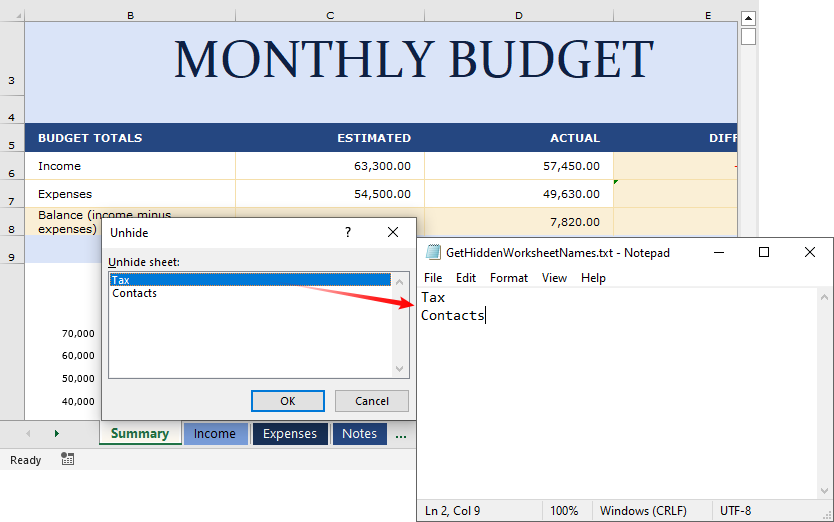
If you only need to retrieve the names of the hidden worksheets, you can first iterate through each worksheet to find the hidden worksheets and then get their names through the Worksheet.getName() method. The following are the detailed steps:
- Create a Workbook instance.
- Load an Excel file using Workbook.loadFromFile() method.
- Create a StringBuilder instance to store the retrieved worksheet names.
- Iterate through each worksheet to find the hidden worksheets.
- Get the name of each hidden worksheet using Worksheet.getName() method and then append it to the StringBuilder instance.
- Write the contents of the StringBuilder to a txt file.
- Java
import java.io.*;
import com.spire.xls.*;

public class getHiddenWorksheetNames {
    public static void main(String[] args) throws IOException {
        // Create a Workbook object
        Workbook workbook = new Workbook();

        // Load an Excel document
        workbook.loadFromFile("BudgetSum.xlsx");

        // Create a StringBuilder to store the worksheet names
        StringBuilder stringBuilder = new StringBuilder();

        // Iterate through each worksheet in the workbook
        for (Object worksheet : workbook.getWorksheets()) {

            // Get the current worksheet
            Worksheet sheet = (Worksheet) worksheet;

            // Detect the hidden worksheet
            if (sheet.getVisibility() == WorksheetVisibility.Hidden) {

                // Get the hidden worksheet name and append it to the StringBuilder
                stringBuilder.append(sheet.getName() + "\r\n");
            }
        }
        // Write the contents of the StringBuilder to a text file
        FileWriter fw = new FileWriter("GetHiddenWorksheetNames.txt", true);
        BufferedWriter bw = new BufferedWriter(fw);
        bw.append(stringBuilder);
        bw.close();
        fw.close();

        // Release resources
        workbook.dispose();
    }
}
Get a Free License
To fully experience the capabilities of Spire.XLS for Java without any evaluation limitations, you can request a free 30-day trial license.
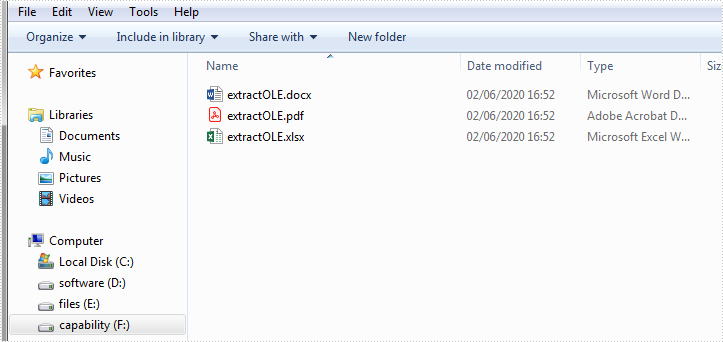
This article demonstrates how to extract OLE objects from an Excel document using Spire.XLS for Java.
import com.spire.xls.*;
import com.spire.xls.core.IOleObject;

import java.io.*;

public class ExtractOLEObjects {
    public static void main(String[] args){
        //Create a Workbook instance
        Workbook workbook = new Workbook();

        //Load the Excel document
        workbook.loadFromFile("OLEObjectsExample.xlsx");

        //Get the first worksheet
        Worksheet sheet = workbook.getWorksheets().get(0);

        //Extract ole objects
        if (sheet.hasOleObjects()) {
            for (int i = 0; i < sheet.getOleObjects().size(); i++) {
                IOleObject object = sheet.getOleObjects().get(i);
                OleObjectType type = sheet.getOleObjects().get(i).getObjectType();
                switch (type) {
                    //Word document
                    case WordDocument:
                        byteArrayToFile(object.getOleData(), "output/extractOLE.docx");
                        break;
                    //PowerPoint document
                    case PowerPointSlide:
                        byteArrayToFile(object.getOleData(), "output/extractOLE.pptx");
                        break;
                    //PDF document
                    case AdobeAcrobatDocument:
                        byteArrayToFile(object.getOleData(), "output/extractOLE.pdf");
                        break;
                    //Excel document
                    case ExcelWorksheet:
                        byteArrayToFile(object.getOleData(), "output/extractOLE.xlsx");
                        break;
                }
            }
        }
    }
    public static void byteArrayToFile(byte[] datas, String destPath) {
        File dest = new File(destPath);
        try (InputStream is = new ByteArrayInputStream(datas);
             OutputStream os = new BufferedOutputStream(new FileOutputStream(dest, false));) {
            byte[] flush = new byte[1024];
            int len = -1;
            while ((len = is.read(flush)) != -1) {
                os.write(flush, 0, len);
            }
            os.flush();
        } catch (IOException e) {
            e.printStackTrace();
        }
    }
}
The following screenshot shows the extracted OLE documents:
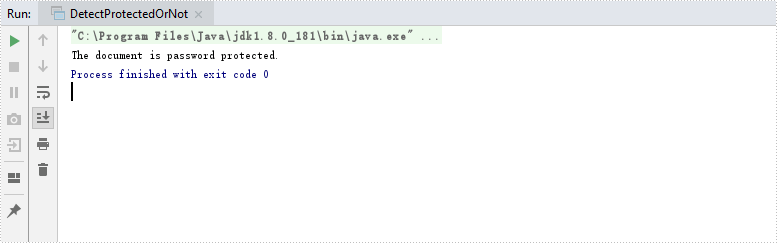
Detect if an Excel Document is Password Protected in Java
2020-06-02 08:23:45 Written by AdministratorThis article demonstrates how to detect whether an Excel document is password protected or not using Spire.XLS for Java.
import com.spire.xls.*;

public class DetectProtectedOrNot  {
    public static void main(String[] args) {
        //Get the file path
        String filePath= "C:\\Users\\Administrator\\Desktop\\sample.xlsx";

        //Detect whether the workbook is password protected or not
        Boolean isProtected = Workbook.isPasswordProtected(filePath);

        //Print results
        if (isProtected) {
            System.out.print("The document is password protected.");
        }
        else {
            System.out.print("The document is not protected.");
        }
    }
}
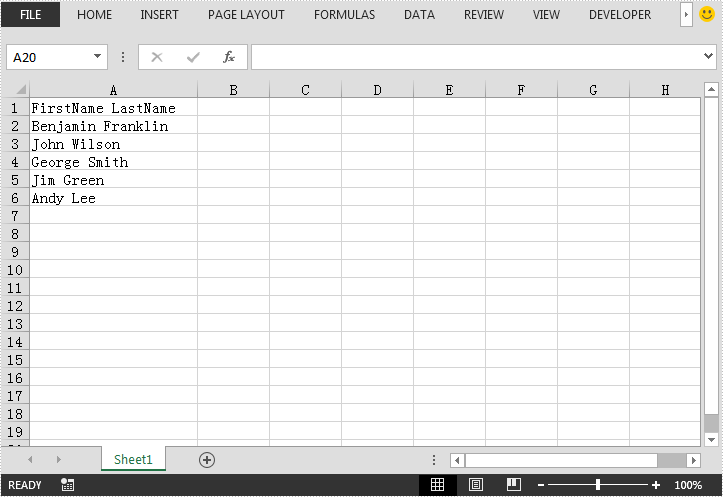
This article demonstrates how to convert text to columns in Excel using Spire.XLS for Java. The following screenshot shows the sample Excel file before converting:
import com.spire.xls.ExcelVersion;
import com.spire.xls.Workbook;
import com.spire.xls.Worksheet;

public class ConvertTextToColumns {
    public static void main(String[] args){
        //Create a workbook instance
        Workbook workbook = new Workbook();

        //Load the Excel file
        workbook.loadFromFile("Template.xlsx");

        //Get the first worksheet
        Worksheet sheet = workbook.getWorksheets().get(0);

        //Convert text into columns by the delimited characters of space
        String[] splitText = null;
        String text = null;
        for (int i = 1; i < sheet.getLastRow()+1; i++)
        {
            text = sheet.getRange().get(i, 1).getText();
            splitText = text.split(" ");
            for (int j = 0; j < splitText.length; j++)
            {
                sheet.getRange().get(i, 1 + j + 1).setText(splitText[j]);
            }
        }

        //Save the result file
        workbook.saveToFile("ConvertTextToColumns.xlsx", ExcelVersion.Version2013);
    }
}
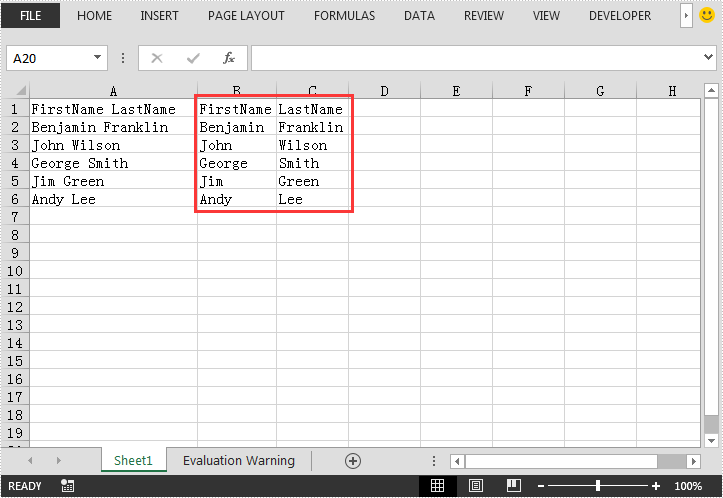
The following screenshot shows the output Excel file after converting:
Sorting data in Excel is a key task for improving data analysis and presentation. By organizing rows based on criteria such as alphabetical order, numerical values, or dates, users can easily identify trends, patterns, and outliers, making data more actionable. This article explores how to sort Excel data programmatically using Java with the Spire.XLS for Java library.
- Sort Data by a Single Column in Excel
- Sort Data by Multiple Columns in Excel
- Sort by a Custom List in Excel
Install Spire.XLS for Java
First of all, you're required to add the Spire.Xls.jar file as a dependency in your Java program. The JAR file can be downloaded from this link. If you use Maven, you can easily import the JAR file in your application by adding the following code to your project's pom.xml file.
<repositories>
    <repository>
        <id>com.e-iceblue</id>
        <name>e-iceblue</name>
        <url>https://repo.e-iceblue.com/nexus/content/groups/public/</url>
    </repository>
</repositories>
<dependencies>
    <dependency>
        <groupId>e-iceblue</groupId>
        <artifactId>spire.xls</artifactId>
        <version>16.6.5</version>
    </dependency>
</dependencies>
Sort Data by a Single Column in Excel
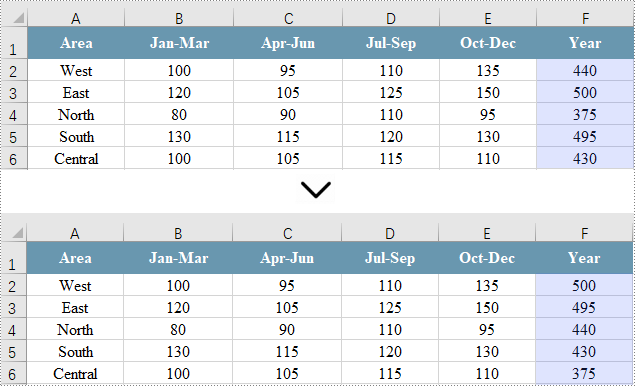
Sorting a single column in Excel allows for quick organization of your data in either ascending or descending order, facilitating easier analysis. However, this approach leaves other columns unchanged, which can lead to misalignment of related data.
Spire.XLS for Java offers the Workbook.getDataSorter().getSortColumns().add(int key, SortComparisonType sortComparisonType, OrderBy orderBy) method. This allows developers to establish sorting criteria by selecting a specific column, defining the comparison type, and specifying the sort order. To apply the sorting to the chosen column, you can use the Workbook.getDataSorter().sort(CellRange range) method.
Here are the steps to sort a single column in Excel using Spire.XLS for Java:
- Create a Workbook object.
- Load an Excel file using the Workbook.loadFromFile() method.
- Retrieve a specific worksheet with the Workbook.getWorksheets().get() method.
- Access the column you want to sort using the Worksheet.getRange().get() method.
- Create sorting criteria for the selected column using the Workbook.getDataSorter().getSortColumns().add() method.
- Perform the sorting on the column using the Workbook.getDataSorter().sort() method.
- Save the workbook to a new Excel file.
- Java
import com.spire.xls.*;

public class SortSingleColumn {

    public static void main(String[] args) {

        // Create a Workbook object
        Workbook workbook = new Workbook();

        // Load an Excel file
        workbook.loadFromFile("C:\\Users\\Administrator\\Desktop\\Input.xlsx");

        // Get a specific worksheet
        Worksheet sheet = workbook.getWorksheets().get(0);

        // Get the cell range (a single column) where you want to sort data
        CellRange cellRange = sheet.getRange().get("F1:F6");

        // Create sorting criteria for the selected column
        workbook.getDataSorter().getSortColumns().add(5, SortComparsionType.Values, OrderBy.Descending);

        // Sort in the specified cell range
        workbook.getDataSorter().sort(cellRange);

        // Save the workbook
        workbook.saveToFile("SortSingleColumn.xlsx", ExcelVersion.Version2013);

        // Dispose resources
        workbook.dispose();
    }
}
Sort Data by Multiple Columns in Excel
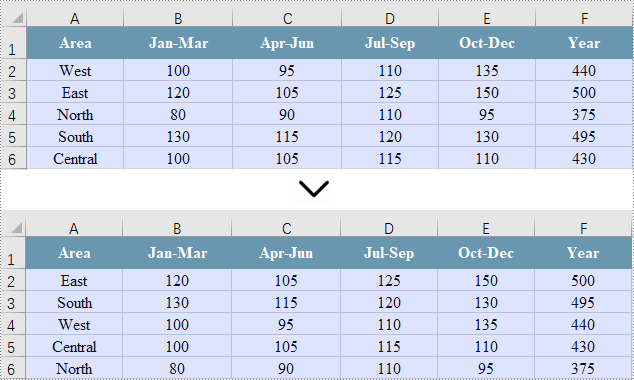
To ensure that all related data across multiple columns stays aligned and meaningful, sorting across these columns is essential. This is particularly valuable for complex datasets where maintaining the relationships between data points is critical.
While sorting multiple columns is similar to sorting a single column, the key distinction is in the CellRange parameter used in the Workbook.getDataSorter().sort(CellRange range) method. Instead of specifying a single column, this parameter defines a range that includes multiple columns.
Here are the steps to sort multiple columns in Excel using Spire.XLS for Java:
- Create a Workbook object.
- Load an Excel file using the Workbook.loadFromFile() method.
- Retrieve a specific worksheet with the Workbook.getWorksheets().get() method.
- Get the cell range (columns) you want to sort using the Worksheet.getRange().get() method.
- Create sorting criteria for the selected column using the Workbook.getDataSorter().getSortColumns().add() method.
- Perform the sorting on the cell range using the Workbook.getDataSorter().sort() method.
- Save the workbook to a new Excel file.
- Java
import com.spire.xls.*;

public class SortMultipleColumns {

    public static void main(String[] args) {

        // Create a new workbook
        Workbook workbook = new Workbook();

        // Load an Excel file
        workbook.loadFromFile("C:\\Users\\Administrator\\Desktop\\Input.xlsx");

        // Get a specific worksheet
        Worksheet sheet = workbook.getWorksheets().get(0);

        // Get the cell range (multiple columns) where you want to sort data
        CellRange cellRange = sheet.getRange().get("A1:F6");

        // Create sorting criteria for the selected column
        workbook.getDataSorter().getSortColumns().add(5, SortComparsionType.Values, OrderBy.Descending);

        // Sort in the specified cell range
        workbook.getDataSorter().sort(cellRange);

        // Save the workbook
        workbook.saveToFile("SortMultipleColumns.xlsx", ExcelVersion.Version2013);

        // Dispose resources
        workbook.dispose();
    }
}
Sort by a Custom List in Excel
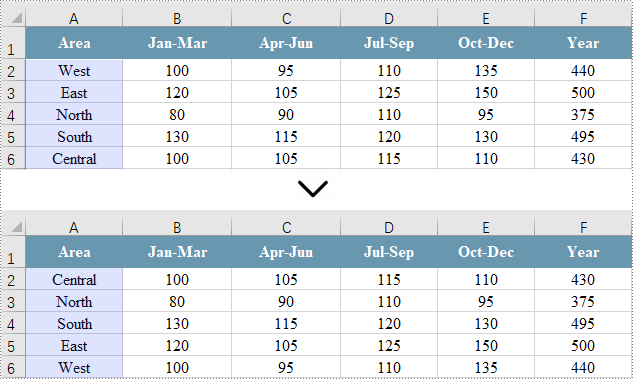
In Excel, you can sort data using a custom list, which allows for arrangement based on specific criteria that may not follow alphabetical order. This approach ensures that the order of data is relevant to your analysis or reporting needs.
To achieve this, start by creating an array of strings that outlines the desired custom sorting order. Then, use the Workbook.getDataSorter().getSortColumns().add(int key, OrderBy orderBy) method to set your sorting criteria. Finally, call the Workbook.getDataSorter().sort(CellRange range) method to sort the designated cell range.
Here are the steps for sorting data by a custom list in Excel using Spire.XLS for Java:
- Create a Workbook object.
- Load an Excel file using the Workbook.loadFromFile() method.
- Retrieve a specific worksheet with the Workbook.getWorksheets().get() method.
- Get the cell range you want to sort using the Worksheet.getRange().get() method.
- Define the custom sorting order with an array of strings.
- Create sorting criteria for the selected column using the Workbook.getDataSorter().getSortColumns().add() method.
- Perform the sorting on the cell range using the Workbook.getDataSorter().sort() method.
- Save the workbook to a new Excel file.
- Java
import com.spire.xls.CellRange;
import com.spire.xls.ExcelVersion;
import com.spire.xls.Workbook;
import com.spire.xls.Worksheet;

public class SortByCustomList {

    public static void main(String[] args) {

        // Create a new workbook
        Workbook workbook = new Workbook();

        // Load an Excel file
        workbook.loadFromFile("C:\\Users\\Administrator\\Desktop\\Input.xlsx");

        // Get a specific worksheet
        Worksheet sheet = workbook.getWorksheets().get(0);

        // Get the cell range where you want to sort data
        CellRange cellRange = sheet.getRange().get("A1:F6");

        // Create an array of strings to define the sorting order
        String[] customList = { "Central", "North", "South", "East", "West" };

        // Create sorting criteria for the selected column
        workbook.getDataSorter().getSortColumns().add(0, customList);

        // Sort data in the specified cell range
        workbook.getDataSorter().sort(cellRange);

        // Save the workbook
        workbook.saveToFile("SortByCustomList.xlsx", ExcelVersion.Version2013);

        // Dispose resources
        workbook.dispose();
    }
}
Apply for a Temporary License
If you'd like to remove the evaluation message from the generated documents, or to get rid of the function limitations, please request a 30-day trial license for yourself.
