
Spire.XLS for Java (133)
Children categories
When working with large datasets, finding information that matches certain criteria in seconds can be quite challenging. Fortunately, MS Excel provides the AutoFilter tool to help you narrow down the search by displaying only the relevant information and hiding all other data from view. In this article, you will learn how to add or remove AutoFilter in Excel with Java using Spire.XLS for Java.
- Add AutoFilter to Excel Cells in Java
- Apply Date AutoFilter in Excel in Java
- Apply Custom AutoFilter in Excel in Java
- Remove AutoFilter in Excel in Java
Install Spire.XLS for Java
First of all, you're required to add the Spire.Xls.jar file as a dependency in your Java program. The JAR file can be downloaded from this link. If you use Maven, you can easily import the JAR file in your application by adding the following code to your project's pom.xml file.
<repositories>
    <repository>
        <id>com.e-iceblue</id>
        <name>e-iceblue</name>
        <url>https://repo.e-iceblue.com/nexus/content/groups/public/</url>
    </repository>
</repositories>
<dependencies>
    <dependency>
        <groupId>e-iceblue</groupId>
        <artifactId>spire.xls</artifactId>
        <version>16.10.1</version>
    </dependency>
</dependencies>
Add AutoFilter to Excel Cells in Java
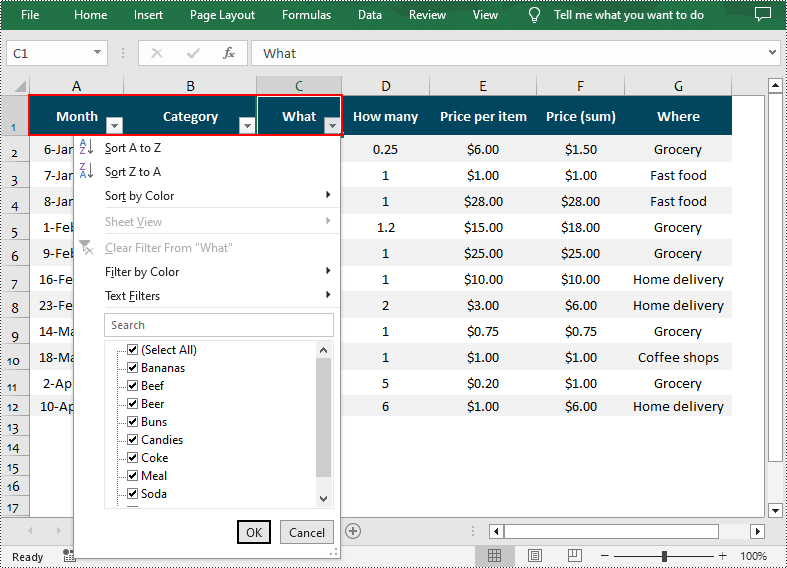
Spire.XLS for Java allows you to apply AutoFilter on a specific cell range through the Worksheet.getAutoFilters().setRange() method. The following are the detailed steps:
- Create a Workbook instance.
- Load a sample Excel file using Workbook.loadFromFile() method.
- Get a specified worksheet using Workbook.getWorksheets().get() method.
- Add an AutoFilter to a specified cell range using Worksheet.getAutoFilters().setRange() method.
- Save the result file using Workbook.saveToFile() method.
- Java
import com.spire.xls.*;

public class createFilter {
    public static void main(String[] args) {

        //Create a Workbook instance
        Workbook workbook = new Workbook();

        //Load an Excel file
        workbook.loadFromFile("C:\\Users\\Administrator\\Desktop\\Data.xlsx");

        //Get the first worksheet
        Worksheet sheet = workbook.getWorksheets().get(0);

        //Create an AutoFilter in the sheet and specify the range to be filtered
        sheet.getAutoFilters().setRange(sheet.getCellRange("A1:C1"));

        //Save the result file
        workbook.saveToFile("CreateFilter.xlsx", ExcelVersion.Version2016);
    }
}
Apply Date AutoFilter in Excel in Java
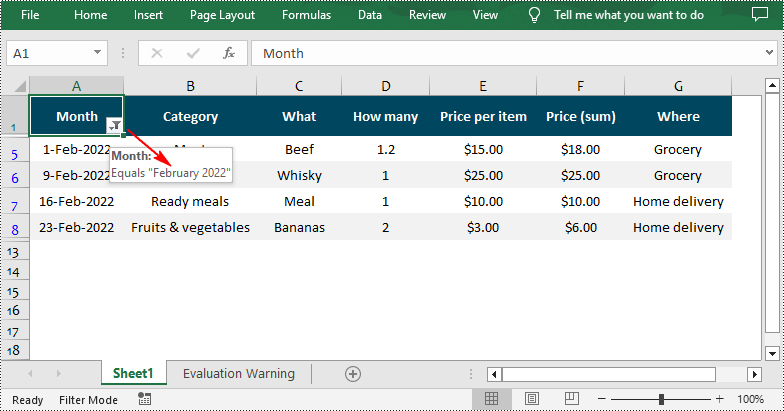
If you need to explore information related to specific dates or time, you can apply a date filter to the selected range using the Workbook.getAutoFilters().addDateFilter(IAutoFilter column, DateTimeGroupingType dateTimeGroupingType, int year, int month, int day, int hour, int minute, int second) method. The following are detailed steps.
- Create a Workbook instance.
- Load a sample Excel file using Workbook.loadFromFile() method.
- Get a specified worksheet using Workbook.getWorksheets().get() method.
- Add an AutoFilter to a specified range using Workbook.getAutoFilters().setRange() method.
- Get the column to be filtered.
- Call the Workbook.getAutoFilters().addDateFilter() method to add a date filter to the column to filter data related to a specified year/month/date, etc.
- Apply the filter using Workbook.getAutoFilters().filter() method.
- Save the result file using Workbook.saveToFile() method.
- Java
import com.spire.xls.*;
import com.spire.xls.core.IAutoFilter;
import com.spire.xls.core.spreadsheet.autofilter.DateTimeGroupingType;

public class ApplyDateFilter {
    public static void main(String[] args) {

        //Create a Workbook instance
        Workbook workbook = new Workbook();

        //Load an Excel file
        workbook.loadFromFile("C:\\Users\\Administrator\\Desktop\\Data.xlsx");

        //Get the first worksheet
        Worksheet sheet = workbook.getWorksheets().get(0);

        //Create an auto filter in the sheet and specify the range to be filtered
        sheet.getAutoFilters().setRange(sheet.getCellRange("A1:A12"));

        //Get the column to be filtered
        IAutoFilter filterColumn = sheet.getAutoFilters().get(0);

        //Add a date filter to filter data related to February 2022
        sheet.getAutoFilters().addDateFilter(filterColumn, DateTimeGroupingType.Month, 2022, 2, 0, 0, 0, 0);

        //Apply the filter
        sheet.getAutoFilters().filter();

        //Save the result file
        workbook.saveToFile("ApplyDateFilter.xlsx", ExcelVersion.Version2016);
    }
}
Apply Custom AutoFilter in Excel in Java
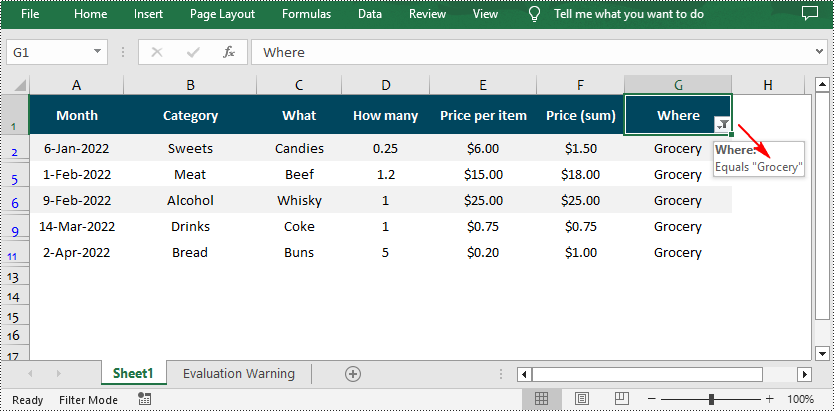
The Workbook.getAutoFilters().customFilter(FilterColumn column, FilterOperatorType operatorType, java.lang.Object criteria) method allows you to create custom filters based on certain criteria. For example, you can filter data that contains specific text. The following are detailed steps.
- Create a Workbook instance.
- Load a sample Excel file using Workbook.LoadFromFile() method.
- Get a specified worksheet using Workbook.getWorksheets().get() method.
- Add an AutoFilter to a specified range using Workbook.getAutoFilters().setRange() method.
- Get the column to be filtered.
- Add a custom filter to the column to filter data containing the specified string using Workbook.getAutoFilters().customFilter() method.
- Apply the filter using Workbook.getAutoFilters().filter() method.
- Save the result file using Workbook.saveToFile() method.
- Java
import com.spire.xls.*;
import com.spire.xls.core.spreadsheet.autofilter.FilterColumn;
import com.spire.xls.core.spreadsheet.autofilter.FilterOperatorType;

public class CustomFilter {
    public static void main(String[] args) {

        //Create a Workbook instance
        Workbook workbook = new Workbook();

        //Load an Excel file
        workbook.loadFromFile("C:\\Users\\Administrator\\Desktop\\Data.xlsx");

        //Get the first worksheet
        Worksheet sheet = workbook.getWorksheets().get(0);

        //Create an auto filter in the sheet and specify the range to be filtered
        sheet.getAutoFilters().setRange(sheet.getCellRange("G1:G12"));

        //Get the column to be filtered
        FilterColumn filterColumn = sheet.getAutoFilters().get(0);

        //Add a custom filter to filter data containing the string "Grocery"
        String strCrt = "Grocery";
        sheet.getAutoFilters().customFilter(filterColumn, FilterOperatorType.Equal, strCrt);

        //Apply the filter
        sheet.getAutoFilters().filter();

        //Save the result file
        workbook.saveToFile("ApplyCustomFilter.xlsx", ExcelVersion.Version2016);
    }
}
Remove AutoFilter in Excel in Java
In addition to adding AutoFilters in Excel files, Spire.XLS for Java also support removing or deleting the AutoFilters from Excel through the Worksheet.getAutoFilters().clear() method. The following are detailed steps.
- Create a Workbook instance.
- Load a sample Excel file using Workbook.loadFromFile() method.
- Get a specified worksheet using Workbook.getWorksheets().get() method.
- Remove AutoFilter from the worksheet using Worksheet.getAutoFilters().clear() method.
- Save the result file using Workbook.saveToFile() method.
- Java
import com.spire.xls.*;

public class removeAutoFilters {
    public static void main(String[] args) {

        //Create a Workbook instance
        Workbook workbook = new Workbook();

        //Load an Excel file
        workbook.loadFromFile("CustomAutoFilter.xlsx");

        //Get the first worksheet
        Worksheet sheet = workbook.getWorksheets().get(0);

        //Remove the auto filters
        sheet.getAutoFilters().clear();

        //Save the result file
        workbook.saveToFile("RemoveFilter.xlsx", ExcelVersion.Version2016);
    }
}
Apply for a Temporary License
If you'd like to remove the evaluation message from the generated documents, or to get rid of the function limitations, please request a 30-day trial license for yourself.
Adding document properties to an Excel file is a simple and convenient way to provide additional context and information about the file. Document properties can be either standard or custom. Standard document properties, such as author, title, and subject, offer basic information about the file and make it easier to locate and identify. Custom document properties allow users to add specific details about the file, such as project name, client name, or department owner, providing relevant information and context to the data presented in the file. In this article, we will demonstrate how to add standard document properties and custom document properties to an Excel file in Java using Spire.XLS for Java library.
- Add Standard Document Properties to an Excel File in Java
- Add Custom Document Properties to an Excel File in Java
Install Spire.XLS for Java
First of all, you're required to add the Spire.Xls.jar file as a dependency in your Java program. The JAR file can be downloaded from this link. If you use Maven, you can easily import the JAR file in your application by adding the following code to your project's pom.xml file.
<repositories>
    <repository>
        <id>com.e-iceblue</id>
        <name>e-iceblue</name>
        <url>https://repo.e-iceblue.com/nexus/content/groups/public/</url>
    </repository>
</repositories>
<dependencies>
    <dependency>
        <groupId>e-iceblue</groupId>
        <artifactId>spire.xls</artifactId>
        <version>16.10.1</version>
    </dependency>
</dependencies>
Add Standard Document Properties to an Excel File in Java
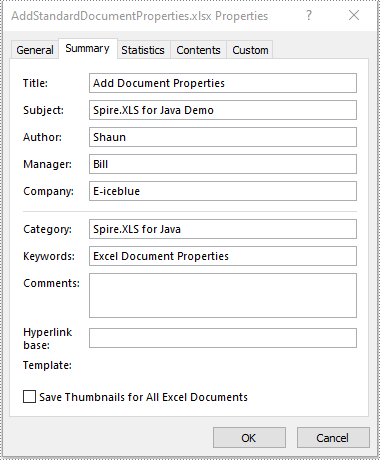
Standard document properties are pre-defined by Microsoft Excel and include fields such as Title, Subject, Author, Keywords, and Comments. The following steps demonstrate how to add standard document properties to an Excel file in Java using Spire.XLS for Java:
- Initialize an instance of the Workbook class.
- Load an Excel file using the Workbook.loadFromFile(String fileName) method.
- Add standard document properties, such as title, subject and author to the file using the Workbook.getDocumentProperties().setTitle(String value), Workbook.getDocumentProperties().setSubject(String value), Workbook.getDocumentProperties().setAuthor(String value) methods.
- Save the result file using the Workbook.saveToFile(String fileName, ExcelVersion version) method.
- Java
import com.spire.xls.ExcelVersion;
import com.spire.xls.Workbook;

public class AddStandardDocumentProperties {
    public static void main(String[] args) {
        //Initialize an instance of the Workbook class
        Workbook workbook = new Workbook();
        //Load an Excel file
        workbook.loadFromFile("Input.xlsx");

        //Add standard document properties to the file
        workbook.getDocumentProperties().setTitle("Add Document Properties");
        workbook.getDocumentProperties().setSubject("Spire.XLS for Java Demo");
        workbook.getDocumentProperties().setAuthor("Shaun");
        workbook.getDocumentProperties().setManager("Bill");
        workbook.getDocumentProperties().setCompany("E-iceblue");
        workbook.getDocumentProperties().setCategory("Spire.XLS for Java");
        workbook.getDocumentProperties().setKeywords("Excel Document Properties");

        //Save the result file
        workbook.saveToFile("AddStandardDocumentProperties.xlsx", ExcelVersion.Version2016);
        workbook.dispose();
    }
}
Add Custom Document Properties to an Excel File in Java
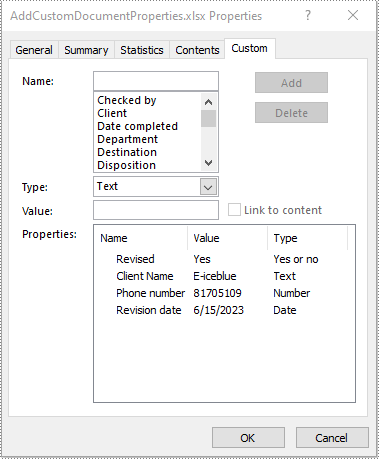
Custom document properties are user-defined and can be tailored to suit specific needs or requirements. The data type of the custom document properties can be Yes or No, Text, Number, and Date. The following steps demonstrate how to add custom document properties to an Excel file in Java using Spire.XLS for Java:
- Initialize an instance of the Workbook class.
- Load an Excel file using the Workbook.loadFromFile(String fileName) method.
- Add a custom document property of "Yes or No" type to the file using the Workbook.getCustomDocumentProperties().add(String var1, boolean var2) method.
- Add a custom document property of "Text" type to the file using the Workbook.getCustomDocumentProperties().add(String var1, String var2) method.
- Add a custom document property of "Number" type to the file using the Workbook.getCustomDocumentProperties().add(String var1, int var2) method.
- Add a custom document property of "Date" type to the file using the Workbook.getCustomDocumentProperties().add(String var1, Date var2) method.
- Save the result file using the Workbook.saveToFile(String fileName, ExcelVersion version) method.
- Java
import com.spire.xls.ExcelVersion;
import com.spire.xls.Workbook;

import java.util.Date;

public class AddCustomDocumentProperties {
    public static void main(String[] args) {
        //Initialize an instance of the Workbook class
        Workbook workbook = new Workbook();
        //Load an Excel file
        workbook.loadFromFile("Input.xlsx");

        //Add a “yes or no” custom document property
        workbook.getCustomDocumentProperties().add("Revised", true);
        //Add a “text” custom document property
        workbook.getCustomDocumentProperties().add("Client Name", "E-iceblue");
        //Add a “number” custom document property
        workbook.getCustomDocumentProperties().add("Phone number", 81705109);
        //Add a “date” custom document property
        workbook.getCustomDocumentProperties().add("Revision date", new Date());

        //Save the result file
        workbook.saveToFile("AddCustomDocumentProperties.xlsx", ExcelVersion.Version2013);
        workbook.dispose();
    }
}
Apply for a Temporary License
If you'd like to remove the evaluation message from the generated documents, or to get rid of the function limitations, please request a 30-day trial license for yourself.
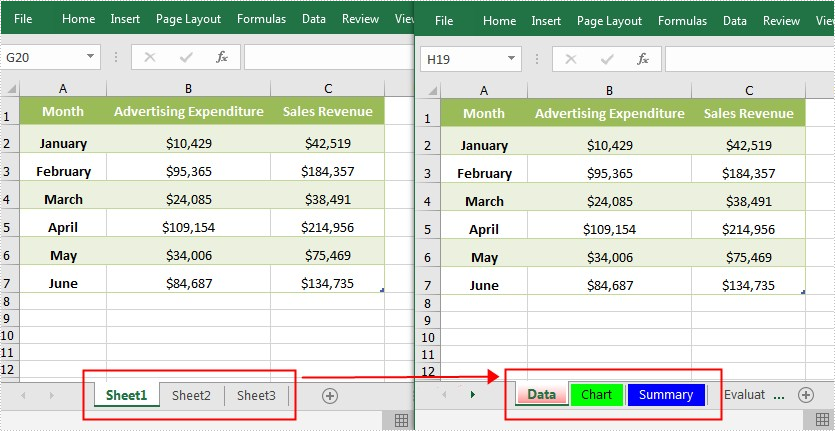
Usually, an Excel document may contain several worksheets with similar names such as Sheet1, Sheet2, Sheet3. In order to make the document more organized and at the same time facilitate your search, it is advisable to rename these worksheets and set different tab colors. In this article, you will learn how to achieve this task programmatically using Spire.XLS for Java.
Install Spire.XLS for Java
First of all, you're required to add the Spire.Xls.jar file as a dependency in your Java program. The JAR file can be downloaded from this link. If you use Maven, you can easily import the JAR file in your application by adding the following code to your project's pom.xml file.
<repositories>
    <repository>
        <id>com.e-iceblue</id>
        <name>e-iceblue</name>
        <url>https://repo.e-iceblue.com/nexus/content/groups/public/</url>
    </repository>
</repositories>
<dependencies>
    <dependency>
        <groupId>e-iceblue</groupId>
        <artifactId>spire.xls</artifactId>
        <version>16.10.1</version>
    </dependency>
</dependencies>
Rename Excel Worksheets and Set Tab Colors
The detailed steps are as follows:
- Create a Workbook object.
- Load a sample Excel document using Workbook.loadFromFile() method.
- Get a specified worksheet using Workbook.getWorksheets().get() method.
- Rename the specified worksheet using Worksheet.setName() method.
- Set tab color for the specified worksheet using Worksheet.setTabColor() method.
- Save the document to another file using Workbook.saveToFile() method.
- Java
import com.spire.xls.*;
import java.awt.*;

public class RenameSheetandSetTabColor {
    public static void main(String[] args) {
        //Create a Workbook object
        Workbook workbook = new Workbook();

        // Load a sample Excel document
        workbook.loadFromFile("input.xlsx");

        //Get the first worksheet
        Worksheet worksheet = workbook.getWorksheets().get(0);
        //Rename the first worksheet and set its tab color
        worksheet.setName("Data");
        worksheet.setTabColor(Color.red);

        //Get the second worksheet
        worksheet = workbook.getWorksheets().get(1);
        //Rename the second worksheet and set its tab color
        worksheet.setName("Chart");
        worksheet.setTabColor(Color.green);

        //Get the third worksheet
        worksheet = workbook.getWorksheets().get(2);
        //Rename the third worksheet and set its tab color
        worksheet.setName("Summary");
        worksheet.setTabColor(Color.blue);

        //Save the document to file
        workbook.saveToFile("RenameSheet.xlsx", ExcelVersion.Version2010);
    }
}
Apply for a Temporary License
If you'd like to remove the evaluation message from the generated documents, or to get rid of the function limitations, please request a 30-day trial license for yourself.
The data validation in Excel helps control what kind of data can or should be entered into a worksheet. In other words, any input entered into a particular cell must meet the criteria set for that cell. For example, you can create a validation rule that restricts a cell to accept only whole numbers. In this article, you will learn how to apply or remove data validation in Excel by using Spire.XLS for Java.
Install Spire.XLS for Java
First of all, you’re required to add the Spire.Xls.jar file as a dependency in your Java program. The JAR file can be downloaded from this link. If you use Maven, you can easily import the JAR file in your application by adding the following code to your project’s pom.xml file.
<repositories>
    <repository>
        <id>com.e-iceblue</id>
        <name>e-iceblue</name>
        <url>https://repo.e-iceblue.com/nexus/content/groups/public/</url>
    </repository>
</repositories>
<dependencies>
    <dependency>
        <groupId>e-iceblue</groupId>
        <artifactId>spire.xls</artifactId>
        <version>16.10.1</version>
    </dependency>
</dependencies>
Apply Data Validation to Excel Cells
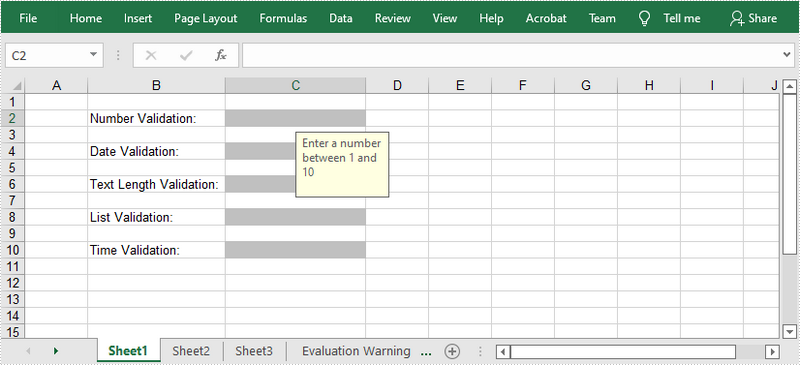
The following are the main steps to add various types of data validation to cells.
- Create a Workbook object, and get the first worksheet using Workbook.getWorksheets().get() method.
- Get a specific cell range using Worksheet.getCellRange() method to add data validation.
- Set the data type allowed in the cell using CellRange.getDataValidation().setAllowType() method. You can choose the data type as Integer, Time, Date, TextLength, Decimal, etc.
- Set the comparison operator using CellRange.getDataValiation().setCompareOperator() method. The comparison operators include Between, NotBetween, Less, Greater, Equal, etc.
- Set one or two formulas for the data validation using CellRange.getDataValidation().setFormula1() and CellRange.getDataValidation().setFormula2() methods.
- Set the input prompt using CellRange.getDataValidation().setInputMessage() method.
- Save the workbook to an Excel file using Workbook.saveToFile() method.
- Java
import com.spire.xls.*;

public class DataValidation {

    public static void main(String[] args) {

        //Create a Workbook object
        Workbook workbook = new Workbook();

        //Get the first worksheet
        Worksheet sheet = workbook.getWorksheets().get(0);

        //Insert text in cells
        sheet.getCellRange("B2").setText("Number Validation:");
        sheet.getCellRange("B4").setText("Date Validation:");
        sheet.getCellRange("B6").setText("Text Length Validation:");
        sheet.getCellRange("B8").setText("List Validation:");
        sheet.getCellRange("B10").setText("Time Validation:");

        //Add a number validation to C2
        CellRange rangeNumber = sheet.getCellRange("C2");
        rangeNumber.getDataValidation().setAllowType(CellDataType.Integer);
        rangeNumber.getDataValidation().setCompareOperator(ValidationComparisonOperator.Between);
        rangeNumber.getDataValidation().setFormula1("1");
        rangeNumber.getDataValidation().setFormula2("10");
        rangeNumber.getDataValidation().setInputMessage("Enter a number between 1 and 10");
        rangeNumber.getCellStyle().setKnownColor(ExcelColors.Gray25Percent);

        //Add a date validation to C4
        CellRange rangeDate = sheet.getCellRange("C4");
        rangeDate.getDataValidation().setAllowType(CellDataType.Date);
        rangeDate.getDataValidation().setCompareOperator(ValidationComparisonOperator.Between);
        rangeDate.getDataValidation().setFormula1("1/1/2010");
        rangeDate.getDataValidation().setFormula2("12/31/2020");
        rangeDate.getDataValidation().setInputMessage("Enter a date between 1/1/2010 and 12/31/2020");
        rangeDate.getCellStyle().setKnownColor(ExcelColors.Gray25Percent);

        //Add a text length validation to C6
        CellRange rangeTextLength = sheet.getCellRange("C6");
        rangeTextLength.getDataValidation().setAllowType(CellDataType.TextLength);
        rangeTextLength.getDataValidation().setCompareOperator(ValidationComparisonOperator.LessOrEqual);
        rangeTextLength.getDataValidation().setFormula1("5");
        rangeTextLength.getDataValidation().setInputMessage("Enter text lesser than 5 characters");
        rangeTextLength.getCellStyle().setKnownColor(ExcelColors.Gray25Percent);

        //Apply a list validation to C8
        CellRange rangeList = sheet.getCellRange("C8");
        rangeList.getDataValidation().setValues(new String[]{ "United States", "Canada", "United Kingdom", "Germany" });
        rangeList.getDataValidation().isSuppressDropDownArrow(false);
        rangeList.getDataValidation().setInputMessage("Choose an item from the list");
        rangeList.getCellStyle().setKnownColor(ExcelColors.Gray25Percent);

        //Apply a time validation to C10
        CellRange rangeTime= sheet.getCellRange("C10");
        rangeTime.getDataValidation().setAllowType(CellDataType.Time);
        rangeTime.getDataValidation().setCompareOperator(ValidationComparisonOperator.Between);
        rangeTime.getDataValidation().setFormula1("9:00");
        rangeTime.getDataValidation().setFormula2("12:00");
        rangeTime.getDataValidation().setInputMessage("Enter a time between 9:00 and 12:00");
        rangeTime.getCellStyle().setKnownColor(ExcelColors.Gray25Percent);

        //Auto fit width of column 2
        sheet.autoFitColumn(2);

        //Set the width of column 3
        sheet.setColumnWidth(3, 20);

        //Save to file
        workbook.saveToFile("output/ApplyDataValidation.xlsx", ExcelVersion.Version2016);
    }
}
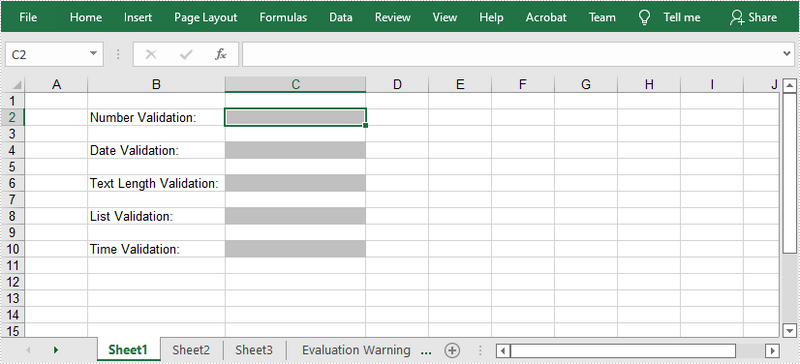
Remove Data Validation from Selected Cell Ranges
The following are the steps to remove data validation from selected cell ranges.
- Create a Workbook object.
- Load a sample Excel file using Workbook.loadFromFile() method.
- Get the first worksheet using Workbook.getWorksheets().get() method.
- Create an array of rectangles, which is used to locate the cell ranges where the validation will be removed.
- Remove the data validation from the selected cell ranges using Worksheet.getDVTable().remove() method.
- Save the workbook to another Excel file using Workbook.saveToFile() method.
- Java
import com.spire.xls.Workbook;
import com.spire.xls.Worksheet;

import java.awt.*;

public class RemoveDataValidation {

    public static void main(String[] args) {

        //Create a Workbook object
        Workbook workbook = new Workbook();

        //Load a sample Excel file
        workbook.loadFromFile("C:\\Users\\Administrator\\Desktop\\ApplyDataValidation.xlsx");

        //Get the first worksheet
        Worksheet worksheet = workbook.getWorksheets().get(0);

        //Create an array of rectangles, which is used to locate the ranges in worksheet
        Rectangle[] rectangles = new Rectangle[]{

                //One Rectangle(columnIndex, rowIndex) specifies a specific cell,the column or row index starts at 0
                //To specify a cell range, use Rectangle(startColumnIndex, startRowIndex, endColumnIndex, endRowIndex)
                new Rectangle(2,1),
                new Rectangle(2,3),
                new Rectangle(2,5),
                new Rectangle(2,7),
                new Rectangle(2,9)
        };

        //Remove the data validation from the selected cells
        worksheet.getDVTable().remove(rectangles);

        //Save the workbook to an Excel file
        workbook.saveToFile("output/RemoveDataValidation.xlsx");
    }
}
Apply for a Temporary License
If you'd like to remove the evaluation message from the generated documents, or to get rid of the function limitations, please request a 30-day trial license for yourself.
When you are creating a report by referencing data from multiple Excel files, you may find that the process is quite time-consuming and may also cause confusion or lead to errors as you need to switch between different opened files. In such a case, combining these separate Excel files into a single Excel workbook is a great option to simplify your work. This article will demonstrate how to merge multiple Excel files into one using Spire.XLS for Java.
Install Spire.XLS for Java
First, you're required to add the Spire.Xls.jar file as a dependency in your Java program. The JAR file can be downloaded from this link. If you use Maven, you can easily import the JAR file in your application by adding the following code to your project's pom.xml file.
<repositories>
    <repository>
        <id>com.e-iceblue</id>
        <name>e-iceblue</name>
        <url>https://repo.e-iceblue.com/nexus/content/groups/public/</url>
    </repository>
</repositories>
<dependencies>
    <dependency>
        <groupId>e-iceblue</groupId>
        <artifactId>spire.xls</artifactId>
        <version>16.10.1</version>
    </dependency>
</dependencies>
Merge Multiple Excel Workbooks into One in Java
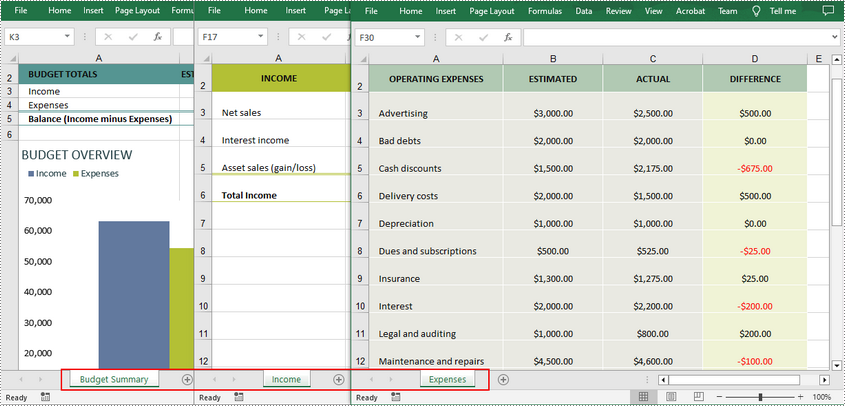
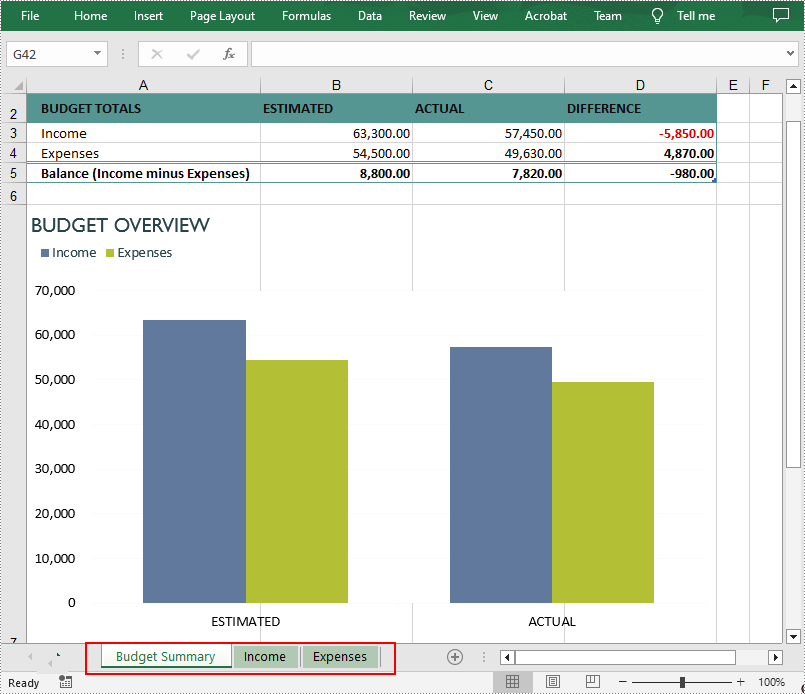
With Spire.XLS for Java, you can merge data from different Excel files into different worksheets of one Excel Workbook. The following are the steps to merge multiple Excel workbooks into one.
- Specify the input Excel files that need to be merged.
- Initialize a Workbook object to create a new Excel workbook, and then clear all default worksheets in the workbook using Workbook.getWorksheets().clear() method.
- Initialize another temporary Workbook object.
- Loop through all input Excel files, and load the current workbook into the temporary Workbook object using Workbook.loadFromFile() method.
- loop through the worksheets in the current workbook, and then copy each worksheet from the current workbook to the new workbook using Workbook.getWorksheets().addCopy() method.
- Save the new workbook to file using Workbook.saveToFile() method.
- Java
import com.spire.xls.*;

public class MergeExcels {
    public static void main(String[] args){
        //Specify the input Excel files
        String[] inputFiles = new String[]{"Budget Summary.xlsx", "Income.xlsx", "Expenses.xlsx"};

        //Initialize a new Workbook object
        Workbook newBook = new Workbook();

        //Clear the default worksheets
        newBook.getWorksheets().clear();

        //Initialize another temporary Workbook object
        Workbook tempBook = new Workbook();

        //Loop through all input Excel files
        for (String file : inputFiles)
        {
            //Load the current workbook
            tempBook.loadFromFile(file);
            //Loop through the worksheets in the current workbook
            for (Worksheet sheet : (Iterable) tempBook.getWorksheets())
            {
                //Copy each worksheet from the current workbook to the new workbook
                newBook.getWorksheets().addCopy(sheet, WorksheetCopyType.CopyAll);
            }
        }

        //Save the result file
        newBook.saveToFile("MergeFiles.xlsx", ExcelVersion.Version2013);
    }
}
The input Excel files:
The merged Excel workbook:
Merge Multiple Excel Worksheets into One in Java
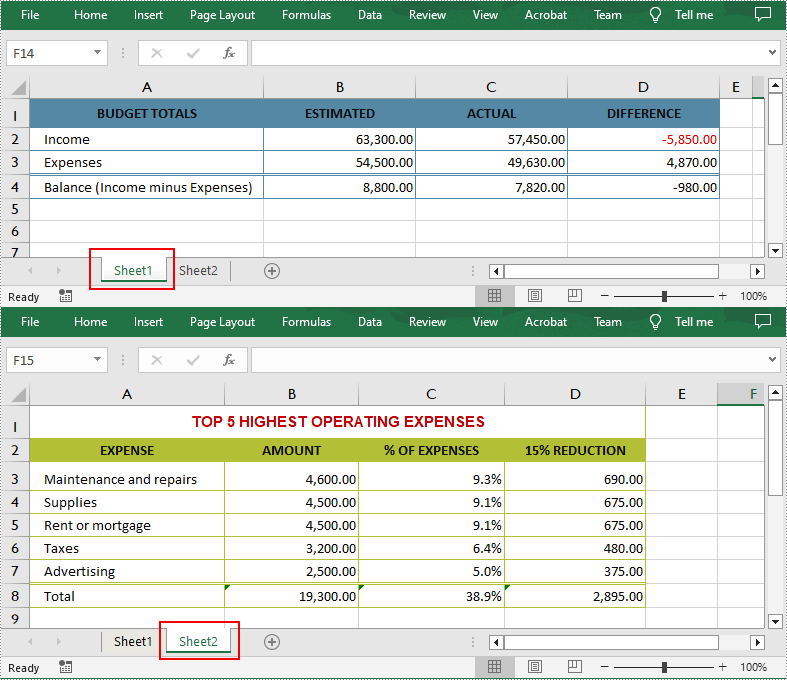
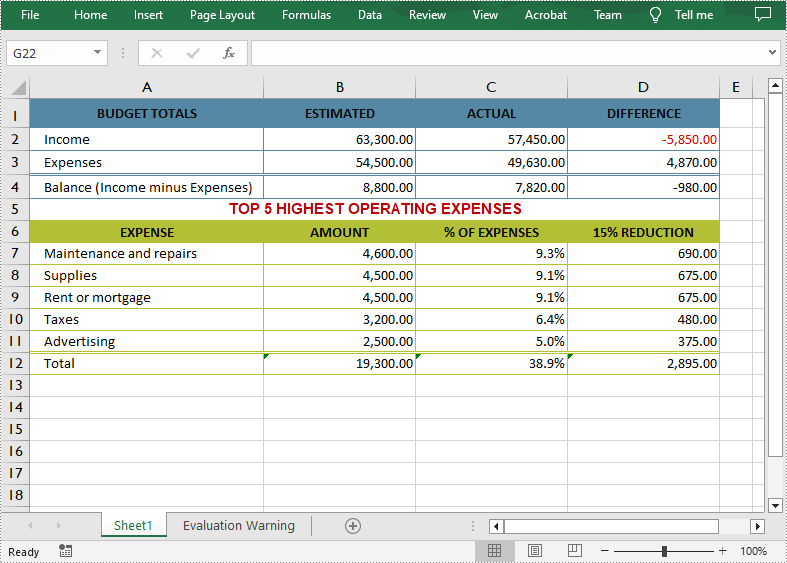
An Excel workbook can contain multiple worksheets, and there are times you may also need to merge these worksheets into a single worksheet. The following are the steps to merge multiple Excel worksheets in the same workbook into one worksheet.
- Initialize a Workbook object and load an Excel file using Workbook.loadFromFile() method.
- Get two worksheets that need to be merged using Workbook.getWorksheets().get(int Index) method. Note that the sheet index is zero-based.
- Get the used range of the second worksheet using Worksheet.getAllocatedRange() method.
- Specify the destination range in the first worksheet using Worksheet.getCellRange(int row, int column) method. Note that the row and column indexes are 1-based.
- Copy the used range of the second worksheet to the destination range in the first worksheet using CellRange.copy(CellRange destRange) method.
- Remove the second worksheet using Worksheet.remove() method.
- Save the result file using Workbook.saveToFile() method.
- Java
import com.spire.xls.*;

public class MergeExcelWorksheets {
    public static void main(String[] args){
        //Create a Workbook object
        Workbook workbook = new Workbook();

        //Load an Excel file
        workbook.loadFromFile("input.xlsx");

        //Get the first worksheet
        Worksheet sheet1 = workbook.getWorksheets().get(0);

        //Get the second worksheet
        Worksheet sheet2 = workbook.getWorksheets().get(1);

        //Get the used range in the second worksheet
        CellRange sourceRange = sheet2.getAllocatedRange();

        //Specify the destination range in the first worksheet
        CellRange destRange = sheet1.getCellRange(sheet1.getLastRow() + 1, 1);

        //Copy the used range of the second worksheet to the destination range in the first worksheet
        sourceRange.copy(destRange);

        //Remove the second worksheet
        sheet2.remove();

        //Save the result file
        workbook.saveToFile("MergeWorksheets.xlsx", ExcelVersion.Version2013);
    }
}
The input Excel worksheets:
The merged Excel worksheets:
Apply for a Temporary License
If you'd like to remove the evaluation message from the generated documents, or to get rid of the function limitations, please request a 30-day trial license for yourself.
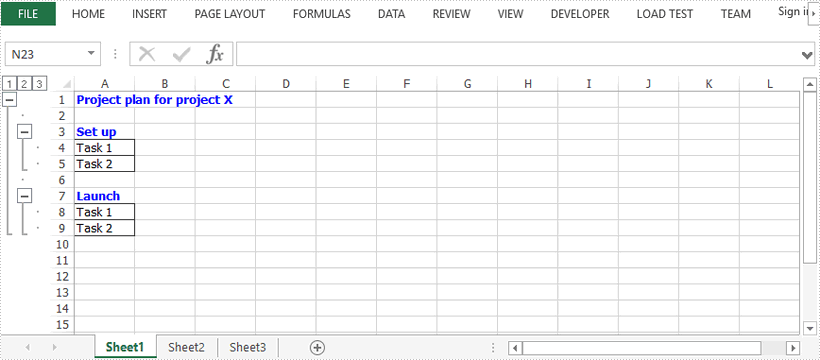
This article demonstrates how to create a nested group in a worksheet using Spire.XLS for Java.
import com.spire.xls.*;

import java.awt.*;

public class CreateNestedGroup {

    public static void main(String[] args) {

        //Create a Workbook object
        Workbook workbook = new Workbook();

        //Get the first worksheet
        Worksheet sheet = workbook.getWorksheets().get(0);

        //Create a cell style
        CellStyle style = workbook.getStyles().addStyle("style");
        style.getFont().setColor(Color.blue);
        style.getFont().isBold(true);

        //Write data to cells
        sheet.get("A1").setValue("Project plan for project X");
        sheet.get("A1").setCellStyleName(style.getName());
        sheet.get("A3").setValue("Set up");
        sheet.get("A3").setCellStyleName(style.getName());
        sheet.get("A4").setValue("Task 1");
        sheet.get("A5").setValue("Task 2");
        sheet.getCellRange("A4:A5").borderAround(LineStyleType.Thin);
        sheet.getCellRange("A4:A5").borderInside(LineStyleType.Thin);
        sheet.get("A7").setValue("Launch");
        sheet.get("A7").setCellStyleName(style.getName());
        sheet.get("A8").setValue("Task 1");
        sheet.get("A9").setValue("Task 2");
        sheet.getCellRange("A8:A9").borderAround(LineStyleType.Thin);
        sheet.getCellRange("A8:A9").borderInside(LineStyleType.Thin);

        //Pass false to isSummaryRowBelow method , which indicates the summary rows appear above detail rows
        sheet.getPageSetup().isSummaryRowBelow(false);

        //Group the rows using groupByRows method
        sheet.groupByRows(2,9,false);
        sheet.groupByRows(4,5,false);
        sheet.groupByRows(8,9,false);

        //Save to file
        workbook.saveToFile("NestedGroup.xlsx", ExcelVersion.Version2016);
    }
}
While sharing your spreadsheets with others, you may do not want the receiver to alter the content or may want them to change only specific content and leave the rest unchanged. To protect your worksheet from being edited by other people, Excel offers a protection feature. In this article, you will learn how to programmatically protect and unprotect a workbook or a worksheet in Java by using Spire.XLS for Java.
- Password Protect an Entire Workbook
- Protect a Worksheet with a Specific Protection Type
- Allow Users to Edit Ranges in a Protected Worksheet
- Lock Specific Cells in a Worksheet
- Unprotect a Password Protected Worksheet
- Remove or Reset Password of an Encrypted Workbook
Install Spire.XLS for Java
First of all, you're required to add the Spire.Xls.jar file as a dependency in your Java program. The JAR file can be downloaded from this link. If you use Maven, you can easily import the JAR file in your application by adding the following code to your project's pom.xml file.
<repositories>
    <repository>
        <id>com.e-iceblue</id>
        <name>e-iceblue</name>
        <url>https://repo.e-iceblue.com/nexus/content/groups/public/</url>
    </repository>
</repositories>
<dependencies>
    <dependency>
        <groupId>e-iceblue</groupId>
        <artifactId>spire.xls</artifactId>
        <version>16.10.1</version>
    </dependency>
</dependencies>
Password Protect an Entire Workbook in Java
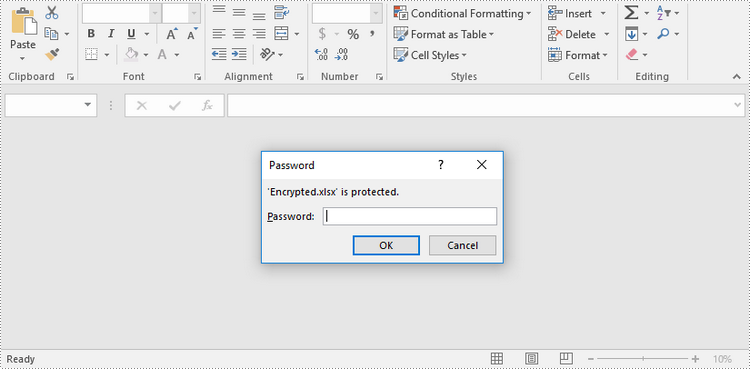
By encrypting an Excel document with a password, you ensure that only you and authorized individuals can read or edit it. The following are the steps to password protect a workbook using Spire.XLS for Java.
- Create a Workbook object.
- Load an Excel file using Workbook.loadFromFile() method.
- Protect the workbook using a password using Workbook.protect() method.
- Save the workbook to another Excel file using Workbook.saveToFile() method.
- Java
import com.spire.xls.ExcelVersion;
import com.spire.xls.Workbook;

public class PasswordProtectWorkbook {

    public static void main(String[] args) {

        //Create a Workbook object
        Workbook workbook = new Workbook();

        //Load an Excel file
        workbook.loadFromFile("C:\\Users\\Administrator\\Desktop\\sample.xlsx");

        //Protect workbook with a password
        workbook.protect("psd-123");

        //Save the workbook to another Excel file
        workbook.saveToFile("output/Encrypted.xlsx", ExcelVersion.Version2016);
    }
}
Protect a Worksheet with a Specific Protection Type in Java
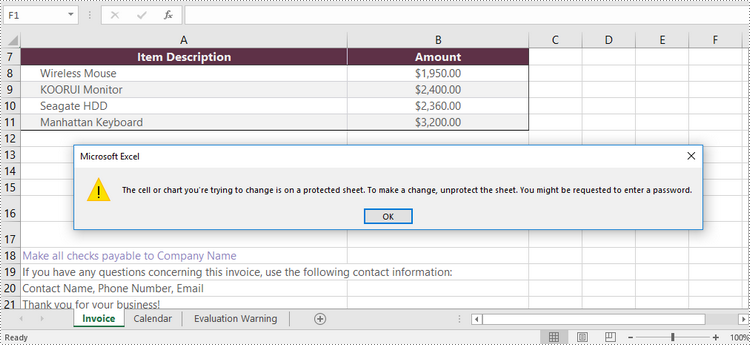
If you wish to grant people permission to read your Excel document but restrict the types of modifications they are allowed to make on a worksheet, you can protect the worksheet with a specific protection type. The table below lists a variety of pre-defined protection types under the SheetProtectionType enumeration.
| Protection Type | Allow users to |
| Content | Modify or insert content. |
| DeletingColumns | Delete columns. |
| DeletingRows | Delete rows. |
| Filtering | Set filters. |
| FormattingCells | Format cells. |
| FormattingColumns | Format columns. |
| FormattingRows | Format rows. |
| InsertingColumns | Insert columns. |
| InsertingRows | Insert rows. |
| InsertingHyperlinks | Insert hyperlinks . |
| LockedCells | Select locked cells. |
| UnlockedCells | Select unlocked cells. |
| Objects | Modify drawing objects. |
| Scenarios | Modify saved scenarios. |
| Sorting | Sort data. |
| UsingPivotTables | Use pivot table and pivot chart. |
| All | Do any operations listed above on the protected worksheet. |
| None | Do nothing on the protected worksheet. |
The following are the steps to protect a worksheet with a specific protection type using Spire.XLS for Java.
- Create a Workbook object.
- Load an Excel file using Workbook.loadFromFile() method.
- Get a specific worksheet using Workbook.getWorksheets().get(index) method.
- Protect the worksheet with a protection type using Worksheet.protect(String password, EnumSet.of <SheetProtectionType> options) method.
- Save the workbook to another Excel file using Workbook.saveToFile() method.
- Java
import com.spire.xls.ExcelVersion;
import com.spire.xls.SheetProtectionType;
import com.spire.xls.Workbook;
import com.spire.xls.Worksheet;

import java.util.EnumSet;

public class ProtectWorksheet {

    public static void main(String[] args) {

        //Create a Workbook object
        Workbook workbook = new Workbook();

        //Load an Excel file
        workbook.loadFromFile("C:\\Users\\Administrator\\Desktop\\sample.xlsx");

        //Get a specific worksheet
        Worksheet worksheet = workbook.getWorksheets().get(0);

        //Protect the worksheet with the permission password and the specific protect type
        worksheet.protect("psd-permission", EnumSet.of(SheetProtectionType.None));

        //Save the workbook to another Excel file
        workbook.saveToFile("output/ProtectWorksheet.xlsx", ExcelVersion.Version2016);
    }
}
Allow Users to Edit Ranges in a Protected Worksheet in Java
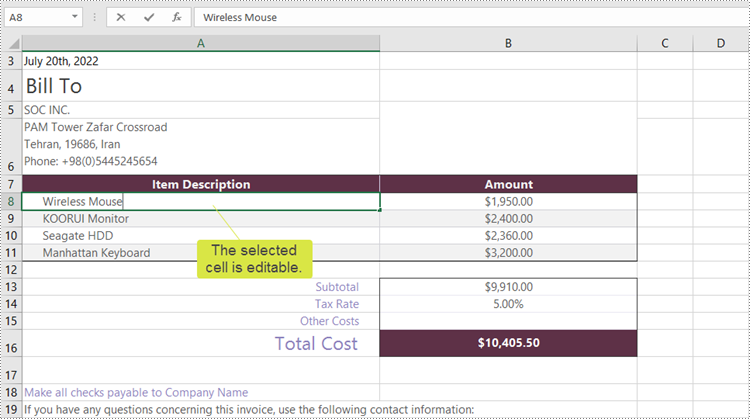
In certain cases, you may need to allow users to be able to edit selected ranges in a protected worksheet. The following steps demonstrate how to.
- Create a Workbook object.
- Load an Excel file using Workbook.loadFromFile() method.
- Get a specific worksheet using Workbook.getWorksheets().get(index) method.
- Specify editable cell ranges using Worksheet.addAllowEditRange() method.
- Protect the worksheet with a protection type using Worksheet.protect(String password, EnumSet.of <SheetProtectionType> options) method.
- Save the workbook to another Excel file using Workbook.saveToFile() method.
- Java
import com.spire.xls.ExcelVersion;
import com.spire.xls.SheetProtectionType;
import com.spire.xls.Workbook;
import com.spire.xls.Worksheet;

import java.util.EnumSet;

public class AllowEditRanges {

    public static void main(String[] args) {

        //Create a Workbook object
        Workbook workbook = new Workbook();

        //Load an Excel file
        workbook.loadFromFile("C:\\Users\\Administrator\\Desktop\\sample.xlsx");

        //Get the first worksheet
        Worksheet sheet = workbook.getWorksheets().get(0);

        //Add ranges that allow editing
        sheet.addAllowEditRange("Range One", sheet.getRange().get("A5:A6"));
        sheet.addAllowEditRange("Range Two", sheet.getRange().get("A8:B11"));

        //Protect the worksheet with a password and a protection type
        sheet.protect("psd-permission", EnumSet.of(SheetProtectionType.All));

        //Save the workbook to another Excel file
        workbook.saveToFile("output/AllowEditRange.xlsx", ExcelVersion.Version2016);
    }
}
Unprotect a Password Protected Worksheet in Java
To remove the protection of a password-protected worksheet, invoke the Worksheet.unprotect() method and pass in the original password as a parameter. The detailed steps are as follows.
- Create a Workbook object.
- Load an Excel file using Workbook.loadFromFile() method.
- Get a specific worksheet using Workbook.getWorksheets().get(index) method.
- Remove the protection using Worksheet.unprotect(String password) method.
- Save the workbook to another Excel file using Workbook.saveToFile() method.
- Java
import com.spire.xls.ExcelVersion;
import com.spire.xls.Workbook;
import com.spire.xls.Worksheet;

public class UnprotectWorksheet {

    public static void main(String[] args) {

        //Create a Workbook object
        Workbook workbook = new Workbook();

        //Load an Excel file containing protected worksheet
        workbook.loadFromFile("C:\\Users\\Administrator\\Desktop\\ProtectedWorksheet.xlsx");

        //Get the first worksheet
        Worksheet sheet = workbook.getWorksheets().get(0);

        //Unprotect the worksheet using the specified password
        sheet.unprotect("psd-permission");

        //Save the workbook to another Excel file
        workbook.saveToFile("output/UnprotectWorksheet.xlsx", ExcelVersion.Version2016);
    }
}
Remove or Reset Password of an Encrypted Workbook in Java
To remove or reset password of an encrypted workbook, you can use the Workbook.unprotect() method and the Workbook.protect() method, respectively. The following steps show you how to load an encrypted Excel document and delete or change the password of it.
- Create a Workbook object.
- Specify the open password using Workbook.setOpenPassword() method.
- Load the encrypted Excel file using Workbook.loadFromFile() method.
- Remove the encryption using Workbook.unprotect() method. Or change the password using Workbook.protect() method.
- Save the workbook to another Excel file using Workbook.saveToFile() method.
- Java
import com.spire.xls.ExcelVersion;
import com.spire.xls.Workbook;

public class RemoveOrResetPassword {

    public static void main(String[] args) {

        //Create a Workbook object
        Workbook workbook = new Workbook();

        //Specify the open password
        workbook.setOpenPassword("psd-123");

        //Load an encrypted Excel file
        workbook.loadFromFile("C:\\Users\\Administrator\\Desktop\\Encrypted.xlsx");

        //Unprotect workbook
        workbook.unProtect();

        //Reset password
        //workbook.protect("newpassword");

        //Save the workbook to another Excel file
        workbook.saveToFile("output/Unprotect.xlsx", ExcelVersion.Version2016);
    }
}
Apply for a Temporary License
If you'd like to remove the evaluation message from the generated documents, or to get rid of the function limitations, please request a 30-day trial license for yourself.
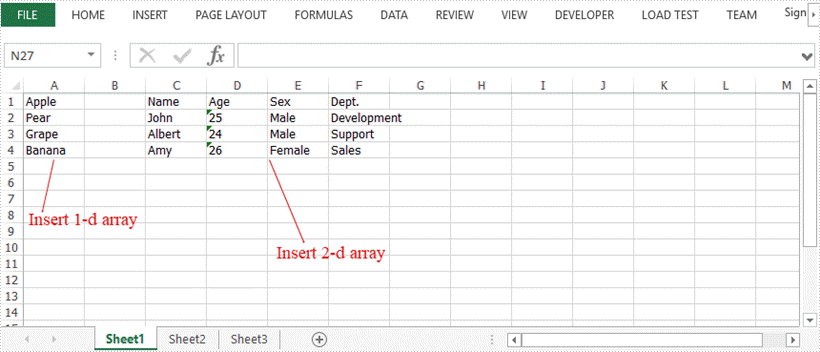
This article demonstrates how to insert arrays, including one-dimensional and two-dimensional arrays, into Excel cells using Spire.XLS for Java.
import com.spire.xls.ExcelVersion;
import com.spire.xls.Workbook;
import com.spire.xls.Worksheet;

public class InsertArray {

    public static void main(String[] args) {

        //Create a Workbook instance
        Workbook wb = new Workbook();

        //Get the first worksheet
        Worksheet sheet = wb.getWorksheets().get(0);

        //Define a one-dimensional array
        String[] oneDimensionalArray = new String[]{"Apple", "Pear", "Grape", "Banana"};

        // Write the array to the worksheet from the specified cell (true means vertically insert)
        sheet.insertArray(oneDimensionalArray, 1, 1, true);

        //Define a two-dimensional array
        String[][] twoDimensionalArray = new String[][]{
                {"Name", "Age", "Sex", "Dept."},
                {"John", "25", "Male", "Development"},
                {"Albert", "24", "Male", "Support"},
                {"Amy", "26", "Female", "Sales"}
        };

        //Write the array to the worksheet from the specified cell
        sheet.insertArray(twoDimensionalArray, 1, 3);

        //Save the file
        wb.saveToFile("InsertArrays.xlsx", ExcelVersion.Version2016);
    }
}
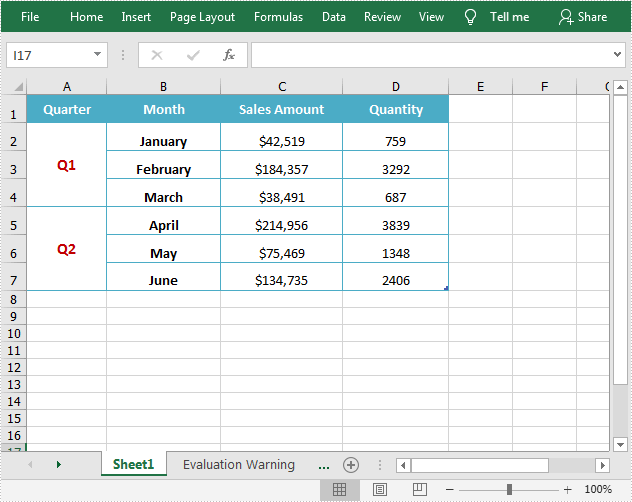
Merging cells in Excel refers to combining two or more adjacent cells into one large cell that spans multiple rows or columns. This is useful for creating titles or labels that need to be centered over a range of cell. In this article, you will learn how to programmatically merge or unmerge cells in an Excel document using Spire.XLS for Java.
Install Spire.XLS for Java
First, you're required to add the Spire.Xls.jar file as a dependency in your Java program. The JAR file can be downloaded from this link. If you use Maven, you can easily import the JAR file in your application by adding the following code to your project's pom.xml file.
<repositories>
    <repository>
        <id>com.e-iceblue</id>
        <name>e-iceblue</name>
        <url>https://repo.e-iceblue.com/nexus/content/groups/public/</url>
    </repository>
</repositories>
<dependencies>
    <dependency>
        <groupId>e-iceblue</groupId>
        <artifactId>spire.xls</artifactId>
        <version>16.10.1</version>
    </dependency>
</dependencies>
Merge Cells in Excel in Java
The detailed steps are as follows.
- Create a Workbook instance.
- Load a sample Excel document using Workbook.loadFromFile() method.
- Get a specified worksheet using Workbook.getWorksheets().get() method.
- Get a specified range using Worksheet.getRange().get() method.
- Merge cells in the specified range using XlsRange.merge() method.
- Set the horizontal alignment of merged cells to Center using XlsRange.getCellStyle().setHorizontalAlignment() method.
- Set the vertical alignment of merged cells to Center using XlsRange.getCellStyle().setVerticalAlignment() method.
- Save the result document using Workbook.saveToFile() method.
- Java
import com.spire.xls.*;

public class MergeCells {
    public static void main(String[] args){

        //Create a Workbook instance
        Workbook workbook = new Workbook();

        //Load a sample Excel document
        workbook.loadFromFile("input.xlsx");

        //Get the first worksheet
        Worksheet sheet = workbook.getWorksheets().get(0);

        //Merge cells by range
        sheet.getRange().get("A2:A4").merge();
        sheet.getRange().get("A5:A7").merge();

        //Set the horizontal alignment of merged cells to Center
        sheet.getRange().get("A2").getCellStyle().setHorizontalAlignment(HorizontalAlignType.Center);
        sheet.getRange().get("A5").getCellStyle().setHorizontalAlignment(HorizontalAlignType.Center);

        //Set the vertical alignment of merged cells to Center
        sheet.getRange().get("A2").getCellStyle().setVerticalAlignment(VerticalAlignType.Center);
        sheet.getRange().get("A5").getCellStyle().setVerticalAlignment(VerticalAlignType.Center);


        //Save the result document
        workbook.saveToFile("MergeCells.xlsx", FileFormat.Version2013);
    }
}
Unmerge Cells in Excel in Java
The detailed steps are as follows.
- Create a Workbook instance.
- Load a sample Excel document using Workbook.loadFromFile() method.
- Get a specified worksheet using Workbook.getWorksheets().get() method.
- Get a specified range using Worksheet.getRange().get() method.
- Unmerge cells in the specified range using XlsRange.unMerge() method.
- Save the result document using Workbook.saveToFile() method.
- Java
import com.spire.xls.FileFormat;
import com.spire.xls.Workbook;
import com.spire.xls.Worksheet;

public class UnmergeCells {
    public static void main(String[] args){

        //Create a Workbook instance
        Workbook workbook = new Workbook();

        //Load a sample Excel document
        workbook.loadFromFile("MergeCells.xlsx");

        //Get the first worksheet
        Worksheet sheet = workbook.getWorksheets().get(0);

        //Unmerge cells by range
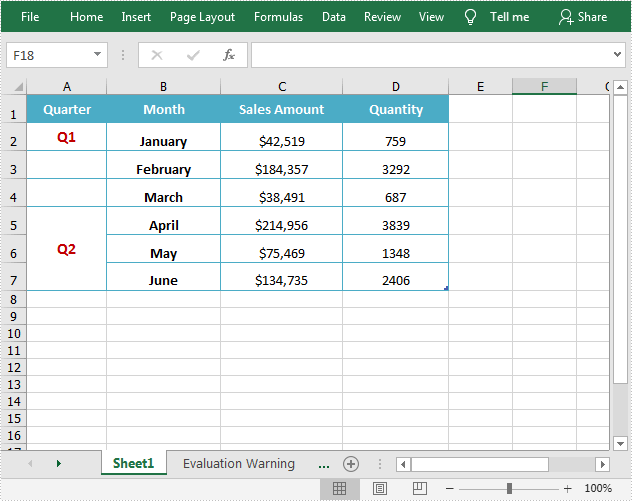
        sheet.getRange().get("A2:A4").unMerge();

        //Save the result document
        workbook.saveToFile("UnMergeCells.xlsx", FileFormat.Version2013);
    }
}
Apply for a Temporary License
If you'd like to remove the evaluation message from the generated documents, or to get rid of the function limitations, please request a 30-day trial license for yourself.
Check out this video for a quick overview of Excel to PDF conversion in Java before reading the detailed tutorial below.
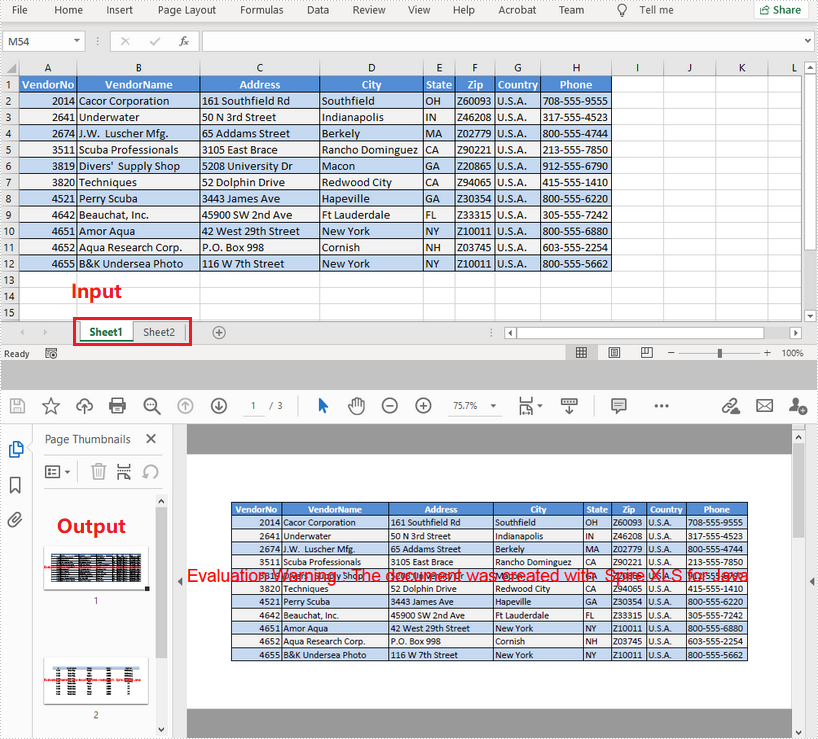
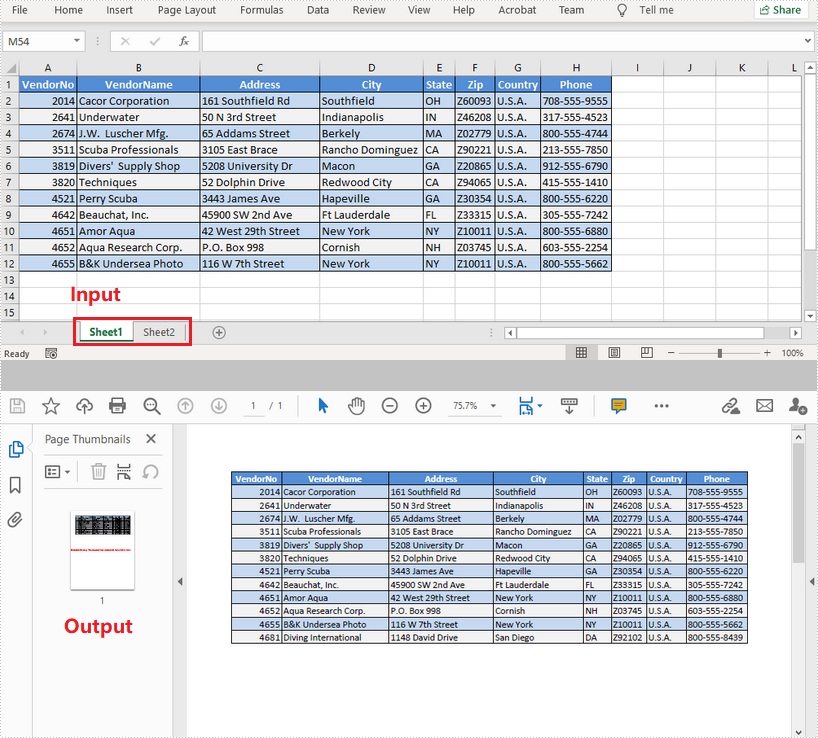
Using PDF as a format for sending documents ensures that no formatting changes will occur to the original document. Exporting Excel to PDF is a common practice in many cases. This article introduces how to convert a whole Excel document or a specific worksheet to PDF using Spire.XLS for Java.
Install Spire.XLS for Java
First of all, you're required to add the Spire.Xls.jar file as a dependency in your Java program. The JAR file can be downloaded from this link. If you use Maven, you can easily import the JAR file in your application by adding the following code to your project's pom.xml file.
<repositories>
    <repository>
        <id>com.e-iceblue</id>
        <name>e-iceblue</name>
        <url>https://repo.e-iceblue.com/nexus/content/groups/public/</url>
    </repository>
</repositories>
<dependencies>
    <dependency>
        <groupId>e-iceblue</groupId>
        <artifactId>spire.xls</artifactId>
        <version>16.10.1</version>
    </dependency>
</dependencies>
Convert a Whole Excel File to PDF
The following are the steps to convert a whole Excel document to PDF.
- Create a Workbook object.
- Load a sample Excel document using Workbook.loadFromFile() method.
- Set the Excel to PDF conversion options through the methods under the ConverterSetting object, which is returned by Workbook.getConverterSetting() method.
- Convert the whole Excel document to PDF using Workbook.saveToFile() method.
- Java
import com.spire.xls.FileFormat;
import com.spire.xls.Workbook;

public class ConvertExcelToPdf {

    public static void main(String[] args) {

        //Create a Workbook instance and load an Excel file
        Workbook workbook = new Workbook();
        workbook.loadFromFile("C:\\Users\\Administrator\\Desktop\\Sample.xlsx");

        //Set worksheets to fit to page when converting
        workbook.getConverterSetting().setSheetFitToPage(true);

        //Save the resulting document to a specified path
        workbook.saveToFile("output/ExcelToPdf.pdf", FileFormat.PDF);
    }
}
Convert a Specific Worksheet to PDF
The following are the steps to convert a specific worksheet to PDF.
- Create a Workbook object.
- Load a sample Excel document using Workbook.loadFromFile() method.
- Set the Excel to PDF conversion options through the methods under the ConverterSetting object, which is returned by Workbook.getConverterSetting() method.
- Get a specific worksheet using Workbook.getWorksheets().get() method.
- Convert the worksheet to PDF using Worksheet.saveToPdf() method.
- Java
import com.spire.xls.Workbook;
import com.spire.xls.Worksheet;

public class ConvertWorksheetToPdf {

    public static void main(String[] args) {

        //Create a Workbook instance and load an Excel file
        Workbook workbook = new Workbook();
        workbook.loadFromFile("C:\\Users\\Administrator\\Desktop\\Sample.xlsx");

        //Set worksheets to fit to width when converting
        workbook.getConverterSetting().setSheetFitToWidth(true);

        //Get the first worksheet
        Worksheet worksheet = workbook.getWorksheets().get(0);

        //Convert to PDF and save the resulting document to a specified path
        worksheet.saveToPdf("output/WorksheetToPdf.pdf");
    }
}
Apply for a Temporary License
If you'd like to remove the evaluation message from the generated documents, or to get rid of the function limitations, please request a 30-day trial license for yourself.
