
JavaScript (125)
Hide, Unhide, and Control the Conversion of Excel Worksheets with JavaScript in React
2026-08-18 06:41:57 Written by Lisa LiIn daily work, we often need to hide some worksheets to simplify the interface display or protect sensitive data, and we can unhide them when necessary. In addition, when converting a workbook to HTML, you may also need to control whether hidden worksheets appear in the conversion result. Spire.XLS for JavaScript performs these operations directly in the browser based on WebAssembly, managing input and output files through the virtual file system (VFS), without any backend service support.
This article covers three core feature points:
- Hide a Worksheet
- Show a Hidden Worksheet
- Control Whether to Include Hidden Worksheets When Converting to HTML
For installation and project configuration, please refer to How to Integrate Spire.XLS for JavaScript in a React Project. The following examples assume that Spire.XLS is installed and the WebAssembly module has been initialized.
Hide a Worksheet
Hiding a worksheet is often used to simplify the display of a workbook or protect internal data. With Spire.XLS for JavaScript, you can hide a specified worksheet by setting the Visibility property of the worksheet object to WorksheetVisibility.Hidden.
function App() {
  const hideSheet = async () => {
    // Get the Spire.XLS WASM module
    const xlsModule = window.wasmModule?.spirexls;

    // Check if the module is ready
    if (!xlsModule) {
      alert('Spire.Xls is not ready yet');
      return;
    }

    // Load the font and Excel file into VFS
    await window.spire.FetchFileToVFS('ARIAL.TTF', '/Library/Fonts/', `${process.env.PUBLIC_URL}/font/`);
    const inputFileName = 'HideOrShowWorksheet.xlsx';
    await window.spire.FetchFileToVFS(inputFileName, '', `${process.env.PUBLIC_URL}data/`);

    // Load the workbook
    const workbook = new xlsModule.Workbook();
    workbook.LoadFromFile({ fileName: inputFileName });

    // Get the worksheet named "Sheet1" and hide it
    let sheet1 = workbook.Worksheets.get("Sheet1");
    sheet1.Visibility = xlsModule.WorksheetVisibility.Hidden;

    // Save the workbook
    const outputFileName = "HideWorksheet_output.xlsx";
    workbook.SaveToFile({ fileName: outputFileName });

    // Dispose of the workbook object to release resources
    workbook.Dispose();

    // Read the converted file from VFS and trigger the download
    const fileArray = window.dotnetRuntime.Module.FS.readFile(outputFileName);
    const blob = new Blob([fileArray], { type: "application/vnd.openxmlformats-officedocument.spreadsheetml.sheet" });
    const url = URL.createObjectURL(blob);
    const a = document.createElement('a');
    a.href = url;
    a.download = outputFileName;
    a.click();
    URL.revokeObjectURL(url);
  };

  return (
    <div style={{ textAlign: 'center', height: '300px' }}>
      <h1>Hide Worksheet</h1>
      <button onClick={hideSheet}>
        Start
      </button>
    </div>
  );
}

export default App;
Original document (Sheet2 is already hidden) 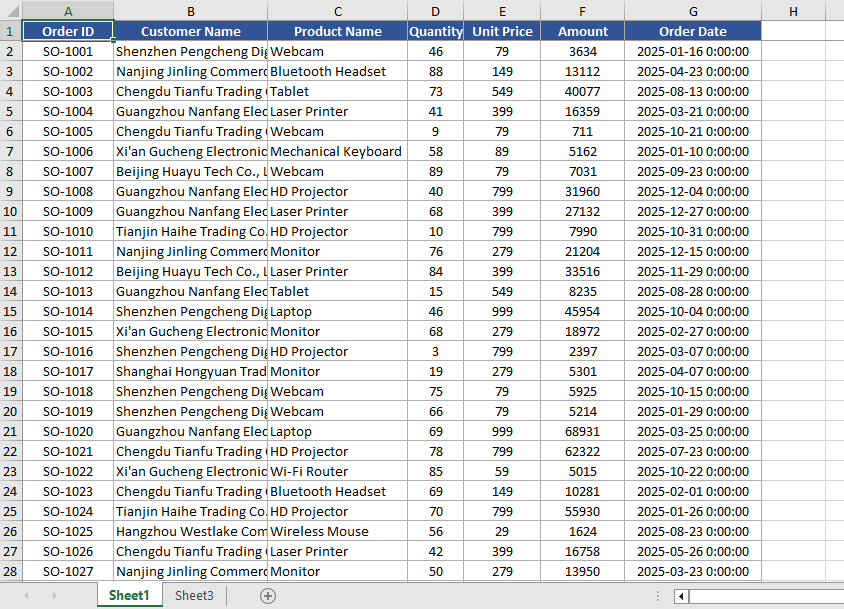 Hide Sheet1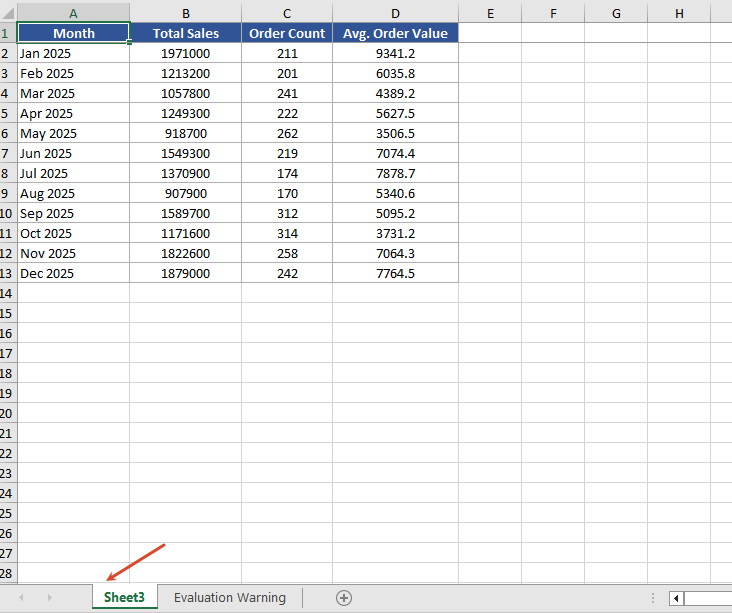
Show a Hidden Worksheet
When you need to view or edit a hidden worksheet again, you can show it again by setting the Visibility property to WorksheetVisibility.Visible.
function App() {
  const showSheet = async () => {
    // Get the Spire.XLS WASM module
    const xlsModule = window.wasmModule?.spirexls;

    // Check if the module is ready
    if (!xlsModule) {
      alert('Spire.Xls is not ready yet');
      return;
    }

    // Load the font and Excel file into VFS
    await window.spire.FetchFileToVFS('ARIAL.TTF', '/Library/Fonts/', `${process.env.PUBLIC_URL}/font/`);
    const inputFileName = 'HideOrShowWorksheet.xlsx';
    await window.spire.FetchFileToVFS(inputFileName, '', `${process.env.PUBLIC_URL}data/`);

    // Load the workbook
    const workbook = new xlsModule.Workbook();
    workbook.LoadFromFile({ fileName: inputFileName });

    // Get the second worksheet and set it as visible
    let sheet2 = workbook.Worksheets.get(1);
    sheet2.Visibility = xlsModule.WorksheetVisibility.Visible;

    // Save the workbook
    const outputFileName = "ShowWorksheet_output.xlsx";
    workbook.SaveToFile({ fileName: outputFileName });

    // Dispose of the workbook object to release resources
    workbook.Dispose();

    // Read the converted file from VFS and trigger the download
    const fileArray = window.dotnetRuntime.Module.FS.readFile(outputFileName);
    const blob = new Blob([fileArray], { type: "application/vnd.openxmlformats-officedocument.spreadsheetml.sheet" });
    const url = URL.createObjectURL(blob);
    const a = document.createElement('a');
    a.href = url;
    a.download = outputFileName;
    a.click();
    URL.revokeObjectURL(url);
  };

  return (
    <div style={{ textAlign: 'center', height: '300px' }}>
      <h1>Show Worksheet</h1>
      <button onClick={showSheet}>
        Start
      </button>
    </div>
  );
}

export default App;
Unhide Sheet2 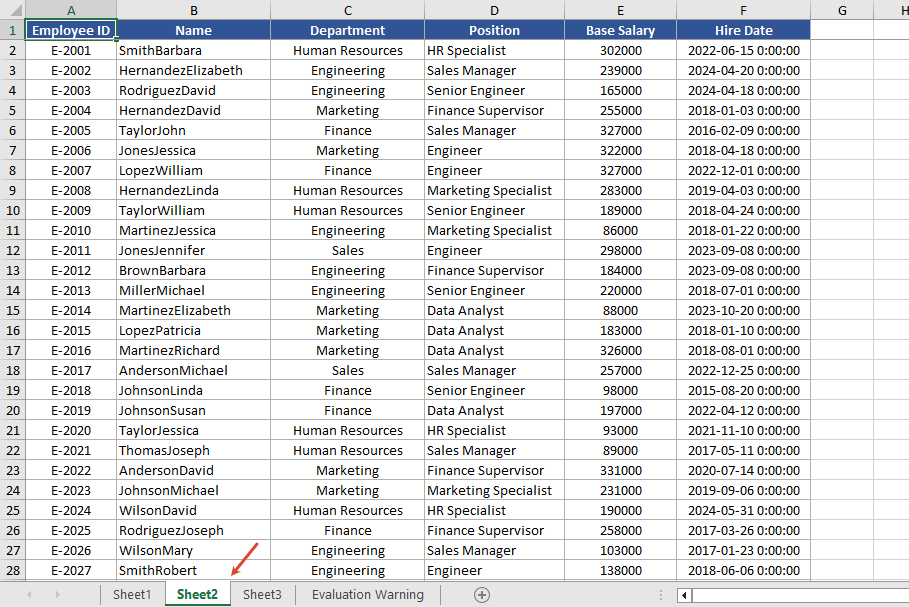
Control Whether to Include Hidden Worksheets When Converting to HTML
When converting to HTML, you can use the skipHideSheet parameter of the SaveToHtml method to control whether hidden worksheets are included in the conversion result. When set to false, the generated HTML includes hidden worksheets; when set to true, hidden worksheets are skipped and only visible worksheets remain in the HTML.
function App() {
  const saveToHtml = async () => {
    // Get the Spire.XLS WASM module
    const xlsModule = window.wasmModule?.spirexls;

    // Check if the module is ready
    if (!xlsModule) {
      alert('Spire.Xls is not ready yet');
      return;
    }

    // Load the font and Excel file into VFS
    await window.spire.FetchFileToVFS('ARIAL.TTF', '/Library/Fonts/', `${process.env.PUBLIC_URL}/font/`);
    const inputFileName = 'HideOrShowWorksheet.xlsx';
    await window.spire.FetchFileToVFS(inputFileName, '', `${process.env.PUBLIC_URL}data/`);

    // Load the workbook
    const workbook = new xlsModule.Workbook();
    workbook.LoadFromFile({ fileName: inputFileName });

    // Hide the worksheet named "Sheet1"
    let sheet1 = workbook.Worksheets.get("Sheet1");
    sheet1.Visibility = xlsModule.WorksheetVisibility.Hidden;

    // Set the output HTML file name
    const result = "result.html";

    // false --- Save HTML with hidden worksheets
    // true --- Save HTML without hidden worksheets
    workbook.SaveToHtml({
      fileName: result,
      skipHideSheet: false
    });

    // Dispose of the workbook object to release resources
    workbook.Dispose();

    // Read the converted file from VFS and trigger the download
    const fileArray = window.dotnetRuntime.Module.FS.readFile(result);
    const blob = new Blob([fileArray], { type: 'text/html' });
    const url = URL.createObjectURL(blob);
    const a = document.createElement('a');
    a.href = url;
    a.download = result;
    a.click();
    URL.revokeObjectURL(url);
  };

  return (
    <div style={{ textAlign: 'center', height: '300px' }}>
      <h1>Convert Workbook to HTML</h1>
      <button onClick={saveToHtml}>
        Start
      </button>
    </div>
  );
}

export default App;
After conversion 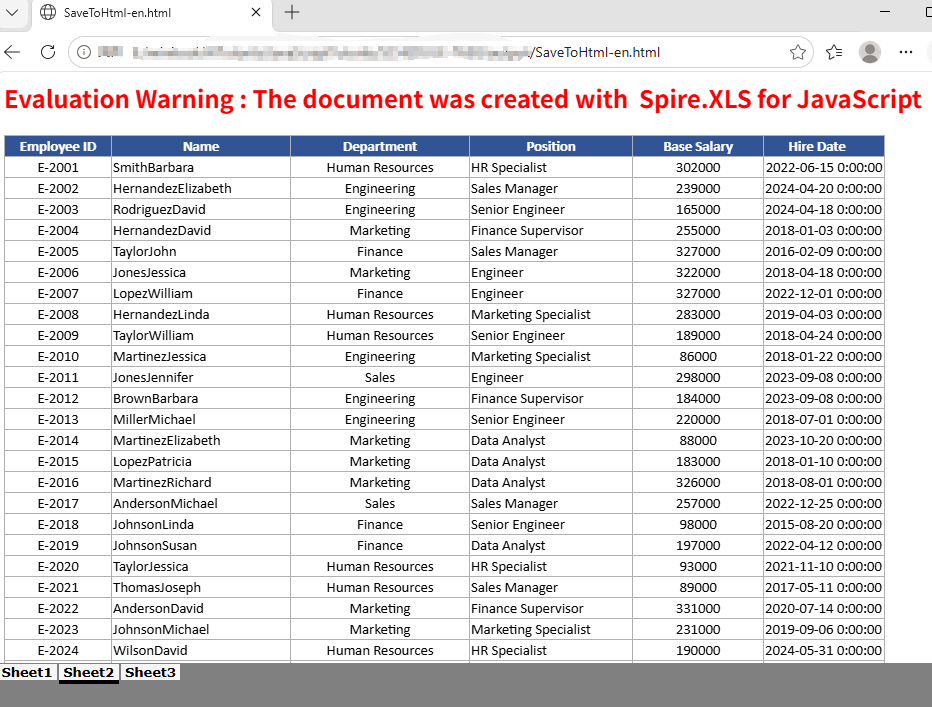
FAQ
The HTML conversion result contains extra worksheets
Cause: The original Excel document has multiple hidden worksheets. When the skipHideSheet parameter of SaveToHtml is set to false, all hidden worksheets appear in the conversion result.
Solution: You can use the following code to iterate through and check the hidden state of all sheets in the Excel file.
    const sheetCount = workbook.Worksheets.Count;
    for (let i = 0; i < sheetCount; i++) {
        let sheet = workbook.Worksheets.get(i);
        const visibility = sheet.Visibility;
    }
Get a Free License
If you want to remove the evaluation message in the generated documents or get rid of functional limitations, please contact us to get a temporary license valid for 30 days.
Combining PDF files is a common requirement in document management applications. For example, a React application may need to assemble invoices, reports, contracts, or scanned pages into a single PDF before the file is archived or shared. When the source documents do not need to be uploaded to a server, performing the operation in the browser can also simplify the workflow.
In this tutorial, you will learn how to merge PDF documents in a React application using Spire.PDF for JavaScript. The first example combines several complete PDF files in one operation. The second example provides more precise control by taking selected pages from different PDFs and adding them to a new document.
On this page:
- Install Spire.PDF for JavaScript in a React Project
- Merge Multiple PDF Documents in React
- Merge Selected Pages from Different PDF Documents in React
- Important Implementation Notes
- Conclusion
Install Spire.PDF for JavaScript in a React Project
Open a terminal in the root directory of your React project and install the spire.office package:
npm i spire.office
After the installation is complete, copy the following runtime files and folder from the installed package to the React project's public folder:
public/
├── _framework/
├── spire.pdf.js
├── Spire.Pdf.Wasm.zip
├── spire.common.js
└── Spire.Common.Wasm.zip
The JavaScript loader, WebAssembly resources, and supporting framework files must remain accessible as static assets when the application runs. For detailed setup instructions and the exact integration process, see How to Integrate Spire.PDF for JavaScript in a React Project.
For the examples in this article, also place the input PDF files in the public folder so that the application can retrieve them with fetch():
public/
├── input_1.pdf
├── input_2.pdf
├── input_3.pdf
└── ...
Merge Multiple PDF Documents in React
If every page in every source file should appear in the result, the most direct approach is to use the PdfMerger.Merge() method. It accepts an array of input file paths, merges the files in the order in which they appear in the array, and writes the result to the WebAssembly virtual file system.
The following React component merges input_1.pdf, input_2.pdf, and input_3.pdf into a single document named MergedPdf.pdf:
import React, { useState, useEffect } from 'react';

function App() {
  const [wasmModule, setWasmModule] = useState(null);
  const [isGenerating, setIsGenerating] = useState(false);
  const [errorMessage, setErrorMessage] = useState('');

  useEffect(() => {
    (async () => {
      try {
        const publicUrl = process.env.PUBLIC_URL || '';
        const spireModule = await import(/* webpackIgnore: true */ `${publicUrl}/spire.pdf.js`);
        const rawModule = spireModule.default || spireModule;
        window.wasmModule = typeof rawModule === 'function'
          ? await rawModule({ locateFile: p => p.endsWith('.wasm') ? `${publicUrl}/${p}` : p })
          : rawModule;
        setWasmModule(window.wasmModule);
      } catch (error) {
        console.error('Failed to load spire.pdf.js:', error);
      }
    })();
  }, []);

  const loadPdfToVfs = async (fileName) => {
    const publicUrl = process.env.PUBLIC_URL || '';
    const response = await fetch(`${publicUrl}/${fileName}`);

    if (!response.ok) {
      throw new Error(`Failed to load ${fileName}: ${response.status} ${response.statusText}`);
    }

    const fileBytes = new Uint8Array(await response.arrayBuffer());
    const pdfHeader = String.fromCharCode(...fileBytes.slice(0, 4));

    if (pdfHeader !== '%PDF') {
      throw new Error(`${fileName} was loaded, but it is not a valid PDF file.`);
    }

    window.dotnetRuntime.Module.FS.writeFile(fileName, fileBytes, { flags: 'w+' });
    return fileName;
  };

  const MergePdfs = async () => {
    const wasmModule = window.wasmModule?.spirepdf;
    if (!wasmModule || isGenerating) {
      return;
    }

    setIsGenerating(true);
    setErrorMessage('');

    try {
      const inputFiles = await Promise.all([
        loadPdfToVfs('input_1.pdf'),
        loadPdfToVfs('input_2.pdf'),
        loadPdfToVfs('input_3.pdf'),
      ]);

      const outputFileName = 'MergedPdf.pdf';
      const mergeOp = new wasmModule.MergerOptions();
      wasmModule.PdfMerger.Merge({
        inputFiles,
        outputFile: outputFileName,
        pdfMergeOptions: mergeOp
      });

      const modifiedFileArray = window.dotnetRuntime.Module.FS.readFile(outputFileName);
      const modifiedFile = new Blob([modifiedFileArray], { type: 'application/pdf' });
      const url = URL.createObjectURL(modifiedFile);
      const a = document.createElement('a');

      a.href = url;
      a.download = outputFileName;
      document.body.appendChild(a);
      a.click();
      document.body.removeChild(a);
      URL.revokeObjectURL(url);
    } catch (error) {
      console.error('Failed to merge PDFs:', error);
      setErrorMessage(error.message || 'Failed to merge PDFs.');
    } finally {
      setIsGenerating(false);
    }
  };

  return (
    <div style={{ textAlign: 'center', height: '300px' }}>
      <h1>Merge PDF Documents in React</h1>
      <button onClick={MergePdfs} disabled={!wasmModule || isGenerating}>
        {isGenerating ? 'Generating...' : 'Generate'}
      </button>
      {errorMessage && <p style={{ color: 'crimson' }}>{errorMessage}</p>}
    </div>
  );
}

export default App;
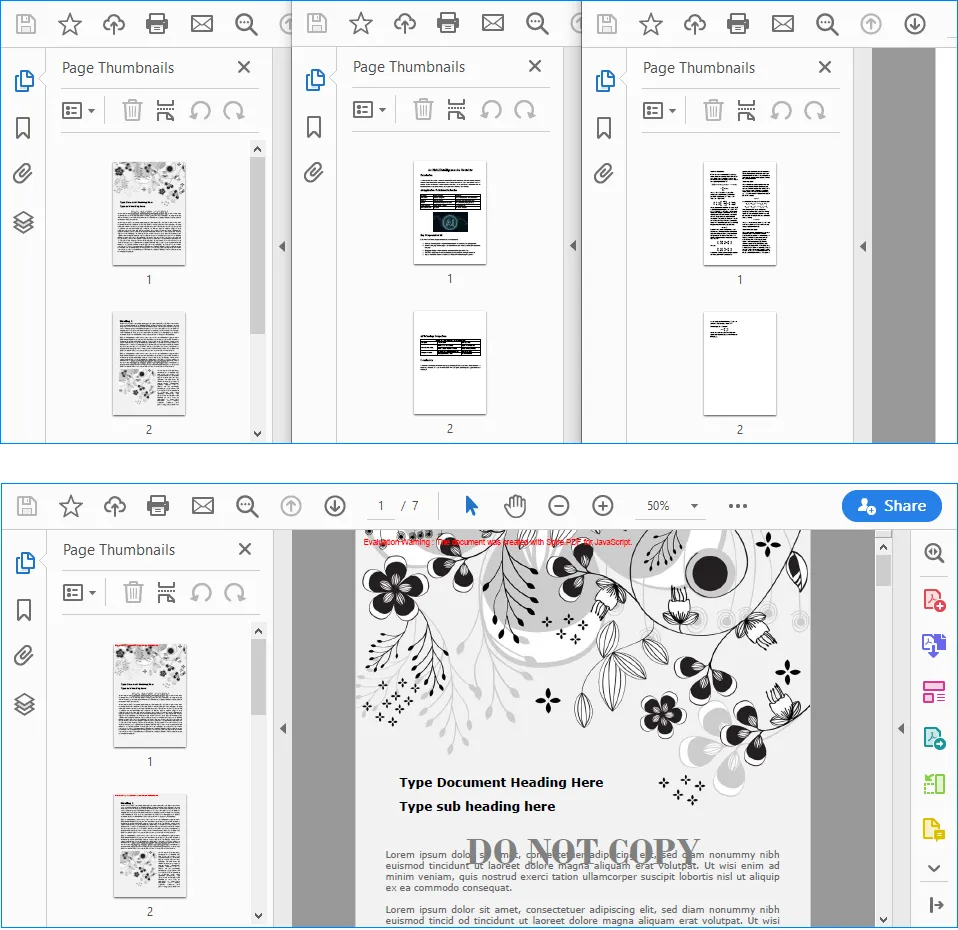
Output:
How the Code Works
The component first loads spire.pdf.js inside useEffect(). Because the module is initialized asynchronously, the Generate button remains disabled until the runtime is ready.
The loadPdfToVfs() function then performs three tasks for each source document:
- It retrieves the PDF from the
publicdirectory withfetch(). - It checks the first four bytes for the
%PDFsignature to help catch missing files or non-PDF responses. - It writes the file bytes to the WebAssembly virtual file system, where Spire.PDF can access them.
After all three files have been loaded, PdfMerger.Merge() combines them in the order specified by inputFiles. The output is read from the virtual file system, converted to a PDF Blob, and downloaded through a temporary object URL.
To change the merge order, simply rearrange the entries in the array. For example, the following order would place input_3.pdf first:
const inputFiles = await Promise.all([
  loadPdfToVfs('input_3.pdf'),
  loadPdfToVfs('input_1.pdf'),
  loadPdfToVfs('input_2.pdf'),
]);
Merge Selected Pages from Different PDF Documents in React
Merging complete documents is not always necessary. You may instead need to create a new PDF from a cover page in one file and a page range in another file. In this situation, load the source files as PdfDocument objects and use InsertPage() and InsertPageRange() to construct the output document.
The following example takes the first page from input_1.pdf, appends every page from input_2.pdf, and saves the selected content as MergedPdf.pdf:
import React, { useState, useEffect } from 'react';

function App() {
  const [wasmModule, setWasmModule] = useState(null);
  const [isGenerating, setIsGenerating] = useState(false);
  const [errorMessage, setErrorMessage] = useState('');

  useEffect(() => {
    (async () => {
      try {
        const publicUrl = process.env.PUBLIC_URL || '';
        const spireModule = await import(/* webpackIgnore: true */ `${publicUrl}/spire.pdf.js`);
        const rawModule = spireModule.default || spireModule;
        window.wasmModule = typeof rawModule === 'function'
          ? await rawModule({ locateFile: p => p.endsWith('.wasm') ? `${publicUrl}/${p}` : p })
          : rawModule;
        setWasmModule(window.wasmModule);
      } catch (error) {
        console.error('Failed to load spire.pdf.js:', error);
      }
    })();
  }, []);

  const loadPdfToVfs = async (fileName) => {
    const publicUrl = process.env.PUBLIC_URL || '';
    const response = await fetch(`${publicUrl}/${fileName}`);

    if (!response.ok) {
      throw new Error(`Failed to load ${fileName}: ${response.status} ${response.statusText}`);
    }

    const fileBytes = new Uint8Array(await response.arrayBuffer());
    const pdfHeader = String.fromCharCode(...fileBytes.slice(0, 4));

    if (pdfHeader !== '%PDF') {
      throw new Error(`${fileName} was loaded, but it is not a valid PDF file.`);
    }

    window.dotnetRuntime.Module.FS.writeFile(fileName, fileBytes, { flags: 'w+' });
    return fileName;
  };

  const MergePdfs = async () => {
    const wasmModule = window.wasmModule?.spirepdf;
    if (!wasmModule || isGenerating) {
      return;
    }

    setIsGenerating(true);
    setErrorMessage('');

    try {
      const [firstInputFile, secondInputFile] = await Promise.all([
        loadPdfToVfs('input_1.pdf'),
        loadPdfToVfs('input_2.pdf'),
      ]);

      const outputFileName = 'MergedPdf.pdf';
      const firstDocument = new wasmModule.PdfDocument();
      const secondDocument = new wasmModule.PdfDocument();
      const mergedDocument = new wasmModule.PdfDocument();

      firstDocument.LoadFromFile({ fileName: firstInputFile });
      secondDocument.LoadFromFile({ fileName: secondInputFile });

      if (firstDocument.Pages.Count < 1) {
        throw new Error('The first PDF does not contain any pages.');
      }

      if (secondDocument.Pages.Count < 1) {
        throw new Error('The second PDF does not contain any pages.');
      }

      mergedDocument.InsertPage({ ldDoc: firstDocument, pageIndex: 0 });
      mergedDocument.InsertPageRange(secondDocument, 0, secondDocument.Pages.Count - 1);
      mergedDocument.SaveToFile({ fileName: outputFileName });

      const modifiedFileArray = window.dotnetRuntime.Module.FS.readFile(outputFileName);
      const modifiedFile = new Blob([modifiedFileArray], { type: 'application/pdf' });
      const url = URL.createObjectURL(modifiedFile);
      const a = document.createElement('a');

      a.href = url;
      a.download = outputFileName;
      document.body.appendChild(a);
      a.click();
      document.body.removeChild(a);
      URL.revokeObjectURL(url);
    } catch (error) {
      console.error('Failed to merge PDFs:', error);
      setErrorMessage(error.message || 'Failed to merge PDFs.');
    } finally {
      setIsGenerating(false);
    }
  };

  return (
    <div style={{ textAlign: 'center', height: '300px' }}>
      <h1>Merge PDF Documents in React</h1>
      <button onClick={MergePdfs} disabled={!wasmModule || isGenerating}>
        {isGenerating ? 'Generating...' : 'Generate'}
      </button>
      {errorMessage && <p style={{ color: 'crimson' }}>{errorMessage}</p>}
    </div>
  );
}

export default App;
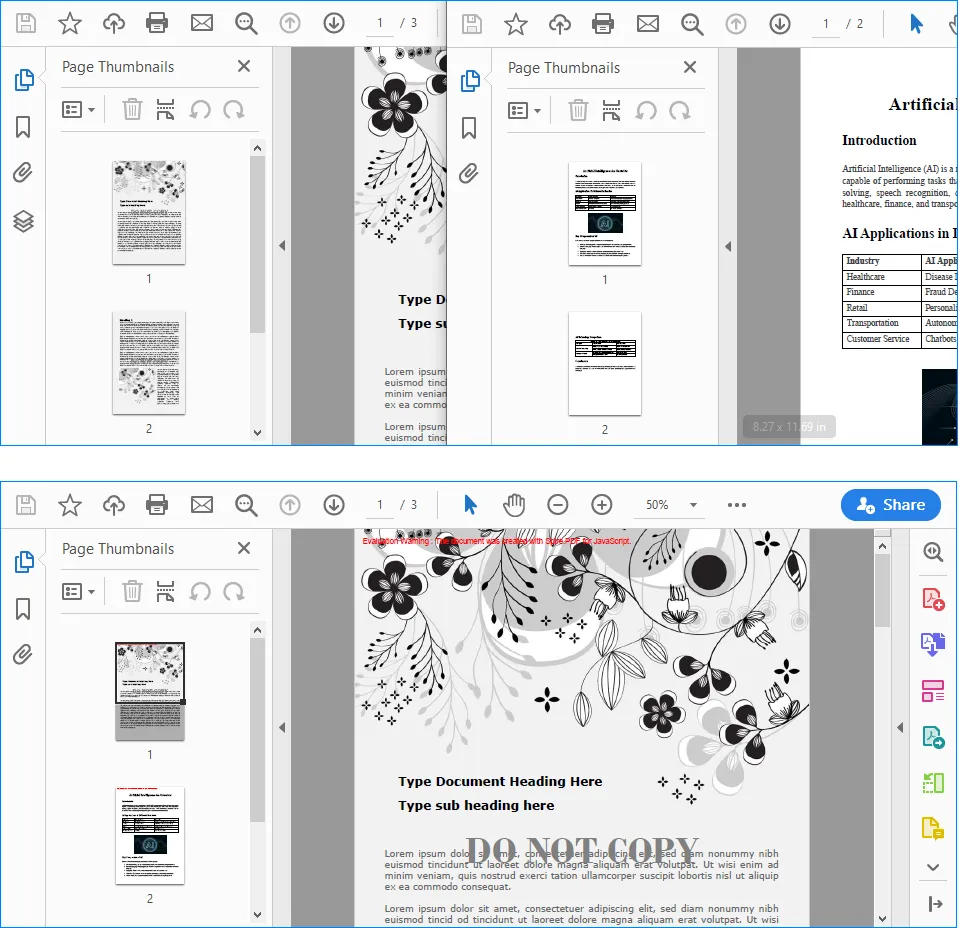
Output:
Understanding the Page Selection Logic
The three PdfDocument instances have different roles:
firstDocumentrepresentsinput_1.pdf.secondDocumentrepresentsinput_2.pdf.mergedDocumentis the new PDF that receives the selected pages.
PDF page indexes are zero-based in this example. Therefore, pageIndex: 0 refers to the first page:
mergedDocument.InsertPage({ ldDoc: firstDocument, pageIndex: 0 });
The following statement inserts a continuous range from secondDocument. Its start index is 0, while its end index is secondDocument.Pages.Count - 1, so the complete document is appended:
mergedDocument.InsertPageRange(
  secondDocument,
  0,
  secondDocument.Pages.Count - 1
);
You can change these indexes to merge only the pages required by your application. For instance, this statement inserts pages 2 through 5 from secondDocument because their zero-based indexes are 1 through 4:
mergedDocument.InsertPageRange(secondDocument, 1, 4);
Before using fixed page indexes, make sure the source document contains enough pages. The sample already checks for empty PDFs, but a production application should also validate user-supplied start and end indexes against Pages.Count.
Important Implementation Notes
Keep Runtime and Input Paths Correct
Files stored in the React public directory are requested by URL at runtime. The code uses process.env.PUBLIC_URL so it can construct paths correctly when the application is deployed under a non-root public path. A missing or incorrect file path may return an HTML error page instead of a PDF, which is why the sample verifies the %PDF header before writing the data to the virtual file system.
Wait for WebAssembly Initialization
Spire.PDF cannot process a document until its runtime has finished loading. The wasmModule state controls the button's disabled status, while isGenerating prevents the same operation from being started repeatedly before the current merge has finished.
Validate Page Ranges
When pages are chosen dynamically, check that the start and end indexes are non-negative, that the start index does not exceed the end index, and that both values fall within the source document's page count. This avoids invalid range errors and makes it easier to show a useful message in the React interface.
Release the Download URL
URL.createObjectURL() creates a temporary URL for the generated Blob. Calling URL.revokeObjectURL(url) after the download starts releases that URL and prevents it from remaining in browser memory longer than necessary.
Conclusion
Spire.PDF for JavaScript enables React applications to combine PDF content through a WebAssembly-based workflow. When all pages are required, PdfMerger.Merge() provides a concise way to merge several complete documents in a defined order. When the output must contain only specific content, PdfDocument, InsertPage(), and InsertPageRange() provide page-level control over the result.
With the runtime files configured in the public directory, these techniques can be integrated into document portals, reporting tools, contract workflows, and other React applications that need to assemble PDFs directly in the browser.
Convert Excel to ODS or ODS to Excel with JavaScript in React
2026-08-18 02:51:43 Written by jie zouIn daily office work, data often needs to be exchanged between Excel spreadsheets and OpenDocument spreadsheets (ODS). ODS is an open-standard spreadsheet format widely used in open-source office software such as LibreOffice and OpenOffice. Spire.XLS for JavaScript runs entirely in the browser via WebAssembly, using a virtual file system (VFS) to manage input and output files — no backend server is required. It provides simple, easy-to-use APIs that make format conversion more convenient.
With Spire.XLS for JavaScript, you can save an Excel workbook as ODS format to work seamlessly with open-source office software, or import an ODS file to create a fully formatted Excel workbook. This makes data migration between different applications more convenient and efficient.
This article covers two core features:
For installation and project setup, refer to Integrating Spire.XLS for JavaScript in a React Project. The examples below assume Spire.XLS is installed and the WebAssembly module is initialized.
Convert Excel Workbook to ODS File
Exporting Excel data as ODS format makes it easy to open and edit directly in open-source office software such as LibreOffice and OpenOffice. With Spire.XLS for JavaScript, you can save an entire workbook as an ODS file, preserving table structure, styles, and data while enabling cross-platform data sharing. The steps are as follows:
- Create a
Workbookobject and load an existing Excel file. - Call the workbook's
SaveToFile()method, specifying the output filename and theFileFormat.ODSfile format. - Dispose of the workbook resources, read the result file from VFS, and trigger the download.
Below is a complete code example demonstrating how to convert Excel to ODS in React:
function App() {
  const convertToODS = async () => {
    // Get the Spire.XLS WASM module
    const xlsModule = window.wasmModule?.spirexls;

    // Check if the module is ready
    if (!xlsModule) {
      alert('Spire.Xls is not ready yet');
      return;
    }

    // Load the font file to ensure proper text rendering
    await window.spire.FetchFileToVFS('ARIAL.TTF', '/Library/Fonts/', `${process.env.PUBLIC_URL}font/`);

    // Load the sample Excel file into VFS
    await window.spire.FetchFileToVFS('Sample.xlsx', '', `${process.env.PUBLIC_URL}data/`);

    // Create a workbook object and load the Excel file
    const workbook = new xlsModule.Workbook();
    workbook.LoadFromFile({ fileName: 'Sample.xlsx' });

    // Save the workbook as an ODS file
    const outputFileName = 'ExcelToODS.ods';
    workbook.SaveToFile({ fileName: outputFileName, fileFormat: xlsModule.FileFormat.ODS });
    workbook.Dispose();

    // Read the file from VFS and trigger download
    const fileArray = window.dotnetRuntime.Module.FS.readFile(outputFileName);
    const blob = new Blob([fileArray], { type: 'application/vnd.oasis.opendocument.spreadsheet' });
    const url = URL.createObjectURL(blob);
    const a = document.createElement('a');
    a.href = url;
    a.download = outputFileName;
    a.click();
    URL.revokeObjectURL(url);
  };

  return (
    <div style={{ textAlign: 'center', height: '300px' }}>
      <h1>Convert Excel to ODS</h1>
      <button onClick={convertToODS}>
        Generate
      </button>
    </div>
  );
}

export default App;
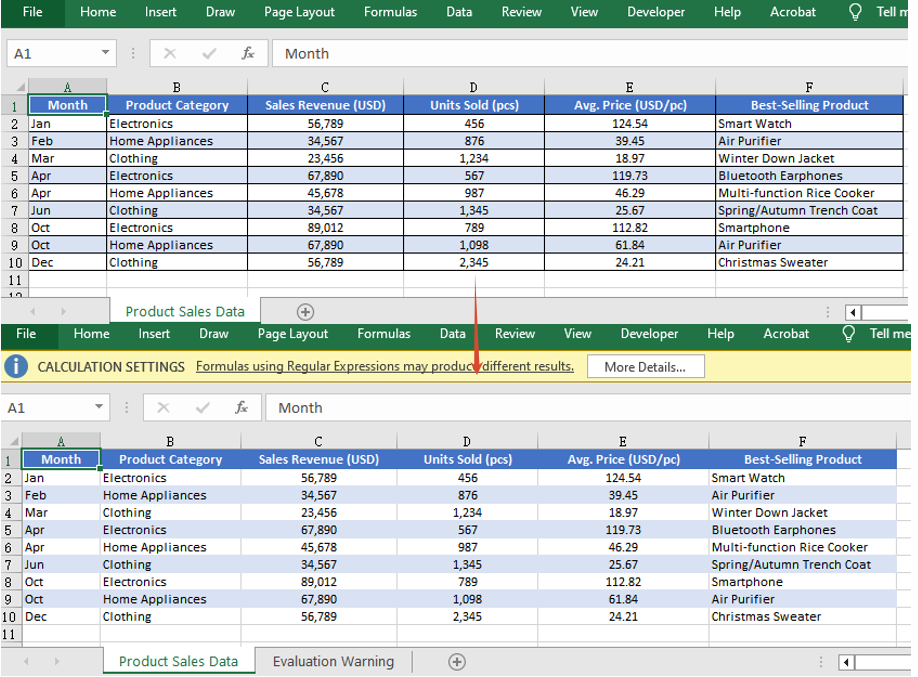
Excel converted to ODS with Spire.XLS for JavaScript
Convert ODS File to Excel Workbook
Importing an ODS file into an Excel spreadsheet allows you to take full advantage of Excel's powerful formatting, calculation, and charting capabilities. Spire.XLS for JavaScript supports loading an ODS file directly via the LoadFromFile() method, which automatically detects its file format, and then you can save the workbook as an Excel file. The steps are as follows:
- Load the font file and ODS sample file into the VFS.
- Create a
Workbookobject and load the ODS file via theLoadFromFile()method. - Save the workbook as an Excel file and trigger the download.
Below is a complete code example demonstrating how to convert ODS to Excel in React:
function App() {
  const convertToExcel = async () => {
    // Get the Spire.XLS WASM module
    const xlsModule = window.wasmModule?.spirexls;

    // Check if the module is ready
    if (!xlsModule) {
      alert('Spire.Xls is not ready yet');
      return;
    }

    // Load the font file to ensure proper text rendering
    await window.spire.FetchFileToVFS('ARIAL.TTF', '/Library/Fonts/', `${process.env.PUBLIC_URL}font/`);

    // Load the ODS sample file into VFS
    await window.spire.FetchFileToVFS('Sample.ods', '', `${process.env.PUBLIC_URL}data/`);

    // Create a workbook object and load the ODS file
    const workbook = new xlsModule.Workbook();
    workbook.LoadFromFile({ fileName: 'Sample.ods' });

    // Save the workbook and release resources
    const outputFileName = 'ODSToExcel.xlsx';
    workbook.SaveToFile({ fileName: outputFileName, version: xlsModule.ExcelVersion.Version2010 });
    workbook.Dispose();

    // Read the file from VFS and trigger download
    const fileArray = window.dotnetRuntime.Module.FS.readFile(outputFileName);
    const blob = new Blob([fileArray], { type: 'application/vnd.openxmlformats-officedocument.spreadsheetml.sheet' });
    const url = URL.createObjectURL(blob);
    const a = document.createElement('a');
    a.href = url;
    a.download = outputFileName;
    a.click();
    URL.revokeObjectURL(url);
  };

  return (
    <div style={{ textAlign: 'center', height: '300px' }}>
      <h1>Convert ODS to Excel</h1>
      <button onClick={convertToExcel}>
        Generate
      </button>
    </div>
  );
}

export default App;
ODS converted to Excel with Spire.XLS for JavaScript

FAQ
Why can't the generated ODS file be opened properly?
Cause: When saving the workbook with the SaveToFile() method, if the correct output file format is not specified via the fileFormat parameter, the generated file format may not match the extension, causing it to fail to open.
Solution: Specify the specific file format enum value xlsModule.FileFormat.ODS when saving as ODS:
const outputFileName = 'ExcelToODS.ods';
workbook.SaveToFile({ fileName: outputFileName, fileFormat: xlsModule.FileFormat.ODS });
How to handle the downloaded ODS file being opened as another type or unrecognized?
Cause: The MIME type is not set correctly when creating the Blob, so the browser cannot recognize the downloaded file as an ODS document, which may cause it to open as another type or display garbled text.
Solution: Specify the correct MIME type when downloading and make sure the download filename ends with .ods:
const blob = new Blob([fileArray], { type: 'application/vnd.oasis.opendocument.spreadsheet' });
const a = document.createElement('a');
a.href = URL.createObjectURL(blob);
a.download = 'ExcelToODS.ods';
a.click();
Get a Free License
Spire.XLS for JavaScript offers a 30-day full-featured free trial license with no functional limitations. Apply here to evaluate before purchasing.
Create and Save Excel Files through Streams with JavaScript in React
2026-08-14 08:13:24 Written by jie zouOperating Excel files as streams in web applications allows developers to dynamically create, load, modify, and save Excel files, enabling flexible and efficient data processing. Spire.XLS for JavaScript runs entirely in the browser via WebAssembly, using a virtual file system (VFS) to manage input and output files — no backend server is required. It provides a simple, easy-to-use Stream API that makes creating and saving Excel files through streams more convenient.
Working with streams greatly reduces direct disk I/O operations, improving application performance and responsiveness, especially in scenarios that involve real-time data processing or limited storage. With Spire.XLS for JavaScript, you can dynamically create an Excel file and save it to a stream, load and read workbook data from a stream, or modify content in a stream and save it as a new Excel file — all directly in the browser, simplifying data exchange and system integration.
This article covers three core features:
- Dynamically Create an Excel File and Save It to a Stream
- Load and Read an Excel File from a Stream
- Modify and Save an Excel File in a Stream
For installation and project setup, refer to Integrating Spire.XLS for JavaScript in a React Project. The examples below assume Spire.XLS is installed and the WebAssembly module is initialized.
Dynamically Create an Excel File and Save It to a Stream
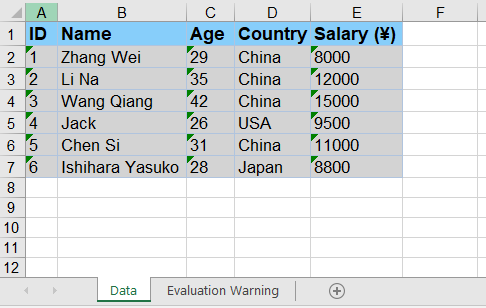
With Spire.XLS for JavaScript, you can dynamically create an Excel file in the browser, fill it with data and formatting, and then save the workbook to a file stream via the SaveToStream() method. This approach eliminates the need to store files directly on disk while improving application performance and responsiveness. The steps are as follows:
- Create a
Workbookinstance to generate a new Excel workbook, clear the default worksheets, and add a new worksheet. - Access a specific worksheet using the
Worksheets.get()method. - Define the data to write to the worksheet, for example, organizing data with a two-dimensional array.
- Use the
Range.get_Item()method to access cells and set their values one by one. - Format the worksheet cells, such as setting colors, fonts, borders, or adjusting column widths.
- Create a
Streamobject and save the workbook to the file stream using theSaveToStream()method. The saved stream can be used for further processing, such as downloading as a file or transferring over the network.
Below is a complete code example demonstrating how to dynamically create an Excel file and save it to a stream in React:
function App() {
  const createAndSaveToStream = async () => {
    // Get the Spire.XLS WASM module
    const xlsModule = window.wasmModule?.spirexls;

    // Check if the module is ready
    if (!xlsModule) {
      alert('Spire.Xls is not ready yet');
      return;
    }

    // Load the font file to ensure proper text rendering
    await window.spire.FetchFileToVFS('ARIAL.TTF', '/Library/Fonts/', `${process.env.PUBLIC_URL}font/`);

    // Create a new workbook instance
    const workbook = new xlsModule.Workbook();

    // Clear the default worksheets and add a new worksheet
    workbook.Worksheets.Clear();
    const sheet = workbook.Worksheets.Add('Data');

    // Define the sample data to write to the worksheet (two-dimensional array)
    const headers = ['ID', 'Name', 'Age', 'Country', 'Salary (¥)'];
    const data = [
      [1, 'Zhang Wei', 29, 'China', 8000],
      [2, 'Li Na', 35, 'China', 12000],
      [3, 'Wang Qiang', 42, 'China', 15000],
      [4, 'Jack', 26, 'USA', 9500],
      [5, 'Chen Si', 31, 'China', 11000],
      [6, 'Ishihara Yasuko', 28, 'Japan', 8800]
    ];

    // Write the headers to the first row
    for (let col = 0; col < headers.length; col++) {
      sheet.Range.get_Item({ row: 1, column: col + 1 }).Text = headers[col];
    }

    // Write the data to the following rows
    for (let row = 0; row < data.length; row++) {
      for (let col = 0; col < data[row].length; col++) {
        sheet.Range.get_Item({ row: row + 2, column: col + 1 }).Text = String(data[row][col]);
      }
    }

    // Format the header row
    sheet.Range.get('A1:E1').Style.Color = xlsModule.Color.get_LightSkyBlue();
    sheet.Range.get('A1:E1').Style.Font.FontName = 'Arial';
    sheet.Range.get('A1:E1').Style.Font.Size = 12;
    sheet.Range.get('A1:E1').Style.Font.IsBold = true;

    // Format the data rows
    for (let i = 2; i <= data.length + 1; i++) {
      const dataRange = sheet.Range.get({
        row: i, column: 1,
        lastRow: i, lastColumn: headers.length
      });
      dataRange.Style.Color = xlsModule.Color.get_LightGray();
      dataRange.Style.Font.FontName = 'Arial';
      dataRange.Style.Font.Size = 11;
    }

    // Add borders to the header and all data cells
    const usedRange = sheet.Range.get({
      row: 1, column: 1,
      lastRow: data.length + 1,
      lastColumn: headers.length
    });
    usedRange.Borders.LineStyle = xlsModule.LineStyleType.Thin;
    usedRange.Borders.Color = xlsModule.Color.get_LightSteelBlue();

    // Adjust column widths to fit the content
    for (let col = 1; col <= headers.length; col++) {
      sheet.AutoFitColumn(col);
    }

    // Create a stream and save the workbook to it
    const outputFileName = 'CreateExcelToStream.xlsx';
    const fileStream = new xlsModule.Stream(outputFileName);
    workbook.SaveToStream(fileStream, xlsModule.FileFormat.Version2010);

    // Dispose of the workbook object to release resources
    workbook.Dispose();

    // Read the file from VFS and trigger download
    const fileArray = window.dotnetRuntime.Module.FS.readFile(outputFileName);
    const blob = new Blob([fileArray], { type: 'application/vnd.openxmlformats-officedocument.spreadsheetml.sheet' });
    const url = URL.createObjectURL(blob);
    const a = document.createElement('a');
    a.href = url;
    a.download = outputFileName;
    a.click();
    URL.revokeObjectURL(url);
  };

  return (
    <div style={{ textAlign: 'center', height: '300px' }}>
      <h1>Create Excel and Save to Stream</h1>
      <button onClick={createAndSaveToStream}>
        Generate
      </button>
    </div>
  );
}

export default App;
Excel file dynamically created and saved to a stream with Spire.XLS for JavaScript
Load and Read an Excel File from a Stream
With Spire.XLS for JavaScript, you can load an Excel file directly from a stream using the LoadFromStream() method. Once loaded, the cell data of the Excel file in the stream can be easily read, enabling fast and flexible data processing without file I/O operations. The steps are as follows:
- Create a
Streamobject pointing to the Excel file to be loaded. - Create a
Workbookobject and load the file from the stream using theLoadFromStream()method. - Get the first worksheet using the
Worksheets.get()method. - Iterate through the rows and columns of the worksheet and extract cell data using the
Range.get()method. - Display the extracted data on the page, or use it for other operations.
Below is a complete code example demonstrating how to load and read an Excel file from a stream in React:
import React, { useState } from 'react';

function App() {
  const [extractedData, setExtractedData] = useState('');

  const loadAndReadFromStream = async () => {
    // Get the Spire.XLS WASM module
    const xlsModule = window.wasmModule?.spirexls;

    // Check if the module is ready
    if (!xlsModule) {
      alert('Spire.Xls is not ready yet');
      return;
    }

    // Load the font file to ensure proper text rendering
    await window.spire.FetchFileToVFS('ARIAL.TTF', '/Library/Fonts/', `${process.env.PUBLIC_URL}font/`);

    // Load the sample Excel file into VFS
    await window.spire.FetchFileToVFS('Sample.xlsx', '', `${process.env.PUBLIC_URL}data/`);

    // Create a workbook object and load the Excel file from a stream
    const workbook = new xlsModule.Workbook();
    const fileStream = new xlsModule.Stream('Sample.xlsx');
    workbook.LoadFromStream(fileStream, xlsModule.FileFormat.Auto);

    // Get the first worksheet of the workbook
    const sheet = workbook.Worksheets.get(0);

    // Iterate through the rows and columns to extract cell data
    const data = [];
    for (let row = sheet.FirstRow; row <= sheet.LastRow; row++) {
      const line = [];
      for (let col = sheet.FirstColumn; col <= sheet.LastColumn; col++) {
        line.push(sheet.Range.get({ row: row, column: col }).Text);
      }
      data.push(line.join(' | '));
    }

    // Dispose of the workbook object to release resources
    workbook.Dispose();

    // Display the extracted data on the page
    setExtractedData(data.join('\n'));
  };

  return (
    <div style={{ textAlign: 'center', height: '300px' }}>
      <h1>Load and Read Excel Data from Stream</h1>
      <button onClick={loadAndReadFromStream}>
        Read
      </button>
      <pre style={{ marginTop: '20px', textAlign: 'left' }}>{extractedData}</pre>
    </div>
  );
}

export default App;
Excel file loaded and read from a stream with Spire.XLS for JavaScript
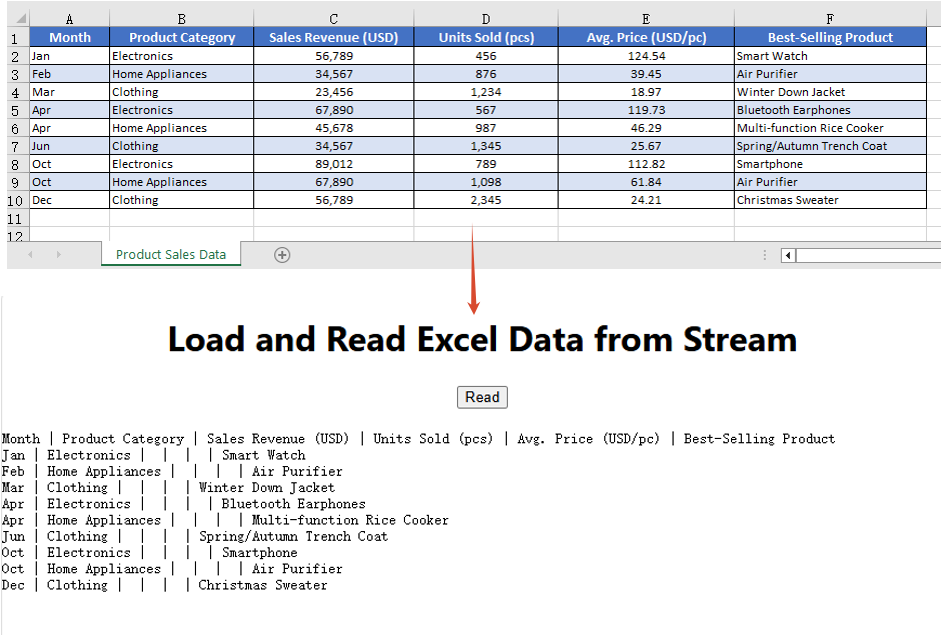
Modify and Save an Excel File in a Stream
With Spire.XLS for JavaScript, you can modify an Excel file in memory. First load the Excel file in the stream into a Workbook object via the LoadFromStream() method; after completing modifications such as changing cell styles or content, save the file back to a stream using the SaveToStream() method. This enables real-time changes to Excel file data without relying on direct file storage operations. The steps are as follows:
- Create a
Streamobject pointing to the Excel file and load the file from the stream via theLoadFromStream()method. - Access the worksheet using the
Worksheets.get()method. - Modify the styles of the header row and data rows (font name, size, background color, etc.) through the
CellRange.Styleproperty. - Use the
AutoFitColumn()method to automatically adjust column widths to fit the content. - Set the border style of the cells.
- Create a new
Streamobject, save the modified workbook to the stream using theSaveToStream()method, read the result file from VFS, and trigger the download.
Below is a complete code example demonstrating how to modify and save an Excel file in a stream in React:
function App() {
  const modifyAndSaveInStream = async () => {
    // Get the Spire.XLS WASM module
    const xlsModule = window.wasmModule?.spirexls;

    // Check if the module is ready
    if (!xlsModule) {
      alert('Spire.Xls is not ready yet');
      return;
    }

    // Load the font file to ensure proper text rendering
    await window.spire.FetchFileToVFS('ARIAL.TTF', '/Library/Fonts/', `${process.env.PUBLIC_URL}font/`);

    // Load the sample Excel file into VFS
    await window.spire.FetchFileToVFS('Sample.xlsx', '', `${process.env.PUBLIC_URL}data/`);

    // Create a workbook object and load the Excel file from a stream
    const workbook = new xlsModule.Workbook();
    const fileStream = new xlsModule.Stream('Sample.xlsx');
    workbook.LoadFromStream(fileStream, xlsModule.FileFormat.Auto);

    // Get the first worksheet of the workbook
    const sheet = workbook.Worksheets.get(0);

    // Modify the style of the header row
    const headerRow = sheet.Range.get({
      row: sheet.FirstRow, column: sheet.FirstColumn,
      lastRow: sheet.FirstRow, lastColumn: sheet.LastColumn
    });
    headerRow.Style.Font.FontName = 'Arial';
    headerRow.Style.Font.Size = 12;
    headerRow.Style.Font.IsBold = true;
    headerRow.Style.Color = xlsModule.Color.get_LightSkyBlue();

    // Modify the styles of the data rows, with alternating colors (even rows)
    for (let i = sheet.FirstRow + 1; i <= sheet.LastRow; i++) {
      const dataRow = sheet.Range.get({
        row: i, column: sheet.FirstColumn,
        lastRow: i, lastColumn: sheet.LastColumn
      });
      dataRow.Style.Font.FontName = 'Arial';
      dataRow.Style.Font.Size = 10;
      dataRow.Style.Color = xlsModule.Color.get_LightGray();
      if (i % 2 === 0) {
        dataRow.Style.Color = xlsModule.Color.get_DarkGray();
      }
    }

    // Adjust column widths to fit the content
    for (let col = sheet.FirstColumn; col <= sheet.LastColumn; col++) {
      sheet.AutoFitColumn(col);
    }

    // Set the border color
    sheet.AllocatedRange.Borders.Color = xlsModule.Color.get_White();

    // Save the modified workbook to a new stream
    const outputFileName = 'ModifyExcelInStream.xlsx';
    const outStream = new xlsModule.Stream(outputFileName);
    workbook.SaveToStream(outStream, xlsModule.FileFormat.Version2010);

    // Dispose of the workbook object to release resources
    workbook.Dispose();

    // Read the file from VFS and trigger download
    const fileArray = window.dotnetRuntime.Module.FS.readFile(outputFileName);
    const blob = new Blob([fileArray], { type: 'application/vnd.openxmlformats-officedocument.spreadsheetml.sheet' });
    const url = URL.createObjectURL(blob);
    const a = document.createElement('a');
    a.href = url;
    a.download = outputFileName;
    a.click();
    URL.revokeObjectURL(url);
  };

  return (
    <div style={{ textAlign: 'center', height: '300px' }}>
      <h1>Modify and Save Excel in Stream</h1>
      <button onClick={modifyAndSaveInStream}>
        Generate
      </button>
    </div>
  );
}

export default App;
Excel file modified and saved in a stream with Spire.XLS for JavaScript
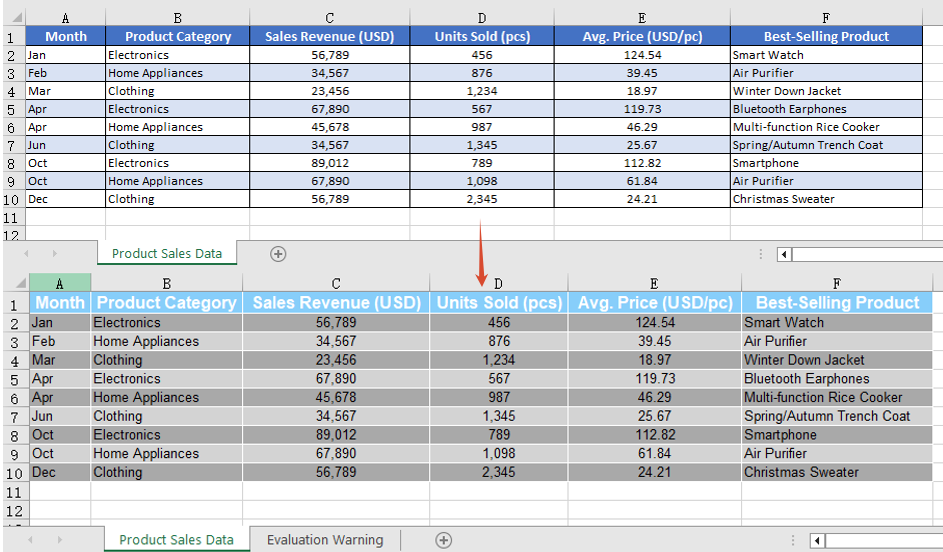
FAQ
How to handle the stream-saved file being unable to open in Excel?
Cause: When saving a workbook via the SaveToStream() method, if the correct output file format is not specified through the FileFormat parameter, the generated file format may not match its extension, causing it to fail to open properly.
Solution: Specify a concrete file format enum value when saving to a stream, such as xlsModule.FileFormat.Version2010:
const fileStream = new xlsModule.Stream(outputFileName);
workbook.SaveToStream(fileStream, xlsModule.FileFormat.Version2010);
How to ensure the workbook loaded from a stream correctly recognizes the file format?
Cause: The LoadFromStream() method needs to identify the file type based on the actual format of the stream data. If the format parameter is set incorrectly, loading may fail or data parsing may produce errors.
Solution: Use xlsModule.FileFormat.Auto when loading so that the library automatically detects the format of the file in the stream:
const fileStream = new xlsModule.Stream('Sample.xlsx');
workbook.LoadFromStream(fileStream, xlsModule.FileFormat.Auto);
Get a Free License
Spire.XLS for JavaScript offers a 30-day full-featured free trial license with no functional limitations. Apply here to evaluate before purchasing.
Convert Excel to Markdown or Markdown to Excel with JavaScript in React
2026-08-14 08:08:14 Written by jie zouIn daily office work, data often needs to be exchanged between Excel spreadsheets and Markdown files. Markdown is a lightweight markup language widely used for documentation, blogs, and technical notes. Spire.XLS for JavaScript runs entirely in the browser via WebAssembly, using a virtual file system (VFS) to manage input and output files — no backend server is required. It provides simple, easy-to-use APIs that make format conversion more convenient.
With Spire.XLS for JavaScript, you can export Excel worksheet data as well-structured, easy-to-read Markdown tables, or import Markdown files containing table syntax to create fully formatted Excel workbooks. This makes data migration between different applications more convenient and efficient.
This article covers two core features:
For installation and project setup, refer to Integrating Spire.XLS for JavaScript in a React Project. The examples below assume Spire.XLS is installed and the WebAssembly module is initialized.
Convert Excel Workbook to Markdown File
Exporting Excel data as a Markdown table makes it convenient to read and share spreadsheet data directly in documents, blogs, or version control systems. With Spire.XLS for JavaScript, you can save an entire workbook as a Markdown file, and the resulting table is well-structured and easy to maintain. The steps are as follows:
- Create a
Workbookobject and load an existing Excel file. - Call the workbook's
SaveToFile()method, specifying the output filename and theFileFormat.Markdownfile format. - Dispose of the workbook resources, read the result file from VFS, and trigger the download.
Below is a complete code example demonstrating how to convert Excel to Markdown in React:
function App() {
  const convertToMarkdown = async () => {
    // Get the Spire.XLS WASM module
    const xlsModule = window.wasmModule?.spirexls;

    // Check if the module is ready
    if (!xlsModule) {
      alert('Spire.Xls is not ready yet');
      return;
    }

    // Load the sample Excel file into VFS
    await window.spire.FetchFileToVFS('Sample.xlsx', '', `${process.env.PUBLIC_URL}data/`);

    // Load the font file to ensure proper text rendering
    await window.spire.FetchFileToVFS('ARIAL.TTF', '/Library/Fonts/', `${process.env.PUBLIC_URL}font/`);

    // Create a workbook object and load the Excel file
    const workbook = new xlsModule.Workbook();
    workbook.LoadFromFile({ fileName: 'Sample.xlsx' });

    // Save the workbook as a Markdown file
    const outputFileName = 'ExcelToMarkdown.md';
    workbook.SaveToFile({ fileName: outputFileName, fileFormat: xlsModule.FileFormat.Markdown });
    workbook.Dispose();

    // Read the file from VFS and trigger download
    const fileArray = window.dotnetRuntime.Module.FS.readFile(outputFileName);
    const blob = new Blob([fileArray], { type: 'text/markdown' });
    const url = URL.createObjectURL(blob);
    const a = document.createElement('a');
    a.href = url;
    a.download = outputFileName;
    a.click();
    URL.revokeObjectURL(url);
  };

  return (
    <div style={{ textAlign: 'center', height: '300px' }}>
      <h1>Convert Excel to Markdown</h1>
      <button onClick={convertToMarkdown}>
        Generate
      </button>
    </div>
  );
}

export default App;
Excel converted to Markdown with Spire.XLS for JavaScript
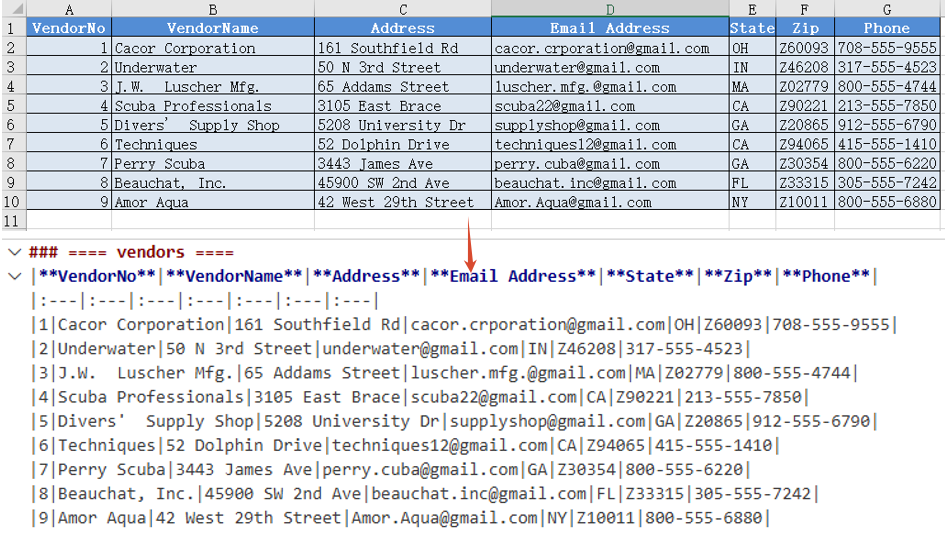
Convert Markdown File to Excel Workbook
Importing a Markdown file into an Excel spreadsheet allows you to take full advantage of Excel's formatting, calculation, and charting capabilities. Spire.XLS for JavaScript supports loading a Markdown file directly via the LoadFromMarkdown() method and converting its table data into worksheet cells. The steps are as follows:
- Load the font file and Markdown sample file into the VFS.
- Create a
Workbookobject and load the Markdown file via theLoadFromMarkdown()method. - Save the workbook as an Excel file and trigger the download.
Below is a complete code example demonstrating how to convert Markdown to Excel in React:
function App() {
  const convertToExcel = async () => {
    // Get the Spire.XLS WASM module
    const xlsModule = window.wasmModule?.spirexls;

    // Check if the module is ready
    if (!xlsModule) {
      alert('Spire.Xls is not ready yet');
      return;
    }

    // Load the font file to ensure proper text rendering
    await window.spire.FetchFileToVFS('ARIAL.TTF', '/Library/Fonts/', `${process.env.PUBLIC_URL}font/`);

    // Load the Markdown sample file into VFS
    await window.spire.FetchFileToVFS('Sample.md', '', `${process.env.PUBLIC_URL}data/`);

    // Create a workbook object and load the Markdown file
    const workbook = new xlsModule.Workbook();
    workbook.LoadFromMarkdown('Sample.md');

    // Save the workbook and release resources
    const outputFileName = 'MarkdownToExcel.xlsx';
    workbook.SaveToFile({ fileName: outputFileName, version: xlsModule.ExcelVersion.Version2010 });
    workbook.Dispose();

    // Read the file from VFS and trigger download
    const fileArray = window.dotnetRuntime.Module.FS.readFile(outputFileName);
    const blob = new Blob([fileArray], { type: 'application/vnd.openxmlformats-officedocument.spreadsheetml.sheet' });
    const url = URL.createObjectURL(blob);
    const a = document.createElement('a');
    a.href = url;
    a.download = outputFileName;
    a.click();
    URL.revokeObjectURL(url);
  };

  return (
    <div style={{ textAlign: 'center', height: '300px' }}>
      <h1>Convert Markdown to Excel</h1>
      <button onClick={convertToExcel}>
        Generate
      </button>
    </div>
  );
}

export default App;
Markdown converted to Excel with Spire.XLS for JavaScript
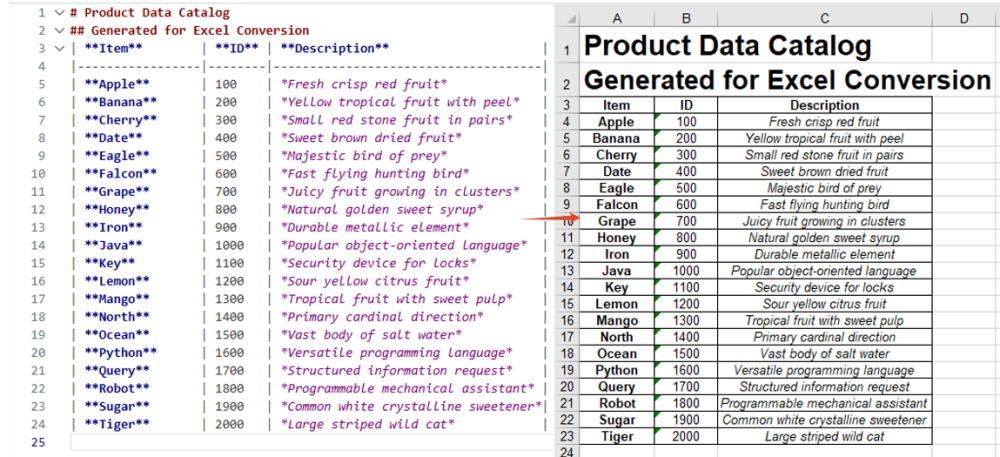
FAQ
How to handle font file missing issues during conversion?
Cause: If font files are not loaded into the WASM virtual file system (VFS), the exported Markdown content or imported cell text may not render correctly, especially when it contains non-ASCII characters such as Chinese.
Solution: Load the font files into VFS via FetchFileToVFS before conversion:
await window.spire.FetchFileToVFS(
  'ARIAL.TTF', '/Library/Fonts/', `${process.env.PUBLIC_URL}font/`
);
How to handle the downloaded Markdown file being opened as another type or showing garbled text?
Cause: The MIME type is not set correctly when creating the Blob, so the browser cannot recognize the downloaded file as Markdown text, which may cause it to open as another type or display garbled text.
Solution: Specify the correct MIME type when downloading and make sure the download filename ends with .md:
const blob = new Blob([fileArray], { type: 'text/markdown' });
const a = document.createElement('a');
a.href = URL.createObjectURL(blob);
a.download = 'ExcelToMarkdown.md';
a.click();
Get a Free License
Spire.XLS for JavaScript offers a 30-day full-featured free trial license with no functional limitations. Apply here to evaluate before purchasing.
Shapes are graphic elements in Excel that enhance the visual appeal of a worksheet and convey information intuitively, such as arrows, rectangles, ovals, and stars. With shapes, you can add annotations, process-flow indicators, or decorative elements next to your data, making reports more vivid and easier to read. Spire.XLS for JavaScript runs entirely in the browser via WebAssembly, using a virtual file system (VFS) to manage input and output files — no backend server required. It provides a complete API for adding shapes and customizing their appearance (such as fill, rotation angle, text, and shadow), reading text and images from shapes, and deleting specified or all shapes.
This article covers three core features:
For installation and project setup, refer to Integrating Spire.XLS for JavaScript in a React Project. The examples below assume Spire.XLS is installed and the WebAssembly module is initialized.
Add Shapes to Excel
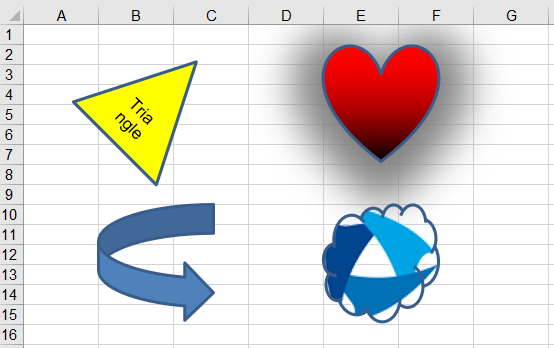
Adding shapes to Excel can highlight key data and beautify the layout of a worksheet. With Spire.XLS for JavaScript, you can add a shape and set its position (row, column) and size (width, height) at once using the PrstGeomShapes.AddPrstGeomShape() method, and then customize its appearance through the shape's properties — set solid, gradient, texture, or picture fill via Fill, add text via Text, set the rotation angle via Rotation, apply a shadow effect via Shadow, and control visibility via Visible. The steps are as follows:
- Create a
Workbookobject and get the default worksheet. - Add shapes using
PrstGeomShapes.AddPrstGeomShape(), setting the shape type, position, and size through the parameters. - Set solid, gradient, texture, or picture fill for the shapes via the
Fillproperty. - Add text to a shape via the
Textproperty, and set the rotation angle via theRotationproperty. - Set a shadow effect for a shape via the
Shadowproperty. - Save the workbook to an Excel file using
SaveToFile().
Below is a complete code example demonstrating how to add and customize various shapes in React:
function App() {
  const addShapes = async () => {
    // Get the Spire.XLS WASM module
    const xlsModule = window.wasmModule?.spirexls;

    // Check if the module is ready
    if (!xlsModule) {
      alert('Spire.Xls is not ready yet');
      return;
    }

    // Load the picture into the virtual file system (VFS)
    await window.spire.FetchFileToVFS('SpireXls.png', '', `${process.env.PUBLIC_URL}/image/`);

    // Create a new workbook and get the default worksheet
    const workbook = new xlsModule.Workbook();
    let sheet = workbook.Worksheets.get(0);

    // Add a triangle shape and fill it with a solid color
    let triangle = sheet.PrstGeomShapes.AddPrstGeomShape(2, 2, 100, 100, xlsModule.PrstGeomShapeType.Triangle);
    triangle.Fill.ForeColor = xlsModule.Color.get_Yellow();
    triangle.Fill.FillType = xlsModule.ShapeFillType.SolidColor;
    // Add text to the triangle and set its rotation angle
    triangle.Text = 'Triangle';
    triangle.Rotation = 45;

    // Add a heart shape and fill it with a gradient color
    let heart = sheet.PrstGeomShapes.AddPrstGeomShape(2, 5, 100, 100, xlsModule.PrstGeomShapeType.Heart);
    heart.Fill.ForeColor = xlsModule.Color.get_Red();
    heart.Fill.FillType = xlsModule.ShapeFillType.Gradient;
    // Set the shadow style for the heart
    heart.Shadow.Angle = 90;
    heart.Shadow.Distance = 10;
    heart.Shadow.Size = 150;
    heart.Shadow.Color = xlsModule.Color.get_Gray();
    heart.Shadow.Blur = 30;
    heart.Shadow.Transparency = 1;
    heart.Shadow.HasCustomStyle = true;

    // Add an arrow shape
    let arrow = sheet.PrstGeomShapes.AddPrstGeomShape(10, 2, 100, 100, xlsModule.PrstGeomShapeType.CurvedRightArrow);

    // Add a cloud shape and fill it with a picture
    let cloud = sheet.PrstGeomShapes.AddPrstGeomShape(10, 5, 100, 100, xlsModule.PrstGeomShapeType.Cloud);
    cloud.Fill.CustomPicture({ im: new xlsModule.Stream('SpireXls.png'), name: 'SpireXls.png' });

    // Save the workbook
    const outputFileName = 'AddShapes.xlsx';
    workbook.SaveToFile(outputFileName);
    workbook.Dispose();

    // Read the file from VFS and trigger download
    const fileArray = window.dotnetRuntime.Module.FS.readFile(outputFileName);
    const blob = new Blob([fileArray], { type: 'application/vnd.openxmlformats-officedocument.spreadsheetml.sheet' });
    const url = URL.createObjectURL(blob);
    const a = document.createElement('a');
    a.href = url;
    a.download = outputFileName;
    a.click();
    URL.revokeObjectURL(url);
  };

  return (
    <div style={{ textAlign: 'center', height: '300px' }}>
      <h1>Add Shapes</h1>
      <button onClick={addShapes}>
        Generate
      </button>
    </div>
  );
}

export default App;
Shapes added to Excel with Spire.XLS for JavaScript
Read Text and Images from Excel Shapes
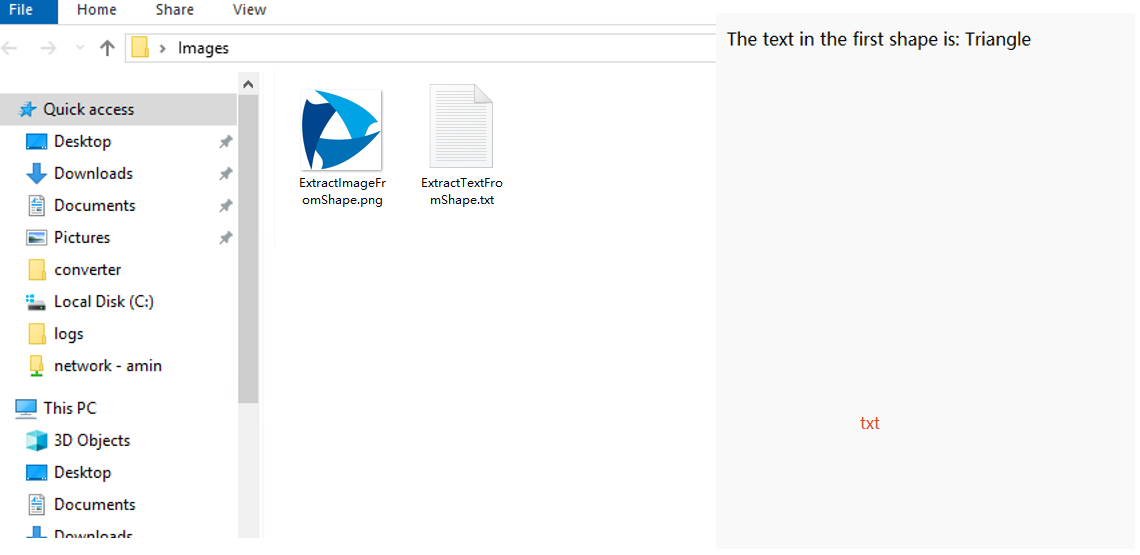
Reading the text and images from shapes helps you extract the data inside shapes in batch, or reuse and archive shape resources. With Spire.XLS for JavaScript, you can load an Excel file containing shapes, get a specified shape by index via PrstGeomShapes.get(), then read its text content via the Text property and get its fill picture via Fill.Picture. The steps are as follows:
- Create a
Workbookobject and load an existing Excel file containing shapes. - Get the worksheet via
workbook.Worksheets.get(). - Get a specified shape by index using
sheet.PrstGeomShapes.get(). - Read the text in the shape via the
Textproperty. - Read the fill picture in the shape via the
Fill.Pictureproperty. - Save the read text and image as txt and png files.
Below is a complete code example demonstrating how to read text and images from shapes in React (the example loads the AddShapes.xlsx file generated in the previous section):
function App() {
  const readShapes = async () => {
    // Get the Spire.XLS WASM module
    const xlsModule = window.wasmModule?.spirexls;

    // Check if the module is ready
    if (!xlsModule) {
      alert('Spire.Xls is not ready yet');
      return;
    }

    // Load the sample file containing shapes into the virtual file system (VFS)
    let excelFileName = 'AddShapes.xlsx';
    await window.spire.FetchFileToVFS(excelFileName, '', `${process.env.PUBLIC_URL}data/`);

    // Create a workbook object and load the existing file
    const workbook = new xlsModule.Workbook();
    workbook.LoadFromFile({ fileName: excelFileName });

    // Get the first worksheet
    let sheet = workbook.Worksheets.get(0);

    // Get the first shape (triangle) and read the text inside it
    let triangle = sheet.PrstGeomShapes.get(0);
    let text = triangle.Text;

    // Get the fourth shape (cloud) and read the picture inside it
    let cloud = sheet.PrstGeomShapes.get(3);
    let image = cloud.Fill.Picture;
    const imageFileName = 'ExtractImageFromShape.png';
    image.Save(imageFileName);

    workbook.Dispose();

    // Save the read text to a txt file and trigger download
    const textFileName = 'ExtractTextFromShape.txt';
    const textBlob = new Blob([`The text in the first shape is: ${text}`], { type: 'text/plain;charset=utf-8' });
    const textUrl = URL.createObjectURL(textBlob);
    const a1 = document.createElement('a');
    a1.href = textUrl;
    a1.download = textFileName;
    a1.click();
    URL.revokeObjectURL(textUrl);

    // Read the image file from VFS and trigger download
    const fileArray = window.dotnetRuntime.Module.FS.readFile(imageFileName);
    const blob = new Blob([fileArray], { type: 'application/png' });
    const url = URL.createObjectURL(blob);
    const a = document.createElement('a');
    a.href = url;
    a.download = imageFileName;
    a.click();
    URL.revokeObjectURL(url);
  };

  return (
    <div style={{ textAlign: 'center', height: '300px' }}>
      <h1>Read Text and Image from Shapes</h1>
      <button onClick={readShapes}>
        Generate
      </button>
    </div>
  );
}

export default App;
Text and images read from Excel shapes with Spire.XLS for JavaScript
Delete Shapes in Excel
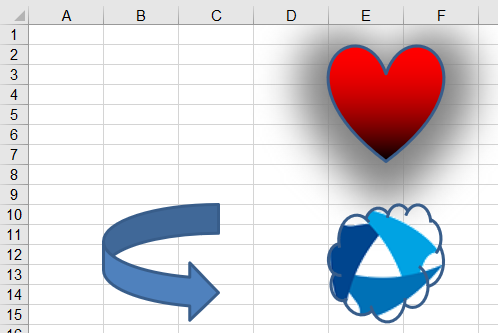
When shapes are no longer needed, deleting them in time keeps the worksheet clean and reduces the file size. With Spire.XLS for JavaScript, you can delete a specified shape via the Remove() method, or iterate through the shape collection and call Remove() on each shape to clear all shapes in a worksheet. The steps are as follows:
- Create a
Workbookobject and load an existing Excel file containing shapes. - Get the worksheet via
workbook.Worksheets.get(). - Get a specified shape using
sheet.PrstGeomShapes.get(), and call itsRemove()method to delete the shape. - Save the workbook to an Excel file using
SaveToFile().
Below is a complete code example demonstrating how to delete shapes in React (the example loads the AddShapes.xlsx file generated in the previous section):
function App() {
  const deleteShapes = async () => {
    // Get the Spire.XLS WASM module
    const xlsModule = window.wasmModule?.spirexls;

    // Check if the module is ready
    if (!xlsModule) {
      alert('Spire.Xls is not ready yet');
      return;
    }

    // Load the sample file containing shapes into the virtual file system (VFS)
    let excelFileName = 'AddShapes.xlsx';
    await window.spire.FetchFileToVFS(excelFileName, '', `${process.env.PUBLIC_URL}data/`);

    // Create a workbook object and load the existing file
    const workbook = new xlsModule.Workbook();
    workbook.LoadFromFile({ fileName: excelFileName });

    // Get the first worksheet
    let sheet = workbook.Worksheets.get(0);

    // Delete the first shape in the worksheet
    sheet.PrstGeomShapes.get(0).Remove();

    // Delete all the shapes in the worksheet
    // for (let i = sheet.PrstGeomShapes.Count - 1; i >= 0; i--) {
    //   sheet.PrstGeomShapes.get(i).Remove();
    // }

    // Save the workbook
    const outputFileName = 'DeleteShapes.xlsx';
    workbook.SaveToFile(outputFileName);
    workbook.Dispose();

    // Read the file from VFS and trigger download
    const fileArray = window.dotnetRuntime.Module.FS.readFile(outputFileName);
    const blob = new Blob([fileArray], { type: 'application/vnd.openxmlformats-officedocument.spreadsheetml.sheet' });
    const url = URL.createObjectURL(blob);
    const a = document.createElement('a');
    a.href = url;
    a.download = outputFileName;
    a.click();
    URL.revokeObjectURL(url);
  };

  return (
    <div style={{ textAlign: 'center', height: '300px' }}>
      <h1>Delete Shapes</h1>
      <button onClick={deleteShapes}>
        Generate
      </button>
    </div>
  );
}

export default App;
Specified shape deleted from Excel with Spire.XLS for JavaScript
FAQ
How to get the name and type of a shape?
Cause: When a worksheet contains many shapes, you may need to identify and locate shapes by their name or type rather than by index.
Solution: Read the Name and PrstShapeType properties of the shape to get its name and type:
// Get the worksheet
let sheet = workbook.Worksheets.get(0);
// Get the first shape
let shape = sheet.PrstGeomShapes.get(0);
// Get the name of the shape
let shapeName = shape.Name;
// Get the type of the shape
let shapeType = shape.PrstShapeType;
How to check whether a shape is currently visible?
Cause: After loading shapes from a file, you may need to determine whether a shape is hidden so that you can decide whether to process it further.
Solution: Read the Visible property of the shape to know its visibility state:
// Get the worksheet
let sheet = workbook.Worksheets.get(0);
// Get the first shape
let shape = sheet.PrstGeomShapes.get(0);
// Check whether the shape is visible
let isVisible = shape.Visible;
Get a Free License
Spire.XLS for JavaScript offers a 30-day full-featured free trial license with no functional limitations. Apply here to evaluate before purchasing.
Freeze, Query, and Unfreeze Excel Worksheet Panes with JavaScript in React
2026-08-14 05:35:36 Written by Lisa LiWhen browsing an Excel worksheet that contains a large amount of data, pinning the header or key columns can significantly improve the efficiency of data viewing. The freeze panes feature keeps the specified rows or columns visible while scrolling. Querying the frozen pane range confirms which areas of the current worksheet are frozen. Unfreezing panes restores the normal browsing mode when the fixed display is no longer needed. Spire.XLS for JavaScript completes these operations directly in the browser based on WebAssembly, and manages input and output files through the virtual file system (VFS), without requiring backend service support.
This article introduces three core feature points:
For installation and project configuration, refer to Integrate Spire.XLS for JavaScript in a React Project. The following examples assume that Spire.XLS is installed and the WebAssembly module has been initialized.
Freeze Panes
When a worksheet contains a large amount of data, freezing panes can pin the header or a specific area so that you can always see the key rows or columns while scrolling through the data. Spire.XLS for JavaScript freezes the panes above and to the left of the specified position through the FreezePanes method. For example, FreezePanes(2, 1) freezes the first row, keeping it visible when scrolling vertically.
function App() {
  const sheetToSVG = async () => {
    // Get the Spire.XLS WASM module
    const xlsModule = window.wasmModule?.spirexls;

    // Check whether the module is ready
    if (!xlsModule) {
      alert('Spire.Xls is not ready yet');
      return;
    }

    // Load the font and the Excel file into the VFS
    await window.spire.FetchFileToVFS('ARIAL.TTF', '/Library/Fonts/', `${process.env.PUBLIC_URL}/font/`);
    const inputFileName = 'FreezePanes.xlsx';
    await window.spire.FetchFileToVFS(inputFileName, '', `${process.env.PUBLIC_URL}/static/data/`);

    // Load the workbook
    const workbook = new xlsModule.Workbook();
    workbook.LoadFromFile({ fileName: inputFileName });

    // Get the first worksheet
    const sheet = workbook.Worksheets.get(0);

    // Freeze the first row
    sheet.FreezePanes(2, 1);

    // Set the width of the second column
    sheet.SetColumnWidth(2, 10);

    const outputFileName = "FreezePanes_output.xlsx";
    workbook.SaveToFile({ fileName: outputFileName });

    // Dispose of the workbook object to release resources
    workbook.Dispose();

    // Read the converted file from the VFS and trigger the download
    const fileArray = window.dotnetRuntime.Module.FS.readFile(outputFileName);
    const blob = new Blob([fileArray], { type: "application/vnd.openxmlformats-officedocument.spreadsheetml.sheet" });
    const url = URL.createObjectURL(blob);
    const a = document.createElement('a');
    a.href = url;
    a.download = outputFileName;
    a.click();
    URL.revokeObjectURL(url);
  };

  return (
    <div style={{ textAlign: 'center', height: '300px' }}>
      <h1>Freeze Panes</h1>
      <button onClick={sheetToSVG}>
        Start
      </button>
    </div>
  );
}

export default App;
Original document 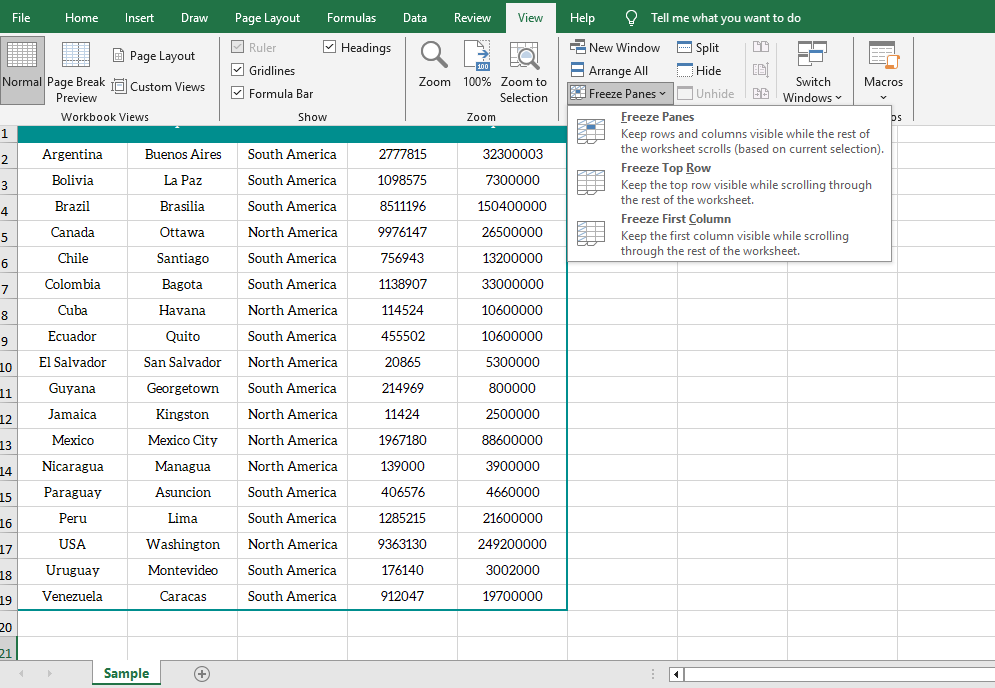 After freezing the first row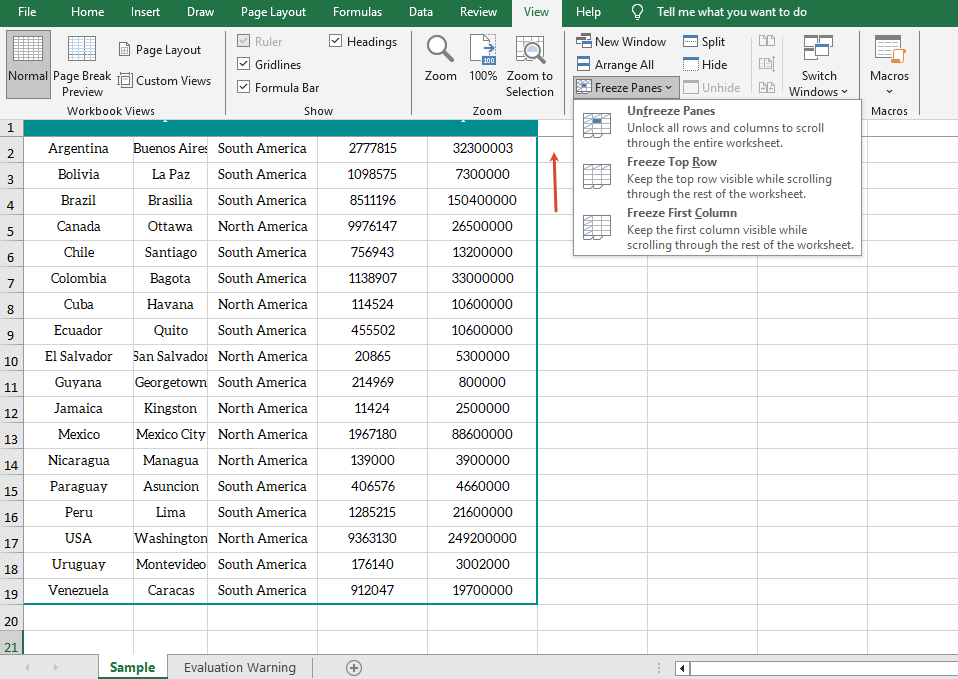
Get the Freeze Pane Range
When working with frozen panes, sometimes you need to confirm the position of the frozen panes in the current worksheet. Spire.XLS for JavaScript obtains the row index and column index of the frozen panes through the GetFreezePanes method, and a return value of 0 indicates that the corresponding direction is not frozen.
function App() {
  const sheetToSVG = async () => {
    // Get the Spire.XLS WASM module
    const xlsModule = window.wasmModule?.spirexls;

    // Check whether the module is ready
    if (!xlsModule) {
      alert('Spire.Xls is not ready yet');
      return;
    }

    // Load the font and the Excel file into the VFS
    await window.spire.FetchFileToVFS('ARIAL.TTF', '/Library/Fonts/', `${process.env.PUBLIC_URL}/font/`);
    const inputFileName = 'GetFreezePaneRange.xlsx';
    await window.spire.FetchFileToVFS(inputFileName, '', `${process.env.PUBLIC_URL}/static/data/`);

    // Load the workbook
    const workbook = new xlsModule.Workbook();
    workbook.LoadFromFile({ fileName: inputFileName });

    // Get the first worksheet
    const sheet = workbook.Worksheets.get(0);

    // Get the row index and column index of the frozen panes
    const indexs = sheet.GetFreezePanes();
    const rowIndex = indexs[0];
    const colIndex = indexs[1];

    // Write the query result to a text file
    const outputFileName = "GetFreezePaneRange_output.txt";
    window.dotnetRuntime.Module.FS.writeFile(outputFileName, `Row index: ${rowIndex}, column index: ${colIndex}`);

    // Dispose of the workbook object to release resources
    workbook.Dispose();

    // Read the converted file from the VFS and trigger the download
    const fileArray = window.dotnetRuntime.Module.FS.readFile(outputFileName);
    const blob = new Blob([fileArray], { type: "text/plain" });
    const url = URL.createObjectURL(blob);
    const a = document.createElement('a');
    a.href = url;
    a.download = outputFileName;
    a.click();
    URL.revokeObjectURL(url);
  };

  return (
    <div style={{ textAlign: 'center', height: '300px' }}>
      <h1>Get Freeze Pane Range</h1>
      <button onClick={sheetToSVG}>
        Start
      </button>
    </div>
  );
}

export default App;
Original document with frozen panes 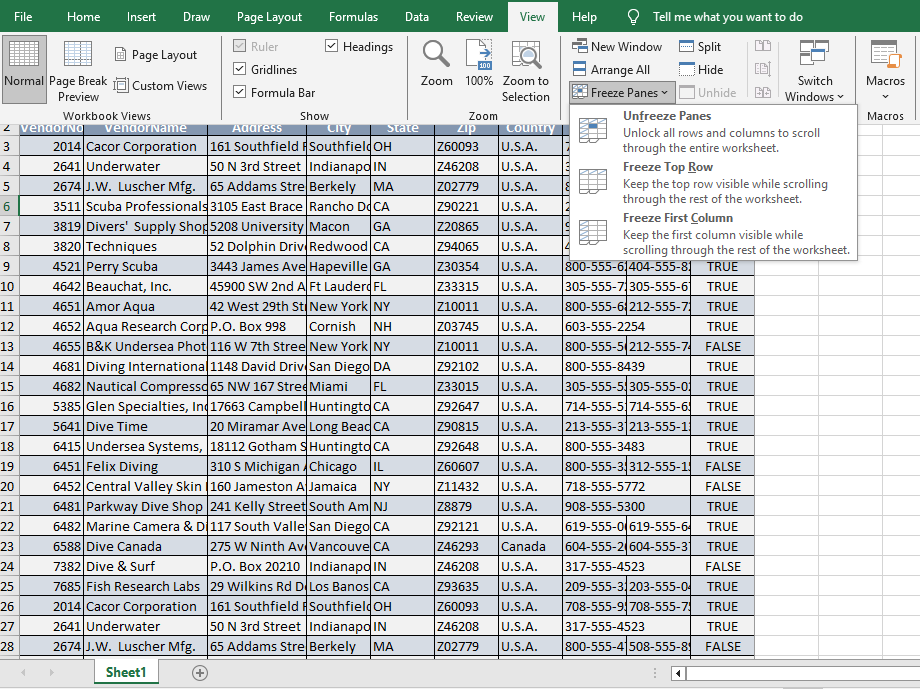 Query result
Unfreeze Panes
When the fixed display is no longer needed, you can cancel the frozen panes that have been set in the worksheet through the RemovePanes method and restore normal scrolling.
function App() {
  const sheetToSVG = async () => {
    // Get the Spire.XLS WASM module
    const xlsModule = window.wasmModule?.spirexls;

    // Check whether the module is ready
    if (!xlsModule) {
      alert('Spire.Xls is not ready yet');
      return;
    }

    // Load the font and the Excel file into the VFS
    await window.spire.FetchFileToVFS('ARIAL.TTF', '/Library/Fonts/', `${process.env.PUBLIC_URL}/font/`);
    const inputFileName = 'Template_Xls_2.xlsx';
    await window.spire.FetchFileToVFS(inputFileName, '', `${process.env.PUBLIC_URL}/static/data/`);

    // Load the workbook
    const workbook = new xlsModule.Workbook();
    workbook.LoadFromFile({ fileName: inputFileName });

    // Get the first worksheet
    const sheet = workbook.Worksheets.get(0);

    // Unfreeze the panes
    sheet.RemovePanes();

    const outputFileName = "UnfreezeExcelPanes_output.xlsx";
    workbook.SaveToFile({ fileName: outputFileName });

    // Dispose of the workbook object to release resources
    workbook.Dispose();

    // Read the converted file from the VFS and trigger the download
    const fileArray = window.dotnetRuntime.Module.FS.readFile(outputFileName);
    const blob = new Blob([fileArray], { type: "application/vnd.openxmlformats-officedocument.spreadsheetml.sheet" });
    const url = URL.createObjectURL(blob);
    const a = document.createElement('a');
    a.href = url;
    a.download = outputFileName;
    a.click();
    URL.revokeObjectURL(url);
  };

  return (
    <div style={{ textAlign: 'center', height: '300px' }}>
      <h1>Unfreeze Panes</h1>
      <button onClick={sheetToSVG}>
        Start
      </button>
    </div>
  );
}

export default App;
Before unfreezing 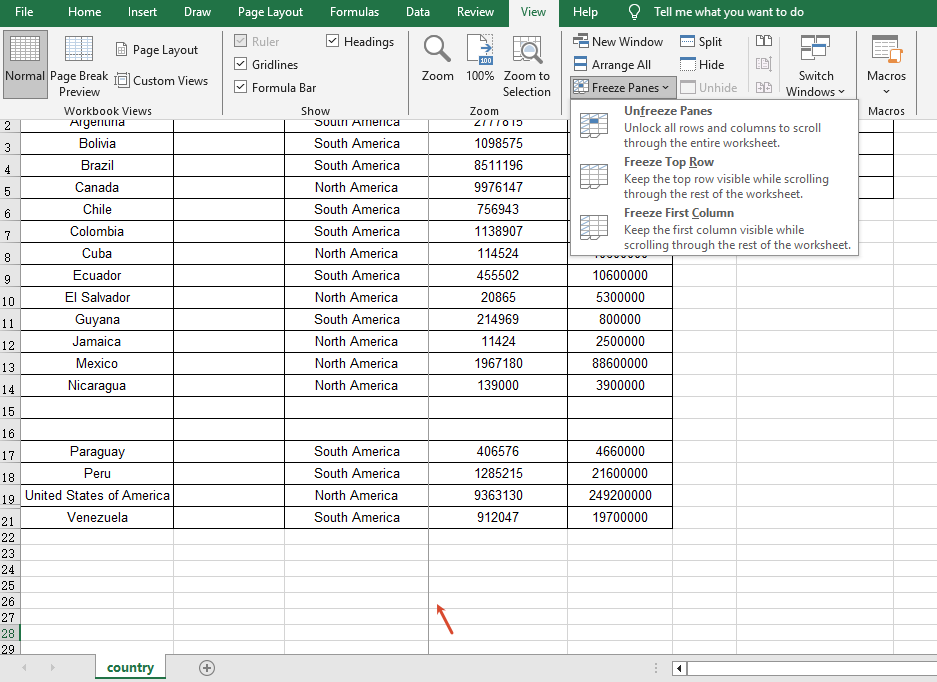 After unfreezing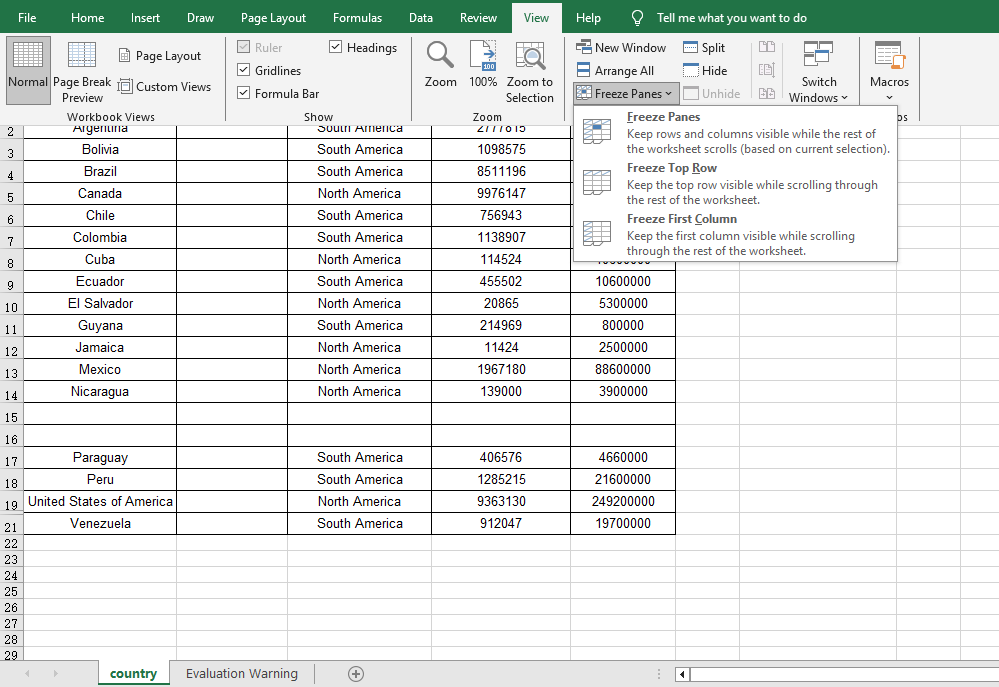
FAQ
The first row still scrolls after freezing panes
Reason: The parameters of the FreezePanes method are set incorrectly, so the frozen area is not the expected row or column.
Solution: The FreezePanes method uses the specified position as the boundary and freezes the panes above and to the left of that position. For example, use FreezePanes(2, 1) to freeze the first row, FreezePanes(3, 1) to freeze the first two rows, and FreezePanes(2, 2) to freeze both the first row and the first column.
Querying the freeze pane range returns 0
Reason: The worksheet has not set any frozen panes, so the queried row and column indexes are 0.
Solution: Call the FreezePanes method to set frozen panes first, and then call GetFreezePanes to query the frozen range.
The freeze effect still shows after unfreezing panes
Reason: The workbook was not saved correctly after unfreezing, or the file opened is the one before the modification.
Solution: After calling the RemovePanes method, be sure to save the workbook with SaveToFile and open the output file to confirm the unfreeze effect.
Get a Free License
If you want to remove the evaluation message in the result documents or get rid of the feature limitations, please contact sales to obtain a 30-day temporary license.
Convert PDF to Images and Vice Versa with JavaScript in React
2026-08-13 02:44:20 Written by Nina TangImages are one of the most intuitive forms of content presentation and distribution, while PDF documents preserve the original layout and are widely used for the storage and transmission of formal files. When displaying PDF content on web pages, mini programs, social platforms, or emails, distributing PDF files directly is often inconvenient — converting them to image formats such as PNG or JPEG first enables quick preview and sharing. Conversely, consolidating scanned documents or image assets into PDF makes batch archiving and cross-platform distribution easier. Real-world business often requires flexible switching between the two forms: converting PDF contracts to images for online preview and quick sharing, or converting scanned image assets to PDF for unified archiving and circulation.
Spire.PDF for JavaScript performs bidirectional conversion between PDF and images entirely in the browser via WebAssembly, managing input and output files through a virtual file system (VFS) with no backend server required.
This article covers two core features:
For installation and project setup, refer to Integrating Spire.PDF for JavaScript in a React Project. The examples below assume Spire.PDF is installed and the WebAssembly module is initialized.
Convert PDF to Image
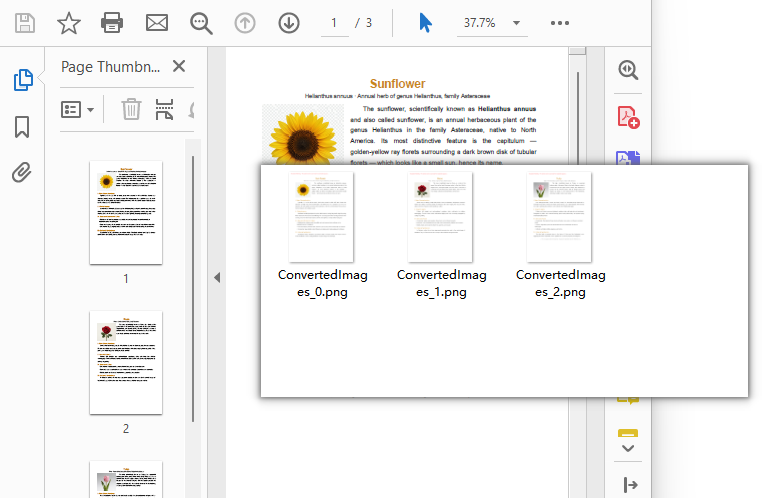
The core of PDF-to-image conversion is to render the content, fonts, and graphics elements of every page in a PDF document into independent bitmap data. Spire.PDF for JavaScript generates an image stream for each page through the PdfDocument object's SaveAsImage method, loops through all Pages.Count pages and saves each page as a PNG image with stream.Save, then bundles the images into a ZIP file with JSZip for a one-click download, without needing to handle pixel and page coordinate mapping manually.
import JSZip from "jszip";

function App() {
  const convertToImage = async () => {
    // Get the Spire.PDF WASM module
    const pdfModule = window.wasmModule?.spirepdf;

    // Check if the WASM module is ready
    if (!pdfModule) {
      alert('Spire.PDF is not ready yet');
      return;
    }

    // Load the PDF file and fonts into VFS
    await window.spire.FetchFileToVFS('ARIAL.TTF', '/Library/Fonts/', `${process.env.PUBLIC_URL}/font/`);
    const inputFileName = 'Flowers.pdf';
    await window.spire.FetchFileToVFS(inputFileName, "", `${process.env.PUBLIC_URL}/data/`);

    // Create PdfDocument object and load the PDF document
    let doc = new pdfModule.PdfDocument();
    doc.LoadFromFile(inputFileName);

    // Create an output directory to hold the converted images
    let outputDirectoryName = "ImagesFolders/";
    window.dotnetRuntime.Module.FS.mkdirTree(outputDirectoryName);

    // Loop through each page and save it as an image
    for (let i = 0; i < doc.Pages.Count; i++) {
      const outputFileName = outputDirectoryName + "ConvertedImages_" + i + ".png";
      let stream = doc.SaveAsImage({ pageIndex: i });
      stream.Save(outputFileName);
      stream.Dispose();
    }

    doc.Dispose();

    // Read the converted files from VFS and trigger download
    const zip = new JSZip();
    let items = await window.dotnetRuntime.Module.FS.readdir(outputDirectoryName);
    items = items.filter((item) => item !== "."

      && item !== "..");
    for (const item of items) {
      const itemPath = `${outputDirectoryName}/${item}`;
      const fileData = await window.dotnetRuntime.Module.FS.readFile(itemPath);
      zip.file(item, fileData);
    }

    // Convert the ZIP to a Blob and trigger the browser download
    const zipBlob = await zip.generateAsync({ type: "blob" });
    const url = URL.createObjectURL(zipBlob);
    const a = document.createElement('a');
    a.href = url;
    a.download = 'ImagesFolders';
    a.click();
    URL.revokeObjectURL(url);
  };

  return (
    <div style={{ textAlign: 'center', height: '300px' }}>
      <h1>Convert PDF To Image</h1>
      <button onClick={convertToImage}>
        Generate
      </button>
    </div>
  );
}

export default App;
Each page of the PDF exported as a PNG image via SaveAsImage and bundled into a ZIP file for download
Adjust the DPI Resolution of Exported Images
When exporting images with the
SaveAsImagemethod, the default resolution is 96 DPI, which is suitable for screen preview, but text and lines may appear jagged or blurry when zoomed in. For sharper images, specify the resolution via thedpiXanddpiYparameters ofSaveAsImage, for example set it to 150 DPI:
// Export each page as an image at 150 DPI
for (let i = 0; i < doc.Pages.Count; i++) {
  let stream = doc.SaveAsImage({ pageIndex: i, dpiX: 150, dpiY: 150 });
  stream.Save(outputDirectoryName + "highres_" + i + ".png");
  stream.Dispose();
}
The higher the DPI value, the sharper the exported image, but the larger the file size. Choose a balance between clarity and file size based on your actual use case.
Convert Image to PDF
Image-to-PDF conversion is commonly used to consolidate scanned documents or design assets into PDF for archiving. Spire.PDF for JavaScript creates a new document with the PdfDocument object, loads the image with the PdfImage.FromFile method, adds a page via Pages.Add, draws the image onto the page at its original size with the Canvas.DrawImage method, and finally saves it as a standard PDF with the SaveToFile method using the FileFormat.PDF enum value.
function App() {
  const convertImageToPDF = async () => {
    // Get the Spire.PDF WASM module
    const pdfModule = window.wasmModule?.spirepdf;

    // Check if the WASM module is ready
    if (!pdfModule) {
      alert('Spire.PDF is not ready yet');
      return;
    }

    // Load the image file into VFS
    const inputFileName = 'Scenery.png';
    await window.spire.FetchFileToVFS(inputFileName, "", `${process.env.PUBLIC_URL}/data/`);

    // Create a PdfDocument object
    let doc = new pdfModule.PdfDocument();

    // Add a page
    let page = doc.Pages.Add();

    // Load the image
    let image = pdfModule.PdfImage.FromFile(inputFileName);

    // Calculate the scale ratio so the image fits the page completely
    let widthFitRate = image.PhysicalDimension.Width / page.Canvas.ClientSize.Width;
    let heightFitRate = image.PhysicalDimension.Height / page.Canvas.ClientSize.Height;
    let fitRate = Math.max(widthFitRate, heightFitRate);

    // Calculate the scaled dimensions of the image
    let fitWidth = image.PhysicalDimension.Width / fitRate;
    let fitHeight = image.PhysicalDimension.Height / fitRate;

    // Draw the image onto the page
    page.Canvas.DrawImage({ image: image, x: 0, y: 30, width: fitWidth, height: fitHeight });

    const outputFileName = 'ImageToPDF.pdf';

    // Save as PDF format
    doc.SaveToFile({ fileName: outputFileName, fileFormat: pdfModule.FileFormat.PDF });
    doc.Close();

    // Read the converted file from VFS and trigger download
    const fileArray = window.dotnetRuntime.Module.FS.readFile(outputFileName);
    const blob = new Blob([fileArray], { type: 'application/pdf' });
    const url = URL.createObjectURL(blob);
    const a = document.createElement('a');
    a.href = url;
    a.download = outputFileName;
    a.click();
    URL.revokeObjectURL(url);
  };

  return (
    <div style={{ textAlign: 'center', height: '300px' }}>
      <h1>Convert Image To PDF</h1>
      <button onClick={convertImageToPDF}>
        Generate
      </button>
    </div>
  );
}

export default App;
PDF document generated after loading an image via PdfImage.FromFile and drawing it with Canvas.DrawImage
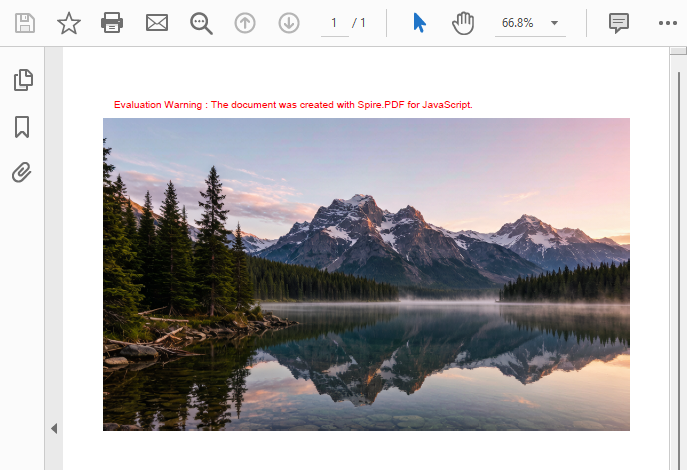
Load Images from a Memory Stream
Besides loading directly from a file with
PdfImage.FromFile, images can also be loaded from a memory stream via thePdfImage.FromStreammethod. This approach suits scenarios where the image data comes from an API response or a database field, or where bytes need to be read before processing. See the code below:
// Read image bytes from VFS and build a memory stream
let bytes = window.dotnetRuntime.Module.FS.readFile(inputFileName);
let stream = new pdfModule.Stream(bytes);

// Load the image from the memory stream
let image = pdfModule.PdfImage.FromStream(stream);
The image can then be drawn onto a PDF page with the page.Canvas.DrawImage method and saved as a standard PDF using SaveToFile.
FAQ
Garbled text in the converted image
Reason: PDF relies on font embedding to ensure consistent cross-platform rendering. If the input PDF uses non-embedded fonts and the corresponding font files are not loaded in the VFS, text may appear garbled after conversion.
Solution: Make sure the required TrueType font files (e.g., ARIALUNI.TTF) are loaded into the /Library/Fonts/ directory in VFS before calling the conversion. ARIALUNI.TTF covers common CJK characters and is the recommended font for ensuring conversion quality.
Which image formats are supported for conversion?
Reason: Different business scenarios require different bitmap formats. For example, PNG is commonly used for web preview and JPEG for photos.
Solution: Spire.PDF for JavaScript can render PDF pages to common bitmap formats such as PNG, JPEG, and BMP. After generating the image stream with SaveAsImage, simply replace the file extension of the output file name with the target format (e.g., .jpg, .bmp, .png) in stream.Save to output the corresponding image format.
Get a Free License
If you want to remove the evaluation messages in the resulting documents or get rid of functional limitations, contact sales to obtain a 30-day temporary license.
XPS (XML Paper Specification) is a fixed-layout document format introduced by Microsoft, widely used in electronic document printing, archiving, and distribution scenarios, with native support in the Windows platform ecosystem. XPS describes document structure based on XML, offering advantages such as clear structure, easy validation, and digital signing. Meanwhile, PDF remains indispensable as an internationally recognized document format for cross-platform distribution. Real-world business often requires flexible switching between the two formats: converting existing PDF contracts to XPS for printing and archiving in Windows environments, or converting XPS documents to PDF for cross-platform distribution and collaboration.
Spire.PDF for JavaScript performs bidirectional conversion between PDF and XPS entirely in the browser via WebAssembly, managing input and output files through a virtual file system (VFS) with no backend server required.
This article covers two core features:
For installation and project setup, refer to Integrating Spire.PDF for JavaScript in a React Project. The examples below assume Spire.PDF is installed and the WebAssembly module is initialized.
Convert PDF to XPS
The core of PDF-to-XPS conversion is to re-encode the page content, fonts, and graphics elements from a PDF document into an XML description structure compliant with the XPS standard. Spire.PDF for JavaScript accomplishes this in one step through the PdfDocument object's SaveToFile method with the FileFormat.XPS enum value, eliminating the need to handle underlying format differences manually.
function App() {
  const convertToXPS = async () => {
    // Get the Spire.PDF WASM module
    const pdfModule = window.wasmModule?.spirepdf;

    // Check if the WASM module is ready
    if (!pdfModule) {
      alert('Spire.PDF is not ready yet');
      return;
    }

    // Load fonts and PDF file into VFS
    await window.spire.FetchFileToVFS('ARIAL.TTF', '/Library/Fonts/', `${process.env.PUBLIC_URL}/font/`);
    const inputFileName = 'Reading_EN.pdf';
    await window.spire.FetchFileToVFS(inputFileName, "", `${process.env.PUBLIC_URL}/data/`);

    // Create PdfDocument object and load the PDF document
    let doc = new pdfModule.PdfDocument();
    doc.LoadFromFile(inputFileName);

    // Define the output file name for XPS format
    const outputFileName = 'OutputXPS.xps';

    // Save as XPS format
    doc.SaveToFile({ fileName: outputFileName, fileFormat: pdfModule.FileFormat.XPS });
    doc.Close();

    // Read the converted file from VFS and trigger download
    const fileArray = window.dotnetRuntime.Module.FS.readFile(outputFileName);
    const blob = new Blob([fileArray], { type: 'application/vnd.ms-xpsdocument' });
    const url = URL.createObjectURL(blob);
    const a = document.createElement('a');
    a.href = url;
    a.download = outputFileName;
    a.click();
    URL.revokeObjectURL(url);
  };

  return (
    <div style={{ textAlign: 'center', height: '300px' }}>
      <h1>Convert PDF To XPS</h1>
      <button onClick={convertToXPS}>
        Generate
      </button>
    </div>
  );
}

export default App;
XPS output generated after conversion via SaveToFile with FileFormat.XPS
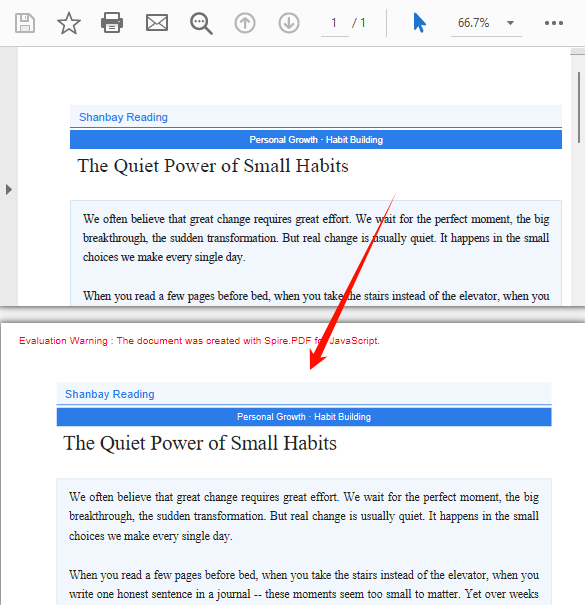
Convert XPS to PDF
XPS-to-PDF conversion is a common requirement in document cross-platform distribution scenarios. Spire.PDF for JavaScript loads XPS fixed-layout documents through the PdfDocument object's LoadFromXPS method and then exports them as standard PDF files via the SaveToFile method with the FileFormat.PDF enum value, preserving the original document's layout and visual appearance.
function App() {
  const convertXPSToPDF = async () => {
    // Get the Spire.PDF WASM module
    const pdfModule = window.wasmModule?.spirepdf;

    // Check if the WASM module is ready
    if (!pdfModule) {
      alert('Spire.PDF is not ready yet');
      return;
    }

    // Load the XPS file into VFS
    const inputFileName = 'Lease_Agreement_EN.xps';
    await window.spire.FetchFileToVFS(inputFileName, "", `${process.env.PUBLIC_URL}/data/`);

    // Create PdfDocument object and load the XPS document
    let doc = new pdfModule.PdfDocument();
    doc.LoadFromXPS(inputFileName);

    // Define the output file name for PDF format
    const outputFileName = 'OutputPDF.pdf';

    // Save as PDF format
    doc.SaveToFile({ fileName: outputFileName, fileFormat: pdfModule.FileFormat.PDF });
    doc.Close();

    // Read the converted file from VFS and trigger download
    const fileArray = window.dotnetRuntime.Module.FS.readFile(outputFileName);
    const blob = new Blob([fileArray], { type: 'application/pdf' });
    const url = URL.createObjectURL(blob);
    const a = document.createElement('a');
    a.href = url;
    a.download = outputFileName;
    a.click();
    URL.revokeObjectURL(url);
  };

  return (
    <div style={{ textAlign: 'center', height: '300px' }}>
      <h1>Convert XPS To PDF</h1>
      <button onClick={convertXPSToPDF}>
        Generate
      </button>
    </div>
  );
}

export default App;
PDF document generated after loading XPS via the PdfDocument LoadFromXPS method and converting
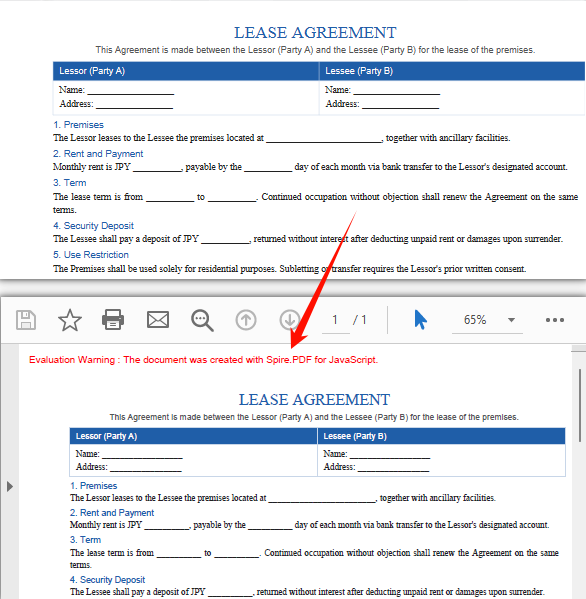
FAQ
Can encrypted PDFs be converted to XPS?
Password-protected encrypted PDFs cannot be saved as XPS directly via SaveToFile — the document must be decrypted first.
Solution: Provide the password when loading the PDF via the second parameter of LoadFromFile, then save as XPS:
// Load a password-protected PDF document
let doc = new pdfModule.PdfDocument();
doc.LoadFromFile(inputFileName, "password");

// Save as XPS format
doc.SaveToFile({ fileName: outputFileName, fileFormat: pdfModule.FileFormat.XPS });
doc.Close();
Get a Free License
If you want to remove the evaluation messages in the resulting documents or get rid of functional limitations, contact sales to obtain a 30-day temporary license.
Add, Preview, and Remove Excel Page Breaks with JavaScript in React
2026-08-12 06:20:20 Written by Lisa LiPage breaks are an important tool for controlling the print layout of Excel. They determine where data is divided across printed pages. Setting page breaks properly prevents data from being broken apart pointlessly when printing, resulting in clean, readable paper or PDF reports. Spire.XLS for JavaScript uses WebAssembly to add, preview, and remove page breaks directly in the browser, managing input and output files through a virtual file system (VFS) — no backend server required.
This article covers three core features:
For installation and project configuration, refer to Integrating Spire.XLS for JavaScript in a React Project. The examples below assume Spire.XLS is installed and the WebAssembly module is initialized.
Add Page Breaks
When printing reports, we often want to split data by a fixed number of rows and columns, for example printing a fixed number of data rows per page. Spire.XLS for JavaScript adds horizontal page breaks using the HPageBreaks.Add method and vertical page breaks using the VPageBreaks.Add method, enabling precise page break control.
function App() {
  const sheetToSVG = async () => {
    // Get the Spire.XLS WASM module
    const xlsModule = window.wasmModule?.spirexls;

    // Check if the module is ready
    if (!xlsModule) {
      alert('Spire.Xls is not ready yet');
      return;
    }

    // Load fonts and the Excel file into VFS
    await window.spire.FetchFileToVFS('ARIAL.TTF', '/Library/Fonts/', `${process.env.PUBLIC_URL}/font/`);
    const inputFileName = 'Template_Xls_4.xlsx';
    await window.spire.FetchFileToVFS(inputFileName, '', `${process.env.PUBLIC_URL}/static/data/`);

    // Load the workbook
    const workbook = new xlsModule.Workbook();
    workbook.LoadFromFile({ fileName: inputFileName });

    // Get the first worksheet
    const sheet = workbook.Worksheets.get(0);

    // Add a horizontal page break at row E4
    sheet.HPageBreaks.Add(sheet.Range.get("E4"));
    // Add a vertical page break at column C4
    sheet.VPageBreaks.Add(sheet.Range.get("C4"));

    const outputFileName = "AddPageBreakInXlsFile.xlsx";
    workbook.SaveToFile({ fileName: outputFileName });

    // Release the workbook object to free resources
    workbook.Dispose();

    // Read the converted file from VFS and trigger download
    const fileArray = window.dotnetRuntime.Module.FS.readFile(outputFileName);
    const blob = new Blob([fileArray], { type: "application/vnd.openxmlformats-officedocument.spreadsheetml.sheet" });
    const url = URL.createObjectURL(blob);
    const a = document.createElement('a');
    a.href = url;
    a.download = outputFileName;
    a.click();
    URL.revokeObjectURL(url);
  };

  return (
    <div style={{ textAlign: 'center', height: '300px' }}>
      <h1>Add Page Break</h1>
      <button onClick={sheetToSVG}>
        Start
      </button>
    </div>
  );
}

export default App;
Original document 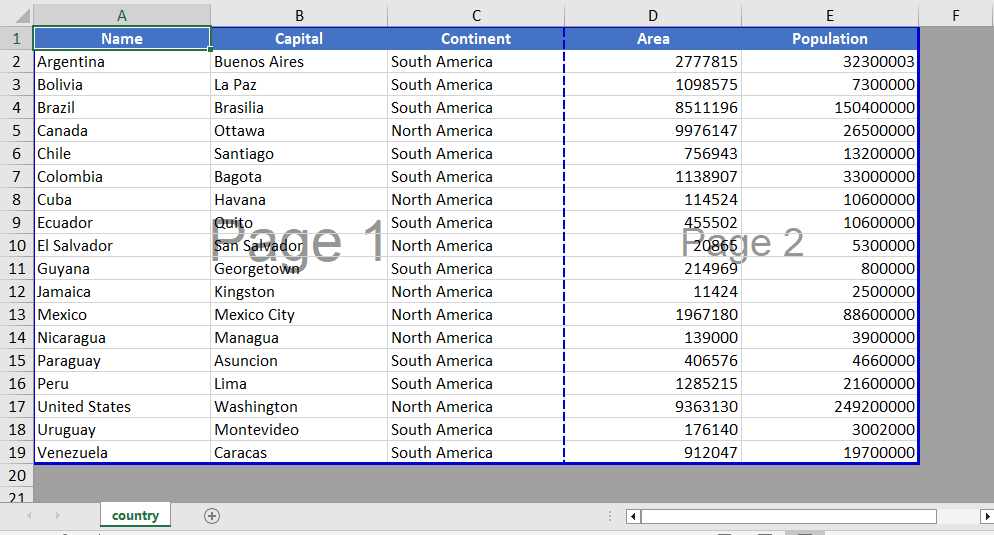 Add page break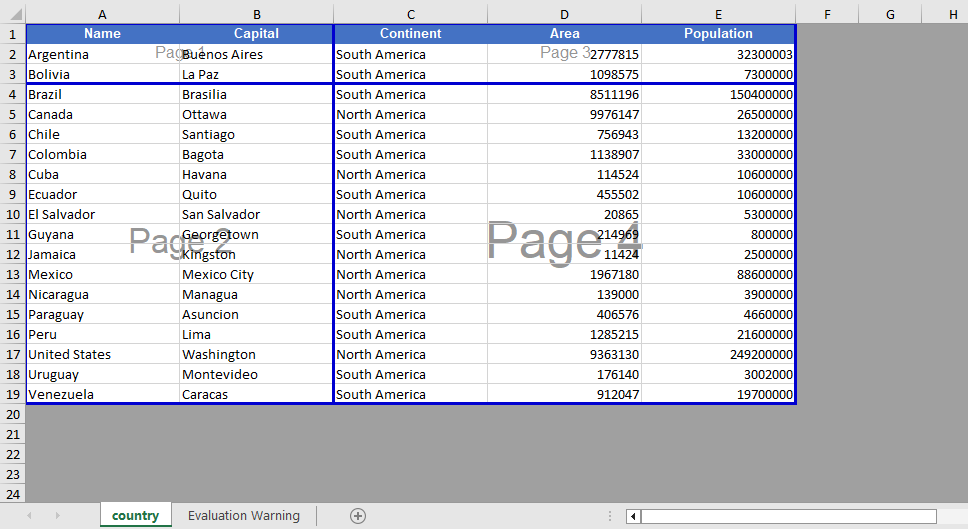
Page Break View Zoom Scale Setting
When viewing page break positions in the view mode, Spire.XLS for JavaScript supports setting the zoom scale of the page break preview view through the ZoomScalePageBreakView property.
function App() {
  const sheetToSVG = async () => {
    // Get the Spire.XLS WASM module
    const xlsModule = window.wasmModule?.spirexls;

    // Check if the module is ready
    if (!xlsModule) {
      alert('Spire.Xls is not ready yet');
      return;
    }

    // Load fonts and the Excel file into VFS
    await window.spire.FetchFileToVFS('ARIAL.TTF', '/Library/Fonts/', `${process.env.PUBLIC_URL}/font/`);
    const inputFileName = 'Template_Xls_4.xlsx';
    await window.spire.FetchFileToVFS(inputFileName, '', `${process.env.PUBLIC_URL}/static/data/`);

    // Load the workbook
    const workbook = new xlsModule.Workbook();
    workbook.LoadFromFile({ fileName: inputFileName });

    // Get the first worksheet
    const sheet = workbook.Worksheets.get(0);

    // Set the zoom scale of the page break preview view
    sheet.ZoomScalePageBreakView = 80;

    const outputFileName = "PageBreakPreview.xlsx";
    workbook.SaveToFile({ fileName: outputFileName });

    // Release the workbook object to free resources
    workbook.Dispose();

    // Read the converted file from VFS and trigger download
    const fileArray = window.dotnetRuntime.Module.FS.readFile(outputFileName);
    const blob = new Blob([fileArray], { type: "application/vnd.openxmlformats-officedocument.spreadsheetml.sheet" });
    const url = URL.createObjectURL(blob);
    const a = document.createElement('a');
    a.href = url;
    a.download = outputFileName;
    a.click();
    URL.revokeObjectURL(url);
  };

  return (
    <div style={{ textAlign: 'center', height: '300px' }}>
      <h1>Page Break Preview</h1>
      <button onClick={sheetToSVG}>
        Start
      </button>
    </div>
  );
}

export default App;
Before setting the zoom scale 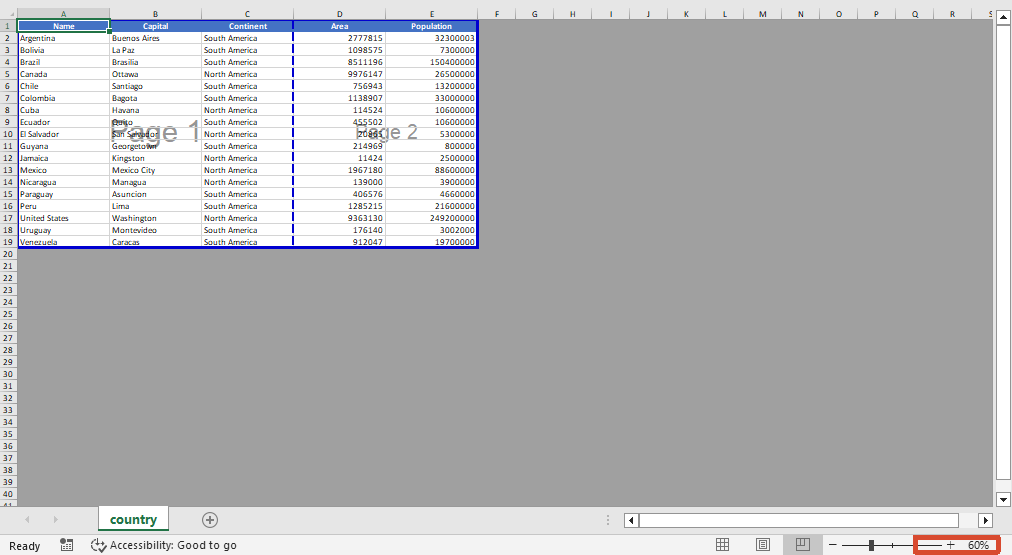 After setting the zoom scale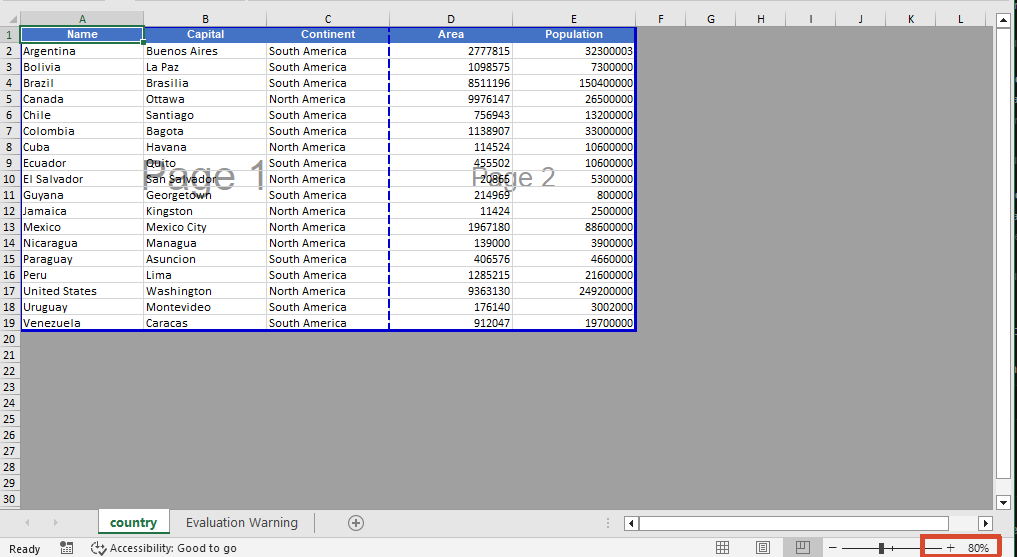
Remove Page Breaks
When page breaks are no longer needed, you can clear all page breaks in a specific direction using the Clear method, or delete the page break at a specific position by index using the RemoveAt method. After removal, you can also switch the worksheet to the page break preview view via the ViewMode property to visually confirm the page break effect.
function App() {
  const sheetToSVG = async () => {
    // Get the Spire.XLS WASM module
    const xlsModule = window.wasmModule?.spirexls;

    // Check if the module is ready
    if (!xlsModule) {
      alert('Spire.Xls is not ready yet');
      return;
    }

    // Load fonts and the Excel file into VFS
    await window.spire.FetchFileToVFS('ARIAL.TTF', '/Library/Fonts/', `${process.env.PUBLIC_URL}/font/`);
    const inputFileName = 'PageBreak.xlsx';
    await window.spire.FetchFileToVFS(inputFileName, '', `${process.env.PUBLIC_URL}/static/data/`);

    // Load the workbook
    const workbook = new xlsModule.Workbook();
    workbook.LoadFromFile({ fileName: inputFileName });

    // Get the first worksheet
    const sheet = workbook.Worksheets.get(0);

    // Clear all vertical page breaks
    sheet.VPageBreaks.Clear();

    // Remove the first horizontal page break
    sheet.HPageBreaks.RemoveAt(0);

    // Set the view mode to page break preview to check the page break effect
    sheet.ViewMode = xlsModule.ViewMode.Preview;

    const outputFileName = "RemovePageBreak_output.xlsx";
    workbook.SaveToFile({ fileName: outputFileName });

    // Release the workbook object to free resources
    workbook.Dispose();

    // Read the converted file from VFS and trigger download
    const fileArray = window.dotnetRuntime.Module.FS.readFile(outputFileName);
    const blob = new Blob([fileArray], { type: "application/vnd.openxmlformats-officedocument.spreadsheetml.sheet" });
    const url = URL.createObjectURL(blob);
    const a = document.createElement('a');
    a.href = url;
    a.download = outputFileName;
    a.click();
    URL.revokeObjectURL(url);
  };

  return (
    <div style={{ textAlign: 'center', height: '300px' }}>
      <h1>Remove Page Break</h1>
      <button onClick={sheetToSVG}>
        Start
      </button>
    </div>
  );
}

export default App;
Before removing the page break 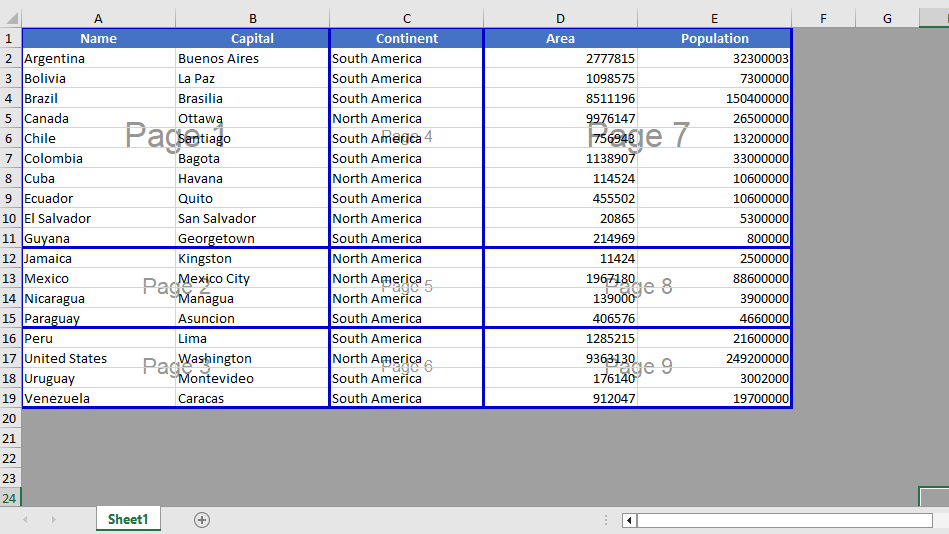 After removing the page break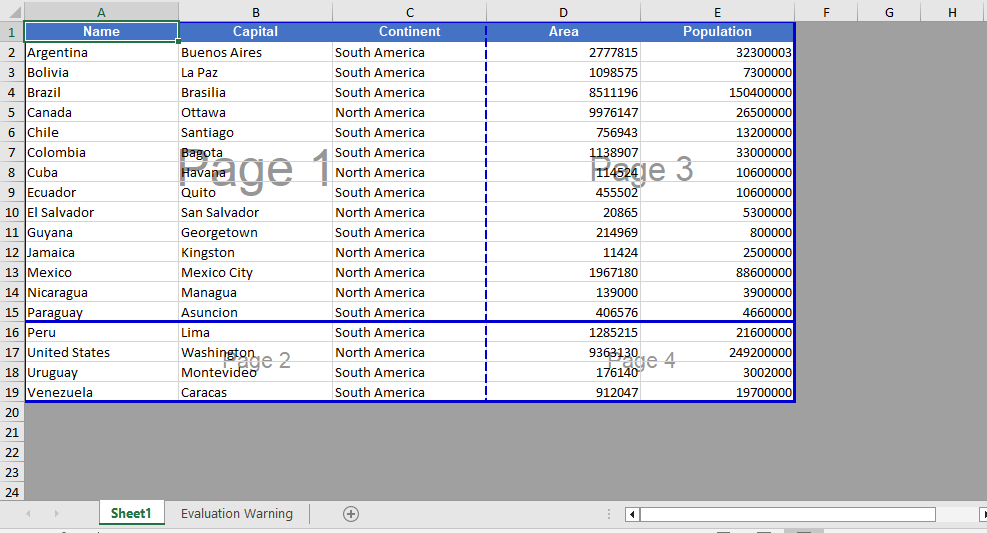
FAQ
Page breaks do not take effect when printing after being added
Cause: The page break was added to a blank area, or the worksheet has a fixed print zoom scale set, causing the actual page break positions during printing to differ from what was expected.
Solution: Confirm that the page break is added on the row or column of a cell containing data, and check the worksheet's print zoom settings. If necessary, adjust the zoom scale through properties such as ZoomScalePageBreakView so the page breaks take effect as expected.
Page break lines still display after removal
Cause: The worksheet is still in page break preview view mode, or there are automatic page breaks that are generated automatically based on the amount of data.
Solution: Automatic page breaks cannot be removed directly by programming; automatic page breaks are determined by the number of data rows, columns, and the page size. They can be eliminated by adjusting row heights, column widths, or the print zoom scale.
Get a Free License
If you want to remove the evaluation messages in the resulting documents, or get rid of functional limitations, please contact sales to obtain a temporary license valid for 30 days.
