
In many .NET-based business systems, structured data is often represented as a DataTable. When this data needs to be distributed, archived, or delivered as a read-only report, exporting a DataTable to PDF using C# becomes a common and practical requirement.
Compared with formats such as Excel or CSV, PDF is typically chosen when layout stability, visual consistency, and document integrity are more important than data editability. This makes PDF especially suitable for reports, invoices, audit records, and system-generated documents.
This tutorial takes a code-first approach to converting a DataTable to PDF in C#, focusing on the technical implementation rather than conceptual explanations. The solution is based on Spire.PDF for .NET, using its PdfGrid component to render DataTable content as a structured table inside a PDF document.
Table of Contents
- 1. Overview: DataTable to PDF Export in C#
- 2. Environment Setup
- 3. Core Workflow and Code Implementation
- 4. Controlling Table Layout, Page Flow, and Pagination
- 5. Customizing Table Appearance
- 6. PDF File and Stream Output
- 7. Practical Tips and Common Issues
1. Overview: DataTable to PDF Export in C#
Exporting a DataTable to PDF is fundamentally a data-binding and rendering task, not a low-level drawing problem.
Instead of manually calculating row positions, column widths, or page breaks, the recommended approach is to bind an existing DataTable to a PDF table component and let the rendering engine handle layout and pagination automatically.
In Spire.PDF for .NET, this role is fulfilled by the PdfGrid class.
Why PdfGrid Is the Right Abstraction
PdfGrid is a Spire.PDF for .NET component designed specifically for rendering structured, tabular data in PDF documents. It treats rows, columns, headers, and pagination as first-class concepts rather than graphical primitives.
From a technical standpoint, PdfGrid provides:
- Direct binding via the DataSource property, which accepts a DataTable
- Automatic column generation based on the DataTable schema
- Built-in header and row rendering
- Automatic page breaking when content exceeds page bounds
As a result, exporting a DataTable to PDF becomes a declarative operation: you describe what data should be rendered, and the PDF engine determines how it is laid out across pages.
The following sections focus on the concrete implementation and practical refinements of this approach.
2. Environment Setup
All examples in this article apply to both .NET Framework and modern .NET (6+) projects. The implementation is based entirely on managed code and does not require platform-specific configuration.
Installing Spire.PDF for .NET
Spire.PDF for .NET can be installed via NuGet:
Install-Package Spire.PDF
You can also download Spire.PDF for .NET and include it in your project manually.
Once installed, the library provides APIs for PDF document creation, page management, table rendering, and style control.
3. DataTable to PDF in C#: Core Workflow and Code Implementation
With the environment prepared, exporting a DataTable to PDF becomes a linear, implementation-driven process.
At its core, the workflow relies on binding an existing DataTable to PdfGrid and delegating layout, pagination, and table rendering to the PDF engine. There is no need to manually draw rows, columns, or borders.
From an implementation perspective, the process consists of the following steps:
- Prepare a populated DataTable
- Create a PDF document and page
- Bind the DataTable to a PdfGrid
- Render the grid onto the page
- Save the PDF output
These steps are typically executed together as a single, continuous code path in real-world applications. The following example demonstrates the complete workflow in one place.
Complete Example: Exporting a DataTable to PDF
The example below uses a business-oriented DataTable schema to reflect a typical reporting scenario. The source of the DataTable (database, API, or in-memory processing) does not affect the export logic.
DataTable dataTable = new DataTable();
dataTable.Columns.Add("OrderId", typeof(int));
dataTable.Columns.Add("CustomerName", typeof(string));
dataTable.Columns.Add("OrderDate", typeof(DateTime));
dataTable.Columns.Add("TotalAmount", typeof(decimal));

dataTable.Rows.Add(1001, "Contoso Ltd.", DateTime.Today, 1280.50m);
dataTable.Rows.Add(1002, "Northwind Co.", DateTime.Today, 760.00m);
dataTable.Rows.Add(1003, "Adventure Works", DateTime.Today, 2145.75m);
dataTable.Rows.Add(1004, "Wingtip Toys", DateTime.Today, 1230.00m);
dataTable.Rows.Add(1005, "Bike World", DateTime.Today, 1230.00m);
dataTable.Rows.Add(1006, "Woodgrove Bank", DateTime.Today, 1230.00m);

PdfDocument document = new PdfDocument();
PdfPageBase page = document.Pages.Add();

PdfGrid grid = new PdfGrid();
grid.DataSource = dataTable;

grid.Draw(page, new PointF(40f, 0));

document.SaveToFile("DataTableToPDF.pdf");
document.Close();
This single code block completes the entire DataTable-to-PDF export process. Below is a preview of the generated PDF:
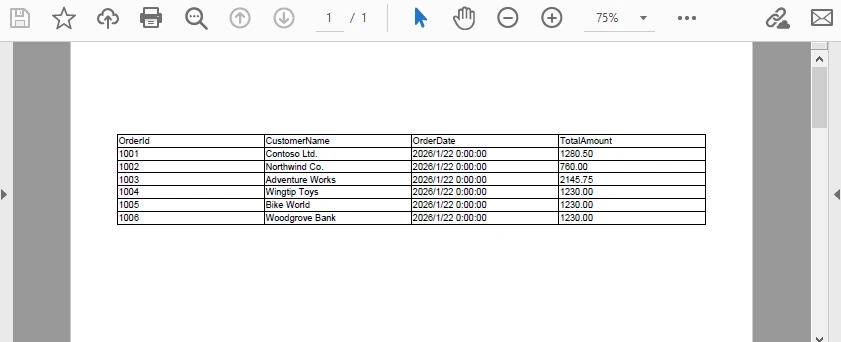
Key technical characteristics of this implementation:
- PdfGrid.DataSource accepts a DataTable directly, with no manual row or column mapping
- Column headers are generated automatically from DataColumn.ColumnName
- Row data is populated from each DataRow
- Pagination and page breaks are handled internally during rendering
- No coordinate-level table layout logic is required
The result is a structured, paginated PDF table that accurately reflects the DataTable’s schema and data. This method is already a fully functional and production-ready solution for exporting a DataTable to PDF in C#.
In practical applications, however, additional control is often required for layout positioning, page size, orientation, and visual styling. The following sections focus on refining table placement, appearance, and pagination behavior without altering the core export logic.
4. Controlling Table Layout, Page Flow, and Pagination
In real-world documents, table rendering is part of a larger page composition. Page geometry, table start position, and pagination behavior together determine how tabular data flows across one or more pages.
In PdfGrid, these concerns are resolved during rendering. The grid itself does not manage absolute layout or page transitions; instead, layout and pagination are governed by page configuration and the parameters supplied when calling Draw.
The following example demonstrates a typical layout and pagination configuration used in production reports.
Layout and Pagination Example
PdfDocument document = new PdfDocument();

// Create an A4 page with margins
PdfPageBase page = document.Pages.Add(
    PdfPageSize.A4,
    new PdfMargins(40),
    PdfPageRotateAngle.RotateAngle0,  // Rotates the page coordinate system
    PdfPageOrientation.Landscape  // Sets the page orientation
);

PdfGrid grid = new PdfGrid();
grid.DataSource = dataTable;

// Enable header repetition across pages
grid.RepeatHeader = true;

// Define table start position
float startX = 40f;
float startY = 80f;

// Render the table
grid.Draw(page, new PointF(startX, startY));
Below is a preview of the generated PDF with page configuration applied:
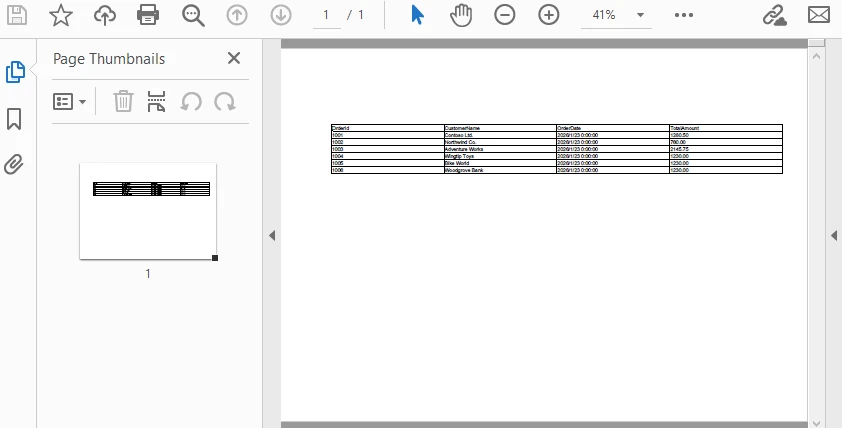
Technical Explanation
The rendering behavior illustrated above can be understood as a sequence of layout and flow decisions applied at draw time:
-
PdfPageBase
- Pages.Add creates a new page with configurable size, margins, rotation, and orientation.
-
RepeatHeader
- Boolean property controlling whether column headers are rendered on each page. When enabled, headers repeat automatically during multi-page rendering.
-
Draw method
- Accepts a PointF defining the starting position on the page.
- Responsible for rendering the grid and automatically handling pagination.
By configuring page geometry, table start position, and pagination behavior together, PdfGrid enables predictable multi-page table rendering without manual page management or row-level layout control.
Page numbers are also important for PDF reports. Refer to How to Add Pages Numbers to PDF with C# to learn page numbering techniques.
5. Customizing Table Appearance
Once layout is stable, appearance becomes the primary concern. PdfGrid provides a centralized styling model that allows table-wide, column-level, and row-level customization without interfering with data binding or pagination.
The example below consolidates common styling configurations typically applied in reporting scenarios.
Styling Example: Headers, Rows, and Columns
PdfDocument document = new PdfDocument();
PdfPageBase page = document.AppendPage();

PdfGrid grid = new PdfGrid();
grid.DataSource = dataTable;

// Create and apply the header style
PdfGridCellStyle headerStyle = new PdfGridCellStyle();
headerStyle.Font =
    new PdfFont(PdfFontFamily.Helvetica, 10f, PdfFontStyle.Bold);
headerStyle.BackgroundBrush =
    new PdfSolidBrush(Color.FromArgb(60, 120, 200));
headerStyle.TextBrush = PdfBrushes.White;
grid.Headers.ApplyStyle(headerStyle);


// Create row styles
PdfGridCellStyle defaultStyle = new PdfGridCellStyle();
defaultStyle.Font = new PdfFont(PdfFontFamily.Helvetica, 9f);
PdfGridCellStyle alternateStyle = new PdfGridCellStyle();
alternateStyle.BackgroundBrush = new PdfSolidBrush(Color.LightSkyBlue);
// Apply row styles
for (int rowIndex = 0; rowIndex < grid.Rows.Count; rowIndex++)
{
    if (rowIndex % 2 == 0)
    {
        grid.Rows[rowIndex].ApplyStyle(defaultStyle);
    }
    else
    {
        grid.Rows[rowIndex].ApplyStyle(alternateStyle);
    }
}

// Explicit column widths
grid.Columns[0].Width = 60f;    // OrderId
grid.Columns[1].Width = 140f;   // CustomerName
grid.Columns[2].Width = 90f;    // OrderDate
grid.Columns[3].Width = 90f;    // TotalAmount

// Render the table
grid.Draw(page, new PointF(40f, 80f));
Below is a preview of the generated PDF with the above styling applied:
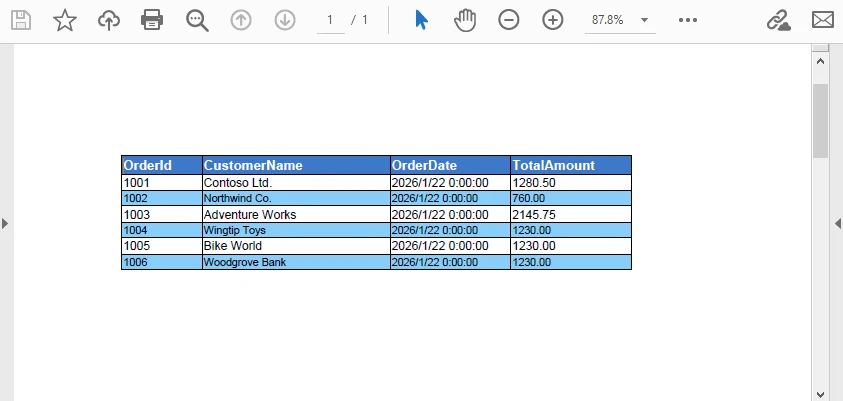
Styling Behavior Notes
-
Header styling
- Header appearance is defined through a dedicated PdfGridCellStyle and applied using grid.Headers.ApplyStyle(...).
- This ensures all header cells share the same font, background color, text color, and alignment across pages.
-
Row styling
- Data rows are styled explicitly via grid.Rows[i].ApplyStyle(...).
- Alternating row appearance is controlled by the row index, making the behavior predictable and easy to extend with additional conditions if needed.
-
Column width control
- Column widths are assigned directly through grid.Columns[index].Width.
- Explicit widths avoid layout shifts caused by content length and produce consistent results in report-style documents.
Make sure to bind the styles before applying styles.
All styles (header, rows, and columns) are resolved before calling grid.Draw(...). The rendering process applies these styles without affecting pagination or data binding.
For more complex styling scenarios, check out How to Create and Style Tables in PDF with C#.
6. Output Options: File vs Stream
Once the table has been rendered, the final step is exporting the PDF output.
The rendering logic remains identical regardless of the output destination.
Saving to a File
Saving directly to a file is suitable for desktop applications, background jobs, and batch exports.
document.SaveToFile("DataTableReport.pdf");
document.Close();
This approach is typically used in:
- Windows desktop applications
- Scheduled report generation
- Offline or server-side batch processing
Writing to a Stream (Web and API Scenarios)
In web-based systems, saving to disk is often unnecessary or undesirable. Instead, the PDF can be written directly to a stream.
using (MemoryStream stream = new MemoryStream())
{
    document.SaveToStream(stream);
    document.Close();

    byte[] pdfBytes = stream.ToArray();
    // return pdfBytes as HTTP response
}
Stream output integrates cleanly with ASP.NET controllers or minimal APIs, without the need for temporary file storage.
For a complete example of returning a generated PDF from an ASP.NET application, see how to create and return PDF documents in ASP.NET.
7. Practical Tips and Common Issues
This section focuses on issues commonly encountered in real-world projects when exporting DataTables to PDF.
7.1 Formatting Dates and Numeric Values
PdfGrid renders values using their string representation. To ensure consistent formatting, values should be normalized before binding.
Typical examples include:
- Formatting DateTime values using a fixed culture
- Standardizing currency precision
- Avoiding locale-dependent formats in multi-region systems
This preparation step belongs in the data layer, not the rendering layer.
7.2 Handling Null and Empty Values
DBNull.Value may result in empty cells or inconsistent alignment. Normalizing values before binding avoids layout surprises.
row["TotalAmount"] =
    row["TotalAmount"] == DBNull.Value ? 0m : row["TotalAmount"];
This approach keeps rendering logic simple and predictable.
7.3 Preventing Table Width Overflow
Wide DataTables can exceed page width if left unconfigured.
Common mitigation strategies include:
- Explicit column width configuration
- Slight font size reduction
- Switching to landscape orientation
- Increasing page margins selectively
These adjustments should be applied at the layout level rather than modifying the underlying data.
7.4 Large DataTables and Performance Considerations
When exporting DataTables with hundreds or thousands of rows, performance characteristics become more visible.
Practical recommendations:
- Avoid per-cell or per-row styling in large tables.
- Prefer table-level or column-level styles
- Use standard fonts instead of custom embedded fonts
- Keep layout calculations simple and consistent
For example, applying styles using grid.Rows[rowIndex].ApplyStyle(...) inside a loop can introduce unnecessary overhead for large datasets. In such cases, prefer applying a unified style at the row or column collection level (e.g., grid.Rows.ApplyStyle(...)) when individual row differentiation is not required.
In addition to rendering efficiency, in web environments, PDF generation should be performed outside the request thread when possible to avoid blocking.
8. Conclusion
Exporting a DataTable to PDF in C# can be handled directly through PdfGrid without manual table construction or low-level drawing. By binding an existing DataTable, you can generate paginated PDF tables while keeping layout and appearance fully under control.
This article focused on a practical, code-first approach, covering layout positioning, styling, and data preparation as they apply in real-world export scenarios. With these patterns in place, the same workflow scales cleanly from simple reports to large, multi-page documents.
If you plan to evaluate this workflow in a real project, you can apply for a temporary license from E-ICEBLUE to test the full functionality without limitations.
FAQ: DataTable to PDF in C#
When is PdfGrid the right choice for exporting DataTables to PDF?
PdfGrid is most suitable when you need structured, paginated tables with consistent layout. It handles column generation, headers, and page breaks automatically, making it a better choice than manual drawing for reports, invoices, and audit documents.
Should formatting be handled in the DataTable or in PdfGrid?
Data normalization (such as date formats, numeric precision, and null handling) should be done before binding. PdfGrid is best used for layout and visual styling, not for value transformation.
Can PdfGrid handle large DataTables efficiently?
Yes. PdfGrid supports automatic pagination and header repetition. For large datasets, applying table-level or column-level styles instead of per-cell styling helps maintain stable performance.