Como Converter Documentos para Markdown para IA em Python

Muitos aplicativos que incorporam LLMs ou agentes de IA precisam processar relatórios, arquivos PDF, planilhas e apresentações como parte de seu fluxo de trabalho. Esses arquivos armazenam conteúdo em diferentes estruturas específicas de formato, então os aplicativos podem precisar extrair e normalizar seus conteúdos antes de usá-los em fluxos de trabalho de IA orientados a texto. Convertê-los em Markdown oferece uma representação de texto consistente e inspecionável que componentes posteriores podem ler, armazenar e manipular sem lidar com lógica de análise específica de formato.
Este tutorial demonstra como converter documentos do Word, PDF, Excel e PowerPoint para Markdown em Python usando Spire.Office for Python, e então mostra como passar o conteúdo Markdown resultante para uma chamada real de API de LLM para sumarização. O objetivo é ilustrar um fluxo de trabalho prático de pré-processamento — não afirmar que todo modelo de IA exige Markdown ou que converter um documento automaticamente torna seu conteúdo adequado para toda tarefa de IA.
1. Por que usar Markdown para processamento de documentos com IA?
Markdown ocupa uma posição útil em um pipeline de processamento de documentos com IA. Ele representa a estrutura do documento por meio de uma sintaxe leve: títulos se tornam marcadores #, parágrafos permanecem texto simples, listas usam prefixos - ou 1., e tabelas mantêm relações de linha e coluna com caracteres de pipe. Essa representação é legível por humanos, fácil de armazenar e direta de transformar programaticamente.
Quando você converte documentos para Markdown, o texto resultante pode servir como entrada para uma variedade de tarefas de IA. Um LLM pode resumir o conteúdo, extrair entidades-chave, responder perguntas sobre ele ou gerar uma versão revisada. Um pipeline de recuperação pode indexar o texto para busca semântica. Um agente pode ler o Markdown para entender o que um documento contém antes de decidir qual ferramenta chamar em seguida.
Vale distinguir o pré-processamento de Markdown da entrada direta de arquivos. Algumas APIs de modelo aceitam arquivos originais — imagens, PDFs ou documentos do Office — por meio de endpoints multimodais ou recursos especializados de processamento de documentos. Nesses casos, a conversão para Markdown é desnecessária. Markdown é uma representação intermediária opcional escolhida quando o aplicativo se beneficia de um formato baseado em texto que ele pode inspecionar e controlar antes de enviar conteúdo a um modelo. A decisão depende dos requisitos do aplicativo, não de uma regra universal de que todos os fluxos de trabalho de IA devem usar Markdown.
2. Converter documentos para Markdown em Python
Spire.Office for Python é um conjunto de bibliotecas Python independentes que podem criar, ler, editar e converter documentos do Office sem instalar o Microsoft Office. Ele inclui quatro componentes, cada um direcionado a um formato de documento específico:
| Formato de entrada | Componente | pacote pip |
|---|---|---|
| Word (.doc, .docx) | Spire.Doc for Python | spire.doc |
| PDF (.pdf) | Spire.PDF for Python | spire.pdf |
| Excel (.xls, .xlsx) | Spire.XLS for Python | spire.xls |
| PowerPoint (.ppt, .pptx) | Spire.Presentation for Python | spire.presentation |
Instale os pacotes necessários:
pip install spire.doc spire.pdf spire.xls spire.presentation
O suporte à conversão para Markdown foi introduzido em versões diferentes entre os componentes. A tabela abaixo lista as versões mínimas que fornecem as APIs usadas neste artigo:
| Componente | Versão mínima | Recurso |
|---|---|---|
| Spire.Doc for Python | 12.6.0 | opção de salvamento FileFormat.Markdown |
| Spire.PDF for Python | 11.6.1 | PdfToMarkdownConverter com MarkdownOptions.IgnoreImage |
| Spire.XLS for Python | 16.4.0 | Workbook.SaveToMarkdown() com MarkdownOptions |
| Spire.Presentation for Python | 10.11.1 | opção de salvamento FileFormat.Markdown |
Spire.Doc 12.6.0, Spire.PDF 11.6.1, Spire.XLS 16.4.0 e Spire.Presentation 10.11.1 são as versões mínimas com suporte à conversão para Markdown. Recomenda-se usar a versão mais recente de cada componente.
Cada componente expõe uma API diferente para conversão para Markdown. A tabela a seguir resume os métodos de conversão verificados:
| Componente | Inicialização / carregamento | Método de exportação para Markdown |
|---|---|---|
| Spire.Doc | Document.LoadFromFile() |
Document.SaveToFile(path, FileFormat.Markdown) |
| Spire.PDF | PdfToMarkdownConverter(path) |
converter.ConvertToMarkdown(outputPath) |
| Spire.XLS | Workbook.LoadFromFile() |
Workbook.SaveToMarkdown(path, MarkdownOptions) |
| Spire.Presentation | Presentation.LoadFromFile() |
Presentation.SaveToFile(path, FileFormat.Markdown) |
O exemplo abaixo implementa uma única função de despacho que detecta a extensão do arquivo e encaminha o documento para a lógica de conversão apropriada. Ele valida o arquivo de entrada, gera o caminho de saída, realiza a conversão e trata erros com mensagens descritivas.
import os
from spire.doc import Document, FileFormat as DocFileFormat
from spire.pdf import PdfToMarkdownConverter
from spire.xls import Workbook, MarkdownOptions as XlsMarkdownOptions
from spire.presentation import Presentation, FileFormat as PresentationFileFormat


def convert_to_markdown(input_path: str, output_path: str = None) -> str:
    """Convert a Word, PDF, Excel, or PowerPoint file to Markdown.

    Args:
        input_path: Path to the source document.
        output_path: Path for the output .md file. If None, uses the
            input filename with a .md extension in the same directory.

    Returns:
        The path to the generated Markdown file.
    """
    if not os.path.isfile(input_path):
        raise FileNotFoundError(f"Input file not found: {input_path}")

    ext = os.path.splitext(input_path)[1].lower()

    if output_path is None:
        output_path = os.path.splitext(input_path)[0] + ".md"

    if ext in (".doc", ".docx"):
        # Spire.Doc for Python: load and save as Markdown
        doc = Document()
        try:
            doc.LoadFromFile(input_path)
            doc.SaveToFile(output_path, DocFileFormat.Markdown)
        finally:
            doc.Close()

    elif ext == ".pdf":
        # Spire.PDF for Python: use PdfToMarkdownConverter
        # IgnoreImage=True skips images in the PDF; set to False if
        # charts or screenshots contain important information.
        converter = PdfToMarkdownConverter(input_path)
        try:
            converter.MarkdownOptions.IgnoreImage = True
            converter.ConvertToMarkdown(output_path)
        finally:
            converter.Dispose()

    elif ext in (".xls", ".xlsx"):
        # Spire.XLS for Python: use SaveToMarkdown with MarkdownOptions
        workbook = Workbook()
        try:
            workbook.LoadFromFile(input_path)
            options = XlsMarkdownOptions()
            options.SavePicInRelativePath = True
            options.SaveHyperlinkAsRef = False
            workbook.SaveToMarkdown(output_path, options)
        finally:
            workbook.Dispose()

    elif ext in (".ppt", ".pptx"):
        # Spire.Presentation for Python: load and save as Markdown
        presentation = Presentation()
        try:
            presentation.LoadFromFile(input_path)
            presentation.SaveToFile(output_path, PresentationFileFormat.Markdown)
        finally:
            presentation.Dispose()

    else:
        raise ValueError(
            f"Unsupported file extension: {ext}. "
            f"Supported formats: .doc, .docx, .pdf, .xls, .xlsx, .ppt, .pptx"
        )

    return output_path


# Example usage
if __name__ == "__main__":
    result = convert_to_markdown("quarterly_report.docx")
    print(f"Markdown saved to: {result}")

    with open(result, "r", encoding="utf-8") as f:
        content = f.read()
    print(content[:500])  # Preview the first 500 characters
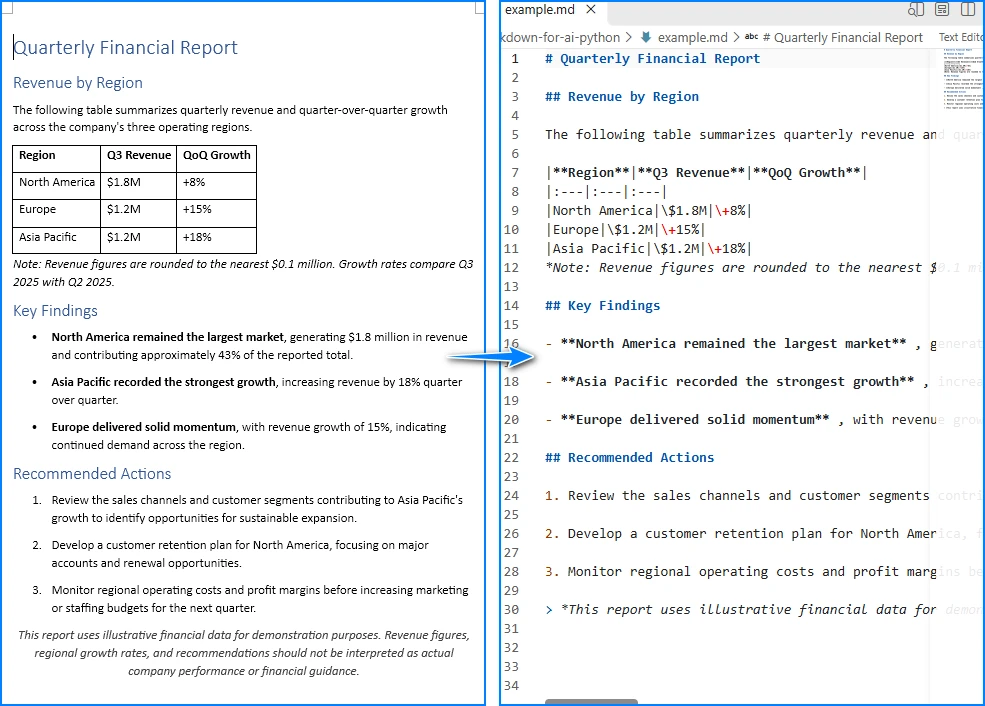
Saída Markdown da conversão de um documento do Word:
Para detalhes específicos de formato, consulte os tutoriais individuais de cada componente:
- Converter Word para Markdown com Spire.Doc for Python
- Converter PDF para Markdown com Spire.PDF for Python
- Converter Excel para Markdown com Spire.XLS for Python
3. Enviar conteúdo Markdown para um LLM
Depois que um documento foi convertido para Markdown, o texto pode servir como entrada para um LLM em tarefas como sumarização, extração de informações ou resposta a perguntas. O exemplo a seguir converte um relatório de negócios para Markdown, lê o arquivo resultante e envia o conteúdo para a API da OpenAI com uma instrução específica da tarefa.
Para executar este exemplo, instale o SDK Python da OpenAI e defina sua chave de API como uma variável de ambiente:
pip install openai
export OPENAI_API_KEY="your-api-key"
O código abaixo pressupõe que a função convert_to_markdown da seção anterior está salva em um arquivo chamado convert_to_markdown.py no mesmo diretório, ou que ambos os blocos de código estão combinados em um único script.
import os
from openai import OpenAI

# Step 1: Convert the document to Markdown
from convert_to_markdown import convert_to_markdown
md_path = convert_to_markdown("business_report.pdf")

# Step 2: Read the Markdown content
with open(md_path, "r", encoding="utf-8") as f:
    markdown_content = f.read()

# Step 3: Construct a task-specific instruction and call the LLM
client = OpenAI(api_key=os.environ.get("OPENAI_API_KEY"))

response = client.chat.completions.create(
    model="gpt-6-luna",
    messages=[
        {
            "role": "system",
            "content": "You are a financial analyst. Read the document "
                       "and extract the three most important findings."
        },
        {
            "role": "user",
            "content": f"Here is the document content in Markdown:\n\n"
                       f"{markdown_content}\n\n"
                       f"Provide a concise summary of the key findings."
        }
    ],
    max_completion_tokens=1000
)

# Step 4: Read and display the response
summary = response.choices[0].message.content
print("=== LLM Summary ===")
print(summary)
Neste fluxo de trabalho, o Spire.Office for Python lida com a conversão de documentos, e a API da OpenAI lida com a análise de IA. Spire.Office é uma biblioteca de processamento de documentos, não uma estrutura de agente de IA — ela produz o texto Markdown que um LLM ou pipeline de agente consome. Para um agente completo de processamento de documentos, considere Spire.Agent.Office.
Uma consideração importante é o tamanho da entrada. LLMs têm limites de janela de contexto, e um documento longo pode produzir Markdown que excede o comprimento máximo de entrada do modelo. Quando isso acontece, o aplicativo deve dividir o Markdown em blocos menores ou recuperar seletivamente seções relevantes antes de enviá-las ao modelo. Bibliotecas como langchain-text-splitters ou lógica de divisão personalizada podem lidar com essa etapa.
4. Usar Markdown para agentes de IA e fluxos de trabalho RAG
O Markdown produzido pela etapa de conversão pode se tornar uma entrada para fluxos de trabalho de IA maiores. Dois padrões comuns são agentes de IA e geração aumentada por recuperação (RAG).
Para agentes de IA, um aplicativo pode expor o Markdown convertido como contexto que um agente lê antes de decidir quais ações tomar. Por exemplo, um agente de suporte pode receber o Markdown de um contrato de cliente e responder perguntas sobre termos de renovação, cronogramas de pagamento ou cláusulas de rescisão. O agente trata o Markdown como contexto legível, não como uma consulta estruturada a banco de dados.
Para RAG, o conteúdo Markdown é dividido em blocos, cada bloco é incorporado em uma representação vetorial, e os vetores são armazenados em um índice. Quando um usuário faz uma pergunta, o sistema recupera os blocos mais relevantes e os passa para um LLM junto com a consulta. A estrutura baseada em seções do Markdown — títulos, parágrafos e tabelas — pode fornecer limites significativos para a divisão de documentos. A divisão consciente de títulos pode ajudar a preservar contexto, embora a qualidade da recuperação dependa do documento e da configuração geral de recuperação.
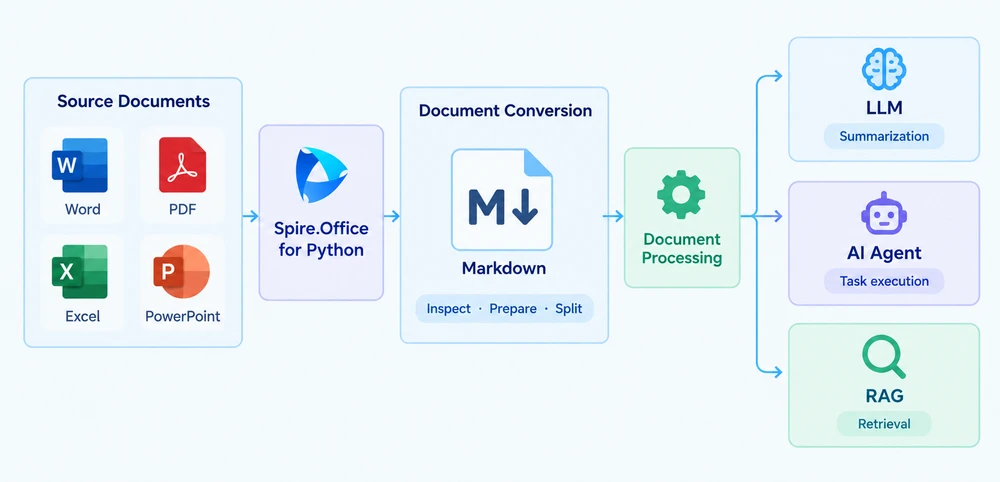
Converter documentos para Markdown não implementa, por si só, um sistema completo de agente ou RAG. Bancos de dados vetoriais, modelos de incorporação, estruturas de orquestração, protocolos de chamada de ferramentas e classificação de recuperação são componentes separados que operam em etapas posteriores. A etapa de conversão produz a entrada de texto; o restante do pipeline determina como esse texto é usado.
5. Validar Markdown antes do processamento por IA
A qualidade do Markdown convertido afeta diretamente a qualidade dos resultados posteriores de IA. Se a conversão perde estrutura, representa dados incorretamente ou omite conteúdo, o LLM ou agente trabalhará com contexto incorreto ou incompleto. Antes de confiar no Markdown convertido para tarefas importantes, verifique a saída em relação às áreas de problema mais comuns:
- Hierarquia de títulos e ordenação de parágrafos. Garanta que os níveis de seção (
#,##,###) reflitam a estrutura do documento original e que os parágrafos apareçam na sequência correta. - Linhas, colunas e valores numéricos de tabelas. Verifique se as relações entre linhas e colunas são preservadas e se números, datas e valores monetários correspondem à fonte. Se uma tabela financeira perde seu alinhamento, um LLM pode produzir um resumo com base em associações incorretas — por exemplo, atribuindo um valor de receita à região errada.
- Imagens, links e layouts complexos. Markdown não consegue representar todos os elementos visuais. Imagens podem ser omitidas ou substituídas por referências de caminho de arquivo. Layouts de várias colunas, caixas de texto e objetos incorporados podem não sobreviver à conversão em sua forma original.
- PDFs digitalizados. Se o PDF de origem contiver imagens digitalizadas em vez de texto incorporado, a conversão pode produzir uma saída vazia ou quase vazia. Nesses casos, uma etapa de OCR é necessária antes ou em vez da conversão para Markdown.
- Documentos longos. Verifique se o documento completo foi convertido, não apenas a primeira seção. Para documentos que excedem a janela de contexto de um modelo, confirme se o Markdown pode ser dividido em blocos significativos sem quebrar tabelas ou separar títulos de seu conteúdo.
A conversão não garante a preservação perfeita de cada recurso visual ou semântico. A saída Markdown é uma representação intermediária, não um clone fiel do documento original. Revisar o texto convertido antes de passá-lo a um modelo de IA é uma etapa prática que evita que erros se propaguem para resumos, extrações ou decisões de agentes.
6. Conclusão
Este artigo percorreu um fluxo de trabalho de pré-processamento de documentos para Markdown para aplicações de IA em Python. O processo tem três estágios: converter formatos de documento compatíveis (Word, PDF, Excel, PowerPoint) para Markdown usando Spire.Office for Python, verificar a saída convertida quanto à precisão estrutural e passar o conteúdo Markdown para o componente de processamento de IA apropriado — seja uma chamada de API de LLM, um contexto de agente ou um pipeline de divisão RAG.
Markdown é uma forma útil de preparar conteúdo de documentos para aplicações de IA, não um formato de entrada obrigatório para todo modelo. A escolha de converter documentos para Markdown depende de o aplicativo se beneficiar de uma representação intermediária baseada em texto que ele possa inspecionar, armazenar e controlar. Para mais detalhes, visite a página do produto Spire.Office for Python ou a documentação de conversão.
Veja também
Python에서 AI를 위한 문서를 Markdown으로 변환하는 방법
LLM이나 AI 에이전트를 포함하는 많은 애플리케이션은 워크플로의 일부로 보고서, PDF 파일, 스프레드시트 및 프레젠테이션을 처리해야 합니다. 이러한 파일은 서로 다른 형식별 구조로 콘텐츠를 저장하므로, 애플리케이션은 텍스트 지향 AI 워크플로에서 사용하기 전에 콘텐츠를 추출하고 정규화해야 할 수 있습니다. 이를 Markdown으로 변환하면 다운스트림 구성 요소가 형식별 구문 분석 로직을 다루지 않고도 읽고, 저장하고, 조작할 수 있는 일관되고 검사 가능한 텍스트 표현을 제공합니다.
이 자습서에서는 Spire.Office for Python을 사용하여 Python에서 Word, PDF, Excel 및 PowerPoint 문서를 Markdown으로 변환하는 방법을 보여 주고, 그런 다음 결과 Markdown 콘텐츠를 요약을 위해 실제 LLM API 호출에 전달하는 방법을 보여 줍니다. 목표는 실용적인 전처리 워크플로를 설명하는 것이지, 모든 AI 모델에 Markdown이 필요하거나 문서를 변환한다고 해서 해당 콘텐츠가 모든 AI 작업에 자동으로 적합해진다고 주장하는 것이 아닙니다.
1. AI 문서 처리를 위해 Markdown을 사용하는 이유
Markdown은 AI 문서 처리 파이프라인에서 유용한 위치를 차지합니다. 경량 구문을 통해 문서 구조를 나타냅니다. 제목은 # 마커가 되고, 단락은 일반 텍스트로 유지되며, 목록은 - 또는 1. 접두사를 사용하고, 표는 파이프 문자로 행과 열 관계를 유지합니다. 이 표현은 사람이 읽기 쉽고, 저장하기 쉬우며, 프로그래밍 방식으로 변환하기 간단합니다.
문서를 Markdown으로 변환하면 결과 텍스트가 다양한 AI 작업의 입력으로 사용될 수 있습니다. LLM은 콘텐츠를 요약하고, 주요 개체를 추출하고, 콘텐츠에 대한 질문에 답변하거나, 수정된 버전을 생성할 수 있습니다. 검색 파이프라인은 텍스트를 시맨틱 검색을 위해 색인화할 수 있습니다. 에이전트는 다음에 호출할 도구를 결정하기 전에 문서에 무엇이 포함되어 있는지 이해하기 위해 Markdown을 읽을 수 있습니다.
Markdown 전처리와 직접 파일 입력을 구분할 가치가 있습니다. 일부 모델 API는 멀티모달 엔드포인트 또는 특수 문서 처리 기능을 통해 원본 파일(이미지, PDF 또는 Office 문서)을 받습니다. 이러한 경우 Markdown 변환은 불필요합니다. Markdown은 애플리케이션이 모델에 콘텐츠를 보내기 전에 검사하고 제어할 수 있는 텍스트 기반 형식의 이점을 얻을 때 선택되는 선택적 중간 표현입니다. 결정은 애플리케이션의 요구 사항에 따라 달라지며, 모든 AI 워크플로가 Markdown을 사용해야 한다는 보편적인 규칙에 따르지 않습니다.
2. Python에서 문서를 Markdown으로 변환
Spire.Office for Python은 Microsoft Office를 설치하지 않고도 Office 문서를 만들고, 읽고, 편집하고, 변환할 수 있는 독립 실행형 Python 라이브러리 모음입니다. 여기에는 특정 문서 형식을 대상으로 하는 네 가지 구성 요소가 포함되어 있습니다:
| 입력 형식 | 구성 요소 | pip 패키지 |
|---|---|---|
| Word (.doc, .docx) | Spire.Doc for Python | spire.doc |
| PDF (.pdf) | Spire.PDF for Python | spire.pdf |
| Excel (.xls, .xlsx) | Spire.XLS for Python | spire.xls |
| PowerPoint (.ppt, .pptx) | Spire.Presentation for Python | spire.presentation |
필요한 패키지를 설치합니다:
pip install spire.doc spire.pdf spire.xls spire.presentation
Markdown 변환 지원은 구성 요소마다 다른 버전에서 도입되었습니다. 아래 표에는 이 문서에서 사용된 API를 제공하는 최소 버전이 나와 있습니다:
| 구성 요소 | 최소 버전 | 기능 |
|---|---|---|
| Spire.Doc for Python | 12.6.0 | FileFormat.Markdown 저장 옵션 |
| Spire.PDF for Python | 11.6.1 | PdfToMarkdownConverter와 MarkdownOptions.IgnoreImage |
| Spire.XLS for Python | 16.4.0 | Workbook.SaveToMarkdown()와 MarkdownOptions |
| Spire.Presentation for Python | 10.11.1 | FileFormat.Markdown 저장 옵션 |
Spire.Doc 12.6.0, Spire.PDF 11.6.1, Spire.XLS 16.4.0, Spire.Presentation 10.11.1은 Markdown 변환을 지원하는 최소 버전입니다. 각 구성 요소의 최신 버전을 사용하는 것이 좋습니다.
각 구성 요소는 Markdown 변환을 위해 서로 다른 API를 제공합니다. 다음 표에는 확인된 변환 방법이 요약되어 있습니다:
| 구성 요소 | 초기화 / 로드 | Markdown 내보내기 방법 |
|---|---|---|
| Spire.Doc | Document.LoadFromFile() |
Document.SaveToFile(path, FileFormat.Markdown) |
| Spire.PDF | PdfToMarkdownConverter(path) |
converter.ConvertToMarkdown(outputPath) |
| Spire.XLS | Workbook.LoadFromFile() |
Workbook.SaveToMarkdown(path, MarkdownOptions) |
| Spire.Presentation | Presentation.LoadFromFile() |
Presentation.SaveToFile(path, FileFormat.Markdown) |
아래 예제는 파일 확장자를 감지하고 문서를 적절한 변환 논리로 라우팅하는 단일 디스패치 함수를 구현합니다. 입력 파일을 확인하고, 출력 경로를 생성하고, 변환을 수행하고, 설명 메시지와 함께 오류를 처리합니다.
import os
from spire.doc import Document, FileFormat as DocFileFormat
from spire.pdf import PdfToMarkdownConverter
from spire.xls import Workbook, MarkdownOptions as XlsMarkdownOptions
from spire.presentation import Presentation, FileFormat as PresentationFileFormat


def convert_to_markdown(input_path: str, output_path: str = None) -> str:
    """Convert a Word, PDF, Excel, or PowerPoint file to Markdown.

    Args:
        input_path: Path to the source document.
        output_path: Path for the output .md file. If None, uses the
            input filename with a .md extension in the same directory.

    Returns:
        The path to the generated Markdown file.
    """
    if not os.path.isfile(input_path):
        raise FileNotFoundError(f"Input file not found: {input_path}")

    ext = os.path.splitext(input_path)[1].lower()

    if output_path is None:
        output_path = os.path.splitext(input_path)[0] + ".md"

    if ext in (".doc", ".docx"):
        # Spire.Doc for Python: load and save as Markdown
        doc = Document()
        try:
            doc.LoadFromFile(input_path)
            doc.SaveToFile(output_path, DocFileFormat.Markdown)
        finally:
            doc.Close()

    elif ext == ".pdf":
        # Spire.PDF for Python: use PdfToMarkdownConverter
        # IgnoreImage=True skips images in the PDF; set to False if
        # charts or screenshots contain important information.
        converter = PdfToMarkdownConverter(input_path)
        try:
            converter.MarkdownOptions.IgnoreImage = True
            converter.ConvertToMarkdown(output_path)
        finally:
            converter.Dispose()

    elif ext in (".xls", ".xlsx"):
        # Spire.XLS for Python: use SaveToMarkdown with MarkdownOptions
        workbook = Workbook()
        try:
            workbook.LoadFromFile(input_path)
            options = XlsMarkdownOptions()
            options.SavePicInRelativePath = True
            options.SaveHyperlinkAsRef = False
            workbook.SaveToMarkdown(output_path, options)
        finally:
            workbook.Dispose()

    elif ext in (".ppt", ".pptx"):
        # Spire.Presentation for Python: load and save as Markdown
        presentation = Presentation()
        try:
            presentation.LoadFromFile(input_path)
            presentation.SaveToFile(output_path, PresentationFileFormat.Markdown)
        finally:
            presentation.Dispose()

    else:
        raise ValueError(
            f"Unsupported file extension: {ext}. "
            f"Supported formats: .doc, .docx, .pdf, .xls, .xlsx, .ppt, .pptx"
        )

    return output_path


# Example usage
if __name__ == "__main__":
    result = convert_to_markdown("quarterly_report.docx")
    print(f"Markdown saved to: {result}")

    with open(result, "r", encoding="utf-8") as f:
        content = f.read()
    print(content[:500])  # Preview the first 500 characters
Word 문서를 변환한 Markdown 출력:
형식별 세부 정보는 개별 구성 요소 자습서를 참조하세요:
- Spire.Doc for Python으로 Word를 Markdown으로 변환
- Spire.PDF for Python으로 PDF를 Markdown으로 변환
- Spire.XLS for Python으로 Excel을 Markdown으로 변환
3. Markdown 콘텐츠를 LLM에 전송
문서가 Markdown으로 변환되면 해당 텍스트는 요약, 정보 추출 또는 질문 답변과 같은 작업을 위해 LLM의 입력으로 사용될 수 있습니다. 다음 예제는 비즈니스 보고서를 Markdown으로 변환하고, 결과 파일을 읽고, 작업별 지침과 함께 콘텐츠를 OpenAI API에 제출합니다.
이 예제를 실행하려면 OpenAI Python SDK를 설치하고 API 키를 환경 변수로 설정하세요:
pip install openai
export OPENAI_API_KEY="your-api-key"
아래 코드는 이전 섹션의 convert_to_markdown 함수가 같은 디렉터리의 convert_to_markdown.py 파일에 저장되어 있거나 두 코드 블록이 단일 스크립트로 결합되어 있다고 가정합니다.
import os
from openai import OpenAI

# Step 1: Convert the document to Markdown
from convert_to_markdown import convert_to_markdown
md_path = convert_to_markdown("business_report.pdf")

# Step 2: Read the Markdown content
with open(md_path, "r", encoding="utf-8") as f:
    markdown_content = f.read()

# Step 3: Construct a task-specific instruction and call the LLM
client = OpenAI(api_key=os.environ.get("OPENAI_API_KEY"))

response = client.chat.completions.create(
    model="gpt-6-luna",
    messages=[
        {
            "role": "system",
            "content": "You are a financial analyst. Read the document "
                       "and extract the three most important findings."
        },
        {
            "role": "user",
            "content": f"Here is the document content in Markdown:\n\n"
                       f"{markdown_content}\n\n"
                       f"Provide a concise summary of the key findings."
        }
    ],
    max_completion_tokens=1000
)

# Step 4: Read and display the response
summary = response.choices[0].message.content
print("=== LLM Summary ===")
print(summary)
이 워크플로에서 Spire.Office for Python은 문서 변환을 처리하고 OpenAI API는 AI 분석을 처리합니다. Spire.Office는 문서 처리 라이브러리이지 AI 에이전트 프레임워크가 아닙니다. 즉, LLM 또는 에이전트 파이프라인이 소비하는 Markdown 텍스트를 생성합니다. 완전한 문서 처리 에이전트를 원한다면 Spire.Agent.Office를 고려하세요.
한 가지 중요한 고려 사항은 입력 크기입니다. LLM에는 컨텍스트 창 제한이 있으며, 긴 문서는 모델의 최대 입력 길이를 초과하는 Markdown을 생성할 수 있습니다. 이 경우 애플리케이션은 모델에 보내기 전에 Markdown을 더 작은 청크로 분할하거나 관련 섹션을 선택적으로 검색해야 합니다. langchain-text-splitters와 같은 라이브러리 또는 사용자 지정 분할 로직이 이 단계를 처리할 수 있습니다.
4. AI 에이전트 및 RAG 워크플로에 Markdown 사용
변환 단계에서 생성된 Markdown은 더 큰 AI 워크플로의 입력이 될 수 있습니다. 두 가지 일반적인 패턴은 AI 에이전트와 검색 증강 생성(RAG)입니다.
AI 에이전트의 경우, 애플리케이션은 에이전트가 수행할 작업을 결정하기 전에 읽는 컨텍스트로 변환된 Markdown을 노출할 수 있습니다. 예를 들어, 지원 에이전트는 고객 계약서의 Markdown을 받고 갱신 조건, 지불 일정 또는 해지 조항에 대한 질문에 답변할 수 있습니다. 에이전트는 Markdown을 구조화된 데이터베이스 쿼리가 아니라 읽을 수 있는 컨텍스트로 취급합니다.
RAG의 경우, Markdown 콘텐츠는 청크로 분할되고, 각 청크는 벡터 표현으로 임베딩되며, 벡터는 인덱스에 저장됩니다. 사용자가 질문을 하면 시스템은 가장 관련성 높은 청크를 검색하여 쿼리와 함께 LLM에 전달합니다. Markdown의 섹션 기반 구조(제목, 단락 및 표)는 문서 청킹에 의미 있는 경계를 제공할 수 있습니다. 제목 인식 청킹은 컨텍스트를 보존하는 데 도움이 될 수 있지만, 검색 품질은 문서와 전체 검색 설정에 따라 달라집니다.
문서를 Markdown으로 변환하는 것만으로는 완전한 에이전트나 RAG 시스템을 구현할 수 없습니다. 벡터 데이터베이스, 임베딩 모델, 오케스트레이션 프레임워크, 도구 호출 프로토콜 및 검색 순위는 다운스트림에서 작동하는 별도의 구성 요소입니다. 변환 단계는 텍스트 입력을 생성하고, 파이프라인의 나머지는 해당 텍스트가 어떻게 사용되는지를 결정합니다.
5. AI 처리 전에 Markdown 유효성 검사
변환된 Markdown의 품질은 다운스트림 AI 결과의 품질에 직접적인 영향을 미칩니다. 변환에서 구조가 손실되거나, 데이터가 잘못 표현되거나, 콘텐츠가 누락되면 LLM 또는 에이전트는 부정확하거나 불완전한 컨텍스트로 작업하게 됩니다. 중요한 작업에 변환된 Markdown을 사용하기 전에 가장 일반적인 문제 영역에 대해 출력을 확인하세요:
- 제목 계층 및 단락 순서. 섹션 수준(
#,##,###)이 원본 문서의 구조를 반영하고 단락이 올바른 순서로 나타나는지 확인합니다. - 표 행, 열 및 숫자 값. 행과 열 관계가 유지되고 숫자, 날짜 및 통화 값이 원본과 일치하는지 확인합니다. 재무 표가 정렬을 잃으면 LLM이 잘못된 연결을 기반으로 요약을 생성할 수 있습니다. 예를 들어 수익 수치를 잘못된 지역에 귀속시키는 경우입니다.
- 이미지, 링크 및 복잡한 레이아웃. Markdown은 모든 시각적 요소를 표현할 수 없습니다. 이미지는 생략되거나 파일 경로 참조로 대체될 수 있습니다. 다단 레이아웃, 텍스트 상자 및 포함된 개체는 변환 후 원래 형태로 유지되지 않을 수 있습니다.
- 스캔한 PDF. 원본 PDF에 포함된 텍스트가 아니라 스캔한 이미지가 포함된 경우 변환 결과가 비어 있거나 거의 비어 있을 수 있습니다. 이러한 경우 Markdown 변환 전에 또는 대신 OCR 단계가 필요합니다.
- 긴 문서. 첫 번째 섹션뿐만 아니라 전체 문서가 변환되었는지 확인합니다. 모델의 컨텍스트 창을 초과하는 문서의 경우 표를 깨뜨리거나 제목을 콘텐츠와 분리하지 않고 Markdown을 의미 있는 청크로 분할할 수 있는지 확인합니다.
변환은 모든 시각적 또는 의미적 특징을 완벽하게 보존한다고 보장하지 않습니다. Markdown 출력은 원본 문서의 충실한 복제본이 아니라 중간 표현입니다. AI 모델에 전달하기 전에 변환된 텍스트를 검토하는 것은 오류가 요약, 추출 또는 에이전트 결정으로 전파되는 것을 방지하는 실용적인 단계입니다.
6. 결론
이 문서에서는 Python에서 AI 애플리케이션을 위한 문서-대-Markdown 전처리 워크플로를 살펴보았습니다. 프로세스에는 세 단계가 있습니다. Spire.Office for Python을 사용하여 지원되는 문서 형식(Word, PDF, Excel, PowerPoint)을 Markdown으로 변환하고, 변환된 출력의 구조적 정확성을 확인하고, Markdown 콘텐츠를 적절한 AI 처리 구성 요소(LLM API 호출, 에이전트 컨텍스트 또는 RAG 청킹 파이프라인)에 전달합니다.
Markdown은 AI 애플리케이션을 위해 문서 콘텐츠를 준비하는 한 가지 유용한 방법이지, 모든 모델에 필수적인 입력 형식은 아닙니다. 문서를 Markdown으로 변환할지 여부는 애플리케이션이 검사, 저장 및 제어할 수 있는 텍스트 기반 중간 표현의 이점을 얻을 수 있는지에 따라 달라집니다. 자세한 내용은 Spire.Office for Python 제품 페이지 또는 변환 설명서를 방문하세요.
참고 항목
Come convertire documenti in Markdown per l'IA in Python
Indice dei contenuti
Molte applicazioni che integrano LLM o agenti IA devono elaborare report, file PDF, fogli di calcolo e presentazioni come parte del proprio flusso di lavoro. Questi file memorizzano i contenuti in strutture diverse, specifiche per ciascun formato, per cui le applicazioni potrebbero dover estrarre e normalizzare i loro contenuti prima di utilizzarli in flussi di lavoro IA orientati al testo. Convertirli in Markdown offre una rappresentazione testuale coerente e ispezionabile che i componenti a valle possono leggere, memorizzare e manipolare senza dover gestire logiche di analisi specifiche per formato.
Questo tutorial mostra come convertire documenti Word, PDF, Excel e PowerPoint in Markdown in Python utilizzando Spire.Office for Python, e poi mostra come passare il contenuto Markdown risultante a una vera chiamata API di un LLM per la sintesi. L'obiettivo è illustrare un flusso di lavoro pratico di pre-elaborazione, non affermare che ogni modello IA richieda Markdown o che convertire un documento renda automaticamente i suoi contenuti adatti a ogni attività IA.
1. Perché usare Markdown per l'elaborazione di documenti con l'IA?
Markdown occupa una posizione utile in una pipeline di elaborazione documenti con l'IA. Rappresenta la struttura del documento tramite una sintassi leggera: i titoli diventano marcatori #, i paragrafi restano testo normale, gli elenchi usano i prefissi - o 1., e le tabelle mantengono le relazioni tra righe e colonne tramite il carattere pipe. Questa rappresentazione è leggibile dall'uomo, facile da memorizzare e semplice da trasformare a livello di programmazione.
Quando si convertono documenti in Markdown, il testo risultante può fungere da input per una serie di attività IA. Un LLM può riassumere il contenuto, estrarre entità chiave, rispondere a domande in merito o generare una versione rivista. Una pipeline di recupero può indicizzare il testo per la ricerca semantica. Un agente può leggere il Markdown per capire cosa contiene un documento prima di decidere quale strumento chiamare successivamente.
Vale la pena distinguere la pre-elaborazione in Markdown dall'invio diretto dei file. Alcune API dei modelli accettano file originali — immagini, PDF o documenti Office — tramite endpoint multimodali o funzionalità specializzate di elaborazione documenti. In questi casi, la conversione in Markdown non è necessaria. Markdown è una rappresentazione intermedia opzionale, scelta quando l'applicazione trae vantaggio da un formato testuale che può ispezionare e controllare prima di inviare il contenuto a un modello. La decisione dipende dai requisiti dell'applicazione, non da una regola universale secondo cui tutti i flussi di lavoro IA devono usare Markdown.
2. Convertire documenti in Markdown in Python
Spire.Office for Python è una suite di librerie Python standalone in grado di creare, leggere, modificare e convertire documenti Office senza installare Microsoft Office. Comprende quattro componenti, ciascuno dedicato a un formato di documento specifico:
| Formato di input | Componente | pacchetto pip |
|---|---|---|
| Word (.doc, .docx) | Spire.Doc for Python | spire.doc |
| PDF (.pdf) | Spire.PDF for Python | spire.pdf |
| Excel (.xls, .xlsx) | Spire.XLS for Python | spire.xls |
| PowerPoint (.ppt, .pptx) | Spire.Presentation for Python | spire.presentation |
Installare i pacchetti necessari:
pip install spire.doc spire.pdf spire.xls spire.presentation
Il supporto alla conversione in Markdown è stato introdotto in versioni diverse tra i vari componenti. La tabella seguente elenca le versioni minime che forniscono le API utilizzate in questo articolo:
| Componente | Versione minima | Funzionalità |
|---|---|---|
| Spire.Doc for Python | 12.6.0 | opzione di salvataggio FileFormat.Markdown |
| Spire.PDF for Python | 11.6.1 | PdfToMarkdownConverter con MarkdownOptions.IgnoreImage |
| Spire.XLS for Python | 16.4.0 | Workbook.SaveToMarkdown() con MarkdownOptions |
| Spire.Presentation for Python | 10.11.1 | opzione di salvataggio FileFormat.Markdown |
Spire.Doc 12.6.0, Spire.PDF 11.6.1, Spire.XLS 16.4.0 e Spire.Presentation 10.11.1 sono le versioni minime con supporto alla conversione in Markdown. Si consiglia di utilizzare l'ultima versione di ciascun componente.
Ogni componente espone un'API diversa per la conversione in Markdown. La tabella seguente riassume i metodi di conversione verificati:
| Componente | Inizializzazione / caricamento | Metodo di esportazione Markdown |
|---|---|---|
| Spire.Doc | Document.LoadFromFile() |
Document.SaveToFile(path, FileFormat.Markdown) |
| Spire.PDF | PdfToMarkdownConverter(path) |
converter.ConvertToMarkdown(outputPath) |
| Spire.XLS | Workbook.LoadFromFile() |
Workbook.SaveToMarkdown(path, MarkdownOptions) |
| Spire.Presentation | Presentation.LoadFromFile() |
Presentation.SaveToFile(path, FileFormat.Markdown) |
L'esempio seguente implementa un'unica funzione di dispatch che rileva l'estensione del file e indirizza il documento alla logica di conversione appropriata. Convalida il file di input, genera il percorso di output, esegue la conversione e gestisce gli errori con messaggi descrittivi.
import os
from spire.doc import Document, FileFormat as DocFileFormat
from spire.pdf import PdfToMarkdownConverter
from spire.xls import Workbook, MarkdownOptions as XlsMarkdownOptions
from spire.presentation import Presentation, FileFormat as PresentationFileFormat


def convert_to_markdown(input_path: str, output_path: str = None) -> str:
    """Convert a Word, PDF, Excel, or PowerPoint file to Markdown.

    Args:
        input_path: Path to the source document.
        output_path: Path for the output .md file. If None, uses the
            input filename with a .md extension in the same directory.

    Returns:
        The path to the generated Markdown file.
    """
    if not os.path.isfile(input_path):
        raise FileNotFoundError(f"Input file not found: {input_path}")

    ext = os.path.splitext(input_path)[1].lower()

    if output_path is None:
        output_path = os.path.splitext(input_path)[0] + ".md"

    if ext in (".doc", ".docx"):
        # Spire.Doc for Python: load and save as Markdown
        doc = Document()
        try:
            doc.LoadFromFile(input_path)
            doc.SaveToFile(output_path, DocFileFormat.Markdown)
        finally:
            doc.Close()

    elif ext == ".pdf":
        # Spire.PDF for Python: use PdfToMarkdownConverter
        # IgnoreImage=True skips images in the PDF; set to False if
        # charts or screenshots contain important information.
        converter = PdfToMarkdownConverter(input_path)
        try:
            converter.MarkdownOptions.IgnoreImage = True
            converter.ConvertToMarkdown(output_path)
        finally:
            converter.Dispose()

    elif ext in (".xls", ".xlsx"):
        # Spire.XLS for Python: use SaveToMarkdown with MarkdownOptions
        workbook = Workbook()
        try:
            workbook.LoadFromFile(input_path)
            options = XlsMarkdownOptions()
            options.SavePicInRelativePath = True
            options.SaveHyperlinkAsRef = False
            workbook.SaveToMarkdown(output_path, options)
        finally:
            workbook.Dispose()

    elif ext in (".ppt", ".pptx"):
        # Spire.Presentation for Python: load and save as Markdown
        presentation = Presentation()
        try:
            presentation.LoadFromFile(input_path)
            presentation.SaveToFile(output_path, PresentationFileFormat.Markdown)
        finally:
            presentation.Dispose()

    else:
        raise ValueError(
            f"Unsupported file extension: {ext}. "
            f"Supported formats: .doc, .docx, .pdf, .xls, .xlsx, .ppt, .pptx"
        )

    return output_path


# Example usage
if __name__ == "__main__":
    result = convert_to_markdown("quarterly_report.docx")
    print(f"Markdown saved to: {result}")

    with open(result, "r", encoding="utf-8") as f:
        content = f.read()
    print(content[:500])  # Preview the first 500 characters
Output Markdown dalla conversione di un documento Word:
Per dettagli specifici di ciascun formato, consultare i tutorial dei singoli componenti:
- Convertire Word in Markdown con Spire.Doc for Python
- Convertire PDF in Markdown con Spire.PDF for Python
- Convertire Excel in Markdown con Spire.XLS for Python
3. Inviare contenuti Markdown a un LLM
Una volta convertito un documento in Markdown, il testo può fungere da input per un LLM in attività come la sintesi, l'estrazione di informazioni o la risposta a domande. L'esempio seguente converte un report aziendale in Markdown, legge il file risultante e invia il contenuto all'API OpenAI con un'istruzione specifica per l'attività.
Per eseguire questo esempio, installare l'SDK Python di OpenAI e impostare la chiave API come variabile d'ambiente:
pip install openai
export OPENAI_API_KEY="your-api-key"
Il codice seguente presuppone che la funzione convert_to_markdown della sezione precedente sia salvata in un file denominato convert_to_markdown.py nella stessa directory, oppure che entrambi i blocchi di codice siano combinati in un unico script.
import os
from openai import OpenAI

# Step 1: Convert the document to Markdown
from convert_to_markdown import convert_to_markdown
md_path = convert_to_markdown("business_report.pdf")

# Step 2: Read the Markdown content
with open(md_path, "r", encoding="utf-8") as f:
    markdown_content = f.read()

# Step 3: Construct a task-specific instruction and call the LLM
client = OpenAI(api_key=os.environ.get("OPENAI_API_KEY"))

response = client.chat.completions.create(
    model="gpt-6-luna",
    messages=[
        {
            "role": "system",
            "content": "You are a financial analyst. Read the document "
                       "and extract the three most important findings."
        },
        {
            "role": "user",
            "content": f"Here is the document content in Markdown:\n\n"
                       f"{markdown_content}\n\n"
                       f"Provide a concise summary of the key findings."
        }
    ],
    max_completion_tokens=1000
)

# Step 4: Read and display the response
summary = response.choices[0].message.content
print("=== LLM Summary ===")
print(summary)
In questo flusso di lavoro, Spire.Office for Python gestisce la conversione dei documenti e l'API OpenAI gestisce l'analisi IA. Spire.Office è una libreria di elaborazione documenti, non un framework per agenti IA: produce il testo Markdown che un LLM o una pipeline di agenti utilizza. Per un agente completo di elaborazione documenti, si consideri Spire.Agent.Office.
Una considerazione importante è la dimensione dell'input. Gli LLM hanno limiti di finestra di contesto, e un documento lungo può produrre Markdown che supera la lunghezza massima di input del modello. In questo caso, l'applicazione deve suddividere il Markdown in blocchi più piccoli o recuperare selettivamente le sezioni rilevanti prima di inviarle al modello. Librerie come langchain-text-splitters o una logica di suddivisione personalizzata possono gestire questo passaggio.
4. Usare Markdown per agenti IA e flussi di lavoro RAG
Il Markdown prodotto dalla fase di conversione può diventare input per flussi di lavoro IA più ampi. Due modelli comuni sono gli agenti IA e la generazione aumentata dal recupero (RAG).
Per gli agenti IA, un'applicazione può esporre il Markdown convertito come contesto che un agente legge prima di decidere quali azioni intraprendere. Ad esempio, un agente di assistenza potrebbe ricevere il Markdown di un contratto cliente e rispondere a domande su condizioni di rinnovo, piani di pagamento o clausole di risoluzione. L'agente tratta il Markdown come contesto leggibile, non come una query strutturata a un database.
Per il RAG, il contenuto Markdown viene suddiviso in blocchi, ogni blocco viene trasformato in una rappresentazione vettoriale tramite embedding e i vettori vengono memorizzati in un indice. Quando un utente pone una domanda, il sistema recupera i blocchi più pertinenti e li passa a un LLM insieme alla query. La struttura per sezioni del Markdown — titoli, paragrafi e tabelle — può fornire confini significativi per la suddivisione dei documenti. Una suddivisione consapevole dei titoli può aiutare a preservare il contesto, sebbene la qualità del recupero dipenda dal documento e dalla configurazione complessiva del sistema di recupero.
Convertire documenti in Markdown non implementa di per sé un sistema completo di agenti o RAG. Database vettoriali, modelli di embedding, framework di orchestrazione, protocolli di chiamata degli strumenti e ranking del recupero sono componenti separati che operano a valle. La fase di conversione produce il testo di input; il resto della pipeline determina come quel testo viene utilizzato.
5. Convalidare il Markdown prima dell'elaborazione IA
La qualità del Markdown convertito influisce direttamente sulla qualità dei risultati IA a valle. Se la conversione perde la struttura, rappresenta in modo errato i dati o omette contenuti, l'LLM o l'agente lavorerà con un contesto errato o incompleto. Prima di basarsi sul Markdown convertito per attività importanti, verificare l'output rispetto alle aree problematiche più comuni:
- Gerarchia dei titoli e ordine dei paragrafi. Assicurarsi che i livelli delle sezioni (
#,##,###) riflettano la struttura del documento originale e che i paragrafi appaiano nella sequenza corretta. - Righe, colonne e valori numerici delle tabelle. Verificare che le relazioni tra righe e colonne siano preservate e che numeri, date e valori di valuta corrispondano alla fonte. Se una tabella finanziaria perde il suo allineamento, un LLM potrebbe produrre un riepilogo basato su associazioni errate — ad esempio, attribuendo una cifra di ricavi alla regione sbagliata.
- Immagini, link e layout complessi. Markdown non può rappresentare ogni elemento visivo. Le immagini possono essere omesse o sostituite con riferimenti al percorso del file. Layout a più colonne, caselle di testo e oggetti incorporati potrebbero non sopravvivere alla conversione nella loro forma originale.
- PDF scansionati. Se il PDF di origine contiene immagini scansionate anziché testo incorporato, la conversione può produrre un output vuoto o quasi vuoto. In tali casi, è necessario un passaggio di OCR prima della conversione in Markdown o al suo posto.
- Documenti lunghi. Verificare che sia stato convertito l'intero documento, non solo la prima sezione. Per i documenti che superano la finestra di contesto di un modello, confermare che il Markdown possa essere suddiviso in blocchi significativi senza spezzare le tabelle o separare i titoli dal loro contenuto.
La conversione non garantisce la perfetta conservazione di ogni caratteristica visiva o semantica. L'output Markdown è una rappresentazione intermedia, non un clone fedele del documento originale. Rivedere il testo convertito prima di passarlo a un modello IA è un passo pratico che evita che gli errori si propaghino in riepiloghi, estrazioni o decisioni degli agenti.
6. Conclusione
Questo articolo ha illustrato un flusso di lavoro di pre-elaborazione da documento a Markdown per applicazioni IA in Python. Il processo ha tre fasi: convertire i formati di documento supportati (Word, PDF, Excel, PowerPoint) in Markdown usando Spire.Office for Python, verificare l'accuratezza strutturale dell'output convertito e passare il contenuto Markdown al componente di elaborazione IA appropriato — che si tratti di una chiamata API a un LLM, di un contesto per un agente o di una pipeline di suddivisione per RAG.
Markdown è un modo utile per preparare il contenuto dei documenti alle applicazioni IA, non un formato di input obbligatorio per ogni modello. La scelta di convertire i documenti in Markdown dipende dal fatto che l'applicazione tragga vantaggio da una rappresentazione intermedia testuale che può ispezionare, memorizzare e controllare. Per maggiori dettagli, visitare la pagina del prodotto Spire.Office for Python o la documentazione sulla conversione.
Vedi anche
Comment convertir des documents en Markdown pour l'IA en Python
De nombreuses applications qui intègrent des LLM ou des agents IA doivent traiter des rapports, des fichiers PDF, des feuilles de calcul et des présentations dans le cadre de leur flux de travail. Ces fichiers stockent leur contenu dans différentes structures propres à chaque format, de sorte que les applications peuvent devoir extraire et normaliser leur contenu avant de l'utiliser dans des flux de travail IA orientés texte. Leur conversion en Markdown offre une représentation textuelle cohérente et inspectable que les composants en aval peuvent lire, stocker et manipuler sans avoir à gérer une logique d'analyse propre à chaque format.
Ce tutoriel montre comment convertir des documents Word, PDF, Excel et PowerPoint en Markdown en Python à l'aide de Spire.Office for Python, puis comment transmettre le contenu Markdown obtenu à un véritable appel d'API LLM pour la synthèse. L'objectif est d'illustrer un flux de travail de prétraitement concret — et non d'affirmer que chaque modèle d'IA exige du Markdown, ni que la conversion d'un document rend automatiquement son contenu adapté à toutes les tâches d'IA.
1. Pourquoi utiliser Markdown pour le traitement de documents par IA ?
Markdown occupe une position utile dans un pipeline de traitement de documents par IA. Il représente la structure du document au moyen d'une syntaxe légère : les titres deviennent des marqueurs #, les paragraphes restent du texte brut, les listes utilisent les préfixes - ou 1., et les tableaux conservent leurs relations ligne-colonne grâce aux caractères de barre verticale. Cette représentation est lisible par l'humain, facile à stocker et simple à transformer par programmation.
Lorsque vous convertissez des documents en Markdown, le texte obtenu peut servir d'entrée à toute une série de tâches d'IA. Un LLM peut résumer le contenu, extraire les entités clés, répondre à des questions à son sujet ou générer une version révisée. Un pipeline de récupération peut indexer le texte pour la recherche sémantique. Un agent peut lire le Markdown pour comprendre ce que contient un document avant de décider quel outil appeler ensuite.
Il convient de distinguer le prétraitement Markdown de l'entrée directe de fichiers. Certaines API de modèles acceptent les fichiers d'origine — images, PDF ou documents Office — via des points de terminaison multimodaux ou des fonctionnalités spécialisées de traitement de documents. Dans ces cas, la conversion en Markdown n'est pas nécessaire. Markdown est une représentation intermédiaire facultative, choisie lorsque l'application tire parti d'un format textuel qu'elle peut inspecter et contrôler avant d'envoyer le contenu à un modèle. La décision dépend des exigences de l'application, et non d'une règle universelle selon laquelle tous les flux de travail d'IA doivent utiliser Markdown.
2. Convertir des documents en Markdown en Python
Spire.Office for Python est une suite de bibliothèques Python autonomes capables de créer, lire, modifier et convertir des documents Office sans installer Microsoft Office. Elle comprend quatre composants, chacun ciblant un format de document spécifique :
| Format d'entrée | Composant | package pip |
|---|---|---|
| Word (.doc, .docx) | Spire.Doc for Python | spire.doc |
| PDF (.pdf) | Spire.PDF for Python | spire.pdf |
| Excel (.xls, .xlsx) | Spire.XLS for Python | spire.xls |
| PowerPoint (.ppt, .pptx) | Spire.Presentation for Python | spire.presentation |
Installez les packages dont vous avez besoin :
pip install spire.doc spire.pdf spire.xls spire.presentation
La prise en charge de la conversion en Markdown a été introduite dans différentes versions selon les composants. Le tableau ci-dessous répertorie les versions minimales qui fournissent les API utilisées dans cet article :
| Composant | Version minimale | Fonctionnalité |
|---|---|---|
| Spire.Doc for Python | 12.6.0 | Option d'enregistrement FileFormat.Markdown |
| Spire.PDF for Python | 11.6.1 | PdfToMarkdownConverter avec MarkdownOptions.IgnoreImage |
| Spire.XLS for Python | 16.4.0 | Workbook.SaveToMarkdown() avec MarkdownOptions |
| Spire.Presentation for Python | 10.11.1 | Option d'enregistrement FileFormat.Markdown |
Spire.Doc 12.6.0, Spire.PDF 11.6.1, Spire.XLS 16.4.0 et Spire.Presentation 10.11.1 sont les versions minimales prenant en charge la conversion en Markdown. Il est recommandé d'utiliser la dernière version de chaque composant.
Chaque composant expose une API différente pour la conversion en Markdown. Le tableau suivant récapitule les méthodes de conversion vérifiées :
| Composant | Initialisation / chargement | Méthode d'export Markdown |
|---|---|---|
| Spire.Doc | Document.LoadFromFile() |
Document.SaveToFile(path, FileFormat.Markdown) |
| Spire.PDF | PdfToMarkdownConverter(path) |
converter.ConvertToMarkdown(outputPath) |
| Spire.XLS | Workbook.LoadFromFile() |
Workbook.SaveToMarkdown(path, MarkdownOptions) |
| Spire.Presentation | Presentation.LoadFromFile() |
Presentation.SaveToFile(path, FileFormat.Markdown) |
L'exemple ci-dessous met en œuvre une fonction de répartition unique qui détecte l'extension du fichier et achemine le document vers la logique de conversion appropriée. Elle valide le fichier d'entrée, génère le chemin de sortie, effectue la conversion et gère les erreurs à l'aide de messages descriptifs.
import os
from spire.doc import Document, FileFormat as DocFileFormat
from spire.pdf import PdfToMarkdownConverter
from spire.xls import Workbook, MarkdownOptions as XlsMarkdownOptions
from spire.presentation import Presentation, FileFormat as PresentationFileFormat


def convert_to_markdown(input_path: str, output_path: str = None) -> str:
    """Convert a Word, PDF, Excel, or PowerPoint file to Markdown.

    Args:
        input_path: Path to the source document.
        output_path: Path for the output .md file. If None, uses the
            input filename with a .md extension in the same directory.

    Returns:
        The path to the generated Markdown file.
    """
    if not os.path.isfile(input_path):
        raise FileNotFoundError(f"Input file not found: {input_path}")

    ext = os.path.splitext(input_path)[1].lower()

    if output_path is None:
        output_path = os.path.splitext(input_path)[0] + ".md"

    if ext in (".doc", ".docx"):
        # Spire.Doc for Python: load and save as Markdown
        doc = Document()
        try:
            doc.LoadFromFile(input_path)
            doc.SaveToFile(output_path, DocFileFormat.Markdown)
        finally:
            doc.Close()

    elif ext == ".pdf":
        # Spire.PDF for Python: use PdfToMarkdownConverter
        # IgnoreImage=True skips images in the PDF; set to False if
        # charts or screenshots contain important information.
        converter = PdfToMarkdownConverter(input_path)
        try:
            converter.MarkdownOptions.IgnoreImage = True
            converter.ConvertToMarkdown(output_path)
        finally:
            converter.Dispose()

    elif ext in (".xls", ".xlsx"):
        # Spire.XLS for Python: use SaveToMarkdown with MarkdownOptions
        workbook = Workbook()
        try:
            workbook.LoadFromFile(input_path)
            options = XlsMarkdownOptions()
            options.SavePicInRelativePath = True
            options.SaveHyperlinkAsRef = False
            workbook.SaveToMarkdown(output_path, options)
        finally:
            workbook.Dispose()

    elif ext in (".ppt", ".pptx"):
        # Spire.Presentation for Python: load and save as Markdown
        presentation = Presentation()
        try:
            presentation.LoadFromFile(input_path)
            presentation.SaveToFile(output_path, PresentationFileFormat.Markdown)
        finally:
            presentation.Dispose()

    else:
        raise ValueError(
            f"Unsupported file extension: {ext}. "
            f"Supported formats: .doc, .docx, .pdf, .xls, .xlsx, .ppt, .pptx"
        )

    return output_path


# Example usage
if __name__ == "__main__":
    result = convert_to_markdown("quarterly_report.docx")
    print(f"Markdown saved to: {result}")

    with open(result, "r", encoding="utf-8") as f:
        content = f.read()
    print(content[:500])  # Preview the first 500 characters
Sortie Markdown issue de la conversion d'un document Word :
Pour les détails propres à chaque format, consultez les tutoriels des composants individuels :
- Convertir Word en Markdown avec Spire.Doc for Python
- Convertir PDF en Markdown avec Spire.PDF for Python
- Convertir Excel en Markdown avec Spire.XLS for Python
3. Envoyer du contenu Markdown à un LLM
Une fois qu'un document a été converti en Markdown, le texte peut servir d'entrée à un LLM pour des tâches telles que la synthèse, l'extraction d'informations ou la réponse à des questions. L'exemple suivant convertit un rapport d'activité en Markdown, lit le fichier obtenu et soumet le contenu à l'API OpenAI avec une instruction spécifique à la tâche.
Pour exécuter cet exemple, installez le SDK Python d'OpenAI et définissez votre clé d'API comme variable d'environnement :
pip install openai
export OPENAI_API_KEY="your-api-key"
Le code ci-dessous suppose que la fonction convert_to_markdown de la section précédente est enregistrée dans un fichier nommé convert_to_markdown.py dans le même répertoire, ou que les deux blocs de code sont combinés en un seul script.
import os
from openai import OpenAI

# Step 1: Convert the document to Markdown
from convert_to_markdown import convert_to_markdown
md_path = convert_to_markdown("business_report.pdf")

# Step 2: Read the Markdown content
with open(md_path, "r", encoding="utf-8") as f:
    markdown_content = f.read()

# Step 3: Construct a task-specific instruction and call the LLM
client = OpenAI(api_key=os.environ.get("OPENAI_API_KEY"))

response = client.chat.completions.create(
    model="gpt-6-luna",
    messages=[
        {
            "role": "system",
            "content": "You are a financial analyst. Read the document "
                       "and extract the three most important findings."
        },
        {
            "role": "user",
            "content": f"Here is the document content in Markdown:\n\n"
                       f"{markdown_content}\n\n"
                       f"Provide a concise summary of the key findings."
        }
    ],
    max_completion_tokens=1000
)

# Step 4: Read and display the response
summary = response.choices[0].message.content
print("=== LLM Summary ===")
print(summary)
Dans ce flux de travail, Spire.Office for Python gère la conversion des documents et l'API OpenAI gère l'analyse par IA. Spire.Office est une bibliothèque de traitement de documents, et non un framework d'agents IA : elle produit le texte Markdown que consomme un LLM ou un pipeline d'agents. Pour un agent complet de traitement de documents, envisagez Spire.Agent.Office.
Un point important à prendre en compte est la taille de l'entrée. Les LLM ont des limites de fenêtre de contexte, et un document long peut produire un Markdown qui dépasse la longueur d'entrée maximale du modèle. Lorsque cela se produit, l'application doit découper le Markdown en segments plus petits ou récupérer sélectivement les sections pertinentes avant de les envoyer au modèle. Des bibliothèques telles que langchain-text-splitters ou une logique de découpage personnalisée peuvent prendre en charge cette étape.
4. Utiliser Markdown pour les agents IA et les flux de travail RAG
Le Markdown produit par l'étape de conversion peut devenir une entrée pour des flux de travail d'IA plus vastes. Deux schémas courants sont les agents IA et la génération augmentée par récupération (RAG).
Pour les agents IA, une application peut exposer le Markdown converti comme contexte qu'un agent lit avant de décider quelles actions entreprendre. Par exemple, un agent de support peut recevoir le Markdown d'un contrat client et répondre à des questions sur les conditions de renouvellement, les échéanciers de paiement ou les clauses de résiliation. L'agent traite le Markdown comme un contexte lisible, et non comme une requête structurée adressée à une base de données.
Pour le RAG, le contenu Markdown est découpé en segments, chaque segment est transformé en une représentation vectorielle, et les vecteurs sont stockés dans un index. Lorsqu'un utilisateur pose une question, le système récupère les segments les plus pertinents et les transmet à un LLM avec la requête. La structure par sections du Markdown — titres, paragraphes et tableaux — peut fournir des frontières pertinentes pour le découpage des documents. Un découpage tenant compte des titres peut aider à préserver le contexte, bien que la qualité de la récupération dépende du document et de la configuration globale de récupération.
La conversion de documents en Markdown n'implémente pas à elle seule un système complet d'agents ou de RAG. Les bases de données vectorielles, les modèles d'embedding, les frameworks d'orchestration, les protocoles d'appel d'outils et le classement des résultats de récupération sont des composants distincts qui interviennent en aval. L'étape de conversion produit le texte d'entrée ; le reste du pipeline détermine comment ce texte est utilisé.
5. Valider le Markdown avant le traitement par IA
La qualité du Markdown converti affecte directement la qualité des résultats d'IA en aval. Si la conversion perd de la structure, déforme les données ou omet du contenu, le LLM ou l'agent travaillera avec un contexte incorrect ou incomplet. Avant de vous fier au Markdown converti pour des tâches importantes, vérifiez la sortie par rapport aux problèmes les plus courants :
- Hiérarchie des titres et ordre des paragraphes. Assurez-vous que les niveaux de section (
#,##,###) reflètent la structure du document d'origine et que les paragraphes apparaissent dans le bon ordre. - Lignes, colonnes et valeurs numériques des tableaux. Vérifiez que les relations entre lignes et colonnes sont préservées et que les nombres, les dates et les valeurs monétaires correspondent à la source. Si un tableau financier perd son alignement, un LLM peut produire un résumé fondé sur des associations erronées — par exemple, attribuer un chiffre de revenus à la mauvaise région.
- Images, liens et mises en page complexes. Markdown ne peut pas représenter tous les éléments visuels. Les images peuvent être omises ou remplacées par des références de chemin de fichier. Les mises en page multicolonnes, les zones de texte et les objets incorporés peuvent ne pas survivre à la conversion sous leur forme d'origine.
- PDF numérisés. Si le PDF source contient des images numérisées plutôt que du texte intégré, la conversion peut produire une sortie vide ou presque vide. Dans ce cas, une étape d'OCR est nécessaire avant, ou à la place de, la conversion en Markdown.
- Documents longs. Vérifiez que le document entier a été converti, et pas seulement la première section. Pour les documents qui dépassent la fenêtre de contexte d'un modèle, assurez-vous que le Markdown peut être découpé en segments significatifs sans casser les tableaux ni séparer les titres de leur contenu.
La conversion ne garantit pas la préservation parfaite de chaque caractéristique visuelle ou sémantique. La sortie Markdown est une représentation intermédiaire, et non un clone fidèle du document d'origine. Relire le texte converti avant de le transmettre à un modèle d'IA est une étape pratique qui évite la propagation d'erreurs dans les résumés, les extractions ou les décisions d'agents.
6. Conclusion
Cet article a présenté un flux de travail de prétraitement de documents vers Markdown pour des applications d'IA en Python. Le processus comporte trois étapes : convertir les formats de documents pris en charge (Word, PDF, Excel, PowerPoint) en Markdown à l'aide de Spire.Office for Python, vérifier l'exactitude structurelle de la sortie convertie, puis transmettre le contenu Markdown au composant de traitement IA approprié — qu'il s'agisse d'un appel d'API LLM, d'un contexte d'agent ou d'un pipeline de découpage RAG.
Markdown est un moyen utile de préparer le contenu d'un document pour des applications d'IA, et non un format d'entrée obligatoire pour tous les modèles. Le choix de convertir des documents en Markdown dépend de la question de savoir si l'application tire parti d'une représentation intermédiaire textuelle qu'elle peut inspecter, stocker et contrôler. Pour plus de détails, consultez la page produit Spire.Office for Python ou la documentation de conversion.
Voir aussi
Cómo convertir documentos a Markdown para IA en Python
Tabla de contenidos
Muchas aplicaciones que incorporan LLM o agentes de IA necesitan procesar informes, archivos PDF, hojas de cálculo y presentaciones como parte de su flujo de trabajo. Estos archivos almacenan contenido en estructuras específicas de cada formato, por lo que las aplicaciones pueden necesitar extraer y normalizar su contenido antes de utilizarlo en flujos de trabajo de IA orientados a texto. Convertirlos a Markdown ofrece una representación de texto consistente e inspeccionable que los componentes posteriores pueden leer, almacenar y manipular sin lidiar con lógica de análisis específica de cada formato.
Este tutorial demuestra cómo convertir documentos de Word, PDF, Excel y PowerPoint a Markdown en Python usando Spire.Office for Python, y luego muestra cómo pasar el contenido Markdown resultante a una llamada real a la API de un LLM para resumirlo. El objetivo es ilustrar un flujo de trabajo práctico de preprocesamiento—no afirmar que todos los modelos de IA requieren Markdown ni que convertir un documento haga automáticamente que su contenido sea adecuado para todas las tareas de IA.
1. ¿Por qué usar Markdown para el procesamiento de documentos con IA?
Markdown ocupa una posición útil en un pipeline de procesamiento de documentos con IA. Representa la estructura del documento mediante una sintaxis ligera: los encabezados se convierten en marcadores #, los párrafos permanecen como texto sin formato, las listas usan prefijos - o 1., y las tablas mantienen las relaciones entre filas y columnas con caracteres de barra vertical. Esta representación es legible para humanos, fácil de almacenar y sencilla de transformar mediante programación.
Cuando conviertes documentos a Markdown, el texto resultante puede servir como entrada para una variedad de tareas de IA. Un LLM puede resumir el contenido, extraer entidades clave, responder preguntas sobre él o generar una versión revisada. Un pipeline de recuperación puede indexar el texto para búsqueda semántica. Un agente puede leer el Markdown para comprender qué contiene un documento antes de decidir qué herramienta llamar a continuación.
Vale la pena distinguir el preprocesamiento con Markdown de la entrada directa de archivos. Algunas API de modelos aceptan archivos originales—imágenes, PDF o documentos de Office—a través de endpoints multimodales o funciones especializadas de procesamiento de documentos. En esos casos, la conversión a Markdown no es necesaria. Markdown es una representación intermedia opcional que se elige cuando la aplicación se beneficia de un formato basado en texto que puede inspeccionar y controlar antes de enviar contenido a un modelo. La decisión depende de los requisitos de la aplicación, no de una regla universal de que todos los flujos de trabajo de IA deban usar Markdown.
2. Convertir documentos a Markdown en Python
Spire.Office for Python es un conjunto de bibliotecas Python independientes que pueden crear, leer, editar y convertir documentos de Office sin instalar Microsoft Office. Incluye cuatro componentes, cada uno orientado a un formato de documento específico:
| Formato de entrada | Componente | paquete pip |
|---|---|---|
| Word (.doc, .docx) | Spire.Doc for Python | spire.doc |
| PDF (.pdf) | Spire.PDF for Python | spire.pdf |
| Excel (.xls, .xlsx) | Spire.XLS for Python | spire.xls |
| PowerPoint (.ppt, .pptx) | Spire.Presentation for Python | spire.presentation |
Instala los paquetes que necesites:
pip install spire.doc spire.pdf spire.xls spire.presentation
La compatibilidad con la conversión a Markdown se introdujo en diferentes versiones según el componente. La tabla a continuación enumera las versiones mínimas que proporcionan las API utilizadas en este artículo:
| Componente | Versión mínima | Característica |
|---|---|---|
| Spire.Doc for Python | 12.6.0 | Opción de guardado FileFormat.Markdown |
| Spire.PDF for Python | 11.6.1 | PdfToMarkdownConverter con MarkdownOptions.IgnoreImage |
| Spire.XLS for Python | 16.4.0 | Workbook.SaveToMarkdown() con MarkdownOptions |
| Spire.Presentation for Python | 10.11.1 | Opción de guardado FileFormat.Markdown |
Spire.Doc 12.6.0, Spire.PDF 11.6.1, Spire.XLS 16.4.0 y Spire.Presentation 10.11.1 son las versiones mínimas con compatibilidad de conversión a Markdown. Se recomienda usar la última versión de cada componente.
Cada componente expone una API diferente para la conversión a Markdown. La siguiente tabla resume los métodos de conversión verificados:
| Componente | Inicialización / carga | Método de exportación a Markdown |
|---|---|---|
| Spire.Doc | Document.LoadFromFile() |
Document.SaveToFile(path, FileFormat.Markdown) |
| Spire.PDF | PdfToMarkdownConverter(path) |
converter.ConvertToMarkdown(outputPath) |
| Spire.XLS | Workbook.LoadFromFile() |
Workbook.SaveToMarkdown(path, MarkdownOptions) |
| Spire.Presentation | Presentation.LoadFromFile() |
Presentation.SaveToFile(path, FileFormat.Markdown) |
El ejemplo a continuación implementa una única función de despacho que detecta la extensión del archivo y dirige el documento a la lógica de conversión adecuada. Valida el archivo de entrada, genera la ruta de salida, realiza la conversión y maneja errores con mensajes descriptivos.
import os
from spire.doc import Document, FileFormat as DocFileFormat
from spire.pdf import PdfToMarkdownConverter
from spire.xls import Workbook, MarkdownOptions as XlsMarkdownOptions
from spire.presentation import Presentation, FileFormat as PresentationFileFormat


def convert_to_markdown(input_path: str, output_path: str = None) -> str:
    """Convert a Word, PDF, Excel, or PowerPoint file to Markdown.

    Args:
        input_path: Path to the source document.
        output_path: Path for the output .md file. If None, uses the
            input filename with a .md extension in the same directory.

    Returns:
        The path to the generated Markdown file.
    """
    if not os.path.isfile(input_path):
        raise FileNotFoundError(f"Input file not found: {input_path}")

    ext = os.path.splitext(input_path)[1].lower()

    if output_path is None:
        output_path = os.path.splitext(input_path)[0] + ".md"

    if ext in (".doc", ".docx"):
        # Spire.Doc for Python: load and save as Markdown
        doc = Document()
        try:
            doc.LoadFromFile(input_path)
            doc.SaveToFile(output_path, DocFileFormat.Markdown)
        finally:
            doc.Close()

    elif ext == ".pdf":
        # Spire.PDF for Python: use PdfToMarkdownConverter
        # IgnoreImage=True skips images in the PDF; set to False if
        # charts or screenshots contain important information.
        converter = PdfToMarkdownConverter(input_path)
        try:
            converter.MarkdownOptions.IgnoreImage = True
            converter.ConvertToMarkdown(output_path)
        finally:
            converter.Dispose()

    elif ext in (".xls", ".xlsx"):
        # Spire.XLS for Python: use SaveToMarkdown with MarkdownOptions
        workbook = Workbook()
        try:
            workbook.LoadFromFile(input_path)
            options = XlsMarkdownOptions()
            options.SavePicInRelativePath = True
            options.SaveHyperlinkAsRef = False
            workbook.SaveToMarkdown(output_path, options)
        finally:
            workbook.Dispose()

    elif ext in (".ppt", ".pptx"):
        # Spire.Presentation for Python: load and save as Markdown
        presentation = Presentation()
        try:
            presentation.LoadFromFile(input_path)
            presentation.SaveToFile(output_path, PresentationFileFormat.Markdown)
        finally:
            presentation.Dispose()

    else:
        raise ValueError(
            f"Unsupported file extension: {ext}. "
            f"Supported formats: .doc, .docx, .pdf, .xls, .xlsx, .ppt, .pptx"
        )

    return output_path


# Example usage
if __name__ == "__main__":
    result = convert_to_markdown("quarterly_report.docx")
    print(f"Markdown saved to: {result}")

    with open(result, "r", encoding="utf-8") as f:
        content = f.read()
    print(content[:500])  # Preview the first 500 characters
Salida Markdown de la conversión de un documento de Word:
Para obtener detalles específicos de cada formato, consulta los tutoriales de cada componente:
- Convertir Word a Markdown con Spire.Doc for Python
- Convertir PDF a Markdown con Spire.PDF for Python
- Convertir Excel a Markdown con Spire.XLS for Python
3. Enviar contenido Markdown a un LLM
Una vez que un documento se ha convertido a Markdown, el texto puede servir como entrada para un LLM en tareas como resumen, extracción de información o respuesta a preguntas. El siguiente ejemplo convierte un informe empresarial a Markdown, lee el archivo resultante y envía el contenido a la API de OpenAI con una instrucción específica para la tarea.
Para ejecutar este ejemplo, instala el SDK de OpenAI para Python y configura tu clave de API como una variable de entorno:
pip install openai
export OPENAI_API_KEY="your-api-key"
El código a continuación asume que la función convert_to_markdown de la sección anterior está guardada en un archivo llamado convert_to_markdown.py en el mismo directorio, o que ambos bloques de código se combinan en un único script.
import os
from openai import OpenAI

# Step 1: Convert the document to Markdown
from convert_to_markdown import convert_to_markdown
md_path = convert_to_markdown("business_report.pdf")

# Step 2: Read the Markdown content
with open(md_path, "r", encoding="utf-8") as f:
    markdown_content = f.read()

# Step 3: Construct a task-specific instruction and call the LLM
client = OpenAI(api_key=os.environ.get("OPENAI_API_KEY"))

response = client.chat.completions.create(
    model="gpt-6-luna",
    messages=[
        {
            "role": "system",
            "content": "You are a financial analyst. Read the document "
                       "and extract the three most important findings."
        },
        {
            "role": "user",
            "content": f"Here is the document content in Markdown:\n\n"
                       f"{markdown_content}\n\n"
                       f"Provide a concise summary of the key findings."
        }
    ],
    max_completion_tokens=1000
)

# Step 4: Read and display the response
summary = response.choices[0].message.content
print("=== LLM Summary ===")
print(summary)
En este flujo de trabajo, Spire.Office for Python se encarga de la conversión de documentos y la API de OpenAI se encarga del análisis de IA. Spire.Office es una biblioteca de procesamiento de documentos, no un framework de agentes de IA—produce el texto Markdown que consume un LLM o un pipeline de agentes. Para un agente completo de procesamiento de documentos, considera Spire.Agent.Office.
Una consideración importante es el tamaño de la entrada. Los LLM tienen límites de ventana de contexto, y un documento largo puede producir Markdown que supere la longitud máxima de entrada del modelo. Cuando esto ocurre, la aplicación debe dividir el Markdown en fragmentos más pequeños o recuperar selectivamente las secciones relevantes antes de enviarlas al modelo. Bibliotecas como langchain-text-splitters o lógica de división personalizada pueden encargarse de este paso.
4. Usar Markdown para agentes de IA y flujos de trabajo RAG
El Markdown producido por el paso de conversión puede convertirse en una entrada para flujos de trabajo de IA más amplios. Dos patrones comunes son los agentes de IA y la generación aumentada por recuperación (RAG).
Para los agentes de IA, una aplicación puede exponer el Markdown convertido como contexto que un agente lee antes de decidir qué acciones tomar. Por ejemplo, un agente de soporte podría recibir el Markdown de un contrato de cliente y responder preguntas sobre términos de renovación, calendarios de pago o cláusulas de rescisión. El agente trata el Markdown como contexto legible, no como una consulta estructurada a una base de datos.
Para RAG, el contenido Markdown se divide en fragmentos, cada fragmento se incrusta en una representación vectorial y los vectores se almacenan en un índice. Cuando un usuario formula una pregunta, el sistema recupera los fragmentos más relevantes y los pasa a un LLM junto con la consulta. La estructura basada en secciones de Markdown—encabezados, párrafos y tablas—puede proporcionar límites significativos para la división de documentos. La división que tiene en cuenta los encabezados puede ayudar a preservar el contexto, aunque la calidad de la recuperación depende del documento y de la configuración general de recuperación.
Convertir documentos a Markdown no implementa por sí mismo un sistema completo de agentes o RAG. Las bases de datos vectoriales, los modelos de embedding, los frameworks de orquestación, los protocolos de llamada a herramientas y el ranking de recuperación son componentes separados que operan en etapas posteriores. El paso de conversión produce la entrada de texto; el resto del pipeline determina cómo se utiliza ese texto.
5. Validar Markdown antes del procesamiento con IA
La calidad del Markdown convertido afecta directamente a la calidad de los resultados de IA posteriores. Si la conversión pierde estructura, representa mal los datos u omite contenido, el LLM o el agente trabajará con un contexto incorrecto o incompleto. Antes de confiar en el Markdown convertido para tareas importantes, comprueba la salida en las áreas problemáticas más comunes:
- Jerarquía de encabezados y orden de párrafos. Asegúrate de que los niveles de sección (
#,##,###) reflejen la estructura del documento original y que los párrafos aparezcan en la secuencia correcta. - Filas, columnas y valores numéricos de las tablas. Verifica que se conserven las relaciones entre filas y columnas y que los números, las fechas y los valores de moneda coincidan con el origen. Si una tabla financiera pierde su alineación, un LLM puede producir un resumen basado en asociaciones incorrectas—por ejemplo, atribuir una cifra de ingresos a la región equivocada.
- Imágenes, enlaces y diseños complejos. Markdown no puede representar todos los elementos visuales. Las imágenes pueden omitirse o reemplazarse con referencias de ruta de archivo. Los diseños de varias columnas, los cuadros de texto y los objetos incrustados pueden no conservarse en su forma original tras la conversión.
- PDF escaneados. Si el PDF de origen contiene imágenes escaneadas en lugar de texto incrustado, la conversión puede producir una salida vacía o casi vacía. En tales casos, es necesario un paso de OCR antes de la conversión a Markdown o en lugar de ella.
- Documentos largos. Verifica que se haya convertido el documento completo, no solo la primera sección. En el caso de documentos que superan la ventana de contexto de un modelo, confirma que el Markdown se puede dividir en fragmentos significativos sin romper tablas ni separar los encabezados de su contenido.
La conversión no garantiza la preservación perfecta de cada característica visual o semántica. La salida Markdown es una representación intermedia, no un clon fiel del documento original. Revisar el texto convertido antes de pasarlo a un modelo de IA es un paso práctico que evita que los errores se propaguen a resúmenes, extracciones o decisiones de agentes.
6. Conclusión
Este artículo recorrió un flujo de trabajo de preprocesamiento de documentos a Markdown para aplicaciones de IA en Python. El proceso tiene tres etapas: convertir formatos de documento compatibles (Word, PDF, Excel, PowerPoint) a Markdown usando Spire.Office for Python, verificar la precisión estructural de la salida convertida y pasar el contenido Markdown al componente de procesamiento de IA adecuado—ya sea una llamada a la API de un LLM, un contexto de agente o un pipeline de fragmentación para RAG.
Markdown es una forma útil de preparar el contenido de documentos para aplicaciones de IA, no un formato de entrada obligatorio para todos los modelos. La decisión de convertir documentos a Markdown depende de si la aplicación se beneficia de una representación intermedia basada en texto que pueda inspeccionar, almacenar y controlar. Para obtener más detalles, visita la página del producto Spire.Office for Python o la documentación de conversión.
Ver también
So konvertieren Sie Dokumente für KI in Python in Markdown
Viele Anwendungen, die LLMs oder KI-Agenten integrieren, müssen im Rahmen ihres Workflows Berichte, PDF-Dateien, Tabellenkalkulationen und Präsentationen verarbeiten. Diese Dateien speichern Inhalte in unterschiedlichen formatspezifischen Strukturen, sodass Anwendungen ihre Inhalte möglicherweise extrahieren und normalisieren müssen, bevor sie sie in textorientierten KI-Workflows verwenden. Die Konvertierung in Markdown bietet eine konsistente, überprüfbare Textdarstellung, die nachgelagerte Komponenten lesen, speichern und bearbeiten können, ohne sich mit formatspezifischer Parsing-Logik befassen zu müssen.
Dieses Tutorial zeigt, wie Sie Word-, PDF-, Excel- und PowerPoint-Dokumente in Python mit Spire.Office for Python in Markdown konvertieren, und zeigt anschließend, wie Sie den resultierenden Markdown-Inhalt an einen echten LLM-API-Aufruf zur Zusammenfassung übergeben. Das Ziel ist, einen praktischen Vorverarbeitungs-Workflow zu veranschaulichen – nicht zu behaupten, dass jedes KI-Modell Markdown erfordert oder dass die Konvertierung eines Dokuments seinen Inhalt automatisch für jede KI-Aufgabe geeignet macht.
1. Warum Markdown für die KI-Dokumentverarbeitung verwenden?
Markdown nimmt eine nützliche Position in einer KI-Dokumentverarbeitungspipeline ein. Es stellt die Dokumentstruktur durch eine leichtgewichtige Syntax dar: Überschriften werden zu #-Markierungen, Absätze bleiben reiner Text, Listen verwenden -- oder 1.-Präfixe, und Tabellen behalten Zeilen- und Spaltenbeziehungen mit Pipe-Zeichen bei. Diese Darstellung ist für Menschen lesbar, einfach zu speichern und unkompliziert programmatisch zu transformieren.
Wenn Sie Dokumente in Markdown konvertieren, kann der resultierende Text als Eingabe für eine Reihe von KI-Aufgaben dienen. Ein LLM kann den Inhalt zusammenfassen, wichtige Entitäten extrahieren, Fragen dazu beantworten oder eine überarbeitete Version generieren. Eine Retrieval-Pipeline kann den Text für die semantische Suche indexieren. Ein Agent kann das Markdown lesen, um zu verstehen, was ein Dokument enthält, bevor er entscheidet, welches Tool als Nächstes aufgerufen wird.
Es lohnt sich, die Markdown-Vorverarbeitung von der direkten Dateieingabe zu unterscheiden. Einige Modell-APIs akzeptieren Originaldateien – Bilder, PDFs oder Office-Dokumente – über multimodale Endpunkte oder spezialisierte Dokumentverarbeitungsfunktionen. In diesen Fällen ist eine Markdown-Konvertierung unnötig. Markdown ist eine optionale Zwischendarstellung, die gewählt wird, wenn die Anwendung von einem textbasierten Format profitiert, das sie überprüfen und kontrollieren kann, bevor sie Inhalte an ein Modell sendet. Die Entscheidung hängt von den Anforderungen der Anwendung ab, nicht von einer universellen Regel, dass alle KI-Workflows Markdown verwenden müssen.
2. Dokumente in Python in Markdown konvertieren
Spire.Office for Python ist eine Suite eigenständiger Python-Bibliotheken, die Office-Dokumente erstellen, lesen, bearbeiten und konvertieren können, ohne Microsoft Office zu installieren. Sie umfasst vier Komponenten, die jeweils auf ein bestimmtes Dokumentformat ausgerichtet sind:
| Eingabeformat | Komponente | pip-Paket |
|---|---|---|
| Word (.doc, .docx) | Spire.Doc for Python | spire.doc |
| PDF (.pdf) | Spire.PDF for Python | spire.pdf |
| Excel (.xls, .xlsx) | Spire.XLS for Python | spire.xls |
| PowerPoint (.ppt, .pptx) | Spire.Presentation for Python | spire.presentation |
Installieren Sie die benötigten Pakete:
pip install spire.doc spire.pdf spire.xls spire.presentation
Die Unterstützung für die Markdown-Konvertierung wurde in den einzelnen Komponenten in unterschiedlichen Versionen eingeführt. Die folgende Tabelle listet die Mindestversionen auf, die die in diesem Artikel verwendeten APIs bereitstellen:
| Komponente | Mindestversion | Funktion |
|---|---|---|
| Spire.Doc for Python | 12.6.0 | FileFormat.Markdown-Speicheroption |
| Spire.PDF for Python | 11.6.1 | PdfToMarkdownConverter mit MarkdownOptions.IgnoreImage |
| Spire.XLS for Python | 16.4.0 | Workbook.SaveToMarkdown() mit MarkdownOptions |
| Spire.Presentation for Python | 10.11.1 | FileFormat.Markdown-Speicheroption |
Spire.Doc 12.6.0, Spire.PDF 11.6.1, Spire.XLS 16.4.0 und Spire.Presentation 10.11.1 sind die Mindestversionen mit Unterstützung für die Markdown-Konvertierung. Es wird empfohlen, die neueste Version jeder Komponente zu verwenden.
Jede Komponente stellt eine andere API für die Markdown-Konvertierung bereit. Die folgende Tabelle fasst die verifizierten Konvertierungsmethoden zusammen:
| Komponente | Initialisierung / Laden | Markdown-Exportmethode |
|---|---|---|
| Spire.Doc | Document.LoadFromFile() |
Document.SaveToFile(path, FileFormat.Markdown) |
| Spire.PDF | PdfToMarkdownConverter(path) |
converter.ConvertToMarkdown(outputPath) |
| Spire.XLS | Workbook.LoadFromFile() |
Workbook.SaveToMarkdown(path, MarkdownOptions) |
| Spire.Presentation | Presentation.LoadFromFile() |
Presentation.SaveToFile(path, FileFormat.Markdown) |
Das folgende Beispiel implementiert eine einzelne Dispatch-Funktion, die die Dateiendung erkennt und das Dokument an die entsprechende Konvertierungslogik weiterleitet. Sie validiert die Eingabedatei, generiert den Ausgabepfad, führt die Konvertierung durch und behandelt Fehler mit aussagekräftigen Meldungen.
import os
from spire.doc import Document, FileFormat as DocFileFormat
from spire.pdf import PdfToMarkdownConverter
from spire.xls import Workbook, MarkdownOptions as XlsMarkdownOptions
from spire.presentation import Presentation, FileFormat as PresentationFileFormat


def convert_to_markdown(input_path: str, output_path: str = None) -> str:
    """Convert a Word, PDF, Excel, or PowerPoint file to Markdown.

    Args:
        input_path: Path to the source document.
        output_path: Path for the output .md file. If None, uses the
            input filename with a .md extension in the same directory.

    Returns:
        The path to the generated Markdown file.
    """
    if not os.path.isfile(input_path):
        raise FileNotFoundError(f"Input file not found: {input_path}")

    ext = os.path.splitext(input_path)[1].lower()

    if output_path is None:
        output_path = os.path.splitext(input_path)[0] + ".md"

    if ext in (".doc", ".docx"):
        # Spire.Doc for Python: load and save as Markdown
        doc = Document()
        try:
            doc.LoadFromFile(input_path)
            doc.SaveToFile(output_path, DocFileFormat.Markdown)
        finally:
            doc.Close()

    elif ext == ".pdf":
        # Spire.PDF for Python: use PdfToMarkdownConverter
        # IgnoreImage=True skips images in the PDF; set to False if
        # charts or screenshots contain important information.
        converter = PdfToMarkdownConverter(input_path)
        try:
            converter.MarkdownOptions.IgnoreImage = True
            converter.ConvertToMarkdown(output_path)
        finally:
            converter.Dispose()

    elif ext in (".xls", ".xlsx"):
        # Spire.XLS for Python: use SaveToMarkdown with MarkdownOptions
        workbook = Workbook()
        try:
            workbook.LoadFromFile(input_path)
            options = XlsMarkdownOptions()
            options.SavePicInRelativePath = True
            options.SaveHyperlinkAsRef = False
            workbook.SaveToMarkdown(output_path, options)
        finally:
            workbook.Dispose()

    elif ext in (".ppt", ".pptx"):
        # Spire.Presentation for Python: load and save as Markdown
        presentation = Presentation()
        try:
            presentation.LoadFromFile(input_path)
            presentation.SaveToFile(output_path, PresentationFileFormat.Markdown)
        finally:
            presentation.Dispose()

    else:
        raise ValueError(
            f"Unsupported file extension: {ext}. "
            f"Supported formats: .doc, .docx, .pdf, .xls, .xlsx, .ppt, .pptx"
        )

    return output_path


# Example usage
if __name__ == "__main__":
    result = convert_to_markdown("quarterly_report.docx")
    print(f"Markdown saved to: {result}")

    with open(result, "r", encoding="utf-8") as f:
        content = f.read()
    print(content[:500])  # Preview the first 500 characters
Markdown-Ausgabe aus der Konvertierung eines Word-Dokuments:
Einzelheiten zu den Formaten finden Sie in den Tutorials der einzelnen Komponenten:
- Word mit Spire.Doc for Python in Markdown konvertieren
- PDF mit Spire.PDF for Python in Markdown konvertieren
- Excel mit Spire.XLS for Python in Markdown konvertieren
3. Markdown-Inhalt an ein LLM senden
Sobald ein Dokument in Markdown konvertiert wurde, kann der Text als Eingabe für ein LLM für Aufgaben wie Zusammenfassung, Informationsextraktion oder Fragebeantwortung dienen. Das folgende Beispiel konvertiert einen Geschäftsbericht in Markdown, liest die resultierende Datei und übermittelt den Inhalt mit einer aufgabenspezifischen Anweisung an die OpenAI-API.
Um dieses Beispiel auszuführen, installieren Sie das OpenAI Python SDK und legen Sie Ihren API-Schlüssel als Umgebungsvariable fest:
pip install openai
export OPENAI_API_KEY="your-api-key"
Der folgende Code geht davon aus, dass die convert_to_markdown-Funktion aus dem vorherigen Abschnitt in einer Datei namens convert_to_markdown.py im selben Verzeichnis gespeichert ist oder dass beide Codeblöcke zu einem einzigen Skript kombiniert werden.
import os
from openai import OpenAI

# Step 1: Convert the document to Markdown
from convert_to_markdown import convert_to_markdown
md_path = convert_to_markdown("business_report.pdf")

# Step 2: Read the Markdown content
with open(md_path, "r", encoding="utf-8") as f:
    markdown_content = f.read()

# Step 3: Construct a task-specific instruction and call the LLM
client = OpenAI(api_key=os.environ.get("OPENAI_API_KEY"))

response = client.chat.completions.create(
    model="gpt-6-luna",
    messages=[
        {
            "role": "system",
            "content": "You are a financial analyst. Read the document "
                       "and extract the three most important findings."
        },
        {
            "role": "user",
            "content": f"Here is the document content in Markdown:\n\n"
                       f"{markdown_content}\n\n"
                       f"Provide a concise summary of the key findings."
        }
    ],
    max_completion_tokens=1000
)

# Step 4: Read and display the response
summary = response.choices[0].message.content
print("=== LLM Summary ===")
print(summary)
In diesem Workflow übernimmt Spire.Office for Python die Dokumentkonvertierung und die OpenAI-API die KI-Analyse. Spire.Office ist eine Dokumentverarbeitungsbibliothek, kein KI-Agent-Framework – sie erzeugt den Markdown-Text, den eine LLM- oder Agent-Pipeline konsumiert. Für einen vollständigen Dokumentverarbeitungsagenten sollten Sie Spire.Agent.Office in Betracht ziehen.
Ein wichtiger Aspekt ist die Eingabegröße. LLMs haben Grenzen für das Kontextfenster, und ein langes Dokument kann Markdown erzeugen, das die maximale Eingabelänge des Modells überschreitet. In diesem Fall muss die Anwendung das Markdown in kleinere Blöcke aufteilen oder relevante Abschnitte selektiv abrufen, bevor sie sie an das Modell sendet. Bibliotheken wie langchain-text-splitters oder benutzerdefinierte Aufteilungslogik können diesen Schritt übernehmen.
4. Markdown für KI-Agenten und RAG-Workflows verwenden
Das im Konvertierungsschritt erzeugte Markdown kann zu einer Eingabe für größere KI-Workflows werden. Zwei gängige Muster sind KI-Agenten und retrieval-augmentierte Generierung (RAG).
Für KI-Agenten kann eine Anwendung das konvertierte Markdown als Kontext bereitstellen, den ein Agent liest, bevor er entscheidet, welche Aktionen ausgeführt werden. Beispielsweise könnte ein Support-Agent das Markdown eines Kundenvertrags erhalten und Fragen zu Verlängerungsbedingungen, Zahlungsplänen oder Kündigungsklauseln beantworten. Der Agent behandelt das Markdown als lesbaren Kontext, nicht als strukturierte Datenbankabfrage.
Für RAG wird der Markdown-Inhalt in Blöcke aufgeteilt, jeder Block in eine Vektordarstellung eingebettet und die Vektoren in einem Index gespeichert. Wenn ein Benutzer eine Frage stellt, ruft das System die relevantesten Blöcke ab und übergibt sie zusammen mit der Anfrage an ein LLM. Die abschnittsbasierte Struktur von Markdown – Überschriften, Absätze und Tabellen – kann aussagekräftige Grenzen für die Dokumentaufteilung bieten. Überschriftenbewusstes Chunking kann helfen, den Kontext zu bewahren, obwohl die Retrieval-Qualität vom Dokument und vom gesamten Retrieval-Setup abhängt.
Die Konvertierung von Dokumenten in Markdown implementiert nicht selbst ein vollständiges Agenten- oder RAG-System. Vektordatenbanken, Embedding-Modelle, Orchestrierungsframeworks, Tool-Calling-Protokolle und Retrieval-Ranking sind separate Komponenten, die nachgelagert arbeiten. Der Konvertierungsschritt erzeugt die Texteingabe; der Rest der Pipeline bestimmt, wie dieser Text verwendet wird.
5. Markdown vor der KI-Verarbeitung validieren
Die Qualität des konvertierten Markdowns wirkt sich direkt auf die Qualität nachgelagerter KI-Ergebnisse aus. Wenn die Konvertierung Struktur verliert, Daten falsch darstellt oder Inhalte auslässt, arbeitet das LLM oder der Agent mit einem falschen oder unvollständigen Kontext. Bevor Sie sich bei wichtigen Aufgaben auf konvertiertes Markdown verlassen, prüfen Sie die Ausgabe auf die häufigsten Problembereiche:
- Überschriftenhierarchie und Absatzreihenfolge. Stellen Sie sicher, dass Abschnittsebenen (
#,##,###) die Struktur des Originaldokuments widerspiegeln und dass Absätze in der richtigen Reihenfolge erscheinen. - Tabellenzeilen, -spalten und numerische Werte. Überprüfen Sie, dass Zeilen-zu-Spalten-Beziehungen erhalten bleiben und dass Zahlen, Datumsangaben und Währungswerte mit der Quelle übereinstimmen. Wenn eine Finanztabelle ihre Ausrichtung verliert, kann ein LLM eine Zusammenfassung auf der Grundlage falscher Zuordnungen erstellen – zum Beispiel eine Umsatzzahl der falschen Region zuordnen.
- Bilder, Links und komplexe Layouts. Markdown kann nicht jedes visuelle Element darstellen. Bilder werden möglicherweise weggelassen oder durch Dateipfadverweise ersetzt. Mehrspaltige Layouts, Textfelder und eingebettete Objekte bleiben bei der Konvertierung möglicherweise nicht in ihrer ursprünglichen Form erhalten.
- Gescannte PDFs. Wenn das Quell-PDF gescannte Bilder statt eingebetteten Text enthält, kann die Konvertierung eine leere oder nahezu leere Ausgabe erzeugen. In solchen Fällen ist ein OCR-Schritt vor oder anstelle der Markdown-Konvertierung erforderlich.
- Lange Dokumente. Überprüfen Sie, dass das gesamte Dokument konvertiert wurde, nicht nur der erste Abschnitt. Bei Dokumenten, die das Kontextfenster eines Modells überschreiten, bestätigen Sie, dass das Markdown in sinnvolle Blöcke aufgeteilt werden kann, ohne Tabellen zu zerstören oder Überschriften von ihrem Inhalt zu trennen.
Die Konvertierung garantiert nicht die perfekte Bewahrung jedes visuellen oder semantischen Merkmals. Die Markdown-Ausgabe ist eine Zwischendarstellung, kein originalgetreuer Klon des ursprünglichen Dokuments. Die Überprüfung des konvertierten Textes vor der Übergabe an ein KI-Modell ist ein praktischer Schritt, der verhindert, dass sich Fehler in Zusammenfassungen, Extraktionen oder Agentenentscheidungen fortpflanzen.
6. Fazit
Dieser Artikel hat einen Dokument-zu-Markdown-Vorverarbeitungs-Workflow für KI-Anwendungen in Python durchlaufen. Der Prozess hat drei Phasen: Unterstützte Dokumentformate (Word, PDF, Excel, PowerPoint) mit Spire.Office for Python in Markdown konvertieren, die konvertierte Ausgabe auf strukturelle Genauigkeit überprüfen und den Markdown-Inhalt an die entsprechende KI-Verarbeitungskomponente übergeben – sei es ein LLM-API-Aufruf, ein Agentenkontext oder eine RAG-Chunking-Pipeline.
Markdown ist eine nützliche Möglichkeit, Dokumentinhalte für KI-Anwendungen vorzubereiten, aber kein vorgeschriebenes Eingabeformat für jedes Modell. Die Entscheidung, Dokumente in Markdown zu konvertieren, hängt davon ab, ob die Anwendung von einer textbasierten Zwischendarstellung profitiert, die sie überprüfen, speichern und kontrollieren kann. Weitere Details finden Sie auf der Produktseite Spire.Office for Python oder in der Konvertierungsdokumentation.
Siehe auch
Как конвертировать документы в Markdown для ИИ на Python
Многие приложения, использующие LLM или ИИ-агентов, должны обрабатывать отчёты, PDF-файлы, электронные таблицы и презентации в рамках своего рабочего процесса. Эти файлы хранят содержимое в разных структурах, зависящих от формата, поэтому приложениям может потребоваться извлечь и нормализовать их содержимое, прежде чем использовать его в текстовых ИИ-процессах. Преобразование в Markdown обеспечивает согласованное, доступное для проверки текстовое представление, которое последующие компоненты могут читать, хранить и обрабатывать без необходимости разбираться в логике парсинга, специфичной для конкретного формата.
В этом руководстве показано, как преобразовать документы Word, PDF, Excel и PowerPoint в Markdown на Python с помощью Spire.Office for Python, а затем демонстрируется, как передать полученное содержимое Markdown в реальный вызов API LLM для создания краткого изложения. Цель — проиллюстрировать практический процесс предварительной обработки, а не утверждать, что каждая модель ИИ требует Markdown или что преобразование документа автоматически делает его содержимое пригодным для любой задачи ИИ.
1. Почему стоит использовать Markdown для обработки документов с помощью ИИ?
Markdown занимает полезное место в конвейере обработки документов с помощью ИИ. Он представляет структуру документа с помощью облегчённого синтаксиса: заголовки становятся маркерами #, абзацы остаются обычным текстом, списки используют префиксы - или 1., а таблицы сохраняют связи строк и столбцов с помощью символов вертикальной черты. Такое представление удобочитаемо для человека, легко сохраняется и просто преобразуется программно.
Когда вы преобразуете документы в Markdown, полученный текст может служить входными данными для целого ряда задач ИИ. LLM может суммировать содержимое, извлекать ключевые сущности, отвечать на вопросы о нём или создавать переработанную версию. Конвейер поиска может проиндексировать текст для семантического поиска. Агент может прочитать Markdown, чтобы понять, что содержит документ, прежде чем решить, какой инструмент вызвать дальше.
Стоит отличать предварительную обработку в формате Markdown от прямой подачи файлов. Некоторые API моделей принимают исходные файлы — изображения, PDF-файлы или документы Office — через мультимодальные конечные точки или специализированные функции обработки документов. В таких случаях преобразование в Markdown не требуется. Markdown — это необязательное промежуточное представление, выбираемое тогда, когда приложению полезен текстовый формат, который оно может проверить и контролировать перед отправкой содержимого в модель. Решение зависит от требований приложения, а не от универсального правила о том, что все ИИ-процессы обязаны использовать Markdown.
2. Преобразование документов в Markdown на Python
Spire.Office for Python — это набор автономных библиотек Python, которые позволяют создавать, читать, редактировать и преобразовывать документы Office без установки Microsoft Office. Он включает четыре компонента, каждый из которых ориентирован на определённый формат документов:
| Входной формат | Компонент | Пакет pip |
|---|---|---|
| Word (.doc, .docx) | Spire.Doc for Python | spire.doc |
| PDF (.pdf) | Spire.PDF for Python | spire.pdf |
| Excel (.xls, .xlsx) | Spire.XLS for Python | spire.xls |
| PowerPoint (.ppt, .pptx) | Spire.Presentation for Python | spire.presentation |
Установите необходимые пакеты:
pip install spire.doc spire.pdf spire.xls spire.presentation
Поддержка преобразования в Markdown была добавлена в разных версиях для разных компонентов. В таблице ниже перечислены минимальные версии, в которых доступны API, используемые в этой статье:
| Компонент | Минимальная версия | Функция |
|---|---|---|
| Spire.Doc for Python | 12.6.0 | Опция сохранения FileFormat.Markdown |
| Spire.PDF for Python | 11.6.1 | PdfToMarkdownConverter с MarkdownOptions.IgnoreImage |
| Spire.XLS for Python | 16.4.0 | Workbook.SaveToMarkdown() с MarkdownOptions |
| Spire.Presentation for Python | 10.11.1 | Опция сохранения FileFormat.Markdown |
Spire.Doc 12.6.0, Spire.PDF 11.6.1, Spire.XLS 16.4.0 и Spire.Presentation 10.11.1 — это минимальные версии с поддержкой преобразования в Markdown. Рекомендуется использовать последнюю версию каждого компонента.
Каждый компонент предоставляет свой API для преобразования в Markdown. В следующей таблице приведены проверенные методы преобразования:
| Компонент | Инициализация / загрузка | Метод экспорта в Markdown |
|---|---|---|
| Spire.Doc | Document.LoadFromFile() |
Document.SaveToFile(path, FileFormat.Markdown) |
| Spire.PDF | PdfToMarkdownConverter(path) |
converter.ConvertToMarkdown(outputPath) |
| Spire.XLS | Workbook.LoadFromFile() |
Workbook.SaveToMarkdown(path, MarkdownOptions) |
| Spire.Presentation | Presentation.LoadFromFile() |
Presentation.SaveToFile(path, FileFormat.Markdown) |
В приведённом ниже примере реализована единая функция диспетчеризации, которая определяет расширение файла и направляет документ в соответствующую логику преобразования. Она проверяет входной файл, формирует путь вывода, выполняет преобразование и обрабатывает ошибки с помощью информативных сообщений.
import os
from spire.doc import Document, FileFormat as DocFileFormat
from spire.pdf import PdfToMarkdownConverter
from spire.xls import Workbook, MarkdownOptions as XlsMarkdownOptions
from spire.presentation import Presentation, FileFormat as PresentationFileFormat


def convert_to_markdown(input_path: str, output_path: str = None) -> str:
    """Convert a Word, PDF, Excel, or PowerPoint file to Markdown.

    Args:
        input_path: Path to the source document.
        output_path: Path for the output .md file. If None, uses the
            input filename with a .md extension in the same directory.

    Returns:
        The path to the generated Markdown file.
    """
    if not os.path.isfile(input_path):
        raise FileNotFoundError(f"Input file not found: {input_path}")

    ext = os.path.splitext(input_path)[1].lower()

    if output_path is None:
        output_path = os.path.splitext(input_path)[0] + ".md"

    if ext in (".doc", ".docx"):
        # Spire.Doc for Python: load and save as Markdown
        doc = Document()
        try:
            doc.LoadFromFile(input_path)
            doc.SaveToFile(output_path, DocFileFormat.Markdown)
        finally:
            doc.Close()

    elif ext == ".pdf":
        # Spire.PDF for Python: use PdfToMarkdownConverter
        # IgnoreImage=True skips images in the PDF; set to False if
        # charts or screenshots contain important information.
        converter = PdfToMarkdownConverter(input_path)
        try:
            converter.MarkdownOptions.IgnoreImage = True
            converter.ConvertToMarkdown(output_path)
        finally:
            converter.Dispose()

    elif ext in (".xls", ".xlsx"):
        # Spire.XLS for Python: use SaveToMarkdown with MarkdownOptions
        workbook = Workbook()
        try:
            workbook.LoadFromFile(input_path)
            options = XlsMarkdownOptions()
            options.SavePicInRelativePath = True
            options.SaveHyperlinkAsRef = False
            workbook.SaveToMarkdown(output_path, options)
        finally:
            workbook.Dispose()

    elif ext in (".ppt", ".pptx"):
        # Spire.Presentation for Python: load and save as Markdown
        presentation = Presentation()
        try:
            presentation.LoadFromFile(input_path)
            presentation.SaveToFile(output_path, PresentationFileFormat.Markdown)
        finally:
            presentation.Dispose()

    else:
        raise ValueError(
            f"Unsupported file extension: {ext}. "
            f"Supported formats: .doc, .docx, .pdf, .xls, .xlsx, .ppt, .pptx"
        )

    return output_path


# Example usage
if __name__ == "__main__":
    result = convert_to_markdown("quarterly_report.docx")
    print(f"Markdown saved to: {result}")

    with open(result, "r", encoding="utf-8") as f:
        content = f.read()
    print(content[:500])  # Preview the first 500 characters
Результат преобразования документа Word в Markdown:
Подробности, специфичные для отдельных форматов, см. в руководствах по отдельным компонентам:
- Преобразование Word в Markdown с помощью Spire.Doc for Python
- Преобразование PDF в Markdown с помощью Spire.PDF for Python
- Преобразование Excel в Markdown с помощью Spire.XLS for Python
3. Отправка содержимого Markdown в LLM
После того как документ преобразован в Markdown, текст может служить входными данными для LLM в таких задачах, как суммирование, извлечение информации или ответы на вопросы. В следующем примере бизнес-отчёт преобразуется в Markdown, полученный файл считывается, а его содержимое отправляется в API OpenAI с инструкцией, специфичной для задачи.
Чтобы запустить этот пример, установите OpenAI Python SDK и задайте свой ключ API в качестве переменной среды:
pip install openai
export OPENAI_API_KEY="your-api-key"
Приведённый ниже код предполагает, что функция convert_to_markdown из предыдущего раздела сохранена в файле с именем convert_to_markdown.py в том же каталоге, или что оба блока кода объединены в один скрипт.
import os
from openai import OpenAI

# Step 1: Convert the document to Markdown
from convert_to_markdown import convert_to_markdown
md_path = convert_to_markdown("business_report.pdf")

# Step 2: Read the Markdown content
with open(md_path, "r", encoding="utf-8") as f:
    markdown_content = f.read()

# Step 3: Construct a task-specific instruction and call the LLM
client = OpenAI(api_key=os.environ.get("OPENAI_API_KEY"))

response = client.chat.completions.create(
    model="gpt-6-luna",
    messages=[
        {
            "role": "system",
            "content": "You are a financial analyst. Read the document "
                       "and extract the three most important findings."
        },
        {
            "role": "user",
            "content": f"Here is the document content in Markdown:\n\n"
                       f"{markdown_content}\n\n"
                       f"Provide a concise summary of the key findings."
        }
    ],
    max_completion_tokens=1000
)

# Step 4: Read and display the response
summary = response.choices[0].message.content
print("=== LLM Summary ===")
print(summary)
В этом процессе Spire.Office for Python выполняет преобразование документов, а API OpenAI выполняет анализ с помощью ИИ. Spire.Office — это библиотека для обработки документов, а не фреймворк для ИИ-агентов; она создаёт текст Markdown, который затем потребляет LLM или конвейер агента. Для полноценного агента по обработке документов рассмотрите Spire.Agent.Office.
Одним из важных соображений является размер входных данных. У LLM есть ограничения контекстного окна, и длинный документ может создать Markdown, превышающий максимальную длину входных данных модели. Когда это происходит, приложение должно разбить Markdown на более мелкие фрагменты или выборочно извлечь соответствующие разделы перед отправкой их в модель. С этой задачей могут справиться такие библиотеки, как langchain-text-splitters, или собственная логика разбиения.
4. Использование Markdown для ИИ-агентов и процессов RAG
Markdown, полученный на этапе преобразования, может стать входными данными для более крупных ИИ-процессов. Два распространённых шаблона — это ИИ-агенты и генерация с дополненной выборкой (RAG).
Что касается ИИ-агентов, приложение может предоставить преобразованный Markdown в качестве контекста, который агент читает перед принятием решения о том, какие действия предпринять. Например, агент поддержки может получить Markdown клиентского договора и отвечать на вопросы об условиях продления, графике платежей или положениях о расторжении. Агент рассматривает Markdown как читаемый контекст, а не как структурированный запрос к базе данных.
Что касается RAG, содержимое Markdown разбивается на фрагменты, каждый фрагмент встраивается в векторное представление, а векторы сохраняются в индексе. Когда пользователь задаёт вопрос, система извлекает наиболее релевантные фрагменты и передаёт их в LLM вместе с запросом. Основанная на разделах структура Markdown — заголовки, абзацы и таблицы — может обеспечить осмысленные границы для разбиения документов на фрагменты. Разбиение с учётом заголовков может помочь сохранить контекст, хотя качество поиска зависит от документа и общей конфигурации поиска.
Само по себе преобразование документов в Markdown не реализует полноценную систему агента или RAG. Векторные базы данных, модели встраивания, фреймворки оркестрации, протоколы вызова инструментов и ранжирование при поиске — это отдельные компоненты, работающие на последующих этапах. Этап преобразования создаёт текстовые входные данные; остальная часть конвейера определяет, как этот текст используется.
5. Проверка Markdown перед обработкой с помощью ИИ
Качество преобразованного Markdown напрямую влияет на качество последующих результатов ИИ. Если при преобразовании теряется структура, искажаются данные или пропускается содержимое, LLM или агент будут работать с неверным или неполным контекстом. Прежде чем полагаться на преобразованный Markdown для важных задач, проверьте вывод на наличие наиболее распространённых проблемных мест:
- Иерархия заголовков и порядок абзацев. Убедитесь, что уровни разделов (
#,##,###) отражают структуру исходного документа и что абзацы расположены в правильной последовательности. - Строки, столбцы и числовые значения таблиц. Проверьте, что связи строк и столбцов сохранены, а числа, даты и денежные значения соответствуют источнику. Если финансовая таблица теряет выравнивание, LLM может создать резюме на основе неверных связей — например, приписав показатель выручки не тому региону.
- Изображения, ссылки и сложные макеты. Markdown не может представить каждый визуальный элемент. Изображения могут быть пропущены или заменены ссылками на пути к файлам. Макеты с несколькими колонками, текстовые поля и встроенные объекты могут не сохраниться в исходном виде после преобразования.
- Отсканированные PDF-файлы. Если исходный PDF содержит отсканированные изображения, а не встроенный текст, результатом преобразования может быть пустой или почти пустой вывод. В таких случаях необходим этап OCR — до или вместо преобразования в Markdown.
- Длинные документы. Убедитесь, что был преобразован весь документ, а не только первый раздел. Для документов, превышающих контекстное окно модели, убедитесь, что Markdown можно разбить на осмысленные фрагменты, не нарушая таблицы и не отделяя заголовки от их содержимого.
Преобразование не гарантирует идеального сохранения каждой визуальной или смысловой особенности. Вывод в формате Markdown — это промежуточное представление, а не точная копия исходного документа. Проверка преобразованного текста перед передачей его в модель ИИ — практический шаг, который предотвращает распространение ошибок в резюме, извлечённые данные или решения агента.
6. Заключение
В этой статье был рассмотрен процесс предварительной обработки документов с преобразованием в Markdown для ИИ-приложений на Python. Процесс состоит из трёх этапов: преобразование поддерживаемых форматов документов (Word, PDF, Excel, PowerPoint) в Markdown с помощью Spire.Office for Python, проверка преобразованного вывода на структурную точность и передача содержимого Markdown соответствующему компоненту обработки ИИ — будь то вызов API LLM, контекст агента или конвейер разбиения для RAG.
Markdown — это один из полезных способов подготовить содержимое документа для ИИ-приложений, а не обязательный входной формат для каждой модели. Выбор в пользу преобразования документов в Markdown зависит от того, полезно ли приложению текстовое промежуточное представление, которое оно может проверить, сохранить и контролировать. Для получения дополнительной информации посетите страницу продукта Spire.Office for Python или документацию по преобразованию.
См. также
How to Convert Documents to Markdown for AI in Python
Table of Contents
Many applications that incorporate LLMs or AI agents need to process reports, PDF files, spreadsheets, and presentations as part of their workflow. These files store content in different format-specific structures, so applications may need to extract and normalize their contents before using them in text-oriented AI workflows. Converting them into Markdown offers a consistent, inspectable text representation that downstream components can read, store, and manipulate without dealing with format-specific parsing logic.
This tutorial demonstrates how to convert Word, PDF, Excel, and PowerPoint documents to Markdown in Python using Spire.Office for Python, and then shows how to pass the resulting Markdown content into a real LLM API call for summarization. The goal is to illustrate a practical preprocessing workflow—not to claim that every AI model requires Markdown or that converting a document automatically makes its contents suitable for every AI task.
1. Why Use Markdown for AI Document Processing?
Markdown occupies a useful position in an AI document-processing pipeline. It represents document structure through lightweight syntax: headings become # markers, paragraphs remain plain text, lists use - or 1. prefixes, and tables retain row-and-column relationships with pipe characters. This representation is human-readable, easy to store, and straightforward to transform programmatically.
When you convert documents to Markdown, the resulting text can serve as input to a range of AI tasks. An LLM can summarize the content, extract key entities, answer questions about it, or generate a revised version. A retrieval pipeline can index the text for semantic search. An agent can read the Markdown to understand what a document contains before deciding which tool to call next.
It is worth distinguishing Markdown preprocessing from direct file input. Some model APIs accept original files—images, PDFs, or Office documents—through multimodal endpoints or specialized document-processing features. In those cases, Markdown conversion is unnecessary. Markdown is an optional intermediate representation chosen when the application benefits from a text-based format that it can inspect and control before sending content to a model. The decision depends on the application's requirements, not on a universal rule that all AI workflows must use Markdown.
2. Convert Documents to Markdown in Python
Spire.Office for Python is a suite of standalone Python libraries that can create, read, edit, and convert Office documents without installing Microsoft Office. It includes four components, each targeting a specific document format:
| Input format | Component | pip package |
|---|---|---|
| Word (.doc, .docx) | Spire.Doc for Python | spire.doc |
| PDF (.pdf) | Spire.PDF for Python | spire.pdf |
| Excel (.xls, .xlsx) | Spire.XLS for Python | spire.xls |
| PowerPoint (.ppt, .pptx) | Spire.Presentation for Python | spire.presentation |
Install the packages you need:
pip install spire.doc spire.pdf spire.xls spire.presentation
Markdown conversion support was introduced in different versions across components. The table below lists the minimum versions that provide the APIs used in this article:
| Component | Minimum version | Feature |
|---|---|---|
| Spire.Doc for Python | 12.6.0 | FileFormat.Markdown save option |
| Spire.PDF for Python | 11.6.1 | PdfToMarkdownConverter with MarkdownOptions.IgnoreImage |
| Spire.XLS for Python | 16.4.0 | Workbook.SaveToMarkdown() with MarkdownOptions |
| Spire.Presentation for Python | 10.11.1 | FileFormat.Markdown save option |
Spire.Doc 12.6.0, Spire.PDF 11.6.1, Spire.XLS 16.4.0, and Spire.Presentation 10.11.1 are the minimum versions with Markdown conversion support. It is recommended to use the latest version of each component.
Each component exposes a different API for Markdown conversion. The following table summarizes the verified conversion methods:
| Component | Initialization / load | Markdown export method |
|---|---|---|
| Spire.Doc | Document.LoadFromFile() |
Document.SaveToFile(path, FileFormat.Markdown) |
| Spire.PDF | PdfToMarkdownConverter(path) |
converter.ConvertToMarkdown(outputPath) |
| Spire.XLS | Workbook.LoadFromFile() |
Workbook.SaveToMarkdown(path, MarkdownOptions) |
| Spire.Presentation | Presentation.LoadFromFile() |
Presentation.SaveToFile(path, FileFormat.Markdown) |
The example below implements a single dispatch function that detects the file extension and routes the document to the appropriate conversion logic. It validates the input file, generates the output path, performs the conversion, and handles errors with descriptive messages.
import os
from spire.doc import Document, FileFormat as DocFileFormat
from spire.pdf import PdfToMarkdownConverter
from spire.xls import Workbook, MarkdownOptions as XlsMarkdownOptions
from spire.presentation import Presentation, FileFormat as PresentationFileFormat


def convert_to_markdown(input_path: str, output_path: str = None) -> str:
    """Convert a Word, PDF, Excel, or PowerPoint file to Markdown.

    Args:
        input_path: Path to the source document.
        output_path: Path for the output .md file. If None, uses the
            input filename with a .md extension in the same directory.

    Returns:
        The path to the generated Markdown file.
    """
    if not os.path.isfile(input_path):
        raise FileNotFoundError(f"Input file not found: {input_path}")

    ext = os.path.splitext(input_path)[1].lower()

    if output_path is None:
        output_path = os.path.splitext(input_path)[0] + ".md"

    if ext in (".doc", ".docx"):
        # Spire.Doc for Python: load and save as Markdown
        doc = Document()
        try:
            doc.LoadFromFile(input_path)
            doc.SaveToFile(output_path, DocFileFormat.Markdown)
        finally:
            doc.Close()

    elif ext == ".pdf":
        # Spire.PDF for Python: use PdfToMarkdownConverter
        # IgnoreImage=True skips images in the PDF; set to False if
        # charts or screenshots contain important information.
        converter = PdfToMarkdownConverter(input_path)
        try:
            converter.MarkdownOptions.IgnoreImage = True
            converter.ConvertToMarkdown(output_path)
        finally:
            converter.Dispose()

    elif ext in (".xls", ".xlsx"):
        # Spire.XLS for Python: use SaveToMarkdown with MarkdownOptions
        workbook = Workbook()
        try:
            workbook.LoadFromFile(input_path)
            options = XlsMarkdownOptions()
            options.SavePicInRelativePath = True
            options.SaveHyperlinkAsRef = False
            workbook.SaveToMarkdown(output_path, options)
        finally:
            workbook.Dispose()

    elif ext in (".ppt", ".pptx"):
        # Spire.Presentation for Python: load and save as Markdown
        presentation = Presentation()
        try:
            presentation.LoadFromFile(input_path)
            presentation.SaveToFile(output_path, PresentationFileFormat.Markdown)
        finally:
            presentation.Dispose()

    else:
        raise ValueError(
            f"Unsupported file extension: {ext}. "
            f"Supported formats: .doc, .docx, .pdf, .xls, .xlsx, .ppt, .pptx"
        )

    return output_path


# Example usage
if __name__ == "__main__":
    result = convert_to_markdown("quarterly_report.docx")
    print(f"Markdown saved to: {result}")

    with open(result, "r", encoding="utf-8") as f:
        content = f.read()
    print(content[:500])  # Preview the first 500 characters
Markdown output from converting a Word document:
For format-specific details, refer to the individual component tutorials:
- Convert Word to Markdown with Spire.Doc for Python
- Convert PDF to Markdown with Spire.PDF for Python
- Convert Excel to Markdown with Spire.XLS for Python
3. Send Markdown Content to an LLM
Once a document has been converted to Markdown, the text can serve as input to an LLM for tasks such as summarization, information extraction, or question answering. The following example converts a business report to Markdown, reads the resulting file, and submits the content to the OpenAI API with a task-specific instruction.
To run this example, install the OpenAI Python SDK and set your API key as an environment variable:
pip install openai
export OPENAI_API_KEY="your-api-key"
The code below assumes the convert_to_markdown function from the previous section is saved in a file named convert_to_markdown.py in the same directory, or that both code blocks are combined into a single script.
import os
from openai import OpenAI

# Step 1: Convert the document to Markdown
from convert_to_markdown import convert_to_markdown
md_path = convert_to_markdown("business_report.pdf")

# Step 2: Read the Markdown content
with open(md_path, "r", encoding="utf-8") as f:
    markdown_content = f.read()

# Step 3: Construct a task-specific instruction and call the LLM
client = OpenAI(api_key=os.environ.get("OPENAI_API_KEY"))

response = client.chat.completions.create(
    model="gpt-6-luna",
    messages=[
        {
            "role": "system",
            "content": "You are a financial analyst. Read the document "
                       "and extract the three most important findings."
        },
        {
            "role": "user",
            "content": f"Here is the document content in Markdown:\n\n"
                       f"{markdown_content}\n\n"
                       f"Provide a concise summary of the key findings."
        }
    ],
    max_completion_tokens=1000
)

# Step 4: Read and display the response
summary = response.choices[0].message.content
print("=== LLM Summary ===")
print(summary)
In this workflow, Spire.Office for Python handles the document conversion, and the OpenAI API handles the AI analysis. Spire.Office is a document-processing library, not an AI agent framework—it produces the Markdown text that an LLM or agent pipeline consumes. For a complete document-processing agent, consider Spire.Agent.Office.
One important consideration is input size. LLMs have context-window limits, and a long document may produce Markdown that exceeds the model's maximum input length. When this happens, the application must split the Markdown into smaller chunks or selectively retrieve relevant sections before sending them to the model. Libraries such as langchain-text-splitters or custom splitting logic can handle this step.
4. Use Markdown for AI Agents and RAG Workflows
The Markdown produced by the conversion step can become an input to larger AI workflows. Two common patterns are AI agents and retrieval-augmented generation (RAG).
For AI agents, an application can expose the converted Markdown as context that an agent reads before deciding which actions to take. For example, a support agent might receive the Markdown of a customer contract and answer questions about renewal terms, payment schedules, or termination clauses. The agent treats the Markdown as readable context, not as a structured database query.
For RAG, the Markdown content is split into chunks, each chunk is embedded into a vector representation, and the vectors are stored in an index. When a user asks a question, the system retrieves the most relevant chunks and passes them to an LLM along with the query. Markdown's section-based structure—headings, paragraphs, and tables—can provide meaningful boundaries for document chunking. Heading-aware chunking may help preserve context, although retrieval quality depends on the document and the overall retrieval setup.
Converting documents to Markdown does not itself implement a complete agent or RAG system. Vector databases, embedding models, orchestration frameworks, tool-calling protocols, and retrieval ranking are separate components that operate downstream. The conversion step produces the text input; the rest of the pipeline determines how that text is used.
5. Validate Markdown Before AI Processing
The quality of the converted Markdown directly affects the quality of downstream AI results. If the conversion loses structure, misrepresents data, or omits content, the LLM or agent will work with incorrect or incomplete context. Before relying on converted Markdown for important tasks, check the output against the most common problem areas:
- Heading hierarchy and paragraph ordering. Ensure that section levels (
#,##,###) reflect the original document's structure and that paragraphs appear in the correct sequence. - Table rows, columns, and numeric values. Verify that row-to-column relationships are preserved and that numbers, dates, and currency values match the source. If a financial table loses its alignment, an LLM may produce a summary based on incorrect associations—for example, attributing a revenue figure to the wrong region.
- Images, links, and complex layouts. Markdown cannot represent every visual element. Images may be omitted or replaced with file-path references. Multi-column layouts, text boxes, and embedded objects may not survive conversion in their original form.
- Scanned PDFs. If the source PDF contains scanned images rather than embedded text, the conversion may produce empty or near-empty output. In such cases, an OCR step is necessary before or instead of Markdown conversion.
- Long documents. Verify that the full document was converted, not just the first section. For documents that exceed a model's context window, confirm that the Markdown can be split into meaningful chunks without breaking tables or separating headings from their content.
Conversion does not guarantee perfect preservation of every visual or semantic feature. The Markdown output is an intermediate representation, not a faithful clone of the original document. Reviewing the converted text before passing it to an AI model is a practical step that prevents errors from propagating into summaries, extractions, or agent decisions.
6. Conclusion
This article walked through a document-to-Markdown preprocessing workflow for AI applications in Python. The process has three stages: convert supported document formats (Word, PDF, Excel, PowerPoint) to Markdown using Spire.Office for Python, verify the converted output for structural accuracy, and pass the Markdown content to the appropriate AI-processing component—whether an LLM API call, an agent context, or a RAG chunking pipeline.
Markdown is one useful way to prepare document content for AI applications, not a mandatory input format for every model. The choice to convert documents to Markdown depends on whether the application benefits from a text-based intermediate representation that it can inspect, store, and control. For more details, visit the Spire.Office for Python product page or the conversion documentation.
See Also
How to Flatten a PDF in C#: Form Fields, Annotations & Layers
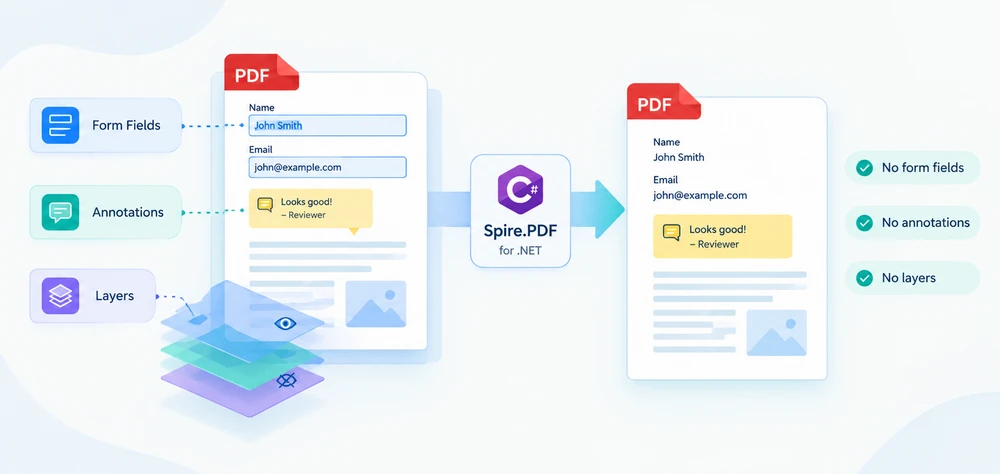
Flattening a PDF converts interactive objects into fixed page content. A filled-in form field loses its input control and keeps its value as text, a reviewer's comment becomes part of the page appearance, and optional-content layers are removed by rebuilding each page from its currently visible content. This makes the document less dependent on the interactive features of individual PDF viewers, although the page content itself can still be edited in a PDF editor.
This guide flattens a PDF in C# with Spire.PDF for .NET: the whole form at once, selected fields only, every annotation on every page, and layers by rebuilding each page through SVG. It closes with a verification step, because a flattened file looks very much like the original — the difference is structural, not visual.
Quick Navigation
- Install Spire.PDF for .NET
- What Flattening a PDF Does
- Flatten the Entire PDF Form
- Flatten Selected PDF Form Fields
- Flatten PDF Annotations and Comments
- Flatten PDF Layers Through SVG
- Flatten a PDF Before Printing
- Verify the Flattened PDF
- Putting It Together
- FAQ
- Conclusion
Install Spire.PDF for .NET
Spire.PDF for .NET is available as a NuGet package. Install it using the .NET CLI:
dotnet add package Spire.PDF
These examples were built with Spire.PDF for .NET 12.9.18.
You can also download Spire.PDF for .NET and add it to your project manually.
Three namespaces matter for flattening:
| Namespace | What lives there |
|---|---|
Spire.Pdf |
PdfDocument, PdfPageBase, FileFormat |
Spire.Pdf.Widget, Spire.Pdf.Fields |
PdfFormWidget and PdfField — the form side |
Spire.Pdf.Interactive.Annotations |
PdfAnnotation, PdfAnnotationCollection — the annotation side, including Flatten() |
What Flattening a PDF Does
Flattening presses the appearance of an interactive object into the page content and removes the object. The goal is to preserve the visible appearance while removing the interactivity — which is why this guide counts the objects left in the saved file instead of comparing screenshots.
Each object type needs its own call:
| Object | Flattened with |
|---|---|
| Form fields (text boxes, check boxes, list boxes, combo boxes) | PdfForm.IsFlatten for the whole form, PdfField.Flatten for one field |
| Annotations (comments, highlights, stamps, free text) | PdfAnnotation.Flatten() on each annotation |
| Layers (optional content groups) | PDF → SVG → PDF conversion, which rebuilds every page from what is visible |
Flatten the Entire PDF Form
Set Form.IsFlatten to true and every field in the document is converted in one pass:
using Spire.Pdf;

PdfDocument pdf = new PdfDocument();
pdf.LoadFromFile("FillableForm.pdf");

// Every field and its current value becomes page content.
pdf.Form.IsFlatten = true;

pdf.SaveToFile("FlattenedForm.pdf");
pdf.Close();
On the registration form used here — five fields, three of them filled — the field count drops from 5 to 0. The values stay on the page as selectable text.
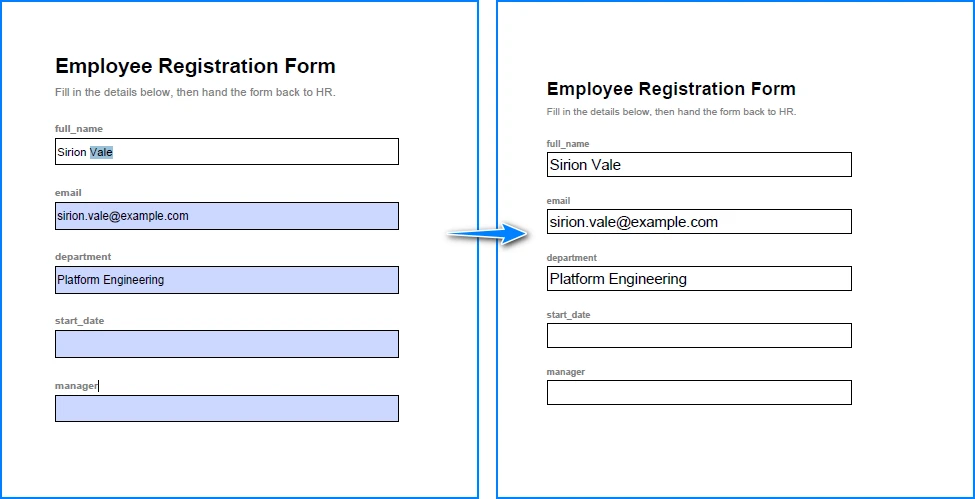
Flatten Selected PDF Form Fields
Locking only the fields that are already final is the more common requirement: a completed section becomes read-only while the rest of the form stays fillable. Fields are reached through the FieldsWidget collection of a PdfFormWidget, and Flatten is a boolean property on each one:
using Spire.Pdf;
using Spire.Pdf.Fields;
using Spire.Pdf.Widget;

PdfDocument pdf = new PdfDocument();
pdf.LoadFromFile("FillableForm.pdf");

PdfFormWidget formWidget = pdf.Form as PdfFormWidget;

foreach (PdfField field in formWidget.FieldsWidget)
{
    // Flatten the fields that are final, leave the rest fillable.
    if (field.Name == "full_name" || field.Name == "email" || field.Name == "department")
    {
        field.Flatten = true;
    }
}

pdf.SaveToFile("PartiallyFlattenedForm.pdf");
pdf.Close();
On the sample form this flattens three fields and leaves start_date and manager editable — the count goes from 5 to 2. Filter on the field names your form defines — read them from FieldsWidget so the comparison matches exactly.
Flattening a field vs. removing a field. Flattening keeps a field's visible appearance — including the value typed into it — and removes only the interactivity. Deleting a form field removes the object and its appearance together. If deletion is the actual goal, see Remove/Delete Form Fields from PDF in C# instead.
Flatten PDF Annotations and Comments
Annotations are the objects reviewers leave on top of a page: text comments, highlights, stamps and free text boxes. In Spire.PDF for .NET they are flattened through the interactive annotation model: create a PdfAnnotationCollection for each page and call Flatten() on each annotation.
using Spire.Pdf;
using Spire.Pdf.Interactive.Annotations;

PdfDocument pdf = new PdfDocument();
pdf.LoadFromFile("ReviewedDocument.pdf");

foreach (PdfPageBase page in pdf.Pages)
{
    if (page.Annotations.Count == 0) continue;

    PdfAnnotationCollection annotations = PdfAnnotationCollection.Create(page);

    // Flatten() removes the annotation from the collection, so walk it backwards.
    for (int i = annotations.Count - 1; i >= 0; i--)
    {
        annotations[i].Flatten();
    }
}

pdf.SaveToFile("FlattenedAnnotations.pdf");
pdf.Close();
The reviewed contract page in this guide carries three annotations — a free text note, a rubber stamp and a yellow highlight over a clause. After the loop the annotation count goes from 3 to 0, and all three marks are still drawn on the page: the note keeps its box and colour, the stamp keeps its border, the highlight stays behind the text. Only the interactive objects are gone. The highlight survives because its quad points are read from the saved page rather than from a page still in memory.
Two details in that loop are worth noting. Walk the collection backwards: Flatten() removes each annotation as it is flattened, so a back-to-front loop processes every item exactly once. Flatten() is declared on Spire.Pdf.Interactive.Annotations.PdfAnnotation, the model the annotation collection is created from.
Flatten PDF Layers Through SVG
Optional-content layers are removed by rebuilding each page from its currently visible content: convert each page to SVG and build the PDF back from it. The round trip redraws every page, which drops the layer structure while keeping text as text and graphics as vectors — so the result still selects, searches and scales, unlike a page rendered to an image.
A document with layers converts one page at a time:
using System;
using System.IO;
using System.Linq;
using System.Text.RegularExpressions;
using Spire.Pdf;

// Work in a fresh temp folder for each run.
string workDir = Path.Combine(Path.GetTempPath(),
    "flatten_svg_" + Guid.NewGuid().ToString("N").Substring(0, 8));
Directory.CreateDirectory(workDir);

try
{
    // Step 1 - save every page as its own SVG file. A multi-page document gives
    // page_1.svg, page_2.svg, ...; a single-page document gives page.svg.
    PdfDocument source = new PdfDocument();
    source.LoadFromFile("LayeredDocument.pdf");
    int pageCount = source.Pages.Count;
    source.SaveToFile(Path.Combine(workDir, "page.svg"), FileFormat.SVG);
    source.Close();

    // Sort the files by page number; a single-page document produces page.svg.
    string[] svgFiles = Directory.GetFiles(workDir, "*.svg")
        .OrderBy(f =>
        {
            Match m = Regex.Match(Path.GetFileNameWithoutExtension(f), @"\d+$");
            return m.Success ? int.Parse(m.Value) : 0;
        })
        .ToArray();

    // One SVG per page — the merge below uses that count.
    if (svgFiles.Length != pageCount)
    {
        throw new IOException(
            $"SVG conversion produced {svgFiles.Length} files for {pageCount} pages.");
    }

    // Step 2 - load each SVG back and save it as a one-page PDF.
    string[] pageFiles = new string[svgFiles.Length];
    for (int i = 0; i < svgFiles.Length; i++)
    {
        PdfDocument page = new PdfDocument();
        page.LoadFromSvg(svgFiles[i]);
        pageFiles[i] = Path.Combine(workDir, "page_" + (i + 1) + ".pdf");
        page.SaveToFile(pageFiles[i], FileFormat.PDF);
        page.Close();
    }

    // Step 3 - join the one-page PDFs into a single document, in page order.
    PdfDocument.MergeFiles(pageFiles, "FlattenedLayers.pdf");
}
finally
{
    Directory.Delete(workDir, true);
}
The file names depend on the page count. A two-page layered document saved to page.svg produces page_1.svg and page_2.svg, while a one-page document produces a single page.svg with no number. On the sample document the round trip keeps both pages in order at the original page size, keeps the text that was drawn on each layer, and the layer count goes from 4 to 0. The same workflow on a single-page document returns one page.
Text and vector graphics survive the round trip, so the rebuilt pages still select, search and scale like the original, and the content that was drawn on each layer stays on the page.
For the two conversion steps on their own, see Convert PDF to SVG in C#, VB.NET and Convert SVG to PDF in C#, VB.NET.
Flatten a PDF Before Printing
Flatten a PDF for printing when the file is going to a printer, a print shop or a viewer you do not control. Once the fields, annotations and layers are ordinary page content, what gets printed is decided by the file rather than by the reader's interactive features.
No separate code is needed. Use the form calls from the form sections when the document has fields, the annotation loop when it has comments, and the SVG workflow when layer visibility could change what lands on paper — then run the output through the checks below before you send it.
Verify the Flattened PDF
A flattened file looks like the original, so confirm the result by counting objects in the saved file rather than by looking at a render:
using Spire.Pdf;
using Spire.Pdf.Fields;
using Spire.Pdf.Widget;

PdfDocument result = new PdfDocument();
result.LoadFromFile("FlattenedForm.pdf");

int fields = 0;
PdfFormWidget form = result.Form as PdfFormWidget;
if (form != null)
{
    foreach (PdfField field in form.FieldsWidget) fields++;
}

int annotations = 0;
foreach (PdfPageBase page in result.Pages)
{
    annotations += page.Annotations.Count;
}

Console.WriteLine($"pages={result.Pages.Count} fields={fields} "
                + $"annotations={annotations} layers={result.Layers.Count}");
result.Close();
Count fields through PdfFormWidget.FieldsWidget. On the sample files this reports:
| File | Pages | Fields | Annotations | Layers |
|---|---|---|---|---|
FillableForm.pdf (input) |
1 | 5 | 0 | 0 |
FlattenedForm.pdf |
1 | 0 | 0 | 0 |
PartiallyFlattenedForm.pdf |
1 | 2 | 0 | 0 |
ReviewedDocument.pdf (input) |
1 | 0 | 3 | 0 |
FlattenedAnnotations.pdf |
1 | 0 | 0 | 0 |
LayeredDocument.pdf (input) |
2 | 0 | 0 | 4 |
FlattenedLayers.pdf |
2 | 0 | 0 | 0 |
Then check the visual result: open the file in a reader and confirm nothing can be clicked or toggled, compare page count and page size with the original, and select or extract text to confirm it is still real text.
Putting It Together
The snippets above solve one concern each. Here they are as a single method that flattens the form fields and the annotations of any document in one pass:
using Spire.Pdf;
using Spire.Pdf.Interactive.Annotations;

/// <summary>
/// Flatten the form fields and annotations of a PDF in one pass.
/// </summary>
public static void FlattenDocument(string inputFile, string outputFile)
{
    PdfDocument pdf = new PdfDocument();
    pdf.LoadFromFile(inputFile);

    // 1. Form fields: one flag covers every field in the document.
    if (pdf.Form != null)
    {
        pdf.Form.IsFlatten = true;
    }

    // 2. Annotations: Flatten() removes each one, so walk backwards. Skip pages
    //    that carry no annotations.
    foreach (PdfPageBase page in pdf.Pages)
    {
        if (page.Annotations.Count == 0) continue;

        PdfAnnotationCollection annotations = PdfAnnotationCollection.Create(page);
        for (int i = annotations.Count - 1; i >= 0; i--)
        {
            annotations[i].Flatten();
        }
    }

    pdf.SaveToFile(outputFile);
    pdf.Close();
}
The guard keeps the loop on pages that carry annotations, so the same method also works for documents that only have form fields. With it, the method takes the five-field form to 0 fields and the reviewed contract from 3 annotations to 0. Layered documents go through the SVG workflow from the previous section instead.
FAQ
What is the difference between flattening and removing form fields?
Flattening keeps the field's visible appearance, including any entered value, and removes only the interactivity. Removing a form field deletes the field object and its appearance together.
Can I flatten only some form fields?
Yes. Cast pdf.Form to PdfFormWidget, walk FieldsWidget, and set Flatten = true on the fields you name. The rest stay fillable.
Does flattening keep the text selectable and searchable?
Yes. A flattened text field keeps its value in the page's text layer, and the SVG round trip keeps the text it redraws, so the values stay selectable, copyable and searchable.
Is flattening reversible?
Flattening writes the fields and annotations into the page, so keep the source PDF if you may need to edit them later.
Do I need to flatten before printing?
Not always, but it removes the dependency on the reader. Flattening can make the output more consistent across PDF viewers, because the visible content no longer depends on interactive fields, annotations or layer visibility settings.
Conclusion
Flattening a PDF in C# is one call per object type:
pdf.Form.IsFlatten = trueflattens every field in the document;PdfField.Flattenflattens the ones you name.PdfAnnotationCollection.Create(page)plusFlatten()on each item, walked backwards, flattens every comment, highlight and stamp on the page.- Layers are flattened by saving each page as SVG, loading it back and merging the pages with
PdfDocument.MergeFiles.
The page keeps its appearance either way, so verify by counting the objects left in the saved file — not by comparing screenshots.
If you need to test Spire.PDF for .NET in a real business environment, you can apply for a temporary license.
Crie um Sumário Clicável em um PDF com JavaScript (React)
Índice
- Por que os PDFs gerados são entregues sem uma página de índice
- Inserindo a página de índice na posição correta
- Desenhando entradas, pontos de preenchimento e números de página
- Tornando cada entrada clicável
- Encontrando a área de clique por meio da busca de texto
- Estendendo para um índice com vários níveis
- Problemas comuns
- Perguntas frequentes
- Veja também

Quando um relatório gerado volta com reclamações, elas quase nunca são sobre o conteúdo — são sobre encontrá-lo. Algumas centenas de páginas montadas por um pipeline de relatórios, sem página de índice, e o leitor fica arrastando a barra de rolagem ou digitando palavras na caixa de busca do visualizador para localizar o capítulo quatro. O documento tem uma estrutura; ele apenas nunca contou isso a ninguém.
Este artigo constrói essa estrutura: uma página de índice desenhada exatamente na posição que deveria ocupar, com entradas de capítulos, pontos de preenchimento e números de página, e com cada entrada clicável para que o leitor chegue ao capítulo em vez de ao topo do arquivo. Ele usa o Spire.PDF for JavaScript, que carrega, edita e salva documentos no navegador via WebAssembly, lendo e gravando por meio de um sistema de arquivos virtual (VFS).
Dois pontos são abordados aqui:
Para instalação e configuração do projeto, consulte Integrating Spire.PDF for JavaScript in a React Project. Os exemplos pressupõem que o pacote está instalado e que o módulo WebAssembly foi inicializado.
Por que os PDFs gerados são entregues sem uma página de índice
Duas coisas são chamadas de índice em um PDF, e vale a pena separá-las antes de escrever qualquer código.
A primeira é uma página de índice visível — uma lista impressa de capítulos com números de página, situada depois da capa. É isso que a maioria dos leitores quer dizer quando pede um índice, é o que sobrevive quando o arquivo é impresso e é o que este artigo constrói.
A segunda é o sumário (outline) que um visualizador exibe em uma barra lateral, que é uma estrutura de dados separada dentro do arquivo. Um gerador que monta páginas a partir de modelos normalmente não produz nenhum dos dois: ele sabe como diagramar um capítulo, mas não tem o conceito de lista de capítulos, então a navegação simplesmente não é escrita.
Saber os números de página antes de desenhar a lista é a outra metade do trabalho. Esses números vêm do próprio documento — se você precisar derivá-los em vez de codificá-los manualmente, obter a contagem de páginas do PDF é onde a aritmética começa.
Inserindo a página de índice na posição correta
A página de índice precisa existir antes que qualquer coisa possa ser desenhada nela, e precisa cair em um local específico: depois da capa, antes do capítulo um. Pages.Insert({ index }) insere uma página em um determinado índice e a retorna, pronta para receber desenhos.
// Insert the contents page after the cover; the body pages shift down by one
const tocPage = doc.Pages.Insert({ index: 1 });
Há uma consequência escondida nessa única chamada, e ela causa o bug mais comum de todo este exercício: a inserção desloca todas as páginas seguintes em uma posição. Se a capa era a página 1 e o capítulo um era a página 2 antes da inserção, depois de inserir a página de índice o capítulo um passa a ser a página 3. Qualquer número de página escrito na página de índice precisa refletir o documento como ele está agora, e não como estava quando a lista de capítulos foi compilada.
Desenhando entradas, pontos de preenchimento e números de página
Uma página de índice é desenhada, não composta tipograficamente — o título, cada entrada, os pontos de preenchimento e os números de página são cada um uma chamada individual de Canvas.DrawString. As fontes vêm de uma família incorporada, o título é centralizado com um PdfStringFormat e as entradas são medidas com MeasureString para que sua largura seja conhecida antes de qualquer coisa ser posicionada em relação a elas.
function App() {
  const createTocPage = async () => {
    // Get the Spire.PDF WASM module
    const pdfModule = window.wasmModule?.spirepdf;

    // Check whether the module is ready
    if (!pdfModule) {
      alert('Spire.PDF is not ready yet');
      return;
    }

    // Load the PDF to process into the VFS
    const inputFileName = 'Chapter_Document.pdf';
    await window.spire.FetchFileToVFS(inputFileName, '', `${process.env.PUBLIC_URL}/data/`);

    // Create a PdfDocument object and load the PDF
    let doc = new pdfModule.PdfDocument();
    doc.LoadFromFile(inputFileName);

    // Insert the contents page after the cover; the body pages shift down by one
    const tocPage = doc.Pages.Insert({ index: 1 });

    // Fonts for the title and the entries, using the built-in Helvetica (no font file to load)
    const titleFont = new pdfModule.PdfFont({ fontFamily: pdfModule.PdfFontFamily.Helvetica, size: 20, style: pdfModule.PdfFontStyle.Bold });
    const entryFont = new pdfModule.PdfFont({ fontFamily: pdfModule.PdfFontFamily.Helvetica, size: 14 });
    const centerFormat = new pdfModule.PdfStringFormat({ alignment: pdfModule.PdfTextAlignment.Center });

    // Draw the centered contents title
    const title = 'Contents';
    tocPage.Canvas.DrawString({
      s: title,
      font: titleFont,
      brush: pdfModule.PdfBrushes.get_Black(),
      point: new pdfModule.PointF(tocPage.Canvas.ClientSize.Width / 2, 50),
      format: centerFormat
    });

    // Chapter titles and their page numbers after the contents page is inserted
    const chapters = [
      { title: 'Chapter 1 Overview', page: 3 },
      { title: 'Chapter 2 Architecture', page: 4 },
      { title: 'Chapter 3 Deployment', page: 5 },
      { title: 'Chapter 4 Maintenance', page: 6 }
    ];

    const width = tocPage.Canvas.ClientSize.Width;
    let y = 110;
    for (const chapter of chapters) {
      // Entry text
      const titleSize = entryFont.MeasureString({ text: chapter.title });
      tocPage.Canvas.DrawString({ s: chapter.title, font: entryFont, brush: pdfModule.PdfBrushes.get_Black(), x: 40, y: y });

      // Right-aligned page number
      const pageText = chapter.page.toString();
      const pageSize = entryFont.MeasureString({ text: pageText });
      tocPage.Canvas.DrawString({ s: pageText, font: entryFont, brush: pdfModule.PdfBrushes.get_Black(), x: width - 40 - pageSize.Width, y: y });

      // Leader dots: fill from the end of the entry to the start of the page number
      const dotStart = 40 + titleSize.Width + 6;
      const dotEnd = width - 40 - pageSize.Width - 6;
      for (let x = dotStart; x < dotEnd; x += 6) {
        tocPage.Canvas.DrawString({ s: '.', font: entryFont, brush: pdfModule.PdfBrushes.get_Gray(), x: x, y: y });
      }

      y += 24;
    }

    // Define the output file name and save
    const outputFileName = 'Document-with-TOC.pdf';
    doc.SaveToFile(outputFileName);
    doc.Close();

    // Read the generated file from the VFS and trigger the download
    const fileArray = window.dotnetRuntime.Module.FS.readFile(outputFileName);
    const blob = new Blob([fileArray], { type: 'application/pdf' });
    const url = URL.createObjectURL(blob);
    const a = document.createElement('a');
    a.href = url;
    a.download = outputFileName;
    a.click();
    URL.revokeObjectURL(url);
  };

  return (
    <div style={{ textAlign: 'center', height: '300px' }}>
      <h1>Create a Table of Contents Page</h1>
      <button id="btn-1" onClick={createTocPage}>
        Create TOC
      </button>
    </div>
  );
}

export default App;
Cada posição x é derivada em vez de codificada manualmente. A entrada começa na margem esquerda de 40, o número de página fica em width - 40 - pageSize.Width para se alinhar à direita com essa mesma margem, e os pontos de preenchimento vão de logo após a entrada até pouco antes do número — mude a margem e os pontos acompanham.
O documento com uma página de índice: a página após a capa lista cada capítulo com seu número de página
Neste ponto a página parece pronta, e essa é a armadilha. Cada entrada é tinta. Clicar em uma não faz nada, porque uma página de texto desenhado não tem nenhum elemento interativo.
Tornando cada entrada clicável
A interação em um PDF vem de anotações, não do texto em si. Para fazer uma linha da página de índice responder a um clique, ela precisa ser coberta por um PdfActionAnnotation cuja ação seja um PdfGoToAction que carregue um PdfDestination — o destino nomeia a página para a qual saltar.
function App() {
  const addTocNavigation = async () => {
    // Get the Spire.PDF WASM module
    const pdfModule = window.wasmModule?.spirepdf;

    // Check whether the module is ready
    if (!pdfModule) {
      alert('Spire.PDF is not ready yet');
      return;
    }

    // Load the document generated in the previous step
    const inputFileName = 'Document-with-TOC.pdf';
    await window.spire.FetchFileToVFS(inputFileName, '', `${process.env.PUBLIC_URL}/data/`);

    let doc = new pdfModule.PdfDocument();
    doc.LoadFromFile(inputFileName);

    // The contents page is page 2 of the document (index 1)
    const tocPage = doc.Pages.get_Item(1);

    // The entry text and the page each one should jump to
    const chapters = [
      { title: 'Chapter 1 Overview', page: 3 },
      { title: 'Chapter 2 Architecture', page: 4 },
      { title: 'Chapter 3 Deployment', page: 5 },
      { title: 'Chapter 4 Maintenance', page: 6 }
    ];

    // Search the contents page by keyword
    const finder = new pdfModule.PdfTextFinder(tocPage);

    for (const chapter of chapters) {
      const found = finder.Find(chapter.title);
      if (found.length === 0) {
        continue;
      }

      // Define the hit area based on the keyword position
      const lineBounds = found.get(0).Bounds[0];
      const bounds = new pdfModule.RectangleF({
        location: new pdfModule.PointF(0, lineBounds.Y),
        size: new pdfModule.SizeF({ width: tocPage.Canvas.ClientSize.Width, height: lineBounds.Height })
      });

      // The jump target is the chapter's page, aligned to the top-left corner of the body
      const targetPage = doc.Pages.get_Item(chapter.page - 1);
      const destination = new pdfModule.PdfDestination({
        page: targetPage,
        location: new pdfModule.PointF(0, 0)
      });

      // Attach the jump action and set the border width to 0
      const action = new pdfModule.PdfActionAnnotation(bounds, new pdfModule.PdfGoToAction({ destination }));
      action.Border = new pdfModule.PdfAnnotationBorder({ borderWidth: 0 });
      tocPage.Annotations.Add(action);
    }

    // Define the output file name and save
    const outputFileName = 'Clickable-TOC.pdf';
    doc.SaveToFile(outputFileName);
    doc.Close();

    // Read the generated file from the VFS and trigger the download
    const fileArray = window.dotnetRuntime.Module.FS.readFile(outputFileName);
    const blob = new Blob([fileArray], { type: 'application/pdf' });
    const url = URL.createObjectURL(blob);
    const a = document.createElement('a');
    a.href = url;
    a.download = outputFileName;
    a.click();
    URL.revokeObjectURL(url);
  };

  return (
    <div style={{ textAlign: 'center', height: '300px' }}>
      <h1>Add Navigation to Table of Contents Entries</h1>
      <button id="btn-2" onClick={addTocNavigation}>
        Add Navigation
      </button>
    </div>
  );
}

export default App;
Duas escolhas ali são deliberadas. Border é zerado, porque uma borda visível desenha um retângulo ao redor de cada entrada — o leitor deve ver uma lista, não um formulário com caixas. E o destino é obtido como um objeto de página real com doc.Pages.get_Item(...), já que um destino precisa de uma página, não de um índice.
Clicar no título de um capítulo na página de índice salta para essa página
Encontrando a área de clique por meio da busca de texto
A parte interessante desse laço é a área de clique. A abordagem óbvia é calculá-la a partir das coordenadas de desenho — a entrada foi desenhada em y, a linha tem a altura de entryFont, então o retângulo vai ali. Funciona para a primeira linha e vai se desviando até a última.
O y do desenho e o retângulo da anotação estão em referenciais diferentes: o texto foi desenhado de cima para baixo, enquanto a área de clique precisa ser expressa em coordenadas de página. Conciliar os dois significa levar em conta a altura da página e uma margem superior, e qualquer erro nas métricas da fonte ou no espaçamento entre linhas se acumula linha a linha — até o clique cair na linha de baixo.
A solução é parar de derivar a posição e ir consultá-la. O PdfTextFinder busca um trecho de texto em uma página e retorna os retângulos que ele ocupa, já em coordenadas de página:
const finder = new pdfModule.PdfTextFinder(tocPage);
const found = finder.Find(chapter.title);
const lineBounds = found.get(0).Bounds[0];
const bounds = new pdfModule.RectangleF({
  location: new pdfModule.PointF(0, lineBounds.Y),
  size: new pdfModule.SizeF({ width: tocPage.Canvas.ClientSize.Width, height: lineBounds.Height })
});
const targetPage = doc.Pages.get_Item(chapter.page - 1);
const action = new pdfModule.PdfActionAnnotation(bounds, new pdfModule.PdfGoToAction({ destination }));
Buscar pelo próprio texto da entrada retorna onde esse texto realmente acabou ficando, então nenhuma margem superior precisa ser adicionada e nenhuma suposição de espaçamento entre linhas precisa se manter. O retângulo é então ampliado para abranger toda a largura da página, de modo que a linha inteira seja clicável em vez de apenas os glifos, e a altura do resultado da busca define a altura da linha. Se uma entrada não for encontrada, Find retorna uma lista vazia e o laço a ignora — um continue em vez de um link apontando para lugar nenhum.
É também por isso que desenhar e vincular são passagens separadas: a busca precisa que as entradas existam como texto antes de poder encontrá-las.
Estendendo para um índice com vários níveis
Um manual de verdade tem capítulos e seções, não uma lista plana. A mecânica acima escala com três ajustes.
| Alteração | O que ajustar |
|---|---|
| Subentradas recuadas | Desloque o x da subentrada para a direita e inicie os pontos de preenchimento a partir do novo fim do texto |
| Subentradas mais discretas | Desenhe-as com um tamanho menor ou um pincel cinza para que a hierarquia seja percebida de imediato |
| Espaçamento mais compacto | Reduza o passo de y nas linhas de seção para que um capítulo e suas seções sejam lidos como um grupo |
Duas advertências vêm junto. Os pontos de preenchimento começam a partir da largura medida da entrada, então uma subentrada recuada precisa ter seus pontos calculados a partir da margem recuada, ou eles vão se sobrepor ao texto. E a área de clique é encontrada buscando pelo texto, então duas entradas com o mesmo texto resultam na primeira ocorrência — numerar as seções (2.1, 2.2) contorna isso.
Se a lista passar de uma página, insira uma segunda página de índice e busque cada entrada na página em que ela foi desenhada — o localizador é criado por página.
Problemas comuns
Os números de página estão todos errados por um. A página de índice foi inserida no documento, então todas as páginas seguintes desceram uma posição. Escreva os números como eles estão depois da inserção. Se a capa era a página 1 e o capítulo um era a página 2, então, depois que a página de índice fica no índice 1, o capítulo um passa a ser a página 3.
Clicar em uma entrada salta para o capítulo errado, ou nada acontece. A área de clique foi derivada das coordenadas de desenho em vez de ser buscada. Deslocamentos medidos se acumulam ao longo da página, então o retângulo se desvia da sua linha. Busque na página de índice pelo texto da entrada e use o retângulo retornado — ele já está em coordenadas de página.
Apareceu uma caixa visível ao redor de cada entrada.
Essa é a borda da anotação. Defina action.Border com um PdfAnnotationBorder com borderWidth: 0 para que a área de clique permaneça invisível.
O primeiro clique não faz nada. O módulo WebAssembly ainda não havia terminado de carregar. Faça uma verificação na referência do módulo, ou mantenha o controle desabilitado até que ele esteja pronto.
Perguntas frequentes
Os números de página podem ser preenchidos automaticamente? A lista precisa ser informada de em qual página cada capítulo começa — a página de índice não consegue inferir a estrutura do seu documento sozinha. Leia a contagem de páginas do documento e monte a lista de entradas a partir dos seus próprios metadados de capítulos, lembrando de levar em conta as páginas que a própria página de índice acrescenta.
Os links sobrevivem à impressão? Não, e não deveriam. A impressão produz a página de índice visível com seus números de página; o comportamento de clique só existe no arquivo digital, onde o leitor pode usá-lo.
Posso mudar a aparência da página de índice?
Sim. O título e as entradas usam PdfFont, então família, tamanho e estilo são você quem define, e as cores vêm de PdfBrushes — os pontos de preenchimento do exemplo são desenhados em cinza para recuarem atrás das entradas.
A entrada clicável precisa de um sublinhado ou cor visível? Não. A área de clique é uma anotação invisível que cobre a linha, então a entrada parece texto comum e ainda assim responde a um clique. É por isso que a largura da borda é zerada.
Algo disso precisa de um servidor? Não. O documento é carregado, editado e salvo no navegador por meio do sistema de arquivos virtual, e o arquivo resultante é lido de volta para download.