Spire.Doc for .NET (338)
Children categories
Add, Count, Retrieve and Remove Variables in a Word document Using C#
2017-06-22 08:26:33 Written by KoohjiDocument variables are used to preserve macro settings in between macro sessions. Spire.Doc allows adding variables, counting the number of variables, retrieving the name and value of variables, and removing specific variables in a Word document.
Add a Variable
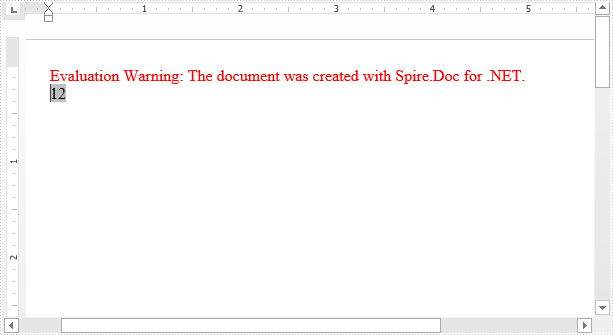
Use the Add method to add a variable to a document. The following example adds a document variable named "A1" with a value of 12 to the document.
using Spire.Doc;
using Spire.Doc.Documents;
namespace ADDVARIABLE
{
    class Program
    {

        static void Main(string[] args)
        {
            //Instantiate a document object
            Document document = new Document();
            //Add a section
            Section section = document.AddSection();
            //Add a paragraph
            Paragraph paragraph = section.AddParagraph();
            //Add a DocVariable Filed
            paragraph.AppendField("A1", FieldType.FieldDocVariable);
            //Add a document variable to the DocVariable Filed
            document.Variables.Add("A1", "12");
            //Update fields
            document.IsUpdateFields = true;
            //Save and close the document object
            document.SaveToFile("AddVariable.docx", FileFormat.Docx2013);
            document.Close();
        }
    }
}
Count the number of Variables
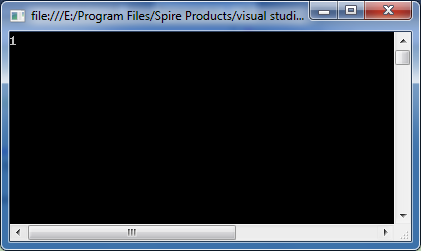
Use the Count property to return the number of variables in a document.
//Load the document
Document document = new Document("AddVariable.docx");
//Get the number of variables in the document
int number = document.Variables.Count;

Console.WriteLine(number);
Retrieve Name and Value of a Variable
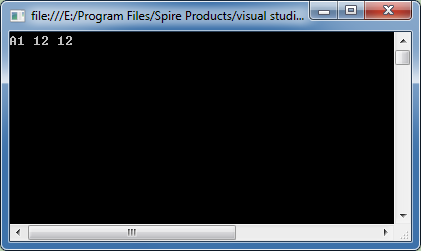
Use the GetNameByIndex and GetValueByIndex methods to retrieve the name and value of the variable by index, and the Variables[String Name] to retrieve or set the value of the variable by name.
using Spire.Doc;
using Spire.Doc.Documents;
using System;
namespace COUNTVARIABLE
{

    class Program
    {

        static void Main(string[] args)
        {
            //Load the document
            Document document = new Document("AddVariable.docx");
            //Get the number of variables in the document
            int number = document.Variables.Count;

            Console.WriteLine(number);

        }
    }
}
Remove a specific Variable
Use the Remove method to remove the variable from the document.
using Spire.Doc;
using System;
namespace RETRIEVEVARIABLE
{
    class Program
    {
        static void Main(string[] args)
        {
            //Load the document
            Document document = new Document("AddVariable.docx");

            // Retrieve name of the variable by index
            string s1 = document.Variables.GetNameByIndex(0);

            // Retrieve value of the variable by index
            string s2 = document.Variables.GetValueByIndex(0);

            // Retrieve or set value of the variable by name
            string s3 = document.Variables["A1"];

            Console.WriteLine("{0} {1} {2}", s1, s2, s3);
        }
    }
}
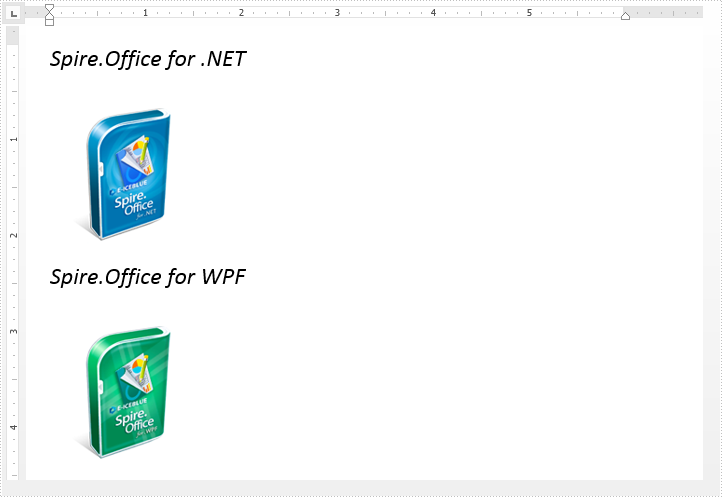
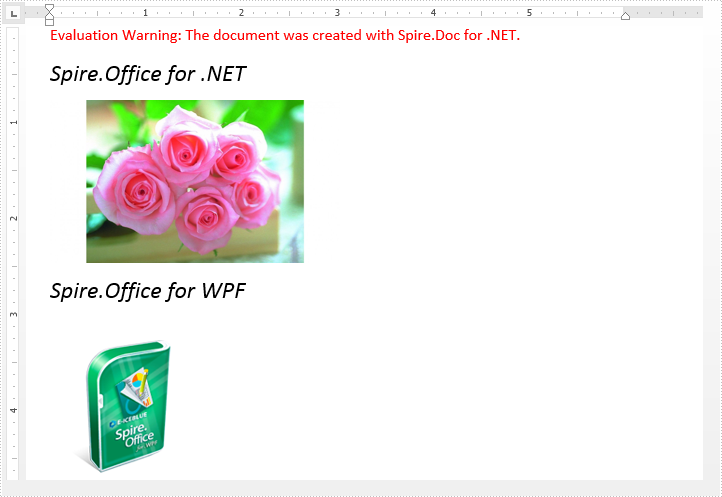
Replacing image with text or image in a Word document is possible in Spire.Doc. We've already illustrated how to replace image with text, in this tutorial, we will show you how to replace a specified image with another image using Spire.Doc and C#.
Below is the original Word document before replacing image:
Code Snippet:
Step 1: Load the Word document.
Document document = new Document("Input.docx");
Step 2: Replace the image which title is "Figure 1" with new image.
//Loop through the paragraphs of the section
foreach (Paragraph paragraph in document.Sections[0].Paragraphs)
{
    //Loop through the child elements of paragraph
    foreach (DocumentObject docObj in paragraph.ChildObjects)
    {
        if (docObj.DocumentObjectType == DocumentObjectType.Picture)
        {
            DocPicture picture = docObj as DocPicture;
            if (picture.Title == "Figure 1")
            {
                //Replace the image
                picture.LoadImage(Image.FromFile("PinkRoses.jpg"));
            }
        }
    }
}
Step 3: Save and close the document.
document.SaveToFile("ReplaceImage.docx");
document.Close();
The resultant document looks as follows:
Full code:
using System.Drawing;
using Spire.Doc;
using Spire.Doc.Documents;
using Spire.Doc.Fields;

namespace Replace_Image
{
    class Program
    {
        static void Main(string[] args)
        {
            //Load the Word document
            Document document = new Document("Input.docx");

            //Loop through the paragraphs of the section
            foreach (Paragraph paragraph in document.Sections[0].Paragraphs)
            {
                //Loop through the child elements of paragraph
                foreach (DocumentObject docObj in paragraph.ChildObjects)
                {
                    if (docObj.DocumentObjectType == DocumentObjectType.Picture)
                    {
                        DocPicture picture = docObj as DocPicture;
                        if (picture.Title == "Figure 1")
                        {
                            //Replace the image
                            picture.LoadImage(Image.FromFile("PinkRoses.jpg"));
                        }
                    }
                }
            }

            //Save and close the document
            document.SaveToFile("ReplaceImage.docx");
            document.Close();
        }
    }
}
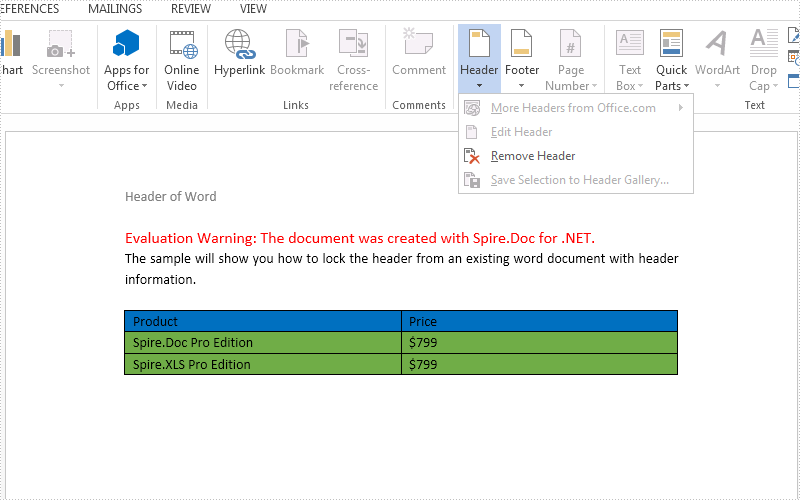
With the help of Spire.Doc, we can easily add and remove header on the word documents in C#. This article we will demonstrate how to lock down the header information from editing. We will divide it into two parts for the demo. Once is for locking the header information on the existing word document with header and the other is on the new creating word document.
How to lock the header information on the existing word document.
//Load the sample document with header
Document doc = new Document();
doc.LoadFromFile("sample.docx");

//Get the first section from the word document
Section section = doc.Sections[0];

//Protect the document and set the ProtectionType as AllowOnlyFormFields
doc.Protect(ProtectionType.AllowOnlyFormFields, "123");

//Set the ProtectForm as false to unprotect the section
section.ProtectForm = false;

//Save the document to file
doc.SaveToFile("Result.docx", FileFormat.Docx2013);
Effective screenshot of the header has been locked and the other area can be edited:
How to lock the header information for the new word document.
//Create a new instance of word document
Document doc = new Document();

//Add a section to the word document
Section section = doc.AddSection();

//Add header information to the section
HeaderFooter header = section.HeadersFooters.Header;
Paragraph HParagraph = header.AddParagraph();
TextRange HText = HParagraph.AppendText("Protect header");

//Add a paragraph to the section
Paragraph Para = section.AddParagraph();
Para.AppendText("Demo of how to lock the header information by Spire.Doc ");

//Set the ProtectionType as AllowOnlyFormFields and then unprotect the section
doc.Protect(ProtectionType.AllowOnlyFormFields, "123");
section.ProtectForm = false;

//Save the document to file
doc.SaveToFile("Result.docx", FileFormat.Docx2013);