
Spire.Doc for .NET (338)
Children categories
Header or footer are pieces of text or images that appear at the top or bottom of every document page. You can add any information you want to the header and footer areas such as page numbers, author's name, current date and company logo.
This article will demonstrate how to insert text header and footer for word document in WPF by using Spire.Doc for WPF.
Below are the effective screenshots after inserting header and footer:
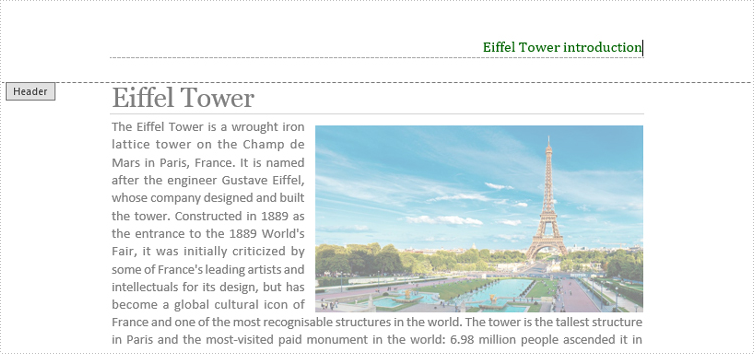
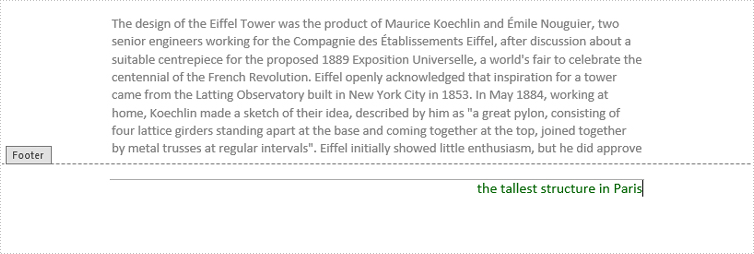
At first, please download Spire.Doc and install it correctly, then add Spire.Doc.Wpf.dll and Spire.License.dll from the installation folder to your project as reference.
Then follow the detail steps below:
Use namespace:
using System.Windows;
using Spire.Doc;
using Spire.Doc.Documents;
using Spire.Doc.Fields;
using System.Drawing;
Insert Header
Step 1: Initialize a new instance of Document class and load the word document from file.
Document doc = new Document();
doc.LoadFromFile("Eiffel Tower.docx");
Step 2: Get its first section, then add a header paragraph for section one.
Section section = doc.Sections[0];
HeaderFooter header = section.HeadersFooters.Header;
Paragraph paragraph = header.AddParagraph();
Step 3: Append text for header paragraph and set text format.
TextRange text = paragraph.AppendText("Eiffel Tower introduction");
text.CharacterFormat.FontName = "Cambria";
text.CharacterFormat.FontSize = 12;
text.CharacterFormat.TextColor = Color.DarkGreen;
Step 4: Set Header Paragraph Format.
paragraph.Format.HorizontalAlignment = Spire.Doc.Documents.HorizontalAlignment.Right;
paragraph.Format.Borders.Bottom.BorderType = BorderStyle.DashSmallGap;
paragraph.Format.Borders.Bottom.Space = 0.05f;
paragraph.Format.Borders.Bottom.Color = Color.DarkGray;
Insert Footer
Step 5: Add a Footer paragraph.
HeaderFooter footer = section.HeadersFooters.Footer;
Paragraph sparagraph = footer.AddParagraph();
Step 6: Append text for footer paragraph and set text format.
TextRange stext = sparagraph.AppendText("the tallest structure in Paris");
stext.CharacterFormat.FontName = "Calibri";
stext.CharacterFormat.FontSize = 12;
stext.CharacterFormat.TextColor = Color.DarkGreen;
Step 7: Set Footer Paragrah Format.
sparagraph.Format.HorizontalAlignment = Spire.Doc.Documents.HorizontalAlignment.Right;
sparagraph.Format.Borders.Top.BorderType = BorderStyle.Hairline;
sparagraph.Format.Borders.Top.Space = 0.15f;
sparagraph.Format.Borders.Color = Color.DarkGray;
Step 8: Save and launch the file.
doc.SaveToFile("HeaderFooter.docx");
System.Diagnostics.Process.Start("HeaderFooter.docx");
Full codes:
using Spire.Doc;
using Spire.Doc.Documents;
using Spire.Doc.Fields;
using System.Drawing;
using System.Windows;

namespace WpfApplication1
{
    public partial class MainWindow : Window
    {
        public MainWindow()
        {
            InitializeComponent();
        }
        private void button1_Click(object sender, RoutedEventArgs e)
        {
            Document doc = new Document();
            doc.LoadFromFile("Eiffel Tower.docx");

            Section section = doc.Sections[0];
            HeaderFooter header = section.HeadersFooters.Header;
            Paragraph paragraph = header.AddParagraph();

            TextRange text = paragraph.AppendText("Eiffel Tower introduction");
            text.CharacterFormat.FontName = "Cambria";
            text.CharacterFormat.FontSize = 12;
            text.CharacterFormat.TextColor = Color.DarkGreen;

            paragraph.Format.HorizontalAlignment = Spire.Doc.Documents.HorizontalAlignment.Right;
            paragraph.Format.Borders.Bottom.BorderType = BorderStyle.DashSmallGap;
            paragraph.Format.Borders.Bottom.Space = 0.05f;
            paragraph.Format.Borders.Bottom.Color = Color.DarkGray;

            HeaderFooter footer = section.HeadersFooters.Footer;
            Paragraph sparagraph = footer.AddParagraph();

            TextRange stext = sparagraph.AppendText("the tallest structure in Paris");
            stext.CharacterFormat.FontName = "Calibri";
            stext.CharacterFormat.FontSize = 12;
            stext.CharacterFormat.TextColor = Color.DarkGreen;

            sparagraph.Format.HorizontalAlignment = Spire.Doc.Documents.HorizontalAlignment.Right;
            sparagraph.Format.Borders.Top.BorderType = BorderStyle.Hairline;
            sparagraph.Format.Borders.Top.Space = 0.15f;
            sparagraph.Format.Borders.Color = Color.DarkGray;

            doc.SaveToFile("HeaderFooter.docx");
            System.Diagnostics.Process.Start("HeaderFooter.docx");
        }


    }
}
Private Sub button1_Click(sender As Object, e As RoutedEventArgs)
	Dim doc As New Document()
	doc.LoadFromFile("Eiffel Tower.docx")

	Dim section As Section = doc.Sections(0)
	Dim header As HeaderFooter = section.HeadersFooters.Header
	Dim paragraph As Paragraph = header.AddParagraph()

	Dim text As TextRange = paragraph.AppendText("Eiffel Tower introduction")
	text.CharacterFormat.FontName = "Cambria"
	text.CharacterFormat.FontSize = 12
	text.CharacterFormat.TextColor = Color.DarkGreen

	paragraph.Format.HorizontalAlignment = Spire.Doc.Documents.HorizontalAlignment.Right
	paragraph.Format.Borders.Bottom.BorderType = BorderStyle.DashSmallGap
	paragraph.Format.Borders.Bottom.Space = 0.05F
	paragraph.Format.Borders.Bottom.Color = Color.DarkGray

	Dim footer As HeaderFooter = section.HeadersFooters.Footer
	Dim sparagraph As Paragraph = footer.AddParagraph()

	Dim stext As TextRange = sparagraph.AppendText("the tallest structure in Paris")
	stext.CharacterFormat.FontName = "Calibri"
	stext.CharacterFormat.FontSize = 12
	stext.CharacterFormat.TextColor = Color.DarkGreen

	sparagraph.Format.HorizontalAlignment = Spire.Doc.Documents.HorizontalAlignment.Right
	sparagraph.Format.Borders.Top.BorderType = BorderStyle.Hairline
	sparagraph.Format.Borders.Top.Space = 0.15F
	sparagraph.Format.Borders.Color = Color.DarkGray

	doc.SaveToFile("HeaderFooter.docx")
	System.Diagnostics.Process.Start("HeaderFooter.docx")
End Sub
Footnote is a note at the bottom of a page that gives more detailed information about something on the page. In this section, we will demonstrate how to add footnote in word using Spire.Doc for WPF.
First, create a new project by choosing WPF Application in Visual Studio, adding a button in the Main Window. Add Spire.Doc.Wpf.dll as reference to your project, and then double click the button to start.
Step 1: Initialize a new instance of Document class. Load the word document from the file.
Document doc = new Document();
doc.LoadFromFile("Oscar.docx");
Step 2: Select the section and paragraph which needs adding footnote. In this example, we choose the first section and the fourth paragraph.
Section sec = doc.Sections[0];
Paragraph paragraph = sec.Paragraphs[3];
Step 3: Add footnote by the method of paragraph.AppendFootnote() and then add the footnote contents by using footnote.TextBody.AddParagraph().AppendText(). At last, set the font style, size and color.
Footnote fn = paragraph.AppendFootnote(FootnoteType.Footnote);
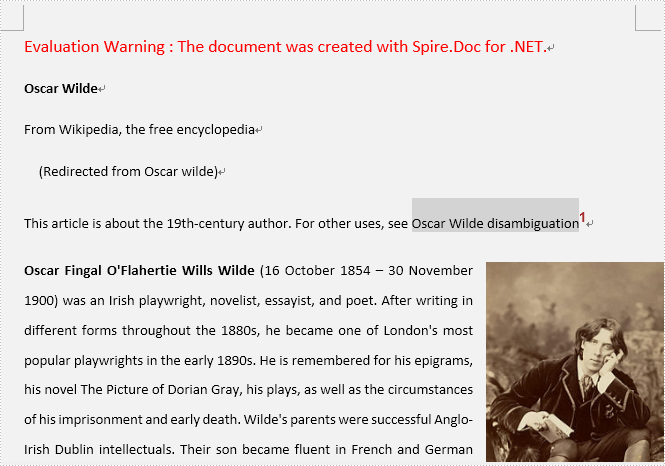
TextRange text = fn.TextBody.AddParagraph().AppendText("Oscar Wilde (film), a 1960 biographical film about Oscar Wilde");
text.CharacterFormat.FontName = "Calibri";
text.CharacterFormat.FontSize = 11;
text.CharacterFormat.TextColor = Color.Chocolate;
Step 4: Set format of the marker.
fn.MarkerCharacterFormat.FontName = "Arial";
fn.MarkerCharacterFormat.FontSize = 14;
fn.MarkerCharacterFormat.Bold = true;
fn.MarkerCharacterFormat.TextColor = Color.Brown;
Step 5: Save the document and launch the file.
document.SaveToFile("FootNote.docx", FileFormat.Docx);
System.Diagnostics.Process.Start("FootNote.docx");
Effective Screenshot:

Full codes:
using System.Drawing;
using System.Windows;
using Spire.Doc;
using Spire.Doc.Documents;
using Spire.Doc.Fields;

namespace Add_Footnote_to_Word
{
    ///
    /// Interaction logic for MainWindow.xaml
    ///
    public partial class MainWindow : Window
    {
        public MainWindow()
        {
            InitializeComponent();
        }

        private void button1_Click(object sender, RoutedEventArgs e)
        {
            Document doc = new Document();
            doc.LoadFromFile("Oscar.docx");
            Section sec = doc.Sections[0];
            Paragraph paragraph = sec.Paragraphs[3];

            Footnote fn = paragraph.AppendFootnote(FootnoteType.Footnote);
            TextRange text = fn.TextBody.AddParagraph().AppendText("Oscar Wilde (film), a 1960 biographical film about Oscar Wilde");
            text.CharacterFormat.FontName = "Calibri";
            text.CharacterFormat.FontSize = 11;
            text.CharacterFormat.TextColor = Color.Chocolate;

            fn.MarkerCharacterFormat.FontName = "Arial";
            fn.MarkerCharacterFormat.FontSize = 14;
            fn.MarkerCharacterFormat.Bold = true;
            fn.MarkerCharacterFormat.TextColor = Color.Brown;

            doc.SaveToFile("AddFootNote.docx", FileFormat.Docx);
            System.Diagnostics.Process.Start("AddFootNote.docx");

        }
    }
}
Imports System.Drawing
Imports System.Windows
Imports Spire.Doc
Imports Spire.Doc.Documents
Imports Spire.Doc.Fields

Namespace Add_Footnote_to_Word
	'''
	''' Interaction logic for MainWindow.xaml
	'''
	Public Partial Class MainWindow
		Inherits Window
		Public Sub New()
			InitializeComponent()
		End Sub

		Private Sub button1_Click(sender As Object, e As RoutedEventArgs)
			Dim doc As New Document()
			doc.LoadFromFile("Oscar.docx")
			Dim sec As Section = doc.Sections(0)
			Dim paragraph As Paragraph = sec.Paragraphs(3)

			Dim fn As Footnote = paragraph.AppendFootnote(FootnoteType.Footnote)
			Dim text As TextRange = fn.TextBody.AddParagraph().AppendText("Oscar Wilde (film), a 1960 biographical film about Oscar Wilde")
			text.CharacterFormat.FontName = "Calibri"
			text.CharacterFormat.FontSize = 11
			text.CharacterFormat.TextColor = Color.Chocolate

			fn.MarkerCharacterFormat.FontName = "Arial"
			fn.MarkerCharacterFormat.FontSize = 14
			fn.MarkerCharacterFormat.Bold = True
			fn.MarkerCharacterFormat.TextColor = Color.Brown

			doc.SaveToFile("AddFootNote.docx", FileFormat.Docx)
			System.Diagnostics.Process.Start("AddFootNote.docx")

		End Sub
	End Class
End Namespace
In Word, bookmark is used for positioning, it enables readers to return to the read or modified location quickly. Thus, it would be necessary for us to insert a bookmark when we are editing or reading a long word document, so that next time we can get back to the specific location in a short period.
This article will demonstrate how to insert word bookmark in WPF by using Spire.Doc for WPF.
At first, please download Spire.Doc and install it correctly, then add Spire.Doc.Wpf.dll and Spire.License.dll from the installation folder as reference.
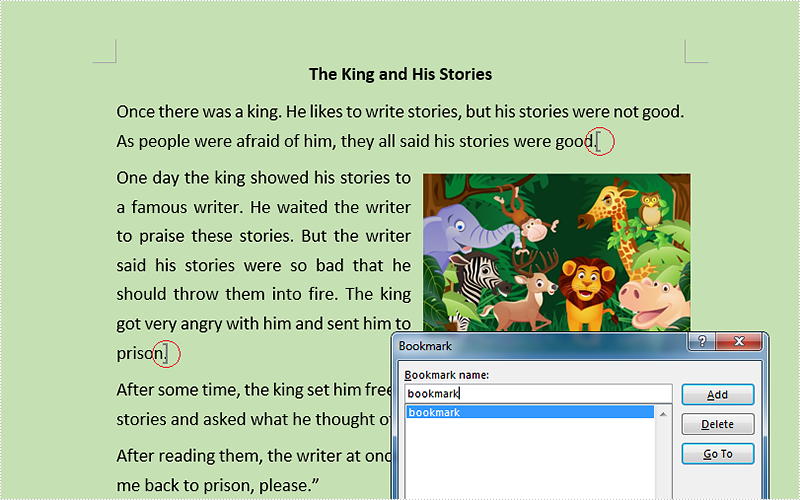
This is the effective screenshot after inserting bookmark:
Now, follow the Detail steps below:
Use namespace:
using System.Windows;
using Spire.Doc;
Step 1: Initialize a new instance of the Document class and load the word document from file.
Document document = new Document();
document.LoadFromFile("Stories.docx");
Step 2: Get its first section and insert bookmark starts from the end of the second paragraph and ends to the third paragraph.
Section section = document.Sections[0];
section.Paragraphs[1].AppendBookmarkStart("bookmark");
section.Paragraphs[2].AppendBookmarkEnd("bookmark");
Step 3: Save and launch the file.
document.SaveToFile("Bookmark.docx", FileFormat.Docx);
System.Diagnostics.Process.Start("Bookmark.docx");
Full codes:
using Spire.Doc;
using System.Windows;

namespace WpfApplication1
{
    public partial class MainWindow : Window
    {
        public MainWindow()
        {
            InitializeComponent();
        }
        private void button1_Click(object sender, RoutedEventArgs e)
        {
            Document document = new Document();
            document.LoadFromFile("Stories.docx");

            Section section = document.Sections[0];
            section.Paragraphs[1].AppendBookmarkStart("bookmark");
            section.Paragraphs[2].AppendBookmarkEnd("bookmark");

            document.SaveToFile("Bookmark.docx", FileFormat.Docx);
            System.Diagnostics.Process.Start("Bookmark.docx");
        }


    }
}
