Text replacement is one of the most common operations in Word document processing — whether it's batch-replacing placeholders in contracts, standardizing terminology, or normalizing text of a specific pattern, the find-and-replace feature handles it efficiently. Spire.Doc for JavaScript processes Word documents directly in the browser via WebAssembly, using a virtual file system (VFS) to manage fonts and file resources — no backend server required.
This article covers two core features:
For installation and project setup, refer to Integrating Spire.Doc for JavaScript in a React Project. The examples below assume Spire.Doc is installed and the WebAssembly module is initialized.
Replace Specific Text
Replacing specific text is the most basic text operation — it replaces a word or phrase in a document with another string, with options for case sensitivity and whole-word matching. The core process involves three steps: first, load font files and the target Word document into the WASM virtual file system via FetchFileToVFS; then instantiate a Document, load the file, and call the Replace method to match a specified string and replace it with new text, controlling the matching rules through caseSensitive and wholeWord parameters; finally, save the document, read the generated file from VFS, wrap it as a Blob, and trigger a browser download.
import React, { useState } from 'react';

function App() {

  const ReplaceWithText = async () => {
      // Get the Spire.Doc WASM module
      const docModule = window.wasmModule?.spiredoc;

       // Check if the module is ready
       if (!docModule) {
        alert('Spire.Doc is not ready yet');
        return;
       }
        // Load the sample file into VFS
        let inputFileName = 'Sample.docx';
        await window.spire.FetchFileToVFS(inputFileName, '', `${process.env.PUBLIC_URL}/data/`);

        // Create a new document
        const doc = new docModule.Document();

        // Load the document from the virtual file system
        doc.LoadFromFile(inputFileName);

        // Replace text: "word" → "ReplacedText", case-insensitive, whole-word match
        doc.Replace({ matchString: 'word', newValue: 'ReplacedText', caseSensitive: false, wholeWord: true });

        // Define the output file name and save
        const outputFileName = 'ReplaceWithText_output.docx';
        doc.SaveToFile({ fileName: outputFileName, fileFormat: docModule.FileFormat.Docx2013 });

        // Release resources
        doc.Dispose();

        // Read the generated file from VFS and trigger download
        const modifiedFileArray = window.dotnetRuntime.Module.FS.readFile(outputFileName);
        const blob = new Blob([modifiedFileArray], { type: 'application/vnd.openxmlformats-officedocument.wordprocessingml.document'});
        const url = URL.createObjectURL(blob);
        const a = document.createElement('a');
        a.href = url;
        a.download = outputFileName;
        a.click();
        URL.revokeObjectURL(url);
  };

  return (
    <div style={{ textAlign: 'center', height: '300px' }}>
      <h1>Replace text in a Word document.</h1>
      <button onClick={ReplaceWithText}>
        Generate
      </button>
    </div>
    );
  };

export default App;
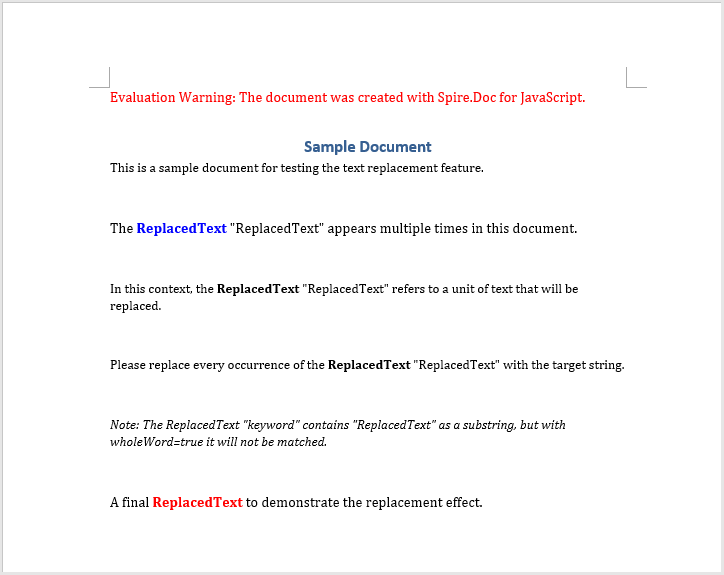
Target strings in the document are uniformly replaced with the new content after using the Replace method
Replace Text Using Regex
When you need to match text with variable formatting, regex is the most powerful tool — for example, replacing all hashtag labels starting with # with a fixed string. The core process involves three steps: first, load font files and the target Word document into the WASM virtual file system via FetchFileToVFS; then create a Regex object to define the matching pattern, and call the Replace method to uniformly replace all matched text with the specified content; finally, save the document, read the generated file from VFS, wrap it as a Blob, and trigger a browser download.
import React, { useState } from 'react';

function App() {

  const ReplaceWithText = async () => {
      // Get the Spire.Doc WASM module
      const docModule = window.wasmModule?.spiredoc;

       // Check if the module is ready
       if (!docModule) {
        alert('Spire.Doc is not ready yet');
        return;
       }
       // Load the sample file into VFS
        let inputFileName = 'Sample.docx';
        await window.spire.FetchFileToVFS(inputFileName, '', `${process.env.PUBLIC_URL}/data/`);

        // Create a new document
        const doc = new docModule.Document();

        // Load the document from the virtual file system
        doc.LoadFromFile(inputFileName);

        // Create a regex pattern to match whole words
        let regex = new docModule.Regex('\\bword\\b', docModule.RegexOptions.None);

        // Replace text using the regex
        doc.Replace(regex, 'Spire.Doc');

        // Define the output file name and save
        const outputFileName = 'ReplaceTextByRegex_output.docx';
        doc.SaveToFile({fileName: outputFileName, fileFormat: docModule.FileFormat.Docx2013 });

        // Release resources
        doc.Dispose();

        // Read the generated file from VFS and trigger download
        const modifiedFileArray = window.dotnetRuntime.Module.FS.readFile(outputFileName);
        const blob = new Blob([modifiedFileArray], { type: 'application/vnd.openxmlformats-officedocument.wordprocessingml.document'});
        const url = URL.createObjectURL(blob);
        const a = document.createElement('a');
        a.href = url;
        a.download = outputFileName;
        a.click();
        URL.revokeObjectURL(url);
  };

  return (
    <div style={{ textAlign: 'center', height: '300px' }}>
      <h1>Replace text in a Word document.</h1>
      <button onClick={ReplaceWithText}>
        Generate
      </button>
    </div>
    );
  };

export default App;
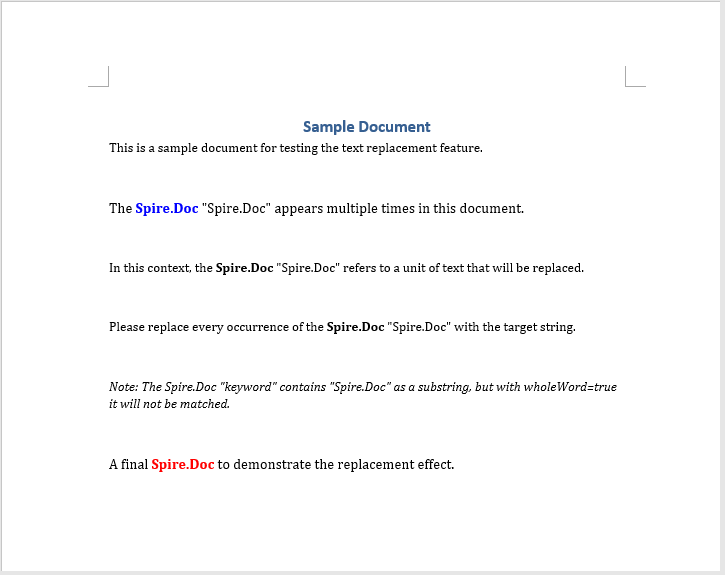
All strings matching the pattern are uniformly replaced after regex-based text replacement
FAQ
Text replacement does not take effect (text is not replaced)
Cause: The caseSensitive or wholeWord parameters are set incorrectly, causing the match to fail — the actual text does not meet the matching criteria.
Solution: Check whether the case matches, or set caseSensitive to false to ignore case, and wholeWord to false to match partial words:
doc.Replace({ matchString: 'word', newValue: 'ReplacedText', caseSensitive: false, wholeWord: false });
Regex pattern does not match the target content
Cause: Special characters (such as #, \) in the regex pattern are not properly escaped, causing the match to fail.
Solution: Ensure that special characters in the regex pattern are correctly escaped. For example, when matching #tag-style text:
let regex = new wasmModule.Regex('#\\S+', wasmModule.RegexOptions.None);
Get a Free License
Spire.Doc for JavaScript offers a 30-day full-featured free trial license with no functional limitations. Apply here to evaluate before purchasing.
