Replacing specific text with field codes or another document's content is a highly practical need in document automation — such as replacing a "current date" placeholder with a DATE field that automatically updates to the system date each time the document is opened, or swapping a "terms" placeholder in a contract template with detailed clause content from another Word document for modular document assembly. Spire.Doc for JavaScript runs entirely in the browser via WebAssembly, using a virtual file system (VFS) to manage fonts and document files — no backend server required.
This article covers two core features:
For installation and project setup, refer to Integrating Spire.Doc for JavaScript in a React Project. The examples below assume Spire.Doc is installed and the WebAssembly module is initialized.
Replace Text with a Field
Replacing text with a field involves three steps: first, load the font files and the target Word document into the WASM virtual file system via FetchFileToVFS; then call FindString to locate the target text, retrieve its paragraph and position index, create a Field object with the desired field type (such as FieldDate), sequentially insert Field, FieldMark(FieldSeparator), and FieldMark(FieldEnd) into the paragraph to construct a complete field structure, and finally remove the original text; finally, save the document, read the generated file from VFS, wrap it as a Blob, and trigger a browser download.
import React, { useState } from 'react';

function App() {
  const ReplaceTextWithField = async () => {
    // Get the Spire.Doc WASM module
    const docModule = window.wasmModule?.spiredoc;

    // Check if the module is ready
    if (!docModule) {
      alert('Spire.Doc is not ready yet');
      return;
    }

    // Load the Word document into VFS
    let inputFileName = 'ReplaceTextWithField.docx';
    await window.spire.FetchFileToVFS(inputFileName, '', `${process.env.PUBLIC_URL}/data/`);

    // Load the document
    const doc = new docModule.Document();
    doc.LoadFromFile(inputFileName);

    // Find the target text
    let selection = doc.FindString({
      stringValue: 'summary',
      caseSensitive: false,
      wholeWord: true,
    });

    // Get the text range and its owner paragraph
    let textRange = selection.GetAsOneRange();
    let ownParagraph = textRange.OwnerParagraph;
    let rangeIndex = ownParagraph.ChildObjects.IndexOf(textRange);

    // Create a DATE field
    let eqField = new docModule.Field(doc);
    eqField.Type = docModule.FieldType.FieldDate;
    eqField.Code = 'DATE \\@ "yyyyMMdd "';

    // Insert Field, FieldSeparator, and FieldEnd in sequence
    ownParagraph.ChildObjects.Insert(rangeIndex, eqField);

    let mark = new docModule.FieldMark(doc, docModule.FieldMarkType.FieldSeparator);
    ownParagraph.ChildObjects.Insert(rangeIndex + 1, mark);

    let end = new docModule.FieldMark(doc, docModule.FieldMarkType.FieldEnd);
    ownParagraph.ChildObjects.Insert(rangeIndex + 2, end);

    // Remove the original text
    ownParagraph.ChildObjects.Remove(textRange);

    // Define the output file name and save
    const outputFileName = 'ReplaceTextWithField_output.docx';
    doc.SaveToFile({ fileName: outputFileName, fileFormat: docModule.FileFormat.Docx2013 });

    // Release resources
    doc.Dispose();

    // Read the generated file from VFS and trigger download
    const modifiedFileArray = window.dotnetRuntime.Module.FS.readFile(outputFileName);
    const blob = new Blob([modifiedFileArray], { type: 'application/vnd.openxmlformats-officedocument.wordprocessingml.document' });
    const url = URL.createObjectURL(blob);
    const a = document.createElement('a');
    a.href = url;
    a.download = outputFileName;
    a.click();
    URL.revokeObjectURL(url);
  };

  return (
    <div style={{ textAlign: 'center', height: '300px' }}>
      <h1>Replace text with field in Word document</h1>
      <button onClick={ReplaceTextWithField}>
        Generate
      </button>
    </div>
  );
}

export default App;
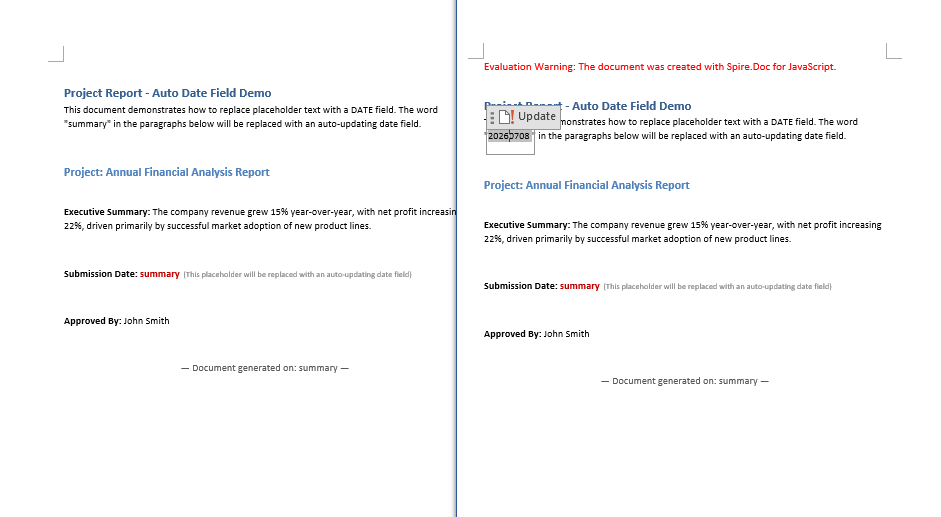
The target text is replaced with a DATE field that automatically displays the current system date when the document is opened
Replace Text with Another Document
Replacing text with another document involves three steps: first, load the font files and two Word documents (the main document and the replacement content document) into the WASM virtual file system via FetchFileToVFS; then instantiate two Document objects to load both documents, call the Replace method on the main document with the matchDoc parameter pointing to the replacement document object, substituting the matching text with the full content of that document; finally, save the document, read the generated file from VFS, wrap it as a Blob, and trigger a browser download.
import React, { useState } from 'react';

function App() {
  const ReplaceWithDocument = async () => {
    // Get the Spire.Doc WASM module
    const docModule = window.wasmModule?.spiredoc;

    // Check if the module is ready
    if (!docModule) {
      alert('Spire.Doc is not ready yet');
      return;
    }

    // Load the two Word documents into VFS
    let inputFileName1 = 'Text2.docx';
    await window.spire.FetchFileToVFS(inputFileName1, '', `${process.env.PUBLIC_URL}/data/`);

    let inputFileName2 = 'Text1.docx';
    await window.spire.FetchFileToVFS(inputFileName2, '', `${process.env.PUBLIC_URL}/data/`);

    // Load the main document
    let doc = new docModule.Document();
    doc.LoadFromFile(inputFileName1);

    // Load the replacement document
    let replaceDoc = new docModule.Document();
    replaceDoc.LoadFromFile(inputFileName2);

    // Replace the specified text with the content of another document
    doc.Replace({
      matchString: 'Document1',
      matchDoc: replaceDoc,
      caseSensitive: false,
      wholeWord: true,
    });

    // Define the output file name and save
    const outputFileName = 'ReplaceWithDocument_output.docx';
    doc.SaveToFile({ fileName: outputFileName, fileFormat: docModule.FileFormat.Docx2013 });

    // Release resources
    doc.Dispose();

    // Read the generated file from VFS and trigger download
    const modifiedFileArray = window.dotnetRuntime.Module.FS.readFile(outputFileName);
    const blob = new Blob([modifiedFileArray], { type: 'application/vnd.openxmlformats-officedocument.wordprocessingml.document' });
    const url = URL.createObjectURL(blob);
    const a = document.createElement('a');
    a.href = url;
    a.download = outputFileName;
    a.click();
    URL.revokeObjectURL(url);
  };

  return (
    <div style={{ textAlign: 'center', height: '300px' }}>
      <h1>Replace text with another document in Word</h1>
      <button onClick={ReplaceWithDocument}>
        Generate
      </button>
    </div>
  );
}

export default App;
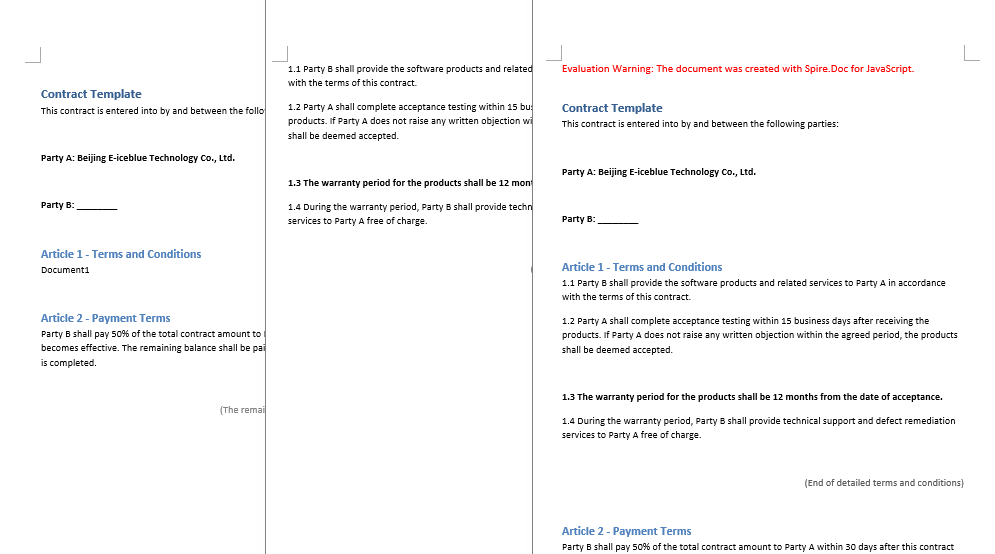
The placeholder text in the main document is replaced with the full content of another document
FAQ
Field value does not appear in the document after insertion
Cause: The Field, FieldMark(FieldSeparator), and FieldMark(FieldEnd) are not inserted in the correct order, breaking the integrity of the field structure and preventing Word from properly recognizing and evaluating the field value.
Solution: Ensure that Field, FieldSeparator, and FieldEnd are inserted sequentially with consecutive indices:
ownParagraph.ChildObjects.Insert(rangeIndex, eqField);
ownParagraph.ChildObjects.Insert(rangeIndex + 1, mark);
ownParagraph.ChildObjects.Insert(rangeIndex + 2, end);
Replacement with another document does not work
Cause: The document object passed via the matchDoc parameter in the Replace method was not properly loaded into VFS, or the file path/name does not match what was used in FetchFileToVFS, causing LoadFromFile to fail to locate the target file.
Solution: Ensure both documents are loaded into VFS via FetchFileToVFS, and create separate Document objects that successfully load before calling Replace:
let doc = new docModule.Document();
doc.LoadFromFile('Text2.docx');

let replaceDoc = new docModule.Document();
replaceDoc.LoadFromFile('Text1.docx');

doc.Replace({
  matchString: 'Document1',
  matchDoc: replaceDoc,
  caseSensitive: false,
  wholeWord: true,
});
Get a Free License
Spire.Doc for JavaScript offers a 30-day full-featured free trial license with no functional limitations. Apply here to evaluate before purchasing.
