Replacing specific placeholder text with images or tables is a common requirement in real-world development — such as replacing a "(Seal)" marker at the end of a contract with a company stamp image, or swapping a data summary placeholder with a statistics table. Spire.Doc for JavaScript runs entirely in the browser via WebAssembly, using a virtual file system (VFS) to manage fonts, images, and document files — no backend server required.
This article covers two core features:
For installation and project setup, refer to Integrating Spire.Doc for JavaScript in a React Project. The examples below assume Spire.Doc is installed and the WebAssembly module is initialized.
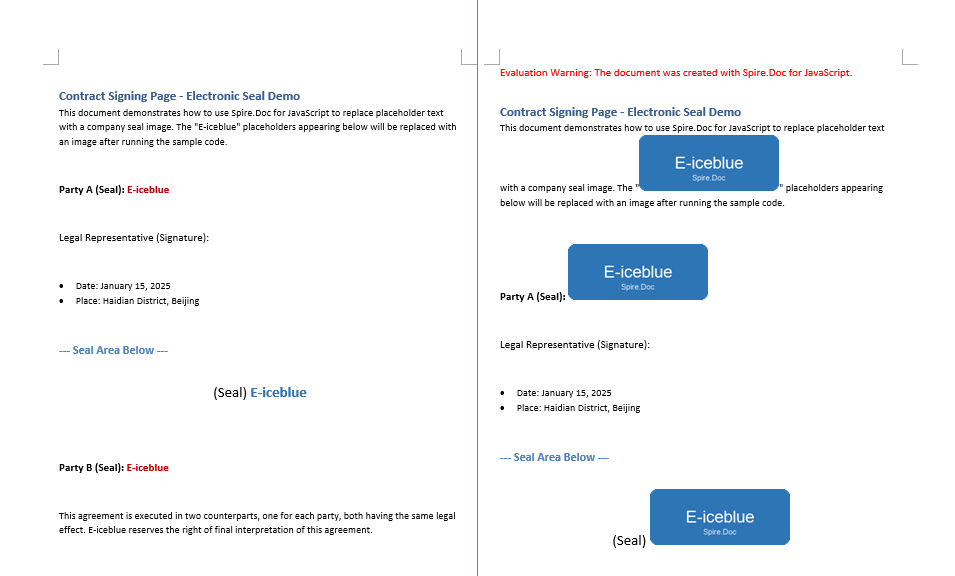
Replace Text with Image
Replacing text with an image involves three steps: first, load the font files, the target image, and the Word document into the WASM virtual file system via FetchFileToVFS; then call FindAllString to locate all matching text, iterate through each match, load the image with DocPicture, insert it using ChildObjects.Insert, and remove the original text via ChildObjects.Remove; finally, save the document, read the generated file from VFS, wrap it as a Blob, and trigger a browser download.
import React, { useState } from 'react';

function App() {
  const ReplaceWithImage = async () => {
    // Get the Spire.Doc WASM module
    const docModule = window.wasmModule?.spiredoc;

    // Check if the module is ready
    if (!docModule) {
      alert('Spire.Doc is not ready yet');
      return;
    }

    // Load the image and Word document into VFS
    let pngName = 'E-iceblue.png';
    await window.spire.FetchFileToVFS(pngName, '', `${process.env.PUBLIC_URL}/data/`);

    let inputFileName = 'Template.docx';
    await window.spire.FetchFileToVFS(inputFileName, '', `${process.env.PUBLIC_URL}/data/`);

    // Load the document
    const doc = new docModule.Document();
    doc.LoadFromFile(inputFileName);

    // Find all matching text
    let selections = doc.FindAllString('E-iceblue', true, true);

    // Iterate through each match and replace text with the image
    for (let i = 0; i < selections.length; i++) {
      // Create a DocPicture object and load the image
      let pic = new docModule.DocPicture(doc);
      pic.LoadImage(pngName);
      let selection = selections[i];
      // Get the current text range
      let range = selection.GetAsOneRange();
      // Get the index of the TextRange in its owner paragraph's ChildObjects
      let index = range.OwnerParagraph.ChildObjects.IndexOf(range);
      // Insert the image at the TextRange position
      range.OwnerParagraph.ChildObjects.Insert(index, pic);
      // Remove the original TextRange
      range.OwnerParagraph.ChildObjects.Remove(range);
    }

    // Define the output file name and save
    const outputFileName = 'ReplaceWithImage_output.docx';
    doc.SaveToFile({ fileName: outputFileName, fileFormat: docModule.FileFormat.Docx2013 });

    // Release resources
    doc.Dispose();

    // Read the generated file from VFS and trigger download
    const modifiedFileArray = window.dotnetRuntime.Module.FS.readFile(outputFileName);
    const blob = new Blob([modifiedFileArray], { type: 'application/vnd.openxmlformats-officedocument.wordprocessingml.document' });
    const url = URL.createObjectURL(blob);
    const a = document.createElement('a');
    a.href = url;
    a.download = outputFileName;
    a.click();
    URL.revokeObjectURL(url);
  };

  return (
    <div style={{ textAlign: 'center', height: '300px' }}>
      <h1>Replace text with image in Word document</h1>
      <button onClick={ReplaceWithImage}>
        Generate
      </button>
    </div>
  );
}

export default App;
Target text in the document is found and replaced with the specified image
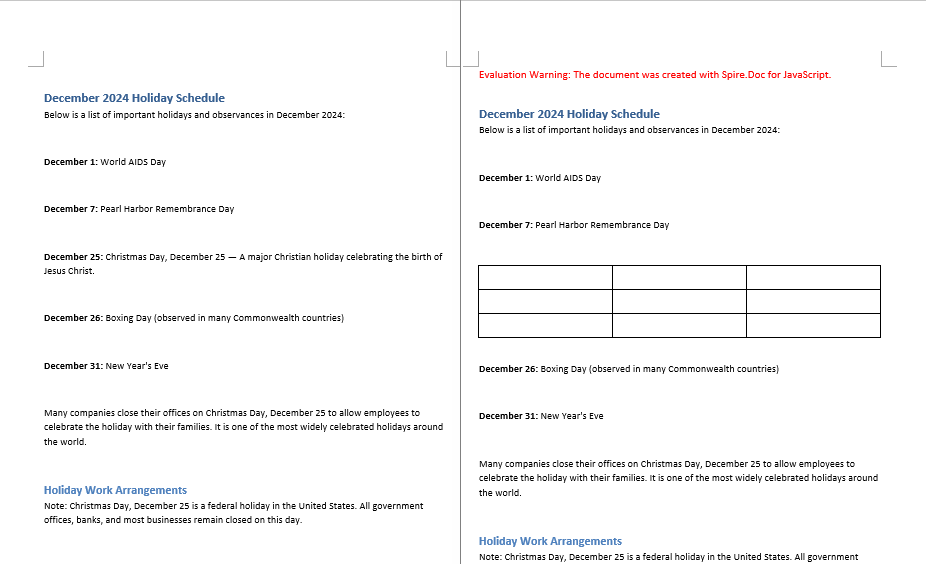
Replace Text with Table
Replacing text with a table involves three steps: first, load the font files and the target Word document into the WASM virtual file system via FetchFileToVFS; then call FindString to locate the target text, retrieve the text range with GetAsOneRange, get the paragraph index via OwnerTextBody.ChildObjects, create a new table, remove the original paragraph with ChildObjects.Remove, and insert the table at the same position with ChildObjects.Insert; finally, save the document, read the generated file from VFS, wrap it as a Blob, and trigger a browser download.
import React, { useState } from 'react';

function App() {
  const ReplaceTextWithTable = async () => {
    // Get the Spire.Doc WASM module
    const docModule = window.wasmModule?.spiredoc;

    // Check if the module is ready
    if (!docModule) {
      alert('Spire.Doc is not ready yet');
      return;
    }

    // Load the font file into VFS
    await window.spire.FetchFileToVFS('ARIALUNI.TTF', '/Library/Fonts/', `${process.env.PUBLIC_URL}/font/`);

    // Load the Word document into VFS
    let inputFileName = 'Template_Docx_1.docx';
    await window.spire.FetchFileToVFS(inputFileName, '', `${process.env.PUBLIC_URL}/data/`);

    // Load the document
    const doc = new docModule.Document();
    doc.LoadFromFile(inputFileName);

    // Get the first section
    let section = doc.Sections.get_Item(0);

    // Find the target text
    let selection = doc.FindString('Christmas Day, December 25', true, true);

    // Get the text range and its owner paragraph
    let range = selection.GetAsOneRange();
    let paragraph = range.OwnerParagraph;

    // Get the text body and calculate the paragraph index
    let body = paragraph.OwnerTextBody;
    let index = body.ChildObjects.IndexOf(paragraph);

    // Create a 3x3 table
    let table = section.AddTable(true);
    table.ResetCells(3, 3);

    // Remove the original paragraph and insert the table at the same position
    body.ChildObjects.Remove(paragraph);
    body.ChildObjects.Insert(index, table);

    // Define the output file name and save
    const outputFileName = 'ReplaceTextWithTable_output.docx';
    doc.SaveToFile({ fileName: outputFileName, fileFormat: docModule.FileFormat.Docx2013 });

    // Release resources
    doc.Dispose();

    // Read the generated file from VFS and trigger download
    const modifiedFileArray = window.dotnetRuntime.Module.FS.readFile(outputFileName);
    const blob = new Blob([modifiedFileArray], { type: 'application/vnd.openxmlformats-officedocument.wordprocessingml.document' });
    const url = URL.createObjectURL(blob);
    const a = document.createElement('a');
    a.href = url;
    a.download = outputFileName;
    a.click();
    URL.revokeObjectURL(url);
  };

  return (
    <div style={{ textAlign: 'center', height: '300px' }}>
      <h1>Replace text with table in Word document</h1>
      <button onClick={ReplaceTextWithTable}>
        Generate
      </button>
    </div>
  );
}

export default App;
The target paragraph is removed and a table is inserted at the same position
FAQ
Image does not appear in the document after insertion
Cause: The image file was not loaded into the WASM virtual file system, or the FetchFileToVFS path is incorrect, causing DocPicture.LoadImage to fail when reading the image data from VFS.
Solution: Ensure the image file is properly loaded into VFS via FetchFileToVFS before calling LoadImage, and verify the file name and path match:
await window.spire.FetchFileToVFS(
  'E-iceblue.png', '', `${process.env.PUBLIC_URL}/data/`
);
Table is inserted at the wrong position
Cause: The paragraph index obtained via OwnerTextBody.ChildObjects.IndexOf is inaccurate, or the selected text spans multiple paragraphs, causing an index offset that places the table in the wrong location.
Solution: Verify that the text searched by FindString resides within a single paragraph, then use GetAsOneRange to obtain the correct OwnerParagraph before retrieving its index in OwnerTextBody.ChildObjects:
let range = selection.GetAsOneRange();
let paragraph = range.OwnerParagraph;
let body = paragraph.OwnerTextBody;
let index = body.ChildObjects.IndexOf(paragraph);
Get a Free License
Spire.Doc for JavaScript offers a 30-day full-featured free trial license with no functional limitations. Apply here to evaluate before purchasing.
