XPS (XML Paper Specification) is a fixed-layout document format introduced by Microsoft, widely used in electronic document printing, archiving, and distribution scenarios, with native support in the Windows platform ecosystem. XPS describes document structure based on XML, offering advantages such as clear structure, easy validation, and digital signing. Meanwhile, PDF remains indispensable as an internationally recognized document format for cross-platform distribution. Real-world business often requires flexible switching between the two formats: converting existing PDF contracts to XPS for printing and archiving in Windows environments, or converting XPS documents to PDF for cross-platform distribution and collaboration.
Spire.PDF for JavaScript performs bidirectional conversion between PDF and XPS entirely in the browser via WebAssembly, managing input and output files through a virtual file system (VFS) with no backend server required.
This article covers two core features:
For installation and project setup, refer to Integrating Spire.PDF for JavaScript in a React Project. The examples below assume Spire.PDF is installed and the WebAssembly module is initialized.
Convert PDF to XPS
The core of PDF-to-XPS conversion is to re-encode the page content, fonts, and graphics elements from a PDF document into an XML description structure compliant with the XPS standard. Spire.PDF for JavaScript accomplishes this in one step through the PdfDocument object's SaveToFile method with the FileFormat.XPS enum value, eliminating the need to handle underlying format differences manually.
function App() {
  const convertToXPS = async () => {
    // Get the Spire.PDF WASM module
    const pdfModule = window.wasmModule?.spirepdf;

    // Check if the WASM module is ready
    if (!pdfModule) {
      alert('Spire.PDF is not ready yet');
      return;
    }

    // Load fonts and PDF file into VFS
    await window.spire.FetchFileToVFS('ARIAL.TTF', '/Library/Fonts/', `${process.env.PUBLIC_URL}/font/`);
    const inputFileName = 'Reading_EN.pdf';
    await window.spire.FetchFileToVFS(inputFileName, "", `${process.env.PUBLIC_URL}/data/`);

    // Create PdfDocument object and load the PDF document
    let doc = new pdfModule.PdfDocument();
    doc.LoadFromFile(inputFileName);

    // Define the output file name for XPS format
    const outputFileName = 'OutputXPS.xps';

    // Save as XPS format
    doc.SaveToFile({ fileName: outputFileName, fileFormat: pdfModule.FileFormat.XPS });
    doc.Close();

    // Read the converted file from VFS and trigger download
    const fileArray = window.dotnetRuntime.Module.FS.readFile(outputFileName);
    const blob = new Blob([fileArray], { type: 'application/vnd.ms-xpsdocument' });
    const url = URL.createObjectURL(blob);
    const a = document.createElement('a');
    a.href = url;
    a.download = outputFileName;
    a.click();
    URL.revokeObjectURL(url);
  };

  return (
    <div style={{ textAlign: 'center', height: '300px' }}>
      <h1>Convert PDF To XPS</h1>
      <button onClick={convertToXPS}>
        Generate
      </button>
    </div>
  );
}

export default App;
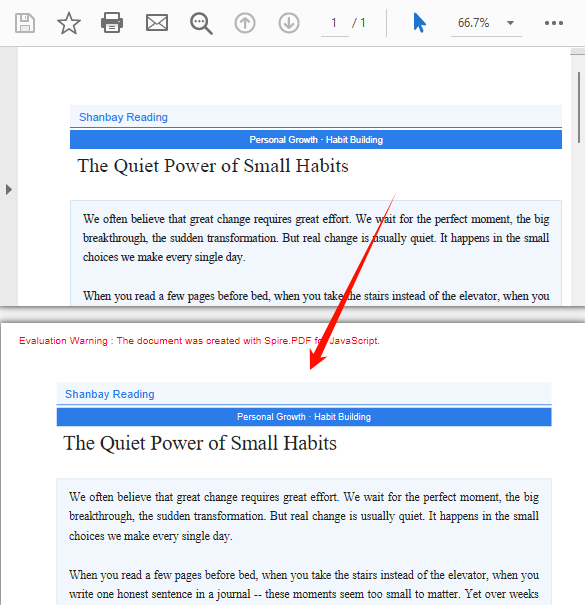
XPS output generated after conversion via SaveToFile with FileFormat.XPS
Convert XPS to PDF
XPS-to-PDF conversion is a common requirement in document cross-platform distribution scenarios. Spire.PDF for JavaScript loads XPS fixed-layout documents through the PdfDocument object's LoadFromXPS method and then exports them as standard PDF files via the SaveToFile method with the FileFormat.PDF enum value, preserving the original document's layout and visual appearance.
function App() {
  const convertXPSToPDF = async () => {
    // Get the Spire.PDF WASM module
    const pdfModule = window.wasmModule?.spirepdf;

    // Check if the WASM module is ready
    if (!pdfModule) {
      alert('Spire.PDF is not ready yet');
      return;
    }

    // Load the XPS file into VFS
    const inputFileName = 'Lease_Agreement_EN.xps';
    await window.spire.FetchFileToVFS(inputFileName, "", `${process.env.PUBLIC_URL}/data/`);

    // Create PdfDocument object and load the XPS document
    let doc = new pdfModule.PdfDocument();
    doc.LoadFromXPS(inputFileName);

    // Define the output file name for PDF format
    const outputFileName = 'OutputPDF.pdf';

    // Save as PDF format
    doc.SaveToFile({ fileName: outputFileName, fileFormat: pdfModule.FileFormat.PDF });
    doc.Close();

    // Read the converted file from VFS and trigger download
    const fileArray = window.dotnetRuntime.Module.FS.readFile(outputFileName);
    const blob = new Blob([fileArray], { type: 'application/pdf' });
    const url = URL.createObjectURL(blob);
    const a = document.createElement('a');
    a.href = url;
    a.download = outputFileName;
    a.click();
    URL.revokeObjectURL(url);
  };

  return (
    <div style={{ textAlign: 'center', height: '300px' }}>
      <h1>Convert XPS To PDF</h1>
      <button onClick={convertXPSToPDF}>
        Generate
      </button>
    </div>
  );
}

export default App;
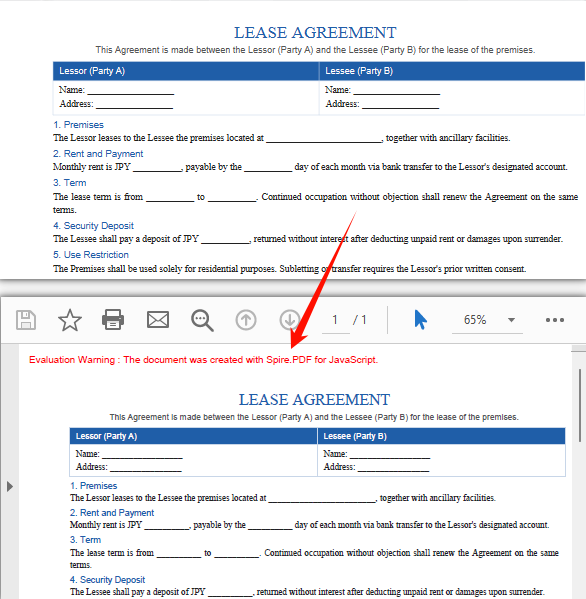
PDF document generated after loading XPS via the PdfDocument LoadFromXPS method and converting
FAQ
Can encrypted PDFs be converted to XPS?
Password-protected encrypted PDFs cannot be saved as XPS directly via SaveToFile — the document must be decrypted first.
Solution: Provide the password when loading the PDF via the second parameter of LoadFromFile, then save as XPS:
// Load a password-protected PDF document
let doc = new pdfModule.PdfDocument();
doc.LoadFromFile(inputFileName, "password");

// Save as XPS format
doc.SaveToFile({ fileName: outputFileName, fileFormat: pdfModule.FileFormat.XPS });
doc.Close();
Get a Free License
If you want to remove the evaluation messages in the resulting documents or get rid of functional limitations, contact sales to obtain a 30-day temporary license.
