Exporting database query results to PDF is a common requirement in applications such as reporting, data archiving, and document generation. In these scenarios, SQL query results need to be transformed into structured, readable documents that can be easily shared or printed.
Because database data is inherently tabular, preserving its structure during the export process is essential for maintaining clarity and usability. Without proper layout control, the resulting document can quickly become difficult to read, especially when dealing with large datasets.
This article demonstrates how to convert databases to PDF in C# using Spire.XLS for .NET, including examples on retrieving query results, organizing them into a structured table, and exporting them as a formatted PDF document.
Table of Contents
- Understanding the Task
- Convert Database to PDF Using C# (Step-by-Step)
- Complete C# Example for Database to PDF Conversion
- Advanced Scenarios
- Common Pitfalls
- Conclusion
- FAQ
1. Understanding the Task
Converting database content to PDF typically involves several key steps:
- Data retrieval: Execute SQL queries and load results into memory
- Data structuring: Organize query results into a consistent tabular format
- PDF export: Generate a document that preserves layout and readability
In practice, this workflow is commonly used for generating reports, creating invoices, or archiving query results, where maintaining a clear and structured presentation of data is essential.
2. Convert Database to PDF Using C# (Step-by-Step)
This section provides a complete workflow for converting database query results into a PDF document, including data retrieval, table structuring, formatting, and export.
2.1 Environment Setup
Before implementing the solution, make sure your development environment is ready:
-
.NET environment
Install Visual Studio or use the .NET CLI with a compatible .NET version (e.g., .NET 6 or later). -
Database access
Prepare a SQL Server database (or any relational database) and ensure you have a valid connection string. For modern .NET applications, use the recommended SQL client library:dotnet add package Microsoft.Data.SqlClientThis package provides the ADO.NET implementation for SQL Server and replaces the legacy
System.Data.SqlClient. -
Spire.XLS for .NET Install Spire.XLS via NuGet to handle table formatting and PDF export:
dotnet add package Spire.XLSYou can also download the Spire.XLS for .NET package and add it to your project manually.
Once configured, you can retrieve data from the database and use Spire.XLS to generate and export PDF documents.
2.2 Read Data from Database
The first step is to execute a SQL query and load the results into a DataTable. This structure preserves the schema and data types of the query result, making it suitable for further transformation.
using System.Data;
using Microsoft.Data.SqlClient;

string connectionString = "Server=localhost\\SQLEXPRESS;Database=SalesDB;User ID=demouser;Password=YourPassword;Encrypt=true;TrustServerCertificate=true;";
string query = @"
    SELECT o.OrderID, c.CustomerName, o.OrderDate, o.TotalAmount
    FROM Orders o
    JOIN Customers c ON o.CustomerID = c.CustomerID
    WHERE YEAR(o.OrderDate) = 2026;
";

DataTable dataTable = new DataTable();

using (SqlConnection conn = new SqlConnection(connectionString))
{
    SqlDataAdapter adapter = new SqlDataAdapter(query, conn);
    adapter.Fill(dataTable);
}
This example uses Microsoft.Data.SqlClient, the modern SQL client library for .NET, which is recommended over the legacy System.Data.SqlClient.
The SqlDataAdapter acts as a bridge between the database and in-memory data. It executes the query and fills the DataTable without requiring explicit connection management for reading operations.
In practical scenarios, this step can be extended to include:
- Parameterized queries to avoid SQL injection
- Stored procedures for complex data retrieval
- Data filtering and aggregation directly in SQL
By preparing clean and structured data at this stage, you reduce the complexity of downstream formatting and improve overall performance.
For a similar scenario involving exporting database query results to Excel instead of PDF, you can also refer to this guide: Export Database to Excel in C#.
2.3 Import Data and Export to PDF with Formatting
After retrieving the data, the next step is to map it into a worksheet, apply formatting, and export it as a PDF document. This approach leverages worksheet-based layout control to ensure the output remains structured and readable.
using Spire.Xls;
using System.Drawing;

// Create workbook and worksheet
Workbook workbook = new Workbook();
Worksheet sheet = workbook.Worksheets[0];

// Import DataTable with headers
sheet.InsertDataTable(dataTable, true, 1, 1);

// Format header row
CellRange headerRange = sheet.Range[1, 1, 1, dataTable.Columns.Count];
headerRange.Style.Font.IsBold = true;
headerRange.Style.Font.Size = 11;
headerRange.Style.Color = Color.LightGray;

// Apply borders to enhance table structure
CellRange dataRange = sheet.AllocatedRange;
dataRange.BorderAround(LineStyleType.Thin);
dataRange.BorderInside(LineStyleType.Thin);

// Align content for consistency
dataRange.Style.HorizontalAlignment = HorizontalAlignType.Center;
dataRange.Style.VerticalAlignment = VerticalAlignType.Center;

// Auto-fit columns for better layout
sheet.AllocatedRange.AutoFitColumns();

// Center the content horizontally in the page
sheet.PageSetup.CenterHorizontally = true;

// Export to PDF
workbook.SaveToFile("SalesReport_2026.pdf", FileFormat.PDF);
This step combines layout control and PDF generation into a single workflow.
Key points to note:
-
Worksheet as layout engine The worksheet acts as a structured canvas where database data is arranged into rows and columns. This ensures the original tabular structure is preserved in the final document.
-
Formatting directly impacts PDF output Adjustments such as column width, font style, and borders are not just visual improvements—they determine how the content is rendered in the PDF. Poor formatting can lead to truncated text or unreadable layouts.
-
Automatic pagination When exporting, the worksheet content is automatically split across pages based on layout and paper size, which is particularly useful for large datasets.
For further layout optimization, you can enhance the table formatting by:
- Enabling text wrapping for long fields
- Applying number/date formats for better readability
If your project requires more flexible PDF structure control, you can also explore converting DataTable to PDF in C# directly using Spire.PDF for .NET, which provides more advanced document-level layout capabilities for complex reporting needs.
3. Complete C# Example for Converting Databases to PDF
Below is the complete implementation that combines database retrieval, data formatting, and PDF export into a single workflow.
using System;
using System.Data;
using Microsoft.Data.SqlClient;
using Spire.Xls;
using System.Drawing;

class Program
{
    static void Main()
    {
        // Step 1: Retrieve data from database
        string connectionString = "Server=localhost\\SQLEXPRESS;Database=SalesDB;User ID=demouser;Password=YourPassword;Encrypt=true;TrustServerCertificate=true;";
        string query = @"
            SELECT o.OrderID, c.CustomerName, o.OrderDate, o.TotalAmount
            FROM Orders o
            JOIN Customers c ON o.CustomerID = c.CustomerID
            WHERE YEAR(o.OrderDate) = 2026;
        ";

        DataTable dataTable = new DataTable();

        using (SqlConnection conn = new SqlConnection(connectionString))
        {
            SqlDataAdapter adapter = new SqlDataAdapter(query, conn);
            adapter.Fill(dataTable);
        }

        // Step 2: Create workbook and import data
        Workbook workbook = new Workbook();
        Worksheet sheet = workbook.Worksheets[0];
        sheet.InsertDataTable(dataTable, true, 1, 1);

        // Step 3: Apply professional formatting
        // Format header row
        CellRange headerRange = sheet.Range[1, 1, 1, dataTable.Columns.Count];
        headerRange.Style.Font.IsBold = true;
        headerRange.Style.Font.Size = 11;
        headerRange.Style.Color = Color.LightGray;

        // Apply borders
        CellRange dataRange = sheet.AllocatedRange;
        dataRange.BorderAround(LineStyleType.Thin);
        dataRange.BorderInside(LineStyleType.Thin);

        // Set alignment
        dataRange.Style.HorizontalAlignment = HorizontalAlignType.Center;
        dataRange.Style.VerticalAlignment = VerticalAlignType.Center;

        // Auto-fit columns
        sheet.AllocatedRange.AutoFitColumns();

        // Center the content horizontally in the pages
        sheet.PageSetup.CenterHorizontally = true;

        // Step 4: Export to PDF
        workbook.SaveToFile("SalesReport_2026.pdf", FileFormat.PDF);

        Console.WriteLine("Database query results successfully exported to PDF.");
    }
}
Below is a preview of the generated PDF:
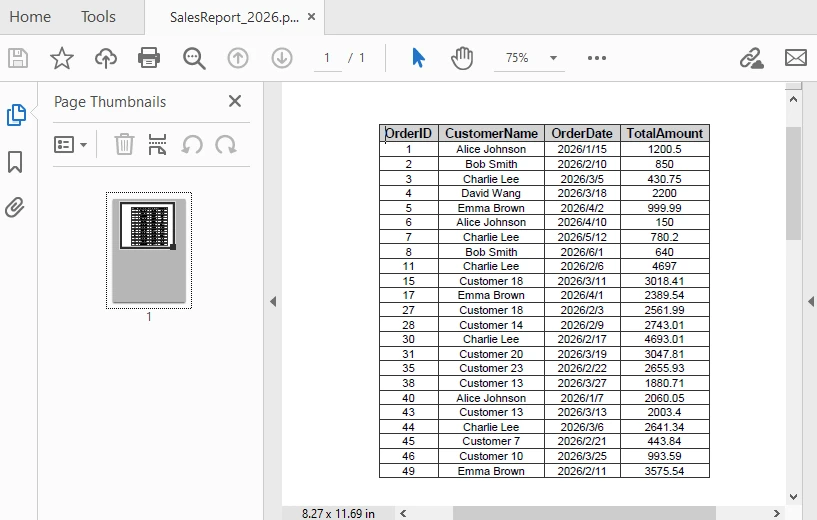
This example demonstrates an end-to-end workflow from SQL query execution to PDF generation.
4. Advanced Scenarios
In real-world applications, exporting database data to PDF often requires more than just basic conversion. You may need to handle batch exports, improve document readability, or adjust layout settings for better presentation. The following examples demonstrate common enhancements for real-world usage.
Export Multiple Query Results
For scenarios such as batch report generation or scheduled tasks, you may need to execute multiple queries and export each result as a separate PDF document:
string[] queries = {
    "SELECT * FROM Orders WHERE Status = 'Pending'",
    "SELECT * FROM Customers WHERE Region = 'North'"
};

for (int i = 0; i < queries.Length; i++)
{
    DataTable dt = ExecuteQuery(queries[i]);
    Workbook wb = new Workbook();
    Worksheet ws = wb.Worksheets[0];
    ws.InsertDataTable(dt, true, 1, 1);
    ws.AllocatedRange.AutoFitColumns();
    wb.SaveToFile($"Report_{i + 1}.pdf", FileFormat.PDF);
}
This approach is useful for automating report generation where multiple datasets need to be exported independently.
Add Title and Metadata
To improve readability and provide context, you can add a title row above the data before exporting to PDF:
// Insert title row
sheet.InsertRow(1);
sheet.Range[1, 1].Text = "Sales Report - 2026";
sheet.Range[1, 1].Style.Font.IsBold = true;
sheet.Range[1, 1].Style.Font.Size = 14;

// Merge title cells
sheet.Range[1, 1, 1, dataTable.Columns.Count].Merge();

// Auto-fit the title row
sheet.AutoFitRow(1);
The following image shows the generated PDF with the title row applied:
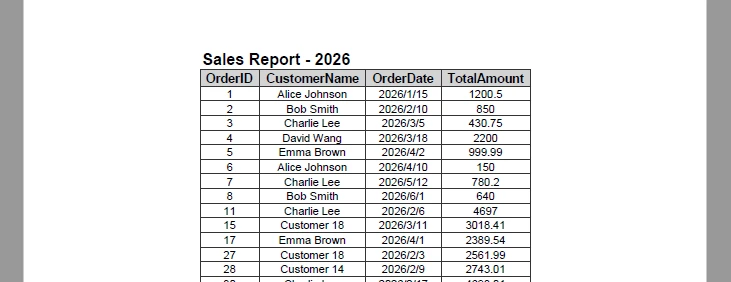
Adding a title helps users quickly understand the context of the document, especially when sharing or printing reports.
Set Page Size, Orientation, and Margins
To ensure the PDF layout fits your data properly, you can configure page size, orientation, and margins before exporting:
// Set the page size and orientation
sheet.PageSetup.PaperSize = PaperSizeType.PaperA4;
sheet.PageSetup.Orientation = PageOrientationType.Portrait;

// Set the page margins
sheet.PageSetup.TopMargin = 0.5f;
sheet.PageSetup.BottomMargin = 0.2f;
sheet.PageSetup.LeftMargin = 0.2f;
sheet.PageSetup.RightMargin = 0.2f;
Adjusting these settings helps prevent content overflow and ensures consistent layout across different reports.
Control Page Layout and Scaling
When working with large tables, you may need to control how content is distributed across pages. By default, content is split automatically, but you can adjust scaling behavior to fit more data within a page.
// Fit content to page width
workbook.ConverterSetting.SheetFitToWidth = true;

// Fit entire sheet into a single page (may reduce readability)
workbook.ConverterSetting.SheetFitToPage = true;
SheetFitToWidthensures the table fits within the page width while allowing vertical paginationSheetFitToPagescales the entire worksheet to fit into a single page
These settings are useful when generating compact reports, but should be used carefully to avoid making text too small.
Add Headers and Footers
Headers and footers are useful for adding contextual information such as report titles, timestamps, or page numbers:
sheet.PageSetup.LeftHeader = "&\"Arial,Bold\"&16 Sales Report - 2026";
sheet.PageSetup.RightHeader = "&\"Arial,Italic\"&10 Generated on &D";
sheet.PageSetup.CenterFooter = "&\"Arial,Regular\"&16 Page &P of &N";
The following image shows the generated PDF with headers and footers applied:
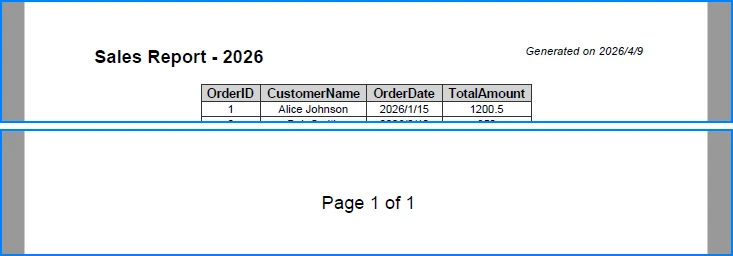
These elements improve document navigation and are especially valuable for multi-page reports.
Encrypt PDFs
To protect sensitive data, you can apply encryption to the exported PDF:
workbook.ConverterSetting.PdfSecurity.Encrypt("openpsd");
Encryption ensures that only authorized users can access the document, which is important for reports containing confidential or business-critical data.
For more related scenarios involving document export and PDF customization, you can also explore Excel to PDF conversion in C#.
5. Common Pitfalls
Database Connection Issues
Ensure the connection string is correct and the database server is accessible. Verify authentication settings (e.g., SQL authentication or integrated security) and confirm that encryption-related parameters match your environment configuration.
Empty Query Results
Check whether the DataTable contains data before proceeding. Empty result sets may lead to blank PDFs or unexpected formatting behavior.
if (dataTable.Rows.Count == 0)
{
    Console.WriteLine("No data found for the specified query.");
    return;
}
In production scenarios, you may also choose to generate a placeholder PDF or log the issue instead of exiting the process.
Column Width Overflow
When working with long text fields, AutoFitColumns() may produce excessively wide columns, which can negatively affect PDF layout.
To improve readability, consider:
- Setting a maximum column width
- Enabling text wrapping for long content
- Manually adjusting key columns based on data type
This is especially important when exporting large datasets with variable-length text.
Missing Font Support
If the exported PDF contains special characters (e.g., non-Latin text) or custom fonts, ensure the required fonts are installed and accessible at runtime.
Missing fonts may cause text rendering issues or fallback substitutions, which can affect document appearance and readability.
Unexpected PDF Layout
If the exported PDF layout appears compressed or improperly scaled, check page setup and scaling options such as SheetFitToWidth or SheetFitToPage.
Improper scaling may cause content to appear too small or distort the original table structure.
Conclusion
This article demonstrated a practical approach to converting database query results to PDF in C#. By combining structured data retrieval with worksheet-based formatting, you can generate clear and professional documents directly from SQL data.
This method is particularly effective for report generation and data presentation scenarios where maintaining table structure and readability is essential.
If you are evaluating Spire.XLS, you can request a free temporary license to remove evaluation limitations during development.
FAQ
Can Spire.XLS export database data to PDF without third-party tools?
Yes. Spire.XLS performs all operations independently and does not require Microsoft Office or any other external tools.
How do I handle large datasets when exporting to PDF?
For large datasets, consider paginating the results or filtering the query to retrieve only necessary data. You can also adjust PDF page settings to optimize output size.
Can I customize the PDF page layout?
Yes. Spire.XLS allows you to configure page settings including orientation, margins, and paper size before exporting to PDF.
Does this method work with databases other than SQL Server?
Yes. The approach works with any database that supports ADO.NET data providers, including MySQL, PostgreSQL, and Oracle. Simply use the appropriate connection class and data adapter.
Should I use Microsoft.Data.SqlClient or System.Data.SqlClient?
For modern .NET applications, it is recommended to use Microsoft.Data.SqlClient. It is actively maintained and provides better support for newer SQL Server features, while System.Data.SqlClient is considered legacy and no longer receives major updates.
