Developers often need to include Python code inside Word documents for technical documentation, tutorials, code reviews, internal reports, or client deliverables. While copying and pasting code manually works for small snippets, automated solutions provide better consistency, formatting control, and scalability — especially when working with long scripts or multiple files.
This tutorial demonstrates multiple practical methods to export Python code into Word documents using Python. Each method has its own strengths depending on whether you prioritize formatting, automation, syntax highlighting, or readability.
On This Page:
- Install Required Libraries
- Export Python Code to Word as Plain Text
- Add Syntax-Highlighted Python Code to Word
- Conclusion
- FAQs
Install Required Libraries
Install the necessary dependencies before running the examples:
pip install spire.doc pygments
Library Overview:
- Spire.Doc for Python — used to create and manipulate Word documents programmatically
- Pygments — used to generate syntax-highlighted code in RTF, HTML, or image formats
- Pathlib (built-in) — used for reading Python files from disk
- textwrap (built-in) — used to wrap long code lines before generating images formatting
Export Python Code to Word as Plain Text
Plain text insertion is the most straightforward method for embedding code in Word. It keeps scripts fully editable and preserves formatting such as indentation and line breaks.
Method 1. Insert Raw Python Code into a Word Document
This method reads a .py file and inserts the code directly into Word while applying a monospace font style.
from pathlib import Path
from spire.doc import *

# Read Python file
code_string = Path("demo.py").read_text(encoding="utf-8")

# Create a Word document
doc = Document()

# Add a section
section = doc.AddSection()
section.PageSetup.Margins.All = 60

# Add a paragraph
paragraph = section.AddParagraph()

# Insert code string to the paragraph
paragraph.AppendText(code_string)

# Create a paragraph style
style = ParagraphStyle(doc)
style.Name = "code"
style.CharacterFormat.FontName = "Consolas"
style.CharacterFormat.FontSize = 12
style.ParagraphFormat.LineSpacing = 12
doc.Styles.Add(style)

# Apply the style to the paragraph
paragraph.ApplyStyle("code")

# Save the document
doc.SaveToFile("Output.docx", FileFormat.Docx2019)
doc.Dispose()
How It Works:
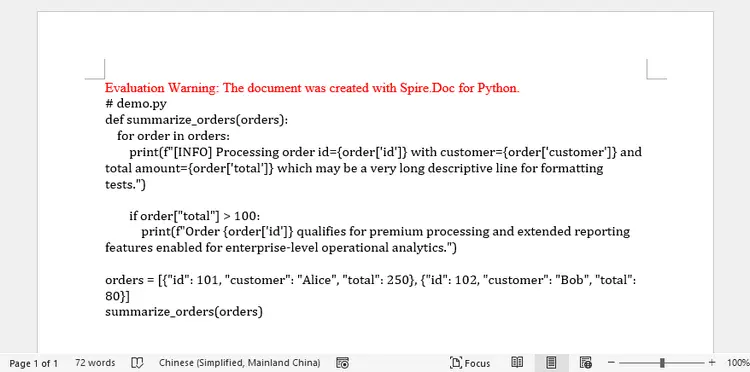
This technique treats Python code as plain text and inserts it directly into a Word paragraph. The script reads the .py file using Path.read_text(), preserving indentation, blank lines, and overall structure.
After inserting the text, a custom paragraph style is created and applied. The use of a monospace font such as Consolas ensures alignment and readability, while fixed line spacing maintains consistent formatting across lines.
Because no intermediate format is used, this is the simplest and fastest approach. However, it does not provide syntax highlighting or semantic styling—Word only displays the code as formatted text.
Output:
You May Also Like: Generate Word Documents Using Python
Method 2. Generate a Word File from Markdown-Wrapped Code
If your workflow already uses Markdown, wrapping Python code inside fenced blocks provides a structured way to convert scripts into Word documents.
from pathlib import Path
from spire.doc import *

# Read Python file
code = Path("demo.py").read_text(encoding="utf-8")

# Convert to Markdown
md_content = f"```python\n{code}\n```"
Path("temp.md").write_text(md_content, encoding="utf-8")

# Load Markdown into Word
doc = Document()
doc.LoadFromFile("temp.md")

# Update page settings
doc.Sections[0].PageSetup.Margins.All = 60

# Save as a DOCX file
doc.SaveToFile("Output.docx", FileFormat.Docx)
doc.Dispose()
How It Works:
Instead of inserting text directly, this method wraps Python code inside Markdown fenced code blocks. The generated Markdown file is then loaded into Word using Spire.Doc’s Markdown parsing capability.
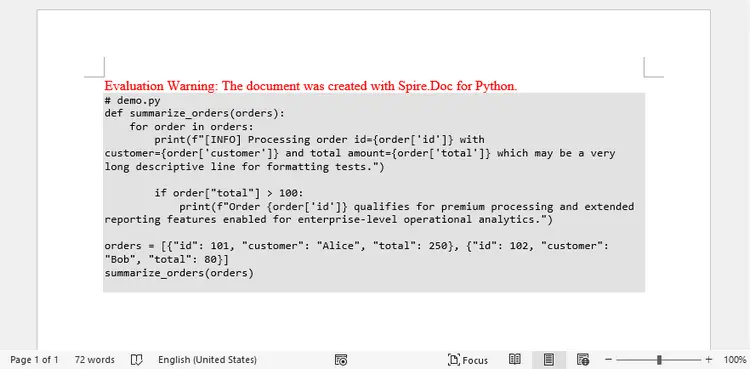
When Word imports Markdown, it automatically preserves code formatting such as indentation and line breaks. This approach is useful when your documentation workflow already uses Markdown or when code needs to coexist with headings, lists, and descriptive text.
Since Markdown itself does not inherently apply syntax coloring inside Word, the result is still plain code formatting—but the structure is cleaner and easier to manage within technical documentation pipelines.
Output:
Add Syntax-Highlighted Python Code to Word
Syntax highlighting makes code easier to read and understand. By integrating Pygments, Python scripts can be converted into stylized formats before being embedded into Word.
This section explores three approaches — RTF, HTML, and image rendering — each with different strengths depending on your formatting goals.
Method 1. Use RTF for Preformatted Code Blocks
RTF allows syntax-highlighted code to remain fully editable within Word.
from pathlib import Path
from pygments import highlight
from pygments.lexers import PythonLexer
from pygments.formatters import RtfFormatter
from spire.doc import *

# Read Python file
code = Path("demo.py").read_text(encoding="utf-8")

# Set font
formatter = RtfFormatter(fontface ="Consolas")

# Specify the lexer
rtf_text = highlight(code, PythonLexer(), formatter)
rtf_text = rtf_text.replace(r"\f0", r"\f0\fs24") # font size (24 for 12-point font)

# Create a Word document
doc = Document()

# Add a section
section = doc.AddSection()
section.PageSetup.Margins.All = 60

# Add a paragraph
paragraph = section.AddParagraph()

# Insert the syntax-highlighted code as RTF
paragraph.AppendRTF(rtf_text)

# Save the document
doc.SaveToFile("Output.docx", FileFormat.Docx2019)
doc.Dispose()
How It Works:
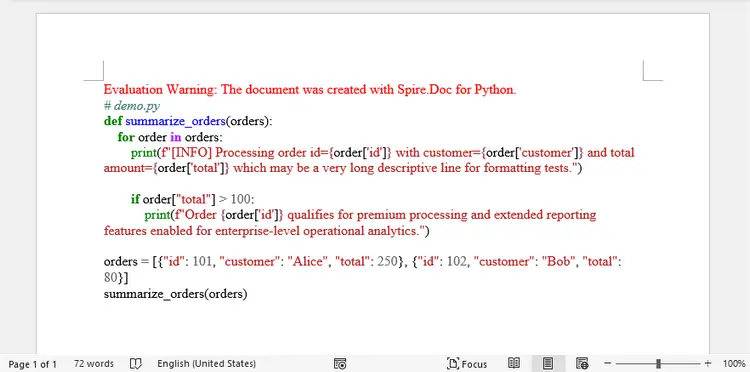
Pygments analyzes Python syntax using a lexer, identifying tokens such as keywords, strings, and comments. The RTF formatter applies styling rules that represent colors and fonts using RTF control words.
The resulting RTF string is inserted directly into Word using AppendRTF(). Because RTF is a native Word-compatible format, the document preserves fonts, colors, and spacing without requiring additional rendering steps.
Font size is controlled by modifying RTF control words (e.g., \fs24), allowing precise control over appearance. This method produces editable, selectable code with syntax highlighting inside Word.
Output:
Method 2. Render Highlighted Code via HTML Formatting
HTML rendering provides visually rich syntax highlighting and automatic text wrapping.
from pathlib import Path
from pygments import highlight
from pygments.lexers import PythonLexer
from pygments.formatters import HtmlFormatter
from spire.doc import *

# Read Python file
code = Path("demo.py").read_text(encoding="utf-8")

# Generate HTML from the Python code with syntax highlighting
html_text = highlight(code, PythonLexer(), HtmlFormatter(full=True))

# Create a Word document
doc = Document()

# Add a section
section = doc.AddSection()
section.PageSetup.Margins.All = 60

# Add a paragraph
paragraph = section.AddParagraph()

# Add the HTML string to the paragraph
paragraph.AppendHTML(html_text)

# Save the document
doc.SaveToFile("Output.docx", FileFormat.Docx2019)
doc.Dispose()
How It Works:
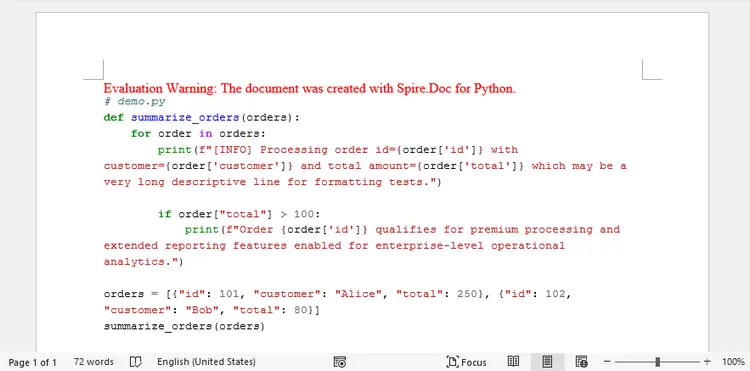
Here, Pygments converts Python code into styled HTML using the HtmlFormatter. The HTML output includes inline styles or CSS rules that represent syntax colors and formatting.
Spire.Doc then interprets the HTML content and renders it into Word. During this process, HTML elements are translated into Word formatting structures, allowing the highlighted code to appear visually similar to web-based code blocks.
This approach is ideal when code originates from web content, static documentation sites, or Markdown-to-HTML workflows.
Output:
You May Also Like: Convert HTML to Word DOC or DOCX in Python
Method 3. Insert Syntax-Highlighted Code as Images
For scenarios where visual consistency matters more than editability, code can be rendered as an image before insertion.
from pathlib import Path
import textwrap
from pygments import highlight
from pygments.lexers import PythonLexer
from pygments.formatters import ImageFormatter
from spire.doc import *

# Read Python file
code = Path("demo.py").read_text(encoding="utf-8")

# Wrap long lines manually
def wrap_code_lines(code_text, max_width=75):
    wrapped_lines = []
    for line in code_text.splitlines():
        if len(line) > max_width:
            wrapped_lines.extend(textwrap.wrap(
                line,
                width=max_width,
                replace_whitespace=False,
                drop_whitespace=False
            ))
        else:
            wrapped_lines.append(line)
    return "\n".join(wrapped_lines)

code = wrap_code_lines(code, max_width=75)

# Step 3: Generate image
formatter = ImageFormatter(
    font_name="Consolas",
    font_size=18,
    scale=2,
    image_pad=10,
    line_pad=2,
    background_color="#ffffff"
)

img_bytes = highlight(code, PythonLexer(), formatter)

with open("code.png", "wb") as f:
    f.write(img_bytes)

# Create a Word document
doc = Document()
section = doc.AddSection()
section.PageSetup.Margins.All = 60

# Insert into Word
paragraph = section.AddParagraph()
picture = paragraph.AppendPicture("code.png")

# Ensure image fits page width
page_width = (
    section.PageSetup.PageSize.Width
    - section.PageSetup.Margins.Left
    - section.PageSetup.Margins.Right
)
picture.Width = page_width

# Save the document
doc.SaveToFile("Output.docx", FileFormat.Docx2019)
doc.Dispose()
How It Works:
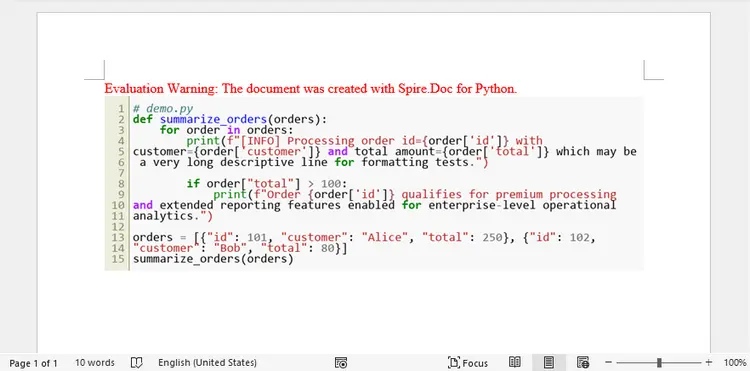
This method renders Python code as an image instead of editable text. Pygments generates a syntax-highlighted bitmap using the ImageFormatter, allowing full visual control over fonts, colors, padding, and DPI.
Since image rendering does not automatically wrap long lines, the script manually wraps lengthy code lines using Python’s textwrap module before generating the image. This prevents oversized images that exceed page width.
After inserting the image into Word, its width is dynamically resized to fit the printable page area. Because the code is embedded as a graphic, it preserves exact visual appearance across platforms and prevents formatting inconsistencies—but the text is no longer editable.
Output:
Conclusion
Converting Python code to Word documents can be achieved through several approaches depending on your goals. Plain text methods provide simplicity and flexibility, while RTF and HTML techniques offer powerful syntax highlighting with selectable text. Image-based code blocks deliver consistent visual formatting but require careful line wrapping and scaling.
For most documentation workflows:
- Use plain text for editable technical content
- Use HTML or RTF for syntax-highlighted documentation
- Use images when formatting consistency is critical
FAQs
Which method is best for tutorials?
HTML or RTF methods provide clear syntax highlighting with selectable text.
How can I preserve indentation and blank lines?
Read the .py file using .read_text() without stripping or modifying lines.
Why do image-based code blocks become too small?
Word scales images to fit page width. Increasing the image formatter’s scale or adjusting the wrapping width can improve readability.
Can readers copy code from Word?
Yes — except when code is inserted as an image.
Do I need Markdown for conversion?
No. Markdown is optional but useful when working with documentation pipelines.
Can I export the generated document as a PDF file?
Yes. When saving the document, simply specify PDF as the output format in the Document.SaveToFile() method.
Get a Free License
To fully experience the capabilities of Spire.Doc for Python without any evaluation limitations, you can request a 30-day trial license.
