CSV (Comma-Separated Values) files are the backbone of data exchange across industries—from data analysis to backend systems. They’re lightweight, human-readable, and compatible with almost every tool (Excel, Google Sheets, databases). If you’re a developer seeking a reliable way to create a CSV file in Python, Spire.XLS for Python is a powerful library that simplifies the process.
In this comprehensive guide, we'll explore how to generate a CSV file in Python with Spire.XLS, covering basic CSV creation and advanced use cases like list to CSV and Excel to CSV conversion.
What You’ll Learn
- Installation and Setup
- Basic: Create a Simple CSV File in Python
- Dynamic Data: Generate CSV from a List of Dictionaries in Python
- Excel-to-CSV: Generate CSV From an Excel File in Python
- Best Practices for CSV Creation
- FAQ: Create CSV in Python
Installation and Setup
Getting started with Spire.XLS for Python is straightforward. Follow these steps to set up your environment:
Step 1: Ensure Python 3.6 or higher is installed.
Step 2: Install the library via pip (the official package manager for Python):
pip install Spire.XLS
Step 3 (Optional): Request a temporary free license to test full features without any limitations.
Basic: Create a Simple CSV File in Python
Let’s start with a simple scenario: creating a CSV file from scratch with static data (e.g., a sales report). The code below creates a new workbook, populates it with data, and saves it as a CSV file.
from spire.xls import *
from spire.xls.common import *

# 1. Create a new workbook
workbook = Workbook()

# 2. Get the first worksheet (default sheet)
worksheet = workbook.Worksheets[0]

# 3. Populate data into cells
# Header row
worksheet.Range["A1"].Text = "ProductID"
worksheet.Range["B1"].Text = "ProductName"
worksheet.Range["C1"].Text = "Price"
worksheet.Range["D1"].Text = "QuantitySold"

worksheet.Range["A2"].NumberValue = 101
worksheet.Range["B2"].Text = "Wireless Headphones"
worksheet.Range["C2"].NumberValue = 79.99
worksheet.Range["D2"].NumberValue = 250

worksheet.Range["A3"].NumberValue = 102
worksheet.Range["B3"].Text = "Bluetooth Speaker"
worksheet.Range["C3"].NumberValue = 49.99
worksheet.Range["D3"].NumberValue = 180

# Save the worksheet to CSV
worksheet.SaveToFile("BasicSalesReport.csv", ",", Encoding.get_UTF8())
workbook.Dispose()
Core Workflow
- Initialize Core object: Workbook() creates a new Excel workbook, Worksheets[0] accesses the target sheet.
- Fill data into cells: Use .Text (for strings) and .NumberValue (for numbers) to ensure correct data types.
- Export & cleanup: SaveToFile() exports the worksheet to CSV , and Dispose() prevents memory leaks.
Output:
The resulting BasicSalesReport.csv will look like this:

Dynamic Data: Generate CSV from a List of Dictionaries in Python
In real-world scenarios, data is often stored in dictionaries (e.g., from APIs/databases). The code below converts a list of dictionaries to a CSV:
from spire.xls import *
from spire.xls.common import *

# Sample data (e.g., from a database/API)
customer_data = [
    {"CustomerID": 1, "Name": "John Doe", "Email": "john@example.com", "Country": "USA"},
    {"CustomerID": 2, "Name": "Maria Garcia", "Email": "maria@example.es", "Country": "Spain"},
    {"CustomerID": 3, "Name": "Li Wei", "Email": "wei@example.cn", "Country": "China"}
]

# 1. Create workbook and worksheet
workbook = Workbook()
worksheet = workbook.Worksheets[0]

# 2. Write headers (extract keys from the first dictionary)
headers = list(customer_data[0].keys())
for col_idx, header in enumerate(headers, start=1):
    worksheet.Range[1, col_idx].Text = header  # Row 1 = headers

# 3. Write data rows
for row_idx, customer in enumerate(customer_data, start=2):  # Start at row 2
    for col_idx, key in enumerate(headers, start=1):
        # Handle different data types (text/numbers)
        value = customer[key]
        if isinstance(value, (int, float)):
            worksheet.Range[row_idx, col_idx].NumberValue = value
        else:
            worksheet.Range[row_idx, col_idx].Text = value

# 4. Save as CSV
worksheet.SaveToFile("CustomerData.csv", ",", Encoding.get_UTF8())
workbook.Dispose()
This example is ideal for JSON to CSV conversion, database dumps, and REST API data exports. Key advantages include:
- Dynamic Headers: Automatically extracts headers from the keys of the first dictionary in the dataset.
- Scalable: Seamlessly adapts to any volume of dictionaries or key-value pairs (perfect for dynamic data).
- Clean Output: Preserves the original order of dictionary keys for consistent CSV structure.
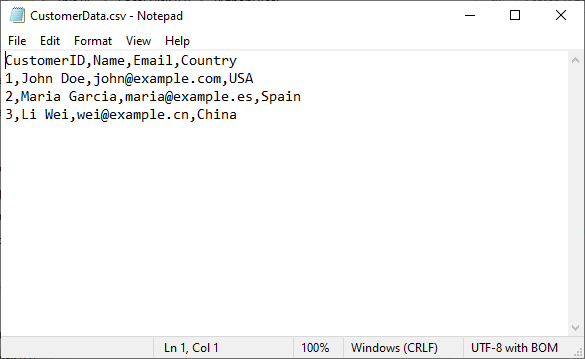
The generated CSV file:
Excel-to-CSV: Generate CSV From an Excel File in Python
Spire.XLS excels at converting Excel (XLS/XLSX) to CSV in Python. This is useful if you have Excel reports and need to export them to CSV for data pipelines or third-party tools.
from spire.xls import *

# 1. Initialize a workbook instance
workbook = Workbook()

# 2. Load a xlsx file
workbook.LoadFromFile("Expenses.xlsx")

# 3. Save Excel as a CSV file
workbook.SaveToFile("XLSXToCSV.csv", FileFormat.CSV)
workbook.Dispose()
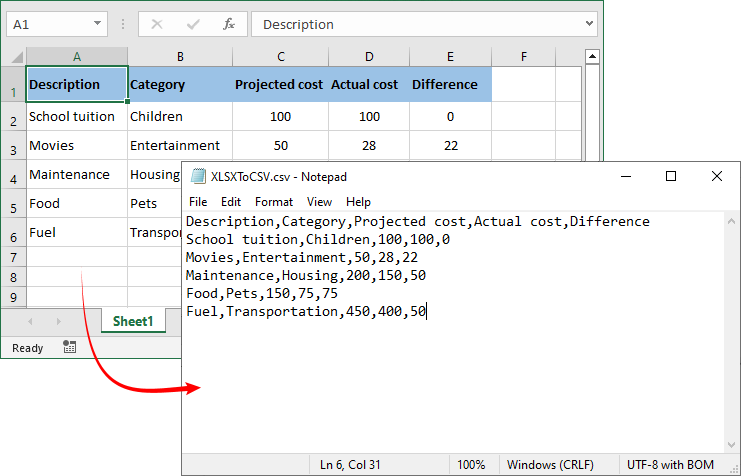
Conversion result:
Note: By default, SaveToFile() converts only the first worksheet. For converting multiple sheets to separate CSV files, refer to the comprehensive guide: Convert Excel (XLSX/XLS) to CSV in Python – Batch & Multi-Sheet
Best Practices for CSV Creation
Follow these guidelines to ensure robust and professional CSV output:
- Validate Data First: Clean empty rows/columns before exporting to CSV.
- Use UTF-8 Encoding: Always specify UTF-8 encoding (Encoding.get_UTF8()) to support international characters seamlessly.
- Batch Process Smartly: For 100k+ rows, process data in chunks (avoid loading all data into memory at once).
- Choose the Correct Delimiter: Be mindful of regional settings. For European users, use a semicolon (;) as the delimiter to avoid locale issues.
- Dispose Objects: Release workbook/worksheet resources with Dispose() to prevent memory leaks.
Conclusion
Spire.XLS simplifies the process of leveraging Python to generate CSV files. Whether you're creating reports from scratch, converting Excel workbooks, or handling dynamic data from APIs and databases, this library delivers a robust and flexible solution.
By following this guide, you can easily customize delimiters, specify encodings such as UTF-8, and manage data types—ensuring your CSV files are accurate, compatible, and ready for any application. For more advanced features, you can explore the Spire.XLS for Python tutorials.
FAQ: Create CSV in Python
Q1: Why choose Spire.XLS over Python’s built-in csv module?
A: While Python's csv module is excellent for basic read/write operations, Spire.XLS offers significant advantages:
- Better data type handling: Automatic distinction between text and numeric data.
- Excel Compatibility: Seamlessly converts between Excel (XLSX/XLS) and CSV—critical for teams using Excel as a data source.
- Advanced Customization: Supports customizing the delimiter and encoding of the generated CSV file.
- Batch processing: Efficient handling of large datasets and multiple files.
- Cross-Platform Support: Works on Windows, macOS, and Linux (no Excel installation required).
Q2: Can I use Spire.XLS for Python to read CSV files?
A: Yes. Spire.XLS supports parsing CSV files and extracting their data. Details refer to: How to Read CSV Files in Python: A Comprehensive Guide
Q3: Can Spire.XLS convert CSV files back to Excel format?
A: Yes! Spire.XLS supports bidirectional conversion. A quick example:
from spire.xls import *

# Create a workbook
workbook = Workbook()

# Load a CSV file
workbook.LoadFromFile("sample.csv", ",", 1, 1)

# Save CSV as Excel
workbook.SaveToFile("CSVToExcel.xlsx", ExcelVersion.Version2016)
Q4: How do I change the CSV delimiter?
A: The SaveToFile() method’s second parameter controls the delimiter:
# Semicolon (for European locales):
worksheet.SaveToFile("EU.csv", ";", Encoding.get_UTF8())
# Tab (for tab-separated values/TSV)
worksheet.SaveToFile("TSV_File.csv", "\t", Encoding.get_UTF8())
