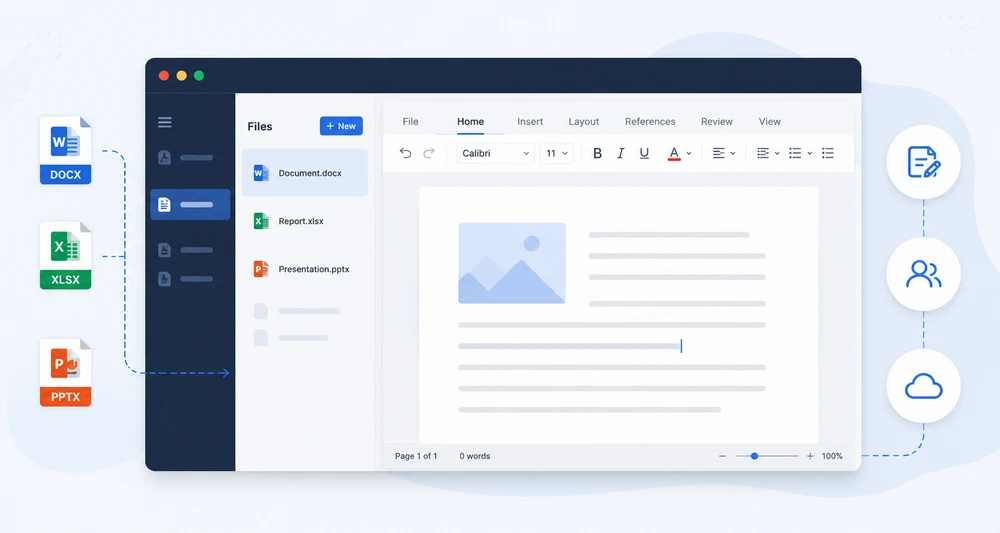
Modern web applications increasingly require built-in document capabilities for viewing and editing Word, Excel, and PowerPoint files directly in the browser. Instead of redirecting users to external applications, developers often need to embed an Office editor in a web page as part of their existing interface.
Building a fully functional online document editor from scratch can be complex, involving document rendering, format compatibility, editing workflows, and responsive UI integration. With Spire.OfficeJS from e-iceblue, developers can quickly integrate a browser-based Office editor into HTML pages using JavaScript without requiring Microsoft Office installations on client devices.
This article demonstrates how to embed a document editor in HTML, including page layout design, editor initialization, and dynamic document loading with practical examples.
Table of Contents
- Why Embed an Office Editor into a Web Page?
- Prerequisites
- Basic Page Layout for Integration
- Embed the Office Editor into a Container
- Load and Switch Documents Dynamically
- Customize Editor Behavior
- Integrating the Editor into Existing Business Systems
- Framework Integration (React, Vue, Angular)
- Common Integration Issues
- Conclusion
- FAQ
Why Embed an Office Editor into a Web Page?
Embedding a document editor as part of your page layout enables seamless workflows and better user experience. Common use cases include:
- Document management systems (DMS) where users view and edit files without leaving the interface
- CRM or ERP platforms with integrated file editing capabilities
- Online collaboration tools requiring real-time document editing
- Internal business dashboards with document preview functionality
Instead of opening documents in a separate application or dedicated page, users can work with documents directly inside the current web interface.
Embedded vs Full-Page Editors
There are two common integration approaches:
| Approach | Description |
|---|---|
| Full-page editor | The entire page is dedicated to document editing |
| Embedded editor | The editor is integrated as part of a larger UI |
This tutorial focuses on the embedded approach, where the document editor works alongside sidebars, file lists, navigation menus, and other application components.
Prerequisites
Before integrating the editor, ensure you have:
Server Setup
-
Download and Extract Spire.OfficeJS
Download the Spire.OfficeJS package and extract it to a local directory.
-
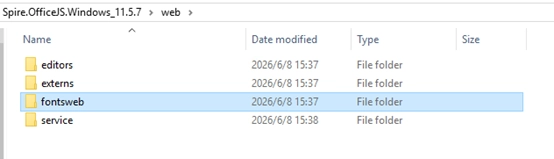
Initialize font
cd Spire.OfficeJS.Windows_11.5.7
run_genallfonts.bat
Before deployment, it is necessary to first execute "run_genallfonts. bat" to initialize the font. After execution, the "fontsweb" folder will appear in the web folder containing the basic font. If you need to add other fonts, please refer to: How to Add Custom Fonts in Spire.OfficeJS for Frontend Editors
-
Start Spire.OfficeJS Backend Service
run_servers.batThis starts the editor service on http://localhost:3000
-
Start Example Server (provides sample documents)
The example server runs on with sample documents available at http://localhost:3000/public/samples/
If you need a complete setup guide for installing and deploying Spire.OfficeJS in JavaScript applications, see: How to Deploy Spire.OfficeJS in JavaScript
Requirements
- Document files accessible from the browser
- Modern browser with WebAssembly support
Note: The code examples below use localhost addresses for local development and testing. In production environments, replace them with your actual server URLs or domain names.
Basic Page Layout for Integration
The first step is to design a layout where the editor occupies only part of the page. Here's a common structure with a sidebar and editor area:
<!DOCTYPE html>
<html>
<head>
  <title>Document Editor Integration</title>
  <style>
    .app-container {
      display: flex;
      height: 100vh;
    }

    .sidebar {
      width: 250px;
      border-right: 1px solid #ddd;
      padding: 10px;
      background: #f5f5f5;
    }

    .editor-container {
      flex: 1;
      position: relative;
    }
  </style>
</head>
<body>
  <div class="app-container">
    <div class="sidebar">
      <h3>Documents</h3>
      <ul>
        <li onclick="openDocument('http://localhost:3000/public/samples/sample.docx', 'docx')">Sample Document.docx</li>
        <li onclick="openDocument('http://localhost:3000/public/samples/sample.xlsx', 'xlsx')">Sample Spreadsheet.xlsx</li>
        <li onclick="openDocument('http://localhost:3000/public/samples/sample.pptx', 'pptx')">Sample Presentation.pptx</li>
      </ul>
    </div>

    <div class="editor-container" id="editor"></div>
  </div>
</body>
</html>
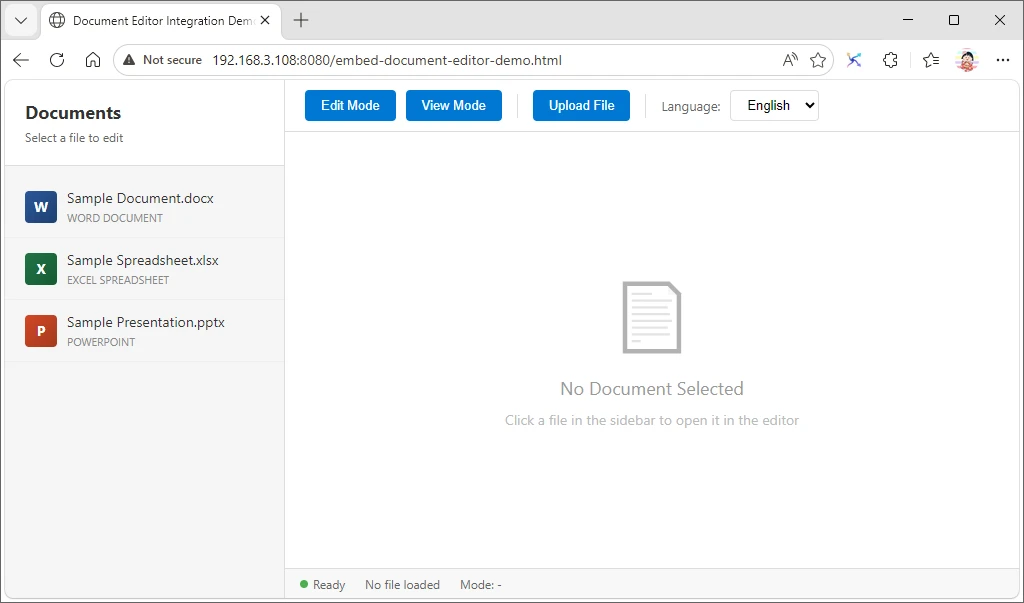
A simple embedded document management interface may look like this before a document is opened:
Layout Explanation
- The sidebar displays a file list with clickable document names
- The editor-container is a flex item that will host the document editor
- The editor fills the remaining space using
flex: 1
This structure reflects a real-world application layout rather than a simple demo page.
Embed the Office Editor into a Container
Load the Spire.OfficeJS script and initialize the editor inside your designated container:
<script src="http://localhost:3000/web/editors/spireapi/SpireCloudEditor.js"></script>

<script>
function initEditor() {
  const config = {
    user: {
      id: 'user1',
      name: 'Demo User'
    },
    fileAttrs: {
      sourceUrl: "http://localhost:3000/public/samples/sample.docx",
      fileInfo: {
        ext: "docx",
        name: "sample.docx"
      }
    },
    editorAttrs: {
      editorType: "document",
      editorMode: "edit",
      editorWidth: "100%",
      editorHeight: "100%",
      platform: "desktop",
      viewLanguage: "en",
      canEdit: true,
      canDownload: true,
      canForcesave: true,
      useWebAssemblyDoc: true,
      useWebAssemblyExcel: true,
      useWebAssemblyPpt: true,
      useWebAssemblyPdf: true,
      serverless: {
        useServerless: true,
        baseUrl: "http://localhost:3000",
        coAuthorUrl: "http://localhost:8000" //Collaborative editing service address
      },
      embedded: {
        saveUrl: "",
        toolbarDocked: 'top'
      },
      events: {
        onDocumentReady: function() {
          console.log('Document is ready');
        },
        onError: function(event) {
          console.error('Editor error:', event);
        },
        onSave: function(data) {
          console.log('Document saved', data);
          if (data && data.data && data.data.length >= 2) {
            downloadFile(data.data[1], data.data[0]);
          }
        }
      }
    }
  };

  new SpireCloudEditor.OpenApi("editor", config);
}

function downloadFile(file, fileName) {
  const a = document.createElement('a');
  const url = URL.createObjectURL(file);
  a.href = url;
  a.download = fileName;
  document.body.appendChild(a);
  a.click();
  document.body.removeChild(a);
  URL.revokeObjectURL(url);
}

initEditor();
</script>
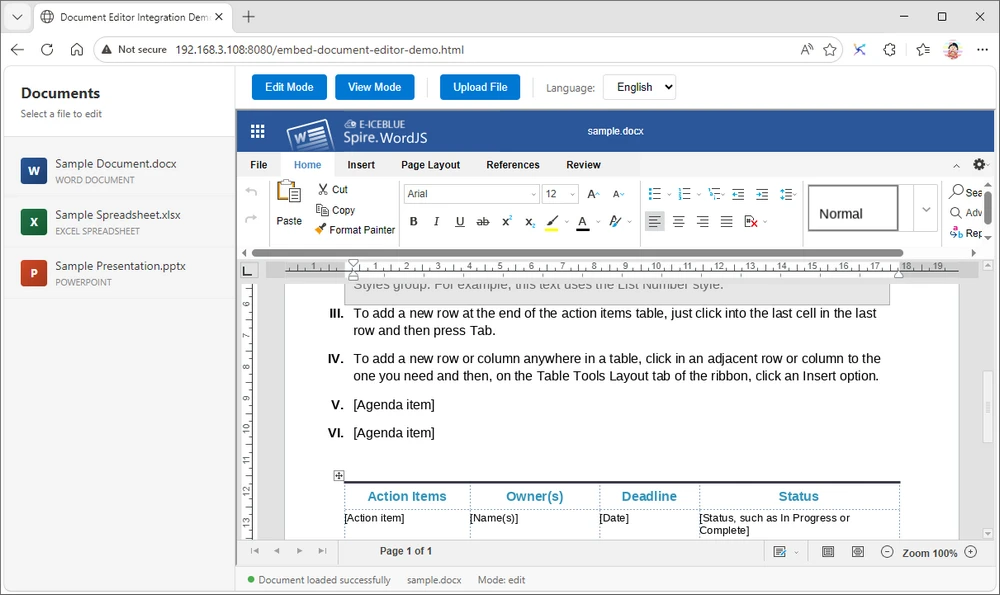
After initialization, the embedded Office editor loads directly inside the target container:
To help you get started quickly, you can download the complete runnable HTML example used in this article:
Download Embedded Editor Example
Note: Start the Spire.OfficeJS service before opening the sample editor. The downloadable demo dynamically detects the current host using window.location.hostname, so it should be opened via an HTTP server. For direct browser file preview, replace it with a fixed host address.
Configuration Breakdown
- user: Required user configuration with customization settings
- fileAttrs: Document source URL and file metadata
- editorAttrs: Editor behavior including mode, dimensions, and language
The editor renders inside the specified container element with ID "editor", allowing it to function as a UI component rather than taking over the entire page.
Load and Switch Documents Dynamically
In real applications, users need to open different files dynamically. You can achieve this by reinitializing the editor with new configurations:
let editorInstance = null;

function openDocument(sourceUrl, ext) {
  const fileName = sourceUrl.split('/').pop();

  if (editorInstance) {
    editorInstance.destroy();
  }

  const container = document.getElementById("editor");
  container.innerHTML = "";

  const config = {
    user: {
      id: 'user1',
      name: 'Demo User'
    },
    fileAttrs: {
      sourceUrl: sourceUrl,
      fileInfo: {
        ext: ext,
        name: fileName
      }
    },
    editorAttrs: {
      editorType: getEditorType(ext),
      editorMode: "edit",
      editorWidth: "100%",
      editorHeight: "100%",
      platform: "desktop",
      viewLanguage: "en",
      canEdit: true,
      canDownload: true,
      canForcesave: true,
      useWebAssemblyDoc: true,
      useWebAssemblyExcel: true,
      useWebAssemblyPpt: true,
      useWebAssemblyPdf: true,
      serverless: {
        useServerless: true,
        baseUrl: "http://localhost:3000",
        coAuthorUrl:"http://localhost:8000" //Collaborative Editing Service Address
      },
      embedded: {
        saveUrl: "",
        toolbarDocked: 'top'
      },
      events: {
        onSave: function(data) {
          if (data && data.data && data.data.length >= 2) {
            downloadFile(data.data[1], data.data[0]);
          }
        }
      }
    }
  };

  editorInstance = new SpireCloudEditor.OpenApi("editor", config);
}

function getEditorType(ext) {
  const extLower = ext.toLowerCase();
  switch (extLower) {
    case 'docx':
    case 'doc':
    case 'rtf':
    case 'txt':
    case 'odt':
      return 'document';
    case 'xlsx':
    case 'xls':
    case 'csv':
    case 'ods':
      return 'spreadsheet';
    case 'pptx':
    case 'ppt':
    case 'odp':
      return 'presentation';
    default:
      return 'document';
  }
}
How It Works
- Clicking a file in the sidebar triggers
openDocumentwith the file URL and extension - The previous editor instance is destroyed and container is cleared
- The editor reloads with the selected document
- No page refresh is required, maintaining application state
This pattern is essential for building interactive document management systems.
Best Practices for Document Switching
When switching between documents dynamically, proper cleanup prevents UI issues:
Error Handling and Loading States
Always use try-catch for error handling and consider adding loading indicators:
let editorInstance = null;

async function openDocument(sourceUrl, ext) {
  try {
    if (editorInstance) {
      editorInstance.destroy();
    }

    const container = document.getElementById("editor");
    container.innerHTML = "";

    const config = { /* ... configuration ... */ };
    editorInstance = new SpireCloudEditor.OpenApi("editor", config);
  } catch (error) {
    console.error('Failed to load document:', error);
  }
}
Key points:
- Always destroy old instances before creating new ones
- Clear the container element to prevent UI conflicts
- Use try-catch for robust error handling
Customize Editor Behavior
You can fine-tune the editor's behavior using configuration options in editorAttrs.
Read-Only Mode
Set the editor to view-only mode:
editorAttrs: {
  editorMode: "view",
  isReadOnly: true
}
Control User Permissions
Restrict specific actions:
editorAttrs: {
  canEdit: false,
  canDownload: false,
  canComment: true,
  canPrint: true
}
Change UI Language
Support internationalization by setting the interface language:
editorAttrs: {
  viewLanguage: "zh"
}
Supported languages include English ("en") and Chinese ("zh").
Configure Save Functionality
In serverless mode, saving is handled through the onSave event callback:
editorAttrs: {
  embedded: {
    saveUrl: "",  // Keep empty in serverless mode
    toolbarDocked: 'top'
  },
  events: {
    onSave: function(data) {
      console.log('Document saved', data);
      if (data && data.data && data.data.length >= 2) {
        // data.data[0] = filename, data.data[1] = file blob
        downloadFile(data.data[1], data.data[0]);
      }
    }
  }
}

function downloadFile(file, fileName) {
  const a = document.createElement('a');
  const url = URL.createObjectURL(file);
  a.href = url;
  a.download = fileName;
  document.body.appendChild(a);
  a.click();
  document.body.removeChild(a);
  URL.revokeObjectURL(url);
}
When users click save, the document is automatically downloaded to their local machine.
Dynamic Protocol Configuration
To support both HTTP and HTTPS environments, use dynamic protocol detection:
const currentHost = window.location.hostname;
const currentProtocol = window.location.protocol;

const baseUrl = `${currentProtocol}//${currentHost}:3000`;
const exampleBaseUrl = `${currentProtocol}//${currentHost}:3000`;
const coAuthorUrl = `${currentProtocol}//${currentHost}:8000`;
This prevents mixed content errors when the page is served over HTTPS.
Upload Local Files
Users can upload local documents for editing:
<input type="file" id="fileInput" accept=".docx,.xlsx,.pptx,.doc,.xls,.ppt"
       onchange="handleFileUpload(event)">
async function handleFileUpload(event) {
  const file = event.target.files[0];
  const fileName = file.name;
  const ext = fileName.split('.').pop().toLowerCase();

  const fileData = await new Promise((resolve) => {
    const reader = new FileReader();
    reader.onload = (e) => resolve(e.target.result);
    reader.readAsArrayBuffer(file);
  });

  const config = {
    user: {
      id: 'user1',
      name: 'Demo User'
    },
    fileAttrs: {
      sourceUrl: 'upload://' + fileName,
      fileInfo: { ext, name: fileName }
    },
    editorAttrs: {
      editorType: getEditorType(ext),
      serverless: {
        useServerless: true,
        baseUrl: baseUrl,
        coAuthorUrl: coAuthorUrl, //Collaborative Editing Service Address
        fileData: fileData  // Pass file data directly
      }
    }
  };

  editorInstance = new SpireCloudEditor.OpenApi("editor", config);
}
Integrating the Editor into Existing Business Systems
In most real-world scenarios, the online document editor is not the entire application. Instead, it functions as one module within a larger business system.
Typical integration patterns include:
- CRM systems with contract editing and proposal generation
- ERP systems with invoice review and report modification
- Document management systems (DMS) with embedded preview and editing workflows
- Customer portals with downloadable and editable forms
- Internal collaboration platforms combining document editing with chat, comments, and version control
Because the browser-based office editor is mounted into a standard DOM container, it can coexist seamlessly with:
- Sidebars and navigation menus
- File trees and folder structures
- Tab systems for multi-document editing
- Chat panels and comment threads
- Dashboards and analytics widgets
This modular architecture allows developers to build rich document-centric applications without sacrificing existing UI patterns or user workflows.
Framework Integration (React, Vue, Angular)
Although the example uses plain JavaScript, the same concept applies to modern frameworks. The key principle remains the same: initialize the editor after the component is mounted and render it into a DOM container.
React
useEffect(() => {
  new SpireCloudEditor.OpenApi("editor-container", config);
}, []);
Vue
mounted() {
  new SpireCloudEditor.OpenApi("editor-container", config);
}
Angular
ngAfterViewInit(): void {
  new SpireCloudEditor.OpenApi("editor-container", config);
}
For complete framework-specific setup and deployment instructions, see the dedicated integration guides:
- How to Integrate Spire.OfficeJS in React
- How to Integrate Spire.OfficeJS in Vue
- How to Integrate Spire.OfficeJS in Angular
Common Integration Issues
Here are common problems developers encounter and their solutions:
Editor Does Not Load
- Cause: Backend service is not running or script URL is incorrect
- Solution: Verify the service is running on port 3000 and use the correct script path:
http://localhost:3000/web/editors/spireapi/SpireCloudEditor.js
Script Loading Failed (CORS Error)
- Cause: Opening HTML file directly using
file://protocol - Solution: Start a local HTTP server (
python -m http.server 8080ornpx http-server -p 8080) and access viahttp://localhost:8080/your-file.html
File Fails to Load
- Cause: Document URL is inaccessible or blocked by CORS
- Solution: Ensure
sourceUrlis publicly accessible via HTTP. Replace placeholder URLs likehttps://example.com/with real accessible document URLs
404 Errors for /doc/*/c/info Endpoints
- Cause: Missing
serverlessconfiguration ineditorAttrs - Solution: Add
serverlessanduseWebAssembly*settings to your configuration
Multiple Editors Overlapping
- Cause: Old editor instance not properly destroyed before creating new one
- Solution: Always call
editorInstance.destroy()before creating a new instance
Blank Editor Container
- Cause: Browser cache issues or missing dependencies
- Solution: Clear browser cache, try incognito mode, or check browser console for errors
Service Connection Refused
- Cause: Required ports are blocked or service is not started
- Solution: Make sure port 3000 is open and the Spire.OfficeJS service is running
Editor Overflows Container
- Cause: Incorrect width/height settings
- Solution: Set
editorWidthandeditorHeightto"100%"and ensure the container has defined dimensions
Conclusion
In this article, we demonstrated how to embed a web-based Office document editor into an existing HTML page using Spire.OfficeJS. By treating the editor as a modular component, developers can integrate document editing capabilities directly into their web applications without redirecting users to separate pages.
The approach enables building rich document management interfaces where editors coexist with navigation, file lists, and other UI components. With proper configuration, the embedded editor provides the same powerful features as a full-page solution while maintaining a seamless user experience.
Spire.OfficeJS supports multiple document formats including Word (DOCX), Excel (XLSX), and PowerPoint (PPTX), making it a comprehensive solution for web-based document processing needs.
If you'd like to test Spire.OfficeJS in a real project environment, you can request a free temporary license here: Apply for a Temporary License
FAQ
How do I embed a document editor in a web page?
You can embed a document editor by initializing SpireCloudEditor.OpenApi inside a specific HTML container element with proper configuration for the document source and editor settings.
Does embedding require Microsoft Office installation?
No. Spire.OfficeJS uses WebAssembly for browser-side document processing while relying on the backend service to provide the editor interface and related resources. No Microsoft Office installation is required on client machines.
Can I integrate the editor into React or Vue applications?
Yes. The editor can be integrated into any JavaScript framework by mounting it into a DOM element during the component's lifecycle, such as useEffect in React or mounted in Vue.
What document formats are supported?
Spire.OfficeJS supports Word documents (DOCX, DOC), Excel spreadsheets (XLSX, XLS), and PowerPoint presentations (PPTX, PPT), as well as PDF viewing.
How do I handle document save operations?
In serverless mode, configure the onSave event callback in editorAttrs.events. When users save, the callback receives the file data which can be automatically downloaded or processed further.
