Have you ever needed to edit the text from a screenshot, a scanned PDF, or a photo of a document? Manually retyping everything is a tedious and error-prone process. Thankfully, you can convert images to text using powerful technology known as Optical Character Recognition (OCR).
In this comprehensive guide, we’ll explore the best free tools and methods to extract text from images instantly, catering to both casual users and developers.
- Why Convert an Image to TXT? Top Use Cases
- How Image to Text Converter Works: The Basics of OCR
- Top Free Tools to Convert Images to Text Online
- Picture to Text Free Desktop Converter: Microsoft OneNote
- Python OCR Library: Extract Text from Image using Spire.OCR
- Frequently Asked Questions (FAQs)
Why Convert an Image to TXT? Top Use Cases
The ability to convert images such as PNG or JPG to TXT files is more useful than you might think. Here are some common scenarios:
- Edit Scanned Documents: Turn old paper documents, contracts, or letters into editable Word or Google Docs files.
- Capture Text from Screenshots: Quickly grab text from a software tutorial, a social media post, or an error message without retyping.
- Translate Text in Images: Use an OCR tool to extract text, then paste it into a translator like Google Translate.
- Improve Accessibility: Make text within images readable by screen readers for visually impaired users.
How Image to Text Converter Works: The Basics of OCR
Most free tools use cloud-based OCR (no software download needed) or lightweight desktop apps. The process is simple:

Modern OCR tools support multiple languages (English, Spanish, Chinese, etc.), handwritten text (with varying accuracy), and can even handle low-quality images—though clearer images yield better results.
Pro Tip: For best OCR results, use high-resolution images with good lighting, minimal glare, and straight text (avoid tilted photos).
Top Free Tools to Convert Images to Text Online
You don't need expensive software. Here are the best free online OCR tools that work directly in your browser.
1. Google Drive (Google Docs)
This is one of the most powerful and often overlooked free OCR solutions.
How to use it:
- Go to drive.google.com.
- Upload your image (JPG, PNG) or scanned PDF to your Drive.
- Right-click the file and select “Open with > Google Docs”.
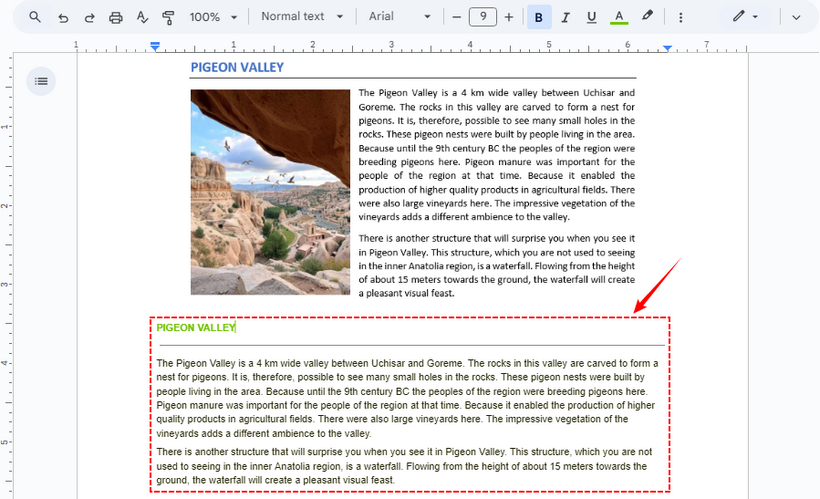
- Google Docs will instantly create a new document. The extracted text will be at the bottom of the embedded image.
✔ Pros: Highly accurate, integrates seamlessly with your Google ecosystem, and handles multiple pages.
✘ Cons: Formatting can sometimes be imperfect.
2. Online OCR Tool
Online OCR is a dedicated web tool for free image-to-text conversion. It supports JPG, PNG, TIFF, and PDF (up to 15MB per file for free).
How to use it:
- Go to Online OCR (no sign-up required).
- Upload your image or drag-and-drop it into the tool.
- Select the source language (e.g., English, French) and output format (Word, TXT, Excel).
- Click “Convert” and download the editable file with extracted text.

✔ Pros: No registration required for basic use; supports a wide range of languages and output formats.
✘ Cons: Free version has file size limits; ads on the site.
Need to export text as PDF? Refer to: Convert Text to PDF Easily: 4 Quick and Professional Methods
Picture to Text Free Desktop Converter: Microsoft OneNote
If you use Windows or Microsoft Office, OneNote’s built-in OCR tool is seamless and free. It works with images, scanned PDFs, and even screenshots you paste into notes.
How to use it:
- Open Microsoft OneNote and create a new page.
- Paste an image into the page or insert one via “Insert > Pictures”.
- Right-click the image and select “Copy Text from Picture”.
- Paste the extracted text anywhere (Word, Excel, etc.).
Note: If you need to recognize other languages, remember to right-click the image, select “Make text in image searchable”, and choose the exact language of your text.

✔ Pros: Integrates perfectly with Office; supports handwritten text; works offline.
✘ Cons: Requires the desktop app to be installed; less intuitive for Mac users.
Python OCR Library: Extract Text from Image using Spire.OCR
For users with basic Python skills, the Spire.OCR for Python library enables automated image-to-text conversion. It supports batch processing, multiple languages, and image formats (JPG, PNG, BMP, etc.)—perfect for streamlining repetitive OCR tasks (e.g., extracting text from 100 product images at once).
1. Install Spire.OCR Library: Open your command prompt or terminal and run the following pip command:
pip install spire.ocr
2. Download the OCR Model: Download the pre-trained model for your operating system from the links below and extract the files to a known directory (e.g., F:\OCR\win-x64).
3. Write the Python Script
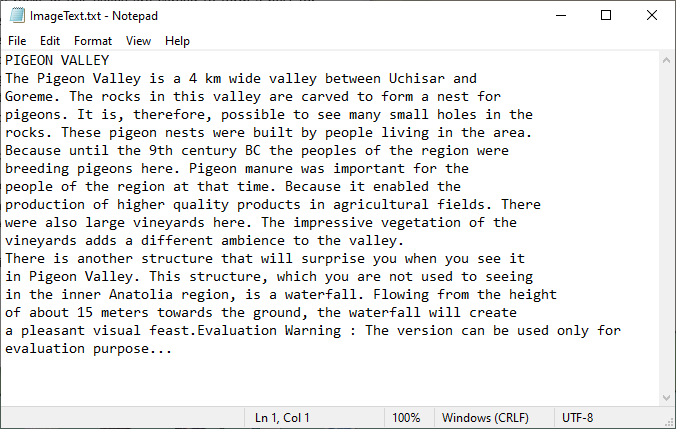
Create a new Python file (e.g., image_to_text.py) and paste the following code. This script loads an image, performs OCR, and saves the extracted text to a file.
from spire.ocr import *

# Create OCR scanner instance
scanner = OcrScanner()

# Configure OCR model path and language
configureOptions = ConfigureOptions()
configureOptions.ModelPath = "F:\\OCR Model\\win-x64"
configureOptions.Language = "English"
scanner.ConfigureDependencies(configureOptions)

# Perform OCR on the image
scanner.Scan("Sample.png")

# Save extracted text to file
text = scanner.Text.ToString()
with open("ImageText.txt", "a", encoding="utf-8") as file:
    file.write(text)
Key Steps:
- Create an OCR Scanner: Initializes a core OcrScanner object, which is responsible for all OCR-related operations (configuration, image scanning, text extraction).
-
Configure Model Path & Language:
- ConfigureOptions: A class to set OCR parameters.
- ModelPath: Path to the extracted OCR model files (critical for accurate text recognition).
- Language: Specifies the text recognition language (supports English, Chinese, French, etc).
- Perform OCR on Image: Uses the Scan() method to process the target image, triggering the OCR engine to extract text from the image.
The Extracted Text:
✔ Pros: Perfect for automation and batch processing; highly customizable through code.
✘ Cons: Requires basic Python knowledge and initial setup.
For scanned PDF, check this: Perform PDF OCR with Python (Extract Text from Scanned PDF)
Final Thoughts
Converting an image to text for free is no longer a complex task reserved for professionals. With powerful and accessible tools like Google Drive, OnlineOCR, and Microsoft OneNote, you can extract text from any image in seconds. For developers and power users looking to automate repetitive tasks, Python OCR libraries provide a robust and scalable solution.
Frequently Asked Questions (FAQs)
Q: Can these tools extract text from handwritten notes?
A: Yes, but with varying accuracy. Printed text is recognized with high precision, while handwriting success depends on its clarity and the tool's capabilities.
Q: Are free online OCR tools safe to use?
A: Reputable tools like Google Drive and OnlineOCR are generally safe for non-sensitive documents. However, for confidential files, using a desktop tool like OneNote or a local Python script is more secure as it doesn't upload your data to a server.
Q: Can I convert images to text offline?
A: Yes. You can use Microsoft OneNote or the Spire.OCR for Python library without an internet connection.
Q: Can Spire.OCR extract text coordinates in the image?
A: Yes. Spire.OCR captures text coordinates by returning the bounding box information of each recognized text region.
# Extract block-level text with position
block_text = ""
for block in text.Blocks:
    rectangle = block.Box
    block_info = f'{block.Text} -> x: {rectangle.X}, y: {rectangle.Y}, w: {rectangle.Width}, h: {rectangle.Height}'
    block_text += block_info + '\n'